Supply Planner
Supply Planner answers the core procurement question — what to buy, how much, and when — automatically.
It learns from your historical demand and purchasing patterns, then grounds every recommendation in your live supply chain reality: on-hand inventory, confirmed orders, and open POs. The result is a forward-looking inventory projection that surfaces critical needs before they become stockouts or lost revenue.
Recommendations are optimized against your supplier constraints — lead times, minimum order quantities, and inventory capacity — so the quantities you see aren't just theoretically correct, they're executable. Once a buyer or planner reviews and approves, Supply Planner can auto-execute purchase orders directly in your connected ERP — no manual re-entry, no handoff delays.
Supply Planner adapts to any planning horizon your business runs on — whether that's daily replenishment, weekly cycles, or long-range capacity planning.
What Supply Planner Owns
| Stage | What Athena does |
|---|---|
| Signal | Scans every supplier and SKU in the active recommendation cycle for Revenue at Risk, Critical SKUs, and MOQ shortfalls, and classifies each item's Primary Action — Critical - Stock out, Within Limits - Order now, or Order recommended — from its current inventory position and projected demand. |
| Decision | Runs the Calculation Breakdown behind each recommendation — Current Stock, Planning Horizon Demand, Safety Stock, and Net Need weighed against MOQ, order multiples, supplier lead time, and truck/pallet capacity — to arrive at a Recommended Quantity and Order This Cycle, with the logic laid out in Athena's Reasoning and the paths not taken in Alternatives Considered. |
| Action | Surfaces the recommendation and its Next Actions in Recommended Simulation; once a planner reviews, adjusts the quantity, and approves, the order moves to Review Purchase Order and can auto-execute into the connected ERP. |
| Feedback | Projects the After Planning position — Projected Inventory, Safety Stock, and Variance — and where a gap remains, explains it in Why This Is Happening and proposes Suggested Fixes; finalized orders roll into Purchase Order History as the record of what was actually executed. |
| Learning | Carries each cycle's Insight Summary, confidence level, and executed-versus-recommended variance into the next recommendation run, so the calculated lead time, safety stock, and MOQ inputs stay aligned with what suppliers and demand actually did. |
A typical Co-Pilot workflow
A planner opens Recommended Simulation and sees a supplier flagged for Critical SKUs and Revenue at Risk. Drilling into an item, the Primary Action reads Critical - Stock out; the Athena Recommendation panel breaks down the math — Current Stock, Planning Horizon Demand, Safety Stock, Net Need — and AI Reasoning explains it as a lead-time risk with a stated confidence level. The planner accepts the Recommended Quantity for most items, adjusts a few based on local knowledge, and selects the set to order. In Review Purchase Order, the orders are checked against MOQ and truck-capacity constraints and finalized — once approved, they submit directly to the connected ERP or the configured PO email workflow. The resulting After Planning projection, and any Variance still open, carry forward into the next cycle's recommendations.
Guardrail: purchase orders always require planner review and approval in Review Purchase Order before they submit — auto-execution applies only after that approval. PO submission routing (ERP integration or email) is configured per organization in Settings, and every submitted order is retained in Purchase Order History for audit.
What This Documentation Covers
This page is the reference for using Supply Planner in the platform: how to access it, configure plans, review and adjust system recommendations, and publish replenishment decisions. New to the agent? Start at Accessing Supply Planner. Looking for a specific function — safety stock adjustment, MOQ overrides, supplier substitution — jump to it via the table of contents on the right.
The Planning Workflow
Supply Planner is used in three stages, each with its own workspace. Work moves forward through them in order, and every stage is reachable directly from the Supply Planner Dashboard.
| Stage | Workspace | What happens here |
|---|---|---|
| Plan | Recommended Simulation | The agent generates replenishment recommendations from demand forecasts, inventory positions, and supplier constraints. Planners review the projections, adjust quantities where needed, and select the items to order. |
| Review | Review Purchase Order | The orders raised from the selected items are reviewed and then finalized. |
| Track | Purchase Order History | Finalized orders are viewed as a historical record of procurement activity. |
Everything else in this page supports one of those three stages. Settings configures how each workspace behaves and is normally set up once by a Supply Planner, rather than visited during a planning cycle.
Glossary
| Term | Description |
|---|---|
| Purchase Order (PO) | A finalized order created to procure items from a supplier. |
| Lead Time | The time taken for an item to be delivered after placing an order. |
| Safety Stock | Buffer inventory maintained to handle demand variability and avoid stockouts. |
| MOQ (Minimum Order Quantity) | The minimum quantity that must be ordered from a supplier. |
| Planning Horizon | The forward-looking time window over which demand is evaluated to generate recommendations. |
| Weeks of Supply (WOS) | The number of weeks of projected demand a given inventory quantity is expected to cover. |
| Backlog PO | A purchase order that has passed its expected delivery date and can optionally be factored into current recommendations. |
| Revenue at Risk | The projected revenue exposure if a recommended replenishment action is not completed within the planning horizon. |
Accessing Supply Planner
The Supply Planner application can be accessed directly from the ConverSight platform. From the left navigation pane, navigate to the AI Agents section and select the Supply Planner option.
Selecting Supply Planner opens the Supply Planner Dashboard, where users can access planning configurations and navigate to the planning workflow.

Supply Planner Dashboard
The Supply Planner Dashboard serves as the entry point to the Supply Planner application, providing a centralized view of all available planning configurations. Each planning configuration is displayed as a separate card that provides an overview of the planning status along with quick access to the major planning workflows.
The dashboard puts every stage of the planning workflow one click away, in the order planners normally move through them:
- Recommended Simulation: Generates replenishment recommendations from demand forecasts, inventory positions, and supplier constraints, and lets planners select the items to order.
- Review Purchase Order: Reviews the orders raised from the selected items and finalizes them.
- Purchase Order History: Views finalized orders as a historical record of procurement activity.

Settings
The Settings section allows Supply Planners to configure application-wide behavior, manage module permissions, customize layouts, configure preferences, and define the visibility of pages and components within the Supply Planner application.
To access, click on the Settings option within the Supply Planner app. This will open all the configuration sections required to set up the planner.
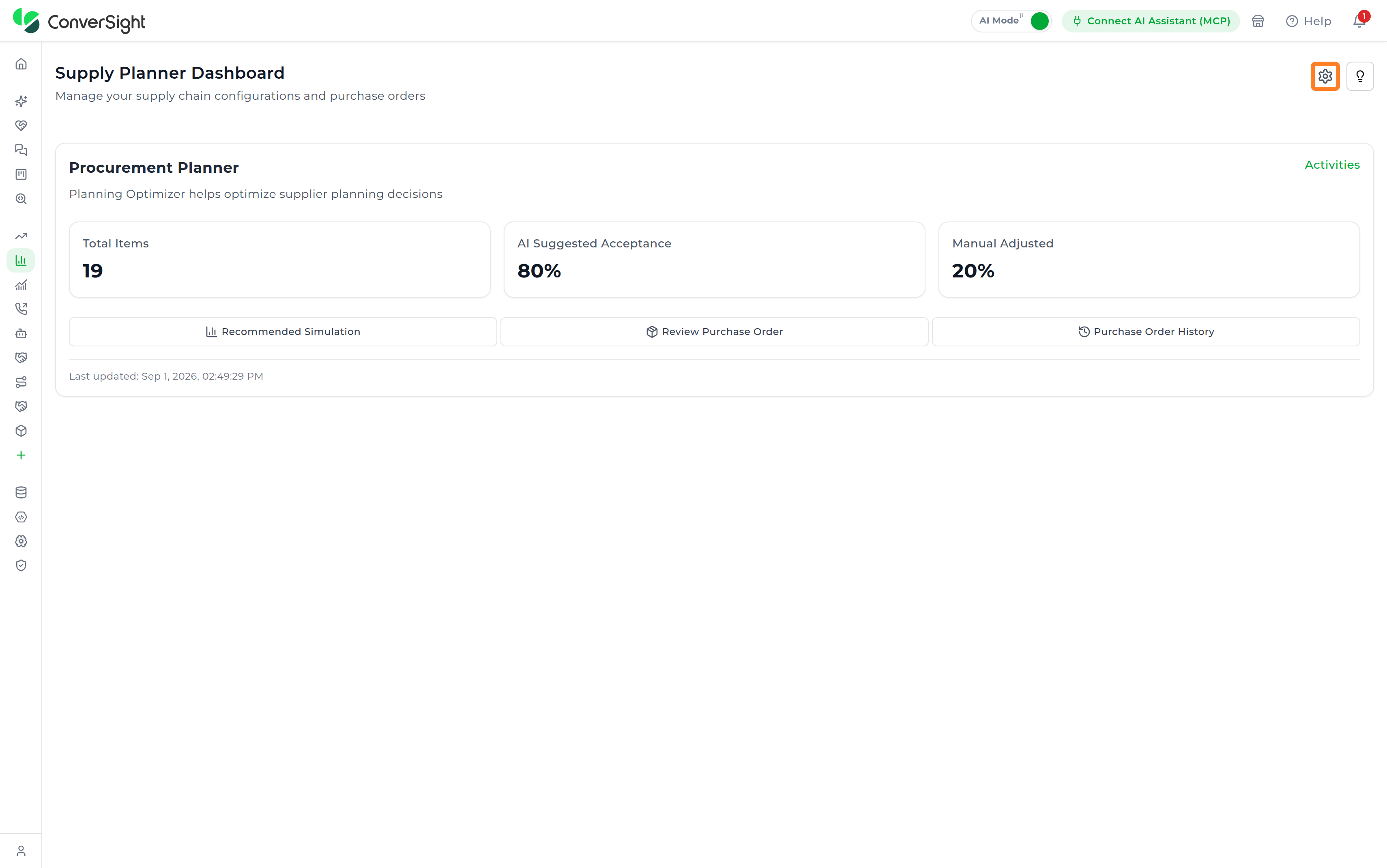
The Settings page consists of the following sections:
- General Settings
- App Configuration
- Notifications
- Version Management
General Settings
The General Settings section allows Supply Planners to configure application-wide preferences, purchase order submission settings, and advanced application behavior.
Application Preferences
The Application Preferences section defines the default behavior of the Supply Planner application.
| Field | Description |
|---|---|
| Default Landing Page | Specifies the page displayed when users first open the Supply Planner application. |
| PO Submission System | Specifies the ERP System that is used to submit purchase orders. |
| ERP Connector | Selects the connector resource used for purchase order submission when an ERP-based submission system is configured. |
| Master App Source | Selects the data table that Supply Planner designates as the source of truth for the Master App. |

PO Submission System – Email Configuration
When Email is selected as the PO Submission System, the Email Configuration section is enabled, allowing users to fully define how purchase orders are communicated. This section provides complete control over recipients, email structure, attachment format, and delivery behavior.
| Field | Description |
|---|---|
| CC Recipients | Email addresses that are copied openly on the purchase order email, visible to every recipient. |
| Receiver Recipients | Email addresses that receive the purchase order email as a hidden (BCC) copy, not visible to other recipients. |
| Email Subject | The subject line text that appears on the purchase order email when it reaches recipients. |
| Sender Name | The display name shown to recipients as the sender of the purchase order email. |
| Sender Email | The email address from which the purchase order is sent. |
| File Format | Sets the attachment format for the purchase order, such as Excel, CSV, or PDF. |
| Available Placeholders | A set of dynamic tokens, such as supplier name or order number, that automatically populate corresponding values when inserted into the email template. |
| Email Body | An editable template for composing the email content, with support for formatting and inserted placeholders. |
| Email Preview | A rendered preview of the completed email, shown before it is sent. |

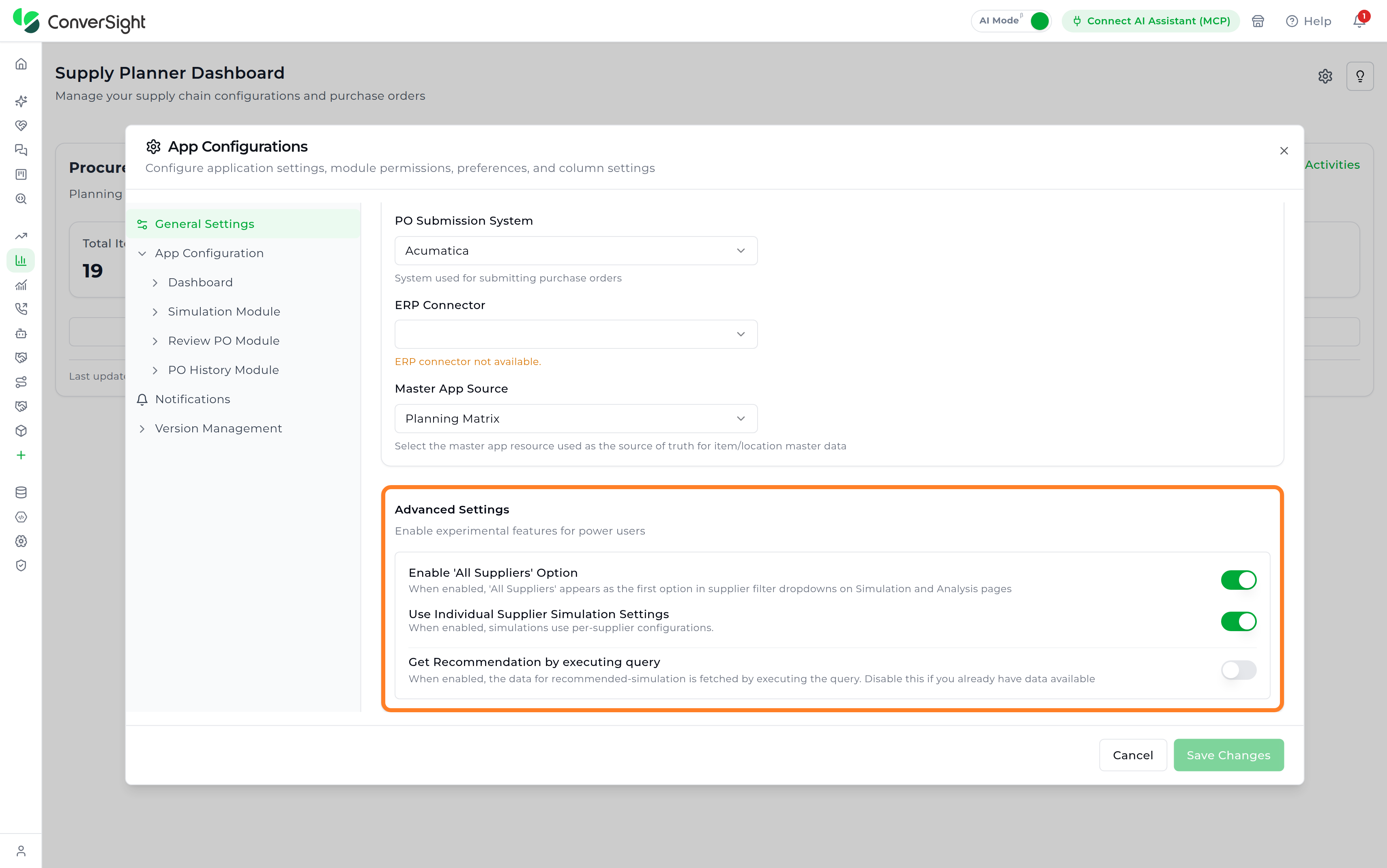
Advanced Settings
The Advanced Settings section provides additional configuration options that influence simulation behavior and supplier handling.
| Option | Description |
|---|---|
| Enable 'All Suppliers' Option | Adds an All Suppliers option to the supplier filters, allowing planners to review recommendations across every supplier in the planning configuration rather than selecting suppliers individually. |
| Use Individual Supplier Simulation Settings | Applies the simulation configuration defined for each supplier instead of a single shared configuration, so that suppliers with differing planning requirements are evaluated using their own settings. |
| Get Recommendation by Executing Query | Retrieves recommendation data by executing the configured query rather than reading previously generated results, ensuring the recommendation reflects the current state of the underlying data. |
App Configuration
The App Configuration section allows Supply Planners to configure each module available within the Supply Planner application. Each module provides its own configuration options, including permissions, layouts, preferences, and column settings.
Configuration is organized into four modules, each corresponding to a stage of the planning workflow:
| Module | Description |
|---|---|
| Dashboard | The cards and actions shown on the Supply Planner Dashboard. |
| Simulation Module | The layout and column structure of the Recommended Simulation workspace. |
| Review PO Module | Page access and column behavior for the Review Purchase Order workspace. |
| PO History Module | Page access and the master/detail table structure for the Purchase Order History workspace. |
Dashboard
The Dashboard module configures the entry point to the Supply Planner application — the Supply Planner Dashboard itself. Supply Planners control which components appear on each planning configuration card and which actions users can take from it.
Layout & Components
The Layout & Components section allows Supply Planners to configure the dashboard components that are displayed to users. The Configuration Cards component displays planning configurations as a grid and serves as the primary entry point into each planning configuration. Each component includes a Disabled Reason field, which displays a message to users when the component has been disabled.

Actions
The Actions section allows Supply Planners to configure the actions available on each planning configuration card, controlling whether users can delete a configuration, edit its details, or open its settings directly from the card.
| Action | Description |
|---|---|
| Delete Action | Allows users to remove a planning configuration card from the dashboard, withdrawing the planning configuration it represents from the available workspaces. |
| Edit Action | Allows users to modify an existing planning configuration card, updating the details of the planning configuration without recreating it. |
| Settings Action | Opens the configuration settings for a planning configuration, providing access to the options that govern how that planning configuration behaves. |
Each action can be configured independently by controlling its visibility and availability. When an action is disabled, a disabled reason can be provided to explain why the action is unavailable.

Simulation Module
The Simulation Module configures the Recommended Simulation workspace: who can access the page, which panels and components appear in it, and how planning parameters, bulk settings, and table columns are structured for the Panels & Components and Preferences sections below.
Permissions
The Permissions section controls access to the Simulation Module. Supply Planners can control whether the page is displayed, whether users can interact with it, and the message shown when access is restricted.
| Field | Description |
|---|---|
| Page Visible | Determines whether the Recommended Simulation page appears in the application navigation. |
| Page Enabled | Controls whether users can open and interact with the page once it is visible. |
| Disabled Reason | Sets the message shown to users when the page has been disabled. |

Panels & Components
The Panels & Components section outlines the key interface elements that enable users to view, configure, and interact with simulation data. Supply Planners can enable or disable each element individually, allowing the simulation workspace to be tailored to organizational requirements while keeping the review experience consistent for users.
| Component | Description |
|---|---|
| Bulk Configuration Panel | Opens the Bulk Settings panel, which applies configuration values across multiple items or suppliers at once rather than requiring each record to be updated individually. |
| Detail View | Reveals the expanded SKU-level breakdown available when a row is expanded within the recommendation workspace. |
| Export Button | Allows users to export the current recommendation results, including the active view and any applied filters, for offline analysis, reporting, or stakeholder collaboration. |
| Item Detail Drawer | Provides the item detail panel for a selected SKU, giving focused visibility into its inventory position, demand forecast, replenishment schedule, and cost analysis. |
| KPI Cards | Presents the summary metric cards above the recommendation workspace, giving an immediate overview of the active recommendation run. |
| Location Filter | Allows users to narrow the recommendation workspace to a selected warehouse or destination facility. |
| Recalculate Button | Enables users to re-run the recommendation calculations using the latest planning parameters, quantity adjustments, and operational changes applied within the workspace. |
| Simulation Grid | Presents the primary recommendation table showing the generated planning results. |
| Simulation Settings Panel | Opens the panel used to configure the planning parameters applied during recommendation generation. |
| Truck Utilization Drawer | Shows shipment and transportation capacity information, including the number of trucks required and the associated volume and weight utilization. |
| View Mode Toggle | Allows users to switch between the Supplier, Item, and Period views of the recommendation workspace. |
| Week Detail Panel | Shows the weekly breakdown for a selected planning period, including its shipment activity and operational metrics. |
| Week Summary Metrics | Presents the Metrics tab of the Week Summary panel, showing total demand, total PO quantity, items with shortage, and total cost for the selected week. |
| Week Summary Overview | Presents the Overview tab of the Week Summary panel, showing truck and shipment utilization for the selected week. |
| Week Summary Shipments | Lists the Shipments tab of the Week Summary panel, showing the purchase orders and shipment activity planned for the selected week. |

Preferences
The Preferences section controls how the Recommended Simulation workspace is set up, through two settings: Simulation Settings and Bulk Settings. Supply Planners use these to organize configuration into reusable sections, and to control which columns and column groups appear in the recommendation table.
Simulation Settings
The Simulation Settings section lets Supply Planners group related planning parameters under named sections instead of listing every parameter individually. This keeps the parameter form organized as more configuration is added, and makes it easier for users to find the setting they need when reviewing or adjusting a planning configuration.

Add Simulation Section Selecting Add Simulation Section opens a popup for creating a new section that Supply Planners can name and use to group related planning parameters together.

| Field | Description |
|---|---|
| Section Title | Name shown as the section heading in Simulation Settings, such as "Cost Optimization Settings." Use a name that clearly identifies the planning parameters grouped inside. |
| Description | A short explanation of what the section contains, helping other Supply Planners understand its purpose at a glance. |
Once you have entered all the details, click on the Create Section button.

Bulk Settings
The Bulk Settings section allows Supply Planners to organize configuration fields that can be applied across multiple items or suppliers.

Add Bulk Section
Selecting Add Bulk Section opens a popup for creating a new section that Supply Planners can name and use to group related bulk configuration fields together.

| Field | Description |
|---|---|
| Section Title | Name shown as the section heading in Bulk Settings, such as "Cost Overrides." Use a name that clearly identifies the configuration fields grouped inside. |
| Description | A short explanation of what the section contains, helping other Supply Planners understand its purpose at a glance. |
Once you have entered all the details, click on the Create Section button.

Column and Grouping Configuration
The Recommendation workspace supports configurable column and grouping management, enabling planners to customize how planning data is organized and displayed across the Supplier, Item, and Period views. Each view has its own page under Simulation Module: Supplier View Columns, Item View Columns, and Week View Columns, which configures the Period view. This allows each planning workspace to display only the operational information relevant to that analysis scenario.

Column Groups
Column Groups organize related planning fields under shared section headings, making the recommendation workspace easier to read and navigate. Instead of displaying all planning metrics as a single list of columns, related fields are grouped into logical categories such as Item Information, Inventory, Order, Cost, and Supply.
| Field | Description |
|---|---|
| Display Name | Defines the name displayed as the group heading in the recommendation workspace. Use a descriptive name that clearly identifies the type of planning information contained within the group. |
| Description | Provides an optional explanation of the purpose of the group. This can be used to describe the type of planning information included in the group and help users understand its purpose. |
| Display Order | Determines the position of the group relative to other column groups. Changing the display order allows users to organize the workspace according to the sequence in which they review planning information. |
| Actions | Provides options to manage the group, including editing its configuration or deleting the group when it is no longer required. |
Users can create and manage column groups using the Add Group option. Groups can be edited to update their configuration, reordered to control how they appear in the workspace, or deleted when they are no longer required.

Columns
The Columns configuration allows users to manage the individual fields displayed within the recommendation workspace. Users can control which planning metrics are visible, determine how they are organized, and configure how each column behaves during operational analysis. Users can also reorder columns to control the sequence in which information is presented. This allows frequently used planning fields to be positioned where they are easiest to access and helps create a more efficient review workflow.
| Field | Description |
|---|---|
| Column | Identifies the individual field displayed in the recommendation workspace. The column represents a specific planning metric or piece of operational information available for review. |
| Show | Controls whether the column is visible in the recommendation workspace. Users can hide columns that are not required for their current planning workflow without removing the underlying field. |
| Editable | Determines whether users can modify the value displayed in the column directly within the recommendation workspace. This can be used for fields that support planner input or adjustments. |
| Sortable | Determines whether the column can be used to sort the recommendation results. When enabled, planners can organize the displayed items based on the values in that column. |
| Filterable | Determines whether the column can be used as a filter when reviewing recommendation results. This allows planners to narrow the displayed items based on specific values or conditions. |
| Width | Defines the amount of horizontal space allocated to the column in the recommendation workspace. Adjusting the width helps ensure that values and column names are displayed clearly without unnecessary space. |
| Alignment | Controls how the content within the column is positioned. This allows the display of values to be consistently aligned based on the type of information being presented. |
| Data Type | Specifies the type of data represented by the column. The data type helps determine how the values are interpreted and displayed within the recommendation workspace. |
| Group | Assigns the column to a specific column group. This determines the section under which the column is displayed and helps keep related planning information together. |
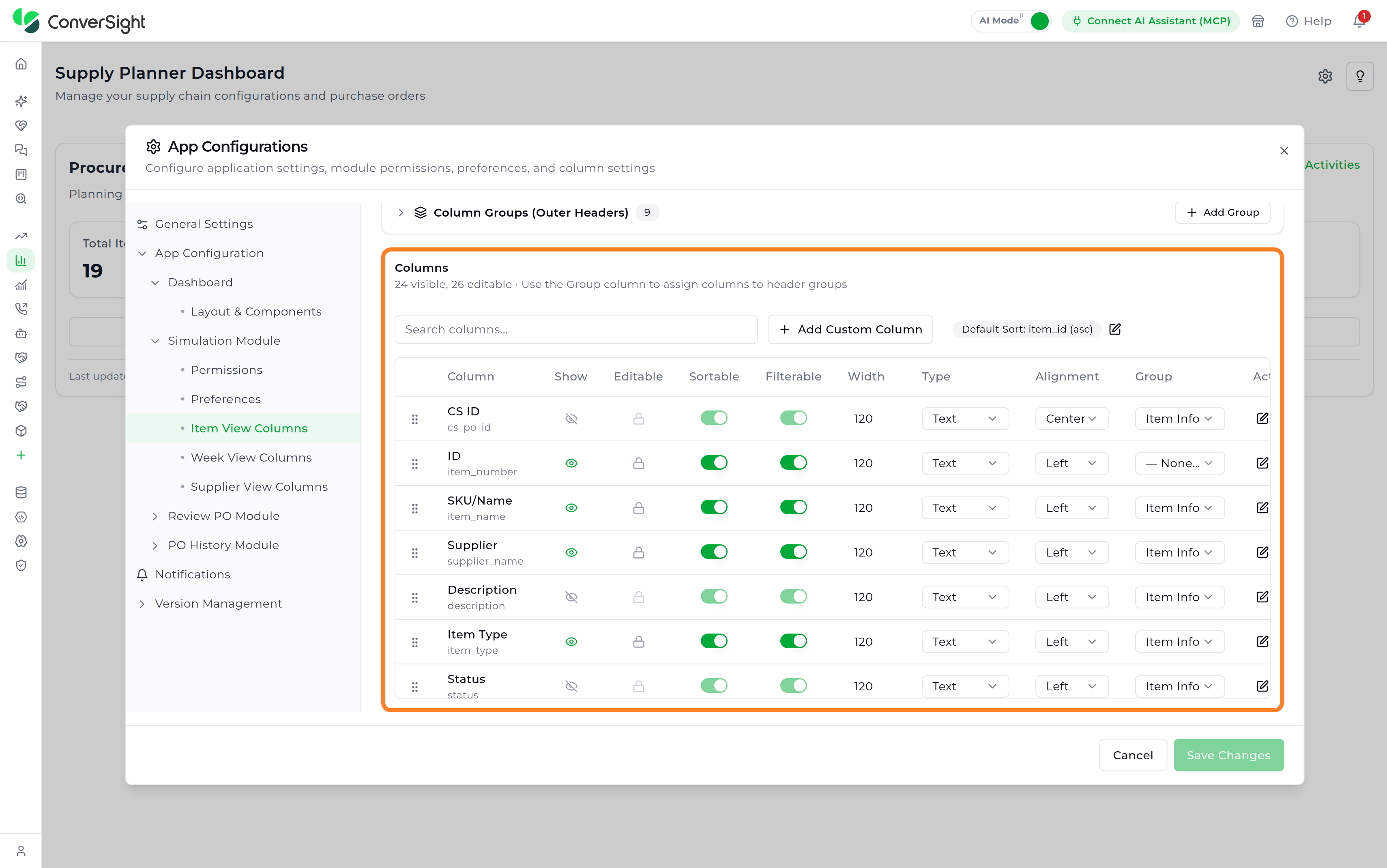
Users can reorder columns to customize the sequence in which planning information is presented. This allows the workspace to reflect the planner's review process—for example, placing key inventory and recommendation fields before supporting cost or supply metrics.
Together, Column Groups and Columns provide control over the structure and presentation of the recommendation workspace, allowing organizations to organize planning information in a way that supports their operational review process.
Add Custom Column
The Add Custom Column option allows organizations to incorporate business-specific operational, procurement, or inventory information into the recommendation workspace.

| Field | Description |
|---|---|
| Display Name | Defines the label shown as the column heading in the recommendation workspace. This is the name planners see when reviewing the table. |
| Accessor Key | Defines the unique system identifier used to associate the column with its underlying data value. Each accessor key must be unique within the configuration. |
| Description | Provides an optional explanation of what the column represents, helping Supply Planners document the purpose of a business-specific column. |
| Formula | An optional expression that calculates the column's value using the accessor keys of other columns as variables, such as 2 * recommended_qty + safety_stock. |
| Type | Specifies the type of value the column holds, such as Text, Number, Date, Boolean, or Currency. The selected data type determines how values are formatted when displayed. |
| Width | Defines the horizontal space allocated to the column within the recommendation table. |
| Alignment | Controls how values are positioned within the column, allowing numeric, text, and date values to be presented consistently. |
| Group | Assigns the column to an existing column group, so that it appears under that group heading alongside related planning fields. |
| Visible | Determines whether the column is displayed by default when the recommendation workspace is opened. |
| Sortable | Determines whether planners can sort the recommendation table using the values in this column. |
| Filterable | Determines whether planners can filter the recommendation table based on the values in this column. |
| Editable | Determines whether planners can modify the values held in this column during recommendation review. |
Once created, the custom column becomes available across the recommendation views based on the selected configuration.


Review PO Module
The Review PO Module section allows Supply Planners to configure the Review Purchase Order workspace within the Supply Planner application. It provides controls for managing page accessibility, component visibility, and the behavior of features available during the purchase order review process. These settings allow organizations to tailor the workspace to their operational requirements while ensuring a consistent review experience for users.
Permissions
The Permissions section controls how users access and interact with the Review Purchase Order page. Supply Planners can configure whether the page is visible within the application, determine whether users can access and interact with the page, and provide a message explaining why access has been restricted when required.
| Field | Description |
|---|---|
| Page Visible | Determines whether the Review Purchase Order page appears in the application navigation. When this is turned off, the page is hidden entirely and users have no route to it from the interface. |
| Page Enabled | Controls whether users can open and interact with the page. The page can remain visible in navigation while disabled, allowing organizations to signal that the stage exists without granting access to it yet. |
| Disabled Reason | Defines the message shown to users when the page has been disabled, explaining why access is restricted and preventing the page from appearing simply broken. |

The Panels and Components section controls the visibility and availability of individual components within the Review Purchase Order page. Supply Planners can enable or disable specific interface elements based on organizational requirements.
| Component | Description |
|---|---|
| Conflict Detection Alerts | Surfaces warnings raised against a purchase order during review, such as conflicting orders or values that fail validation, so reviewers can resolve them before the order is committed. |
| Export Button | Provides the control that downloads the purchase order information currently shown, allowing the review to be shared or analyzed outside the application. |
| PO Grid | Presents the primary purchase order table, which lists the orders under review and forms the main working surface of the page. |
| SKU Detail Drawer | Opens the side panel for an individual SKU, providing the item-level detail behind a purchase order line without leaving the review. |
| Submit Button | Provides the control that commits the reviewed purchase orders and completes the review stage. Hiding it prevents orders from being submitted from this page. |

Column Settings
The Column Settings section allows Supply Planners to configure how purchase order information is displayed within the Review Purchase Order table. Individual column properties can be customized to control visibility, formatting, and user interaction. Supply Planners can also define the default sorting behavior and create custom columns to extend the available information.
| Field | Description |
|---|---|
| Column | Identifies the individual field displayed in the Review Purchase Order table, representing a specific purchase order or item attribute available for review. |
| Show | Determines whether the column is displayed in the Review Purchase Order table, allowing organizations to hide information that is not relevant to their review process. |
| Editable | Specifies whether reviewers can modify the values held in the column. Setting a column to non-editable protects values that should not change after the recommendation was generated. |
| Sortable | Determines whether reviewers can order the table by this column, which helps surface the most relevant records first in large purchase order sets. |
| Filterable | Determines whether reviewers can narrow the table using the values in this column. |
| Width | Defines the horizontal space allocated to the column within the table. |
| Type | Specifies the type of value the column holds, which determines how the value is formatted when displayed. |
| Alignment | Controls how values are positioned within the column, allowing numeric, text, and date values to be presented consistently. |
| Group | Assigns the column to a column group, determining the outer header section under which the column is displayed. |
Default Sorting defines the sort order applied automatically when the Review Purchase Order table is first loaded, allowing organizations to surface the most operationally relevant records at the top of the review queue without requiring reviewers to sort manually.
Custom Columns allow organizations to extend the table with business-specific procurement or inventory information that is not available by default. Once created, a custom column behaves like any other column and can be shown or hidden, made editable, sortable, and filterable, and configured for width, type, alignment, and group placement.

PO History Module
The PO History Module provides a configurable workspace for viewing and managing historical purchase order information. It enables Supply Planners to control page accessibility, configure interface components, and customize both the master and detail tables used to display purchase order history.
PO History Permissions
The Permissions section controls user access to the Purchase Order History page. Supply Planners can configure whether the page is visible within the application, determine whether users can access the page, and specify a message explaining restricted access when required.
| Field | Description |
|---|---|
| Page Visible | Determines whether the Purchase Order History page appears in the application navigation. When this is turned off, the historical record is hidden from users entirely. |
| Page Enabled | Controls whether users can open and interact with the page. The page can remain visible while disabled, indicating that history exists without granting access to it. |
| Disabled Reason | Defines the message shown to users when the page has been disabled, explaining why the historical record is not currently available to them. |

Panels and Components
The Panels and Components section controls the visibility and availability of interface components within the Purchase Order History page.
| Component | Description |
|---|---|
| Detail Grid | Reveals the line-item breakdown when a purchase order row is expanded, showing the item-level detail captured when the order was generated. |
| Export Button | Provides the control that downloads the purchase order history for reporting, auditing, or analysis outside the application. |
| KPI Cards | Presents the summary cards above the table, giving an overview of procurement volume, cost, priority, and supply network participation across the historical orders. |
| Master Grid | Lists the historical purchase orders in the primary table, with one row per order record. |
| Refresh Button | Reloads the historical purchase order data, ensuring the page reflects the current state of the planning configuration. |
| Search Bar | Provides the search field used to locate a specific purchase order within the history. |

Master Table
The Master Table section allows Supply Planners to configure how purchase order history is displayed within the primary grid — the top-level table listing one row per purchase order. Column properties can be customized to control visibility, formatting, sorting, and filtering, while supporting custom columns for additional business information.
| Field | Description |
|---|---|
| Column | Identifies the individual field displayed in the master grid, representing a specific purchase order attribute available for review. |
| Show | Determines whether the column appears in the master grid, allowing organizations to show only the order-level information relevant to their review. |
| Editable | Specifies whether the column value can be modified. Historical order records are generally protected, so most master grid columns are left non-editable. |
| Sortable | Determines whether the history can be ordered by this column, which helps locate orders by date, supplier, or value. |
| Filterable | Determines whether the history can be narrowed using the values in this column. |
| Width | Defines the horizontal space allocated to the column within the master grid. |
| Type | Specifies the type of value the column holds, which determines how it is formatted when displayed. |
| Alignment | Controls how values are positioned within the column, keeping numeric, text, and date values presented consistently. |
| Group | Assigns the column to a column group, determining the outer header section under which the column is displayed. |
Custom Columns allow Supply Planners to add order-level columns carrying business-specific procurement information not available by default. Once created, a custom column behaves like any other column and can be shown or hidden, made editable, sortable, and filterable, and configured for width, type, alignment, and group placement.
Default Sorting defines the order applied automatically when the history is first loaded, so the most relevant records appear at the top without manual sorting.
Modify or Delete Columns allows Supply Planners to update the configuration of an existing column or remove it from the master grid.

Detail Table
The Detail Table section controls the SKU-level information shown when a purchase order row is expanded. These settings apply to the line items within a single order, rather than to the list of orders itself, and are normally configured to stay consistent with the master table.
| Field | Description |
|---|---|
| Column | Identifies the individual field displayed in the expanded line-item view for a purchase order. |
| Show | Determines whether the column appears in the expanded line-item view for a purchase order. |
| Editable | Specifies whether the line-item value can be modified. As with the master grid, historical line items are generally protected from change. |
| Sortable | Determines whether the line items within an order can be ordered by this column. |
| Filterable | Determines whether the line items within an order can be narrowed using the values in this column. |
| Width | Defines the horizontal space allocated to the column within the expanded view. |
| Type | Specifies the type of value the column holds, which determines how it is formatted when displayed. |
| Alignment | Controls how line-item values are positioned within the column. |
| Group | Assigns the column to a column group, determining the outer header section under which the column is displayed. |
Custom Columns allow Supply Planners to add line-item columns carrying business-specific item or inventory information not available by default. Once created, a custom column behaves like any other column and can be shown or hidden, made editable, sortable, and filterable, and configured for width, type, alignment, and group placement.
Default Sorting defines the order applied to the line items when a purchase order is expanded.
Modify or Delete Columns allows Supply Planners to update the configuration of an existing column or remove it from the expanded view.

Notifications
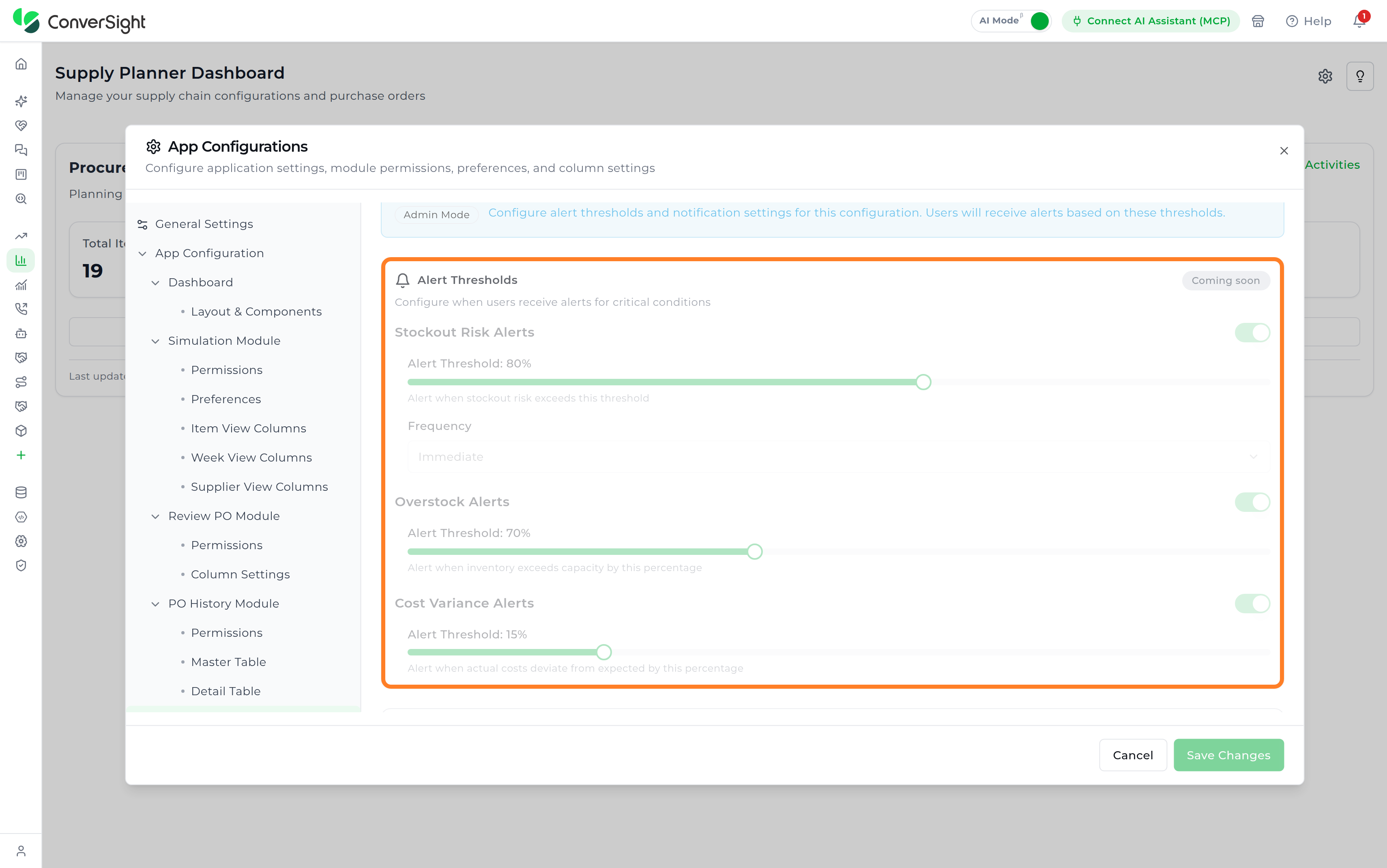
The Notifications section allows Supply Planners to configure alerts for important planning events and system activities. Alert thresholds can be defined for specific scenarios such as stockout risks, overstock conditions, and cost variances. When configured thresholds are exceeded, the application generates notifications to help users respond promptly to planning exceptions. The section also provides email notification settings, allowing Supply Planners to configure a primary email address and additional recipients who should receive system-generated alerts. A Scheduled Reports section lets Supply Planners set up recurring reports, such as analysis summaries, simulation results, and PO reviews, through Add Scheduled Report.

Version Management
The Version Management section tracks the version of the Supply Planner application and supports rolling it back. It has two pages: Version Settings and Snapshots & Rollback.
Version Settings
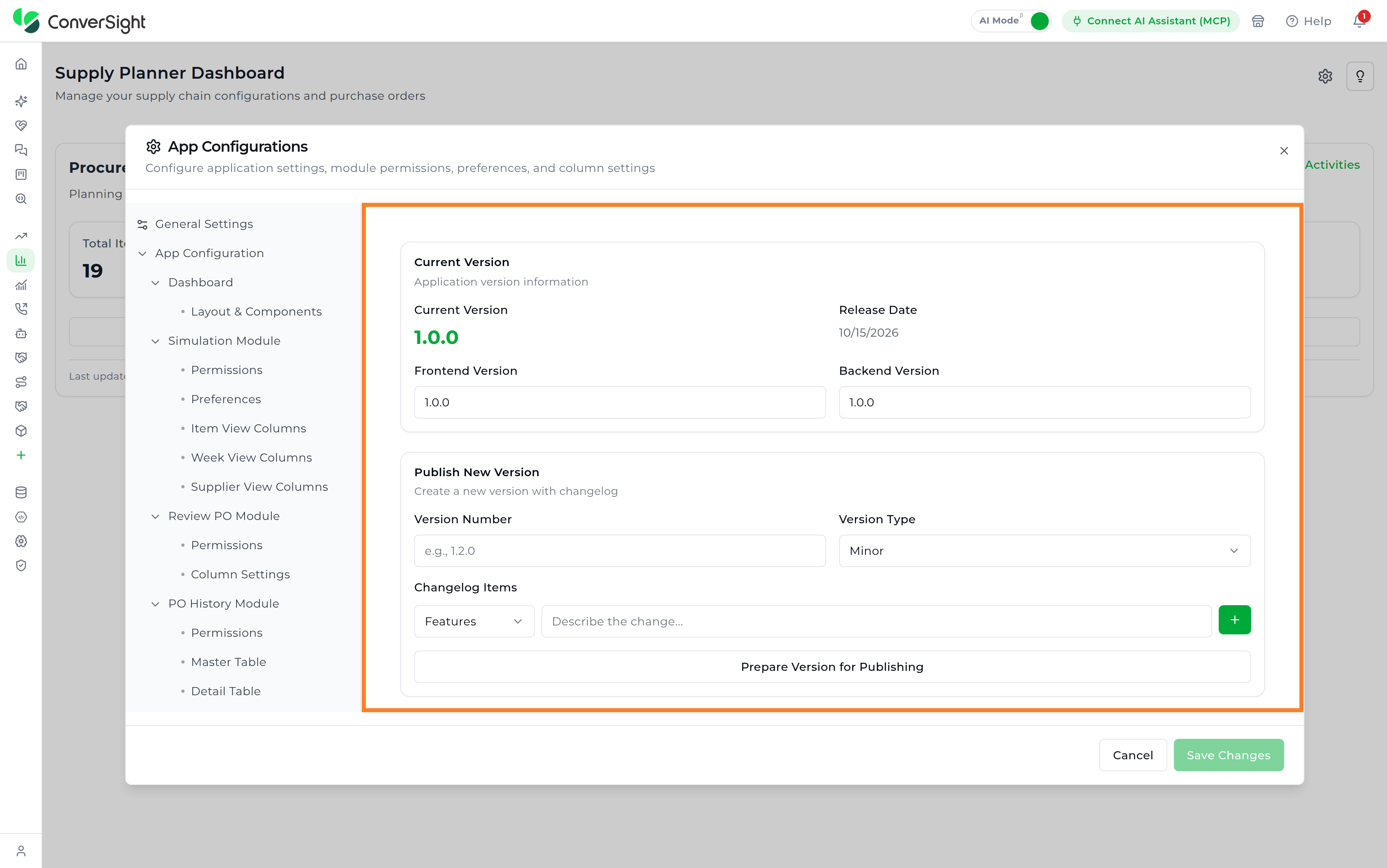
| Area | Description |
|---|---|
| Current Version | Shows the version in use, its release date, and the frontend and backend versions. |
| Publish New Version | Prepares a new version for publishing from a Version Number, a Version Type such as Minor, and Changelog Items grouped by category, such as Features. |
| Update Notifications | Controls how users learn about an update, through Enable Notifications, a Check Interval such as On Load, and Show What's New Dialog. |
Snapshots & Rollback
The Snapshots & Rollback page lists the Available Snapshots of the application and provides Create Snapshot to capture the current version, so the application can later be rolled back to it.
Rollback operations affect all organizations. User customizations are preserved through a merge, but create a snapshot as a backup before rolling back.
Save Changes
After completing the required configuration changes, click Save Changes to apply and persist the updated settings across the application.

Activities
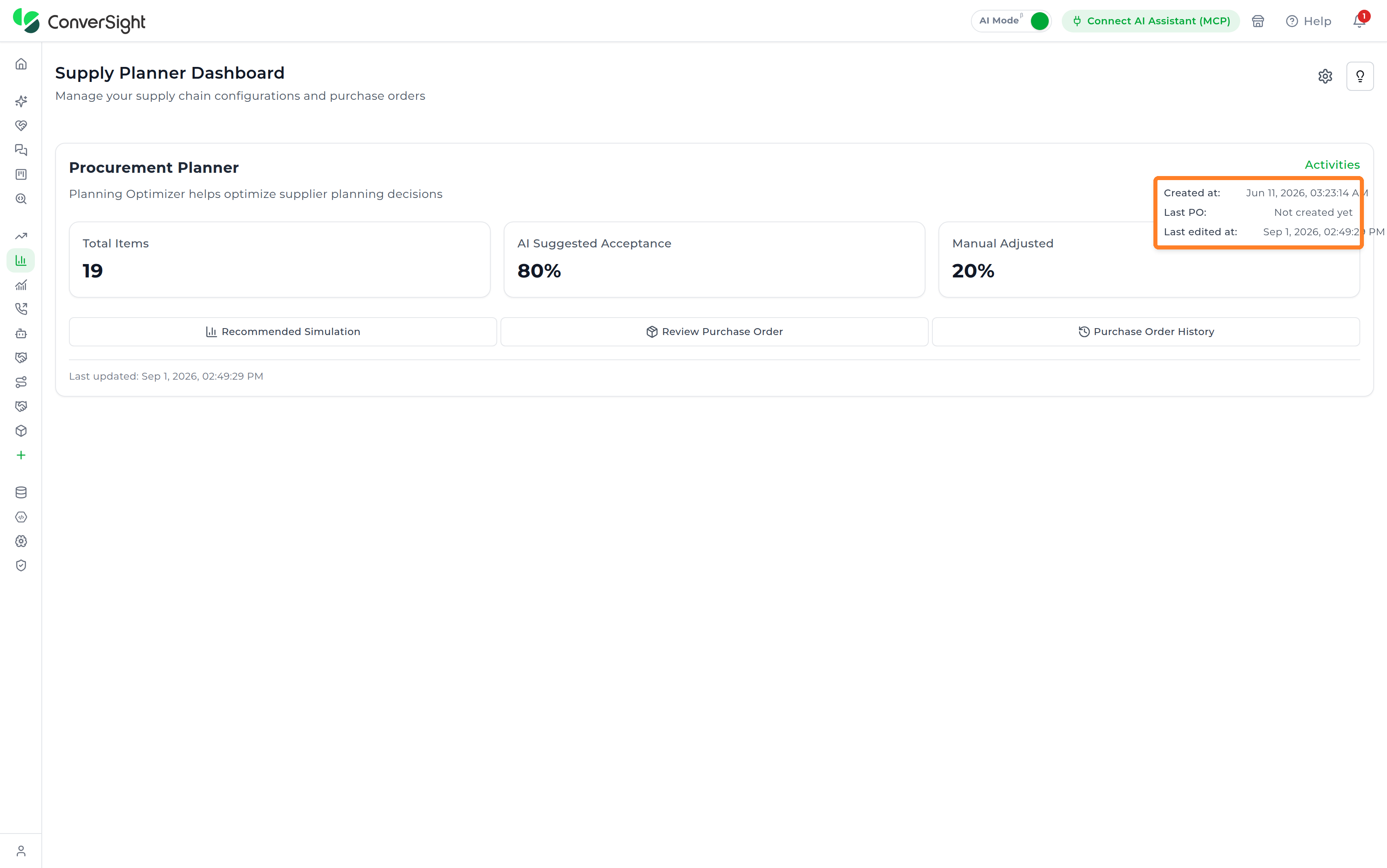
The Activities option provides quick access to important information related to a planning configuration. It displays key lifecycle events, allowing users to track when the configuration was created, the status of the most recent purchase order, and the latest modification made to the configuration. This information helps users monitor configuration activity and quickly identify recent changes without opening the configuration.
| Field | Description |
|---|---|
| Created At | Shows the date and time when the planning configuration was created. |
| Last PO | Reflects the status of the most recently generated purchase order. If no purchase order has been created, the status is displayed as Not created yet. |
| Last Edited At | Shows the date and time when the planning configuration was last modified. |
Recommended Simulation
The Recommended Simulation uses AI planning intelligence to transform analyzed inventory data into actionable purchase recommendations, helping users determine what to order, when to order, and how much to order. The module continuously evaluates demand forecasts, current inventory levels, lead times, safety stock requirements, and operational constraints to generate optimized, time-phased replenishment plans.
In addition to generating recommendations, the platform provides explainable insights and interactive simulation capabilities that allow users to review, adjust, and refine recommendations based on operational priorities and business requirements.
Recommended Simulation is the first stage of the planning workflow. The items selected to order here are carried forward to Review Purchase Order, where the resulting orders are reviewed and finalized.

View Modes
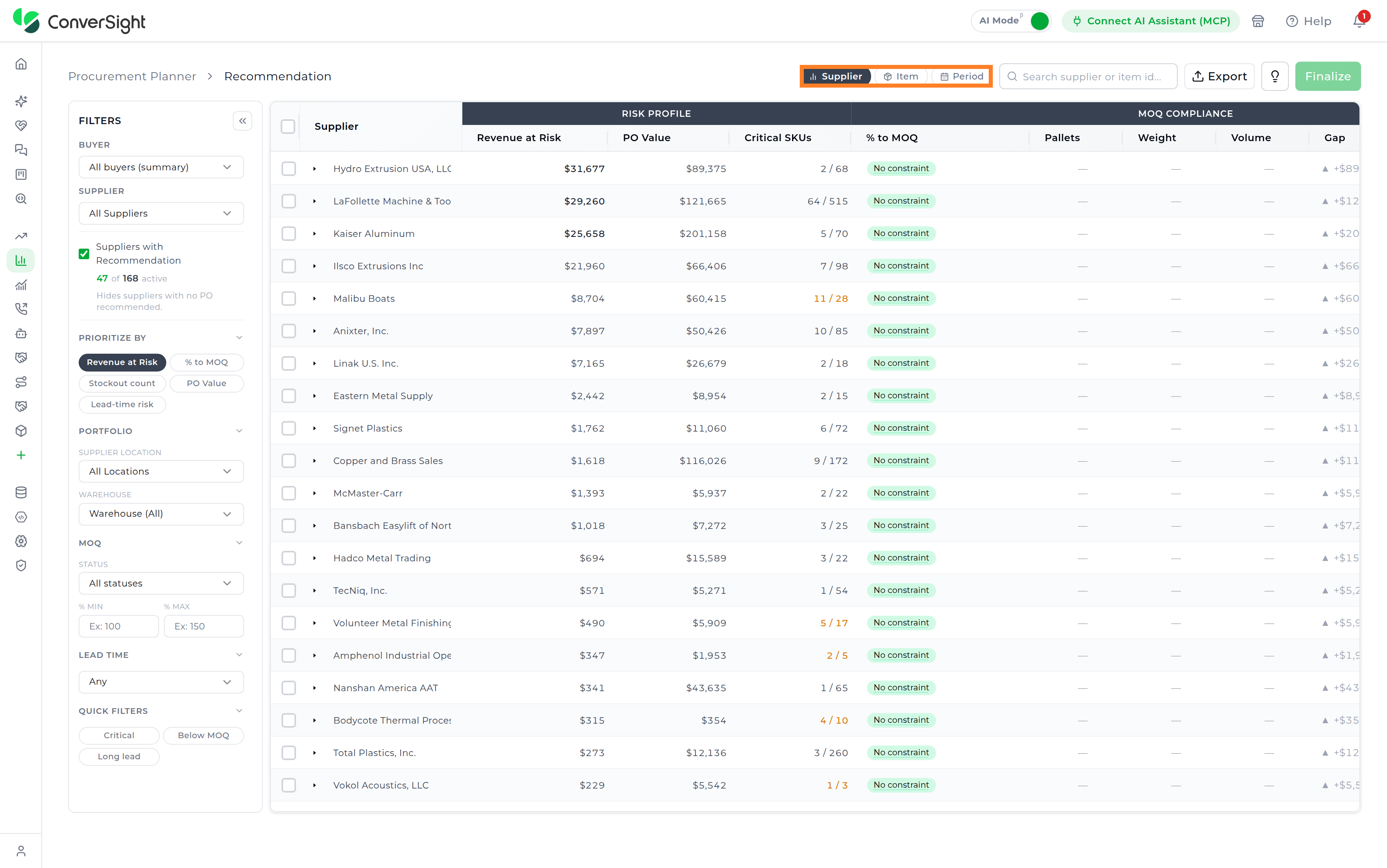
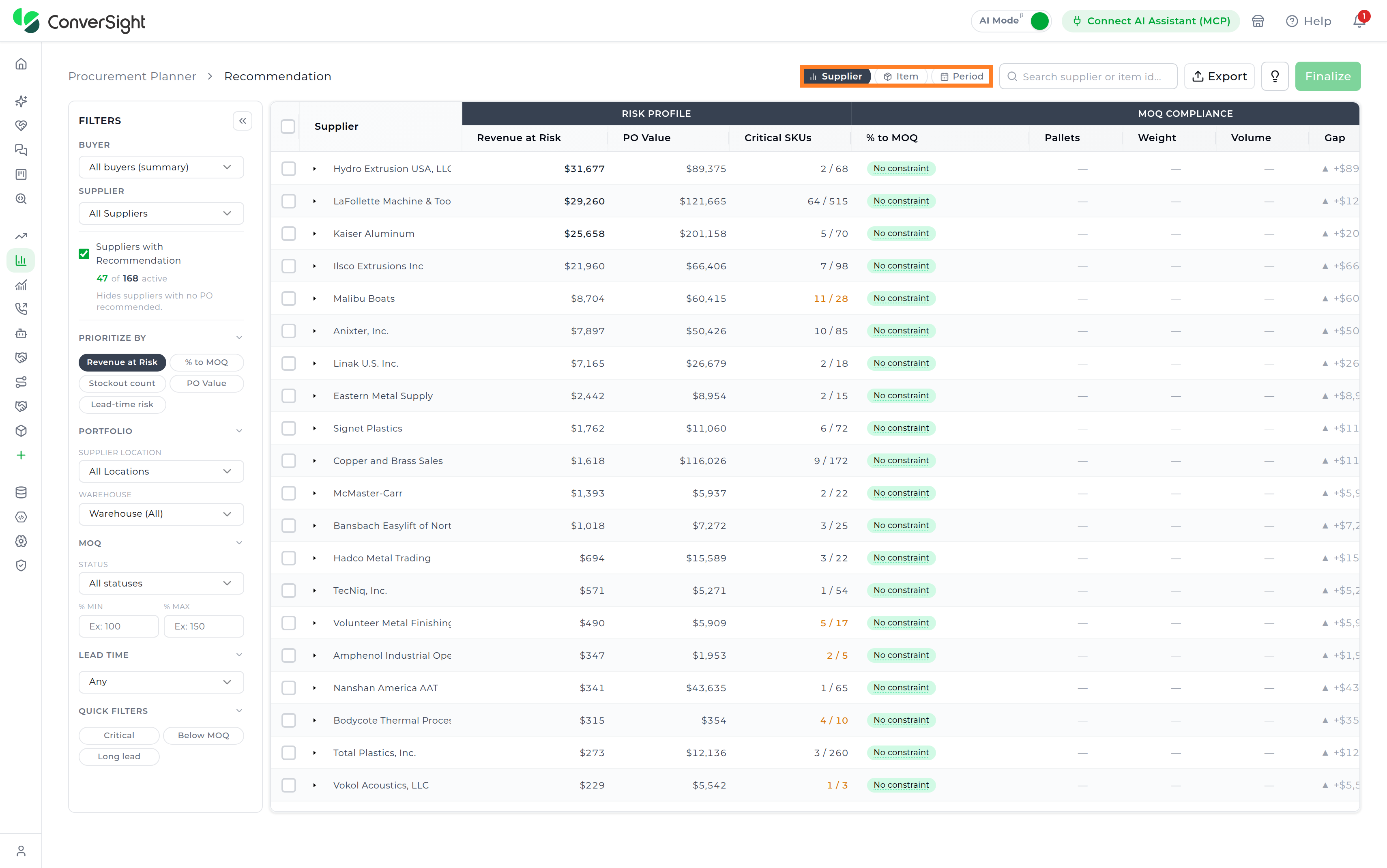
By default, the page opens in the Supplier View, where recommendations are presented as a supplier-level list with aggregated planning, MOQ, shipment, and risk-related information.
Users can switch between the following views:
| View | Description |
|---|---|
| Supplier | Provides a supplier-level planning summary that consolidates vendor health, MOQ compliance, shipment readiness, supply risk visibility, inventory impact, and recommendation insights across all suppliers included in the planning configuration. |
| Item | Provides a detailed SKU-level planning view that enables item-wise inventory analysis, replenishment validation, demand forecasting review, procurement evaluation, and recommendation management across selected suppliers and warehouses. |
| Period | Provides a time-phased weekly planning view that enables planners to analyze projected demand, inventory movement, replenishment activity, supplier participation, and inventory health across each planning week within the forecast horizon. |
Search
The Search supplier or item id field allows users to quickly locate suppliers within the recommendation workspace by filtering the recommendation table on a supplier name or an item ID. In the Item and Period views, the same field reads Search items and filters the table by item.

Export
The Export option allows users to export the current recommendation results, including the active view and applied filters, as an Excel file. This enables users to perform offline analysis, generate reports, support auditing activities, and easily share results with stakeholders.

Quick Guide
The Quick Guide option provides contextual guidance and quick-help information for the recommendation workflow. It helps users understand planning views, recommendation behavior, and available operational actions directly within the workspace.
The Quick Guide includes the following three options:
- FAQ: Provides answers to frequently asked questions about the recommendation workflow.
- Quick Tips: Offers concise tips to help users effectively navigate and use the workspace.
- Interactive Tour: Provides a guided walkthrough of key features and functionality within the workspace.

Finalize
Once Supply Planners have reviewed the recommendations and made any necessary changes, they can click the Finalize button to proceed to the next stage of the planning workflow. This stage involves reviewing and processing the generated purchase orders.
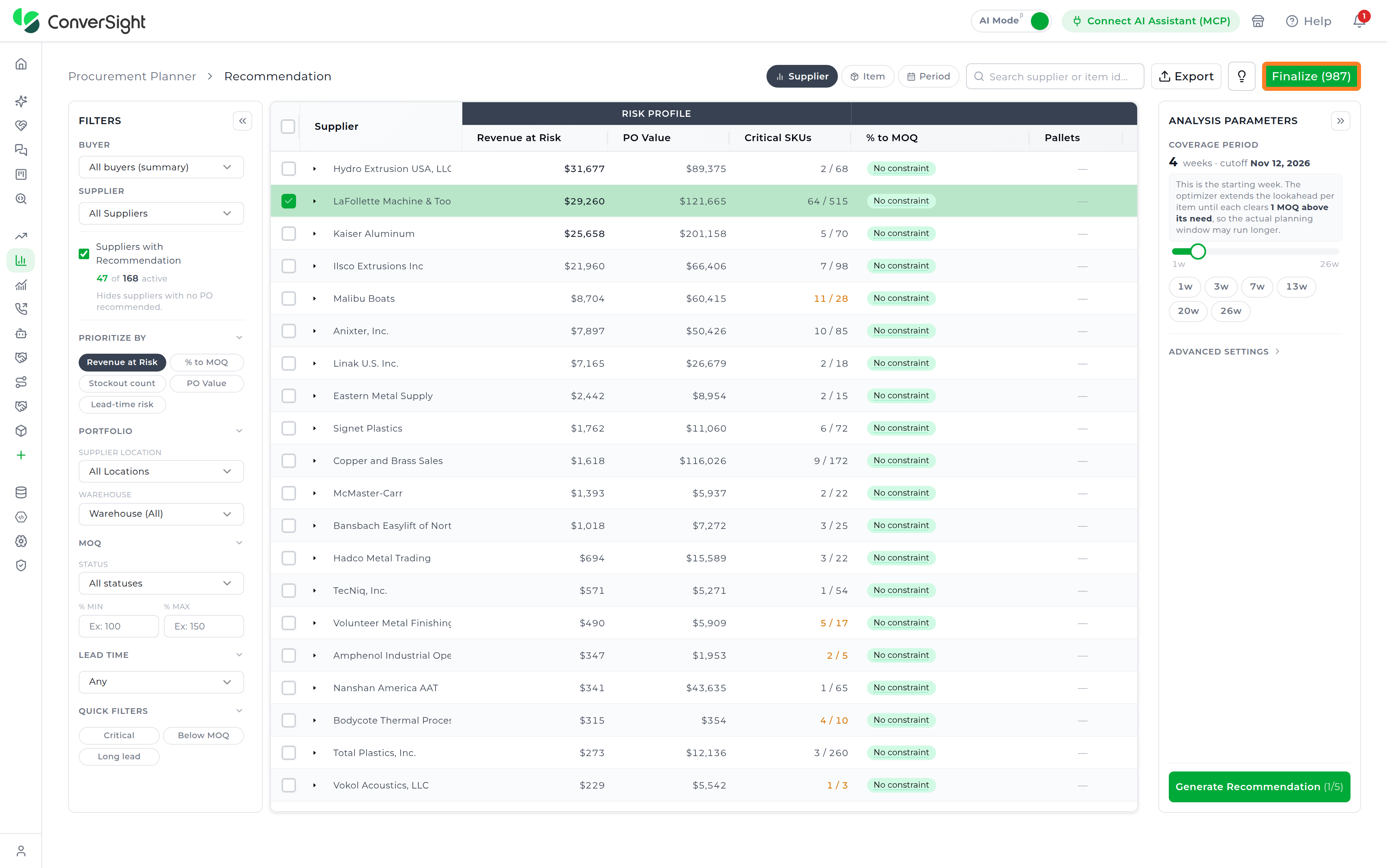
Filters Panel
The Filters panel allows users to refine, prioritize, and narrow recommendation results based on operational, supplier, MOQ, and planning criteria. The panel is positioned on the left side of the recommendation workspace and acts as the primary control center for scoping recommendation analysis.
The filters are organized into multiple sections to support structured supplier-level planning and faster operational review. Each section can be expanded or collapsed independently, and the entire filter panel can also be collapsed to maximize the recommendation workspace.
The filters dynamically update the recommendation table, ensuring that planners can focus only on the suppliers, items, or planning conditions relevant to the current review cycle.
The sections shown depend on the active view. The Supplier view shows every section described below. The Item view replaces Suppliers with Recommendation with Items with Recommendation, which counts active items instead of suppliers, and doesn't include Prioritize By or MOQ. The Period view shows only Supplier and Suppliers with Recommendation.

Buyer
The Buyer filter allows users to scope recommendations to one or more buyers or procurement groups within the active planning configuration. By default, the filter is set to All buyers (summary), which represents aggregated recommendation data across all buyers included in the recommendation run.

Users can select multiple buyers simultaneously to analyze combined supplier portfolios, review shared procurement responsibilities, and evaluate planning recommendations across collaborative purchasing teams. Once buyers are selected, the recommendation workspace updates supplier recommendations, MOQ compliance metrics, shipment visibility, planning insights, and operational recommendation data associated with the selected buyer groups.
This functionality is particularly useful in enterprise procurement environments where supplier ownership and purchasing activities are distributed across multiple planners, procurement teams, or business units, enabling coordinated supplier-level planning and consolidated operational review within a single workspace.

Supplier
The Supplier filter narrows the recommendation workspace to one or more specific suppliers included in the active planning configuration. By default, the filter is set to All Suppliers, which includes every supplier associated with the current recommendation run.
Selecting a supplier refreshes the workspace with supplier-specific recommendation insights, MOQ compliance visibility, shipment-related information, inventory planning metrics, and operational recommendation data relevant to the selected vendor. This filter supports focused supplier-level analysis while preserving the broader planning context and is commonly used during recommendation validation, operational review, and replenishment decision-making for a specific supplier.

Suppliers with Recommendation
The Suppliers with Recommendation option focuses the workspace on suppliers and items that currently have active purchase order recommendations within the recommendation run. When enabled, suppliers or items without recommendation activity are excluded from the workspace, helping planners concentrate on actionable replenishment records that require operational review.

The section also provides visibility into the number of active suppliers relative to the total supplier base included in the current configuration. This helps planners quickly assess how many suppliers require replenishment activity during the active planning cycle while reducing visual clutter from inactive or non-actionable records.
Prioritize By
The Prioritize By section dynamically reorders supplier recommendations based on operational, financial, or supply-risk priorities. The recommendation table refreshes automatically according to the selected prioritization criteria, helping planners quickly identify suppliers requiring immediate attention during the planning cycle.
| Option | Description |
|---|---|
| Revenue at Risk | Prioritizes suppliers based on projected revenue exposure associated with unmet demand or delayed replenishment activity within the planning horizon. |
| % to MOQ | Prioritizes suppliers according to their progress toward satisfying the required Minimum Order Quantity (MOQ) thresholds. |
| Stockout Count | Prioritizes suppliers associated with the highest projected stockout exposure across recommended items and planning periods. |
| PO Value | Prioritizes suppliers based on the total projected Purchase Order (PO) value generated during recommendation planning. |
| Lead-time Risk | Prioritizes suppliers with elevated operational risk caused by extended replenishment lead times relative to projected demand and inventory coverage. |

Portfolio
The Portfolio section groups location-based planning filters used to scope recommendation analysis according to supplier sourcing regions and warehouse destinations. These filters help planners evaluate replenishment activity, inventory flow, and procurement decisions within specific operational footprints, supporting regional planning and warehouse-level supply analysis.
The Supplier Location filter narrows recommendations to suppliers operating within a selected geographical region, sourcing location, or operational footprint. By default, the filter is set to All Locations, ensuring that suppliers across all configured regions remain included in the recommendation workspace.
The Warehouse filter focuses recommendations on suppliers fulfilling inventory into a selected warehouse or destination facility. By default, the filter includes all warehouses associated with the active planning configuration.
Together, these filters support location-specific supply analysis, regional procurement planning, warehouse-level replenishment review, and better visibility into inventory movement across different sourcing and distribution networks.

MOQ
The MOQ section filters suppliers based on Minimum Order Quantity (MOQ) compliance conditions and operational threshold ranges. These controls help planners identify suppliers operating below required MOQ limits, exceeding target thresholds, or falling within acceptable compliance ranges during recommendation review.
The Status filter narrows suppliers according to their current MOQ compliance condition, helping planners identify suppliers operating below MOQ thresholds, exceeding target limits, or remaining within acceptable compliance ranges. By default, the filter includes suppliers across all MOQ statuses within the active recommendation workspace.
The % Minimum and % Maximum fields define the acceptable MOQ achievement range used during recommendation review. These threshold settings help control under-buying and over-buying scenarios by limiting recommendations to suppliers operating within the configured MOQ compliance window.

Lead Time
The Lead Time filter narrows recommendation results based on supplier replenishment timelines and delivery responsiveness. By default, the filter is set to Any, which includes suppliers across all lead-time categories within the active recommendation workspace. This filter helps planners focus on time-sensitive procurement scenarios, evaluate supply-risk exposure, and prioritize suppliers according to replenishment responsiveness and operational urgency.
| Option | Description |
|---|---|
| Any | Includes suppliers across all lead-time ranges without applying any lead-time restriction. |
| Long lead (≥30d) | Includes suppliers with replenishment lead times greater than or equal to 30 days, helping planners identify long-cycle procurement risks, delayed replenishment exposure, and extended supply dependencies. |
| Short lead (<30d) | Includes suppliers with replenishment lead times below 30 days, supporting faster replenishment analysis, responsive procurement planning, and short-cycle inventory management. |

Quick Filters
The Quick Filters section provides one-click operational filters that help planners rapidly switch between common planning, replenishment, and risk-analysis scenarios without manually configuring multiple filter combinations. These filters improve review efficiency by quickly surfacing suppliers associated with specific operational risks, shipment constraints, MOQ conditions, or replenishment priorities within the active recommendation workspace.
| Quick Filter | Description |
|---|---|
| Critical | Includes suppliers and recommendations associated with critical operational conditions such as projected stockouts, severe inventory shortages, supply disruptions, or urgent replenishment requirements requiring immediate planner attention. |
| Below MOQ | Includes suppliers whose recommendations currently fall below the required Minimum Order Quantity (MOQ) thresholds and may require quantity adjustment, consolidation, or additional procurement activity before order finalization. |
| Long lead | Includes suppliers with extended replenishment lead times relative to the active planning horizon, helping planners identify delayed supply exposure and long-cycle procurement dependencies. |
| Pallets binding | Includes suppliers where pallet-related shipment constraints act as the primary factor controlling MOQ compliance and replenishment feasibility. |
| Weight binding | Includes suppliers where shipment weight limitations represent the controlling MOQ or transportation constraint influencing replenishment planning. |
| Volume binding | Includes suppliers where shipment volume utilization is the primary operational constraint affecting MOQ achievement and transportation optimization. |
| Cases binding | Includes suppliers where case-pack quantity requirements determine MOQ compliance and replenishment eligibility. |
| Amount binding | Includes suppliers where purchase order monetary value thresholds act as the primary MOQ binding condition controlling supplier compliance and recommendation validity. |

Supplier View
The Supplier View serves as the default landing view of the Recommended Simulation workspace and provides a consolidated supplier-level summary of recommendation data. Each row represents an individual supplier and summarizes aggregated planning metrics derived from the active recommendation run. The view is commonly used for supplier-level prioritization, operational review, MOQ validation, procurement planning, and replenishment decision-making across the supplier portfolio.

Risk Profile
The Risk Profile section provides visibility into the operational and financial exposure associated with each supplier within the active recommendation cycle. These metrics help planners identify suppliers contributing the highest inventory risk, revenue impact, procurement exposure, or replenishment instability during the planning horizon.
| Field | Description |
|---|---|
| Revenue at Risk | Represents the projected revenue exposure associated with the supplier if recommended replenishment actions are not completed within the active planning horizon. |
| PO Value | Represents the total projected Purchase Order (PO) value associated with the supplier recommendation during the active planning cycle. |
| Critical SKUs | Represents the number of critical stock-keeping units associated with the supplier relative to the total SKU count within the supplier scope, helping planners identify suppliers contributing the highest operational risk. |
MOQ Compliance
The MOQ Compliance section provides visibility into each supplier’s progress toward satisfying Minimum Order Quantity (MOQ) requirements across multiple operational and shipment-related dimensions. These metrics help planners evaluate whether recommended replenishment quantities satisfy supplier ordering constraints and identify suppliers that may require quantity adjustments, order consolidation, or additional procurement activity before finalization.
| Field | Description |
|---|---|
| % to MOQ | Represents the percentage progress toward achieving the supplier’s required Minimum Order Quantity (MOQ) threshold within the active recommendation cycle. |
| Pallets | Represents pallet utilization relative to supplier MOQ constraints and shipment consolidation requirements. |
| Weight | Represents shipment weight utilization relative to MOQ compliance thresholds and transportation limitations. |
| Amount | Represents the total Purchase Order (PO) value contributing toward supplier MOQ compliance requirements. |
| Volume | Represents shipment volume utilization relative to supplier MOQ and transportation capacity constraints. |
| Gap | Represents the remaining quantity, shipment value, volume, weight, or operational requirement needed to satisfy MOQ compliance conditions. |
| Weeks Of Coverage | Represents the projected inventory coverage duration generated by the recommended replenishment quantity based on forecasted demand patterns. |
Truck
The Truck section provides visibility into shipment planning and transportation capacity associated with supplier recommendations. These metrics help planners evaluate logistics readiness, shipment consolidation opportunities, truck utilization, and transportation feasibility during replenishment review.
| Field | Description |
|---|---|
| Required | Represents the number of trucks required to support the projected replenishment quantities associated with the supplier recommendation within the active planning horizon. |
This section supports transportation planning by helping planners assess shipment efficiency, logistics capacity utilization, and the operational impact of replenishment activity across suppliers.
Supply Health
The Supply Health section provides visibility into supplier stability, replenishment responsiveness, and potential supply-related operational risk associated with the active recommendation cycle. These metrics help planners evaluate how supplier lead times may impact inventory availability, replenishment timing, and overall planning reliability.
| Field | Description |
|---|---|
| Lead Time | Represents the supplier replenishment lead time used during planning, inventory projection, and recommendation calculations within the active planning horizon. |
| Last Run | Records the date the recommendation for the supplier was last generated. |
This information helps planners identify suppliers associated with delayed replenishment cycles, extended supply timelines, or elevated operational risk that may impact inventory coverage and procurement decisions.
Items
The Items section provides visibility into the scale of supplier-level inventory activity within the active recommendation cycle. These metrics help planners understand the breadth of SKU coverage associated with each supplier and evaluate the overall inventory footprint contributing to replenishment planning and operational risk.
| Field | Description |
|---|---|
| Total SKUs | Represents the total number of stock-keeping units associated with the supplier within the active recommendation scope. |
| Low Stock | Counts the supplier's items currently running low on stock. |
Supplier Information
The Supplier Information section provides additional supplier-related operational and ownership details used during recommendation analysis. This information helps planners understand supplier sourcing regions, warehouse alignment, and procurement ownership associated with replenishment activity.
| Field | Description |
|---|---|
| Supplier Location | Represents the warehouse destination, sourcing region, or operational location associated with the supplier within the active planning configuration. |
| Buyer | Represents the buyer, procurement owner, or planning group responsible for managing the supplier relationship and replenishment activity. |
Selecting a Supplier
When a supplier is selected in Supplier View, the Analysis Parameters panel is displayed on the right side of the screen. The Analysis Parameters panel allows users to configure the planning parameters used to generate recommendations for the selected supplier.
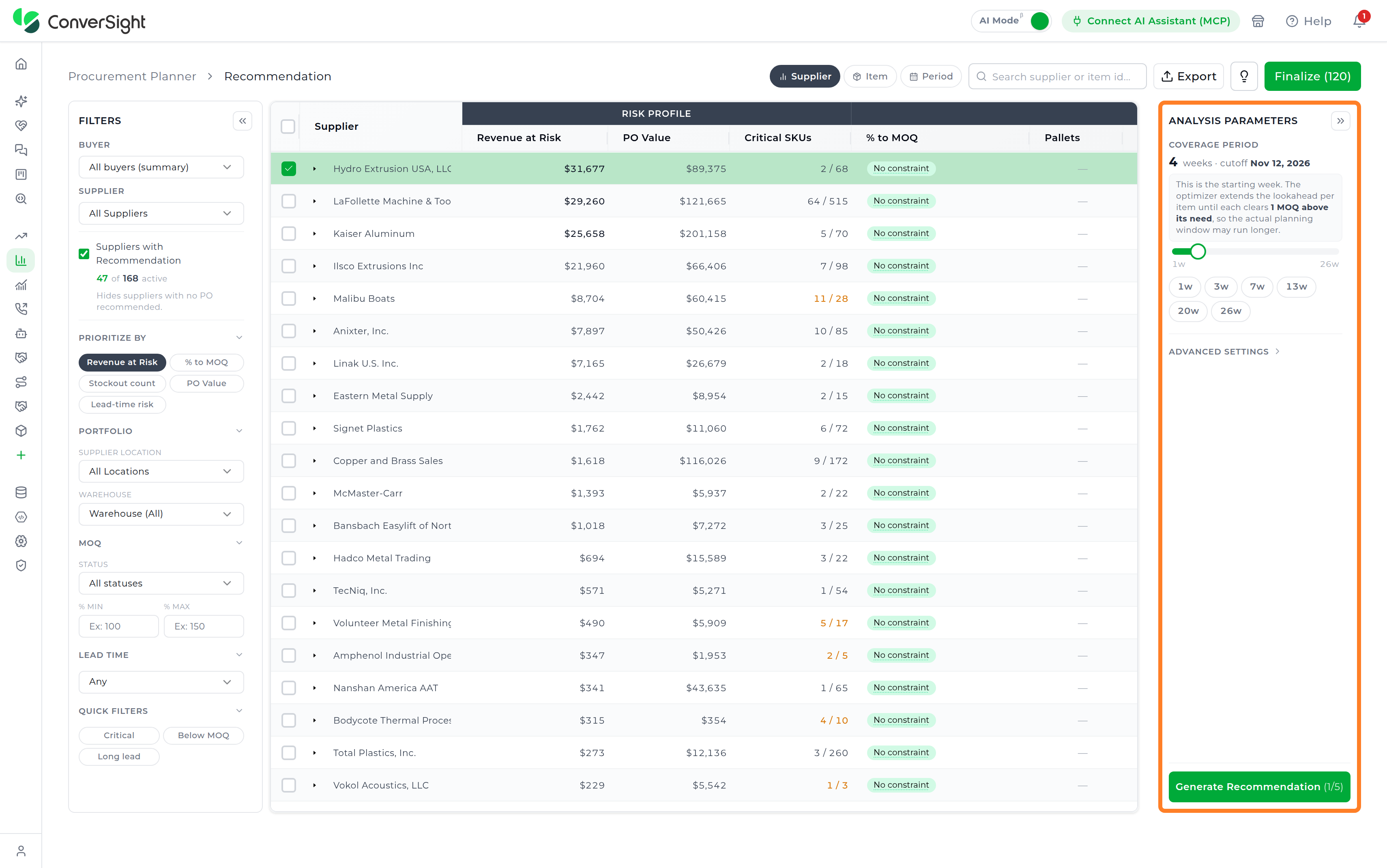
Coverage Period
The Coverage Period defines the planning window used for the recommendation analysis. Recommendations are generated only for demand falling inside this window, so widening the coverage period extends how far forward the analysis looks, while narrowing it restricts the recommendation to nearer-term demand. The coverage periods offered are generated dynamically from the planning horizon configured for the active planning configuration — they are not a fixed list. The options presented in one planning configuration will therefore differ from those in another, and a planning configuration running a short horizon will offer a correspondingly shorter set of periods than one running a long-range horizon.
Selecting a coverage period updates the cutoff date displayed in the panel, which marks the end of the selected planning window.
Because the coverage period options are derived from the planning horizon, the values available in your workspace depend on how the planning configuration has been set up. Do not assume a fixed set of options across planning configurations.
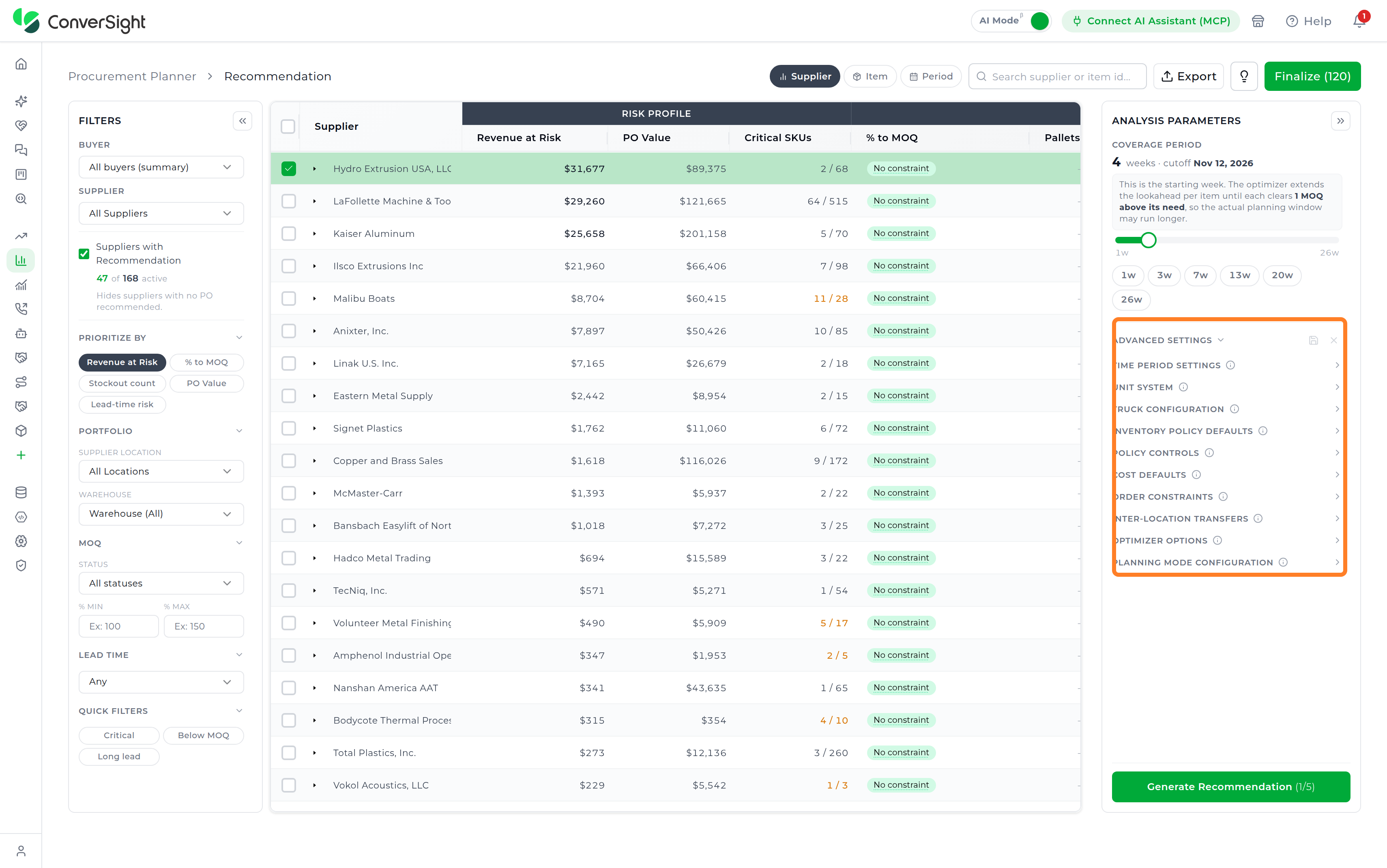
Advanced Settings
The Advanced Settings section provides additional planning controls that allow planners to customize how recommendations are generated for the selected supplier. These settings determine how the planning engine handles ordering frequency, inventory policies, purchase orders, transfers, optimization constraints, and procurement strategies.
Each setting can be expanded to view and configure the parameters associated with that category.
Time Period Settings
The Time Period Settings section controls the time-based parameters used when calculating replenishment recommendations. These settings help determine when orders should be considered and which overdue purchase orders should be included in the planning analysis.
| Field | Description |
|---|---|
| Order Cycle Days | Defines the number of days between replenishment order cycles, determining how frequently the planning process considers placing a new order when calculating the timing and quantity of recommended purchase orders. A shorter order cycle lets planners replenish inventory more frequently and respond more quickly to changes in demand, while a longer order cycle reduces the frequency of orders but may result in larger replenishment quantities or higher inventory requirements. |
| Backlog Lookback Days | Defines how far back the planning process looks for overdue purchase orders when Include Backlog POs is enabled, setting the maximum age of backlog purchase orders (those that have passed their expected date) that can still be considered in the planning analysis. A longer lookback period allows older overdue purchase orders to be considered, while a shorter period limits the backlog considered by the recommendation. |

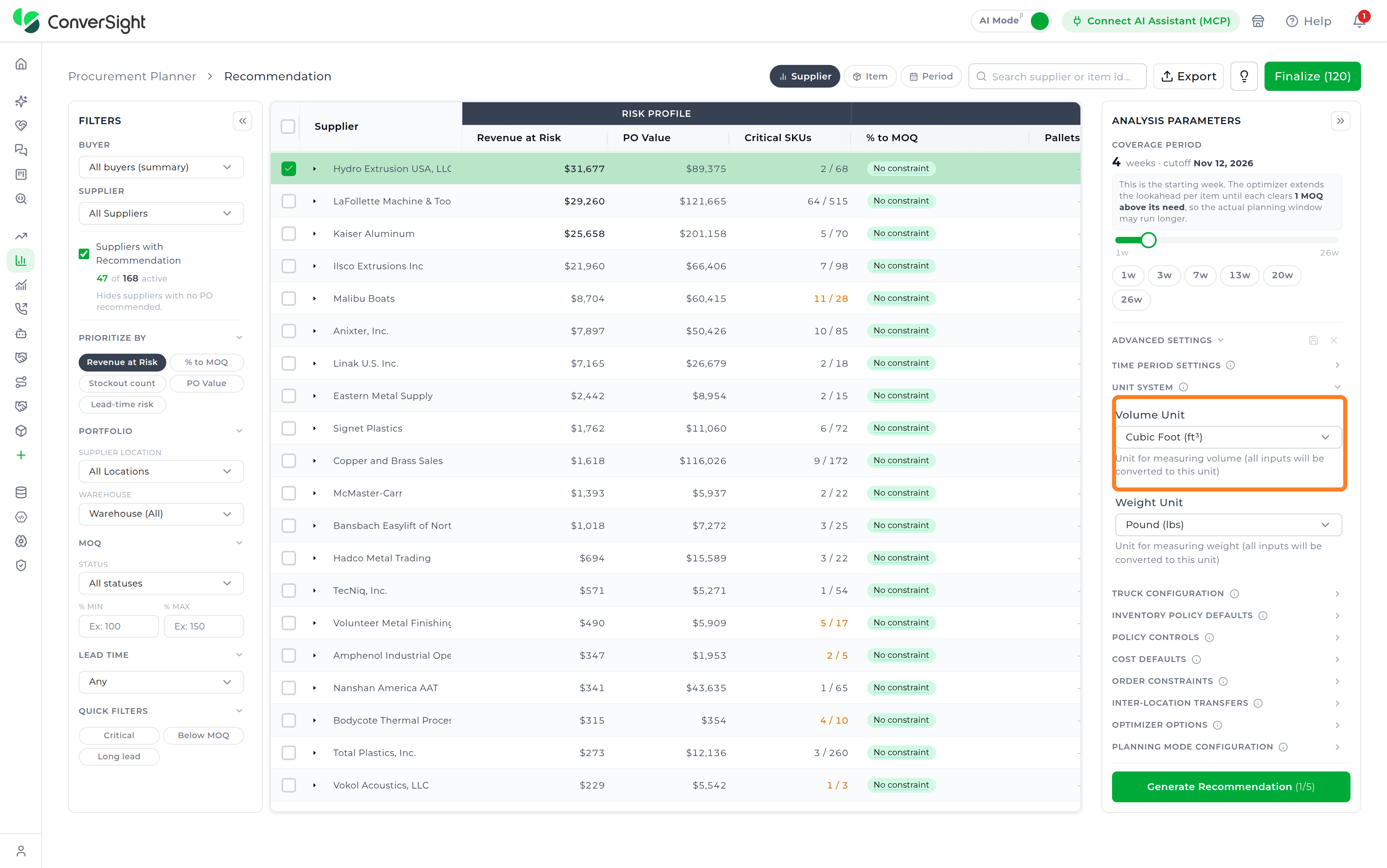
Unit System
The Unit System section defines the units used when evaluating volume and weight during recommendation analysis. The selected units provide a consistent measurement system for the planning calculations and help ensure that volume and weight-related values are interpreted correctly.
| Field | Description |
|---|---|
| Volume Unit | The dropdown that fixes which unit — for example Cubic Foot (ft³) — every inventory, product, and replenishment volume figure is converted into before the planning analysis runs. |
| Weight Unit | Item, product, and replenishment weight figures are all normalized to whichever unit is chosen here — Pound (lbs) in the configuration shown — so the recommendation engine works from a single consistent weight scale. |
Truck Configuration
The Truck Configuration section controls whether truck-based planning is used when generating recommendations. Truck configuration is relevant when replenishment planning needs to consider transportation or truck capacity as part of the recommendation.
Truck Configuration is available only for organizations where this functionality has been enabled.
Truck Only
Truck Only determines whether recommendations are constrained to truck-based planning. Turning it on brings truck-related requirements, such as capacity and load constraints, into the recommendation calculation; turning it off leaves those constraints out, so recommendations are generated without regard to truck-based planning.

Inventory Policy Defaults
The Inventory Policy Defaults section defines the default approach used to determine inventory coverage during recommendation analysis. These settings help determine how the required inventory level is interpreted when calculating replenishment requirements.
Coverage Type
Coverage Type determines how the planning process measures the inventory coverage required for the selected supplier, shaping how the recommendation evaluates the amount of inventory needed to support projected demand.
| Option | Description |
|---|---|
| Truck | Bases the coverage calculation on truck-load thresholds, planning replenishment around how many truckloads are needed rather than a fixed day count. |
| Days of Coverage | Sizes the coverage calculation to a configured number of days, keeping enough inventory on hand to meet projected demand across that period. |
The available coverage options may depend on the organization's configuration.

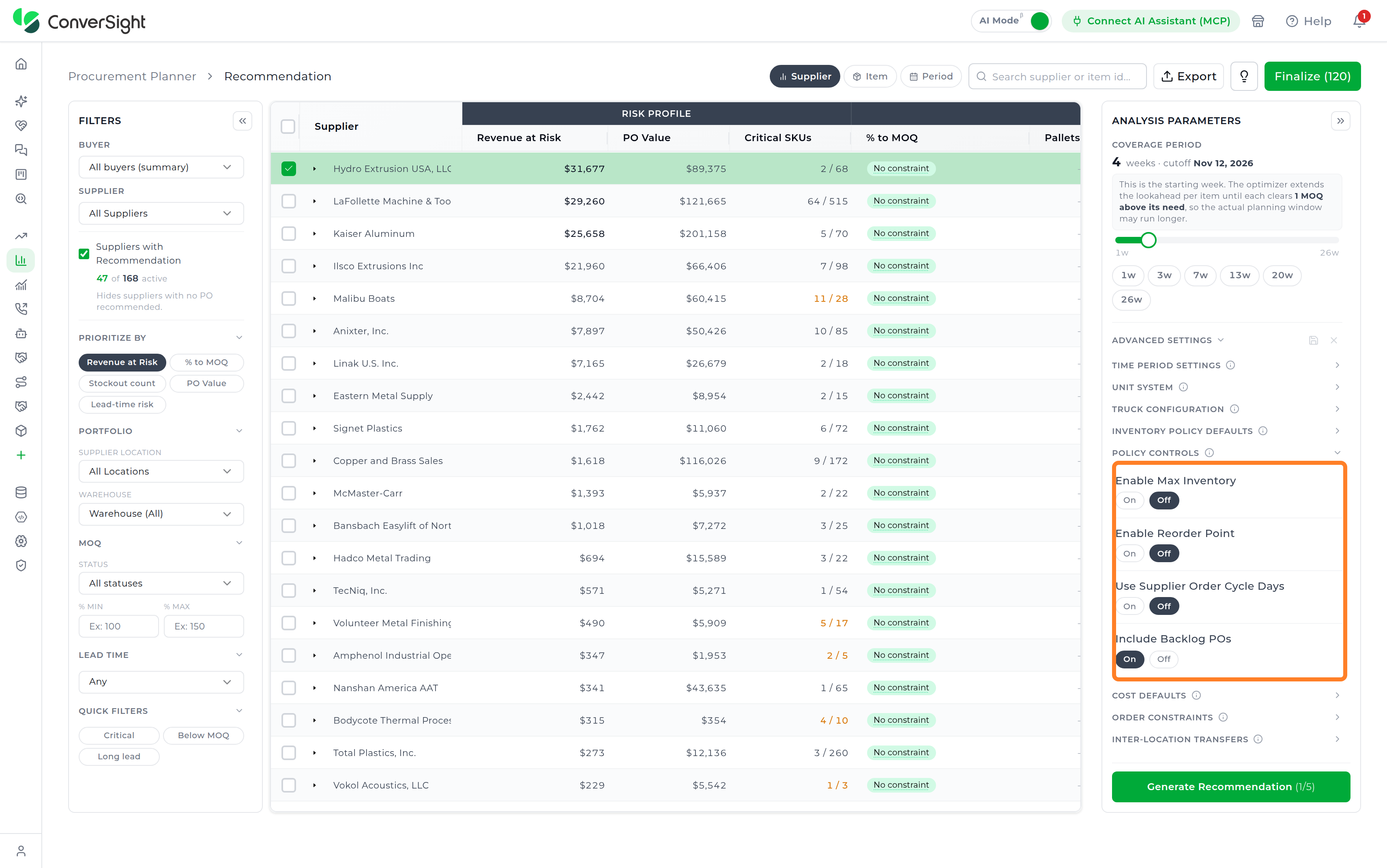
Policy Controls
The Policy Controls section provides controls that determine which inventory and purchasing policies are applied when recommendations are generated. These controls allow planners to determine whether specific inventory thresholds, supplier ordering behavior, and backlog purchase orders should be considered during planning.
| Field | Description |
|---|---|
| Enable Maximum Inventory | Factors the configured maximum inventory level into recommendations, capping replenishment so it doesn't push inventory past that ceiling. Left off, no maximum-inventory constraint applies to the calculation. |
| Enable Reorder Point | Checks the item's inventory position against its configured reorder point to decide whether replenishment is needed. Left off, the reorder point plays no part in triggering the recommendation. |
| Use Supplier Order Cycle Days | Times recommended orders to the supplier's own configured order cycle days, so the recommendation reflects that supplier's actual ordering cadence rather than a generic cycle. |
| Include Backlog POs | Pulls overdue purchase orders that fall within the configured Backlog Lookback Days window into the planning analysis, accounting for supply that was expected but never received. Left off, those backlog orders are excluded from the recommendation. |
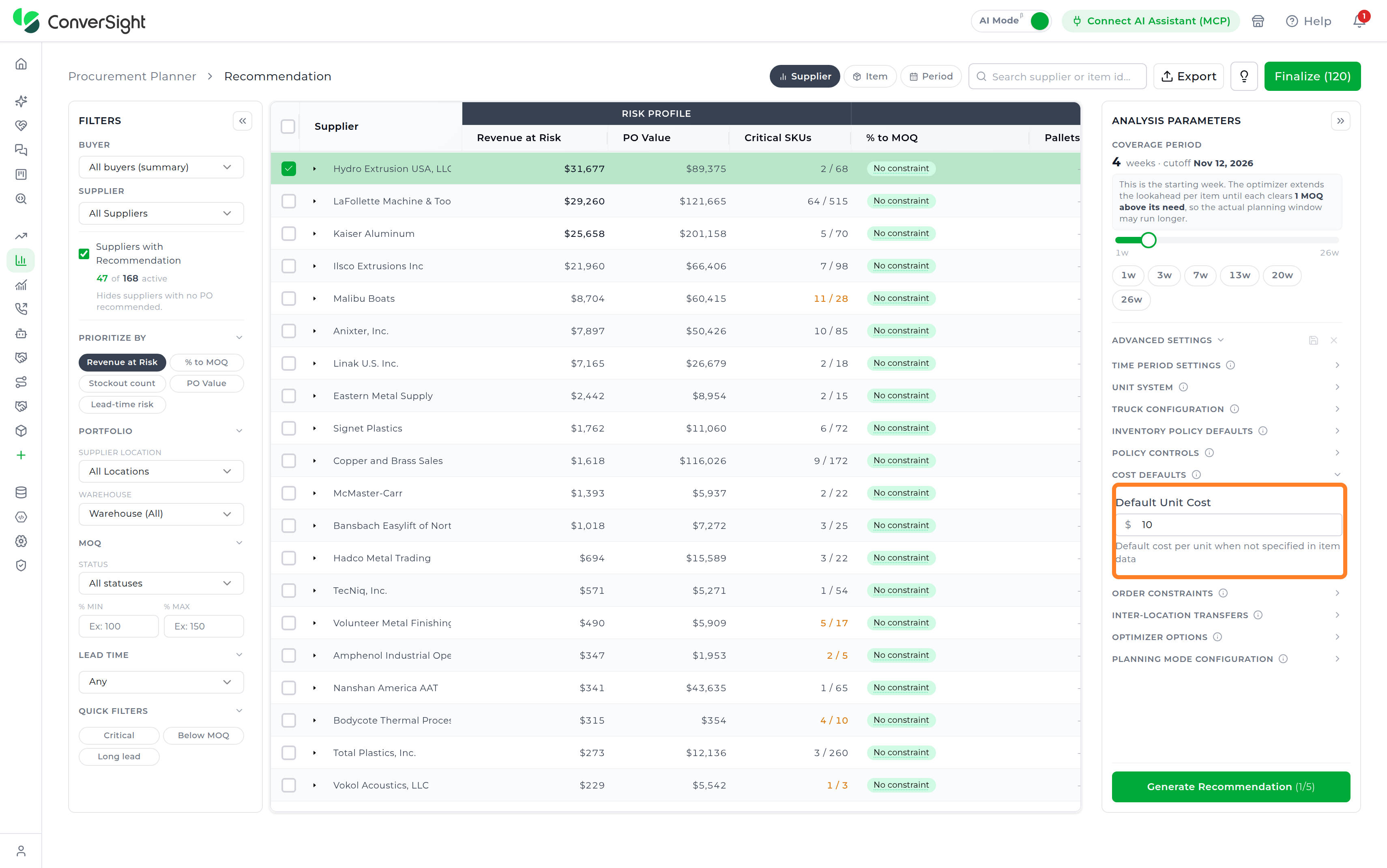
Cost Defaults
The Cost Defaults section provides a fallback cost value for items where cost information isn't available in the underlying item data.
Default Unit Cost
Default Unit Cost specifies the cost applied to an item when its unit cost is missing from the item data, giving the planning process a usable value for cost-related calculations instead of leaving it undefined.
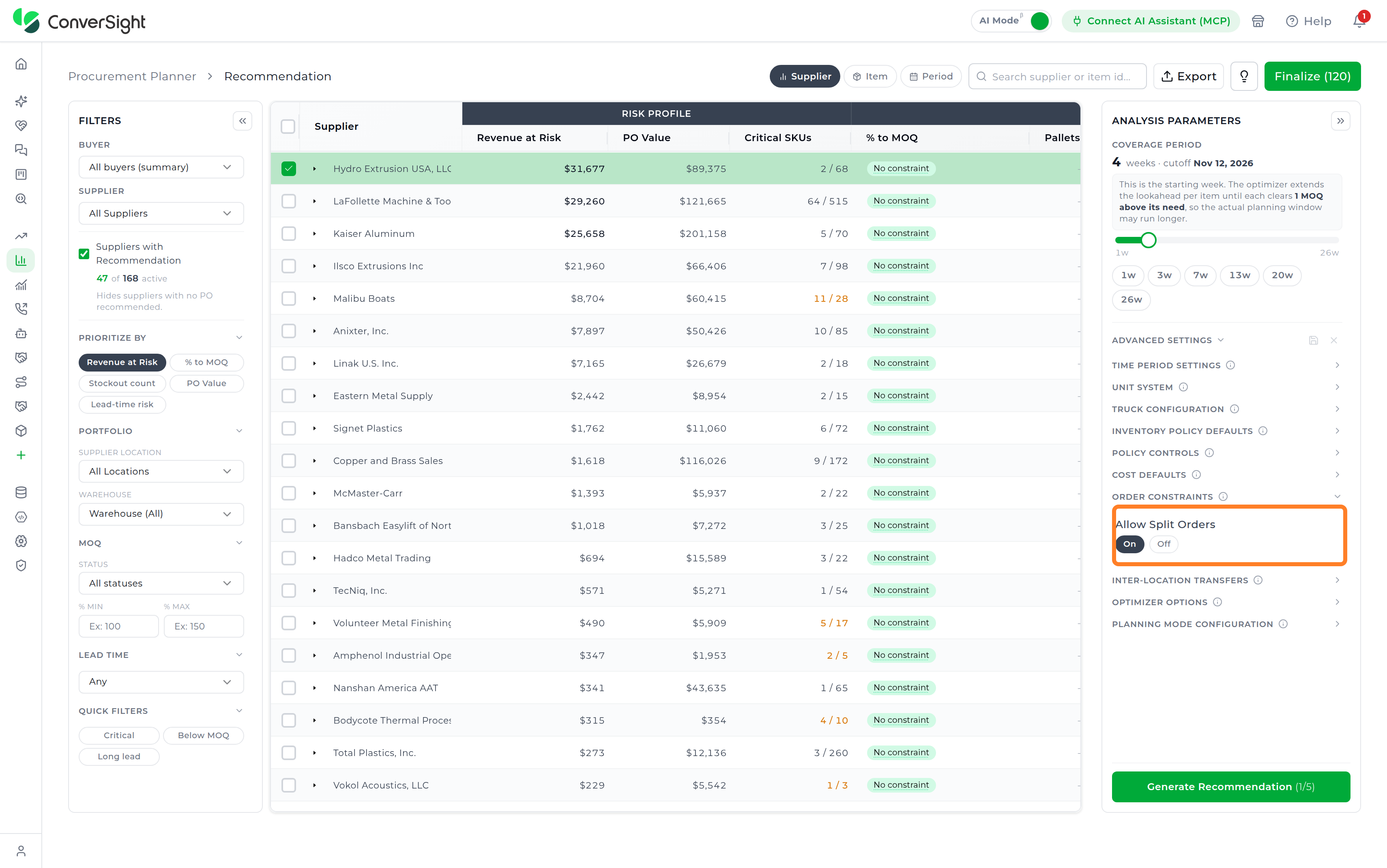
Order Constraints
The Order Constraints section controls how the planning engine can structure recommended purchase orders. These controls are useful when planners need flexibility in how recommended quantities are distributed across orders.
Allow Split Orders
Allow Split Orders determines whether the optimizer can divide a recommended quantity across multiple purchase orders. When enabled, the optimizer can split the required quantity into multiple orders when doing so supports the planning constraints. When disabled, the recommendation is not permitted to split the quantity across multiple orders.
Inter-Location Transfers
The Inter-Location Transfers section controls whether inventory can be considered for transfer between locations when generating recommendations. This setting allows the planning process to consider available inventory at other locations as a potential source of supply instead of relying only on external replenishment.
Allow All Location Transfers
Allow All Location Transfers determines whether inventory transfers between all available locations can be considered during recommendation analysis. When enabled, the optimizer can evaluate inventory movement between locations as part of the planning process. When disabled, transfers across all locations are not considered under this setting.

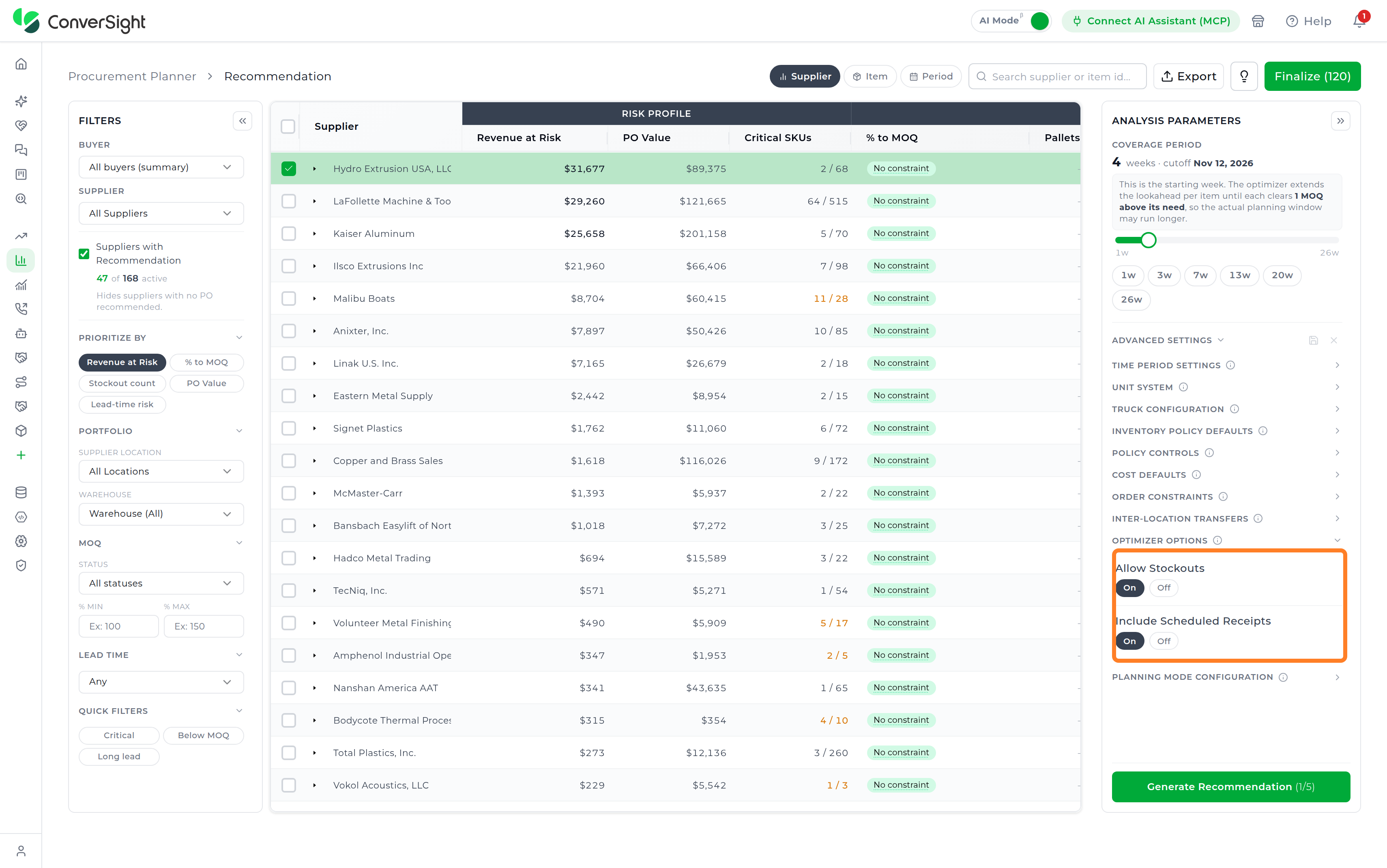
Optimizer Options
The Optimizer Options section controls specific behaviors used by the optimization engine when generating recommendations. These settings allow planners to determine how the optimizer should treat stockout conditions and already scheduled inventory receipts.
| Field | Description |
|---|---|
| Allow Stockouts | Lets the optimizer accept a plan where projected inventory dips below the required level, when doing so is necessary to satisfy other planning constraints. Turned off, the optimizer instead tries to avoid recommendations that would result in a stockout. |
| Include Scheduled Receipts | Factors already-scheduled inventory receipts, such as purchase orders due to arrive, into the planning calculation, so the recommendation accounts for supply that's already on its way. Turned off, those scheduled receipts play no part in the calculation. |
Planning Mode Configuration
The Planning Mode Configuration section allows planners to select the strategy used by the optimizer when generating procurement recommendations. The selected planning mode determines how the optimizer approaches replenishment planning and how recommended quantities are structured.
Planning Mode
Planning Mode is a single-select control: only one of the strategies below governs a given recommendation at a time, and changing the selection reshapes how every recommendation generated for the selected supplier afterward is calculated, until the mode is changed again.
| Option | Description |
|---|---|
| Freeze Weeks of Supply | Plans replenishment using a weeks-of-supply approach, maintaining the configured inventory coverage across the planning horizon. |
| Freeze Truck Loads | Plans replenishment around truck-load requirements, factoring truck capacity into how recommended replenishment is structured. |
| Order All Mode | Plans the full required replenishment quantity as part of the ordering strategy, rather than applying either freeze-based approach. |

Supplier Drill-Down View
Within the Supplier View, planners can expand a specific supplier row to open the Supplier Drill-Down View, a supplier-scoped workspace that breaks the selected supplier's aggregated recommendation down into the items and planning periods behind it. The drill-down opens into two data views, each covering a different unit of analysis and described in full under its own heading below:
- Item View: Lists every SKU tied to the selected supplier as its own row, so planners can evaluate inventory position, replenishment need, and item-specific recommendation logic one item at a time.

- Period View: Aggregates the supplier's planning data into weekly buckets across the planning horizon, surfacing how supply, demand, and inventory exposure shift from one period to the next.

The drill-down also carries a Recalculate action, which refreshes the recommendation for the selected supplier using the latest planning parameters and any quantity adjustments made in the workspace, without requiring planners to leave the drill-down.
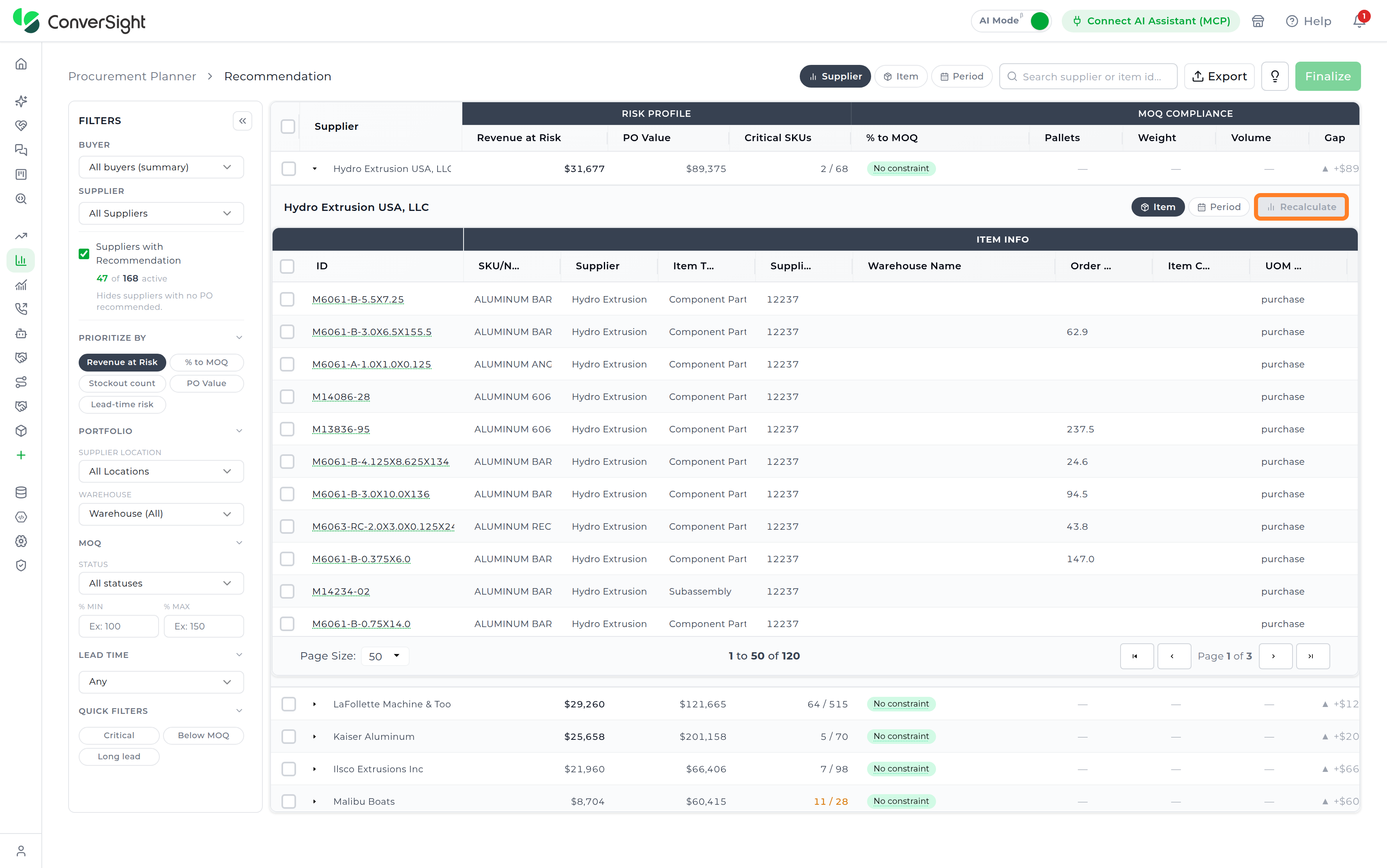
Recalculate is enabled when the Supply Planner adjusts the quantity for any item in the drill-down. Until at least one item's quantity is modified, the Recalculate option remains disabled.
Item View
The Item View provides a detailed SKU-level representation of recommendation data within the Recommended Simulation workspace. Unlike the Supplier View, which summarizes recommendations at the supplier level, the Item View represents one row per item, enabling planners to perform granular inventory, replenishment, and operational analysis across all selected suppliers. This view supports execution-level planning by providing deeper visibility into item-specific inventory behavior, reorder logic, demand exposure, replenishment recommendations, cost impact, and supply constraints.
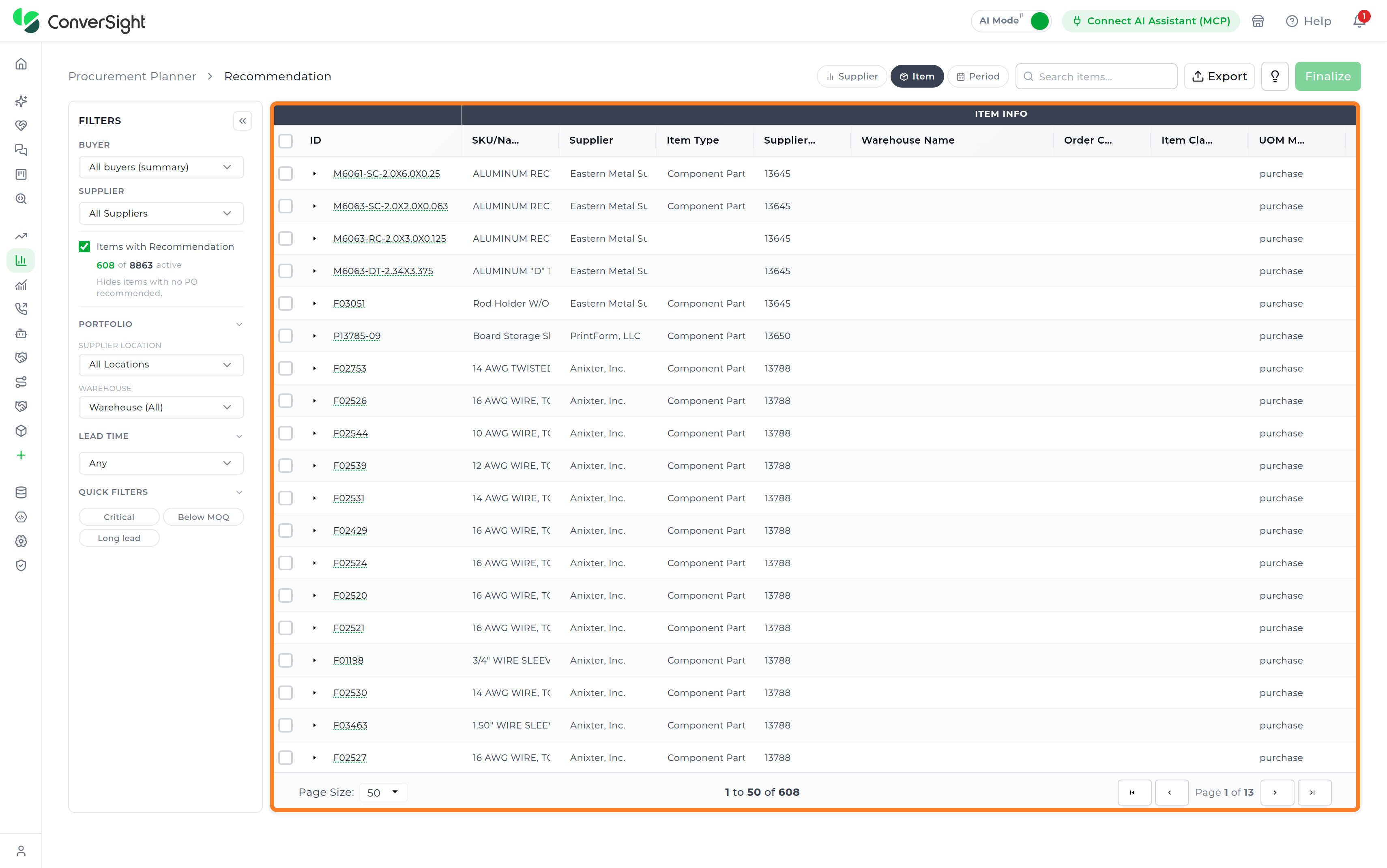
Item Information
The Item Information section provides identifying and configuration-related details associated with each SKU included in the recommendation run. These fields help planners quickly identify the item, review supplier associations, and understand the planning configuration used during recommendation generation.
| Field | Description |
|---|---|
| ID | Identifies the item internally within the planning configuration. |
| SKU/Name | Combines the SKU code with the descriptive item name associated with the recommendation record. |
| Supplier | Names the supplier associated with the item and replenishment recommendation. |
| Item Type | Classifies the item for use during inventory planning, forecasting, and replenishment calculations. |
| Check Frequency | Indicates the configured planning or validation frequency associated with the item during recommendation analysis. |
| Average Daily Usage | Shows the average daily consumption rate used during demand forecasting, inventory projection, and replenishment calculations. |
| Supplier ID | Holds the identifier of the item's supplier. |
| Warehouse Name | Names the warehouse that holds the item. |
| Order Cycle Days | Shows the number of days between purchase orders for the item. |
| Item Class | Groups the item into its configured item class. |
| UOM Mode | Indicates how the unit of measure is applied to the item, such as purchase. |
| Buyer Name | Names the buyer responsible for the item. |
| UOM | States the unit of measure in which the item is counted, such as each or inch. |
Inventory
The Inventory section provides visibility into the current stock position and replenishment thresholds associated with each item. These metrics help planners evaluate whether inventory levels are sufficient to support projected demand and determine whether replenishment activity is required within the active planning horizon.
| Field | Description |
|---|---|
| On Hand Quantity | Shows the currently available inventory quantity associated with the item. |
| Reorder Point | Sets the inventory threshold at which replenishment recommendations are triggered to prevent projected shortages. |
| Safety Stock Quantity | Reflects the configured reserve inventory maintained to protect against demand variability and supply uncertainty. |
| Safety Days | Indicates the number of inventory coverage days maintained as safety stock based on projected demand patterns. |
| Average Daily Demand | Estimates the average quantity of an item consumed or sold per day during the selected planning horizon. This metric supports reorder recommendations, replenishment timing, inventory coverage calculations, and stockout risk analysis. Higher values generally indicate fast-moving items requiring more frequent replenishment activity. |
Order
The Order section provides recommendation and replenishment-related planning metrics associated with each SKU. These metrics form the core of operational decision-making by helping planners understand replenishment behavior, review procurement requirements, validate MOQ compliance, and identify items requiring immediate operational attention.
| Field | Description |
|---|---|
| Primary Action | Identifies the recommended operational action associated with the item, such as replenishment recommendation, shortage alert, or inventory risk condition. |
| MOQ | States the Minimum Order Quantity (MOQ) requirement associated with the item or supplier during replenishment planning. |
| Order Multiple | Applies the fixed ordering increment or pack-size rule used during replenishment calculations. |
| Recommended Quantity | Displays the AI replenishment quantity recommendation for the item based on projected demand, inventory position, lead time, MOQ constraints, and planning parameters. |
| Adjusted Quantity | Captures the manually modified replenishment quantity entered by the planner to override or refine the recommended quantity based on operational requirements or business decisions. |
Primary Action
Each item is assigned one of the following primary actions, helping planners prioritize which items need attention first. Selecting an action opens the Athena Recommendation panel, where planners can review the reasoning behind it before deciding to act.
The available primary actions may include:
- Critical - Stock out: Signals that the item is projected to experience a stockout and requires immediate attention.
- Within Limits - Order now: Recommends placing an order while the item remains within the configured inventory limits.
- Order recommended: Flags the item for replenishment based on its inventory and demand position.
- No order needed now: Confirms that the item's current inventory position is sufficient to meet projected demand, so no replenishment action is required at this time.

Athena Recommendation
The Athena Recommendation panel provides a detailed explanation of the recommendation for the selected item. It brings together the recommendation summary, AI-generated insights, inventory position, planning constraints, and the expected inventory position after planning.

Summary
The Summary section provides an overview of the recommended action for the selected item and the reason behind the recommendation. It provides the recommended order quantity and a Calculation Breakdown that shows the key values considered when determining the recommendation.
The Calculation Breakdown provides visibility into the calculations used to determine the recommended replenishment quantity. The breakdown includes values such as Current Stock, Planning Horizon Demand, Safety Stock, Net Need, Total Plan and Order This Cycle.
AI Reasoning
The AI Reasoning tab provides an AI explanation of the item's inventory condition and the recommendation. The section highlights the key factors influencing the recommendation and provides additional context around inventory risk, supply gaps, and replenishment requirements.

Insight Summary
The Insight Summary provides a concise explanation of the primary inventory or supply issue identified for the selected item.
It can highlight conditions such as a potential stockout, lead-time risk, structural supply gap, or insufficient inventory coverage.
The section also provides a confidence level associated with the generated insight.
Key Metrics
The Key Metrics section provides key values that help planners understand the item's current planning position.
These metrics can include Days of Stock, Lead Time, Structural Gap, and Order Now quantity.
Athena's Reasoning
Athena's Reasoning explains the factors considered when generating the recommendation.
It provides context around the calculated net need, lead-time considerations, planning mode, and the feasibility of the recommended action.
Recommendation
The Recommendation section provides additional detail about the recommended planning actionIt explains how the item's current inventory, projected demand, supplier lead time, and configured planning strategy contribute to the recommendation.
Alternatives Considered
The Alternatives Considered section provides visibility into other planning options considered when determining the recommended action. This allows planners to understand why the selected recommendation was preferred over other potential actions.
Next Actions
The Next Actions section provides suggested actions that planners can take based on the recommendation and the item's current planning condition.
Configuration Note
The Configuration Note provides additional context about configuration settings that may have influenced the recommendation. This helps planners understand how the configured planning parameters affect the resulting recommendation.
Simulation
The Simulation section provides additional information about the simulated planning outcome associated with the recommendation.
Inventory Position
The Inventory Position section provides visibility into the selected item's current inventory position and projected consumption across the planning horizon. The section provides two views: Current Position and Consumption Outlook.

Current Position
The Current Position view provides a summary of the item's current inventory metrics, including Current Inventory, Safety Stock, and Reorder Point. The Inventory Gap Analysis compares the current inventory position with the configured reorder point and provides visibility into the resulting inventory gap.
Consumption Outlook
The Consumption Outlook provides a time-phased view of projected consumption across the planning horizon. The view allows planners to understand how projected demand is distributed across the planning periods.
The Consumption Breakdown provides visibility into the quantity and percentage of projected consumption for each planning period.

Constraints
The Constraints section provides visibility into the planning constraints applied to the selected item and their impact on the recommendation.
The section can include Solver Type, Lead Time, and Reorder Point.
| Constraint | Description |
|---|---|
| Solver Type | Identifies the optimization strategy used to generate the recommendation. |
| Lead Time | Represents the configured time required for replenishment to arrive and is considered when determining the recommended planning action. |
| Reorder Point | Represents the inventory threshold used when evaluating the item's replenishment position. |
The displayed constraint values help planners understand the conditions considered when generating the recommendation.

After Planning
The After Planning section shows the expected inventory position after the recommended planning actions are applied.
The section provides visibility into Projected Inventory, Safety Stock, and Variance. These values allow planners to evaluate whether the recommended plan is expected to maintain an appropriate inventory position.

Variance Analysis
The Variance Analysis provides additional context on the difference between the projected inventory and the configured safety stock.
It helps planners understand whether the recommended plan is expected to provide sufficient inventory coverage.
Why This Is Happening
The Why This Is Happening section explains the factors contributing to the projected inventory condition.
It provides additional context around the item's projected inventory position and helps planners understand the underlying reason for any identified inventory risk.
Suggested Fixes
The Suggested Fixes section provides potential actions that can help address an identified inventory condition.
These suggestions help planners evaluate possible changes to inventory or supply planning parameters that may improve the projected planning outcome.
Cost
The Cost section provides financial visibility into projected replenishment activity associated with each SKU. These metrics help planners evaluate procurement spend, compare replenishment scenarios, and balance inventory availability against financial impact during operational planning.
| Field | Description |
|---|---|
| Unit Cost | Represents the procurement cost associated with a single unit of the item. |
| Total Cost | Represents the total projected replenishment cost calculated using the recommended quantity together with unit cost values. |
These metrics help planners evaluate the financial impact of replenishment recommendations and support more cost-aware inventory planning and procurement decisions.
Supply
The Supply section provides visibility into supplier replenishment responsiveness associated with the selected item. These metrics help planners evaluate supply reliability, replenishment timelines, and operational risk associated with delayed inventory availability.
| Field | Description |
|---|---|
| Lead Time | Represents the replenishment lead time associated with the supplier for the selected item within the active planning horizon. |
This visibility helps planners identify delayed replenishment scenarios, prioritize time-sensitive inventory decisions, and manage supplier-related operational risks more effectively during procurement planning.
Item Weekly Breakdown View
Within the Item View, planners can expand a specific item row to open the Weekly Breakdown View, which provides a time-phased simulation of how inventory, demand, replenishment activity, incoming supply, and shortages evolve across each planning week for the selected SKU. These metrics help planners validate replenishment timing, evaluate inventory coverage behavior, and analyze how demand fluctuations impact stock availability across future planning periods.
By combining weekly inventory simulation with replenishment visibility, the view supports early identification of projected shortages, delayed replenishment impact, inventory depletion trends, critical stockout windows, and operational risks associated with insufficient inventory coverage. This enables planners to make more informed procurement decisions and better align replenishment activity with projected operational demand patterns.

Item Details Popup
Selecting a specific item from the Item View opens the Item Details popup, which provides focused inventory, replenishment, demand forecasting, and cost visibility for the selected SKU. This popup acts as a lightweight SKU analysis workspace that enables planners to investigate operational conditions, validate recommendations, and review inventory behavior without leaving the main recommendation screen.
The popup is organized into multiple analytical sections including Overview, Inventory, Demand & PO, and Cost, enabling planners to move between inventory health metrics, forecast insights, replenishment projections, and financial analysis within a single workspace.
Overview
The Overview section provides a summarized operational snapshot of the selected item, including Current Inventory, Reorder Point, Safety Stock, and Lead Time. These metrics help planners quickly determine whether inventory levels are stable, approaching replenishment thresholds, or projected to fall below configured safety buffers.
The section also includes supplier-related procurement information such as assigned supplier, unit cost, and projected procurement value associated with the active recommendation. Planning alerts and operational recommendations are surfaced within the Recommendations area to highlight inventory risks, safety stock breaches, delayed replenishment conditions, or other concerns identified during projection analysis.

Inventory Projection
The Inventory section provides a visual representation of the selected item's projected inventory position across the active planning horizon. It brings together inventory levels, demand, purchase order recommendations, scheduled purchase orders, backlog purchase orders, expected arrivals, reorder point, and safety stock in a single view.
This allows planners to understand how inventory is expected to change over time, identify potential shortages or stockout periods, and evaluate whether planned replenishment is sufficient to meet projected demand.
At the top of the Inventory section, planners can review key inventory and replenishment metrics for the selected item.
| Metric | Description |
|---|---|
| Lead Time | Represents the configured time required for an order to be received after it is placed. This value is used when determining replenishment timing and expected arrival periods. |
| MOQ | Represents the Minimum Order Quantity configured for the selected item or supplier. |
| On Hand | Represents the quantity of inventory currently available for the selected item. |
| Reorder Point | Represents the inventory level at which replenishment activity should be triggered based on the configured planning policy. |
| Safety Stock | Represents the reserve inventory maintained to protect against demand variability and supply uncertainty. |

Inventory Projection
The Inventory Projection Graph provides a time-phased visualization of the item's projected inventory position across the planning horizon. The graph combines inventory movement, projected demand, replenishment recommendations, scheduled purchase orders, backlog purchase orders, and expected arrivals. Reference lines for the Reorder Point and Safety Stock are also displayed to help planners evaluate the projected inventory position against configured planning thresholds. The Show PO Scheduled checkbox adds or removes the scheduled purchase orders on the graph.
The graph includes the following indicators:
| Chart Series | Description |
|---|---|
| Inventory Level | Tracks the projected inventory level for each planning period after accounting for demand and expected replenishment activity. |
| Demand | Plots the projected demand or consumption for each planning period. |
| PO Recommended | Shows purchase order quantities recommended by the planning engine for the selected item. |
| PO Scheduled | Displays purchase orders that are already scheduled and expected to contribute to future inventory. |
| Backlog PO | Reflects eligible overdue purchase orders that are included in the planning calculation based on the configured backlog settings. |
| Expected Arrival | Marks the expected arrival of incoming purchase order quantities during the planning horizon. |
| Reorder Point | Indicates the configured inventory threshold used to identify when replenishment may be required. |
| Safety Stock | Denotes the configured reserve inventory level that the planning process attempts to maintain based on the applicable configuration. |
| Cost Summary | Provides a summary of the projected planning costs, including total cost, weekly cost, holding cost, and shortage cost. |
The interaction between these indicators allows planners to understand how incoming supply and projected demand affect inventory throughout the planning horizon. For example, a decline in the Inventory Level below the Reorder Point or Safety Stock can indicate an upcoming replenishment requirement or potential inventory risk.
Expand
Selecting Expand opens the Inventory Projection in a larger view for detailed analysis. The expanded view provides additional space for reviewing the complete planning horizon and includes the inventory projection graph along with supporting planning information.

Data View
The Data View provides the underlying weekly inventory projection in a tabular format. It allows planners to review the values represented in the graphical projection and examine inventory and replenishment information for individual planning periods.
The Data View includes the following information:
| Field | Description |
|---|---|
| Week | Identifies the individual planning period within the inventory projection. |
| Inventory Level | Shows the projected inventory level for the corresponding week. |
| Demand | Lists the projected demand for the corresponding planning period. |
| PO Recommended | Displays the purchase order quantity recommended for the corresponding week. |
| PO Scheduled | Reflects the purchase order quantity already scheduled for the corresponding week. |
| Backlog PO | Includes eligible backlog purchase orders in the planning calculation. |
| Total Scheduled PO | Totals the scheduled purchase order quantity for the planning period. |
| Expected Arrival | States the quantity expected to arrive during the corresponding planning period. |
Select the Close option to return to the Inventory Projection graph.

Download
The Download option in the Inventory Projection allows planners to save the displayed inventory projection as a file for offline analysis, reporting, or sharing. The download control is available in both the Inventory Projection graph and the expanded view.
When selected, the option exports the currently displayed inventory projection, allowing planners to retain and use a snapshot of the projection outside the recommendation workspace.
Demand & PO
The Demand & PO section provides visibility into forecasted demand and replenishment planning across the active planning horizon. Weekly forecast values are presented with confidence levels—High, Medium, and Low—to indicate the stability and reliability of projected demand patterns. Lower confidence levels highlight greater variability and may require additional planner review.
The Purchase Order Schedule displays planned or recommended replenishment quantities along with expected arrival dates, enabling planners to assess whether incoming supply is appropriately aligned with forecasted demand and inventory requirements.

Item Cost Analysis
The Cost tab of the Item Details popup gives planners a focused financial view of the selected item's replenishment and inventory activity across the planning horizon, without leaving the Recommended Simulation workspace. It surfaces the cost impact of a recommendation alongside the calculation inputs behind it, so planners can weigh a replenishment decision on financial terms and not just inventory coverage.
The tab opens with four summary figures:
| Metric | Description |
|---|---|
| Total Cost | Shows the item's total projected cost across the planning horizon — the top-level figure planners weigh against the recommendation. |
| Average Weekly Cost | Spreads Total Cost evenly across the planning horizon, giving planners a per-week figure for comparing items with different horizon lengths. |
| Holding Cost | Estimates the carrying expense of keeping the item's projected inventory on hand — the cost tied up in stock that isn't yet needed. |
| Shortage Cost | Reflects the financial exposure of a projected inventory shortfall — the cost of not having enough stock on hand to meet demand. |
Below these figures, the Cost Analysis Details panel breaks the calculation open so planners can trace exactly how each summary figure was reached, rather than treating it as a black box.
| Field | Description |
|---|---|
| Unit Cost | States the per-unit cost used as the basis for every cost calculation on this tab. |
| Total Units (12 weeks) | Totals the projected unit volume across the planning horizon that the cost calculation is based on. |
| Holding Cost (20% of inventory) | Shows the carrying-cost rate — 20% of the inventory value in this example — applied to reach the Holding Cost figure. |
| Shortage Cost (150% penalty) | Applies a 150% penalty rate against the shortfall value in this example to reach the Shortage Cost figure. |
| Total Cost | Restates the item's total projected cost, matching the Total Cost figure shown above. |

Period View
The Period View provides a time-phased perspective of the active simulation horizon, allowing planners to review recommendations, inventory exposure, supply coverage, and operational impact by week. It helps planners identify periods of increasing inventory pressure, peak replenishment demand, changes in supplier participation, and weeks with higher operational or financial exposure.
The view opens with a weekly summary table that presents aggregated planning metrics for each week. At the top of the workspace, planners can review the active planning context:
| Field | Description |
|---|---|
| Starting Inventory | Total inventory available at the beginning of the simulation period for all items within the recommendation scope. |
| Horizon | Total duration configured for the active simulation. |
| Forecast | Demand forecast window applied to the recommendation and inventory projection analysis. |
The weekly summary is organized into multiple planning groups, providing a consolidated view of demand and supply and inventory health across the planning horizon. Each row represents one planning week.
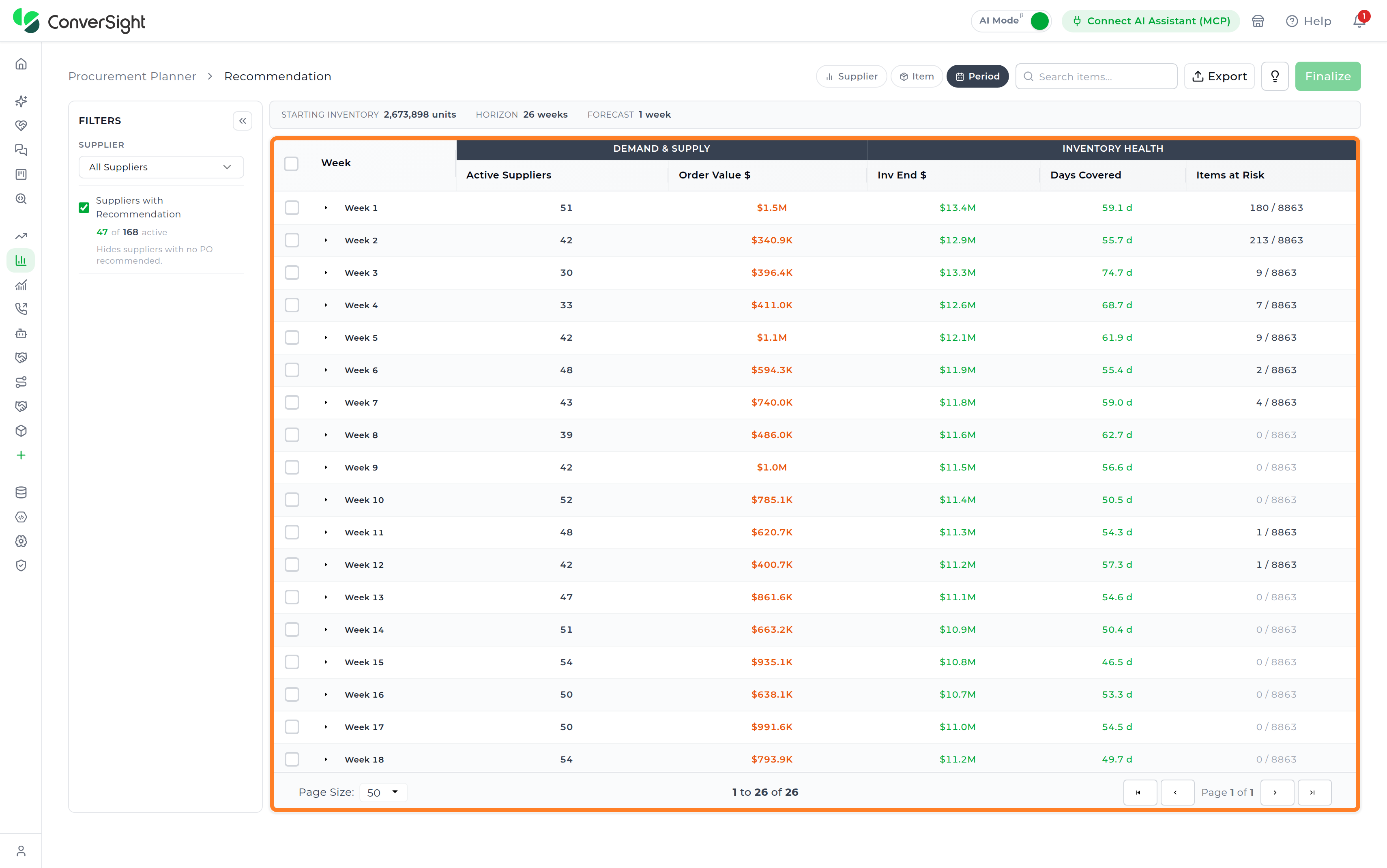
Demand & Supply
The Demand & Supply section provides a high-level operational view of weekly replenishment activity and supplier participation across the planning horizon.
| Field | Description |
|---|---|
| Active Suppliers | Shows the number of suppliers actively contributing replenishment recommendations during the selected planning week. |
| Order Value $ | Reflects the projected Purchase Order (PO) value recommended for the selected week across all suppliers and items within scope. |
Inventory Health
The Inventory Health section provides visibility into projected inventory sustainability and supply coverage throughout the active simulation timeline.
| Field | Description |
|---|---|
| Inventory End $ | Shows the projected ending inventory valuation for the week after accounting for replenishment activity and forecasted demand consumption. |
| Days Covered | Estimates the number of inventory coverage days available at the end of the selected week based on projected demand patterns. |
| Items at Risk | Indicates the number of items projected to face shortages, low inventory conditions, or stockout risk during the selected week relative to the total item count within scope. |
Impact
The Impact section highlights operational and financial exposure associated with each planning week.
| Field | Description |
|---|---|
| Trucks | Reports the number of trucks required for projected replenishment activity during the selected week together with the estimated truck fill utilization percentage. |
| Revenue at Risk | Reflects the projected revenue exposure associated with inventory shortages or unmet demand during the selected planning week. |
The Period View helps planners identify periods with elevated procurement demand, declining inventory health, increasing logistics requirements, or rising revenue exposure. By surfacing these operational trends week by week, the view supports proactive planning decisions, improved replenishment timing, and better coordination between procurement, inventory, and logistics teams.
Planners can further expand individual weeks to drill into detailed shipment activity, inventory behavior, and operational metrics associated with a specific planning period.
Week Summary Panel
Selecting a specific week from the Period View opens the Week Summary panel, which provides a focused operational breakdown for the selected planning period. This panel helps planners analyze weekly supply activity, truck utilization, shipment distribution, and operational metrics without leaving the primary planning workspace.
The Week Summary panel is organized into three sections — Overview, Shipments, and Metrics — enabling planners to move between summarized operational insights and detailed weekly execution data.
Overview
The Overview tab shows a single Truck Utilization card, giving planners a transportation-capacity view of the selected week's recommended shipments.
| Field | Description |
|---|---|
| Trucks Used | Counts the trucks required for the week's recommended shipments. |
| Volume Utilized | The shipment volume used, against the total available truck volume capacity. |
| Volume Utilization | Volume Utilized, expressed as a percentage of available truck volume capacity. |
| Weight Utilized | Reports the shipment weight used, against the total supported truck weight capacity. |
| Weight Utilization | Weight Utilized, expressed as a percentage of truck weight capacity. |
A percentage near 100% signals the week is close to its transportation limit; a low percentage points to underused truck capacity and a possible shipment-consolidation opportunity.

Shipments
The Shipments tab lists the individual items contributing to the selected week's recommended shipment activity, one row per item.
| Field | Description |
|---|---|
| Item | Identifies the item included in the week's recommended shipment. |
| PO Quantity | Lists the purchase order quantity recommended for that item. |
| Cost | Reflects the projected cost contribution of that item's recommended quantity. |

Metrics
The Metrics tab provides a summarized operational and financial snapshot for the selected week, helping planners evaluate the overall health and impact of the weekly recommendation cycle. This section consolidates key inventory, demand, and replenishment KPIs into a compact analytical view for rapid decision-making.
The metrics panel includes:
| Field | Description |
|---|---|
| Total Demand | Shows the total forecasted item demand for the selected week across all suppliers and SKUs included in the recommendation run. |
| Total PO Quantity | States the total recommended Purchase Order (PO) quantity generated for the selected planning week. |
| Items w/ Shortage | Counts the total number of items projected to experience shortages during the selected planning period. |
| Total Cost | Totals the projected procurement cost associated with the recommended replenishment plan for the selected week. |
These metrics provide planners with immediate visibility into weekly replenishment scale, projected inventory pressure, procurement exposure, and service-level risk. By surfacing these KPIs alongside shipment and truck utilization insights, the Week Summary panel enables planners to evaluate operational readiness and inventory impact before finalizing weekly recommendations.

Weekly Breakdown Views
Expanding a week in the Period View shows two analysis modes — By Supplier and By Item — allowing planners to evaluate weekly replenishment activity either at the aggregated supplier level or at detailed SKU granularity.
By Supplier
The By Supplier view displays supplier-level operational performance for the selected week, helping planners analyze how weekly replenishment activity is distributed across vendors. This view combines MOQ compliance, supply health, and supplier information into a single operational planning workspace.
The table uses the same column groups as the Supplier View: Risk Profile, MOQ Compliance, Truck, Supply Health, Items, and Supplier Information. This view is particularly useful for evaluating supplier readiness, identifying vendors contributing to weekly shortages, validating MOQ feasibility, and analyzing supplier-level operational exposure before executing weekly purchase recommendations.

By Item
The By Item view shifts the weekly analysis to SKU-level granularity, enabling planners to evaluate item-specific demand, replenishment recommendations, inventory movement, and projected supply outcomes within the selected planning week.
This view provides detailed item-level planning visibility including item identifiers, SKU and item names, projected demand, recommended purchase order quantities, scheduled purchase orders, expected arrivals, projected ending inventory balances, and anticipated shortages.

Review Purchase Order
The Review Purchase Order page is where the items selected during recommendation are checked and turned into a purchase order. It presents the selected items together with their planning and inventory context, so planners can confirm what is being ordered, from which supplier, and in what quantity before the order is created.
Review Purchase Order is the second stage of the planning workflow. It receives the items selected in Recommended Simulation, and the purchase orders created here become the record shown in Purchase Order History.

Accessing Review Purchase Order
Selecting Finalize in the Recommended Simulation workspace carries the selected items forward and opens the Review Purchase Order page. The page is presented as the Finalize Purchase Order tab, displayed alongside the Recommended Simulation tab so planners can move back to the recommendation workspace without losing the current selection.
The page can also be opened directly from the Supply Planner Dashboard by selecting Review Purchase Order for the required planning configuration.
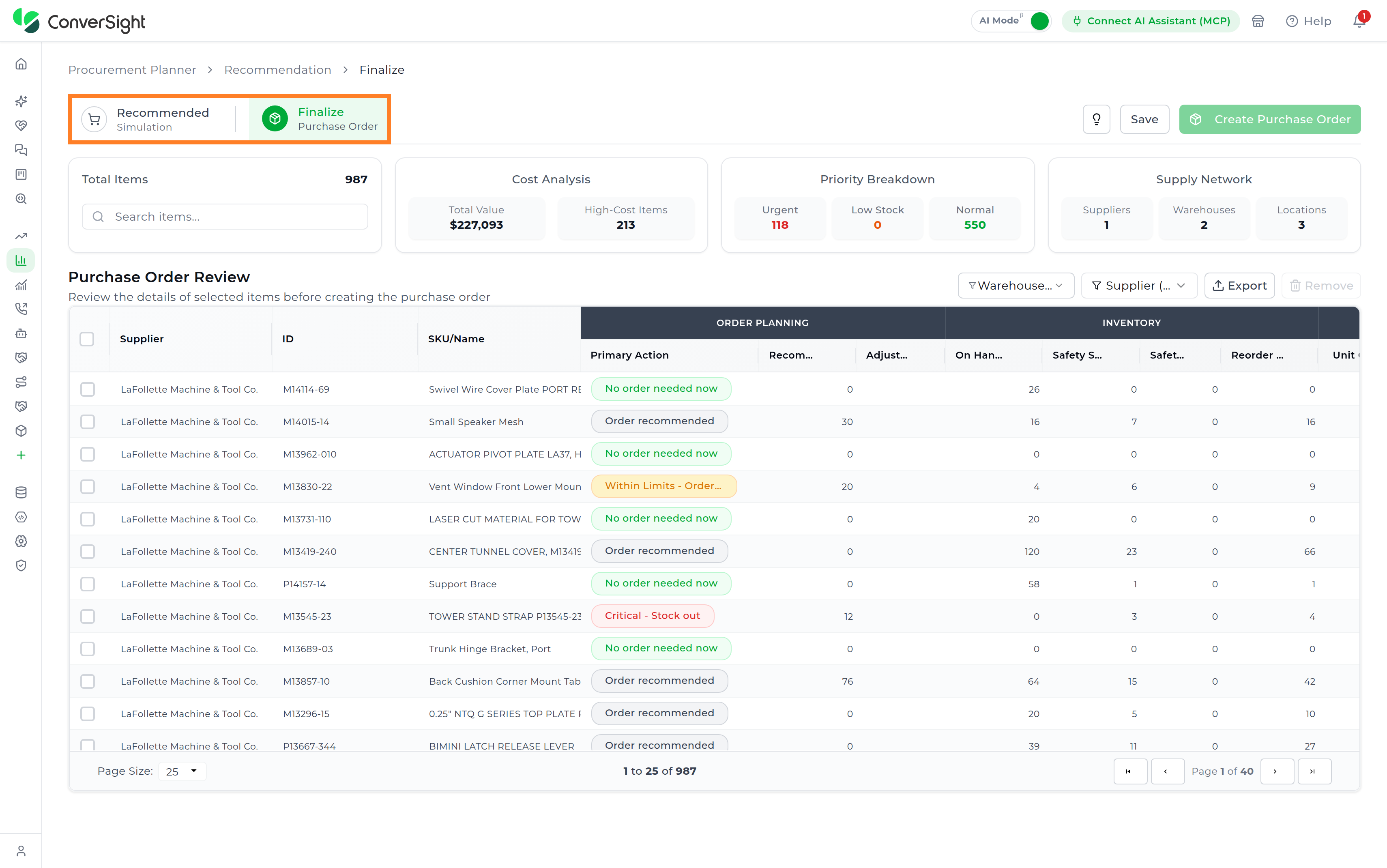
Summary Information
The summary section presents an overview of the items carried into the review. These summary cards provide immediate visibility into procurement scale, cost exposure, order priority, and supply network participation before the individual items are reviewed.
| Card | Description |
|---|---|
| Total Items | Shows the total number of items currently available for review on the page. |
| Cost Analysis | Summarizes the overall procurement value of the items under review, together with the number of items classified as high-cost. |
| Priority Breakdown | Categorizes the items under review by operational priority, distinguishing between urgent items, low stock items, and items requiring standard procurement activity. |
| Supply Network | Summarizes the suppliers, warehouses, and locations associated with the items under review, providing a high-level overview of the procurement network involved. |
A Search items field is also available within the summary section, allowing planners to locate specific items using the available item information.

Purchase Order Review
The Purchase Order Review table lists the items carried forward from the recommendation, allowing planners to review the details of the selected items before creating the purchase order. Each row represents an individual item together with its supplier, recommended action, order quantities, and inventory position.
Each row provides a checkbox for selecting the item, and the checkbox in the table header selects every item currently displayed. Selection determines which items are included when the purchase order is created.
The table is organized into column groups that separate item identification from planning, inventory, cost, and configuration information.
| Column group | Description |
|---|---|
| Item Identification | Identifies the item and the supplier it is sourced from:
|
| Order Planning | Presents the recommended action and the quantities associated with it:
|
| Inventory | Presents the inventory position used when the recommendation was generated:
|
| Cost | Presents the cost of the item in the order:
|
| MOQ Configuration | Presents the ordering constraint applied to the item:
|
| Lead Time Configuration | Presents the replenishment timing applied to the item:
|

Filtering the Review
The review can be narrowed using the filters positioned above the table, allowing planners to concentrate on a specific part of the procurement network rather than reviewing every item at once.
| Filter | Description |
|---|---|
| Warehouse | Narrows the table to items associated with the selected warehouse or destination facility. |
| Supplier | Narrows the table to items associated with the selected supplier. |

Removing Items
The Remove action removes the currently selected items from the review, excluding them from the purchase order that will be created. The action becomes available once at least one item has been selected.

Export
The Export action downloads the order details currently displayed, including the active filters, for reporting, auditing, or further analysis outside the Supply Planner application.

Save
The Save action preserves the current review — the selected items and any adjusted quantities — without creating a purchase order. This allows a review to be paused and resumed later, so that planners can return to an in-progress review rather than repeating the selection.

Create Purchase Order
Once the selected items have been reviewed, selecting Create Purchase Order raises the purchase order for those items and completes the review stage. The resulting order becomes part of the record available in Purchase Order History.

Save and Create Purchase Order are distinct actions. Saving retains the review for later without raising an order, while Create Purchase Order commits the selected items and places the order.
Purchase Order History
Purchase Order History is the final stage of the planning workflow. It provides a record of the purchase orders created in Review Purchase Order, allowing planners to examine past procurement activity and track order status without changing it.
The page is presented as the Review Purchase Order History tab and is accessible from the Supply Planner Dashboard by selecting Purchase Order History for the required planning configuration.

History Summary Information
The summary section presents an overview of the purchase order history available for the selected planning configuration, using the same summary cards as the review stage.
| Card | Description |
|---|---|
| Total Items | Shows the total number of purchase order records currently available in the history. |
| Cost Analysis | Summarizes the overall procurement value represented by the historical orders, together with the number classified as high-cost. |
| Priority Breakdown | Categorizes the historical orders by the operational priority they carried, distinguishing between urgent orders, low stock replenishments, and standard procurement activity. |
| Supply Network | Summarizes the suppliers, warehouses, and locations associated with the historical orders. |
A Search items field allows planners to locate specific purchase orders using the available order information.
Historical Purchase Orders
The Historical Purchase Orders table displays the items with purchase order history and status tracking for the selected planning configuration. Each row represents a purchase order record together with its supplier, quantities, and procurement cost.
Each column provides its own filter and column menu, and rows can be expanded to reveal the item-level detail captured when the order was generated.
The purchase order information is grouped into several logical sections that organize related planning data.

Purchase Order Information
The purchase order information is grouped into several logical sections that organize related planning data.
| Column group | Description |
|---|---|
| Order Information | Identifies each purchase order and provides basic procurement details:
|
| Item | Identifies the inventory item associated with the purchase order:
|
| Supplier | Provides the supplier details associated with each purchase order:
|
| Order Quantities | Compares the quantities generated during planning with the quantities finally ordered:
|
| Cost | Summarizes the procurement cost associated with each purchase order:
|

Purchase Order Details
Each purchase order can be expanded to display the inventory information captured at the time the order was generated. The expanded view provides additional context that helps planners understand the inventory conditions, demand patterns, and planning parameters that influenced the recommendation.
| Column group | Description |
|---|---|
| Inventory Position | Reports the inventory held for the item when the order was generated:
|
| Planning Inputs | Reports the values the recommendation engine used for the item:
|
| Reference |
|

Exporting Purchase Order History
The Export action downloads the displayed purchase order history for reporting, auditing, or further analysis outside the Supply Planner application.

Refresh
The Refresh action reloads the purchase order history displayed on the page, ensuring that the latest orders, summary metrics, and table contents are synchronized with the current planning configuration.

The Supply Planner application provides a centralized platform for managing supply chain planning by integrating analysis, simulation, review, and execution into a unified workflow. It enables planners to evaluate demand forecasts, inventory positions, supplier constraints, and procurement recommendations within a single planning environment. Through configurable planning parameters, intelligent replenishment recommendations, and comprehensive visibility into historical and operational data, the application supports informed decision-making throughout the planning lifecycle. By streamlining planning activities and aligning procurement decisions with business objectives, Supply Planner helps organizations optimize inventory levels, improve supplier collaboration, reduce operational risk, and achieve more efficient and consistent supply planning outcomes.