Demand Planner
Demand Planner is Athena in Employee mode for forecasting. It owns the loop from demand-signal detection to forecast publication: it watches sales, orders, and external inputs in real time; reasons across history, seasonality, and item priority; produces forecasts you can trust; and feeds outcomes back into its own models so accuracy compounds with every cycle.
Like every Athena agent, Demand Planner operates across the full autonomy spectrum. A planner can ask Athena a question and get an instant grounded answer (Assistant mode), pair with Athena during an S&OP review to build and refine scenarios in real time (Co-Pilot mode), schedule recurring forecast runs and distributions (Automation mode), or hand off whole forecasting cycles to Athena to run continuously within configured guardrails (Employee mode). The same data, the same model, the same audit trail — at whatever level of delegation your organization is ready for.
What Demand Planner Owns
| Stage | What Athena does |
|---|---|
| Signal | Detects shifts in order velocity, anomaly patterns in actuals vs. forecast, external demand drivers (promotions, seasonality, market events). |
| Decision | Reasons across SKU classification, demand history, lead time, item priority, and business rules. Scores forecast confidence per item. |
| Action | Generates forecasts at the right granularity (SKU × location × period), proposes adjustments where actuals diverge, and publishes the approved plan organization-wide. |
| Feedback | Captures forecast-vs-actual deviation, planner overrides, and downstream supply-plan outcomes. |
| Learning | Updates demand models per SKU and per scenario. Low-confidence forecasts auto-route to a planner for review; high-confidence ones publish on schedule. |
A typical autonomous workflow
Every Monday at 6am, Athena runs a fresh 13-week forecast across all active SKUs. SKUs with confidence above the configured threshold publish automatically; SKUs flagged for review land in the Demand Planner's queue with the reasoning and the variance-driver attached. By the time the planner sits down, three-quarters of the week's work is already done — and the reviewable items are the ones that genuinely need a human eye.
Guardrail: forecast publication thresholds, SKU-tier rules, and reviewer roles are administrator-configured. Every published forecast is logged with the model version, input data snapshot, and confidence score for audit.
What This Documentation Covers
This page is the reference for using Demand Planner in the platform: how to access it, how to configure forecast scenarios, how to manage and publish forecasts, and how to interpret the AI's recommendations. If you're new to the agent, start at Accessing Demand Planner. If you've used it before and want a specific function, the table of contents on the right covers every section.
Accessing Demand Planner
Click on the Demand Planner option under the AI Agents section in the left navigation sidebar to open the Demand Planner application.
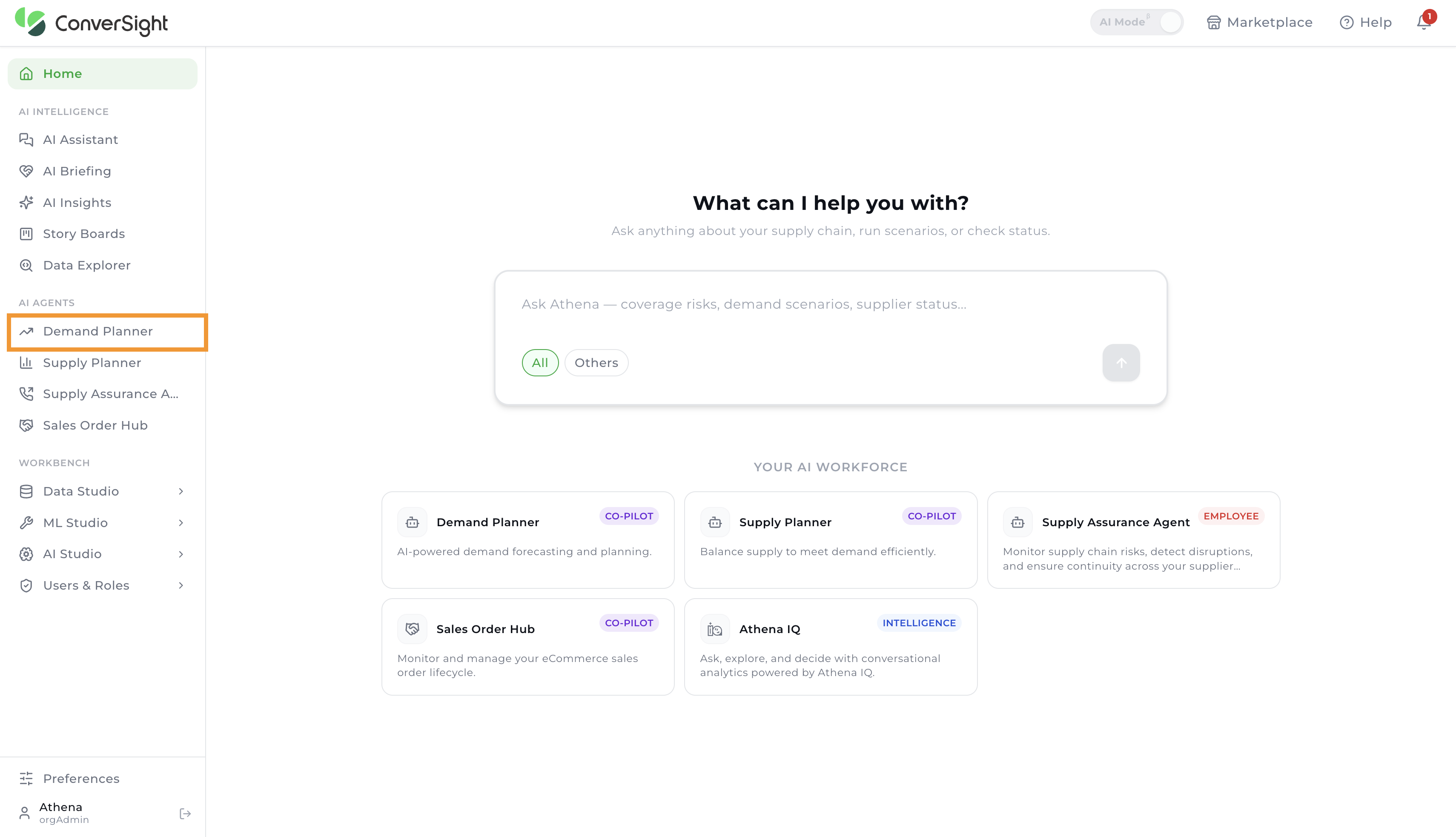
Forecast Tabs Overview
The Demand Planner page includes three tabs that provide users with access to different forecast statuses:
- All Forecasts – Displays all forecasts, including created, in-progress, and published ones.
- In Progress – Displays only the forecasts that are currently in progress.
- Published – Displays only the forecasts that have been published.
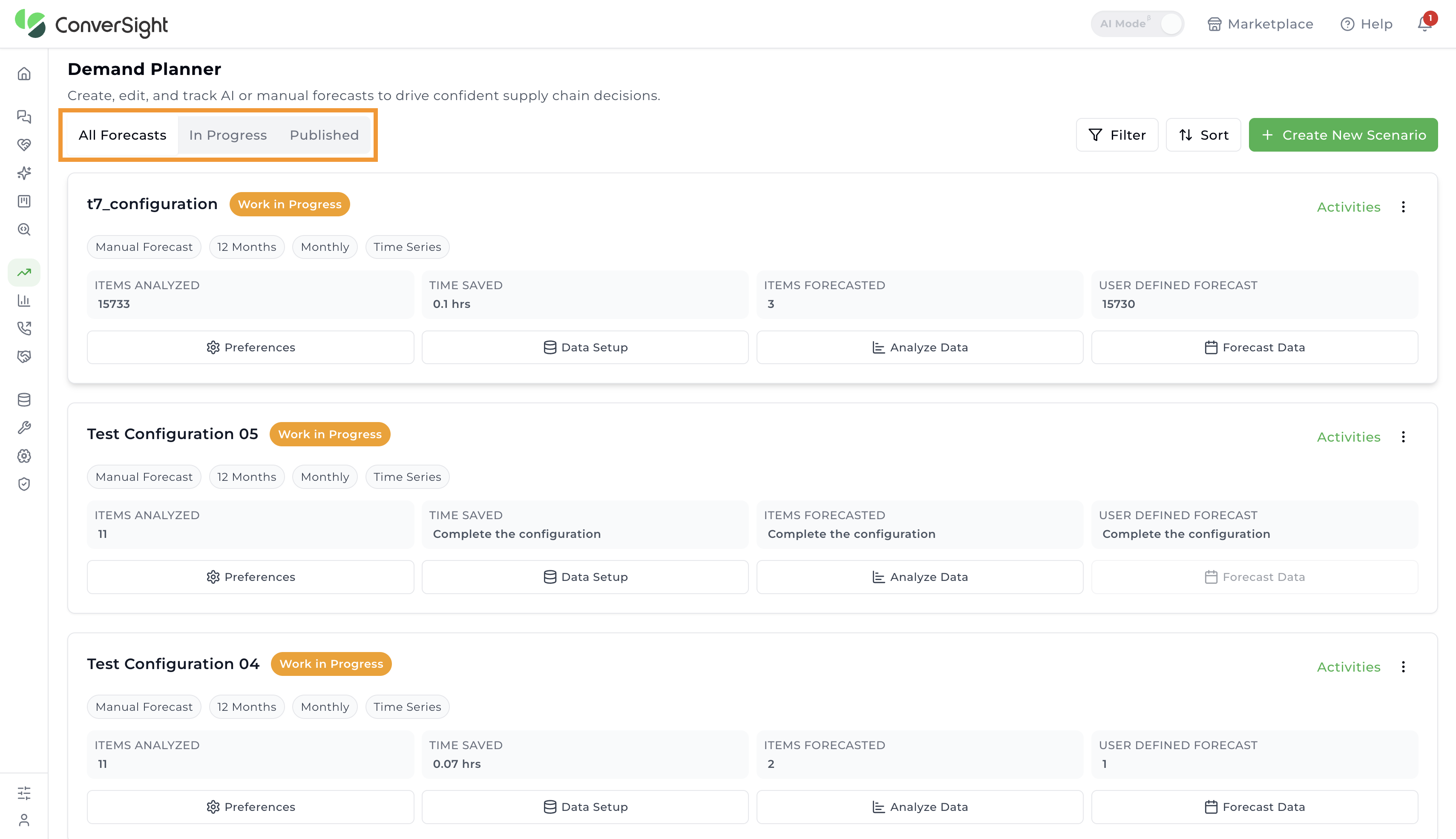
Filters
To streamline the view, users can filter forecasts by dataset. Click on the Filter button on the Demand Planner page to open the filter dropdown.

The dropdown lists all datasets associated with existing forecasts. Selecting a dataset filters the page to show only forecasts that use it.

Sort
Click on the Sort button on the Demand Planner page to organize the list of forecasts. The dropdown offers four options:
- Newest First: Displays the most recently created forecasts at the top of the list.
- Oldest First: Displays the earliest created forecasts at the top of the list.
- Name (A-Z): Sorts forecasts alphabetically by name in ascending order.
- Name (Z-A): Sorts forecasts alphabetically by name in descending order.


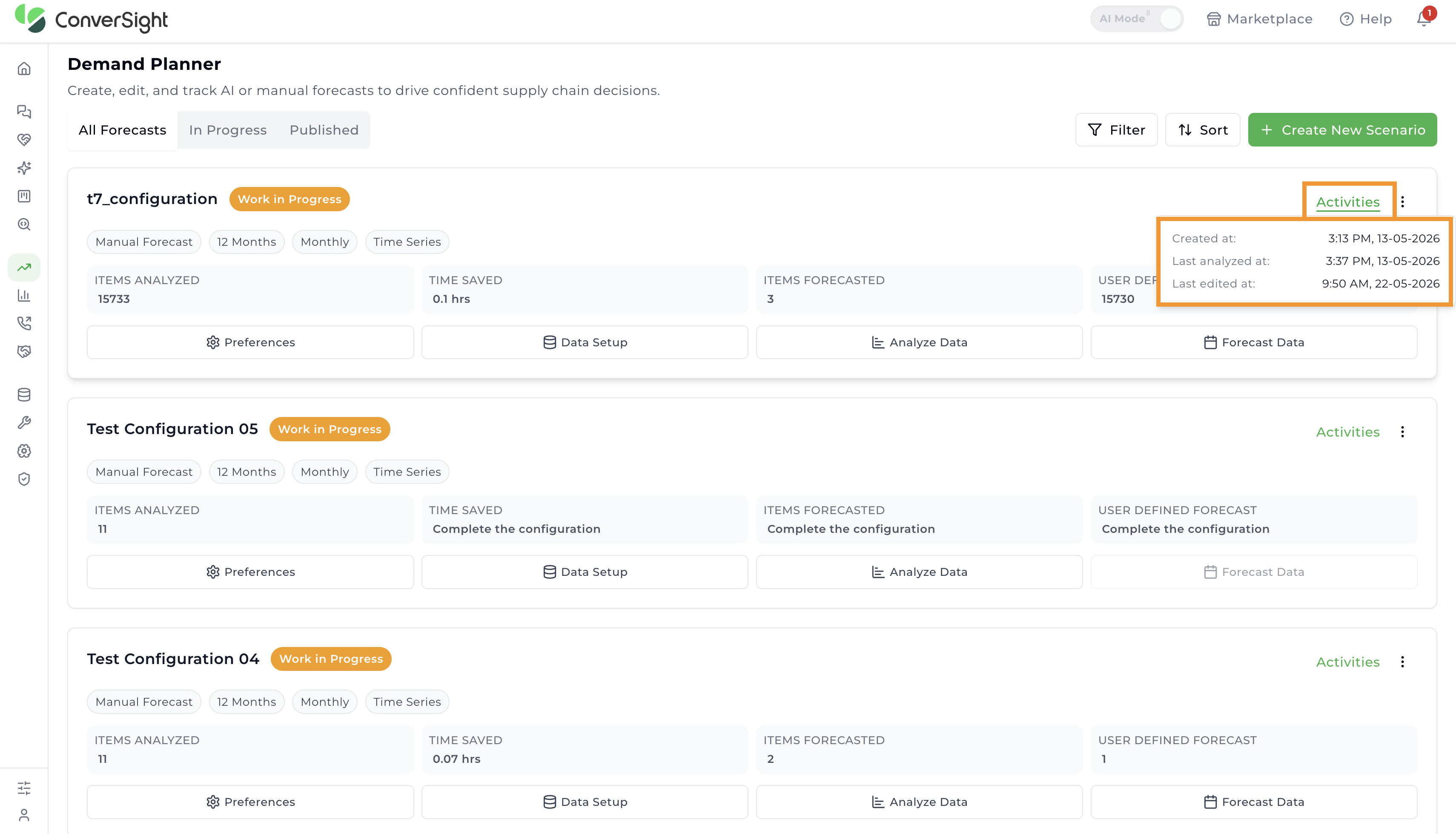
Activities
Click on the Activities link on a forecast card to view a summary of key timestamps for that forecast, including when it was created, last analyzed, and last edited.
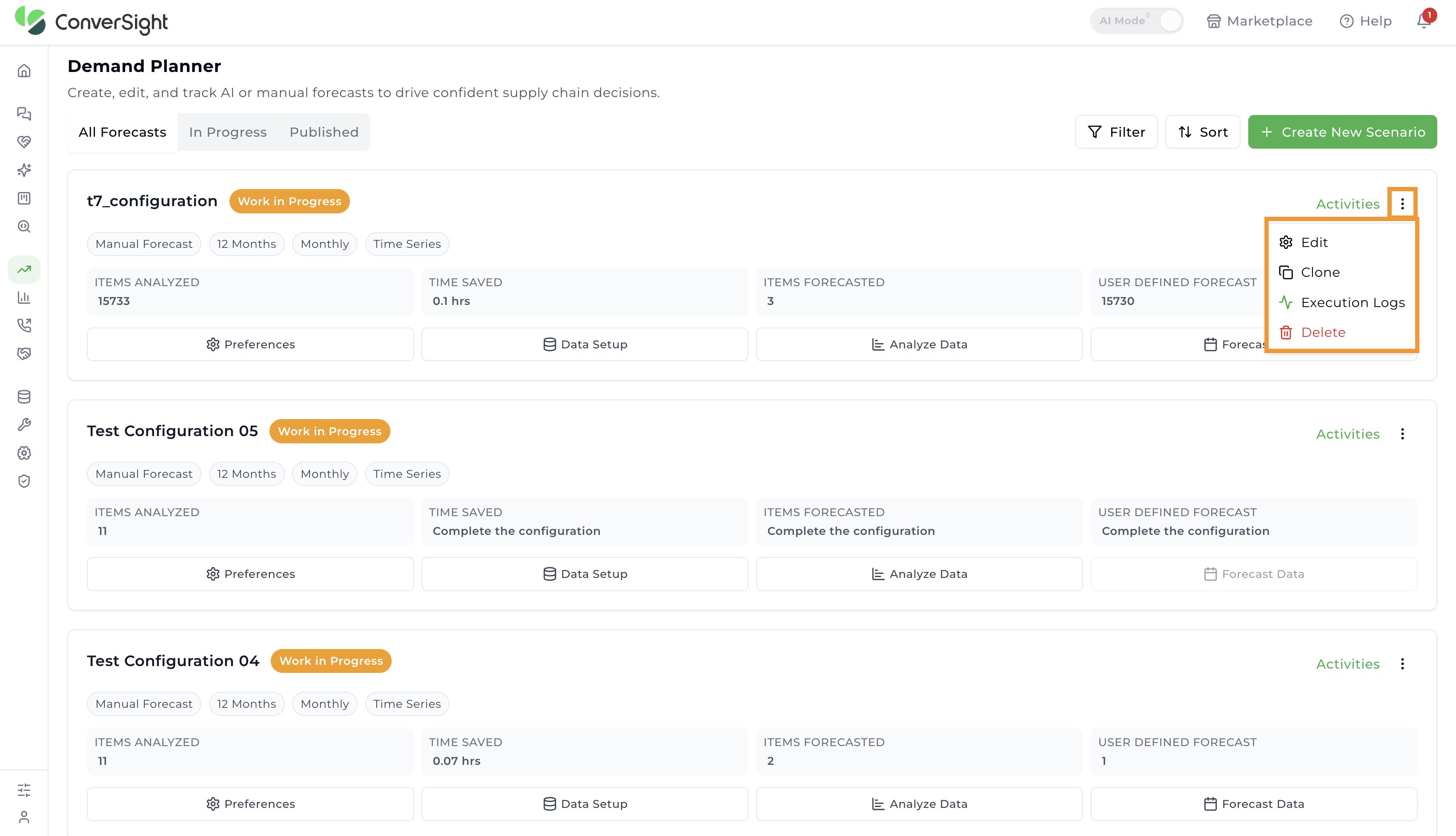
Forecast Card Actions
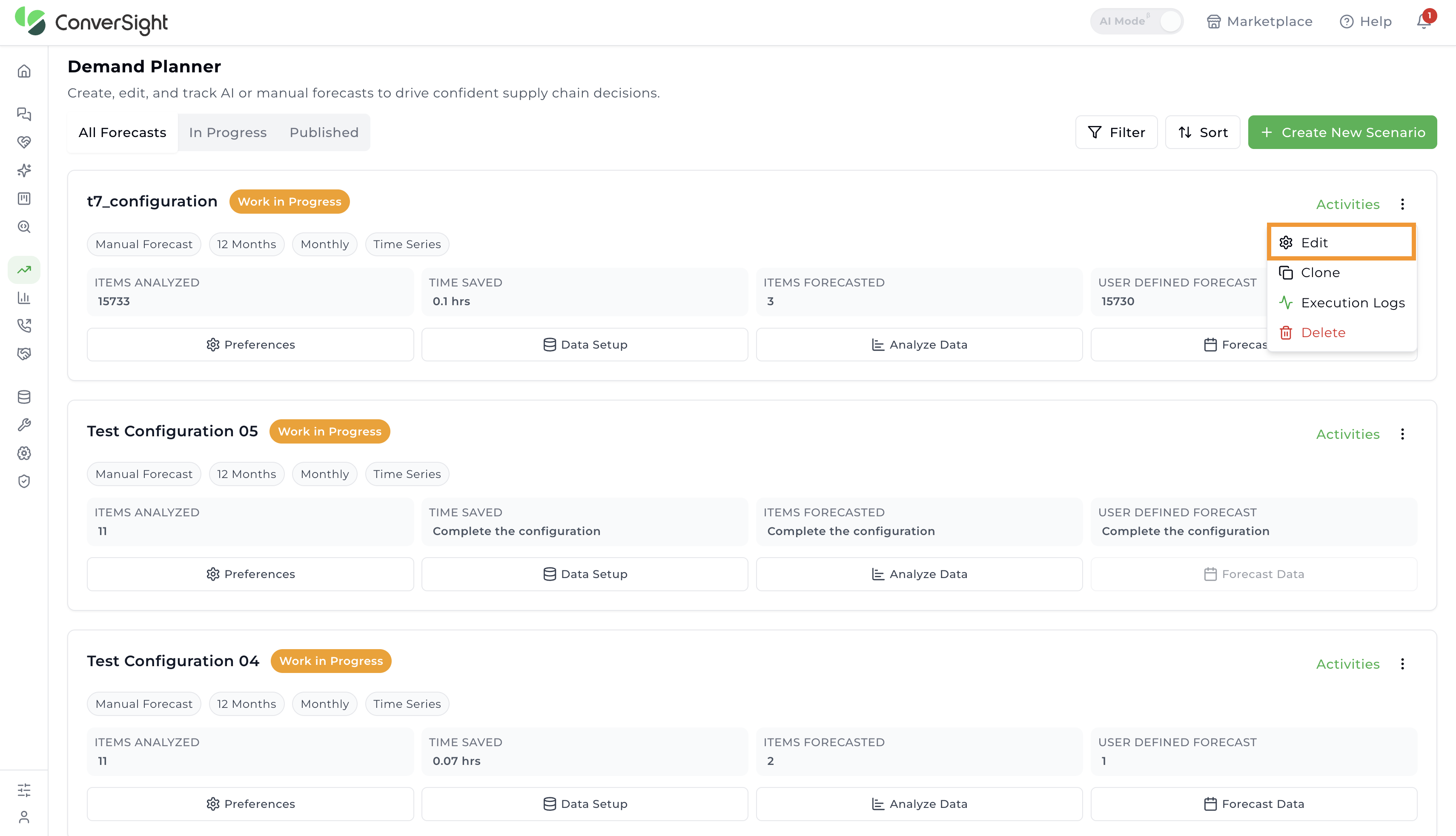
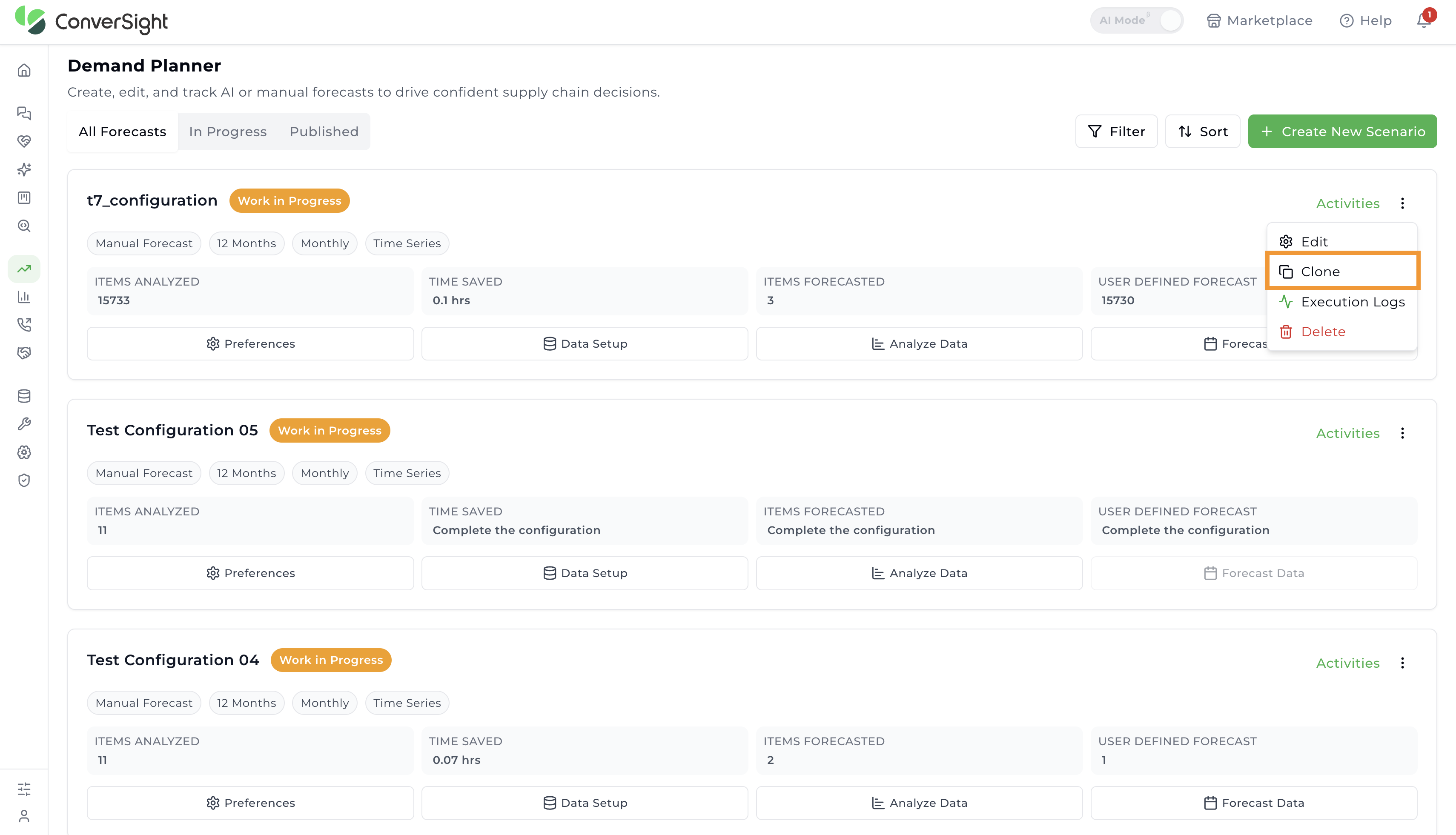
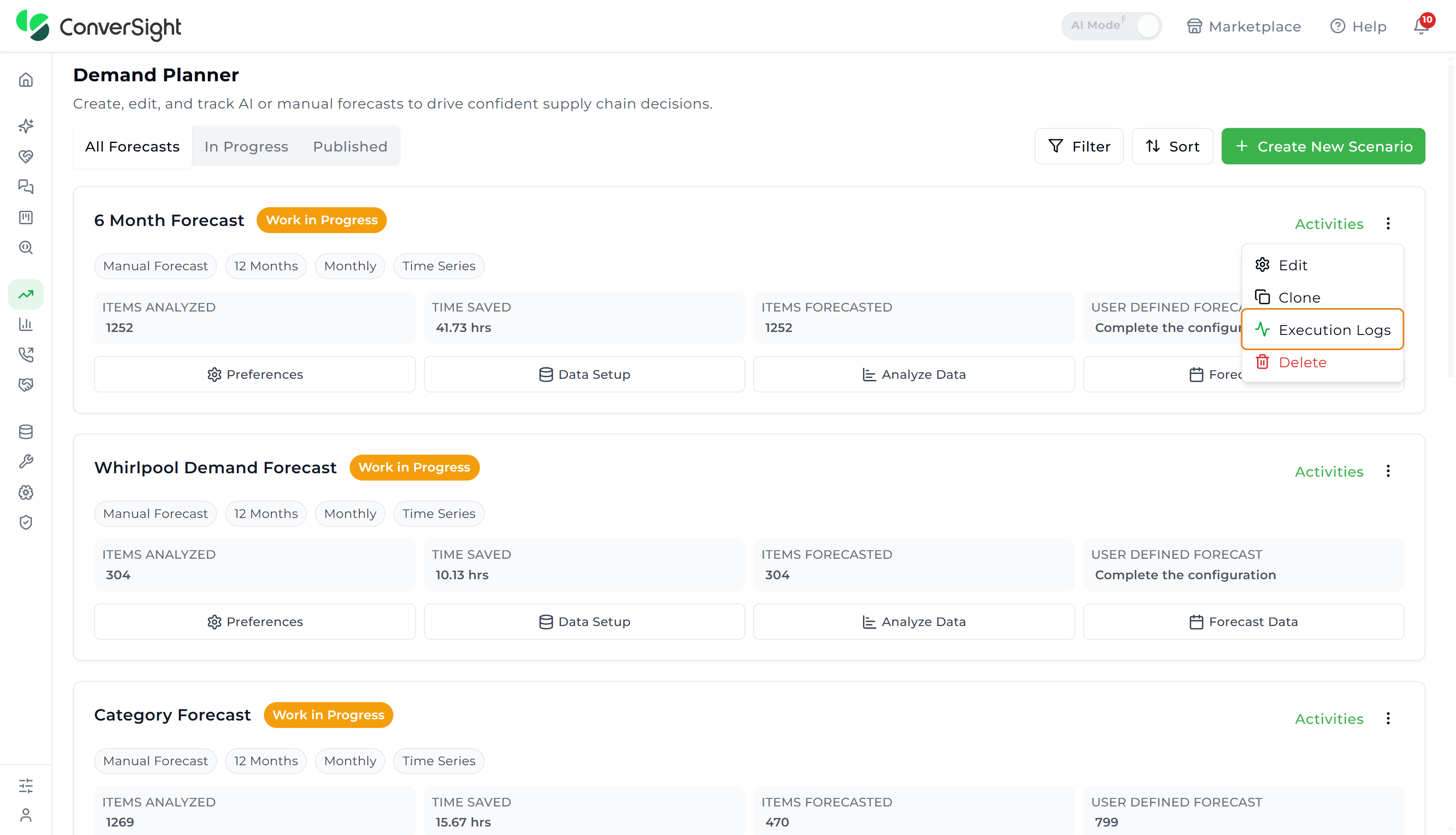
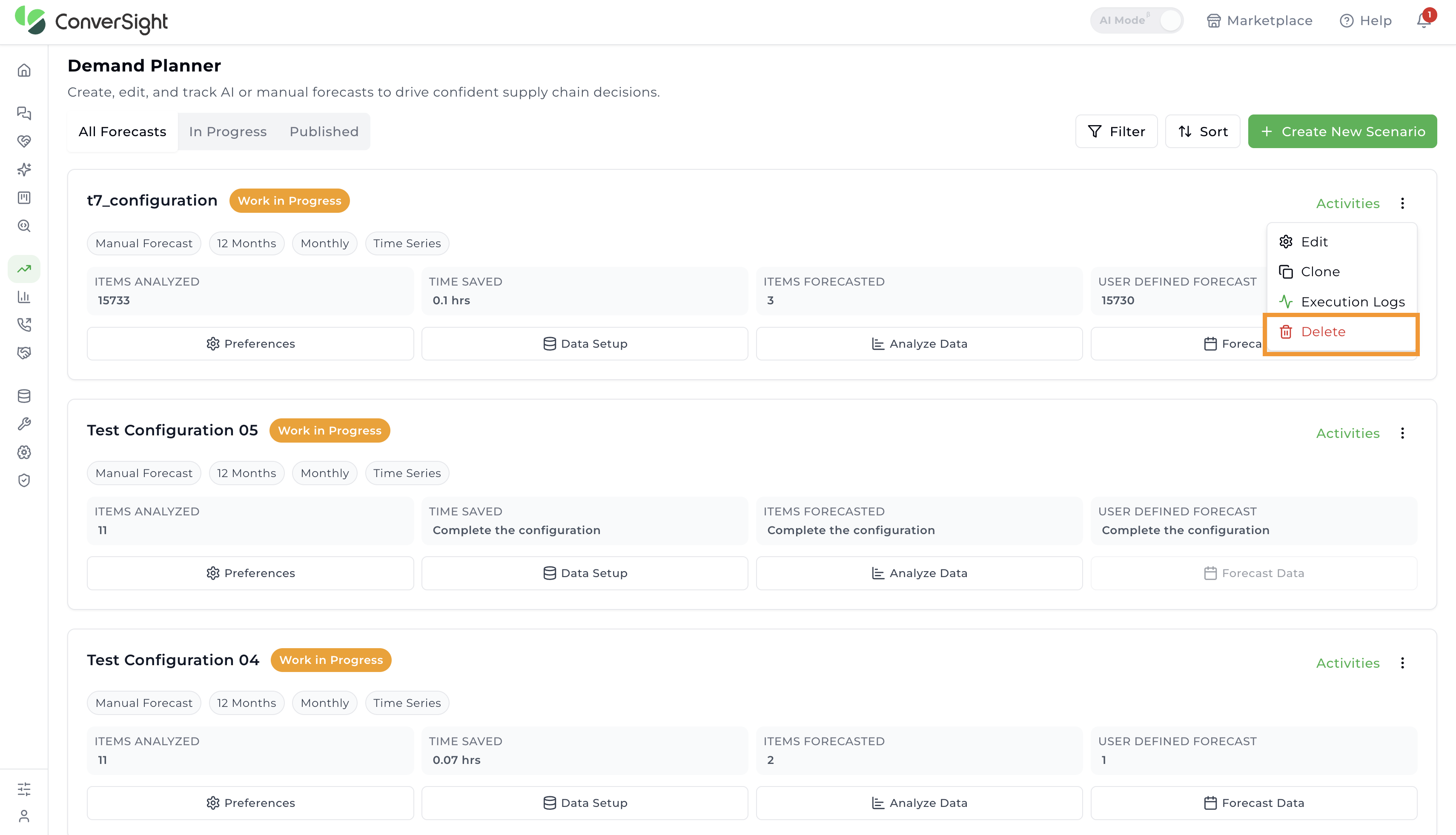
Click on the three-dot menu on a forecast card to open a dropdown with four options: Edit, Clone, Execution Logs, and Delete.
Selecting Edit allows users to modify the existing forecast configuration.
Selecting Clone duplicates the existing configuration. After cloning, users can rename the configuration and save it as a new one.
Selecting Execution Logs opens a side panel showing the run history for the forecast. The panel is organized into Analysis, Forecast, and Publish tabs, each listing timestamped steps such as ABC Segmentation, Outlier Detection, Preliminary Analysis, and XYZ Segmentation, so users can track exactly what happened during each run.
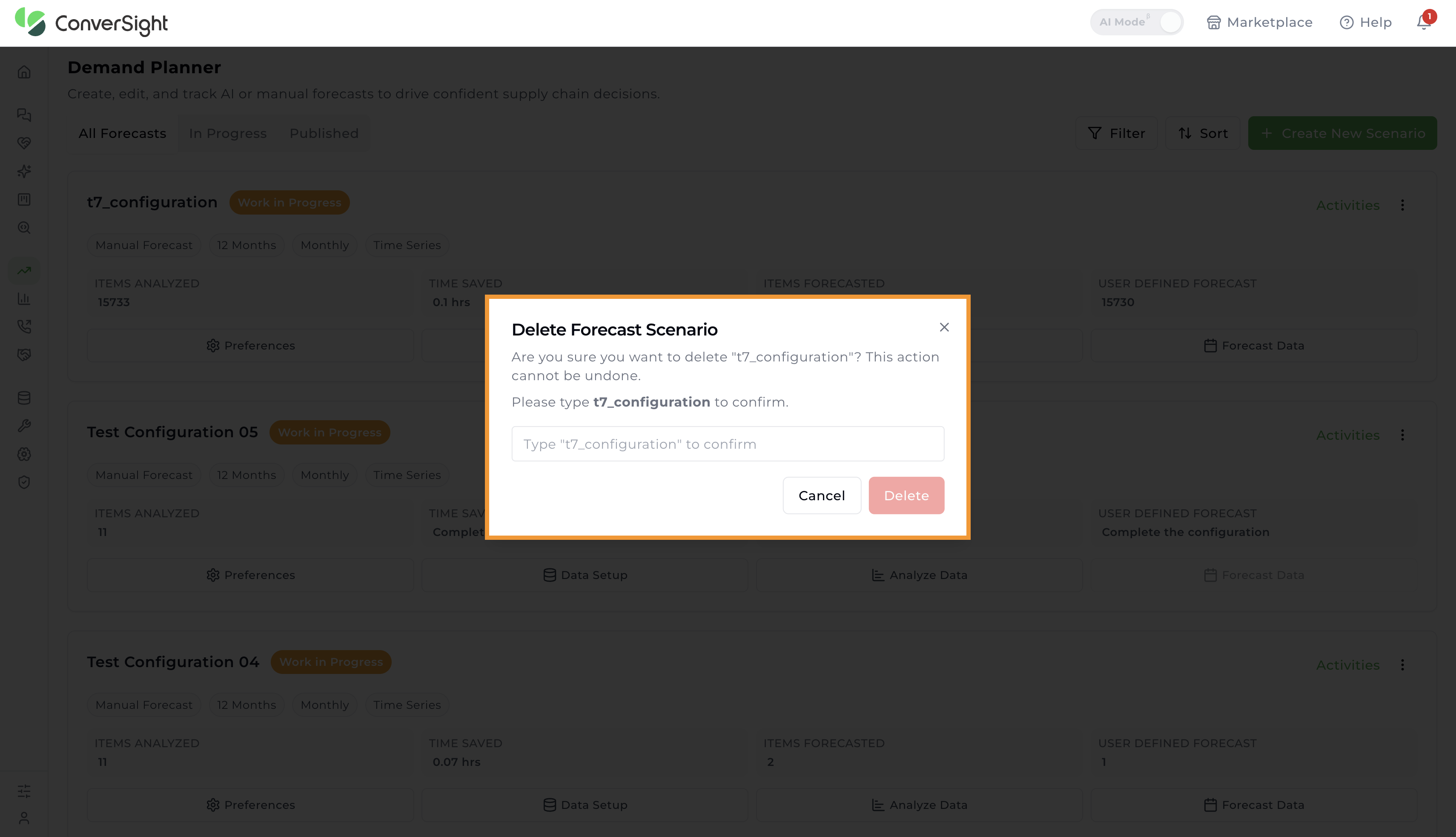
Selecting Delete opens a confirmation popup. Click Delete in the popup to permanently remove the forecast.
Create New Scenario
To create a new forecast, users can click the + Create New Scenario button on the Demand Forecast page. Before generating the forecast, the application analyzes the input data. During scenario creation, it gathers user preferences and configures the necessary data setup to enable accurate forecasting.

The forecast creation process consists of four sequential stages, shown as a stepper at the top of the page:
- Preferences: Define foundational configuration including period, classifications, and quality rules.
- Data: Select the dataset and the columns used to generate the forecast.
- Analyze Data: Review and prepare the data, classify items, and assign forecasting actions.
- Forecast Data: Review generated forecasts, adjust values, and publish.
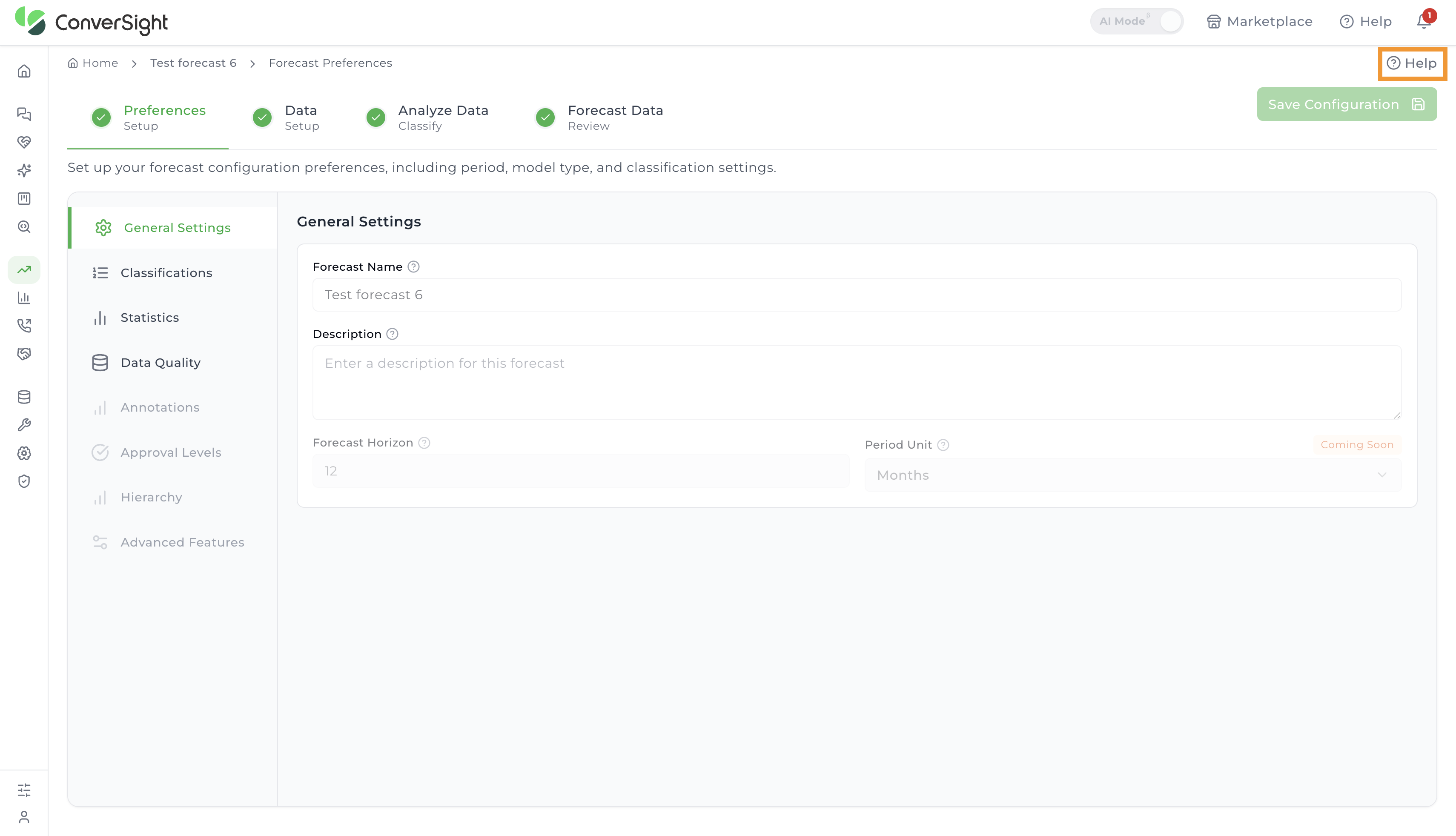
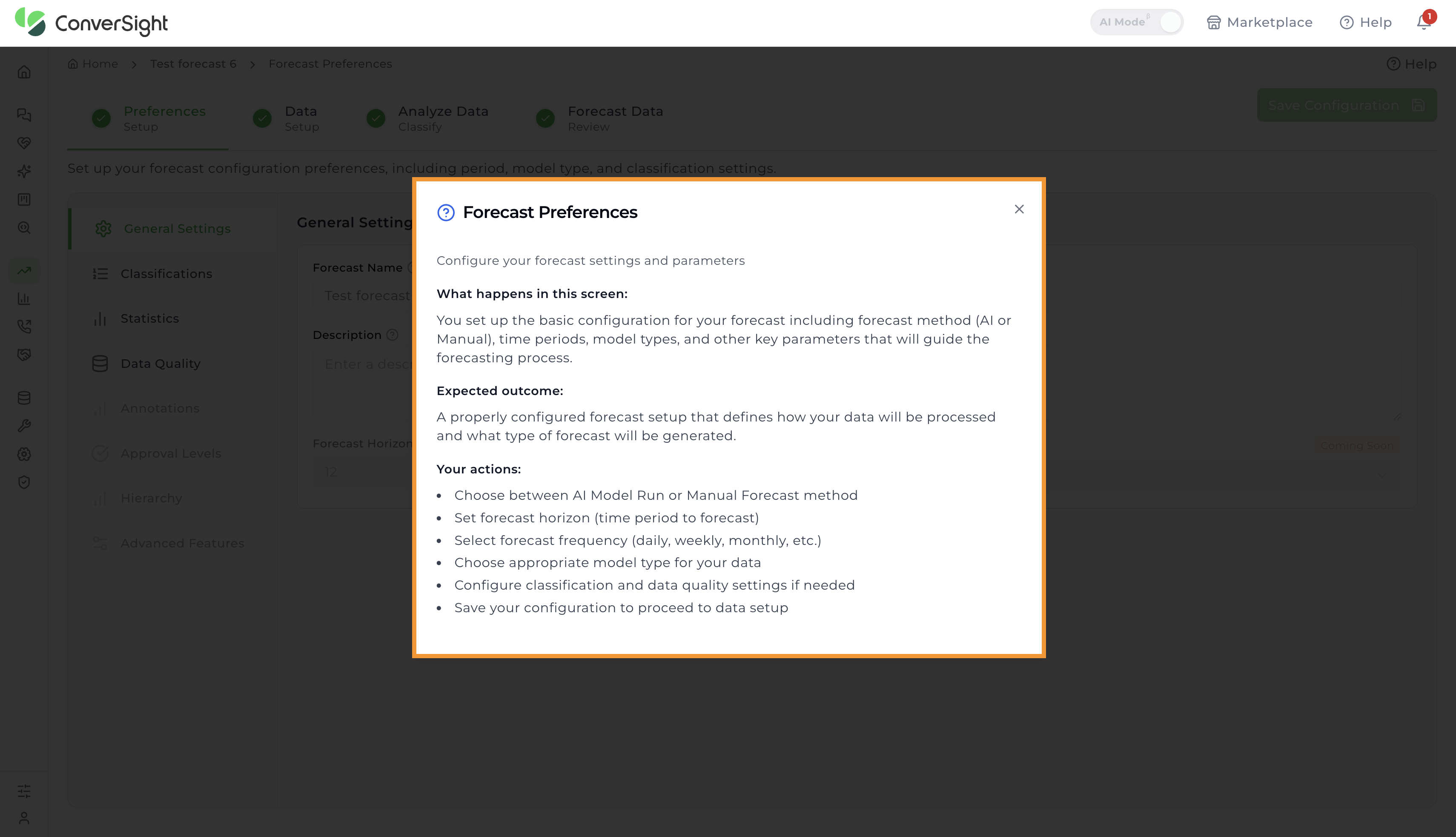
The Help feature available on each page provides users with a guided overview of the screen. It explains the purpose of the page, the expected outcomes, and the actions users can take.
Preferences
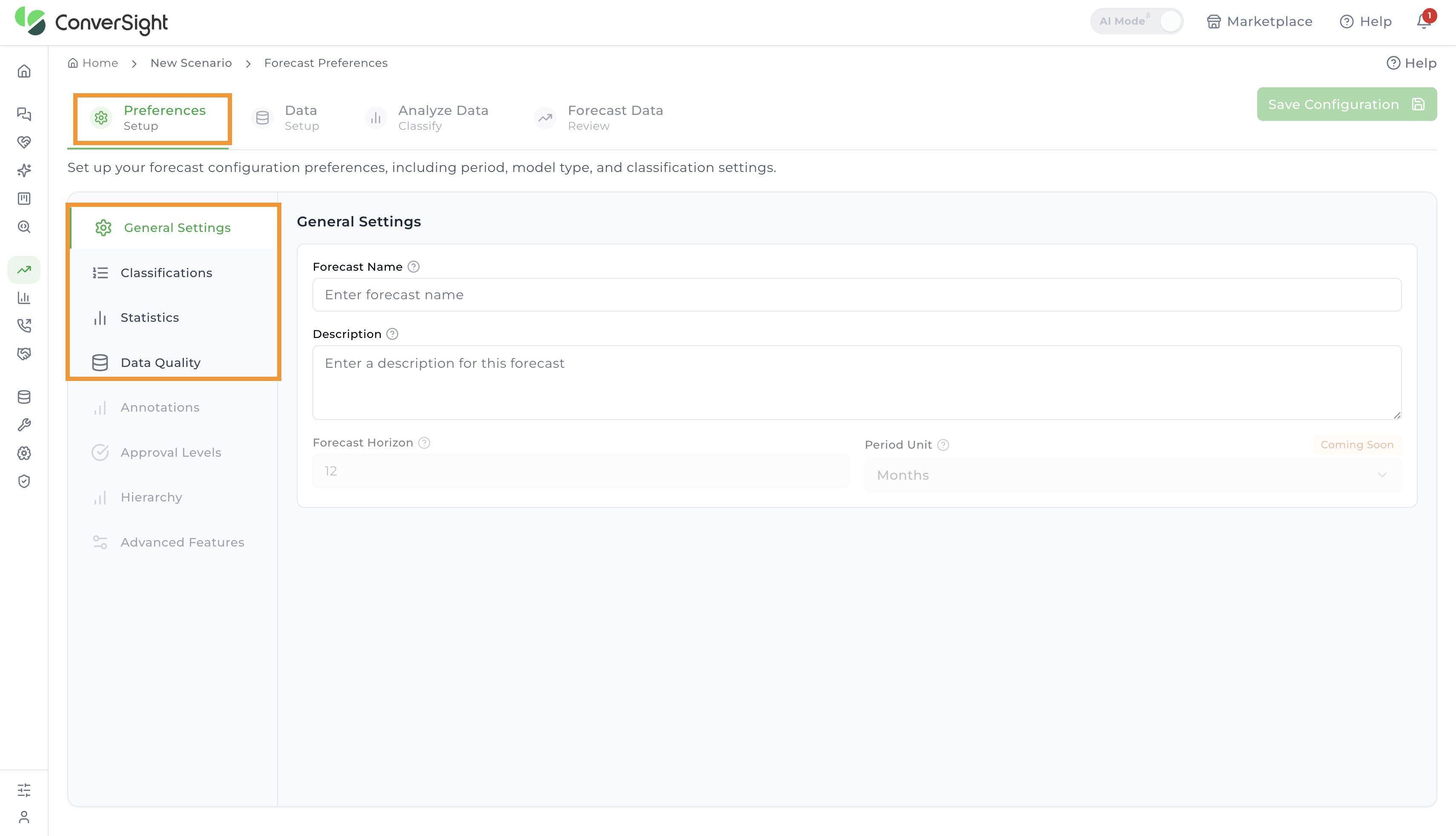
The Preferences stage defines the foundational settings that guide how a forecast is generated and interpreted. It ensures the forecast aligns with business goals by setting horizons and units, standardizes methodology through classifications and statistical parameters, and improves reliability by addressing data quality issues such as outliers or missing values. By configuring these options up front, users create a structured base that makes the subsequent stages—Data Setup, Analyze Data, and Forecast Data—more accurate, consistent, and relevant to decision-making.
The Preferences stage includes four steps to configure the foundational settings for a new forecast:
- General Settings
- Classifications
- Statistics
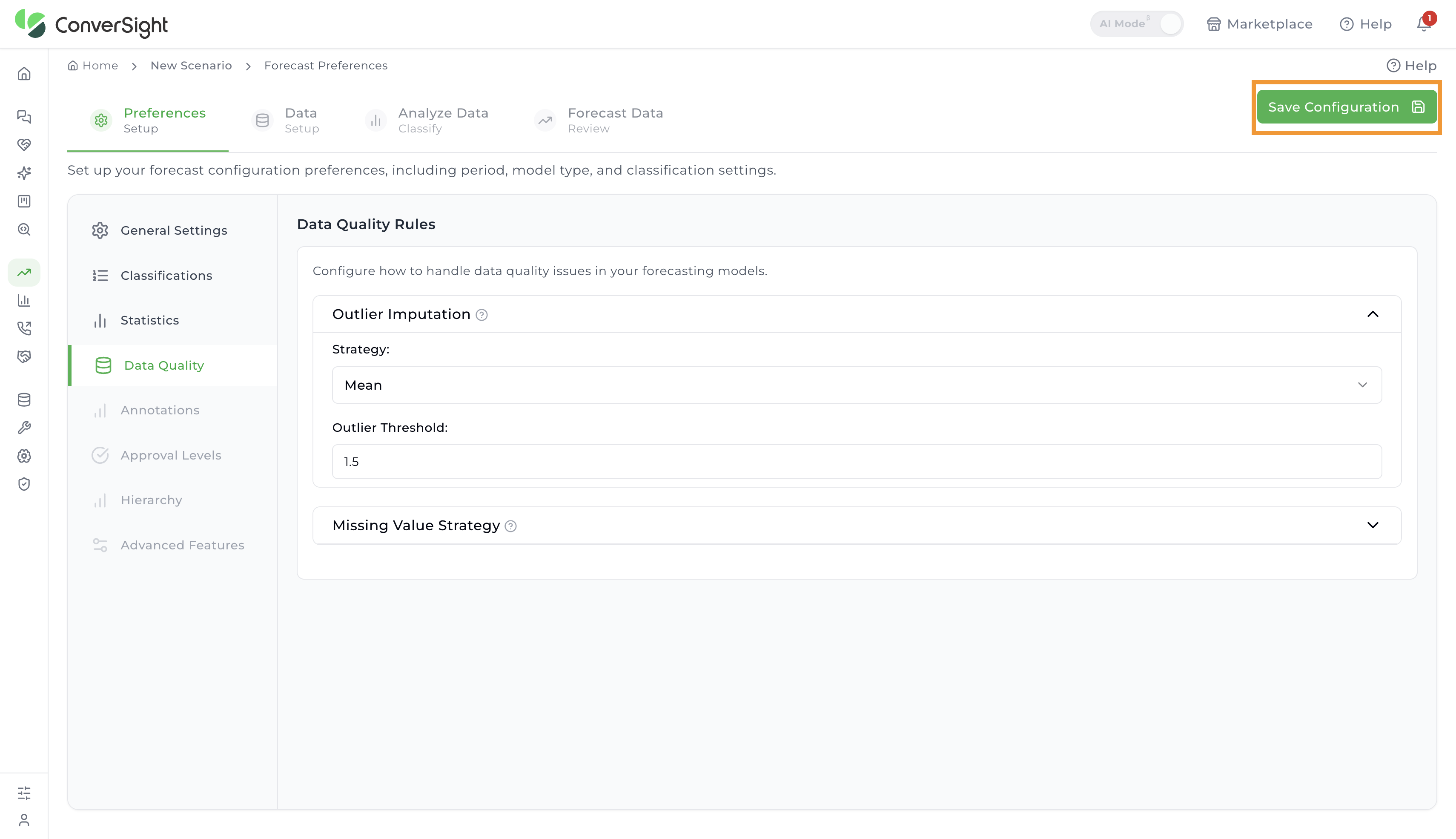
- Data Quality
The settings in the Preferences stage are configurable only during scenario creation and cannot be modified once the configuration is saved.
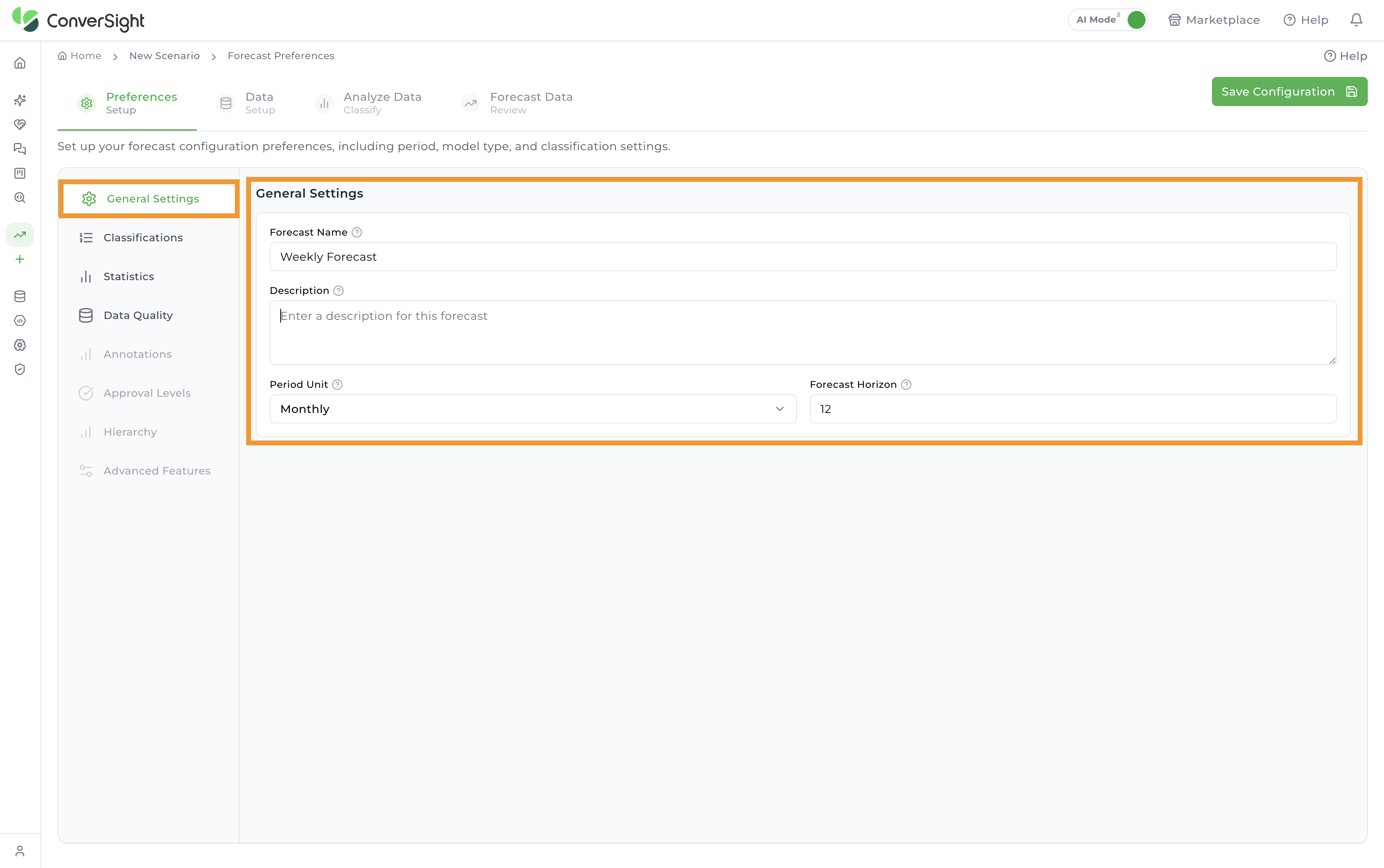
General Settings
In this step, users are required to provide essential details required to setup a new configuration.
| Field | Description |
|---|---|
| Forecast Name | Provide a unique name for the forecast scenario. This name serves as the reference table name for the forecast output. |
| Description | Provide a clear and meaningful description for the configuration to help identify its purpose and facilitate future reference. |
| Period Unit | Select the time granularity at which the forecast is generated. The available options are Daily, Weekly and Monthly, with Monthly set as the default. The selected period unit determines how the historical data is aggregated and the interval at which each forecast period is produced. |
| Forecast Horizon | Specify the number of periods to forecast. The value entered is applied in combination with the selected period unit to determine how far into the future the forecast extends. For example, a horizon of 12 with a Monthly period unit generates a forecast for the next 12 months, while the same horizon with a Weekly period unit generates a forecast for the next 12 weeks. The default value is 12. |
Classifications
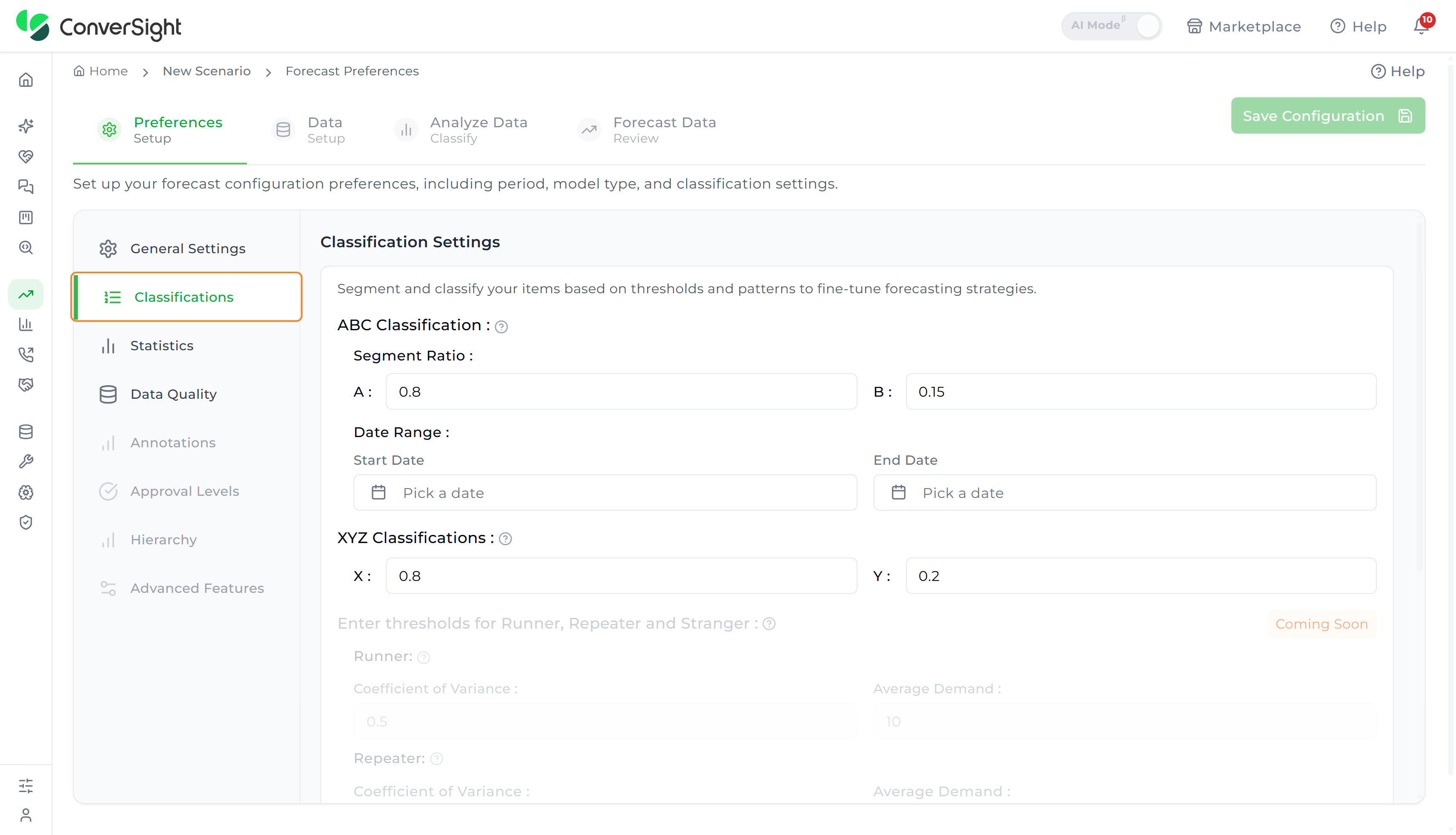
In the Classifications step, users can segment and categorize items based on specific thresholds and demand patterns to refine their forecasting strategies. The app automatically categorizes items into three classes—A, B, or C—based on how much each item contributes to a specific metric (such as revenue, sales volume, or demand), when all items are considered together.
The available classification methods include:
- ABC Classification
- XYZ Classification
ABC Classification
ABC classification groups items based on how much they contribute to a selected metric, such as sales or revenue. The default segment ratios are A = 0.8 and B = 0.15, with the remainder assigned to C.
- A-class items are the top contributors based on the configured A ratio threshold.
- B-class items make up the next tier based on the configured B ratio threshold.
- C-class items include any remaining items beyond the A and B groups.
A Date Range (Start Date and End Date) can also be configured to scope the classification window.
Classifications are based on the ranking of items by their contribution, not on the total number of items. In most cases, items fall into A and B categories, and C-class may not always include additional items.
XYZ Classification
XYZ classification helps group items based on how much their demand changes over time. This is measured using a statistical value called the coefficient of variation.
- X-class items have low demand variation, meaning their demand is stable and predictable.
- Y-class items show moderate changes in demand.
- Z-class items have high demand variation, making them more unpredictable.
The default X and Y thresholds are X = 0.8 and Y = 0.2. Users can adjust these values to refine how items are assigned to each class.
The Enter thresholds for Runner, Repeater and Stranger section and Other Classifications (such as seasonality type) are visible in the UI with a Coming Soon label and are not yet configurable. These options will be enabled in future updates.
Statistics
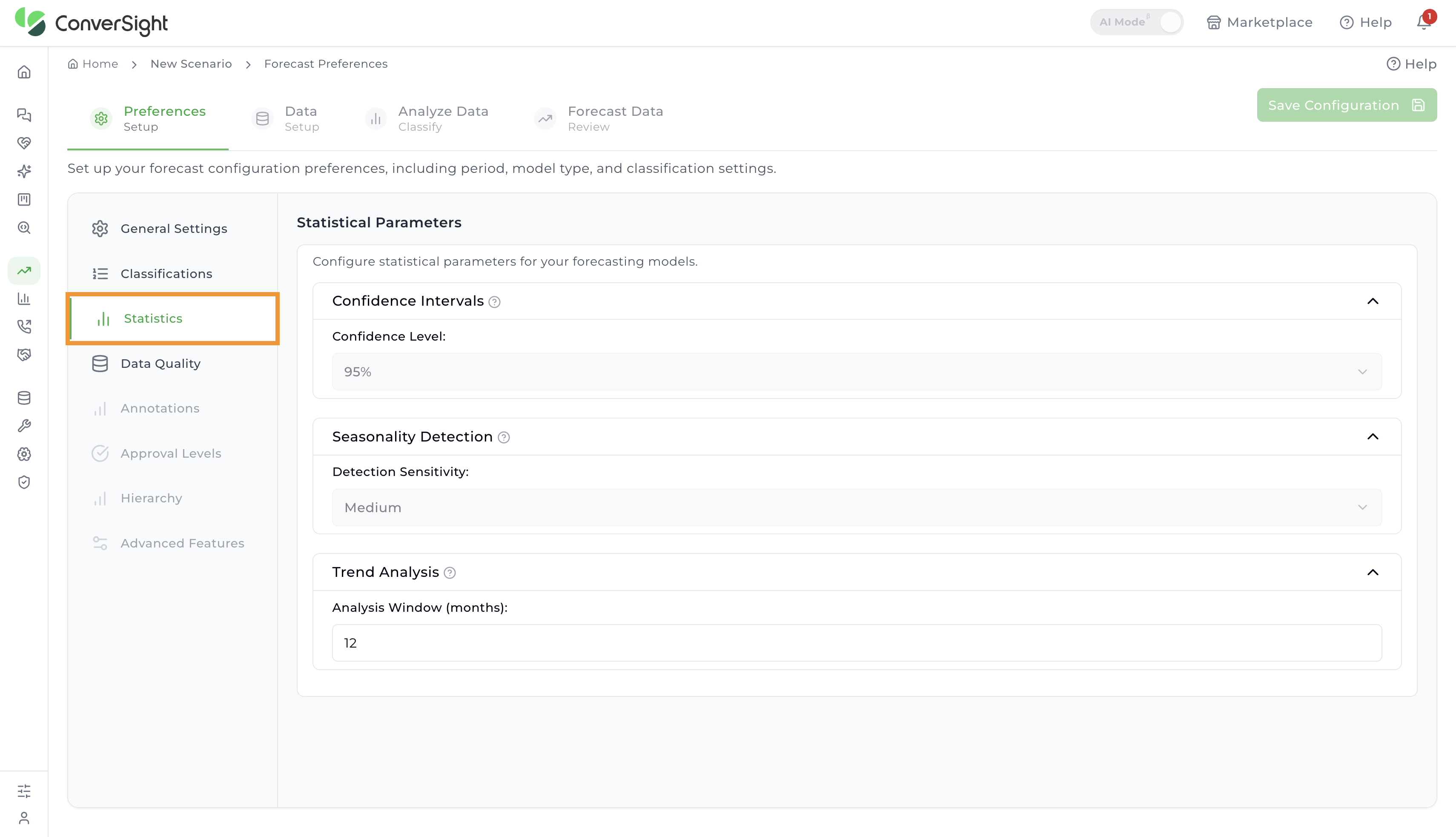
The Statistics step opens the Statistical Parameters page, which allows users to fine-tune their forecasting models by adjusting three key parameter groups:
Confidence Intervals: Indicates the level of certainty in the forecast results. By default, the confidence interval is set to 95%, meaning the actual demand is expected to fall within the forecasted range 95% of the time. This helps assess the reliability of the forecast.
Seasonality Detection: Identifies recurring patterns in the data, such as monthly spikes or seasonal dips. A Medium sensitivity level is applied by default to maintain a balanced approach—capturing meaningful trends without reacting to short-term noise.
Trend Analysis: Reveals the long-term direction of demand, such as whether it is increasing, decreasing, or stable. This is done using linear regression applied over a default time window of 12 months. The analysis window can be adjusted to define how many months should be included in the trend evaluation.
Data Quality
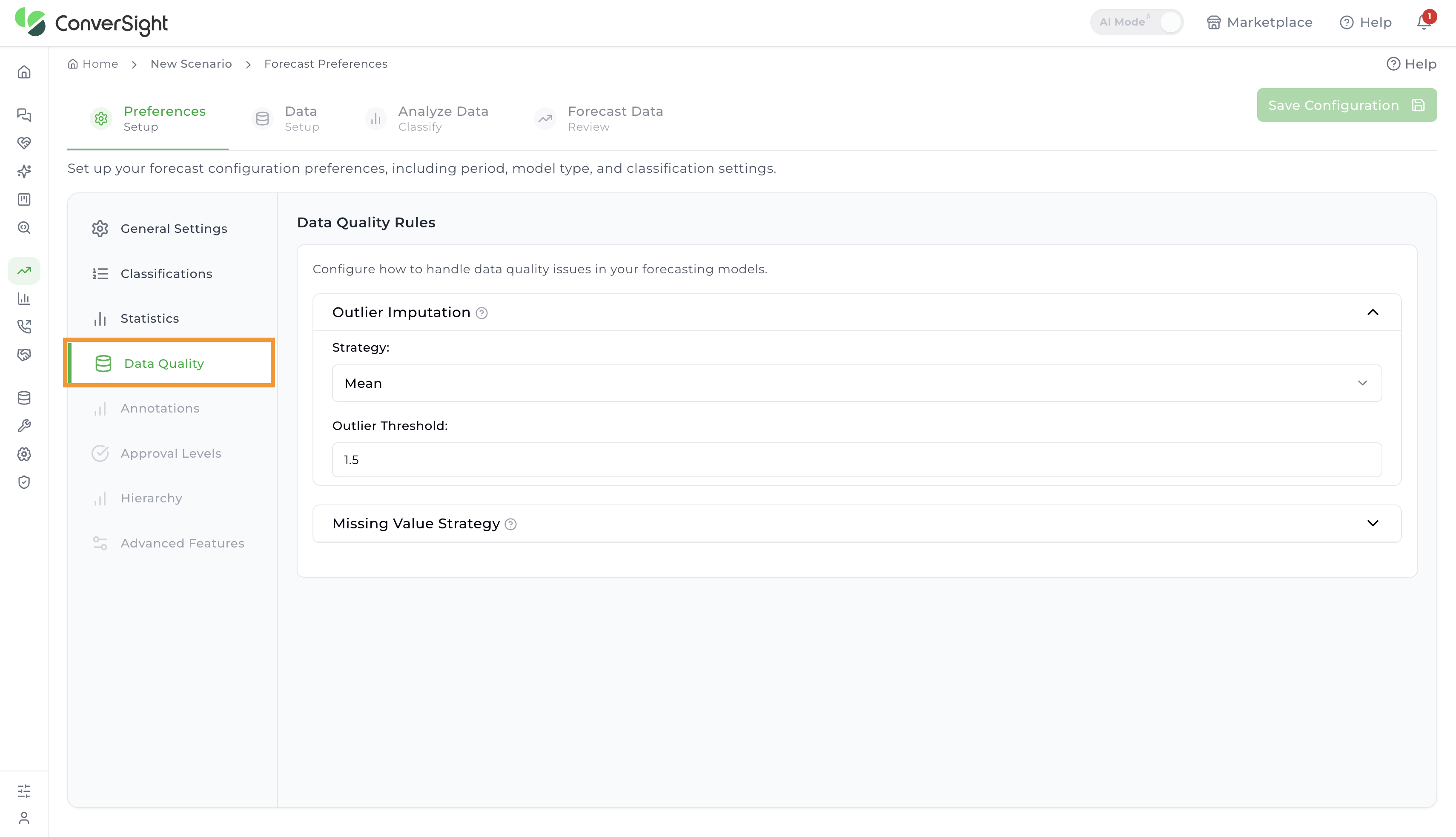
The Data Quality step opens the Data Quality Rules page, where users can configure how data issues should be addressed. Two rules are available:
- Outlier Imputation: Handles abnormal or extreme values in the dataset that could impact forecast accuracy. The default Strategy is Mean, with a default Outlier Threshold of 1.5.
- Missing Value Strategy: Defines how missing entries in the dataset are filled.
After completing the above steps, click on the Save Configuration button at the top right of the page. This navigates the user to the Data Setup stage.
Data
The Data stage requires users to select the dataset and specific columns that will be used to generate the forecast. To meet the minimum data validation criteria, users must select one dimension column, one metric column and one date column.
Only Input v2 datasets are supported for creating forecast configurations.
To begin:
Step 1: Click the Explore button.

Step 2: From the dataset dropdown, choose the desired dataset.
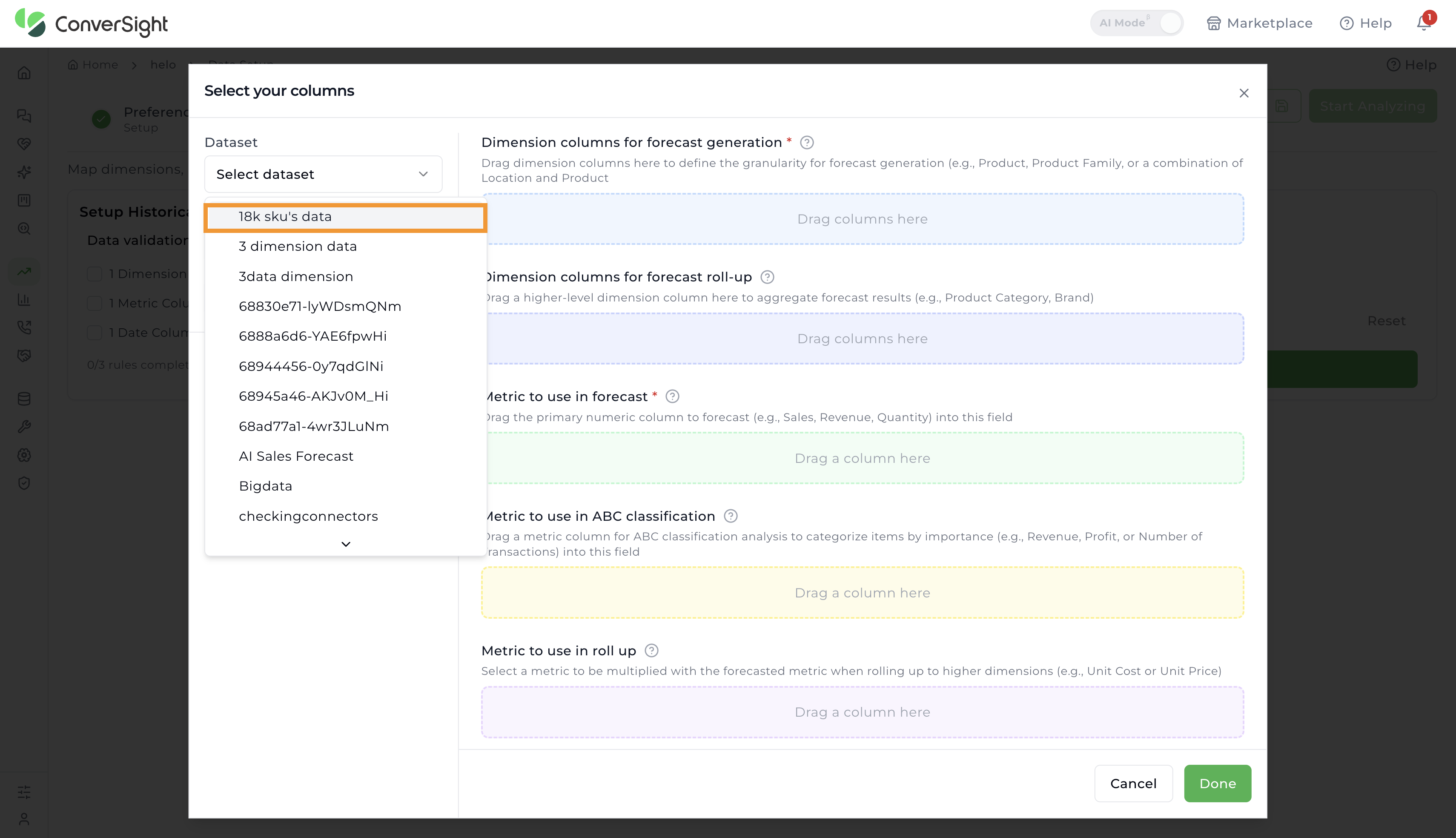
Step 3: Select the relevant Subject Area.
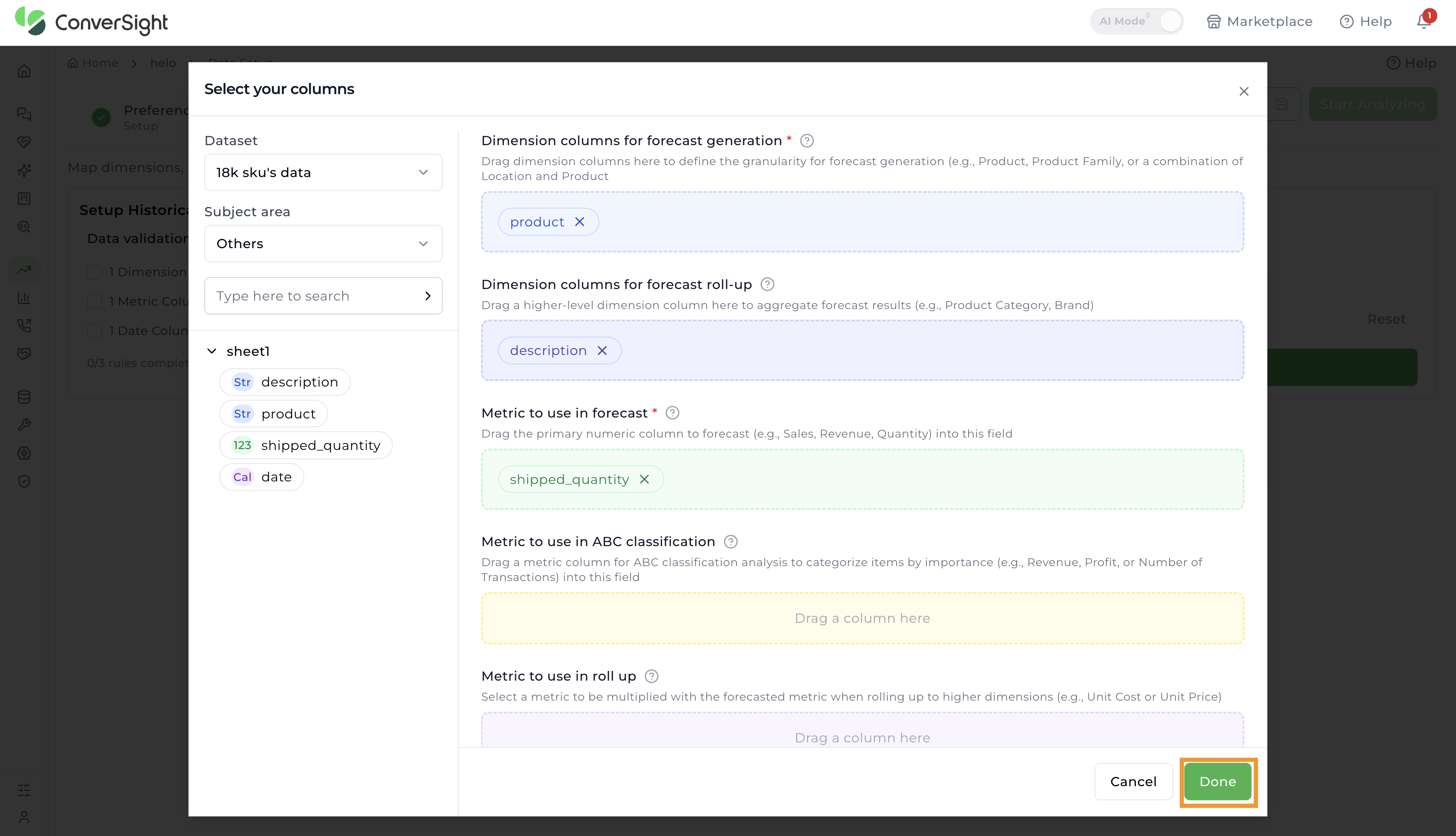
 Step 4: Drag and drop the appropriate dimension, metric and date columns into the designated sections.
The Available column Sections:
Dimension columns for forecast generation: Used to generate forecasts at the lowest level (e.g., forecast demand for each SKU).
Dimension columns for forecast roll-up (optional): Groups forecasts into higher-level summaries (e.g., SKU → Category → Region).
Metric to use in forecast: The numeric value the model will use to generate demand predictions.
Metric to use in ABC classification (optional): Used for classifying items into A (high value), B (medium value), or C (low value) categories, which helps in prioritization.
Metric to use in roll-up: Defines which metric should be summed when aggregating forecasts from lower to higher levels.
Date Column: Ensures the forecast is tied to a time dimension (day, week, month).
Filter Data (optional): Optional filters to limit the dataset (e.g., Region = North America, Product Type = Electronics).
Step 5: Once the selections are complete, click Done.
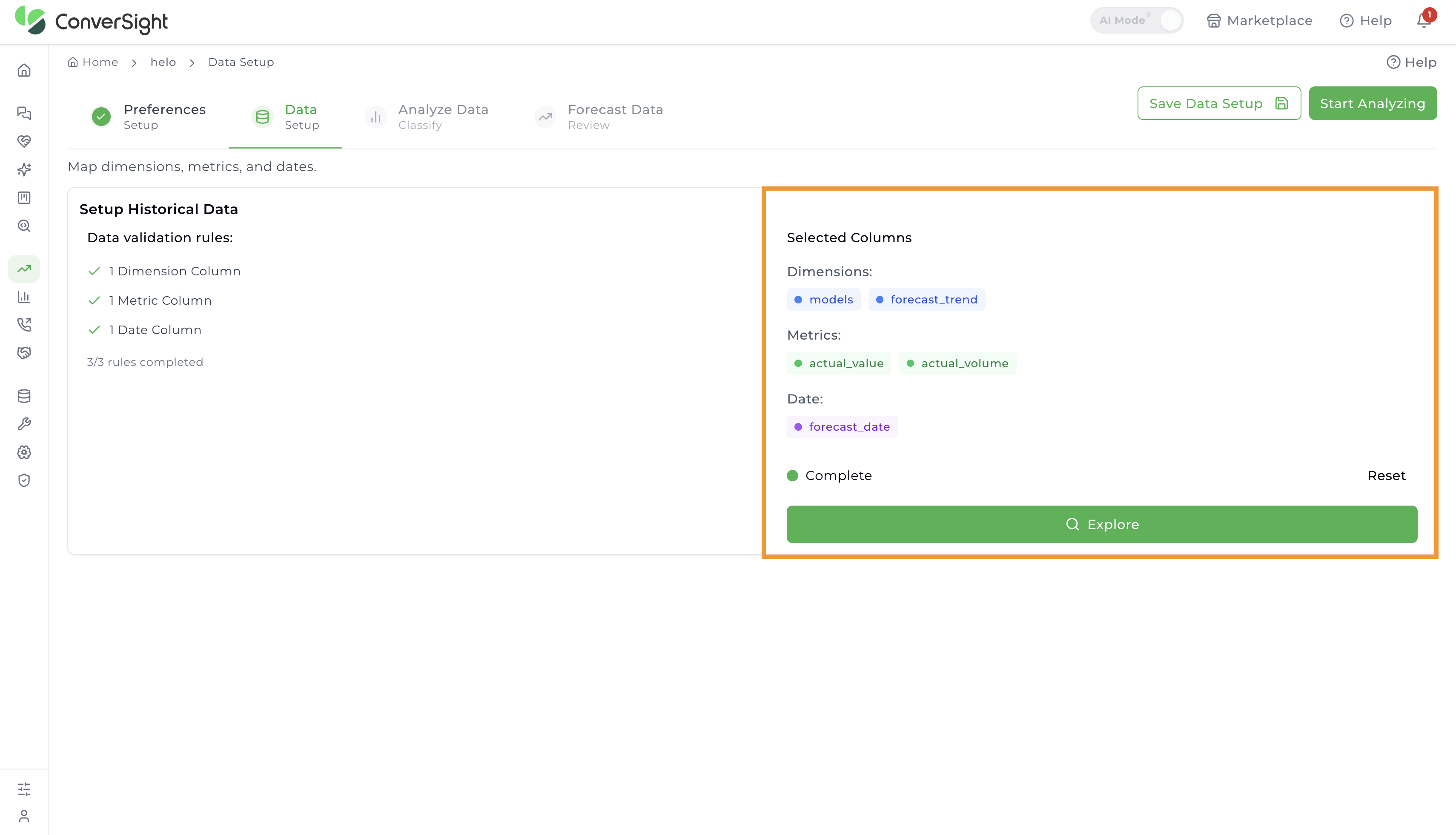
If the selected columns meet the validation rules, a checkmark will appear next to each criterion, confirming the requirement has been satisfied.
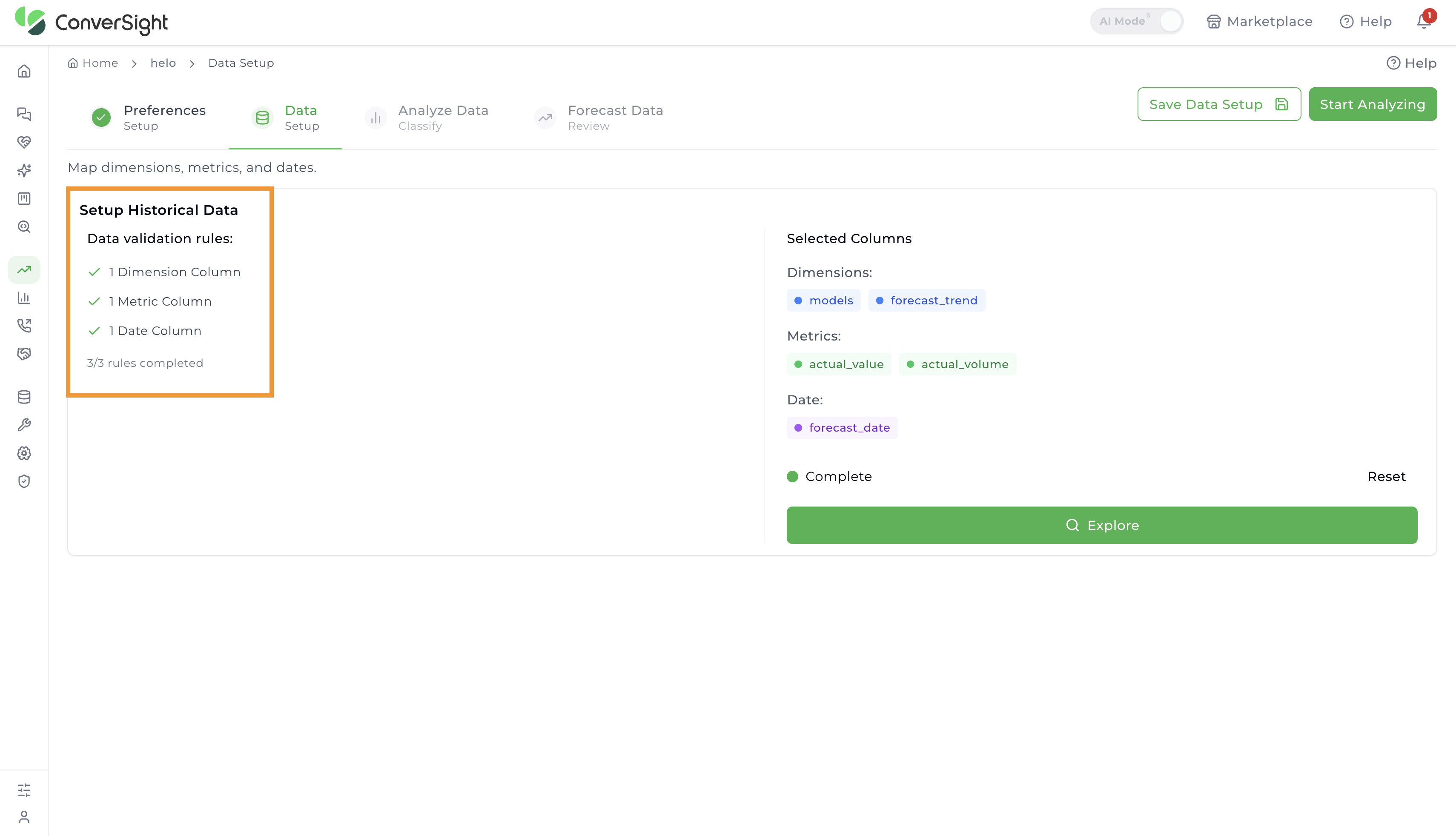 The Selected Columns section will display the currently chosen dimension, metric and date columns. If changes are needed, click Reset to clear the selections, then click Explore again to reselect the desired columns.
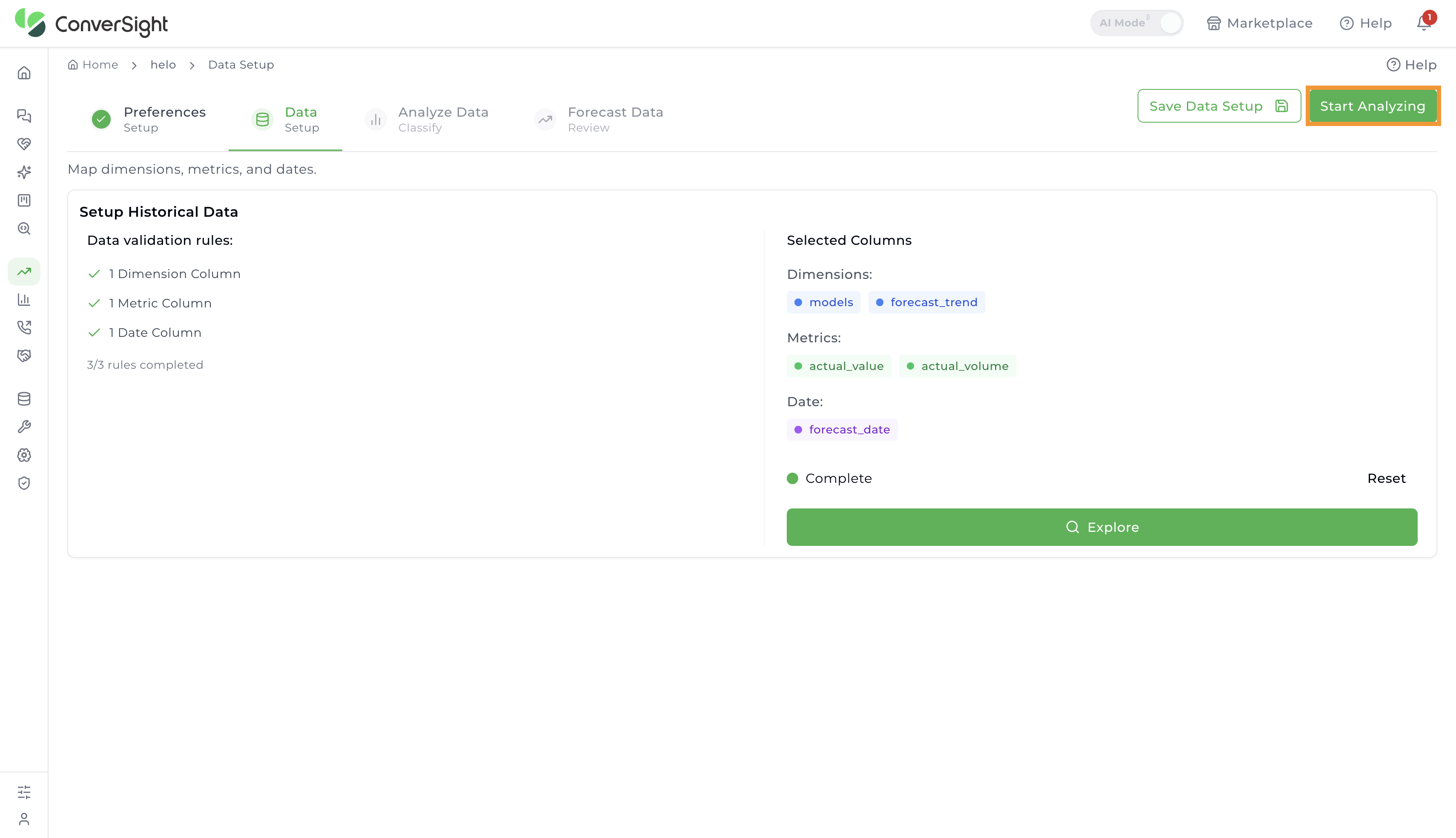
 After completing the Data Setup, users have two options:
- Click Save Data Setup to save progress and return later to continue the forecasting process.

- Click Start Analyzing to proceed to the next step. Choosing this option will open a windows asking whether to Save and Start Analysis or Cancel. Click on the Save and Start Analysis button to go to the Analyze Data stage.

Analyze Data
In the Analyze Data step, users can thoroughly review and prepare their data before running the forecast. This stage provides the flexibility to classify data, select specific SKUs for forecasting and either input forecast values manually or reuse values from previous forecasts.
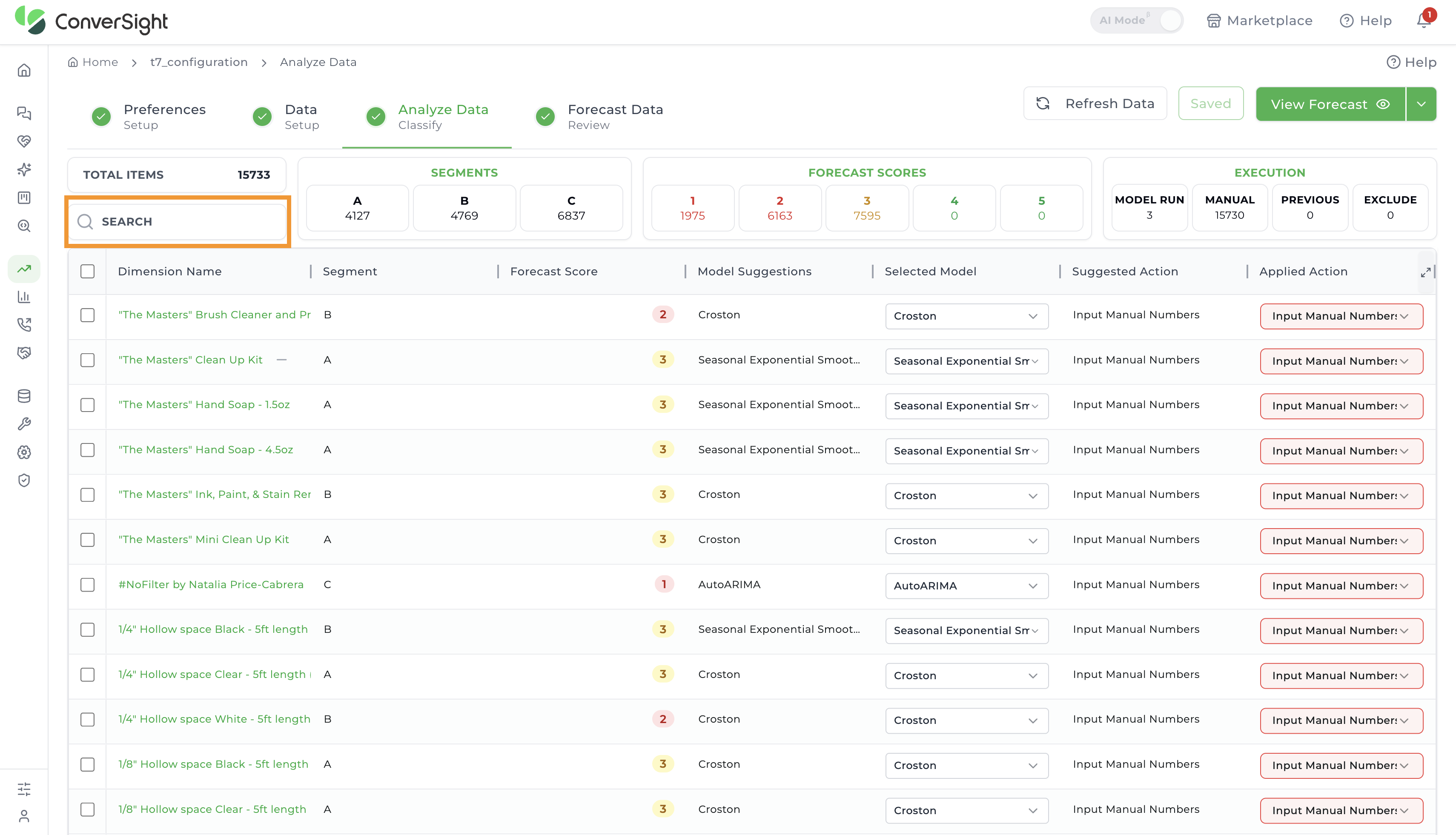
To streamline navigation, users can search for specific dimension columns using the Search bar.
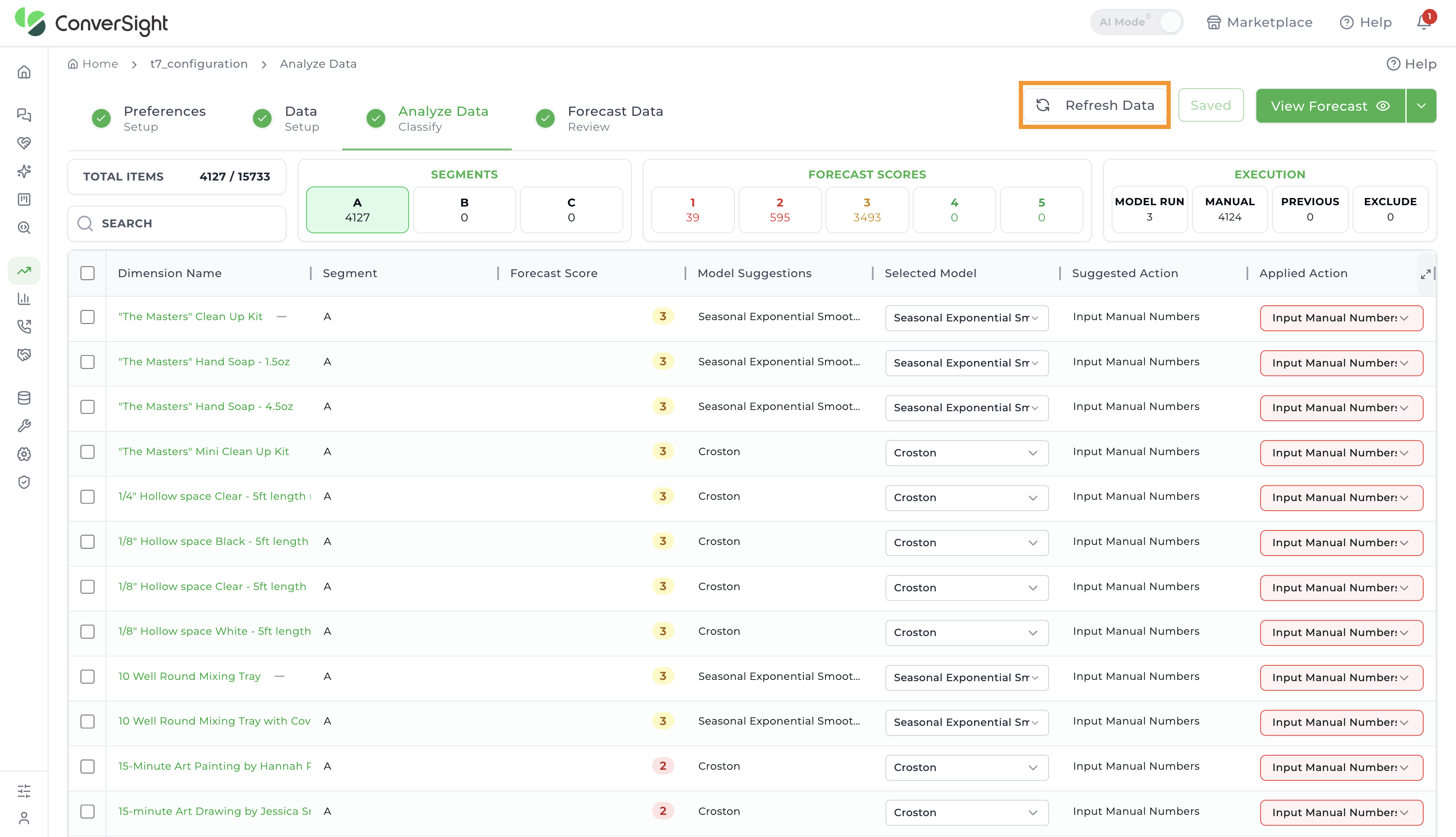
The Total Items section displays the number of items after filtering. Users can further refine the view by selecting a specific segment to see items related only to that segment.


If there are updates to the dataset, clicking the Refresh Data button will reload the most recent data.
The Analyze Data page also displays key summary metrics, including:
Total Items: Displays the total number of items available for forecasting, along with the number currently in view after filtering.
Segments: Groups of data based on dimension columns (e.g., forecasts per SKU).
-
Segment A: Represents high-priority or high-value items, typically the top 10–20% of SKUs.
-
Segment B: Indicates medium-priority or moderate-value items, generally the next 20–30% after Segment A.
-
Segment C: Covers low-priority or low-value items, usually the bottom 50–70% of SKUs.
Forecast Scores (1–5): Indicates how predictable each item is, with a count of items at each score.
- 1 = Low predictability (erratic data).
- 5 = High predictability (stable patterns).
Execution: Shows how many items fall into each execution type:
- Model Run: The number of items included in the forecasting model run.
- Manual: The number of items with manually entered forecast values.
- Previous: The number of items where forecast inputs were taken from previously generated forecasts.
- Exclude: The number of items excluded from the forecast.
Detailed Data View
Users are presented with a comprehensive table view of their dataset, where each row is analyzed and classified using various statistical and forecasting techniques.
The table includes the following columns for in-depth analysis:
| Column Name | Description |
|---|---|
| Dimension Name | This is the name of the item or segment being forecasted. |
| Segment | Helps group items into priority segments (like A, B, or C) so customers can focus efforts on what matters most. |
| Forecast Score | Indicates the level of forecastability of the item or segment. |
| Model Suggestion | AI recommends the best-fit models based on data patterns like trend, seasonality, and variability. Each comes with a short definition and ideal use case to guide selection. |
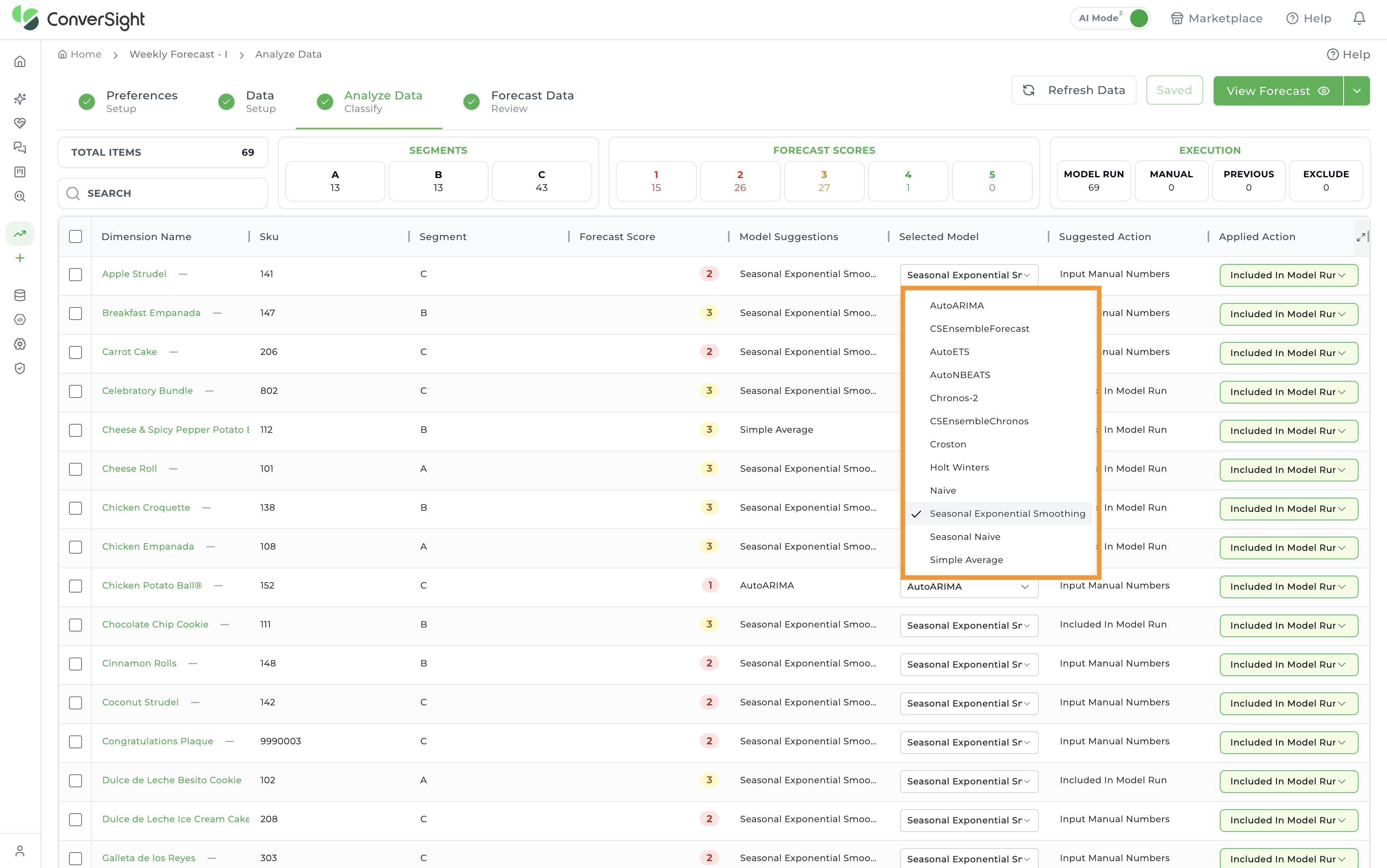
| Selected Model | The model chosen to generate the final forecast. Athena AI auto-selects the best option, but users can override if needed. |
| Suggested Action | The Suggested Action column tells you what action to take such as including in the model run, excluding, or using the previous forecast based on the latest data behaviour. The suggested action is determined dynamically each time you run the analysis, according to predefined thresholds. |
| Applied Action | Shows what action was actually used for this item in the forecast run: manual adjustment, model inclusion, etc. On the first run, the applied action will match the suggested action. If you rerun the analysis, the applied action preserves the previously saved value (ensuring consistency), while the suggested action may change if your data has changed. |
Click on a dimension name in the table to open a detail panel on the right. The panel is organized into five tabs — Overview, Stats, Outliers, Analysis, and Preview Forecast — each described in the sections below.
Forecasting Model Definitions
This list defines each of the available forecasting models, outlining their core function and ideal use case.
| Model Name | High-Level Definition & Best Use Case |
|---|---|
| AutoARIMA | A statistical model that automatically discovers patterns such as trend, seasonality, and autocorrelation and tunes its own parameters. Best for: A general-purpose model across a wide variety of time series. |
| AutoETS | An exponential smoothing model that automatically selects the best combination of error, trend, and seasonality components for the data. Best for: Series with trend and/or seasonality where the ideal smoothing form should be chosen automatically. |
| AutoNBEATS | A neural network that is trained jointly across all the series in the dataset rather than fitting a separate model for each series. Best for: Datasets where learning shared patterns across related items is more valuable than independent per-series fits. |
| Chronos-2 | A pre-trained time-series foundation model that produces forecasts without being fitted to each series individually. The historical data is passed to the pre-trained model as context and the forecast is returned directly. Best for: Generating forecasts without per-series training, and as a comparison against the statistical models. |
| Croston | A specialist model designed for intermittent demand. It separately forecasts the size of a sale and the time between sales. Best for: Items with sparse, intermittent demand. |
| CSEnsembleChronos | ConverSight's ensemble model that averages the Chronos-2 forecast with the Seasonal Naive forecast for each period. Best for: Balancing the pattern recognition of the foundation model with a stable seasonal baseline. |
| CSEnsembleForecast | ConverSight's ensemble model that combines forecasts from multiple base models to balance their individual strengths. Best for: Improving the accuracy and stability of forecasts when no single model is clearly best. |
| Holt Winters | Triple exponential smoothing that captures the three core components of a time series: level, trend, and seasonality. Best for: Data that has both a trend and a repeating seasonal pattern. |
| Naive | The simplest baseline. The forecast for the next period is simply the value of the last observed period. Best for: Erratic, random-walk data where complex models would fail. |
| Seasonal Exponential Smoothing | An exponential smoothing variant that models recurring seasonal patterns in the data. Best for: Seasonal series where recent observations should carry more weight. |
| Seasonal Naive | A seasonal baseline. The forecast for each period is the actual value from the same period in the previous season. Best for: Data with strong, stable, and predictable seasonality. |
| Simple Average | The forecast is the average of all historical observations. Best for: Stable series whose level stays roughly constant over time. |
Overview
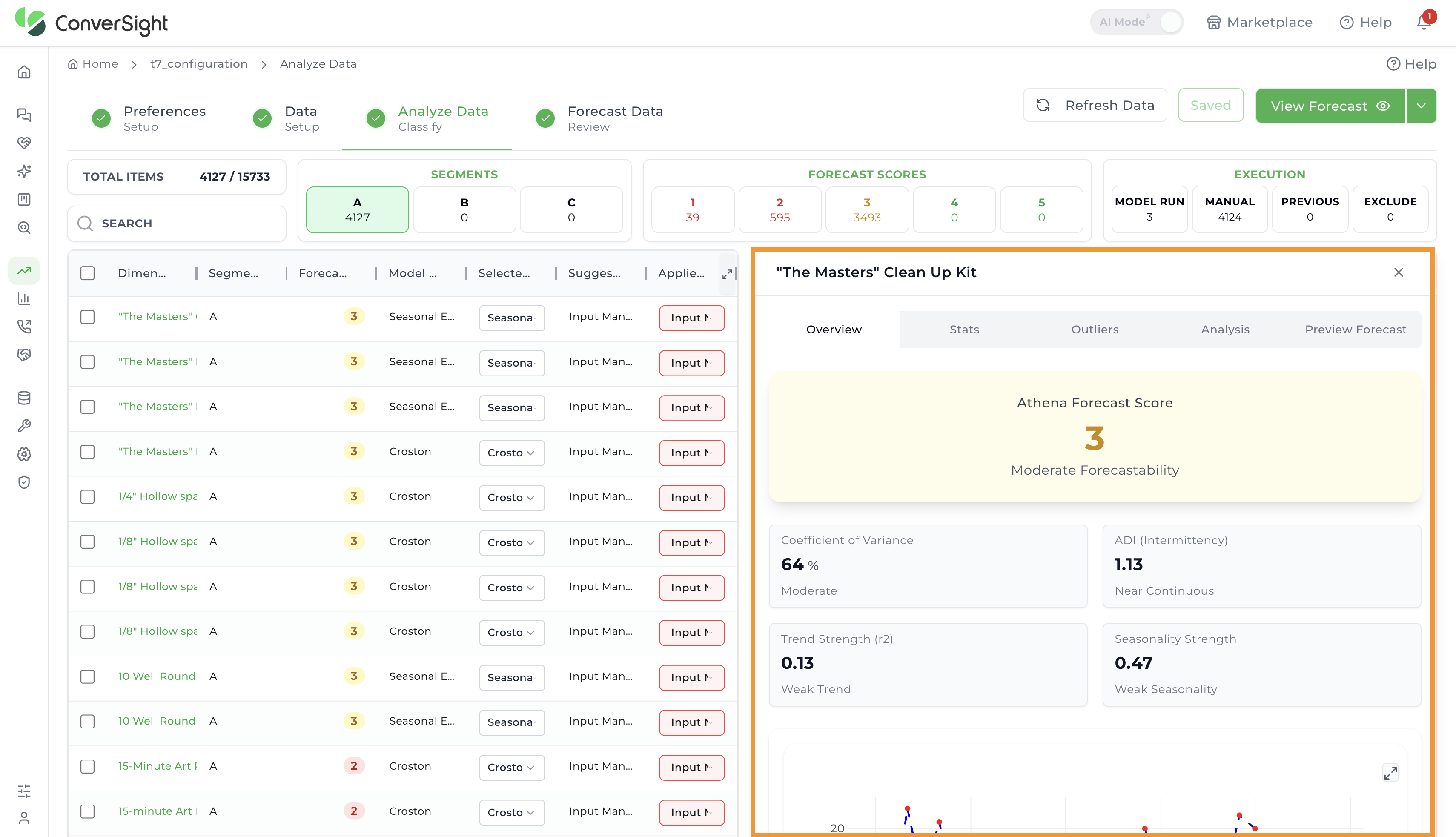
The Overview section provides key forecastability measures, visualizations, and reasoning from Athena AI.
Metrics
Athena Forecast Score
- Coefficient of Variance: A percentage-based measure of variability, helping spot volatile vs. stable items.
- ADI (Intermittency): Measures the sparsity of demand. It answers the question: “How often does this item sell?” A low ADI means the item sells frequently and consistently.
- Trend Strength: Measures the direction of demand over time. It answers the question: “Is there a consistent, long-term growth or decline in sales?”
- Seasonality Strength: Measures the cyclicality of demand. It answers the question: “Does demand have predictable peaks and troughs that repeat over a set period?”
 Forecast Visualization
- Forecast Line Chart: A historical line plot that displays the progression of data points over time, showing how values have changed across a historical period. It helps in visualizing trends, patterns, and shifts in the data, making it easier to compare past behaviors and understand long-term movements.
Athena AI Reasoning
- Provides an explanation of why a particular model is best suited by analyzing the statistical properties of the historical data.
- Considers factors such as variability, seasonality, trend, and patterns in the dataset to justify the model selection.
- This reasoning provides transparency into the decision-making process, helping users understand how data characteristics influence model suitability.

Statistics (Stats)
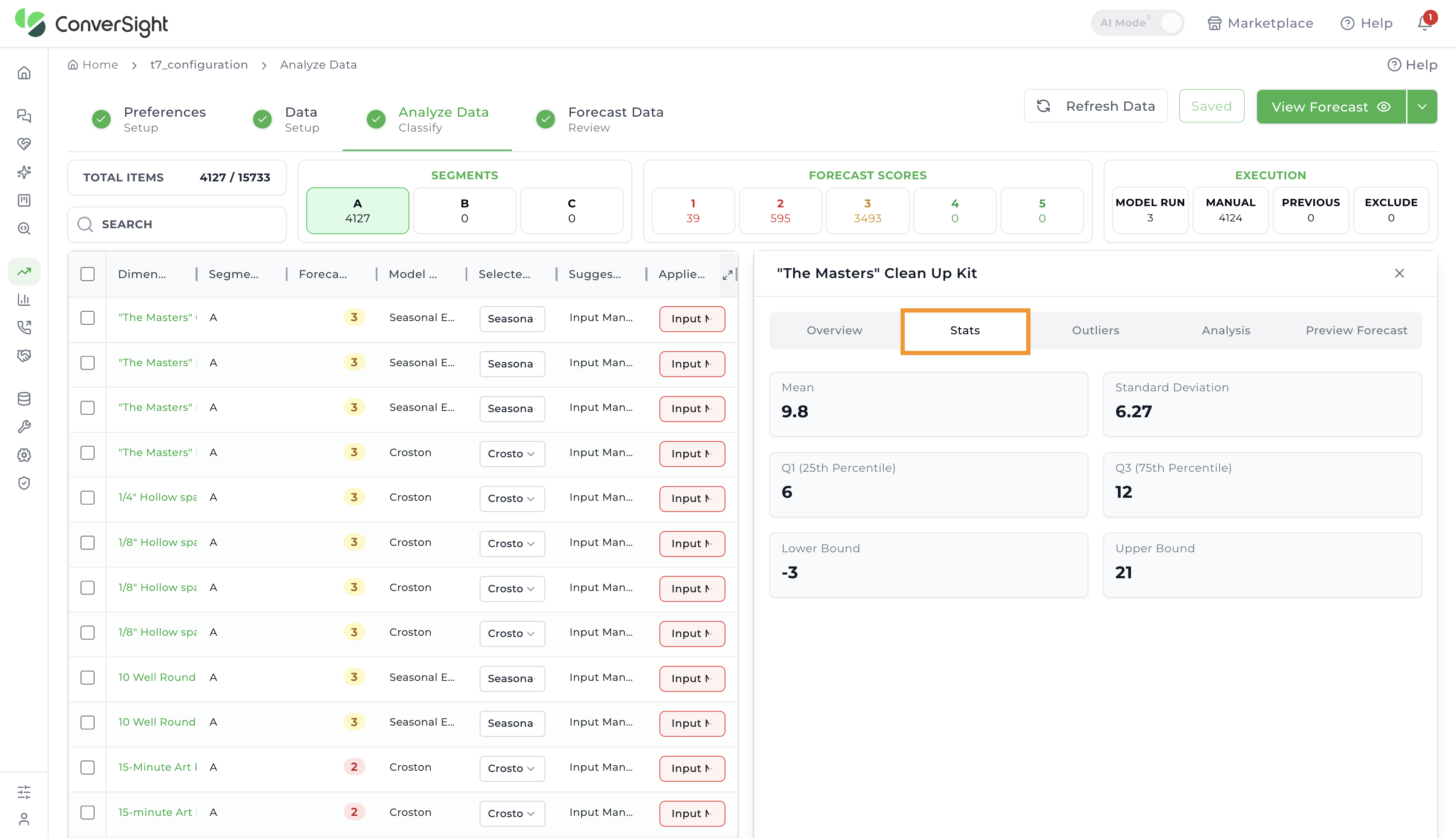
The Stats section provides descriptive statistical measures of the forecast.
- Mean: Gives the average expected demand over the forecast period.
- Standard Deviation: Measures how spread out the forecast values are, which affects planning confidence.
- First Quartile (Q1): Shows the lower end of typical demand range, useful for identifying underperforming periods.
- Third Quartile (Q3): Shows the higher end of typical demand range, useful for identifying peak performance.
- Lower Bound: Sets the minimum acceptable range for forecast data; values below this may be anomalies.
- Upper Bound: Sets the maximum acceptable range for forecast data; values above this may be anomalies.
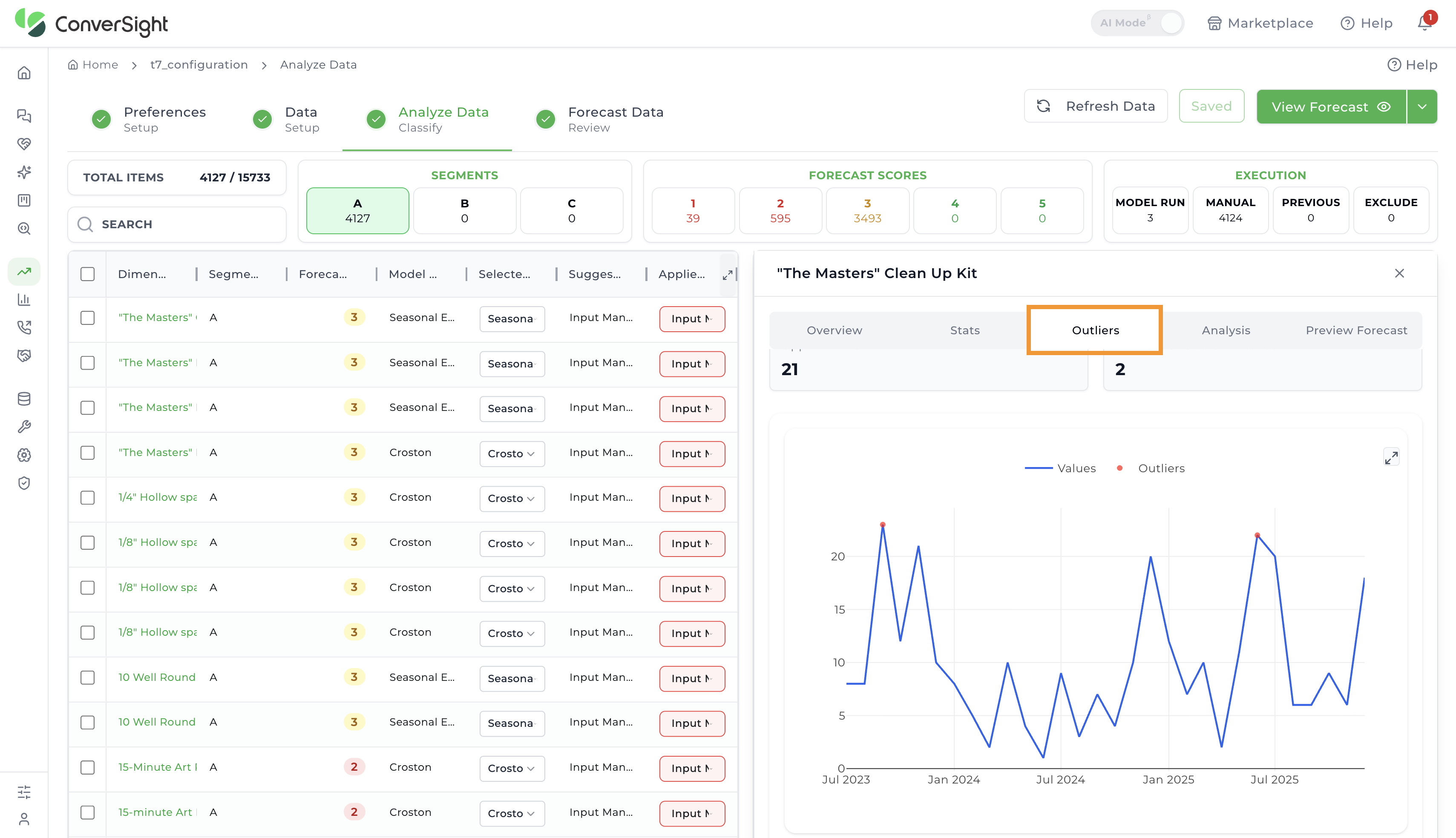
Outliers
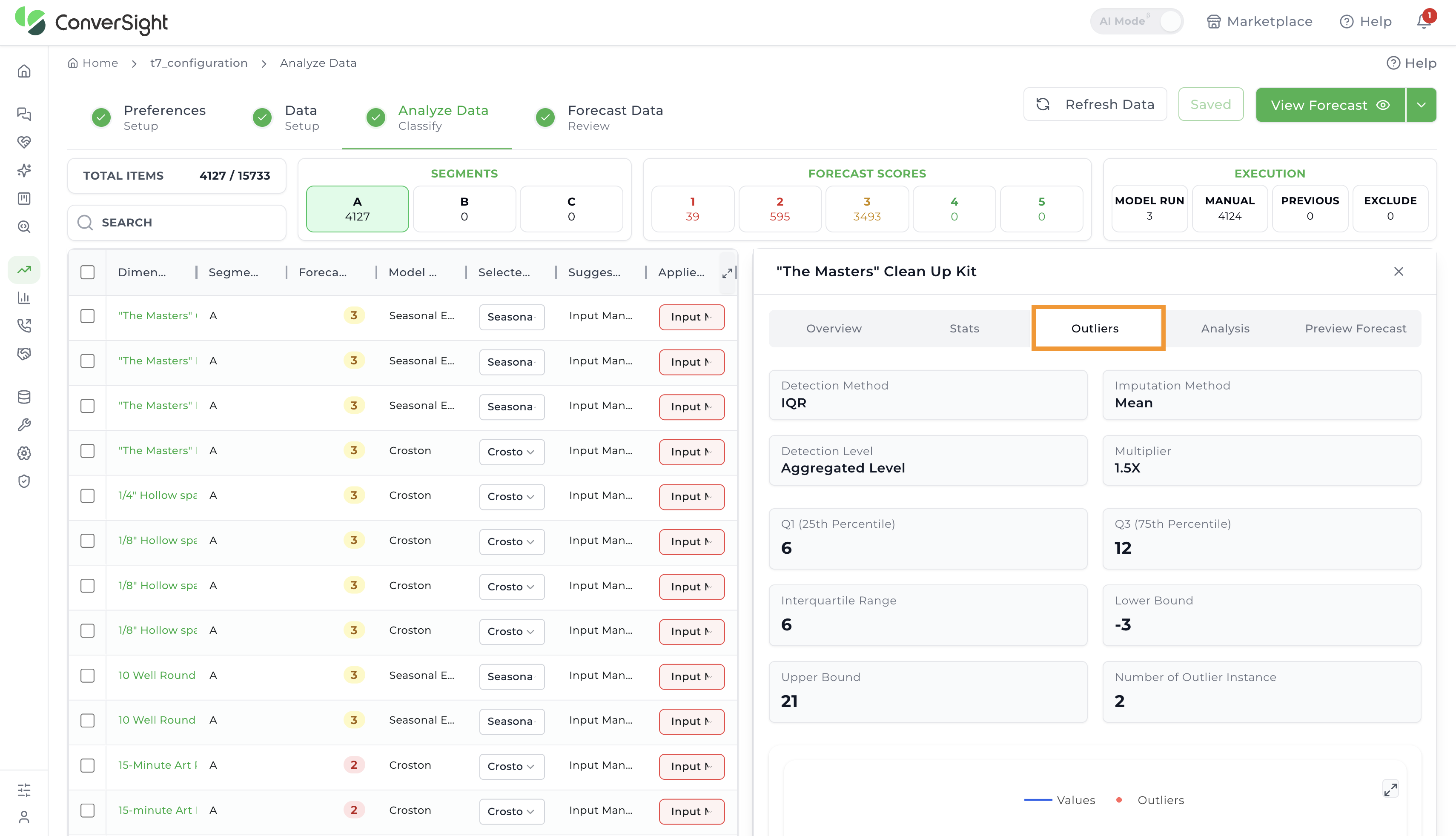
The Outliers section highlights deviations from expected demand patterns.
Metrics
- Detection Method: The statistical technique used to identify outliers in the dataset.
- Imputation Method: The approach applied to replace or estimate missing or anomalous values.
- Detection Level: The level at which outlier detection is performed, such as item-level or aggregated level.
- Multiplier: The factor multiplied with the IQR to define the acceptable data range for outlier detection.
- Q1 (25th Percentile): Represents the value below which 25% of the data points fall.
- Q3 (75th Percentile): Represents the value below which 75% of the data points fall.
- Interquartile Range (IQR): The difference between Q3 and Q1, showing the middle 50% spread of the data.
- Lower Bound: The minimum threshold calculated to detect values that fall significantly below the normal range.
- Upper Bound: The maximum threshold calculated to detect values that fall significantly above the normal range.
- Number of Outlier Instances: The count of data points identified as outliers based on the defined thresholds.
Visualization
- Outlier Line Plot: Highlights data points in a time series that deviate significantly from the expected pattern. The underlying line shows the original data, while outliers are distinctly marked to make anomalies easy to spot. This visualization helps in quickly identifying unusual spikes, drops, or irregular behavior in the series.
Analysis
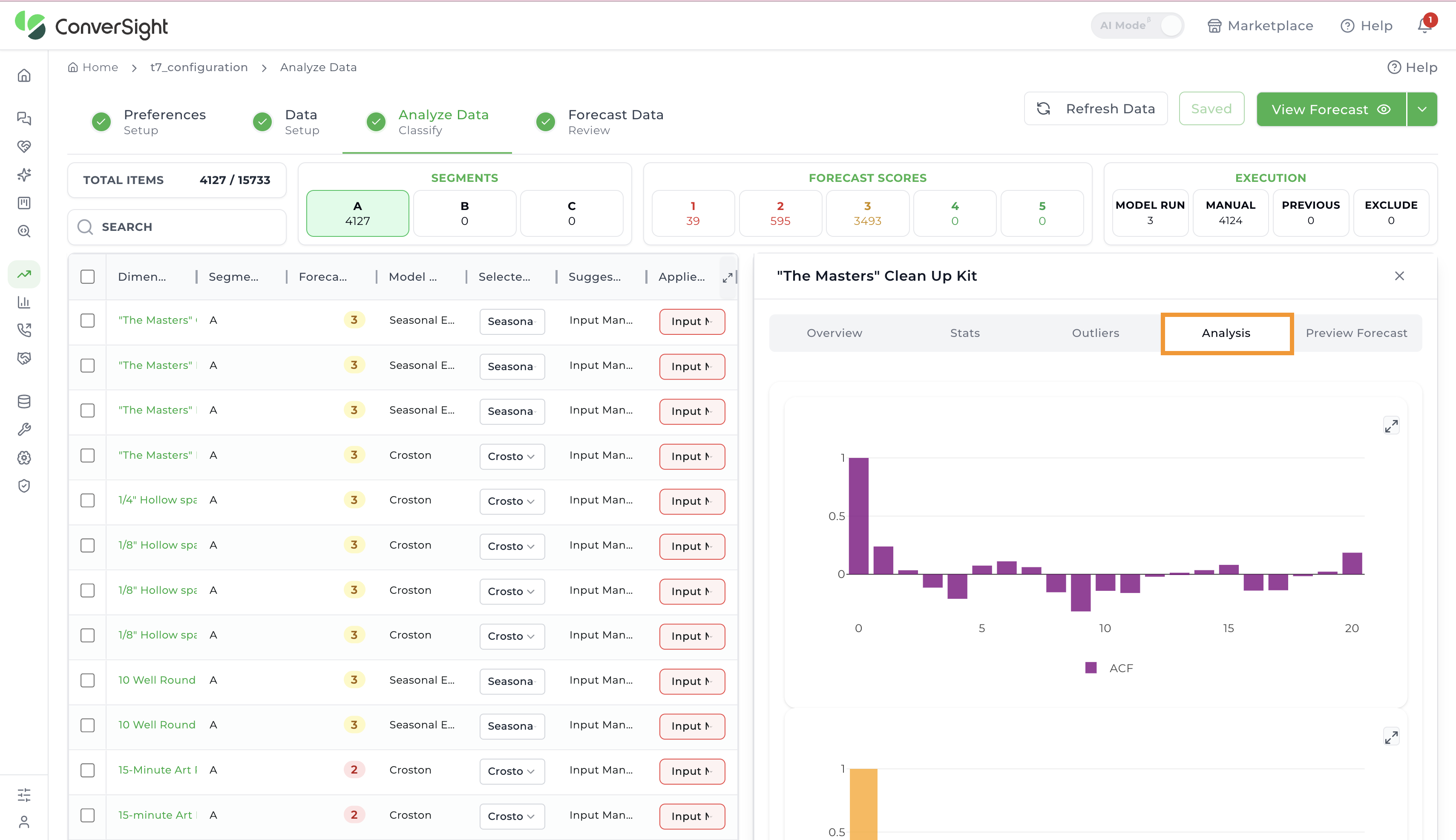
The Analysis section provides advanced diagnostic graphs to understand demand behavior.
- Autocorrelation Function (ACF) Plot: Shows the correlation between a time series and its past values across different lags. Useful for identifying repeating patterns, seasonality, and how strongly current values depend on previous observations.
- Partial Autocorrelation Function (PACF) Plot: Displays the direct correlation between a time series and its lagged values after accounting for shorter lags. Highlights the independent influence of each lag.
- Seasonal Decomposition of Time Series (SDL) Plot: Separates the series into trend, seasonality, and residual components.
- Trend: Captures long-term movement.
- Seasonality: Reflects repeating short-term cycles.
- Residuals: Shows random variation not explained by the other components.
- Observed Graph: Displays raw historical demand.
- Trend Graph: Shows long-term upward or downward movements.
- Seasonal Graph: Captures repeating demand cycles.
- Residual Graph: Highlights random noise or unexplained variability.
Preview Forecast
Users can generate a forecast for a specific item to view the corresponding graphs across multiple models—without needing to run the entire forecast each time for individual items or different model configurations.
After selecting the desired item, click on the Preview Forecast tab. A list of all available models will appear.
 Choose the required model and click Preview to view the forecast results.


Forecast Inclusion / Exclusion Rules
The Demand Forecast app automatically evaluates each item or segment against a set of predefined conditions to decide whether it should be included in, excluded from, or carried over in the forecast. These rules are applied dynamically during each analysis run, based on the latest data and configured thresholds.
Inclusion Criteria
An item or segment is included in the forecast when it does not meet any exclusion conditions. In such cases, the action field is marked as Included.
Exclusion Criteria
An item or segment is excluded from the forecast when it meets any of the following conditions:
Outlier Instances greater than or equal to seven Represents the number of periods in which the product’s demand deviates significantly from the expected range. A threshold of seven is applied to filter out products with excessive and unpredictable demand variations.
Zero Instances greater than or equal to six Represents the number of periods in which the product recorded zero sales or demand. A threshold of six indicates that the product is considered inactive if it has recorded zero demand for at least five periods in the observed timeframe.
Negative Instances greater than or equal to six Represents the number of periods with negative sales values, often caused by returns or adjustments. A threshold of six is applied to prevent erroneous forecasting for products with excessive returns.
Frequency less than six Represents how often a product was purchased or ordered within the observed timeframe. A value below six indicates irregular demand, making the product less reliable for forecasting.
Recency greater than or equal to five Represents the number of periods since the product was last sold. A value of five or more indicates low recent demand, suggesting the product is outdated for forecasting purposes.
Bulk Actions
The Bulk Actions feature enables users to apply forecast-related actions to multiple dimension values at once, streamlining the data preparation process. This feature becomes visible only when a dimension name or multiple dimension names are selected.
There are three main options available under Bulk Actions:
- Bulk Status Action
- Selected Model
- Substitute Items
Bulk Status Action
This option enables users to apply specific status updates to the selected data using a dropdown menu. The available choices include:
- Include in Model Run – Marks the selected items to be included in the forecasting model.
- Input Manual Numbers – Allows users to manually input forecast values for the selected items.
- Exclude from Forecast – Excludes the selected items from the forecast.
- Use Previous Forecast – Applies values from a prior forecast to the selected items.
 Selected Model
The Selected Model option enables users to modify the forecasting model currently in use, either to align with their preferences or to generate forecasts using a different model. Users can choose their desired forecasting model from the available dropdown list.
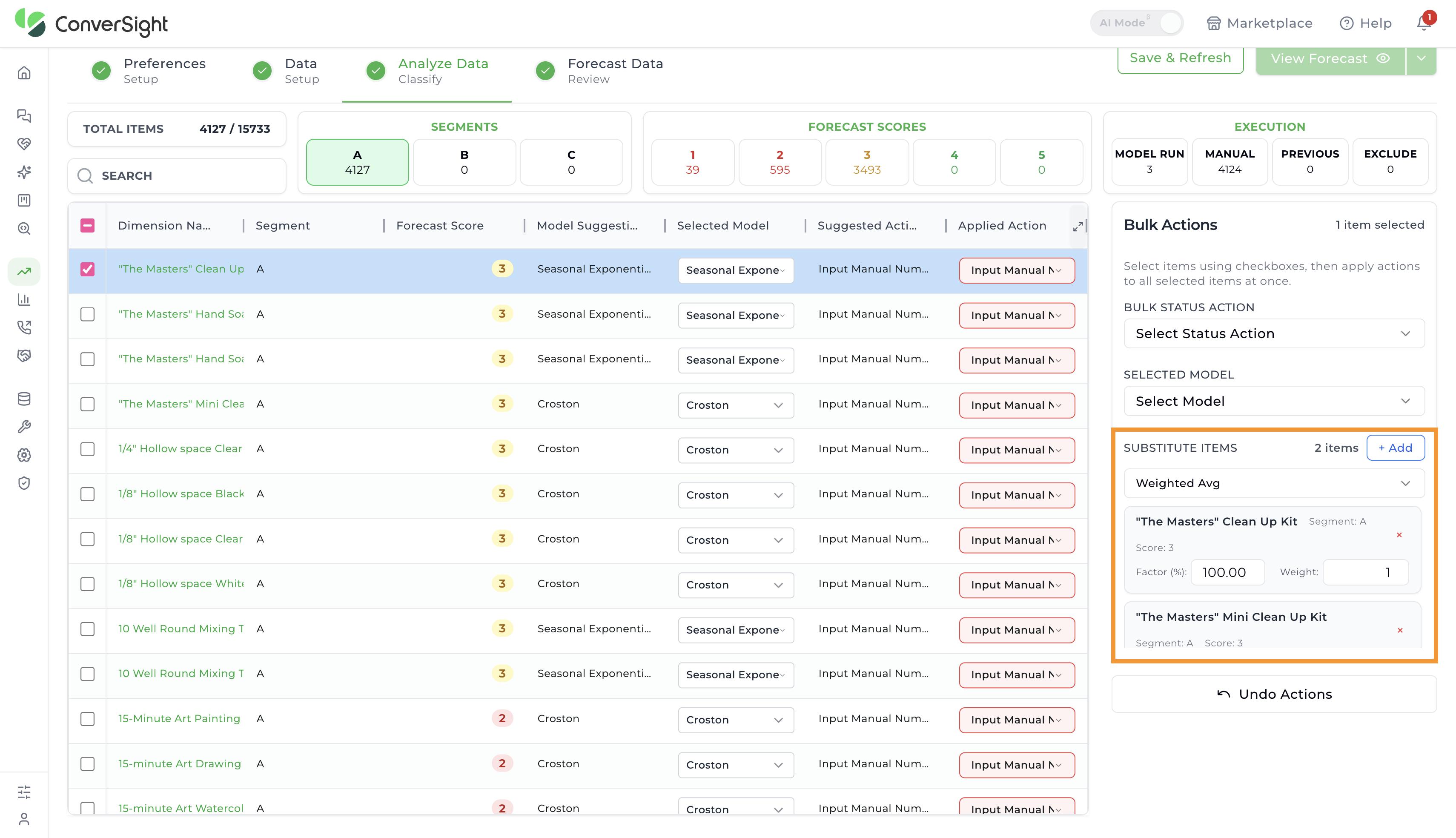
 Substitute Items
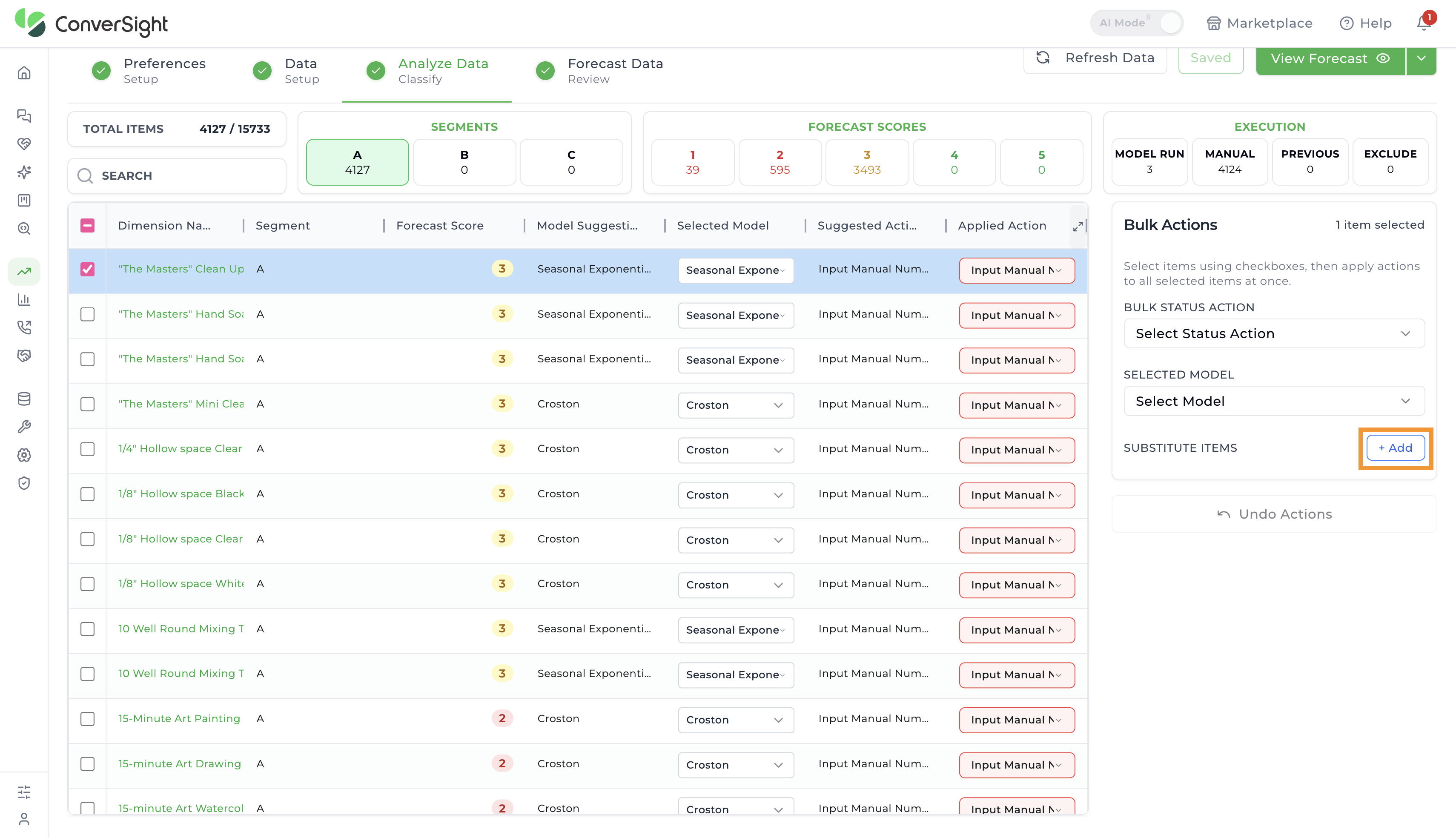
The Substitute Items option allows users to assign one or more alternate (substitute) items for an existing item used in the forecast. Users can apply substitute item values to the forecast using either the Simple Average, Weighted Average or the Sum method.
To add substitute items, click the Add button. A list of eligible items will appear.
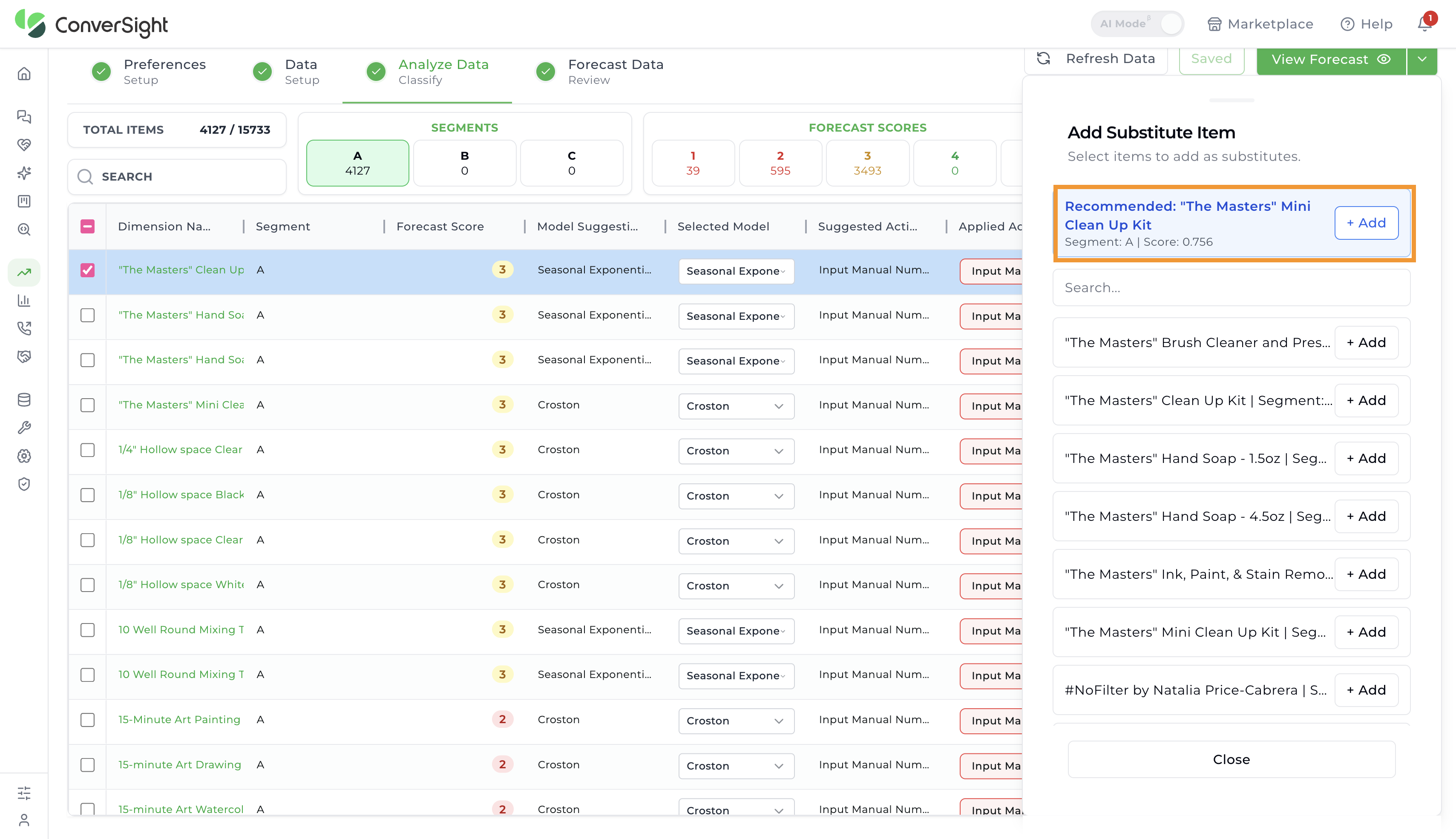
 Users can then click the Add button next to the desired item(s) to include them as substitutes. By default, the app provides a recommendation for which item is more suitable to be substituted.
A recommendation will be provided only when a single dimension is selected. No recommendation will be generated if multiple dimensions are selected.
 Once a substitute item is added, it will appear in the Bulk Actions section under the Substitute Items option. Users can also apply a scaling factor and weight to the added item, adjusting it as needed to align with specific business requirements.
The Use Previous Forecast option is disabled for scenarios that are being created for the first time, as no historical forecast data is available.
If any changes need to be reverted, the Undo Actions button allows users to undo all applied bulk actions instantly.

To run the forecast, the Applied Action must be set to Included in Model Run for at least two SKUs.
After making the necessary changes during the analysis process, users can click the Save Analysis button to save their progress. This ensures that all modifications made to the data and applied actions are retained.
 Once the analysis is saved, click on the Run Forecast button to initiate the forecasting process based on the current data setup and applied actions.

Forecast Data
The Forecast Data page presents forecasted values in a detailed table, enabling users to review projections at a granular level. Each row is a dimension item, and the forecast values are grouped by forecast period (for example, Jun 2026, Jul 2026, and so on) across the top of the table. Users can utilize the Search bar to locate specific dimension columns quickly and efficiently. The same Total Items, Segments, Forecast Scores, and Execution summary panels from the Analyze Data stage are also shown here.

Within each forecast period, the table shows the following columns:
| Column Name | Description |
|---|---|
| Dimension Name | The name of the item or segment being forecasted. |
| Suggested Volume | The volume currently recommended by the forecasting model for the dimension and period. |
| Forecast Volume | The final forecast volume for the dimension and period. This column is editable in Adjust Forecast mode. |
| Suggested Value | The value (such as revenue) currently recommended by the forecasting model for the dimension and period. |
| Forecast Value | The final forecast value for the dimension and period. This column is editable in Adjust Forecast mode. |
Use the Columns button to control which of these groups are shown (see Columns below).
Filters
A Filters panel is available on the left side of the Forecast Data page, allowing users to narrow down the forecast data displayed in the table. The panel can be collapsed using the arrow icon at the top of the panel to allow more space for the forecast table.
The Time Period section controls the range of forecast periods shown in the table. The options presented here are derived from the period unit selected during scenario creation, so the ranges offered always match the granularity of the forecast. For example, a monthly forecast provides the 3M, 6M and 12M options, while a weekly forecast provides the 4W and 13W options. The option applied when the page loads is determined by the Default Horizon setting (see Settings below).
The panel also displays a section for each dimension that has been added as a dimension filter through the Settings panel. Each of these sections lists the values available for that dimension as a checklist, and selecting one or more values restricts the forecast table to the items matching the selection. For example, adding the buyer dimension presents a Buyer Name section in the panel, from which users can select individual buyers to review only their items.

Forecast Lines
Every dimension item in the table expands into a set of forecast lines, allowing users to compare the model's projection against the sales commitment before deciding what to carry forward:
| Forecast Line | Description |
|---|---|
| AI | The forecast generated by the forecasting model for each period, based on the historical data and the preferences configured for the scenario. |
| Sales | The forecast committed by the sales team for each period. These values are taken from the Revenue Projection app, and are available only when the revenue projection plan has been shared with Demand Planner. If no plan has been shared, the Sales line remains empty. |
| Blend | The average of the AI and Sales values for each period. This line provides a balanced forecast that accounts for both the model's projection and the sales commitment. |
| Final | The forecast that is retained for the item and carried forward when the scenario is published. The Final values are populated from the forecast source selected for the item, and users can adjust these values to reflect what the forecast should carry. |
For each item, the forecast source can be selected using the AI Forecast, Sales Forecast and Blend options displayed alongside the item name. The selected source populates the Final line for that item, which users can adjust further if required.

The Segments, Forecast Scores and Execution summary panels at the top of the page are selectable and act as filters on the forecast table. Selecting a segment, a forecast score or an execution type restricts the table to the items belonging to that group, and the required forecast source can then be applied to all of the filtered items at once. This allows users to work through the forecast group by group instead of item by item. Users can also adjust an individual item by selecting the forecast of that specific item and applying the required source to it.
Settings
The Settings icon at the top right of the Forecast Data page opens the Settings panel, where users can configure how the forecast data is presented and which filters are available in the left panel.
| Setting | Description |
|---|---|
| Default Horizon | Defines the time span that is selected in the Time Period filter when the page loads. The available options correspond to the period unit of the scenario, such as 3M, 6M, 12M and All for a monthly forecast. |
| Forecast Lines | Lists the forecast lines carried by the scenario — Prior Approved, AI Forecast, Sales Forecast and Final Forecast — and controls the order in which they appear in the grid and the legend. Users can move a line up or down using the arrows next to it to arrange the lines in the preferred sequence. |
| Dimension Filters | Lists the dimensions that are available as filters in the left Filters panel. Dimensions added here appear as individual filter sections in the panel. |
To make a dimension available as a filter, use the Add a Filter section at the bottom of the Settings panel. Select the required dimension from the Source dropdown, optionally provide a Label to define how the filter is named in the panel, and click the + icon. The dimension is then listed under Dimension Filters, and once the settings are saved, it appears as a filter section in the left panel for users to select values from.


Adjust Forecast
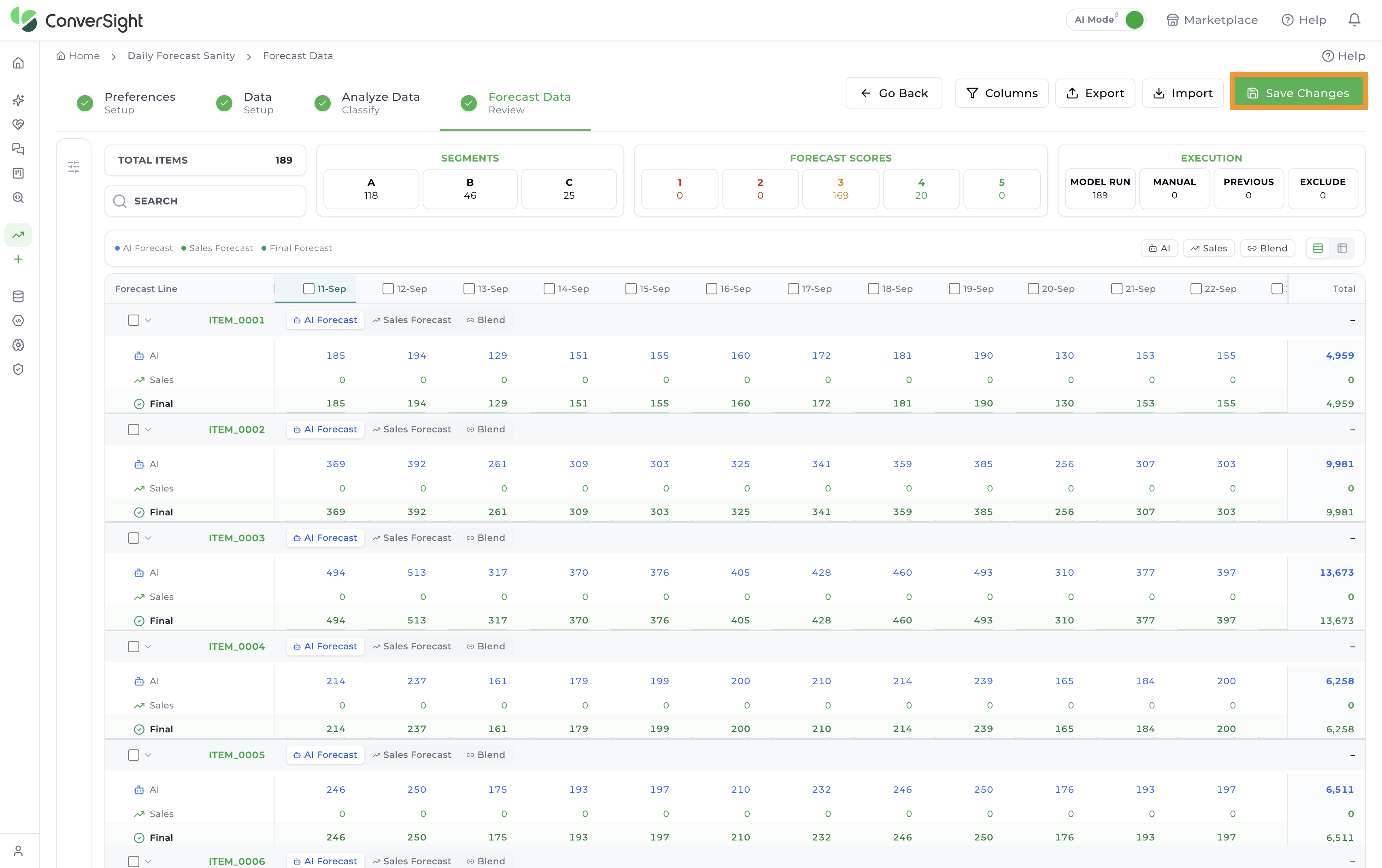
To make changes to forecasted values, users can click the Adjust Forecast button. The toolbar then switches to Go Back and Save Changes, and the Forecast Volume and Forecast Value columns become editable. This allows for manual modifications tailored to specific business requirements.

Upon clicking Adjust Forecast, users can select an editable cell to enter updated values. When a cell is selected, a Growth Factor section also appears, allowing users to apply growth factors directly to the forecasted data.
 Once the adjustments are complete, click Save Changes to apply and retain the modifications.
All manual inputs and adjustments made to the forecast will persist and carry over when using the Use Previous Forecast option. This streamlines the forecasting process by eliminating the need to recreate forecasts from scratch.
Columns
Click the Columns button to open the Column Visibility panel, where users can toggle column groups across all months. The toggles are organized into a Volume group, a Value group, and a System Columns option:
- Suggested Volume: Displays the model-suggested volume for each item or segment when enabled.
- Forecast Volume: Displays the forecasted volume of an item or segment when enabled.
- Suggested Value: Displays the model-suggested value for each item or segment when enabled.
- Forecast Value: Displays the forecasted value of an item or segment when enabled.
- System Columns: Displays system details such as forecast creation date, creator, last updated date, last updated by, and the forecast period when enabled.


Export
Click the Export button to export the forecasted data in CSV format. This allows for offline review or further analysis.

Import
Users can upload a CSV file using the Import CSV button. This is useful for two scenarios:
- Uploading a custom CSV file to run the forecast
- Making changes to the downloaded CSV file and re-uploading the updated version
 After adjusting values manually or importing the updated CSV, users must click Save Changes to apply the updates and then click the Go Back button if no further changes need to be done.
 The download and import CSV functionality are available exclusively for manual forecasted values. You cannot overwrite model-generated (automated) predictions directly using this feature—only those values marked for manual forecasting can be updated in this w
Publish
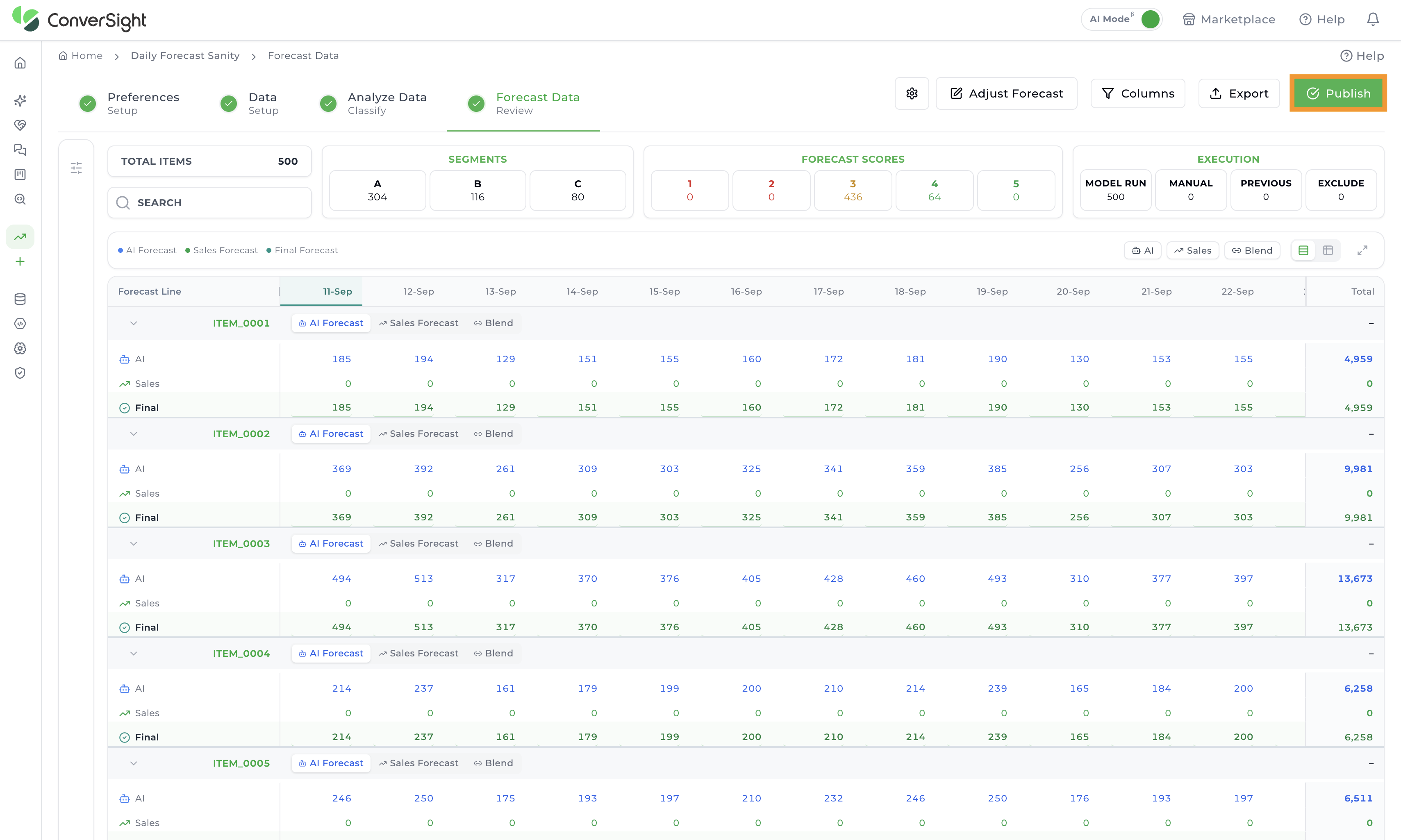
Once all the required changes to the forecast are complete, click on the Publish button at the top right of the Forecast Data page to make the forecast accessible across the organization. Once published, all users can view and edit the forecast as required. This opens the Publish Forecast dialog, where users choose how to save and publish the results.
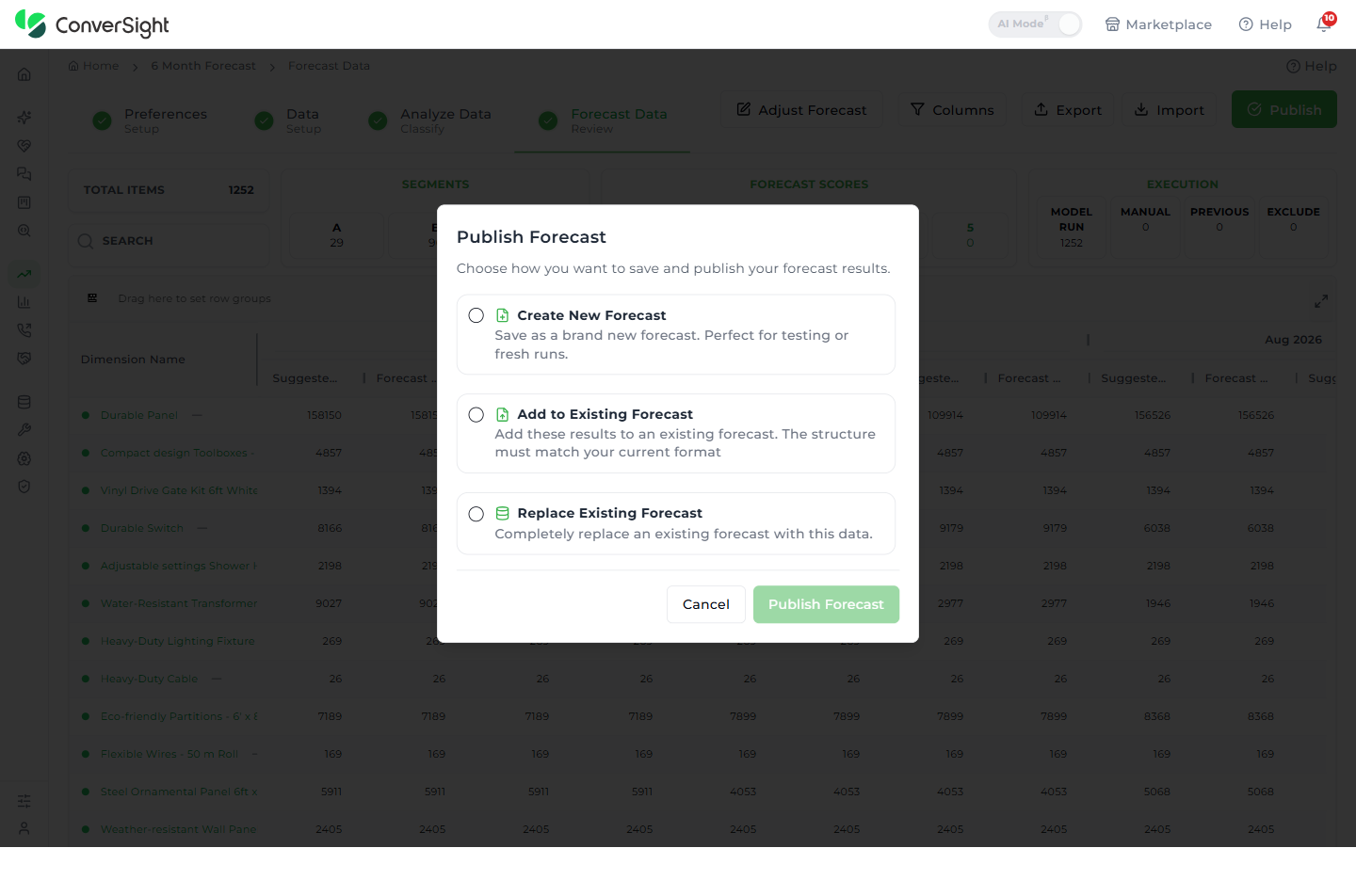
Users can publish a forecast in three ways:
- Create New Forecast – Saves the results as a brand new forecast. When this option is selected, users are prompted to enter a name for the new forecast.

- Add to Existing Forecast – Adds the current results to an existing forecast. Users must select the target forecast from the dropdown list, and the structure must match the current format.

When a target forecast is selected, schema validation is performed. If a schema mismatch is detected, the dialog lists any extra columns and missing columns so users can review the differences before publishing.
- Replace Existing Forecast – Replaces an existing forecast entirely with the new results. All previously stored forecast data will be permanently deleted.
