Supply Assurance Agent
Supply Assurance is the clearest example of Athena in Employee mode. It is the agent that doesn't just surface a problem — it acts on it. Coverage drops below threshold, Athena identifies the at-risk POs, contacts the approved supplier, negotiates an expedited delivery within the authorized order window, writes the confirmed commitment back to the ERP, and distributes a supply-risk briefing to leadership — all before the morning standup.
Of all the agents on the platform, this one operates with the highest delegated autonomy by default, and so it carries the most explicit guardrail framework. Autonomy is always delegated, never assumed — every action operates within an enterprise-configured policy your administrators set.
Like every Athena agent, Supply Assurance also runs in the lighter modes when that's what you need: Assistant for one-off PO status checks, Co-Pilot for working through a delivery exception in a supplier-review meeting, Automation for the recurring weekly supplier-performance digest. Employee is the mode where the agent earns its keep.
What Supply Assurance Owns
| Stage | What Athena does |
|---|---|
| Signal | Continuously monitors PO promised-vs-actual delivery dates, in-transit visibility data, supplier confirmation cadence, and coverage projections. Flags POs more than N days overdue, supplier silences past expected response windows, and risk patterns across hubs. |
| Decision | Scores impact (production line, customer commitment, downstream coverage) and prioritizes which exceptions warrant outreach. Selects the contact path (email, call) and the escalation tier based on supplier history and exception severity. |
| Action | Initiates supplier outreach — phone call and/or email — within the approved contact list. Negotiates revised dates and quantities. Records the supplier's commitment directly to the ERP via the configured integration. Sends executive briefings to the configured distribution list. |
| Feedback | Captures whether the supplier honored the new commitment, response latency, and downstream coverage outcomes. |
| Learning | Updates supplier reliability scores, lead-time models, and escalation rules. Suppliers who consistently miss revised commitments get downgraded; reliable ones earn higher autonomous trust. |
A typical autonomous workflow
Athena identifies a critical component with 3 days of coverage. It scores the production impact, checks the supplier's history, places a call to the approved contact on file, confirms an expedited delivery within the authorized order window, writes the updated commitment to SAP, and emails the VP of Supply Chain with the change — before the morning standup. The planner walks in to a resolved issue and a one-line summary of what Athena did, why, and what the outcome was.
Guardrail: supplier outreach is restricted to a pre-approved contact list. ERP writes require role authorization. Hard limits cap the maximum order-window extension, the maximum coverage-risk threshold for autonomous action, and the maximum executive-distribution scope. Every action is logged with full context (what was detected, what was decided, what was executed, what was the outcome) for audit. Any in-progress action can be paused, modified, or reversed by an authorized user at any point.
What This Documentation Covers
This page is the reference for using Supply Assurance in the platform: how to access it, configure tracking rules, review escalations, customize supplier communication, and review the audit log of autonomous actions. New to the agent? Start at the challenges section below for context, then jump to the configuration sections. If you're operating it day-to-day, the autonomous-action audit log and exception review queue are the surfaces you'll spend the most time in.
Challenges in Manual Supply Tracking
Managing purchase orders across multiple suppliers, regions, and timelines can be overwhelming. Traditional processes come with several pain points:
- Delayed Shipments Go Unnoticed: Without real-time tracking, delays are often identified too late, impacting production and fulfillment.
- Manual Follow-Ups Are Time-Consuming: Teams spend considerable effort and time coordinating with suppliers, negotiating new delivery timelines, and updating information across systems.
- Limited Supply Chain Visibility: The absence of a centralized, real-time view makes it difficult to accurately track supply status, resulting in poor planning and operational inefficiencies.
These challenges not only reduce operational efficiency but also contribute to revenue loss, increased inventory holding costs, and weakened customer relationships.
Accessing Supply Assurance Agent
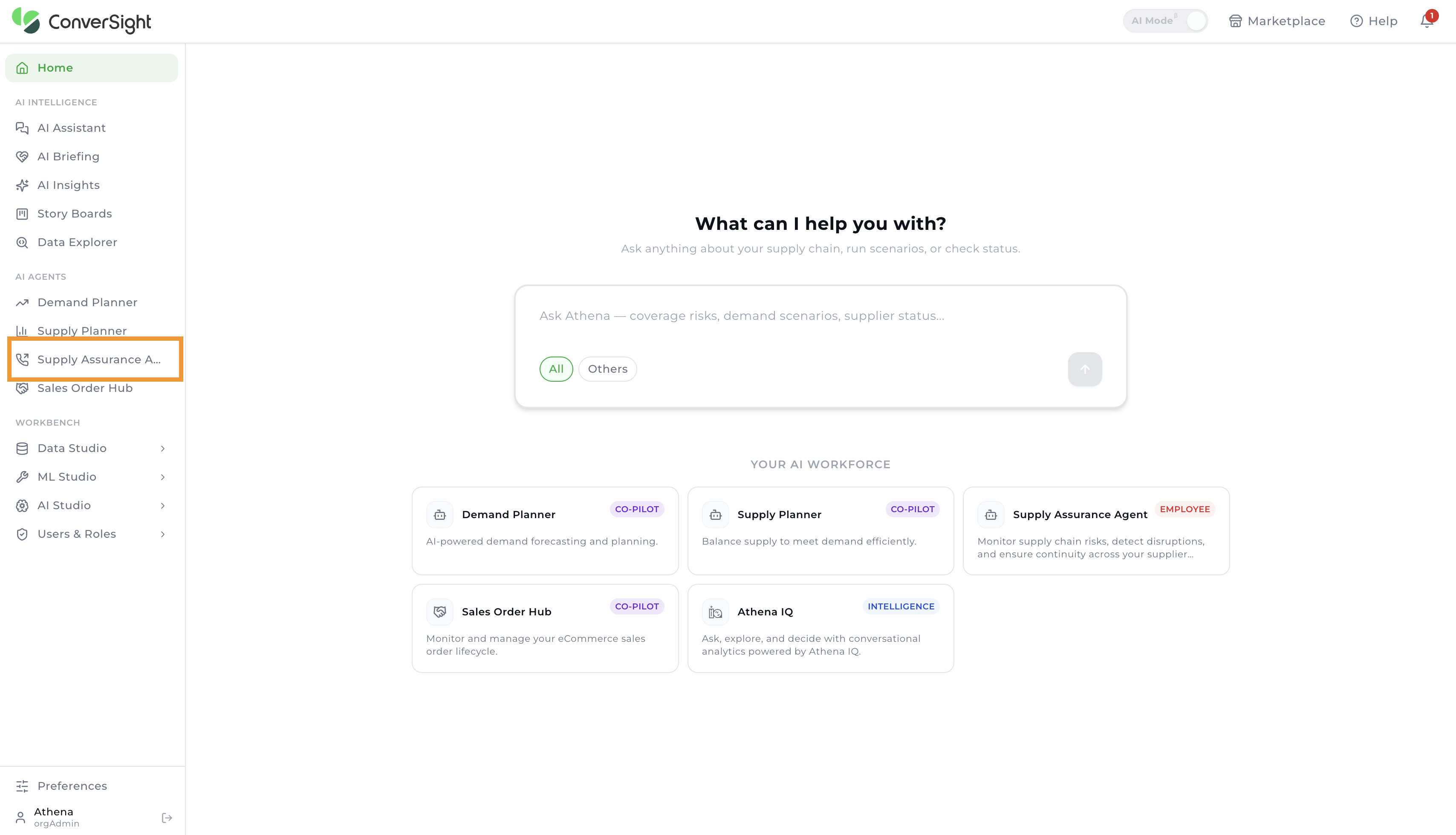
Users are required to purchase the Supply Assurance Agent through the Marketplace before they can access it. Once the purchase is completed, the app is automatically added to the Launchpad. After logging in, the user can navigate to the Launchpad tab to view all purchased applications. From there, the user can search for the Supply Assurance Agent and click on it to begin using the application.
Supply Assurance Command Center
The Supply Assurance Command Center provides a clear, at-a-glance view of key metrics for quick understanding of overall supply status. The dashboard presents a high-level summary of:
- Total Purchase Orders
- Delayed Orders
- Calls in Queue
- Active Calls

Voice and Language Settings
Users can configure agent preferences such as voice, language, and regional settings through the Settings option. By clicking the Settings icon, the Voice and Language Settings page is displayed, which includes the following sections:

Refresh Data: Updates the data to ensure the latest information is used during negotiations.
Export Report: Allows users to export purchase order details.
Get Help: Provides access to help documentation.
Country and Region: Users can select the preferred country and corresponding currency. This defines the primary operational location.
Regional Language: Users can choose the preferred language for negotiations. The default language is English.
Voice Selection: Users can select the agent’s voice type, such as male or female.
Select Avatar: Users can choose a preferred avatar from the dropdown and use the Preview option to listen to the selected voice before applying it.

After making the required changes, users can click Save to apply the updates.

Delayed Orders
The Delayed Orders section displays all orders that are delayed and require user intervention for negotiation.

Users can customize the display of delayed orders using the following filter options:
- Sorting
- Activity-Based Filtering
Sorting
Users can organize and view purchase orders more effectively by sorting them based on key attributes such as PO Number, Supplier Name, Status, Expected Delivery Date, Delay, or Amount. This flexibility allows users to quickly locate specific orders and prioritize actions based on business needs. By default, all cards are displayed in No Sort mode, presenting the data in its original order until a sorting preference is applied.

Activity-Based Filtering
Users can organize and view purchase orders more effectively by applying activity-based filters that align with different stages of the workflow. This enables users to focus on specific sets of orders and take relevant actions based on their current status.
By default, the All Activities view displays all purchase orders, regardless of their stage. Users can further refine the view using filters such as For Negotiation, Agent, Queued, In Progress, and Completed, allowing for a more targeted and efficient workflow.

Viewing and Managing Purchase Orders
Users can view purchase orders in either Card View or List View based on their preference, using the available toggle option.

Each order card provides key details at a glance, including:
- Product Name/ID
- Supplier Name
- Expected Delivery Date
- Number of Days Delayed

View Details
The View Details option presents comprehensive information, including Order Details, Supplier Information, Line Items, and Call History, in a single view without requiring navigation across multiple screens.


Queue Call for Athena: This option allows users to add negotiation calls to the queue for Athena to process. Once queued, the call is scheduled and handled automatically, enabling users to initiate supplier negotiations without manual intervention.

Negotiate
To initiate a negotiation for a revised delivery date or to understand the reason for a delay, users can click the Negotiate button.

A pop-up is displayed with relevant details, including:
- Contact Information: Name, email, and contact number
- Agent Info: Name and gender of the assigned agent
- Call Settings: Country and language preferences

Users can review and update this information using the Edit option, if required. Once verified, clicking Confirm initiates the negotiation process.

Once a negotiation call is initiated, it progresses through the following negotiation statuses:
- Queued: The call is placed in a queue and will be initiated once earlier negotiations are processed
- In Progress: The negotiation call is actively ongoing with the supplier to discuss delivery timelines or resolve delays
- Completed: The call has been successfully concluded, and the updated delivery details are captured in the transcripts for reference later if required.
Agent Activity
The Agent Activity section manages supplier calls and presents a structured view across three statuses: Queued, In Progress, and Completed. This allows users to track, manage, and review calls at each stage of the process.

Call Status Categories
The Agent Activity page organizes supplier negotiation calls into three statuses, providing a structured view of call progress and outcomes:
Queued: Displays calls that are scheduled but not yet initiated by the system. This view allows users to review all pending calls, verify call details, and take action if required. Users also have the option to delete a queued call if it is no longer needed, ensuring that only relevant requests are processed.

In Progress: Displays calls that are currently active with suppliers. This enables users to monitor ongoing negotiations in real time or participate directly by selecting the Join Call option. It provides visibility into live interactions and helps users stay informed about current discussions.

Completed: Displays calls that have been successfully completed by the agent. Each completed call is presented in a card format with key details, including:
- Product Name/ID
- Supplier Name
- Start Time of the call
- Duration of the call
- Assigned Agent Name
- Actions Performed during negotiation
- View Transcript

View Transcript
Once a call is marked as Completed, users can access the detailed transcript by selecting the View Transcript option.

The transcript is organized into three sections:
- Call Information
- Resolution
- Call Transcript
Call Information: Provides key details of the call, including start time, end time, duration, contact name, contact email, and contact phone number.
Resolution: Captures the outcome of the call, including actions taken, resolution details, updated delivery date, payment information, and sentiment.
Call Transcript: Displays the complete conversation recorded during the call for full reference.

Benefits
- Reduced Delays & Missed Deliveries: Proactively identifies potential supply chain issues, ensuring purchase orders are delivered on time.
- Automated Supplier Communication: Athena AI handles negotiations, updates timelines, and reduces manual follow-ups.
- Real-Time Visibility: Clear dashboards show purchase orders, delayed items, and call activity status for quick decision-making.
- Cost Savings & Improved Supplier Relationships: Reduced manual workload lowers administrative costs while ensuring better coordination with suppliers.