Overview
The ConverSight Desktop App provides a native desktop experience for accessing the ConverSight platform on Windows. The application uses Microsoft’s native WebView technology to deliver a lightweight and responsive experience while ensuring users always access the latest version of the ConverSight platform.
This guide applies to:
- Windows 10 (Version 1803 or later)
- Windows 11
Prerequisites
Before proceeding with the application installation, verify that your system meets all required prerequisites and is properly configured.
| Requirement | Description |
|---|---|
| Operating System | Windows 10 (Version 1803 or later) or Windows 11. |
| Installer Package | Download the ConverSight Desktop App installer package from the ConverSight Downloads page. |
| Internet Connection | A stable internet connection is required to access the ConverSight platform and load organization environments. |
| Memory (RAM) | 2 GB minimum, 4 GB recommended. |
| User Permissions | Permission to download and run desktop applications may be required depending on organizational security policies. |
Step by Step Guidance
Step 1: Open the ConverSight Downloads page and select the Windows installer. Click Download to begin downloading the installation package and wait for the download to complete before proceeding to the next step.

Step 2: Once the download is complete, open File Explorer and navigate to the Downloads folder. Verify that the ConverSight installer (for example, Conversight_1.0.0_x86_64) has been downloaded successfully before continuing with the installation.

Step 3: Double-click the downloaded installer to run it. Because the installer isn't yet from a recognized publisher, Windows Defender SmartScreen will likely display a warning that it "protected your PC."

Step 4: Click More info, then select Run anyway to continue with the installation. This verification step is typically required only the first time the installer is run.

Step 5: The ConverSight Setup wizard opens. Click Next to continue.

Step 6: Choose the folder where ConverSight should be installed, or leave the default destination folder, then click Next.

Step 7: Setup installs ConverSight. Once the progress bar reaches completion, click Next.

Step 8: On the final screen, keep Run ConverSight and Create desktop shortcut checked (recommended) and click Finish to close Setup and launch the application.

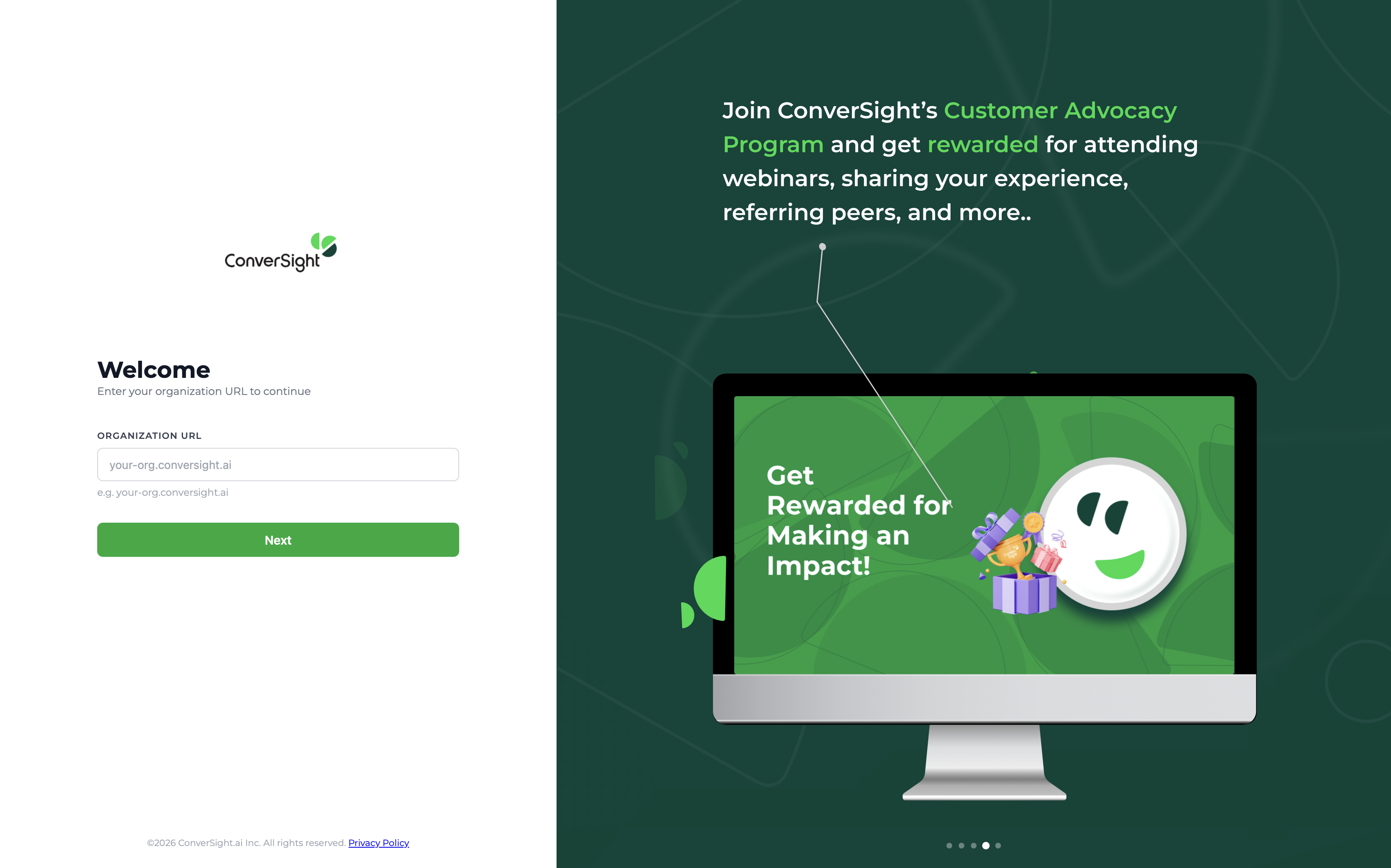
Step 9: When ConverSight launches for the first time, enter your organization's URL provided by your administrator (for example, your-org.conversight.ai) and select Next to continue.

Step 10: Once the login page loads, enter your credentials and sign in to access the platform.
Troubleshooting
1. Application is Blocked by Windows
If Windows Defender SmartScreen prevents the installer from running, select More info on the security warning dialog and then choose Run anyway. This allows Windows to trust and launch the installer. In most cases, this action is only required the first time the installer is run.
2. Installer Does Not Open
If the installer does not launch after downloading, verify that it downloaded completely and that Windows Defender SmartScreen hasn't silently blocked it (check More info > Run anyway as described in Step 4). If the issue persists, download the installer again and repeat the installation process.
3. Organization URL Not Recognized
If ConverSight doesn't proceed past the organization URL screen, confirm the URL was entered exactly as provided by your administrator (for example, your-org.conversight.ai) and that your device has a stable internet connection.
Conclusion
The ConverSight Desktop App is now installed and ready to use. Sign in with your ConverSight credentials to access your organization’s environment and begin using the platform. Most platform updates are automatically reflected within the desktop application, eliminating the need for frequent reinstalls or manual updates.