Distribution Planner
Distribution Planner is Athena in Co-Pilot mode for outbound distribution planning. It takes the forecast published by Demand Planner and turns it into an executable shipping plan: allocating available supply from the source warehouse out to receiving stores and depots, building the routes, vehicles, and pick lists needed to move that supply, and tracking the plan through approval and export. A planner reviews what Athena has allocated, adjusts individual store quantities or moves stock between stores where needed, and approves or rejects each store's pick list before it ships.
What This Documentation Covers
This documentation is the reference for using Distribution Planner in the platform: how to access it, how to read the dashboard and the Allocation summary cards, how to filter and view the current distribution plan, how to adjust or approve individual store pick lists, how to start a new distribution run, and how to configure routes, vehicles, and capacity measurement in Settings. If you're new to the agent, start at Accessing Distribution Planner. If you've used it before and want a specific function, the table of contents on the right covers every section.
Accessing Distribution Planner
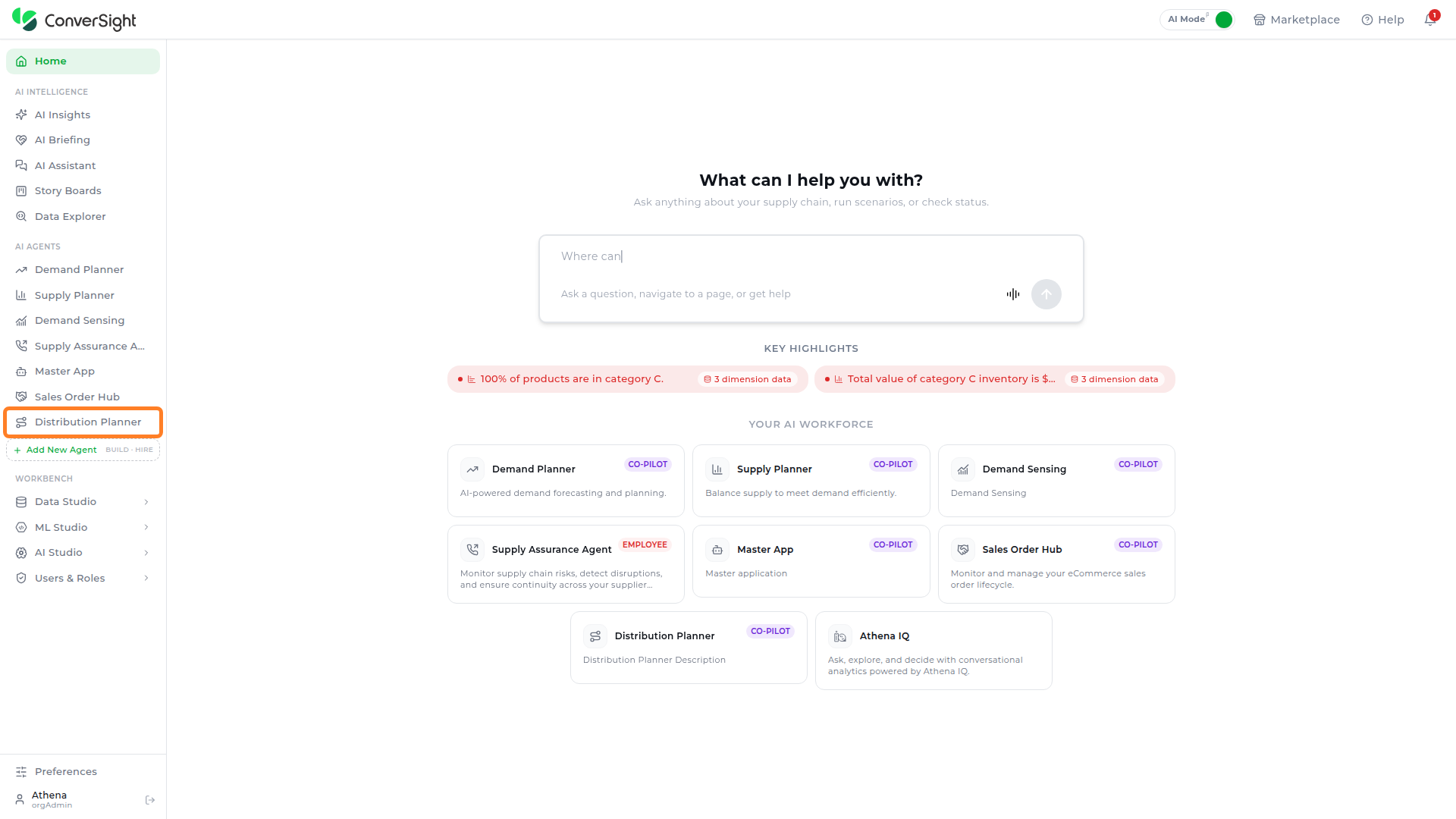
Click on the Distribution Planner option under the AI Agents section in the left navigation panel to open the Distribution Planner dashboard.
Distribution Planner Dashboard
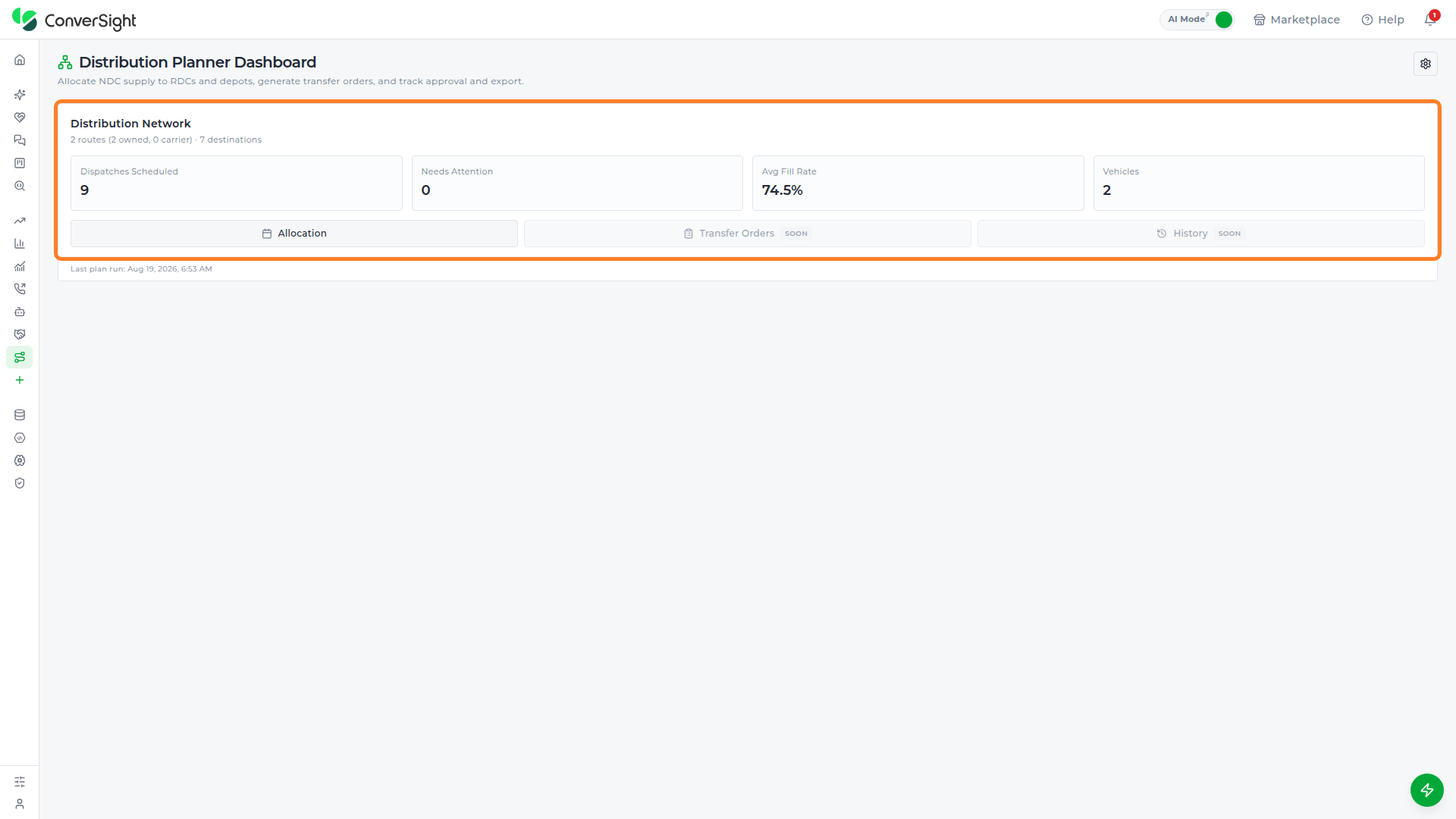
The Distribution Planner Dashboard is the landing screen for the agent — it allocates supply to receiving stores and depots, generates transfer orders, and tracks approval and export, and summarizes all of that for the whole distribution network before a planner drills into a specific week's allocation.
The Distribution Network panel reports two network-wide figures:
- Routes: The total number of routes in the network, broken down into owned versus carrier-operated routes.
- Destinations: The total number of stores and depots in the network.
Below that panel, four summary cards report the current week's status at a glance:
| Metric | Description |
|---|---|
| Dispatches Scheduled | The number of dispatches scheduled for the week. |
| Needs Attention | The number of dispatches that still need a decision before they can ship. |
| Avg Fill Rate | The average share of vehicle capacity used across the week's dispatches. |
| Vehicles | The number of vehicles assigned to routes for the week. |
| Last plan run | Displays the timestamp of the last run distribution. |
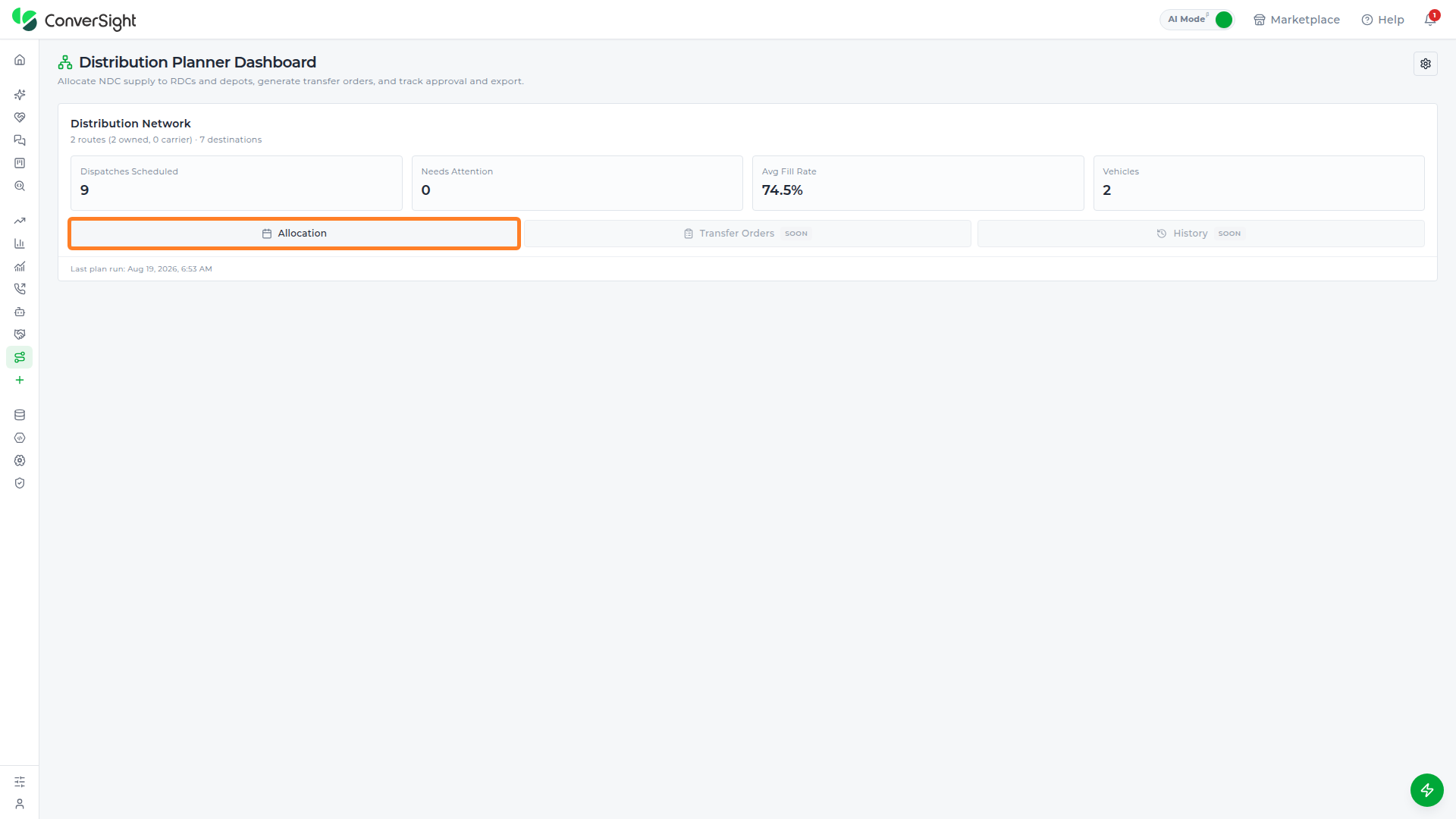
Allocation
Click on the Allocation button on the dashboard to open the current week's distribution plan.
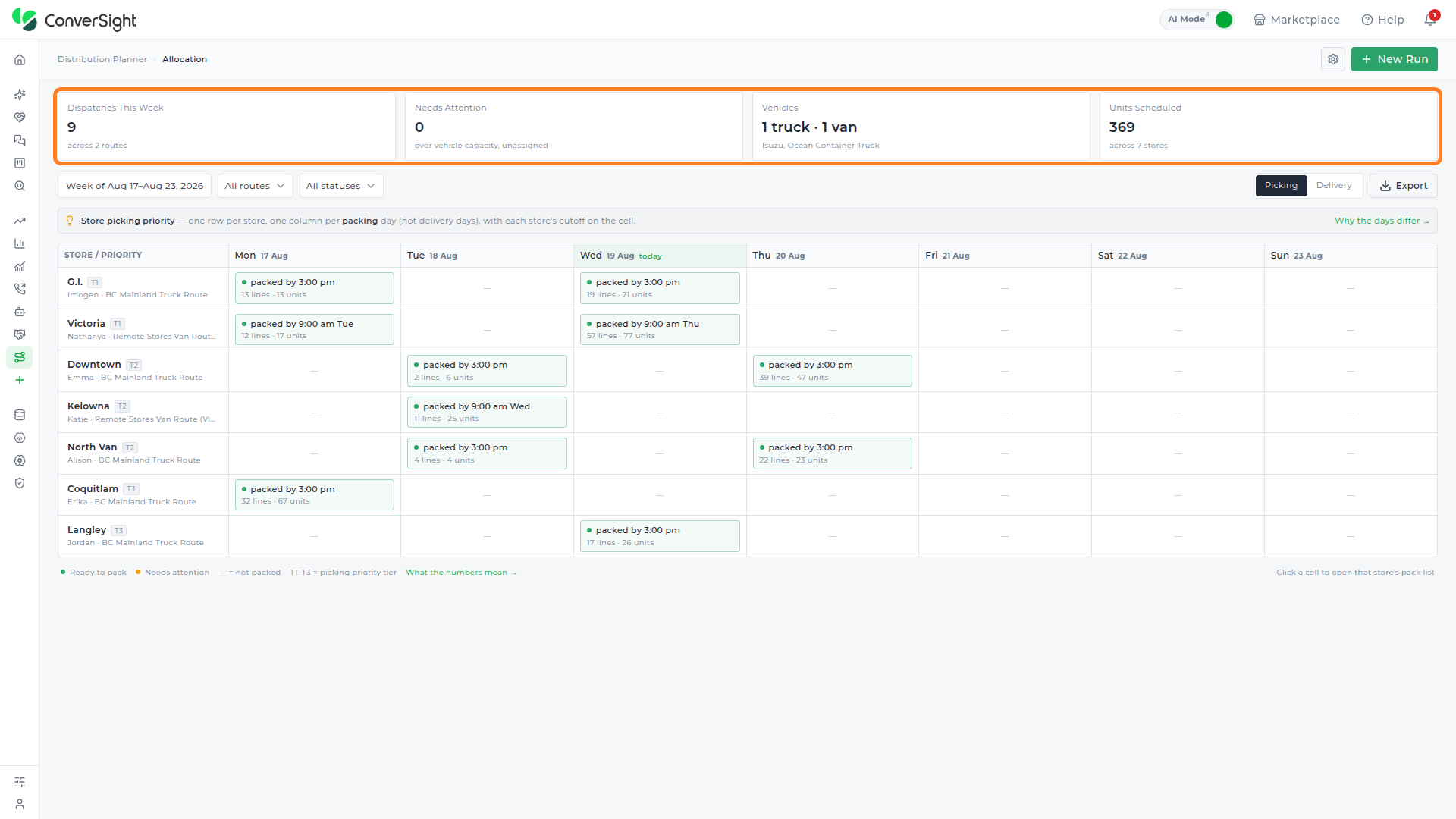
The Allocation page carries its own four summary cards, scoped to the active planning week rather than the whole network:
| Metric | Description |
|---|---|
| Dispatches This Week | Displays the number of dispatches scheduled for the week and the number of routes they run across. |
| Needs Attention | Displays the number of items that are over vehicle capacity or still unassigned to a vehicle, so a planner knows how much of the plan still needs a decision. |
| Vehicles | Displays the number of trucks and vans currently assigned to routes for the week. |
| Units Scheduled | Displays the number of units scheduled for pickup or delivery and the number of stores they are spread across. |
A small badge next to the filters marks which week is currently loaded — hovering it explains that only the week with a completed plan run can be viewed, since other weeks have no solved allocation to show yet. How far a run plans — a single day or a full week — is chosen when starting a new run rather than on this page; see Starting a New Run.
Filtering Distribution Items
The Allocation page can list every store and pack day in the current run at once, which is more than a planner usually needs to look at in one pass. Two dropdowns above the Picking/Delivery toggle narrow that list down to matching dispatches — the Routes dropdown when a planner is focused on one specific route's vehicle for the week, and the Status dropdown when they want to see only what's still blocked or already cleared instead of scrolling past every store.
Routes
The Routes dropdown filters the plan down to a single route. By default it is set to All Routes; once a plan run has populated the network, every route in that run's plan appears in the list below it.

Status
The Status dropdown filters the plan down to dispatches in a specific state. It offers All statuses (the default), Ready to Ship, and Needs Attention.

Viewing Distribution Items
Distribution Planner shows the plan in two ways, switched using the Picking / Delivery toggle at the top right of the Allocation page.
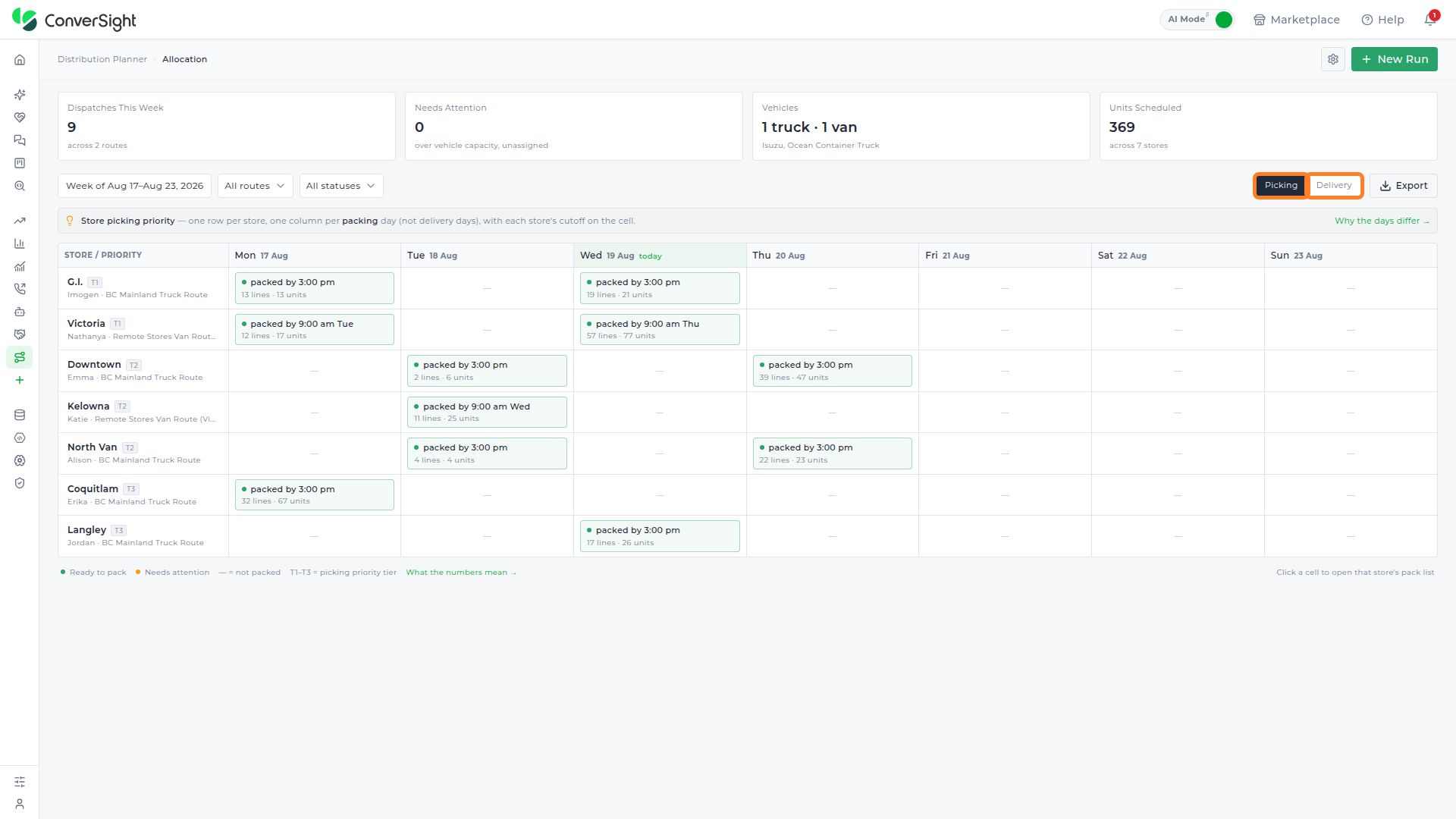
Picking
The Picking view is the default and displays the plan as a table with one row per store and one column per packing day — the day each store is packed, not the day it's delivered. A banner above the table explains this distinction and, when expanded via Why the days differ, notes that a store is typically packed one to two working days before it receives its delivery, so a different set of stores can appear under a given day here than under the same day in the Delivery view; route and vehicle are shown as secondary detail under each store's name, and the four cards above stay based on the delivery week rather than the picking week.
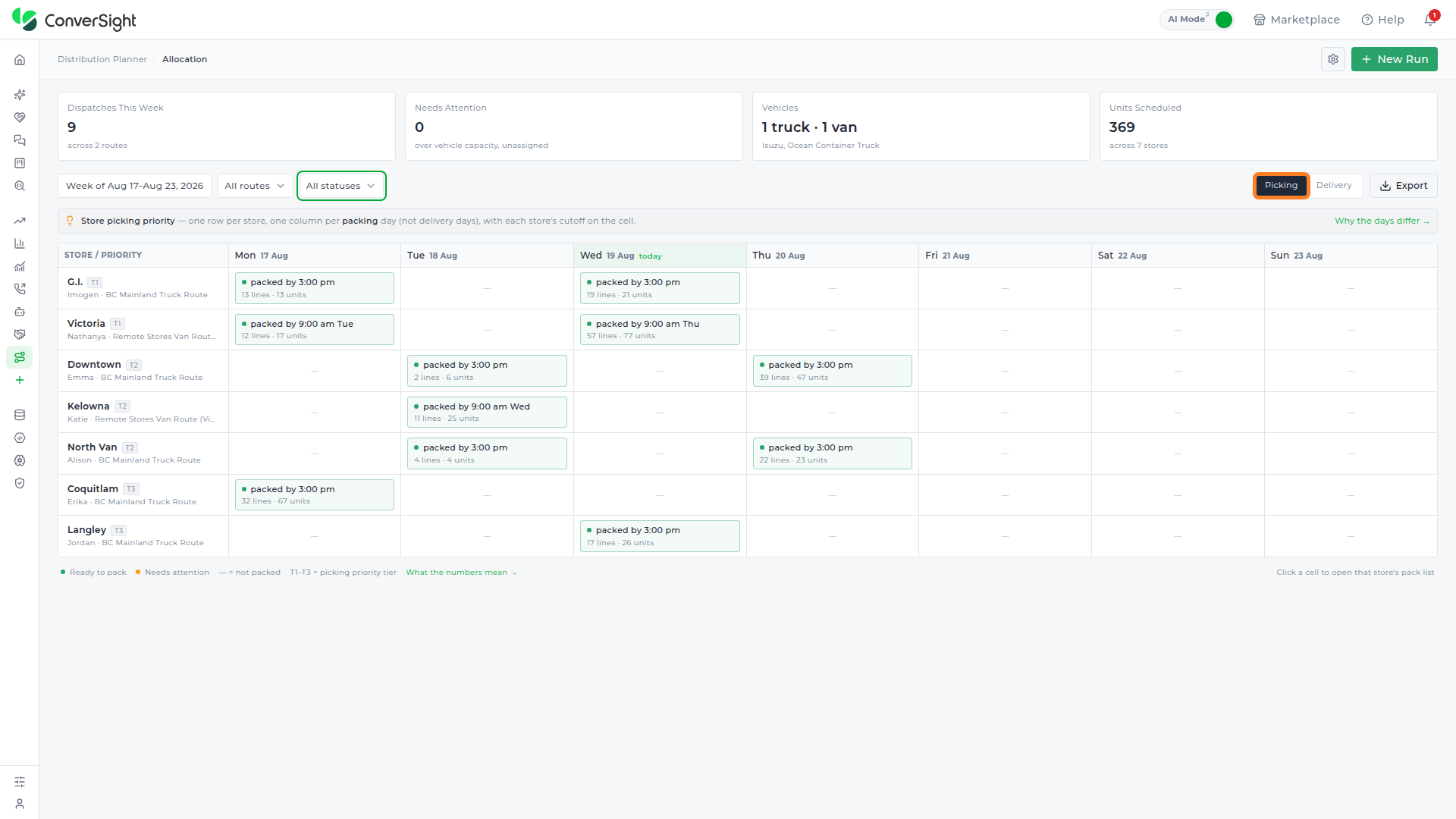
Each cell in a store's row combines a status with a line/unit count. A green dot and Ready to pack mean that store's order for that day has been packed and is ready to ship, alongside the cutoff time it was packed by; below that, a cell reading 13 lines · 13 units means 13 different products are due to be picked for that store on that day, totaling 13 units. An orange dot and Needs attention mark a day where something in that pack — an item over vehicle capacity, or one the warehouse can't fully supply — still needs a decision before it can ship. A dash (—) marks a day the store isn't scheduled to be packed at all. The legend below the table (Ready to pack / Needs attention / — = not packed / T1–T3 = picking priority tier) confirms these states, and a What the numbers mean link expands further detail on the figures.
Packing
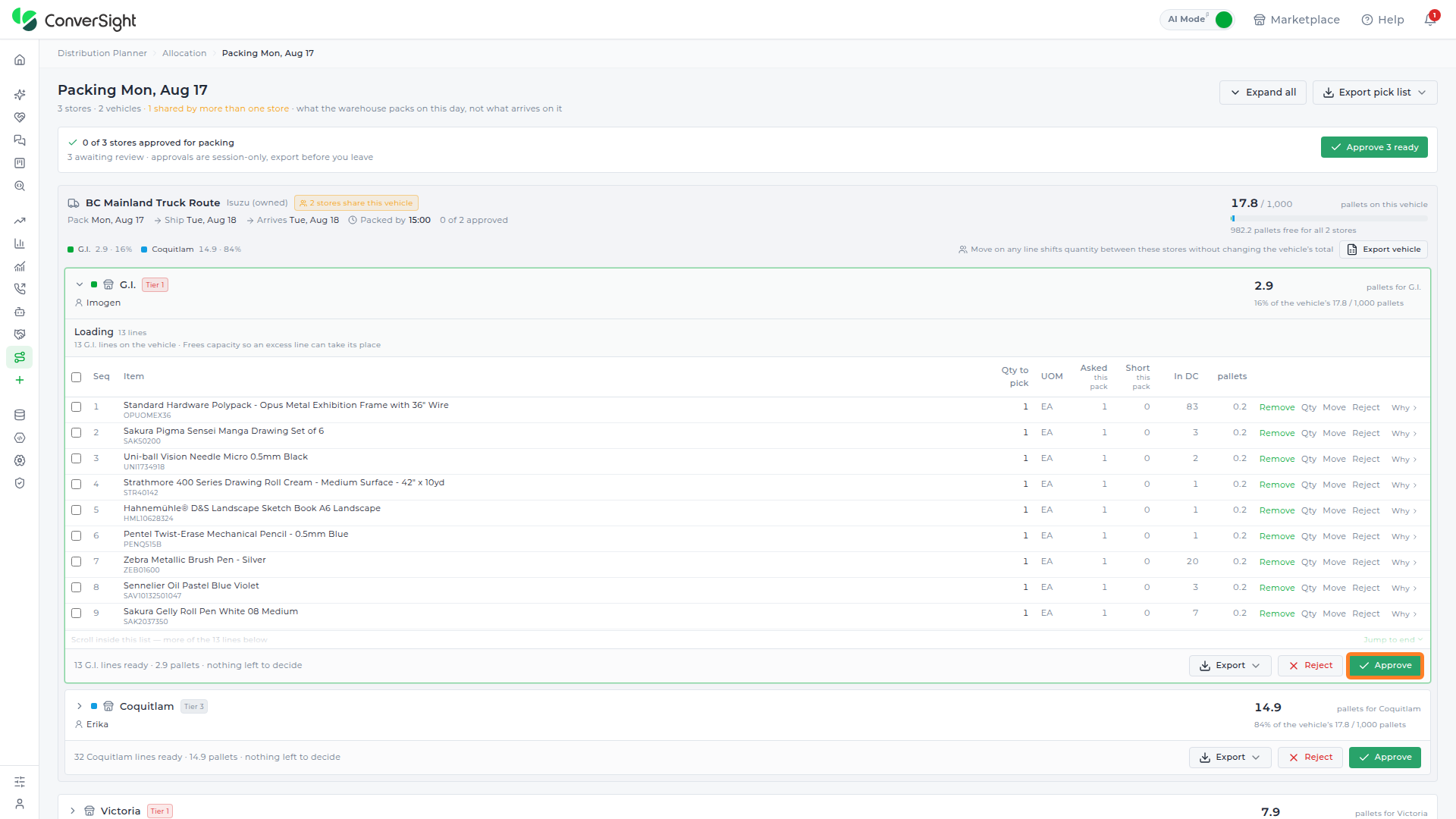
Clicking a populated cell opens a Packing [Day] page for that entire pack day — not just the store that was clicked.

Its header reports how many stores and vehicles are packing that day, how many vehicles are shared by more than one store, and reminds the reader that this view is what the warehouse packs on this day, not what arrives on it; Expand all and Export pick list buttons sit at the top right, alongside a summary of how many of that day's stores are already approved for packing and a page-level Approve button, labeled with the number of stores ready to approve (e.g. Approve 3 ready), that approves every store on the page at once. A note under the summary explains that approvals on this page are session-only and must be exported before leaving.
Below that, the page is organized by vehicle, then by store:
- Vehicle section: Names the route and vehicle (and whether it's owned or carrier-operated), flags when more than one store shares it, and gives its pack/ship/arrival dates, its packed-by cutoff, how many of its stores are approved, a fill gauge showing pallets used against the vehicle's capacity and how many pallets remain free for all the stores sharing it, a small per-store share breakdown, a note that moving a line between these stores doesn't change the vehicle's total, and an Export vehicle button.
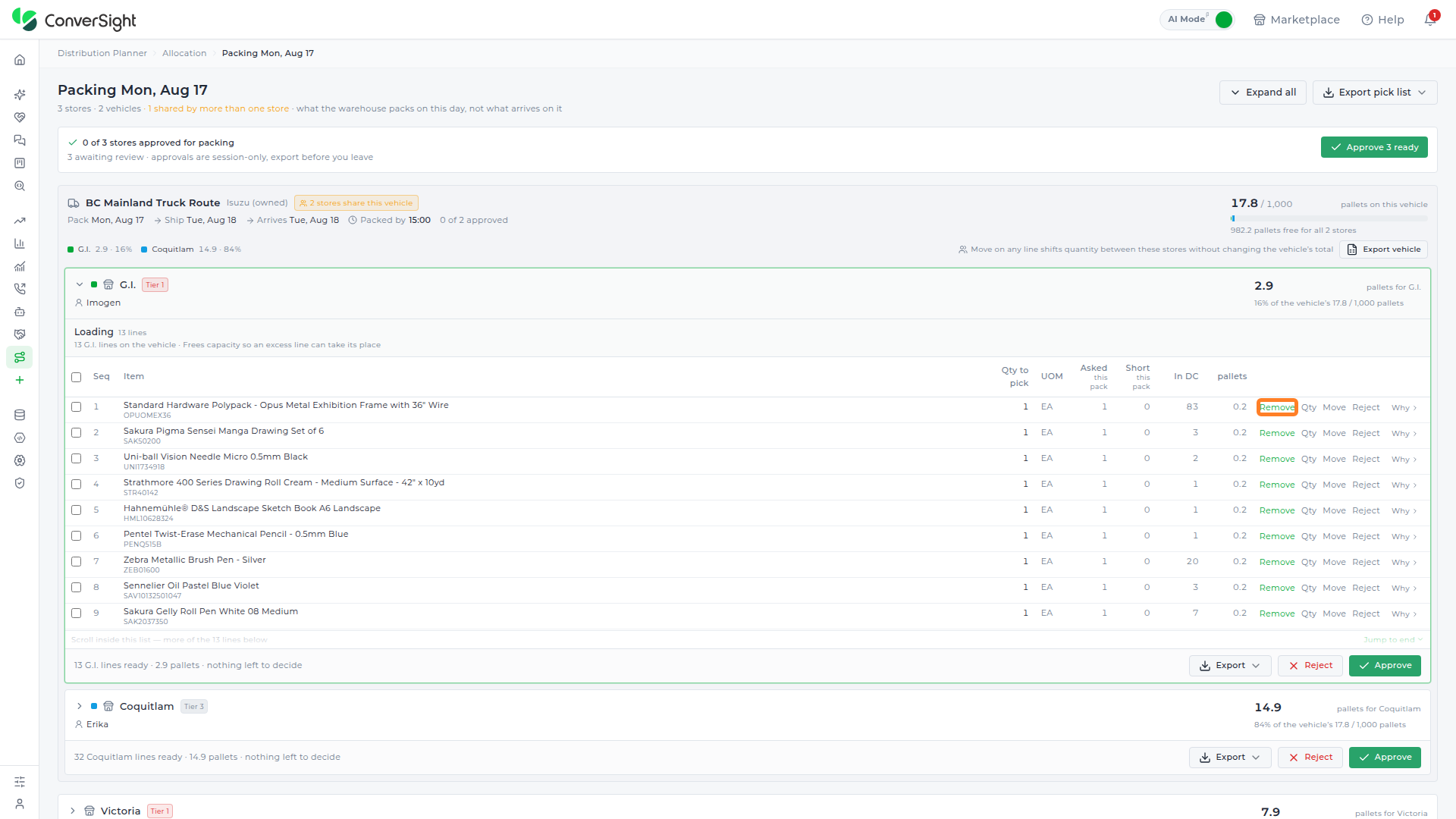
- Store section: Each store sharing that vehicle gets its own collapsible block naming the store, its priority tier, and its packer, alongside the pallets it's using and what share of the vehicle's capacity that represents. Below that sits the line-item table described under Remove and its neighboring sections, and a store-level footer summarizing how many lines are ready and how many pallets they take, next to that store's own Export, Reject, and Approve buttons.
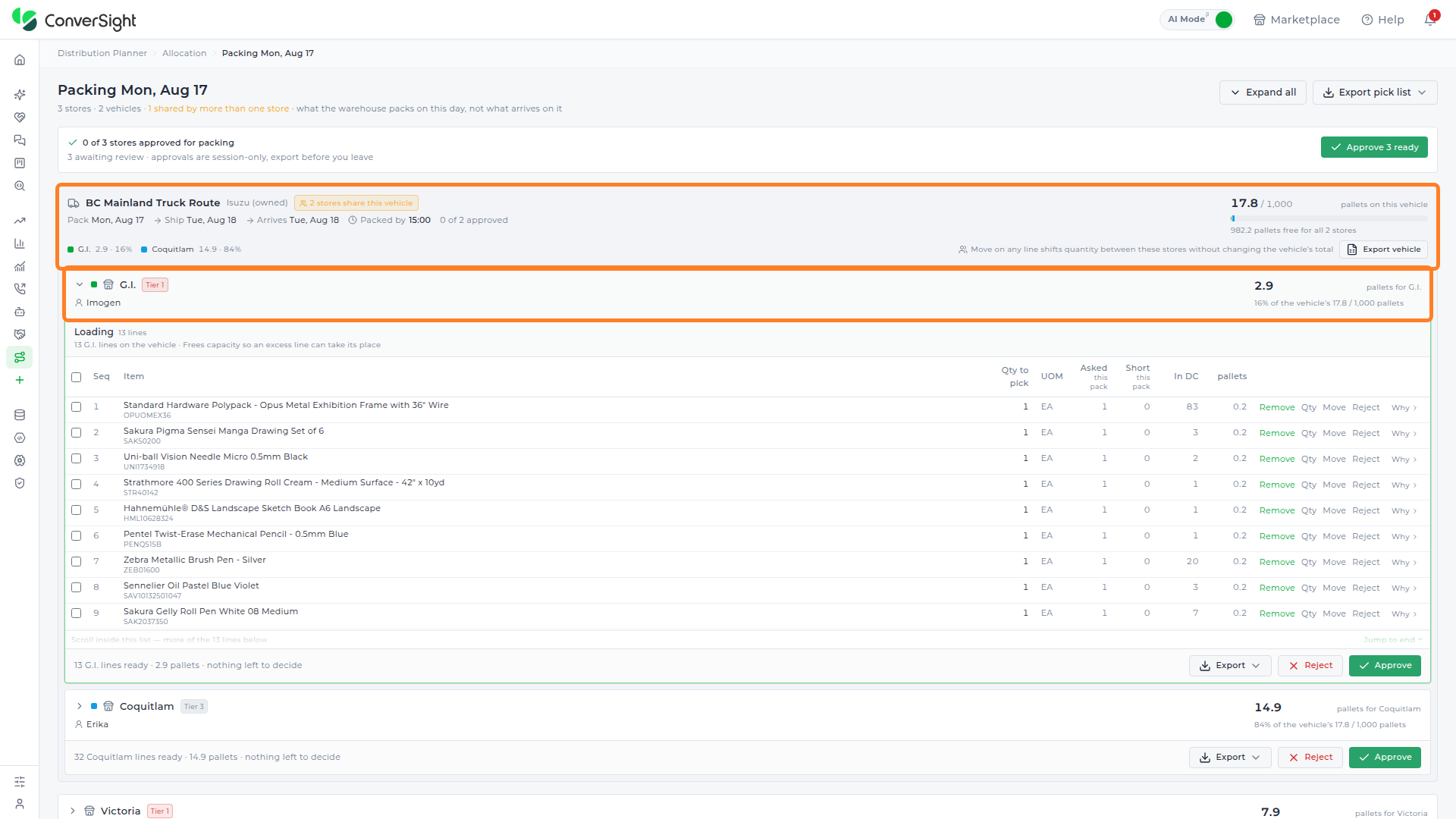
Each line in a store's item table reports the following fields:
| Field | Description |
|---|---|
| Seq | Shows the line's pick sequence number within the store's list. |
| Item | Shows the item's name and its code. |
| Qty to pick | Shows the quantity to pick for this line. |
| UOM | Shows the line's unit of measure. |
| Asked this pack | Shows how many units were asked for on this pack. |
| Short this pack | Shows how many units are short on this pack. |
| In DC | Shows how many units the distribution center currently has. |
| Pallets | Shows how many pallets the line takes. |
Each line also carries Remove, Qty, Move, and Reject controls, each covered in its own section below, plus a Why control that was not opened this session, so its exact contents aren't confirmed here. In the run captured here every line's Short this pack value was 0, since this week's plan had nothing in a Needs Attention state — the field is real, but a live example of it being non-zero was not available this session.
Remove
Clicking Remove next to a line removes it from that store's pick list.
Quantity
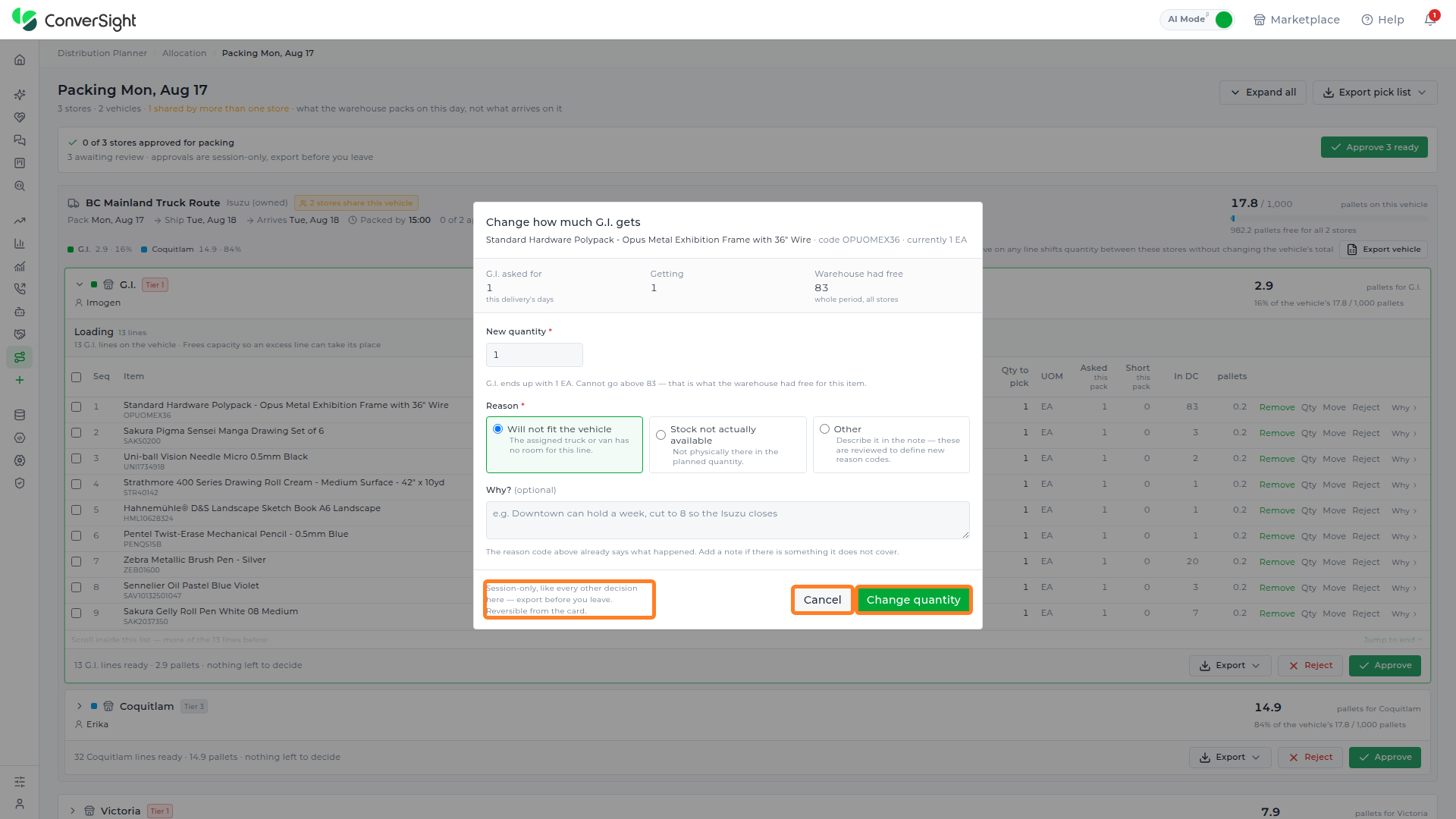
Clicking Qty next to a line opens a Change how much [Store] gets popup, for adjusting that single line's planned quantity without leaving the pick list.

| Field | Description |
|---|---|
| Item & Code | Names the item and its code. |
| Store | Reports what the store asked for this delivery. |
| Getting | Reports what the store is currently getting. |
| Warehouse had free | Reports how much the warehouse had free across the whole period. |
| New Quantity | Sets the line's new quantity; cannot exceed what the warehouse had free. |
| Reason | Chooses why the change is being made, from three options:
|
| Why? (Optional, unless Other is selected) | A free-text note for anything the reason code doesn't cover; required once Other is chosen as the reason. |
Clicking Change quantity saves the new amount; clicking Cancel discards the change. A footer note explains the change is session-only and reversible from the card until it's exported.
Move
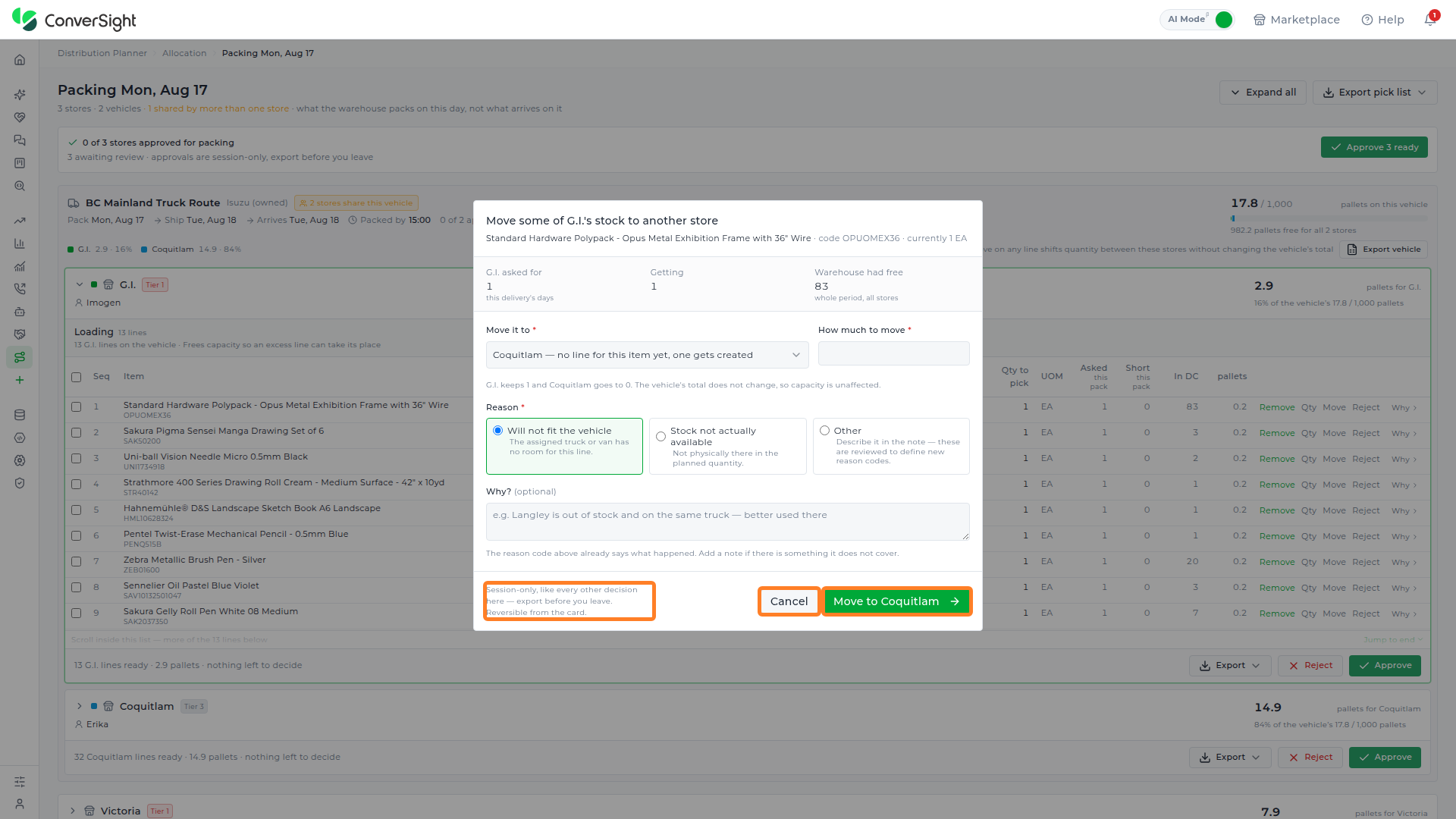
Clicking Move next to a line opens a Move some of [Store]'s stock to another store popup, for shifting that line's quantity to a different store sharing the same vehicle without changing the vehicle's total.
| Field | Description |
|---|---|
| Item & Code | Names the item and its code, the same as Quantity. |
| Store / Getting / Warehouse had free | Reports the same asked-for, getting, and warehouse-had-free figures as Quantity. |
| Move it to | A dropdown scoped to the other stores sharing this line's vehicle on this pack day, not every store in the run; opening it lists each of those stores with the same "no line for this item yet, one gets created" (or already-has-a-line) annotation shown in the closed field. Every dispatch in this run had only one other store sharing its vehicle, so that single store was the only option each time, already selected. |
| How much to move | Sets how much of the line's quantity moves to the destination. |
| Reason | Chooses why the change is being made, from the same three options as Quantity:
|
| Why? (Optional, unless Other is selected) | A free-text note for anything the reason code doesn't cover, the same as Quantity. |
Clicking Move to [destination] saves the transfer; clicking Cancel discards it. The same session-only, reversible-until-exported note applies as in Quantity.
Reject
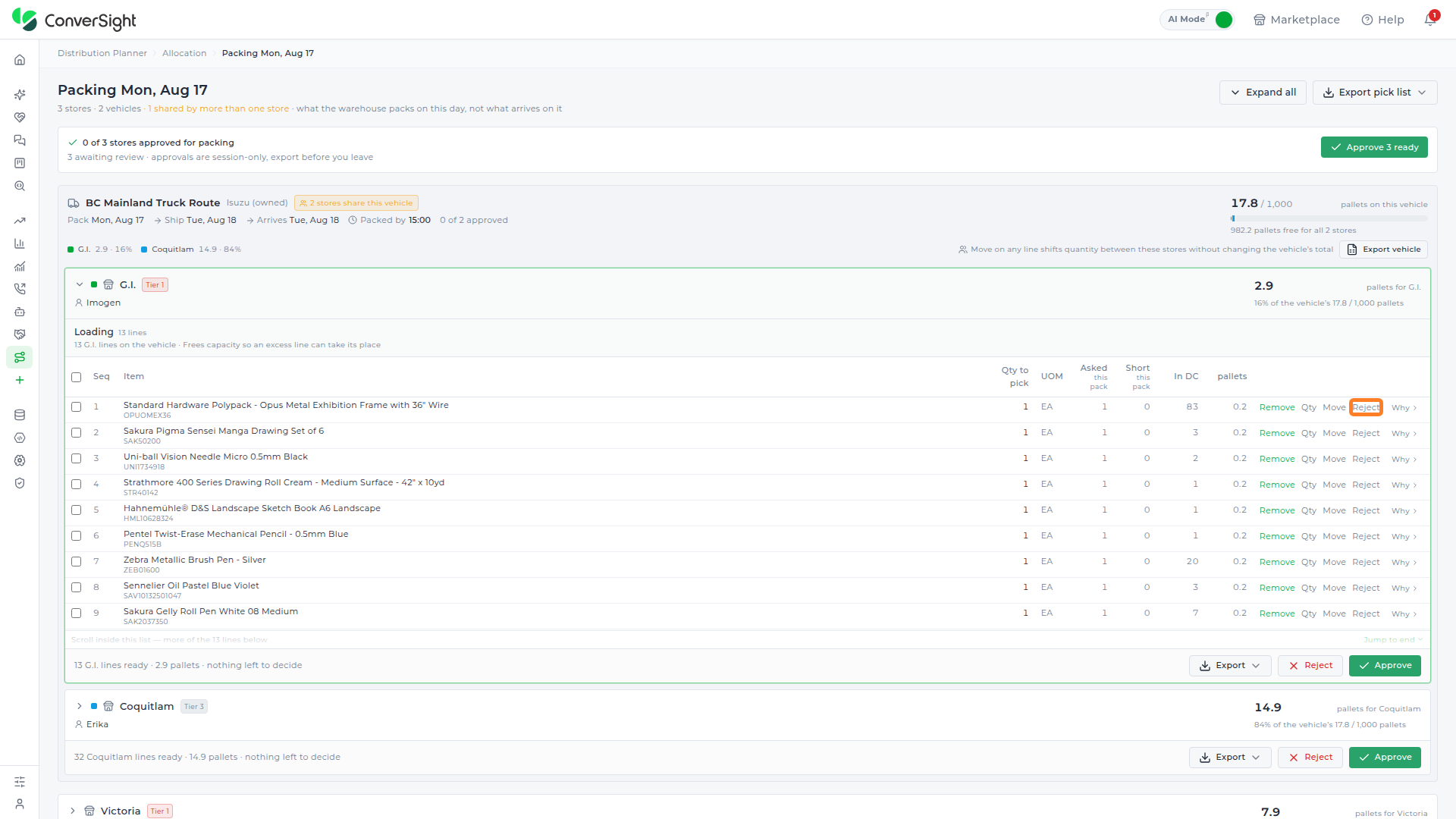
Clicking Reject next to a line marks that single item rejected for that store, for use when business rules mean it should not ship as planned. A store's footer also carries its own Reject button, which rejects the whole store's pack for that day rather than a single line.
Approve
Once a store's pick list looks correct, clicking that store's Approve button in its footer signs it off as ready to pack and ship. The page-level Approve button at the top of the Packing page — labeled with the number of stores ready to approve (e.g. Approve 3 ready) — does the same for every store on that page at once.
Export
Clicking Export at the top right of the Picking view immediately downloads the current pick list as a CSV file — a confirmation such as Exported 9 dispatches to CSV appears once the file is generated. The button downloads directly; it does not open a format-choice menu.

Delivery
Switching to Delivery shows the same week from the shipping side — organized by route and truck rather than by store — and is view-only: a planner can filter and inspect the plan here, but the Quantity, Move, Reject, and Approve actions described above are only available from the Picking view.

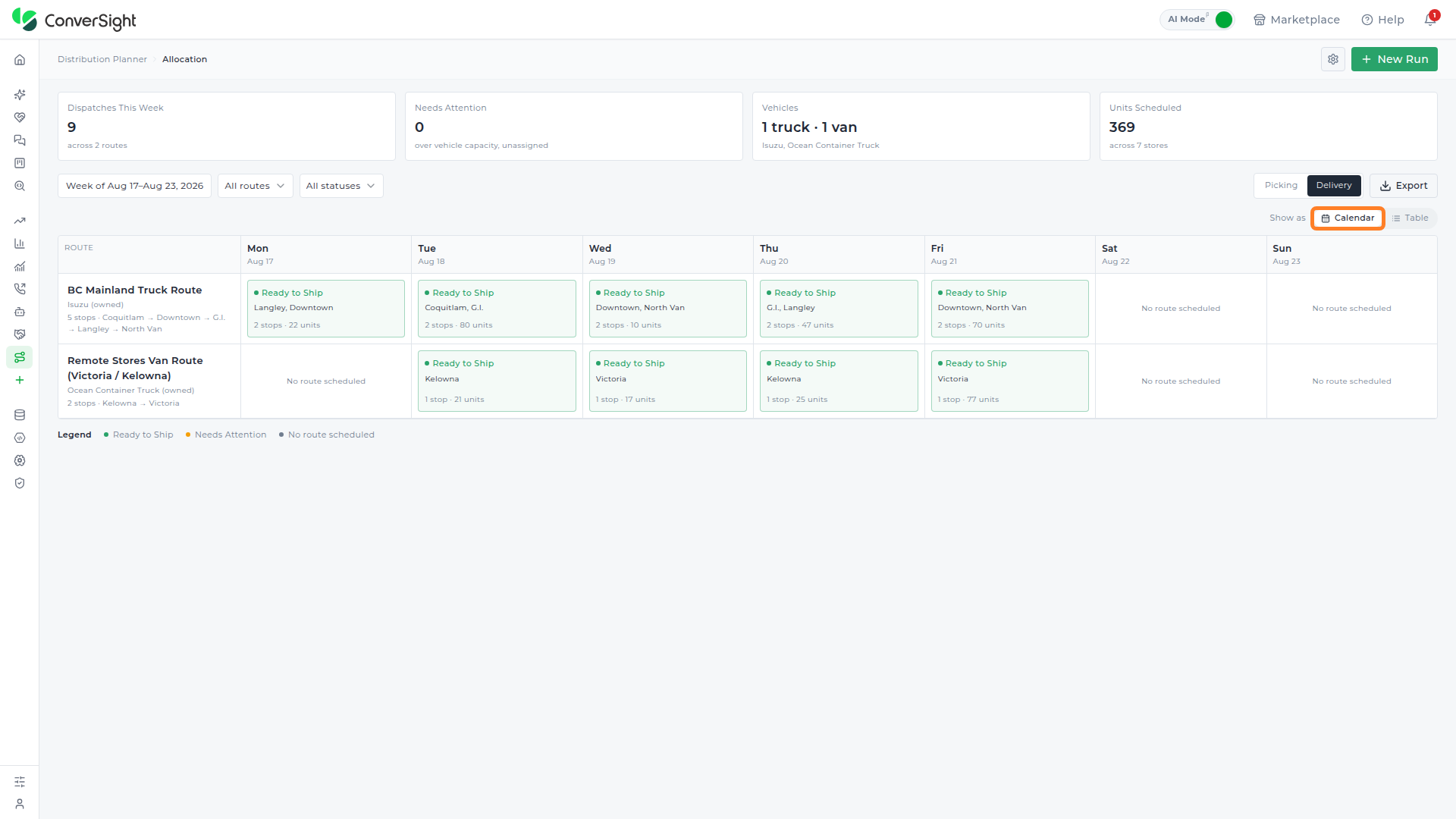
Delivery offers its own Show as toggle for switching between a Calendar layout and a Table layout.

Calendar
The Calendar layout is the default and lays the week out as a calendar grid, showing dispatches against the day and route they belong to.
Table
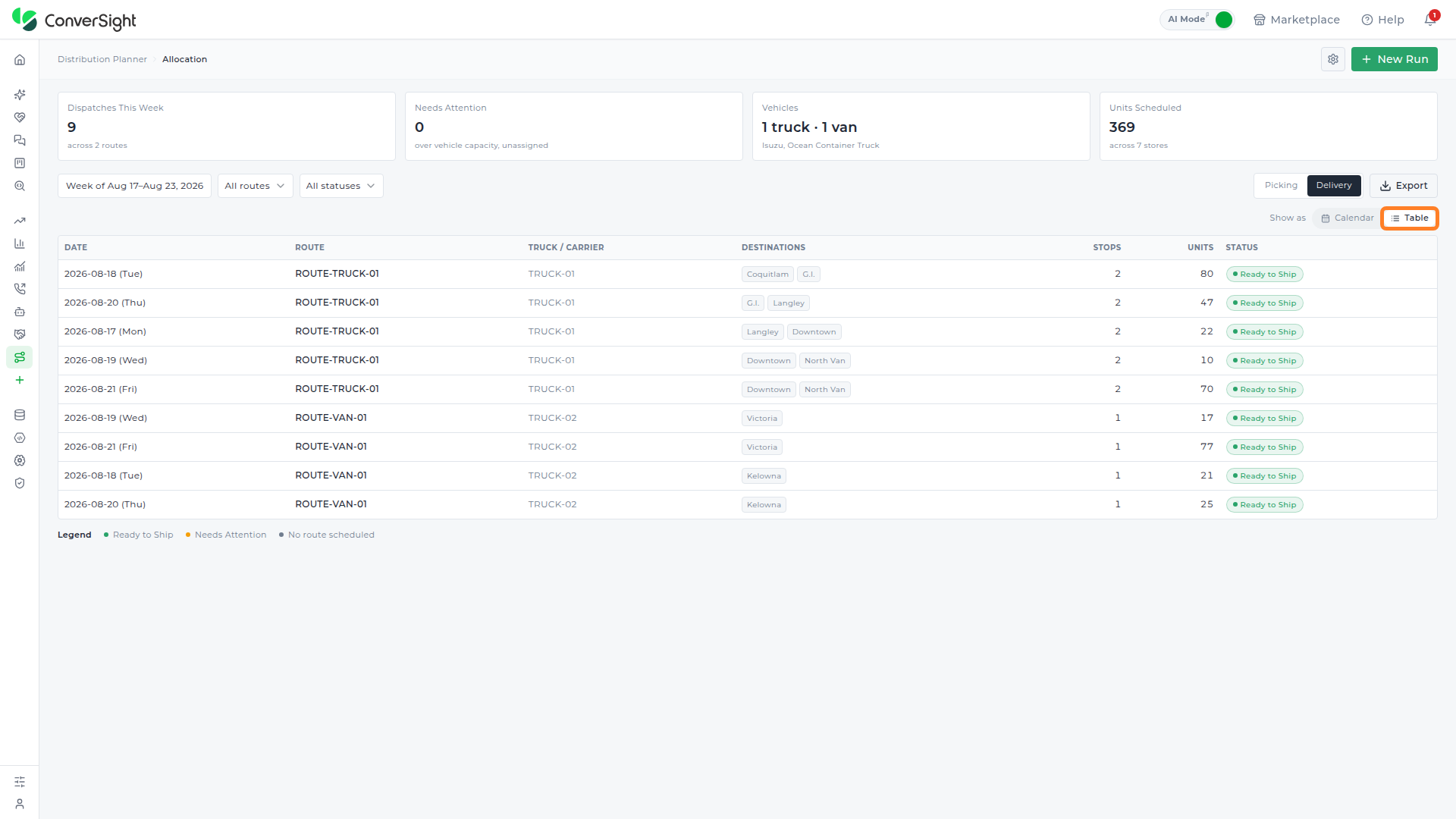
The Table layout lists the same week's dispatches as rows, with Date, Route, Truck / Carrier, Destinations, Stops, Units, and Status columns, plus a color-coded legend below the table for Ready to Ship, Needs Attention, and No route scheduled.
Export
Clicking Export at the top right of the Delivery view downloads the same CSV format used by the Picking view's Export button, whether the Calendar or Table layout is showing.

Starting a New Run
Clicking + New Run at the top right of the Allocation page opens a popup for replanning the network from scratch — allocation, routes, vehicles, and every pick list are rewritten for the period chosen, including pick lists a warehouse has already started.

Below the Plan for toggle, a calendar strip shows the current 7-day period (with ‹/› arrows to move to a different week) and a summary line underneath it that changes depending on which toggle option is selected.
A day
A day is the default selection. In this mode, each day in the calendar strip is its own clickable cell — clicking a different day moves the plan to that date. The currently chosen day (today, by default) is highlighted with a solid green fill, and the summary line beneath the strip names that specific date, reading, for example, Replans Wednesday 19 August 2026 only.
Selecting A day still nets that day's demand across its full week before splitting it back down to the single day, since a lone day of a monthly forecast rounds to almost nothing on its own; the run is recorded under the containing week even though only the chosen day is planned. Running a single day still replaces the whole week's plan and pick lists rather than adding to them — the output tables are rewritten, not appended to, so two single-day runs don't add up to two days of plan; the second run keeps only its own day. Both of these points are also surfaced in-app, in a Worth knowing callout below the calendar strip — a caveat A week doesn't need and doesn't show.

A week
Selecting A week replans every delivery day in that week directly, with no netting-and-split step, since a full week's demand doesn't need to be inferred from a single day's. In this mode the calendar strip's individual days are no longer separately selectable — none carries the green highlight, since the whole displayed week is in scope rather than one date — and the summary line beneath the strip changes to Every delivery day in this week is replanned. The Worth knowing callout that appears under A day does not appear under A week; there is no netting-and-split behavior to caveat.

The popup also surfaces load-bearing warnings before a run starts, regardless of which mode is selected: it flags when the source warehouse or destination list failed to load for the current setup, and it blocks the run with a clear message when no source warehouse or no destination store is configured, since neither can be inferred. Clicking Run starts the replan with the chosen settings; clicking Cancel closes the popup without changing anything.
Settings
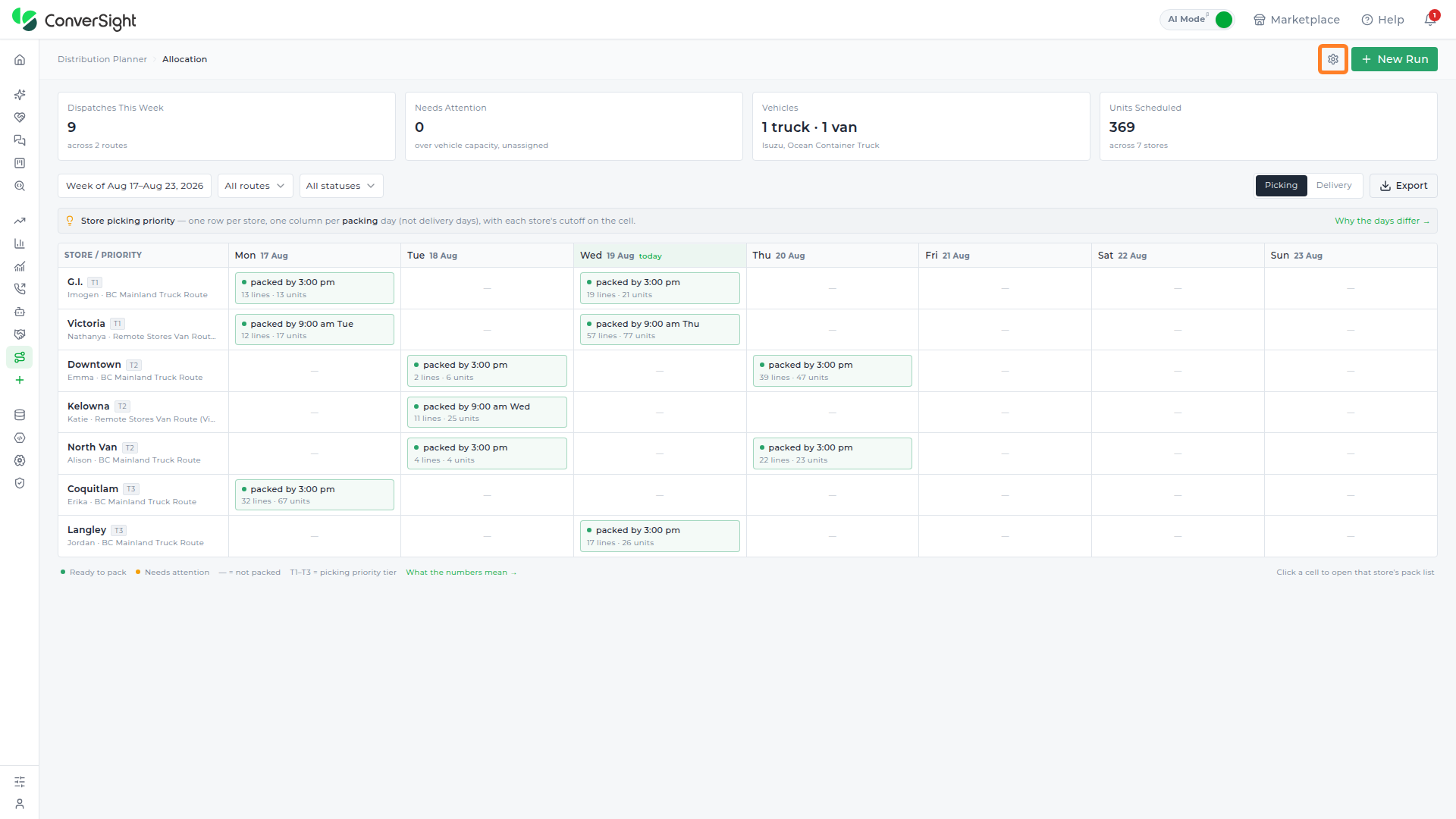
Clicking the Settings icon opens Distribution Planner's Settings, organized into a strip of tabs:
- Available now: Routes & Vehicles and Destinations are enabled.
- Reserved for a future release: Strategies, Assortments, Exception Codes, Notifications, Data Sources, Output Templates, and Roles & Permissions will be enabled.
Routes & Vehicles
The Routes & Vehicles tab shows the real route and vehicle data from the network's last plan run, and is where a planner overrides a vehicle's name or capacity for vehicles the organization owns — carrier-operated vehicles manage their own capacity and can't be overridden here. Its table lists the following columns for every route in the last run:
| Column | Description |
|---|---|
| Route | Names the route from the last plan run. |
| Type | Shows whether the route runs on an Owned vehicle or a carrier-operated one. |
| Vehicle (as planned) | Shows the vehicle assigned to the route by the last plan run, and whether it's owned or carrier-operated. |
| Vehicle Override | A free-text field for renaming the vehicle assigned to an owned route; pre-filled with the vehicle's planned name. Carrier-operated routes can't be edited here. |
| Capacity Override | A numeric field paired with a unit dropdown (for example, Pallets / skid positions) for overriding an owned vehicle's capacity ceiling and the unit it's measured in. Carrier-operated routes can't be edited here. |
| Stops | Lists the real chain of stores that route visits, in visiting order. |
Before any run has populated the network, or when the underlying route data is unavailable, the table shows no rows.

Capacity Measurement
The Capacity Measurement section controls how a vehicle's load is measured against its capacity ceiling network-wide, rather than per route, since the measurement is read from each item's own volume and weight fields.
| Field | Description |
|---|---|
| Default Capacity Unit | Chooses the unit used for a vehicle that doesn't specify its own — a vehicle's own unit always takes priority over this default — from five options:
|
| When an item has no volume/weight | Chooses what happens when an item is missing the measurement its capacity unit needs, from three options:
|

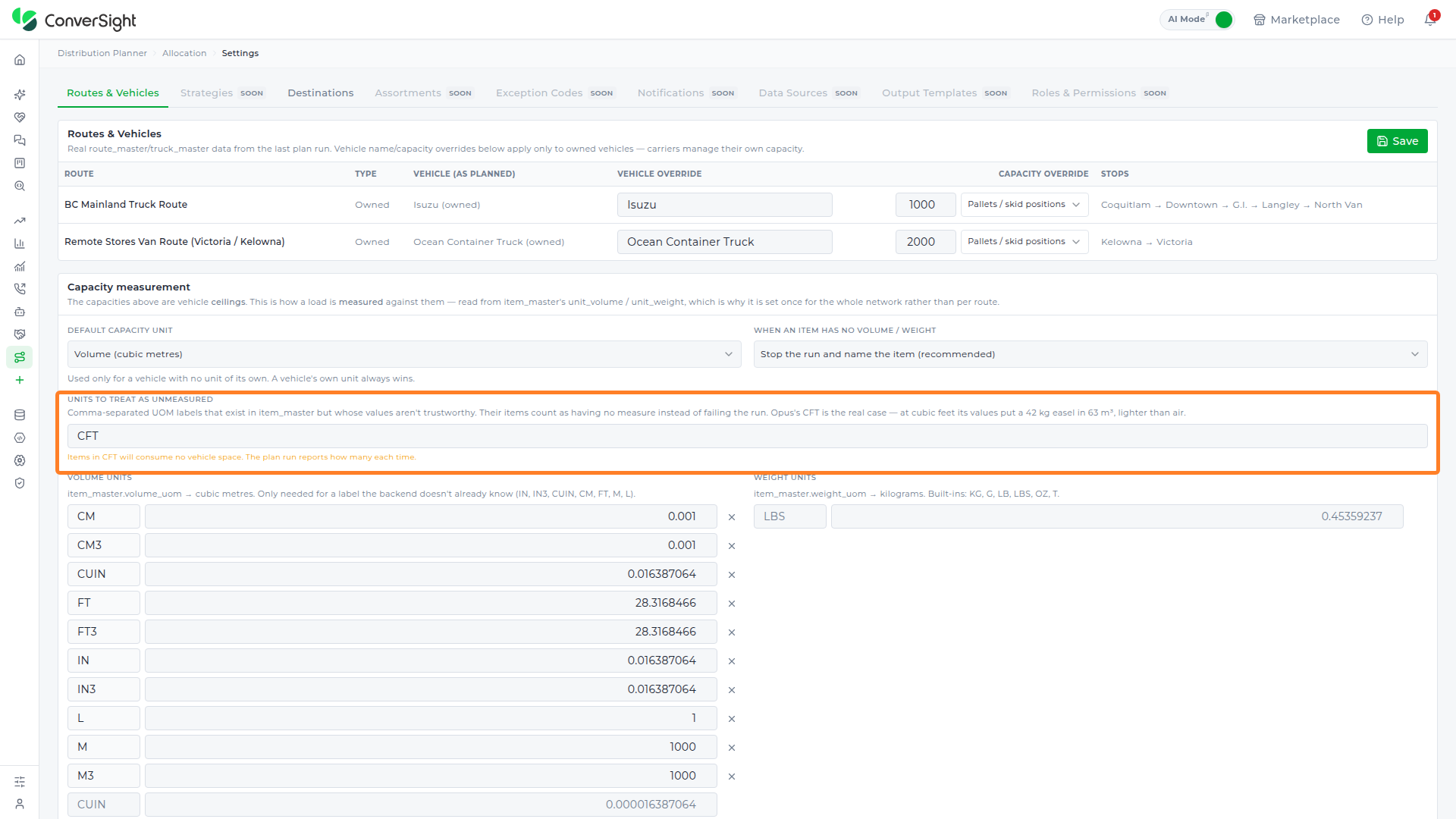
The Units to Treat as Unmeasured field takes a comma-separated list of unit-of-measure labels that exist in the item data but whose recorded values can't be trusted for capacity math. An item recorded in one of these units counts as having no measurement at all, rather than causing the run to fail outright, and the plan run reports how many such items it found on each run.
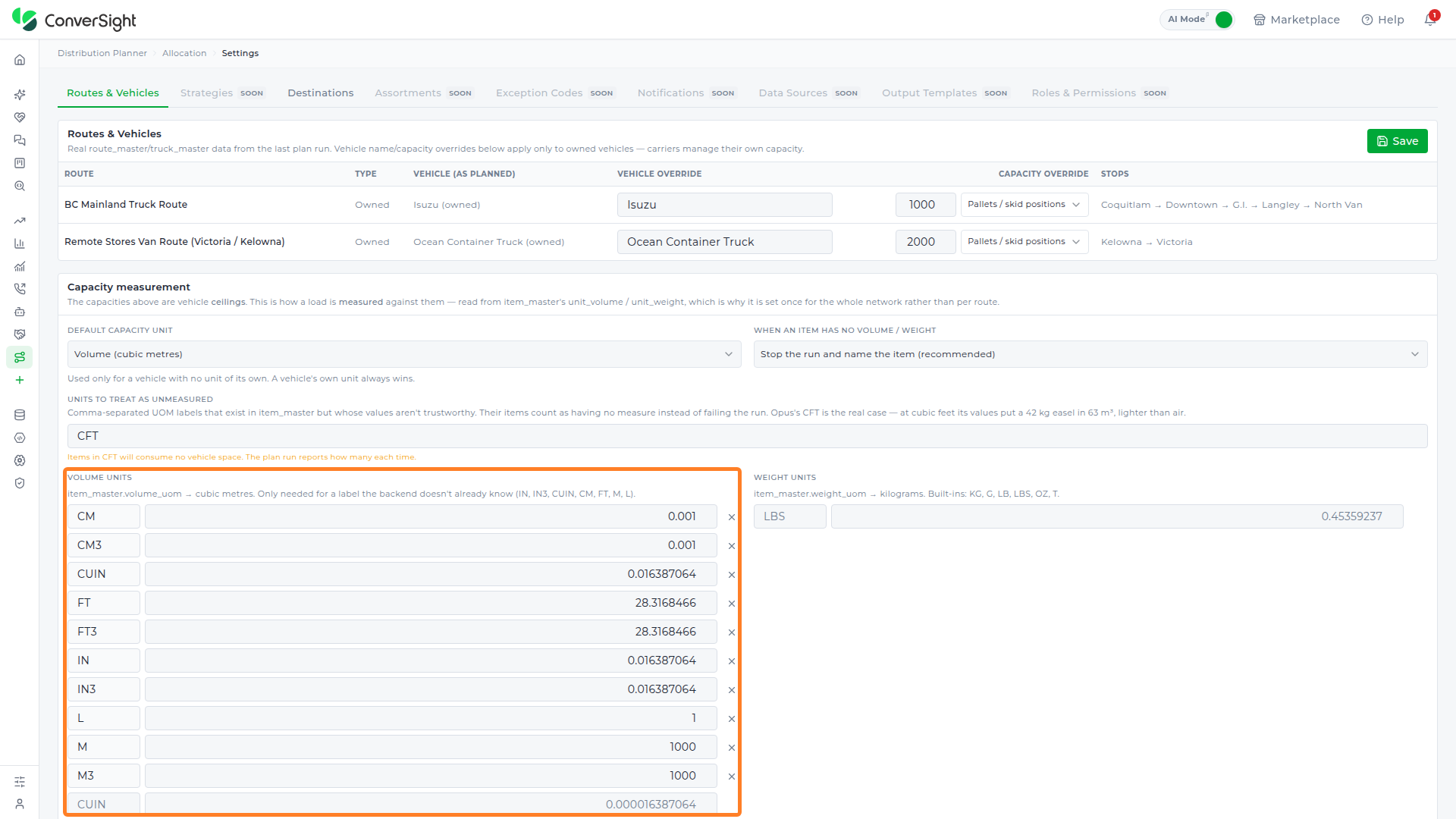
Volume Units
The Volume Units table converts any unit label the backend doesn't already recognize into litres, so items measured in that unit can still be weighed against vehicle capacity. Ten conversions are populated by default:
| Unit | Conversion to litres |
|---|---|
| CM | 0.001 |
| CM3 | 0.001 |
| CUIN | 0.016387064 |
| FT | 28.3168466 |
| FT3 | 28.3168466 |
| IN | 0.016387064 |
| IN3 | 0.016387064 |
| L | 1 |
| M | 1000 |
| M3 | 1000 |
An empty row below the table lets a planner add further unit labels and their conversion factors. The unit label can only be set when that new row is added; the existing built-in rows' labels are read-only, with only their conversion values open to editing.
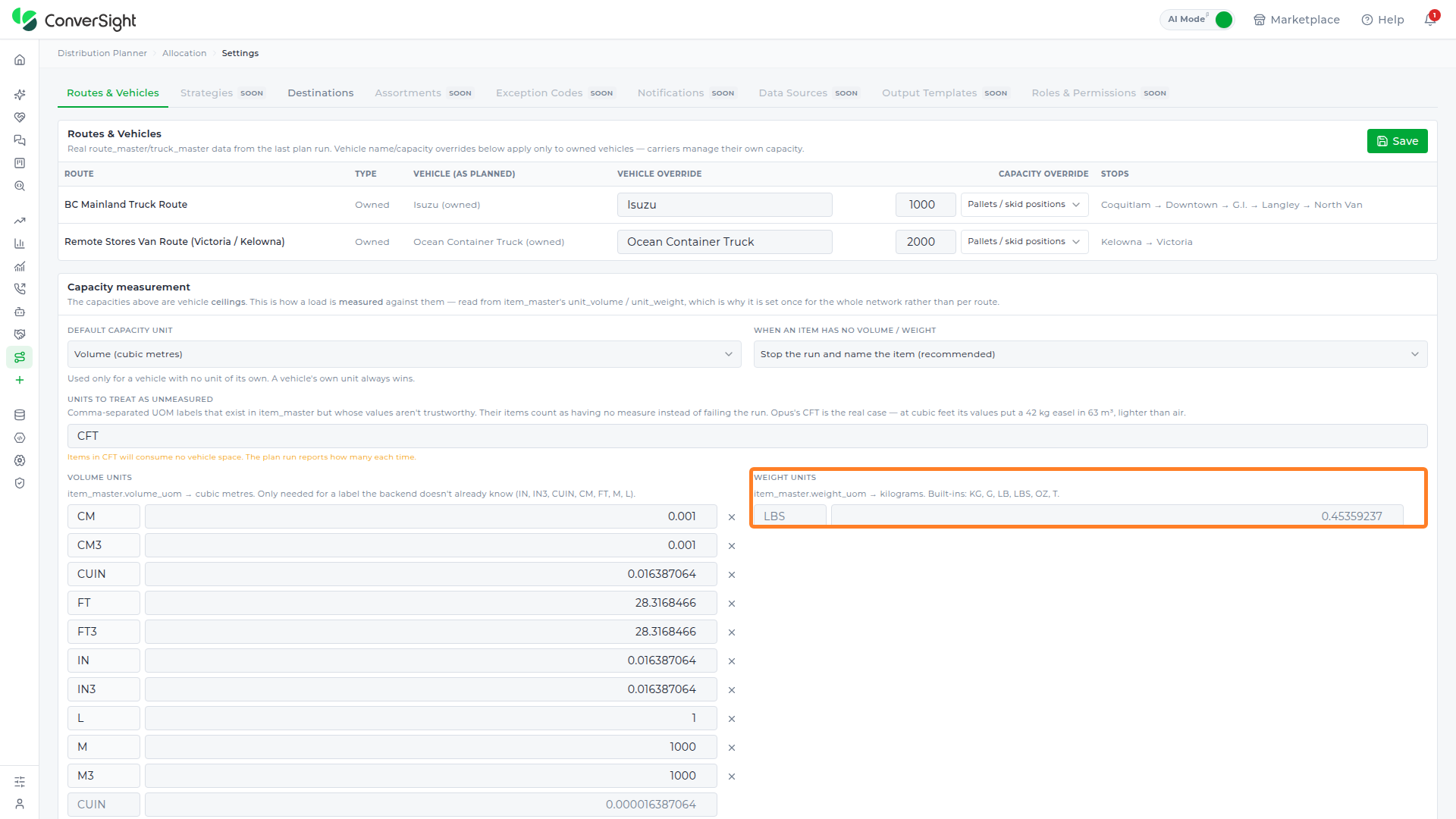
Weight Units
The Weight Units table works the same way for weight, converting a unit label into kilograms. The backend already recognizes KG, G, LB, LBS, OZ, and T without needing an entry here, so the table starts empty; an add-unit row (shown with the example text LBS and 0.45359237 until a real unit is entered) is available for any further weight unit a planner needs to define.
Clicking Save at the top right of the Routes & Vehicles tab stores every change made across the tab so the next plan run picks them up, and keeps a backup copy on the local device in case the save itself doesn't go through.

Destinations
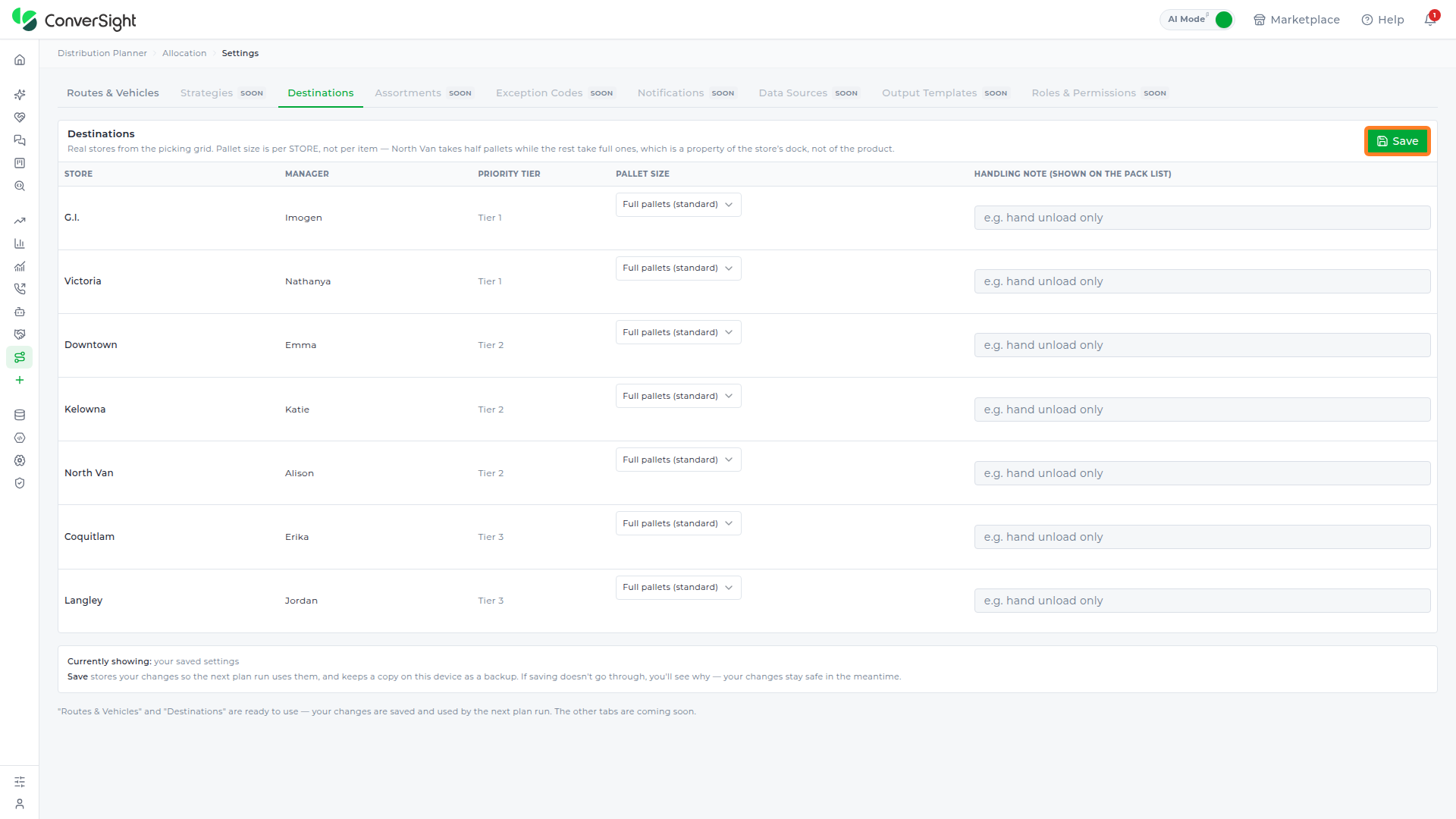
The Destinations tab lists the real stores pulled from the picking grid, along with each store's manager, priority tier, pallet size, and a handling note that prints on that store's pack list. Pallet size is set per store rather than per item, since it reflects a property of the store's own loading dock rather than of any product shipped to it. Like Routes & Vehicles, its Save button stores changes for the next plan run to pick up, and the table shows no rows until a plan run has populated real store data.
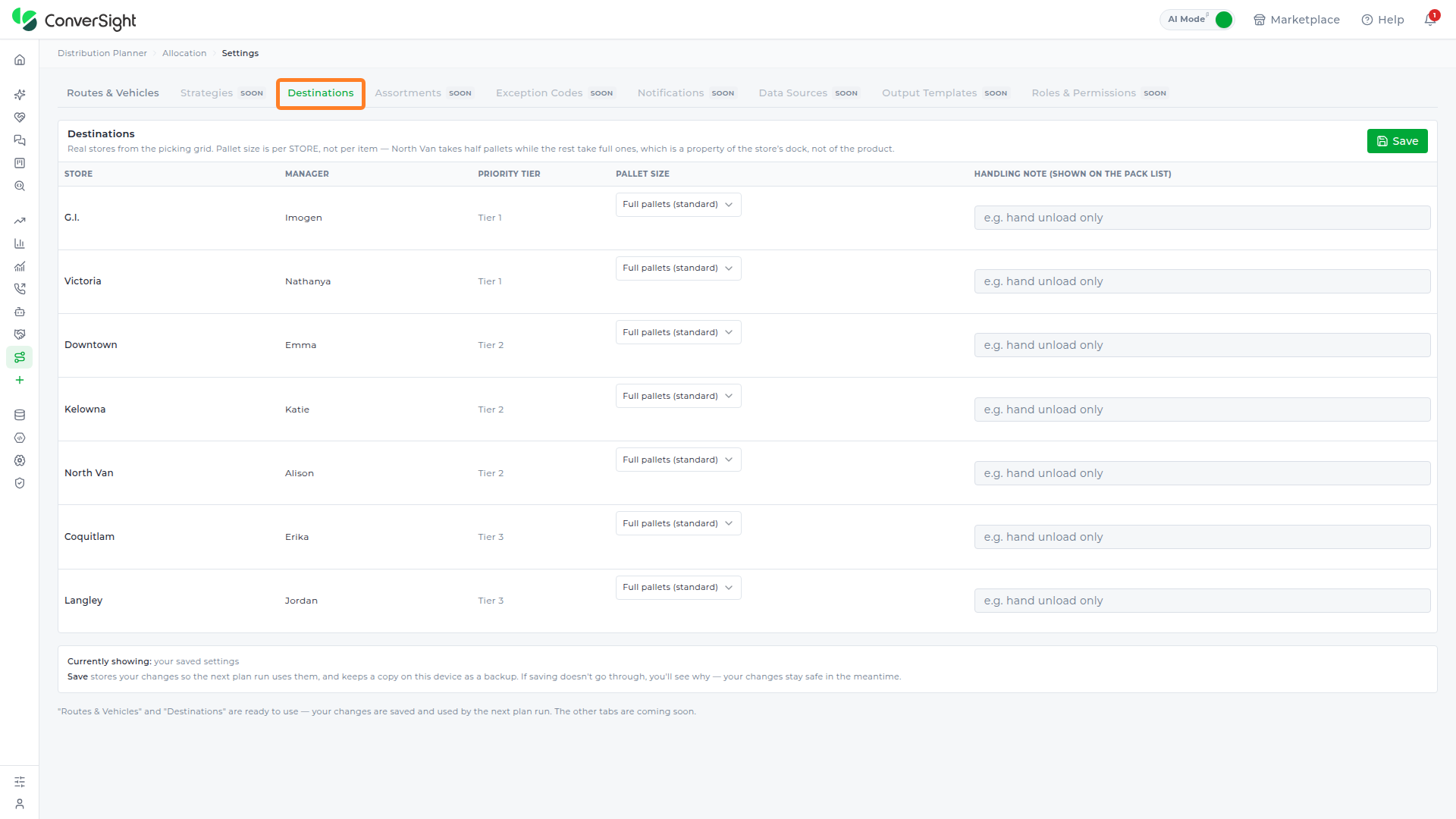
Clicking Save at the top right of the Destinations tab stores changes for the next plan run to pick up, the same way it does on Routes & Vehicles.