Sales Order Hub
Sales Order Hub is Athena in Co-Pilot and Automation mode for order management. It is the unified workspace where sales orders are placed against live inventory across every connected ERP, where Athena recommends the optimal placement in real time, and where the communication around each order — confirmations, supplier touches, stakeholder updates — runs on a configured cadence rather than a manual one.
Where other agents lean heavily on Employee mode (autonomous monitoring and execution), Order Hub keeps a human in the loop for the order-placement decision itself — the financial and contractual implications make Co-Pilot the right default. Athena recommends; the user reviews and approves; the system handles execution and downstream communication. Power users and high-volume operations can configure pieces of the workflow into Automation mode (e.g., reorder triggers, recurring stakeholder digests) without giving up control of the order itself.
The defining feature: Order Hub integrates with the multiple ERP systems your business already runs on (SAP, Oracle, Microsoft Dynamics, Acumatica, NetSuite, SAGE), so order placement happens once, against a unified view of inventory and supply, rather than the usual context-switching across platforms.
What Order Hub Owns
| Stage | What Athena does |
|---|---|
| Signal | Reads live inventory positions across every connected ERP, current backlog, supplier-side commitments, and pricing/availability rules. |
| Decision | Recommends the optimal placement — which warehouse, which supplier, which lead-time path — given availability, customer-tier rules, margin targets, and any business constraints the org has configured. |
| Action | On approval, places the order via the ERP integration, writes confirmations back to ConverSight as the source of truth, and triggers automated communication (order-confirmation email to the customer, PO-submission email to the supplier, internal-stakeholder notifications). |
| Feedback | Tracks fulfillment outcomes — was the recommendation honored, did the chosen warehouse ship on time, did margin hold. |
| Learning | Updates recommendation weighting based on historical fulfillment performance, pricing accuracy, and customer-satisfaction outcomes. |
A typical Co-Pilot workflow
A sales rep needs to place a 450-unit order for a Tier-1 customer with a hard delivery date. Athena scans live inventory across three warehouses, two outbound supplier commitments, and the customer's contract terms. It recommends: ship 380 from Chicago against existing stock (margin: target), drop-ship 70 from an authorized supplier (lead time: 4 days, fits the deadline). The rep sees the reasoning, approves the placement, and Order Hub fires the ERP write, customer confirmation, and supplier PO in one click.
Guardrail: every order requires explicit human approval before placement (default). Auto-placement rules can be configured for specific order patterns (e.g., recurring blanket-order releases under a configured value), administrator-managed. Every order placement is logged with the inventory snapshot, Athena's recommendation, the approver, and the resulting downstream actions for audit.
What This Documentation Covers
The Sales Order Hub reference covers using the app in the platform: how to access it, review Smart Orders, browse the Catalog, build sales orders, configure the app's settings, and check out orders from the cart. New to the agent? Start at the challenges section below for context, then move into the feature sections. If you're an everyday user placing orders, the order placement steps and the Smart Orders review are the surfaces you'll touch most.
Challenges in Order Management
Managing sales orders across systems, inventory data, and communication channels can be complex and inefficient. Traditional order management processes introduce several key challenges:
- Fragmented Systems and Data Silos: Users often rely on multiple platforms to access inventory data, create sales orders, and manage purchase orders. This lack of integration leads to disconnected workflows and increased dependency on manual coordination.
- Manual Order Creation and Validation: Creating orders requires users to manually gather inventory details, verify availability, and input order data. This process is time-consuming and increases the risk of errors and inconsistencies.
- Limited Visibility into Inventory and Orders: Without a centralized view, it becomes difficult to accurately track inventory levels and align them with order requirements, leading to delays and inefficient planning.
- Lack of Communication: Sending order details to stakeholders or suppliers often involves manual communication, slowing down the overall order lifecycle and increasing the chances of miscommunication.
These challenges impact operational efficiency, delay order fulfillment, and limit the ability to make timely and informed business decisions.
Accessing Order Hub App
Users are required to purchase the Order Hub app through the Marketplace before they can access it. Once the purchase is completed, the app appears as Sales Order Hub under AI Agents in the left navigation. Click on it to begin using the application.
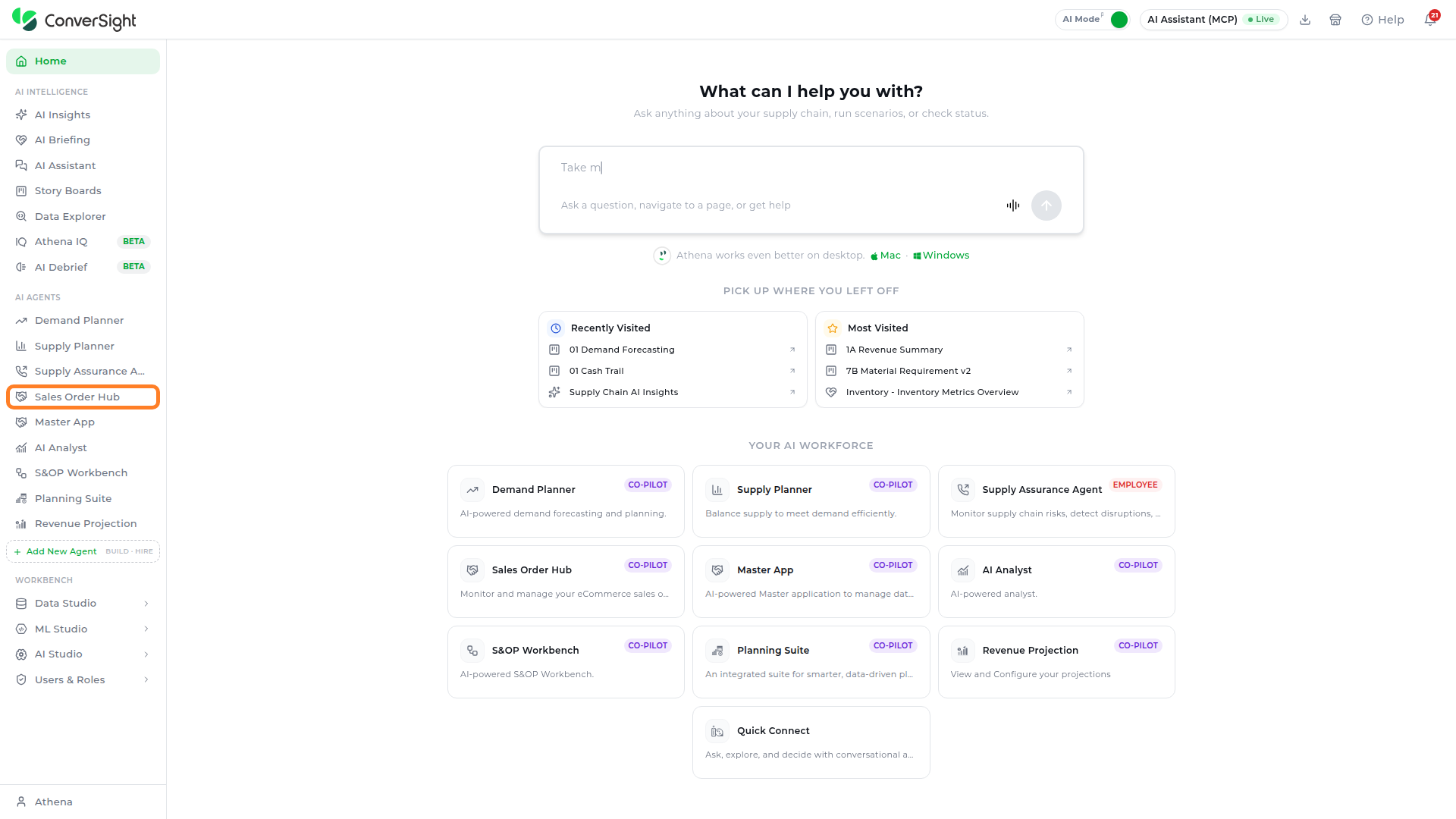
The app is also listed as a Sales Order Hub card under Your AI Workforce on the Home page; click on the card to open it.

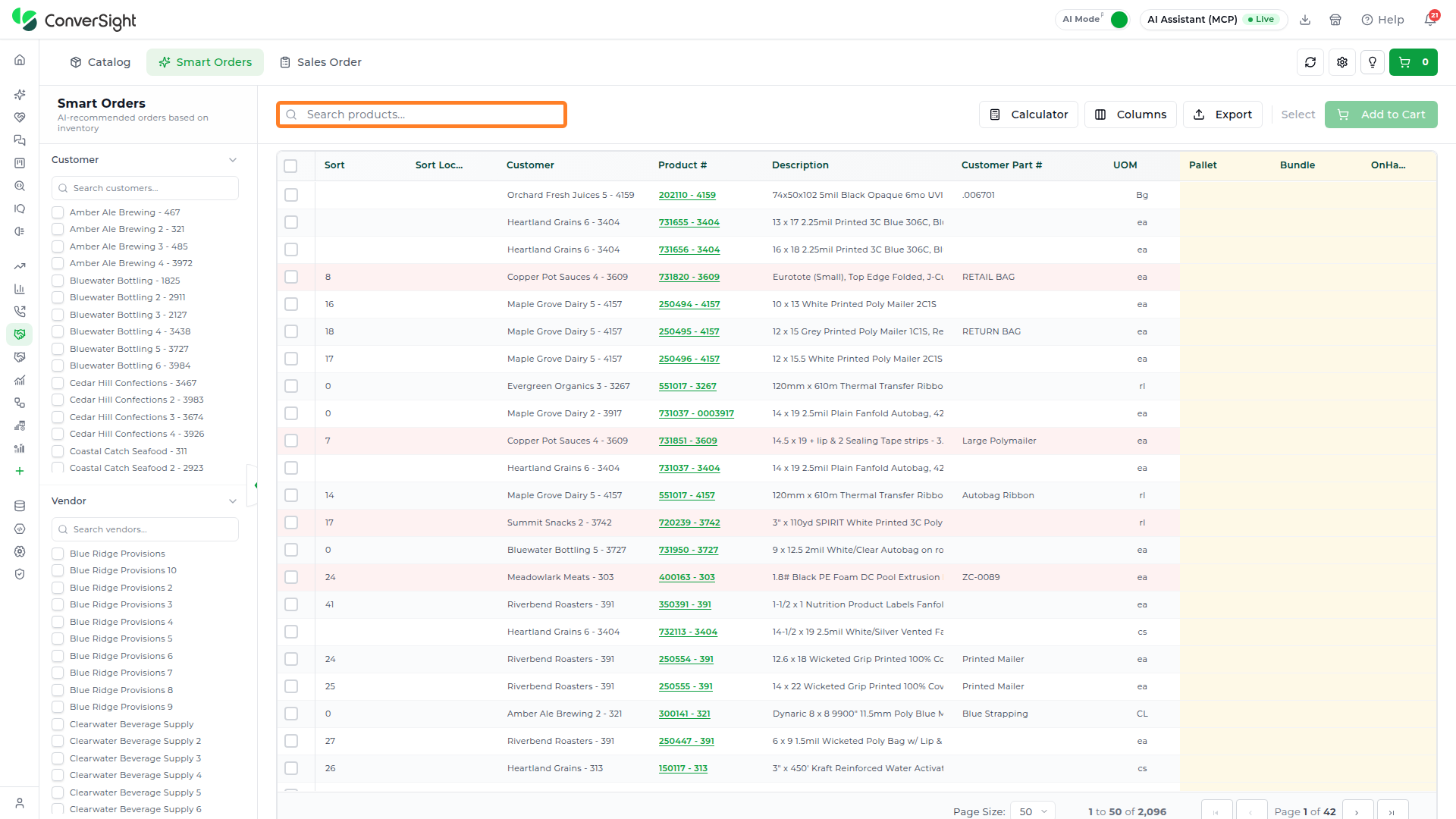
The app opens on the Smart Orders tab. The header holds the Catalog, Smart Orders, and Sales Order tabs on the left, and the Sync Data, Settings, Quick Guide, and Cart icons on the right.

Sync Data
The Sync Data icon enables users to fetch the most recent updates and ensure they are working with the latest available data.

Smart Orders
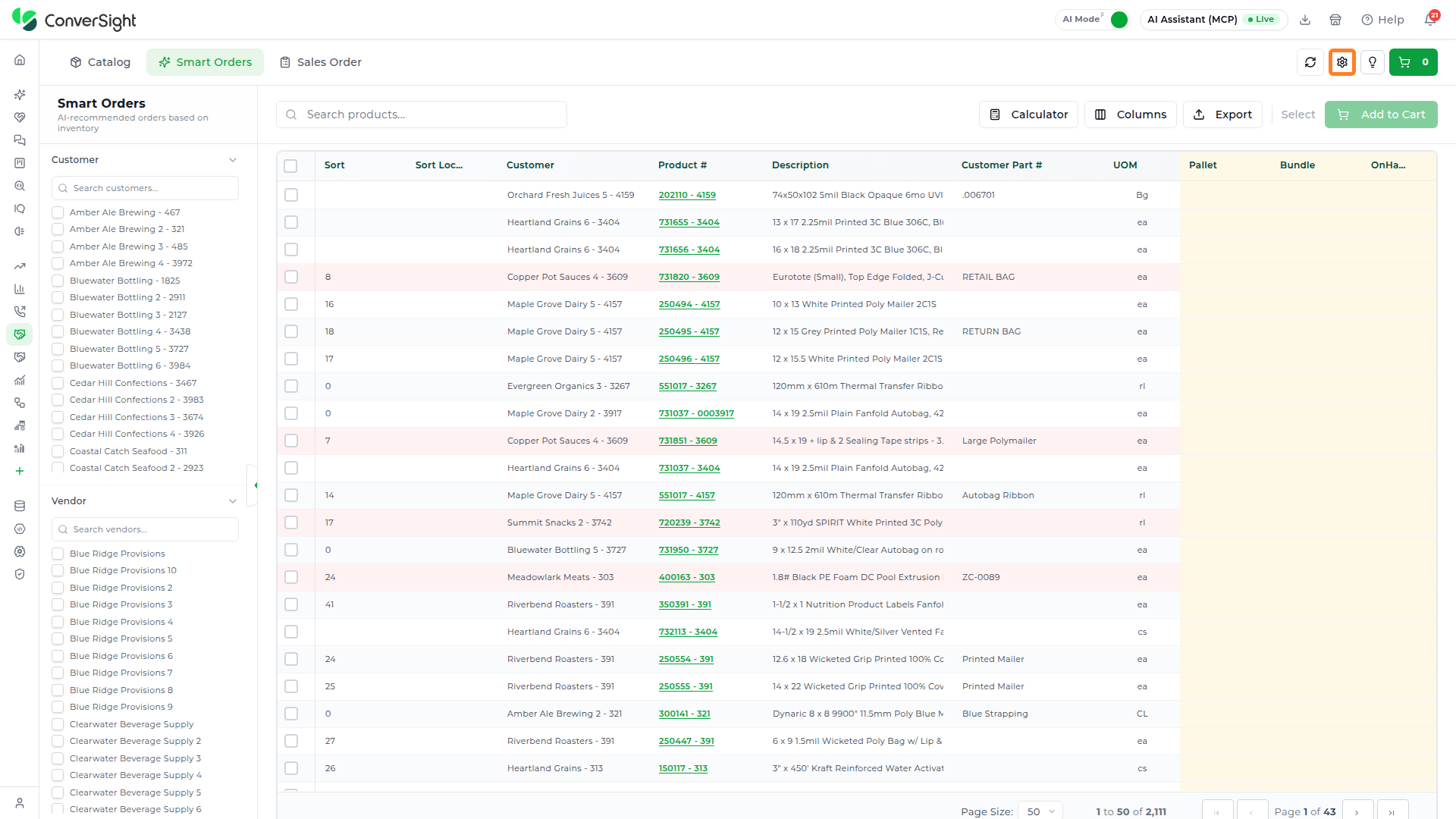
The Smart Orders tab lists AI order recommendations based on inventory in a single grid, so users can review what to order for each customer and product without switching screens. A toolbar above the grid holds a product search box and the Calculator, Columns, Export, Select, and Add to Cart options. The Customer and Vendor filter panels sit to the left of the grid, and page controls at the bottom move through the results.
The table below describes the key columns of the Smart Orders grid. The columns shown depend on the organization's Smart Order column settings.
| Column | Description |
|---|---|
| Customer | Names the customer associated with the order. |
| Product # | Identifies the product and serves as the primary reference across inventory and order records. Click on it to open the product's order history. |
| Customer Part # | Gives the customer-specific part number for the product, if applicable. |
| Sort | Holds an internal reference or sequence value used to organize items within the grid. |
| Description | Provides a brief overview of the product for identification and selection. |
| UOM | States the unit of measure in which the product is handled, such as each, case, or roll. |
| On Hand | Indicates the quantity of the product currently available in inventory. |
| MOQ | Sets the minimum quantity required to place an order for the product, as defined by the supplier or business rules. |
| Order Rule | Defines the logic used to trigger order recommendations based on demand and inventory thresholds. |
| Open Orders | Tracks the quantity already ordered but not yet fulfilled. |
| Order Quantity | Shows the recommended order quantity based on demand and inventory. |
| Notes | Records additional remarks or context for the order line. |
| Total Price | Calculates the estimated total cost from the order quantity and unit price. |
| Fulfillment | Indicates the fulfillment method for the item. |
| Vendor | Names the supplier or vendor associated with the product. |
| Lead Time | Specifies the estimated time the vendor needs to fulfill the order. |
| ETA | Gives the expected date of arrival for the ordered items. |
Columns with a light blue header are editable, so users can change values such as the order quantity directly in the grid.
Search
The Search products box at the top of the grid finds products by customer name, product number, or description.
Customer and Vendor Filters
The Customer and Vendor panels narrow the grid to the accounts you are working on. Each panel lists the available values with a checkbox and includes its own search box, so you can find an entry in a long list before selecting it.

Order History
Product numbers in the grid appear as green, underlined links. Click on a product number to expand its Order History directly below the row, without leaving the grid. The panel header names the product and the number of records, with Refetch to reload the history and Collapse to close it. Each record shows the order date, customer part number, order quantity, on-hand quantity, total price, MOQ, UOM, fulfillment type, lead time, vendor, and notes. The number of records shown per product is set by Order History Record Limit in General Settings.


Calculator
The Calculator opens a keypad for quick arithmetic while you review quantities. It includes number keys, a decimal point, AC to clear, a backspace key, and the divide, multiply, subtract, add, and equals keys. Select an editable cell in the grid to apply the result to that cell.

Columns
The Columns option opens a checklist of the grid's columns. Clear a checkbox to hide that column, or select it to show the column again.

Export
The Export option exports the data in the grid for offline review or further analysis.

Select
Each row has a checkbox, and the checkbox in the grid header selects every row on the page. As rows are selected, the Select label in the toolbar changes to show how many rows are selected, for example 2 selected.

Add to Cart
The Add to Cart button becomes available once at least one row is selected. Click on it to move the selected rows to the cart; the count on the Cart icon updates to match.

Catalog
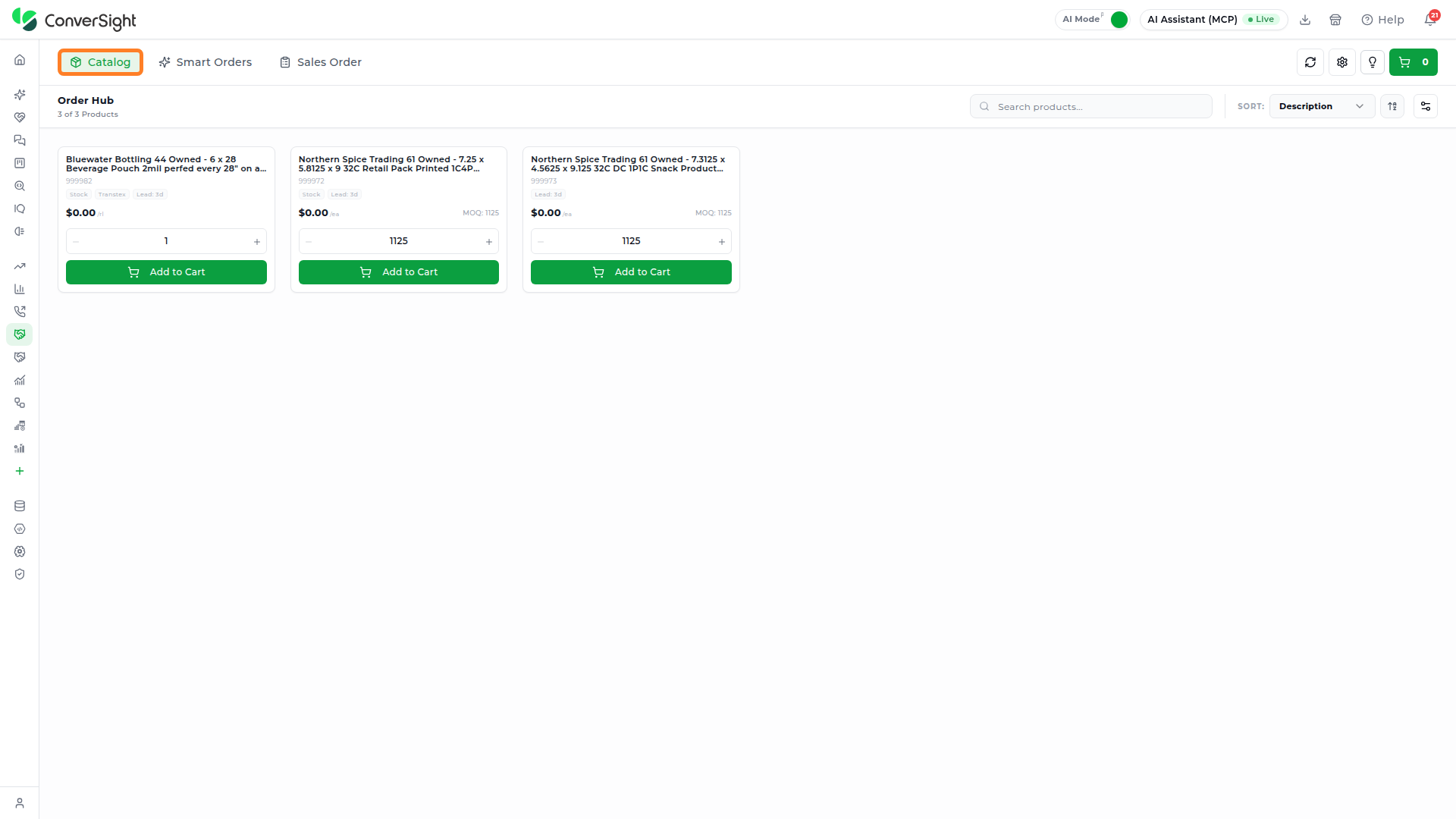
The Catalog tab presents products as cards, so users can browse and order items without working in a grid. A count at the top shows how many products are listed, and the Sort control orders the cards, for example by Description. Each card carries:
- Product details: The product description and product number.
- Fulfillment and supply: A fulfillment badge such as Stock, the vendor, and the lead time.
- Pricing: The unit price and, where one applies, the minimum order quantity.
- Ordering: A quantity control with - and + buttons and an Add to Cart button.
Sort
The Sort control above the cards orders the catalog by a chosen field, such as Description. The arrow button next to it switches the order between ascending (A to Z) and descending (Z to A).

Catalog Columns
The settings icon next to the sort control opens the Catalog Columns panel, which controls the product fields shown on each card. Drag a field to reorder it, or use its toggle to show or hide it. Click on Apply to save the layout, Reset to defaults to restore the original fields, or Cancel to close the panel without changes.

Sales Order
The Sales Order tab is used to build sales orders directly from a grid of customer products. It offers the same toolbar as Smart Orders: a product search box, Calculator, Columns, Export, Select, and Add to Cart. The grid shows each product's customer, customer part number, product number, description, on-hand quantity, order quantity, unit of measure, unit price, and total price, along with an Add note field for each line.

The Columns option on this tab works in the same way as on Smart Orders.
Settings
The Settings icon opens the App Configuration window, where administrators configure application settings, module permissions, preferences, and column settings. The window has a navigation tree on the left with General Settings, App Configuration, and Notifications. Changes take effect only after clicking Save Changes; Cancel closes the window without saving.
General Settings
General Settings configures application-wide settings and defaults. The Application Preferences section includes the following fields:
| Field | Description |
|---|---|
| Auto-Save Order Drafts | Saves order drafts automatically as users work, so progress is not lost. |
| Default Landing Page | Sets the page displayed when users first open the application, such as Smart Orders. |
| Order History Record Limit | Caps the number of records displayed per product in order history. |
| ERP System | Selects the ERP system used for order submission and integration. |

Email Configuration
When Email is selected as the ERP System, the Email Configuration section appears below the preferences. Click on it to expand the email templates used for PO submission. Separate Smart Orders and Sales Orders options at the top of the section hold a template for each order type.
| Field | Description |
|---|---|
| CC Recipients | Adds email addresses to copy on all order emails, such as a sales manager or the order processing team. |
| BCC Recipients | Lists email addresses to blind-copy on all order emails; these addresses are hidden from other recipients. |
| Email Subject | Defines the subject line for order confirmation emails. |
| Sender Name | Sets the name that appears in the email signature. |
| Sender Email | Provides the email address shown in the signature. The address is for display only; the system sends from a no-reply address. |
| Attachment Format | Picks the file type attached to order confirmation emails. Available options include No Attachment, Excel Spreadsheet, CSV File, and PDF Document. |
| Columns to send | Determines which columns are included in the order email. Click on the Add button to include another column. |
| Email Body | Holds the HTML template for the email body, edited in a code editor. |
| Email Preview | Renders the subject and body so users can check the result before saving. |

App Configuration
The App Configuration branch of the tree holds one entry for each module of Sales Order Hub. Expand a module to reach its Page Settings and Column Settings. The modules are:
| Module | Purpose |
|---|---|
| Catalog | Browse and search available products for ordering. |
| Demand Projections | View and manage demand forecasts with multiple scenarios. |
| Smart Order | Create and manage sales orders with AI recommendations. |
| Sales Order | Create and manage sales orders. |
| Checkout (Smart Orders) | Review cart items and place orders from Smart Orders. |
| Checkout (Catalog) | Review cart items and place orders from the Catalog. |
| Checkout (Sales Order) | Review cart items and place orders from Sales Order. |
Page Settings
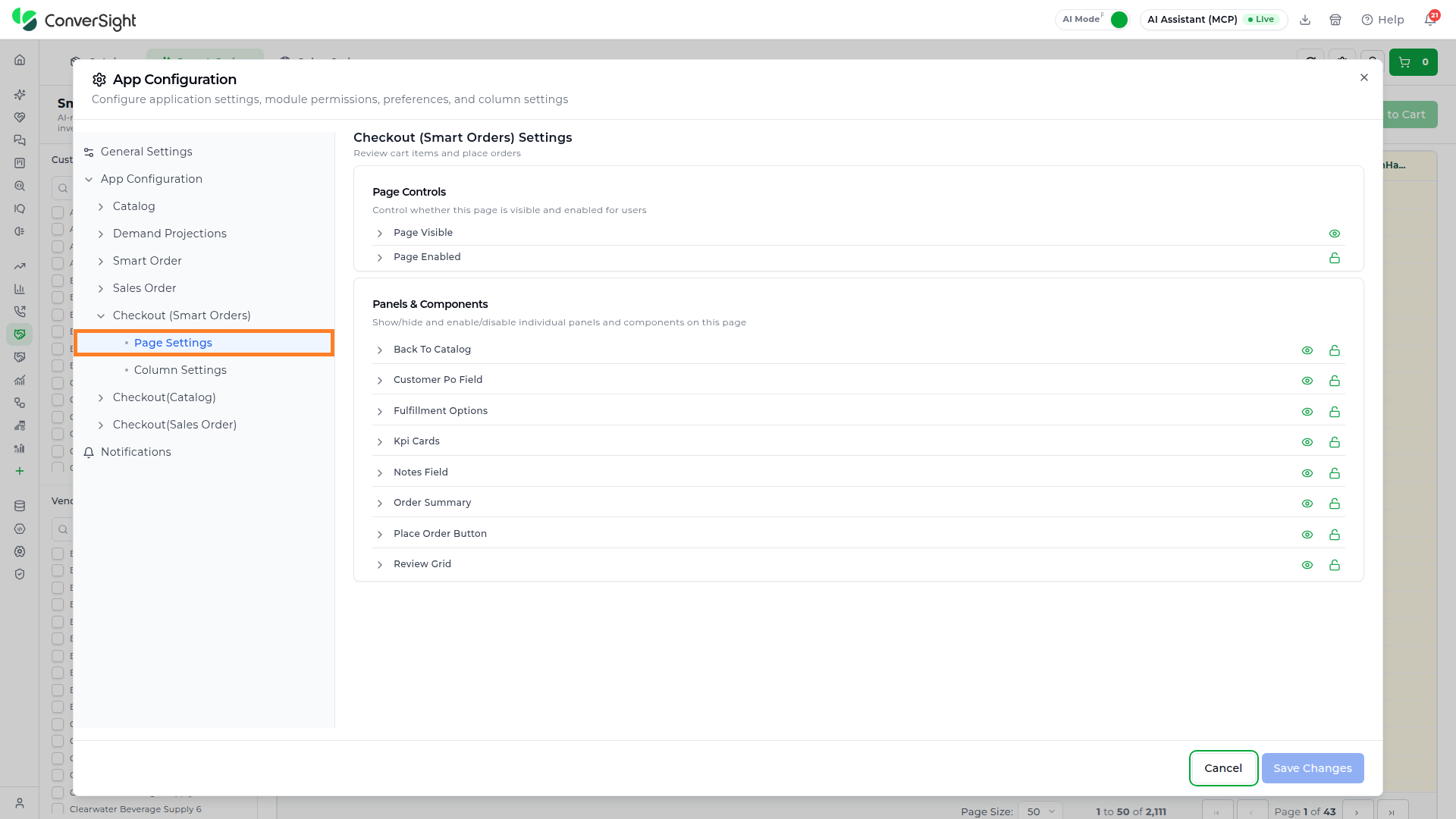
Page Settings decide whether a page is available and which parts of it users see. Each module's page settings contain two sections:
- Page Controls: Sets whether the page is visible and enabled for users, through the Page Visible and Page Enabled settings.
- Panels & Components: Shows or hides, and enables or disables, the individual panels and components on the page. The components listed depend on the module.
- Visibility and Access Controls:
- The Eye icon is used to show or hide specific components and panels.
- The Lock icon is used to enable or disable them.
- Component-Level Configuration: For each panel or component, users can provide a custom description and specify a reason when it is disabled, offering better clarity and context for end users.
Column Settings
Column Settings open a Grid Management view for the module's grid. A summary line states how many columns are visible and editable, a search box finds a column by name, and some modules show the grid's default sort column and direction above the table. Each column row has the following settings:
| Field | Description |
|---|---|
| Column | Names the column and shows its underlying field key. |
| Show | Toggles whether the column is visible in the grid. |
| Editable | Allows users to change the column's values directly in the grid. |
| Sortable | Lets users sort the grid by the column. |
| Filterable | Enables filtering on the column. |
| Width | Fixes the column width. |
| Type | Specifies the data type of the column, such as Text, Number, or Currency. |
| Alignment | Aligns the column's values to the left, center, or right. |
| Actions | Offers options to edit or remove the column. |
Catalog Settings
The Catalog page settings manage these panels and components: Add To Cart Button, Cart Summary, Filter Sidebar, Product Details, Product Grid, and Search Bar.

The Catalog column settings manage the fields shown for each product in the catalog.

Add Custom Column
The Add Custom Column button in a module's column settings creates a new column for that module's grid, including a calculated column built from existing fields. The Add Custom Column popup asks for the following details:
- Display Name: The column heading users see, for example Custom Field.
- Accessor Key: The field key for the column, with no spaces, for example custom_field.
- Description: A short explanation of the column.
- Type, Width, and Alignment: The data type, column width, and alignment of the values.
- Visible, Sortable, Filterable, and Editable: Toggles that set how the column behaves in the grid.
- Formula: An optional calculation built from existing fields, for example on_hand_qty * price. Click on Insert Field to add a field key to the formula.
Click on the Add Column button to add the column, or Cancel to close the popup without adding it.

Demand Projections Settings
The Demand Projections page settings manage these panels and components: Filters, Projections Grid, Scenario Selector, and Time Period Controls.
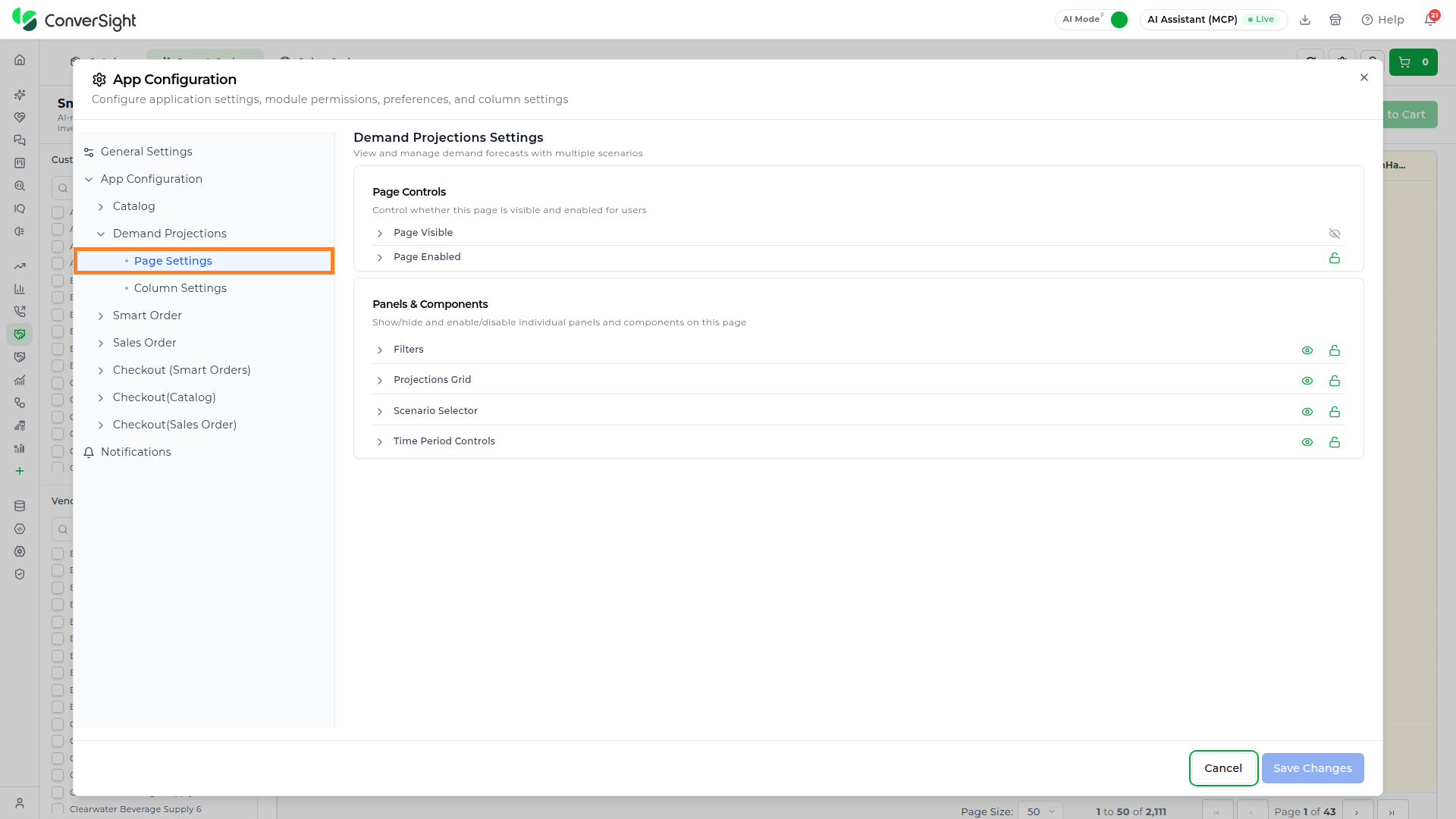
The column settings manage the columns of the projections grid.

Smart Order Settings
The Smart Order page settings manage these panels and components: Add To Cart Button, Auto Suggestion, Bulk Actions, Column Chooser, Export Button, Filter Bar, Kpi Cards, Order Grid, and Search Bar.

The column settings manage the columns of the Smart Orders grid and show the grid's default sort above the table.

Sales Order Settings
The Sales Order page settings manage these panels and components: Add To Cart Button, Bulk Actions, Column Chooser, Export Button, Filter Bar, Kpi Cards, Order Grid, and Search Bar.

The column settings manage the columns of the Sales Order grid and show the grid's default sort above the table.

Checkout Settings
Each tab has its own checkout module: Checkout (Smart Orders), Checkout (Catalog), and Checkout (Sales Order). All three control the final stage of ordering, where users review the cart and submit the order, and share the same panels and components: Back To Catalog, Customer Po Field, Fulfillment Options, Kpi Cards, Notes Field, Order Summary, Place Order Button, and Review Grid. Their column settings manage the columns of the cart's review grid.


Notifications
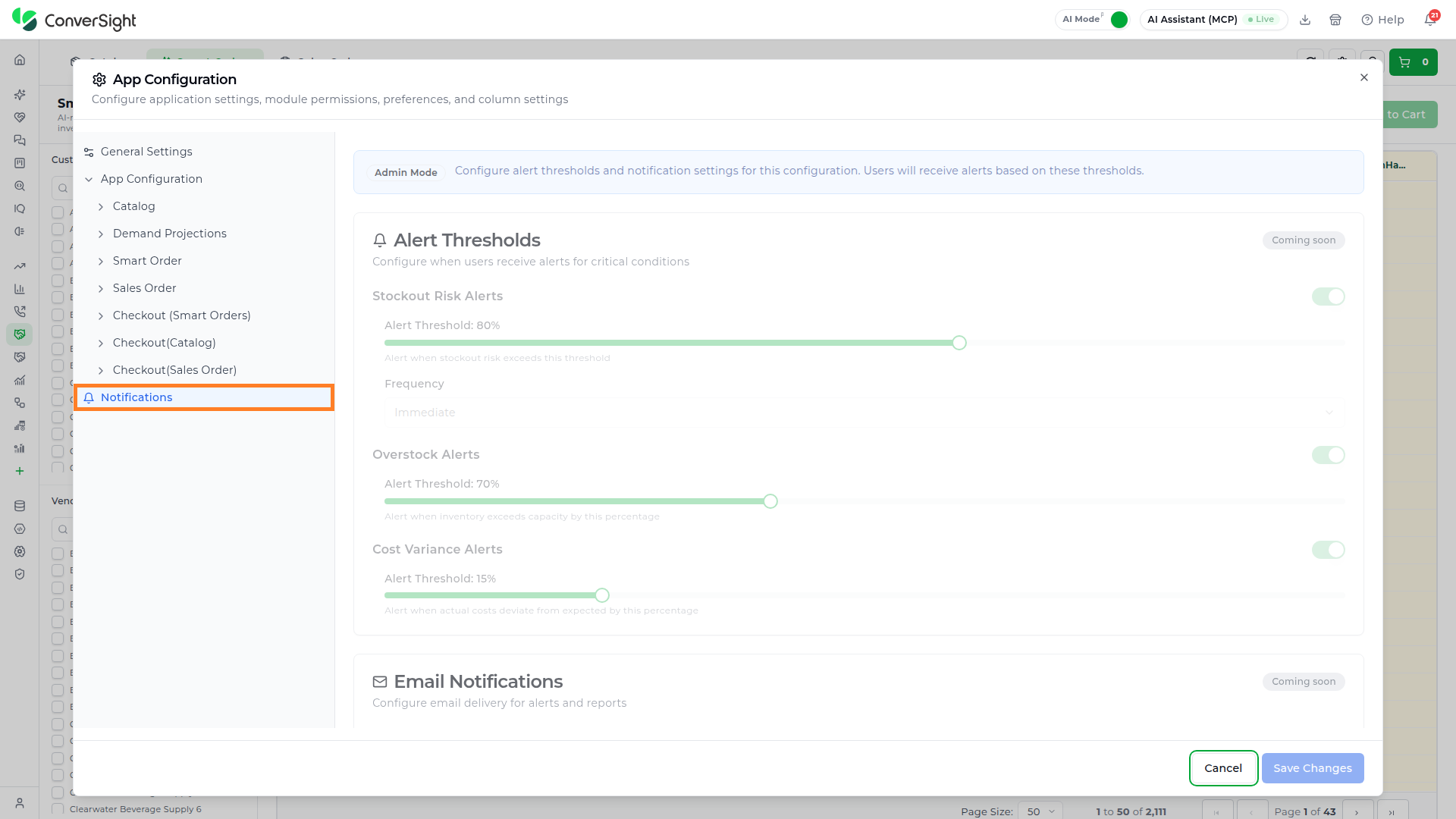
Notifications is where administrators set alert thresholds and notification preferences, so users receive alerts when inventory or cost conditions cross those thresholds. Its controls are currently shown greyed out and can't be changed. The page has three sections:
- Alert Thresholds: Stockout Risk Alerts, Overstock Alerts, and Cost Variance Alerts, each with a threshold percentage.
- Email Notifications: An on/off setting for email delivery, a primary email address, and additional recipients.
- Scheduled Reports: Automated report generation and delivery, set up with the Add Scheduled Report button.
Quick Guide
The Quick Guide icon gives users help without leaving Sales Order Hub. Its menu offers Documentation, FAQ, Quick Tips, Interactive Tour, and Contact Support.

Documentation
The Documentation option opens the complete Order Hub user guide and reference in a new browser tab.

FAQ
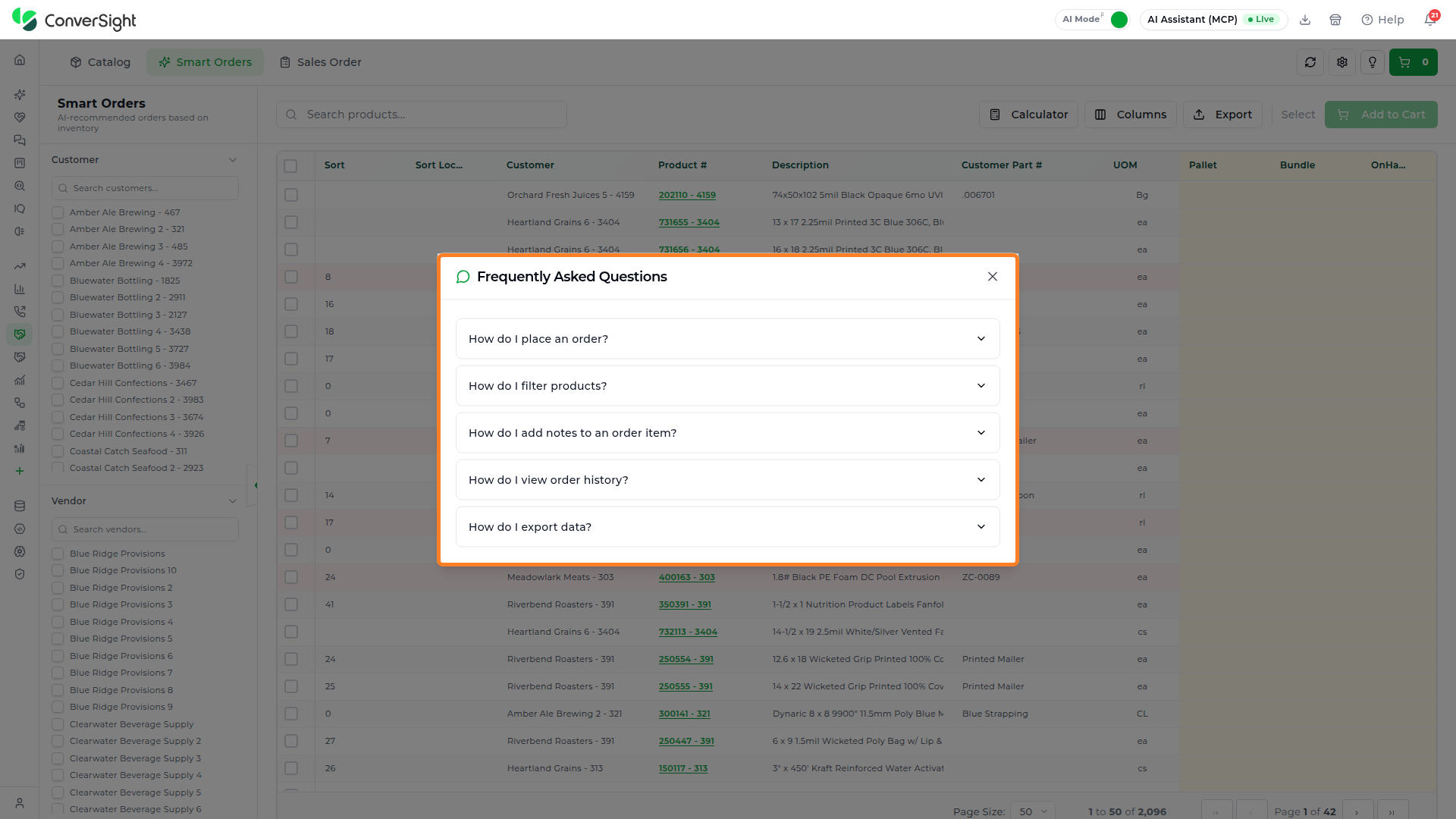
The FAQ option opens a list of common questions with their answers, such as how to place an order, filter products, add notes to an order item, view order history, and export data.

Quick Tips
The Quick Tips option shares shortcuts for everyday tasks:
- Quick Search: Use the search bar to find products by customer name, product number, or description.
- KPI Filters: Click on the fulfillment type badges (Stock, Cross-Dock, Drop Ship) to filter the grid by fulfillment type.
- Editable Columns: Click on a cell in a column with a light blue header to edit its value directly.
- Order Review: Review the order on the review page before submitting it.


Interactive Tour
The Interactive Tour option starts a guided, step-by-step walkthrough of the current page. When no tour has been set up for the page, the window shows No Tours Available.

Contact Support
The Contact Support option connects users with the support team for help.

Cart
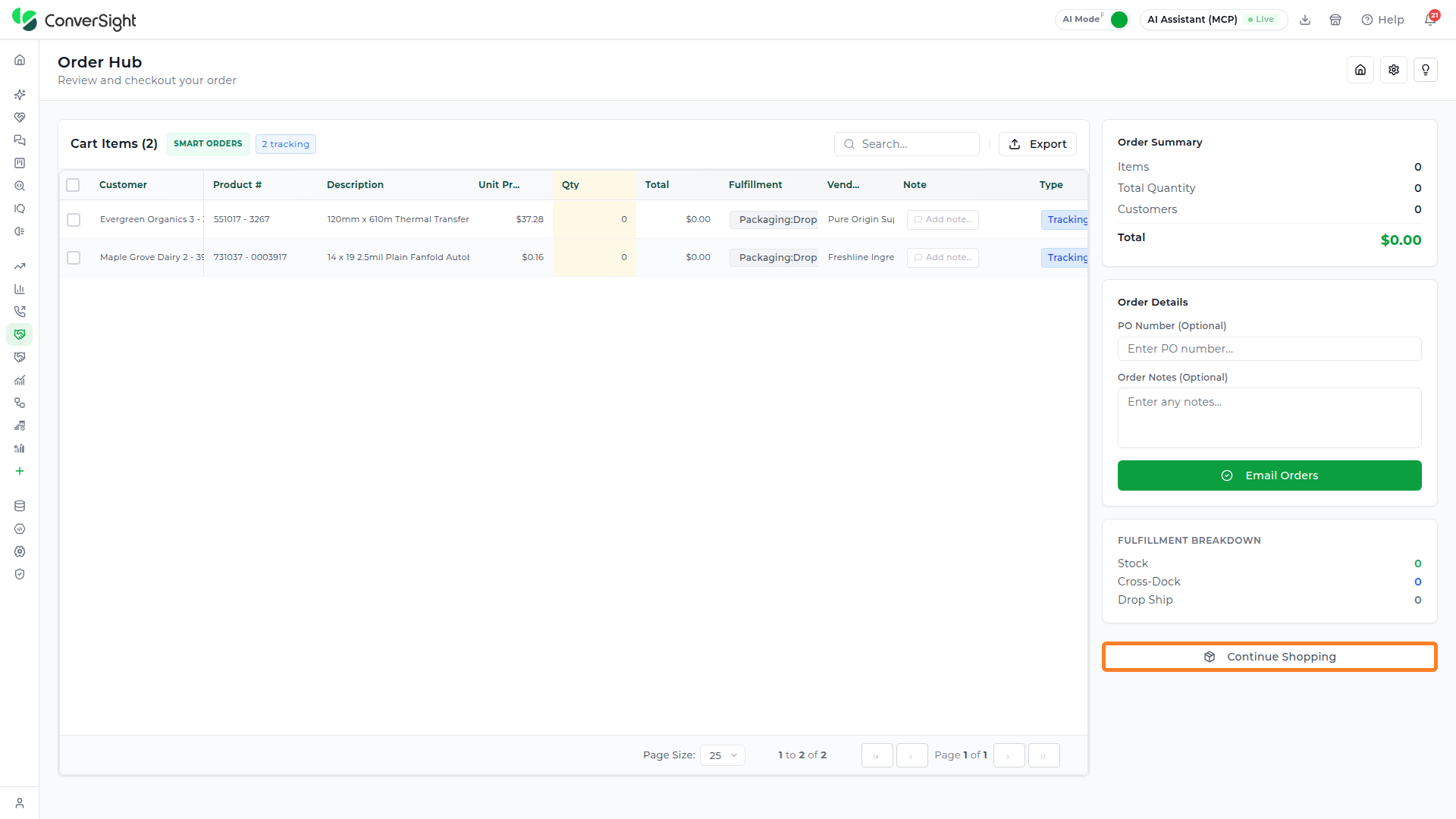
The Cart icon shows how many items are waiting for checkout. Click on it to open the checkout page, Review and checkout your order.

The checkout page has the following sections:
- Cart Items: A grid of the items in the cart, labelled with the tab they came from, such as Smart Orders. It shows each item's customer, product number, description, unit price, quantity, total, fulfillment type, vendor, note, and type. A search box finds an item in the list, and an Export option exports it.
- Order Summary: The number of items, the total quantity, the number of customers, and the order total.
- Order Details: Optional PO Number and Order Notes fields, and the Email Orders button that submits the order.
- Fulfillment Breakdown: How many items are fulfilled through each method:
- Stock: Items currently available in on-hand inventory that can be fulfilled immediately from the warehouse.
- Cross-Dock: Items sourced from incoming shipments and transferred directly for delivery without being stored in the warehouse.
- Drop Ship: Items fulfilled by third-party suppliers and shipped directly to the customer without being held in inventory.
- Continue Shopping: Returns to the app to add more items.

To take items out of the cart, select their checkboxes in the Cart Items grid. A bar above the grid shows how many items are selected, with Clear selection to undo the selection and a Remove button, for example Remove 2 items. Click on it, then confirm with Remove Items in the Remove items from cart? prompt, or click Cancel to keep the items.

When the cart has no items, the page shows Your cart is empty with a Go to Smart Orders button.
Order Placement
Order placement moves from the Smart Orders grid to the checkout page in two stages: reviewing the recommended quantities, then checking out.
Reviewing and Adjusting Quantities
Step 1: Narrow the Grid
On the Smart Orders tab, use the Customer and Vendor filters or the product search box to show the items you want to order.
Step 2: Review the Recommended Quantities
Check the order quantity for each item against its on-hand quantity, open orders, and order rule. The following fields can be edited directly in the grid:
- On Hand Quantity: Updates the available stock quantity for the item, so the inventory shown is accurate.
- Order Quantity: Changes the recommended order quantity to match specific needs.
- Notes: Adds optional context, instructions, or references for internal teams or vendors.
Step 3: Select the Items
Select the checkbox of each row to order.
Step 4: Add the Items to the Cart
Click on the Add to Cart button. The count on the Cart icon updates to show the added items.
Checking Out
Step 1: Open the Cart
Click on the Cart icon to open the Review and checkout your order page and review the items, the order summary, and the fulfillment breakdown.
Step 2: Add Order Details
Enter a PO Number and Order Notes if needed. Both fields are optional.
Step 3: Submit the Order
Click on the Email Orders button to submit the order.

To add more items before submitting, click on the Continue Shopping button.