Revenue Projection
Revenue Projection is Athena in Co-Pilot mode for revenue planning. Every planning cycle starts the same way for a finance team or a sales planner: reconcile what the business committed to (the budget) against what the numbers actually support (the forecast), at every level from the whole company down to a single product for a single customer. Revenue Projection does that reconciliation automatically and keeps it in one place — a multi-level plan broken down by sales rep, customer, and product — so a planner spends their time on the handful of accounts that need a human call instead of re-deriving the whole plan from scratch every cycle.
Where agents like Demand Planner lean on Employee mode and act on their own within configured guardrails, Revenue Projection deliberately keeps a person in the loop for every adjustment. A revenue commitment has real financial and contractual weight, so Co-Pilot is the right level of autonomy here: Athena does the modeling work of producing the AI Forecast, and a planner decides, line by line, where their own judgment should override it before the plan goes out.
What Revenue Projection Owns
| Stage | What Athena does |
|---|---|
| Signal | Pulls sales history and the latest demand forecast for every customer and product in the plan. |
| Decision | Produces an AI Forecast figure for each customer — split out by product when Show Product Line breakdown is enabled — across every month in the configured horizon. |
| Action | Surfaces the AI Forecast as the starting point for the plan and lets a planner carry it forward unchanged or override it in the Sales Adjusted row before submitting. |
A typical Co-Pilot workflow
Ahead of a monthly business review, a planner opens Revenue Projection and works through the customer list. For most accounts, the AI Forecast already reflects the latest demand signal and needs no changes. For a handful — an account the planner knows is renewing early, or one that just churned — the planner clicks the green Sales Adjusted value and enters the number they trust more than the model. The AI Forecast stays visible underneath, unchanged, so nothing is silently overwritten. Once every account the planner wants to touch has been reviewed, they submit the plan.
Guardrail: the page reports its current Edit rights level (Company) so a planner always knows the scope they're editing at before they submit a plan.
What This Documentation Covers
This documentation is the reference for using Revenue Projection in the platform: how to access it, how its Settings govern the plan's behavior, how the Summary, Revenue Projection, and Volume Projection tabs relate to each other, and how to review, adjust, save, and submit a plan. If you're new to the feature, start at Accessing Revenue Projection. If you've used it before and want a specific function, the table of contents on the right covers every section.
Accessing Revenue Projection
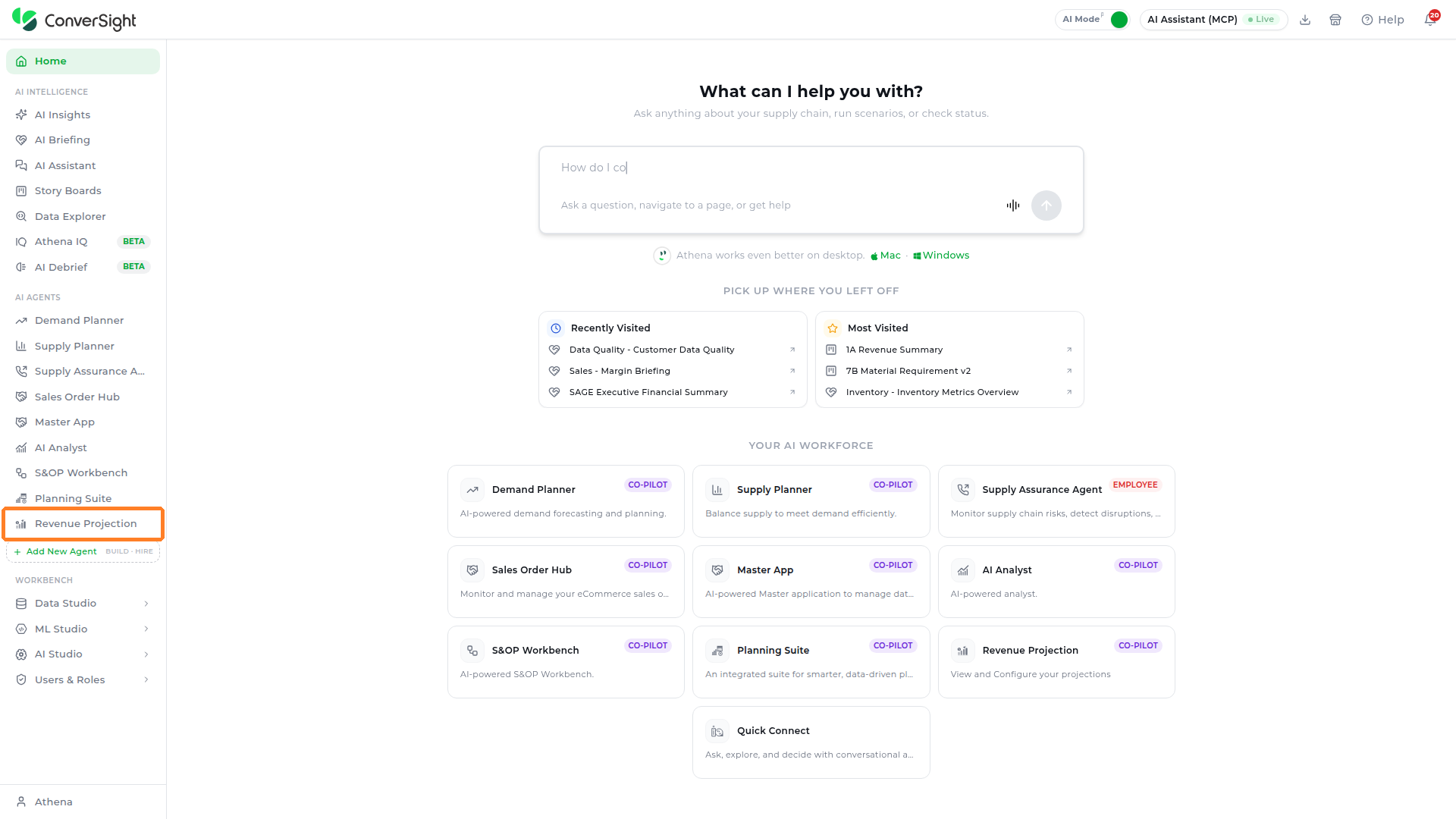
Users can access the Revenue Projection feature by selecting Revenue Projection under the AI Agents section in the left navigation panel.
Working with Revenue Projection
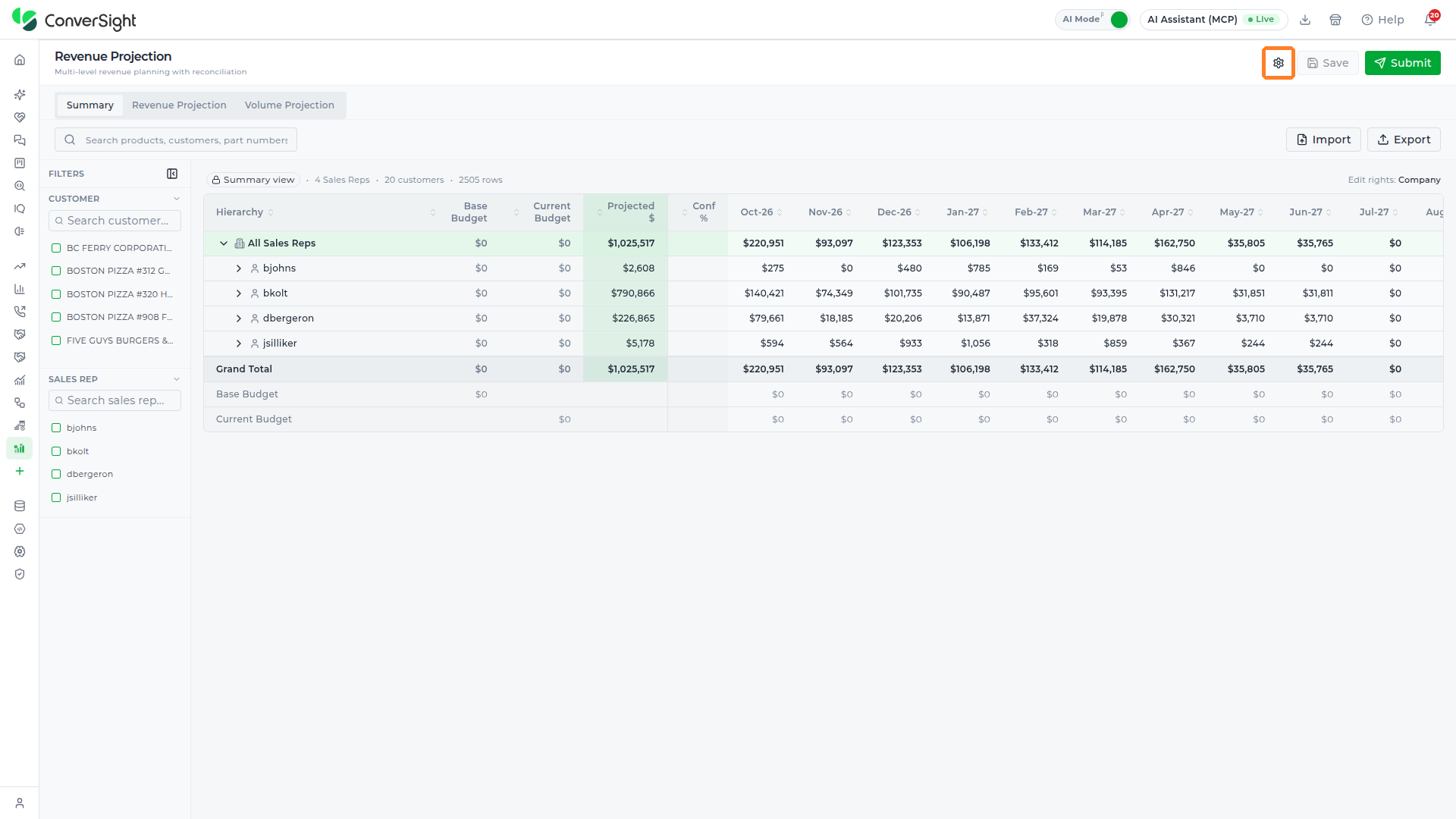
The Revenue Projection page opens with the current Edit rights level and a Settings icon, Save button, and Submit button at the top right, above three tabs — Summary, Revenue Projection, and Volume Projection — that each present the same underlying plan at a different level of detail. A search bar lets a planner jump straight to a product, customer, or part number.
Settings
Before working through a plan, it's worth knowing what governs it, because the same numbers can look different depending on how Settings is configured — the display format, how many months are shown, which periods can even be touched, and how an edit made at the customer level gets pushed down into individual products. Click on the Settings icon (gear) at the top right of the page to open the App Configuration popup.
A tree on the left side of the popup lists General Settings, Column Mappings (with Summary, Revenue Projection, and Volume Projection sub-pages), and Volume Projection. General Settings opens by default and controls how the plan behaves across all three tabs.

Ratio Method
When a planner adjusts a customer's total revenue in the Sales Adjusted row, that single number has to turn into a change at the product level too — the plan doesn't just carry one lump sum per customer, it carries a figure for every product that customer buys. Ratio Method decides how that top-level edit gets split back down across the customer's individual product lines.
| Option | What it does |
|---|---|
| History Ratio | Splits the edit in the same proportions the customer's products have historically sold in. If a customer has always bought twice as much of Product A as Product B, a revenue increase follows that same 2:1 split. |
| Forecast Ratio | Splits the edit using the AI Forecast's own product-level proportions instead of history, so the split reflects where the model currently expects growth or decline. |
| Hybrid Ratio | Blends the historical and forecast-based splits, which is useful when a customer's buying pattern is shifting and neither history alone nor the forecast alone tells the full story. |

Number Display
Large revenue figures can be read two ways — quickly, as a rounded shorthand, or precisely, down to the dollar. Number Display sets which one the plan uses everywhere.
| Option | What it does |
|---|---|
| Abbreviated | Shows values in short form, such as $2K or $1.4M — easier to scan across a wide grid of customers and months. |
| Full digits | Shows values in full, such as $2,000 or $1,400,000 — useful when a planner needs to check or key in an exact figure. |

Horizon
Horizon sets how far into the future the plan looks — the number of monthly columns displayed across all three tabs, chosen from a dropdown (12 Months by default). A shorter horizon keeps the grid focused on the current planning window; a longer one gives a planner visibility further out without having to re-open Settings every time they need to check further ahead.

Locked Periods
Once a month has closed, its numbers are actuals, not projections, and shouldn't change under a planner's cursor by accident. Locked Periods sets how many periods from the start of the horizon are read-only for exactly that reason. Use the preset buttons or the slider to set it anywhere from None up to all periods locked.

Demand Planner
The Demand Planner section connects the plan to forecast scenarios from the Demand Planner agent, so revenue projections read from and write back to the same demand forecasts the planning team already works with.
- Input Scenario: Sets the Demand Planner scenario that Revenue Projection reads its forecast data from.
- Output Scenario: Chooses the Demand Planner scenario where edited projections are saved.
Click on either dropdown to open the list of Demand Planner forecast scenarios in the organization, type in its Search box to narrow the list, and click on a scenario to select it. A line under each dropdown confirms which scenario is currently active.

Click Cancel to close the popup without changing anything. Once a setting has actually been changed, Save Changes becomes active — click it to apply the new configuration.

Column Mappings
Every grid in Revenue Projection — the Summary hierarchy, the Revenue Projection customer breakdown, and the Volume Projection product list — is built from a configurable set of columns, and the Summary tab's hierarchy itself is configurable too.
Column Mappings is where an administrator controls both: which columns appear in each grid, what they're labeled, how wide they are, what order they're in, and, for the Summary tab specifically, which fields make up the drill-down tree in the first place. It's organized into three categories in the tree — Summary, Revenue Projection, and Volume Projection — matching the three main tabs.
Summary Column Settings
Summary Column Settings configures the six columns shown on the Summary tab's hierarchy grid:
| Column | What it shows | Default Width (px) |
|---|---|---|
| Hierarchy (required) | The sales rep, customer, or product level in the drill-down tree — the tree itself, so it can't be hidden. | 280 |
| Current Budget | The revenue target as most recently approved, after any budget revisions. | 110 |
| Base Budget | The revenue target originally set for this rep or customer, before any revisions. | 110 |
| Projected $ (required) | The rep or customer's total forecast-driven revenue, combining the AI forecast with any planner adjustments. Also can't be hidden. | 110 |
| Confidence % | A confidence percentage for the projection, when the underlying forecast provides one. | 80 |
| Monthly Revenue (monthly) | Splits Projected $ into a figure for each month in the horizon, instead of holding one total. | 90 |
The widths above are only the defaults ConverSight ships with — every column besides Hierarchy and Projected $ can also be hidden independently, and any width can be changed by clicking its value in the table and typing in a new number. Click a column name to rename its display label, or drag the handle on the left of each row to reorder it.

A Show all / Hide all shortcut and a Reset button sit above the table — the first two toggle every non-required column on or off in one click, and Reset discards any changes made on Summary Column Settings and restores the default configuration. None of this takes effect on the live grid until Save Changes is clicked at the bottom of the App Configuration popup.

Summary Hierarchy
Summary Hierarchy controls what the Summary tab's drill-down tree is actually built from — the fields behind each level, rather than how any single column looks. Each level of the hierarchy (currently Sales Rep, then Customer, then Product) is defined by a Field Key that has to match a real field name in the underlying data, paired with a Display Name that's what a planner actually sees in the grid.
The Field Key Customer is always required and can't be removed, but the other levels can be renamed, reordered with the arrows, toggled off without deleting them, or removed outright. The + Add level button appends a new level to the tree. This matters because it changes the shape of the whole Summary tab: adding a level (a region, say, above Sales Rep) or removing one changes how deep a planner has to drill before reaching an editable number, without touching any of the underlying plan data.

Each level row has the following controls:
| Control | What it does |
|---|---|
| Arrows | Move the level up or down in the tree. |
| Field Key | Holds the data field the level groups by, which must match a field name in the underlying data. The Customer level's Field Key is locked. |
| Display Name | Sets the label planners see for this level in the Summary grid. |
| Toggle | Includes the level in the tree when on, and leaves it out when off without deleting it. |
| Remove (×) | Deletes the level. The required Customer level has no remove button. |
Click on the + Add level button below the levels to add a new level at the bottom of the list. The new row opens with an empty Field Key, a Display Name of New Level, and its toggle on. Type the data field name into Field Key, rename the Display Name, and use the arrows to move the level into position. Click Save Changes to apply the new hierarchy, or Cancel to discard it.

Revenue Projection Column Settings
Revenue Projection Column Settings configures the six columns shown on the Revenue Projection tab's customer-level grid, using the same reorder handles and Show all / Hide all / Reset shortcuts as Summary Column Settings:
| Column | What it shows | Default Width (px) |
|---|---|---|
| Sales Rep | The sales rep associated with the customer on this row. | 120 |
| Forecast Line (required) | Identifies which line the row represents — Base Budget, Current Budget, AI Forecast, or Sales Adjusted. Can't be hidden. | 140 |
| Annual $ | The forecast line's total dollar figure across the full year. | 110 |
| Customer (required) | The customer the row's forecast line belongs to. Can't be hidden. | 220 |
| Confidence % | A confidence percentage for the projection, when available. | 90 |
| Monthly Revenue (monthly) | Splits Annual $ into a figure for each month in the horizon, instead of holding one total. | 95 |

Revenue Projection Forecast Lines
Revenue Projection Forecast Lines sets the defaults every planner starts from on the Revenue Projection tab — which of the four forecast lines show automatically when the tab opens, and in what order they stack under each customer. It's an administrator-level configuration, separate from the Forecast Lines checklist a planner sees live on the tab, which only toggles visibility for the current session rather than changing what every planner sees by default.
| Forecast Line | Shown by default | Order | Editable |
|---|---|---|---|
| Base Budget | Yes | 1 | No |
| Current Budget | Yes | 2 | No |
| AI Forecast | Yes | 3 | No |
| Sales Adjusted | Yes | 4 | Yes |
Sales Adjusted is the only line tagged editable here — a direct confirmation that it's the sole line a planner can actually change, matching what's covered in Editing a Projection. Click a line's name to rename it, and use the order arrows to change where it appears relative to the others.

Volume Projection Column Settings
Volume Projection Column Settings configures the nine columns shown on the Volume Projection tab's flat product grid, using the same controls as the other two Column Settings pages:
| Column | What it shows | Default Width (px) |
|---|---|---|
| UOM | The unit of measure the volume figures are counted in, such as each (EA), dozen (DZ), or case (CS). | 50 |
| Product (required) | The product the row's volume figures belong to. Can't be hidden — a product row can't exist without it. | 180 |
| Sales Rep | The sales rep who owns this customer. | 80 |
| Unit Price | The price ConverSight uses to convert this product's unit volumes into revenue. | 70 |
| Customer | The customer this product is being planned for. | 120 |
| Confidence % | A confidence percentage for the volume projection, when available. | 60 |
| Notes | Opens a popup for leaving a note against this specific product/customer row — see Volume Projection. | 40 |
| Projected Annual | The total projected unit volume for this row across the full planning horizon. | 90 |
| Monthly Units (monthly) | Splits Projected Annual into a projected unit volume for each month, instead of holding one total. | 80 |

Filters
A Filters panel sits on the left side of the page across all three tabs, letting a planner narrow the plan down to the slice they need before working through it. Customer and Sales Rep appear on every tab; Time Period and Forecast Lines appear only on the Revenue Projection tab, since horizon, granularity, and forecast-line visibility only apply to that tab's customer-level grid.
Time Period
Time Period controls how much of the plan's horizon the Revenue Projection tab's grid displays and at what interval — it changes the view only, not any number in the plan.
| Control | What it does |
|---|---|
| Horizon | Sets how many months ahead the grid covers, chosen from the 3 months, 6 months, or 12 months buttons. |
| Granularity | Sets the interval each column represents, chosen from the Week, Month, or Quarter buttons. |

This Horizon is a live filter on the Revenue Projection tab, separate from the administrator-configured Horizon under General Settings — the Settings version sets the default month columns shown across all three tabs; this filter only changes how many of those months the Revenue Projection tab's grid currently shows.
Forecast Lines
Forecast Lines is a checklist of the four lines a plan can carry — Base Budget, Current Budget, AI Forecast, and Sales Adjusted. Checking or clearing a line decides whether it appears as a row under each customer on the Revenue Projection tab's grid for the current session; it doesn't change the plan itself, only what's currently visible. See Revenue Projection below for what each line represents.

Customer
Customer narrows the plan down to specific customers. Type in the search box to find a customer by name, then check or clear customers in the checklist below it — clearing a checkbox drops that customer out of every grid on the page. This filter is shared across the Summary, Revenue Projection, and Volume Projection tabs.

Sales Rep
Sales Rep works the same way as Customer, but narrows the plan down by the sales rep who owns each account. Type in the search box to find a rep by name, then check or clear reps in the checklist below it — useful when a planner only owns part of the book and doesn't need to scroll past accounts that aren't theirs. Like Customer, this filter is shared across all three tabs.

Summary
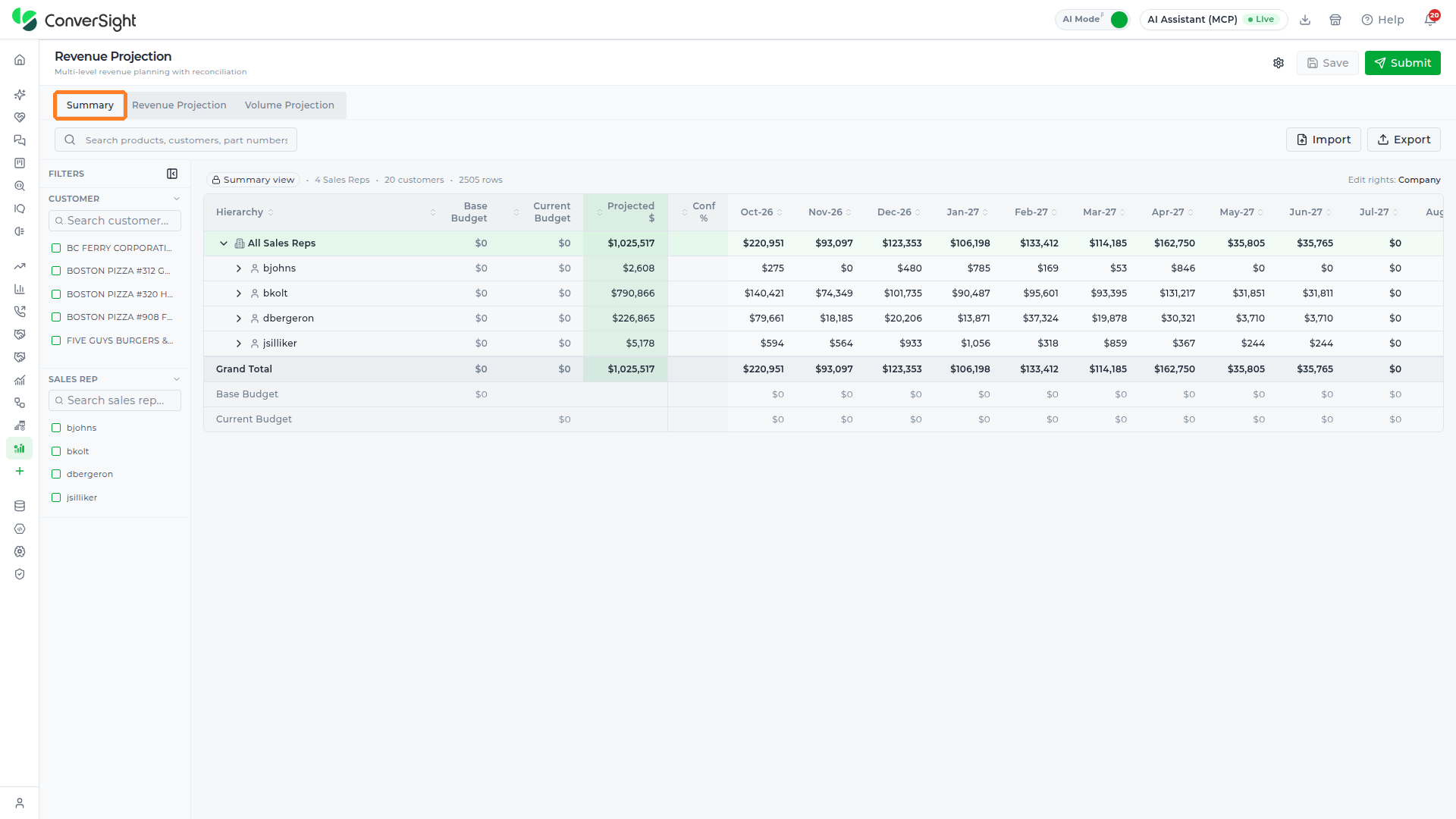
The Summary tab rolls the whole plan up into a single hierarchy grid, grouped from All Sales Reps down to each individual sales rep (and, per the Summary Hierarchy configuration above, down to customer and product beneath that). It's the view to open first, because it shows total revenue exposure before a planner drills into any one area. Above the grid, a Summary view line reports the plan's overall size — the number of sales reps, customers, and rows it contains.
The Customer and Sales Rep filters shared with the Revenue Projection and Volume Projection tabs narrow this grid the same way — see Filters for how each one works. The Import and Export buttons at the top right move plan data in and out of the page: Export downloads the current view as a file for offline review, and Import loads plan data from an Excel file rather than editing every value by hand (see Importing Plan Data). These same Import and Export controls appear on the Revenue Projection and Volume Projection tabs as well, so they only need to be learned once.
| Column | What it shows |
|---|---|
| Hierarchy | The sales rep or roll-up level the row's figures belong to; expandable down to that rep's customers. |
| Base Budget | The revenue target originally set for this rep or customer, before any revisions. |
| Current Budget | The revenue target as most recently approved, after any budget revisions. |
| Projected $ | The rep or customer's total forecast-driven revenue, combining the AI forecast with any planner adjustments. |
| Confidence % | Shows a confidence percentage for the projection, when the underlying forecast provides one. |
| Month columns | Splits the Projected $ total into a figure for each month in the planning horizon. |
Revenue Projection
Where the Summary tab shows totals, the Revenue Projection tab is where the actual reconciliation work happens — it breaks the plan down to individual customers and lets a planner compare forecast lines side by side before deciding whether to override any of them. Alongside the Customer and Sales Rep filters it shares with the other two tabs, this is the only tab with Time Period and Forecast Lines filters — see Filters for how each one works. The table below shows what the four forecast lines represent:
| Forecast Line | What it represents |
|---|---|
| Base Budget | The original revenue target, before any revisions. |
| Current Budget | The most recently approved revenue target. |
| AI Forecast | Athena's forecast for this customer, generated from sales history and demand signals — never edited directly. |
| Sales Adjusted | The line a planner actually edits; starts equal to the AI Forecast and diverges only where a planner overrides it. |
With AI Forecast and Sales Adjusted both checked in the Forecast Lines filter (the common working view), each customer shows the AI Forecast row directly above its Sales Adjusted row in green. See Editing a Projection below for exactly how and where a planner changes these figures.
Sometimes a customer-level number isn't enough — a planner needs to know whether a change is being driven by one product or spread across all of them. Turning on the Show Product Line breakdown toggle above the grid expands every customer's AI Forecast and Sales Adjusted rows into their underlying products, each with its own Annual $ total and monthly split, so a planner can see exactly which products make up a customer's projected revenue. How a customer-level edit gets divided across those product rows is governed by the Ratio Method setting covered earlier.

Not every planner needs to see every product a customer buys — a long-tail SKU list can bury the handful of products that actually matter for planning. Click on the Configure Product Lines button next to the toggle to open the Configure Product Lines popup and limit the breakdown to specific products.

The popup lists every product by item ID, each with its own checkbox, plus Select all and Clear buttons. Leaving every checkbox clear shows all products in the breakdown — this is the default, unfiltered state. Checking specific products limits the breakdown to only those, which is the useful state once a planner has identified the products they actually want to track. Click Cancel to close without changing anything, or Save to apply the selection.

Volume Projection
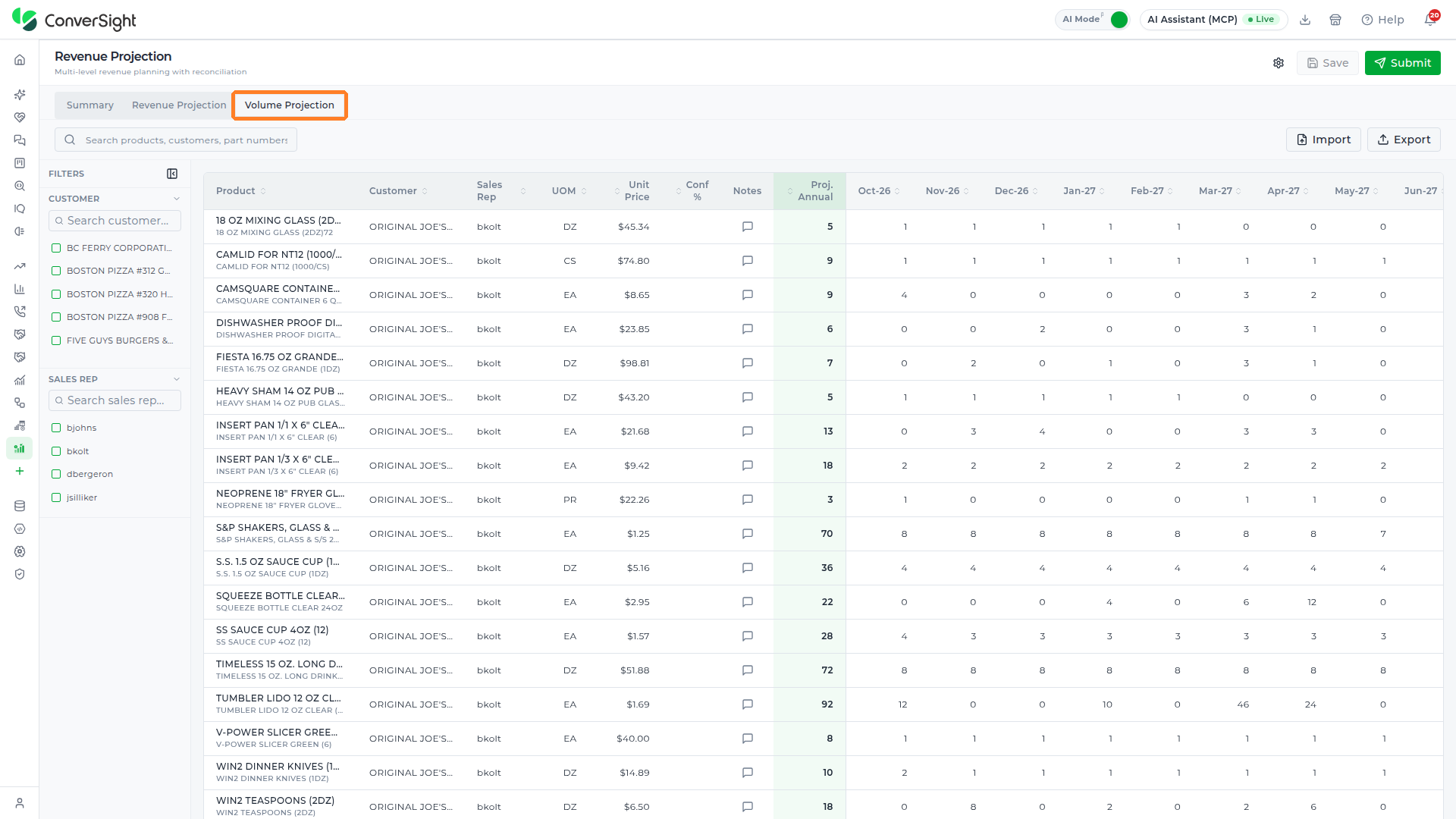
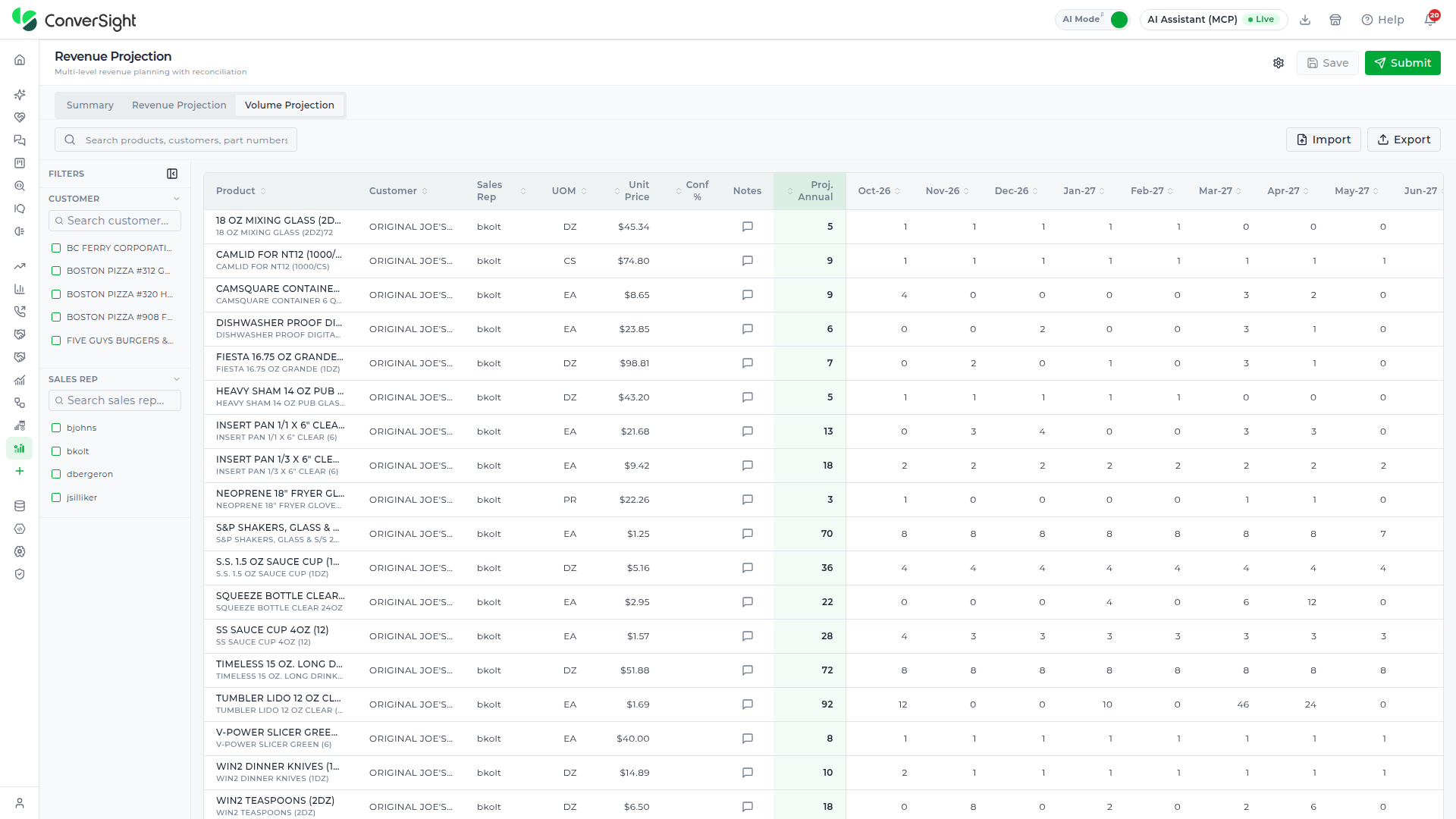
Revenue and volume are two different lenses on the same commitment — a dollar figure doesn't say how many units are actually moving, and a unit count doesn't say what they're worth. The Volume Projection tab covers the unit side: it lists the plan as one flat, product-level table instead of a rep/customer hierarchy — one row per product, per customer, per sales rep — so a planner can review unit-level detail without expanding a tree first. It shares the same Customer and Sales Rep filters as the other two tabs — see Filters — and, unlike the Revenue Projection tab, has no Time Period or Forecast Lines filter group of its own.
| Column | What it shows |
|---|---|
| Product | The product the row's volume figures belong to. |
| Customer | The customer this product is being planned for. |
| Sales Rep | The sales rep who owns this customer. |
| UOM | The unit of measure the volume figures are counted in, such as each (EA), dozen (DZ), or case (CS). |
| Unit Price | The price ConverSight uses to convert this product's unit volumes into revenue. |
| Confidence % | Shows a confidence percentage for the volume projection, when available. |
| Notes | Opens a popup for leaving a note against this specific product/customer row — see below. |
| Projected Annual | The total projected unit volume for this row across the full planning horizon. |
| Month columns | Splits the Projected Annual total into a projected unit volume for each month. |
A number on its own doesn't always explain itself — why a product's volume dropped, or why a figure was overridden. Click the note icon in any row's Notes column to open the Edit Notes popup, which shows the product and customer the row belongs to, a free-text box for the note, and a running character count. Click Save Notes to keep it, or Cancel to discard it.

The Summary, Revenue Projection, and Volume Projection tabs all read from the same underlying plan, giving a planner three complementary views of the same numbers — rolled up by sales rep, broken down by customer against the AI Forecast, and broken down by product in units — instead of three disconnected reports to reconcile by hand.
Importing Plan Data
The Import button lets a planner bring plan values in from a spreadsheet instead of keying every figure into the grid by hand. It sits at the top right of every tab, next to Export, on the Summary, Revenue Projection, and Volume Projection tabs alike.
Click on the Import button at the top right of the tab to open your computer's file browser, then select one Excel file (.xlsx or .xls). Import accepts a single file at a time.


Editing a Projection
Of the three tabs, only the Sales Adjusted row on the Revenue Projection tab is editable — the Summary tab and the Volume Projection tab are both read-only views of the same plan, and even on the Revenue Projection tab, the AI Forecast row itself can never be typed into directly.
Click on a green value in the Sales Adjusted row to edit that month's figure directly. The edit stays on the Sales Adjusted row without altering the AI Forecast row underneath it, so a planner's adjustment is never silently overwritten by the next forecast refresh — the model's own number and the planner's judgment call are always kept side by side. If Locked Periods is configured in Settings, periods within that locked range can't be edited even on the Sales Adjusted row, since those months are meant to represent closed actuals rather than an open projection.

Saving and Submitting a Plan
A plan doesn't have to be finished in one sitting, and it isn't visible to the rest of the organization until a planner is ready for it to be. Click on the Save button, next to Settings at the top right, to save a planner's edits without publishing them, so the plan can be picked up again later without starting over.
Click on the Submit button to publish the plan for the organization.

Submit publishes the plan for the entire organization, so review every adjustment carefully before clicking it.