Master App
Master App is Athena in Co-Pilot mode for supply chain master data management. Every planning and purchasing decision in the supply chain ultimately rests on a handful of foundational records — the items a company stocks, the vendors it buys from, the locations it stores inventory in, and the calculated numbers (lead time, safety stock, order quantities) that tie an item to a specific vendor and location. Master App is where that foundation lives: a single place to review those records, let Athena calculate the purchasing numbers that would otherwise take a planner hours to work out by hand, and push approved changes back to the connected ERP.
Master App keeps a person in the loop for every change it makes to source-of-truth data. Athena does the calculation work — averaging real order history into a lead time, or applying a formula to size a safety stock buffer — and a planner or administrator decides which of those calculated numbers to accept, override, or send on to the ERP.
What Master App Owns
| Stage | What Athena does |
|---|---|
| Signal | Pulls item, vendor, and location records, plus real order history, into Item Master, Location Master, Vendor Master, and the Planning Matrix. |
| Decision | Calculates the lead time, safety stock, and minimum order quantity (MOQ) for every item-vendor-location combination in the Planning Matrix, using history-based averages or a configurable formula. |
| Action | Lets a planner or administrator accept, override, or bulk-edit those calculated values, then writes the approved changes back to the connected ERP through Writeback. |
A typical Co-Pilot workflow
Ahead of a purchasing cycle, a planner opens Master App and switches to the Planning Matrix. Most item-vendor-location combinations already carry lead time and safety stock values Athena calculated from order history, so they need no changes. For a handful of items — a vendor that's been chronically late, or a product line that needs a higher safety stock target — the planner selects the affected rows, opens the Bulk Settings panel, and overrides how those values are calculated. Once every row that needs a human call has been reviewed, the planner opens the Writeback panel and pushes the queued changes to the ERP.
Guardrail: a Bulk Settings change can register as a pending change in the Writeback panel as soon as it's made — sometimes before Apply is even clicked — and nothing reaches the ERP until a planner reviews the queued changes and explicitly pushes them through.
What This Documentation Covers
This documentation is the reference for using Master App in the platform: how to access it, the four master tables it manages, the search, Quick Guide, settings, refresh, export, writeback, and analyze controls shared by every table, how to filter a table down, how to override Athena's calculated values, and how to push approved changes back to the ERP. If you're new to the feature, start at Accessing Master App. If you've used it before and want a specific function, the table of contents on the right covers every section.
Accessing Master App
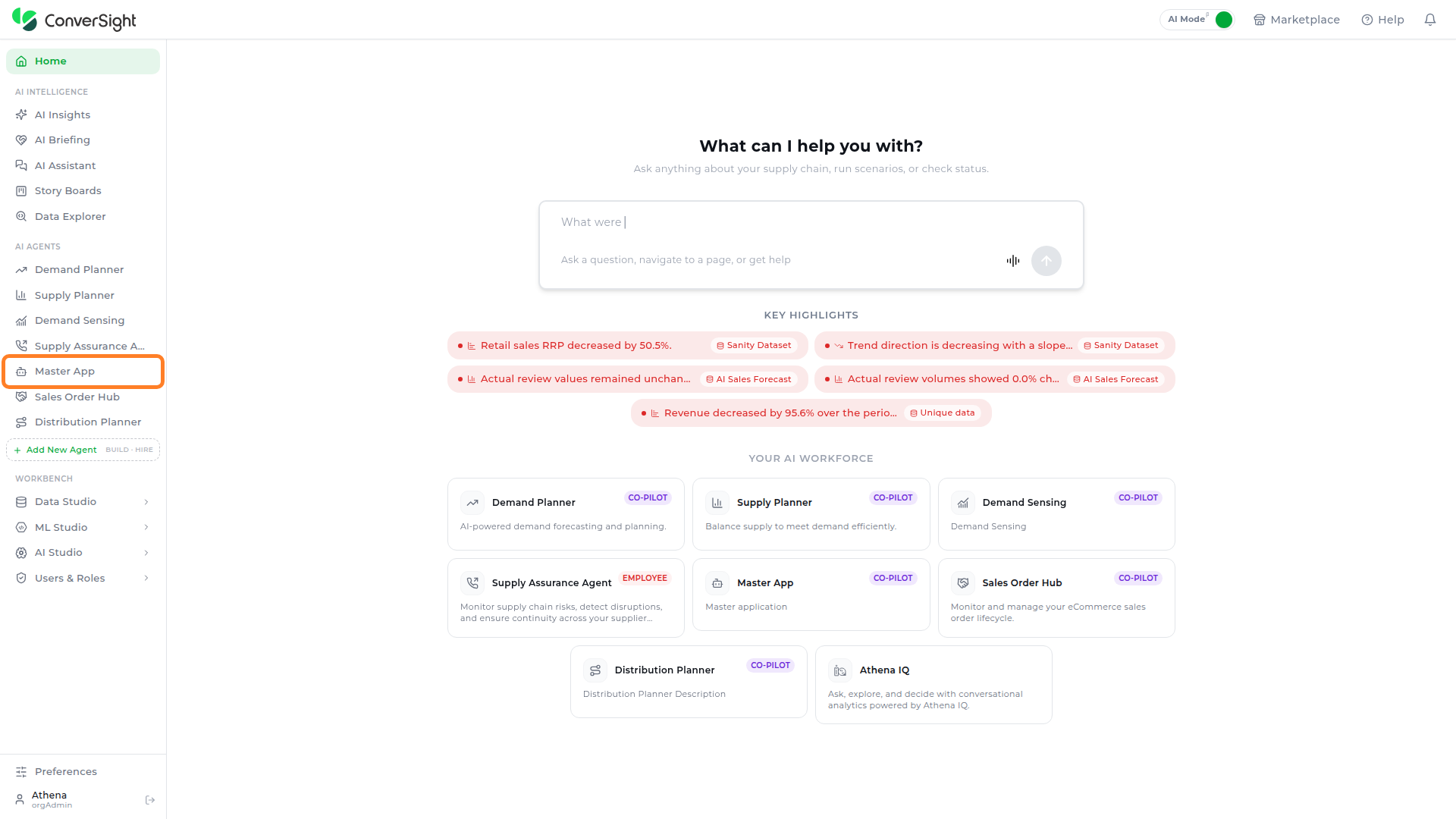
Users can access Master App by selecting Master App under the AI Agents section in the left navigation panel.
Master Tables
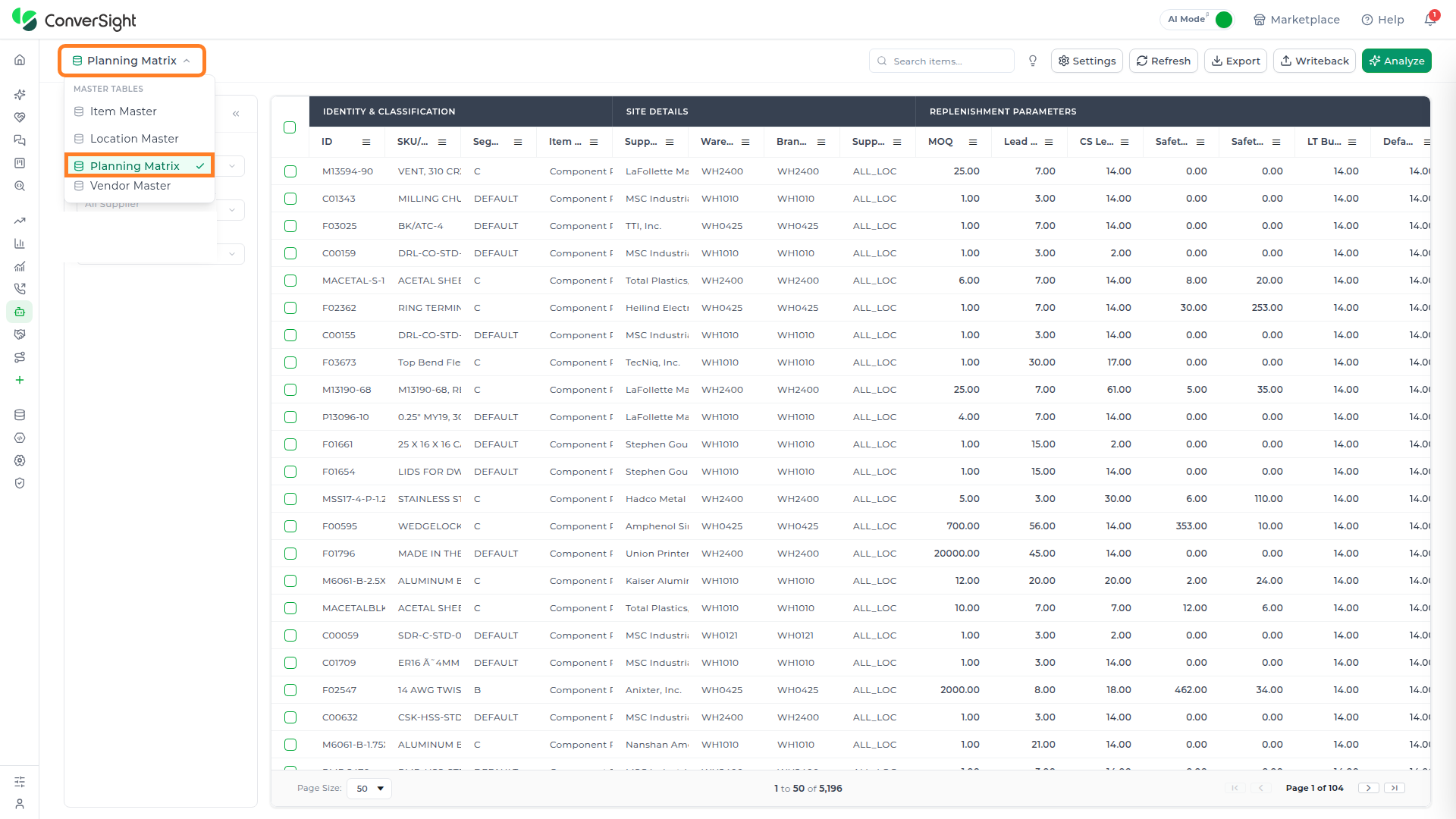
Master App opens on a Planning Matrix by default. Users can switch between the master tables by choosing the desired one from the dropdown menu.
Shared Toolbar Controls
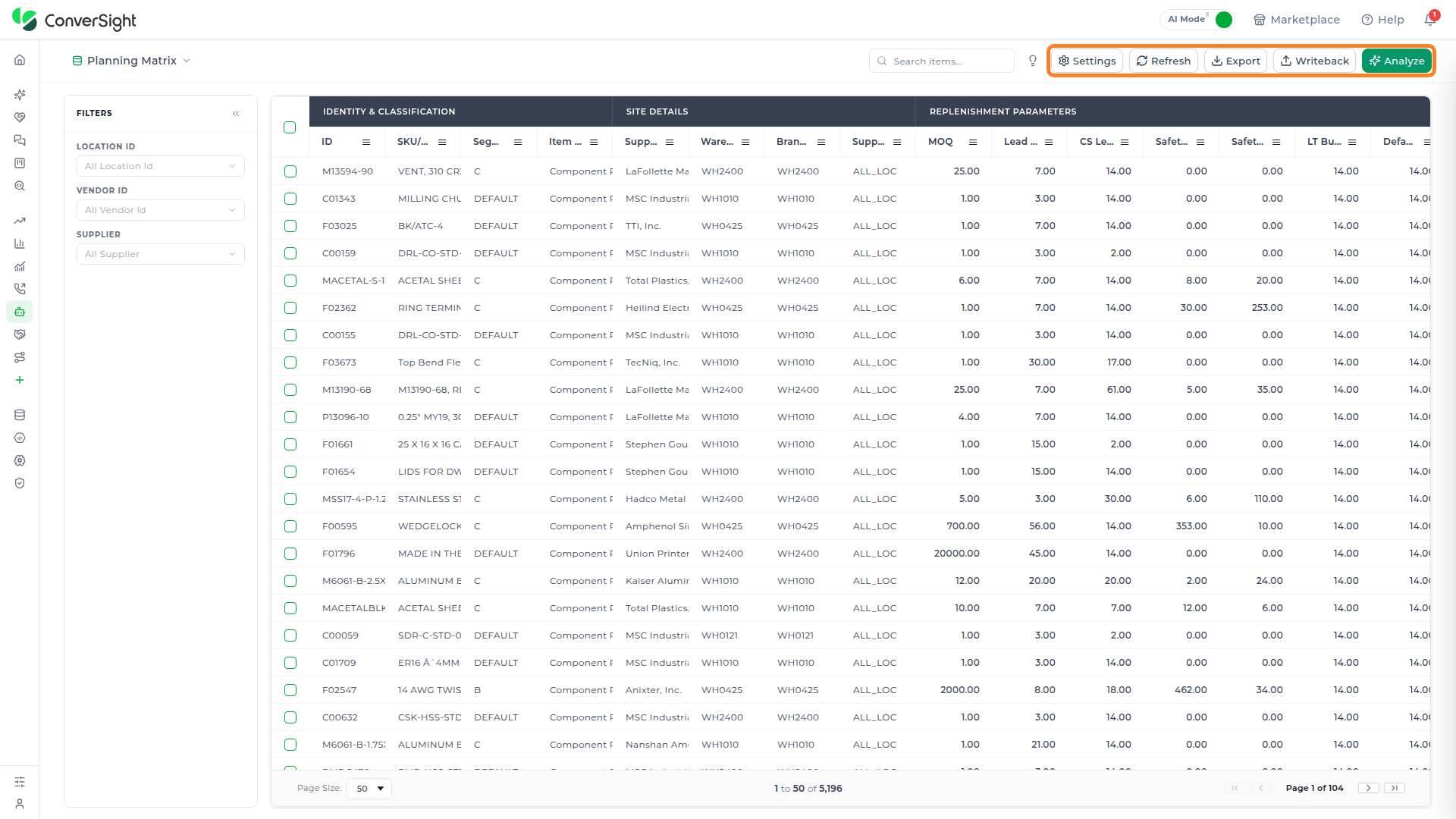
Every master table shares the same page chrome across the top of the page: a Search items box, a Quick Guide icon, and five toolbar actions — Settings, Refresh, Export, Writeback, and Analyze.
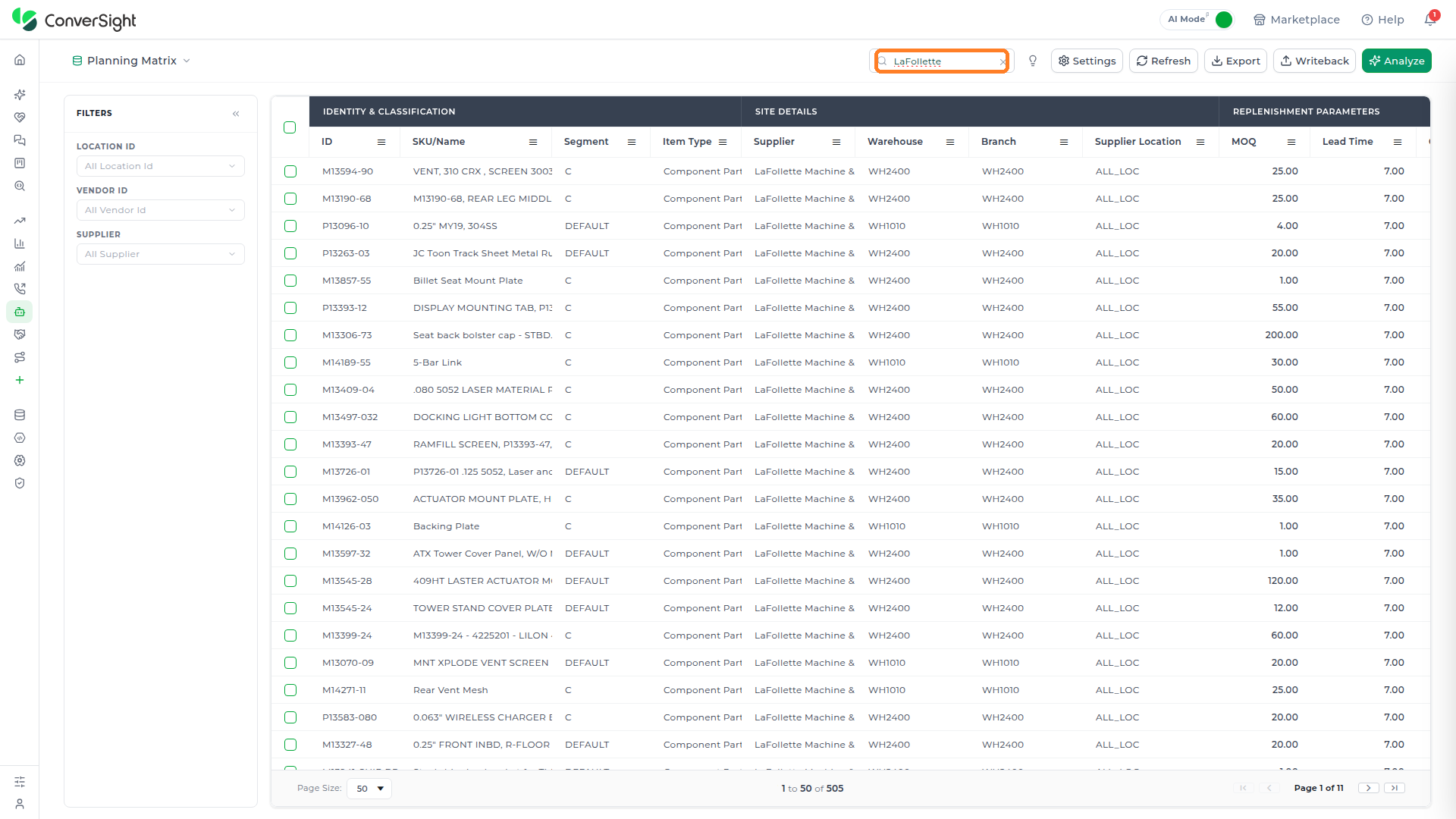
Search
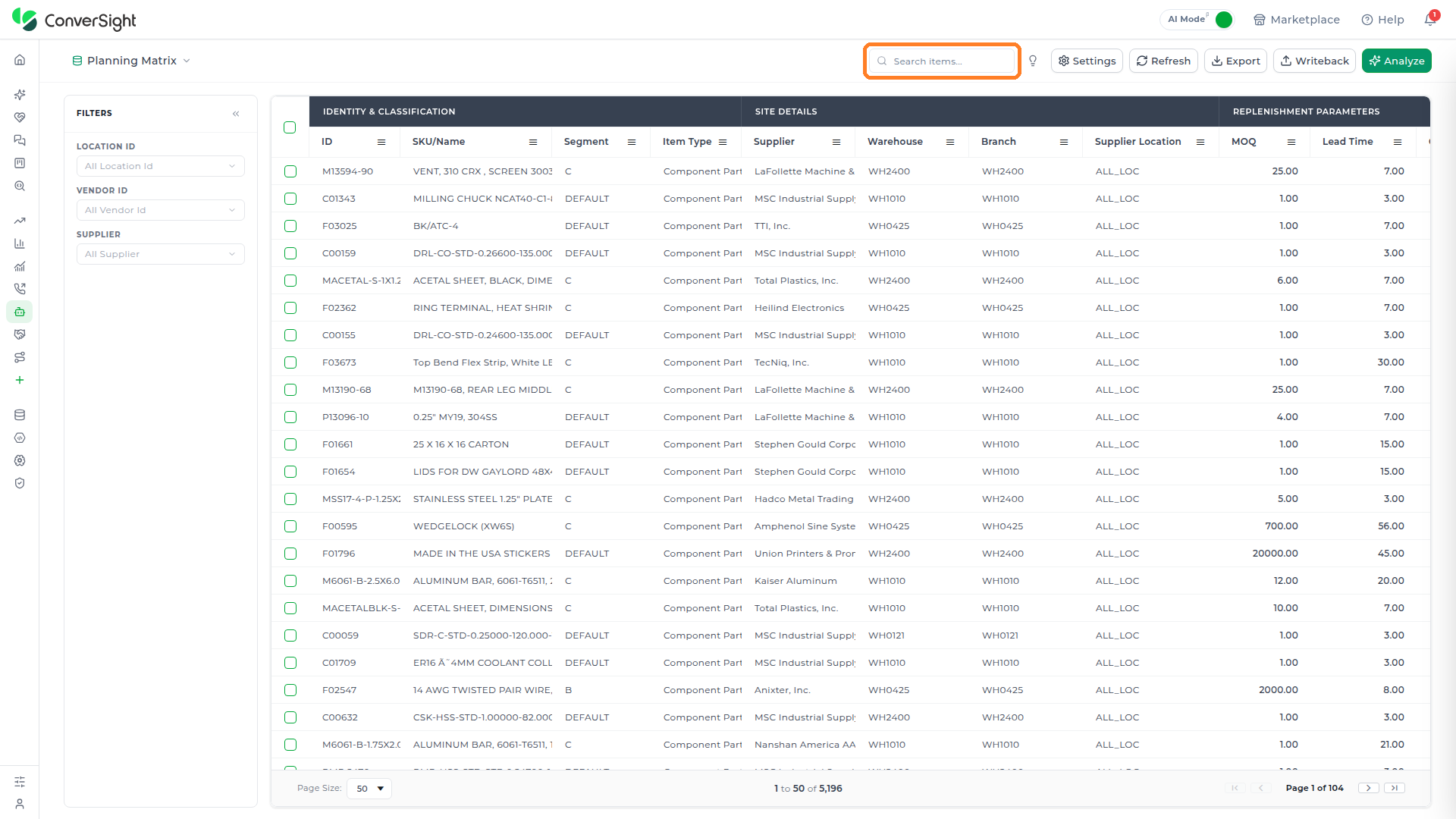
The Search items box sits at the left end of the toolbar and filters the current table's grid to rows matching whatever is typed, live, across every visible column.
Quick Guide
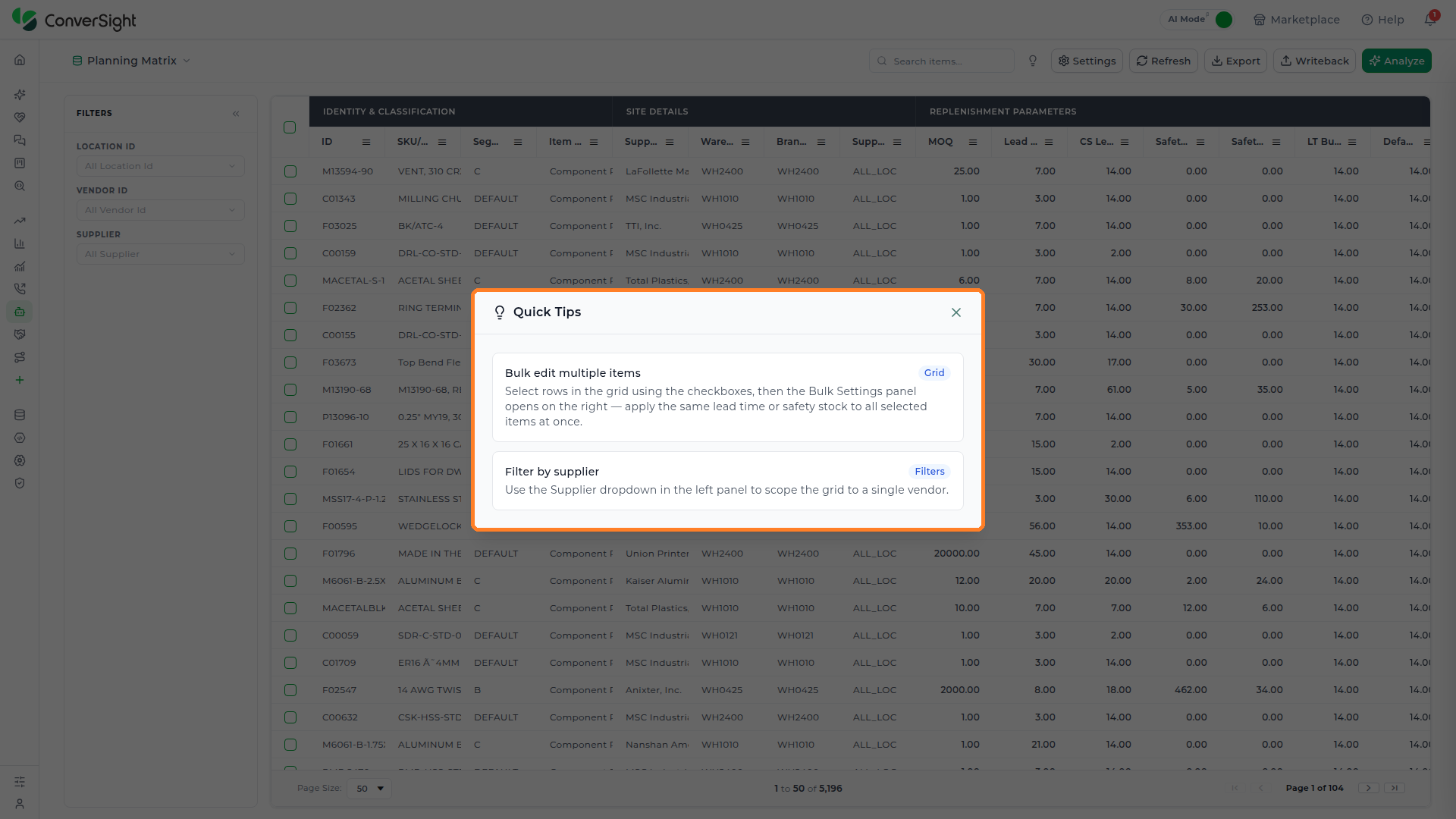
The Quick Guide icon sits between the Search box and Settings in the toolbar. Clicking it opens a short menu with three options: FAQ (common questions), Quick Tips (shortcuts and power features), and Interactive Tour (a guided walkthrough).

Selecting Quick Tips surfaces short, table-specific hints — on Planning Matrix, it calls out that selecting rows opens the Bulk Settings panel for applying the same lead time or safety stock to every selected item, and that the Supplier filter can scope the grid to a single vendor.
Settings
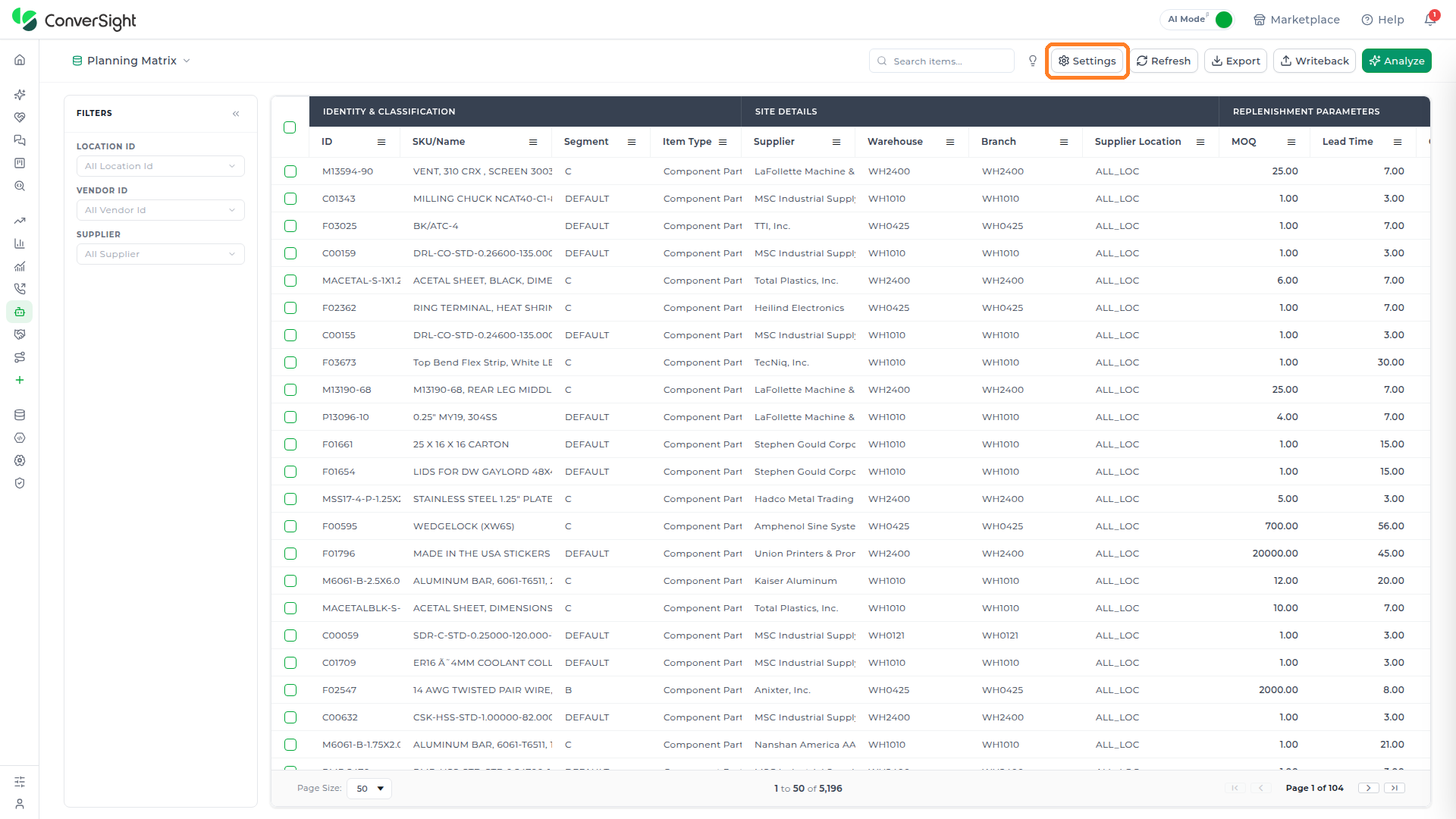
Clicking Settings in the toolbar opens the Table Settings popup — its title and description change to match whichever table is currently open.
The Settings menu contains six sections as follows:
- General
- ERP Connector
- Preferences
- Column Mappings
- Filters
- Bulk Settings
General
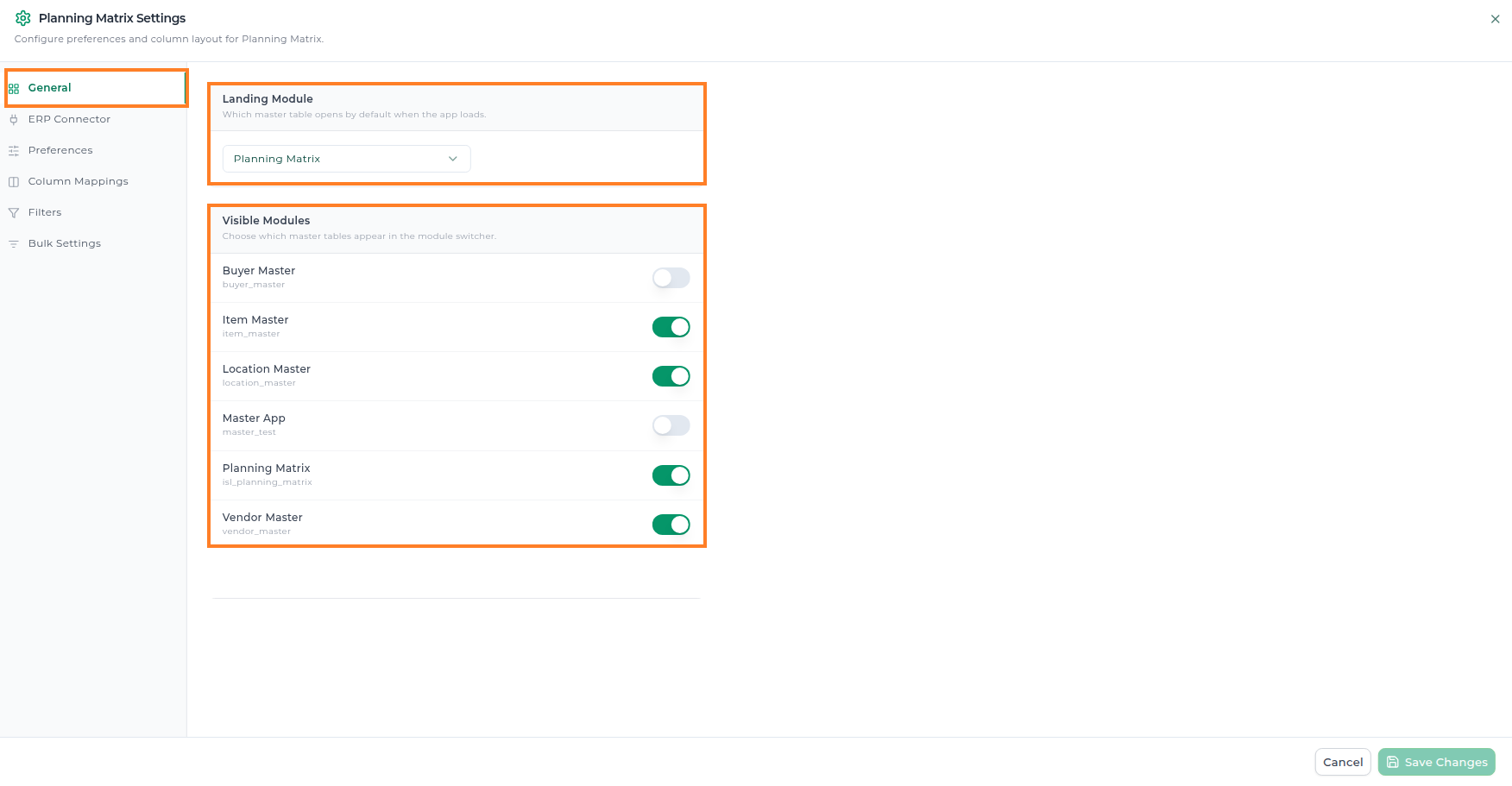
The General section controls how Master App itself is laid out for every user — which master table a user lands on first, and which of the available master tables they can switch between at all. It sets the following fields:
| Field | What it sets |
|---|---|
| Landing Module | Which master table opens by default when the app loads — for example, set to Planning Matrix. |
| Visible Modules | Each master table configured for your organization appears here as its own toggle — the exact modules shown depend on your organization's setup. Not every toggle in this list is documented as its own master table elsewhere in this guide — Buyer Master and Master App also appear as switchable modules here without a dedicated section below. |
ERP Connector
Sets the PO Submission System used for purchase orders — a dropdown that lists whichever ERP systems are configured for the org — plus an ERP Connector field below it to specify which configured connector instance of that system to submit through.

Preferences
The Preferences section holds a table's module-level defaults, broken into collapsible sections that vary by table — every table carries the same baseline section, and a table with more configured, such as Planning Matrix, carries several more on top of it.
Demand Signal
On Planning Matrix, Preferences carries a much larger set of defaults on top of the baseline Unique Id section. Demand Signal controls where Athena gets the current-period demand number it feeds into its planning calculations, and how that number is blended with forecast data for the month still in progress. It sets the following fields:
| Field | What it sets |
|---|---|
| Current Demand | The source for current demand data — for example, set to Sales Order. |
| Current Month Strategies | How to handle the current month's forecast when combining signals — for example, set to Apportion Forecast. |
| Demand Signal | The primary demand signal source strategy — for example, set to Current Demand. |
| Formula | A read-only, display-only field showing the formula Athena derives from the three settings above, for how the demand signals are combined. |

Lead Time
Lead Time controls how Athena determines the lead time value it calculates for every item-vendor-location combination on the table — whether that value comes from statistical analysis of order history or straight from the item's own master record. It sets the following fields:
| Field | What it sets |
|---|---|
| Gamma Distribution Fitting | Toggle. Whether Athena fits a gamma distribution to lead time data when calculating it statistically. |
| Lead Time Source | How lead times are determined for items — for example, set to Take From Item Master, which pulls the lead time directly from the item's own Item Master record rather than having Athena calculate it from order history. |
| Statistical Analysis Enabled | Toggle. Whether statistical analysis is enabled for ConverSight-calculated lead times. |

MOQ
MOQ sets the Calculation Method used to determine minimum order quantity, by default it is set to Auto. The same set of methods appears under MOQ Configuration in Overriding Calculated Values: Auto (Multi-Constraint Optimization), Vendor Constraints, Packaging Constraints, Financial Constraints, or Physical Constraints.

Safety Stock
Safety Stock controls which method Athena uses to size the safety stock buffer it calculates for every item-vendor-location combination on the table, and the parameters that refine that method once chosen. It sets the following fields:
| Field | What it sets |
|---|---|
| Calculation Method | The method used to calculate safety stock — for example, set to Normal Formula. The same set of methods appears under Safety Stock Configuration in Overriding Calculated Values: Auto (Intelligent Selection), Simple (Safety Days), Normal Formula, Forecast Driven, Monte Carlo Simulation, or Item Master. |
| Number Of Simulations | The number of Monte Carlo simulations run when the Calculation Method above is set to Monte Carlo Simulation — for example, set to 10000. |
| Service Level | The desired service level, a value from 0.0 to 1.0, defaulting to 0.95. |

Unique Id
Every table carries a Unique Id section — the baseline defaults present even on a table with nothing else configured — which controls how Athena builds the composite key it uses to match rows across data sources. It carries the following fields:
| Field | What it sets |
|---|---|
| Delimiter | The character used to join the Unique Id fields into a single key — for example, set to _. |
| Fields | A comma-separated list of the keys used to identify matching rows for that table — for example, a value beginning item_master.item_id,supplier.supplier_id and continuing with further keys, on Planning Matrix. |
On a table with nothing further configured, such as Item Master, this is all Preferences contains; the four sections above are specific to Planning Matrix and may differ across organizations with respect to their data.

Column Mappings
The Column Mappings section lets an administrator control the table's entire grid layout — which columns exist, how they're grouped under shared headers, and how each one behaves for the people using the table. It's organized into two subsections:
| Section | What it defines |
|---|---|
| Column Groups (Outer Headers) | The named header groups columns are nested under in the table's grid — on Planning Matrix, groups such as Identity & Classification and Site Details — plus an + Add Group control for creating new ones. |
| Columns | The individual columns that make up the table's grid — a searchable list (search via the Search columns box) showing each column's Show, Editable, Sortable, and Filterable toggles, its Width, Type, Alignment, and Group assignment, and edit/delete actions, plus + Add Custom Column for defining new ones. A summary line above the list shows how many columns are currently visible and editable out of the total configured for the table. |

Add Custom Column
Clicking + Add Custom Column above the Columns table opens the Add Custom Column popup for defining a new column on the analysis table.

The popup defines both what the new column is called and how it's calculated, along with how it should behave once it's added to the grid. It sets the following fields:
| Field | What it sets |
|---|---|
| Display Name (required) | The column's label in the grid — for example, "Average Cost." |
| Accessor Key (required, no spaces) | The column's underlying key, used to reference it from formulas elsewhere on the table — for example, average_cost. |
| Description | An optional note explaining what the column represents, for anyone editing it later. |
| Formula | An optional calculation for the column's value, written using other columns' accessor keys as variables — for example, 2 * recommended_qty + safety_stock. Leave it blank for a plain, manually entered column. |
| Type | How the column's values are presented, such as Text or Number. |
| Width | The column's width in the grid, in pixels — defaults to 120px. |
| Alignment | The column's text alignment — Left, by default. |
| Group | Which Column Group (outer header) the column is nested under, or — None — to leave it ungrouped. |
| Visible | Whether the column shows in the grid at all — on by default. |
| Sortable | Whether users can sort the grid by this column — on by default. |
| Filterable | Whether the column can be used to filter the grid — on by default. |
| Editable | Whether cell values in this column can be edited directly in the grid — off by default. |
Click Cancel to close without creating the column, or Add Column to create it.

Filters Section
The Filters section lets an administrator control which columns a table's users can filter by, and how each of those filters is presented in the left-hand Filters panel. Each row in the Filter Groups list sets the following fields:
| Field | What it sets |
|---|---|
| Column Field | The underlying column the filter applies to — for example, location_id. |
| Display Label | The filter's label in the Filters panel — for example, "Location Id" for the location_id column. |
| Filter Type | The kind of filter control shown in the Filters panel — for example, Select, for a dropdown of distinct values. |
On Planning Matrix, three filter groups are already defined this way: Location Id, Vendor Id, and Supplier, each set to the Select filter type.

Add Filter
Clicking + Add Filter above the Filter Groups table appends a new, blank row to the table instead of opening a separate popup.

An administrator needs to pick a Column Field and, typically, a Display Label before the filter is meaningful. Click Save Changes to publish it to the live Filters panel. Like any other row, it can be reordered with the arrows on its left or removed with the Delete icon on its right.

Bulk Settings
The Bulk Settings section lets an administrator build the schema for the Bulk Settings panel that opens when a planner selects one or more rows on the table — which sections appear in that panel, and which fields live inside each one. Sections are added via a + Add Section control, each with its own Visible toggle, and can be expanded to configure their individual fields, each with the following:
| Field | What it sets |
|---|---|
| Column ID | The underlying column the field applies to — for example, LT Bulk Value. |
| Display Label | The field's label in the Bulk Settings panel — for example, "Bulk Lead Time (Days)" for the LT Bulk Value column. |
| Field Type | The kind of input control shown in the Bulk Settings panel — for example, Number, Boolean, Select, or Read-only. A Select field also has its own expandable Options list. |
| Editable | Toggle. Whether the field can be edited in the Bulk Settings panel. |
| Visible | Toggle. Whether the field shows in the Bulk Settings panel. |
The + Add Field control below each section's field list adds another field to it. On Planning Matrix, two sections show how this comes together:
- Lead Time Configuration: visible in the live panel, with fields for Enable Lead Time Analysis, Lead Time Source, Bulk Lead Time (Days), and Minimum Lead Time (Days). Covered in Overriding Calculated Values.
- Demand Signal Configuration: built with fields for Demand Signal Strategy, Current Month Strategy, and a read-only Demand Formula, with its own Visible toggle off — so it's configured but doesn't currently appear in the live Bulk Settings panel.

Refresh
Refresh reloads the current table's data without re-running its underlying calculation.
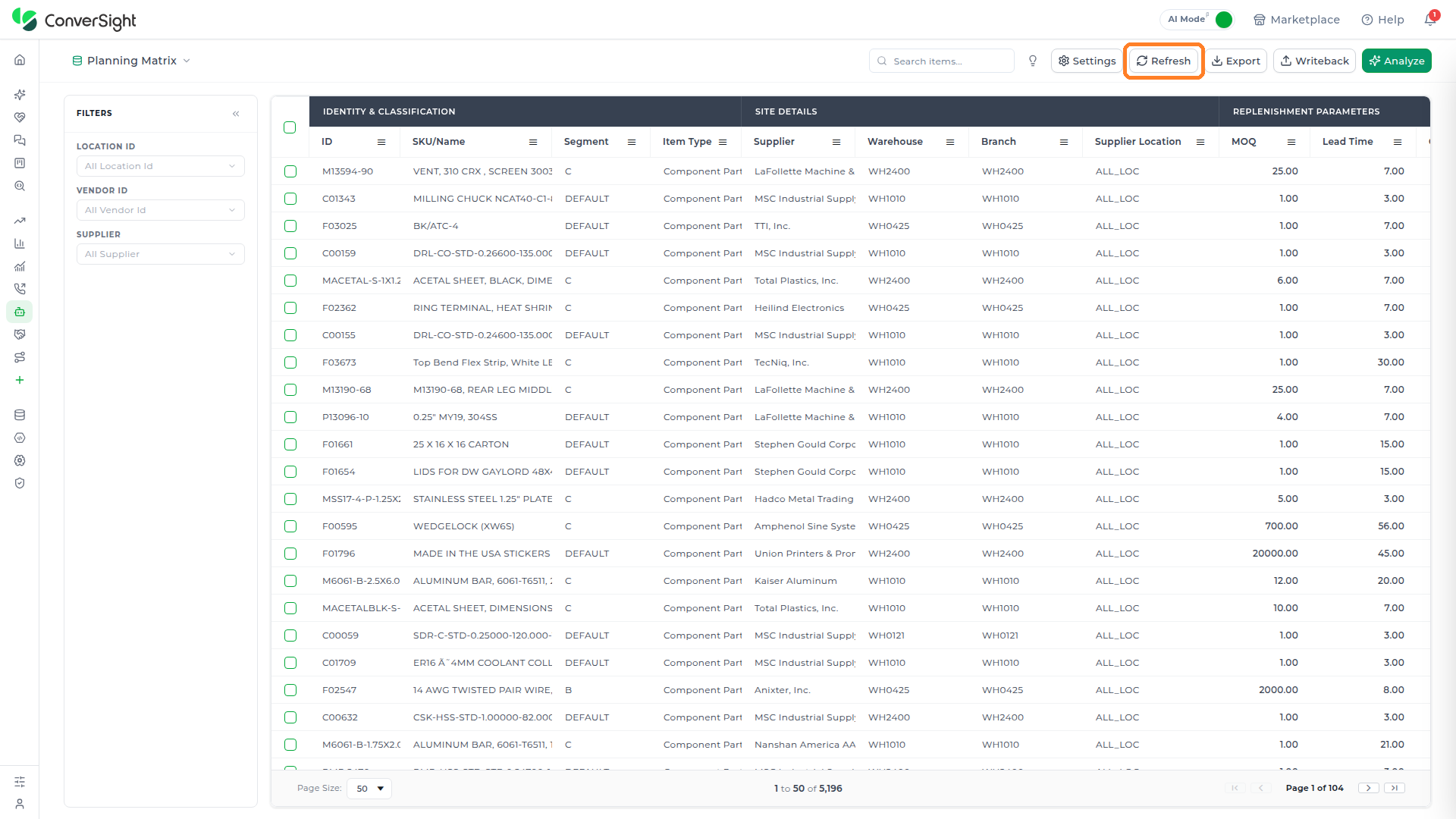
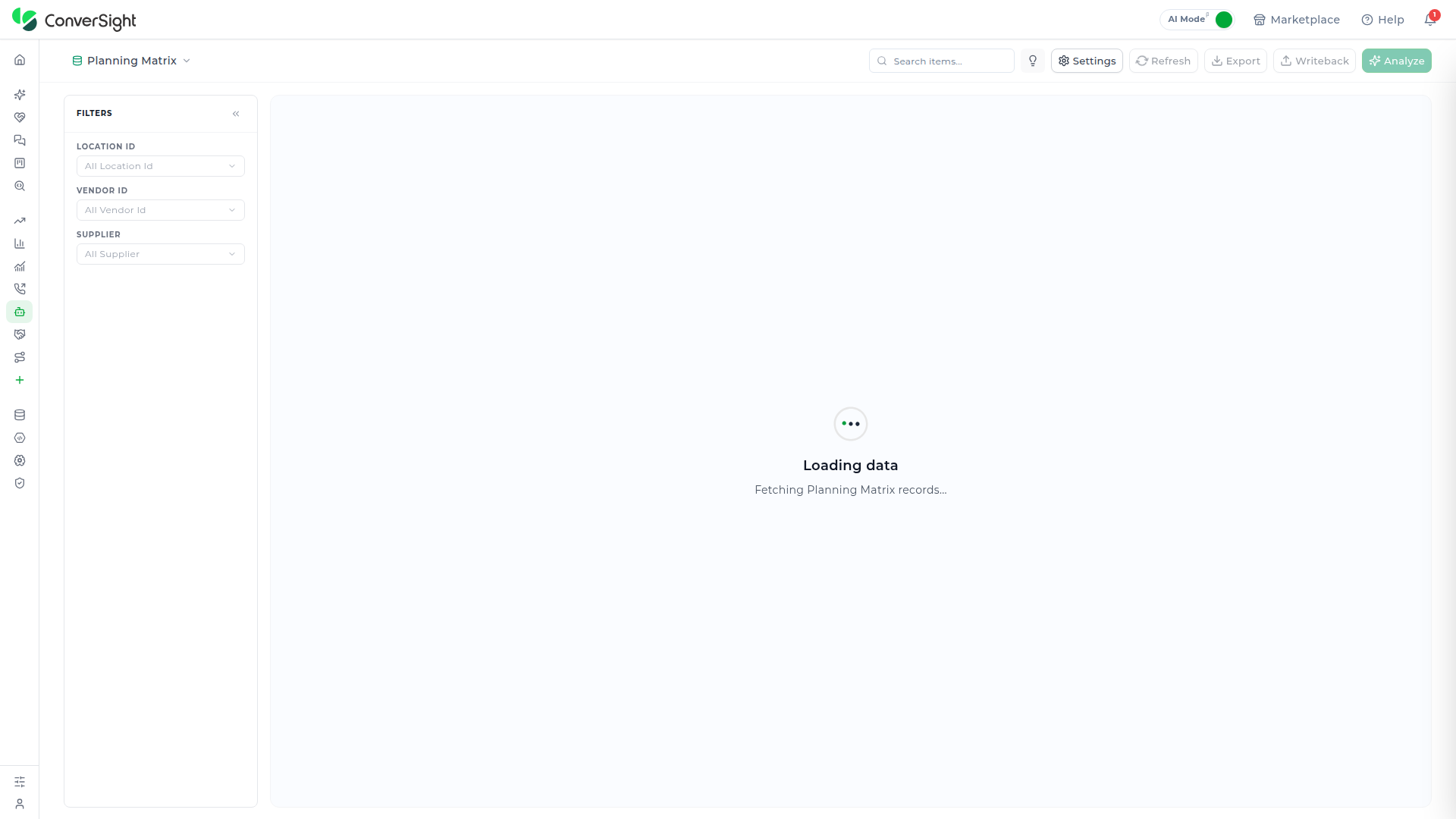
Clicking it briefly replaces the grid with a Loading data / Fetching [table name] records message while the reload runs, then a Data refreshed confirmation appears once it completes.
Export
Export downloads the table's current view as a CSV file immediately.

Writeback
Clicking Writeback in the toolbar opens a panel titled for the connected ERP it writes to, listing every field-level change waiting to be sent there. With nothing pending, it shows a checkmark and No pending changes to push.
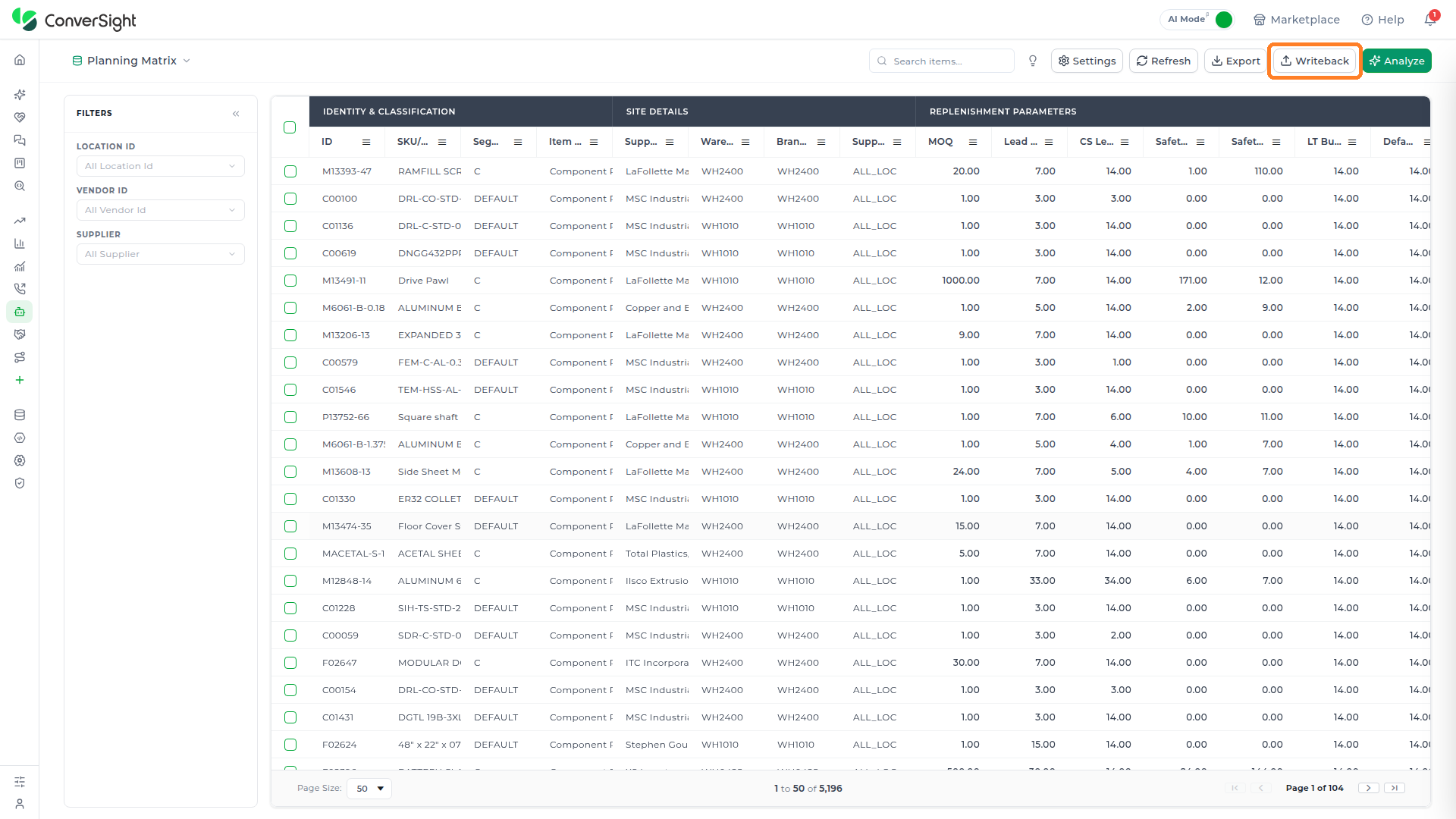

Once a change is queued, a summary line appears right under the Writeback title — for example, 1 change across 1 record — and each affected record gets its own bordered card below it.
The record's ID with a Revert link beside it to undo just that one record's change, followed by every field it changed, shown as the old value struck through next to the new value. In the example below, a record has its MOQ Method changed from AUTO to VENDOR.

Discard all clears every pending change without sending anything. Once at least one change is queued, the Push button relabels itself with the number of queued changes — Push 1 change for a single one — and becomes enabled; clicking it sends the queued changes to the ERP.
Publishing is a deliberate, separate action from overriding a value — applying a Bulk Settings change only queues it; nothing reaches the ERP until the Push button is clicked in the Writeback panel.
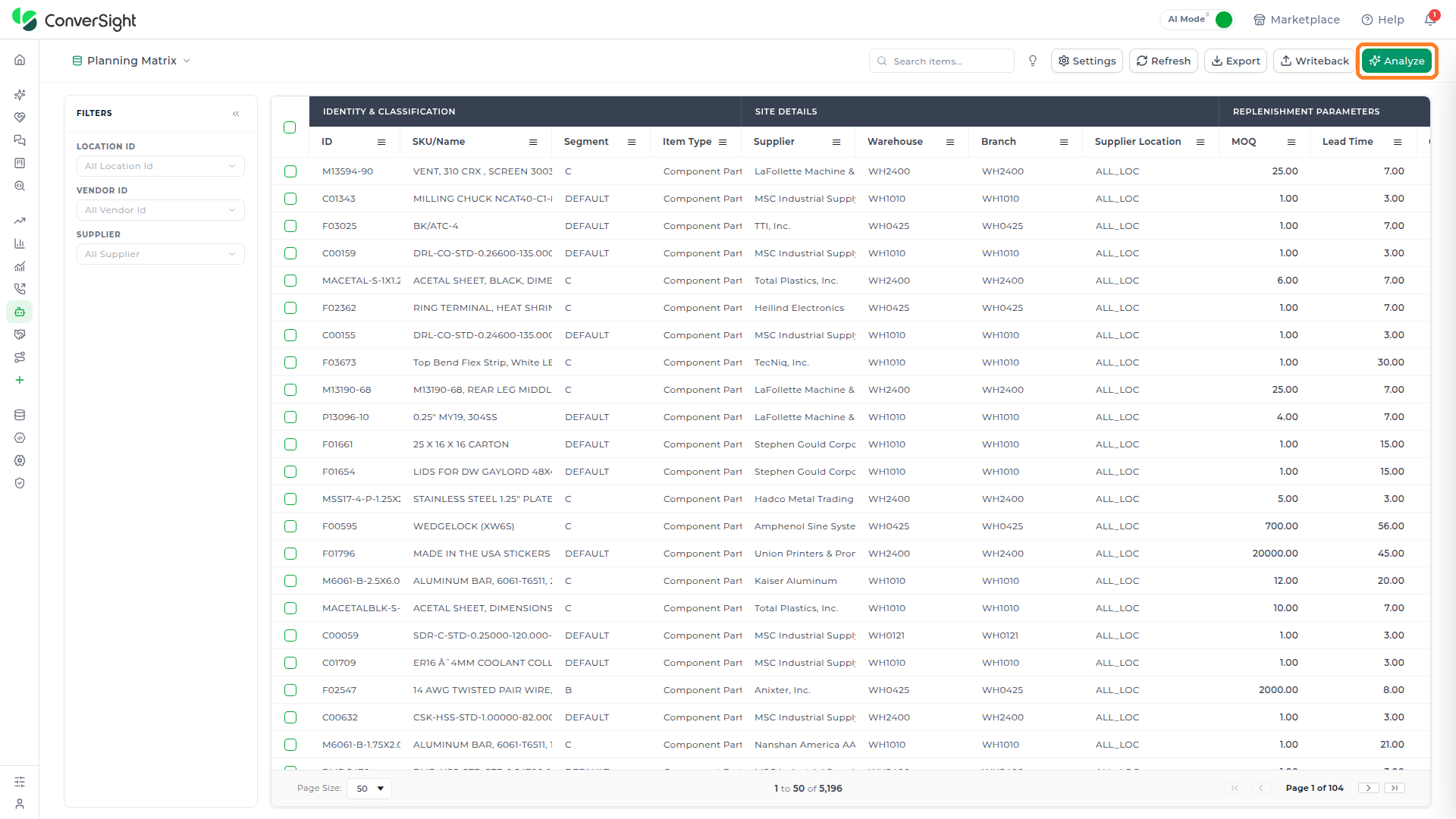
Analyze
Analyze runs (or re-runs) Athena's underlying calculation for the current table. On Item Master, Location Master, and Vendor Master, this pulls in the item, vendor, and location records that populate the grid; on Planning Matrix, it goes further and also calculates the lead time, safety stock, and MOQ for every item-vendor-location combination. Either way, the grid stays empty until Analyze has run at least once, and running it again recalculates the table from scratch.
Filters
The Filters panel on the left of any master table narrows its grid down to matching rows, and the fields it offers change depending on which table is selected.

Choosing a value from a filter's dropdown applies it to the grid immediately. The fields on offer depend on the table:
| Table | Filters offered |
|---|---|
| Planning Matrix | Location Id, Vendor Id, Supplier |
| Vendor Master | Status, Payment Terms |

Item Master
Item Master lists every item a company stocks, one row per item. Its columns are organized into logical groups; the exact columns and groupings shown depend on how Item Master is configured for your organization.

| Column group | Typically includes |
|---|---|
| Identity | ID, code, name, description, type, category |
| Status & Classification | Active, purchasable, saleable, stocked, dropship |
| Planning Attributes | Item manager, lot control, serialization, make/buy, replenishment |
| Commercial | Cost, price, currency |
| Supply Chain | Lead time, safety stock, order quantities, preferred vendor |
| Kits & Substitutes | Kit relationships |

The Item Manager column holds the name of the person responsible for purchasing decisions on that item, and is populated for most, but not all, items.

Location Master
Location Master lists every warehouse and branch a company operates, one row per location. The number of locations and the exact columns shown depend on your organization's setup.

| Column group | Typically includes |
|---|---|
| Identity | ID, code, name, type, ownership, active status |
| Address & Contact | Address |
| Compliance & Security | GL account, notes |

Vendor Master
Vendor Master lists every vendor and internal contact a company transacts with, one row per record. Records mix vendor-type rows for external suppliers with employee-type rows for internal staff.

| Column group | Typically includes |
|---|---|
| Identity | ID, code, name, type, tier level, status, active flag |
| Commercial Terms | Currency, payment terms |
| Contacts & Integration | Primary contact, preferred contact method, internal reference IDs |
Its Filters panel offers Status and Payment Terms. The Primary Contact column stores each contact's name, email, phone, website, and designation together as a single raw object rather than as separate columns.

Planning Matrix
Planning Matrix lists every item-vendor-location combination a company plans against, one row per combination. The exact columns shown depend on how Planning Matrix is configured for your organization.
| Column group | Typically includes |
|---|---|
| Identity & Classification | ID, SKU/name, segment, item type, supplier |
| Site Details | Warehouse, branch, supplier location |
| Replenishment Parameters | MOQ, lead time, CS lead time, safety stock qty, safety days LT, bulk value, default LT, lead time method, PO cycle days |
Its Filters panel offers Location Id, Vendor Id, and Supplier.

Overriding Calculated Values
The Bulk Settings panel empowers planners and administrators to override how Athena calculated lead time, safety stock, or MOQ for many rows at once, so a chronically late vendor or a product line that needs a different buffer doesn't mean editing records one by one. Selecting one or more rows with the checkboxes on the left of any populated table opens the panel on the right, showing how many rows are currently selected.

The panel is organized into four sections, each covering a different calculated value.
Lead Time Configuration
Sets the Lead Time Source for the selected rows:
| Option | What it does |
|---|---|
| Bulk Action | Applies a single fixed number, typed into the Bulk Lead Time (Days) field below it, to every selected row. |
| ConverSight Calculated | Uses Athena's own average lead time from real order history. |
| Item Master | Pulls whatever lead time is already set on each item's own Item Master record. |

A Default Lead Time (Days) field sets the fallback used when a row has no other value available, alongside a Use Order Cycle toggle and a PO Cycle Days field for tying lead time to the purchasing cycle.
Safety Stock Configuration
Sets the Calculation Method used to size the selected rows' safety stock buffer, one of six available options: Auto (Intelligent Selection), Simple (Safety Days), Normal Formula, Forecast Driven, Monte Carlo Simulation, or Item Master.

Service Level Bulk (%), Safety Days Input (Days), and Safety Days Bulk (Days) fields refine whichever method is chosen.
MOQ Configuration
Sets the Calculation Method for minimum order quantity, one of five available options: Auto (Multi-Constraint Optimization), Vendor Constraints, Packaging Constraints, Financial Constraints, or Physical Constraints.

Unique ID Configuration
Shows the Unique ID Fields that identify a Planning Matrix row (item_master.item_id, supplier.supplier_id, and similar keys) and a Strict Validation toggle, for administrators reconciling how rows are matched.

Click Cancel to close the panel without keeping any change, or Apply to stage the change for the selected rows. Applying a change does not send it to the ERP immediately — it becomes a pending change in the Writeback panel.
Changing a value in the Bulk Settings panel — for example, selecting a Lead Time Source option — can register immediately as a pending Writeback change, before Apply is clicked. Always check the Writeback panel before assuming no change is queued, and use Discard all there to clear anything unintended.