Preferences
Preferences is the per-user control panel — separate from the org-level governance that Users & Roles handles. Every user has Preferences, and it's where individual account details, password, access requests on behalf of someone else, working defaults, and support links all live. One menu at the bottom of the sidebar, available to anyone signed in.
Accessing Preferences
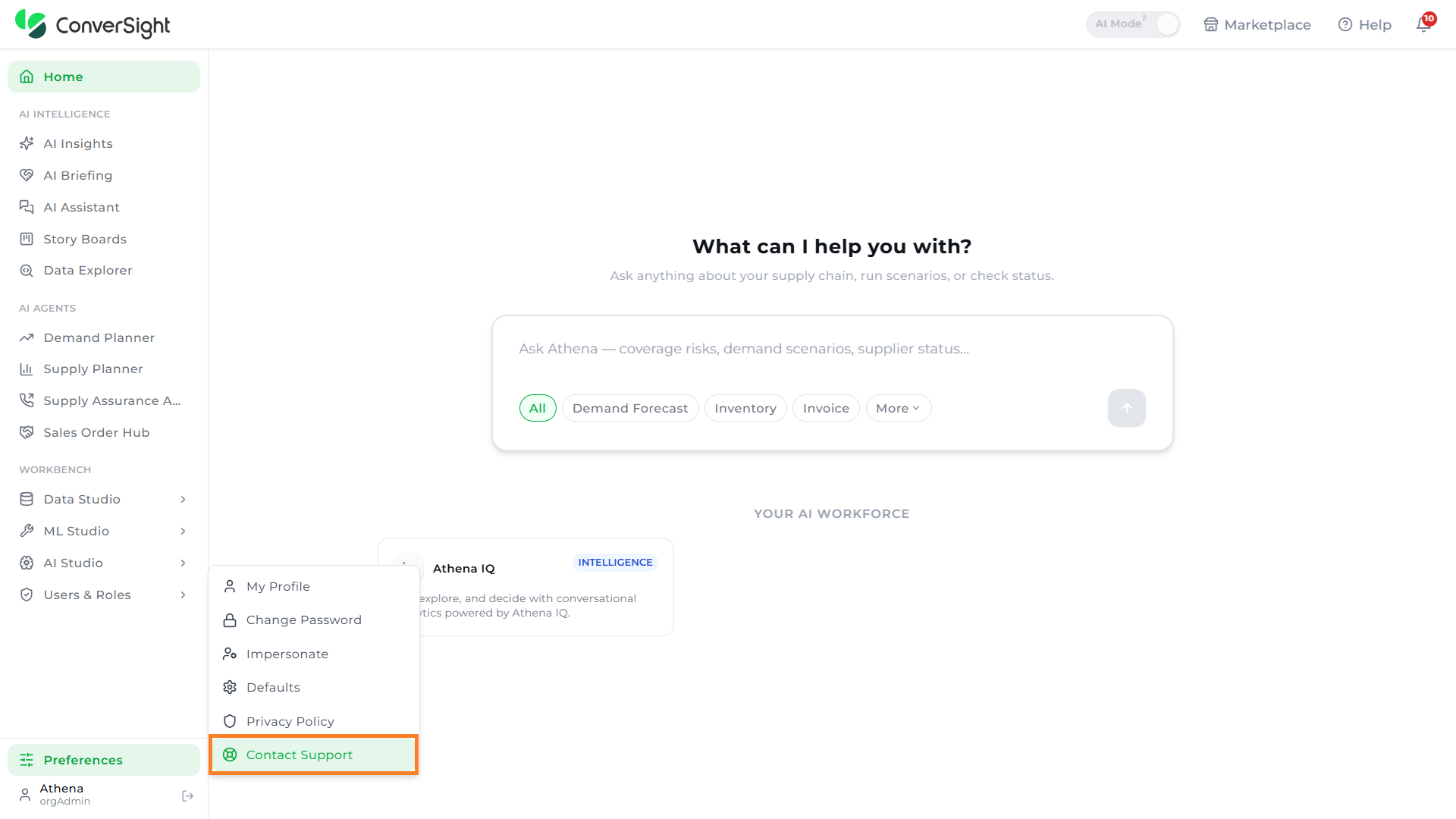
Click on the Preferences option in the bottom-left of the sidebar to open the Preferences menu.
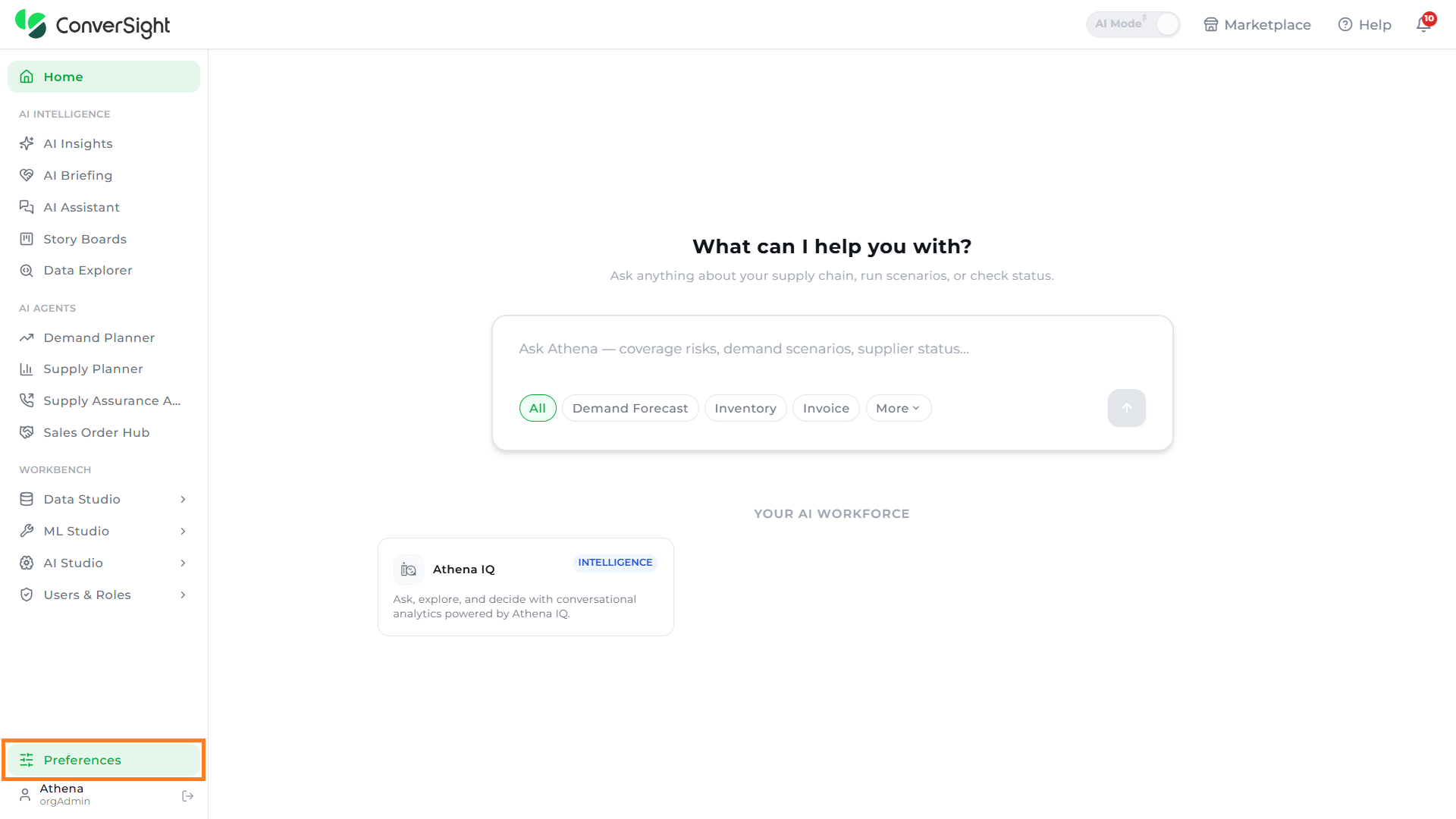
The Preferences menu surfaces the following options:
| Option | Description |
|---|---|
| My Profile | Opens a form to update personal details such as name, mobile number, display name, and designation. |
| Change Password | Opens a form to set a new password by entering the current password and confirming the new one. |
| Impersonate | Opens the Application Access dialog to request access to another user's account or review existing access requests. |
| Defaults | Opens a dialog to control day-to-day defaults such as Ignore Zero and the Preferred Landing Page. |
| Privacy Policy | Opens the ConverSight Privacy Policy in a new browser tab. |
| Contact Support | Opens the support contact channel in a new browser tab. |
My Profile
The My Profile option lets users review and update their personal account information.
Click on the My Profile option in the Preferences menu to open the My Profile dialog.
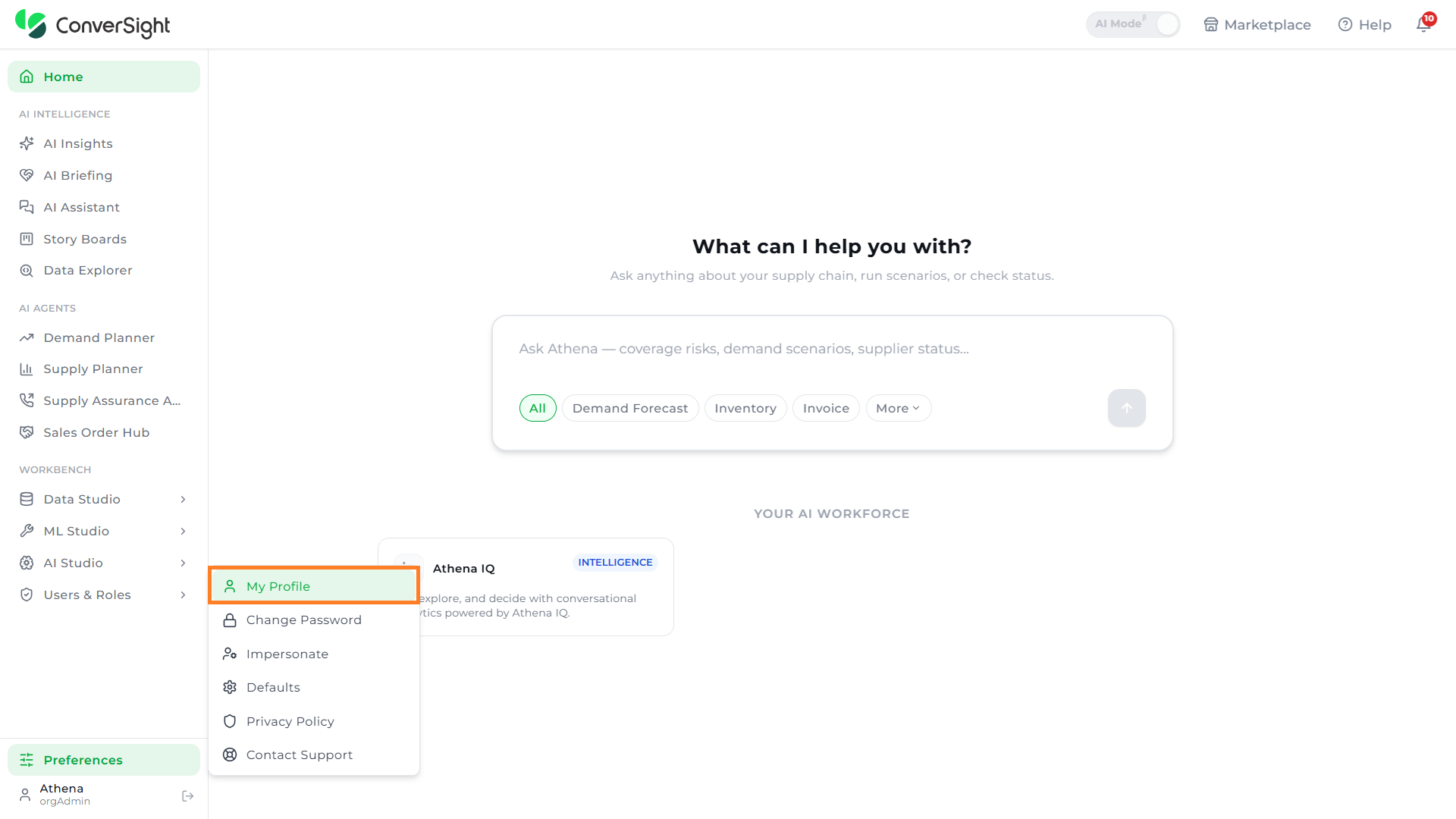
The My Profile dialog exposes the following fields:
| Field | Description |
|---|---|
| First Name | The user's first name. Required. |
| Last Name | The user's last name. Required. |
| The user's login email. Displayed as read-only. | |
| Mobile | The user's contact phone number. |
| Display Name (Alias) | The name shown across the platform when greeting or referring to the user. Required. |
| Designation | The user's job title or role label. Required. |
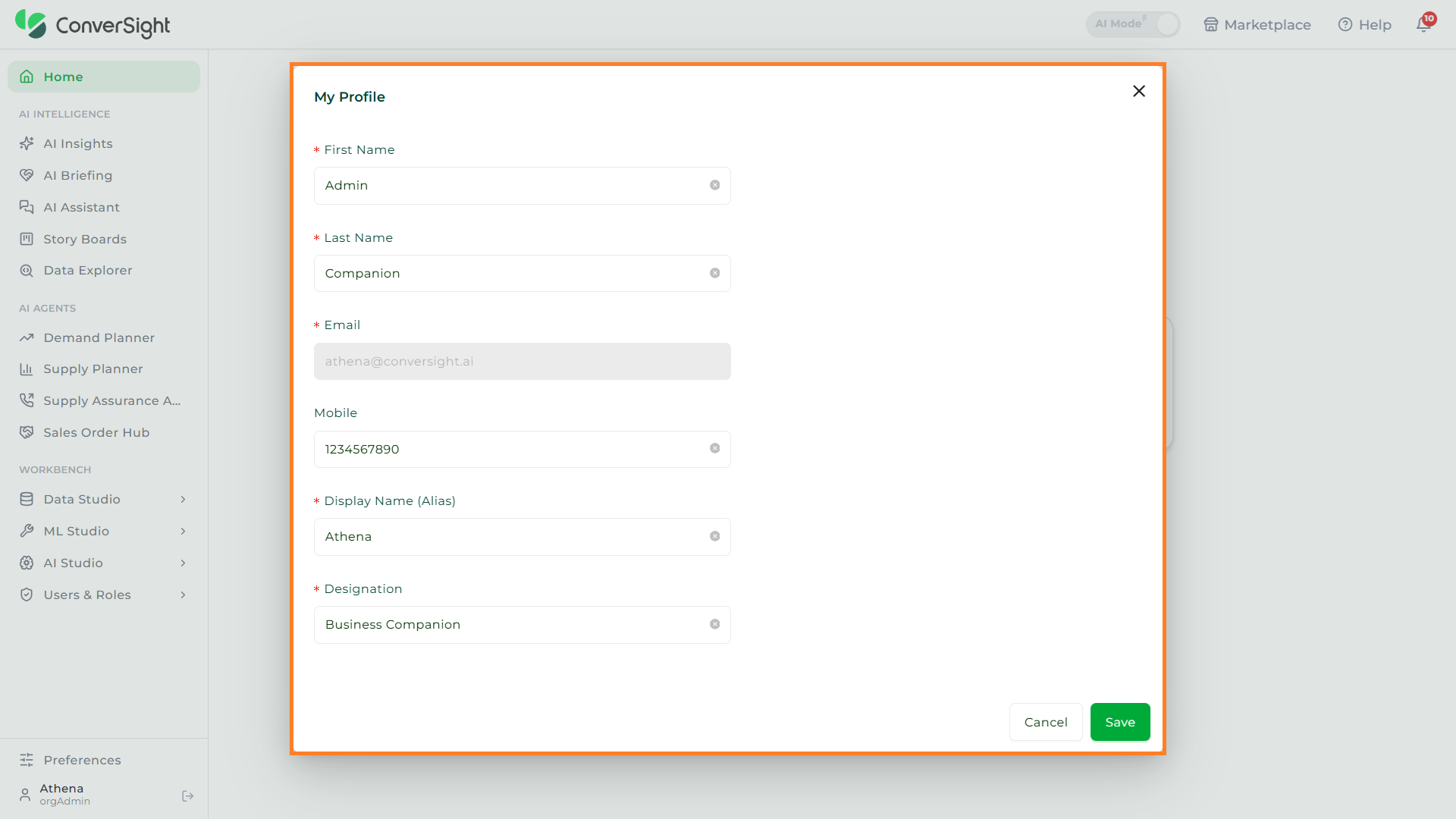
Click on the Save button to save the updated profile, or click on the Cancel button to discard the changes.
Change Password
The Change Password option lets users update their account password securely from inside the platform.
Click on the Change Password option in the Preferences menu to open the Change Password dialog.
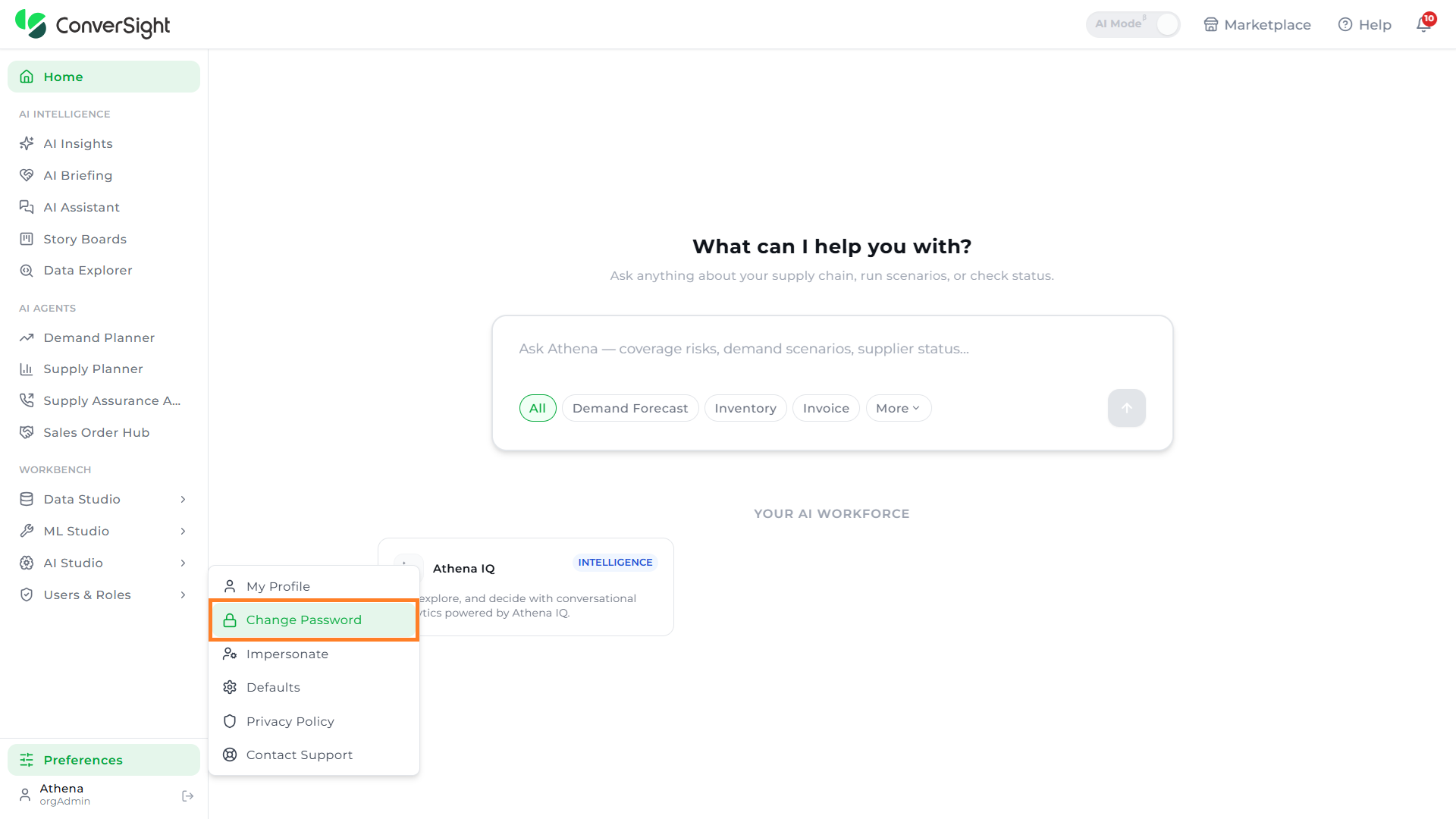
The Change Password dialog has three fields:
- Current Password: Enter the password currently used to sign in. A green check appears once the entered password is recognized.
- New Password: Enter the new password to use going forward.
- Confirm Password: Re-enter the new password to confirm it matches.
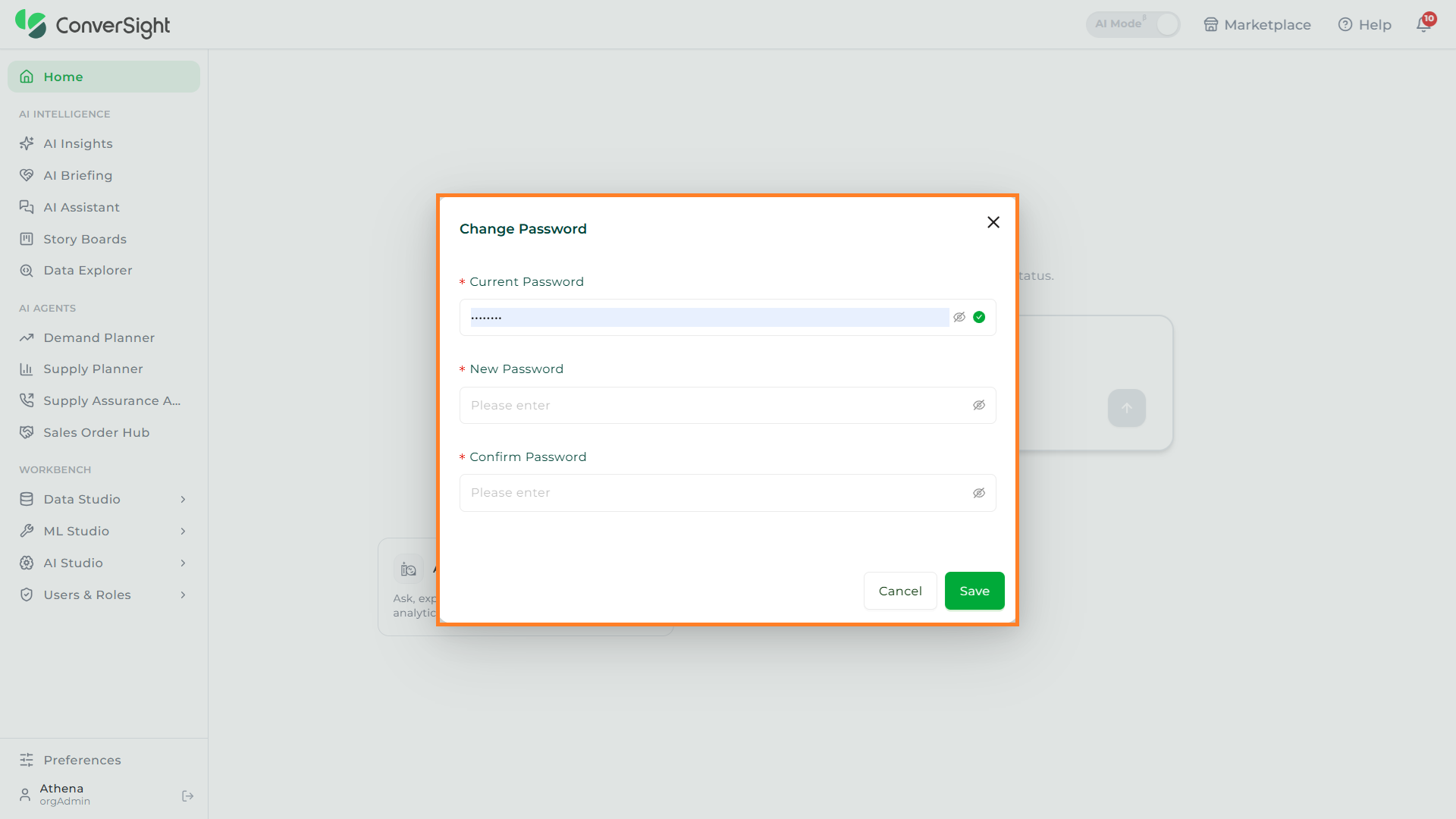
Click on the Save button to update the password, or click on the Cancel button to keep the existing password.
Impersonate
The Impersonate option lets users send access requests to another user's account and review pending requests received on their own account, all from a single Application Access dialog.
Click on the Impersonate option in the Preferences menu to open the Application Access dialog.
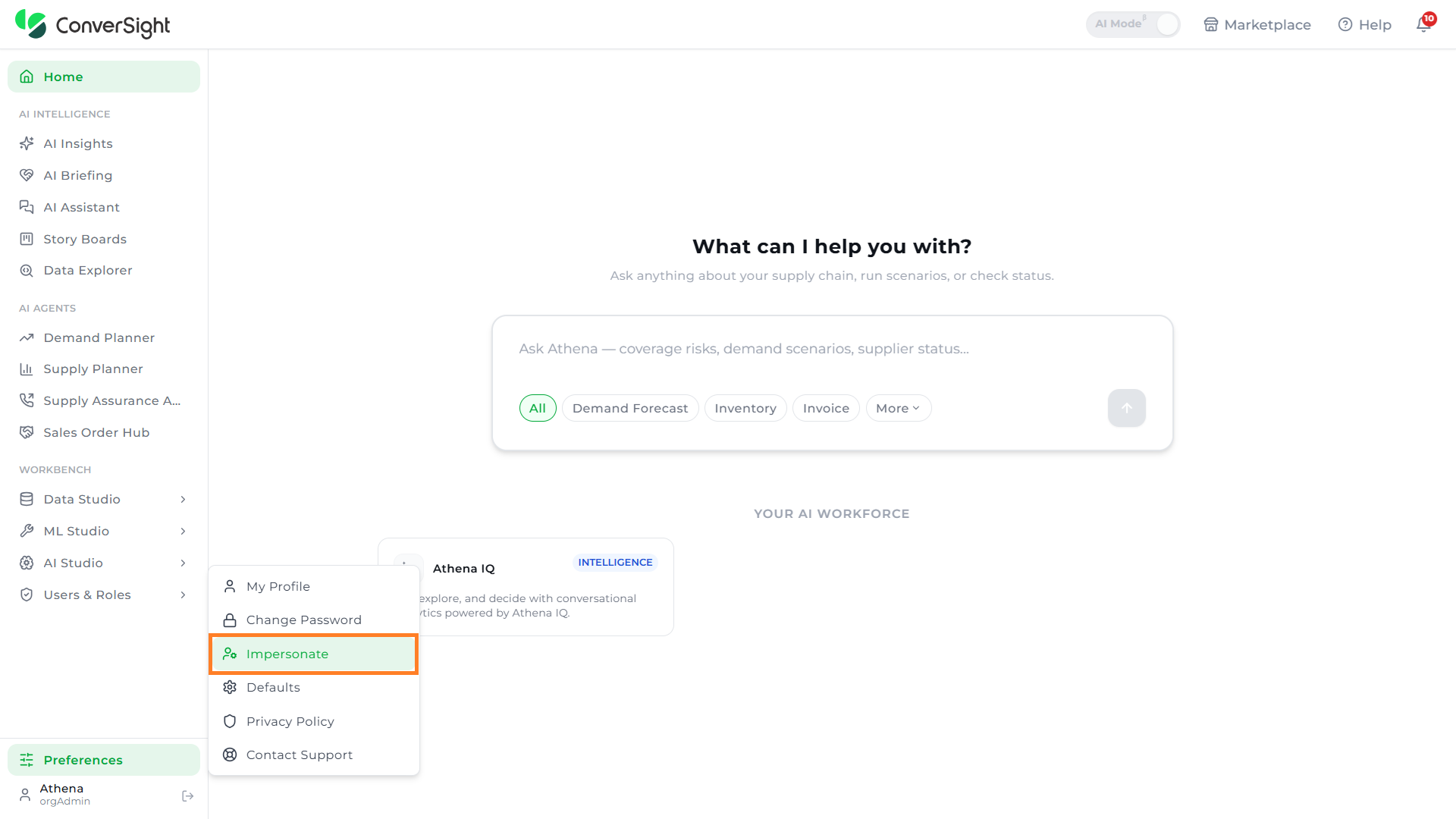
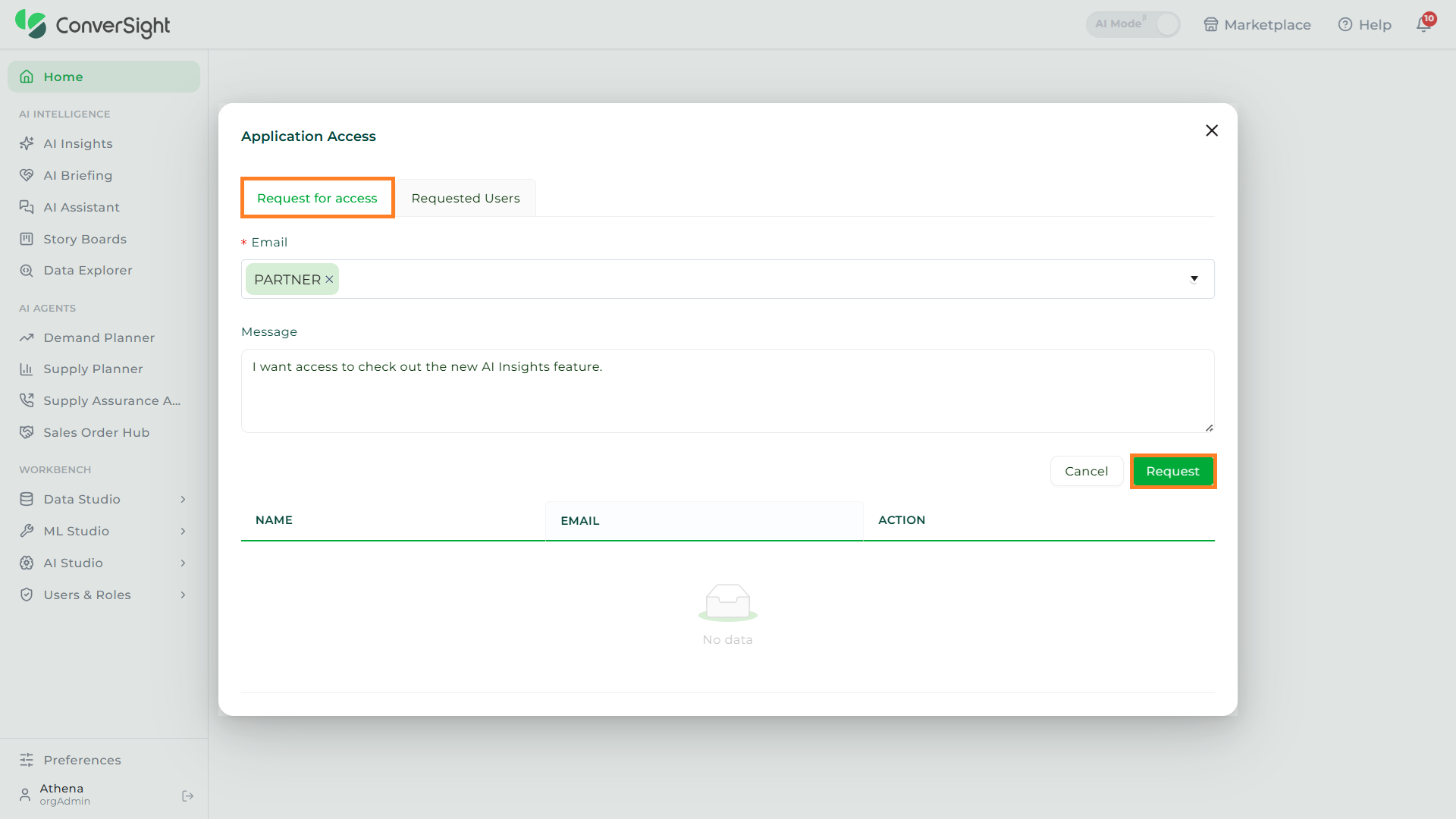
The Application Access dialog has two tabs.
Request For Access
Use the Request For Access tab to send an access request to another user. Select the target user's email from the Email dropdown, enter a reason in the Message field, and click on the Request button to submit it. Pending requests appear in the table below.
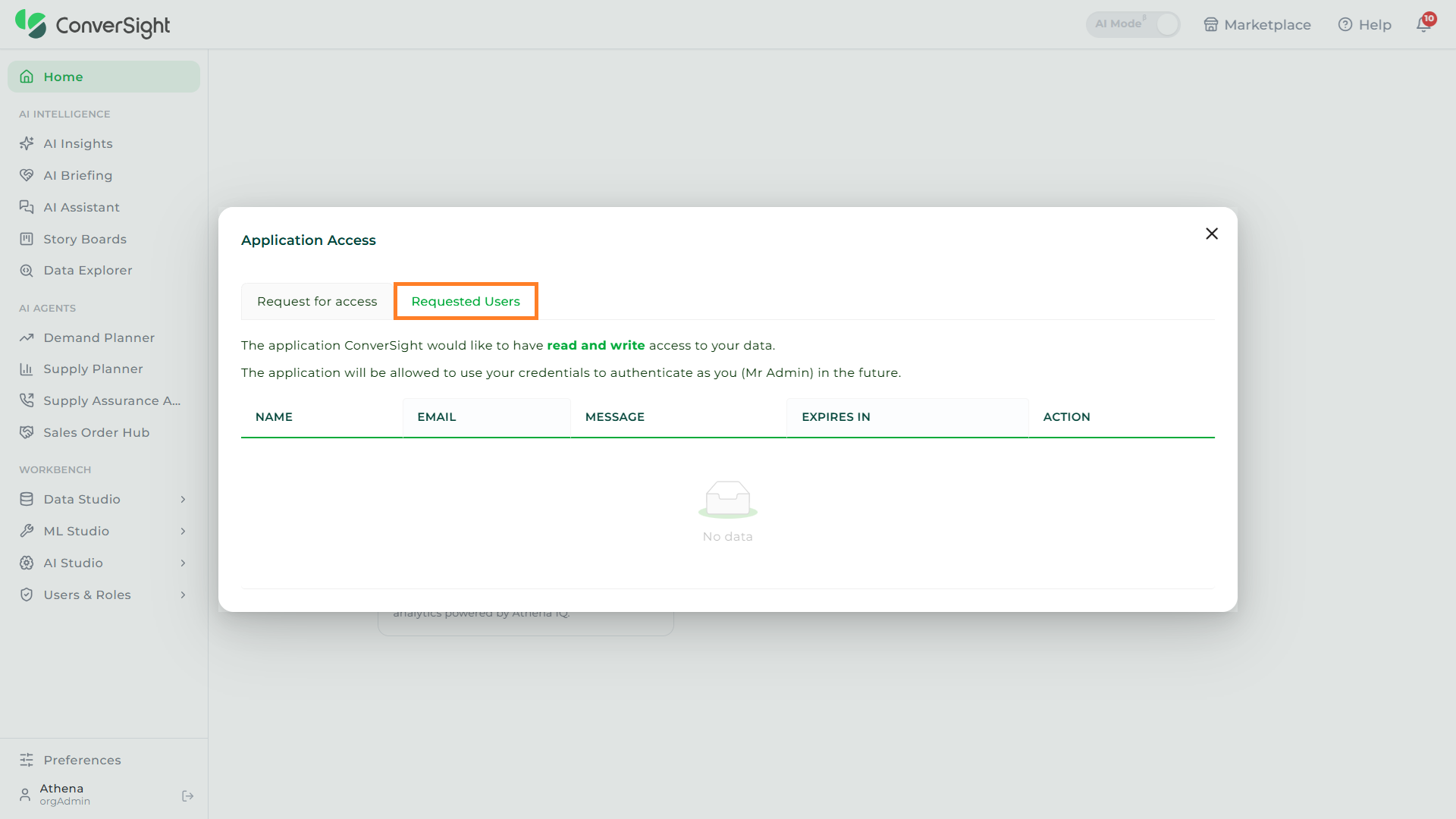
Requested Users
Switch to the Requested Users tab to review all access requests other users have made on your account. Each row lists the requester's name, email, message, expiry date, and an Action control.
Defaults
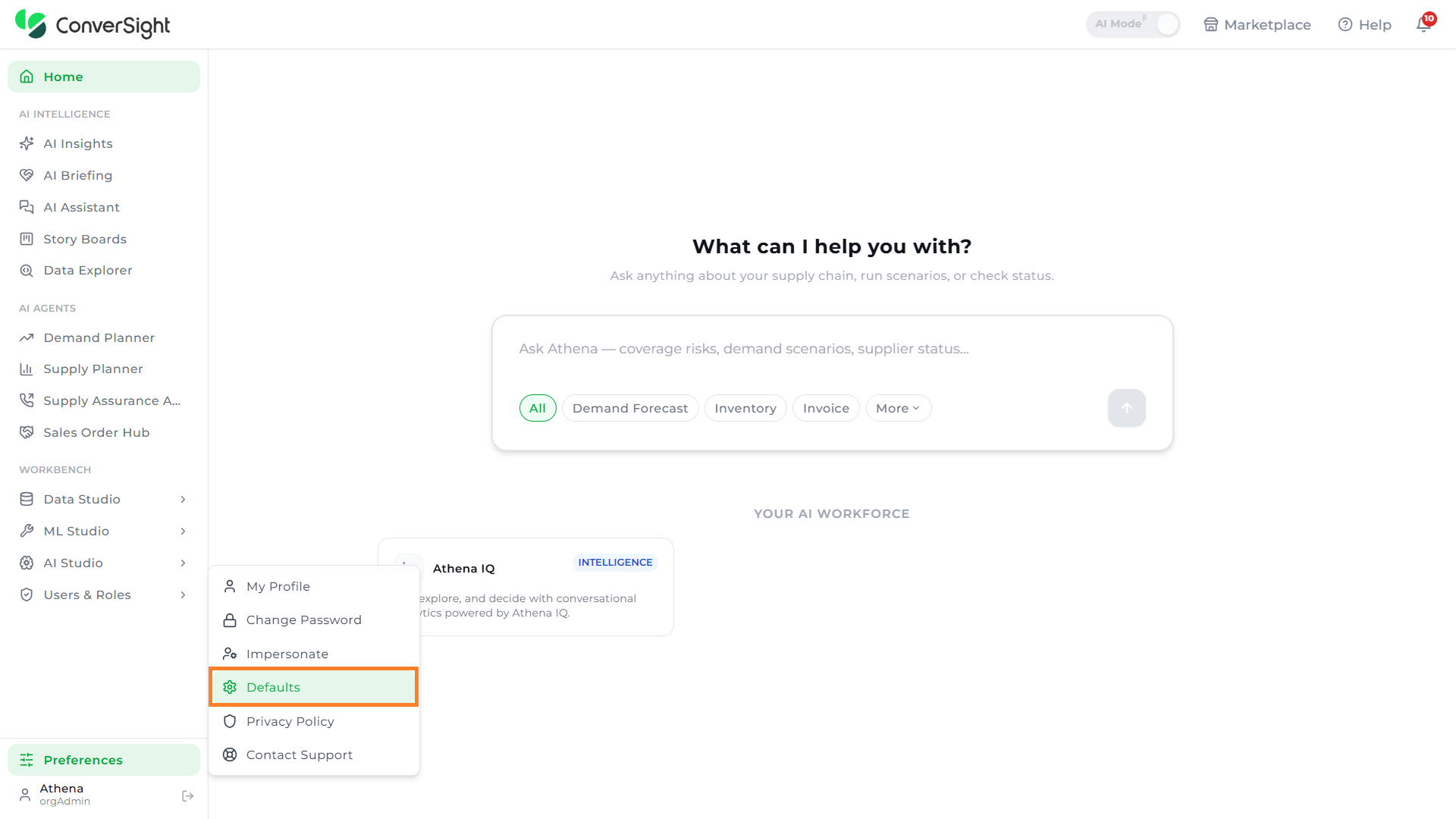
The Defaults option lets users tailor day-to-day platform behavior to align with their working style.
Click on the Defaults option in the Preferences menu to open the Defaults dialog.
The dialog exposes the following controls:
- Ignore Zero: Toggle to control whether zero values are excluded from the user's view across the platform.
- Preferred Landing Page: Dropdown that selects the page shown immediately after login. The default value is Insights.
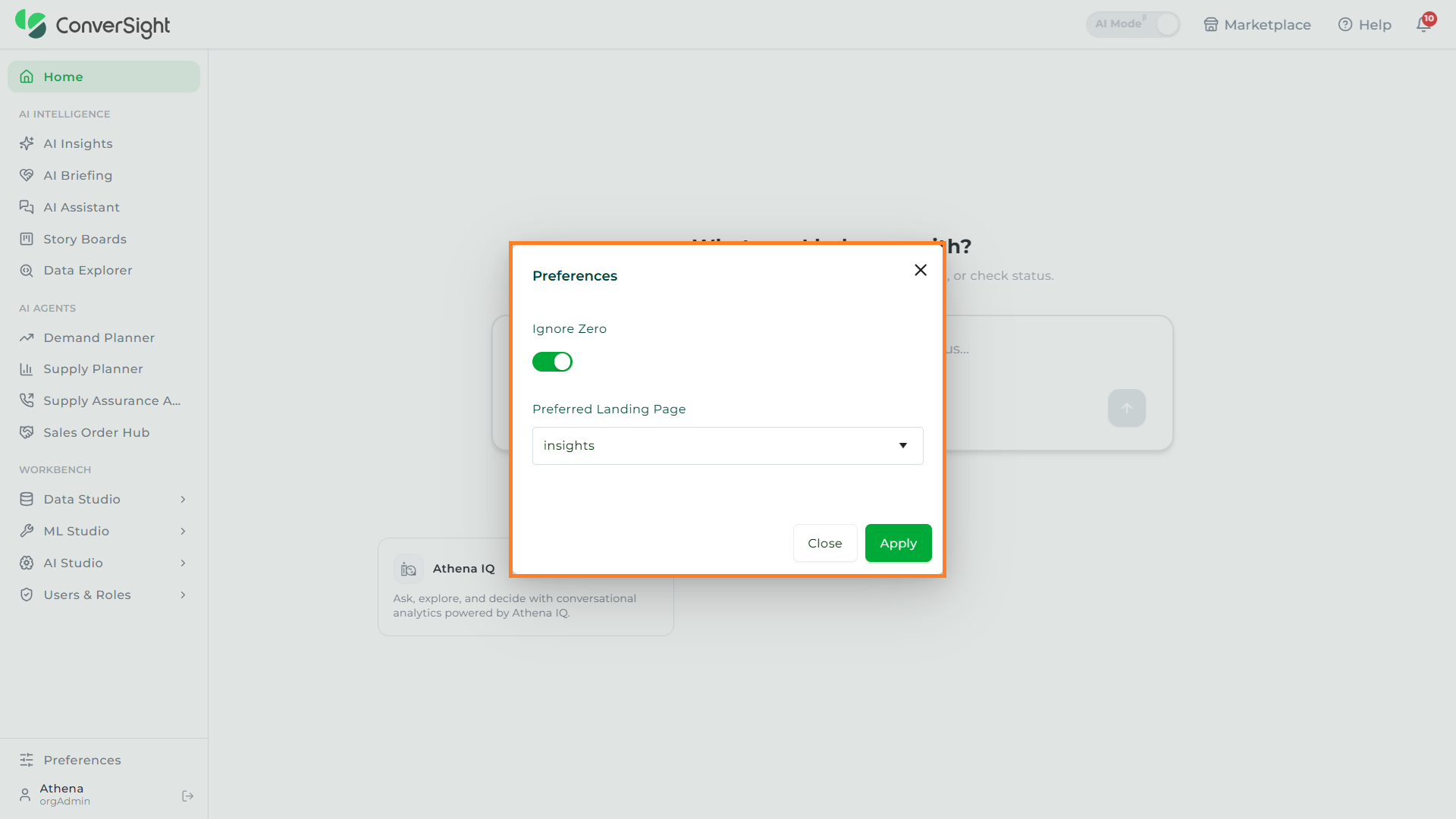
Click on the Apply button to save the changes, or click on the Close button to dismiss the dialog without saving.
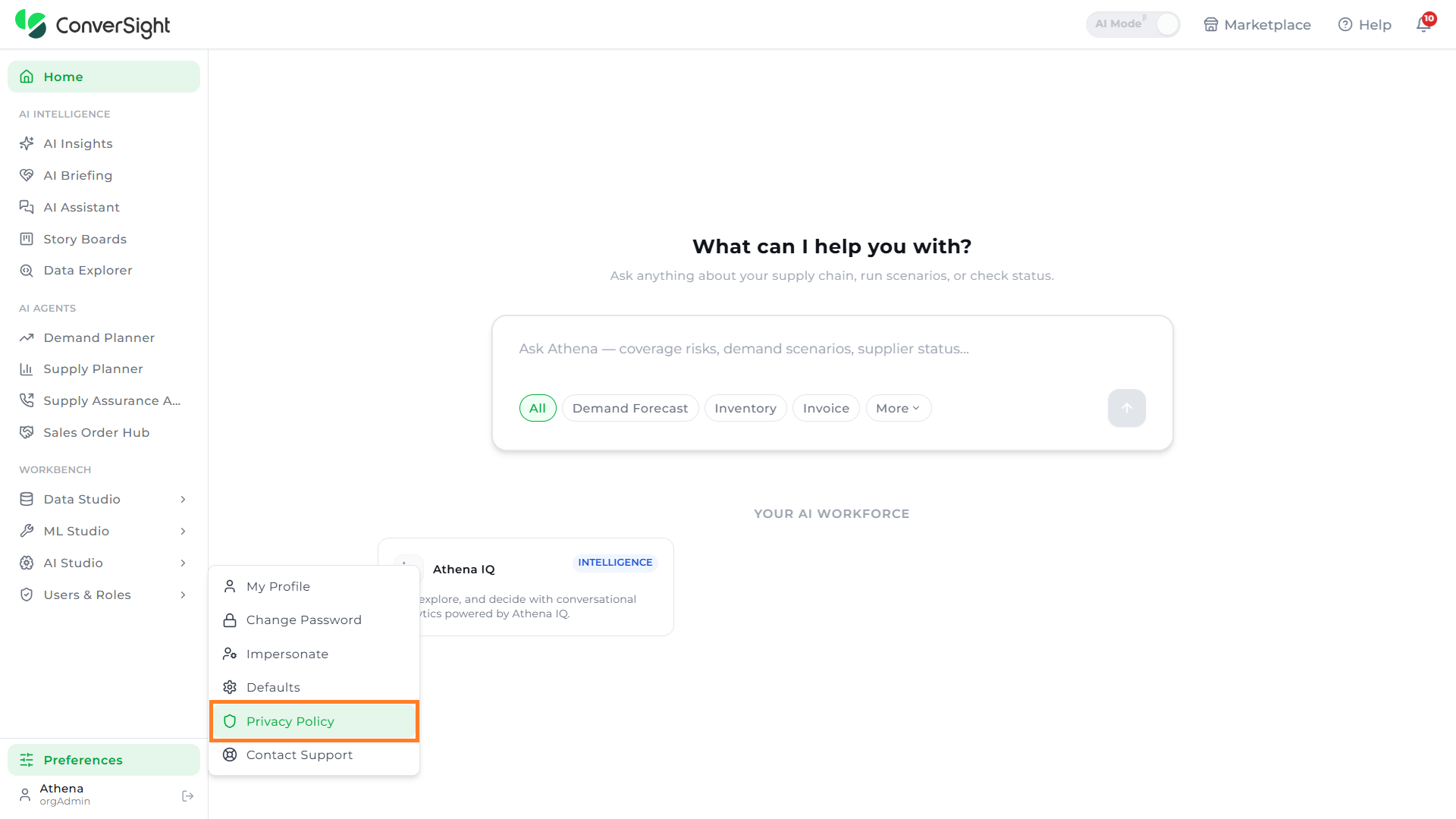
Privacy Policy
Click on the Privacy Policy option in the Preferences menu to open the ConverSight Privacy Policy in a new browser tab.
Contact Support
Click on the Contact Support option in the Preferences menu to open the support contact channel in a new browser tab, where users can raise tickets and reach the ConverSight support team.