Data Management
Data Management is where raw source data becomes business-ready datasets. A data connector gives ConverSight access to a source system; a dataset shapes that source into the organized, governed structure Athena queries against. This module is where you create those datasets, define what they contain, and maintain them as source schemas evolve.
This is primarily a Data Analyst surface. The datasets you build here become the foundation for the entire Decision Intelligence loop above: an AI Assistant query, a Storyboard chart, an autonomous action by Supply Assurance — all of them read from datasets you've structured. Subject areas, joins, business labels, RLS rules, data-quality flags — all configured here.
Accessing Data Management
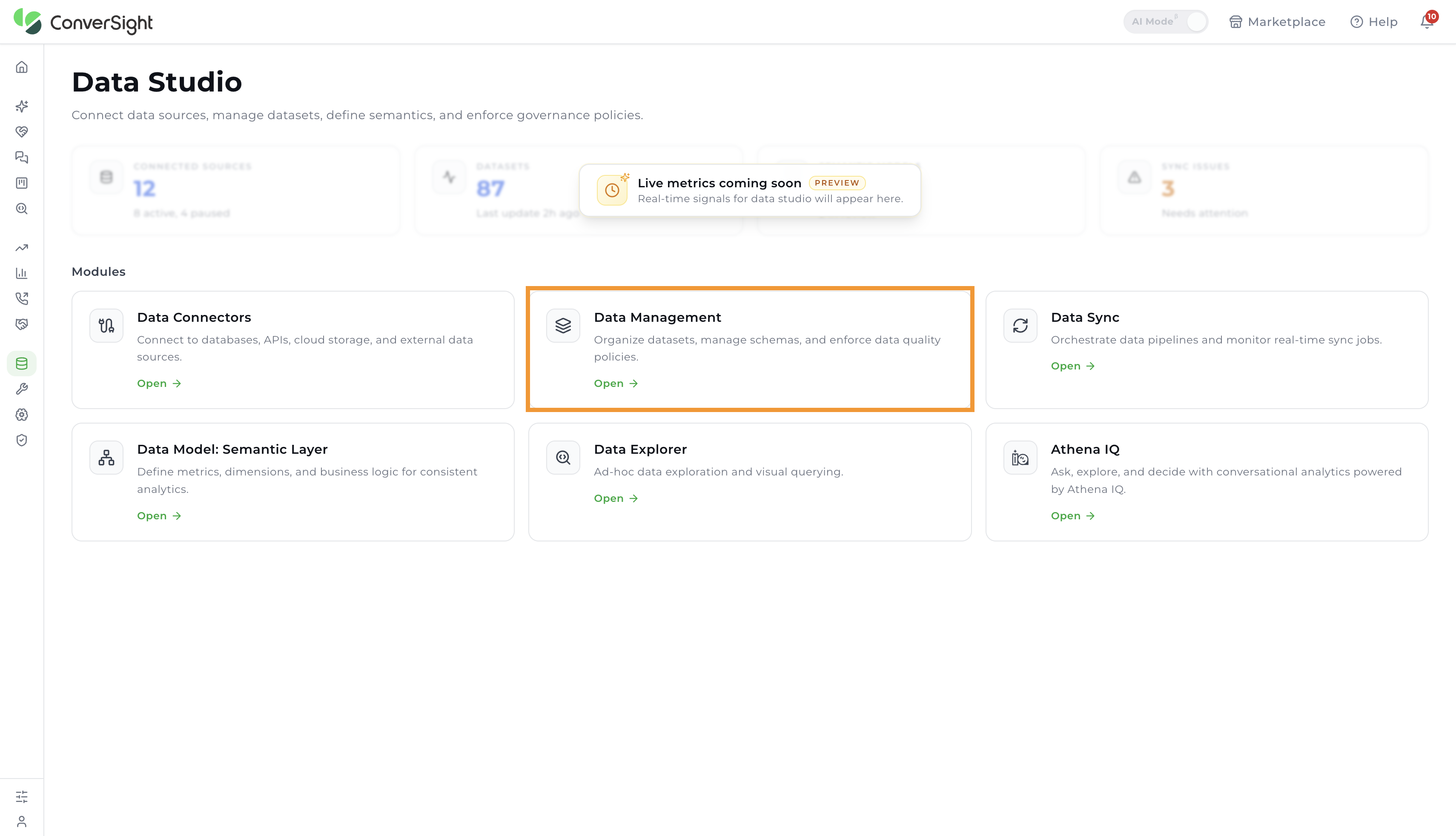
Data Management lives inside Data Studio, the area of the ConverSight Workbench where you bring data into the platform and prepare it for analysis. To open it, select Workbench in the left sidebar and choose Data Studio.

On the Data Studio page, select the Data Management module to open the dataset management interface.
Working with Datasets
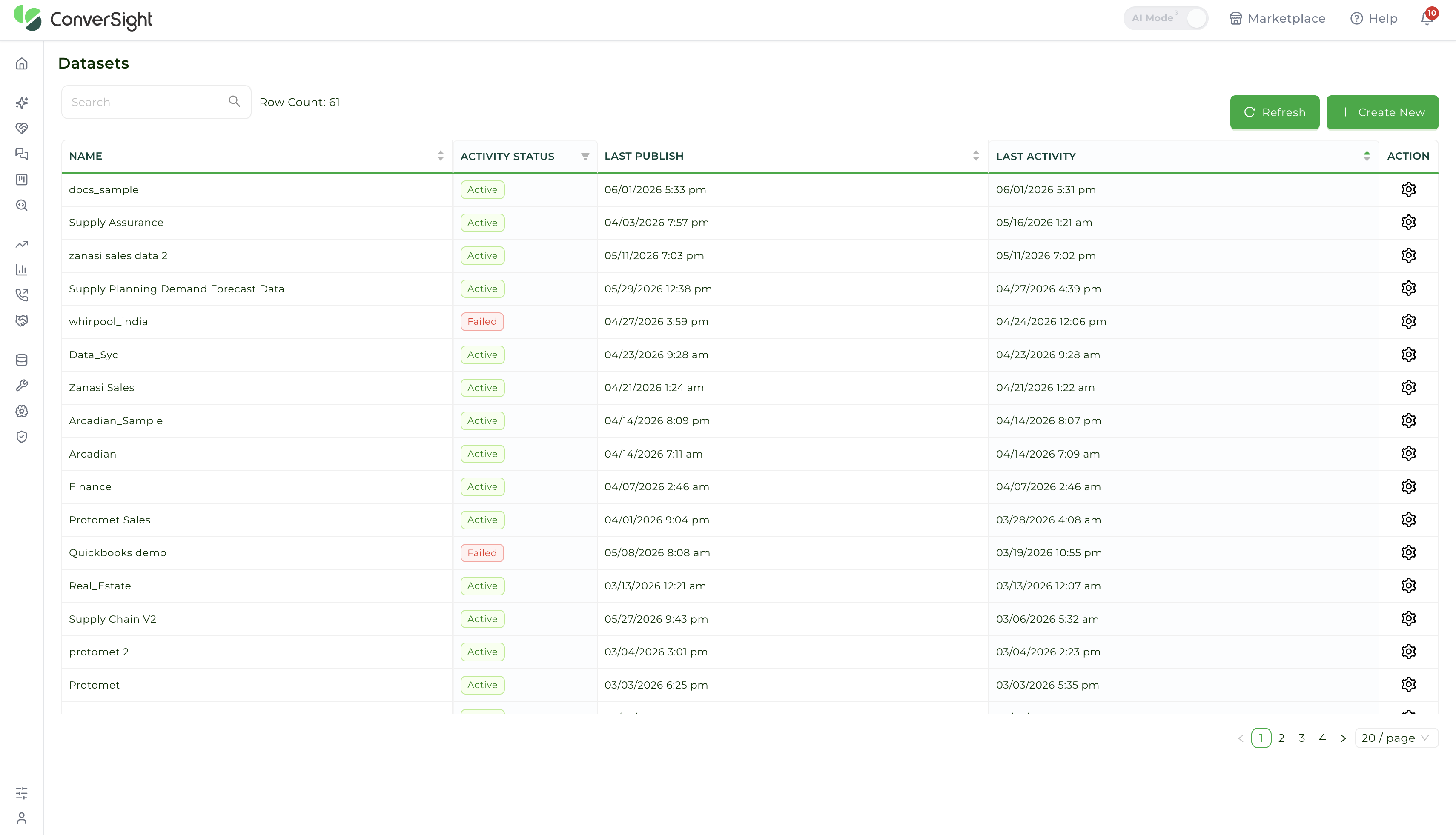
The Datasets page gives you a single place to create, find, and manage every dataset in your organization. It lists each dataset with its current activity status, when it was last published, and when it was last active, and it provides controls to search, refresh, create, and manage datasets.
Search Datasets
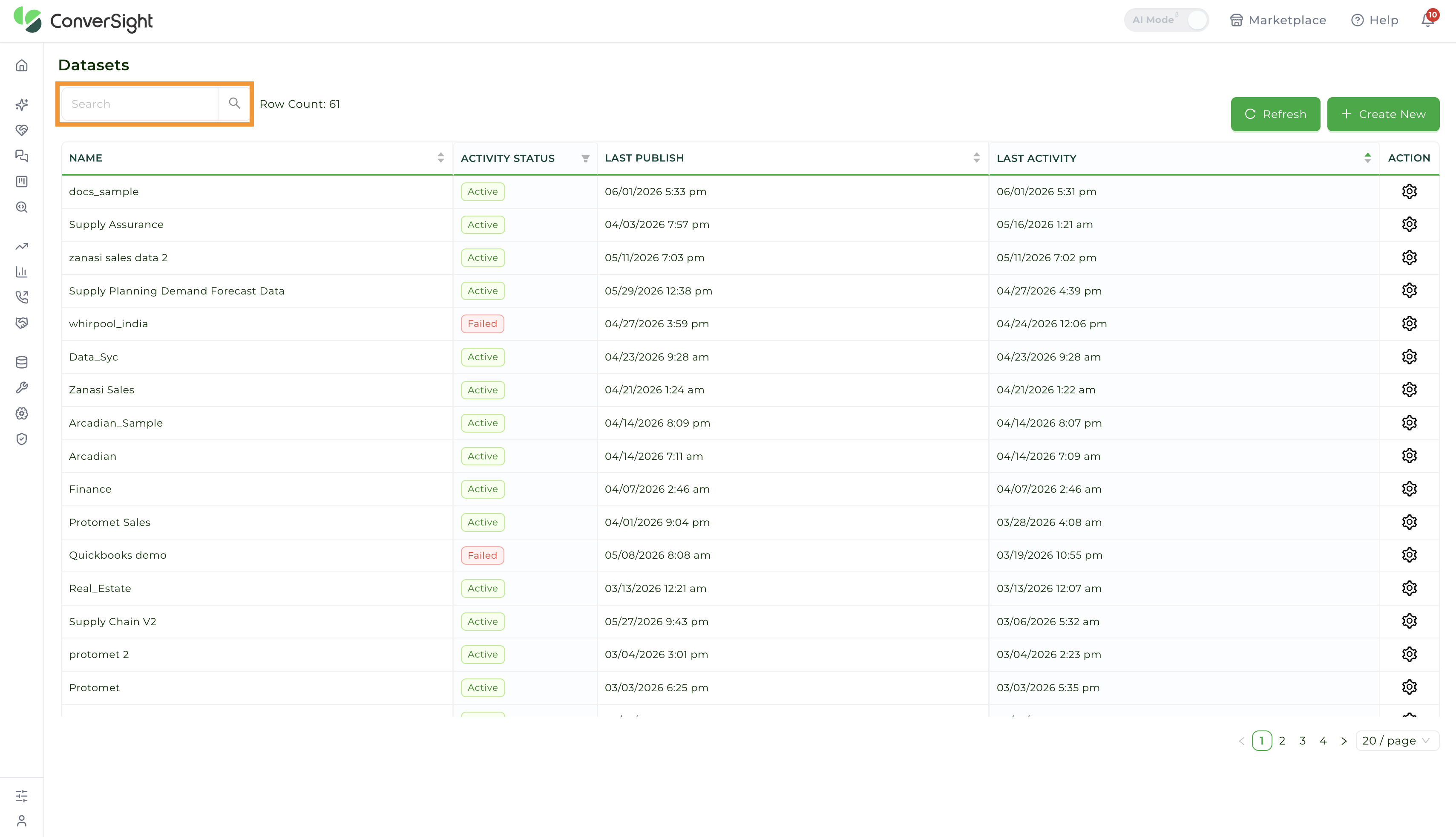
Use the Search at the top-left of the Datasets page to quickly locate a dataset by name. Type a dataset name or keyword to filter the list to matching datasets.
Refresh the Dataset List
Click on the Refresh button at the top-right of the Datasets page to reload the list and retrieve the latest dataset information.
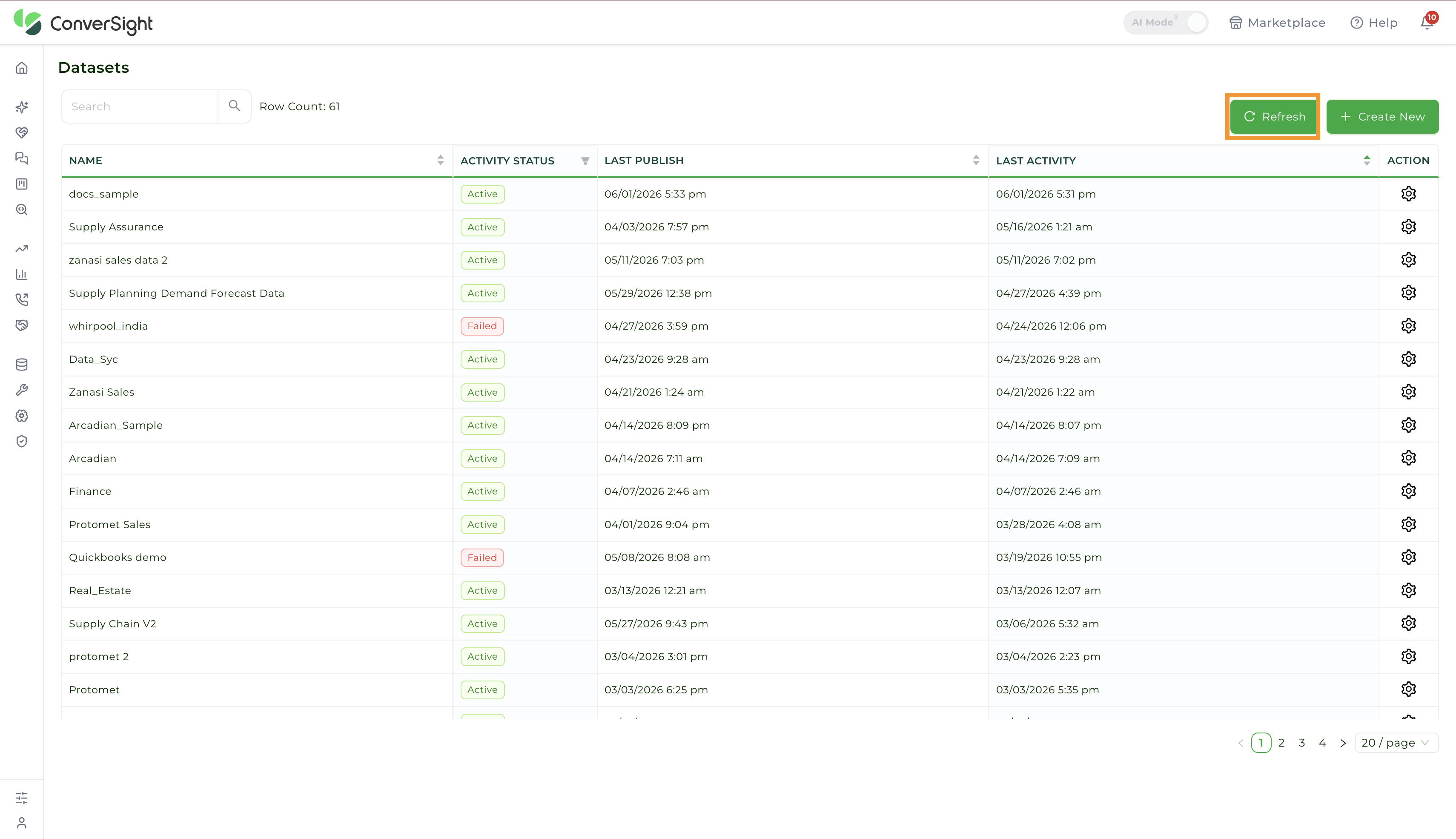
Dataset Actions
Each row in the Action column has a settings icon that opens the management options for that dataset.
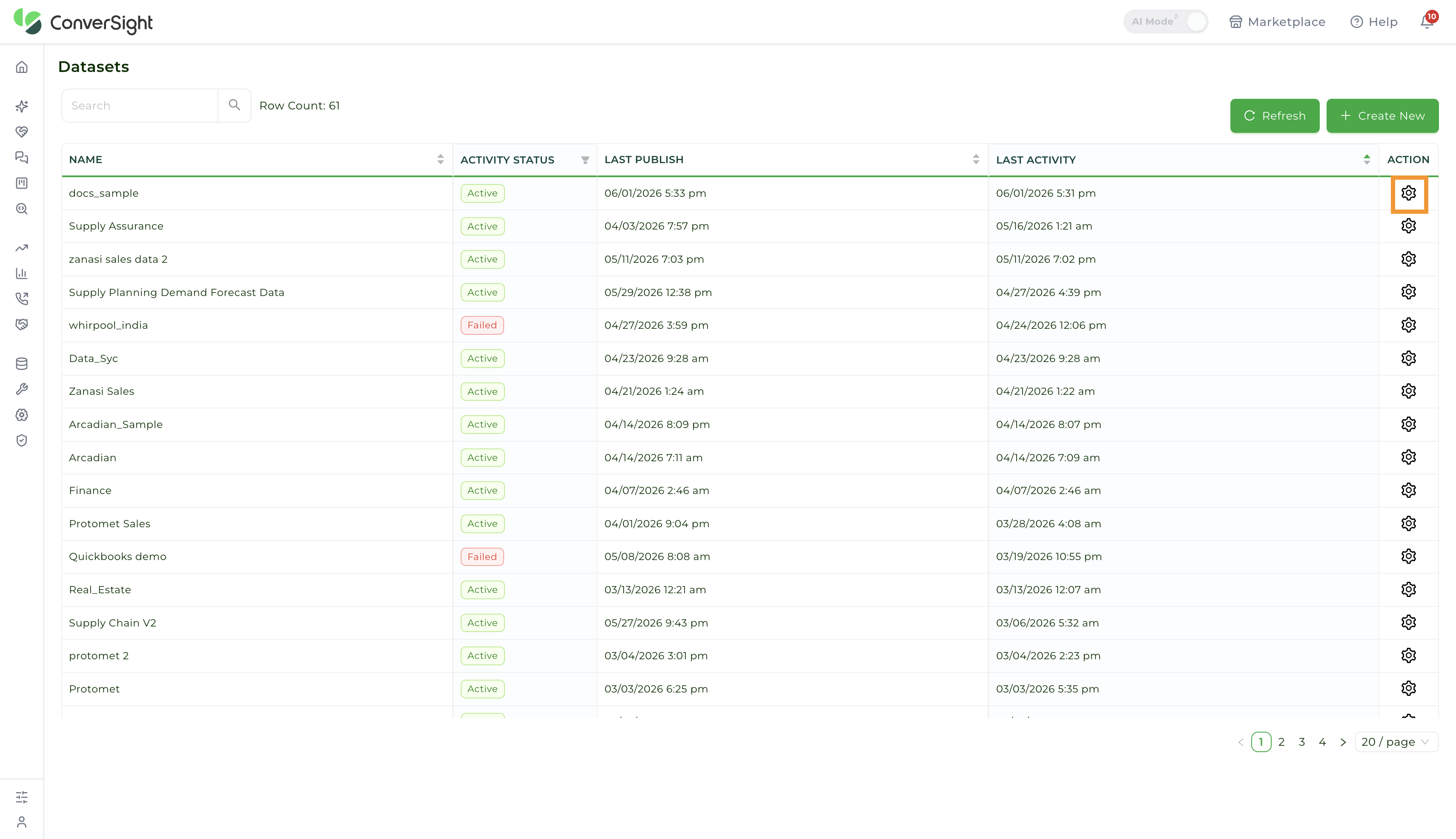
Click on the Settings icon to display the available actions for the selected dataset.
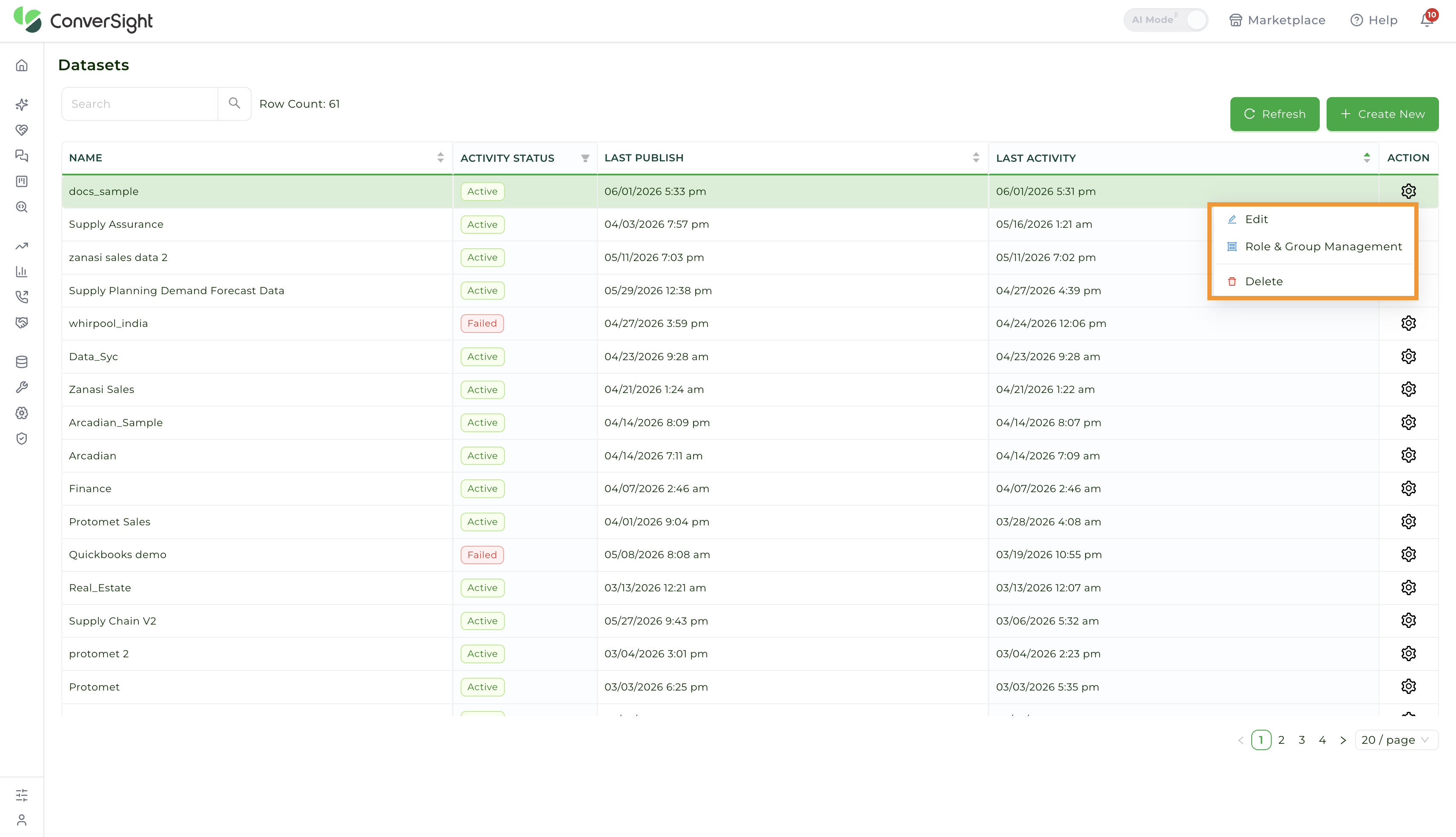
The settings menu provides the following actions:
| Action | Description |
|---|---|
| Edit | Opens the dataset configuration so you can modify and update its details. |
| Role & Group Management | Manages who can access the dataset by assigning roles and groups. |
| Delete | Permanently removes the selected dataset from the platform. |
Creating a Dataset
Click on the Create New button at the top-right of the Datasets page to start building a new dataset.

Create New opens Semantic Layer Studio, where you define the dataset. In the Model Explorer panel, click on the add (+) icon to open the New DataSet panel and configure the dataset's information and settings.

Basic Information
The Basic Information section captures the primary details that identify the dataset such as
- Name: Provides a name for the dataset, used throughout the platform when referencing it.
- Description: Describes the purpose and contents of the dataset.
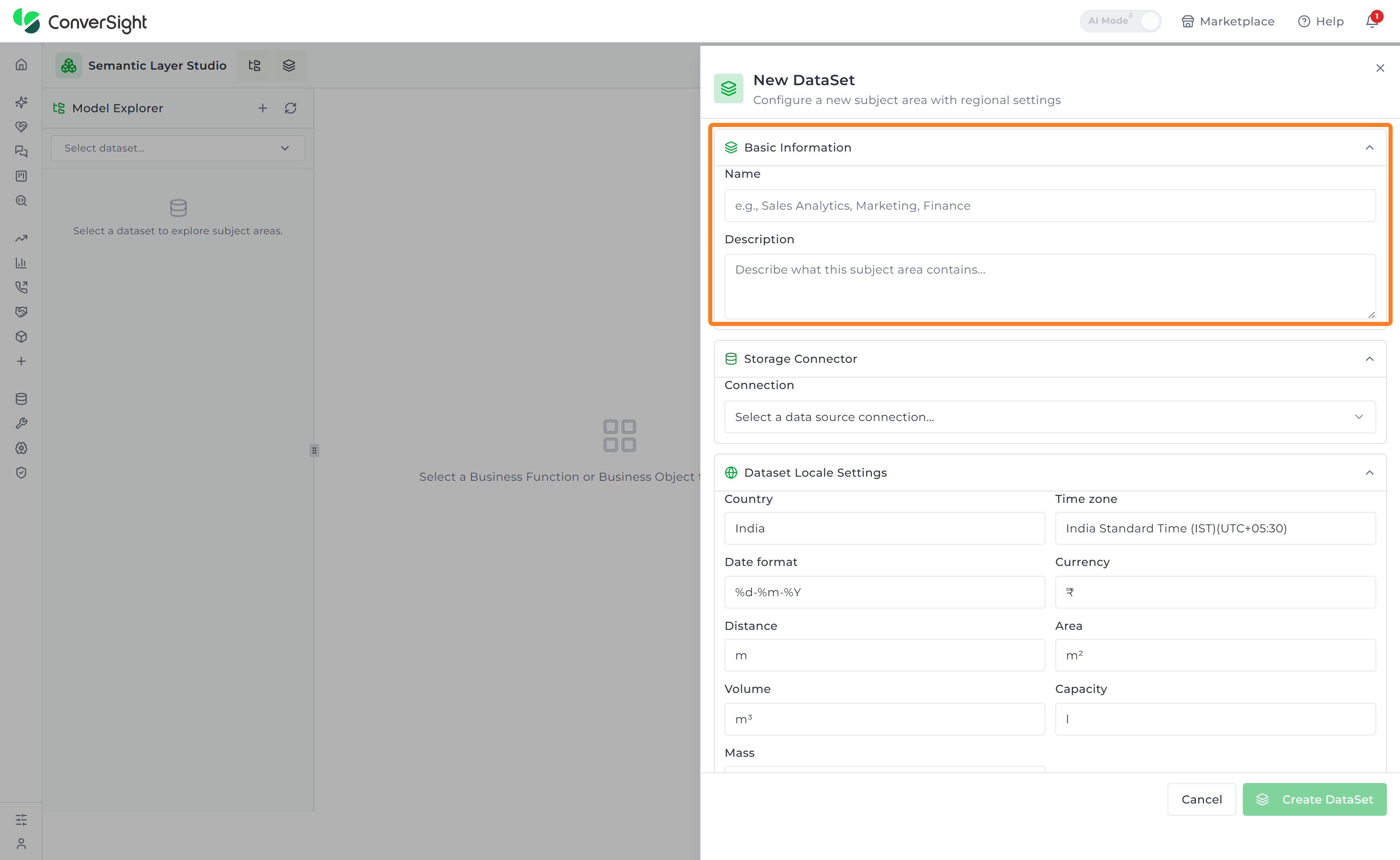
Storage Connector
The Storage Connector section links the dataset to the data source it reads from.
- Connection: Selects the data source connection that supplies the dataset's data.

Dataset Locale Settings
The Dataset Locale Settings section configures the location-specific settings that determine how ConverSight interprets and displays the dataset's data, such as currency, units, and date format.
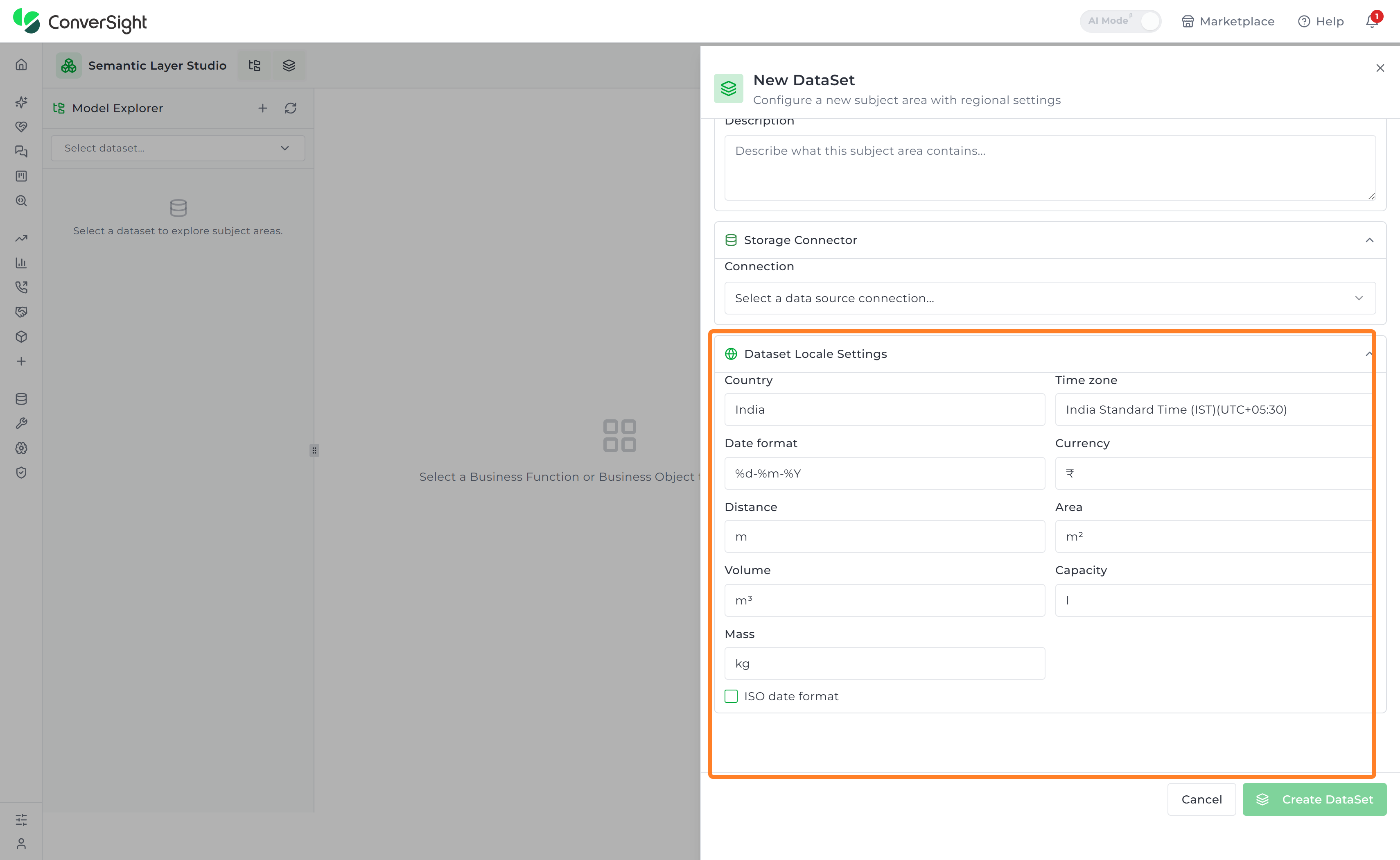
| Attribute | Description |
|---|---|
| Country | Sets the country associated with the dataset. |
| Time zone | Defines the time zone used when processing and displaying date and time values. |
| Date format | Determines how date values are displayed throughout the dataset. |
| Currency | Sets the currency used for monetary values. |
| Distance | Defines the unit of measurement used for distance values. |
| Area | Defines the unit of measurement used for area values. |
| Volume | Defines the unit of measurement used for volume values. |
| Capacity | Sets the unit used for capacity values. |
| Mass | Defines the unit of measurement used for weight and mass values. |
| ISO date format | Displays date values in the ISO standard format for consistency across geographical regions. |
Create the Dataset
After completing the required sections, click on the Create DataSet button at the bottom-right of the New DataSet panel to create the dataset. Once the dataset is created, it becomes available for use within ConverSight.

Using a Dataset
After creating a dataset, refresh the dataset list in Semantic Layer Studio so the new dataset appears. Click on the Refresh icon in the Model Explorer panel.

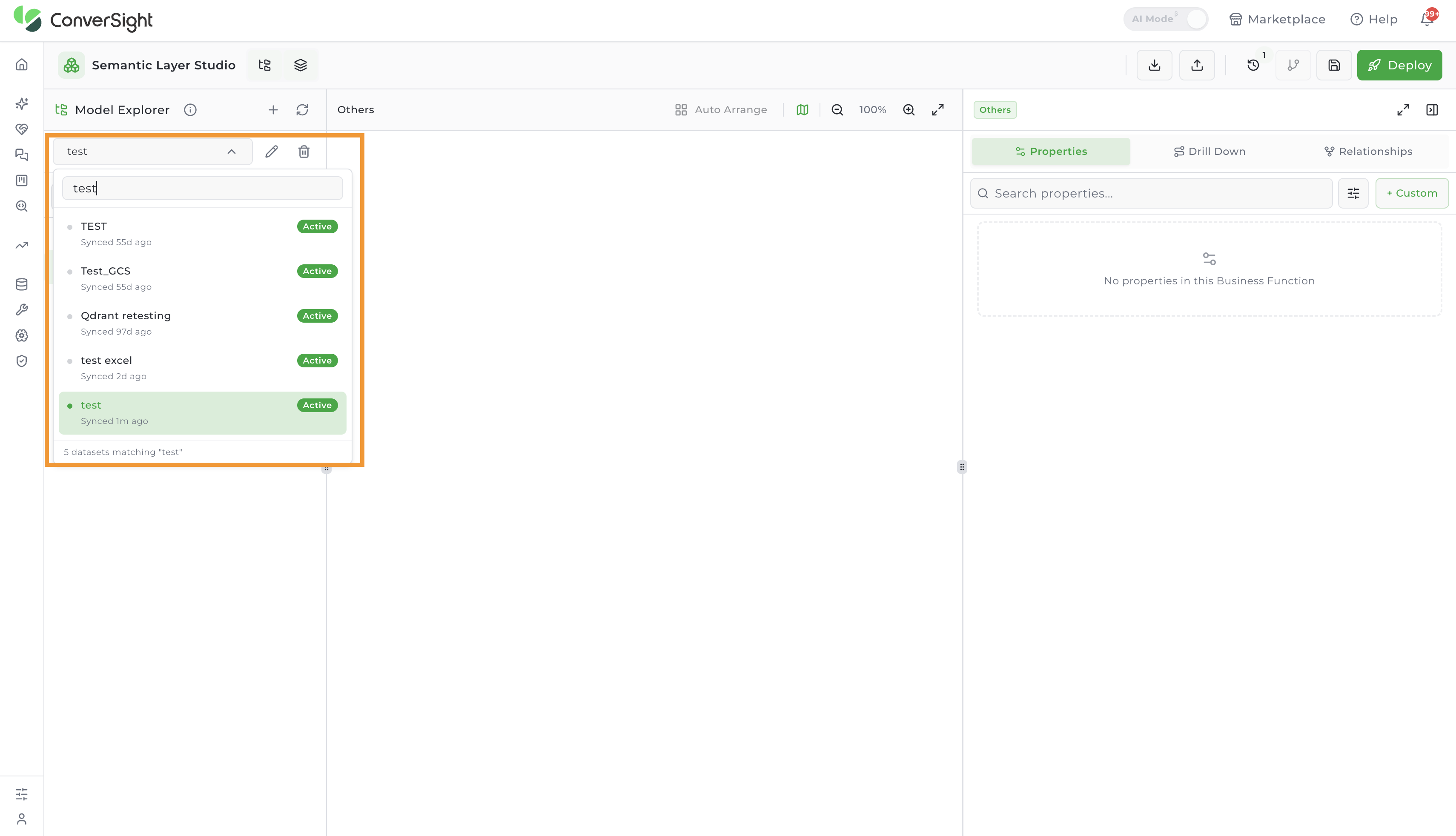
Click on the Select dataset dropdown at the top of the Model Explorer panel to open the list of available datasets.