Storyboards
Storyboards are Athena in Level 3 mode — Co-Pilot for decision-making. Where a dashboard shows you the numbers, a Storyboard tells you the story those numbers form: charts and tables organized into a coherent narrative, paired with Athena-generated commentary that explains what's happening, what changed, and what to look at next.
This is the surface S&OP teams, executive leadership, and cross-functional planning groups operate from. A Storyboard becomes the canonical view of a recurring question — weekly supply-and-demand alignment, the monthly margin review, the quarterly-business-review pack — and it stays interactive: filter it, drill into it, exclude values, branch off into a Data Explorer query on any element.
The intent is to consolidate three pieces that usually live in separate tools:
- The visualizations themselves — charts, tables, and KPI tiles built from any saved analysis or pinned from AI Assistant / Data Explorer responses.
- The narrative — Athena-generated commentary that contextualizes what the data shows. Not just "Q3 revenue was $4.2M" but "Q3 revenue was $4.2M, up 8% from Q2, driven primarily by the EMEA region's recovery from the supplier delay in July."
- The cadence and audience — schedule the Storyboard to the right stakeholders on the right rhythm (Monday 7am to the S&OP team, Friday 4pm to the leadership group). Same Storyboard, multiple recipient lists, each tuned to what that audience needs.
Storyboards are interactive even after distribution — recipients can apply filters, drill into a chart, ask a follow-up of Athena directly from a card. The shared link doesn't go stale because the underlying data refreshes in place. This is what makes a Storyboard a working artifact rather than a frozen export.
Create Storyboard
Create Storyboard allows users to directly create a storyboard within the storyboard page. By grouping related queries into a single view, users can build a clear data narrative that enhances analysis and collaboration.
Follow the steps below to create a storyboard:
Step 1: Click the Create Storyboard button.

Step 2: Enter the Storyboard Name. The Description and Business Area fields are optional.

Step 3: After completing the required configurations, click Save. A new Add New Report card will be generated for the storyboard.

Step 4: Click on the Add New Report which will open the Explorer.

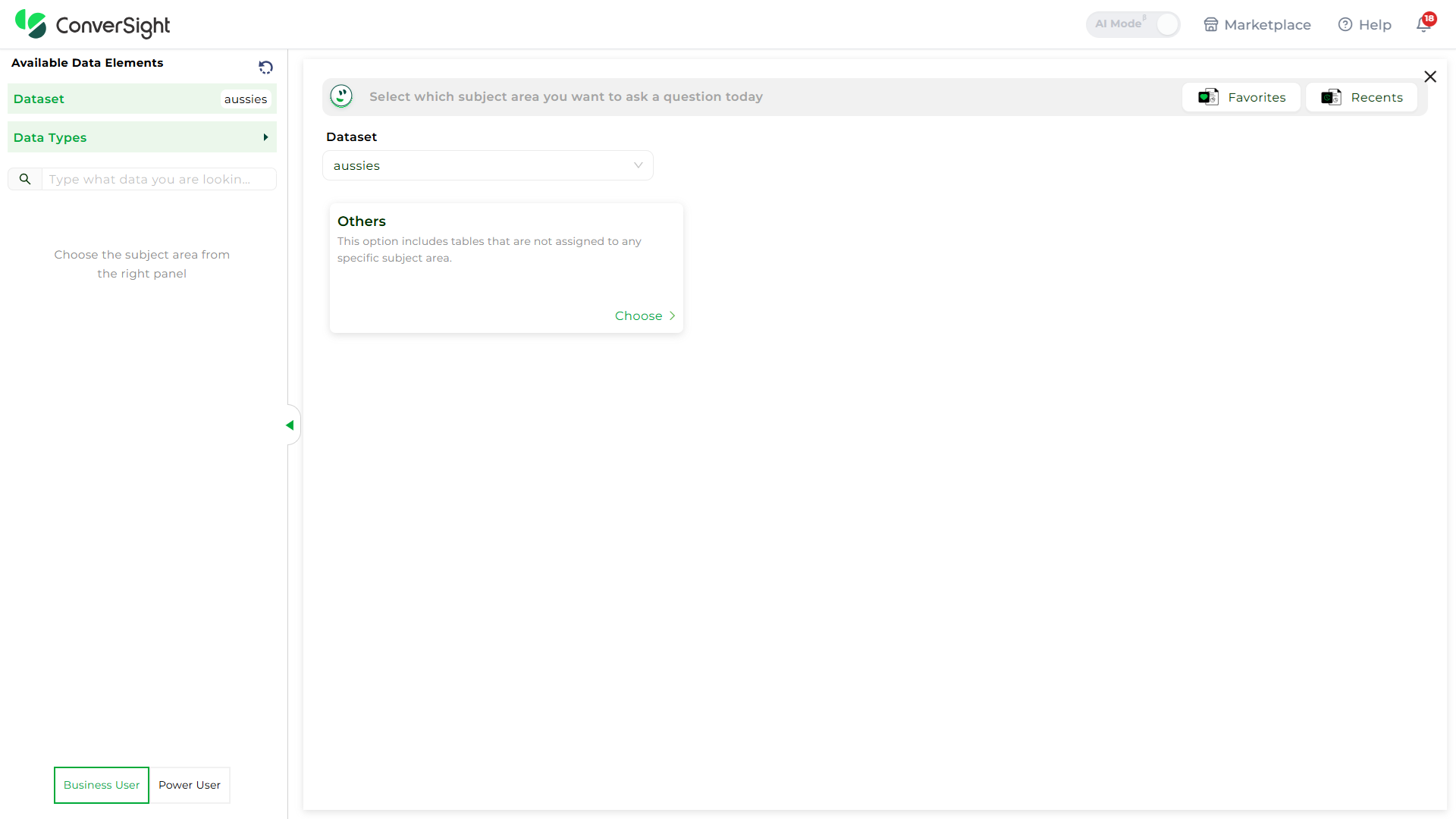
Step 5: Select the Dataset and choose the appropriate Subject Area, then create a query in Explorer as usual.

To know more about how Data Explorer works, Click Here
Step 6: Once the query is generated, click Pin to add it to your storyboard for organized viewing.

List View
In the List View, all available Business Areas are shown in a list on the left side of the screen. Each storyboard is grouped under the Business Area it belongs to, making it easier to navigate and manage.

To view the storyboards under a specific Business Area, simply click on the Business Area name to expand it. This helps you quickly find and access the relevant storyboards without having to search through everything manually.

When you hover over the Info icon next to the storyboard name, you can view details such as the dataset name, creation date and time, last refresh date, and last edited date. If the storyboard was shared with you, it will also show the name of the person who shared it.
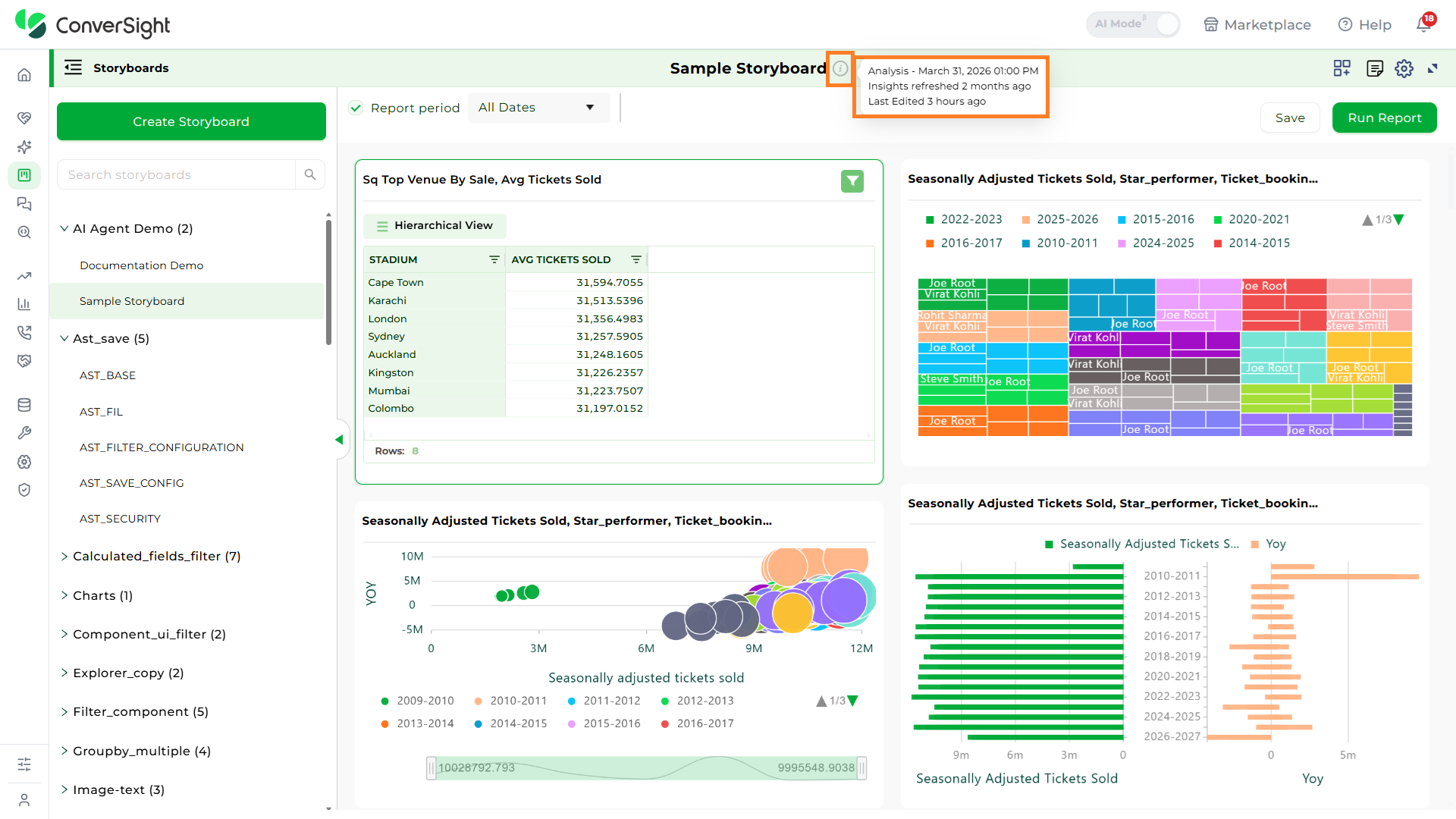
To close the List View, simply click on the Storyboards icon.

Note
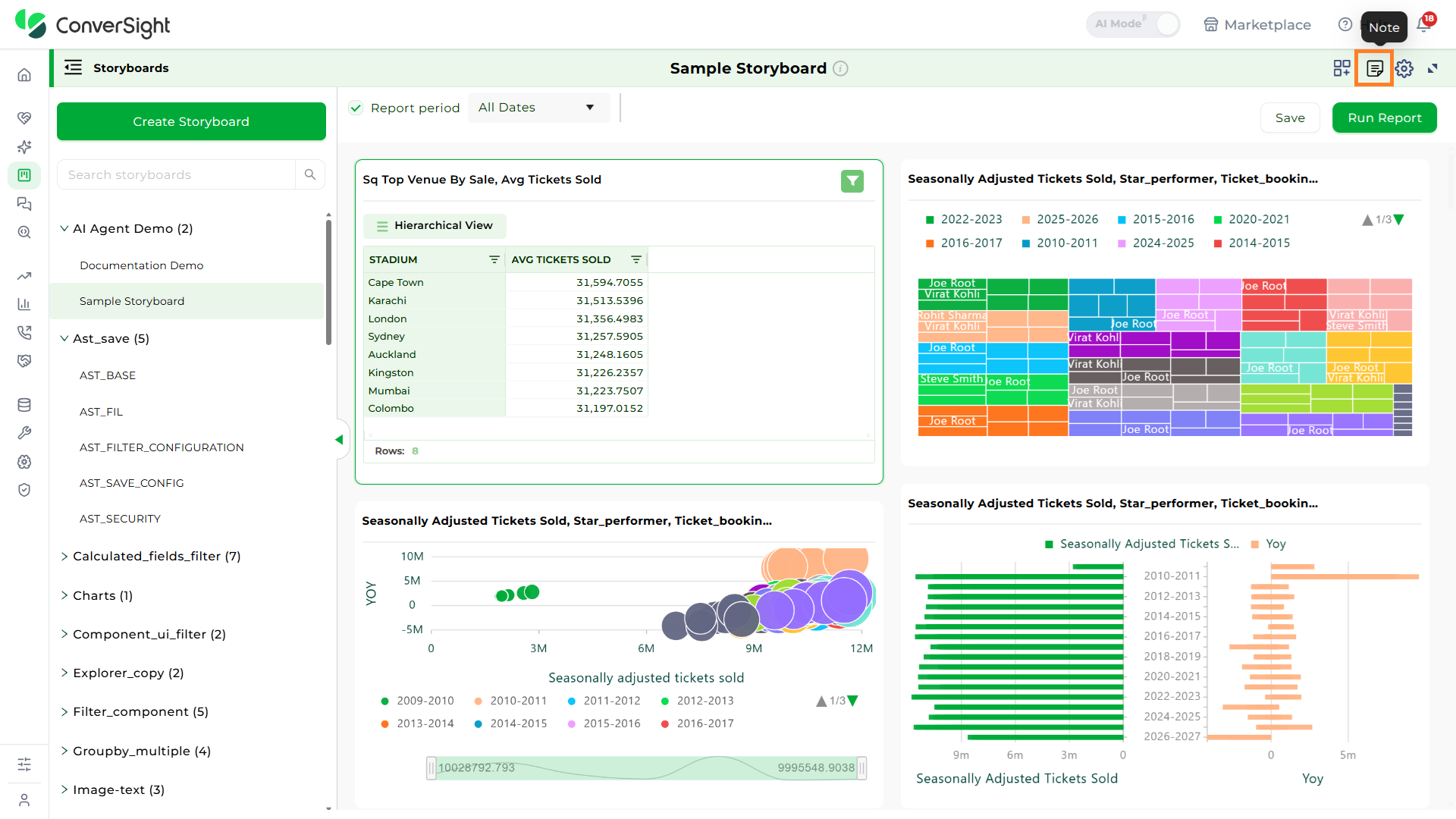
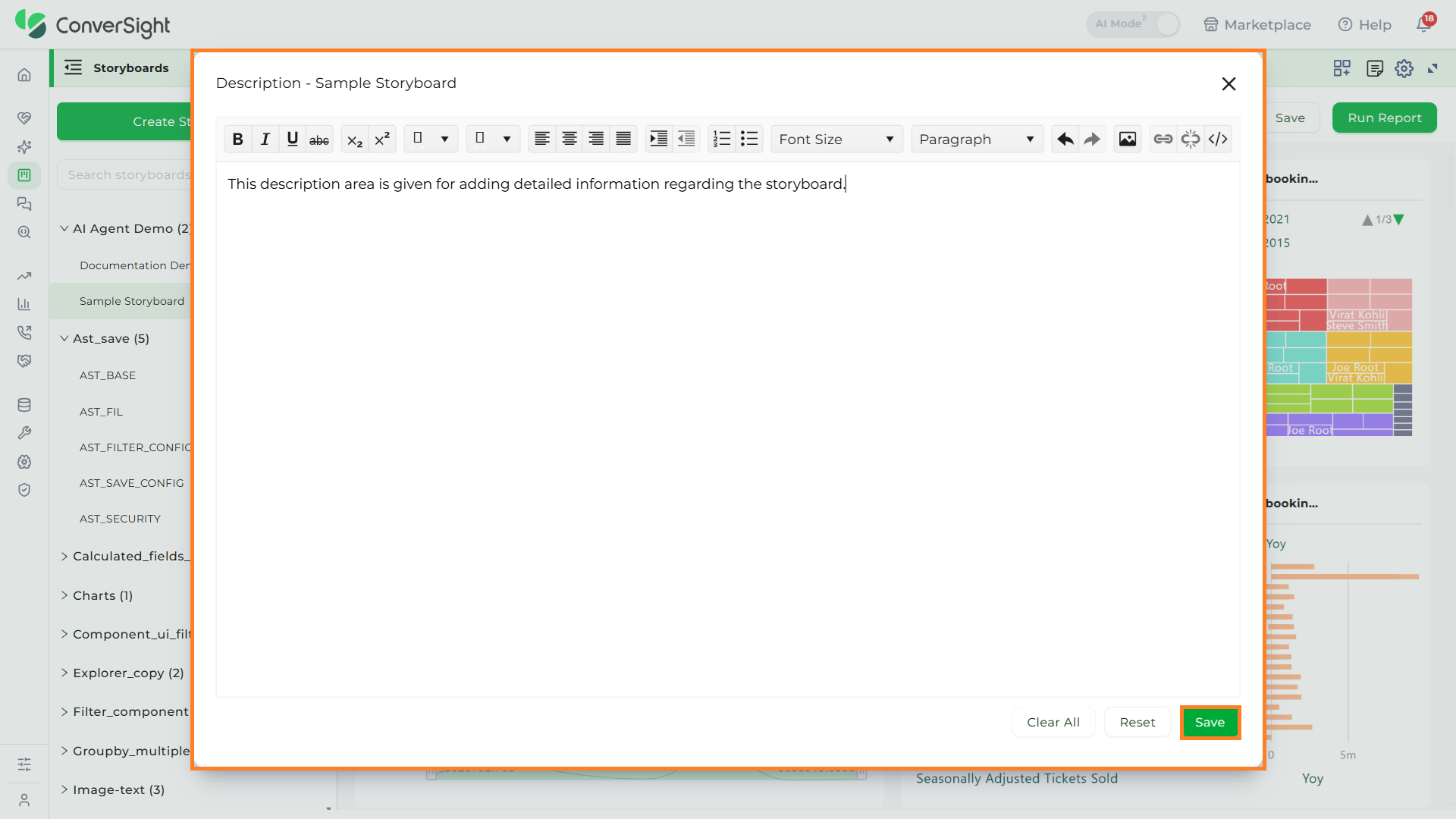
Click on the Note icon in the Storyboard page. You can add description about the Storyboard. So that when you share your Storyboard with others, they can read the description and make use of the Storyboard.
Along with the description, you can also add images as attachments for better understanding. Once done click on the Save button to apply the changes.
Filter
Filters can be applied to Storyboards just as with tables and charts. These kinds of filters apply to an entire Storyboard, making it easy to see only the data that you are interested in across the tables and charts within a Storyboard.
Clicking the Filter icon opens a panel displaying the Dataset, Subject Area, and a list of columns from the table associated with the selected dataset and subject area. From this list, you can choose the specific column you want to apply a filter to.

Hovering over the columns will display the details of the columns

You can filter columns by selecting the desired Dataset and Subject Area. The chosen filter columns will appear in the Filter section. Once you've made your selections, click the Close icon to exit the panel.

If the selected Filter's column category is a dimension, you can choose an operator for the value in the column.

If the column falls under the date category, you have the flexibility to pick different date values.

Once you've made your selections, click Run Report to generate a visualization output. If you want to keep this output for later, you can choose to Save it. Saving the visualization makes it permanently available for reference and use whenever you need it.

The Report period feature is a handy way to filter data based on specific dates.

If the category of the column is metric or calculated metric, the Storyboard filters will not be applicable.
Share
Shared Storyboards are like a folder. You will have all the Storyboards that have been shared with you by others. When you click on Selected Storyboard shared by others using the Shared Storyboards, you will get the graph report. You can download by exporting it as a PDF or a Word document or you can view using different types of chart lists.
Click on the Settings icon and select Share icon from the Storyboard page. You can share the selected Storyboard.
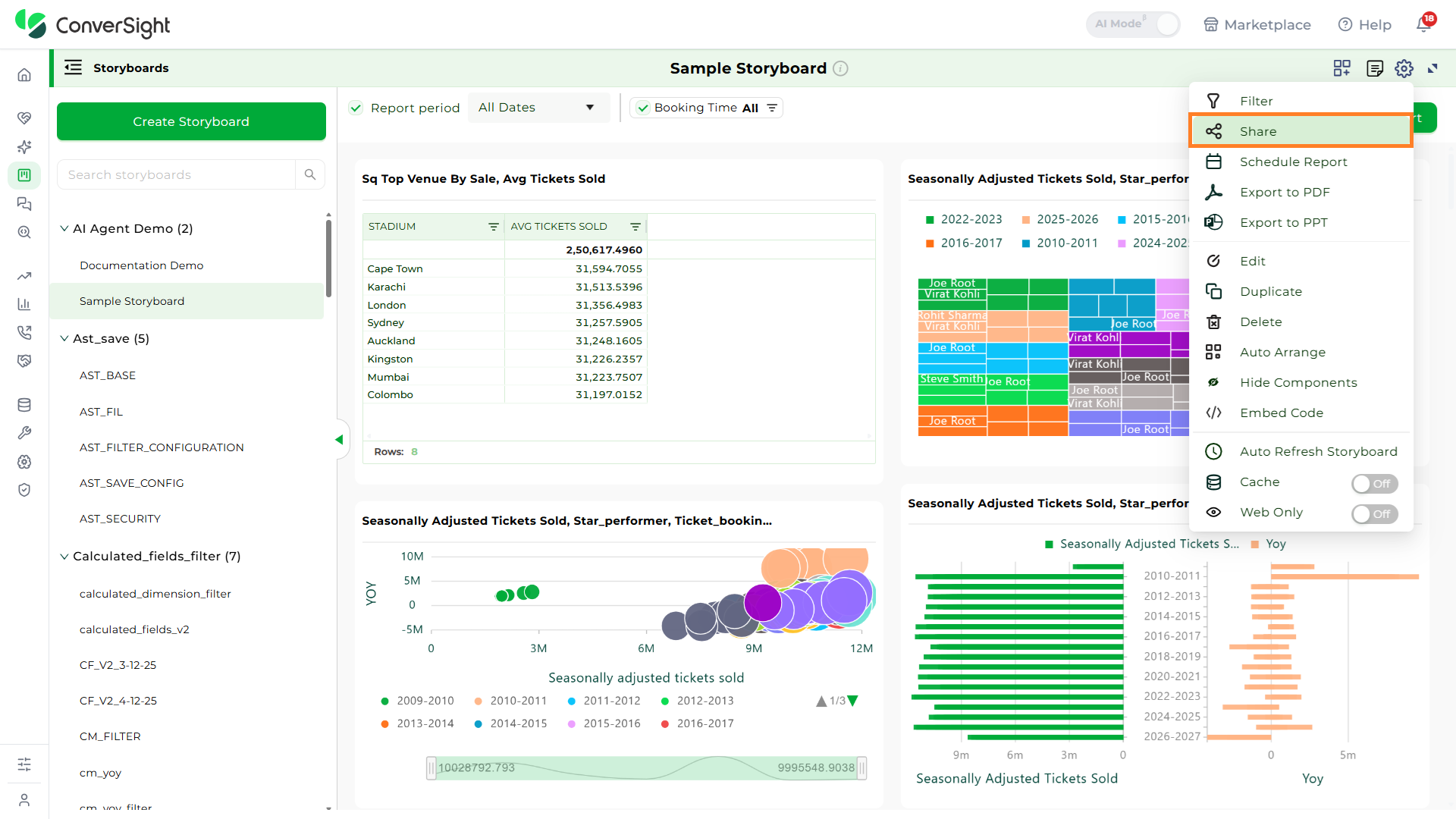
Select the user's email address and you can share your selected Storyboard and click on Share.

Schedule Report
You can schedule a Storyboard job for any Storyboard. Click Settings icon and select the Schedule Report icon.

In the Scheduled Storyboard dialog box, you can add your email address as well as emails you would like to CC. You can set your schedule to daily or weekly and can also set your timings. Once you save your scheduled Storyboard, it will be sent to the recipient email with your set timings.

Export to PDF
Click on Settings icon and select the Export to PDF option. In ConverSight, you can download the entire Storyboard in PDF format, so you can share it with people inside and outside your organization.

Export to PPT
To generate a PowerPoint (PPT) version of your report, choose the specific storyboard and then click on the Export to PPT option. In ConverSight, you can download the entire Storyboard in PPT format, so you can share it with people inside and outside your organization.

Edit
If you want to edit the original Storyboard, click on the settings icon and select Edit icon and you can change your Storyboard name.
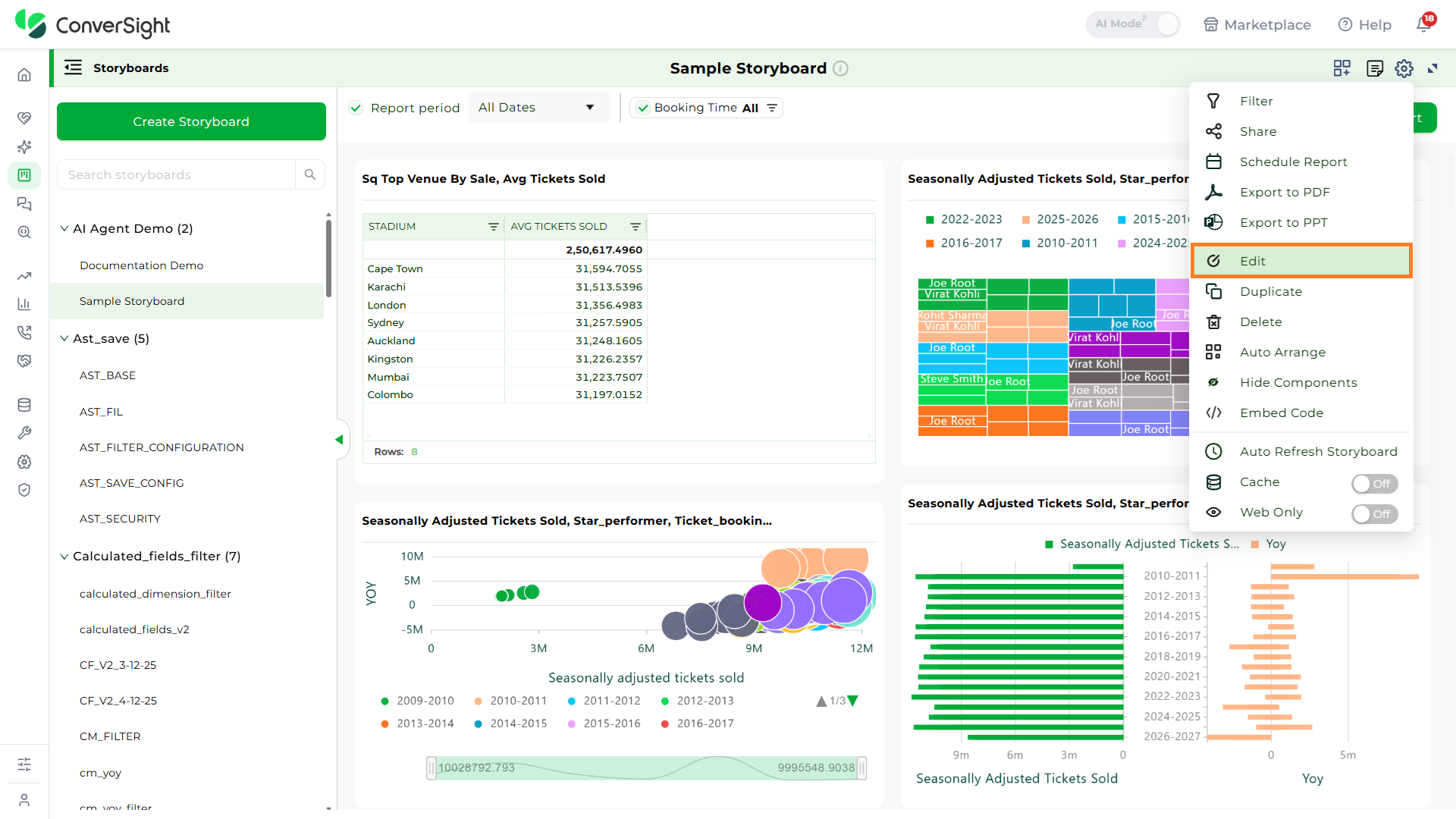
Business Area to Storyboard
By clicking on the Edit icon, you can add a new Business Area to a storyboard. In addition to this, you can provide business context to give a clearer explanation. You can add more than one Business Area to the storyboard, allowing for a more detailed and organized presentation. Once you’ve made your additions, click the Update button to save and apply all the changes.

The added Business Area will be reflected in the List view in the left panel.

Duplicate
Click on the Settings icon and select Duplicate icon in the Storyboard page. Clone helps you in creating a copy of your Storyboard and edit it as required to create another Storyboard.
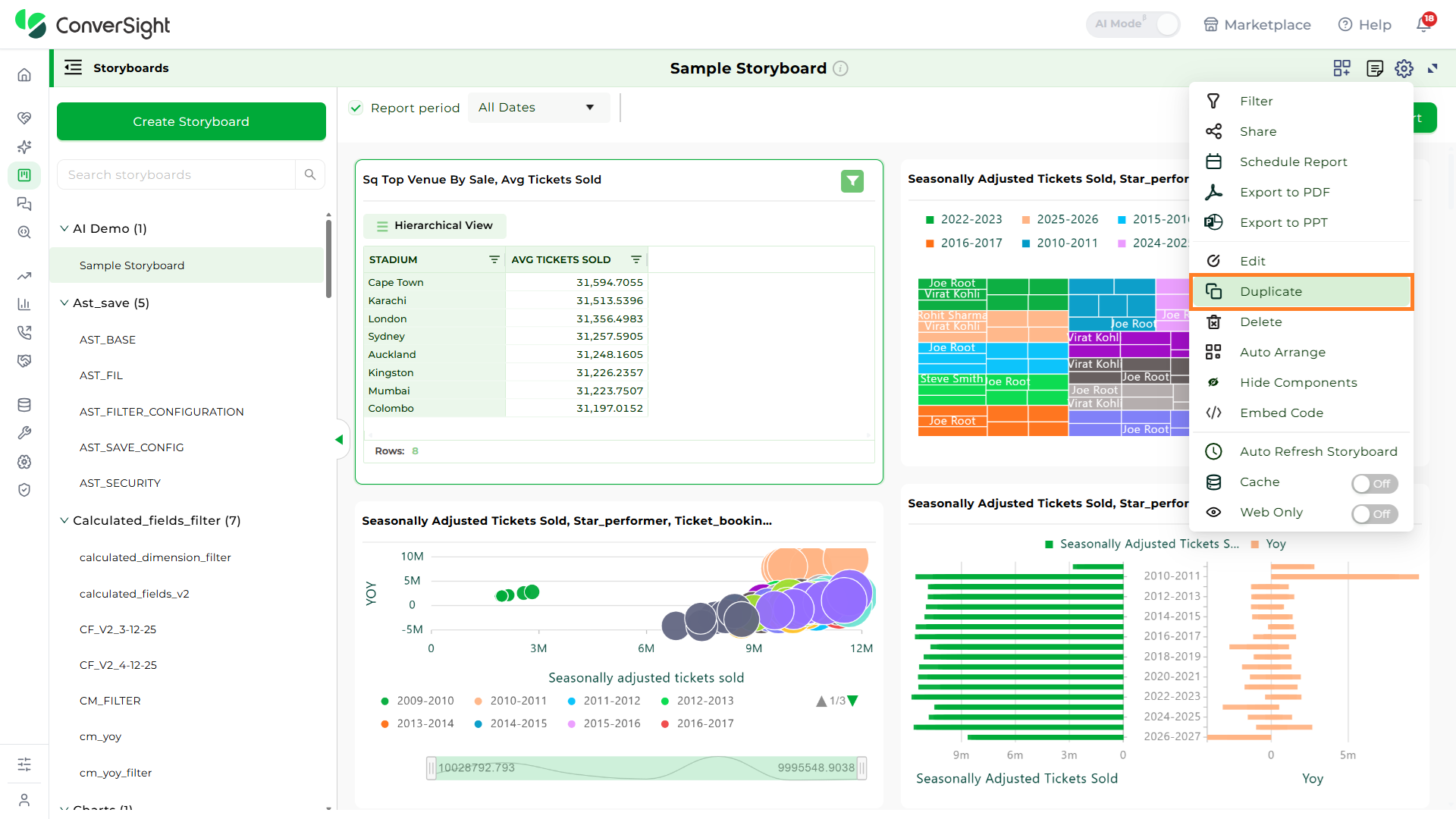
Users can change the name of the Storyboard that is to be cloned or can omit it and click on Duplicate.
Delete
Click on Settings icon and select Delete icon, you can delete the selected Storyboard.
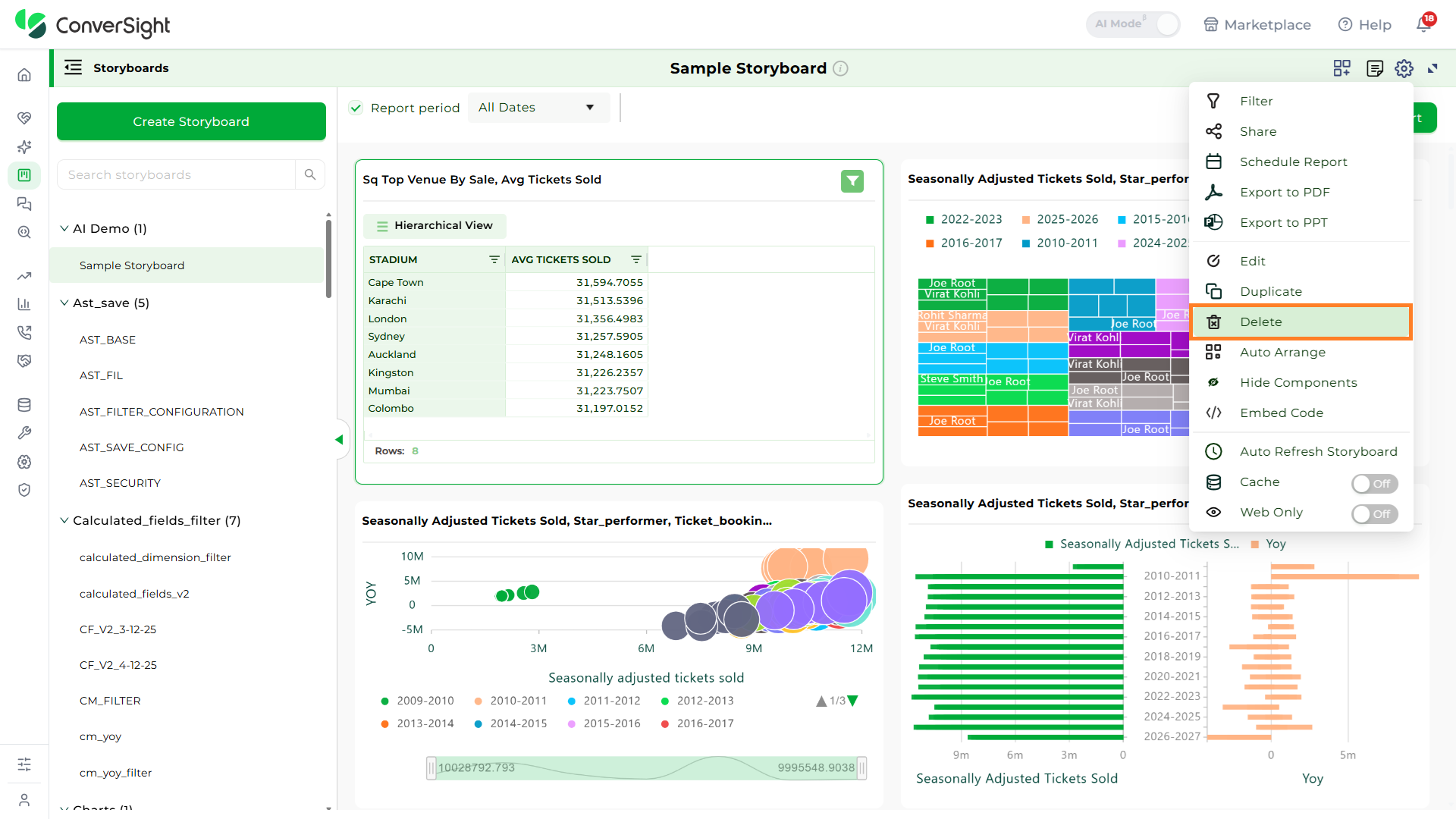
A confirmation popup appears asking you to confirm whether to delete the selected Storyboard. Click the Remove button to delete the selected Storyboard.

Auto-Arrange
Click on the Settings icon and select Auto-Arrange icon in the Storyboard page. This helps you in re-arranging your data or components in the Storyboard and gives you the best view by reducing free spaces.

Embed Code
The Embed Code feature allows users to seamlessly integrate visual storyboards into internal or external applications. This enables users to access real-time insights directly within their own applications, without needing to log into the ConverSight platform. Organizations can apply filters and permissions to ensure that each embedded storyboard is securely tailored to the intended audience, making it easier to deliver data-driven narratives across departments or client-facing portals.

Auto Refresh Storyboard
Automatically refreshes all queries in the storyboard at defined intervals, ensuring the displayed data remains up to date without manual intervention.

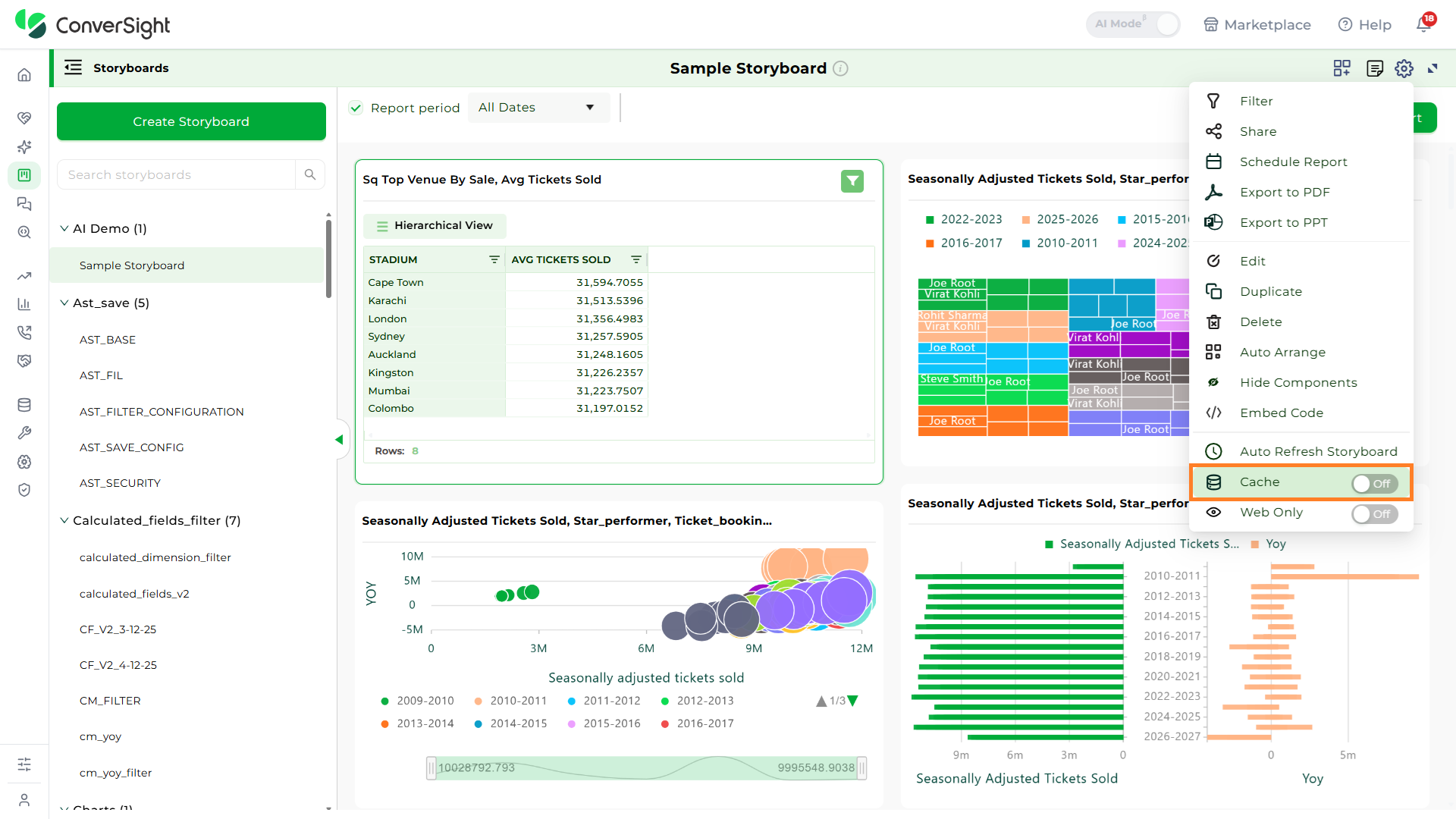
Cache
Cache stores previously retrieved query results to improve performance and reduce load times. When the toggle is enabled, the system reuses cached data instead of re-running queries, allowing storyboards to load faster while maintaining consistent results.
Linking a Storyboard
The Navigate to feature in the Storyboard enables you to establish connections from your Storyboard to other elements like apps, insights, another Storyboard or even a designated URL of your choice.
Now let's look at the steps to link a Storyboard:
Step 1: Select the preferred Storyboard to connect with other elements.
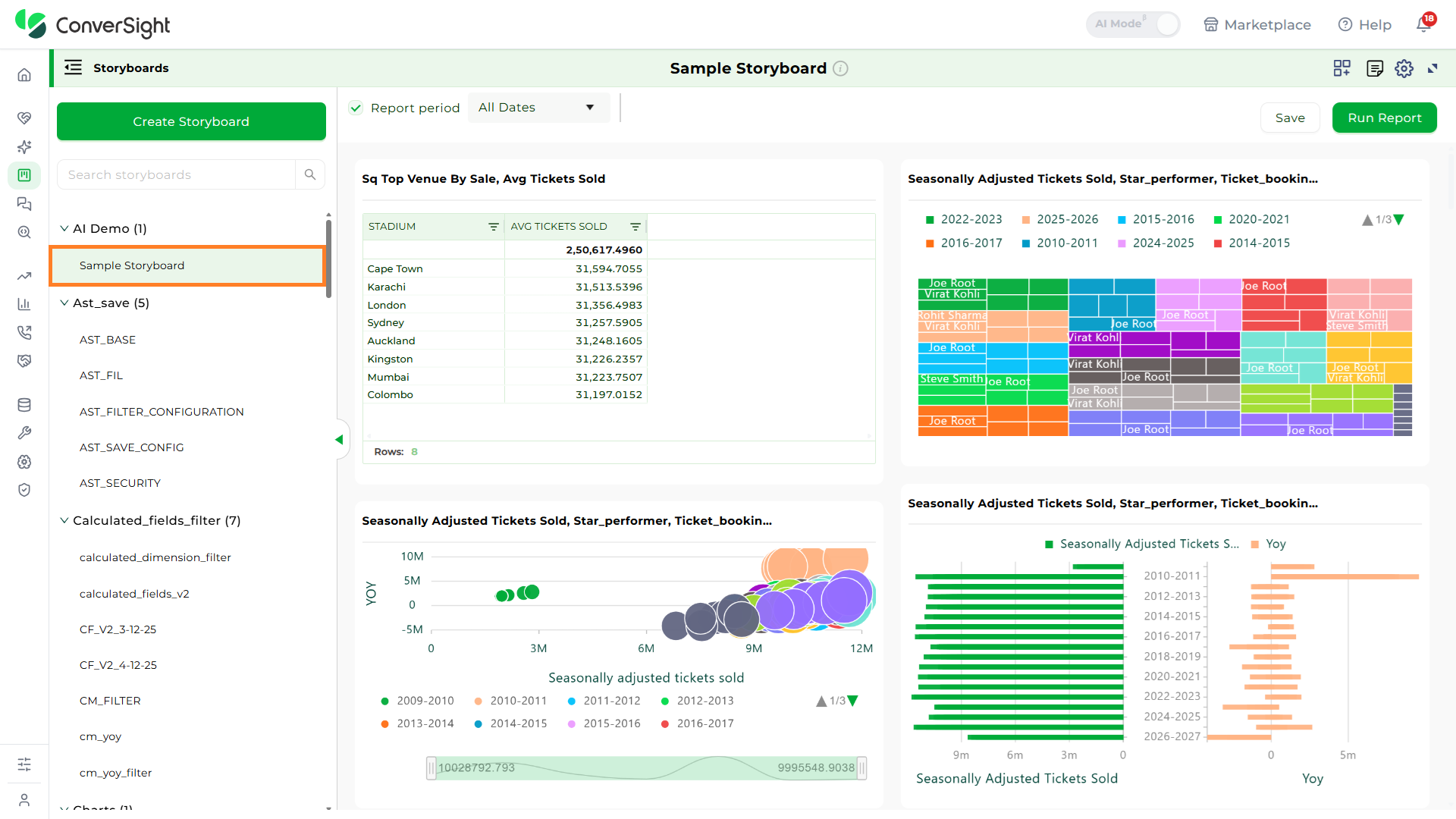
Step 2: Click on the desired Insight's title to create a connection with other elements and to edit the title of the Insight.

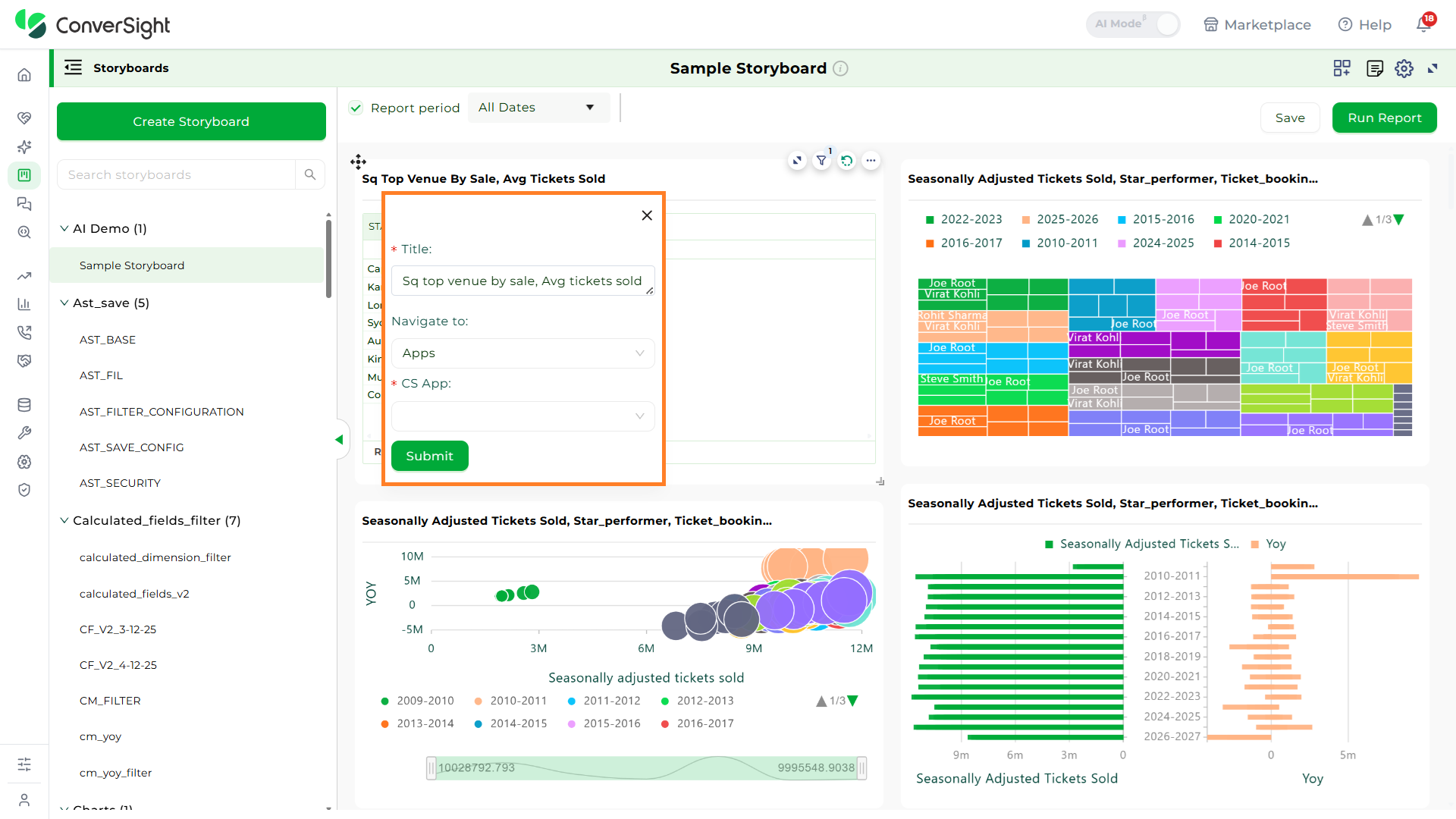
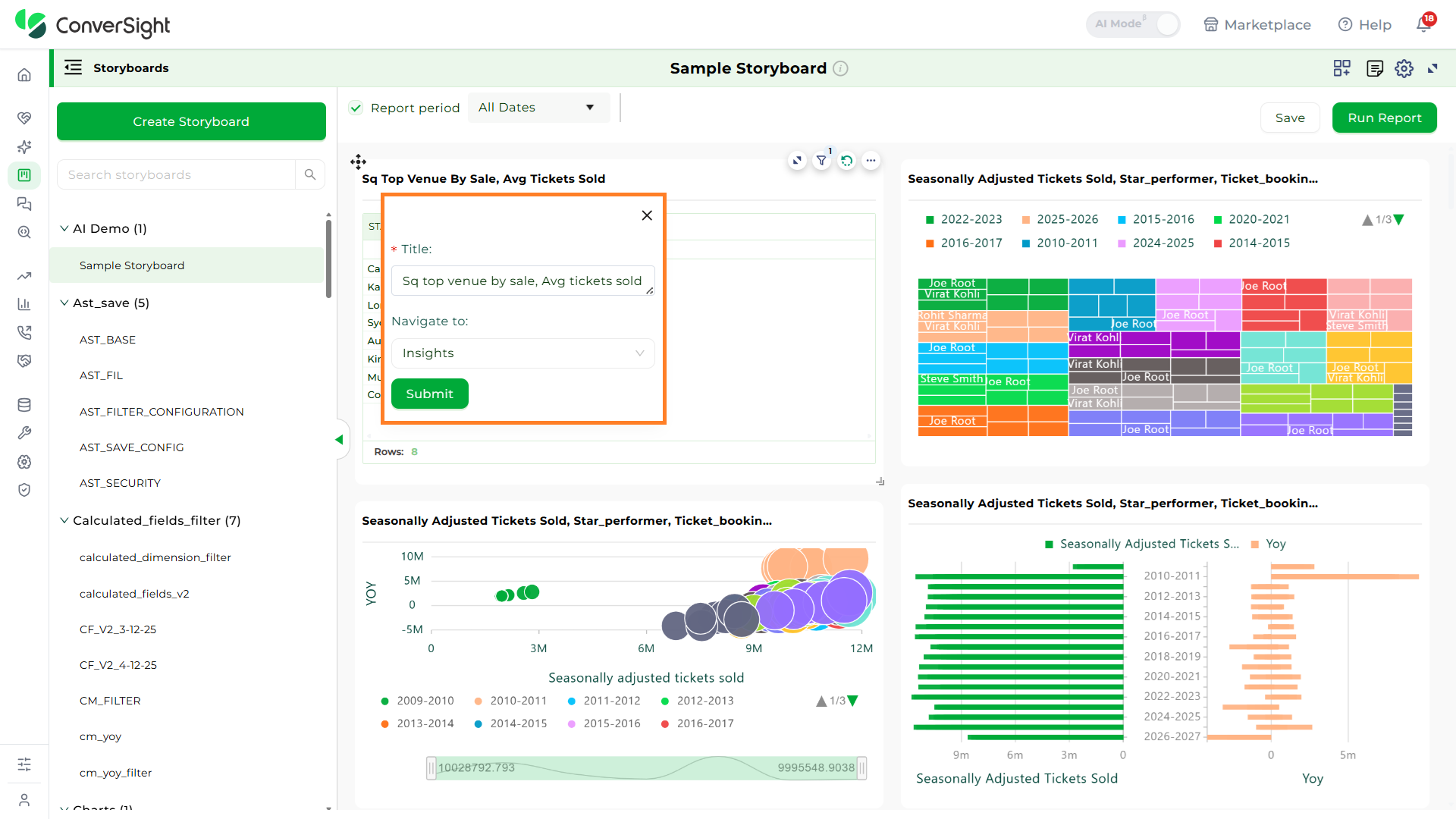
Step 3: In the Navigation to dropdown, choose your Storyboard's redirection destination which are Apps, Insights, Storyboard or URL.
- When you choose Apps, you can create a link between your Storyboard and a preferred CS App. Clicking the Storyboard's title will then redirect you to the selected CS App.
- If you select Insights, you can establish a connection between the Storyboard and the Insights page. Clicking the Storyboard's title will then direct you to the Insights page.
- Opting for the Storyboard option allows you to establish a link to a pinned item within a Storyboard of your choice. When you click on the Storyboard's title, it will lead you to the pinned Insight on the selected Storyboard's page.

- If you choose URL , you have the option to establish a link between your Storyboard and an external website by inputting the URL. Clicking on the Storyboard's title will then take you to the specified link. If you check the Open in a new tab checkbox, the link will open in a new browser tab.
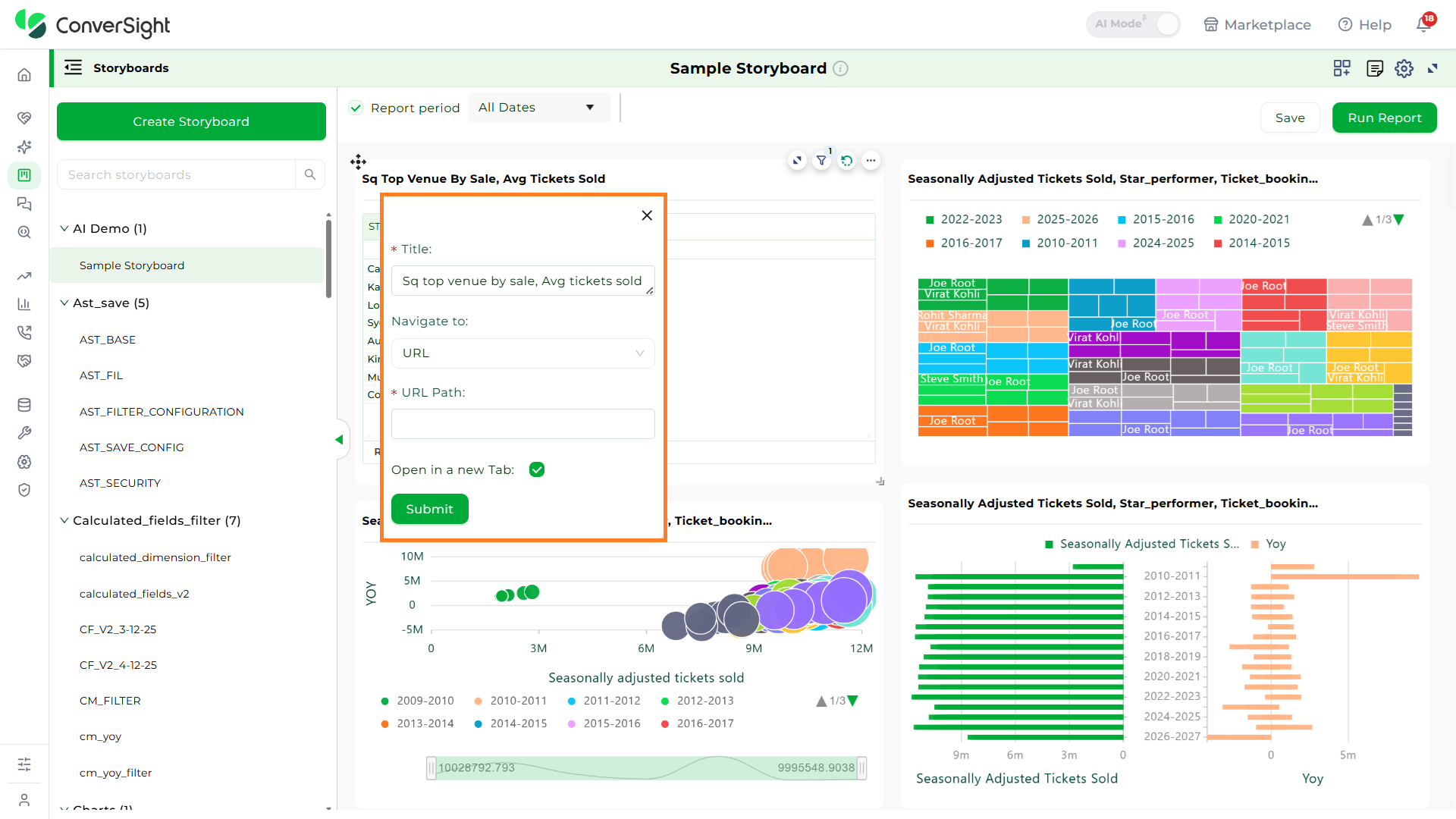
Step 4: After making your selection for the Storyboard's redirection destination, click the Submit button.

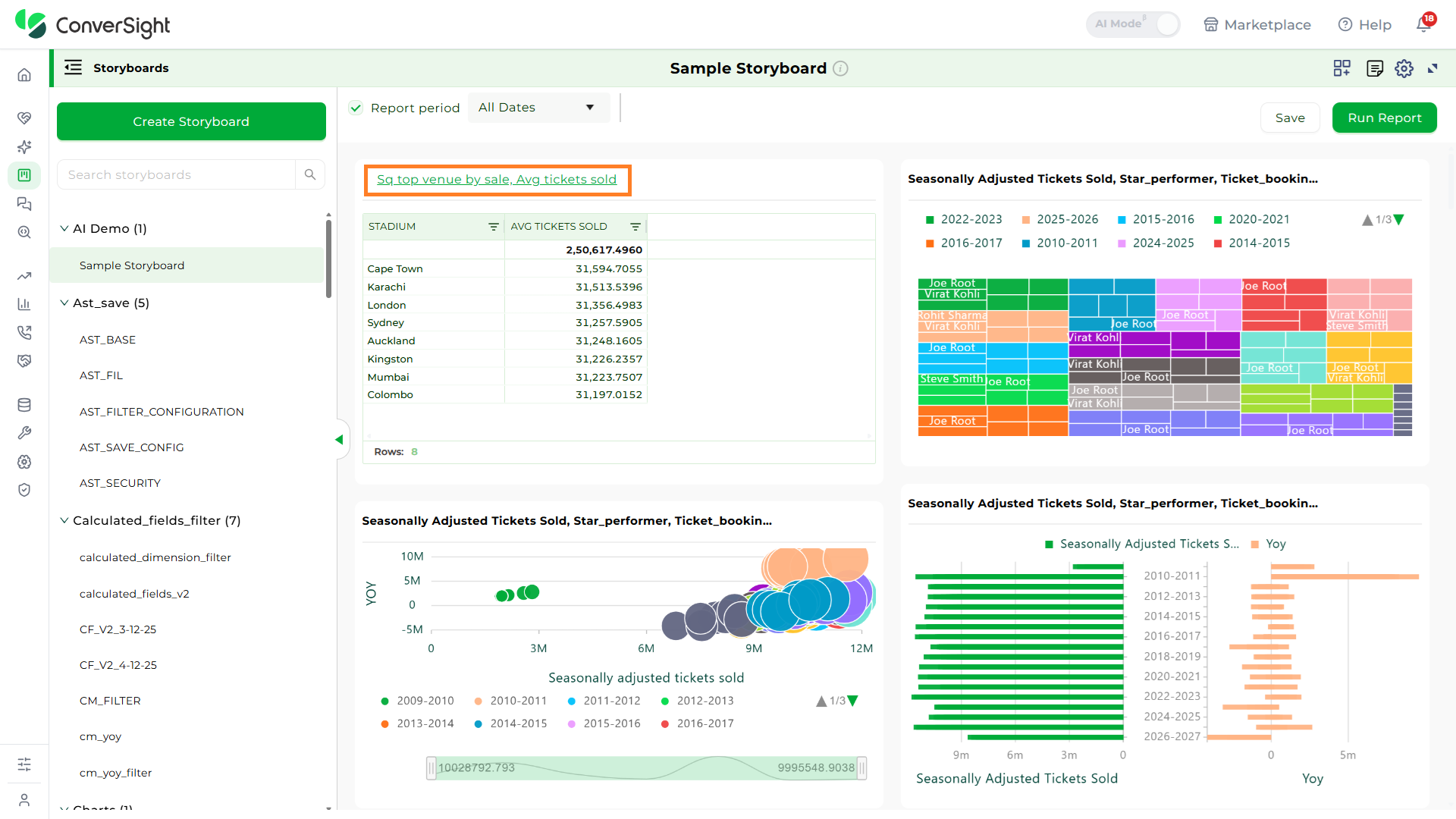
Once the link is established, the Storyboard title will convert into a hyperlink, rendering it clickable. Upon clicking the title, the Storyboard will redirect to the selected destination. This navigation feature within Storyboards is also accessible to users within the organization with whom the storyboard has been shared.
Embed Storyboard
The Embed Storyboard feature proves highly beneficial in scenarios where an organization's members prefer to utilize Athena within their own applications instead of accessing the ConverSight platform directly. By utilizing this feature, users can apply filters to restrict access, tailoring it to specific users and allowing them to conveniently access data from any location. This demonstrates their resourcefulness and problem-solving abilities in overcoming challenges.
With the Embed Storyboard functionality, users can select a desired Storyboard and seamlessly embed it into any application of their choice. This integration enables easy accessibility and convenience for viewing the Storyboard within their preferred tools or systems. This feature provides users with the flexibility to access and interact with their Storyboard on the go, enabling them to make informed decisions based on real-time data, no matter where they are. However, there are plans to expand its support to include Embed Webchat in the future. This means that users will be able to Embed Webchat into their applications.
To access the Storyboards feature, click on the Storyboards option in the AI Intelligence section from left panel in the ConverSight platform.
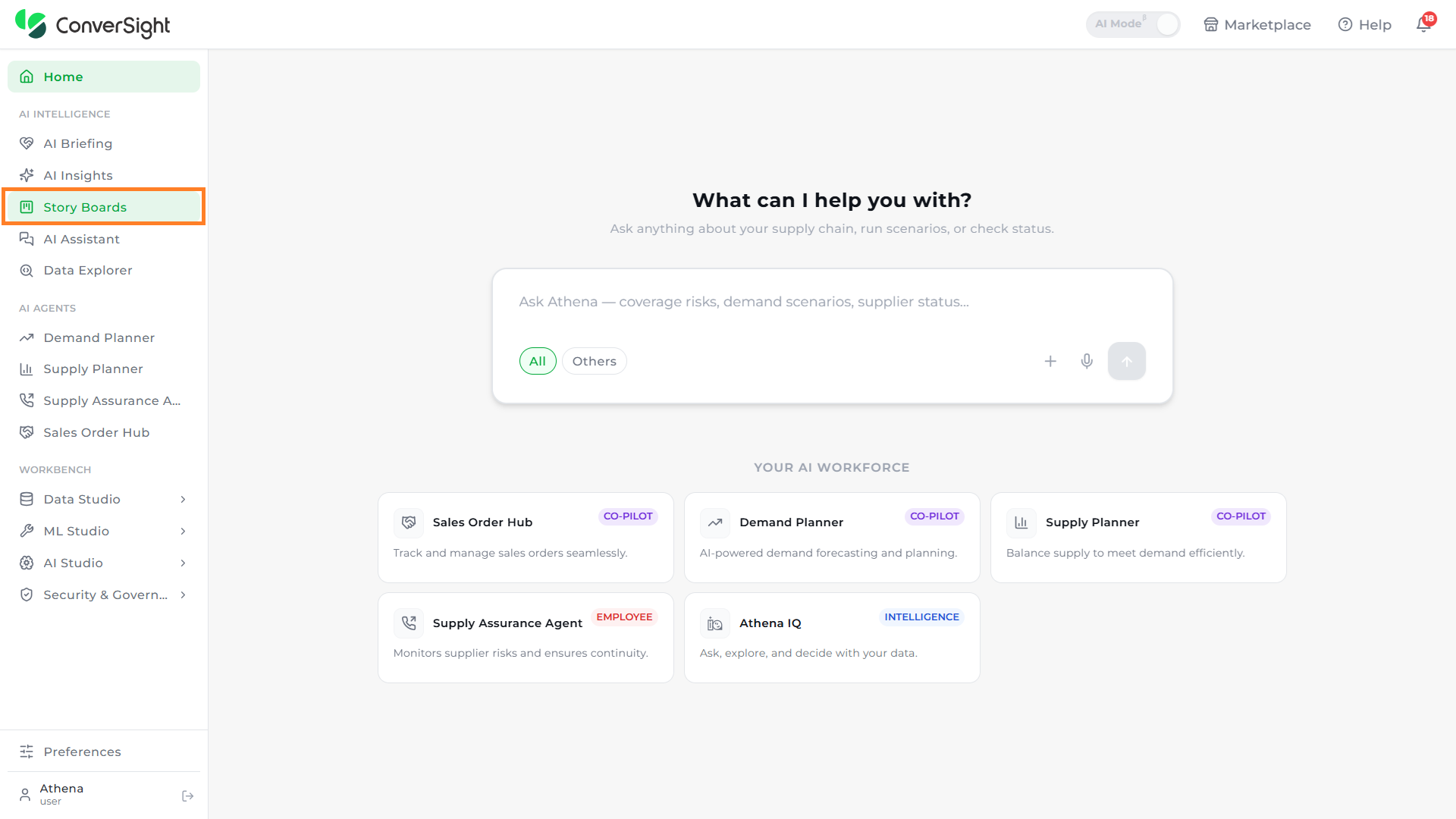
To Embed a Storyboard, you can follow these steps:
We apply two security access type when Embedding Storyboards.
- Embed Storyboard as Public
- Embed Storyboard as Private
Embed Storyboard as Public
When the security access type is set as Public, access to the Storyboard is extended to anyone who possesses the embedding file. The role and permissions associated with the individual who created the embedding file will be applied. This approach facilitates transparency, inclusivity, and collaboration within the organization. All members of the organization can benefit from the valuable insights and information presented in the Storyboard. Since the roles and permissions depend on the person who created the embedding file, it allows for a flexible and dynamic access control mechanism. Regardless of specific roles or permissions, anyone embedding the file can access and engage with the Storyboard's content, promoting a culture of knowledge sharing and collaboration across the organization.
Steps to Embed Storyboard as Public:
- Step 1: To Embed a specific Storyboard, select the desired Storyboard from the list view panel. Then, click on Settings icon and choose the Embed Code option from the dropdown menu.
- Step 2: Upon clicking the Embed Code option from the dropdown, a snippet for the Storyboard will be displayed. To proceed, click on the Generate Token option.

- Step 3: On the Token Preference page, you can choose the validity period for the Storyboard using one of the following options:
- Never: Selecting the Never option means that the Storyboard will not have any time constraints. It will remain accessible indefinitely without an expiration date.
- Expiry: Opting for the Expiry option allows you to define a specific duration in days, weeks or months, for accessing the Embedded Storyboard. By setting an expiry time, you gain control over the timeframe during which users can access and make use of the designated Storyboard.

- Step 4: Choose the security access type as Public and specify the desired domain.

Users are provided with the choice to add multiple domain names, but they are required to include at least one domain name.
- Step 5: Once all the necessary details have been entered, click on the Submit button to generate the authToken and accessID within the snippet.


- Step 6: To copy the snippet, you can easily click on the Copy icon located next to the code, which will automatically copy the code to the user's clipboard.

-
Step 7: Integrate the snippet into the customer platform.
-
Step 8: After the successful integration of the snippet, users can initiate the launch of storyboards directly from the customer platform and can gain the ability to access and interact with the storyboard directly from their own platform, providing a seamless experience.
When setting the security to Public during the Embedding of a Storyboard, there is no need for a User Token.
Embed Storyboard as Private
In a Private security access type, access to the Storyboard is managed at the user level using assigned filter values and column names within the embedded snippet. These values are determined by the User Token generated on the customer's side through the User Provision API, integrated into their own tool. Each user is allocated specific roles that determine their access rights to different Storyboards within the organization. As a result, users will have varying access levels to Storyboards based on their assigned filter values and column name permissions.
This role-based access control ensures that users are limited to viewing and interacting only with the Storyboards that are relevant to their specific roles and responsibilities. By doing so, data privacy, security, and confidentiality are upheld by restricting access to sensitive information and functionalities. Implementing this approach enables organizations to ensure that each user has access to the Storyboards essential to their work while preventing unauthorized access and maintaining data integrity. It allows for a tailored user experience that aligns with specific roles and responsibilities within the organization, enhancing productivity and protecting sensitive information.
Steps to Embed Storyboard as Private:
- Step 1: To Embed a specific Storyboard, select the desired Storyboard from the list view panel. Then, click on Embed Storyboard icon and choose the Embed Code option from the dropdown.
- Step 2: Upon clicking the Embed Storyboard option, a snippet for the Storyboard will be displayed. To proceed, click on the Generate Token option.
- Step 3: On the Token Preference page, you can choose the validity period for the Storyboard using one of the following options.
- Never: Selecting the Never option means that the Storyboard will not have any time constraints. It will remain accessible indefinitely without an expiration date.
- Expiry: Opting for the Expiry option allows you to define a specific duration in days, weeks or months, for accessing the Embedded Storyboard. By setting an expiry time, you gain control over the timeframe during which users can access and make use of the designated Storyboard.

- Step 4: Choose the security access type as Private and specify the desired domain.

Users are provided with the choice to add multiple domain names, but they are required to include at least one domain name.
- Step 5: Once all the necessary details have been entered, click on the Submit button to generate the authToken and accessID within the snippet. It is crucial for the user to securely store this accessID for future reference and utilization.


- Step 6: To copy the snippet, you can easily click on the Copy icon next to the code, which will automatically copy the code to the user's clipboard.
-
Step 7: Integrate the provided code snippet into the customer-designated platform, ensuring that the ConverSight launch component is uncommented and provided with the User Token as an argument. This User Token serves as the authentication key, granting users the necessary permissions and privileges to access the Embedded Storyboard.
-
Step 8: The User Token is created using the User Provision API, utilizing the organization token, which is a unique identifier generated exclusively by the system administrator at ConverSight. Each organization is assigned its own distinct Orgtoken, acting as a crucial key to authenticate and access various organizational functionalities and resources. Additionally, the generated Access ID from the snippet is utilized in the process.
To generate the user token, it is essential to provide the necessary details such as the dataset and roles-specific filters to the user in the API body. These filters grant the capability to limit access to specific columns or apply conditions to columns. Additionally, they allow for the inclusion of multiple dataset access for a single user. These details ensure appropriate access and permissions for the user within the system.
The User Provision API is utilized to create and update user access.
URL: https://app.conversight.ai/api/v1/user/provision?token= Org AccessToken
    Request:
    {
    "expiry": {
            "frequency": "days",
            "value": 1
        },
        "email": "<<email>>",
        "firstName": "<<firstName>>",
        "lastName": "<<lastName>>",
        "displayName": "<<displayName/Alias>>",
        "accessID": "<<accessID>>",
        "roles": [
            {
                "name": "<<roleName>>",
                "dataset": "<<datasetID>>",
                "configuration": {
                            "currency": "<<currency>>
                            "financialOffset": <<num>>
                    },
                "filters": [
                    {
                         "column": "<<columnName>>",
                        "operator": "<<operator>>",
                        "value": [
                            "<<valuesToFilter>>"

                        ] } ] } ] }

    Response:
    Success Response:
    HTTP Status code -> 200
    {
        "status": "success",
        "data": {
            "token": "<<userLevelAccessToken>>",
            "id": "<<userID>>"
        }
    }

    Failure Response:
    HTTP Error code -> 401, 400, 403, 500
    {
        "status": "failed",
        "error": "<<errorMessage>>"
    }
- firstName: The first name of the user intended for provisioning.
- lastName: The last name of the user intended for provisioning.
- displayName: The desired display name or alias preferred by the user.
- email: The email address of the user intended for provisioning.
- roles: Roles include details such as the role name, dataset ID, configurations (including currency format and financial year settings) and the related filters. These role details are crucial for ensuring controlled data visibility and security.
Additionally, the filter in the roles is an optional field. If left empty, the user will be granted full access. It is important to note that the details within the request should remain unaltered. Furthermore, when generating the token ensure to include the accessID that is generated.
If the frequency is set as Never then the value will be -1.
-
Step 9: Upon receiving a response from the User Provision API, it will provide a User Token and a User ID. These generated tokens should be securely stored within the customer platform for future usage. The User Token obtained from the response should be provided as an argument in the
ConverSight.launch(<< user token >>)method within the snippet. This ensures that the user is authenticated and granted appropriate access to the embedded functionality within the ConverSight platform. -
Step 10: After the successful integration of the snippet, users can initiate the launch of storyboards directly from the customer platform. If a user does not have an existing account with ConverSight then the creation of an account can be done either directly on the ConverSight platform or by utilizing their API from the customer`s platform along with their filter values for roles and datasets. Once the account is created, the user gains the ability to access and interact with the storyboard directly from their own platform, providing a seamless experience.
The Embed Storyboard feature allows users to conveniently access and tailor data from any location, demonstrating their resourcefulness and problem-solving abilities. This integration provides easy accessibility and flexibility, empowering users to make informed decisions based on real-time data, regardless of their location.
For any queries, please get in touch with our support team at info@conversight.ai.
Storyboard Customization
Customizing a storyboard allows you to tailor the presentation of your data to better suit your needs. By rearranging insights, changing chart types and applying filters, you can create a more organized and relevant view that highlights key information and improves decision-making. This flexibility ensures that your storyboards are not only visually appealing but also aligned with your specific analytical goals and business context.
Arrange Insights
To organize the insights within the storyboard, Click and Drag each insight to your desired position. This allows you to customize the layout to better suit your needs.

You can also resize the insights by using the Resize icon, making them larger or smaller as required.

Change Chart Types
To change the type of chart used for any insight, click on the Expand icon. This action will display all available chart types, allowing you to choose and apply the one that best suits your needs.
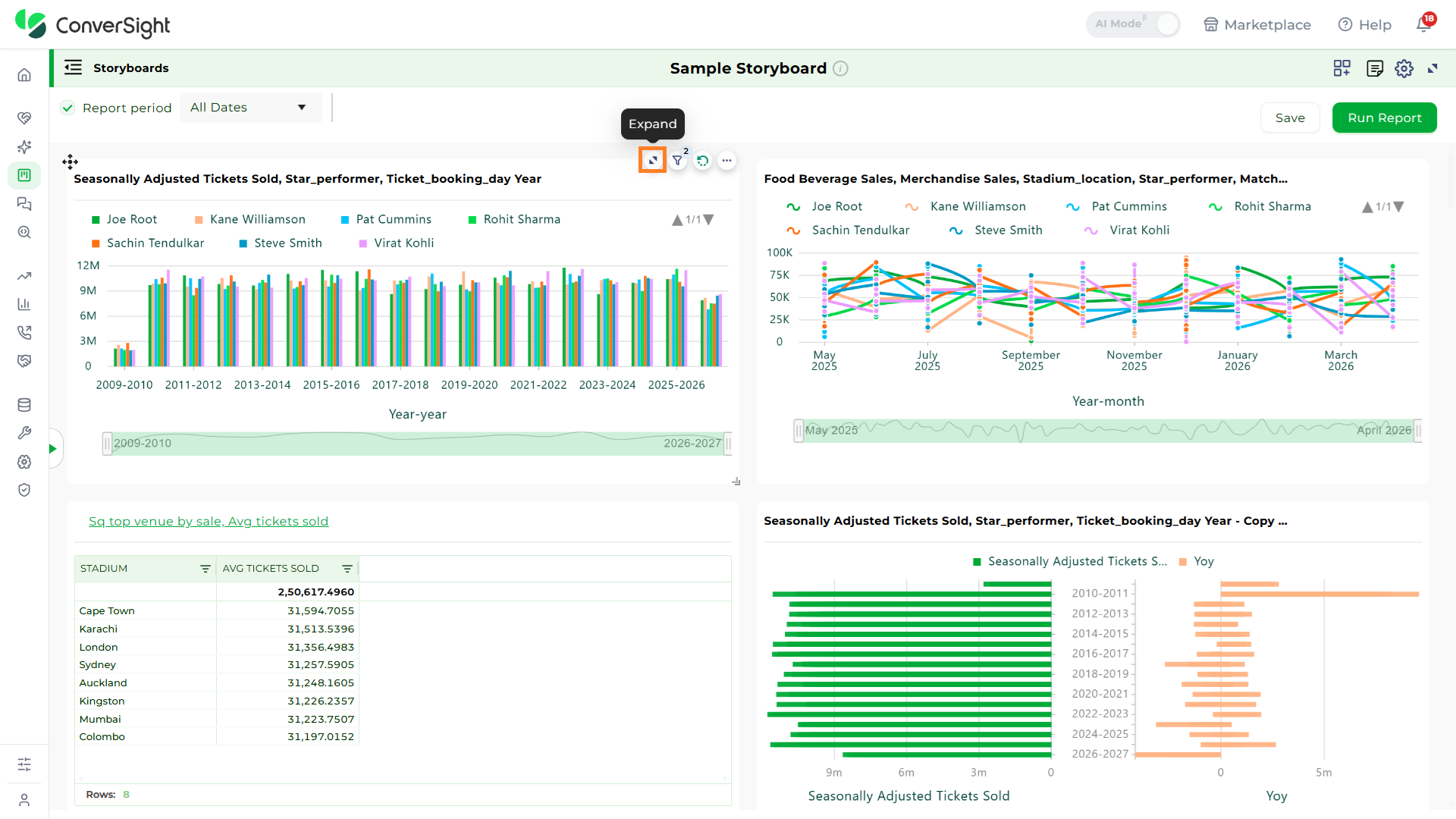
Browse through the options, select the chart type that best represents your data and click the Save icon to apply your changes.

Applied Filters
Applied Filters allow users to view and understand the filters currently applied to a storyboard, providing clarity on how the data is refined. These filters operate at the storyboard component level, ensuring consistent filtering across all tables and charts and helping users focus on key insights without applying filters to each component individually. Clicking the Applied Filter icon opens the filter panel, which displays all filters applied to the selected storyboard component, giving a clear view of the data being presented.

Refreshing Insights
Clicking the Refresh icon on any insight to regenerate it with the latest available data, ensuring real-time accuracy.

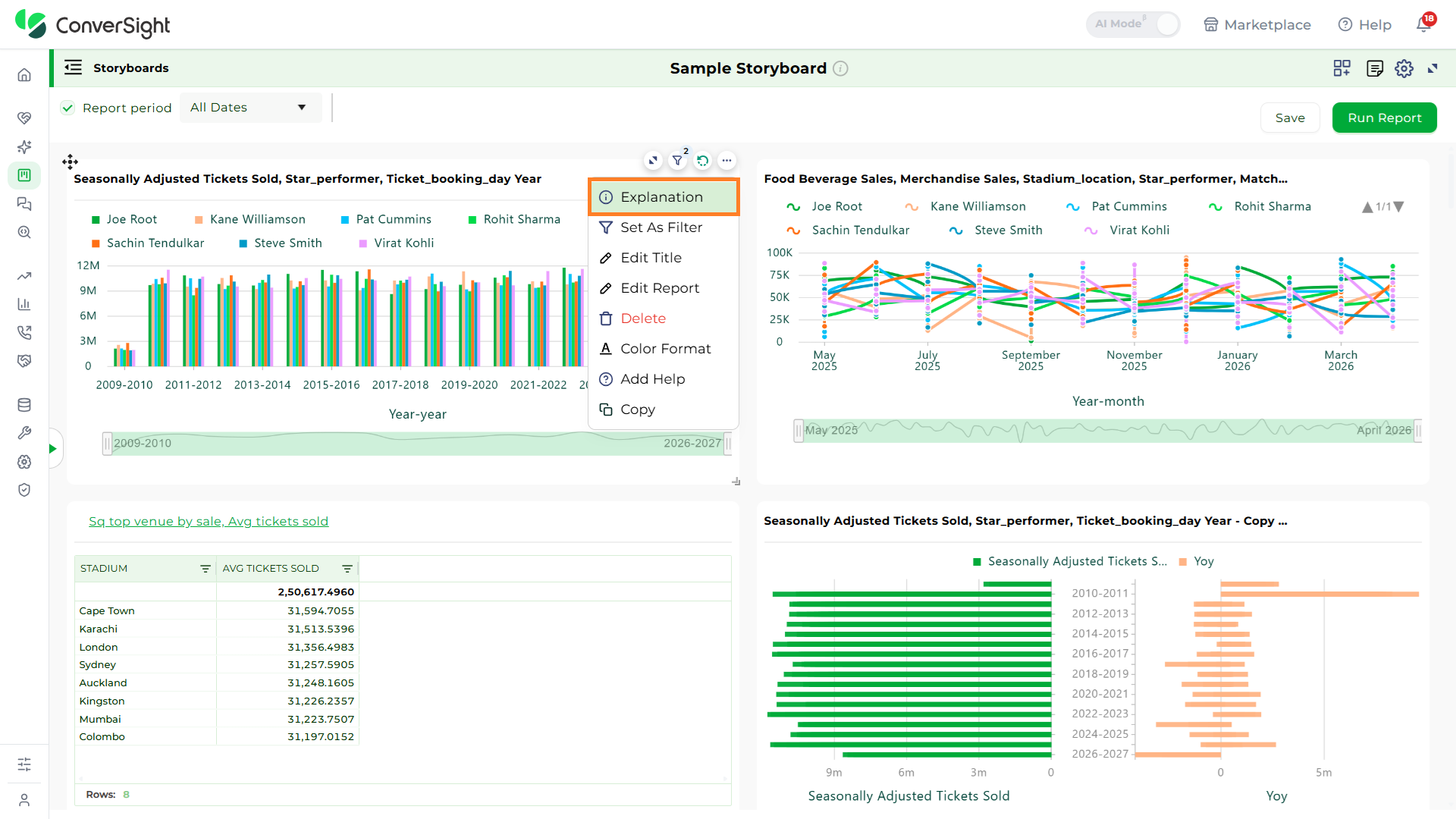
By clicking on More Options, on an insight provides access to multiple actions, including:
- Explanation
- Set As Filter
- Delete
- Color Format
- Add Help
- Copy
- Edit Title
Explanation
The Explanation option displays detailed information such as the Semantics, SQL Query, and SQL Form associated with the insight.
Set As Filter
The Set As Filter option allows users to apply a column-specific filter across all insights within a storyboard. This feature is available only for insights in table format.

If an insight is not currently in table format, selecting "Set As Filter" from the dropdown menu will trigger a popup, prompting the user to convert the insight into a table before the filter can be applied.
Click on the "Yes" button to convert the selected insight into table format.

When you click "Yes", the insight is automatically converted into table format. A new popup will then appear, prompting you to select the Dimension or Component to apply as the filter.

To use a dimension column as a filter, select the desired column from the "Available Dimensions" section.

Users can select components from the Available Components section in the storyboard. Choosing the All option will apply the filter to every component, but you also have the flexibility to apply it to a single component or any number of components of your choice.

After making your selection, click the "Apply" button to save the changes.

The selected insight is now converted into a filter component, and a filter icon appears on the applied insight.

To apply this filter to all storyboard components, click the desired row in the filter component. You will then see the filter applied across all components in the storyboard, along with the specific filter details. In this example, the filter applied is Stadium is Cape Town.

Manage
Selecting the "Manage" option allows you to edit the applied filter as needed.

Once the changes are made, click "Save" to apply the modifications.

Reset
The "Reset" option allows users to revert all filter component changes applied across the storyboard.

Export to Excel
The Export to Excel option enables users to export that filter component in excel format.

Edit Title
The Edit Title option allows users to modify the insight’s title or update its redirect navigation. Make the required changes and click Submit to save them.

Edit Report
Edit Report allows users to edit a specific component within a storyboard by opening it in Explorer. This provides direct access to the columns and settings of the component, making it easy to modify, update, and save changes without recreating the component.
The following are the steps:
Step 1: In Storyboard, select the component you want to edit and click the Edit Report icon. The component will then open in Explorer for editing.


Step 2: Modify or Add columns as needed, then click Run to apply changes.

Any filters applied in the storyboard will not be retained or shown while editing the component in Explorer
Delete
To remove an insight from the storyboard, select the Delete option. A confirmation prompt will appear—click Yes to proceed with deletion.

Color Format
The Color Format option enables users to apply basic and conditional color formatting based on predefined rules to certain columns. After configuring the desired formatting, click Save to apply the changes.

Add Help
The Add Help option allows users to include supporting information or context to enhance the understanding of the insight.

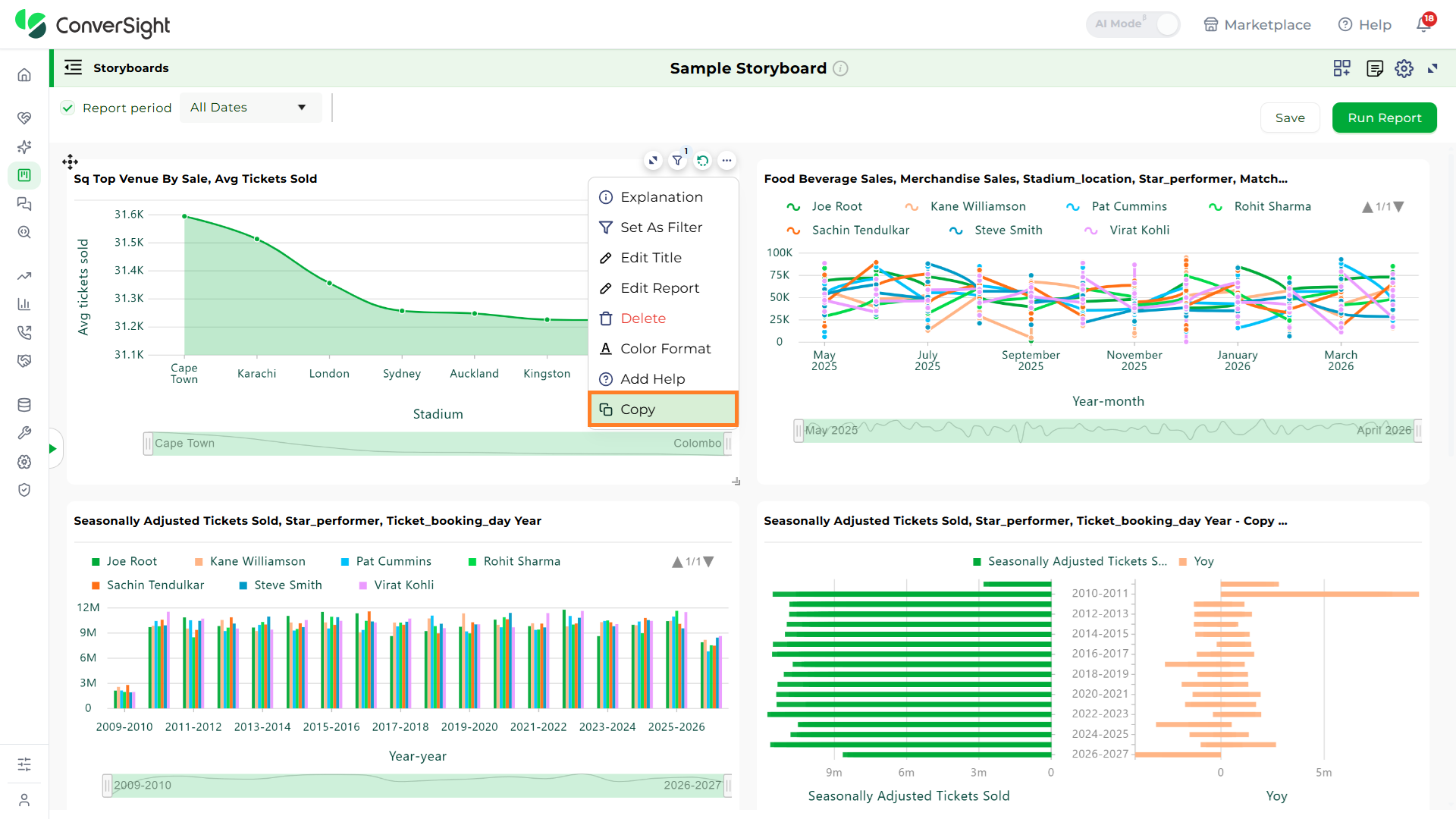
Copy
The Copy option allows users to duplicate an insight from one storyboard to another. After selecting the target storyboard, click Submit to complete the action.
Storyboard Widgets
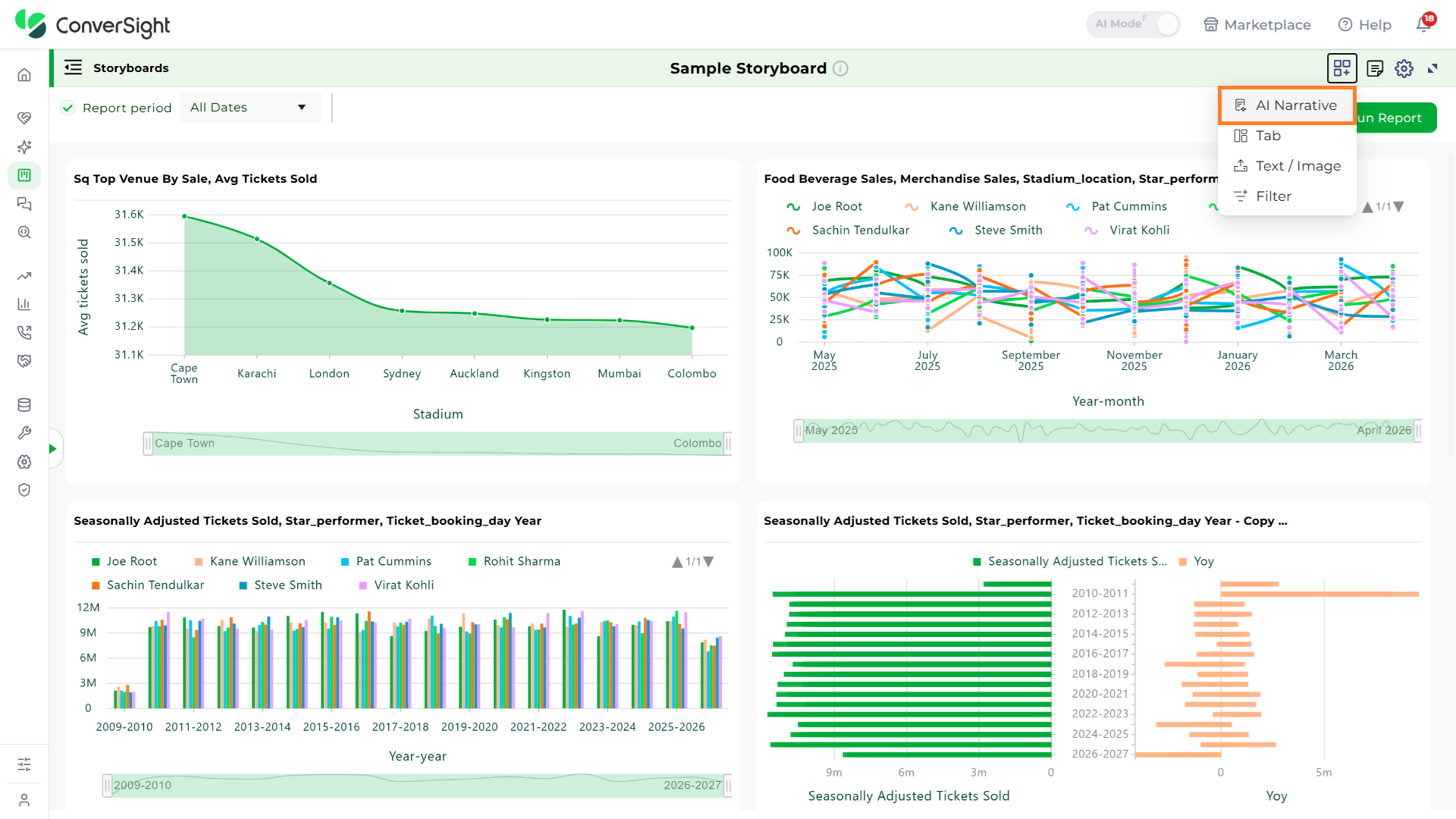
Widgets are the building blocks of a storyboard, allowing you to add meaningful content such as Tabs, Text, Images, Filter, Story, Summarizer, and AI Insights. They help convey the purpose, context, or key information within a storyboard, making it easier for users to grasp its meaning at a glance. Whether you want to illustrate a process, emphasize an important point, or visually support your content, widgets make the storyboard both informative and engaging.
AI Narrative
AI Narrative brings data to life by transforming charts, tables, and insights into clear, natural-language explanations. It includes Story, Summarizer, and AI Insights, each designed to help users quickly understand what the data means and why it matters. While Story provides a structured narrative with overviews, key insights and business recommendations, Summarizer delivers a concise textual summary of the analysis and AI Insights offer focused explanations and actionable recommendations directly tied to charts and metrics. Together, these AI narratives help users interpret data faster, communicate insights effectively, and make informed, data-driven decisions with ease.
Story
The Story widget presents selected insights in a natural language format. It includes an Overview section that provides a high-level summary of the insight, a Key Insights section that highlights clear trends, patterns, and key KPIs, and a Business Insights section that offers actionable recommendations based on the analyzed data.

Select the desired storyboard component that you want to view as a story and click on the Add button.

You can now see that the Story Widget has been added as a component in the selected Storyboard.

Refresh
Use the Refresh option to view the latest story after the data is updated.

Edit Title
Use the Edit Title option to update the title and to set navigation to Apps, Insights, Storyboard or a URL.


Delete
Use the Delete option to remove the story widget from the storyboard page.

Manage
Use the Manage option to manage the selected storyboard components.


The Save button will be disabled if the storyboard has only one component.
Summarizer
The Summarizer widget converts the insight into natural language by providing a concise summary of all the information derived from the analysis.
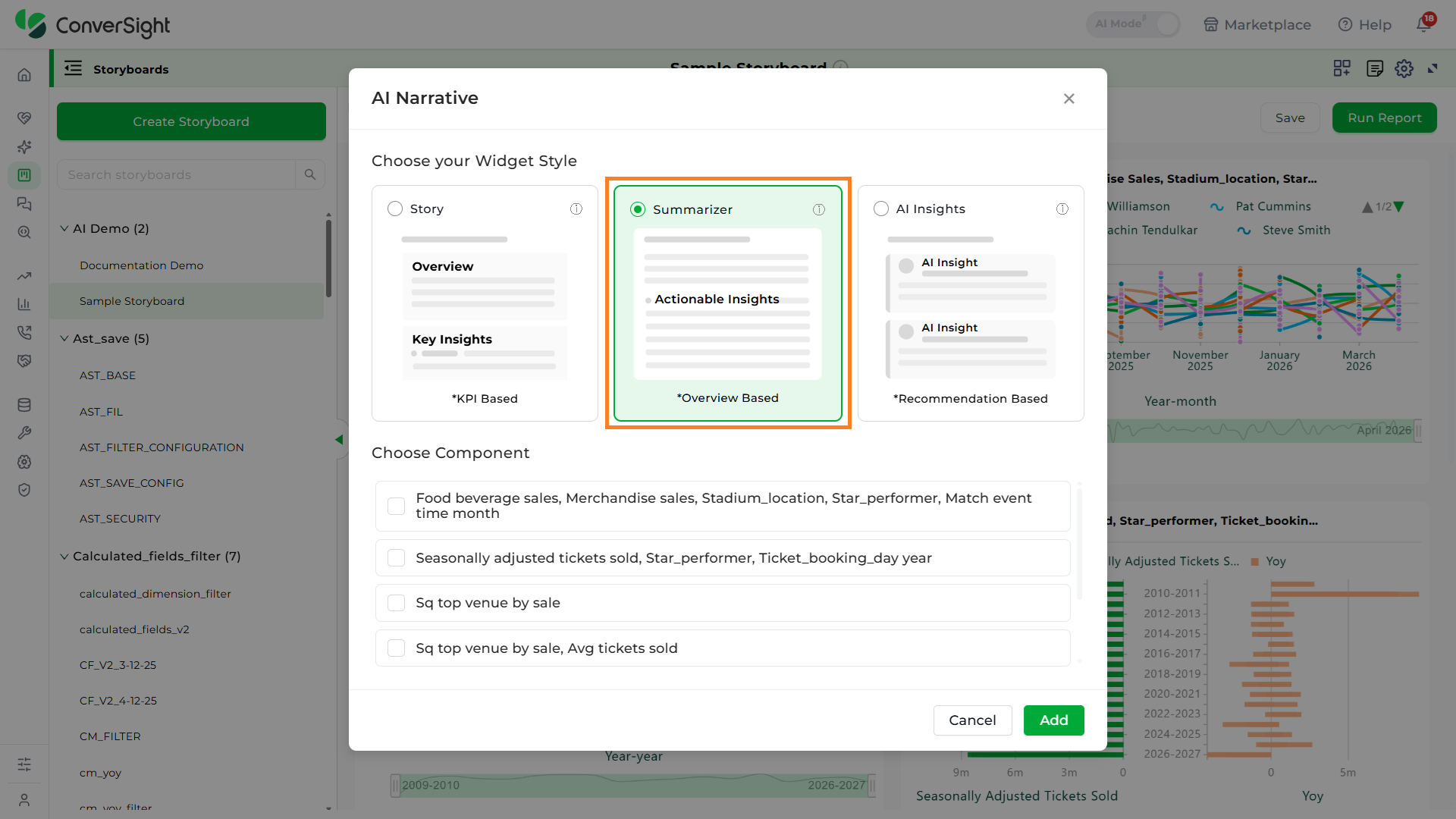
Select the required component from the available list and click Add to create the Summarizer widget.


Refresh
Use the Refresh option to view the latest version, after the data is updated.
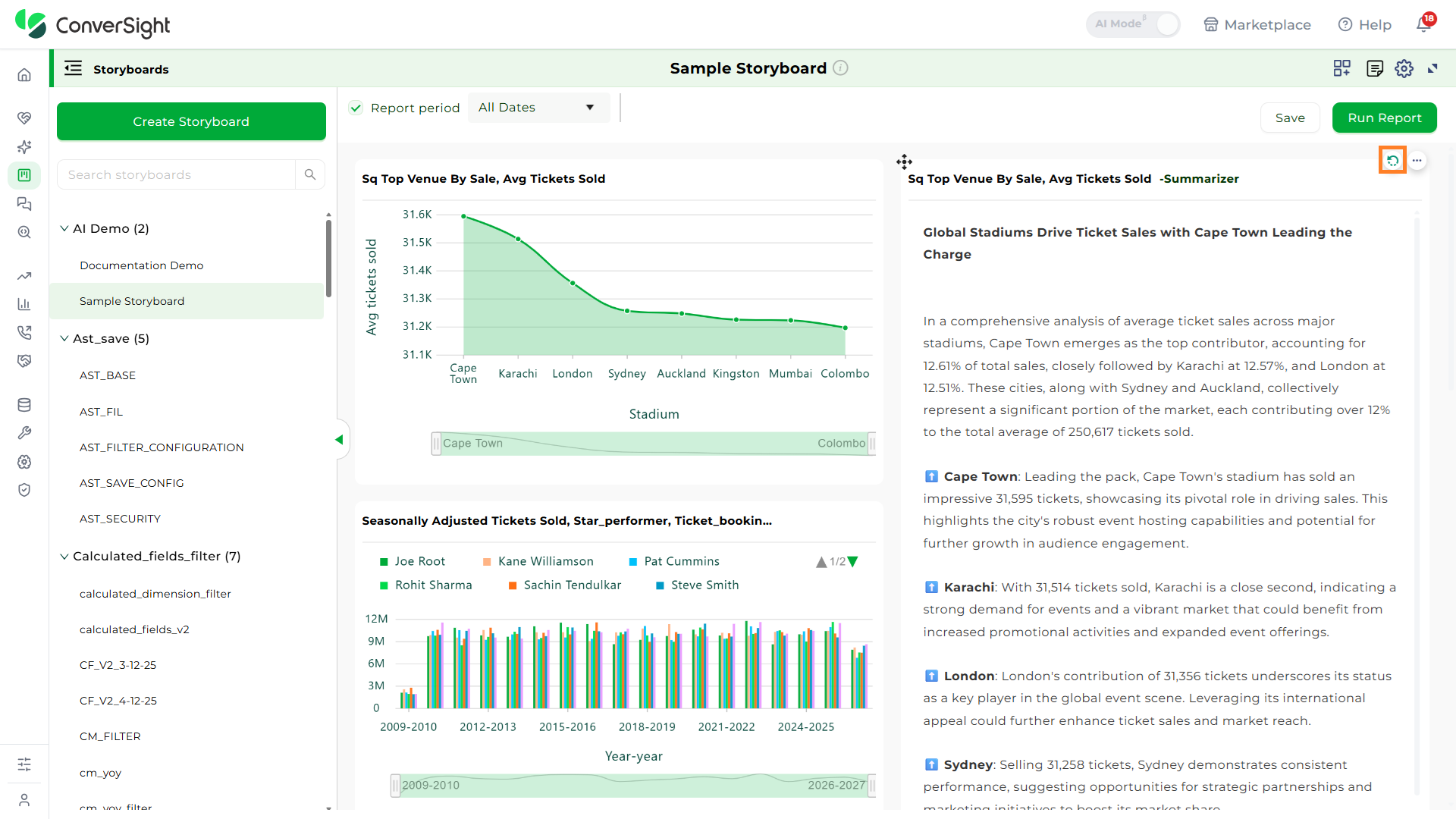
Edit Title
Use the Edit Title option to update the title and to set navigation to Apps, Insights, Storyboard or a URL.


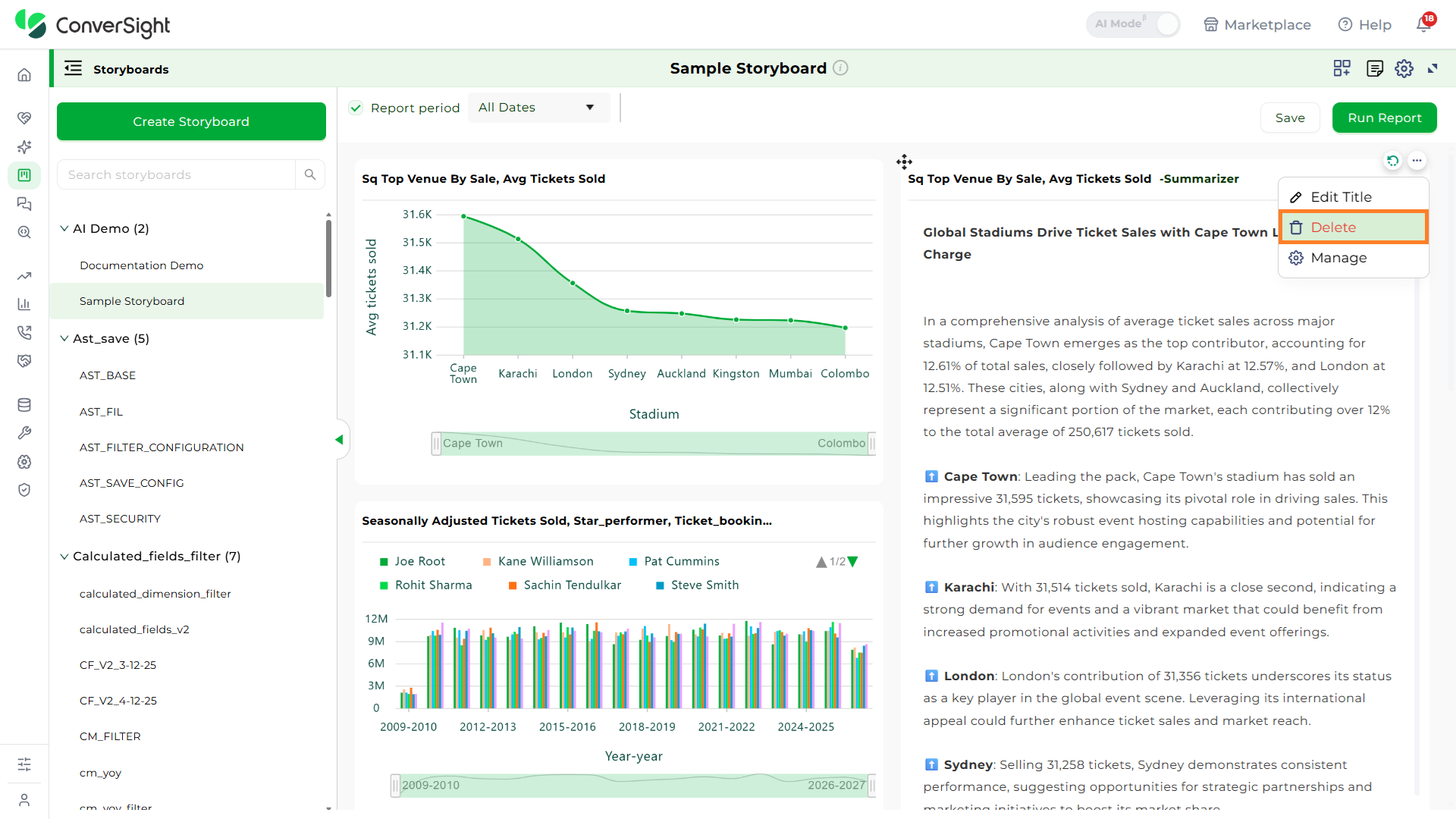
Delete
Use the Delete option to remove the summarizer widget from the storyboard page.
Manage
Use the Manage option to manage the selected storyboard components.
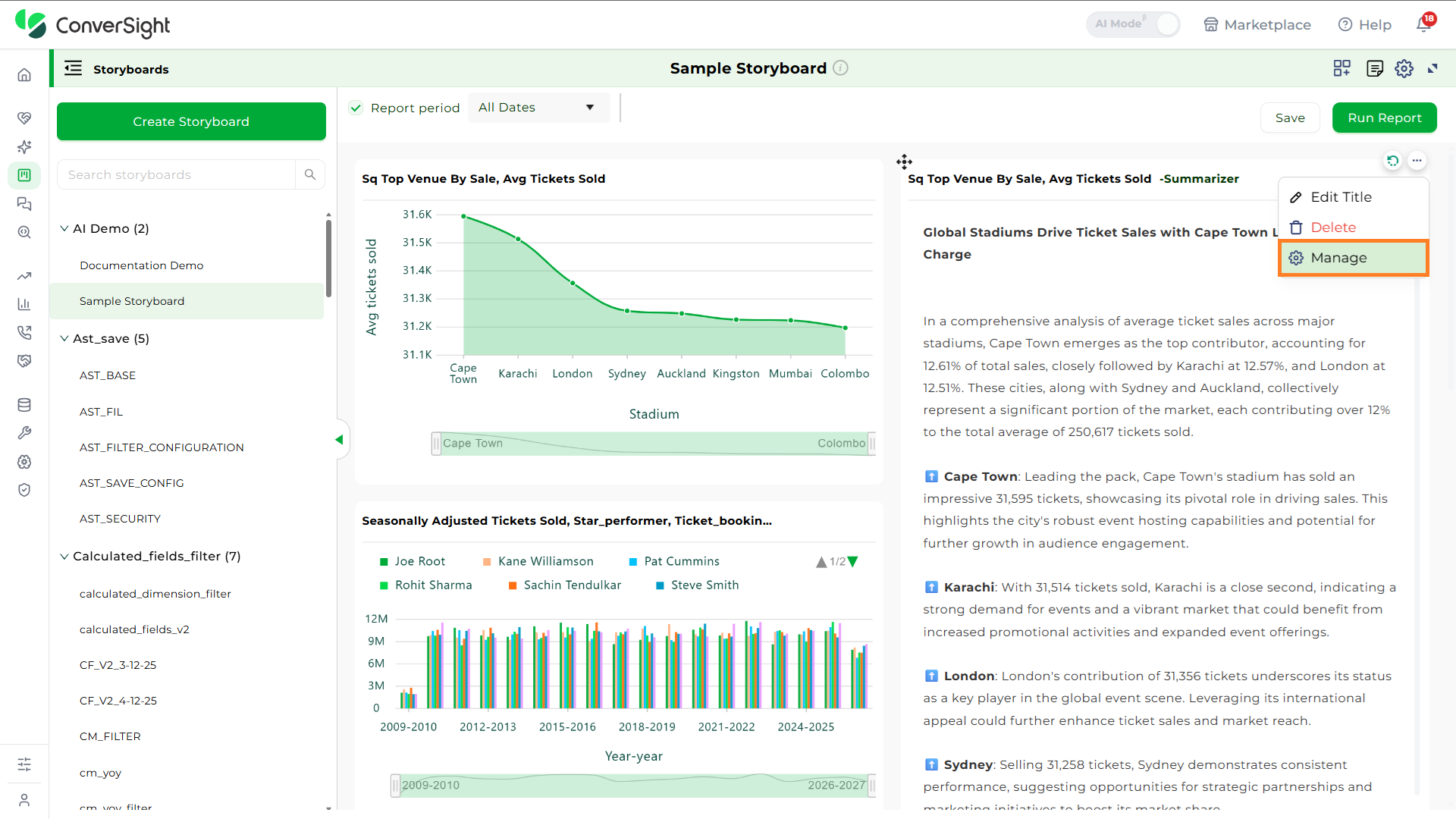

The Save button will be disabled if the storyboard has only one component.
AI Insights
The AI Insights widget provides clear, AI-generated insights that explain charts and graphs in a concise and accurate manner, along with actionable recommendations to support better business decisions.
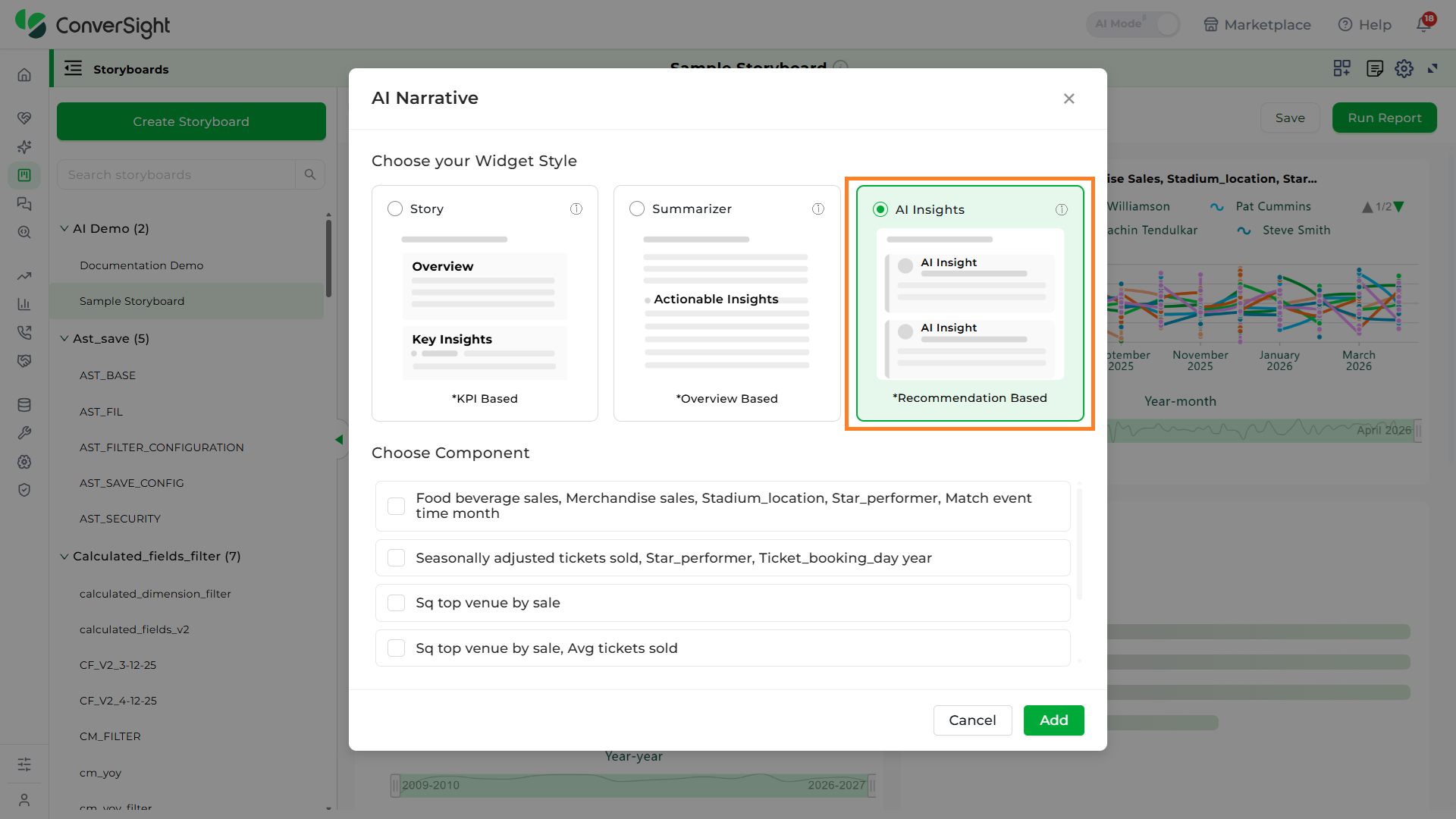
After selecting the AI Insight option, choose the relevant component and click Add to add the widget.


Refresh
Use the Refresh option to view the latest insight, after the data is updated.

Edit Title
Use the Edit Title option to update the title and to set navigation to Apps, Insights, Storyboard or a URL.


Delete
Use the Delete option to remove the AI insight widget from the storyboard page.

Manage
Use the Manage option to manage the selected storyboard components.


The Save button will be disabled if the storyboard has only one component.
Tabs
Click the Widgets icon and choose Tab from the dropdown menu.
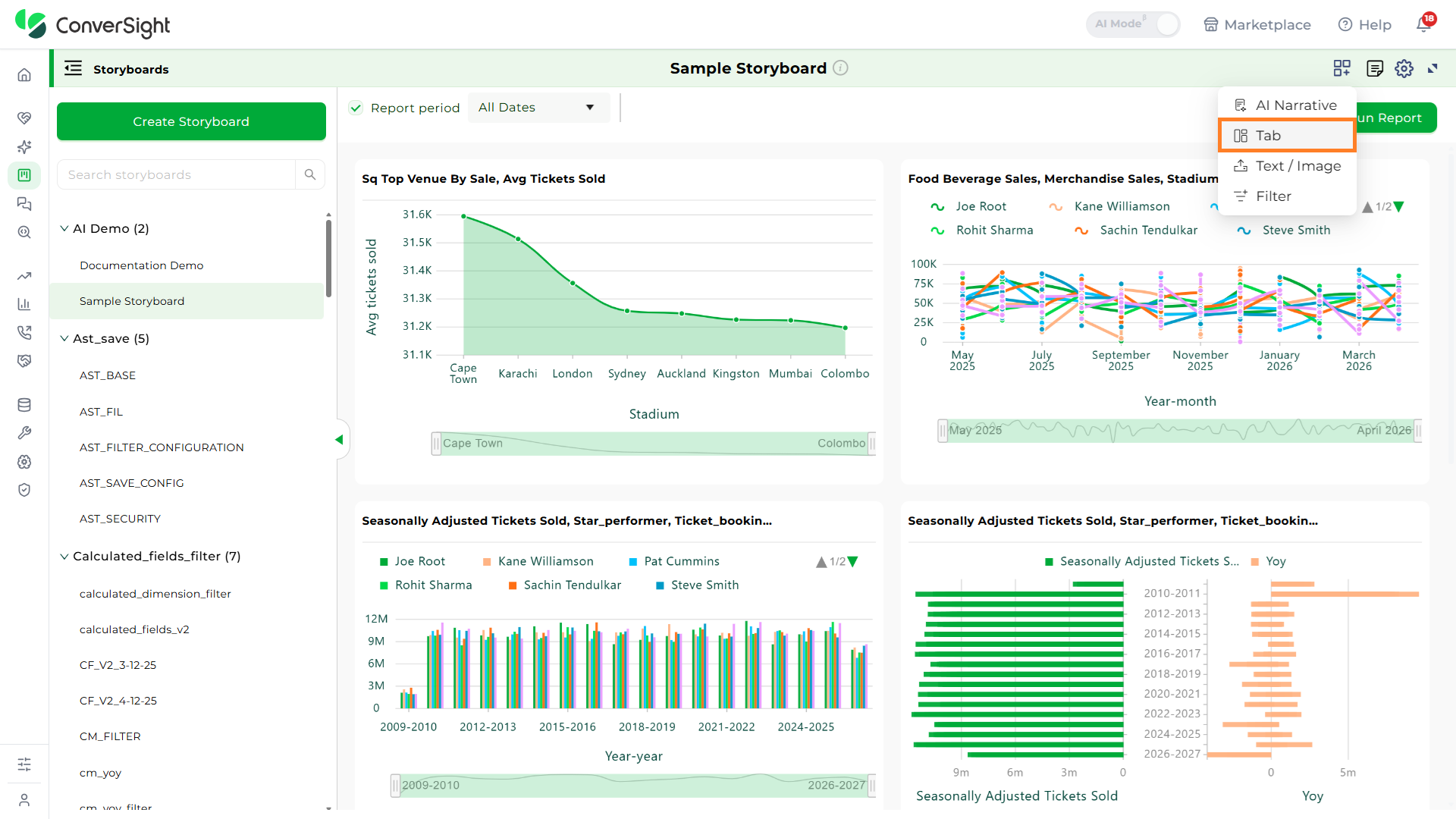
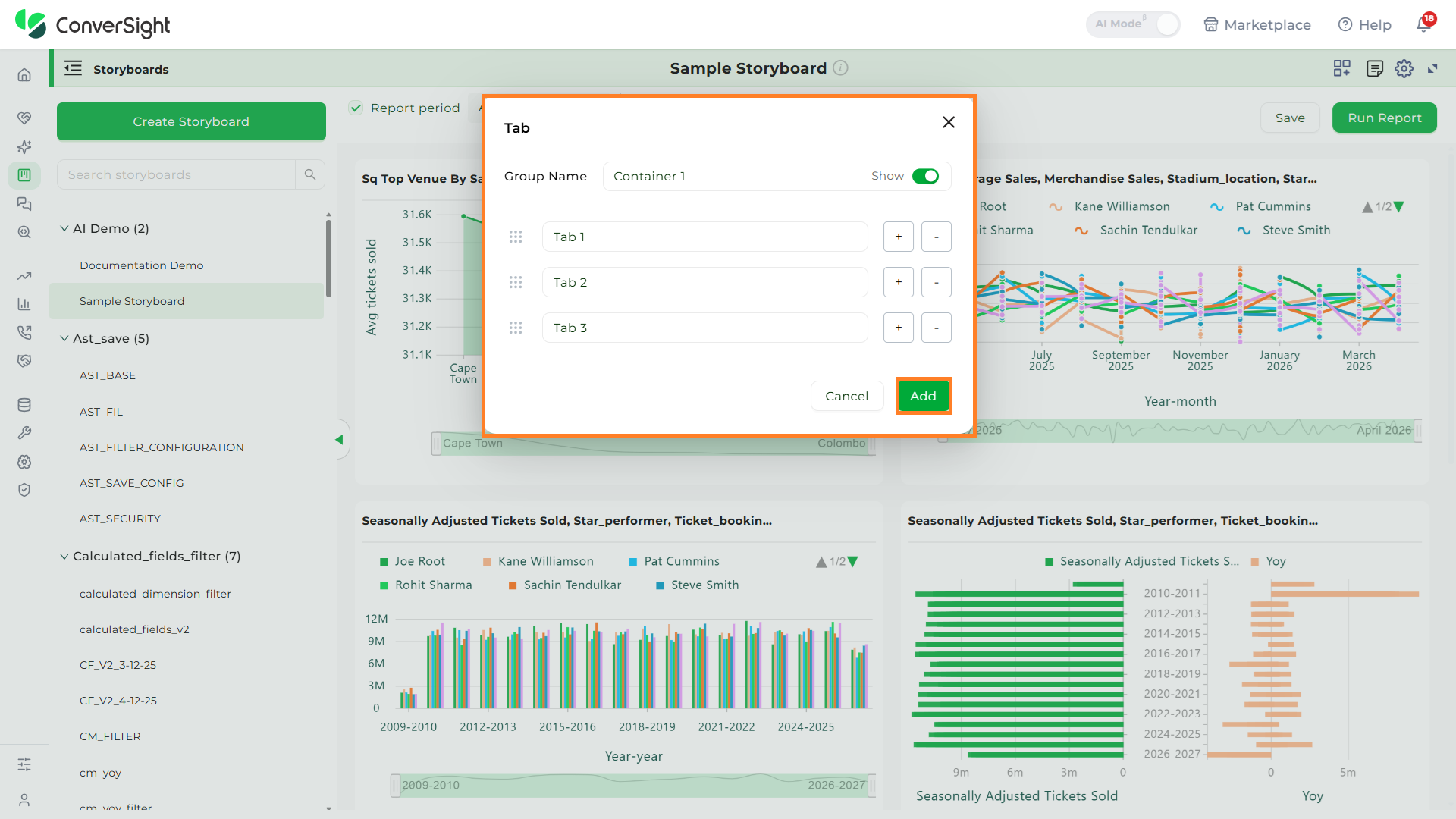
The Tab Widget popup will appear, prompting you to enter details such as Group Name and Tab Name.
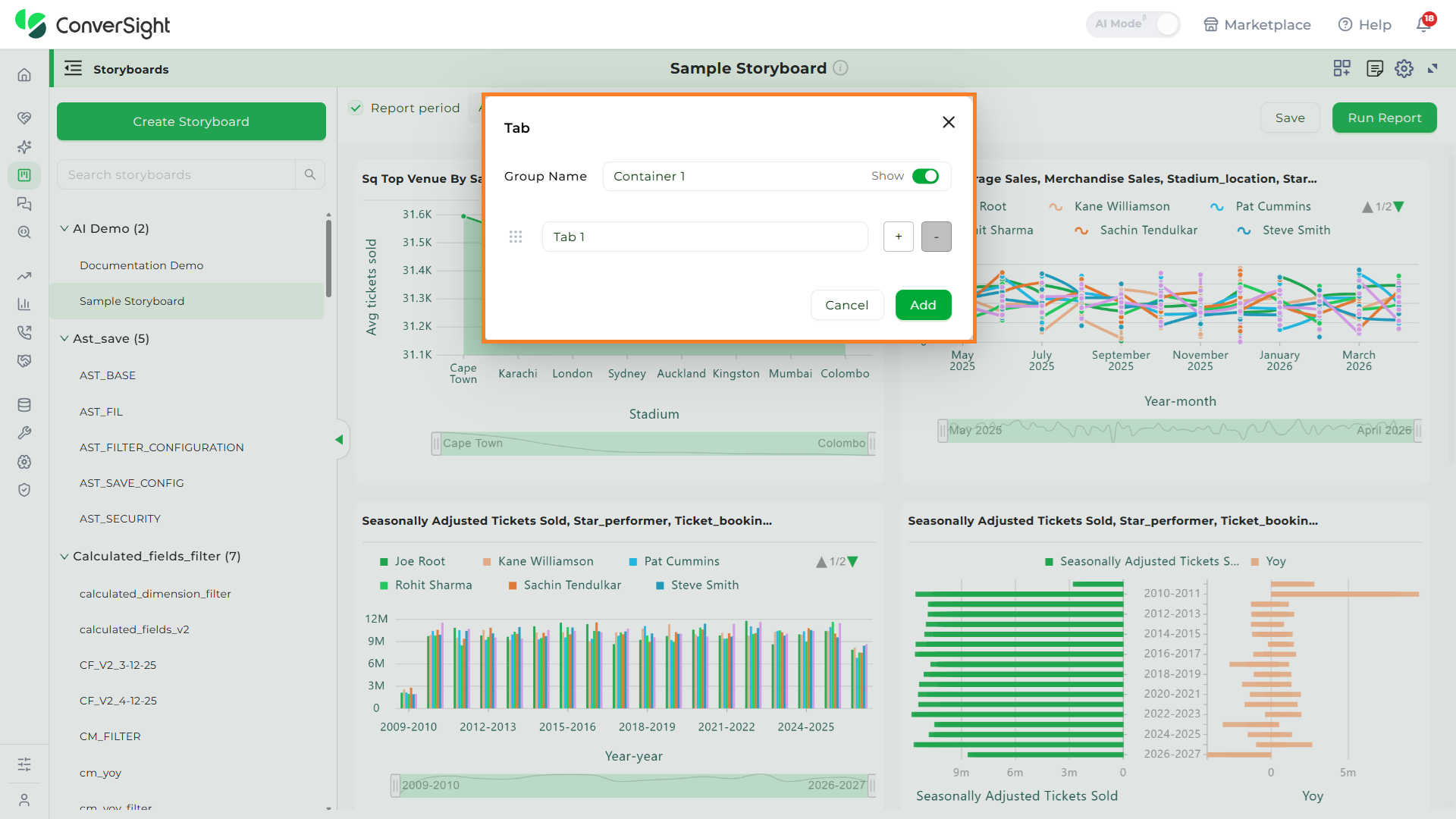
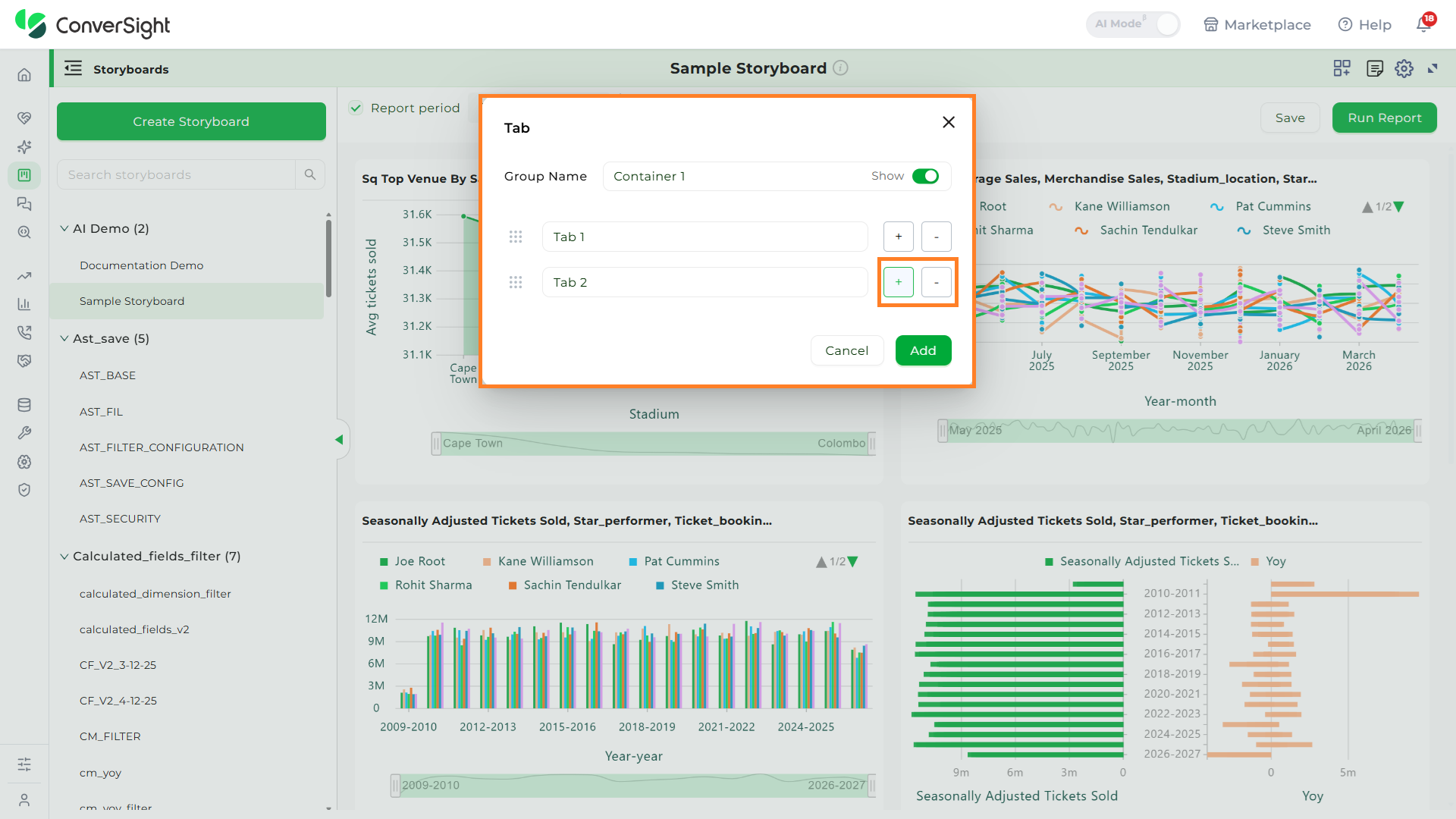
You can add multiple tabs within a single widget by clicking the "+" symbol and remove them using the "-" symbol associated with each tab.
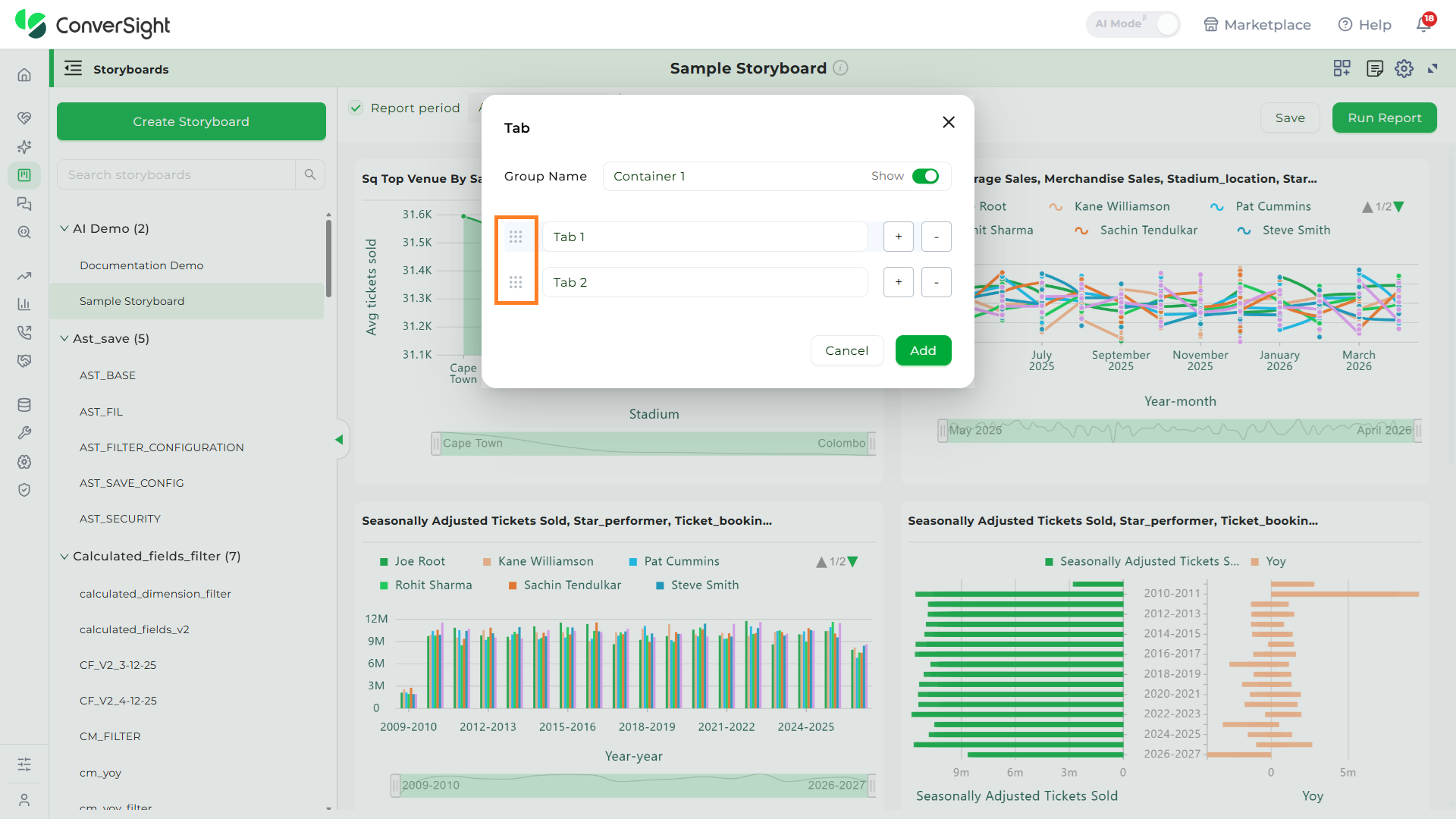
You can also rearrange the order of tabs by clicking and dragging the Dots icon.
Once you have entered all the details and required tabs click on Add button to create the Tab Widget.
Adding Insights to Tab Widgets
There are two ways to add components to a tab within the Tab Widget:
- By using the Choose Component option
- By using the Move option
Choose Component
Select the tab where you want to add the insight or component. Then click the Choose Component button.

After clicking the "Choose Component" button, all available insights in that storyboard will be listed. Select the desired insight and click "Add" to include it in the tab.
Users can create multiple Tab Widgets within a storyboard, but only one insight can be added to each tab within a Tab Widget.
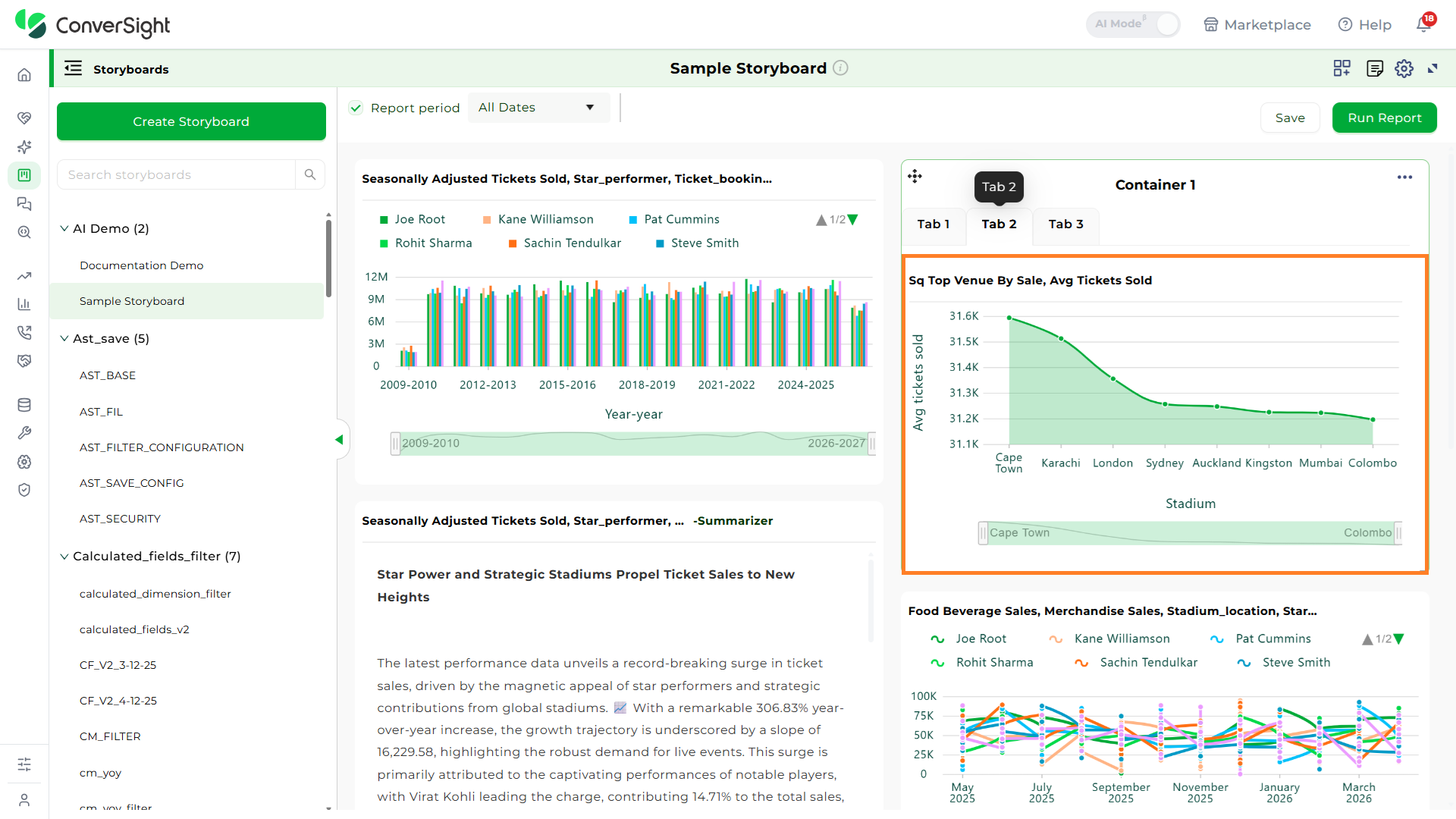
When an insight is added to a tab, it is displayed within the tab and is no longer visible on the main storyboard.

Move
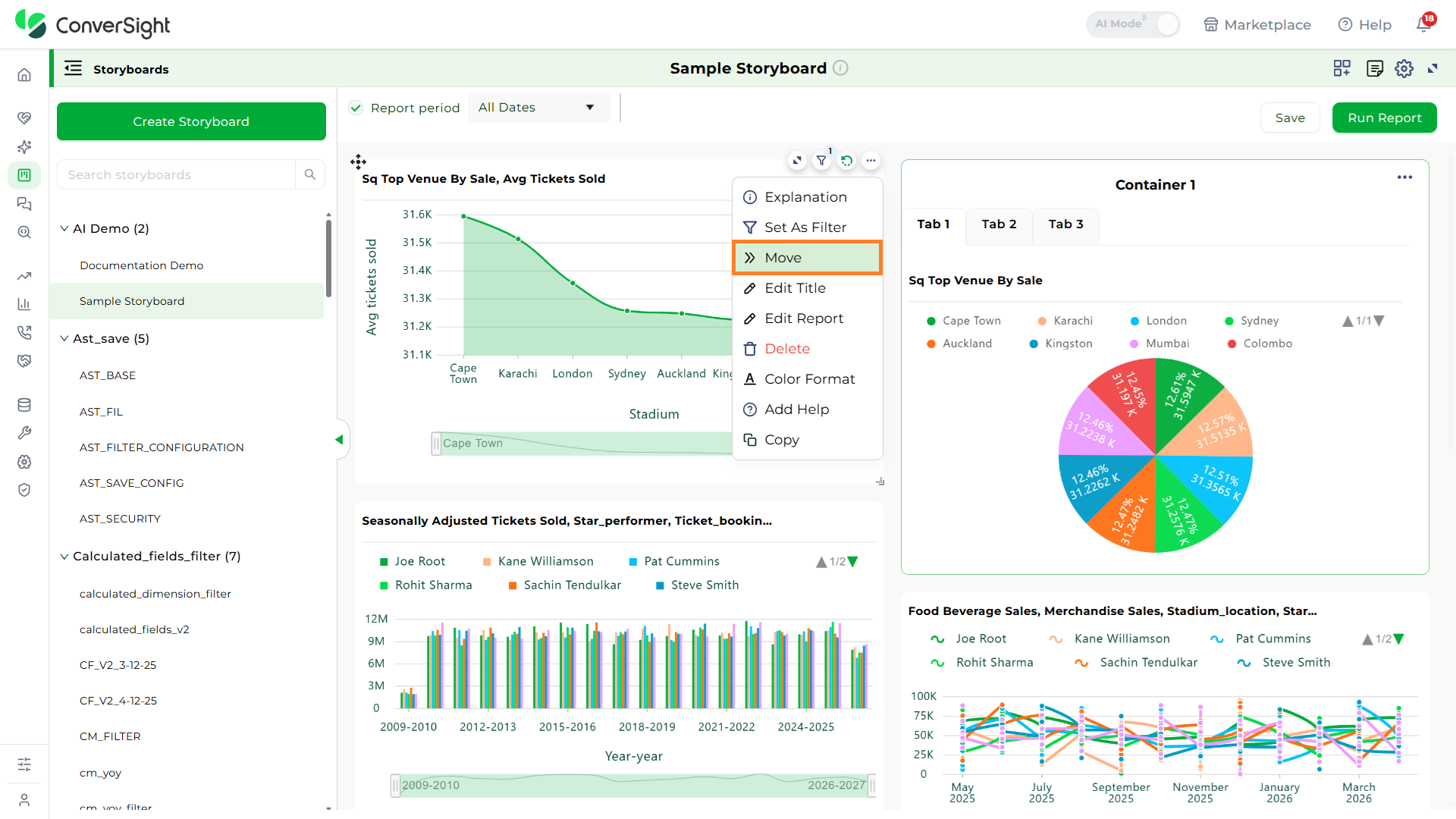
Select the insight you want from the storyboard, click the Three-Dot Menu, and choose the Move option from the dropdown.
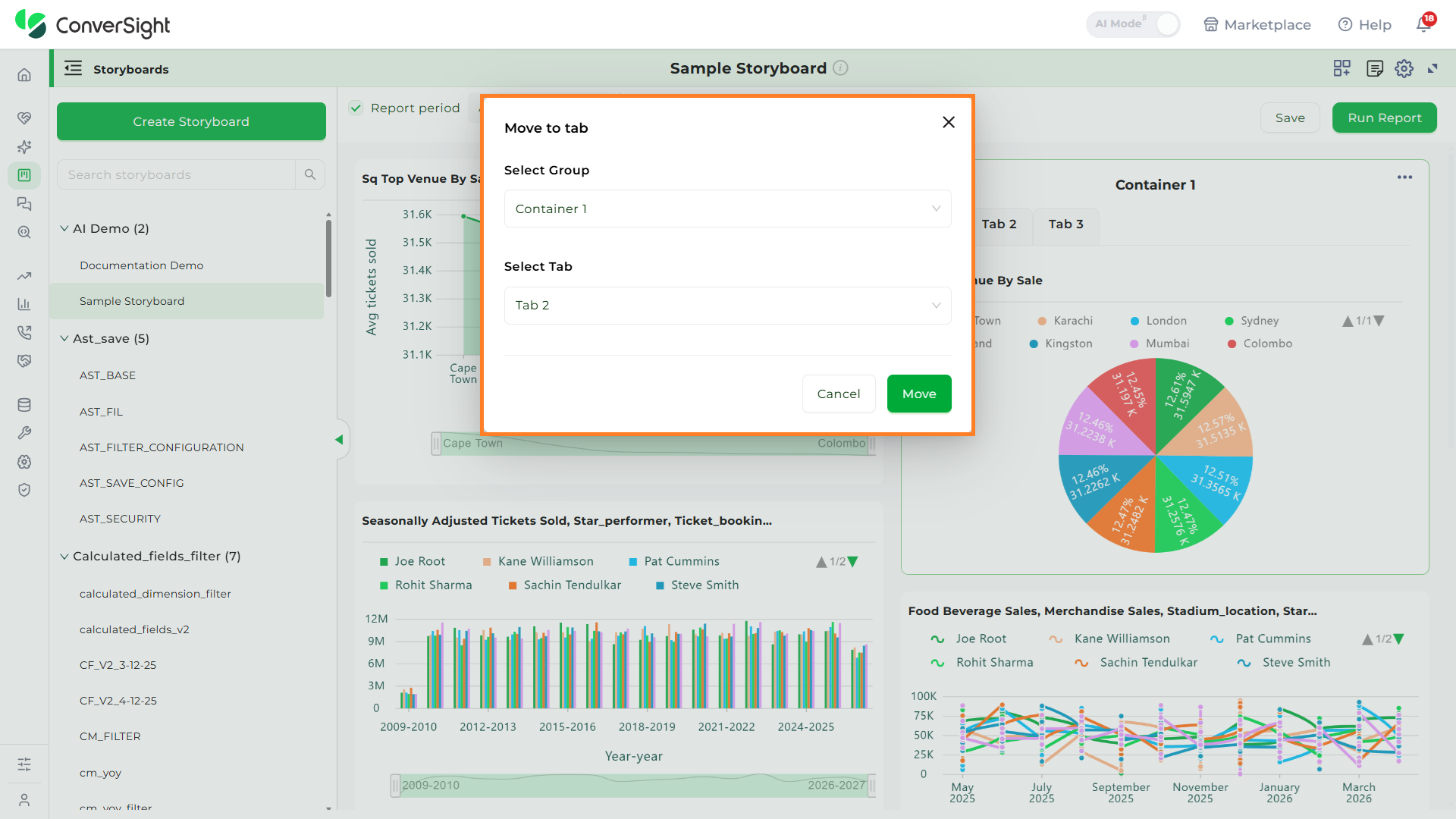
After clicking "Move", a popup will appear asking you to select a group from the dropdown.
Once the group is selected, choose the tab where you want to add the insight, then click the Move button to confirm.
Manage
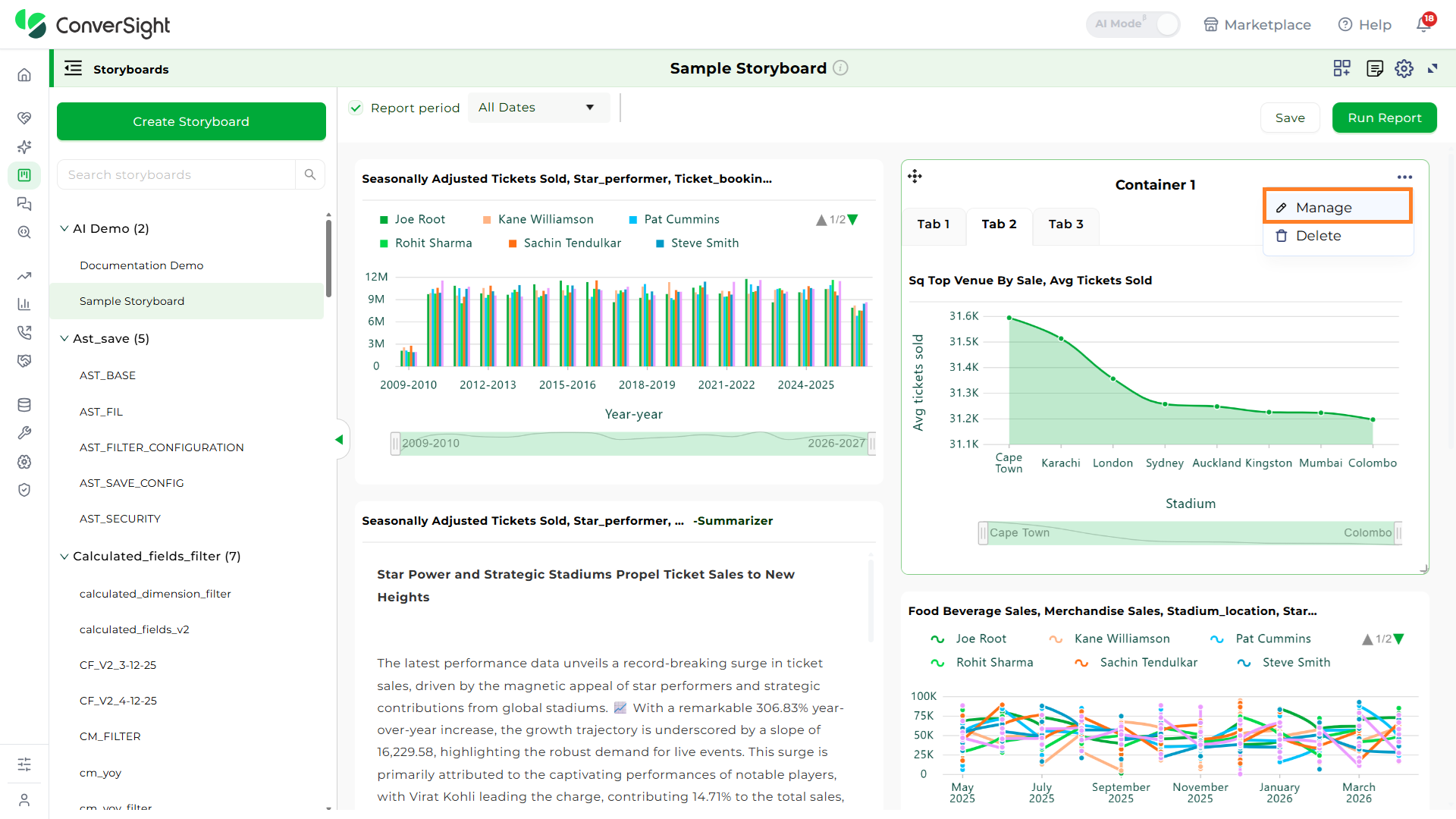
The Manage option lets you make changes to a Tab Widget.
What you can do:
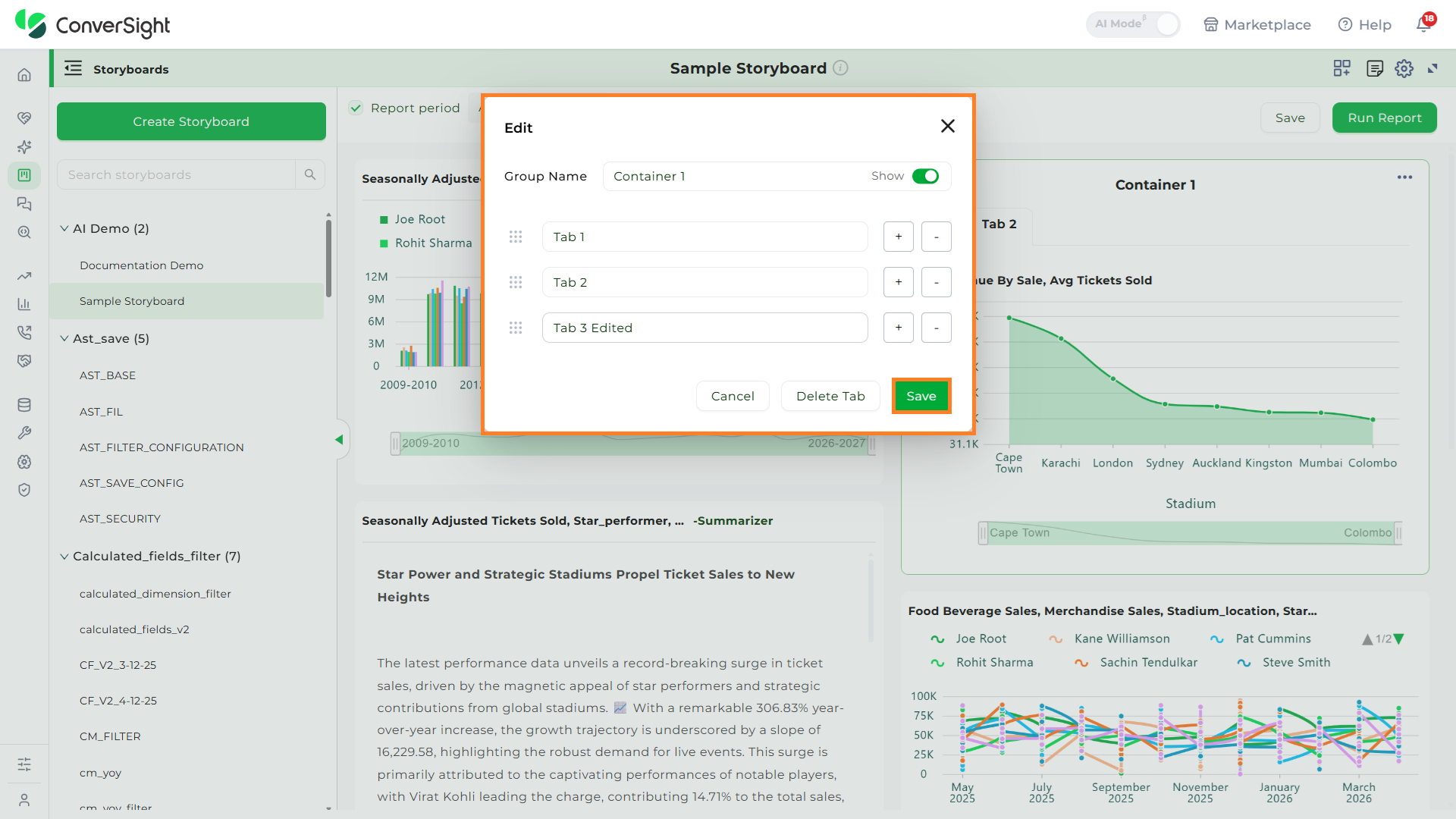
- Edit Group Name – Change the name of the tab group.
- Show/Hide Group Name – Use this toggle to display or hide the group name in the storyboard.
- Add or Remove Tabs – Add new tabs or remove existing ones from the widget.
If you remove a tab, the insight in that tab will be moved to the storyboard.
Once modifications are done click on Save to apply the changes.
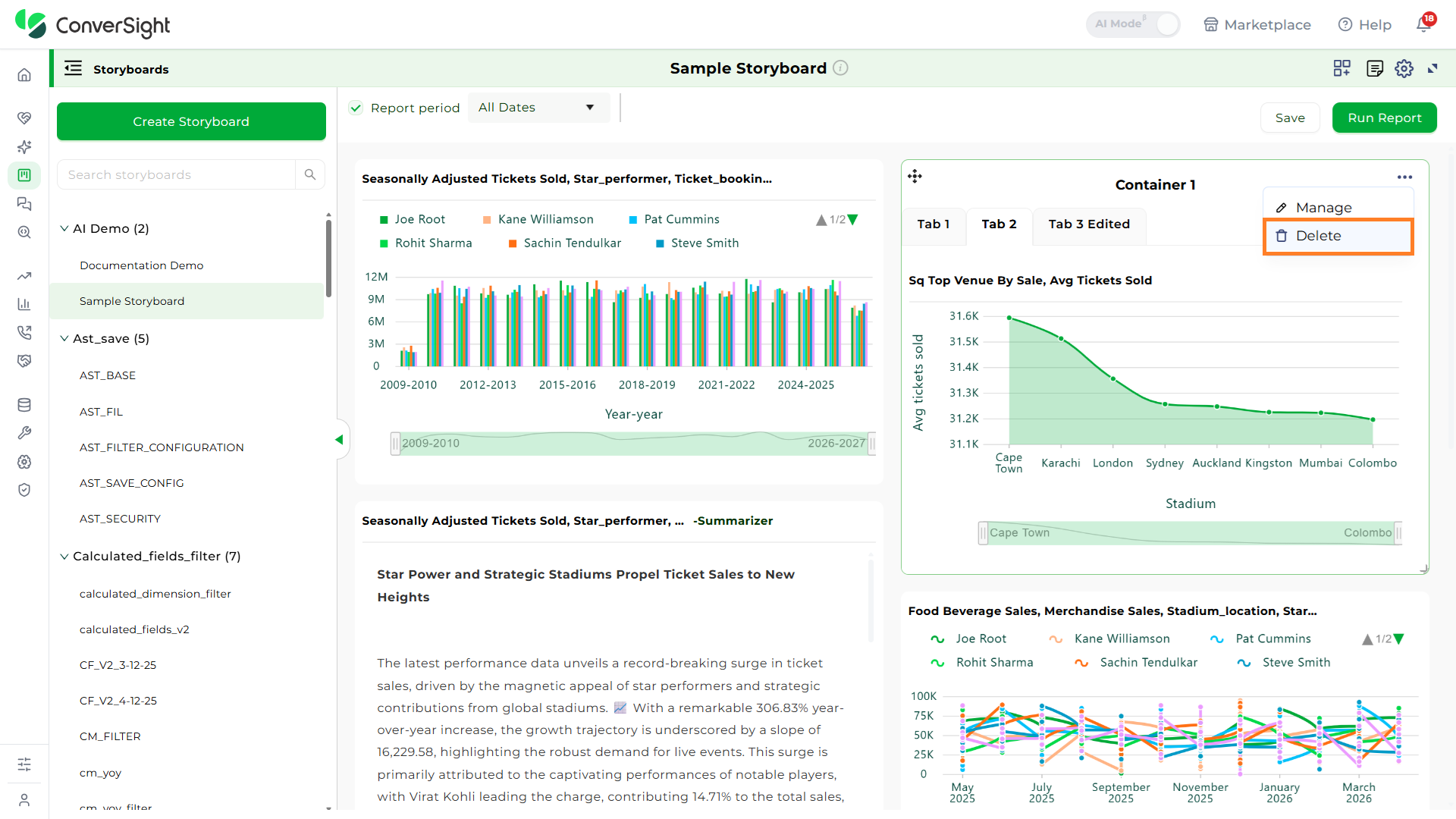
Delete
Use the Delete option to permanently remove the entire Tab Widget.
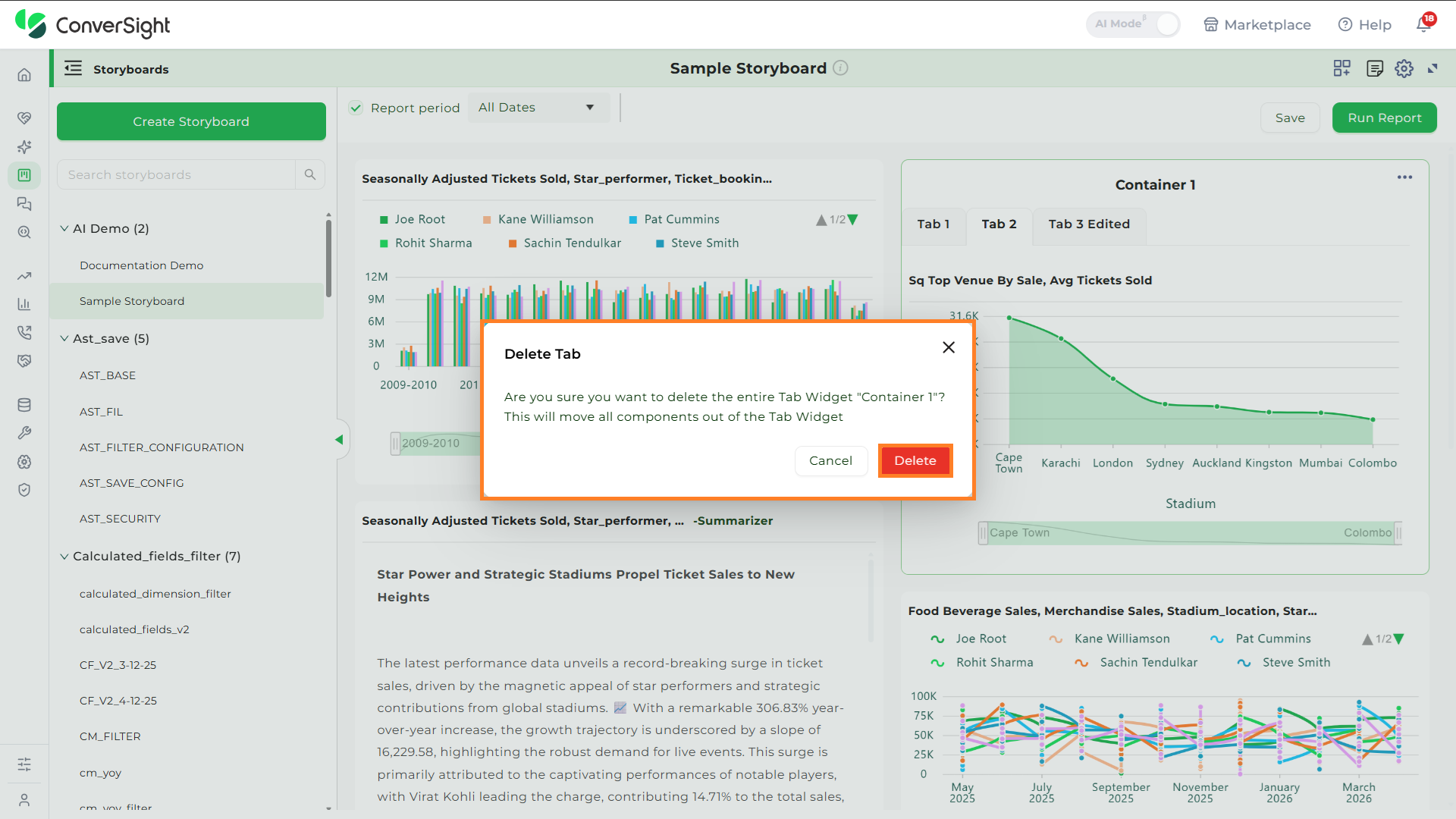
When you click the Delete option, a confirmation popup will appear. If you are sure you want to delete the Tab Widget, click the Delete Widget button.
Text/Image
To add a component, click the Widget icon.
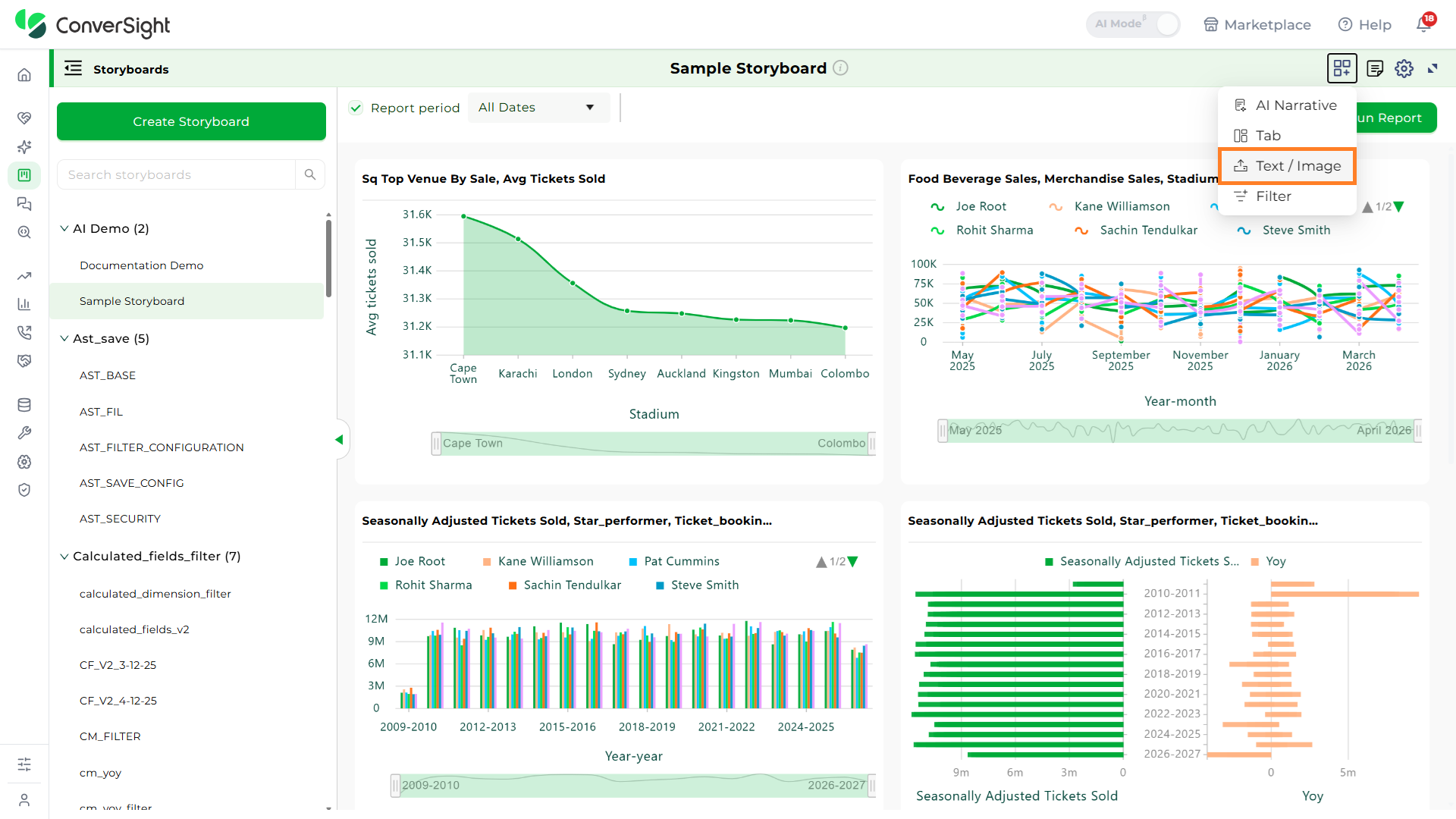
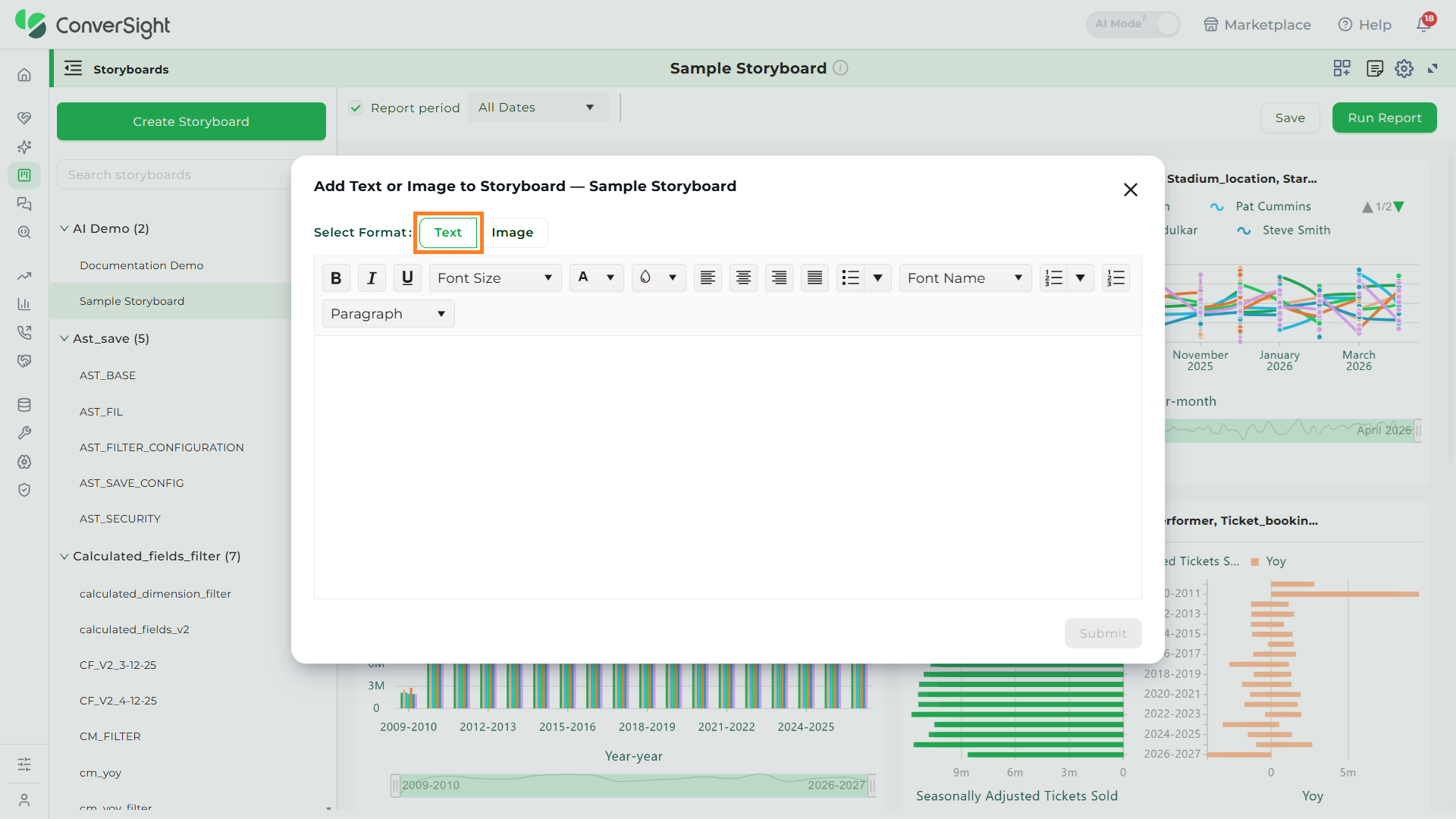
Choose either Text or Image.
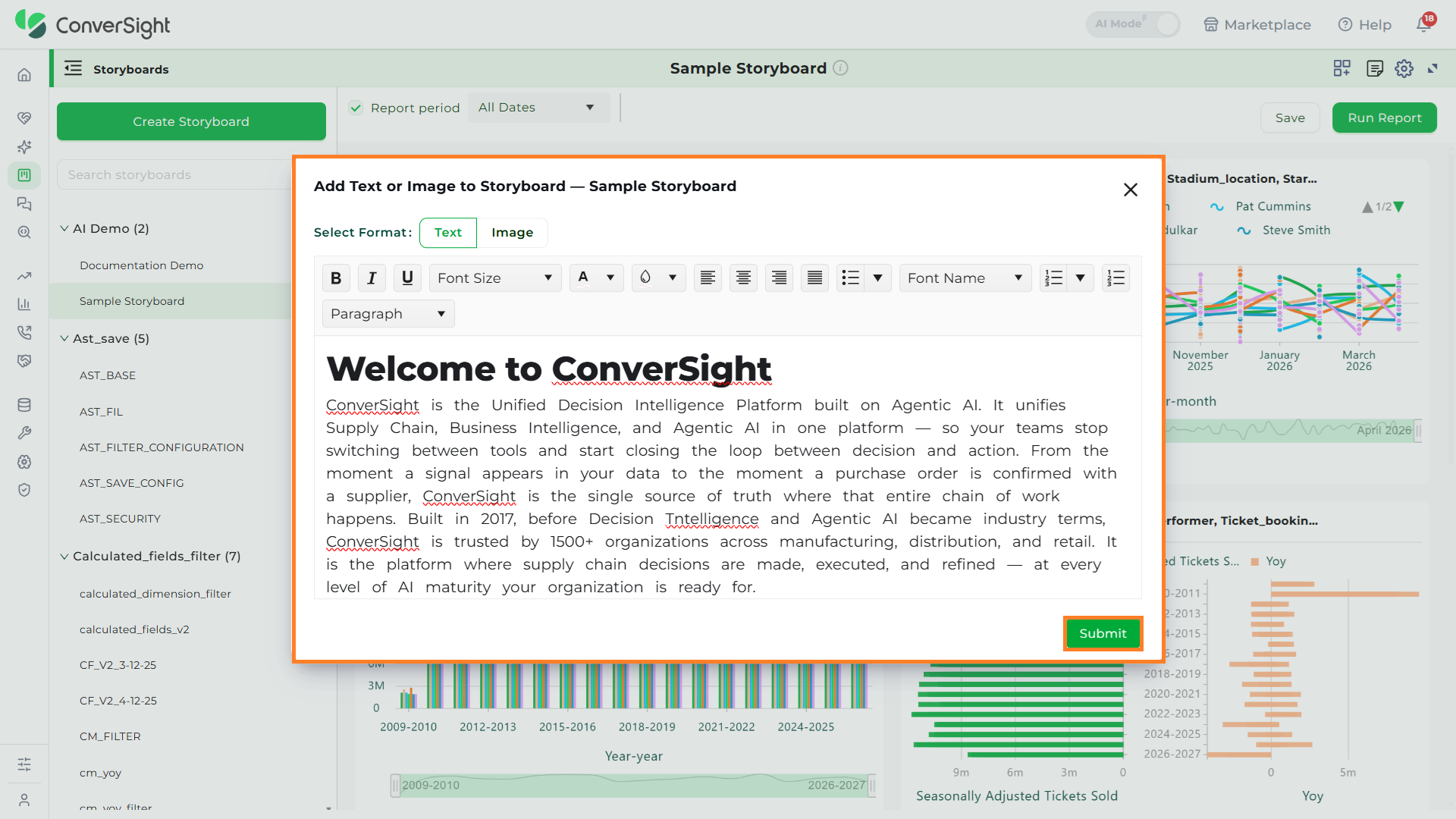
- To add text, select the Text option and type your message.
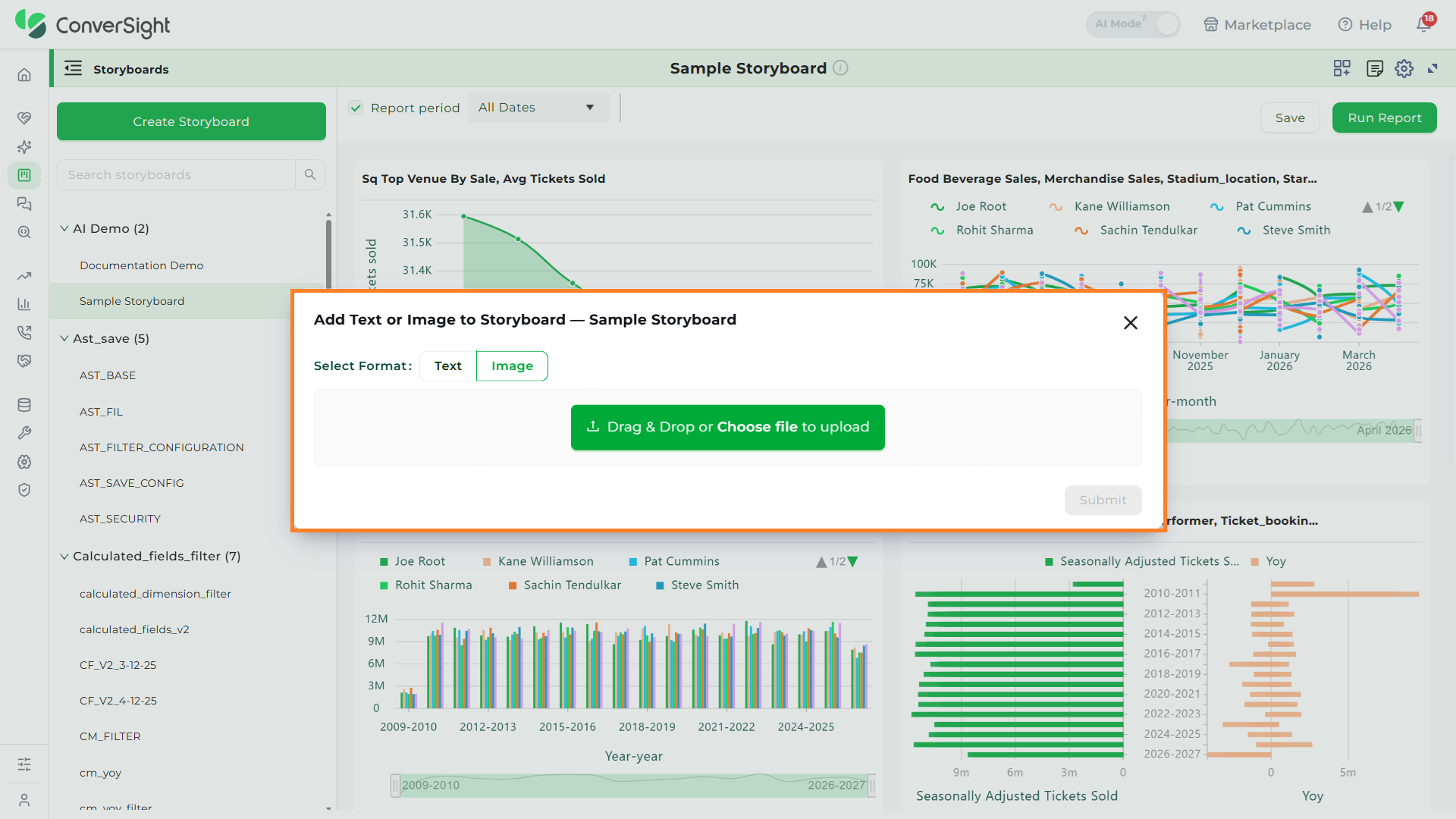
- To add an image, select the Image option and upload the desired file.
Once done, click Submit to save your changes. The component you created will then appear within the storyboard.

Filter
The Filter Widget enables users to apply a chosen analysis across multiple storyboard components, removing the need to create separate insights for the same dataset.
Click the Add Widget icon and choose the Filter option.

On the Filter Configuration page, choose the type of analysis you want to perform. The available options are:
- Period over Period: Period Analysis helps you compare metrics across different time intervals to identify trends and changes in performance over time. You can configure comparisons by using period-over-period and by choosing a frequency that fits your analysis needs.
- Trending: Trending Queries enable users to visualize trends over time, helping track upward or downward movements in data across selected metrics, dimensions, and dates.
- Comparison: Comparison queries allow users to compare multiple columns according to business needs.
- Top – Bottom: Top/Bottom Queries help users identify the highest or lowest performing values based on a selected metric and dimension. These filters are useful for questions like Top 10 Products by Sales or Bottom 5 Regions by Revenue.

After selecting the required analysis type, choose the relevant components from the displayed list.

Click Add to save your selection.

You will now see the Filter widget added to the storyboard.

Enter the required value, select Year-Over_Year, and then click Apply to apply the changes.

Manage
Click the three-dot menu on the Filter widget and select Manage to add or remove components for the filter.

After making the changes, click Update to save them.

Delete
Select the Delete option to remove the filter widget you created.

In conclusion, a Storyboard is your personalized canvas for data visualization and organization. It empowers you to effortlessly compile, access and showcase your charts, graphs and insights in a single, cohesive space. In a world inundated with data, Storyboards offer clarity and convenience, ensuring that your most critical insights are always at your fingertips, ready to inform and guide your decisions.