Data Sync
Data Sync is the pipeline layer that keeps ConverSight current. A data connector grants access to a source; Data Sync orchestrates the actual movement of data from that source into ConverSight on a schedule or on demand, with transforms applied along the way. Configure a pipeline once, and Athena's downstream surfaces — Storyboards, agents, briefings — always see fresh data without anyone doing manual refreshes.
This is primarily a Data Analyst surface (with Data Engineer involvement for scheduling and operational hygiene). Each pipeline defines which tables to move, how to transform them, and when to run — and the same UI provides visibility into run history, failures, and data-quality flags so reliability stays observable, not invisible.
Where Data Connectors handle authentication and access, Data Sync handles flow and freshness. Together they replace the patchwork of cron jobs, ad-hoc Python scripts, and "did anyone refresh the data this morning?" Slack threads that most organizations rely on before adopting the platform.

Key Concepts
Understanding the following terms helps users navigate the application efficiently.
| Term | Meaning |
|---|---|
| Pipeline | A named data sync job with its own configuration and schedule. |
| Sync Group | One source connector paired with one destination connector. A pipeline may contain multiple sync groups to move data from different sources to different destinations within the same job. |
| Stream / Table | An individual table or SQL query being synced within a sync group. |
| Transformation | An optional SQL statement that can be configured to run after the data is loaded into the destination. It is typically used for aggregations, joins, validations, or incremental processing logic. |
| Variable | A named value reused across SQL queries in a pipeline. Variables are referenced in SQL using the {{variable_name}} syntax, avoiding hard-coded values across multiple queries. |
| Schedule | A one-time rule that automatically triggers the pipeline at a defined time or frequency. |
Accessing Data Sync
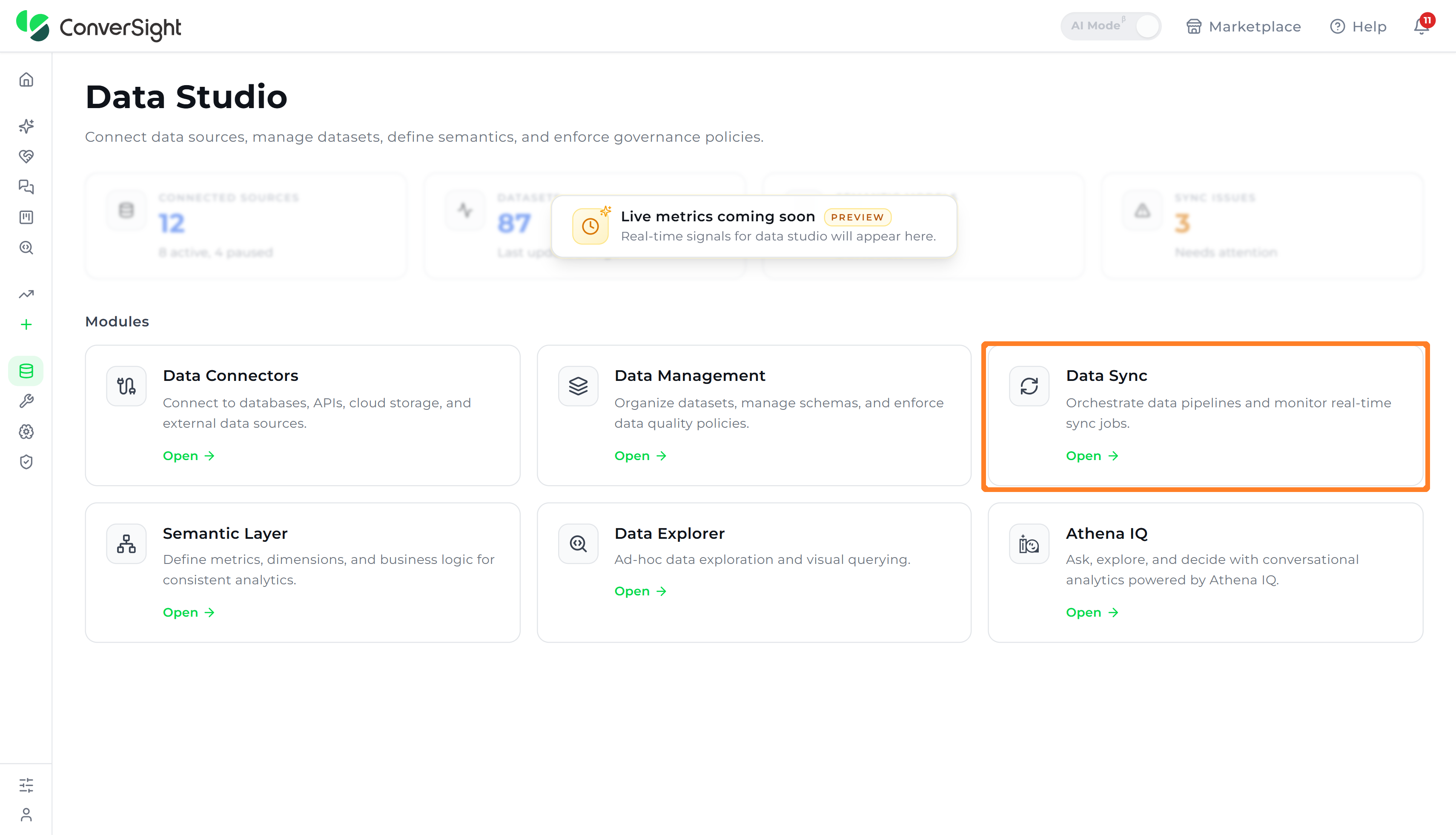
To access Data Sync, log into the ConverSight platform and open Data Studio from the Workbench section in the left navigation. On the Data Studio landing page, select the Data Sync module to open the application.
Creating a Pipeline
The New Pipeline action creates a pipeline shell that Sources, Destinations, and Streams are then added to.
Configuration
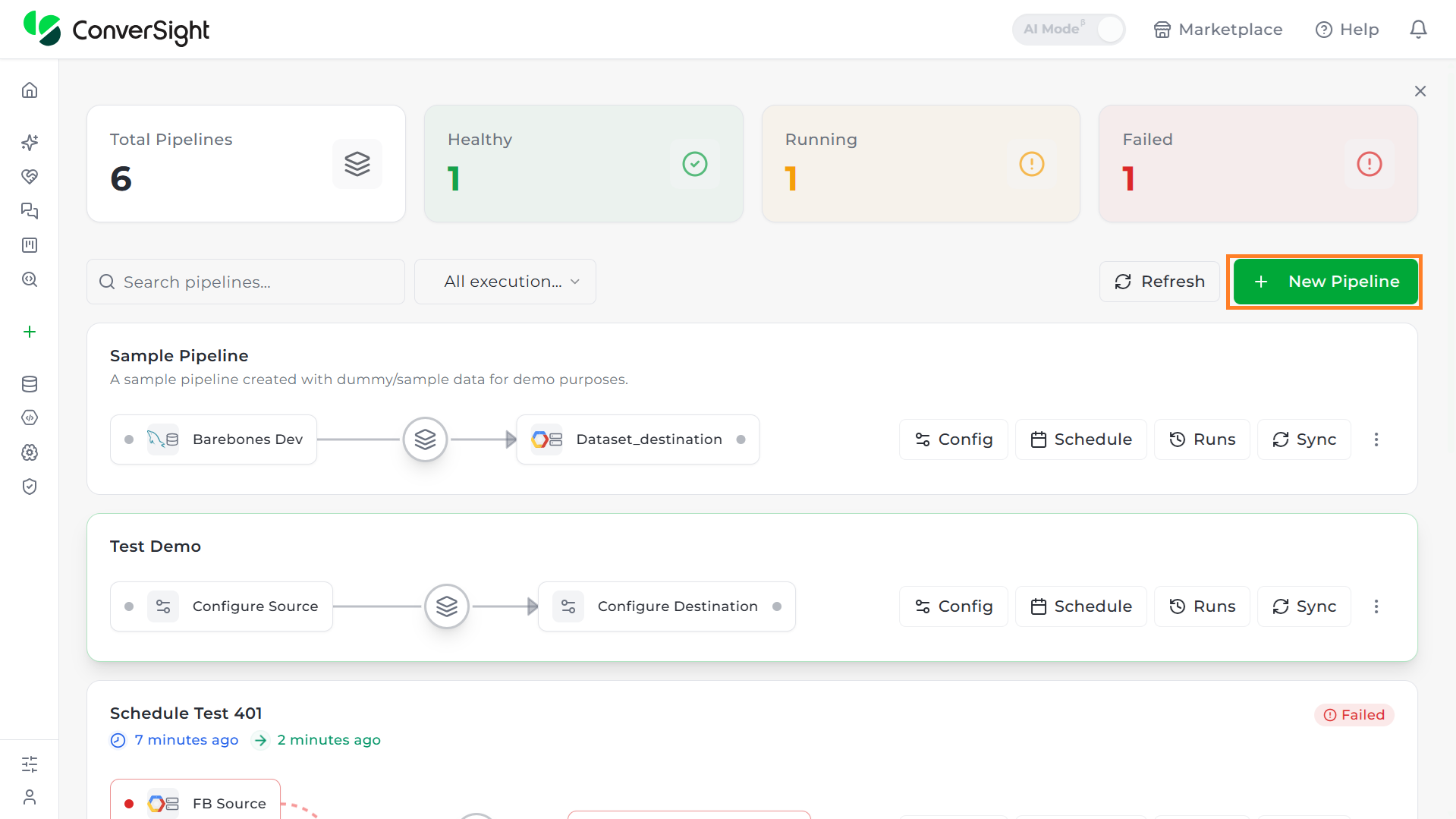
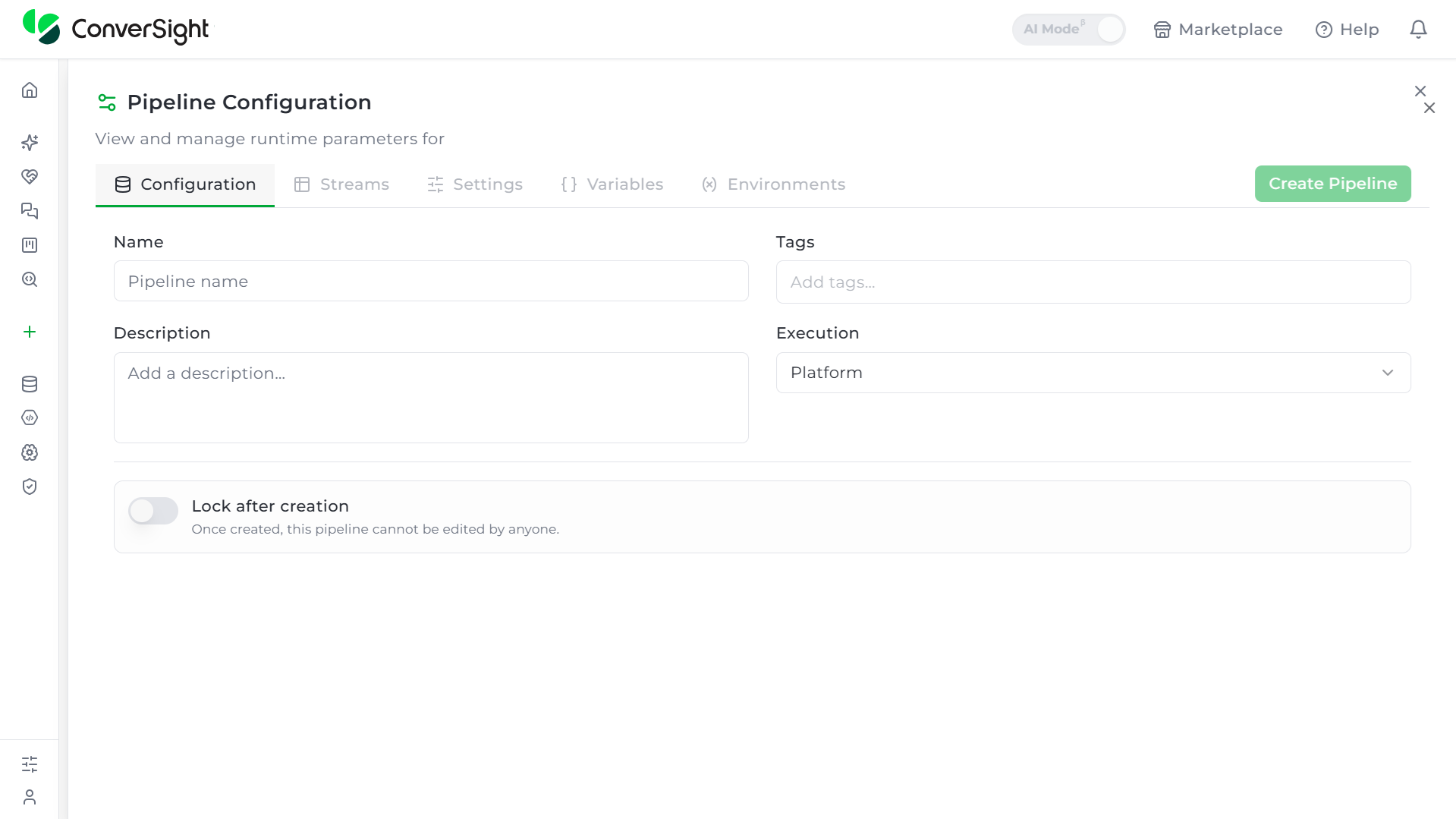
Step 1: Click the + New Pipeline button. This opens the Pipeline Configuration panel to its Configuration tab.
| Field | Description |
|---|---|
| Name | Specifies the name of the pipeline. |
| Tags | Optional tags to categorize the pipeline. |
| Description | A free-text description of the pipeline's purpose. |
| Execution | Determines where the pipeline runs — Platform (default) or Agent. |
| Lock after creation | By enabling, once created, this pipeline cannot be edited by anyone. |
Step 2: Click Create Pipeline to initialize it. This unlocks the remaining tabs — Streams, Settings, Variables, and Environments — for further configuration.
Step 3: Under the Sources section, click Add Source and select an existing connector. A source is where the data comes from the system that already holds the data, whether that's a production database, a cloud storage bucket, or any other system the platform can read from. The pipeline connects to it, reads its tables or files, and treats it strictly as read-only input. Nothing configured on a source ever writes back into it.
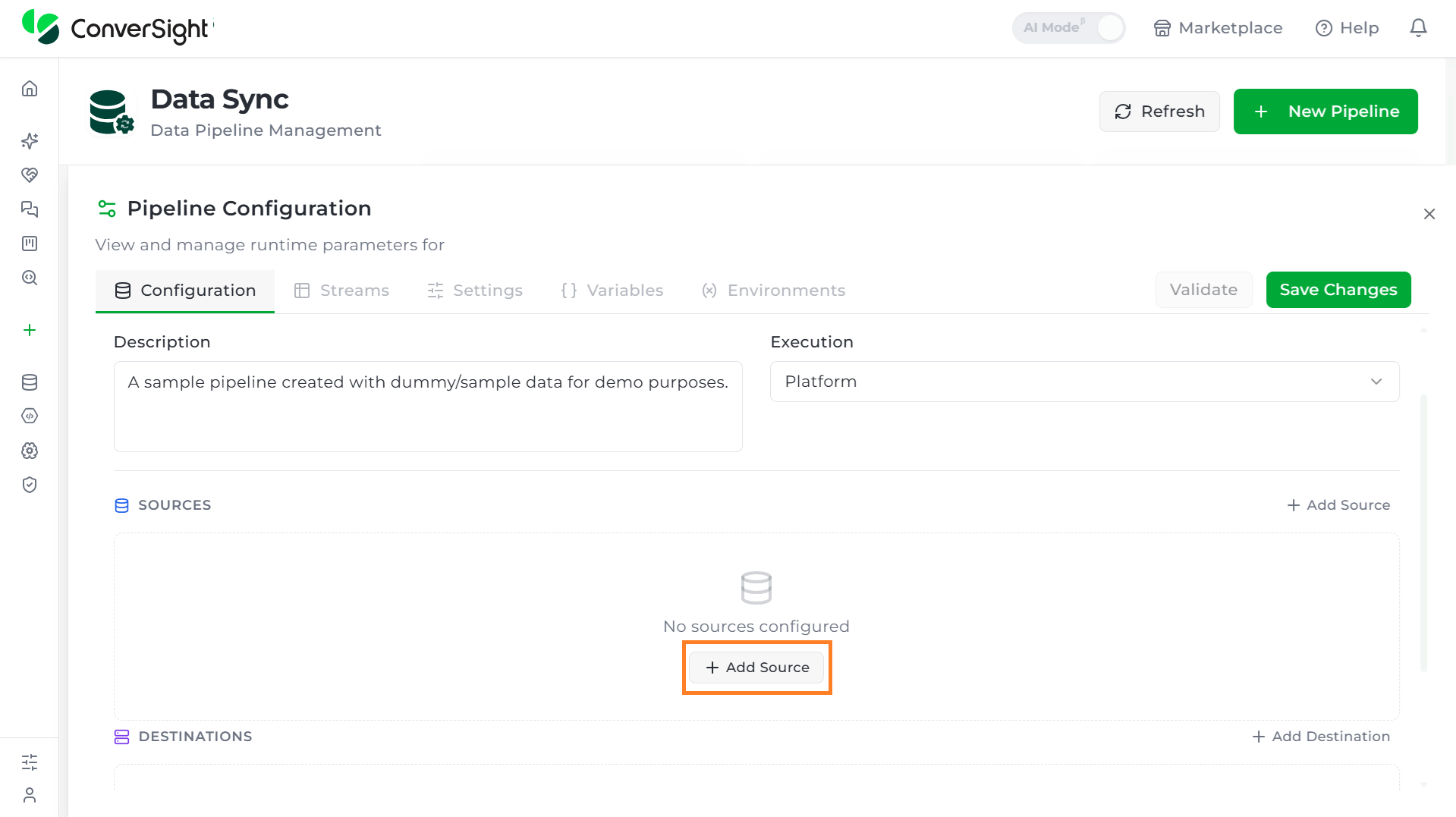
To create a new connector select New Connector and add the connector.

Once a connector is selected, the source row displays the following controls:
| Element | Description |
|---|---|
| Type icon | A small blue icon indicating this is a Source row. Not clickable. |
| Connector selector | Shows the connector's logo and name. Clicking it reopens the searchable list of pre-configured connectors, with a + New connector... option at the bottom to register a new one without leaving the pipeline. |
| Edit connector | Opens an Edit Connector for that specific connector which has the same Basic Information, Configuration, and Credentials sections described in the Connectors documentation, including the locked "Stored in encrypted vault" Credentials section. To know more about the edit connector, Click here. |
| Copy button | Labeled with the connector's full Resource Name. |
| Alias badge (e.g., "src_1") | The short internal ID used to reference this source within the pipeline, such as in stream mappings. Labeled "Click to rename alias" — clicking it allows renaming to something more descriptive. |
| Discover | Triggers schema discovery — queries the actual source connection to fetch its available tables/columns so streams can be selected. |
| Schema field | The database schema to use, defaulted to "public." |
| Skip missing streams toggle | When enabled, the pipeline won't fail if a previously configured stream disappears from the source. |
Clicking Discover runs a live query against the actual source connection, and editing/saving inside the Edit Connector modal changes the underlying connector's real configuration. Both should be used deliberately, not just to preview what a field looks like.
Step 4: Under the Destinations section, click Add Destination and select an existing connector to write data to. A destination is where the data ends up — the target system the pipeline writes into after pulling data from the source. This could be a cloud storage bucket, a data warehouse, another database, or a data lake table.
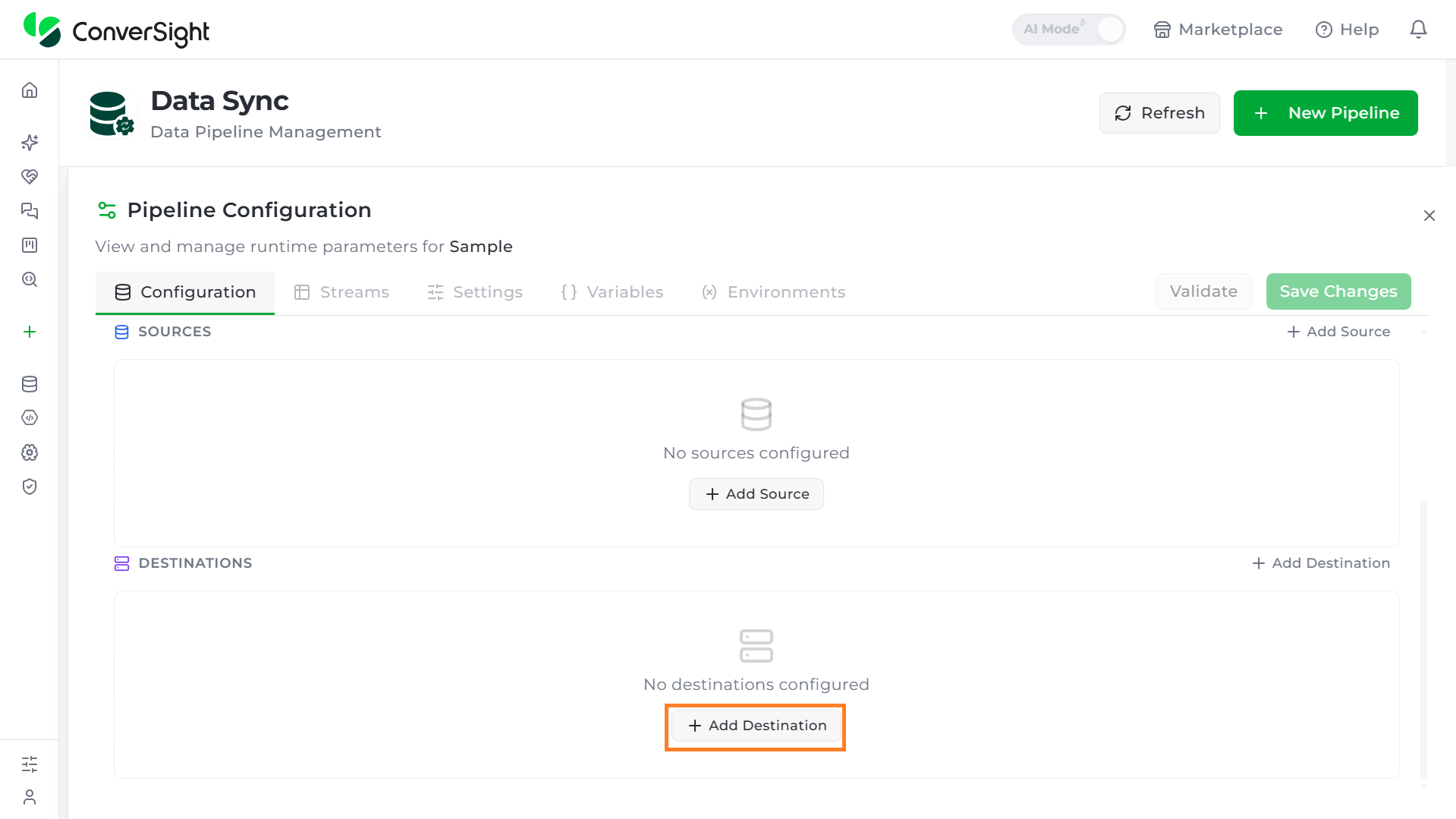
Once selected, the destination row shows the same core controls as a source row — type icon, connector selector, Edit connector, Copy button, and an alias badge (e.g., "dst_1") — but in place of Discover, it has a Configure destination icon. This reflects the difference described above: a destination needs write-behavior settings that a source has no use for.
Clicking Configure destination opens a Destination Settings panel with the following fields:
| Field | Description |
|---|---|
| Target Schema | The schema/namespace written tables land in, defaulted to "public." |
| Default Sync Mode | The fallback write behavior for any stream that doesn't specify its own mode. Options: • Not set: No default; each stream must specify its own sync mode. • Append — Adds new rows on top of existing ones. • Overwrite — Replaces the entire target with fresh data each run. • Upsert — Updates matching rows and inserts new ones — useful when existing records can change over time. • Staging Swap — Loads into a temporary copy first, then swaps it in atomically, so the destination is never left in a half-written state. • Snapshot — Keeps a full timestamped copy rather than mutating existing data — useful for auditing or historical comparisons. |
| Optimize (toggle) | Compacts/reorganizes the destination's stored files for better read performance. |
| Vacuum (toggle) | Reclaims space from deleted or overwritten data. |
Streams
Once a source and destination are added, the Streams tab is where you define exactly which data moves between them.
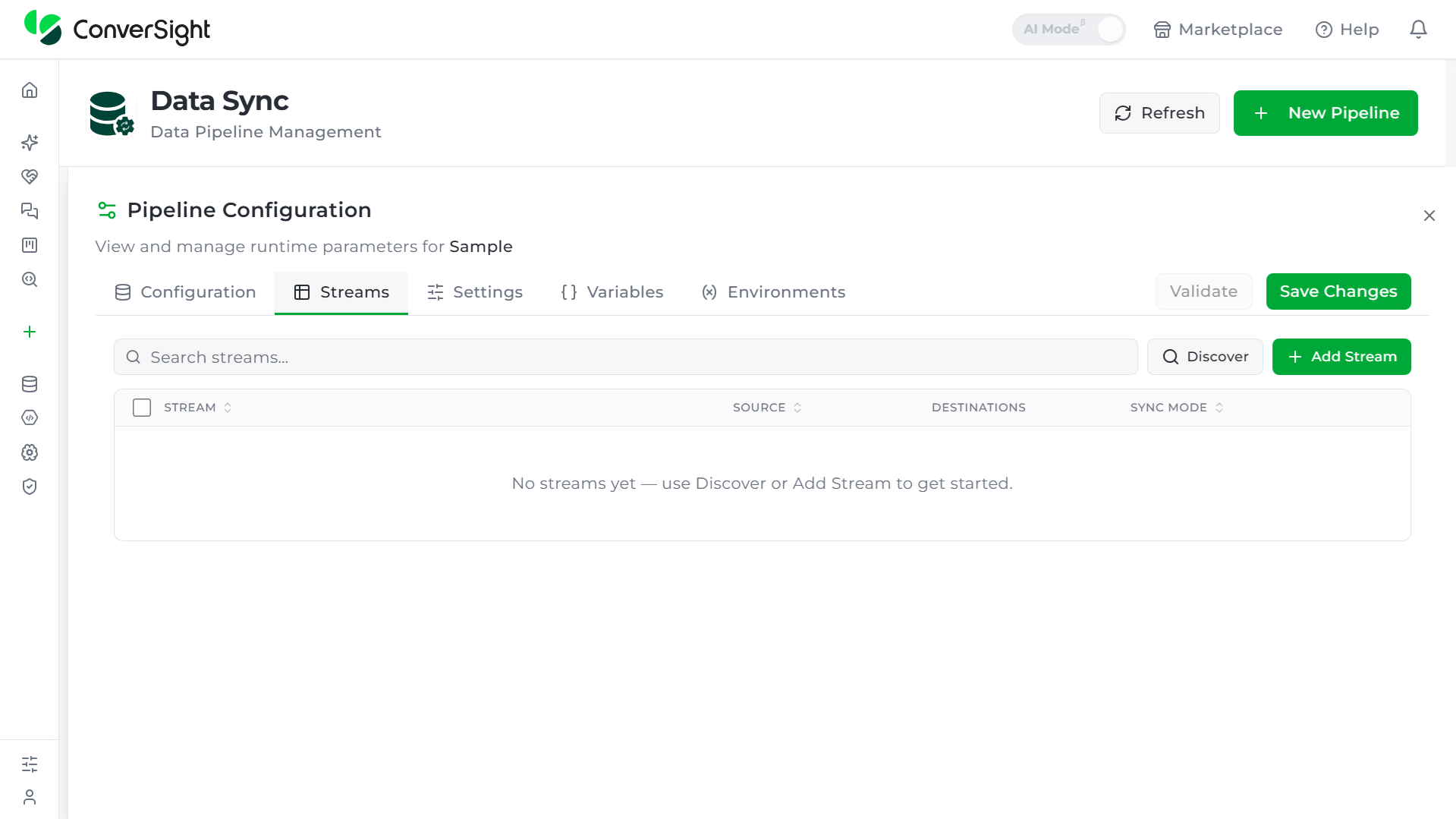
Add Stream
On the Streams tab, click Add Stream to add a new stream. Once created, it appears in the streams table with the following columns:
| Column | Description |
|---|---|
| Stream | The stream's name (sortable). |
| Source | Which connector it reads from. |
| Destinations | Which connector alias it writes to (e.g., "dst_1"). |
| Sync Mode | A per-stream override, defaulting to "— inherit —" from the destination's settings. |
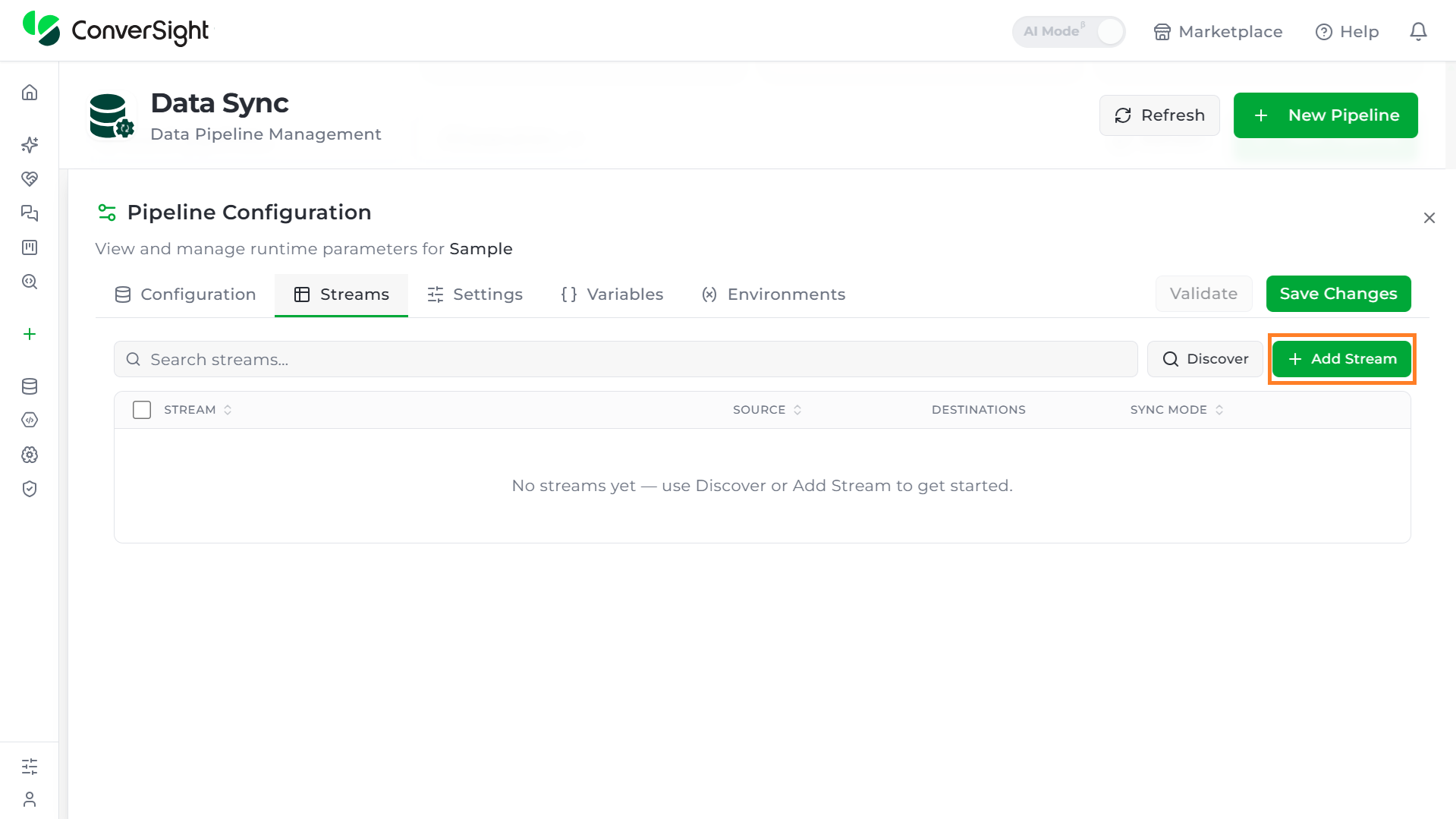
Clicking into the stream opens its configuration panel, with two modes available:
- ELT Stream
- SQL Model
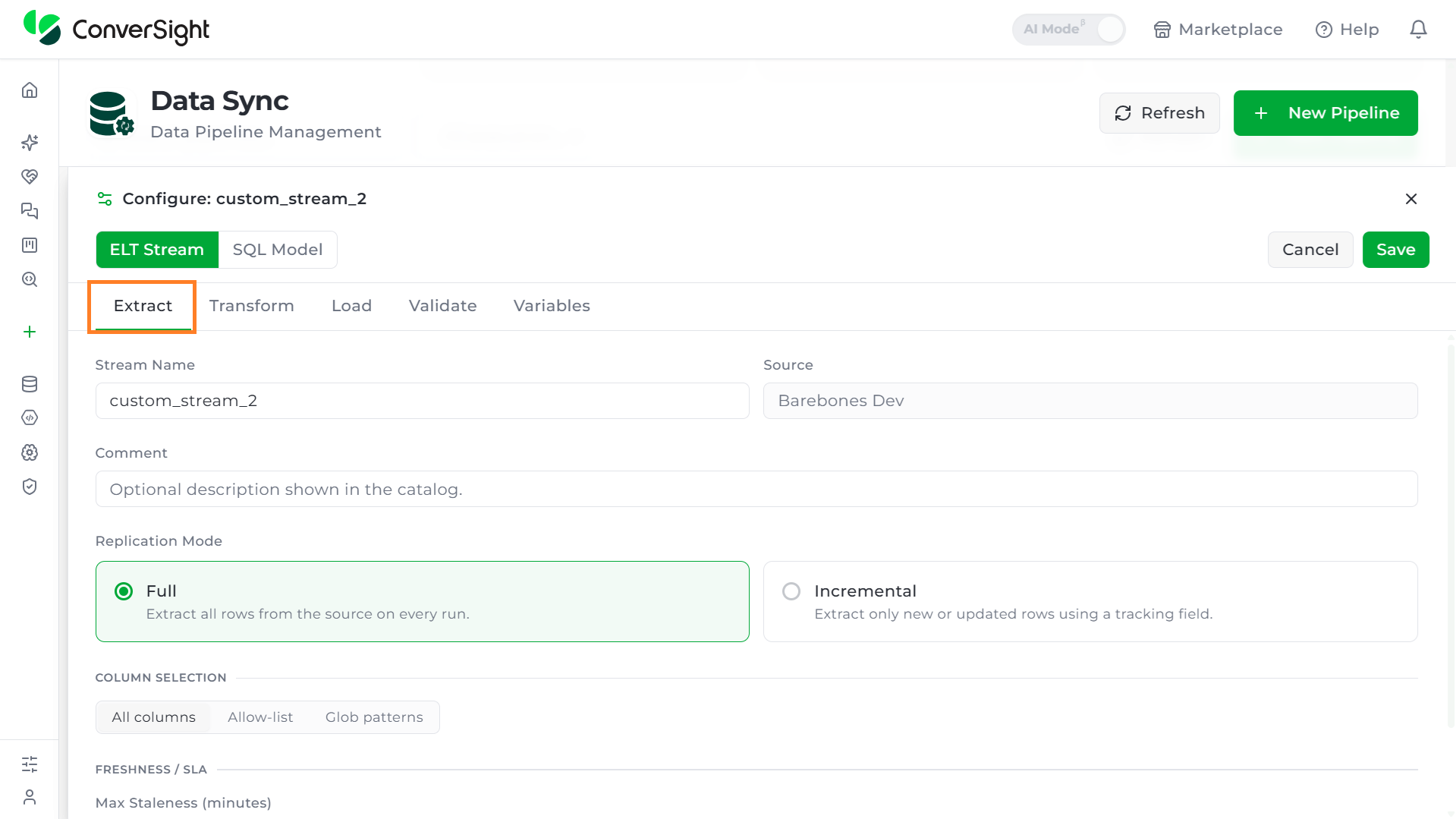
Extract
The Extract tab defines what data is pulled from the source.
| Field | Description |
|---|---|
| Stream Name | The stream's name. |
| Source | Read-only, showing the connected source. |
| Comment | Optional, for documentation. |
| Replication Mode | Full (extracts every row every run) or Incremental (extracts only new/updated rows using a tracking field). |
| Column Selection | All columns, an Allow-list (checklist of columns with data type, with search and "Deselect all"), or Glob patterns (e.g. *, !ssn, prefix_*, where * means everything and !field excludes a specific one). |
| Freshness/SLA | Max Staleness, in minutes. |
| Field Overrides | Collapsible section for manual overrides on specific fields. |
Transform
The Transform tab defines what happens to the data after it's extracted and before it's loaded. This is optional; users can skip it if the data doesn't need any changes.
Clicking Add Transform opens a categorized menu:
| Category | Steps available |
|---|---|
| Core | Filter, Drop Columns, Add Column, Cast, Select Fields, Hash Fields, SQL, Project |
| Join & Split | Join, Split |
| JSON | JSON Extract, JSON Flatten, JSON Unroll, JSON Filter |
| AI/ML | Chunk, Embed, Validate |

| Transform | What it does |
|---|---|
| Filter | Keeps/discards rows using a SQL WHERE-style condition (e.g. status != 'cancelled'). |
| Drop Columns | Removes specified columns. |
| Add Column | Adds a new computed/static column. |
| Cast | Changes a column's data type. |
| Select Fields | Keeps only chosen columns. |
| Hash Fields | Masks/hashes sensitive columns. |
| SQL | Custom SQL transformation step. |
| Project | Reshapes/renames the output field set. |
| Join | Combines this stream with another stream. |
| Split | Splits one stream into multiple outputs. |
| JSON Extract / Flatten / Unroll / Filter | Parse, flatten, expand, or filter nested JSON payloads. |
| Chunk / Embed | Splits text and generates embeddings, for AI/ML use cases. |
| Validate (transform) | An in-pipeline validation step, run as part of the transform sequence — distinct from the Validate tab covered. |

Each step can be reordered with up/down arrows, collapsed, or deleted, and a Validate button checks the whole transform chain before saving.
Load
The Load tab defines how the (extracted and optionally transformed) data is written to the destination.
| Field | Description |
|---|---|
| Destination alias | e.g. "dst_1," with an enabled toggle. |
| Table Name / Schema | Where the data lands at the destination. |
| Sync Mode | Default, or an override for this stream specifically. |
| Optimize / Vacuum | Same toggles described under Destination Settings. |
Advanced Section (collapsible):
| Field | Description |
|---|---|
| Merge Keys | Comma-separated columns used for upsert deduplication, overriding the primary key for merges. |
| Primary Key Override | Manually specifies the primary key. |
| Column Case / Table Case | Defaults to "Connector default." |
| Format | Datalake-only (S3/GCS/Azure). |
| Partition By | Comma-separated partition columns, datalake-only. |
The Error Handling section covers:
| Field | Options |
|---|---|
| On Error | Pipeline default, Skip stream, Skip batch, Fail fast |
| Schema Change Policy | Pipeline default, Propagate columns, Sync all, Ignore, Fail |
Validate
The Validate tab defines data-quality checks that run independently of the Transform pipeline, before the load completes. This is also optional.
| Field | Description |
|---|---|
| On Validation Failure | Pipeline default (or an override). |
| Validation Rules | A list of rules, each with a rule type and a target field. |
Add Rules
| Rule Type | Checks |
|---|---|
| not_null | Field is never null. |
| unique | Field values are unique. |
| accepted_values | Field matches an allowed list of values. |
| min_value / max_value | Field stays within a numeric bound. |
| row_count_min / row_count_max | Total row count stays within bounds. |
| custom_sql | Custom SQL-based validation check. |

Stream validations here run as pre-flight checks, independently of the Transform pipeline. For an in-pipeline validation step instead, use the Transform tab's Validate transform (Step 2) rather than this tab.
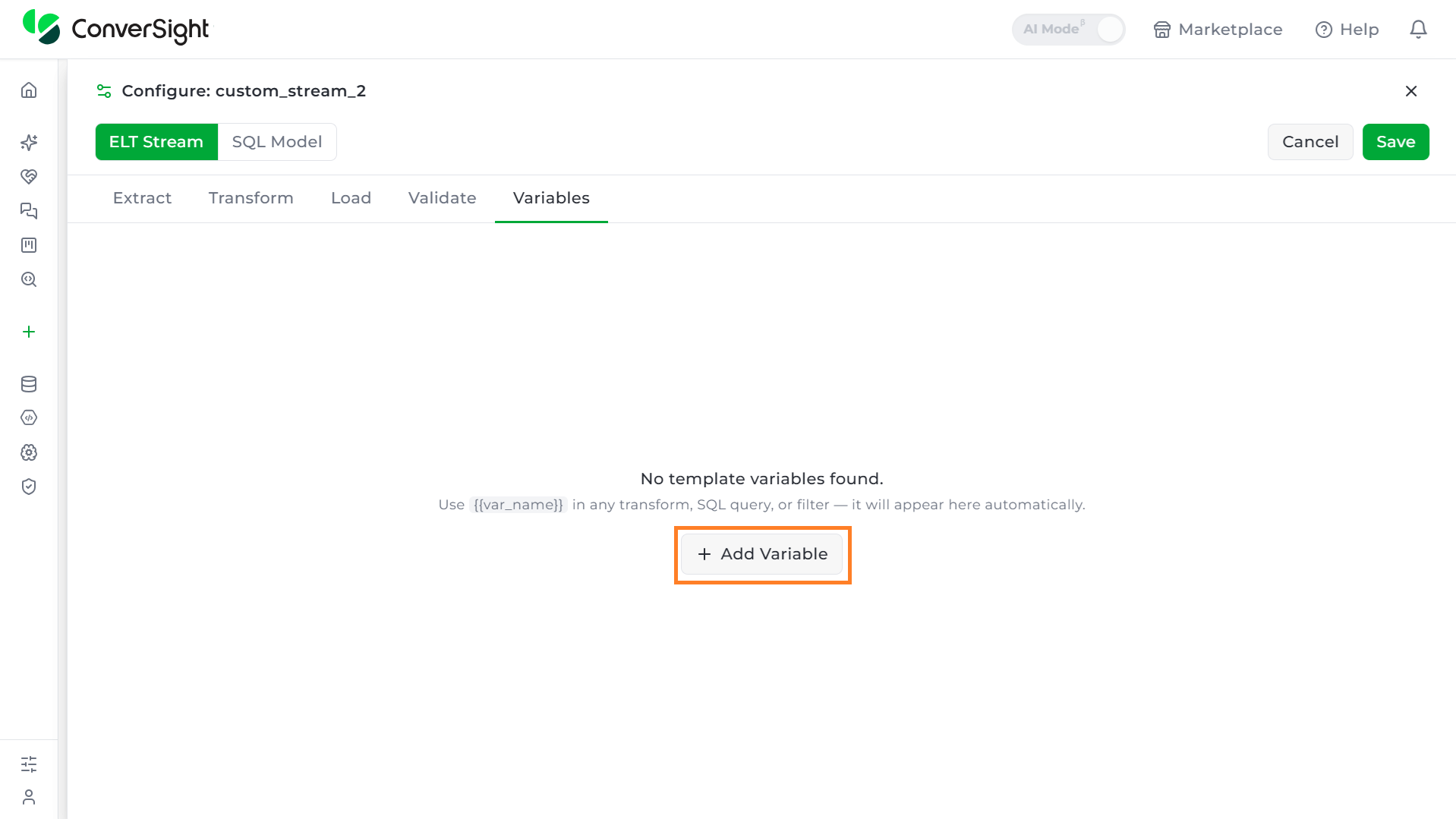
Variables
The Variables tab lets users turn a hardcoded value inside a stream where a filter condition, a SQL query, a transform parameter, or similar — into a reusable, editable placeholder instead of typing the same raw value into every field it's needed in. This is useful when a value needs to change per environment, per run, or simply needs to live in one place so it doesn't have to be updated separately across every transform that uses it.
Referencing a variable directly in a field
A variable doesn't need to be declared ahead of time to be used. Typing
{{variable_name}} directly into any field that accepts it — such as a
Filter transform's Condition — is enough to create it. For example,
changing a condition from a hardcoded status != 'cancelled' to status !=
{{status_filter}} registers status_filter as a variable automatically.
Once typed, the variable is picked up in two places at once:
| Location | What it shows |
|---|---|
| The transform field itself | An inline panel showing the number of variables required, with the Variable Name and a Value field to fill in directly. |
| The Variables tab | A row for the same variable, showing its Variable Name, Value, and a Used In column identifying exactly where it's referenced. |
Until a value is supplied, both locations display a warning indicating that a variable still needs a value before the stream can be validated. Supplying the value in either location clears the warning in both places, since they reference the same underlying variable.
Declaring a variable ahead of time
To define a variable before referencing it anywhere, click + Add Variable. This adds a new row to the Variables tab.
| Field | Description |
|---|---|
| Variable Name | Specifies the name of the variable. |
| Value | Specifies an optional default value for the variable. |
The Used In column for a variable added this way stays empty until that variable's name is actually referenced in a transform, SQL query, or filter elsewhere in the stream.
Both approaches create the same kind of variable. Typing
{{variable_name}} directly into a field and using + Add Variable are
simply two different starting points — whichever is used first, the
variable becomes visible and editable from both the Variables tab and
wherever it's referenced in the stream.

SQL Model Mode
SQL Model is the alternate way to define the same stream slot covered under ELT Stream, instead of point-and-click configuration across Extract, Transform, Load, Validate, and Variables, the stream's logic is written as a single SQL query. Switching the toggle at the top of the Configure panel from ELT Stream to SQL Model replaces those five tabs with four: Query, Materialization, Load, Variables.
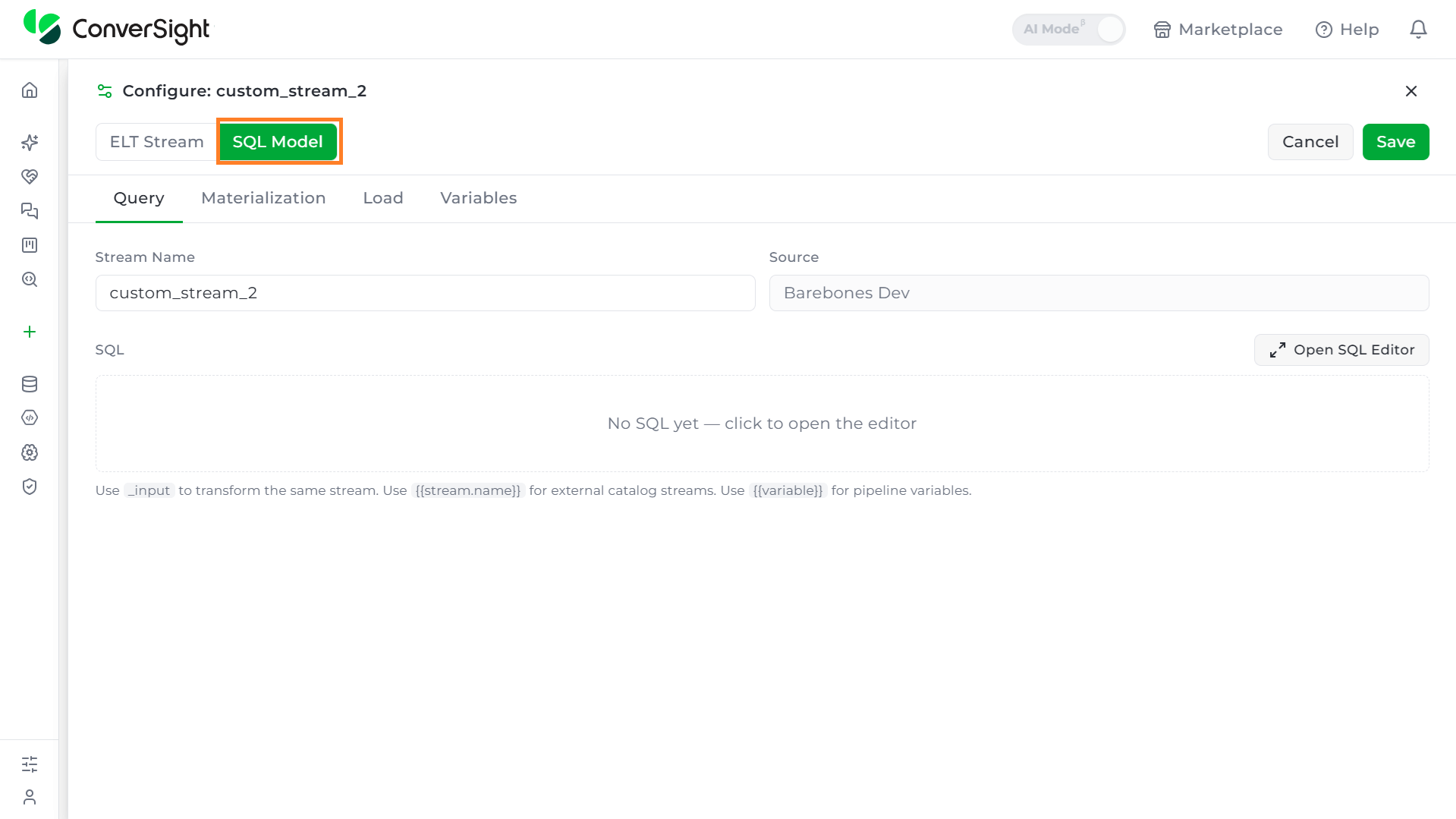
Query tab - define the query
The Query tab is where the stream's output is defined directly in SQL, replacing what Extract and Transform would otherwise do.
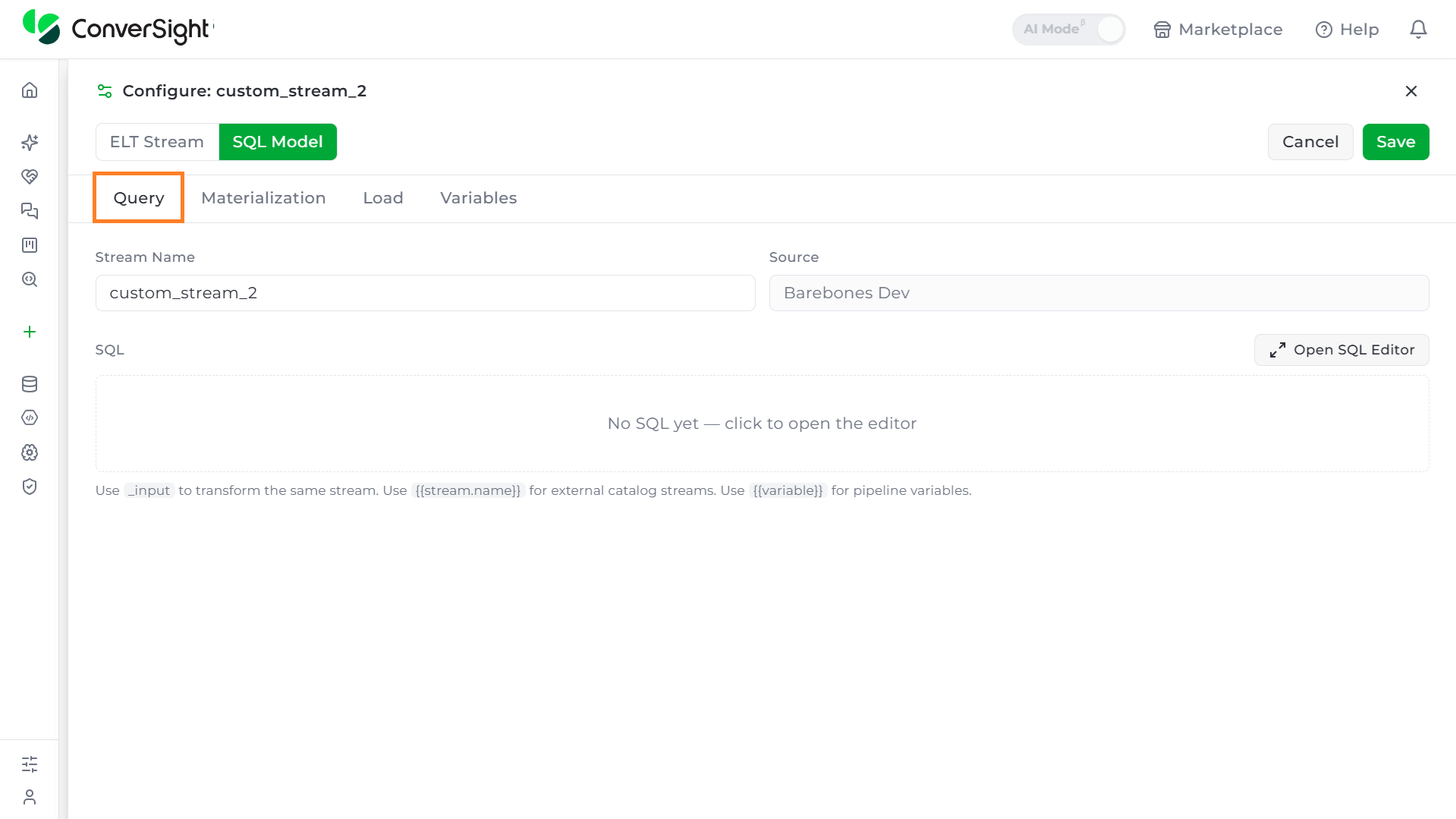
| Field | Description |
|---|---|
| Stream Name | The stream's name (same field as in ELT Stream mode). |
| Source | Read-only, shows the connected source. |
| SQL | A full SQL editor where the query producing this stream's output is written. Empty by default ("No SQL yet — click to open the editor"). |
Clicking Open SQL Editor opens a dedicated full-screen editor with the following tools:

| Tool | Purpose |
|---|---|
| Functions dropdown | A snippet library of SQL functions grouped by category (e.g., Aggregate: COUNT(*), SUM(column), AVG(column), MIN(column), MAX(column)), inserted at the cursor. |
| Available tokens dropdown | A reference list of special syntax understood by the editor — see table below. |
| Format | Auto-formats/beautifies the SQL. |
| Validate | Runs the query to check that it's valid. |
| Preview / Validation tabs | Preview shows sample output rows; Validation shows check results. |
| Variables panel | Same auto-detect behavior as ELT Stream — any {{variable}} typed into the query appears here automatically. |
Available tokens
The following are the available tokens:
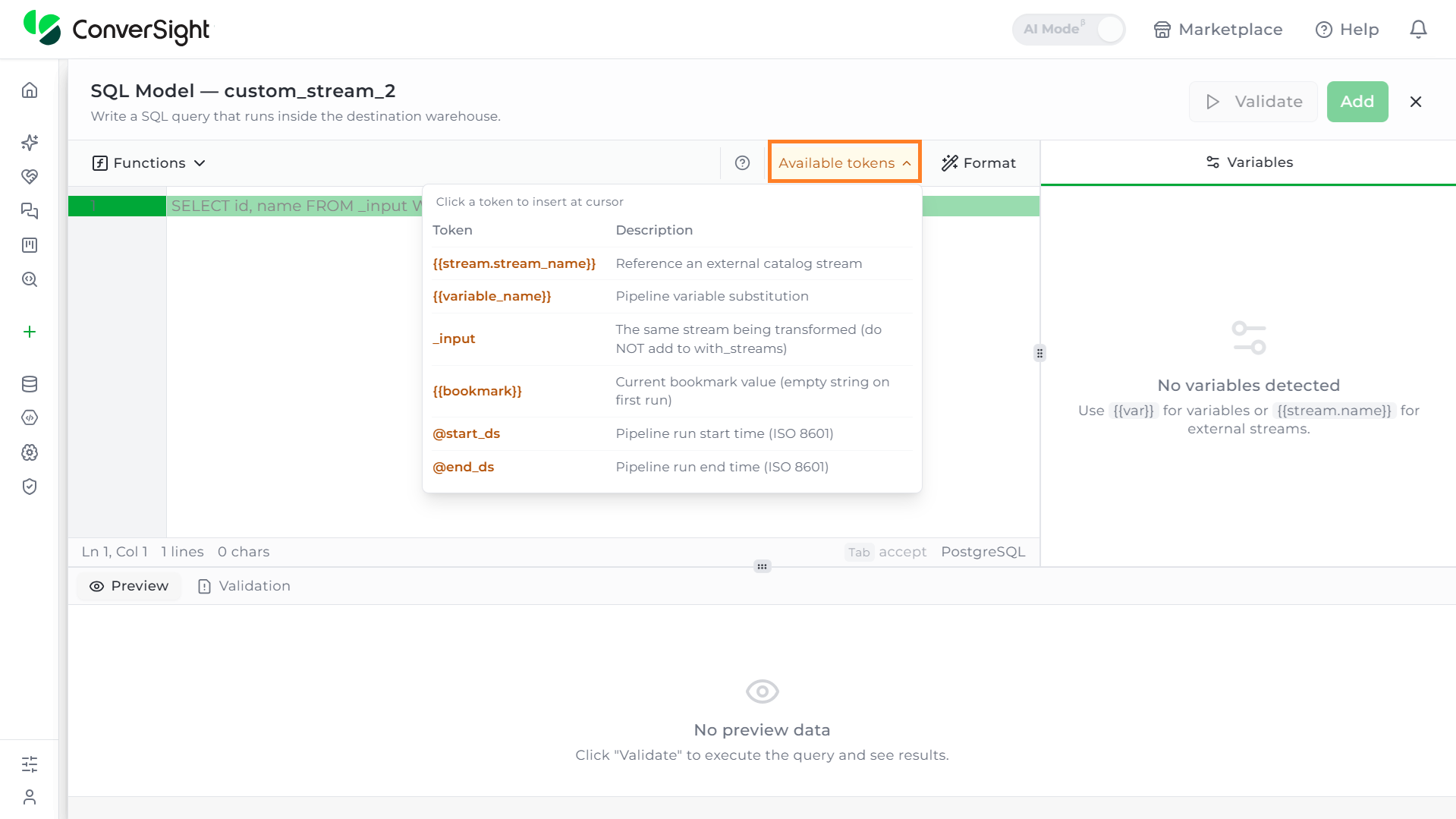
| Token | Description |
|---|---|
{{stream.stream_name}} | References an external catalog stream. |
{{variable_name}} | Substitutes a pipeline variable. |
| _input | Refers to the same stream being transformed. This should not be added to with_streams. |
{{bookmark}} | The current bookmark value (an empty string on the first run). |
| @start_ds | The pipeline run's start time, in ISO 8601 format. |
| @end_ds | The pipeline run's end time, in ISO 8601 format. |
Materialization — define how the query's output is persisted
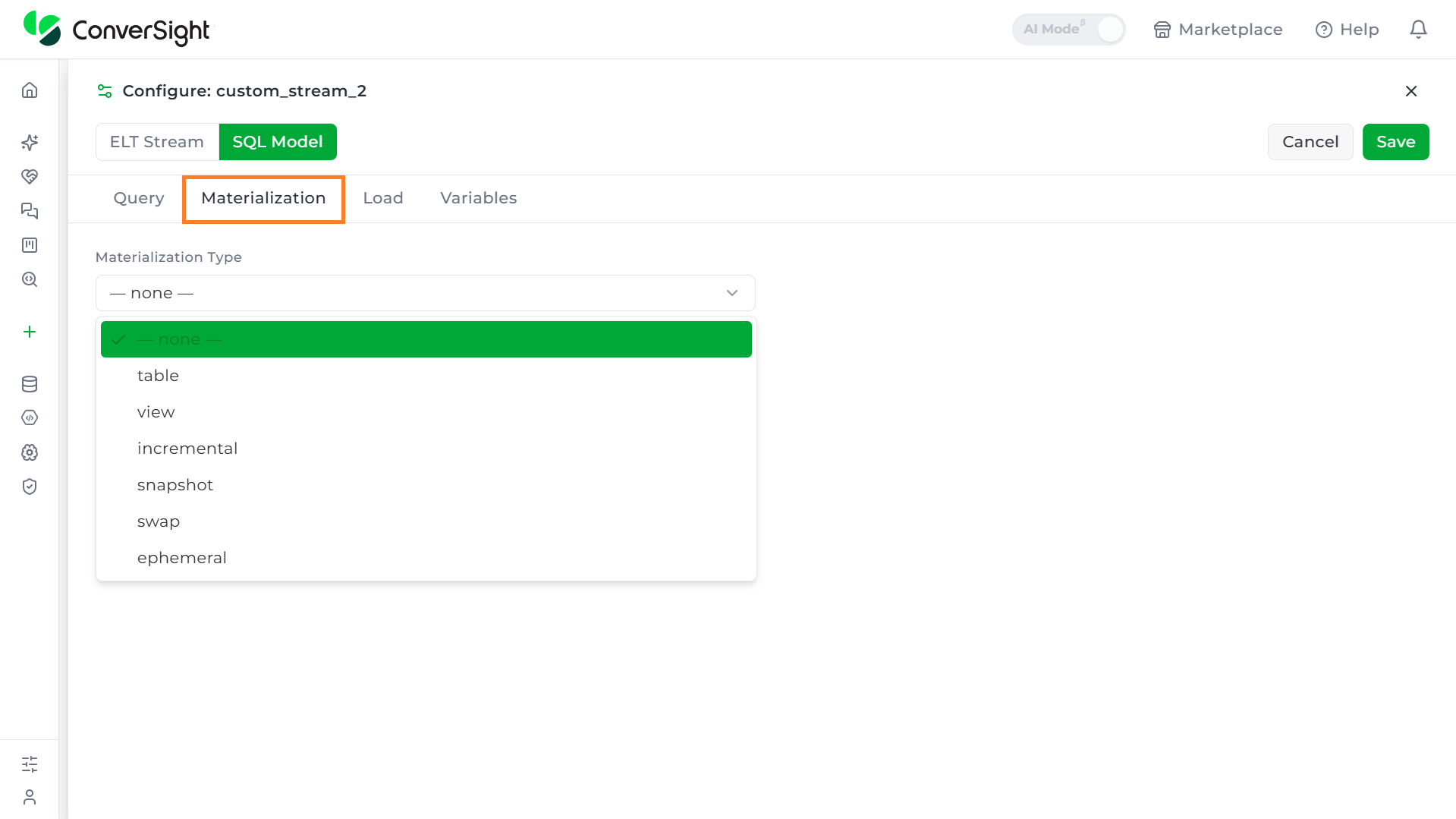
| Field | Description |
|---|---|
| Materialization Type | none, table, view, incremental, snapshot, swap, or ephemeral. |
The fields shown change depending on the selected type:
| Type | Additional fields | What it means |
|---|---|---|
| none | — | No materialization configured yet. |
| table | Interval (e.g. "1h," "30m," "daily") | Rebuilds a physical table on the given schedule. |
| view | Interval | Creates a database view — a saved query — refreshed on the given schedule. |
| incremental | Incremental Strategy (none / merge / append / delete_insert / insert_overwrite), Primary Key, Time Column, Interval | Processes only new or changed data on each run rather than rebuilding everything; the strategy controls exactly how new rows are merged in. |
| snapshot | Primary Key, Snapshot Key, Change Strategy (timestamp or check), Updated-At Column, Interval | Preserves historical row versions over time, rather than overwriting them — an SCD Type 2 style approach. |
| swap | Interval | Builds into a staging copy first, then atomically swaps it into place, so the destination is never left half-written. |
| ephemeral | Interval | A lightweight, transient materialization that isn't persisted as its own physical object — useful as an intermediate step other models can reference. |
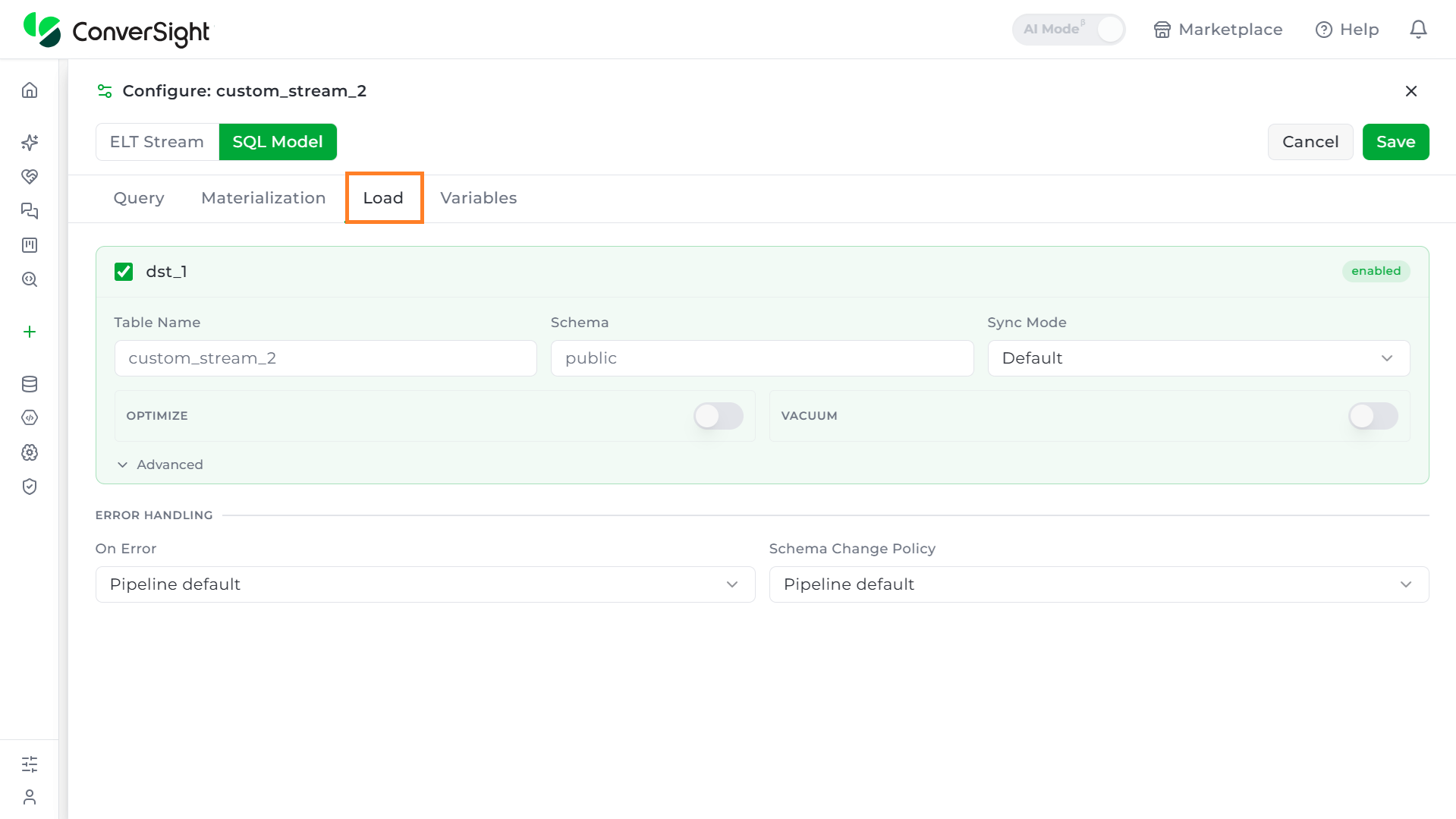
Load - define how the output is written to the destination
This tab serves the same purpose and carries the same fields as the Load tab in ELT Stream mode.
| Field | Description |
|---|---|
| Destination toggle (e.g., dst_1) | Enables or disables writing to this destination. |
| Table Name / Schema | Where the output lands. |
| Sync Mode | Default, or an override for this stream specifically. |
| Optimize / Vacuum | Same file-compaction and space-reclaim toggles as ELT Stream. |
| Advanced | Same Merge Keys, Primary Key Override, Column Case, Table Case, Format, and Partition By fields as ELT Stream. |
| On Error / Schema Change Policy | Same option sets as ELT Stream (Pipeline default, Skip stream/batch, Fail fast / Propagate columns, Sync all, Ignore, Fail). |
Variables tab — reuse values across the query
This tab works identically to the Variables tab in ELT Stream mode.
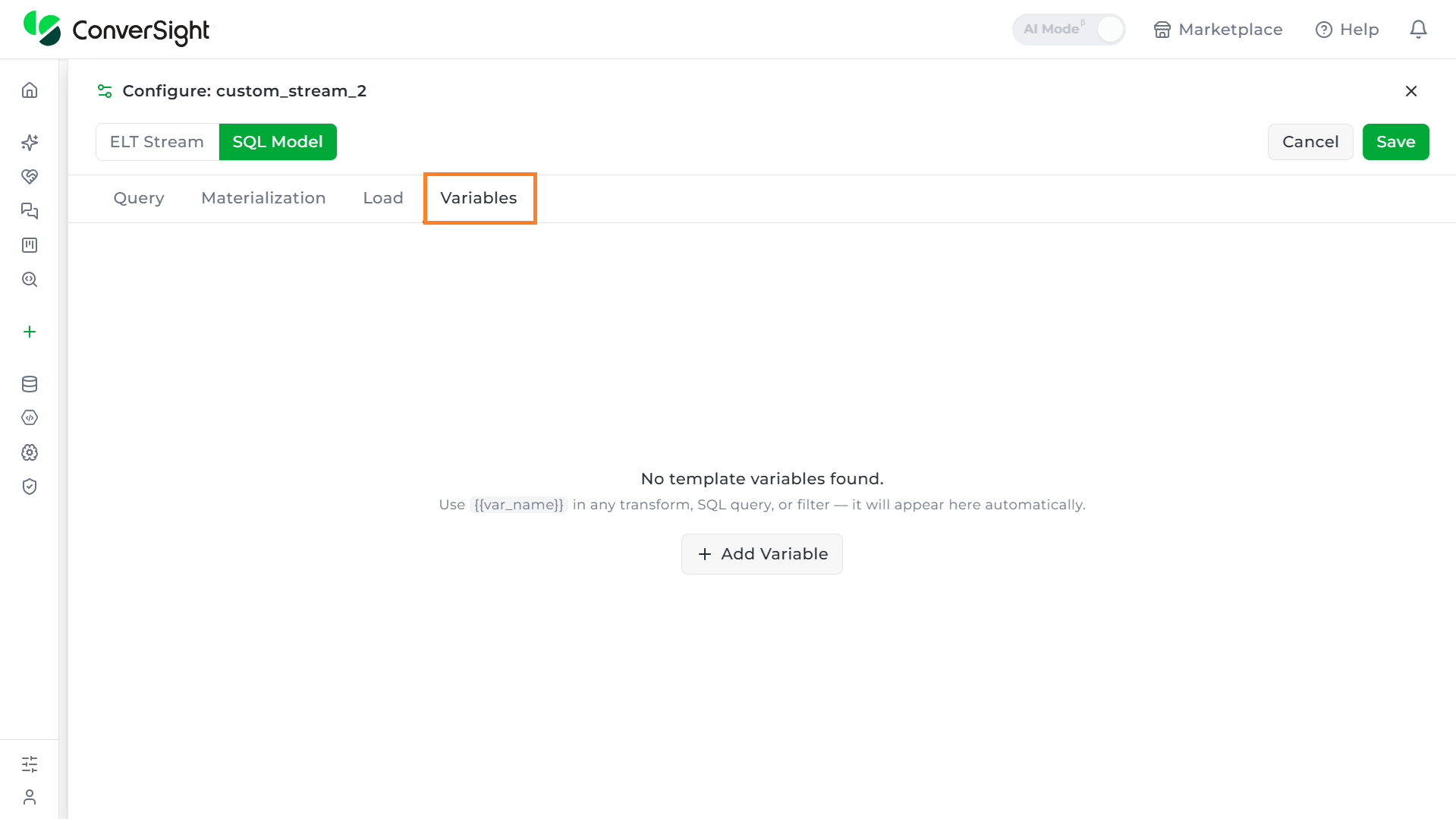

| Field | Description |
|---|---|
| Variables table | Empty by default ("No template variables found"). |
| Behavior | Any {{variable_name}} typed into the Query tab is auto-detected and appears here with a Value field and a Used In reference, the same way it does in ELT Stream mode. |
| + Add Variable | Manually declares a variable name and default value before referencing it anywhere. |
Settings
The Settings tab defines the pipeline-wide defaults that apply across every stream in the pipeline. A stream can still set its own values for things like sync mode or error handling on its individual Extract, Load, or Validate tabs — Settings only takes effect where a stream hasn't specified its own.
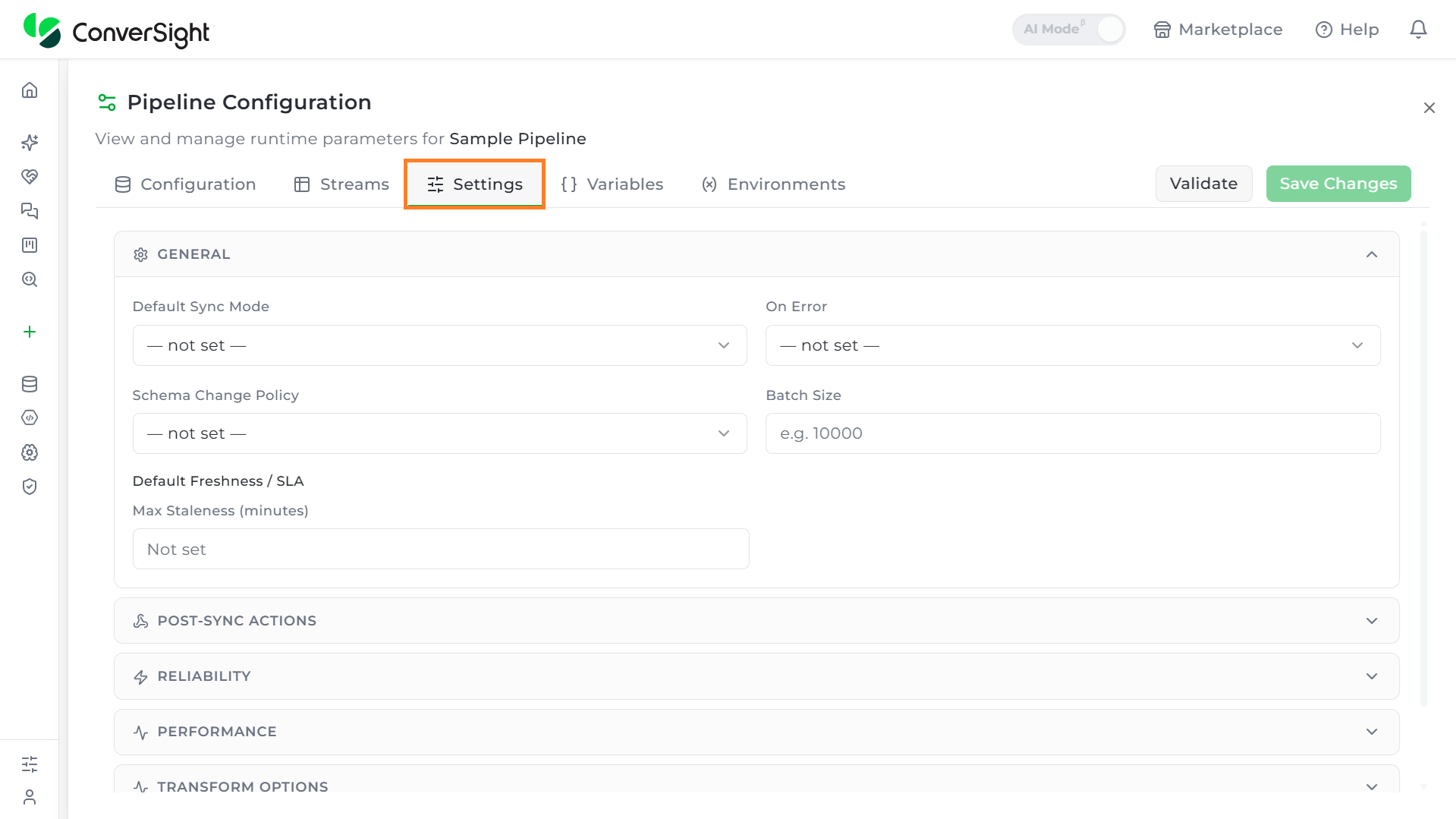
General
The General settings has the following items.
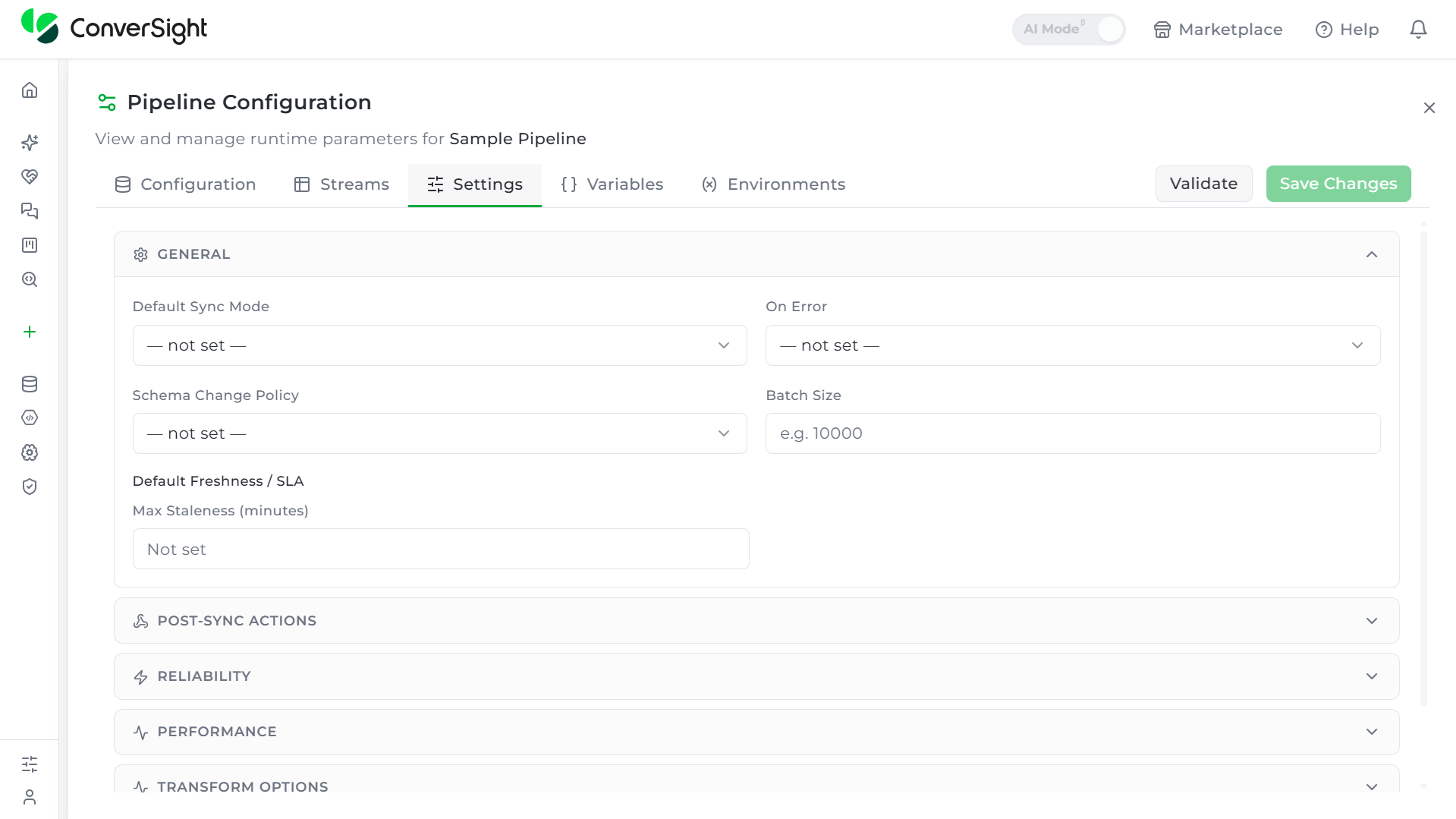
| Field | Description |
|---|---|
| Default Sync Mode | The fallback sync mode applied to any stream that doesn't set its own. Options: — not set —, Append, Upsert, Overwrite, Staging Swap, Snapshot. |
| On Error | What happens pipeline-wide when a stream errors out. Options: — not set —, Skip Stream, Skip Batch, Fail Fast. |
| Schema Change Policy | How the pipeline reacts when the source schema changes. Options: — not set —, Propagate Columns, Sync All, Ignore, Fail. |
| Batch Size | Number of records processed per batch (placeholder "e.g. 10000"). |
| Default Freshness/SLA — Max Staleness (minutes) | How old data is allowed to get before it's considered stale, used for monitoring/alerting. |
Post-Sync Actions
Post-Sync Actions send a webhook to an external endpoint whenever selected pipeline events occur, such as a sync starting, completing, or failing. This is off by default. To configure it, turn on Enable Post-Sync Actions.

| Field | Description |
|---|---|
| URL — Action mode | Routes the event through a Universe Engine resource action. Fields: Resource CRN (e.g. "crn:dev🇺🇸connector:org:mysql:db-01") and Action (a dropdown, loaded after the CRN is entered). |
| URL — Custom mode | Sends events straight to a manually entered URL. Fields: a Request method dropdown (POST, GET, PUT, PATCH) and a URL box (e.g. https://api.example.com/sync-events). |
| Default environment variables (5) | A read-only reference table the engine injects automatically: $env:DATASYNC_UNIVERSE_URL (build a callback URL), $env:DATASYNC_JWT (primary auth), $env:DATASYNC_API_KEY (API-key auth variant), $env:DATASYNC_M2M (machine-to-machine auth variant), $env:DATASYNC_ACTIVITY_SOURCE_ID (correlates to an orchestrator job). |
| Events | A checklist of six triggers that fire the webhook: Sync started, Sync progress, Stream completed, Sync completed, Sync failed, Credentials rotated. Select all / Clear buttons are included. |
| Headers | A "+ Add" button to attach custom headers. |
| Body — Default | The engine sends its own default JSON payload for the event automatically. |
| Body — Custom | A free-text JSON box for a custom payload shape, with {{variable}} placeholders substituted at delivery time (e.g. {"event": "{{event}}", "pipeline": "{{pipeline_id}}"}), plus an Available Variables list scoped to whichever events are selected. |
When adding custom headers, reference $env: variables rather than pasting real secrets directly into the header value.
Reliability
The Reliability section defines how the pipeline handles failures and interruptions during a run — how many times a failed operation is retried, how long it waits between retries, and how often progress is checkpointed so a run can resume rather than restart from the beginning.
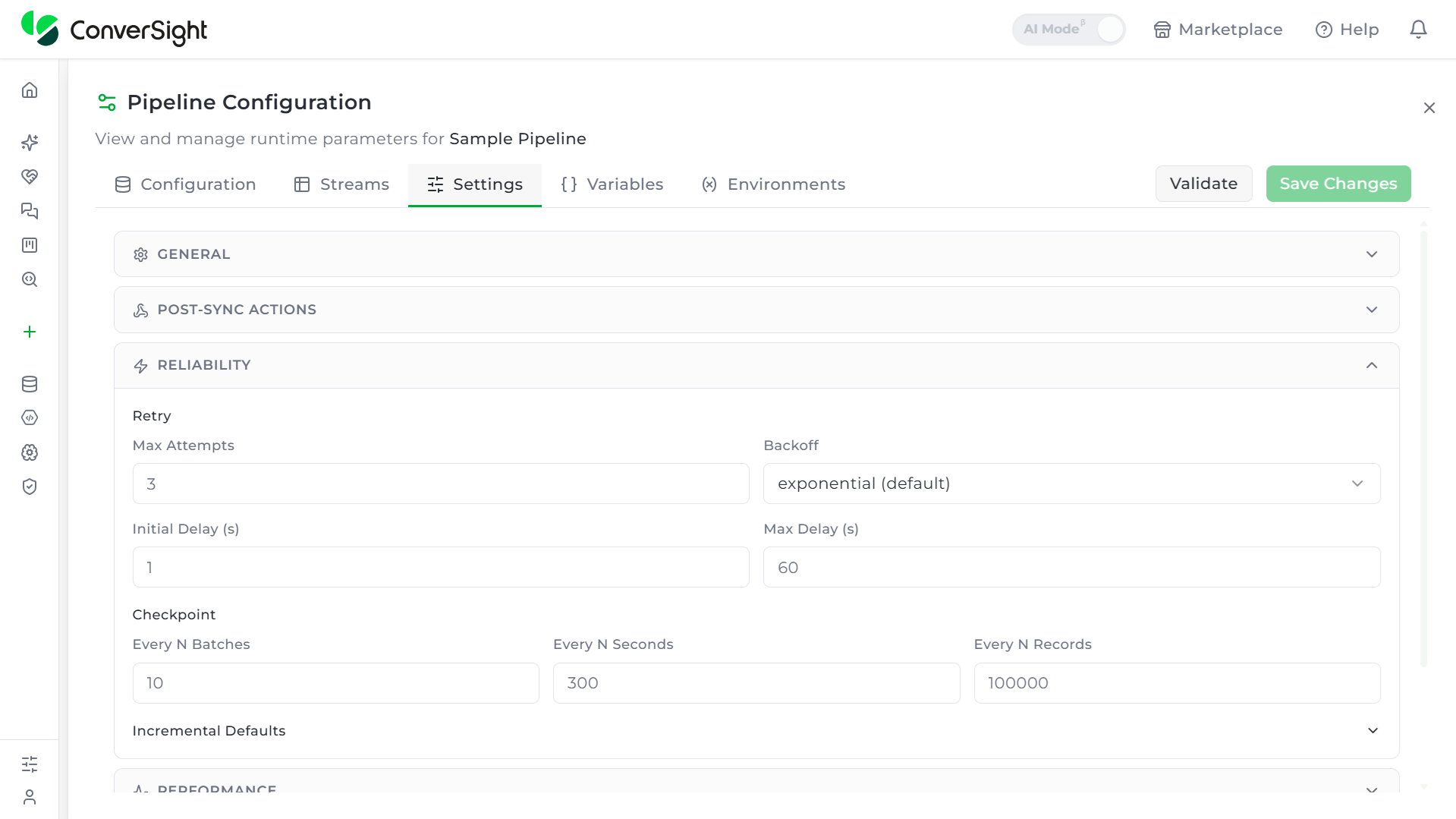
| Field | Default | Description |
|---|---|---|
| Retry — Max Attempts | 3 | How many times a failed operation is retried. |
| Retry — Backoff | exponential | Options: exponential (default), linear, fixed — controls how the delay grows between retries. |
| Retry — Initial Delay (s) | 1 | Wait time before the first retry. |
| Retry — Max Delay (s) | 60 | Ceiling on how long any single retry wait can grow to. |
| Checkpoint — Every N Batches | 10 | How often progress is checkpointed, by batch count. |
| Checkpoint — Every N Seconds | 300 | Checkpoint interval by time. |
| Checkpoint — Every N Records | 100,000 | Checkpoint interval by record count. |
| Incremental Defaults — Bookmark Strategy | Default | Options: Default, Inclusive, Exclusive — controls whether the last-synced record is included or excluded on the next incremental run. |
| Incremental Defaults — Lookback Window (s) | 0 | Re-fetches a small time window behind the bookmark to catch late-arriving data. |
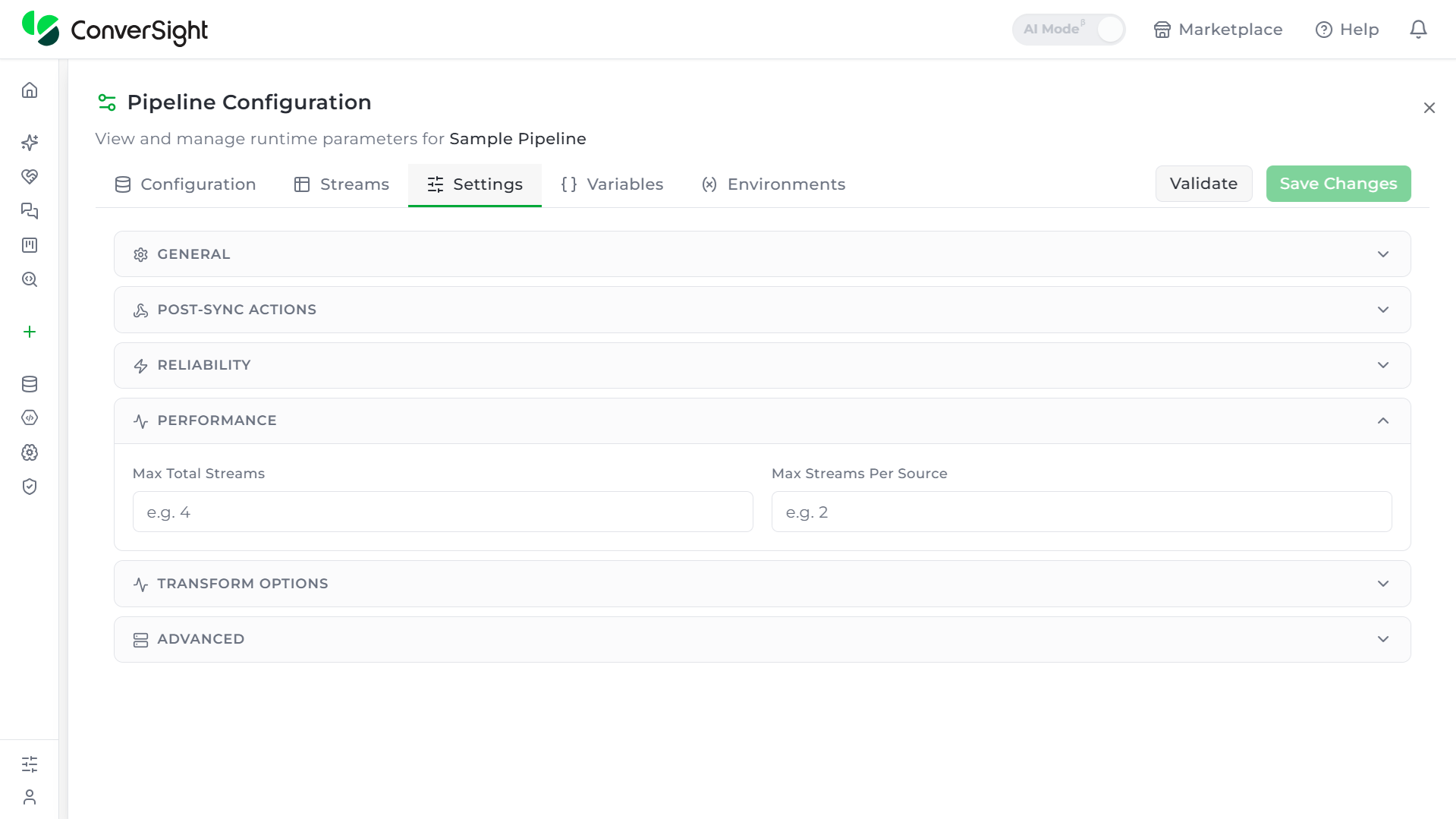
Performance
The Performance section controls how much of the pipeline runs at once: capping how many streams run concurrently overall, and how many can hit the same source connector at the same time, to avoid overloading it.
| Field | Description |
|---|---|
| Max Total Streams | Caps how many streams this pipeline runs concurrently (placeholder "e.g. 4"). |
| Max Streams Per Source | Caps concurrent streams hitting the same source connector, to avoid overloading it (placeholder "e.g. 2"). |
Transform
The Transform Options section controls formatting behavior applied across the pipeline's transforms — currently limited to whether column and table name casing from the source is preserved or normalized to lowercase.

| Field | Description |
|---|---|
| Preserve identifier case (toggle, off by default) | When off, column/table names are normalized to lowercase. Turning it on keeps the exact casing from the source. |
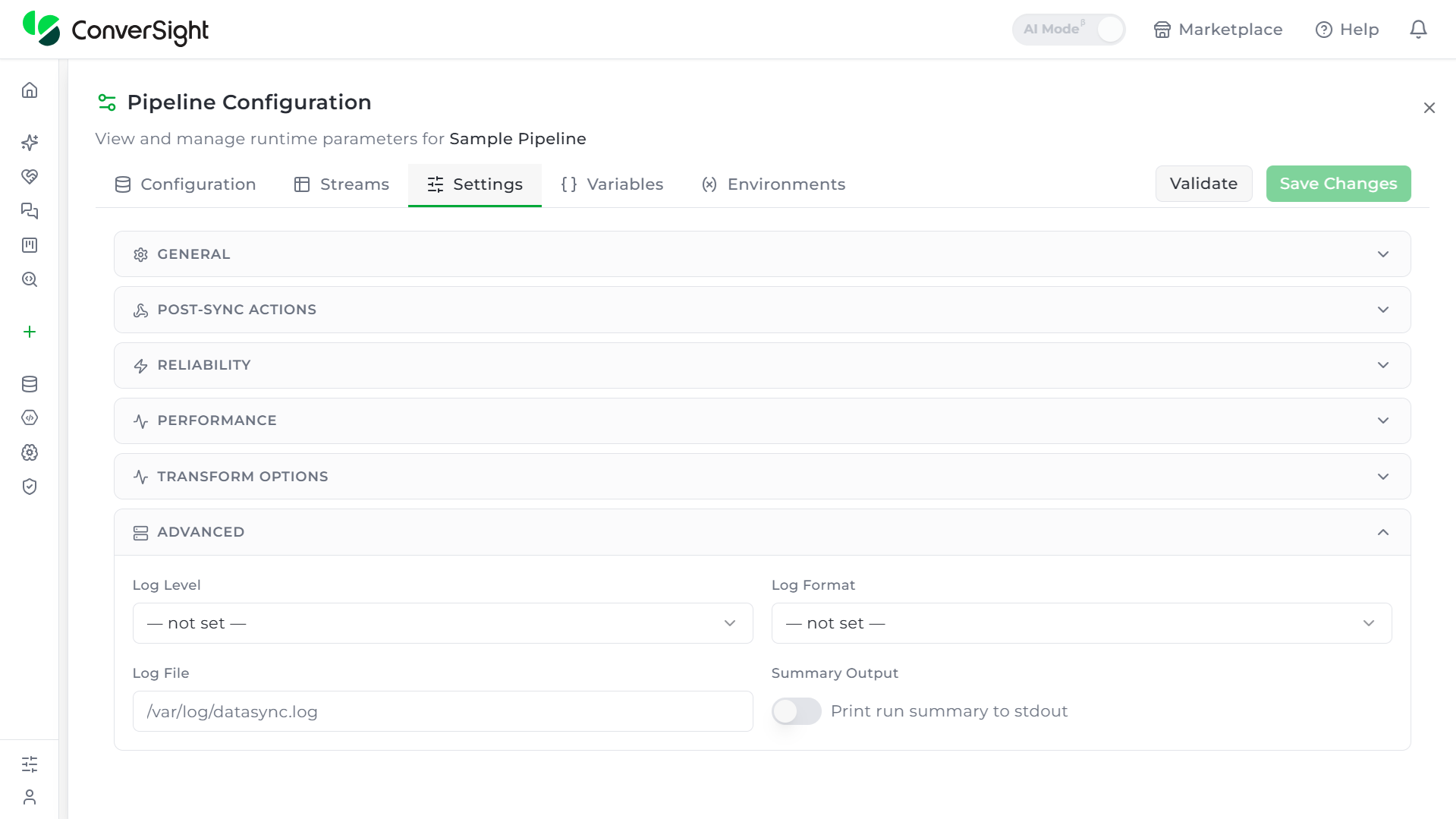
Advanced
The Advanced section covers logging behavior for the pipeline — the level of detail captured, the format logs are written in, where they're saved, and whether a run summary is printed after each sync.
| Field | Description |
|---|---|
| Log Level | Options: — not set —, Trace, Debug, Info, Warn, Error. |
| Log Format | Options: — not set —, JSON, Text. |
| Log File | Path where logs are written (placeholder "/var/log/datasync.log"). |
| Summary Output (toggle, off by default) | "Print run summary to stdout" — writes a run summary to the console/output stream after each sync. |
Every field above sets a pipeline-wide default. A stream can still override any of these individually on its own Extract, Load, or Validate tabs — the pipeline-level Settings only apply where a stream hasn't specified its own value.
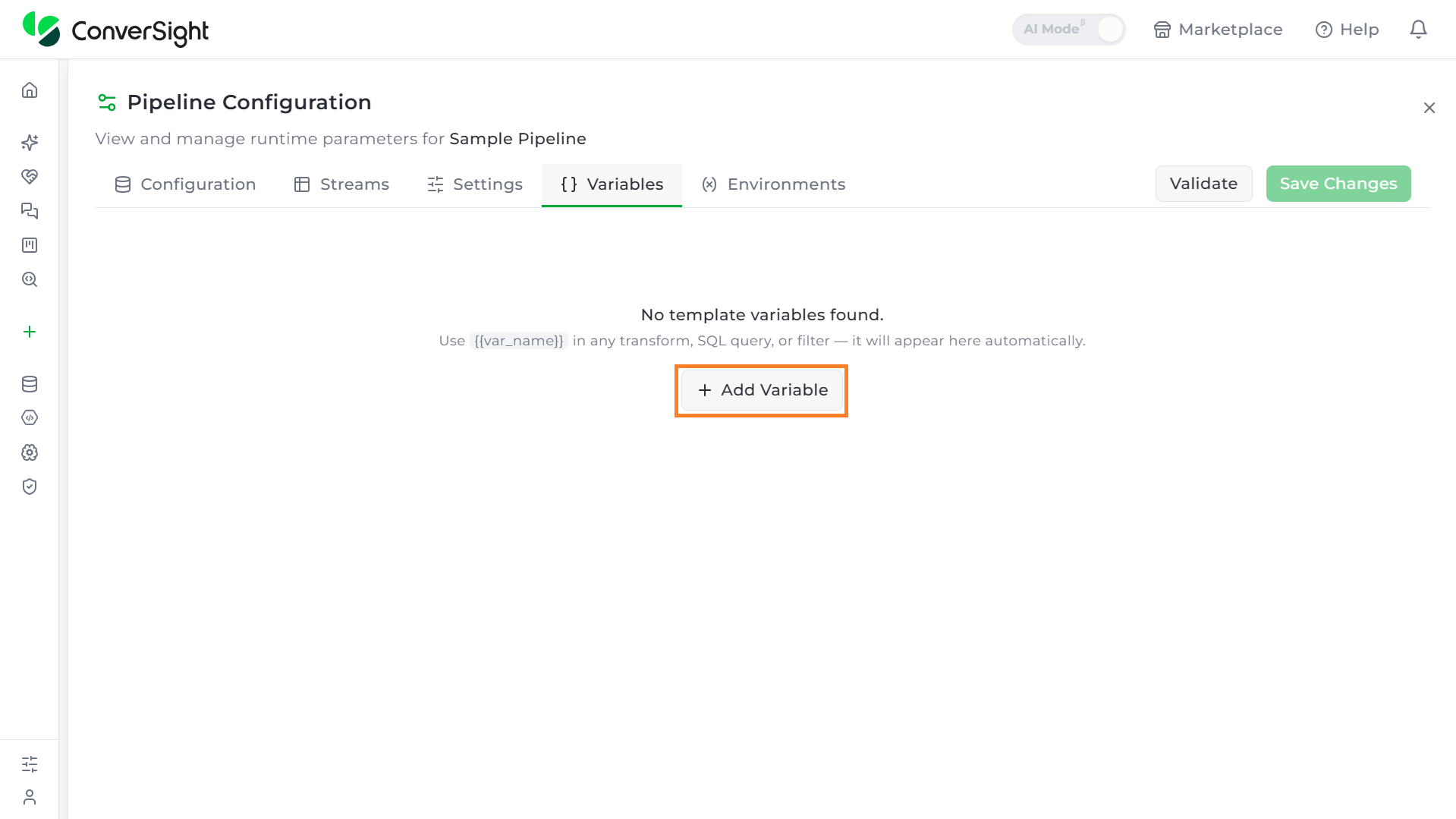
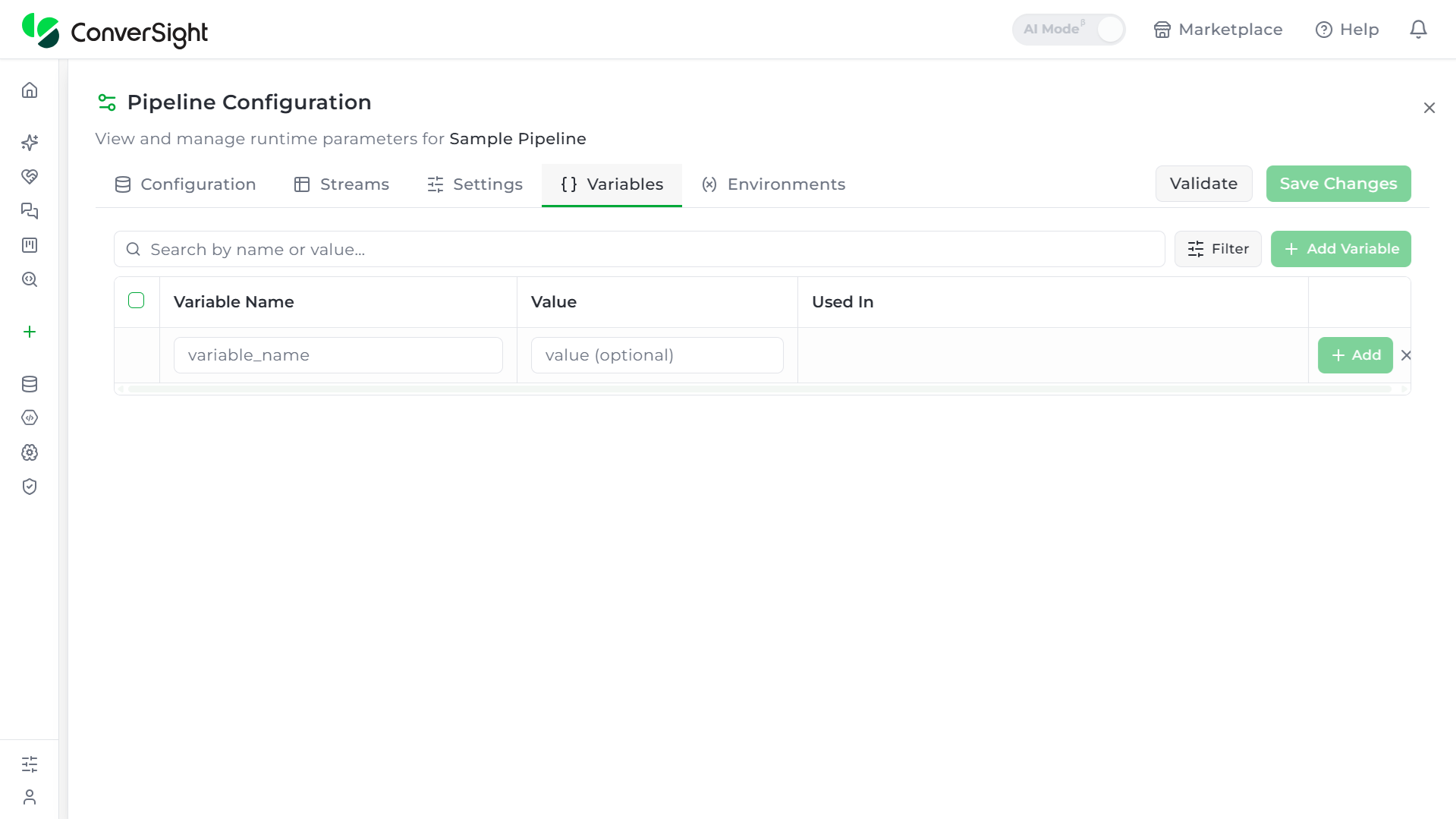
Variables
The Variables tab is a central registry of every {{variable}}
placeholder used anywhere across the pipeline's streams that includes
Transform steps, SQL Models, filters, and so on. It shows all variables
in one place, lets values be assigned to them, and shows exactly where
each one is used, without opening every individual stream.
Variables defined here are global to the whole pipeline, not scoped to one stream. A variable added on this tab is immediately available from the Variables tab inside any stream's configuration in the same pipeline, since all streams share the same underlying pool.
When no variables exist yet, the tab shows: "No template variables
found. Use {{var_name}} in any transform, SQL query, or filter — it will
appear here automatically."
Layout and fields
| Field/Element | Description |
|---|---|
| Search bar | Filters the list by variable name or its assigned value. |
| Filter button | Opens a Type dropdown with three options: All types, Variable ({{var}}), and Stream ({{stream.x}}) — narrows the list to plain user-defined variables versus stream-reference tokens. |
| + Add Variable | Adds a new row with a Variable Name field and a Value field, plus an Add button to confirm the row. |
| Variable Name column | The identifier referenced elsewhere as {{name}}. |
| Value column | An editable field holding the variable's current value; can be left blank. |
| Used In column | Shows where the variable is referenced — "defined but not referenced" if unused, or a badge naming the exact stream and step, e.g. "sample_stream → transform 1," once referenced somewhere. |
| Row / header checkbox | Selects one or all rows for bulk actions. |
| Delete (trash) icon | Removes the variable, after a confirmation popup. |
| Tab badge | The Variables tab label shows a count badge reflecting how many variables currently exist. |
After configuring, click Save Changes on the Pipeline Configuration panel to persist the variable and its usage.
The Used In column updates in real time as a {{name}} reference
is typed into a field, even before saving — useful for confirming a
variable is wired up correctly. Clicking Cancel or closing the panel
without saving discards any unsaved reference, and Used In reverts to
"defined but not referenced." Because the variable pool is shared
pipeline-wide, a variable only needs to be defined once to be available
across every stream in the pipeline.
Environments
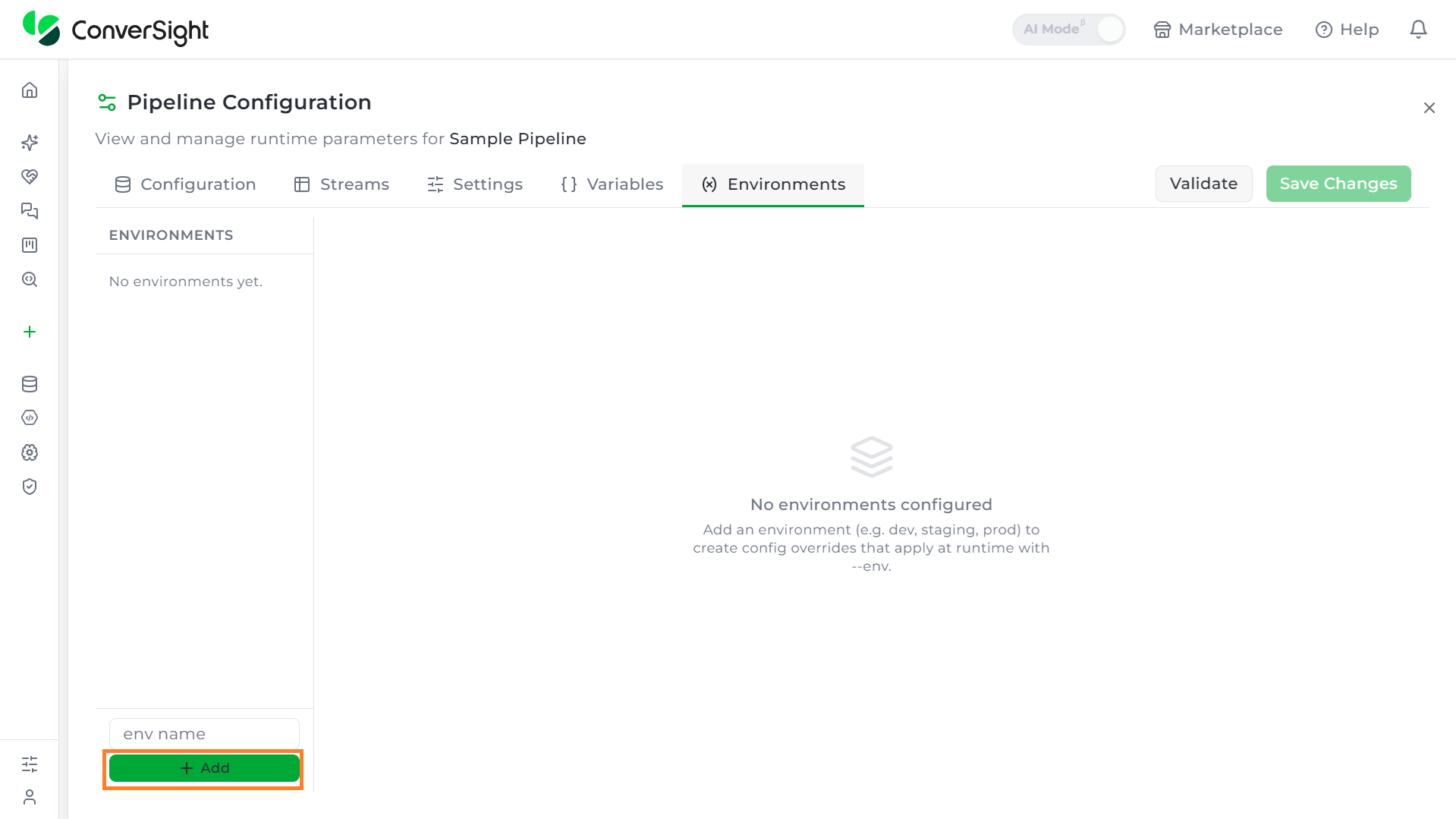
The Environments tab lets users define named runtime environments — such as dev, staging, or prod — for the pipeline. Each environment holds a JSON block of config overrides that get deep-merged onto the pipeline's base configuration whenever the pipeline is run with a matching --env flag. This allows one pipeline definition to behave differently depending on which environment it's executed in, without duplicating the whole pipeline.
Layout and fields
| Field/Element | Description |
|---|---|
| Environments list (left panel) | Lists every environment added so far. Clicking a name selects it and loads its override JSON in the right panel. |
| env name field + Add button | At the bottom of the left panel — type a name and click + Add to create a new environment entry. |
| Delete (trash) icon | Appears next to an environment's name in the list. Removes that environment immediately, with no confirmation popup. |
| Override editor (right panel) | Shows the selected environment's name and a JSON text box, defaulting to {}, where override values are written. |
| Tab badge | The Environments tab label shows a count badge reflecting how many environments exist. |
Deleting an environment happens immediately, with no confirmation step — unlike deleting a variable, which does prompt for confirmation. Be careful when clicking the trash icon here.
Schedule
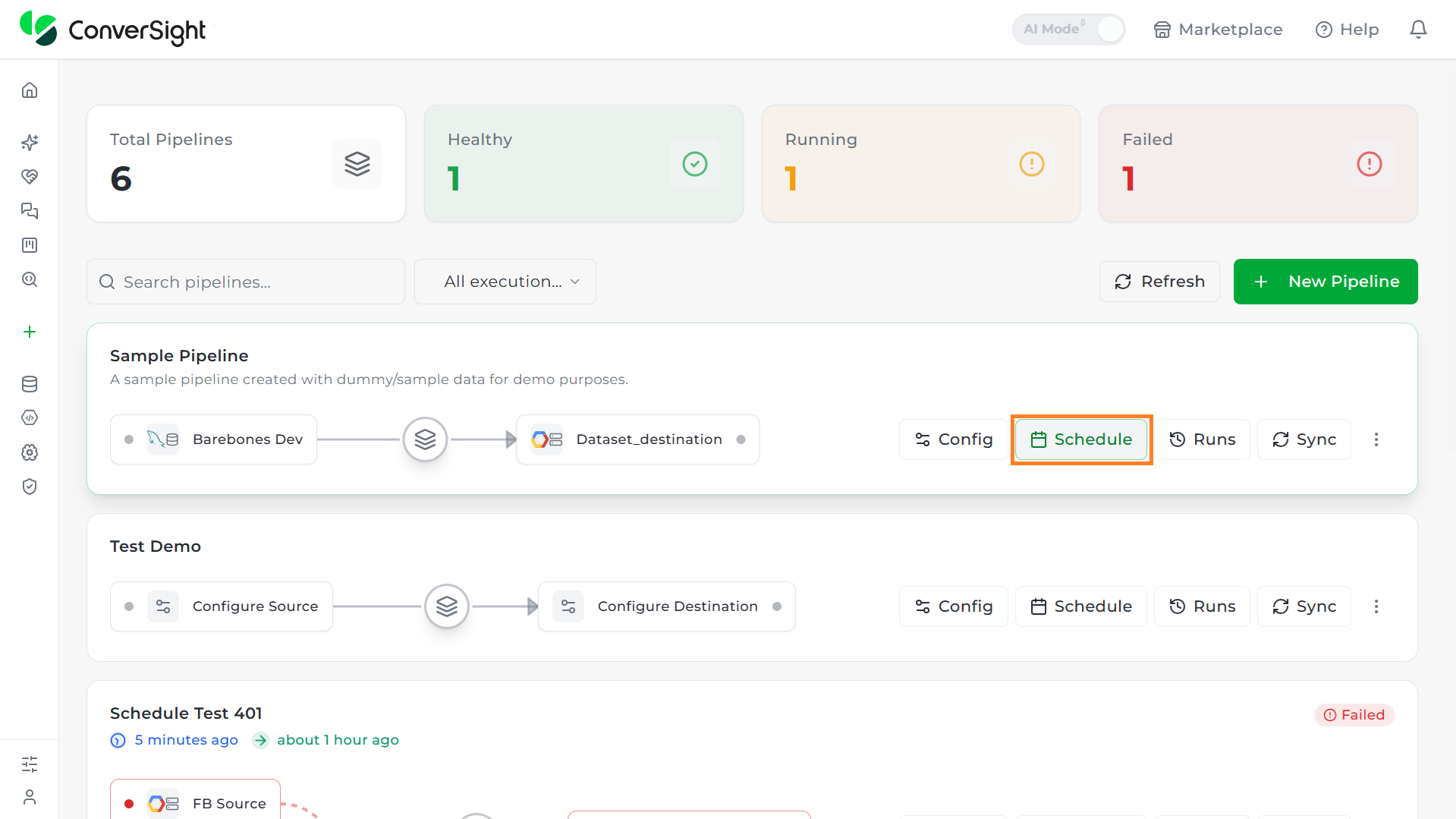
Schedule opens the Resource Scheduler, where automated, unattended runs for the pipeline: one-time or recurring are configured, so the pipeline runs on its own without needing Sync to be clicked manually each time.
| Field/Element | Description |
|---|---|
| Schedules (count) | Header showing how many schedules exist for this pipeline, e.g. "Schedules (0)." |
| Local Time / UTC toggle | Switches all displayed times between UTC and local timezone. |
| Calendar button | Opens a separate Schedule Calendar Overview — a month calendar (with a Month/Year toggle and a color legend: green = Recurring, blue = One-Time, orange = Event) plus an hour-by-hour timeline for the selected day. |
| Create Schedule | Opens the schedule creation form. |
| Search schedules | Text search across existing schedules. |
| All Statuses filter | Options: All Statuses, Active, Paused. |
| All Types filter | Options: All Types, Recurring, One-Time, Event-Based. |
| All Targets filter | Options: All Targets, Agent, Platform. |
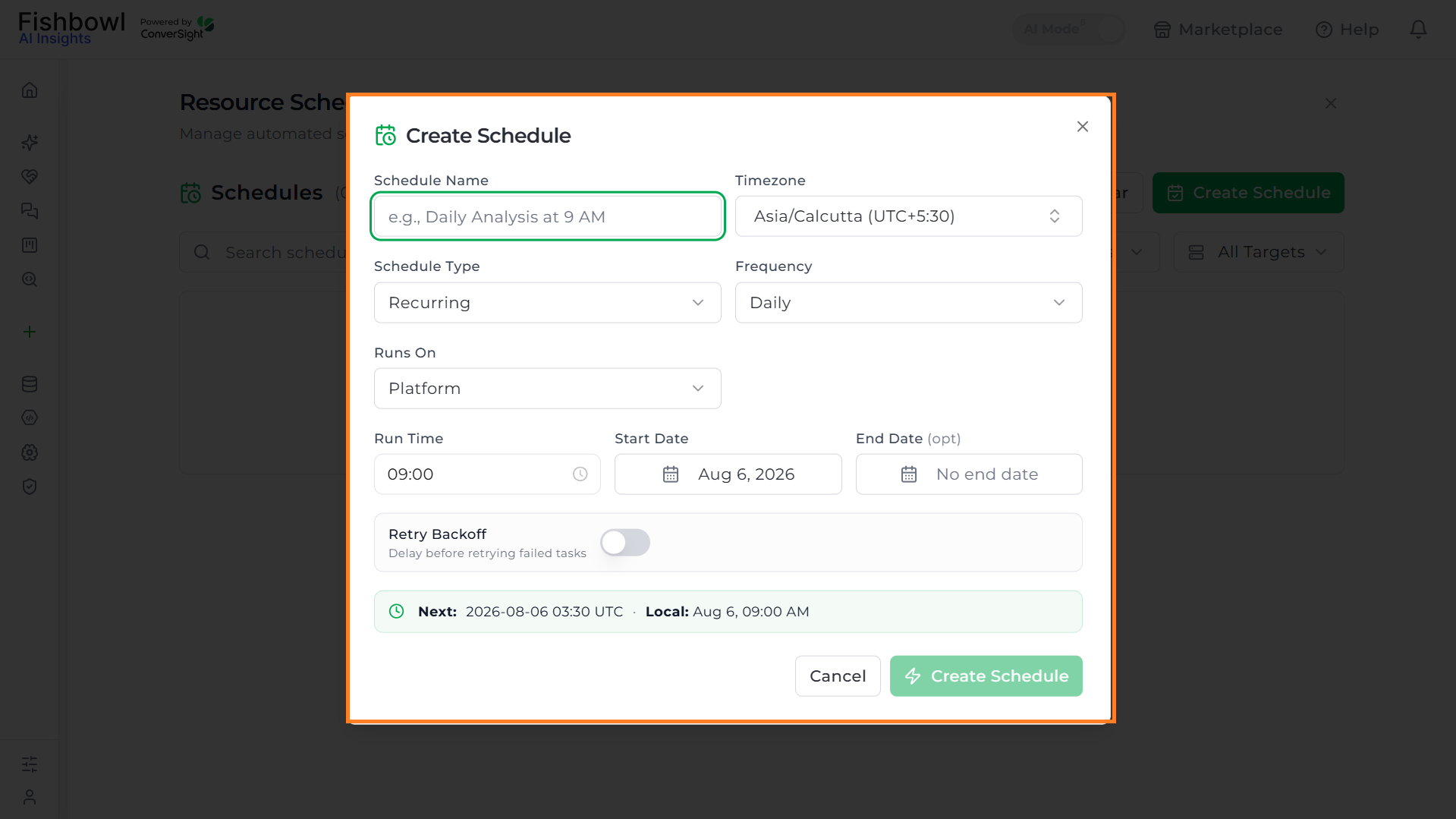
Creating a Schedule
Click Create Schedule to open the schedule creation form.

| Field | Description |
|---|---|
| Schedule Name | Free text label for the schedule. |
| Timezone | A searchable dropdown of timezones, defaulting to the local timezone. All run times are interpreted in this timezone. |
| Schedule Type | One-Time or Recurring — changes the remaining fields on the form. |
| Runs On | Platform or Agent — where the scheduled execution is carried out. |
| Retry Backoff | A toggle. When enabled, reveals a numeric delay field (in seconds, default 60) for retrying failed tasks. |
If Schedule Type is One-Time
| Field | Description |
|---|---|
| Run Date | The single calendar date the job should run. |
| Run Time | The time of day it should run. |
If Schedule Type is Recurring
| Field | Description |
|---|---|
| Frequency | Every N Minutes, Hourly, Daily, Weekly, or Monthly — each reveals different sub-fields, detailed below. |
| Start Date | The date recurrence begins. |
| End Date (optional) | Defaults to "No end date," meaning the schedule runs indefinitely. |
Configuring recurrence by frequency
Every N Minutes: Reveals an Interval (min) field (default 10), plus optional Window Start and Window End time fields to constrain runs to a specific time window each day.
Hourly / Daily: The simplest recurrence — only a Run Time field is needed, alongside Start/End Date.
Weekly: Reveals a Days of Week selector with individual Mon–Sun toggles, plus three quick-select presets: Weekdays, Weekend, and All Days.
Monthly: Reveals a Monthly Option dropdown with three choices — First Day of Month, Last Day of Month, or Specific Day. Selecting Specific Day reveals a Day of Month field (default 1).
Review the live "Next" preview to confirm the computed run time matches what's intended, then click Create Schedule to save it, or Cancel/the X icon to discard without creating anything.
Runs
Runs, also called Run History, is the execution log for a pipeline - a record of every time it ran, whether triggered automatically by its schedule or manually, showing the outcome of each attempt and letting a specific run be re-triggered if needed.
Run History is used to audit past executions, identify which runs failed, and re-trigger a specific run if needed.
| Run count | Shown next to the title, e.g. "Run History (20)" — the total number of recorded runs. |
|---|---|
| UTC toggle | Controls the timezone runs are displayed in. |
| Refresh | Reloads the list. |
| Search runs | A search box to filter the list. |
| Filters | Dropdowns for All Schedules, All Statuses, and All Targets, to narrow the list. |
Table columns
| Column | Description |
|---|---|
| Run Time | Timestamp of when the run occurred (e.g., "Aug 5, 2026, 11:45 AM UTC"). Sortable via the arrows next to the header. |
| Schedule Name | The identifier of the schedule that triggered the run. |
| Status | The run's outcome — Submitted (queued/in progress, shown in orange), Failed (shown in red), or Success. |
| Duration | How long the run took to complete, e.g. "1m 24s." Runs still in Submitted status show "—," since they haven't finished. |
| Triggered By | What initiated the run — Schedule (ran automatically per the configured schedule) or a manual trigger. |
| Runs On | The execution environment the run occurred on, e.g. Platform. |
| Action | A Re-Run button per row, to manually re-trigger that specific run again. |

Sync
Sync manually triggers an immediate, on-demand run of the pipeline, separate from any automated schedule — a "run now" action rather than waiting for the next scheduled execution. After clicking Sync, a new row appears at the top of Run History, with Triggered By showing something other than "Schedule" (e.g., "Manual") to distinguish it from scheduled runs.
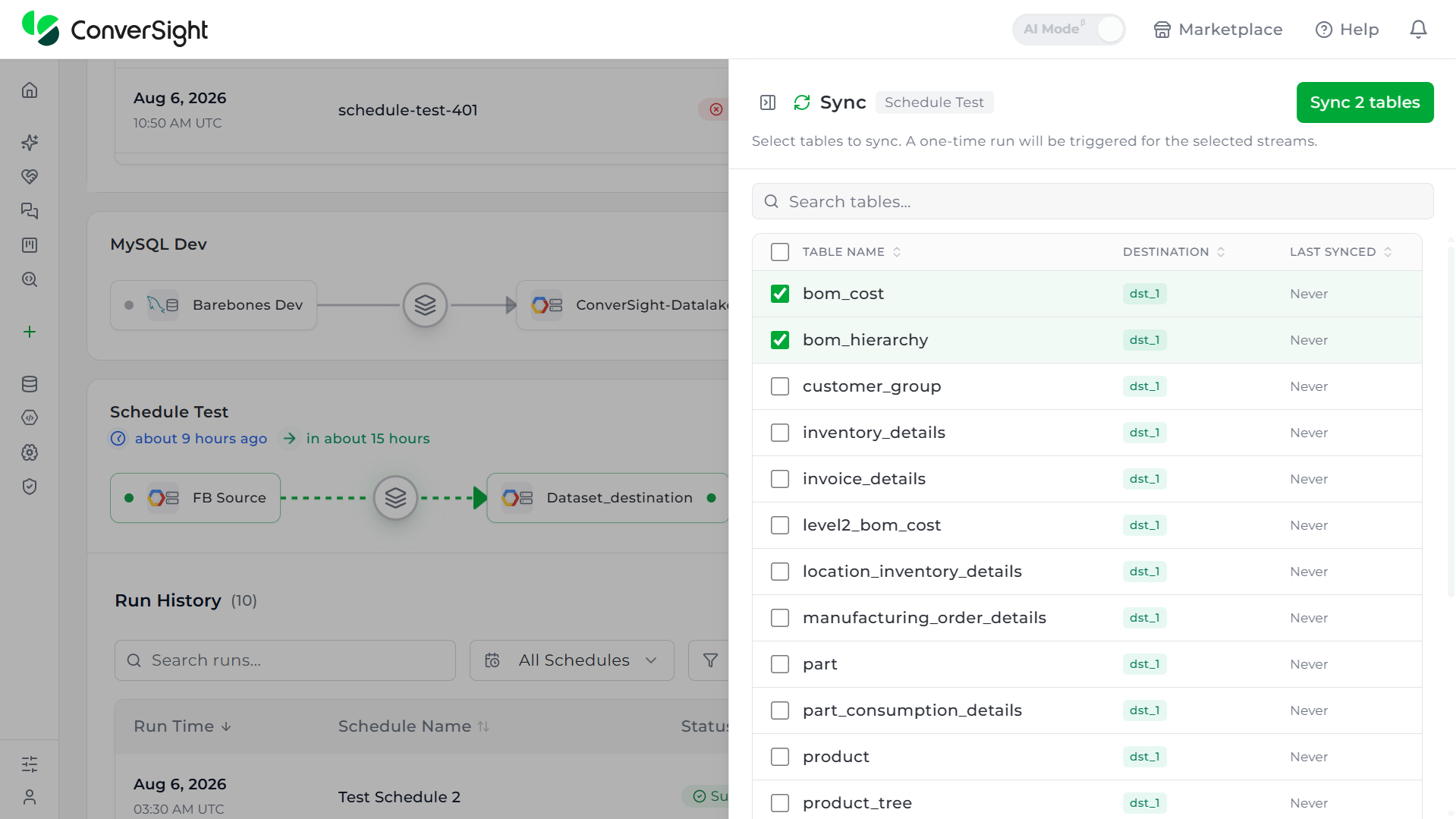
Clicking Sync starts a real pipeline run against live data immediately. Confirm this is intended before clicking it, especially on a pipeline already running on an active schedule.
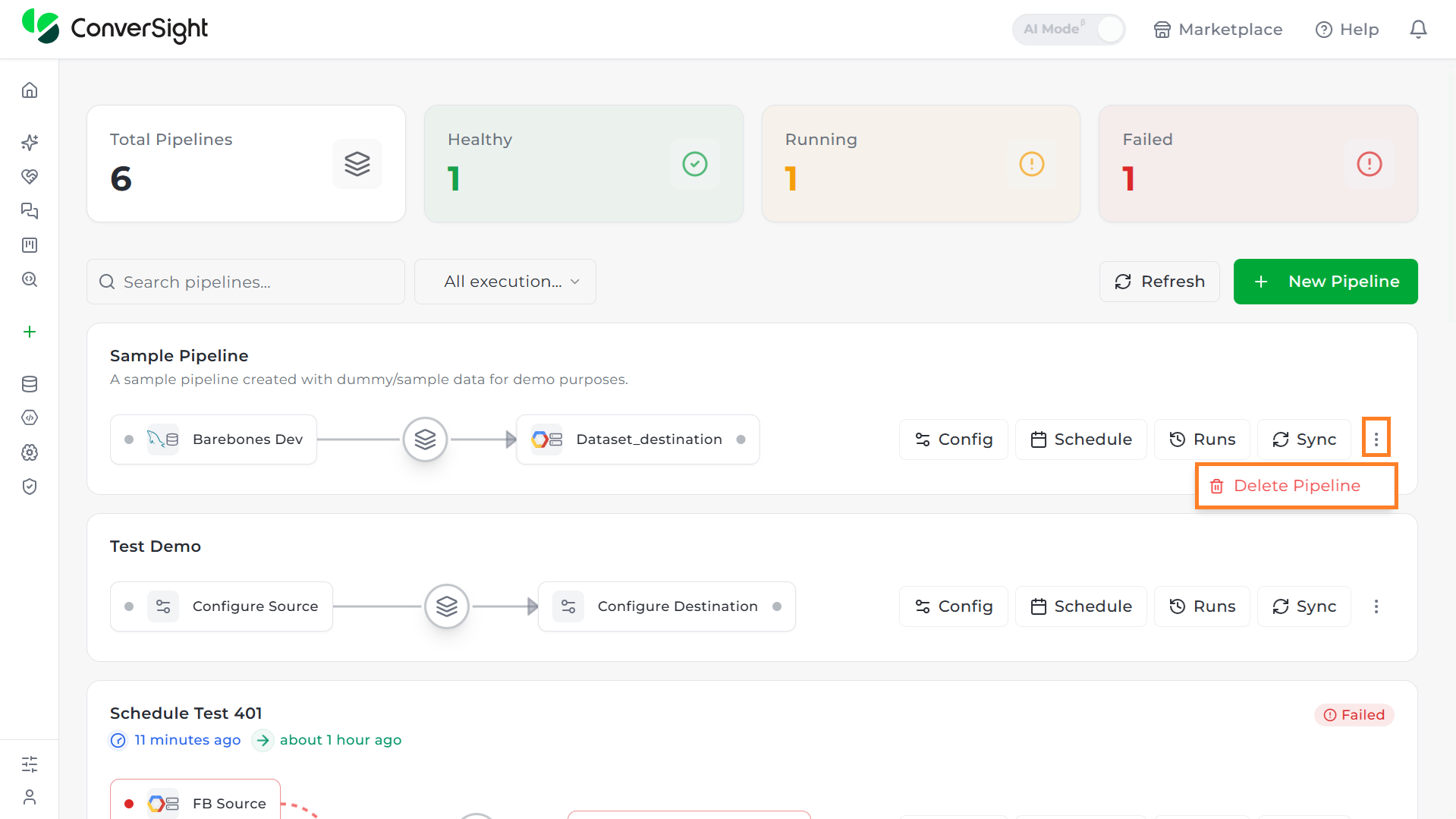
Delete Pipeline
The Delete action removes a pipeline that's no longer needed, along with its configuration, streams, and schedules.