Semantic Layer
The Semantic Layer is the central data-modeling layer in ConverSight that sits between your raw data sources and the AI-powered analytics surface. It translates physical tables and columns into a shared, business-oriented vocabulary — Subject Areas, Business Objects, Properties, and Relationships — that Athena, your AI Agent, and Storyboard resolve against every time they generate an insight or answer a query.
Without a semantic layer, analysts interpret source tables differently, leading to inconsistent metrics and conflicting answers. The Semantic Layer solves this by giving the entire platform a single governed model: the same metric definition, the same join logic, the same business name — used consistently across every query, every dashboard, and every AI recommendation.
You build and maintain the semantic model using the Semantic Layer Studio inside Data Studio — a visual workbench where you connect datasets, define business entities, configure properties, and deploy the model to production. Once deployed, every Athena Thread, Storyboard widget, and AI recommendation in your environment draws from that model.
What Semantic Layer Owns
| Stage | What Semantic Layer does |
|---|---|
| Model | Defines the Subject Areas, Business Objects, and Data Sources that form the semantic structure over raw connected data. |
| Enrich | Adds Properties — Column, Calculated, and Smart — with business names, semantic categories, aggregation rules, and formatting so every column is ready for AI queries. |
| Relate | Establishes join Relationships between Data Sources, with cardinality and join type, so Athena can traverse the model and generate correct multi-table queries. |
| Navigate | Configures Drill-Down Paths that define how users and Athena move through data hierarchies, from coarsest to finest granularity. |
| Govern | Manages version history (Check In / Checkout), deployment to production, and import/export so the model can be iterated, audited, and published safely. |
A well-built semantic model is what makes Athena accurate. Every query Athena Threads generates, every Storyboard widget that renders, every AI recommendation that references a metric — all of it resolves against the semantic model. The richer the model, the more precise and consistent Athena's answers.
What This Documentation Covers
This page is the reference for building and governing your semantic model in the Semantic Layer Studio: how to access it from Data Studio, work across the three-panel Studio interface, add and configure datasets, enrich properties, define relationships and drill-down paths, and version, deploy, import, and export the model. New to the Studio? Start at Accessing Semantic Layer. Looking for a specific function, jump to it via the table of contents on the right.
Accessing Semantic Layer
To access the Semantic Layer Studio, click the Data Studio option from the Workbench section in the left navigation panel.

On the Data Studio page, locate the Data Model: Semantic Layer module card and click Open to launch the Semantic Layer Studio.

Data Studio shows a Semantic Models tile that tracks the number of Subject Areas currently defined in the semantic layer. This count updates as datasets are migrated and models are deployed.
Working with Semantic Layer Studio
The Semantic Layer Studio is where you build, enrich, and govern your organization's semantic model. Think of it as a visual workbench: you connect raw data sources on the left, shape them into business-friendly entities in the centre, and configure how Athena and Storyboard interpret every metric and dimension on the right.
When you open the Studio, or switch to another dataset, the canvas shows Syncing semantic layer while the latest version of the dataset loads; on a large model this can take a minute or two. The Studio then presents a three-panel layout:
| Panel | Description |
|---|---|
| Model Explorer | A collapsible tree showing every Subject Area, Business Object, and Data Source in the active model. Use it to navigate the hierarchy, rename entities, and create new datasets. |
| Model Canvas | A visual graph showing Data Source nodes and the Relationships between them. Pan, zoom, and drag nodes to arrange your model. |
| Properties / Drill Down / Relationships | Context-sensitive tabs that show the properties, drill paths, and join rules for whatever entity is selected on the canvas. |
A row of lifecycle controls spans the top of the Studio for managing the model — import, export, version control, and deployment.
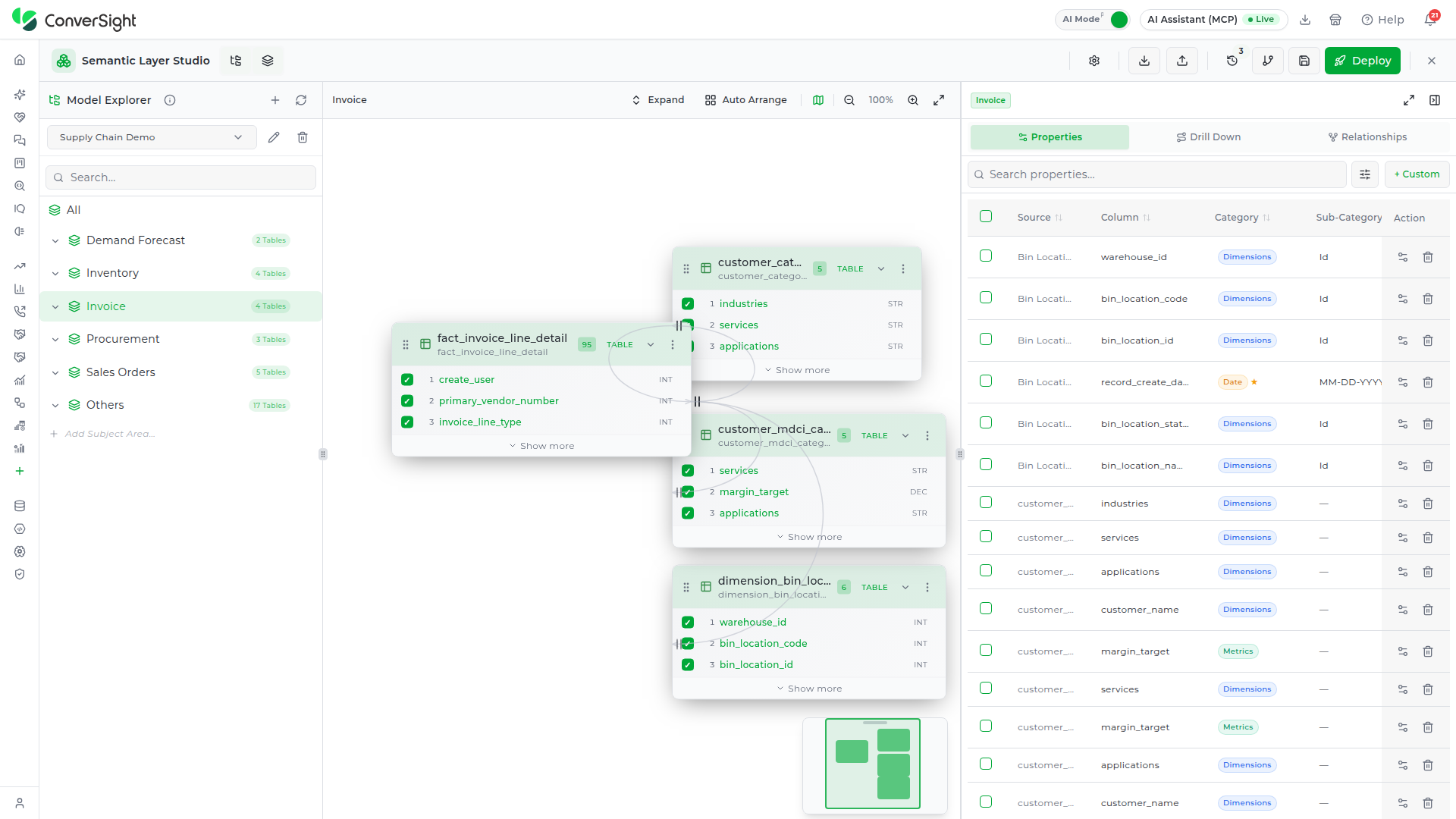
The Properties panel header carries two icons on the right. Expand widens the panel across the canvas so every column of the Properties grid is visible at once, and the same icon returns it to its normal width. Collapse hides the panel so the canvas fills the space, and the Metadata toggle in the Studio header brings it back.
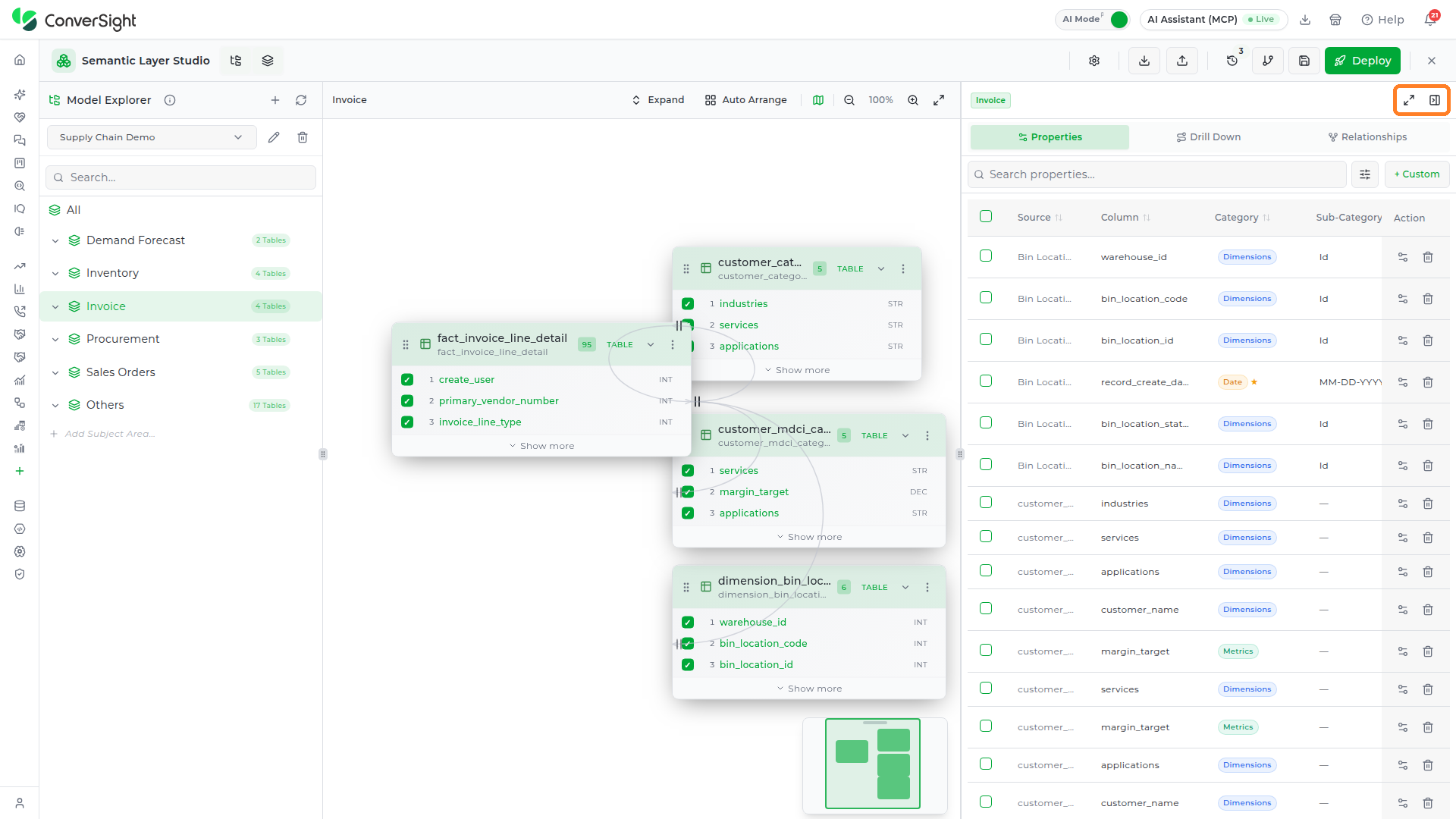
Model Explorer
The Model Explorer is your navigation panel for the entire semantic model. It lives on the left side of the Studio and shows everything in the active dataset as a collapsible tree — every Subject Area, every Business Object inside it, and every Data Source beneath that. It is the starting point for every action you take: selecting entities to work on, renaming them, adding new ones, or switching to a different dataset entirely.

The Model Explorer header and the row beneath it hold the dataset-level controls:
- Dataset info (i): Hover over the icon beside the Model Explorer title to see the active dataset's details.
- Add Dataset (+): Opens the New DataSet panel.
- Refresh datasets: Reloads the dataset list.
- Dataset selector: Switches the Studio to another dataset.
- Edit dataset (pencil): Opens the Edit DataSet panel for the active dataset.
- Delete dataset (trash): Permanently removes the active dataset.
- Search: Filters the tree to Subject Areas, Business Objects, and Data Sources whose names match what you type.
The following sub-sections walk through the key Model Explorer actions — creating a new dataset, building out the model hierarchy with Subject Areas and Tables, refreshing the dataset list, and switching between datasets. Complete each step in order when setting up a new semantic model from scratch.
Add Dataset
The Add Dataset (+) button allows users to create a new dataset for importing data and performing further analysis.

The New Dataset panel is divided into three sections, each serving a specific purpose. The following sections are explained in detail:
- Basic Information
- Storage Connector
- Dataset Locale Settings
Basic Information
The Basic Information section captures the essential details required to create and identify the new dataset.

| Field | Description |
|---|---|
| Name | Enter a unique name for the dataset to be created. |
| Description | Enter a brief summary to help identify the dataset and its purpose. |
Storage Connector
The Storage Connector section allows users to select the storage connection, specify the storage path, and configure the fetch limit for importing data into the dataset.

| Field | Description |
|---|---|
| Connection | The respective data connector for this dataset. Select from the available connectors. |
| Schema | The schema within the connector that holds the dataset's tables. Pick one from the list, or use Scan a schema to look one up by name. |
| Fetch Limit | Maximum number of rows to retrieve in queries (default 50000). |
Dataset Locale Settings
The Dataset Locale Settings section allows users to configure the regional defaults that determine how ConverSight displays for this dataset.
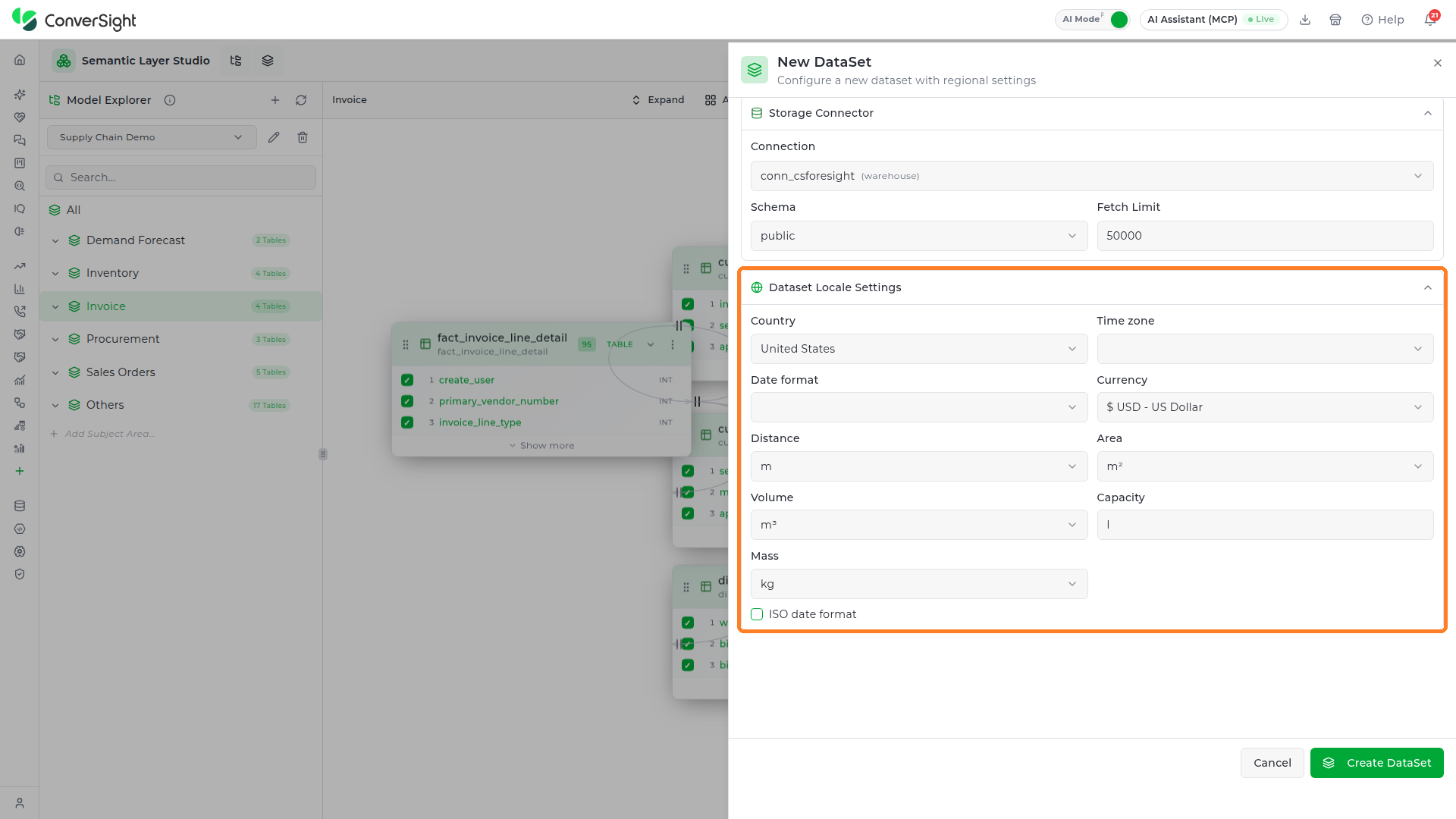
| Field | Description |
|---|---|
| Country | Sets the regional defaults. Selecting a country auto-populates currency, date format, and timezone. |
| Time zone | The timezone used for date calculations and display. |
| Date format | How dates are displayed — for example MM/DD/YYYY or DD/MM/YYYY. |
| Currency | The default currency for monetary values — for example INR or USD. |
| Distance / Area / Volume / Mass | Unit preferences for non-monetary measurements. |
| Capacity | The unit used for capacity values, entered as free text. |
| ISO date format | When checked, the dataset uses the ISO date format. |
Once all three sections are complete, click the Create DataSet button to create the dataset.

The panel closes and the new dataset is added to the dataset list as Active, synced just now. Select it from the Dataset Selector to start building its model; a new dataset starts with only the Others Subject Area.
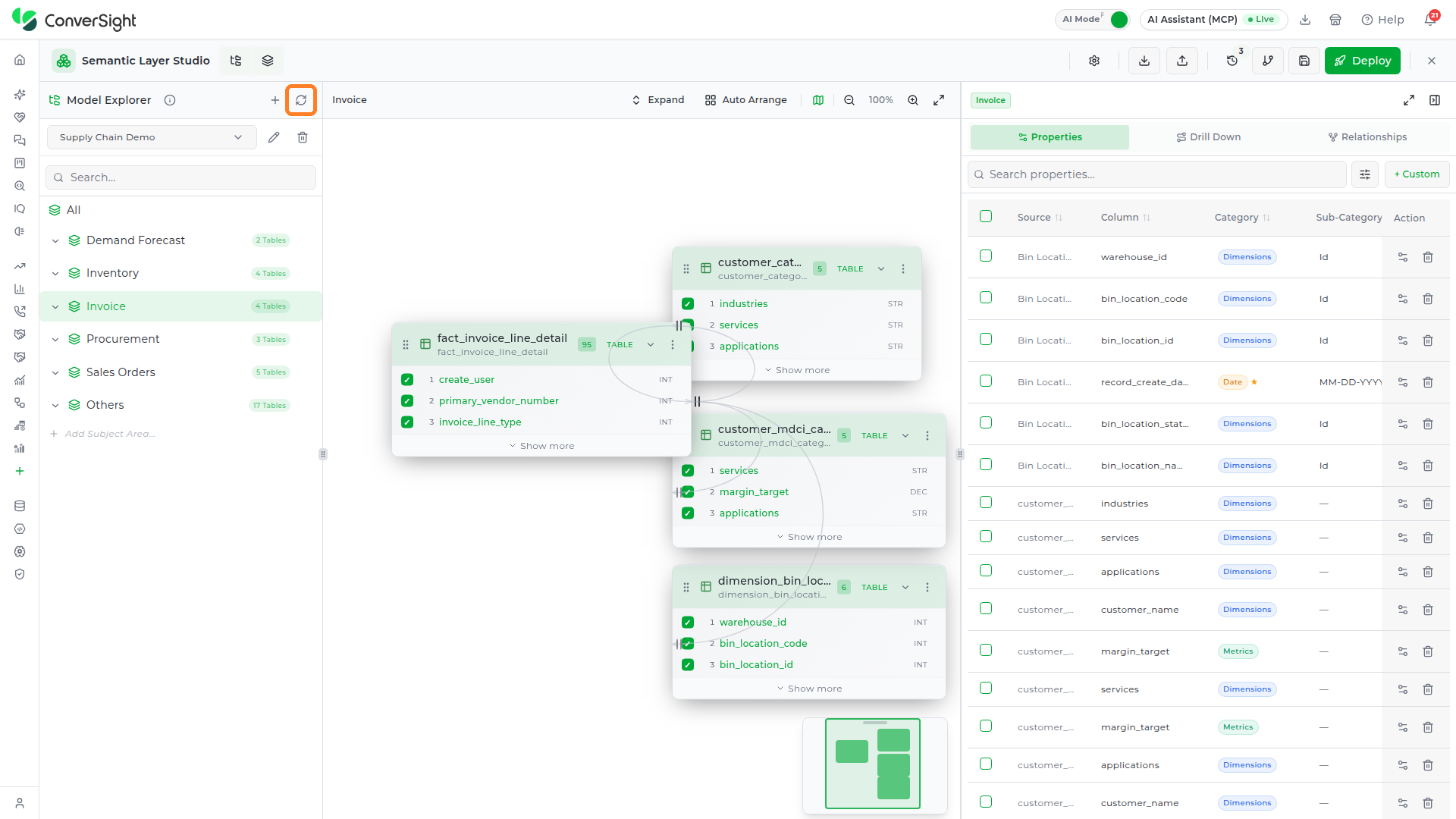
Refresh Dataset
After creating a dataset, or when a recently added dataset is not yet visible in the Model Explorer, click the Refresh datasets button to reload the list.
Selecting Dataset
Click the Dataset Selector dropdown at the top of the Model Explorer to switch to a different dataset. The dropdown shows a searchable list of all available datasets, each with its status (Active or Failed) and when it was last synced. The footer counts the datasets that match your search.

When a dataset is already loaded, choosing another one opens the Switch dataset and clear local data? confirmation. Switching clears all local data for the current dataset from your browser, including saved commit aliases, so check in any work you want to keep first. Click Switch dataset to continue, or Cancel to stay on the current dataset.

Dataset Info
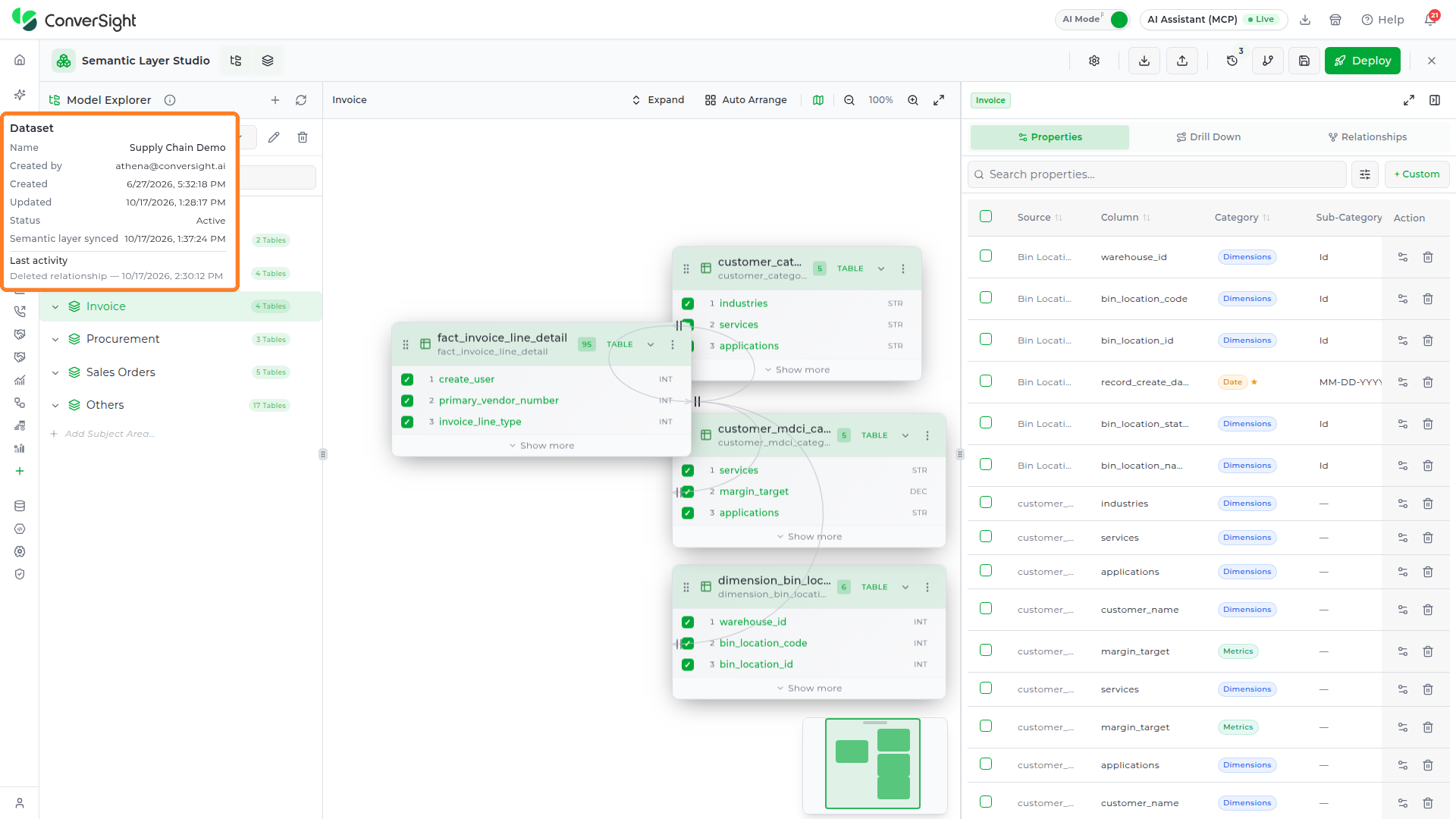
Hover over the Dataset info icon beside the Model Explorer title to see a summary card for the active dataset: its name, who created it, when it was created and last updated, its status, when the semantic layer was last synced, and the most recent activity recorded against it.
Edit Dataset
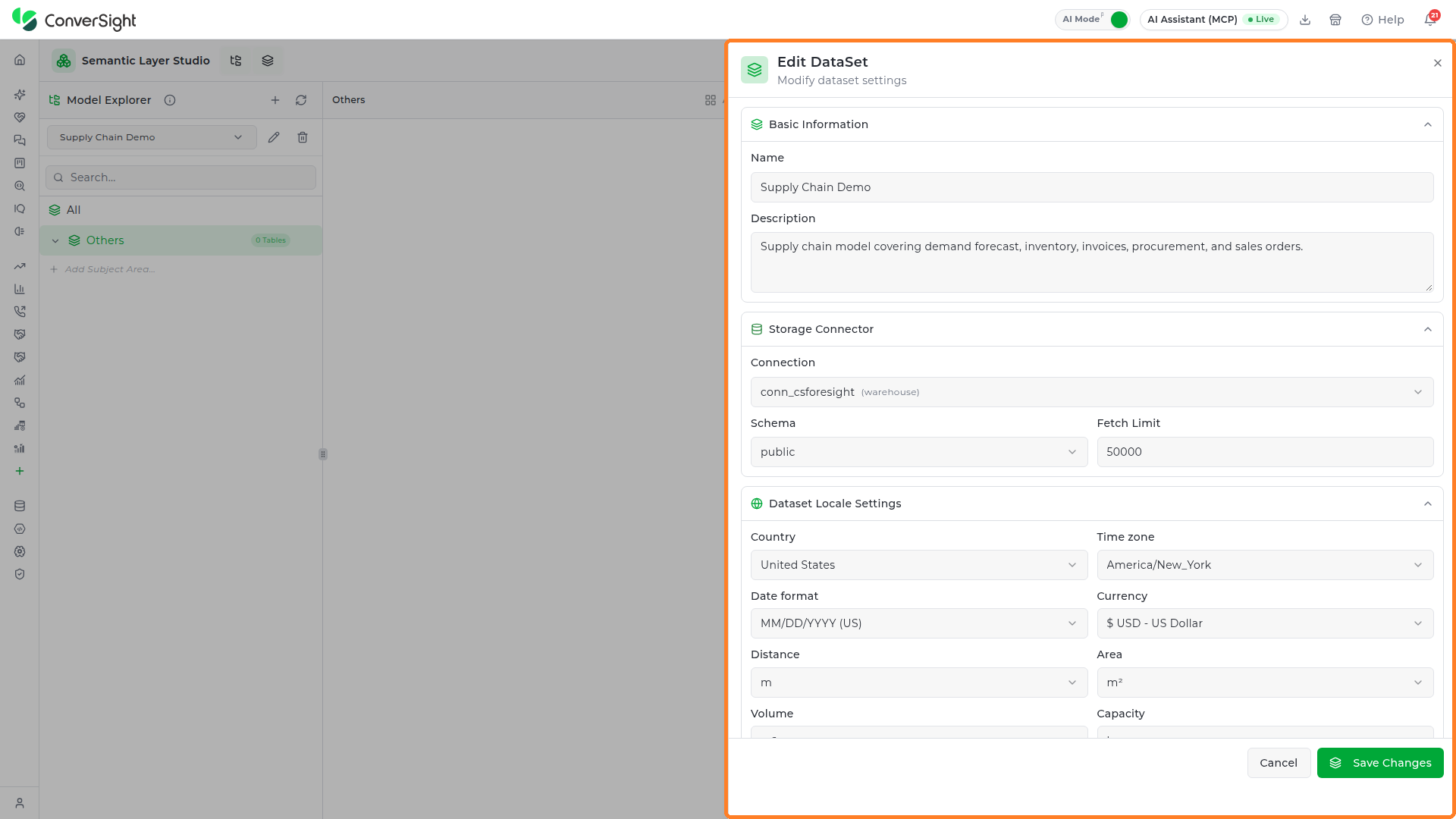
Click the Edit dataset (pencil) icon beside the dataset selector to open the Edit DataSet panel. It carries the same three sections as the New DataSet panel, Basic Information, Storage Connector, and Dataset Locale Settings, filled in with the dataset's current values. Change what you need and click Save Changes, or Cancel to leave the dataset as it is.
Delete Dataset
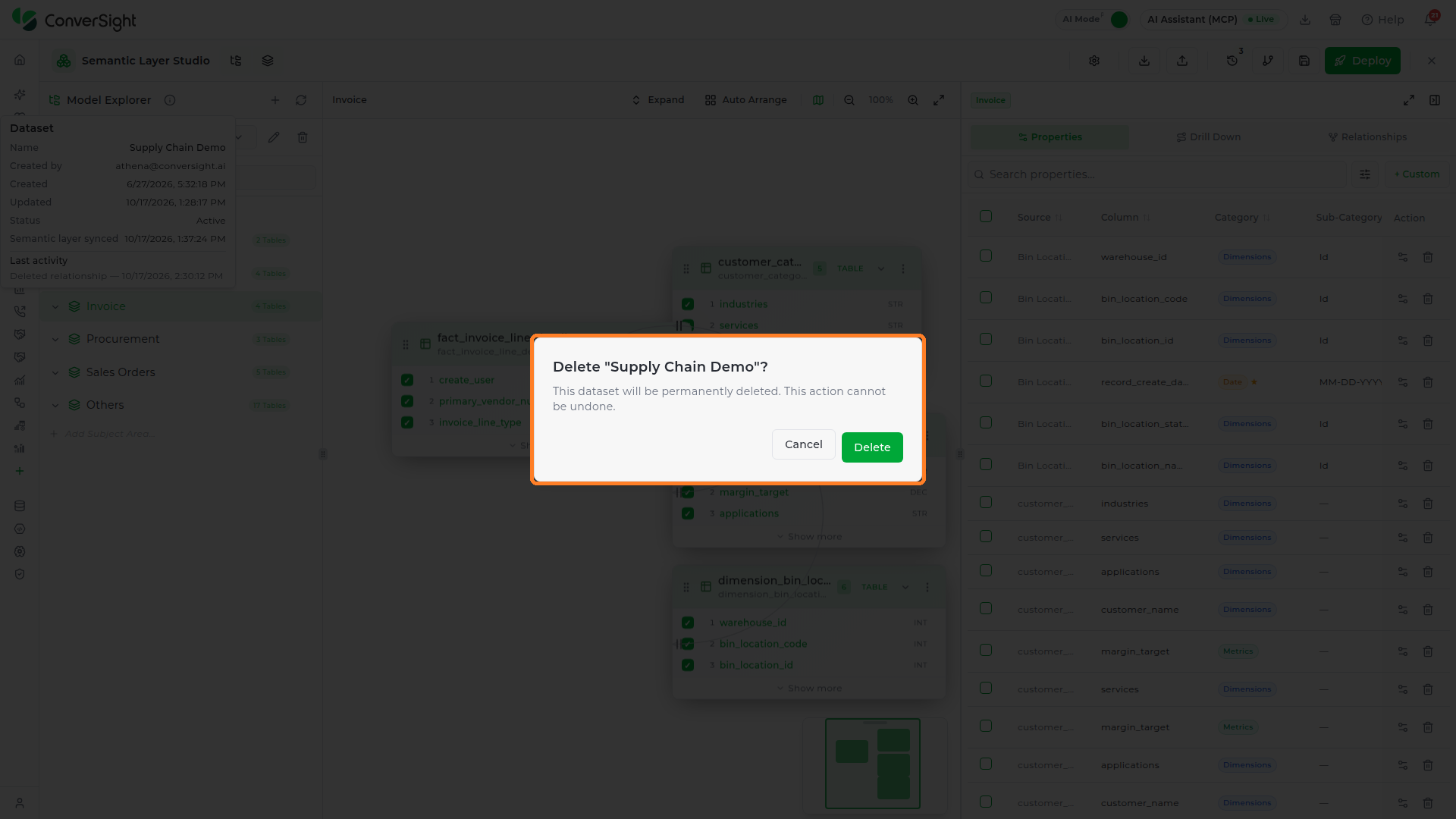
Click the Delete dataset (trash) icon beside the dataset selector to remove the active dataset. A confirmation names the dataset and warns that it will be permanently deleted. Click Delete to proceed or Cancel to keep it.
Deleting a dataset cannot be undone.
Add Subject Area
A Subject Area is the top-level grouping in the semantic model — it represents a business domain such as "Supply Chain" or "Finance". All Business Objects and Data Sources you create sit inside a Subject Area, so you need at least one before you can start building the model.
To add a Subject Area, click the + Add Subject Area option at the bottom of the tree in the Model Explorer.

The Add Subject Area dialog enables users to provide the required information and create a subject area associated with the dataset.

| Field | Description |
|---|---|
| Name | A unique name for the Subject Area (for example: "Sales Analytics", "Supply Chain"). |
| Description | Optional summary of what this Subject Area contains. |
| Visibility — Threads | When enabled, Athena Threads can query entities within this Subject Area. |
| Visibility — Explorer | When enabled, the Subject Area is visible in the Explorer for navigation and browsing. |
Click Add Subject Area to create the Subject Area. It appears in the Model Explorer tree immediately.

Managing Subject Areas
Each Subject Area row in the Model Explorer shows how many tables it holds and has a menu (⋯) at the right end of the row. Click it to open the Subject Area actions:
- Edit Subject Area: Opens the Edit Subject Area dialog to change the name, description, and the Threads and Explorer visibility toggles. Click Save Changes to apply.
- Add Business Object: Opens the Add Object panel with this Subject Area pre-selected. See Add Table.
- Add SQL View: Opens the SQL editor to create a Smart Query in this Subject Area. See Smart Query.
- Delete: Opens the Delete subject area? confirmation, which names the Subject Area and explains that the relationships and properties that reference its tables move to the Others Subject Area. Click Delete to remove it or Cancel to keep it.


Add Table
Once a Subject Area exists, you can add Data Source tables to it. Each table you add becomes a Data Source in the semantic model and is the foundation for building Business Objects, Properties, and Relationships.
To add a table, hover over a Subject Area row in the Model Explorer. The row reveals inline action buttons — click + Object. You can also choose Add Business Object from the Subject Area menu, or click the Add Object link at the bottom of an expanded Subject Area.

+ Object asks what you want to add to the Subject Area. Choose Table to add a table from your data source and open the Add Object panel, or SQL view to define a view with a SQL query (see Smart Query).

The Add Object panel opens with two sections. The left panel lists all tables available in the connected storage schema, grouped by schema, with the column count under each table name. Use Search tables, columns to narrow the list, and tick the checkbox beside each table you want to add. You can select several tables in one pass; the right panel shows the configuration for the selected table.

The right panel shows the configuration for the selected table. Review and adjust the settings before creating the object.

| Section | Description |
|---|---|
| Schema | The storage schema to browse. Use the dropdown to switch schemas and the refresh button to reload the table list. |
| Object Name | The name that will appear in the Model Explorer for this Business Object and as the Data Source display name. Auto-populated from the table name; edit as needed. |
| Subject Areas | The Subject Area(s) this table belongs to. Defaults to the Subject Area you selected; additional Subject Areas can be added. |
| Visibility | Controls whether the object is available to Athena Threads and the Explorer. The section header shows how many of the two surfaces are enabled (for example, 2/2 enabled); expand it to change the toggles. |
| Column Selection | Choose which columns to include in the semantic model. All columns are selected by default; uncheck any columns that should not be exposed. Use Search columns to include to find a column, Select All to tick every column, or Clear to untick them all. The header shows how many columns are selected. |
When several tables are selected, the right panel shows one table at a time with the hint Configure each selected source independently by switching rows on the left; click a selected table on the left to configure it, for example to give it a business-friendly Object Name. The button changes from Create Object to Add N Objects to match the number of tables selected. Click it to add the tables to the model. Each table is added to the Model Canvas under the chosen Subject Area as its own Business Object.

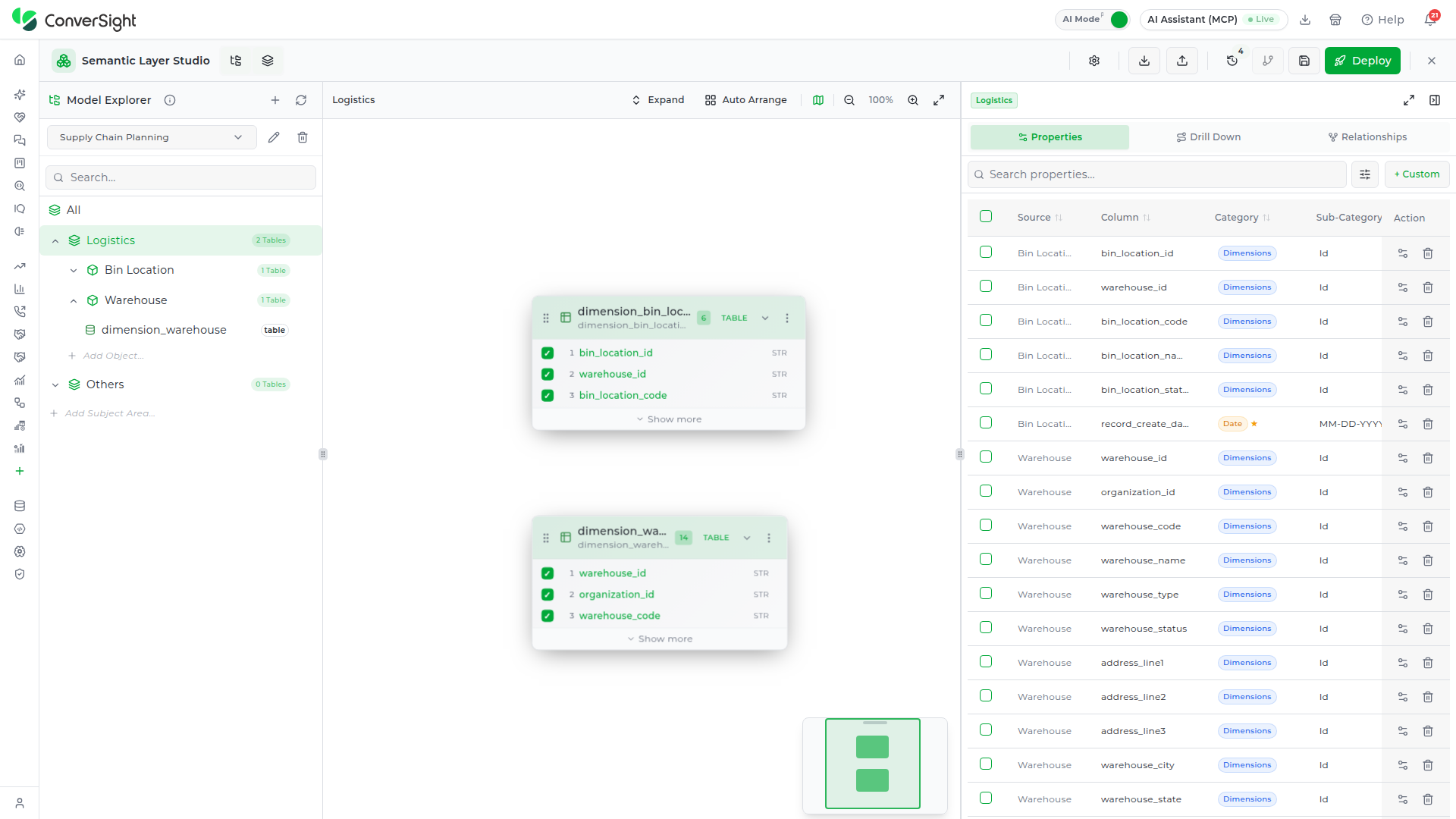
Once created, all tables appear on the Model Canvas under the chosen Subject Area.
Business Objects
Expand a Subject Area in the Model Explorer to see its Business Objects. Each Business Object row shows its table count and has its own menu (⋯) with Edit and Delete. Expand a Business Object to see the Data Source beneath it; a Smart Query appears there with a view badge.


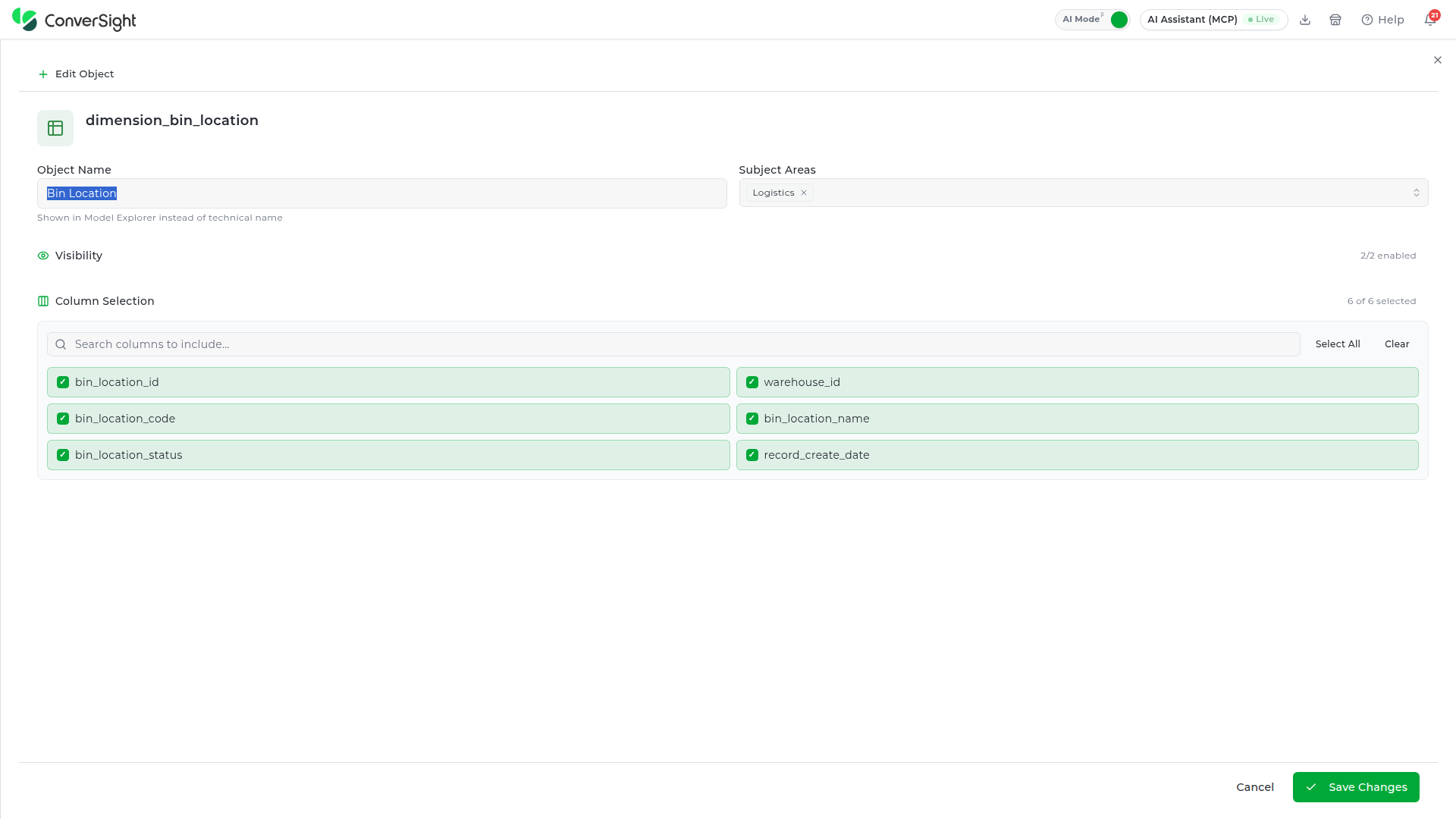
Choose Edit to open the Edit Object panel:
| Field | Description |
|---|---|
| Object Name | The name shown in the Model Explorer instead of the technical table name. |
| Subject Areas | Every Subject Area the object belongs to. Add or remove Subject Areas here. |
| Visibility | The Threads and Explorer toggles for the object. |
| Column Selection | The columns included in the model, with search, Select All, and Clear. |
When the table is shared by more than one Subject Area, the panel shows a warning that editing it here updates those references as well. Click Save Changes to apply, or Cancel to discard.
Choose Delete to remove the Business Object. The Delete business object? confirmation names it, states how many tables it holds, and warns that properties and relationships that reference those tables may break. Click Delete to remove it or Cancel to keep it.

Add Custom Property
A Custom Property is a column you define on top of your physical data — it does not exist in the source database, but once created, Athena and every Storyboard widget treat it exactly like any other column. Use Custom Properties when the insight you need cannot be derived from a raw source column alone.
Two types of Custom Property are available, each built through a dedicated tab in the same dialog:
- Calculated (Expression tab) — A column whose values come from a SQL formula you write. For example,
total_revenue - total_costto compute gross margin, orDATEDIFF(ship_date, order_date)to measure fulfillment time in days. - Smart (Smart Builder tab) — A composite column that groups multiple existing columns into a single queryable field, with optional sort order and pre-applied filter conditions. Useful when you want Athena to treat a combination of attributes — such as Category, Sub-Category, and Product Name — as one grouped hierarchy.
To open the Create Custom Column dialog, select a table in the Model Explorer, then click + Custom in the Properties panel toolbar.

Before choosing a tab, fill in the four shared header fields at the top of the dialog:
| Field | Description |
|---|---|
| Column Name | The internal identifier for this property. Use only letters, numbers, and underscores — for example, gross_margin. This value cannot be changed after the column is saved. Required. |
| Subject Areas | The Subject Area(s) this property belongs to. Pre-filled with the currently selected Subject Area; you can add more. Required. |
| Business Name | The user-visible label shown in Athena results and Storyboard widgets — for example, Gross Margin. Optional but recommended. |
| Description | A plain-language summary of what this property represents. Helps other users understand the column's purpose when they browse the model. Optional. |
Expression
The Expression tab creates a Calculated property — a new column whose value is computed from a SQL expression you write. Calculated properties let you define business metrics and derived dimensions directly inside the semantic model, so Athena applies the same formula consistently every time the column is queried.
For example: to calculate net revenue after discounts, write SUM(orders.order_amount) - SUM(orders.discount_amount). Once saved, any Athena Thread or Storyboard that references Net Revenue will use this exact formula every time.

Use the following fields to tell Athena how to interpret and use the expression result:
| Field | Description |
|---|---|
| Category | Classifies the property as Metrics (numeric measures like revenue, quantity, or cost), Dimensions (descriptive attributes like region or product name), or Date (temporal values). This drives how Athena uses the property when generating queries — for example, Metrics are aggregated while Dimensions are used for grouping. |
| ROW LEVEL | When this toggle is on, the expression is evaluated row-by-row before any grouping or aggregation — useful for per-row calculations like profit per order line. When off, Athena applies the Aggregation setting to the expression result instead. |
| Data Type | The data type of the expression's output: String, Integer, Decimal, Date, Datetime, or Boolean. Set this to match what your formula actually produces — for example, choose Decimal for a revenue calculation, or String for a text concatenation. |
| Aggregation | Available only when ROW LEVEL is off. Sets the default aggregation Athena applies when this Metric is used in a query: None (returns the raw expression value), Sum (totals all values in the group), or Average (divides the total by the row count). |
Expression editor
The large text area in the center of the dialog is where you write your SQL formula. Reference columns using the format table_name.column_name — for example, SUM(orders.order_amount) * 1.1 to apply a tax multiplier to order revenue.
As you type, the editor validates your expression in real time. A hint — Write an expression to continue — appears at the bottom of the dialog until a valid expression is detected. Errors such as unbalanced parentheses or missing operators are flagged inline so you can correct them before saving.

Insert Function
Click Insert Function (above the expression editor) to open the built-in function library. Clicking any function name inserts it at your current cursor position in the editor — you do not need to remember the exact syntax.
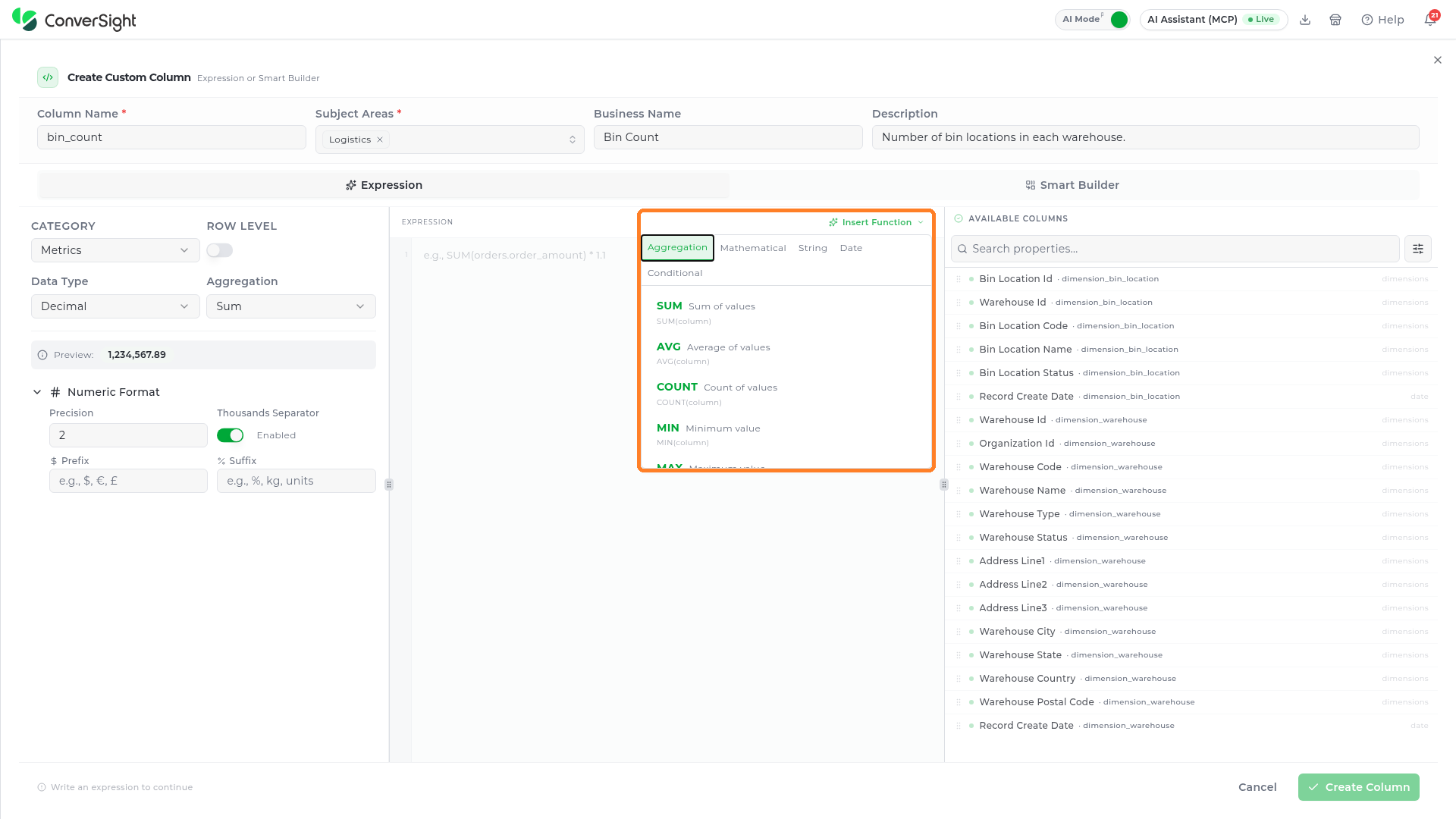

Functions are organized into five categories, shown as tabs across the top of the menu. Each function is listed with a short description and its signature:
| Category | Functions | Purpose and example use |
|---|---|---|
| Aggregation | SUM(column), AVG(column), COUNT(column), MIN(column), MAX(column), DISTINCT(column) | Summarize values across rows. Use SUM(orders.amount) for total revenue, COUNT(orders.id) for order volume, AVG(orders.amount) for average order value, or DISTINCT(customers.region) for a unique-region count. |
| Mathematical | ROUND(value, decimals), FLOOR(value), CEIL(value), ABS(value), POWER(base, exp) | Transform numeric values. Use ROUND(margin, 2) to display two decimal places, ABS(variance) to remove negative signs, or FLOOR(orders.amount) to drop fractional values. |
| String | CONCAT(str1, str2), UPPER(string), LOWER(string), TRIM(string), LENGTH(string) | Manipulate text. Use CONCAT(products.brand, ' — ', products.name) to combine fields into a label, or UPPER(customers.country) to normalize letter casing. |
| Date | YEAR(date), MONTH(date), DAY(date), DATEDIFF(date1, date2), NOW() | Extract date parts or calculate time differences. Use YEAR(orders.order_date) to extract the year, DATEDIFF(ship_date, order_date) to compute days-to-ship, or NOW() to compare against the current timestamp. |
| Conditional | IF(condition, then, else), CASE WHEN…THEN…END, COALESCE(val1, val2), NULLIF(val1, val2) | Return different values based on logic. Use IF(orders.amount > 1000, 'High', 'Low') to create value bands, COALESCE(price_override, list_price) to fall back to a default when a value is null, or CASE WHEN … THEN … END for multi-branch classification. |
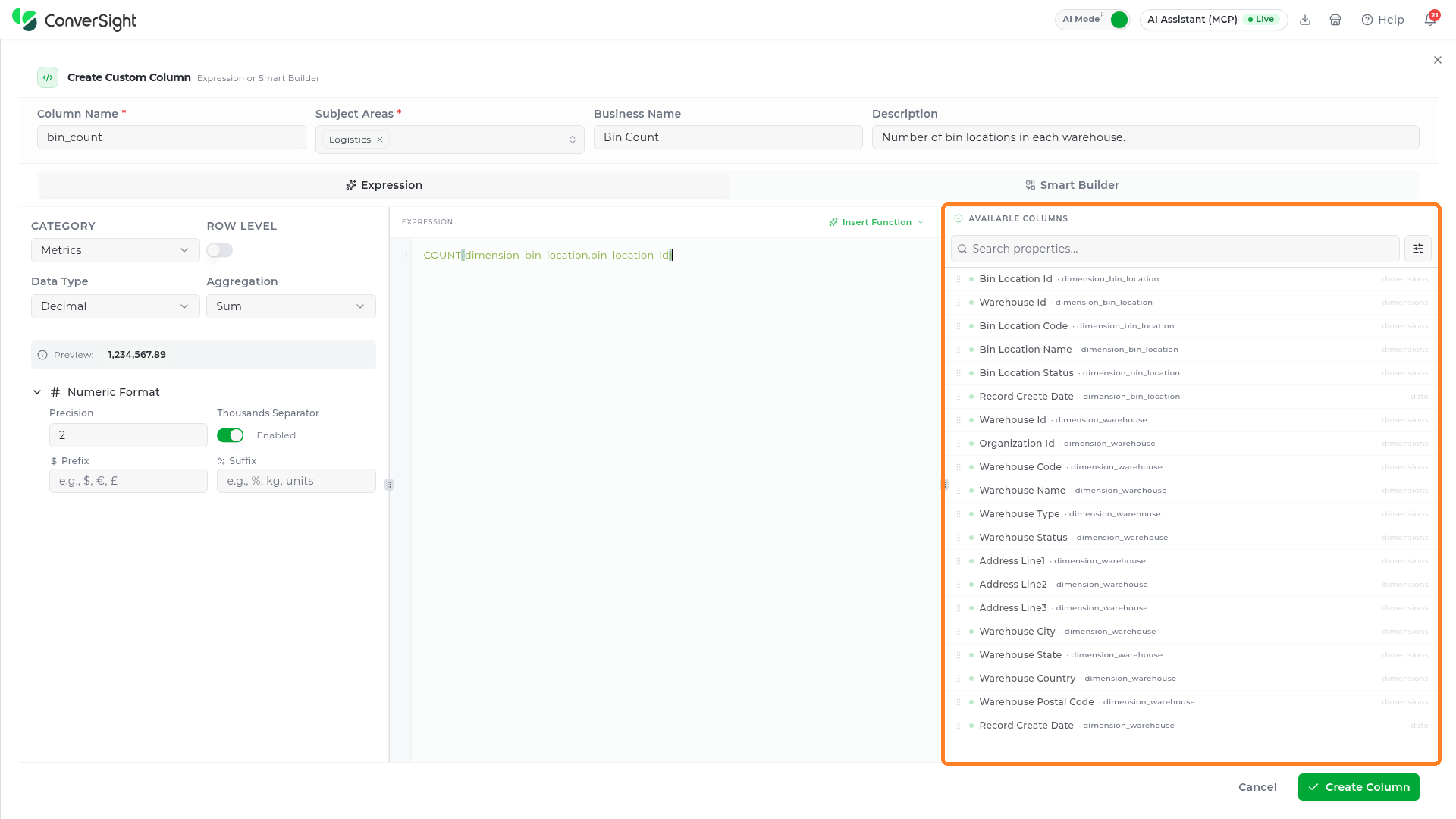
Available Columns
The Available Columns panel on the right side of the dialog lists every column-type property available from the Data Sources connected to the current Subject Area — including columns from tables other than the one currently selected in the Model Explorer.
- Search: Use the Search properties field to filter the list by column name as you type, or the filter button beside it to narrow the list.
- Column details: Each entry shows the column's business name, the source table it belongs to (in muted text), and a type badge such as dimensions, metrics, or date.
- Insert into expression: Click any column name to insert its
table.column_namereference at the current cursor position in the expression editor. This is the recommended way to reference columns — it avoids typos and ensures the format is correct.
Numeric Format
The Numeric Format section controls how the calculated value is displayed in Athena results and Storyboard widgets. It does not affect the underlying calculation — only the visual representation of the output.
| Field | Description |
|---|---|
| Precision | The number of decimal places shown. For example, a precision of 2 displays 1,234.57; a precision of 0 displays 1,235. |
| Thousands Separator | When enabled, a comma is inserted every three digits — for example, 1,234,567. Enabled by default. |
| Prefix | A character placed before every displayed value — for example, $ for US dollars or € for euros. |
| Suffix | A character placed after every displayed value — for example, % for percentages or kg for unit quantities. |

The Preview field (above the Numeric Format section) shows a sample formatted value — for example, $1,234,567.89 — that updates in real time as you adjust Precision, Separator, Prefix, and Suffix. Use it to confirm the display looks right before saving.
Click Create Column to save. The button stays disabled until a valid expression is entered. Once saved, the Calculated property appears in the Properties panel alongside the table's physical columns and is immediately available for use in Athena Threads and Storyboard widgets.

Smart Builder
The Smart Builder tab creates a Smart property — a composite column that groups multiple existing columns together into a single queryable field. Unlike the Expression tab, you do not write a formula; you select which columns to include and define how they are ordered and filtered.
Smart properties are useful when you want Athena to present a multi-level attribute as one answer — for example, combining Region, Country, and City into a single Location Hierarchy field so that a query like "sales by location" automatically traverses all three levels in sequence.

Selecting columns
The left panel shows all available column properties from the Data Sources in the current Subject Area. Each row shows the column name, its source table, and a type badge (dimensions or metrics).
Check the box next to a column to add it to the ORDER & SORT panel on the right; selected columns move out of the list and into the panel. You can select columns from different source tables — the Smart Builder handles cross-table grouping automatically. A count at the bottom of the list shows how many columns are available and how many are currently selected.

At least two columns must be selected. The Create Column button stays disabled until a minimum of two columns have been added to the ORDER & SORT panel.
ORDER & SORT Panel
Once you select columns, they appear in the ORDER & SORT panel. Use this panel to define the sequence and sort direction of the composite column:

| Control | Description |
|---|---|
| Drag handle | Grab and drag a row to reorder the columns. The order here determines how Athena presents the grouped value — the first column in the list is the primary grouping level. |
| ↑ / ↓ arrows | Move a column one position up or down in the sequence without dragging. |
| Sort control (—) | Click to cycle the sort direction for that column: None (—) (no sort), Ascending (A→Z or 0→9), or Descending (Z→A or 9→0). |
| × (remove) | Deselects the column and removes it from the ORDER & SORT panel. |

Filter Conditions
Optionally narrow the data the Smart property draws from by adding filter conditions. Only rows that match all conditions will be included in the composite column's output. Click + Add filter condition to add a filter row.

| Field | Description |
|---|---|
| Column | The column to filter on. Select from the dropdown — you can filter on any column in the Subject Area, not just the ones added to the ORDER & SORT panel. |
| Operator | The comparison to apply. Available operators depend on the column's data type — for example, string columns offer Is, !=, Like, and Not Like; numeric columns offer =, >, <, >=, and <=. |
| Value | The value to match against. |

Click + Add condition to add more filter rows. All conditions are evaluated together using AND logic — a row must satisfy every condition to appear in the Smart property's output. If any condition row is left without a value, a warning — All filter conditions must have a value — appears and the Create Column button remains disabled.

Click Create Column to save. Once saved, the Smart property appears in the Properties panel and is immediately available for Athena queries and Storyboard widgets.
Smart Query
A Smart Query is a query you define inside ConverSight that returns a table. It behaves like any other table in the semantic model — Athena queries it, Explorer reports build on it, and Storyboard widgets render from it — but it exists exclusively within the platform and is never written back to the source database.
This is what makes it useful. When the answer a team needs requires a join, a filter, or a derived column that the source tables do not provide, a Smart Query supplies it without a database change, a view, or a request to whoever owns the source system. Because it is defined once and governed with the rest of the model, every user asking the same question resolves against the same definition.
Creating a Smart Query
A Smart Query is created from the Subject Area it will belong to, so decide where the resulting table fits in the model before you start. In the Model Explorer, open the menu on that Subject Area and select Add SQL View, or click + Object on the Subject Area row and choose SQL view.

The SQL editor opens. Provide the following details before writing the query:
| Field | Description |
|---|---|
| Table Name (Required) | The physical name the query is registered under in the model. |
| Object Name (Required) | The business name users and Athena see, so give it something a business user would recognize. |
| Subject Area | The Subject Area the resulting table belongs to. It is pre-filled with the one the query was created from and can be changed here. |

Configuration Settings
The settings icon beside the Validate button opens the configuration for the Smart Query. These settings control how the query is run and where its result appears.

| Setting | Description |
|---|---|
| Materialized | Stores the query's results rather than running the query each time it is queried. |
| Protected | Includes the Smart Query in View Protection, so its SQL definition is restricted by the password set under Settings. |
| Threads | Controls whether the resulting table is available to Athena Threads. On by default. |
| Explorer | Controls whether the resulting table is available in Data Explorer. On by default. |
Turning both visibility toggles off keeps the table in the model without exposing it to users — useful for a query that exists to support other model objects rather than to be queried directly.
Writing the Query
Write the query in the editor, which runs PostgreSQL syntax. Name the columns you need explicitly rather than selecting everything, so the resulting table carries a stable set of columns that downstream reports can depend on. Do the filtering and joining here rather than leaving it to each report, since the rows this query returns are the table every user will see.
Use {{var}} or ${var} for variables, and {{table.table_name}} to reference a table.
- Functions opens a menu of SQL functions that insert at the cursor, so common expressions do not have to be typed from memory.
- Format standardizes the layout of the query — indentation, casing, and line breaks — so it stays readable for whoever maintains it next.

- Variables lists every variable detected in the query, and is where you supply a value for each one. Until the query uses one, the panel reads No variables detected.
Functions
The Functions menu lists the SQL functions used most often in a Smart Query, grouped by purpose — aggregating values, working with text, handling dates, and expressing conditions. Each entry shows the function's signature alongside a short description of what it does, so the right one can be picked without recalling the exact syntax.
Select a function to insert it at the cursor, then replace the sample arguments with your own columns and values. The menu is a shortcut rather than a limit: any function the PostgreSQL dialect supports can be typed directly into the editor, whether or not it appears here.

Aggregate
| Function | Description |
|---|---|
COUNT(*) | Counts all rows. |
SUM(column) | Sums the values in the column. |
AVG(column) | Averages the values in the column. |
MIN(column) | Returns the lowest value in the column. |
MAX(column) | Returns the highest value in the column. |
String
| Function | Description |
|---|---|
CONCAT(a, b) | Joins two strings into one. |
SUBSTRING(s, start, len) | Returns part of a string, beginning at start and running for len characters. |
TRIM(s) | Removes the whitespace surrounding a string. |
UPPER(s) | Converts a string to uppercase. |
LOWER(s) | Converts a string to lowercase. |
Date / Time
| Function | Description |
|---|---|
NOW() | Returns the current timestamp. |
DATE_TRUNC(unit, date) | Truncates a date to the given unit, such as month or quarter, so values group cleanly by period. |
EXTRACT(part FROM date) | Returns a single part of a date, such as the year or the month. |
Conditional
| Function | Description |
|---|---|
COALESCE(a, b) | Returns the first value that is not null, which is how you supply a fallback for missing data. |
NULLIF(a, b) | Returns null when the two values are equal, and the first value otherwise. |
CASE WHEN ... THEN ... END | Returns a different value for each condition, for deriving a category from a column. |
CAST(x AS type) | Converts a value to another data type. |
Variables
A variable is a named value the query resolves at run time, which is what lets one Smart Query serve several cases instead of being rewritten for each. Write {{var}} or ${var} for a value, and {{table.table_name}} to reference a table.
As soon as the query uses one, the Variables panel picks it up and the count beside the tab increases. Each variable appears as a row:
| Column | Description |
|---|---|
| Variable | The name as it is written in the query. A reference such as {{table.orders}} creates a variable named orders. |
| Category | What kind of value the variable expects, derived from how it is written. A {{table.…}} reference is categorized as Table. |
| Value | The value to resolve the variable with. Every variable needs one before the query can return rows. |

Fill in a value for each variable, then click on Validate. The query runs with the values you supplied and the rows appear in the Preview tab.
Validating and Saving
Click on the Validate button to run the query. It executes with the variable values you supplied, and the panel at the bottom of the editor fills with the result.
The Preview tab shows the rows the query returns, with the row and column counts above them and each column labeled with its data type. This is exactly what Athena resolves against, so review it before saving.

The Validation tab reports anything the check raised, each item listed with the reason behind it. Warnings flag a query that runs but could be written better, and do not block saving; errors stop the query from running and have to be resolved first.

If the check cannot reach the validation service, the Validation tab shows a single error, Failed to communicate with validation server. The query is not checked and Add Table stays disabled; try Validate again later.

A status bar along the bottom of the editor summarizes the outcome, showing Valid alongside the number of warnings raised. The Resolved Query tab beside Variables shows the query as it will actually run, with every variable substituted for its value. Check it when a result is not what you expected — it is the quickest way to see what the query resolved to. Once the preview is correct, click on the Add Table button to save. The button stays disabled until Table Name and Object Name are filled in, every variable has a value, and the query has passed Validate. If the check cannot run, the Validation tab reports Failed to communicate with validation server; try again later, since the query cannot be saved until it validates. The Smart Query is added to the Subject Area straight away. It appears in the Model Explorer under the Business Object it was saved to, marked with a view badge to distinguish it from a physical table, and the Subject Area's table count goes up.

The query also appears as a node on the Model Canvas, carrying the same VIEW badge and listing its columns, so it can be joined to other tables like any other source. Its columns arrive in the Properties panel already categorized as dimensions, metrics, dates, and flags, ready to be enriched with business names and formatting in the usual way.
Saving adds the Smart Query to the working model rather than to production, so publish it the same way as any other model change — see Check In and Deploy. Because reports and storyboards built on a Smart Query depend on the columns it returns, check what consumes it before changing its shape.
Editing a Smart Query
To change a saved Smart Query, find its view row in the Model Explorer and open the row menu (⋯). Choose Edit SQL to reopen it in the SQL editor, or Delete to remove it from the model.

Delete opens the Remove data source from model? confirmation. It explains that the Smart Query is removed from the semantic model only, with no physical table dropped in the database, and warns that properties, joins, and deployed queries that use it may fail. Click Delete to remove it; its Business Object is removed with it. Any relationships that used it become orphaned (see Orphaned relationships).

The editor opens with the saved query, its detected variables, and its Subject Area already filled in. The status bar under the query shows the cursor position, the line and character counts, and the PostgreSQL dialect; press Tab to accept an autocomplete suggestion. Validate the query again after your changes, then click Save Changes, which takes the place of Add Table when you edit an existing Smart Query.

Model Canvas
The Model Canvas displays Data Source entities as nodes and Relationships as connecting edges. Use it to position tables, draw joins, and visually explore the structure of the active semantic model.
Canvas toolbar
The toolbar across the top of the canvas provides controls for navigating and managing the canvas view.
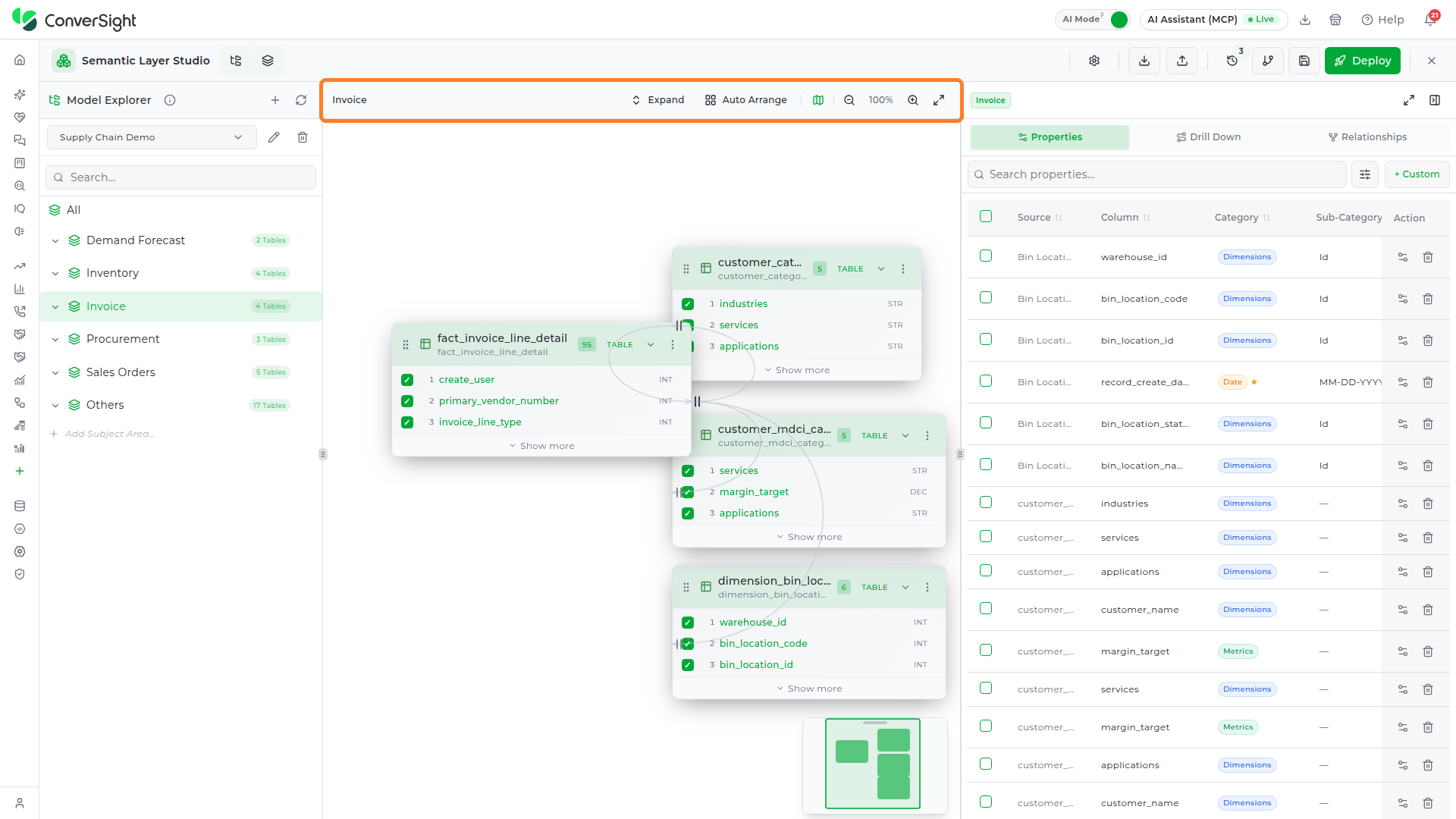
| Control | Description |
|---|---|
| Breadcrumb | Shows the active Subject Area navigation path |
| Expand / Collapse | Expands or collapses all table column rows on every node card |
| Auto Arrange | Runs the automatic layout algorithm and fits all tables into view |
| Mini Map | Toggles the Mini Map overlay on or off |
| Zoom Out | Decreases the canvas zoom level |
| Zoom % | Shows the current zoom percentage; click it to choose Fit to View or a preset level (25%, 50%, 75%, 100%, 125%, 150%, 200%) |
| Zoom In | Increases the canvas zoom level |
| Full screen | Maximizes the canvas inside the Studio by hiding the Model Explorer, so the canvas takes its space; click it again to bring the Model Explorer back |


Canvas Navigation
| Action | Method |
|---|---|
| Pan | Left-click and drag on the canvas |
| Pan (alternate) | Middle-mouse drag or Alt+click drag |
| Zoom in/out | Scroll wheel, centered on cursor position |
| Select all entities | Ctrl+A |
| Clear selection | Escape |
| Undo | Ctrl+Z |
| Redo | Ctrl+Shift+Z or Ctrl+Y |
| Toggle Activity History | Ctrl+H |
The zoom range is 0.25× (minimum) to 2× (maximum).
Mini Map: The Mini Map overlay appears in the bottom-right corner of the canvas and shows a thumbnail of the full model. The highlighted rectangle represents the current viewport. Drag the rectangle to navigate to another area of the canvas. Toggle it using the Mini Map button in the canvas toolbar.

DataSource node cards
Each Data Source appears on the canvas as a node card. The card header shows the table's business name, its physical name, a column-count badge, and a TABLE type label, along with a kebab (⋮) menu for card actions. Each column row lists a selection checkbox, the column position, the column name, and a data-type badge — for example STR (string), DEC (decimal), or DT (datetime).
By default a card is collapsed. Use the Expand / Collapse control in the canvas toolbar — or the chevron on an individual card — to switch between the two states:
- Collapsed (default) — shows the card header and the first three columns, followed by a Show more link.

- Expanded — shows the full column list, followed by a Show less link.

Studio Header Controls
A row of controls spans the top of the Studio for switching the workspace view and managing the model lifecycle — import, export, version control, and deployment. Hover any control to see its label.
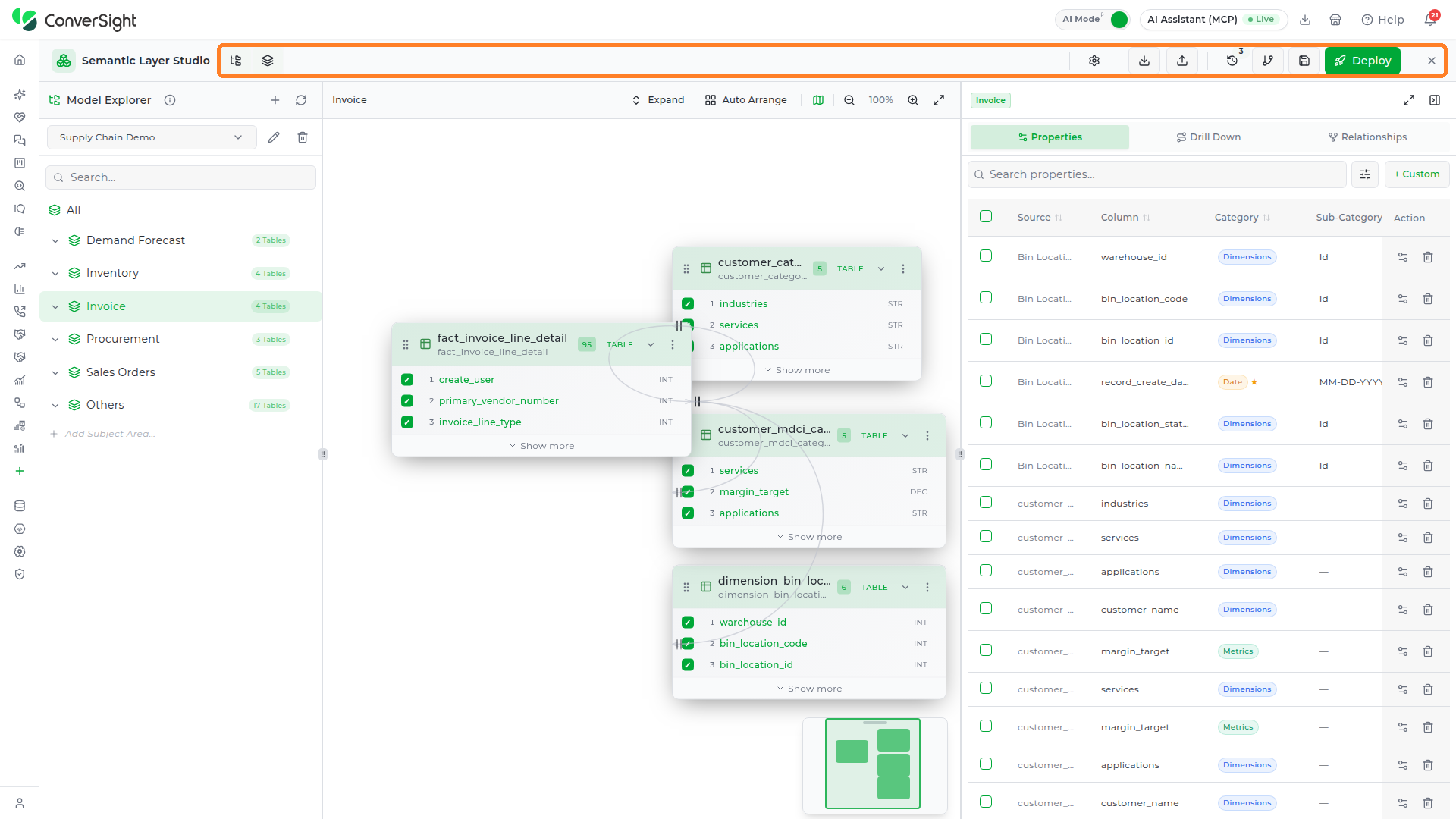
The two controls on the left show or hide the side panels, so you can give the canvas more room while you work.
Explorer
Shows or hides the Model Explorer, the left panel with the dataset selector, the Subject Area tree, and the Add Dataset control. With the panel hidden, the canvas extends to the left edge of the Studio; click Explorer again to bring the panel back.

Metadata
Shows or hides the right-hand panel with the Properties, Drill Down, and Relationships tabs. With the panel hidden, the canvas extends to the right edge of the Studio; click Metadata again to bring the panel back.

The controls on the right manage the model lifecycle.
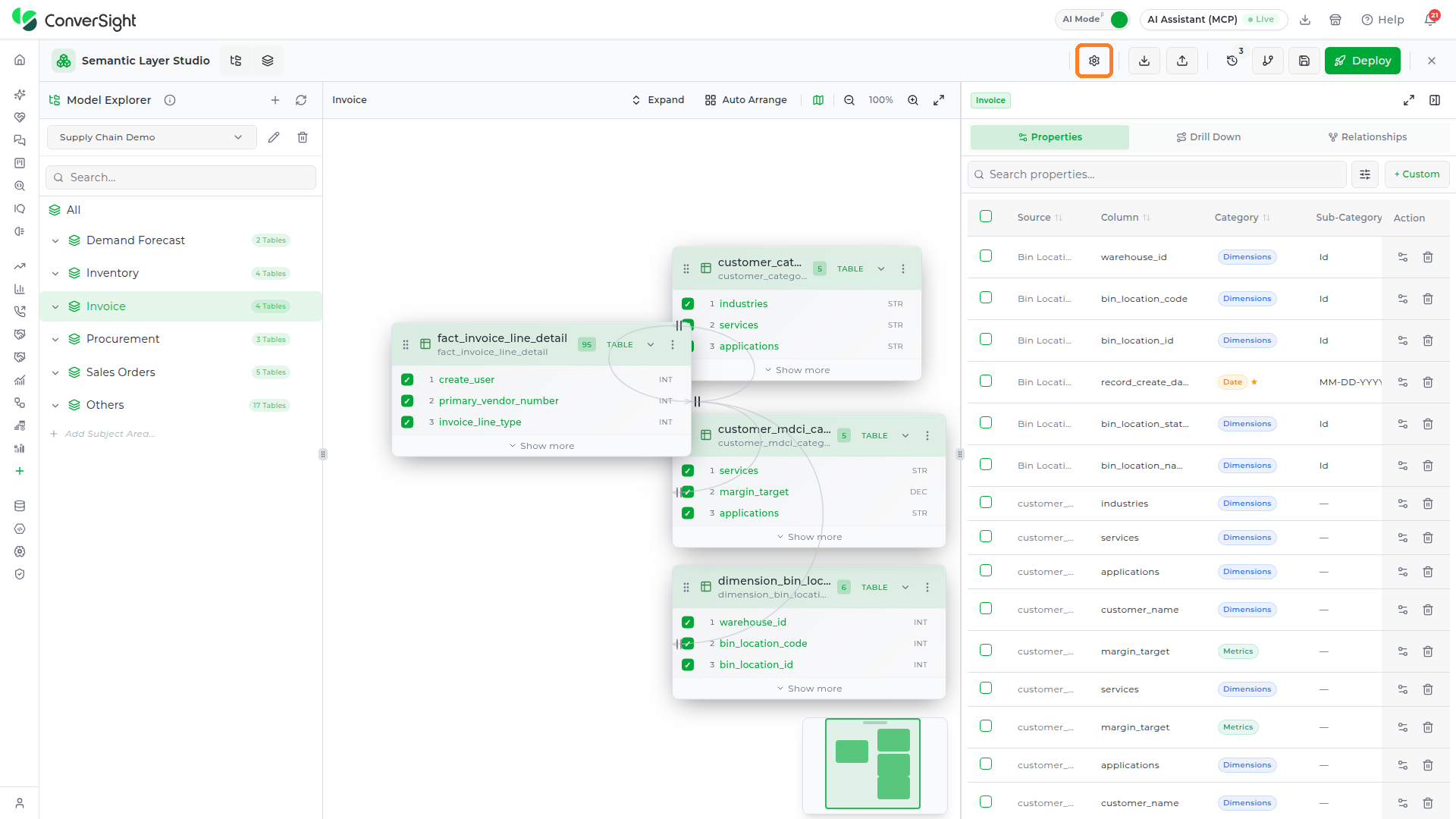
Settings
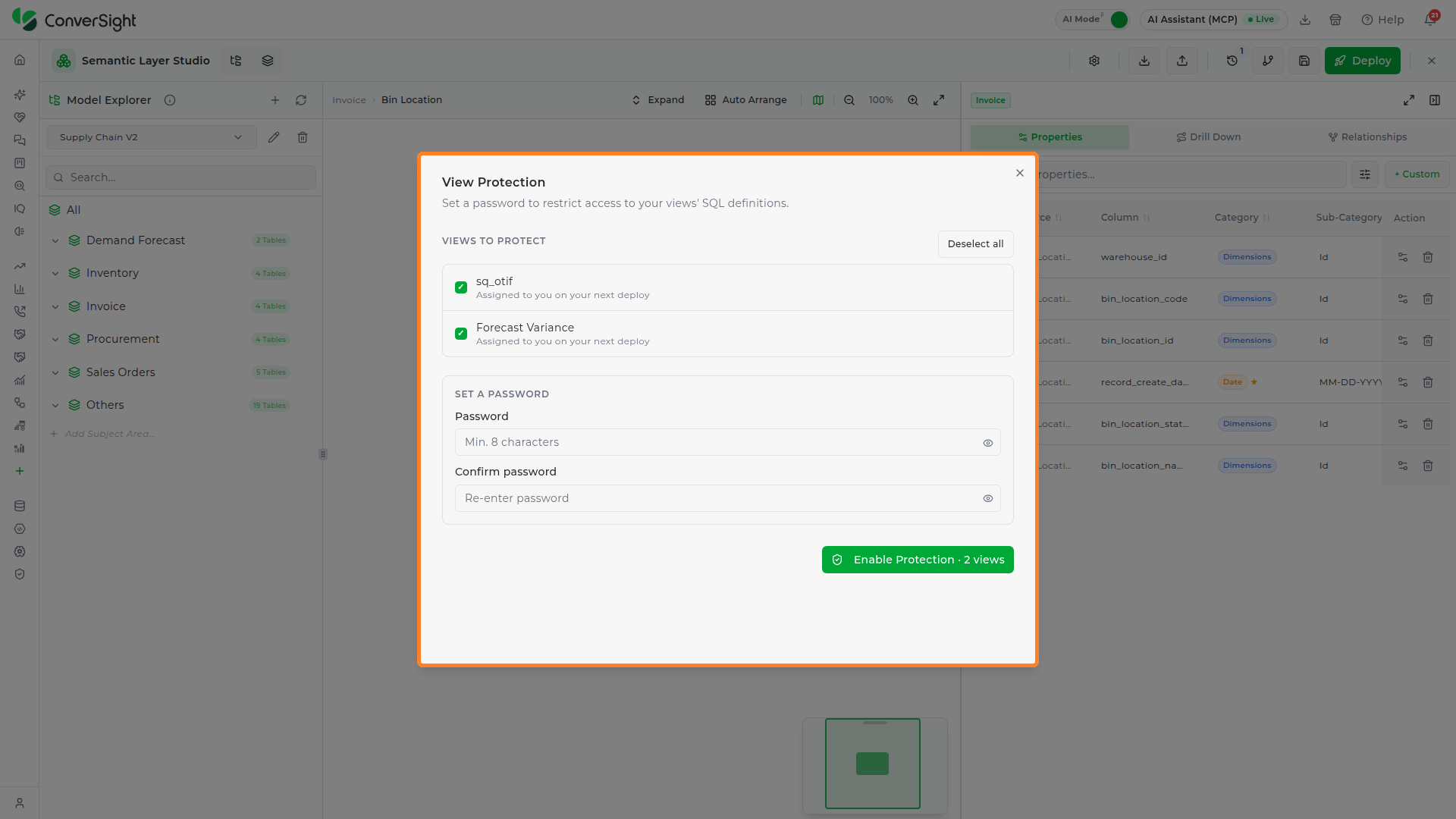
Click the Settings (gear) icon to open View Protection, where you set a password that restricts access to the SQL definitions of your Smart Queries.
| Section | Description |
|---|---|
| Views to Protect | Lists the Smart Queries in the model, each with a checkbox. Ticked views are protected; each one shows that it will be assigned to you on your next deploy. Use Deselect all to clear the list. |
| Set a Password | Password (at least 8 characters) and Confirm password. The eye icon in each field shows or hides what you typed. |
Click Enable Protection, which shows how many views are selected, to apply the password. Close the dialog to leave protection unchanged.
Import
Click Import in the header to open the Import Semantic Model dialog and load a model file that was exported from the Studio, either to replace the current model or to merge into it.

Drop a JSON file onto the upload area, or click it to browse for one.

The file is parsed and validated as soon as it is selected. The dialog then shows the file name and size, with a Change link to pick a different file, and a validation summary:
- Valid model file, or the validation errors and warnings found in the file. Errors block the import and must be fixed first.
- A count of what the file contains: Subject Areas, Business Objects, Data Sources, Properties, Relationships, and Drill-down paths.
Then choose the Import Mode:
| Mode | Description |
|---|---|
| Replace existing model | Removes the current Subject Areas and relationships (the dialog states how many) and replaces them with the imported data. |
| Merge with existing model | Adds the imported data alongside the existing model. |

The action button follows the selected mode: Replace Model or Merge Model. Click it to load the file into the Studio. The import changes the working model only, so check it in and deploy it to publish it.

The import accepts JSON files in the format produced by Export. An exported model does not include the SQL of Smart Queries or the drill-down paths, so after importing, open each Smart Query to add its SQL and recreate the drill-down paths before you deploy.
Export
Click Export (the upload icon) in the header to open the Export Model menu.

| Format | Description |
|---|---|
| Full Model (JSON) | Downloads the complete semantic model as a JSON file named after the export date, for example semantic_model_2026-10-17.json. |
Use the exported file to back up the model or to import it into another dataset. The export carries the Subject Areas, Business Objects, Data Sources, Properties, and Relationships; it does not include Smart Query SQL or drill-down paths.

History
Click the History (clock) icon in the header, or press Ctrl+H, to open the Activity History panel. It records every change made during the current session and lets you undo, redo, or roll back to any recorded point. The badge on the icon counts the changes recorded so far, and the count resets after a successful Check In.

The panel header shows when the session started and holds Undo (Ctrl+Z) and Redo (Ctrl+Y); hover over either to see which action it affects. The trash icon on the right clears the history.
Filter controls
| Filter | Options |
|---|---|
| Search history | Free-text search across activity descriptions and entity names. |
| All entities | Model, Subject Area, Business Object, Data Source, Property, Relationship, Drill-down path. |
| All actions | Create, Update, Delete, Import, Export, Deploy. |


Entries are grouped into time bands such as Last Hour and Earlier. Each entry shows the action and entity (for example, Deleted relationship - Forecast Details → Bin Location), how long ago it happened, and badges counting what it added (+), removed (−), and modified (pencil). The entry at the current undo position is highlighted. The footer counts the activities recorded this session and lists the keyboard shortcuts.

Hover over an entry to reveal two icons:
- View changes (eye): Opens a summary of the entry: what was removed and modified, broken down by Subject Area, with the before and after value of each changed field. The summary has a Revert to Before button that rolls the model back to the state before the entry.
- Revert to this point (circular arrow): Rolls the model back to the state right after that entry. Later entries turn grey and Redo becomes available, so you can step forward again. The rollback applies immediately, without a confirmation.


Clearing history: Click the trash icon in the panel header. The Clear activity history? confirmation explains that undo and redo will no longer be available for the cleared actions; click Clear history to proceed or Cancel to keep them.

Checkout
Click the Checkout (branch) icon in the header to open the Checkout Version dialog and load a saved version into the canvas.
Checkout stays disabled until the dataset has been deployed at least once.

Step 1: Choose a tab at the top of the dialog. Production lists the versions deployed to that environment. All Commits lists every saved version.
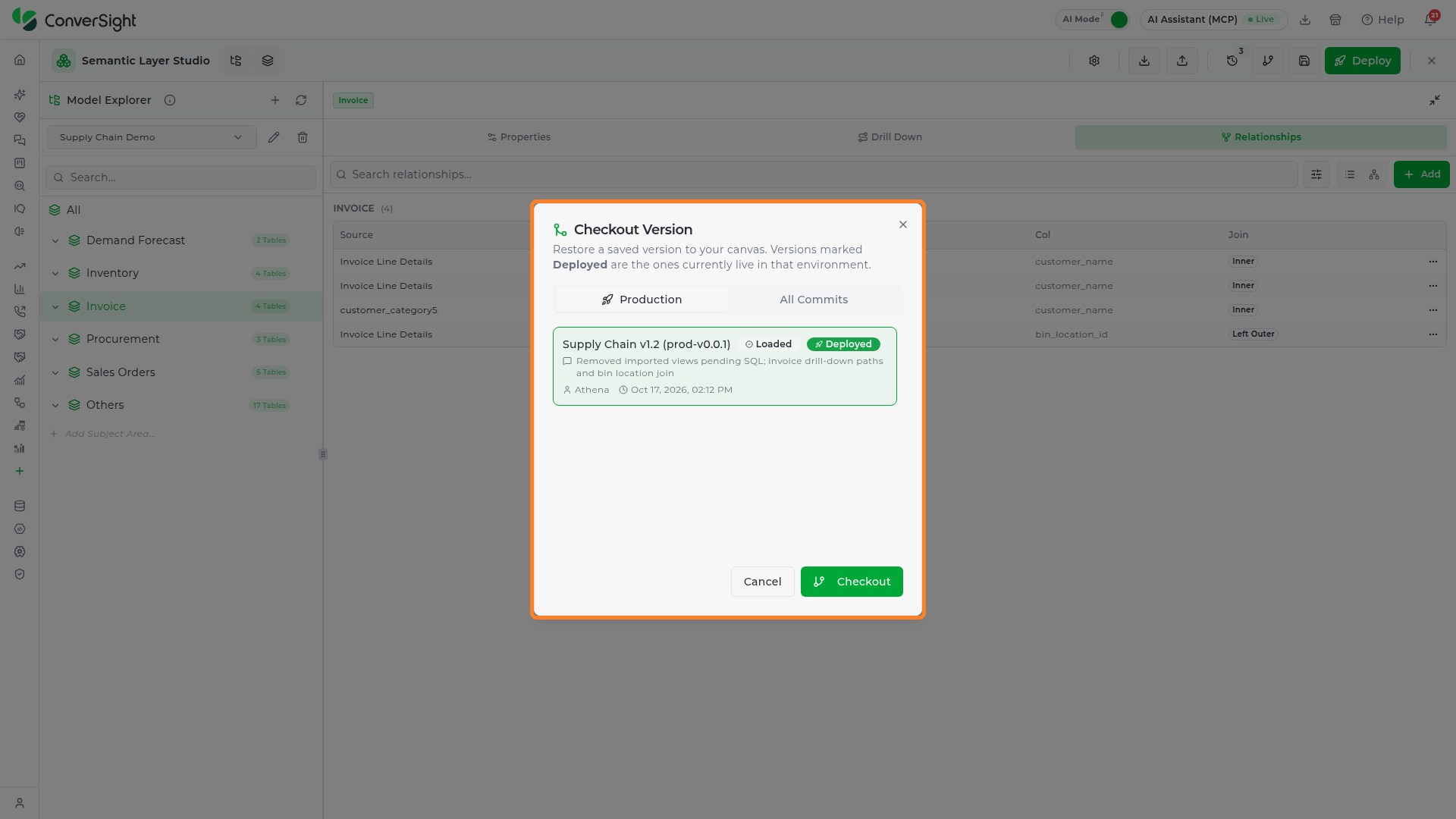

Step 2: Read the version list. Each entry shows:
| Element | Meaning |
|---|---|
| Version alias | The label given at Check In. On the Production tab it is followed by the deployed version number, for example Supply Chain v1.2 (prod-v0.0.1). |
| Loaded badge | The version currently open in the canvas. |
| Deployed badge | The version currently live in the environment. |
| Commit message | The description entered at Check In. |
| Author and timestamp | Who saved the version, and when. |
Step 3: Click a version entry to select it.

Step 4: Click Checkout. The Checkout selected version? confirmation warns that all local data, including saved commit aliases, is cleared before the version loads and that unsaved changes will be lost. Click Yes, checkout to load the version, or Cancel to keep working on the current model.

Check In
Click the Check In (disk) icon in the header to open the Save Version dialog and save the current canvas state as a named version. Check in before any significant change so you can return to it later, and before you deploy, since only checked-in versions can be deployed.

Step 1: Fill in both fields. The Save Changes button stays disabled until both are filled.
| Field | What to enter |
|---|---|
| Version Alias | A short, readable label for the version, for example Supply Chain v1. Required. |
| Commit Message | A short description of what changed in this version. Required. |
Step 2: Click Save Changes. The button shows a saving status and then checks for updates while the version is written; on a large model this can take a few minutes. When the dialog closes, the version is saved with you recorded as the author, and the History badge resets.

Deploy
Click the Deploy (rocket) button in the header to open the Deploy Model dialog and publish a checked-in version to the production environment, making it available to Athena, your AI Agent, and connected surfaces.

Development and staging environments exist in the data model but are currently disabled — only Production is active. The rollback feature is also currently disabled; to revert a production model, use Checkout to load a previous version and then deploy it.
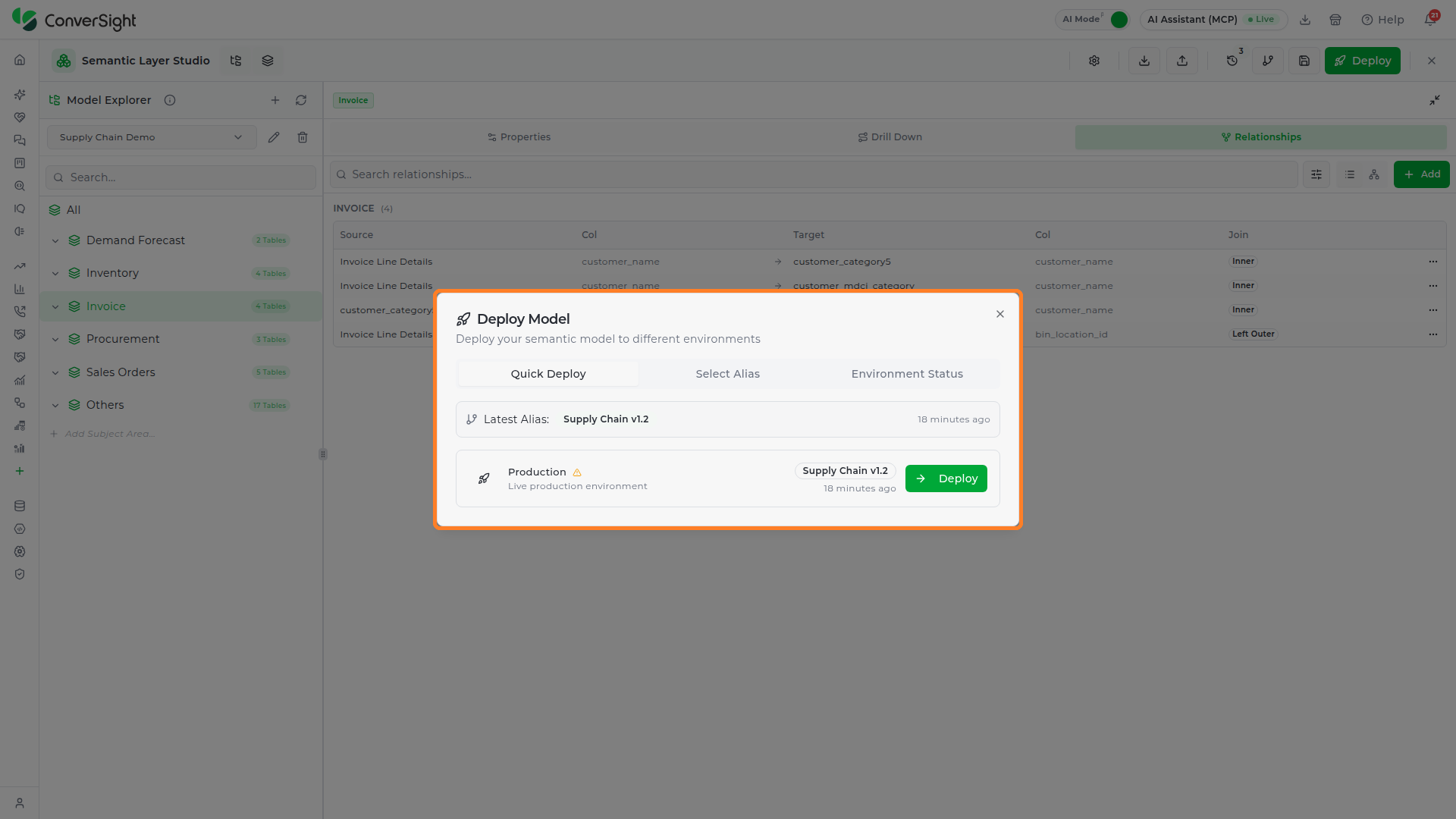
The Deploy Model dialog has three tabs: Quick Deploy, Select Alias, and Environment Status.
Quick Deploy
The Quick Deploy tab shows the Latest Alias (the most recent checked-in version and when it was saved) and the Production environment with the version currently live there, or Not deployed for a dataset that has never been deployed. Click Deploy to publish the latest alias.
Select Alias
The Select Alias tab publishes a specific checked-in version. Target Environment is set to Production. Choose a version from Pick a Version; the latest one is marked current.

Once a version is picked, Alias Details shows its alias, when it was created, its commit message, and the change counts it carries (added, modified, removed). The button names the version, for example Deploy Supply Chain v1.1 to Production.

Confirming the deployment
Either tab opens the Deploy to Production confirmation, which names the alias and warns that the deployment will affect live users. Type production in the box to enable Deploy to Production, then click it, or click Cancel to stop.
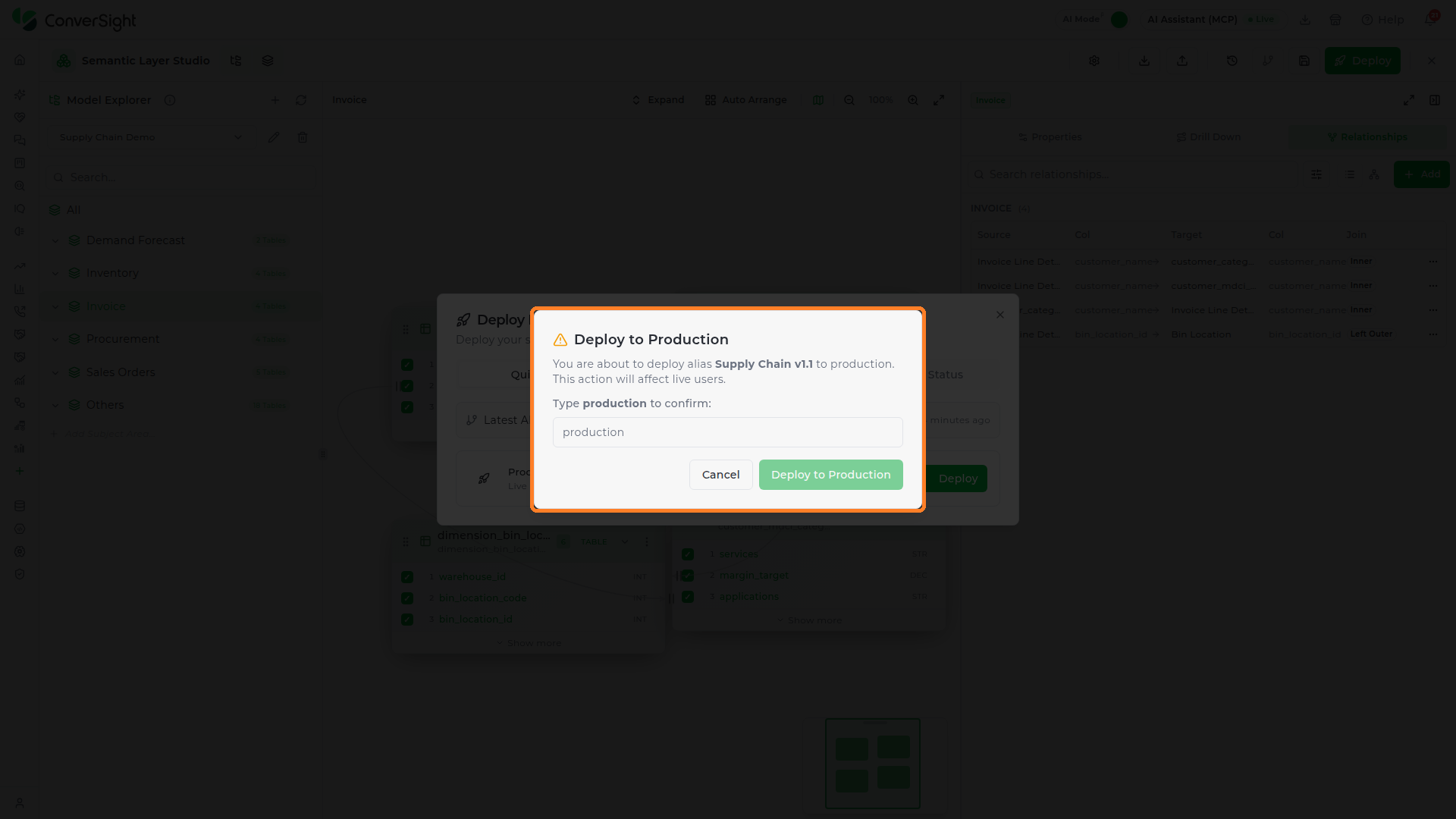

The button shows a deploying status while the request is sent. Once it is accepted, a status chip in the Studio header tracks the publish, for example DeployQueued and then ViewPublishRequested, and the Deploy button stays disabled until it finishes. Publishing can take several minutes. When it completes, a Publish complete message confirms that your changes are published.


Every Smart Query in the version must have its SQL saved before the deployment can succeed. A version with an empty Smart Query is not published.
Environment Status
The Environment Status tab shows the deployment history for Production, listing each deployed alias with its commit message and when it was deployed. Each deployment carries one of these statuses:
| Status | Meaning |
|---|---|
| Success | Deployment completed successfully |
| Failed | Deployment did not complete |
| Deploying | Deployment is in progress |
| Rolled Back | Deployment was reverted to a previous state |
| Pending | Deployment is queued |

Properties Manager
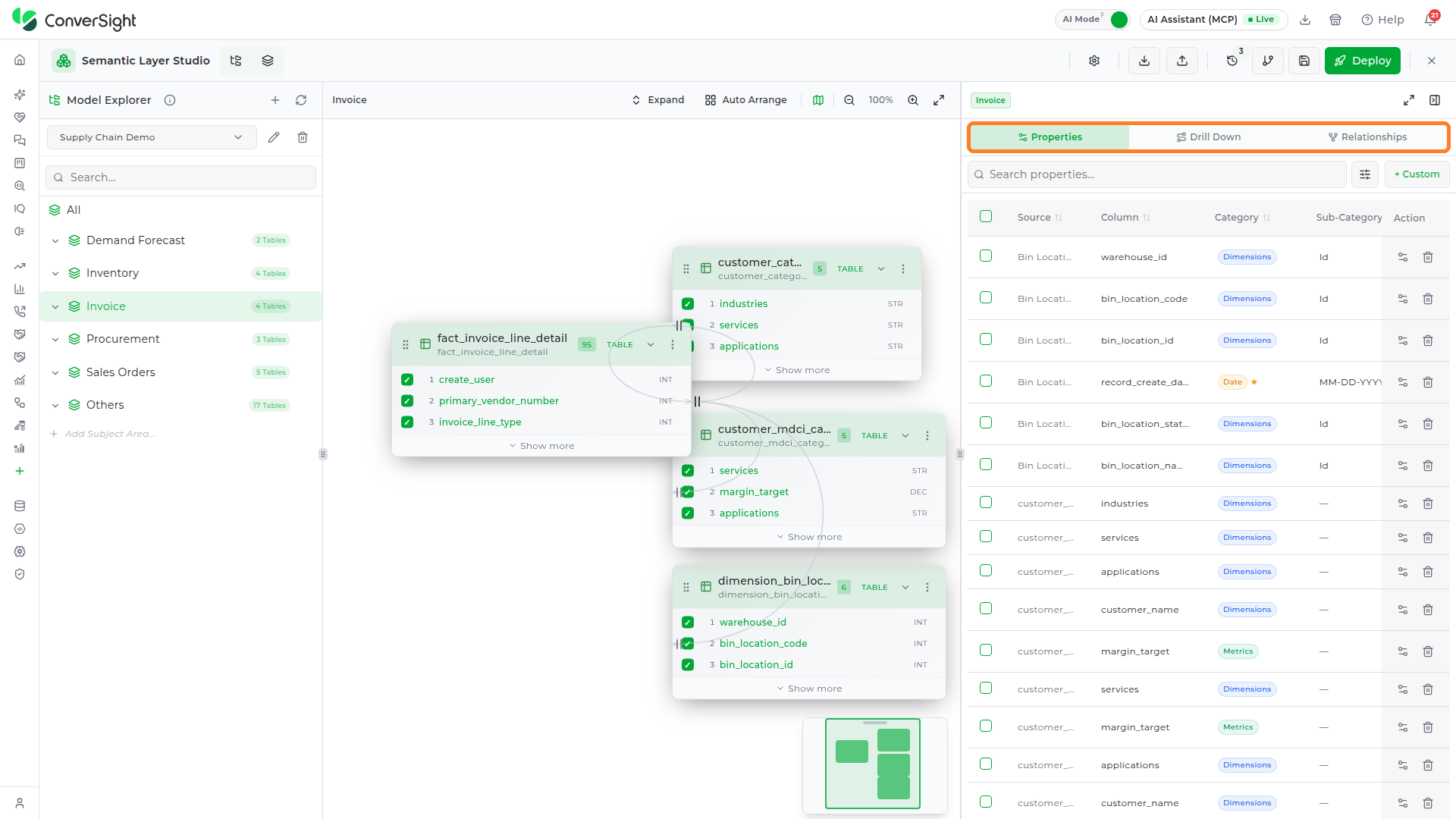
The right-hand panel has three tabs — Properties, Drill Down, and Relationships — that configure how the selected entity is modeled. The panel is selection-driven: select a Data Source (click its node card on the canvas, or its node in the Model Explorer) to populate it. With nothing selected, it shows No properties available for this selection.
Properties
Click the Properties tab in the right panel to open the Properties grid.
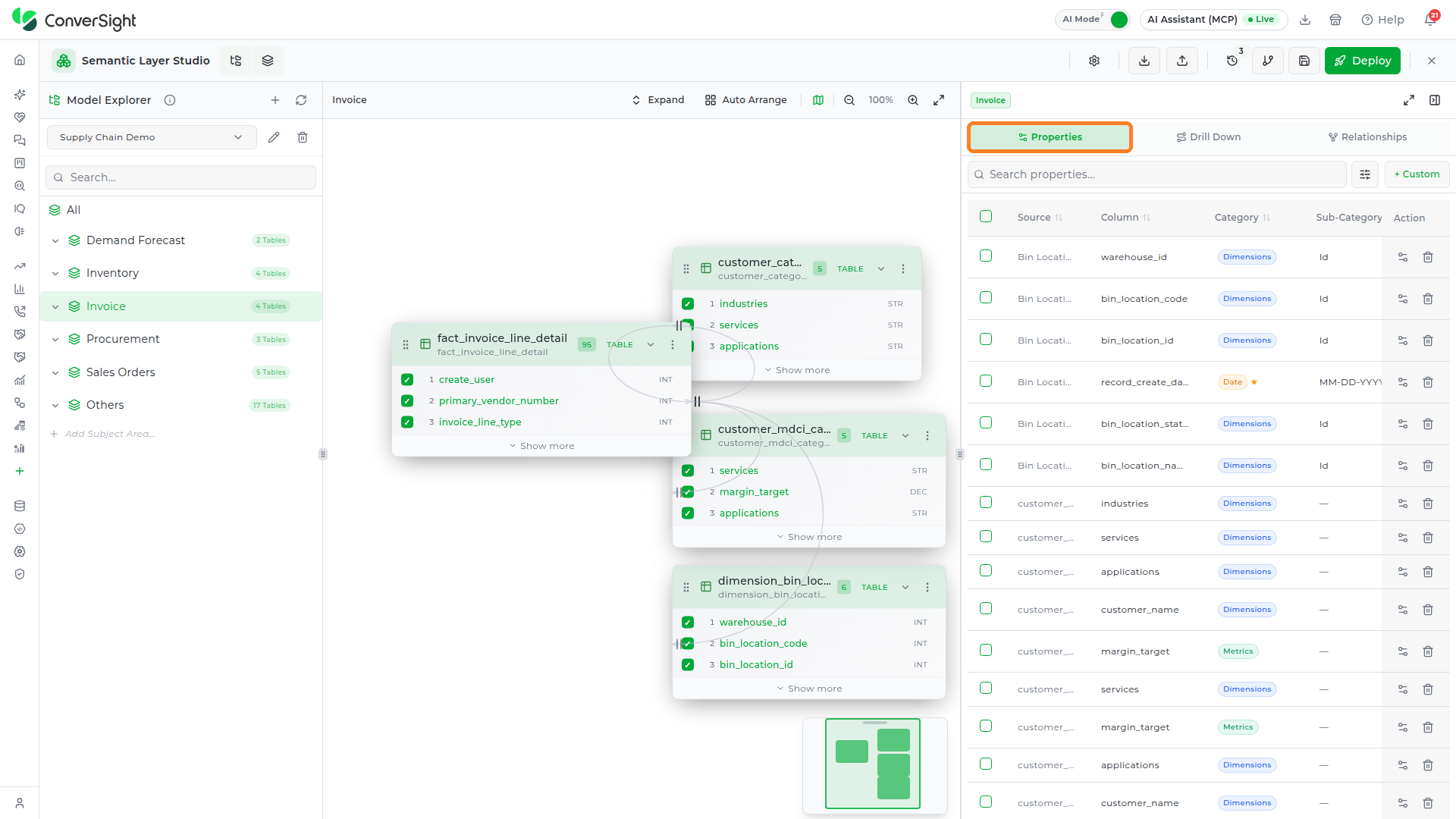
The Properties grid lists every property for the selected entity, with Source, Column, Category, Sub-Category, Unit, Business Names, and Action columns. Click a column header with sort arrows to sort the grid by it. The Action column holds two icons: one opens the Property details drawer and the other deletes the property. A scope chip at the top of the panel shows the active selection and a running count (for example, 4 of 31 properties); click the chip's ✕ or Clear all to reset the selection.
At the panel's normal width, the Unit and Business Names columns sit off to the right. Use the panel's Expand icon to see every column at once.

The panel toolbar provides three controls: Search properties (free-text search), a filter funnel, and + Custom (opens the Create Custom Column dialog — see Add Custom Property).
Semantic Categories
Each property belongs to one of four semantic categories that drive how Athena, your AI Agent, generates queries:
| Category | Use for |
|---|---|
| Dimensions | Categorical or descriptive attributes — region, product name, status |
| Metrics | Numeric measures that are aggregated — revenue, quantity, count |
| Date | Date and datetime columns |
| Flag | Boolean or binary true/false fields |
A Smart property built in the Smart Builder shows the category Summary, since it groups several columns into one field.
Filtering Properties
Click the filter funnel in the toolbar to open the Filters panel:
| Filter | Options |
|---|---|
| Source | All Sources, or a specific Data Source |
| Category | All Categories, Dimensions, Metrics, Date, Flag |
| Type | All Types, Physical (columns from the source table), Calculated, Smart |


Use the Search properties field for free-text search across property names and metadata.
Adding Properties
To add column properties from a Data Source, open the node card's kebab (⋮) menu on the canvas and choose Add All as Properties — this creates a property for every column on that table. Choose Remove All from Properties to take them back out. The menu also shows the table's column count and a Delete option that removes the Data Source from the canvas.

To add a Calculated or Smart property, click + Custom in the Properties toolbar to open the Create Custom Column dialog (see Add Custom Property).
Property Details
Click the Action icon on a property row to open the Property details drawer and edit its configuration. The drawer is organized into sections:
| Section | Fields |
|---|---|
| General | Category (Dimensions, Metrics, Date, or Flag), Sub-Category, Unit, and Description |
| Business Names | The Default Business Name shown across the application, plus optional alias names (type an alias and press Enter) |
| Physical type | The underlying physical data type of the property (read-only) |
| Visibility | Toggles for the Threads and Explorer surfaces |
| Analytics | Aggregation and Default Sort |
| Format | Background Color and Text Color swatches (the ✕ swatch clears the color), with a Preview that shows sample text in the chosen colors |
Properties hidden from a surface (Threads or Explorer) will not appear when that surface queries the model.
Click Save to apply changes, or Cancel to discard them.
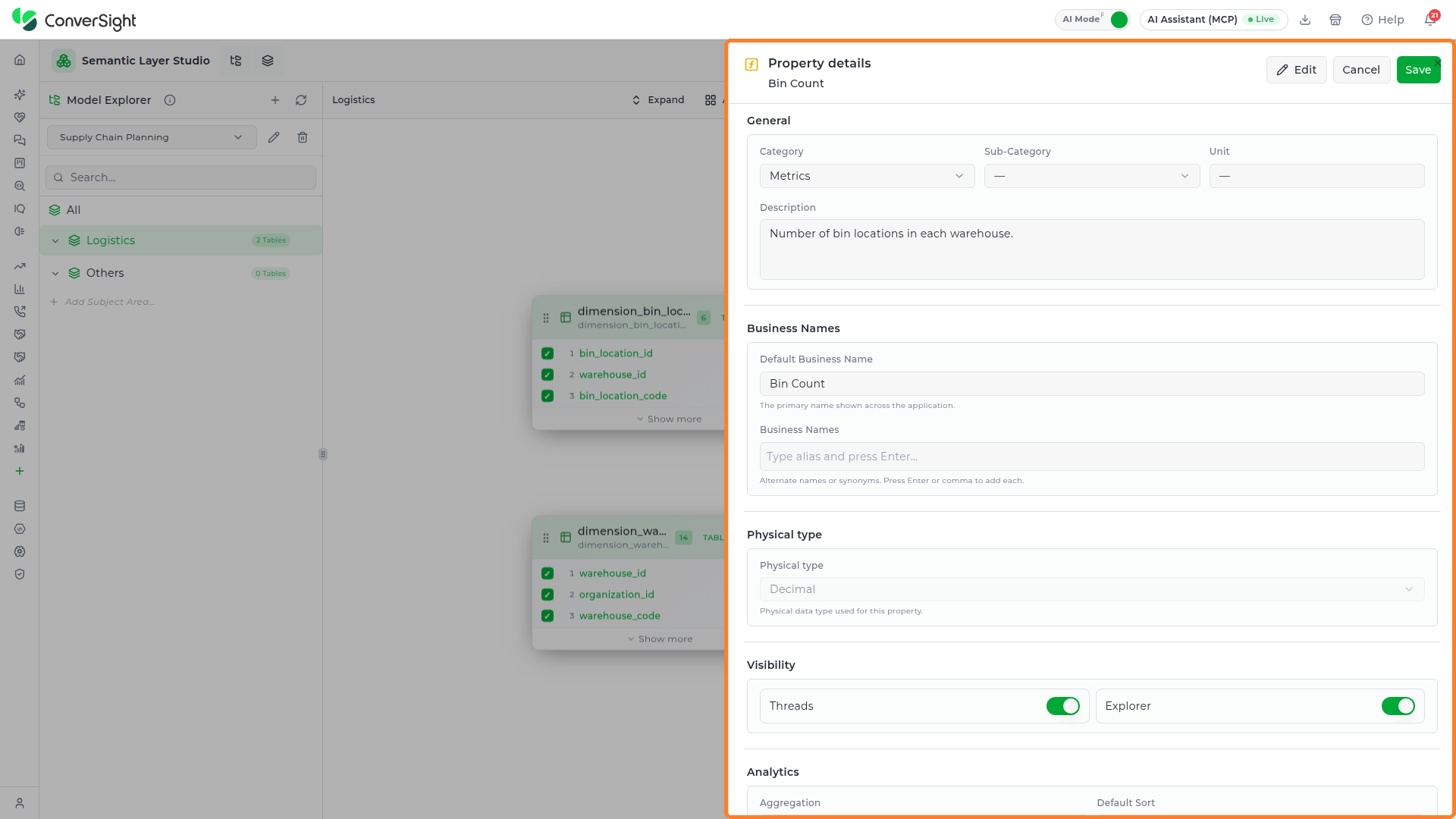
For a Metrics property, the Format section also holds Decimal Places, Thousands Separator, Prefix, and Suffix, and the preview shows a sample number in that format.
Calculated and Smart properties have an Edit button in the drawer header. It opens the Edit Custom Column dialog, where you can change the expression or the Smart Builder setup; see Add Custom Property.


Scroll to the bottom of the drawer to reach the Format section.

Bulk Update
Select properties using the header checkbox (all visible) or individual row checkboxes. A contextual action bar appears — N selected · Edit · Delete · ✕. Click Edit to open the Bulk Update dialog, which applies changes to every selected property at once.

In the dialog, each field has a checkbox that reveals its value control, so you change only the attributes you intend to. The fields are organized into three groups:
| Group | Fields |
|---|---|
| Type Configuration | Category, Sub-Category (and Unit, when the sub-category defines units) |
| Behavior | Default Aggregation (Metrics only), Default Sort, and Visibility (Threads and Explorer) |
| Format & Display | Decimal Precision, Background Color, and Text Color |
Default Aggregation and Decimal Precision note that they apply only to properties whose Category is Metrics. The dialog footer shows how many properties will be updated (for example, 3 will be updated). Click Apply to save.

Deleting Properties
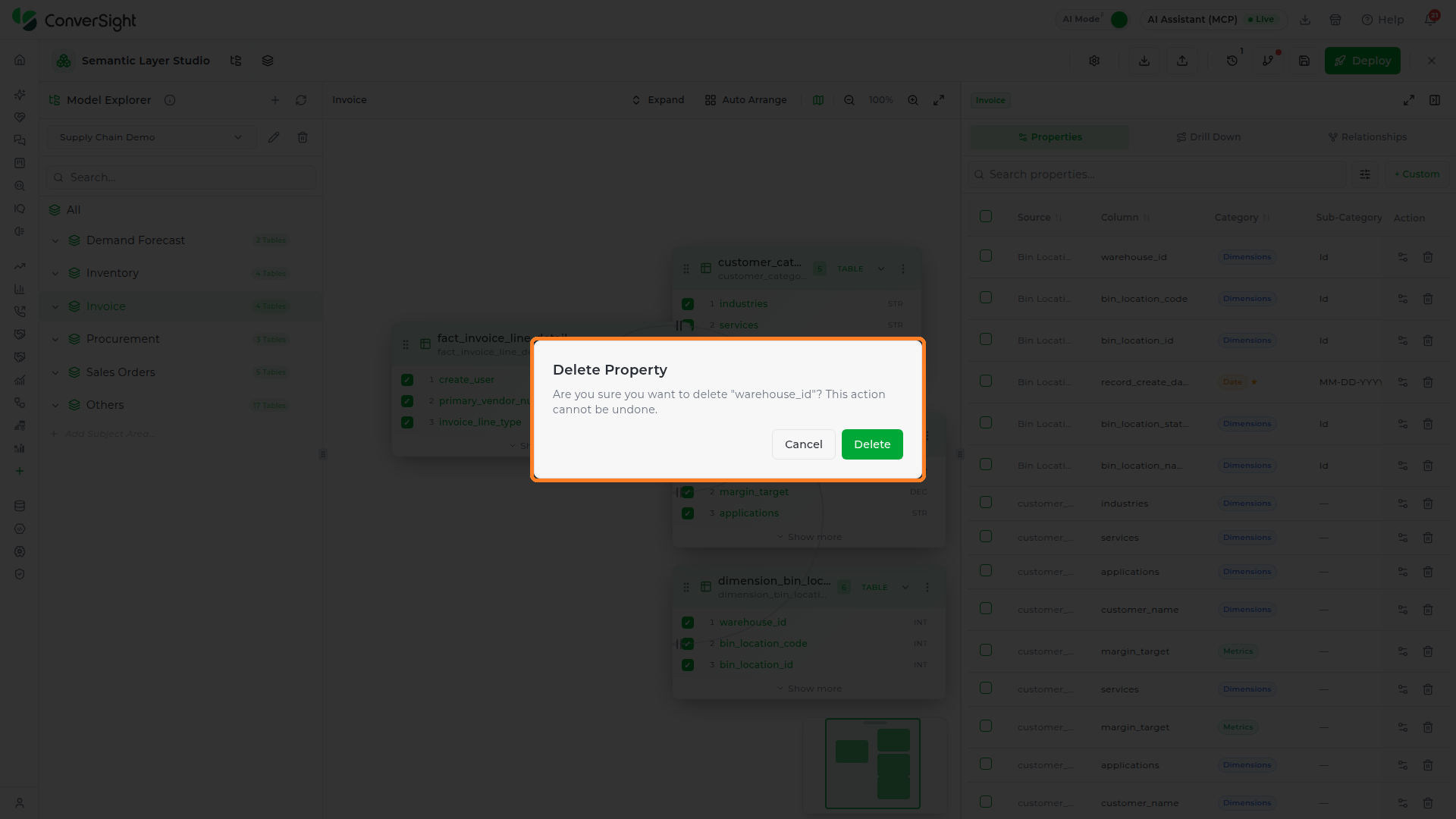
To delete a single property, click the trash icon in its Action column. The Delete Property confirmation names the property and warns that the action cannot be undone; click Delete to remove it, or Cancel to keep it.
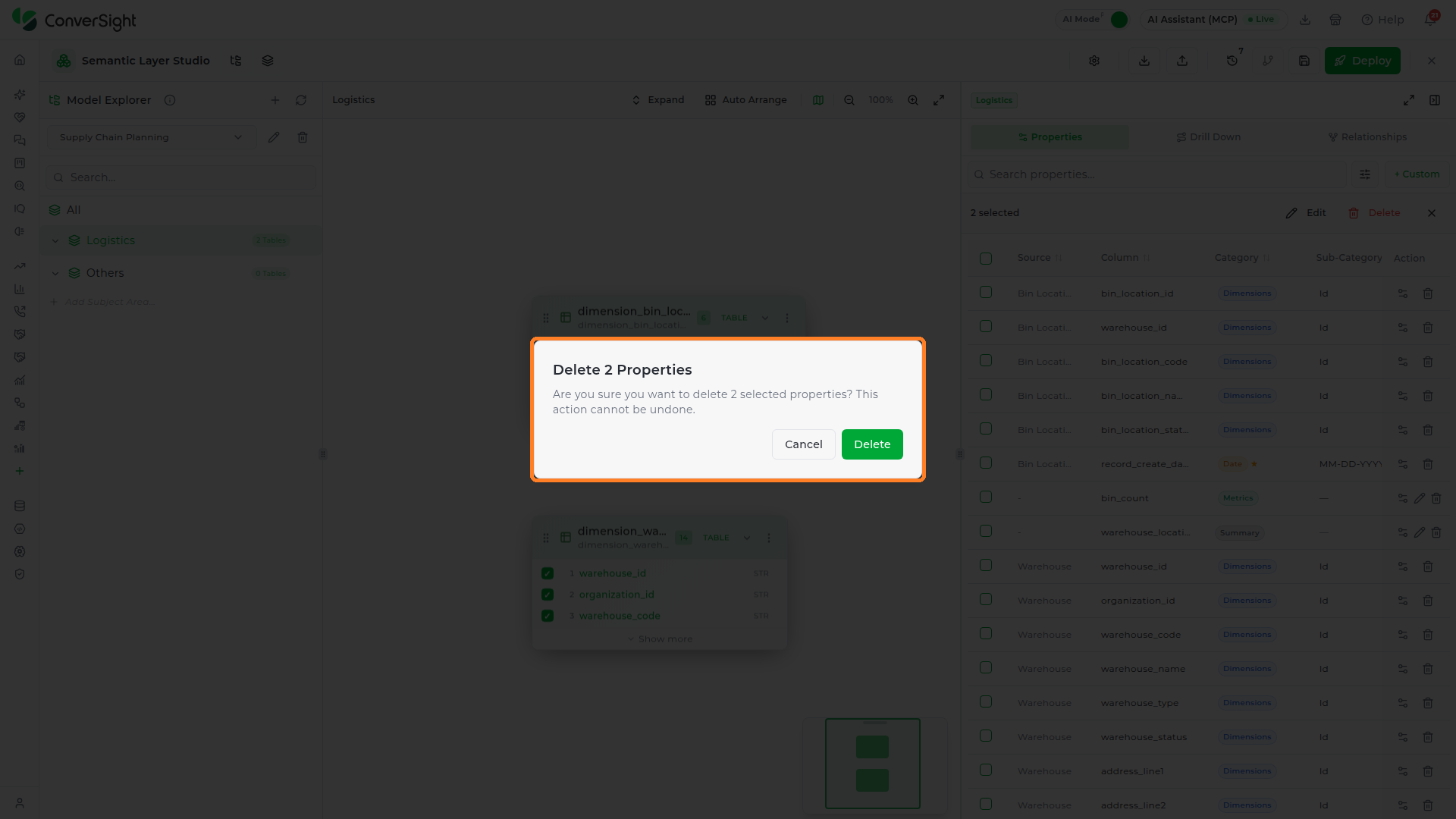
To delete several at once, select the properties and click Delete in the action bar. A confirmation popup — Delete N Properties — appears; click Delete to permanently remove them, or Cancel to keep them.
Drill Down
The Drill Down tab manages navigation hierarchies that define how users and Athena move through data levels — for example, Year → Quarter → Month → Day. Click the Drill Down tab in the right panel to open it.

Switch between List View (expandable path cards) and Tree View (inverted tree graph) using the view buttons in the toolbar.

A Subject Area without paths shows No drill paths defined with an Add button.

A Subject Area must be active before adding drill-down paths. Select a specific Subject Area in the Model Explorer — the Add control is unavailable when the "All" view is selected.
Path Search
The search bar at the top of the Drill Down panel filters paths by name and shows a live count (for example, Search 2 paths…). Use it to locate a specific path in a large model.
Managing Paths
- Create a path: click + Add. A new path appears with the editable name New Path — clear it, type a unique name, and press Enter.

- Rename a path: hover over the path header to reveal the pencil and trash icons, then click the pencil, or double-click the path name. Press Enter to confirm or Escape to cancel.


- Delete a path: click the trash icon. The Delete Drill Path confirmation names the path and warns that this cannot be undone; click Delete to remove it or Cancel to keep it.

Duplicate path names are not allowed within the same set. Each path must have a unique name within its Subject Area.
Managing levels
Expand a path card to manage its levels.
- Click + Add Level to open the Add Drill Levels picker. Narrow it with the source dropdown (All Sources, a Data Source, or Custom Property), use the Date Hierarchy quick group (Year, Quarter, Month, Week, Day) or Select all within a Business Object, or search for specific properties. Check the levels you want; the footer counts them. Click Add Levels to add them in the order selected, or Clear selection to start over.


- Drag levels by their handles to reorder them.
- Click the trash icon on a level to remove it.
Levels are numbered sequentially — Level 1 is the coarsest granularity, with each subsequent level providing finer detail. Each path header shows its level count (for example, 3L), and each level shows its category badge.

Tree View
Click the Tree View toggle to see every path in the Subject Area as a graph. Each path runs top to bottom from its first level to its last, and a level shared by more than one path joins them at that node. Use the controls in the lower-left corner of the graph to zoom in, zoom out, fit the graph to the panel, or lock it in place.

Relationships
The Relationships panel displays all defined joins between Data Source entities and lets you create, edit, and delete them. Click the Relationships tab in the right panel to open it; a fresh model with no joins shows No relationships defined yet.
Switch between List View and Tree View using the view buttons in the panel toolbar. The toolbar also provides a Search field, a filter control, and a + Add button.
List View groups the relationships under a heading for the Subject Area, with its relationship count. Each row shows the Source table and column, the Target table and column, and a Join badge such as Inner or Left Outer. The ⋯ menu at the end of a row holds Edit and Delete.

Tree View lists each source table with the number of relationships it starts, and indents its targets beneath it. Each target line shows the join columns and the join badge.

Filtering relationships
| Filter | Options |
|---|---|
| Search | Matches source table name, target table name, or column names |
| Source | Filter by a specific source Data Source |
| Cardinality | All, 1:1 (One to One), 1:N (One to Many), N:1 (Many to One), or N:N (Many to Many) |


Creating a relationship
There are two ways to start a relationship:
- From the canvas — point at a column on one table node, then drag from it to a column on another table node. A dashed line follows the pointer while you drag.
- From the panel — click + Add in the Relationships toolbar.

When you drop on the target column, the Create Relationship dialog opens with the source and target tables and the join condition already filled in from the two columns. Choose the join type and click Create.

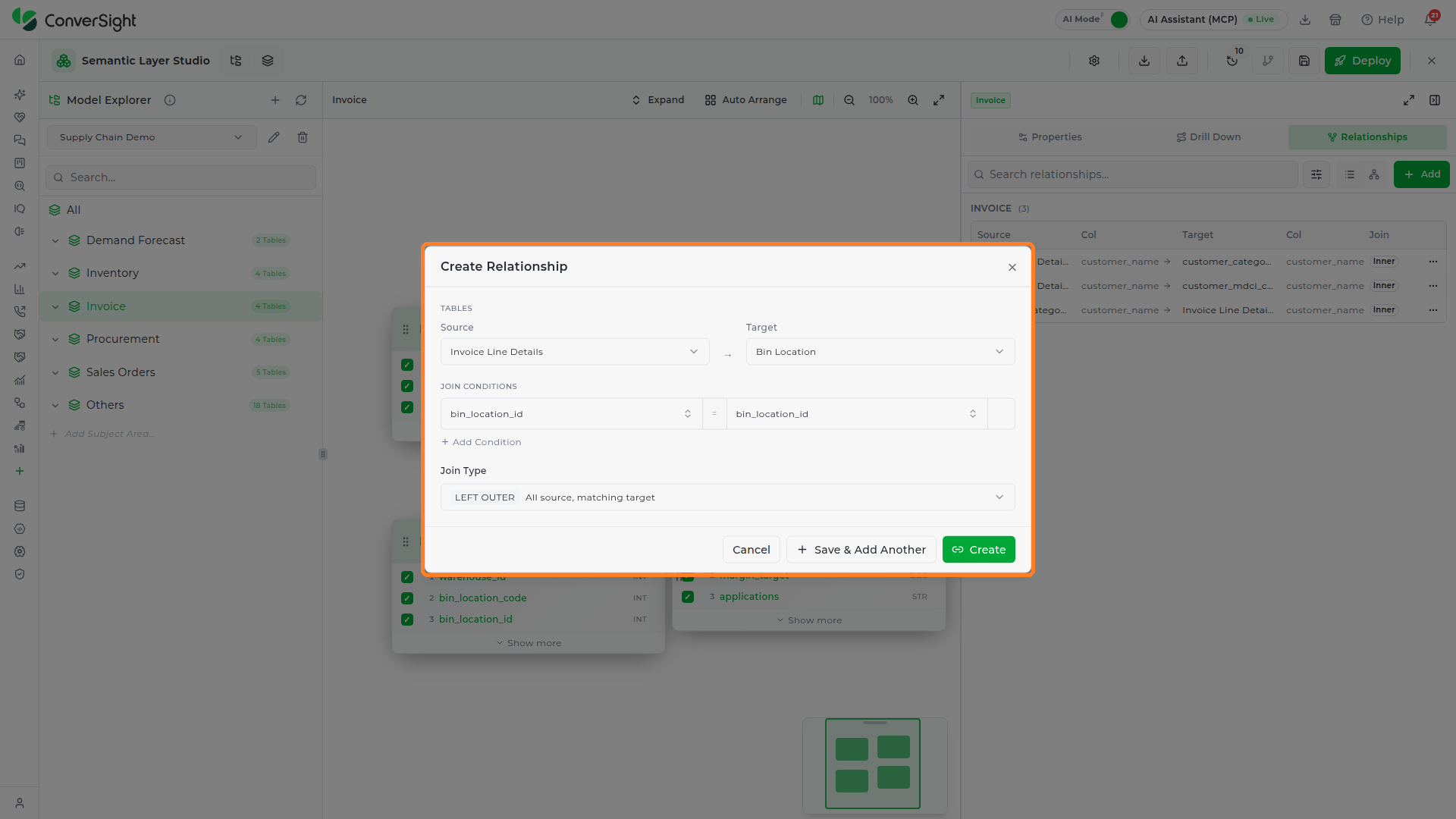
From the panel, the Create Relationship dialog opens empty. Configure it from top to bottom:

- Tables — choose the Source table, then the Target table. The source list shows the Data Sources in the Subject Area; the target stays disabled (Select source first) until a source is chosen.

- Join Conditions — select the source column and the target column they join on. Each column picker lists the table's columns alphabetically.

For multi-column (compound) keys, click + Add Condition to add another column pair. Remove a pair with the icon at the end of its row.

- Join Type — choose one of the four join types listed below.
| Join Type | Rows returned |
|---|---|
| INNER | Only matching rows. |
| LEFT OUTER | All source rows, with matching target rows. |
| RIGHT OUTER | All target rows, with matching source rows. |
| FULL OUTER | All rows from both tables. |

Click Create to save the relationship, or Save & Add Another to save and immediately start another. Cardinality is derived from the join — it is not set in this dialog.
When a relationship has multiple join conditions, a +N badge appears next to the column names on the canvas and in the Relationships panel, showing how many conditions there are beyond the first.
Editing and deleting relationships
Open a relationship's row menu (⋯) to see Edit and Delete.

Edit opens the Edit Relationship dialog, which has the same sections as Create Relationship, filled in with the current tables, join conditions, and join type. Click Save Changes to apply your edits.

Delete removes the relationship straight away, without a confirmation. If you remove one by mistake, use Undo (Ctrl+Z) or the History panel to bring it back.
Orphaned relationships
When a relationship references a table or column that no longer exists, for example after a Data Source is removed, it is flagged as orphaned:
- List View: The row turns amber with a warning icon, and a line beneath it reads Target table no longer exists — edit or delete this relationship.
- Tree View: The affected node appears in amber.
- Toolbar: A red badge next to the view toggles counts the orphaned relationships (for example, 3!).
Edit the orphaned relationship to point to valid tables and columns, or delete it.
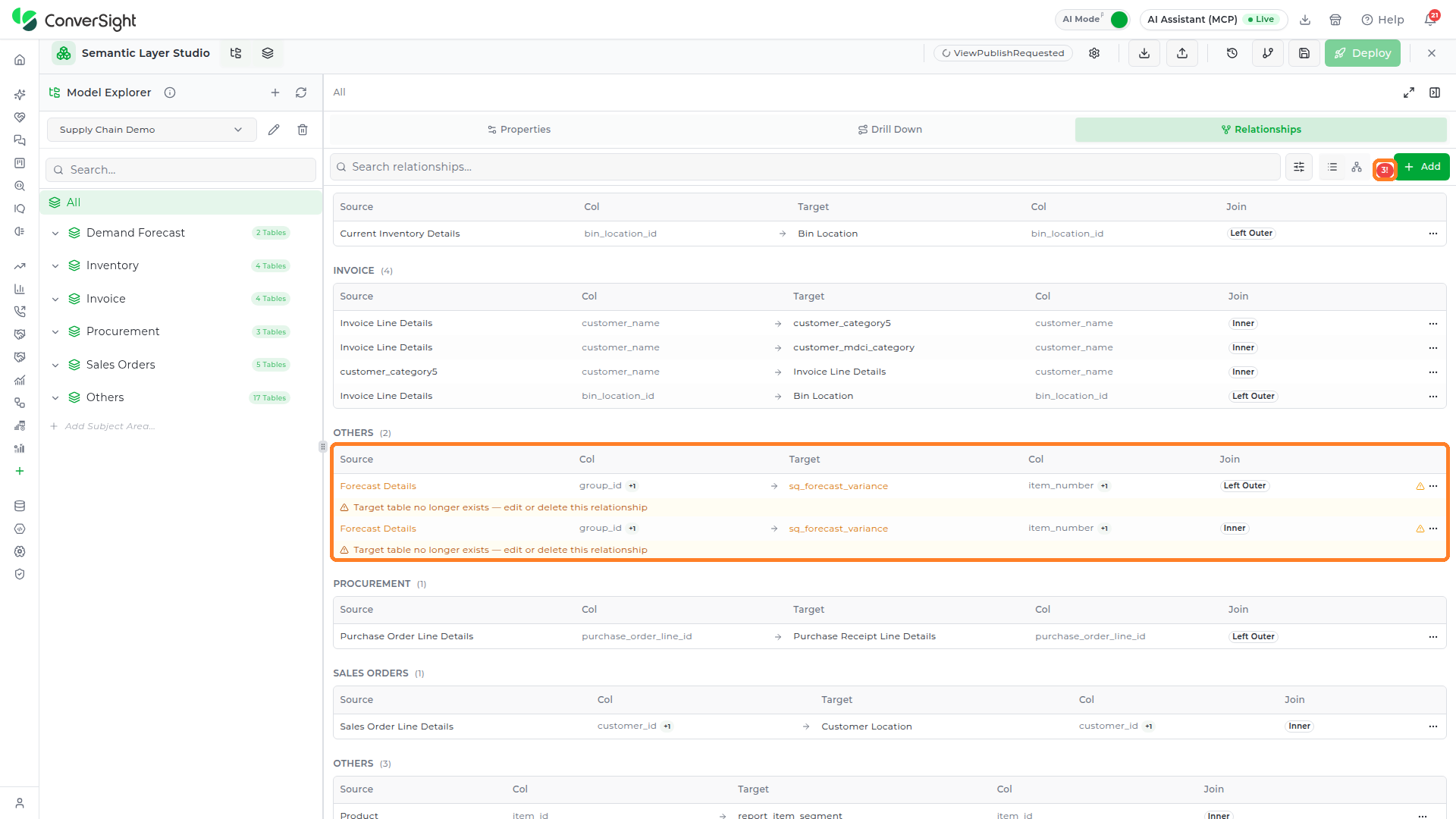
Orphaned relationships prevent correct query generation. Resolve them promptly.
Tips and Best Practices
- Assign the correct semantic category to each property — Dimensions for descriptive attributes, Metrics for numeric measures, Date for date columns, and Flag for booleans. These categories drive how Athena, your AI Agent, generates queries.
- Use Sub-Category and Unit fields to give properties richer business context. These fields directly influence Athena Threads query generation.
- Always assign Subject Areas to relationships so they are correctly scoped to the right domain.
- Use compound join conditions for tables that require multi-column keys.
- Resolve orphaned relationships promptly — they prevent correct query generation.
- Design drill-down paths that reflect natural user navigation, such as Year → Quarter → Month → Day. Level 1 is always the coarsest granularity.
- Keep drill-down path names unique within each Subject Area — duplicate names within the same set are not allowed.
- Provide meaningful Version Aliases (for example, "Sprint 14 Complete" or "Q2 Model") and write clear Commit Messages so team members can understand the history.
- Save a version before any significant restructuring so you can restore the previous state if needed.
- Confirm deployments to Production carefully — they affect live users immediately.
- Monitor the Environment Status tab after deploying to confirm the deployment succeeded.
- Use Ctrl+Z / Ctrl+Shift+Z (or Ctrl+Y) to undo and redo changes during a session. The Activity History panel shows the full change log and lets you revert any individual action.