Athena — AI Assistant
AI Assistant is Athena in Level 1 mode — the fastest path from a question to an answer. Type the question in plain language; Athena resolves it against the governed semantic layer of your data and responds in seconds with the right number, chart, or report. No dashboard navigation. No query writing. No interpretation gymnastics.
This is the surface where Decision Intelligence shows up at its most direct: a planner needs to know which SKUs are below safety stock, a finance lead needs yesterday's gross margin, an exec needs the top three margin movers this quarter. Athena answers — grounded in the actual operational data, never hallucinated.
Why You Can Trust the Answer
The most common concern with enterprise AI is reliability. Athena's architecture is designed explicitly to address it:
- Governed semantic layer — Athena operates on a business-logic-aware model of your supply chain data, not free-text LLM generation. Every fact traces back to a defined source record.
- Deterministic query engine — structured queries return exact, reproducible results. Same question, same data, same answer.
- RAG (Retrieval-Augmented Generation) — narrative responses are grounded in retrieved actuals, not inferred from a language model's training.
- Auditable — every output can be traced to the underlying tables, rows, and calculations.
When Athena says a part has 4 days of coverage, that number comes from your inventory and demand actuals. When it surfaces the top 10 orders by revenue, that list is generated from the order ledger you connected. See Why ConverSight → How Athena Knows Your Data Without Hallucinating It for the full architectural posture.
Accessing Athena
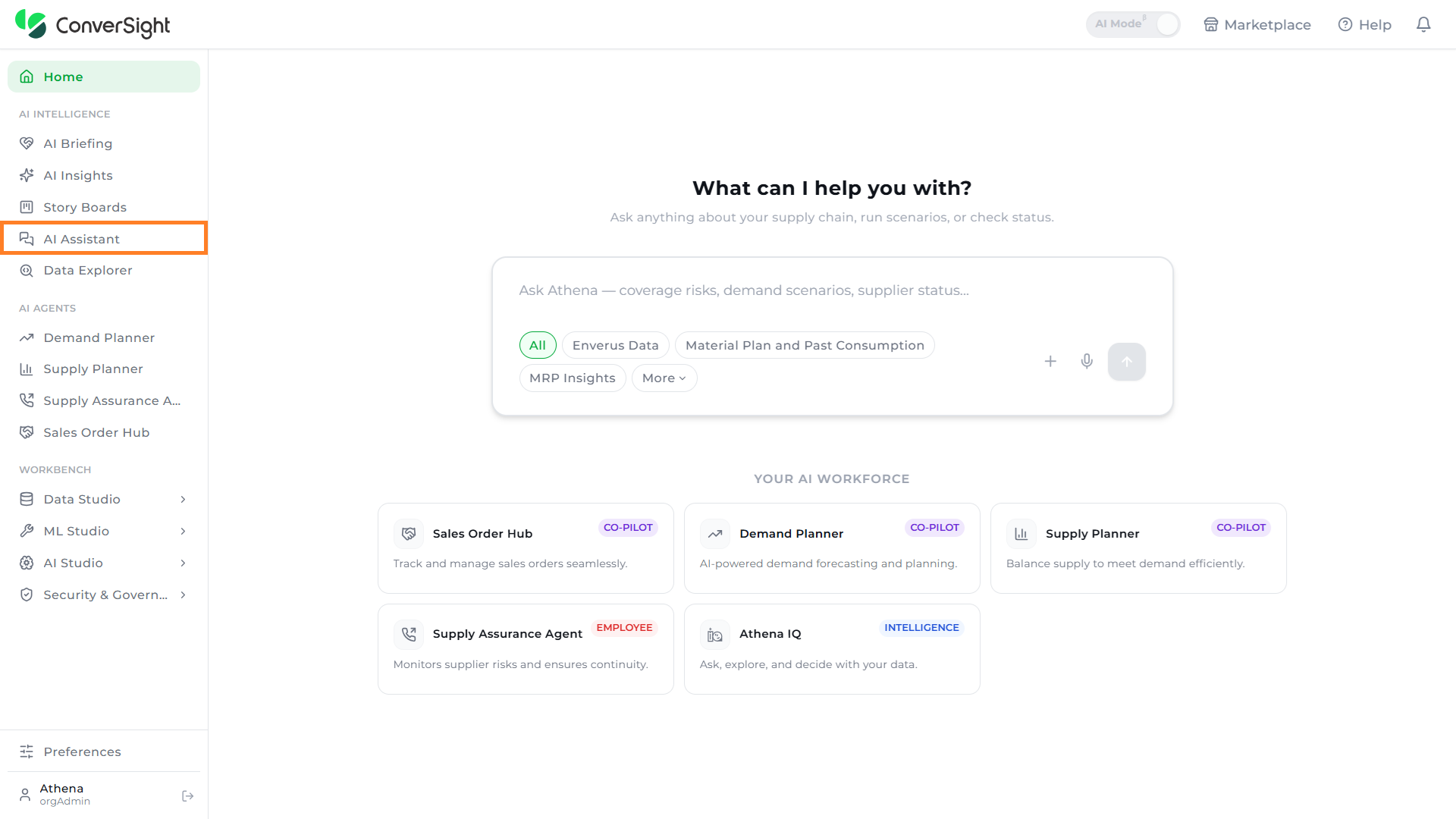
Users can access Athena by selecting the AI Assistant option under the AI Intelligence section in the left navigation panel.
Querying Athena
To query Athena, follow the steps outlined below:
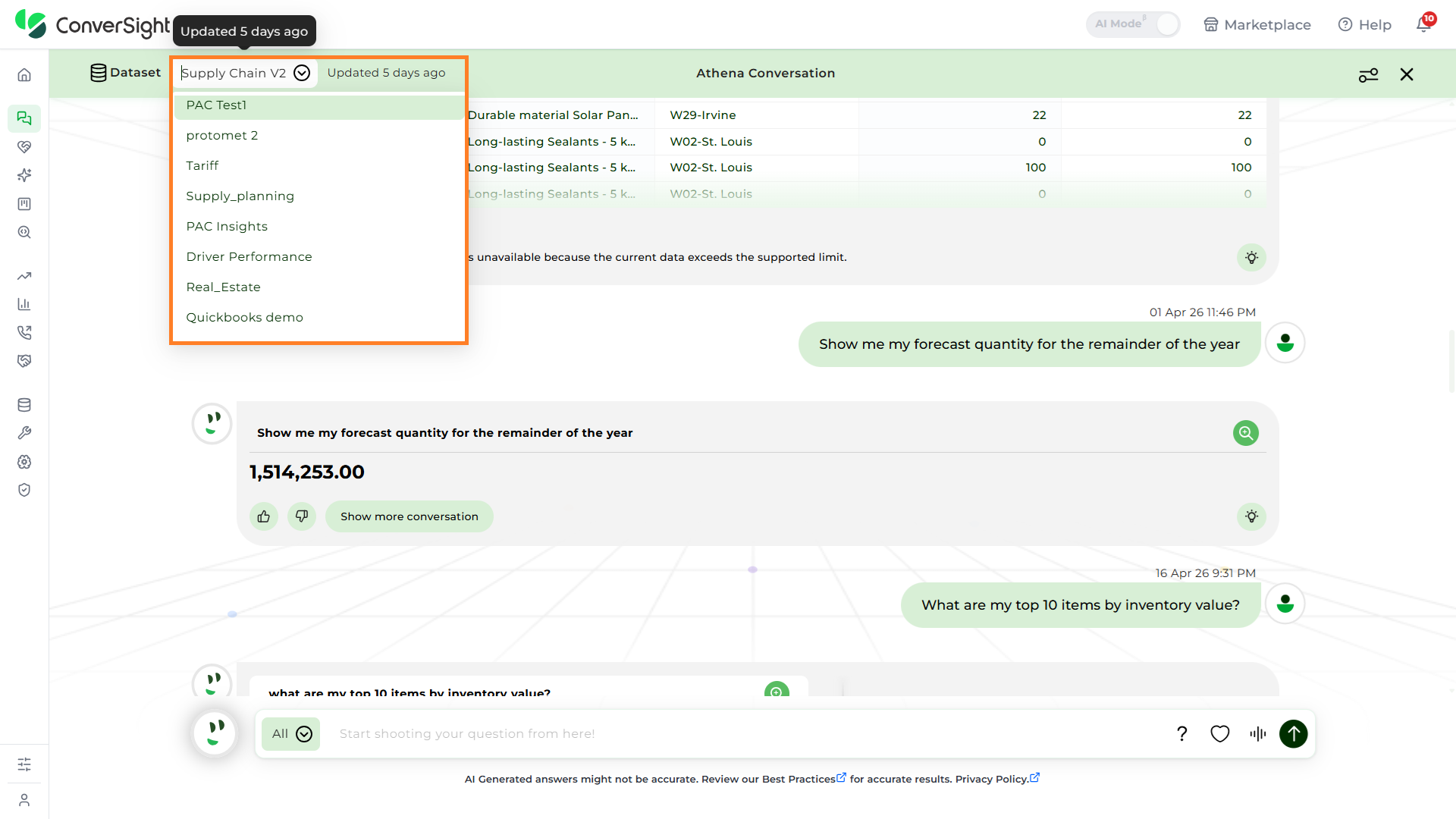
Step 1: Choose the Dataset you want to query to ensure Athena uses the correct data source.
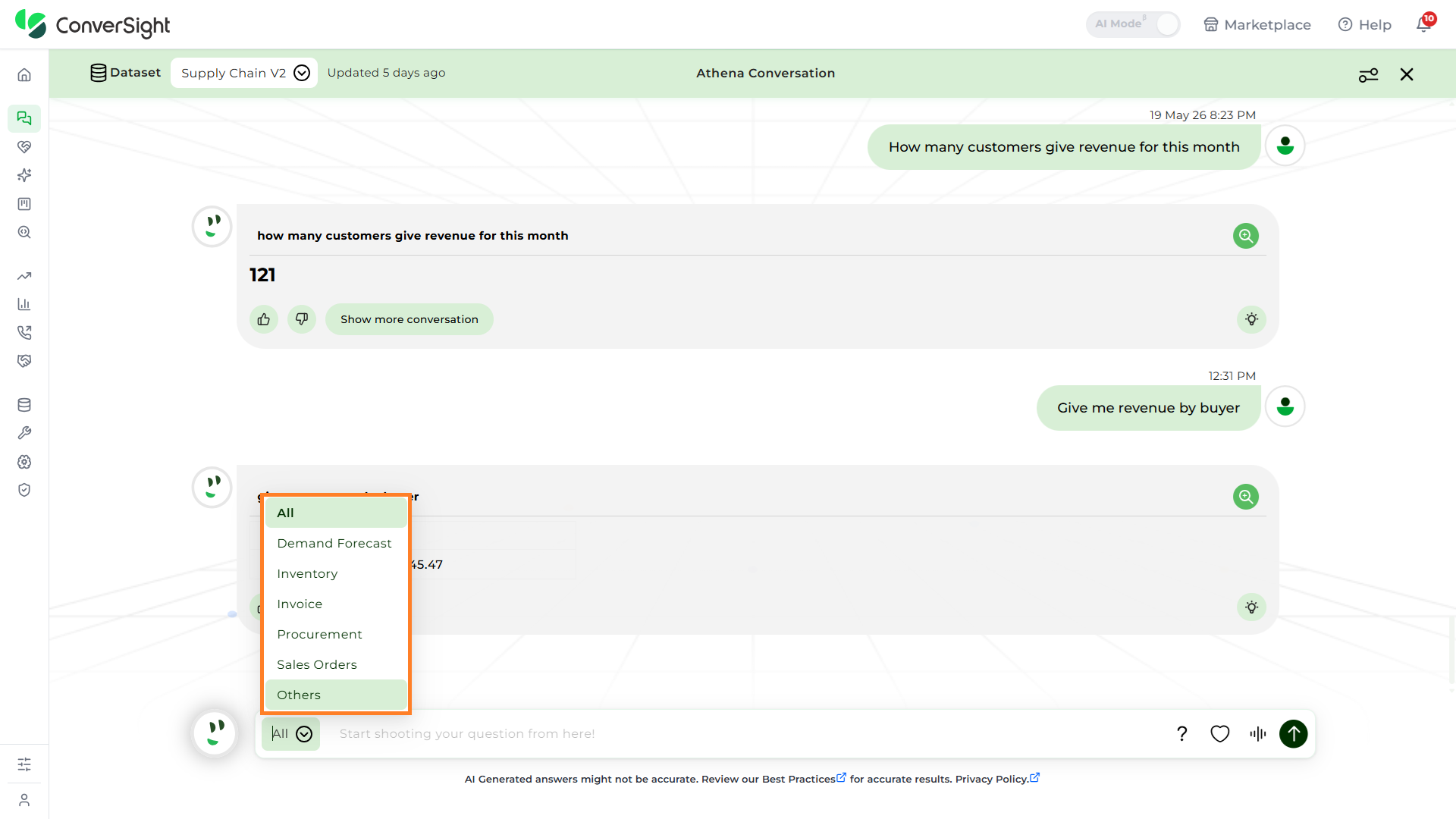
Step 2: Select the relevant Subject Area in which you want to ask queries. This helps Athena focus on the appropriate context and improves the accuracy of the responses. The All option includes all tables in the dataset, allowing access to all columns across the dataset. To learn more about Subject Areas, Click Here.
Step 3: After selecting the Dataset and Subject Area, you can begin asking queries in Athena.
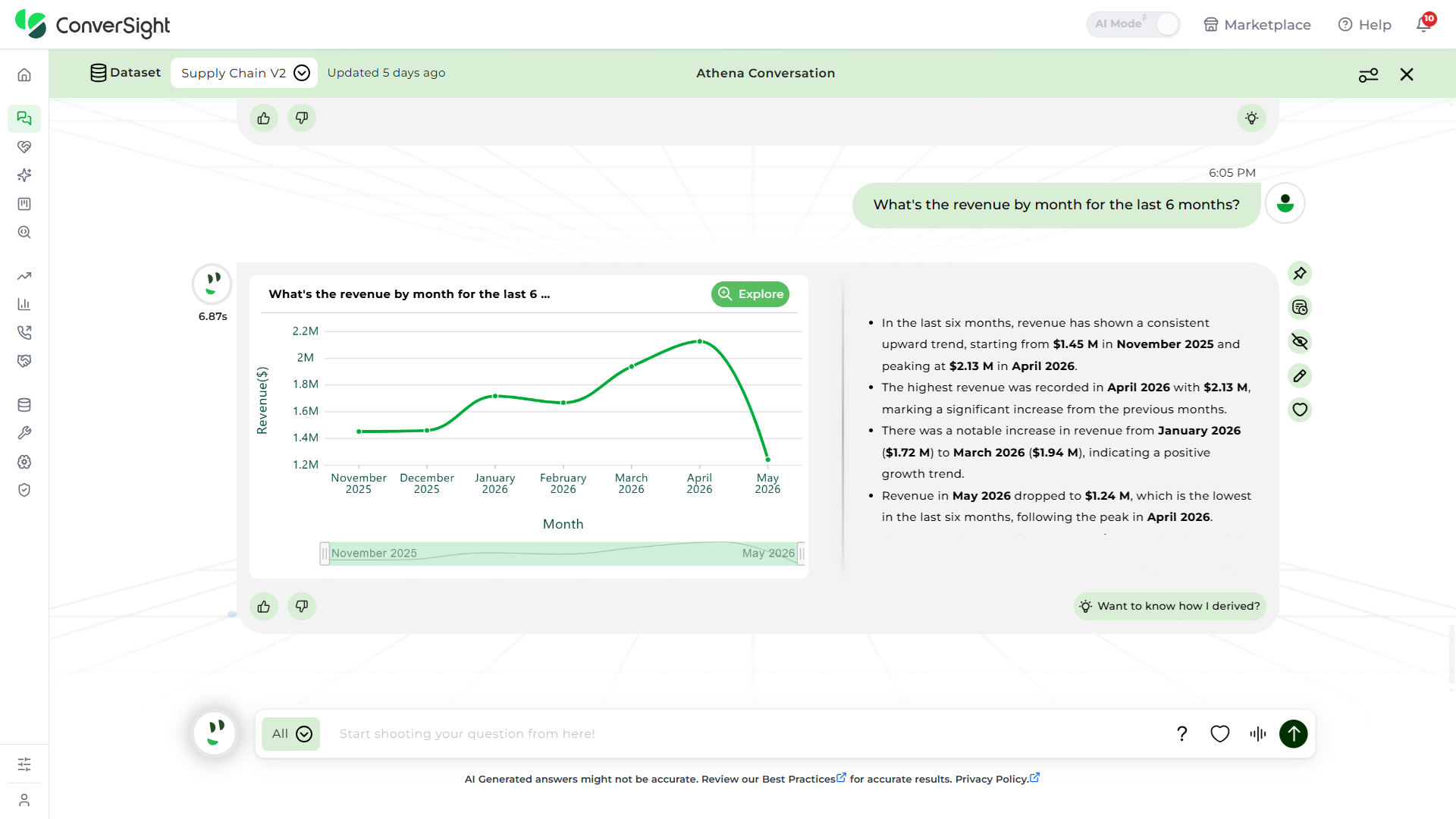
Step 4: Once you’ve entered your question, select Send to proceed.
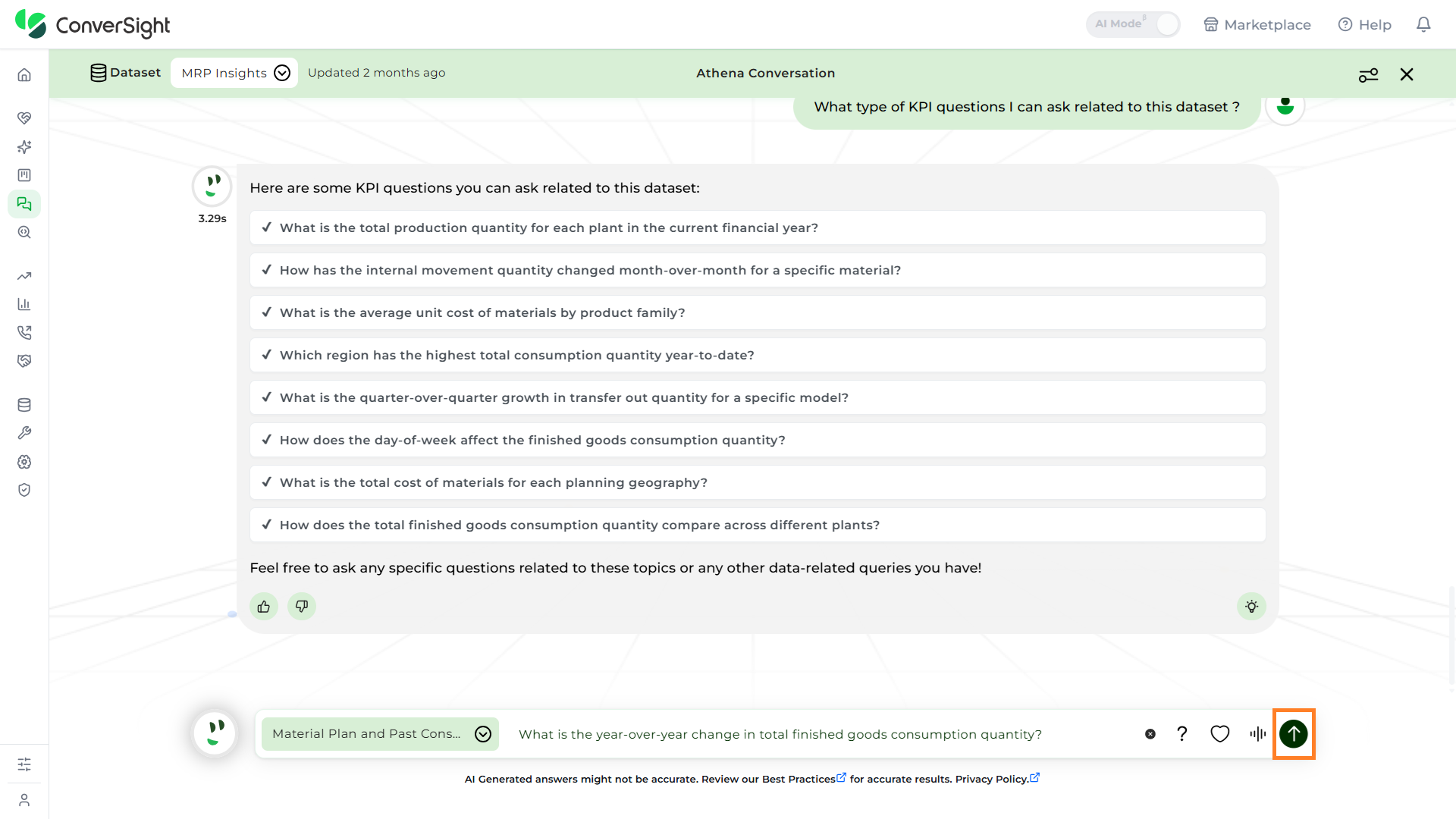
Once you ask a question in Athena and receive a response, the next interaction is a threaded conversation.
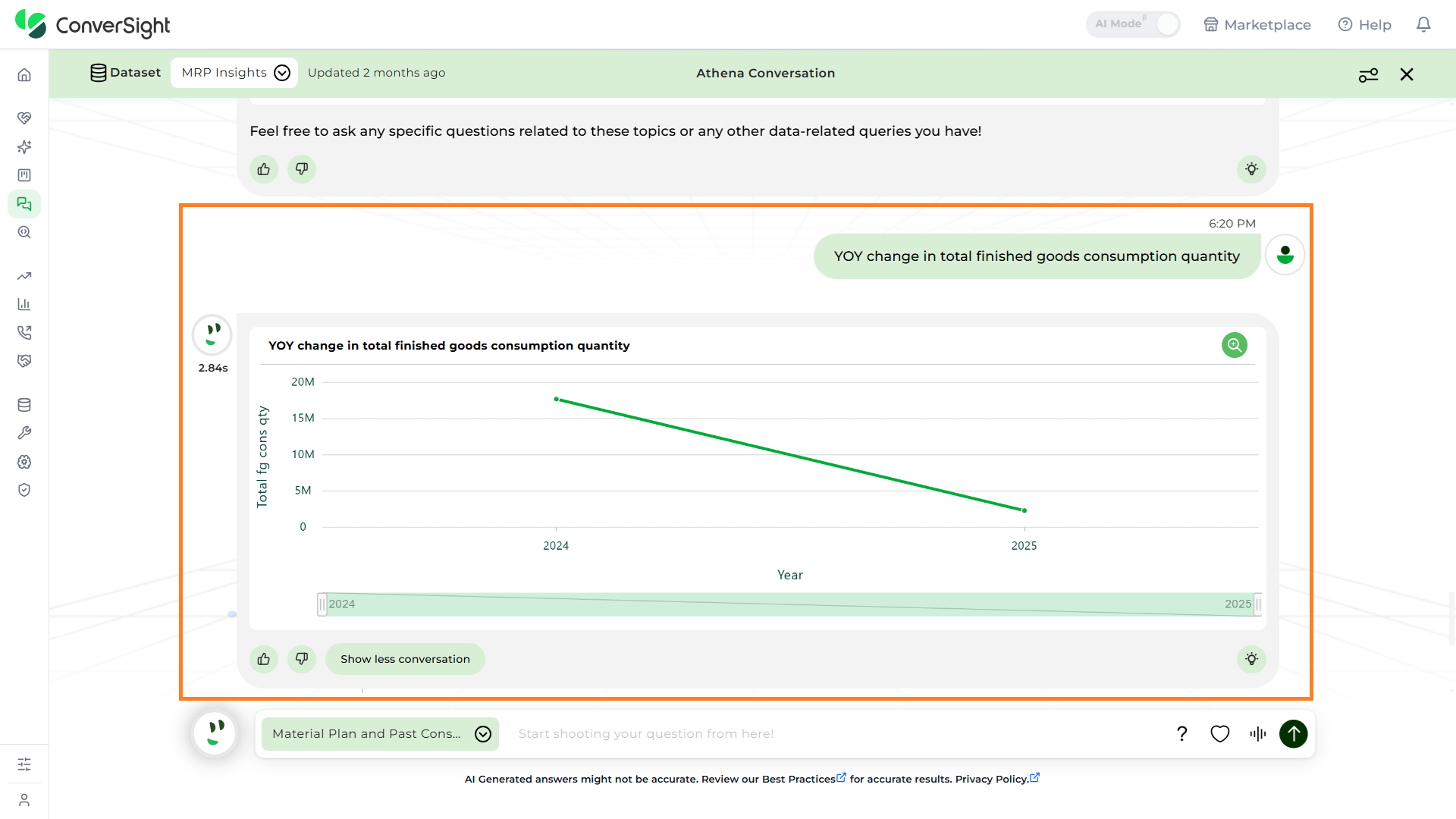
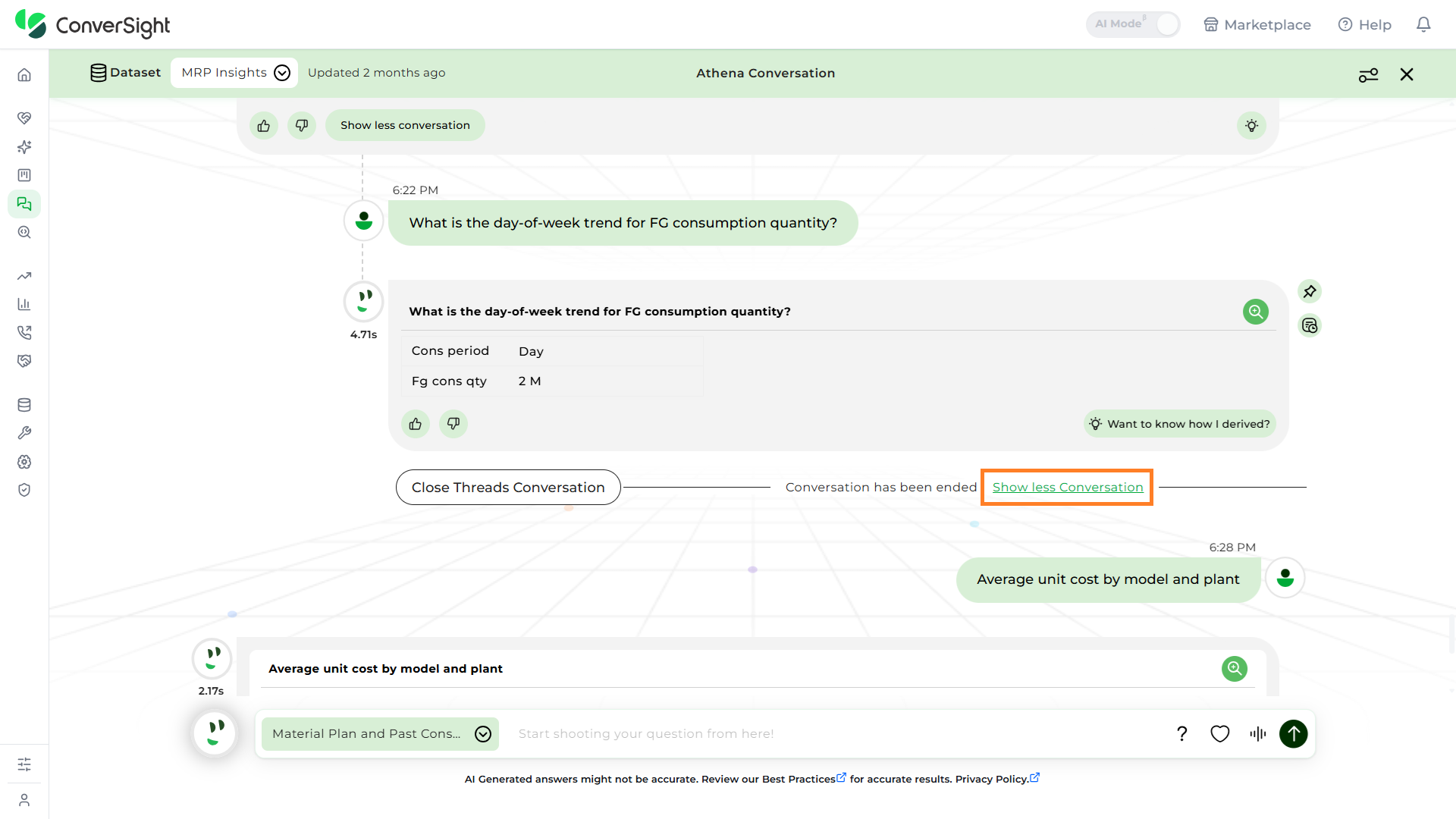
If you do not wish to continue, you can close the thread by clicking the Close Threads Conversation button.
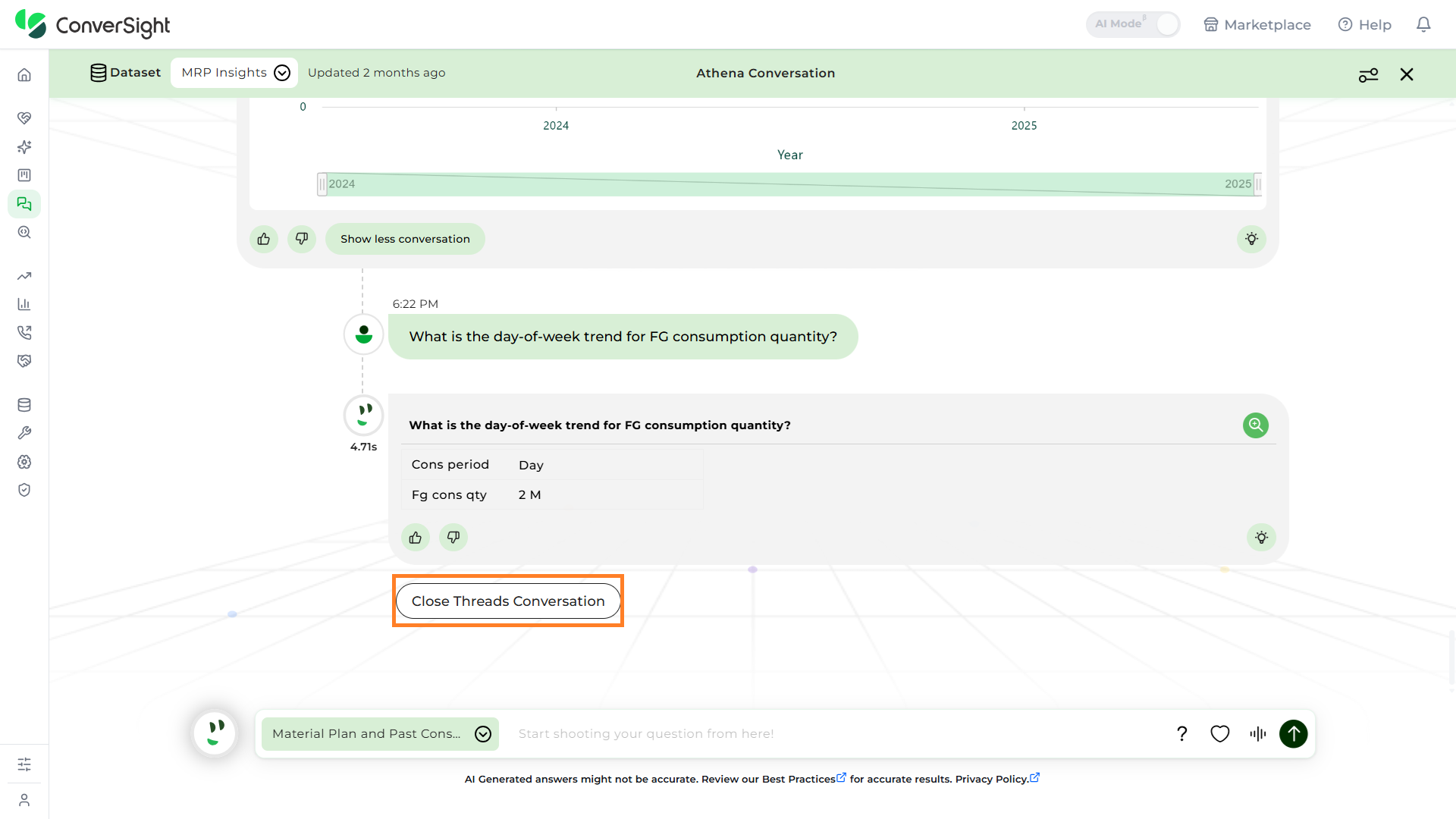
To open a previous chat, select Show More Conversation to expand the view and display past conversations and to collapse the view select Show Less Conversation.
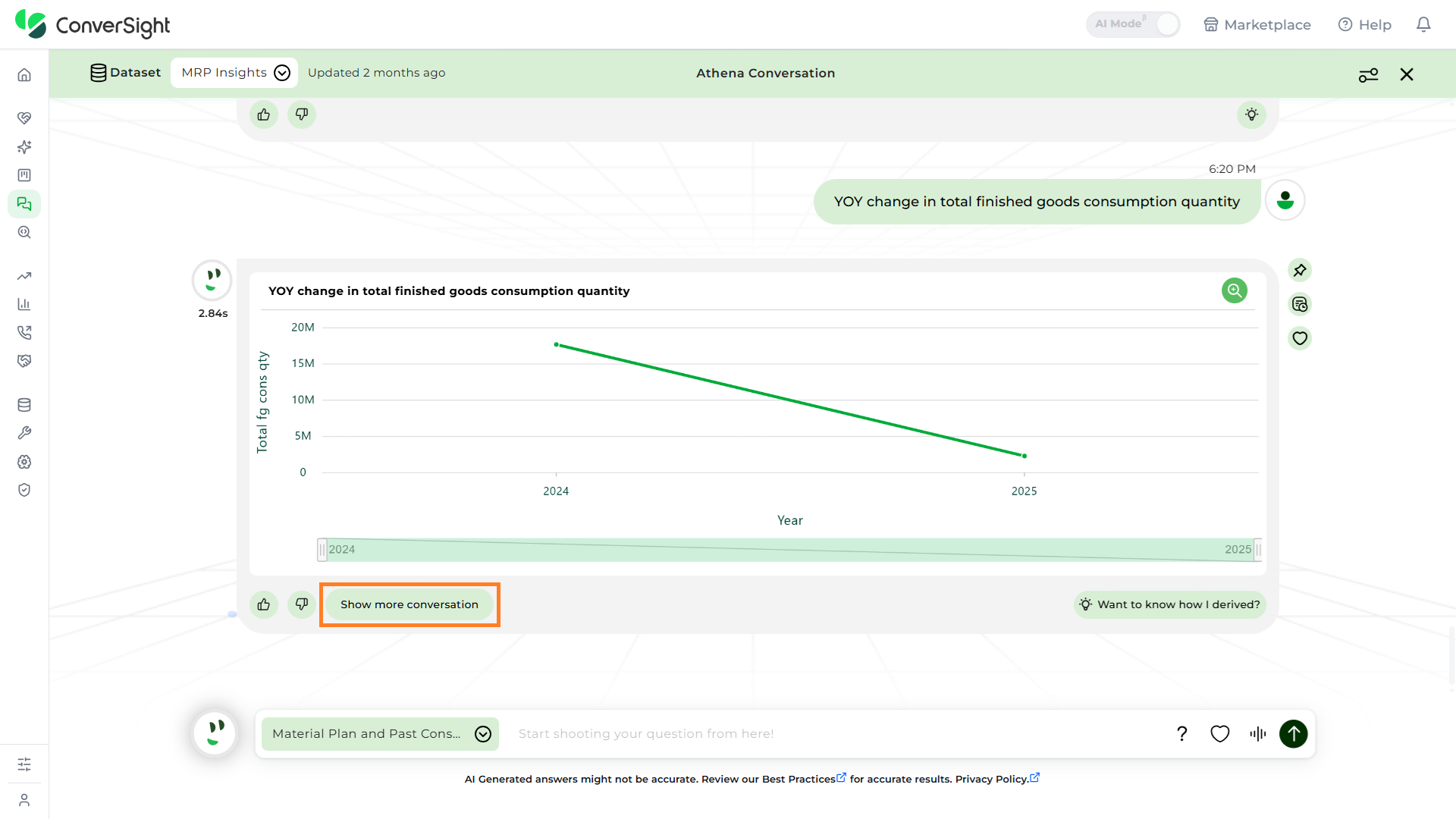
What kind of queries can I ask?
With ConverSight GPT powered by the GPT API, revolutionizes the conversation experience, making it remarkably human-like. Users can now engage with Athena in a manner that closely resembles interacting with a knowledgeable colleague. This advanced technology enables natural and intuitive interactions, bringing a new level of sophistication to the user experience. With the integration of advanced GPT features, the ConverSight platform transcends expectations, delivering transformative insights, captivating narratives, actionable discoveries and lifelike interactions.
Some commonly asked questions are
- How many orders have we received last week
- What is my highest sales item count this year
- Give me the top 10 orders by revenue
- What is my YTD revenue
- What is my total revenue for this year
- What is my sales forecast for the next 6 months
- Who are my top performing customers
- Give me the revenue by quarter for 2018
- What is the profit % for this year
- Revenue by customer
Proper Format to ask Athena
When asking a question to Athena, it is crucial to use the proper format to ensure an effective response. Here are the guidelines:
- Focus on Domain-Specific Queries: Athena is optimized for questions related to the domain or business area you have selected. Ensure that your queries are specific to this chosen domain for accurate results.
- Use Configured Terminology: Ensure that the terms and jargon in your questions are configured in the Subject Matter Expert (SME) page. Athena requires these configurations to understand and process your queries correctly.
- Ask Comparative Questions: Users can ask comparative questions to analyze differences between data points, periods or categories. For example, you might compare sales figures between two months, evaluate performance across different regions or examine trends over time.
- Incorporate Special Queries: When dealing with unique analytical requirements, include special queries to address specific data needs. Special queries are particularly effective for handling customized analyses and in-depth explorations, allowing you to tailor your questions for more detailed and specific insights. Since special queries can be complex, it is recommended to use only one special query per Athena request to ensure clarity and accuracy.
- Configure Relationships for Multi-Table Queries: For queries involving columns from multiple tables, ensure that a Relationship is configured properly in the SME page to ensure accurate results.
Let's look into the main features of Athena one by one.
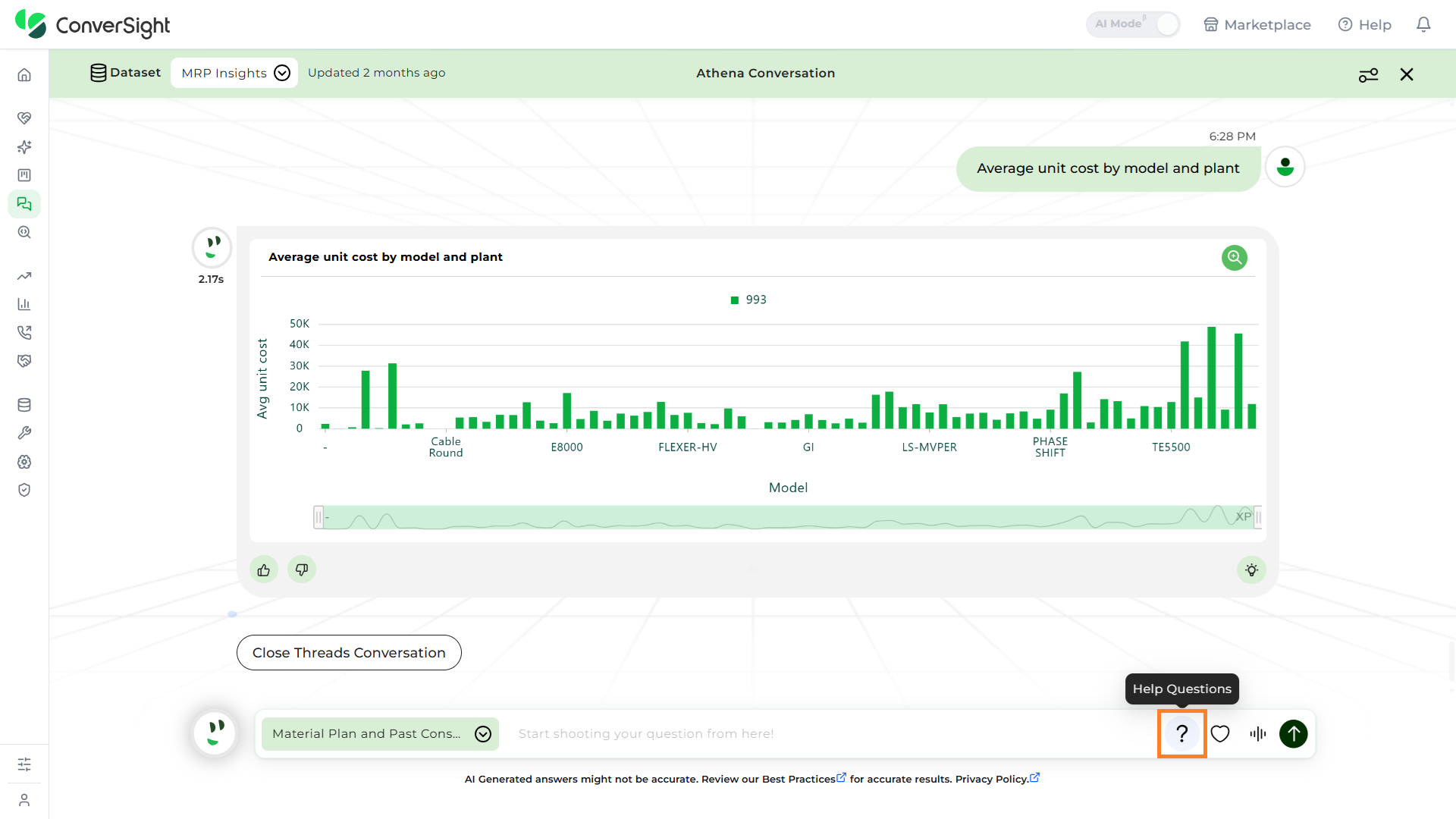
Help Questions
The Help Questions feature offers a list of all available data elements, including table and column sources. Additionally, it presents the Frequently Asked Questions (FAQ) on the right side of the chat window.
Ask by Voice
The query search bar in the chat window has a microphone symbol, which you can use to verbally ask your query. Once the voice icon is clicked on, it starts listening to your queries and you will receive the results either by table or chart.

Comparative Questions
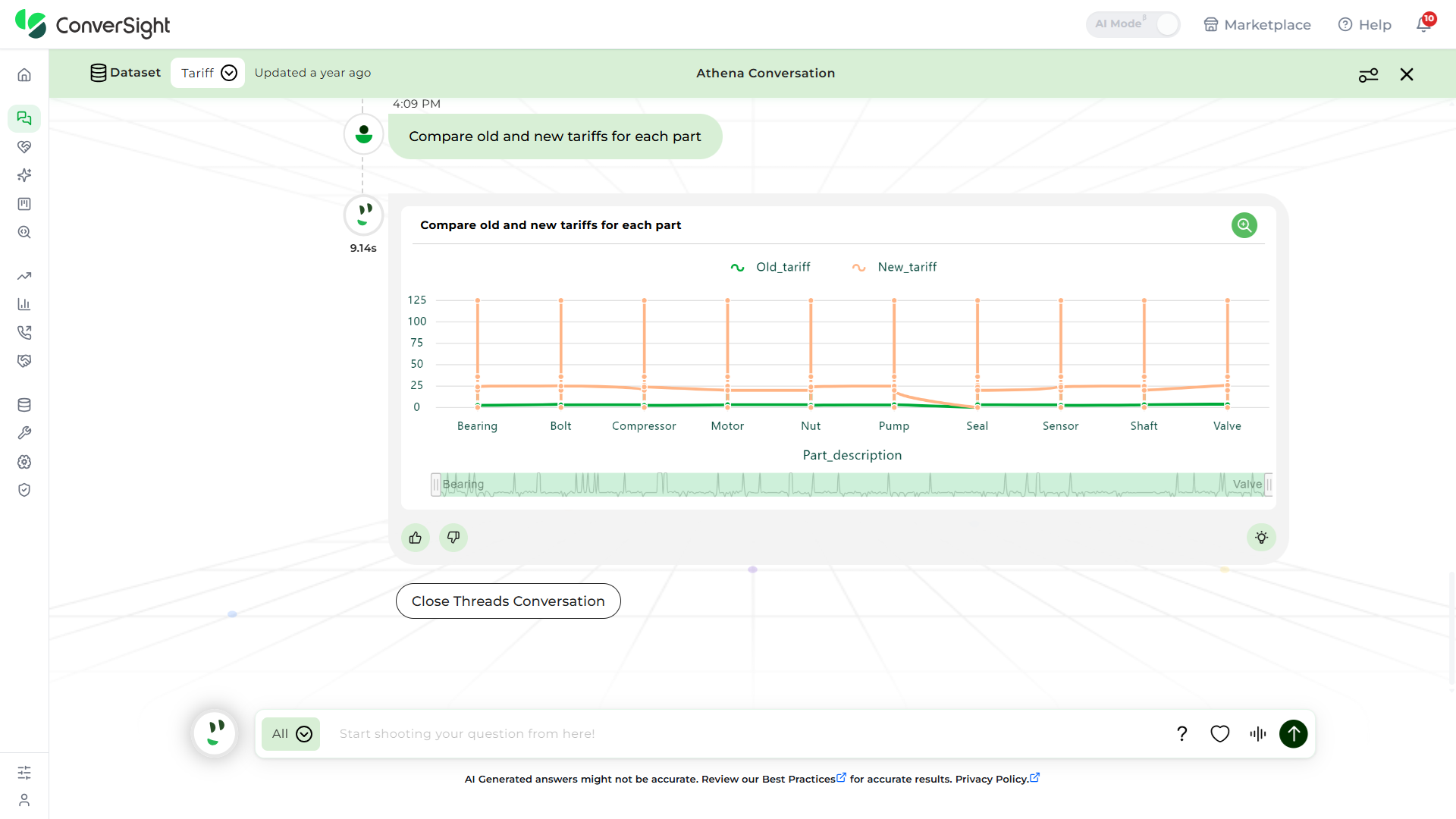
Comparative questions are added as an extra in the features available through ConverSight. In the Webchat page, you can ask a query, like Compare old and new tarrifs for each part. Insights will give you an answer for the same query.
Drilldown
A drill-down report is a report that allows users to navigate to a different layer of data granularity by navigating and clicking a specific data element on a web page or in an application. Drill down allows users to explore multidimensional data by navigating from high level information to a more detailed look.

You can use, explore icon on the webchat result and view it on full screen.
For example, when you query “Revenue by month”, you will get a chart with the correct information based on the data provided.
If you would like to see more about just one month, click the dot point on the month of your choice and it will move to an in-depth explanation of the month you want.
Preferences
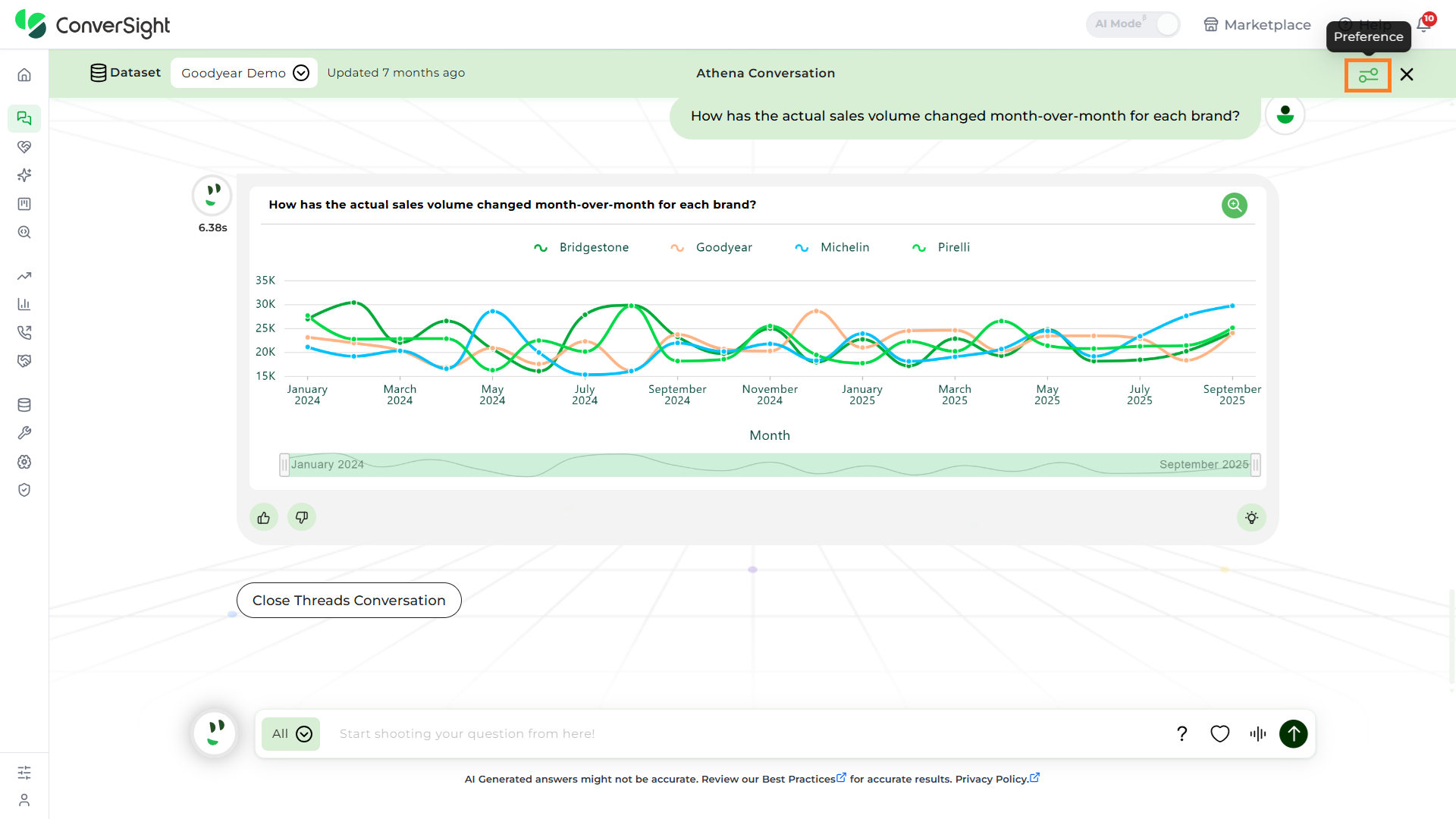
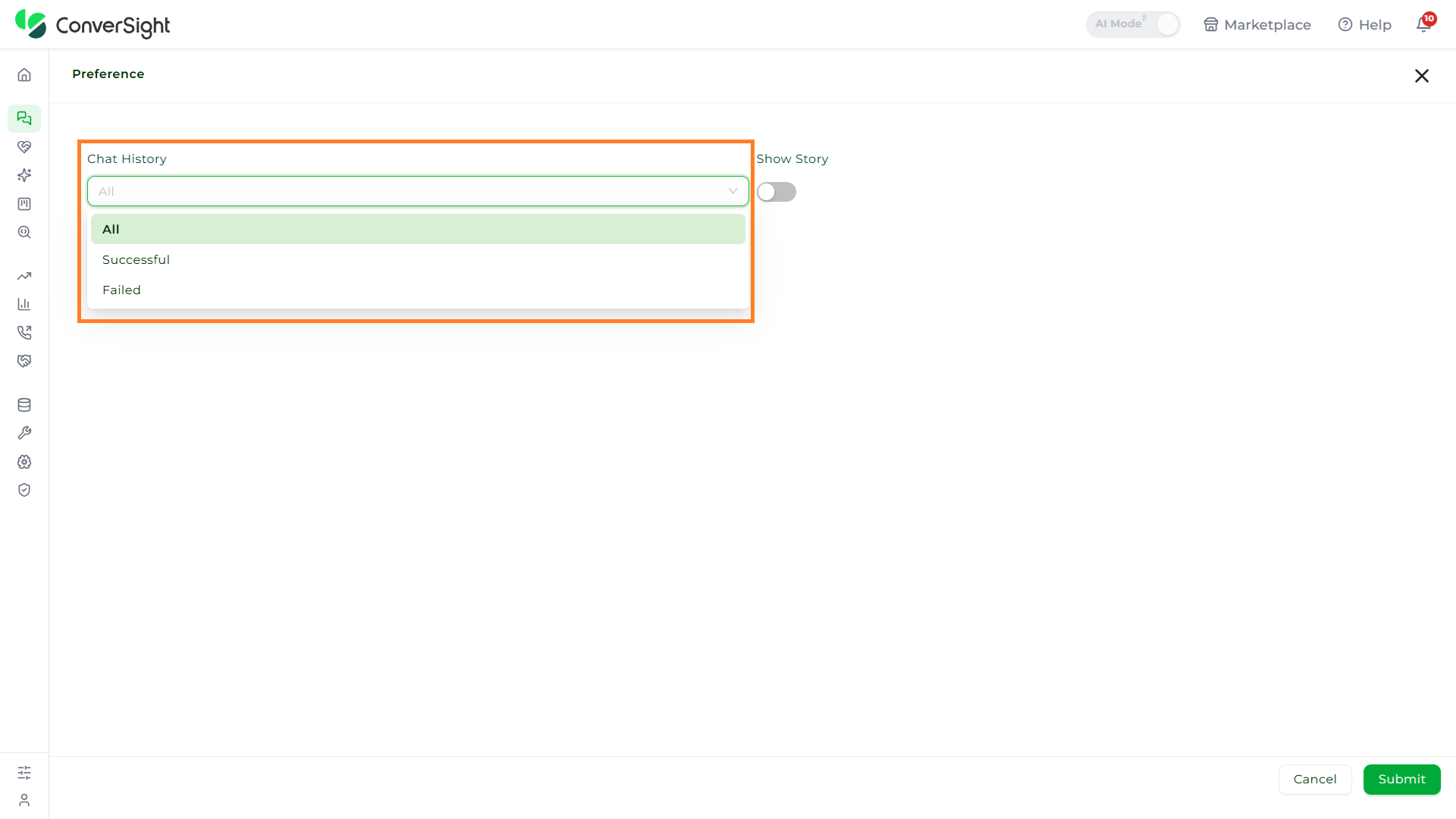
Users can customize their Athena web chat view for their own use through the Chat History dropdown by selecting the Preference option.
- Successful: Displays all successfully generated insights.
- Failed: Lists all failed insights in the web chat.
- All: Presents both successfully generated and failed insights in the conversation.
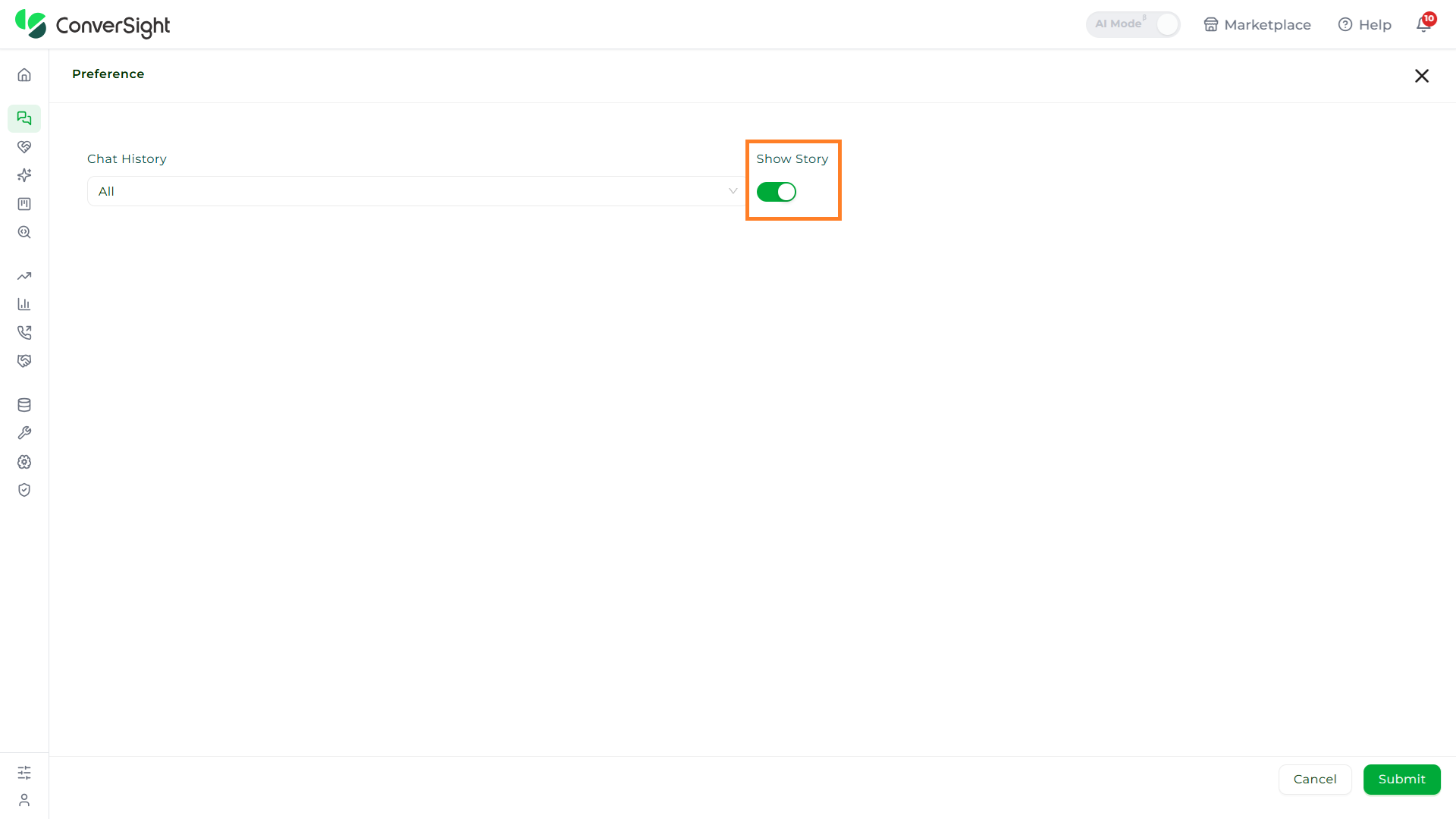
Show Story
Users can enable the Show Story toggle to activate the story generation feature in Athena Webchat. This setting is specific to each dataset and is disabled by default.
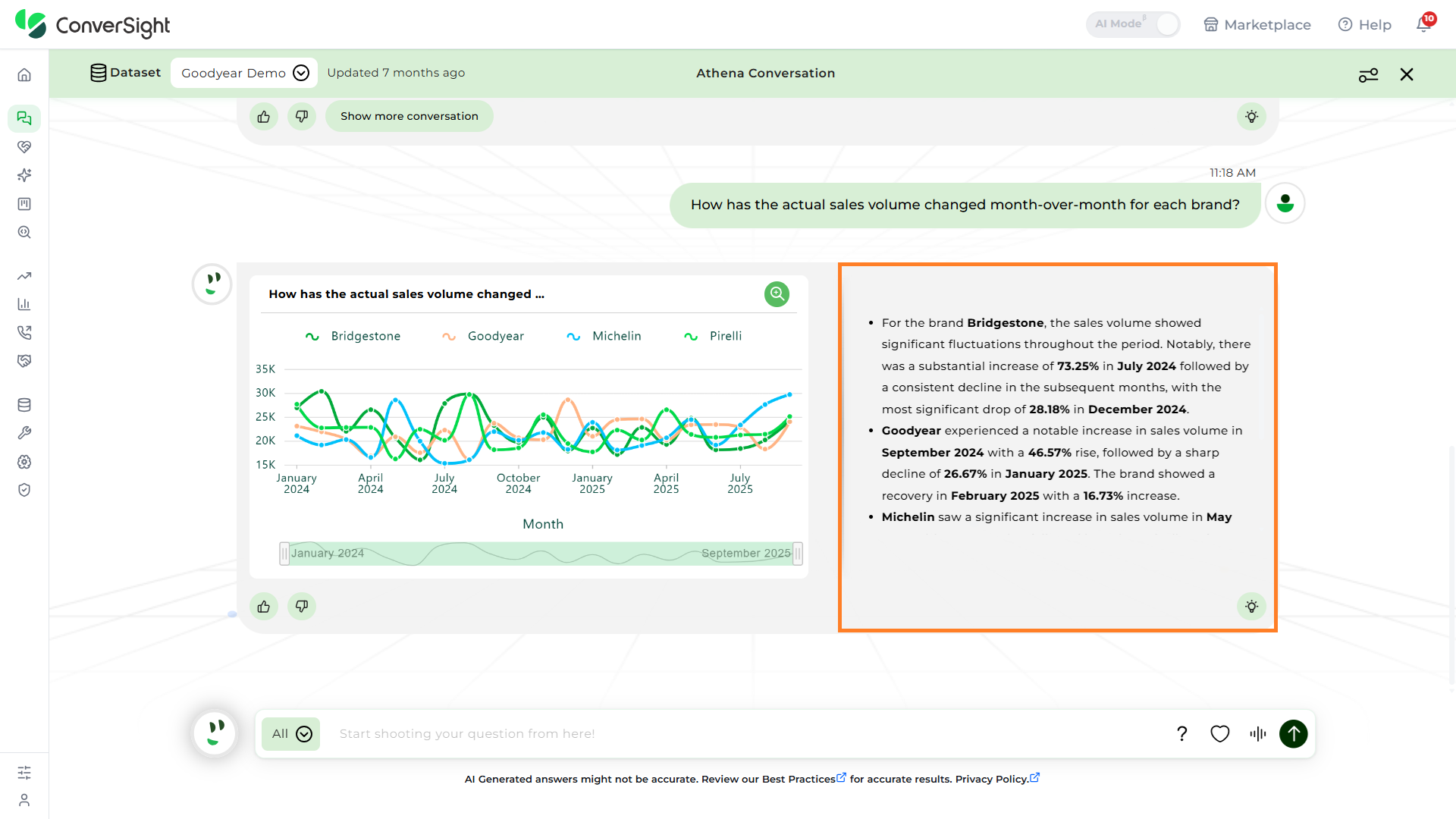
Once the toggle is enabled the story will be generated alongside the insight in the chat.
Story generation is restricted when the column count or value count exceeds 5,000.
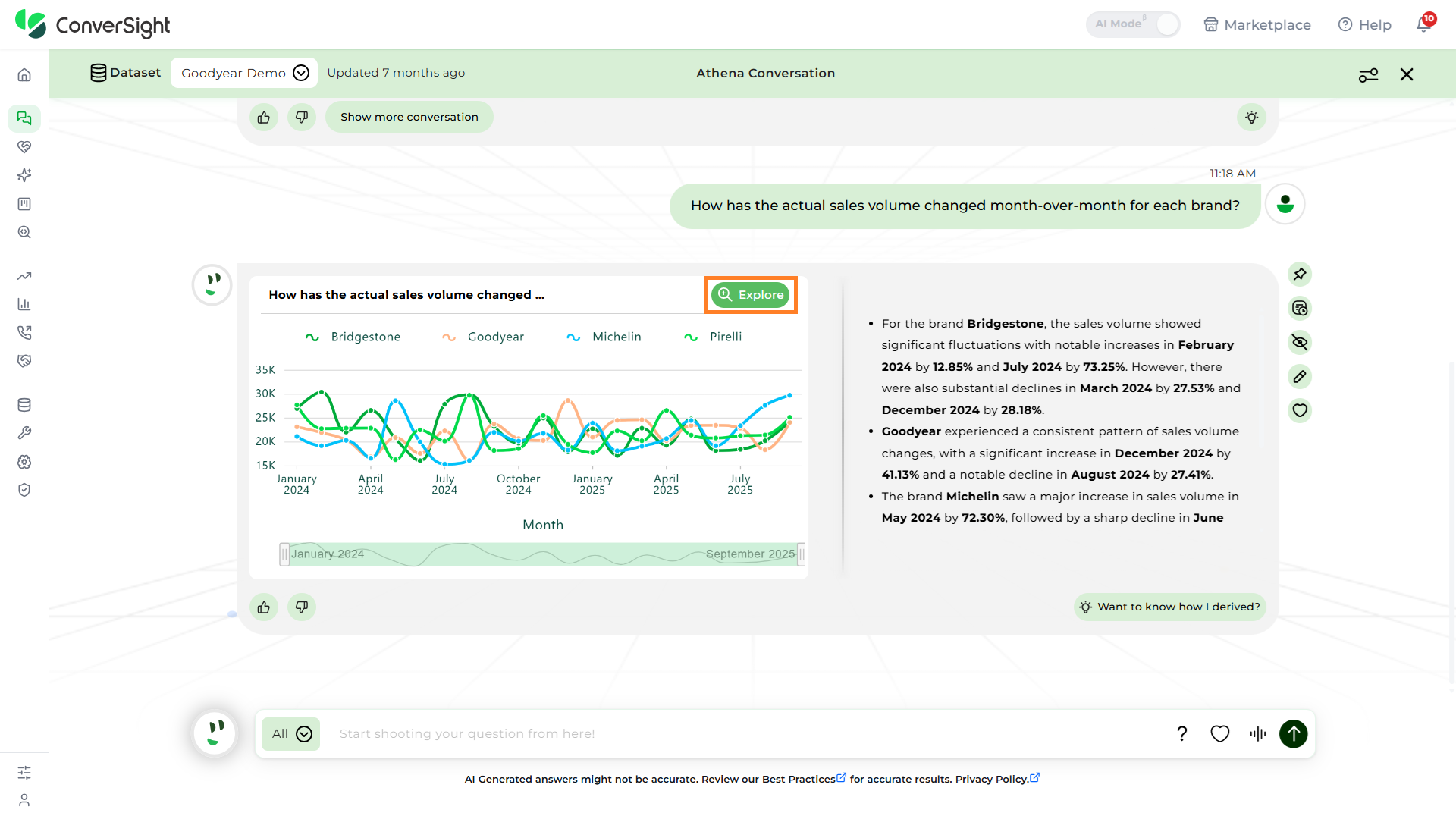
Explore
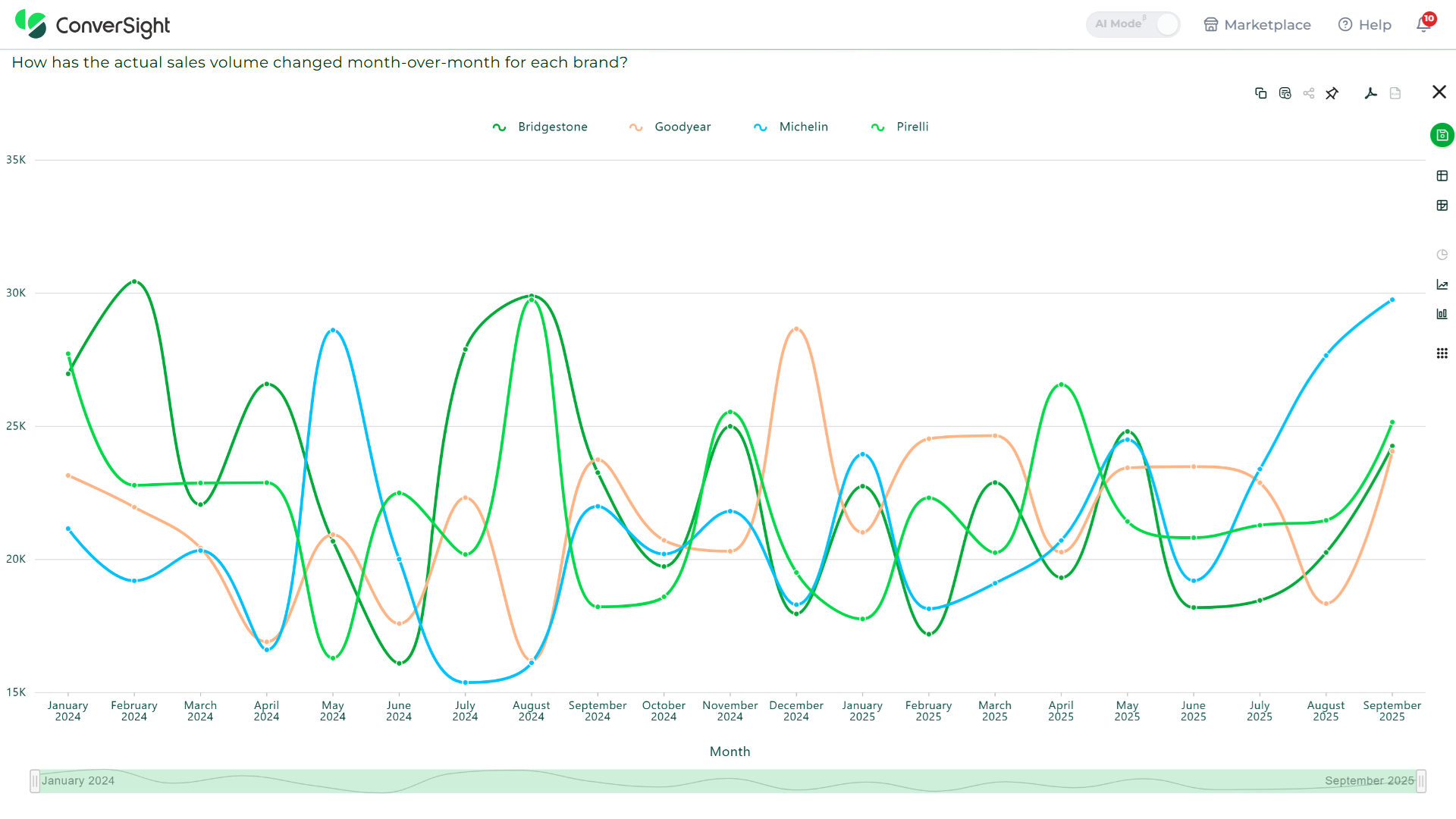
The Explore option offers a comprehensive view of your response with flexible options to interact with the data. From copying, exporting to PDF, or Excel, users can manage and visualize reports easily. Multiple chart types—such as CS Table, Pivot, Pie, Column, Line, and more—allow users to view data in the format that best suits their needs.
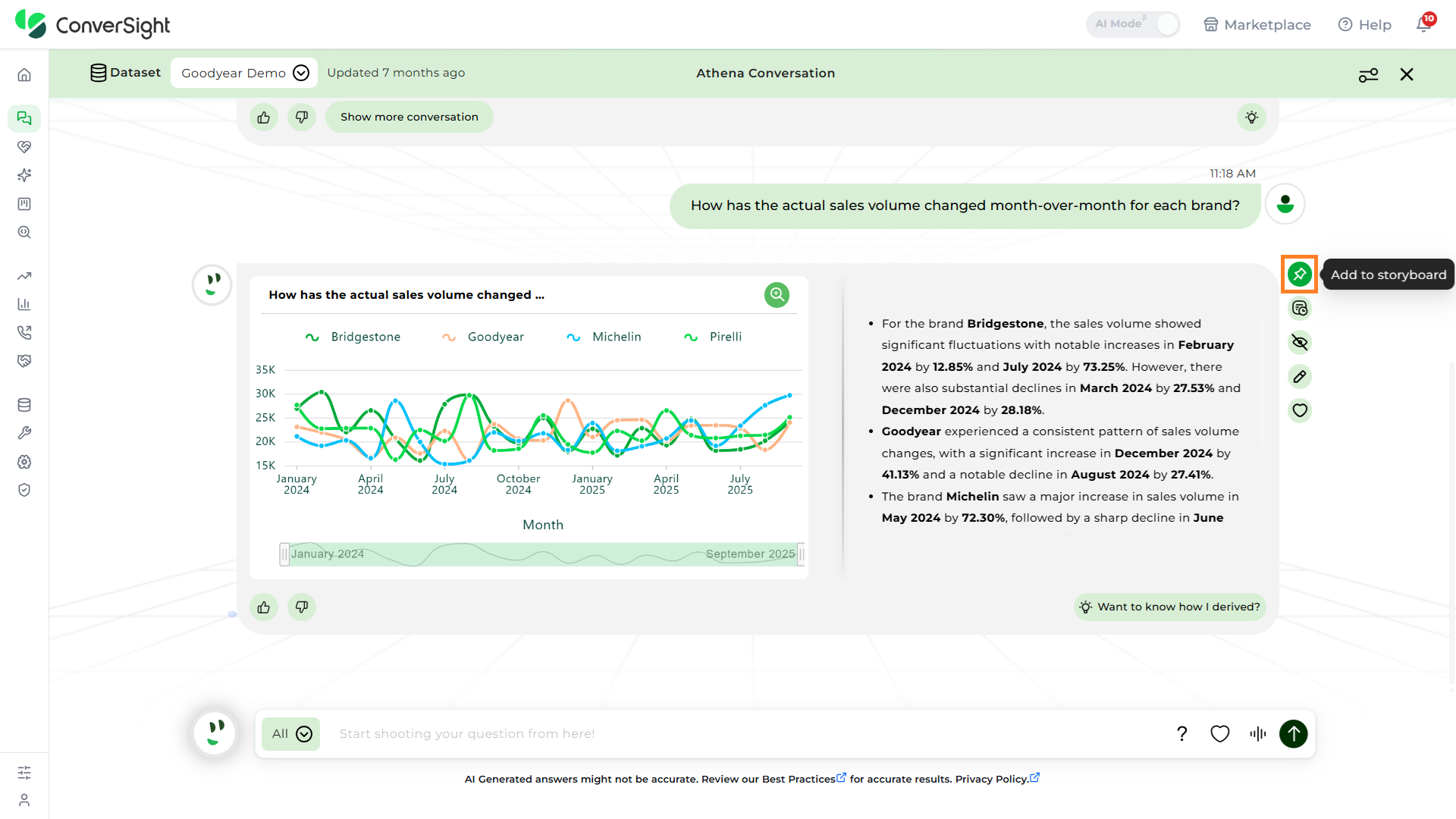
Add to Storyboard
The Add to Storyboard option allows users to save important insights to a storyboard for quick and convenient access. This helps users easily revisit frequently used or business-critical insights without having to scroll through the Athena conversation each time.
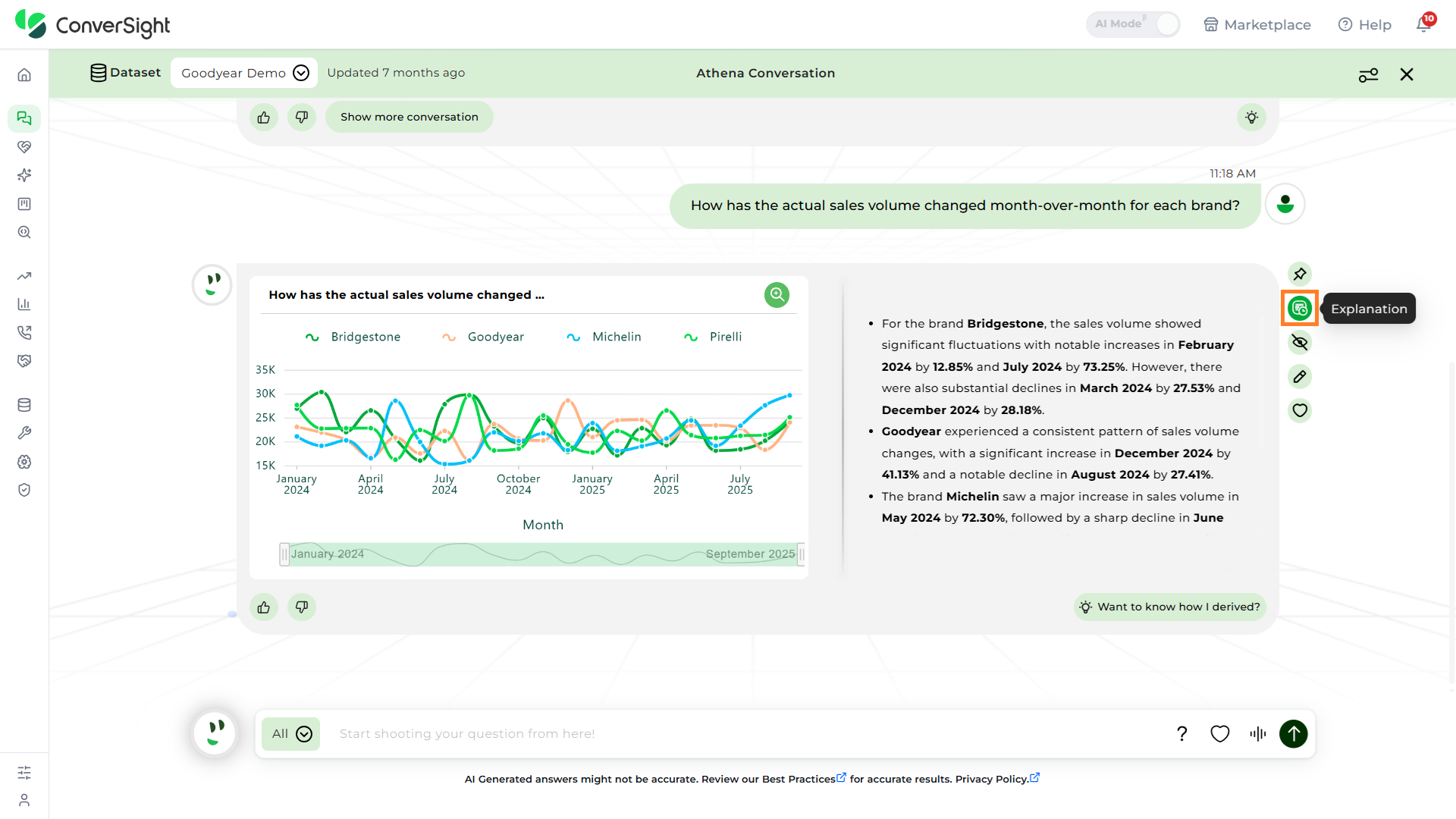
Explanation
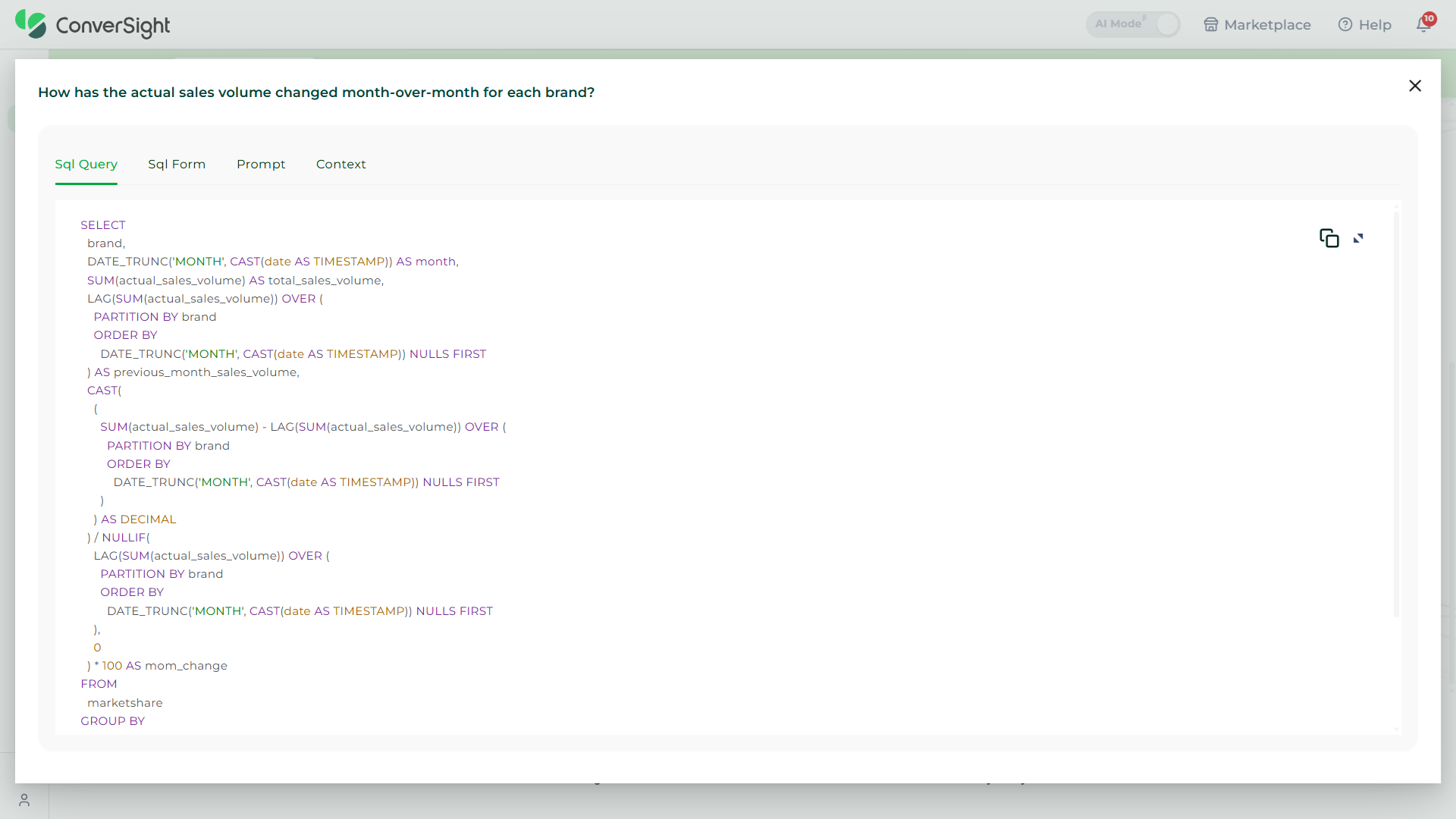
The Explanation option provides a detailed breakdown of how a user’s query was interpreted and processed by the system. When selected, it reveals four key components—SQL Query and SQL Form — that together help users understand the logic behind the generated result. This option is designed to increase transparency and provide insight into how data was retrieved and structured.
| Field | What It Is | What It Does |
|---|---|---|
| SQL Query | The raw SQL statement generated based on the user's input or system logic. | Retrieves data from the database by applying filters, groupings, and conditions to match the request. |
| SQL Form | The structured format or schema view of the SQL logic. | Breaks the query into components like select fields, filters, group by, etc., for easy interpretation. |
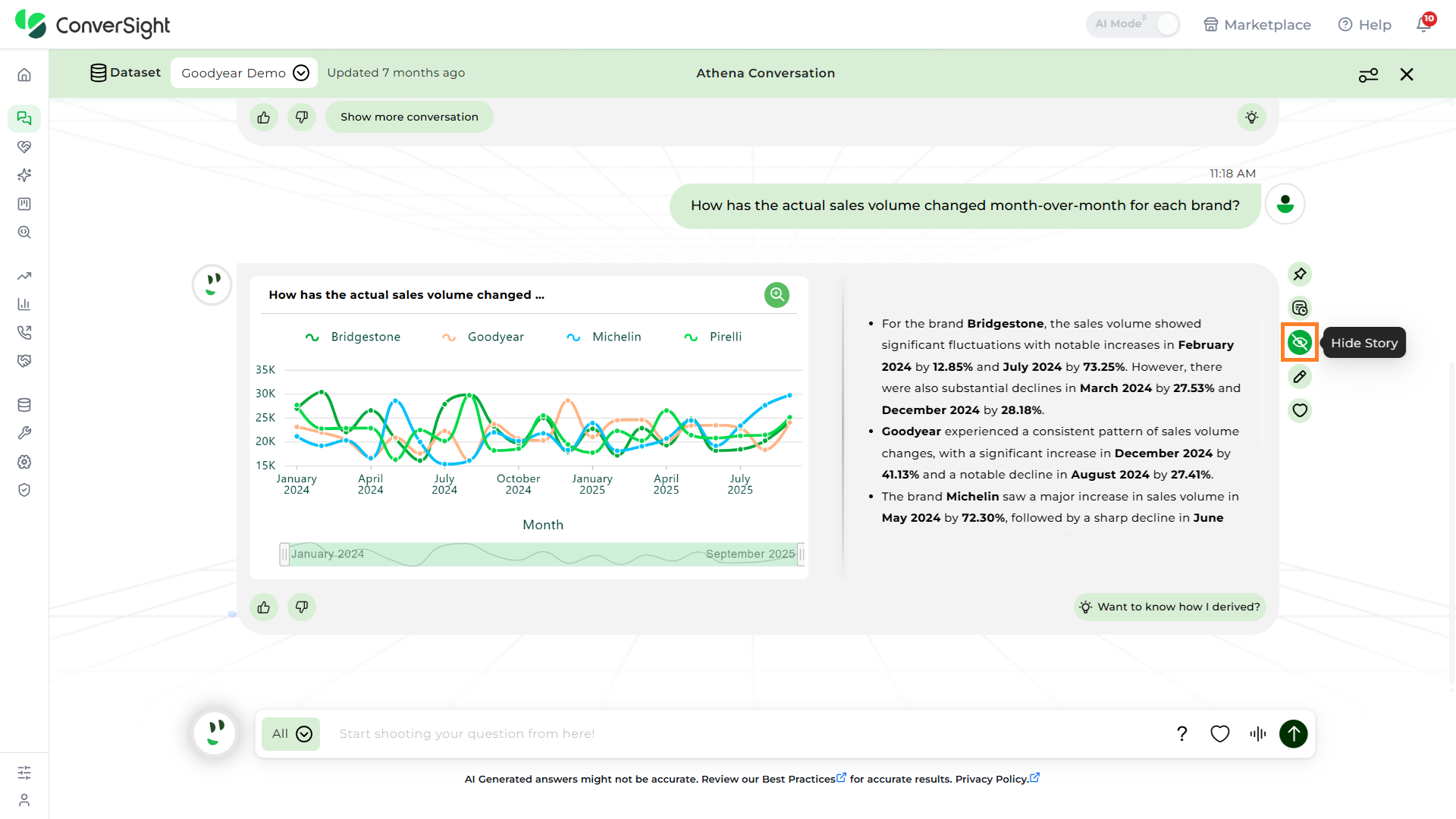
Show/Hide Story
This option displays or hides the automatically generated narrative summary based on the query response. The story provides a plain-language explanation of the key insights, such as trends, comparisons, peaks and dips, helping users quickly understand the data without analyzing charts or tables. Clicking on this option allows users to either view or collapse the story as needed.
Adjust Story Parameters
This option allows users to customize how the story is generated from the data response.
- Temperature: Controls the creativity and randomness of the story. A lower value (e.g., 0) results in a more focused and factual narrative, while a higher value (e.g., 1) introduces more variety and creativity in the explanation.
- Max Tokens (Story Length): Defines the length of the generated story. It accepts a minimum of 500 tokens(words) and a maximum of 4000 tokens(words).
- Instructions: Lets users provide additional guidance or context for generating the story. For example, "Summarize the story and show all values in billions”. If left blank, the system follows the default narrative approach.
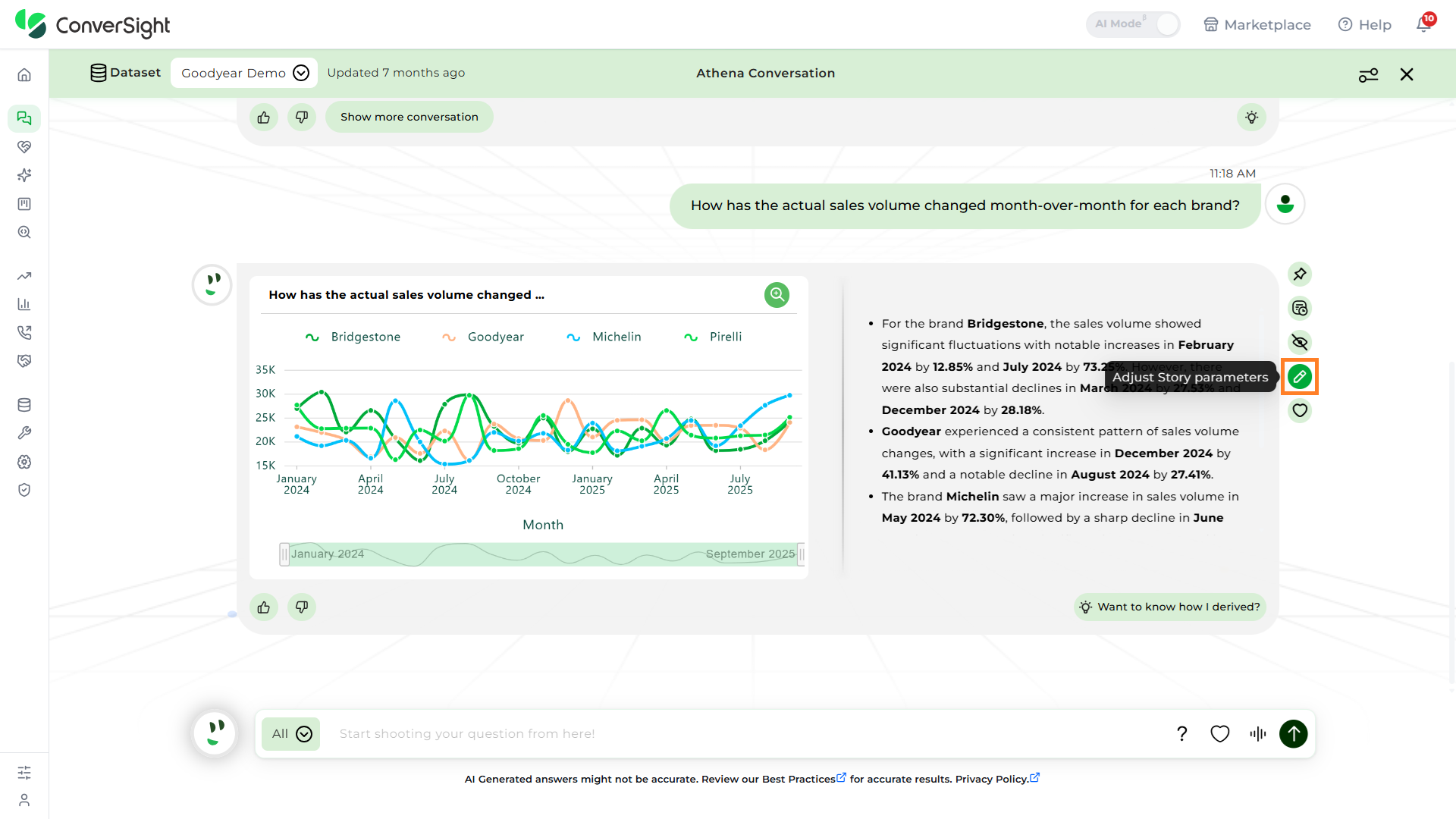
After configuring the parameters, click the Generate Story button to generate the customized story.
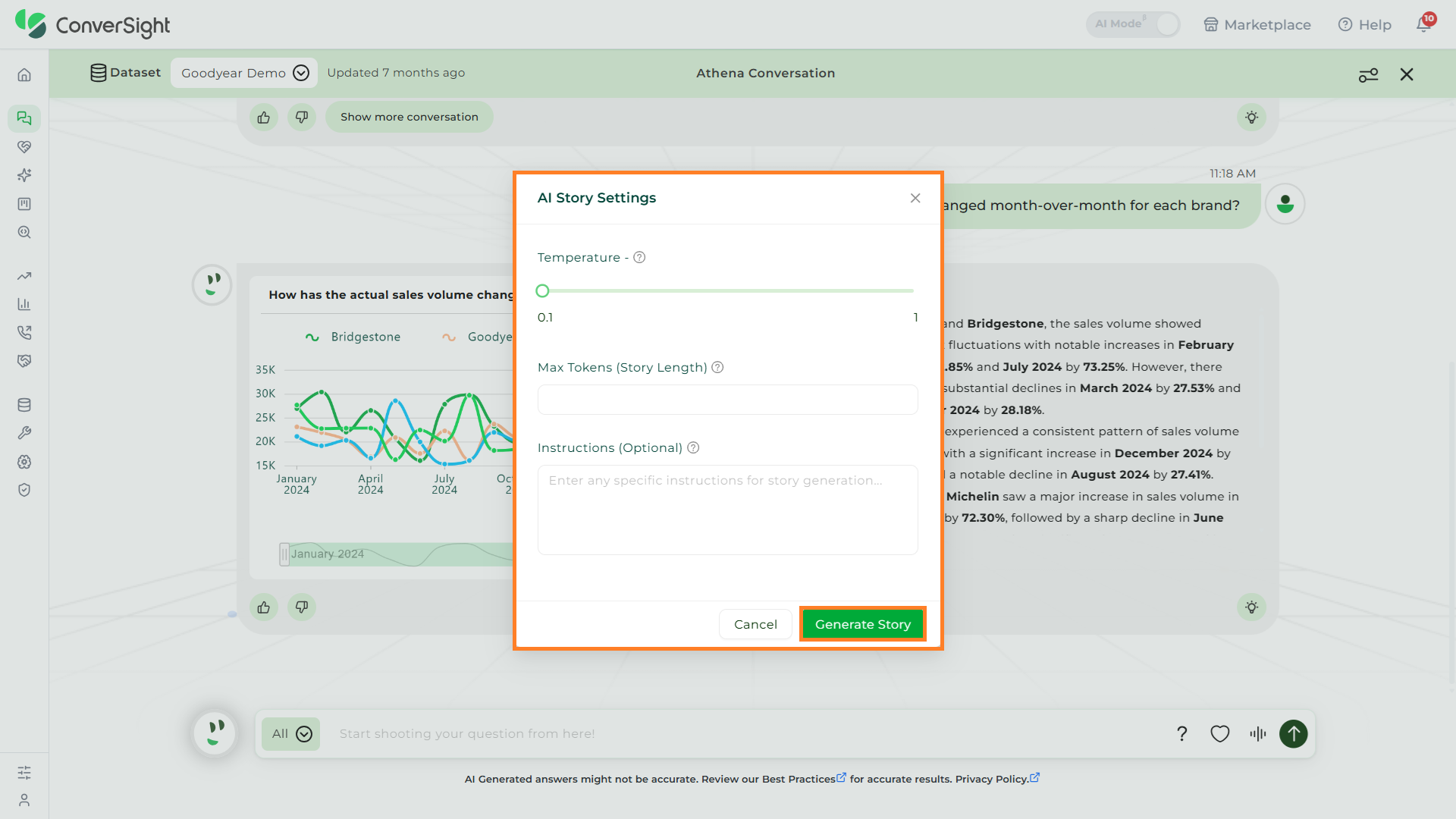
Add to Favorites
The Favorites section in Athena Threads allows users to save specific responses for easy access and future reference. This feature ensures quick retrieval of important insights without having to retype queries.
To save a response as a favorite:
Click on the Favorite icon next to the response you wish to add to favorites.
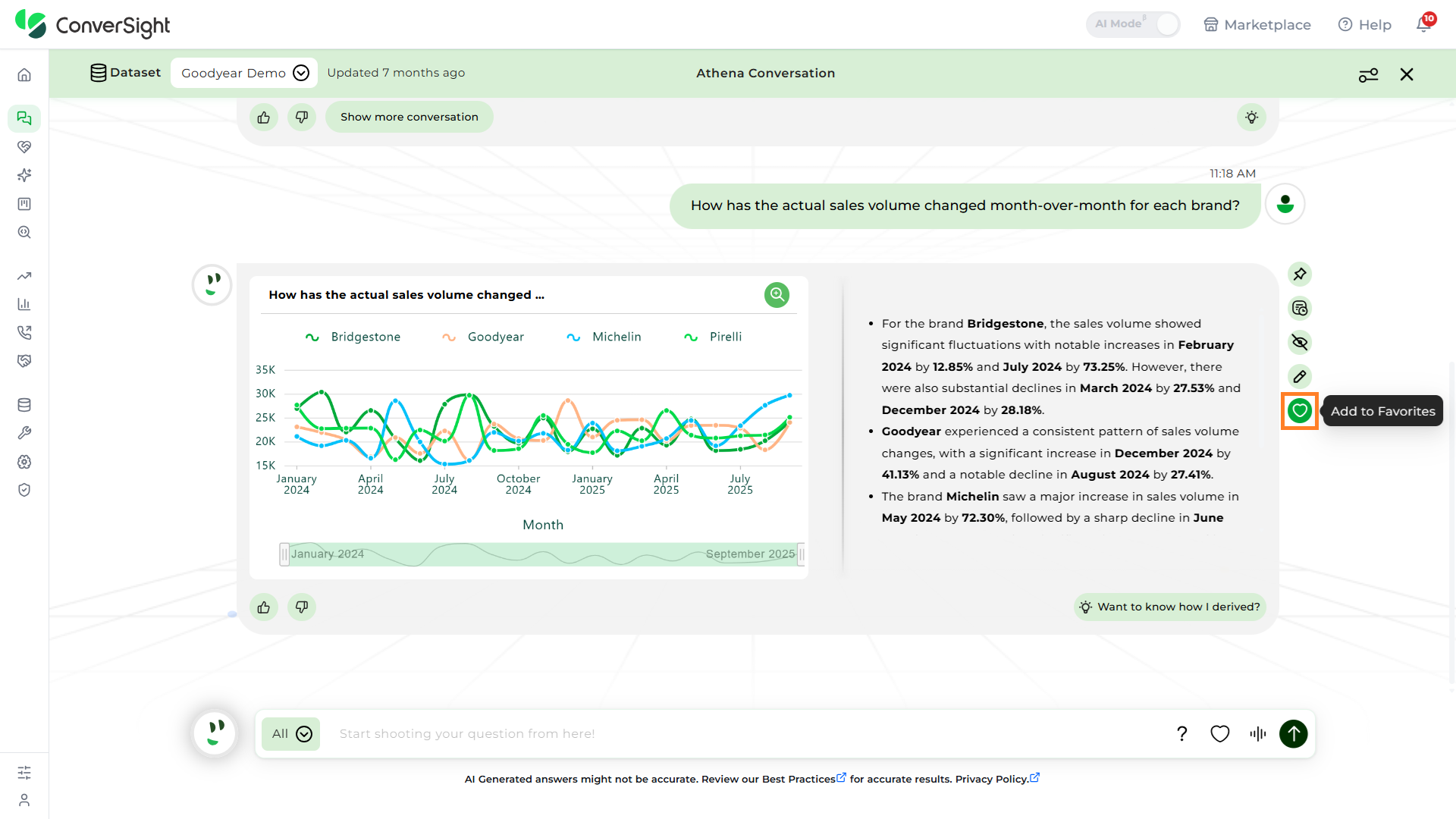
Each Subject Area maintains its own set of favorites. Favorites saved under one subject area are not visible in other subject areas. This ensures that saved responses remain relevant and contextual to the domain they belong to.
Stopping a Running Query
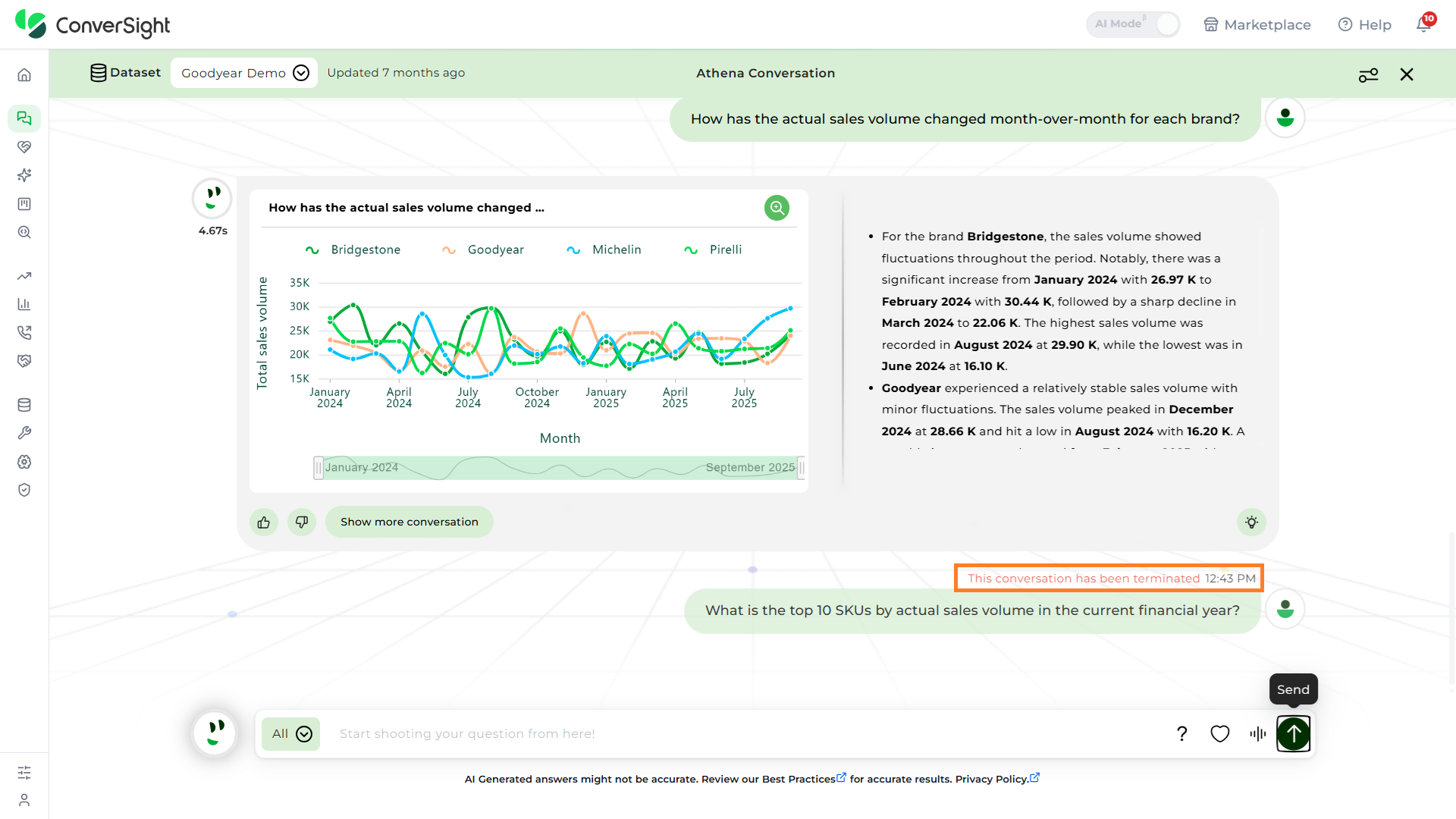
In Athena Threads, if you want to stop a query while it is running, you can simply click on the Stop button. This action will immediately halt the query from continuing to process.
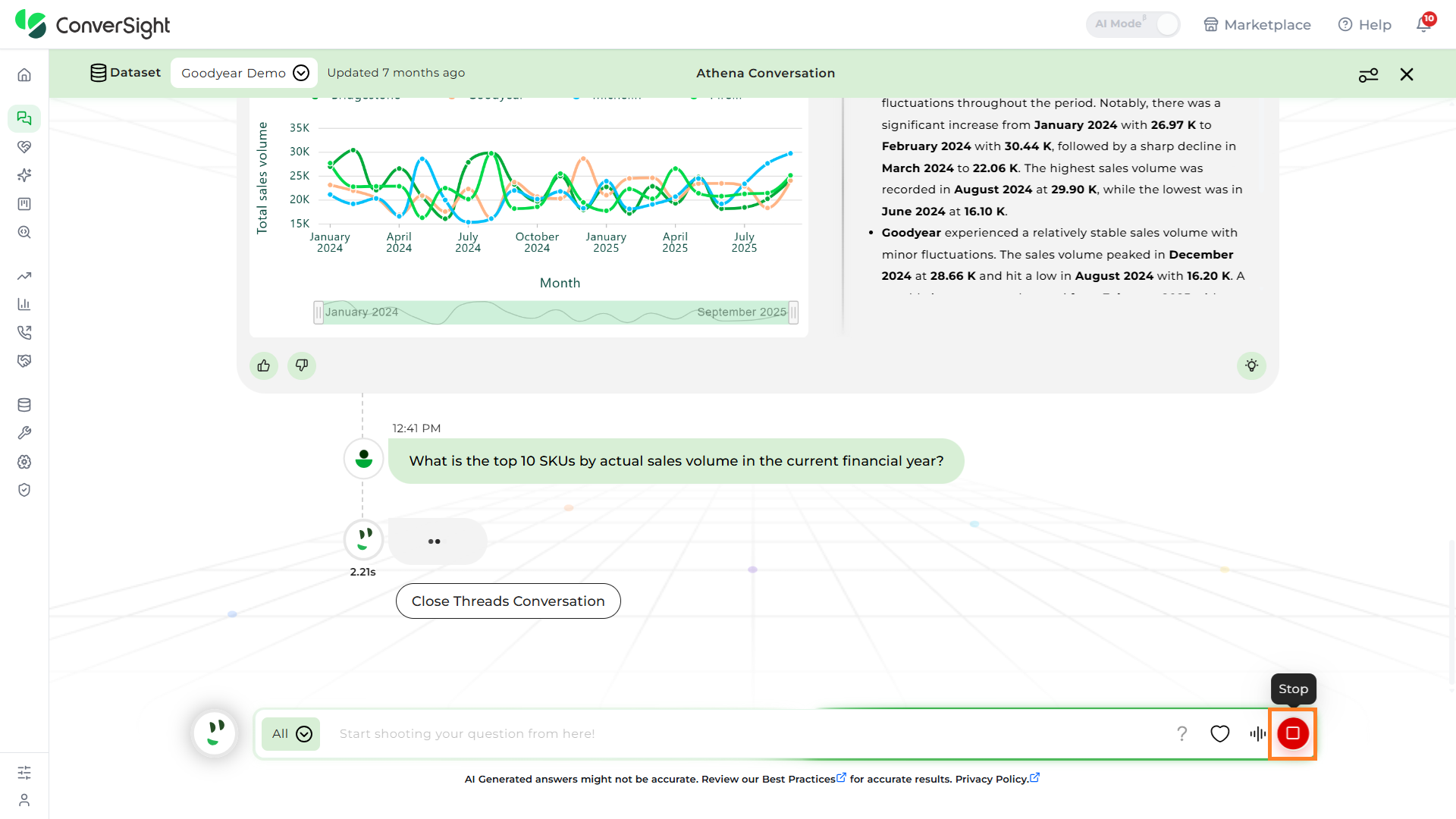
Once stopped, a message will appear on the screen stating, "This conversation has been terminated." After this, you can go ahead and ask your next query without needing to wait for the previous one to finish.
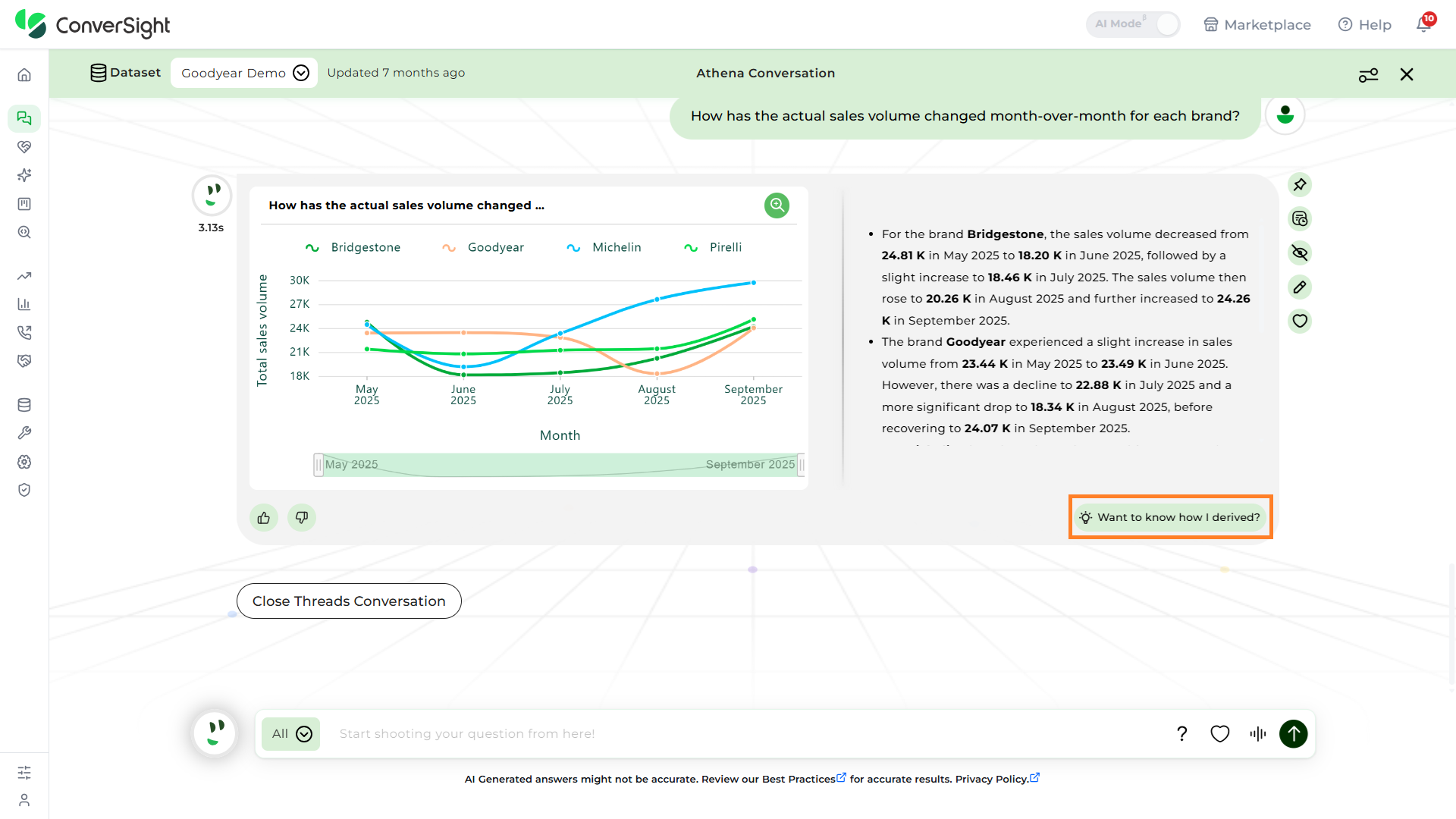
Want to know How I Derived
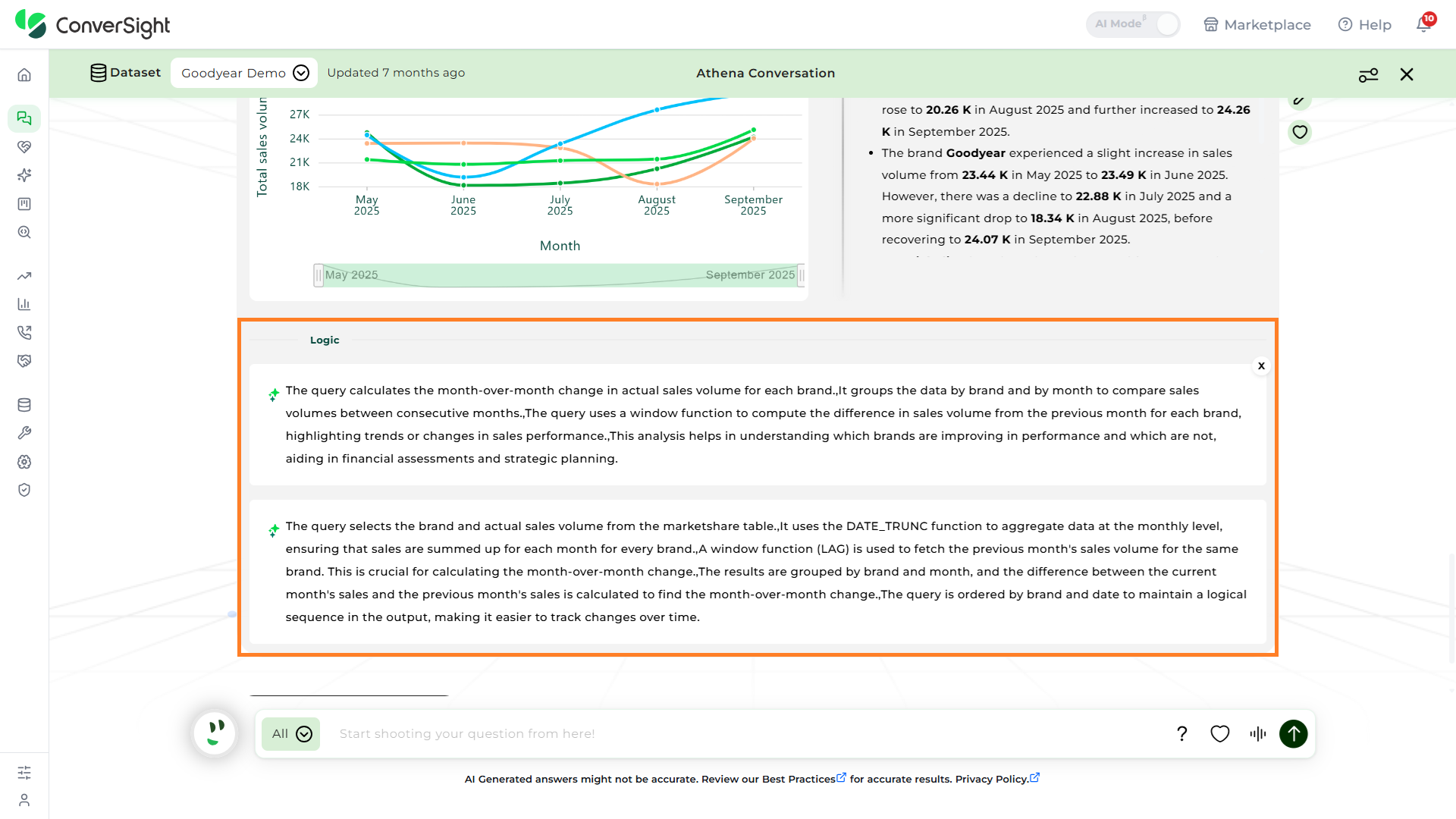
The Want to know How I Derived option in Athena provides users with a deeper understanding of how their query is interpreted and processed. When clicked, it explains the logic behind the query, the filters applied and the SQL logic used to generate the results.
By providing insights into the query construction and data handling, it helps users understand the reasoning behind the results.
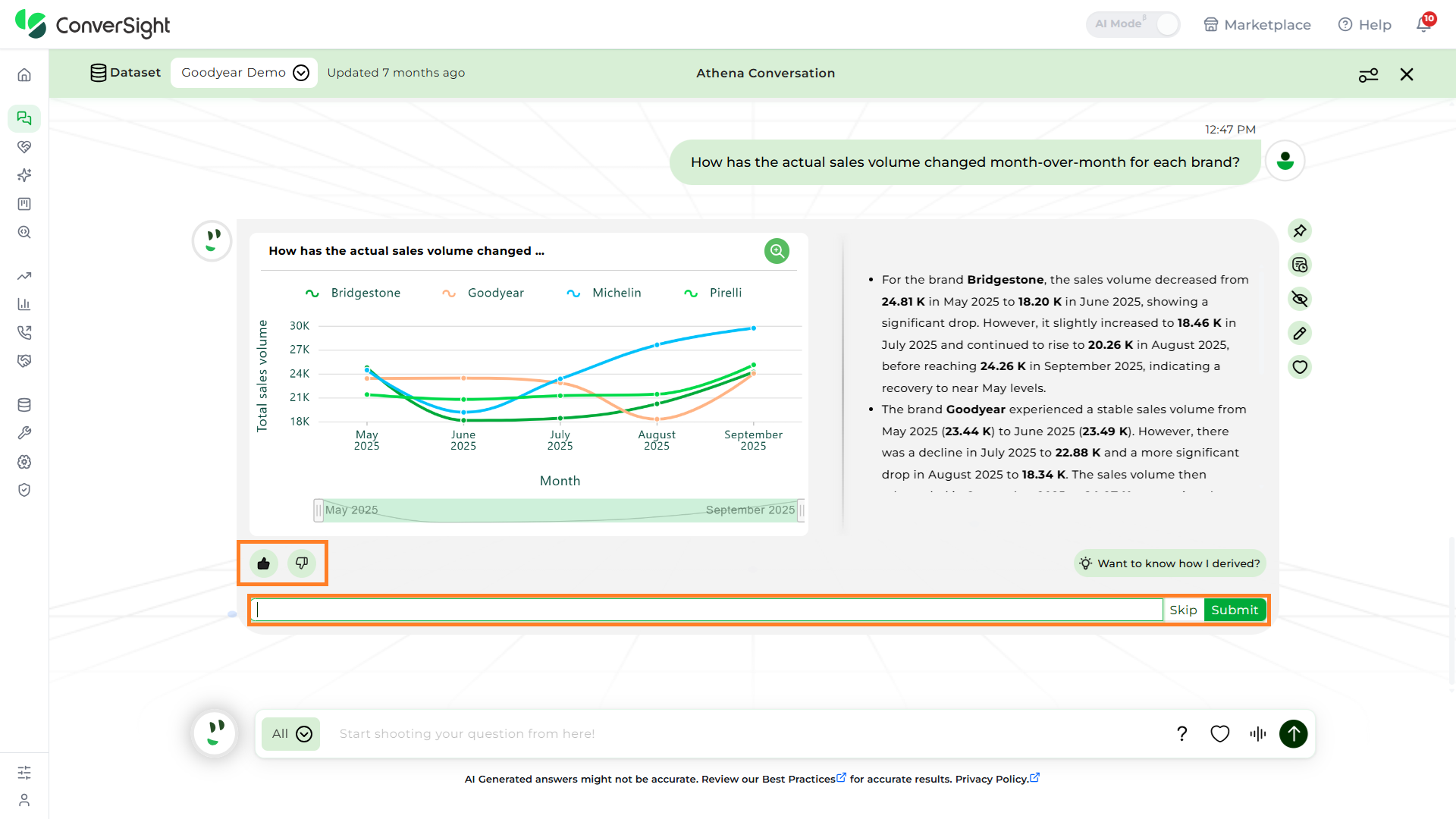
Feedback Through Like and Dislike
The Like and Dislike buttons serve as a way to provide feedback on Athena’s replies. These buttons enable users to express their satisfaction or dissatisfaction with the response.
After selecting either the Like or Dislike button, users can submit their feedback directly by clicking the Submit button.
For more detailed feedback, users have the option to add comments before clicking the Send button. This allows for specific input, helping to improve Athena’s response quality and accuracy.
Restrictions in Athena Chat
There are certain limitations to be aware of:
- External Sharing is Restricted: To preserve data security and context, chat-based queries stay within the platform.
- No Storyboard Pinning: Dynamic conversations deserve a dynamic space. Dashboards serve structured storytelling — Threads keep it spontaneous.
- No Insights Creation: To maintain consistency and context, insights are better generated through structured workflows, while Athena Chat serves as your space for fast responses and on-the-fly exploration.
- No Drill-Down Support: To keep conversations swift and focused, drill-down actions are currently unavailable in Athena Threads, though it may be revisited in future enhancements.
- Smart Columns Limitation: Smart Columns are not currently applied within Athena Threads. However, upcoming improvements will begin enabling them — with single-table queries only — allowing for more contextual insights while keeping performance optimized.
Best Practices Guide
This guide outlines key practices to help you get fast, accurate, and context-aware responses from Athena. Think of it like working with a human analyst — the clearer your input, the better the output.
1. The Golden Rule: Focus for Accuracy
Athena delivers the most accurate results when its attention is narrowed to a specific dataset. Broad questions across the full database can lead to answers which is not specific to a Subject Area or incorrect answers (often referred to as "hallucinations").
To prevent this, always choose the correct Subject Area before starting your query. This tells Athena exactly where to look and ensures the context of your question is tightly aligned with the underlying data.
2. Mastering Athena with Subject Area Tagging
What is a Subject Area?
A Subject Area is a high-level, logical grouping of related data tables. Think of it as telling Athena which department or business function you want to discuss.
Why is it Important?
By selecting a Subject Area, you provide crucial context. This narrows Athena's focus, leading to:
- Higher Accuracy: Athena knows exactly which tables contain “revenue” or “customer names”.
- Faster Responses: Less data to search through means quicker answers.
- Reduced Hallucinations: Prevents Athena from guessing or pulling data from unrelated areas (e.g., confusing sales order dates with purchase order dates).
Examples of Subject Areas:
| Subject Area | Includes Tables Like... | Sample Question |
|---|---|---|
| Invoice/Sales | Sales Orders, Sales Order Line Items, Customers, Invoices | What was our total revenue last quarter? |
| Purchasing | Purchase Orders, Vendors, Material Receipts | Show me the top 10 vendors by purchase amount. |
| Inventory | Products, Warehouse Locations, Stock Levels | Which products are low on stock in the main warehouse? |
Best Practice: Before you start asking questions, ensure you are working within the correct Subject Area for your intent.
3. Conversational Best Practices
Interact with Athena as if you're having a conversation. It's built to understand context and flow.
Ask Questions Naturally
You don't need to learn a special query language. Just ask.
Instead of: “SELECT SUM(sales) FROM sales_orders WHERE region = 'West'”
Ask: “What were the total sales for the West region?" or "Show me West region sales."
Trust the Dynamic Context
Athena remembers the context of your conversation. You can build on your previous questions without repeating yourself. The context updates dynamically as you shift your focus.
Example Conversation:
1. User: "Show me our total revenue by year."
Athena displays a chart of revenue by year.
2. User: "What about the average tax rate?"
Athena understands you still mean "by year" and automatically shows the average tax rate by year, replacing revenue.
Switching Topics is Okay
Athena has a short-term memory that helps it understand your intent, even if you pivot to a new topic. It will recognize the change and adjust its focus accordingly.
4. Fine-Tuning Your Queries: When to Add More Detail
Sometimes, a request might be too broad or ambiguous, and Athena may not return the exact value you expected. This is common when applying filters.
The Solution: Give Athena a "Little Push"
If a filter isn't working as you'd like, provide more specific details, just as you would if a person misunderstood you.
Example Scenario:
Initial, Ambiguous Query: Filter by status active.
Potential Problem: Athena doesn't know if “active” refers to a customer's status, a product's status, or a subscription's status.
Improved, Specific Query: Filter by customer status active. or Show me sales only for customers with an active status.
By specifying “customer status”, you remove all ambiguity and guide Athena to the precise data you need.
5. Understand How Athena Arrives at Answers
If you ever wonder how Athena derived a particular answer, you can easily view the logic behind it. In Athena-generated insights, look for the prompt: “Want to know how I derived this?”
Clicking it reveals the steps, tables, and logic used to generate the response — helping you validate results and better understand the data behind them.
Best Practice: Use this feature to build trust in Athena’s insights and gain deeper transparency into how answers are formed.
Summary: Key Takeaways
- Focus with Subject Areas: Always start in the right Subject Area to ensure accuracy and speed.
- Speak Naturally: Ask questions in plain English.
- Leverage the Conversation: Build on your previous questions. Athena remembers the context.
- Be Specific When Needed: If your results seem off, especially with filters, add more descriptive detail to your request.
- Think Human: The best way to use Athena is to treat it like a knowledgeable human colleague.