Quick Connect
Quick Connect is Data Studio for business users. Drop a spreadsheet in, get a queryable dataset out — no DA handoff, no modeling, no engineering ticket. Athena validates the structure, flags inconsistencies and outliers, and registers the result as a dataset the rest of the platform can read from. From there, you can ask Athena questions of the data in plain language, pin charts into Storyboards, or build the spreadsheet into an automated AI Briefing.
This bridges two personas: an operator (business analyst, planner, finance lead) brings their own data to the platform, and Athena handles what would normally require a Data Analyst to configure. The Data Analyst can still govern access centrally — Quick Connect datasets live in the same RLS framework as analyst-configured datasets — but the onboarding path is operator-driven.
Quick Connect is especially useful when:
- Datasets contain inconsistencies, missing values, or outliers that would otherwise require manual cleanup.
- Teams need to onboard new spreadsheets quickly without building data models from scratch.
- Business users want to validate, explore, and assign data to AI chat and analysis without engineering support.
Quick Connect also accepts PDF files, alongside spreadsheets, and upcoming releases extend support to additional document types and data sources, broadening what an operator can bring to the platform without a technical handoff.
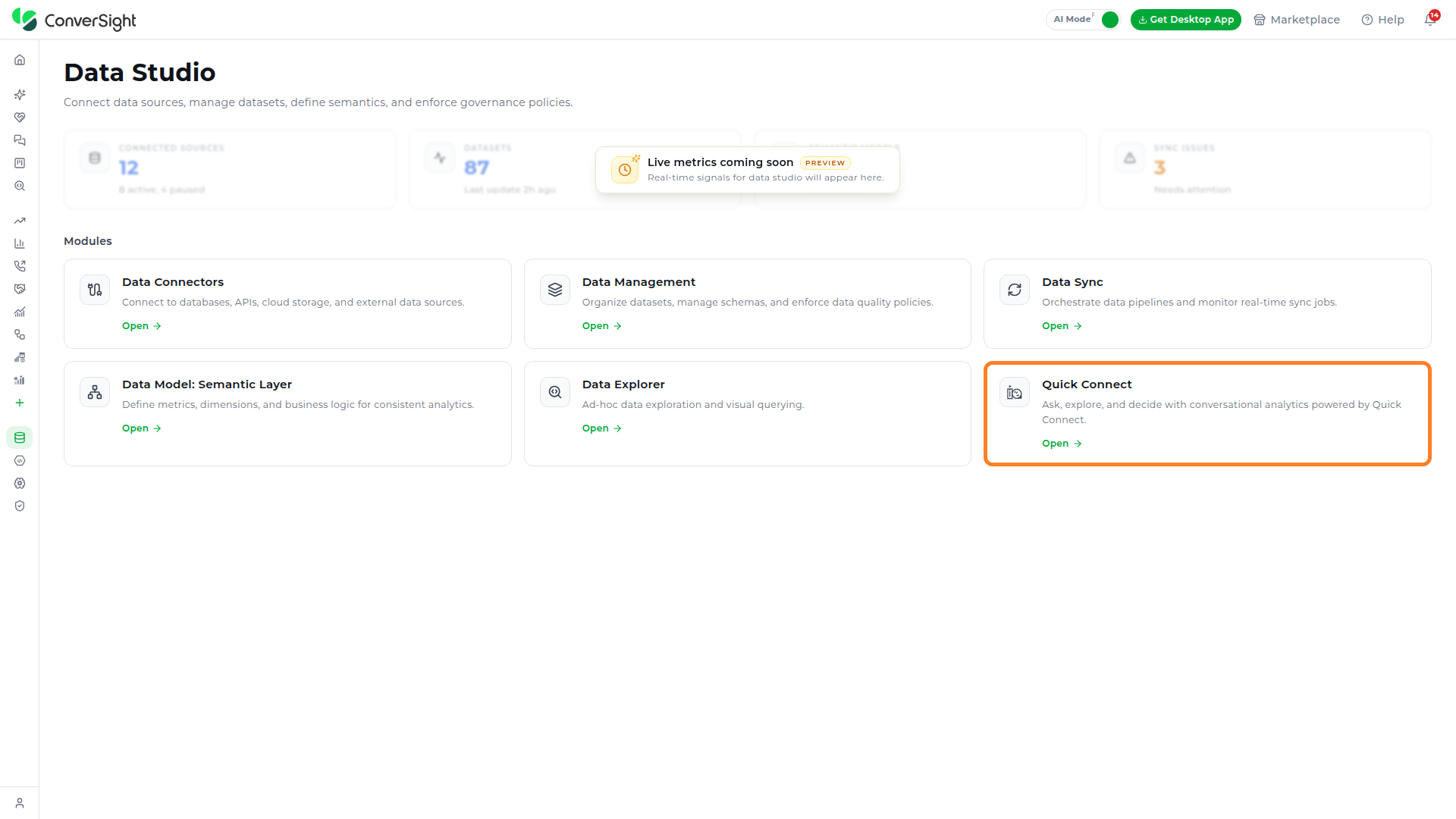
Accessing Quick Connect
Users can access the Quick Connect feature by selecting Quick Connect under the Data Studio section in the left navigation panel.
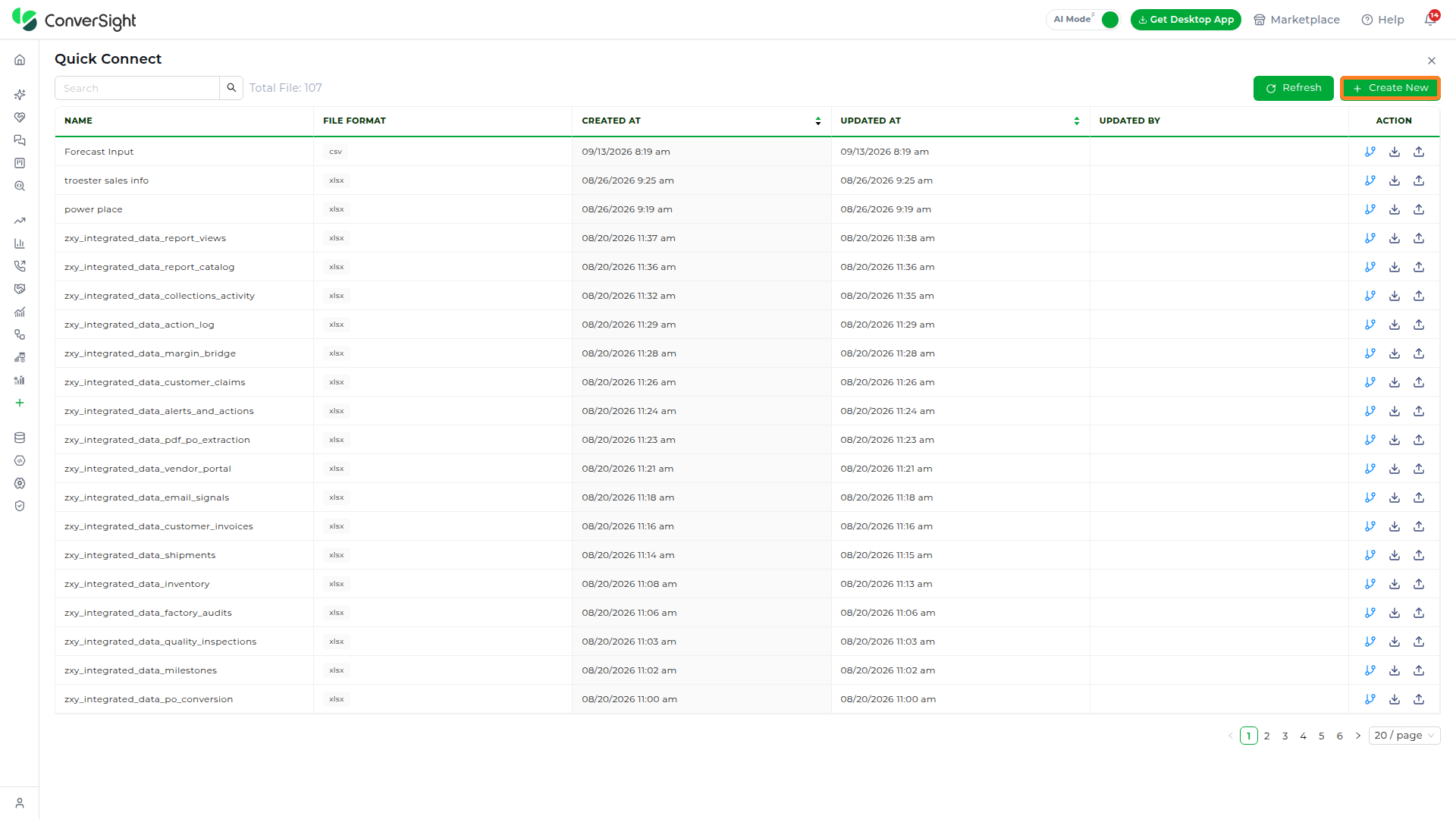
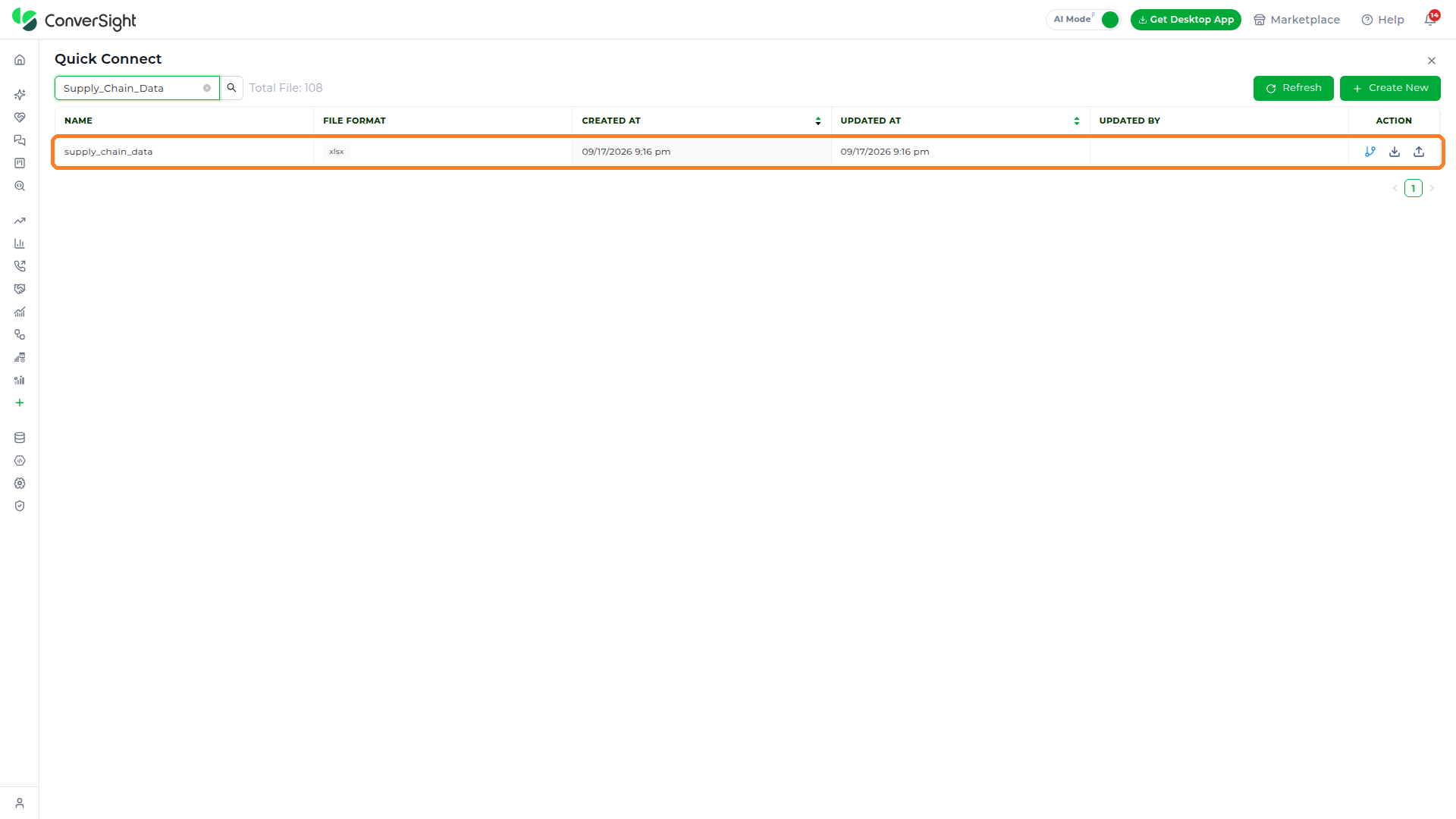
The Quick Connect page opens to a paginated table of previously uploaded files, displaying the Name, File Format, Created At, Updated At, Updated By, and Action columns. The header includes a Refresh button to reload the file list and a Create New button to begin a new upload. A total file count is shown above the table, and pagination controls at the bottom allow users to navigate through pages of records.
Working with Quick Connect
The Quick Connect workflow is organized into four phases — Upload Your Data, Smart Validation, Data Explorer, and AI Chat and Analysis. A file uploaded through Quick Connect is first checked for structural and data quality issues, then made available in a Data View where users can inspect rows, review column-level summaries, and decide how to resolve any flagged issues. Once validated, the dataset is either saved as a new dataset or mapped to an existing storage connector dataset for use across AI chat and analysis.
Quick Connect supports .xls, .xlsx, and .csv files up to 5 MB, and .pdf files up to 5 MB. Multi-sheet Excel workbooks are supported — when a workbook contains more than one sheet, you choose which sheets to upload, and each uploaded sheet is carried through validation.
Upload Data
The Upload Data phase is the entry point for bringing a new spreadsheet into Quick Connect. Users initiate a new upload session from the Quick Connect landing page and select the file to be processed, after which the platform takes over without requiring any additional configuration.
Step 1: Start a New Upload
On the Quick Connect landing page, the Create New button opens the upload flow. This is the entry point for bringing a new spreadsheet into Quick Connect.

Step 2: Upload the Data File
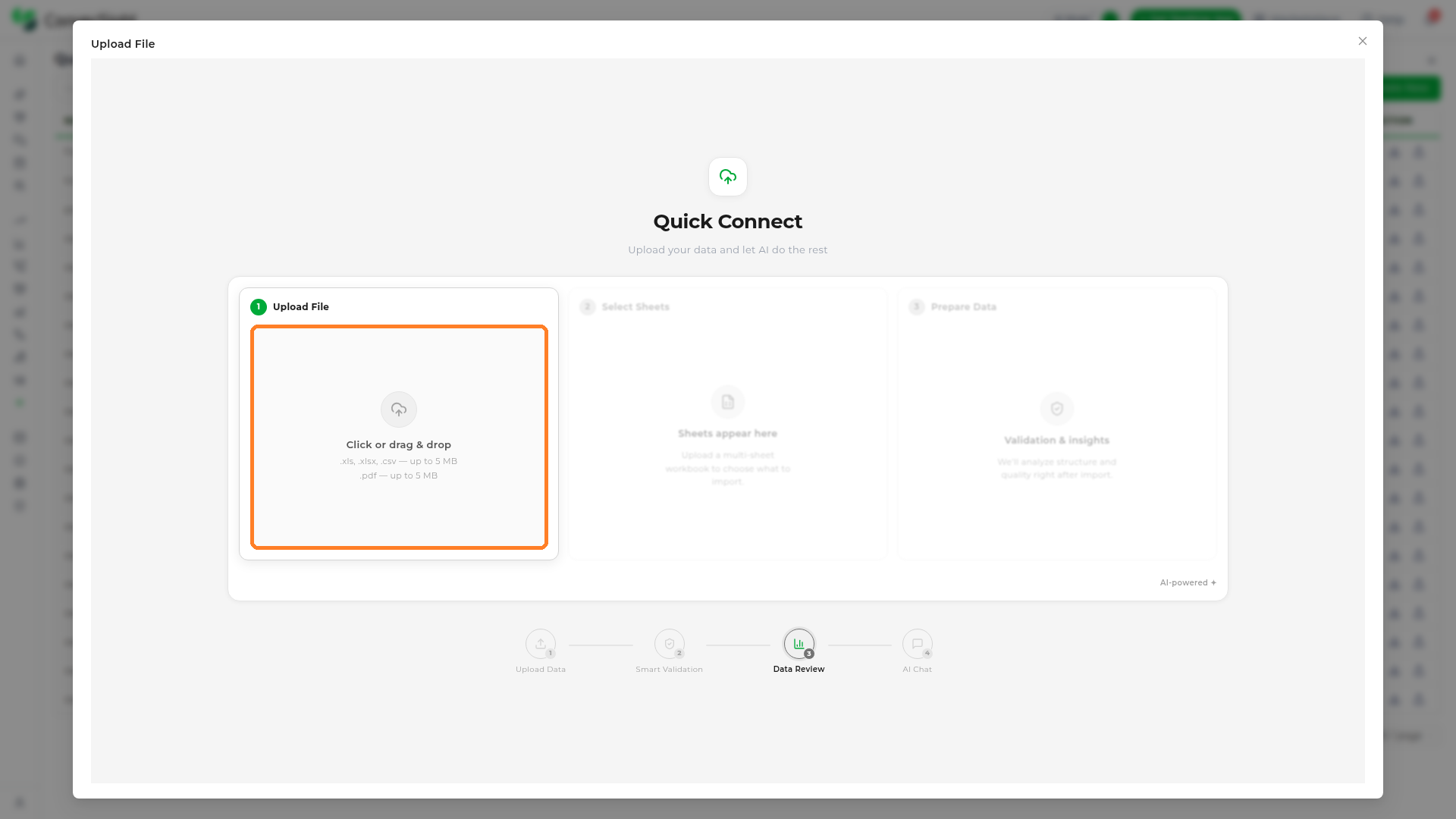
The Upload File page guides the upload in three panels — Upload File, Select Sheets, and Prepare Data. Click on the Click or drag & drop area in the Upload File panel to select a spreadsheet from your local machine, or drag the file directly onto it.
Step 3: Select the Sheets to Import
After the file is chosen, the Select Sheets panel lists every sheet found in the workbook. A single-sheet file uploads automatically, while a multi-sheet workbook lets you choose exactly which sheets to bring in. Each sheet has its own checkbox, and a Select all control with a counter (for example, 3/3) selects or clears every sheet at once.
Clear a sheet's checkbox to leave it out of the upload; the counter updates to reflect the current selection. Click on the Import button to continue with the selected sheets.

When the workbook contains only one sheet, the Select Sheets panel shows Single sheet detected with the sheet named below it and the note No selection needed — all data will be imported. There are no checkboxes to set — the single sheet is uploaded as-is when you continue.

Smart Validation
The Smart Validation phase automatically scans the uploaded sheets for issues such as missing values, outliers, duplicate rows, type mismatches, and inconsistent values. Quick Connect groups every detected issue by type, shows how many columns and rows each type affects, and recommends a fix for each column — so you can either optimize the data in one pass or continue with it as-is.
Step 4: Choose Whether to Optimize
Once the sheets are uploaded, Quick Connect scans them and presents the Optimizations Available popup. The popup reports how many possible optimizations were found and offers two choices:
- Review & Optimize: To open the recommended fixes and apply them, or
- Continue Without Optimizing: To move straight to the dataset with the data left exactly as it was uploaded.
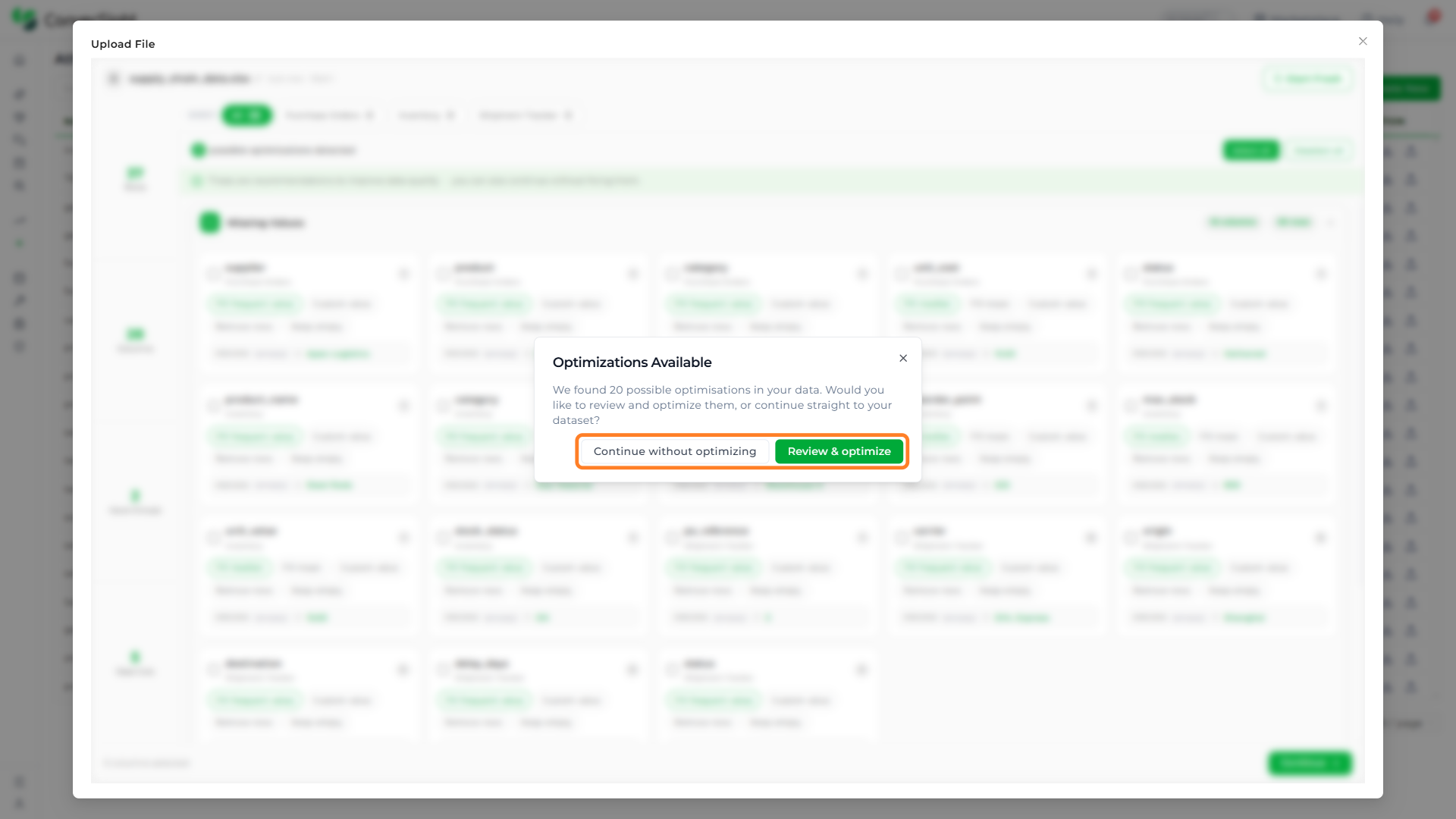
Click on the Review & optimize button in the Optimizations Available popup to open the optimization review screen.

Step 5: Review the Optimizations
The optimization review screen opens with every recommended fix grouped and ready to apply. The left rail summarizes the data with a count for each of the following:
| Count | Description |
|---|---|
| Rows | Total number of records across the sheets being validated. |
| Columns | Total number of columns across the sheets being validated. |
| Issue Groups | Number of issue types detected, such as Missing Values, Outliers, Duplicates, Type Mismatch, and Inconsistencies. |
| Date Cols | Number of columns Quick Connect recognized as dates. |
A SHEET filter lets you view the issues in your data file. The All option displays the issues in all the sheets at once, and the other options are the sheet names — the number shown next to each sheet is its issue count.
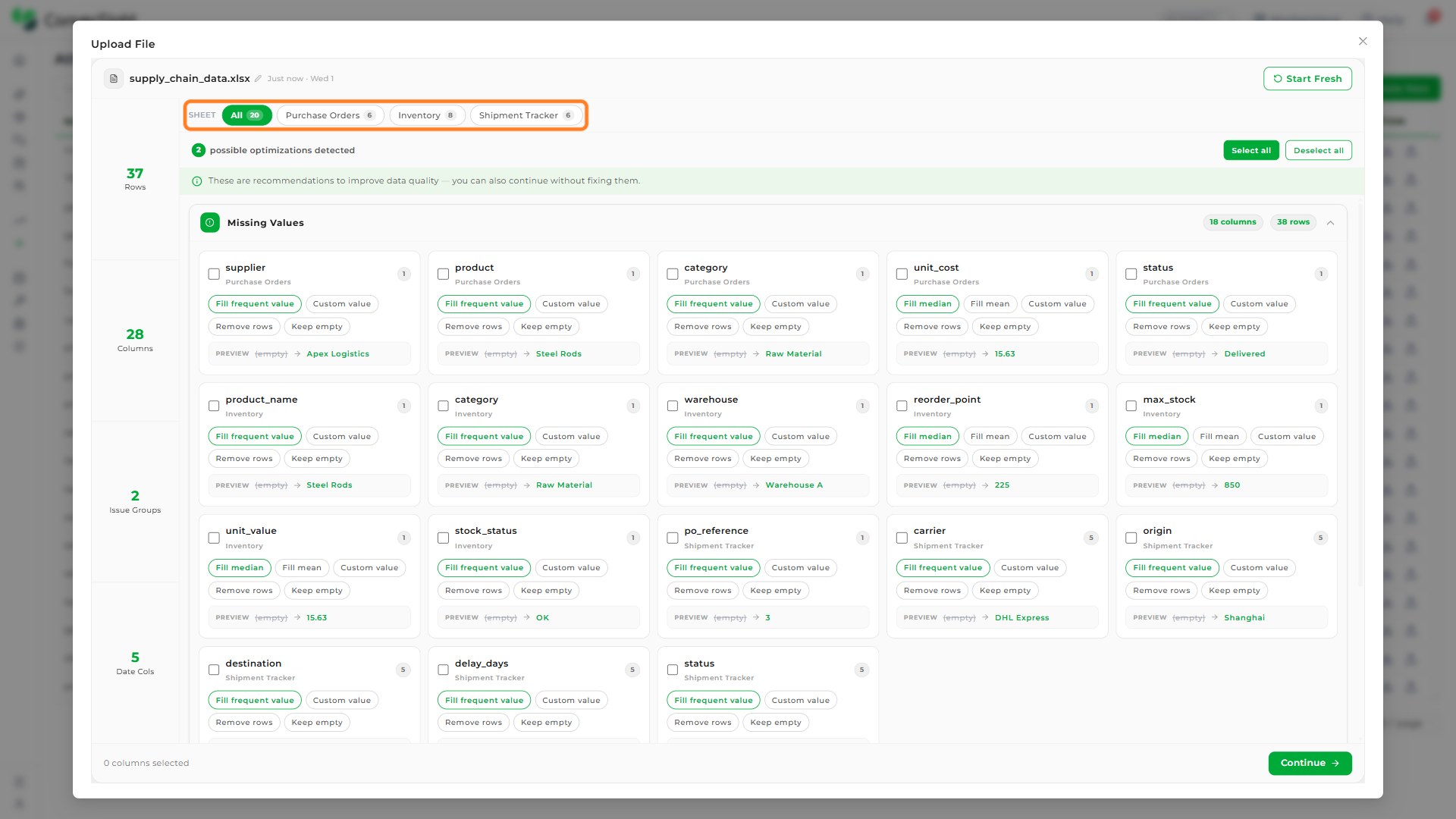
Issues are organized into groups such as Missing Values, Outliers, Duplicates, Type Mismatch, and Inconsistencies, each showing the number of affected columns and rows. Within a group, every affected column appears as its own card that names the column, the sheet it belongs to, and a set of recommended fix options. A PREVIEW line on each card shows the value the recommended fix will apply.
For a Missing Values column, the fix options depend on the column's data type. For a number column, the fix options are:
| Option | What it does |
|---|---|
| Fill median | Fills the empty cells with the column's median value. (Recommended) |
| Fill mean | Fills the empty cells with the column's average value. |
| Custom value | Fills the empty cells with a value you enter. |
| Remove rows | Deletes the rows that have a missing value in the column. |
| Keep empty | Leaves the missing values in place and applies no fix. |
For a text column, the fix options are:
| Option | What it does |
|---|---|
| Fill frequent value | Fills the empty cells with the value that appears most often in the column. (Recommended) |
| Custom value | Fills the empty cells with a value you enter. |
| Remove rows | Deletes the rows that have a missing value in the column. |
| Keep empty | Leaves the missing values in place and applies no fix. |
For an Outliers column, the fix options are:
| Option | What it does |
|---|---|
| Remove rows | Deletes the rows that contain the outlier values. |
| Cap bounds | Caps the outlier values to the column's upper and lower limits instead of removing them. |
| Keep | Leaves the outlier values in place and applies no fix. |
For a Duplicates group — rows that are exact copies of another row — the fix options are:
| Option | What it does |
|---|---|
| Remove | Deletes the duplicate rows, keeping only the first occurrence of each. (Recommended) |
| Include all | Keeps all rows, including the duplicates, and applies no fix. |
For a Type Mismatch column — a number column that still contains values that are not valid numbers — the fix options are:
| Option | What it does |
|---|---|
| Convert type | Converts the column's values to numbers; any value that is not a valid number is cleared. (Recommended) |
| Keep | Leaves the values as they are and applies no fix. |
For an Inconsistencies column — a text column where the same value appears in different forms, such as different casing or spacing — the fix options are:
| Option | What it does |
|---|---|
| Standardize | Normalizes the column's text values to a consistent form (trims surrounding spaces and lowercases them). (Recommended) |
| Keep | Leaves the values as they are and applies no fix. |
Step 6: Apply the Fixes
Select the columns to fix using their checkboxes, or use the Select all button to select every recommended optimization at once. Click on the Fix all button at the bottom right to apply the recommended fix to every selected column.

When the fixes are applied, Quick Connect shows an Issues resolved confirmation and marks each issue group with a Fixed badge. The row count updates to reflect any rows removed by the fixes, and the bottom of the screen confirms All selected issues resolved. Click on the Continue button at the bottom right to move to the Data Explorer.

Optimizing is optional. If you choose Continue without optimizing, the data moves to the Data Explorer exactly as uploaded and the dataset carries a lower Data Quality rating. Optimizing first fills or removes the flagged values, raising the Data Quality rating before you save.
Data Explorer
The Data Explorer phase opens the uploaded data in an editable spreadsheet where users can inspect rows, adjust column types, and make direct edits before saving. From here, the data can be saved as a new dataset or mapped to an existing one for use across the platform.
The Data Review & Edit page presents the uploaded data across two tabs — Data Table, where you inspect and edit the data, and Data Summary, where you preview it with Athena before saving.
Data Table
This tab is where you take a final look at your uploaded data before it becomes a dataset. You can scroll through every record, correct individual values, adjust how each column is read, and check the overall data quality — all in one place — so the dataset is clean and accurate before you save it.
Step 7: Explore the Data
The Data Table tab opens the uploaded data as an editable spreadsheet. Click any cell to edit its value. If you want to change a column's data type, use the type control in its header to change it. The left rail summarizes the dataset with tiles for Total Rows, Total Columns, Data Quality, and Dataset Save Status.

The Data Quality tile rates the dataset by its completeness — the share of cells that are filled (not empty) across the columns. It can show one of four ratings:
| Rating | When it applies |
|---|---|
| Excellent | 99% or more of the cells are filled. |
| Good | 95% to 99% of the cells are filled. |
| Fair | 85% to 95% of the cells are filled. |
| Needs attention | Fewer than 85% of the cells are filled. |
Because the rating is based on completeness, filling or removing missing values in the Smart Validation step raises the Data Quality rating before you save.
Each column header also shows quick statistics so you can spot gaps at a glance:
| Field | Description |
|---|---|
| UNIQUE | Shows how many distinct values the column contains. |
| MISSING | Shows how many cells in the column are empty. |
| RANGE | Shows the span of values in the column — the lowest to highest value for a number column, and a dash (-) when a range does not apply, such as for a text column. |
| FORMAT | Shows the detected date pattern (for example, yyyy-MM-dd) for a column recognized as a date, in place of RANGE. |
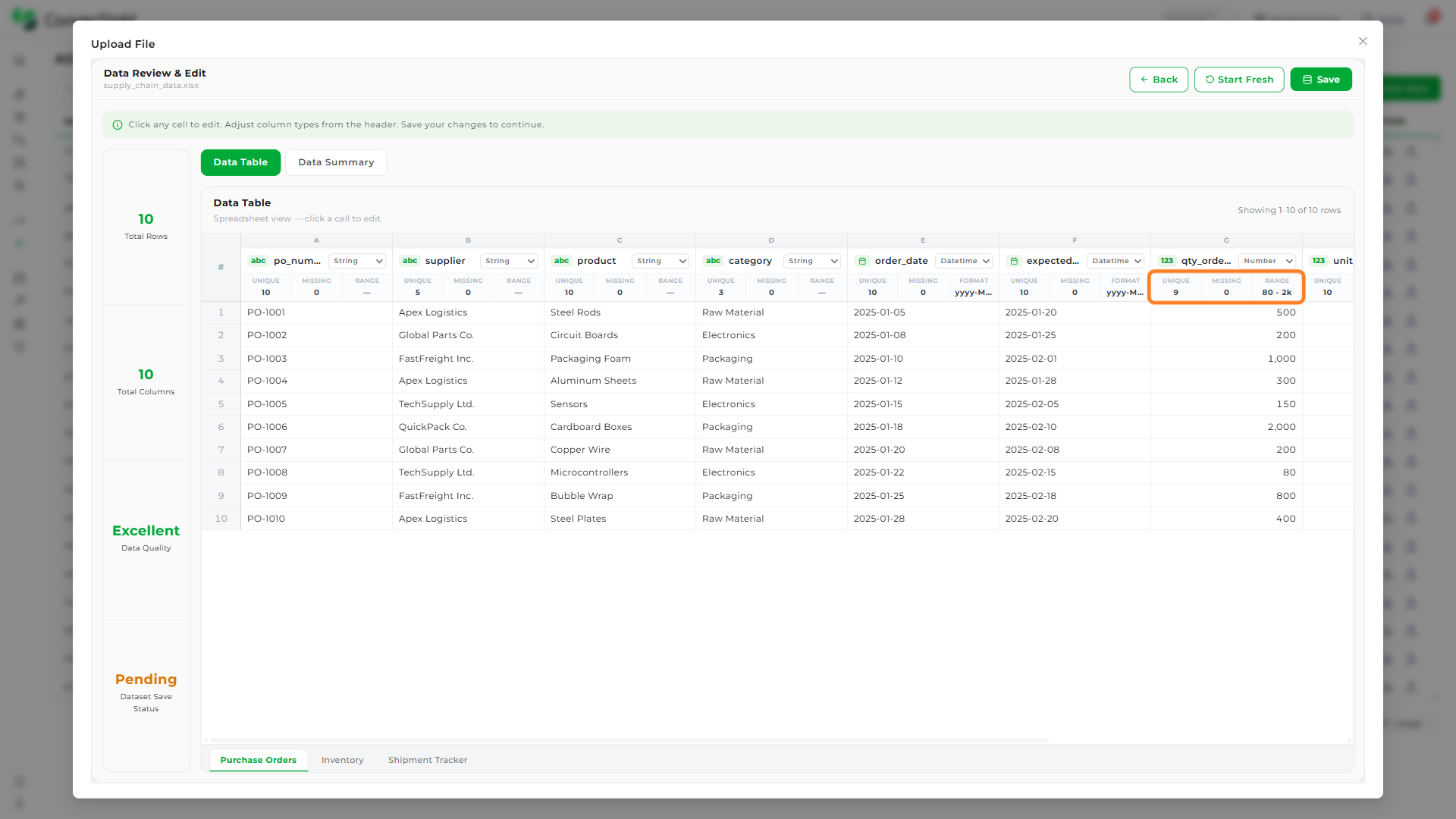
When you skip optimization, the same page opens with the data left as uploaded — the row count still includes any rows the optimization would have removed, missing values remain in place, and the Data Quality tile shows a lower rating because those empty cells count against completeness.

For a multi-sheet workbook, each uploaded sheet appears as its own tab along the bottom of the page. Click on a sheet tab to switch the spreadsheet to that sheet's data — every sheet you uploaded is carried through and can be reviewed and edited independently before saving.

Data Summary
The Data Summary tab opens Ask Athena, an AI preview of the uploaded data. It shows a Summary & Overview describing what the data contains and lists suggested questions you can ask about it. Click on a suggested question, or type your own in the box at the bottom, to preview an answer before the dataset is saved.

The Data Summary preview lets you ask up to five questions. For detailed, ongoing analysis of your data, use the AI Assistant.
The Start Fresh button at the top right discards the current upload session and returns to the Quick Connect landing page so a new file can be uploaded. Because this clears all current data, a Start Fresh? confirmation appears first — click on the Proceed button to clear the session, or Cancel to keep working.

Step 8: Save the Dataset
Click on the Save button at the top right of the Data Review & Edit page to open the Dataset Information popup. Enter a File Name for the data, then either choose an existing dataset from the Select Existing Dataset list to map the data to it, or click on the + New Dataset button to create a new dataset.

Clicking on + New Dataset expands the popup to capture the details of the new dataset. Provide the following details:
| Field | Description |
|---|---|
| File Name (Required) | Names the uploaded file, carried over from the previous step. |
| Dataset Name (Required) | Names the dataset that AI chat and analysis will reference. |
| Description (Optional) | Describes the dataset for other users in the workspace. |
| Country (Required) | Sets the country for the dataset. |
| Time Zone (Required) | Sets the time zone for the dataset. |
The popup also shows the locale settings derived from the selected country — Area, Currency, Distance, Volume, Capacity, Date Format, and Mass. Click on the Continue button to save the data as a new dataset and start the AI chat and analysis setup.

When mapping the uploaded data to an existing dataset, only storage connector datasets are supported.
AI Chat and Analysis
The AI Chat and Analysis phase initializes the saved dataset for use across the ConverSight platform. Once setup completes, the dataset becomes available for AI chat, AI Insights, AI Briefing, and other analytical experiences without any additional configuration.
Step 9: Setting Up AI Chat and Analysis
Once the dataset is saved, the Setting Up AI Chat page displays the progress of the initialization step. A progress ring tracks the percentage complete while Athena trains on the data patterns, and the four-phase track at the top marks Upload Data, Smart Validation, and Data Explorer as done with AI Chat in progress.

When setup completes, a success message confirms the dataset is Active and ready for use, and the new file appears in the Quick Connect file list. From here the dataset is available across AI chat, AI Insights, AI Briefing, and the broader analytical experiences.
Asking Athena About Your Data
Once the dataset is created, you can ask Athena questions of the data in plain language and get an instant visualized answer. This happens in the AI Assistant, reached from the left navigation panel.
Ask a Question
Select the dataset from the dataset picker at the top of the AI Assistant, then type a question in the Chat Area box at the bottom and send it. Athena interprets the question against the dataset and returns an answer as a thread.
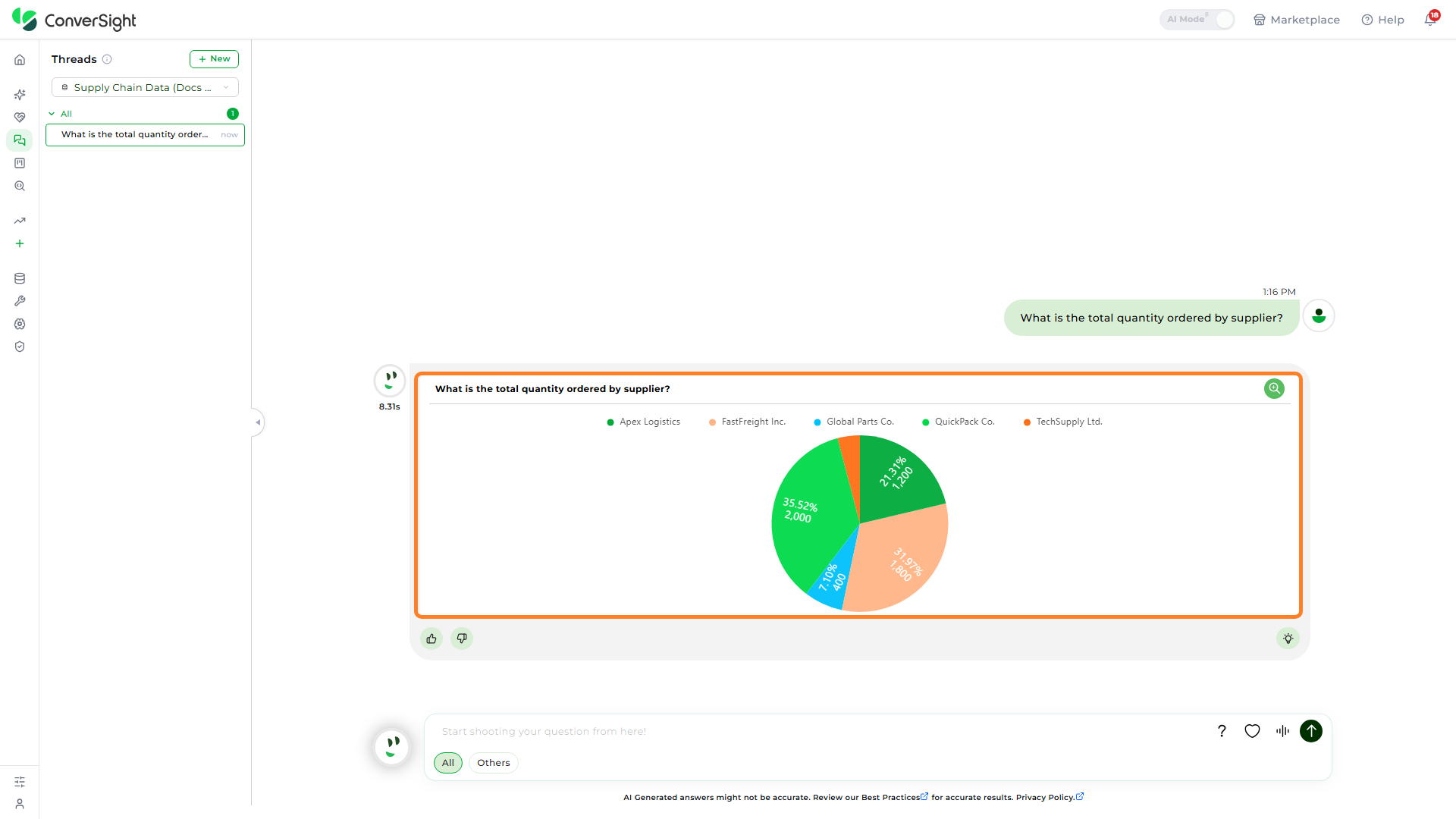
Each answer renders the result as a chart — for this question, a pie chart with a legend, per-segment percentage and value labels, and a hover tooltip on each segment — along with the response time. Below the answer are thumbs-up and thumbs-down feedback controls and a Want to know how I derived? link that explains how the answer was produced.
Work with the Answer
Hovering over an answer reveals its controls. An Explore button opens the answer for deeper analysis, and a set of chart controls — Options, Settings, Table, Pivot Settings, and Charts — let you adjust how the answer is presented, switch it between a table and a chart, and change the chart type. A right-side action rail on each answer provides Add to storyboard, Explanation, and Add to Favorites.

Manage Dataset
The Manage Dataset option lets users review and update the datasets that an uploaded file is mapped to. Each file row on the Quick Connect landing page carries three icons in the Action column: Manage Dataset (opens the mapped-datasets popup), Download (downloads the file), and Re-Upload (replaces the file's data with a new upload).

Click on the Manage Dataset icon in the Action column to open the Manage Dataset popup. The popup lists every dataset the file is currently mapped to and provides a Select dataset control and a + New Dataset button under Existing Datasets. Each mapped dataset row has its own Refresh and Remove actions.

Refresh
The Refresh option re-syncs a mapped dataset with the latest contents of the uploaded file, so any updates to the source spreadsheet are reflected in the dataset used by AI chat and analysis. Click on the Refresh action next to the dataset in the Manage Dataset popup to update the mapping.

Remove
The Remove option detaches a dataset mapping from the uploaded file. Once removed, the dataset is no longer linked to the file and will not receive future refreshes from it. Click on the Remove action next to the dataset in the Manage Dataset popup.

Because this cannot be undone, a confirmation popup asks you to type the dataset's name to confirm before the Remove button proceeds.

New Dataset
The + New Dataset button maps the uploaded file to an additional dataset directly from the Manage Dataset popup, without re-uploading the file. This is useful when the same source data needs to feed more than one dataset.
Click on the + New Dataset button in the Manage Dataset popup to open the Create New Dataset form. Provide the following details:
| Field | Description |
|---|---|
| Dataset Name (Required) | Names the additional dataset that AI chat and analysis will reference. |
| Description (Optional) | Describes the dataset for other users in the workspace. |
| Country (Required) | Sets the country for the dataset. |
| Time Zone (Required) | Sets the time zone for the dataset. |
The form also shows the Locale Settings derived from the selected country — Area, Currency, Distance, Volume, Capacity, Date Format, and Mass.

Click on the Submit button to save. The new dataset is added to the file's list of mapped datasets in the Manage Dataset popup and becomes available for use across AI chat, AI Insights, AI Briefing, and the broader analytical experiences offered within ConverSight.