AI Briefing
AI Briefing is Athena in Level 2 mode — Automation. A briefing is a recurring, audience-tailored report that Athena writes from your live operational data and delivers on cadence to the people who need it. Configure it once — what to cover, who receives it, how often — and Athena handles the rest. The daily-digest, the weekly S&OP recap, the executive briefing on Friday at 4pm: all of it runs without anyone authoring or scheduling individual reports.
Every briefing follows the same structure: an executive summary at the top so leaders can scan in 30 seconds, structured data snapshots with the actual numbers, prioritized recommended actions ranked by impact, and an operational-health analysis that captures the patterns Athena sees emerging. Same shape, every cycle — so the audience builds the habit of reading it.
This is what Decision Intelligence looks like at the cadence layer. Where AI Insights surfaces what's happening continuously, AI Briefing packages it for the people who need to act — at the rhythm their work runs on. No one is hand-assembling a Monday-morning supply digest at 6am anymore.
Accessing AI Briefing
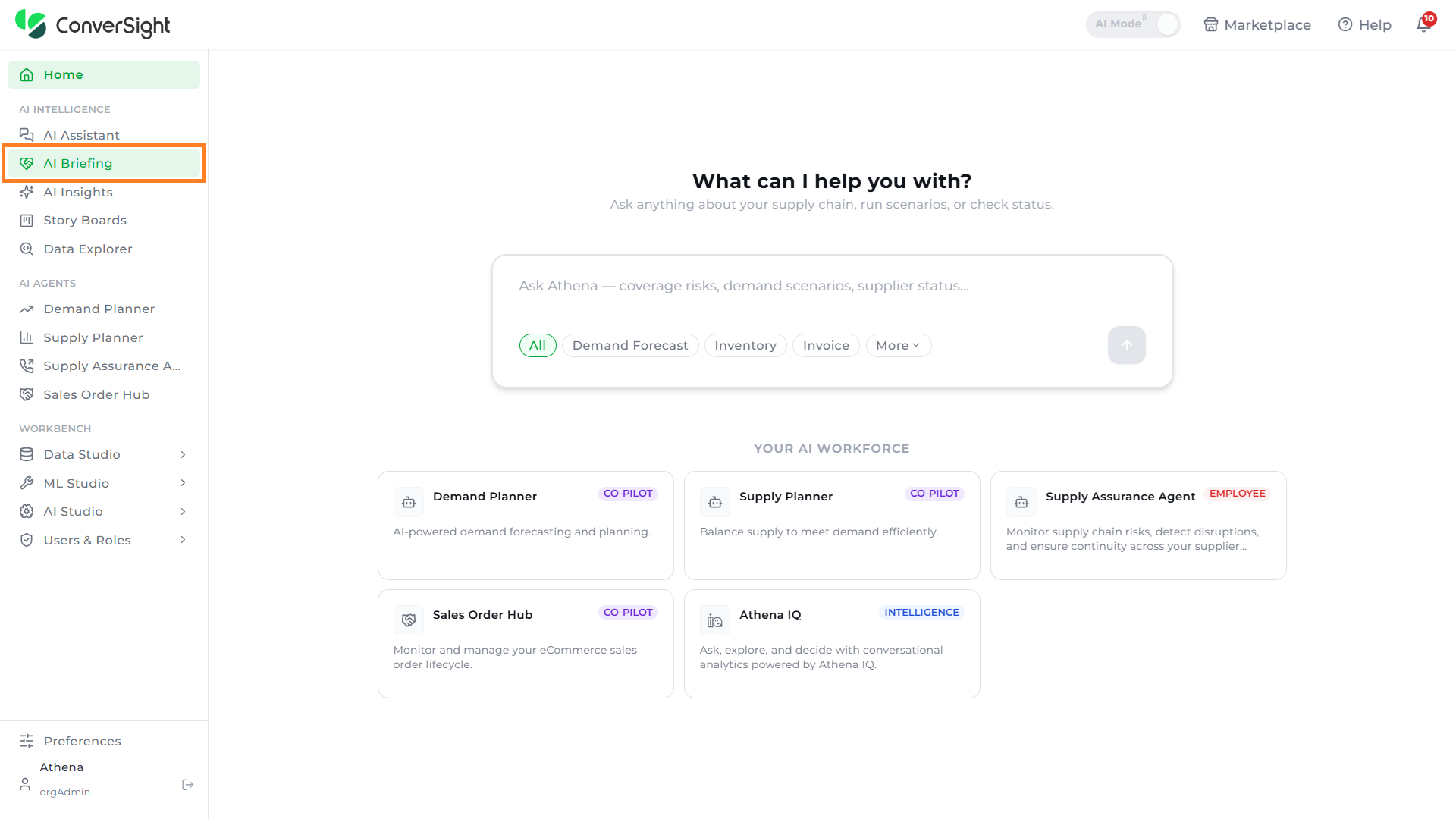
Users can access the AI Briefing feature by selecting AI Briefing under the AI Intelligence section in the left navigation panel.
 Screenshot needed: AI Briefing
Working with AI Briefing
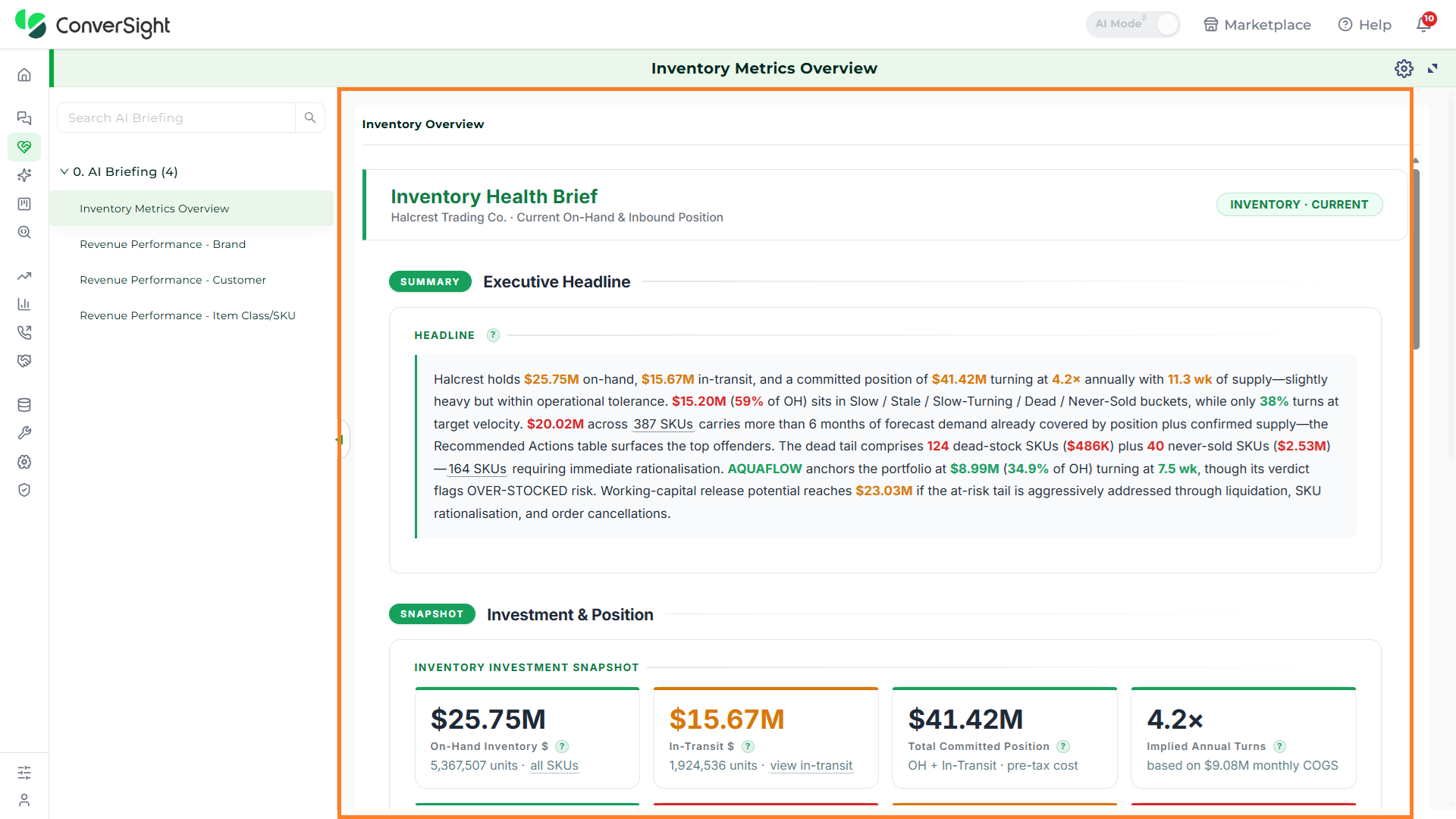
The AI Briefing page is organized into two panels. The left sidebar displays all available briefings, grouped by plan tier — Advanced Plan, Starter Plan, and Others. A search bar at the top of the sidebar allows you to filter briefings by name. Selecting a briefing from the sidebar loads the full document in the main panel. Briefings are named based on the data dimensions they cover. Each briefing is a self-contained analytical document scoped to its configured domain — such as inventory position, revenue performance by brand, or customer-level analysis.
Every AI Briefing follows a consistent section structure. Each section is labeled to indicate its analytical purpose, making it easy to navigate directly to the information most relevant to your role or the decision at hand.
Summary: The Summary section opens every briefing with an executive headline — a single, synthesized statement of the most critical finding Athena has identified in the data. It is written for immediate comprehension, giving any reader — from a planner to an executive — the highest-priority signal without needing to read the full document first.
Snapshot: The Snapshot section presents the current operational position across key metrics — values, units, coverage ratios, turn rates, and risk indicators — as a structured set of data cards. It gives a precise, at-a-glance read of where the operation stands at the time the briefing was generated, alongside an inventory position walk that shows how the total value is distributed across operational categories.
Actions: The Actions section surfaces Athena's recommended responses, derived directly from the data and prioritized by financial or operational impact. Each recommended action identifies the specific items, quantities, or positions involved and provides the context and rationale needed to act without additional investigation. Items are also surfaced for review across two dimensions — over-stock positions and stockout-risk positions — so supply and demand planning teams can prioritize response accordingly.
Health: The Health section provides an analytical breakdown of operational health across defined categories — from productive and active positions through to slow-turning, stale, dead stock, and never-sold. A health bucket composition view shows the distribution of value across each category, with a narrative insight that interprets what the distribution means for the operation and where intervention is required.
Portfolio: The Portfolio section presents a brand or category-level view of performance and risk — surfacing verdict classifications, surplus positions, turn rates, and coverage ratios across the portfolio. Brand verdict cards highlight the most significant positions, and a brand-level data table provides the full breakdown for detailed review.
Share
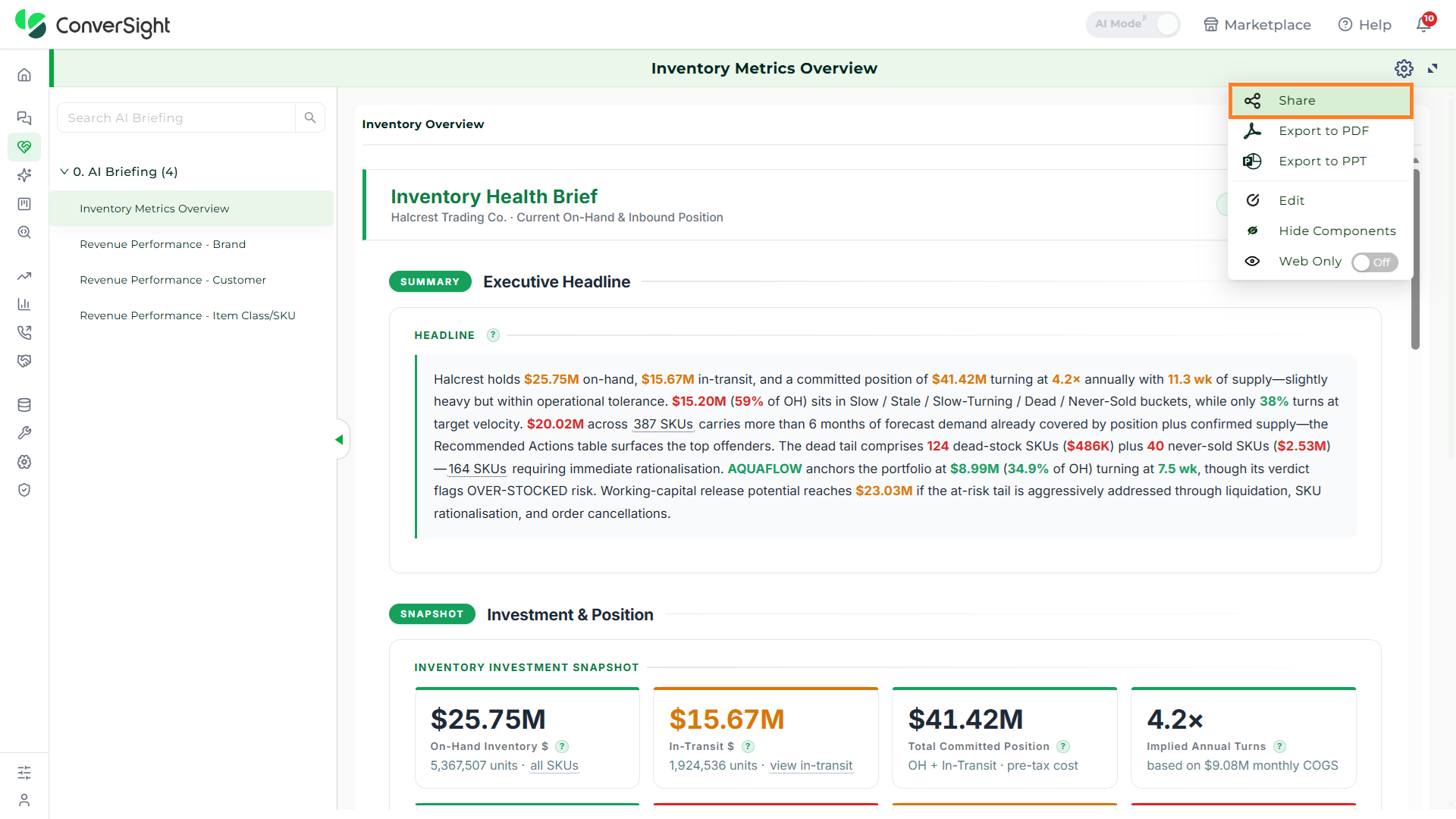
The Share option allows users to distribute an AI Briefing with other members of the organization. Once shared, the recipients can access the same briefing from their own AI Briefing page and stay aligned on the latest operational read.
Click on the Settings at the top right of the AI Briefing page and select the Share option. Select the recipient's email address from the list and click Share to grant access to the selected briefing.
Export to PDF
Click on the Settings at the top right of the AI Briefing page and select the Export to PDF option. In ConverSight, you can download the entire AI Briefing in PDF format, so you can share it with people inside and outside your organization — including stakeholders who do not have a ConverSight account.

Export to PPT
To generate a PowerPoint (PPT) version of your briefing, choose the specific AI Briefing and then click on the Export to PPT option from the Settings menu. In ConverSight, you can download the entire AI Briefing in PPT format, making it easy to drop the report into executive reviews, business reviews, and stakeholder presentations.

Edit
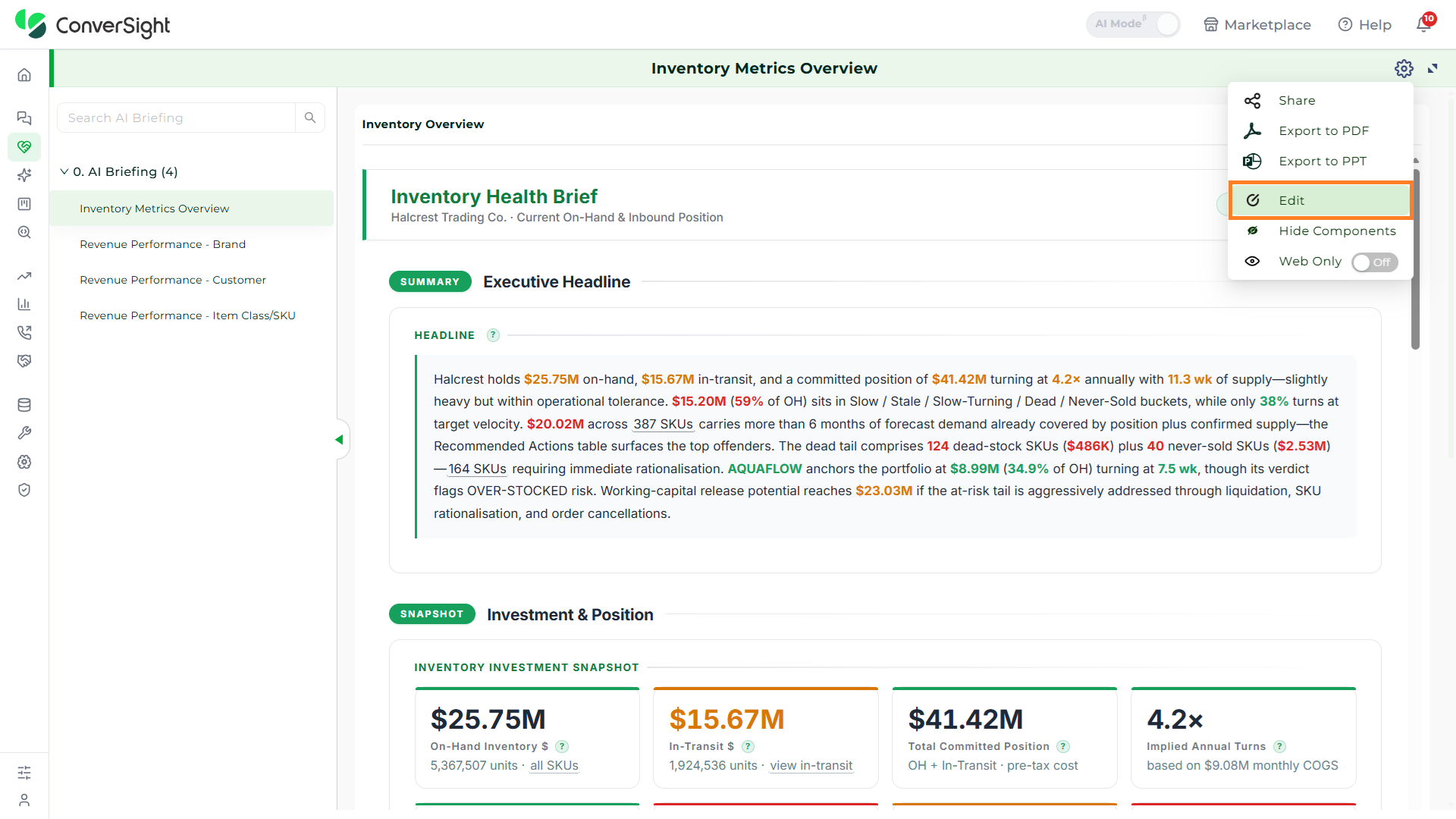
If you want to update the configuration of an AI Briefing, click on the Settings at the top right of the briefing page and select the Edit option. You can change the briefing name and update its underlying configuration, so the briefing stays aligned with how your team refers to it and what it should cover.
Hide Components
The Hide Components option allows users to hide the desired AI Briefing components when multiple briefing components are placed on the same canvas. This helps declutter the view and lets users focus only on the briefings that are most relevant to the decision at hand.
Click on the Settings at the top right of the AI Briefing page and select the Hide Components option. You can then choose the briefing components you want to suppress from the current canvas view without removing or deleting them.

Web Only
The Web Only toggle controls whether the AI Briefing is available outside of the ConverSight web application. When the toggle is enabled, the briefing is restricted to in-platform viewing — it will not be included in PDF exports, PPT exports, or scheduled email deliveries.
This option is useful for briefings that contain sensitive operational data or are intended only for governed access inside the platform, where role-based permissions and audit logs are enforced.
