Athena — Threads
Threads turns AI Assistant from a single question-and-answer box into a persistent, contextual conversation. Every question and answer is kept inside a named thread, so a follow-up question builds on what was already asked instead of starting from zero, and past conversations stay organized and easy to find by dataset.
Enabling Threads
Threads is turned on or off per user, not per dataset — every dataset in the organization can carry threads once a user has access to the feature.
An Org Admin or Data Admin grants a user access to Threads individually, through the Athena Threads toggle on that user's account in the Create User (or Edit User) settings — it is on by default for new users. Contact your administrator to have Threads enabled for your account.
Accessing Threads
Users can access Athena by selecting the AI Assistant option under the AI Intelligence section in the left navigation panel.
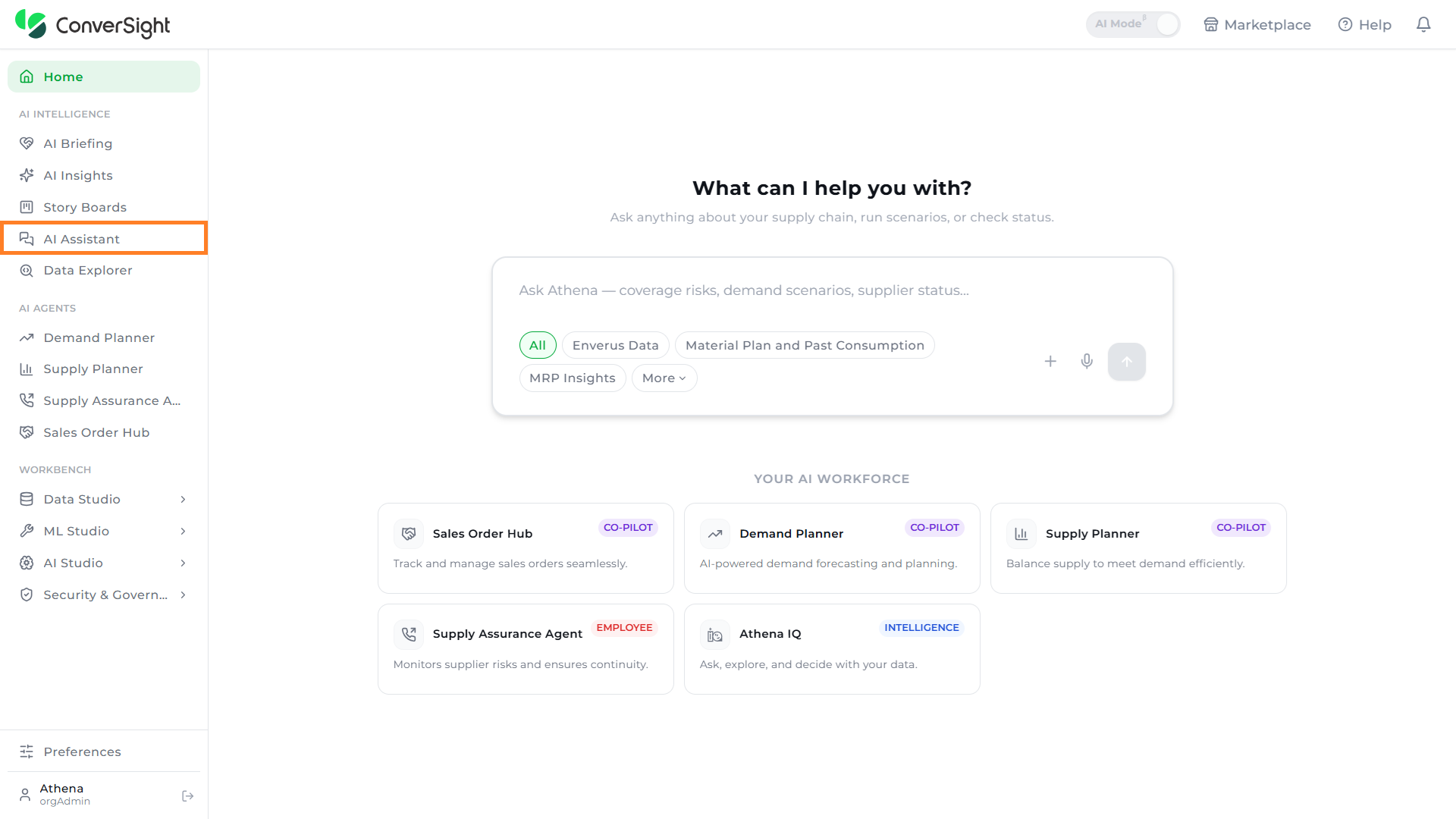
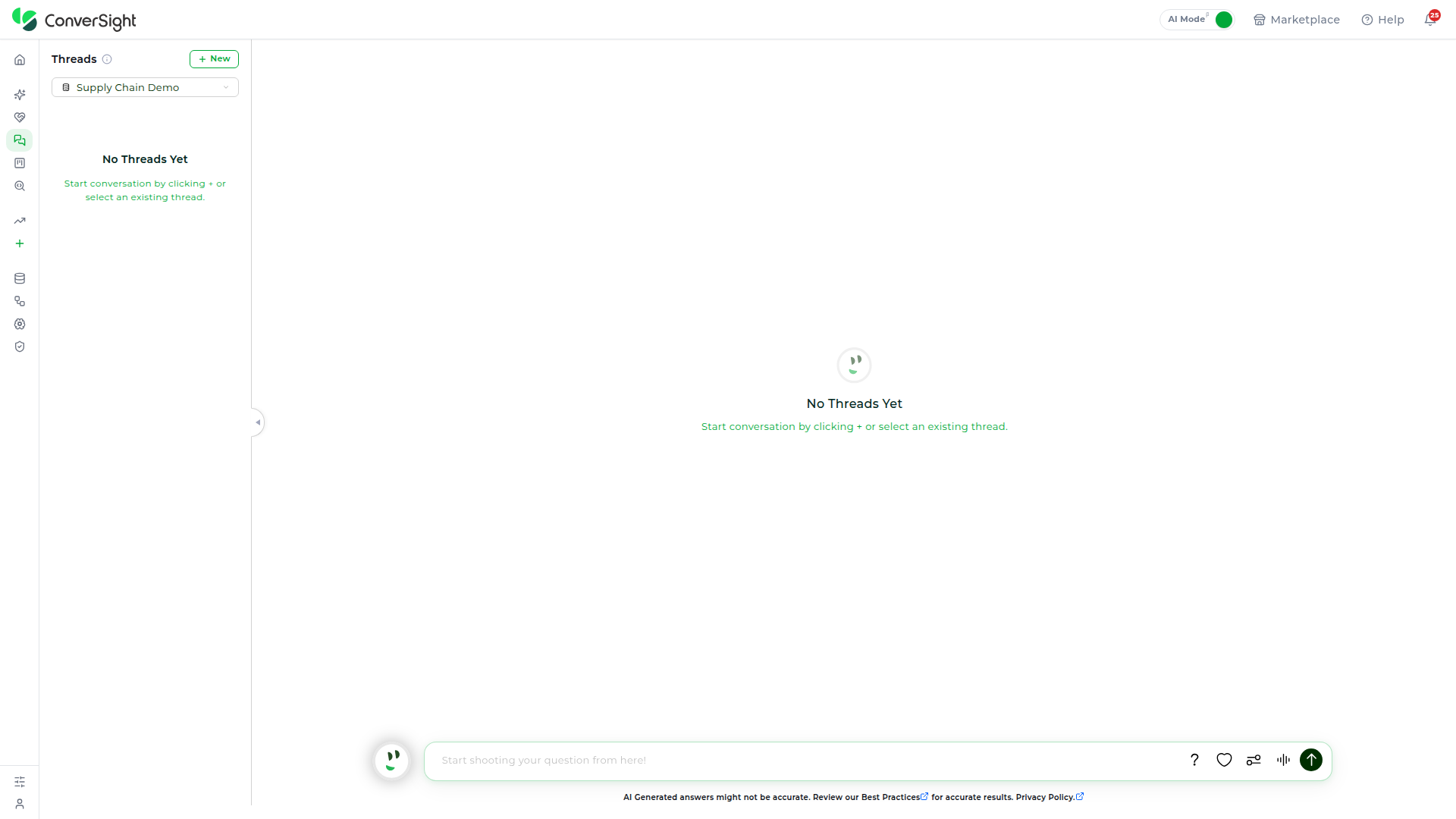
Once Threads is enabled for a user's account, it becomes that user's default AI Assistant view for every dataset — there is no separate menu item or toggle to find. The chat opens directly into the Threads layout: a Threads panel on the left listing threads for the currently selected dataset, and the conversation area on the right with the question box at the bottom.
Dataset Selection
The Dataset dropdown at the top of the Threads panel lists every dataset in the organization available to query in AI Assistant. Click on the Dataset dropdown and choose a dataset to switch the Threads panel to it.
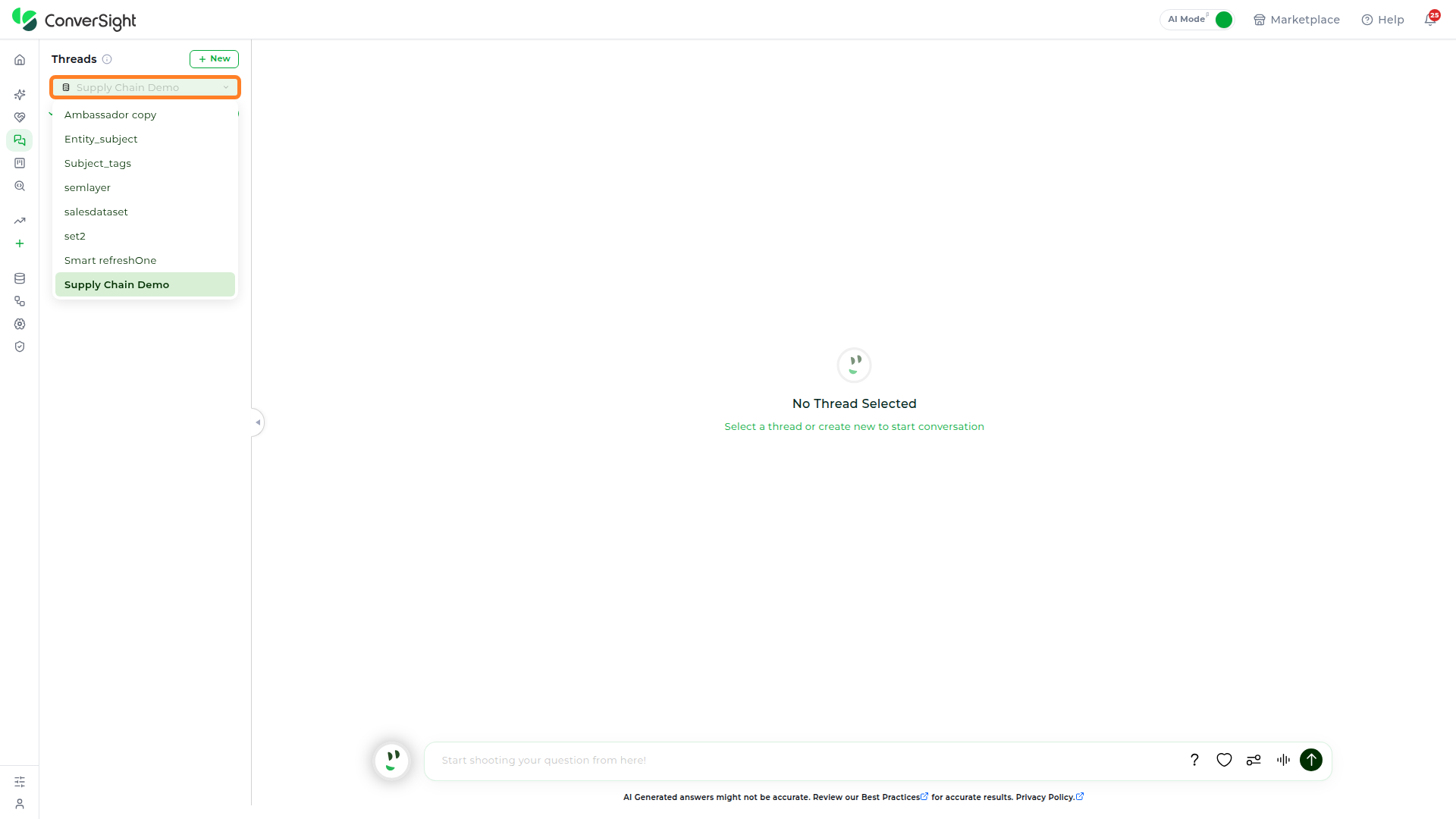
Threads are scoped to whichever dataset is selected — switching datasets swaps in that dataset's own thread list, not a shared or merged one. If the selected dataset already has prior AI Assistant conversations, those threads appear in the list, sorted with the most recent activity first.
A dataset with no prior conversations shows No Threads Yet. Ask a question or click + New to create its first thread.
Creating a Thread
A thread has to exist before Athena has anything to answer into, but nothing about starting one requires stopping to set it up first. There are two ways to start a thread in a dataset, and both drop straight into a live conversation rather than an empty setup screen.
Using the New button
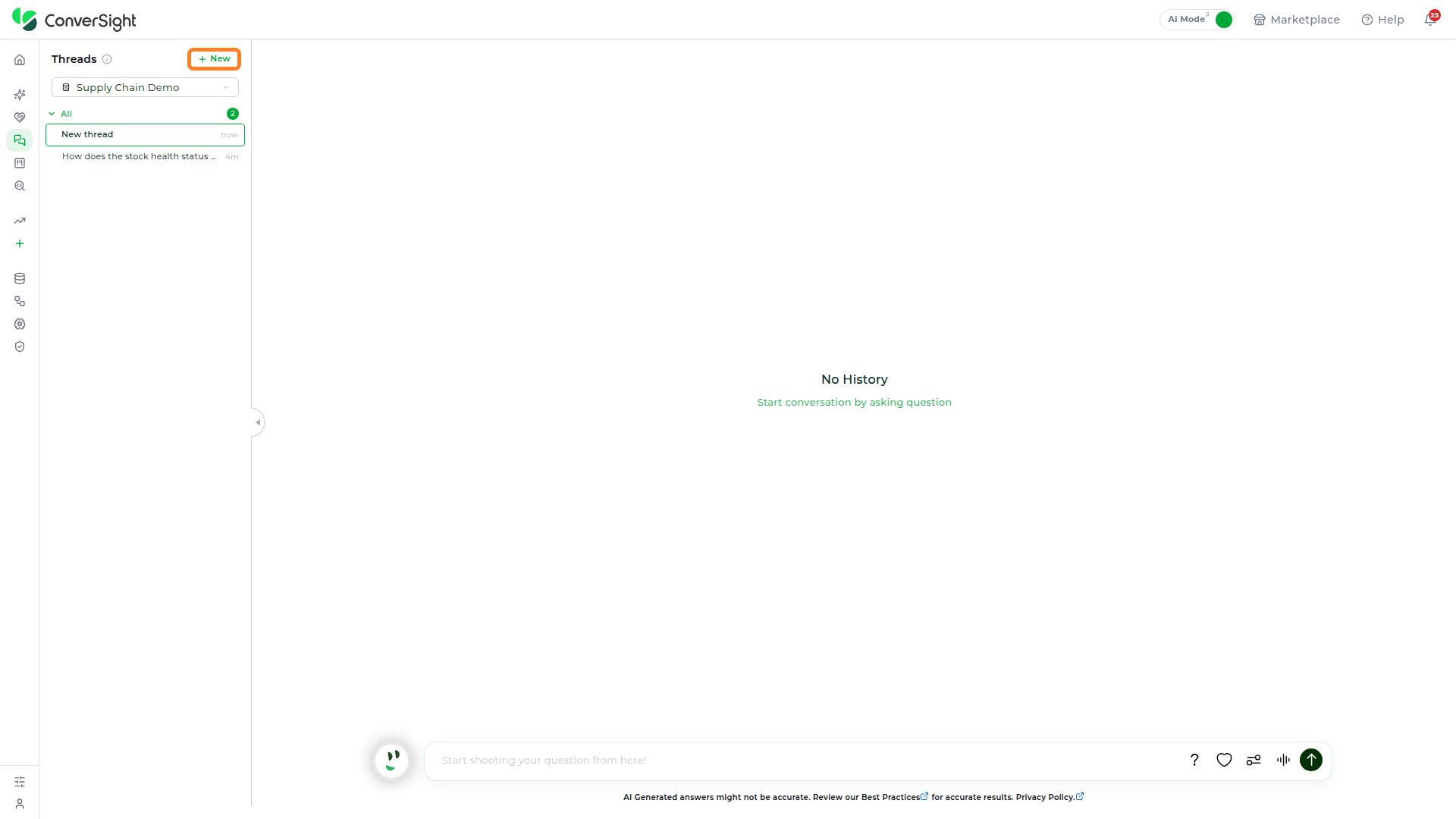
Click on the + New button at the top of the Threads panel to create a thread immediately. The new thread appears at the top of the list named New thread, with a timestamp showing when it was created.
Asking a Question Directly
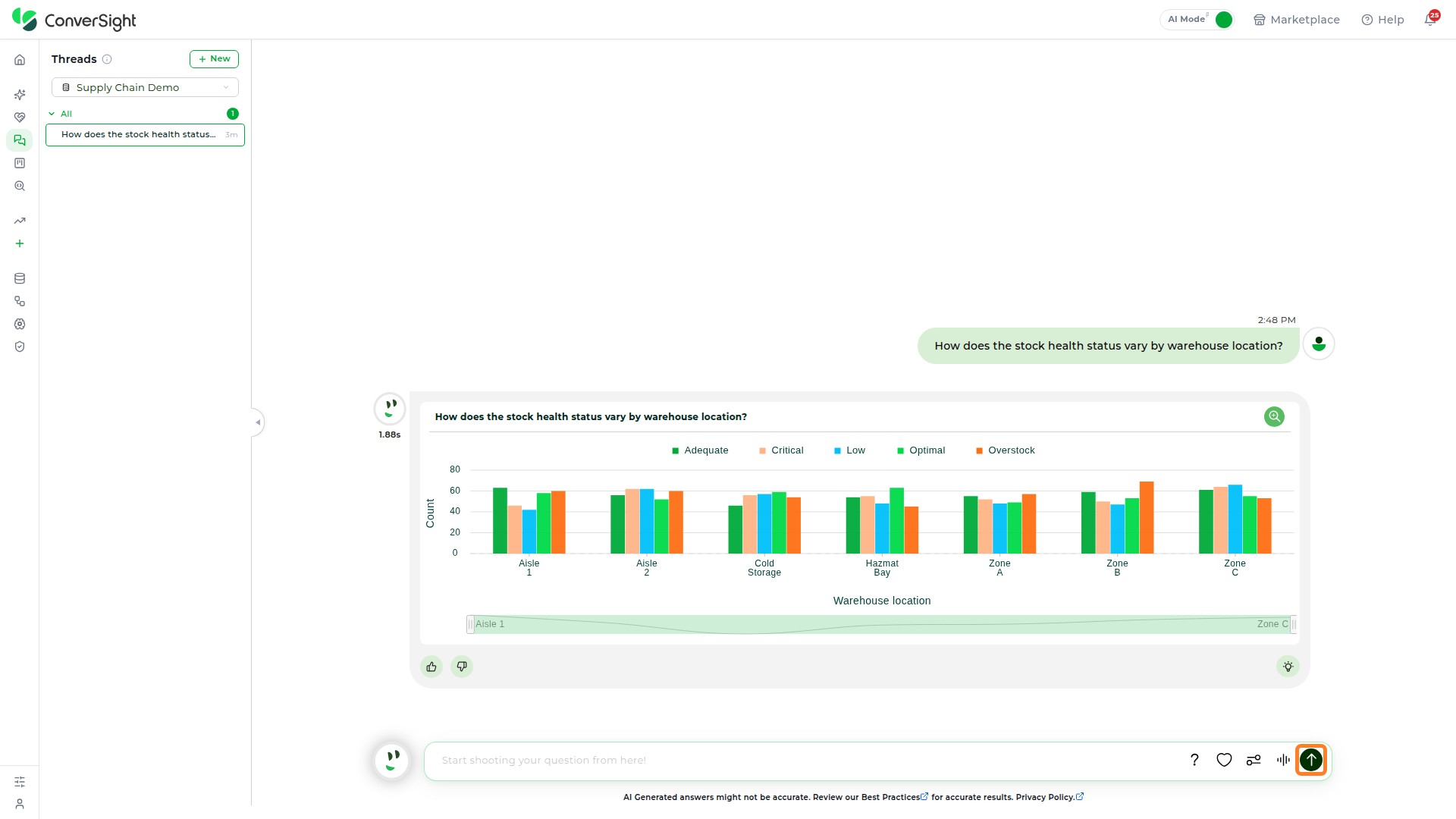
Type a question straight into the question box at the bottom of the page and click Send without creating a thread first. Athena creates a new thread automatically and names it after the question just asked, for example How does the stock health status vary by warehouse location?

Renaming a Thread
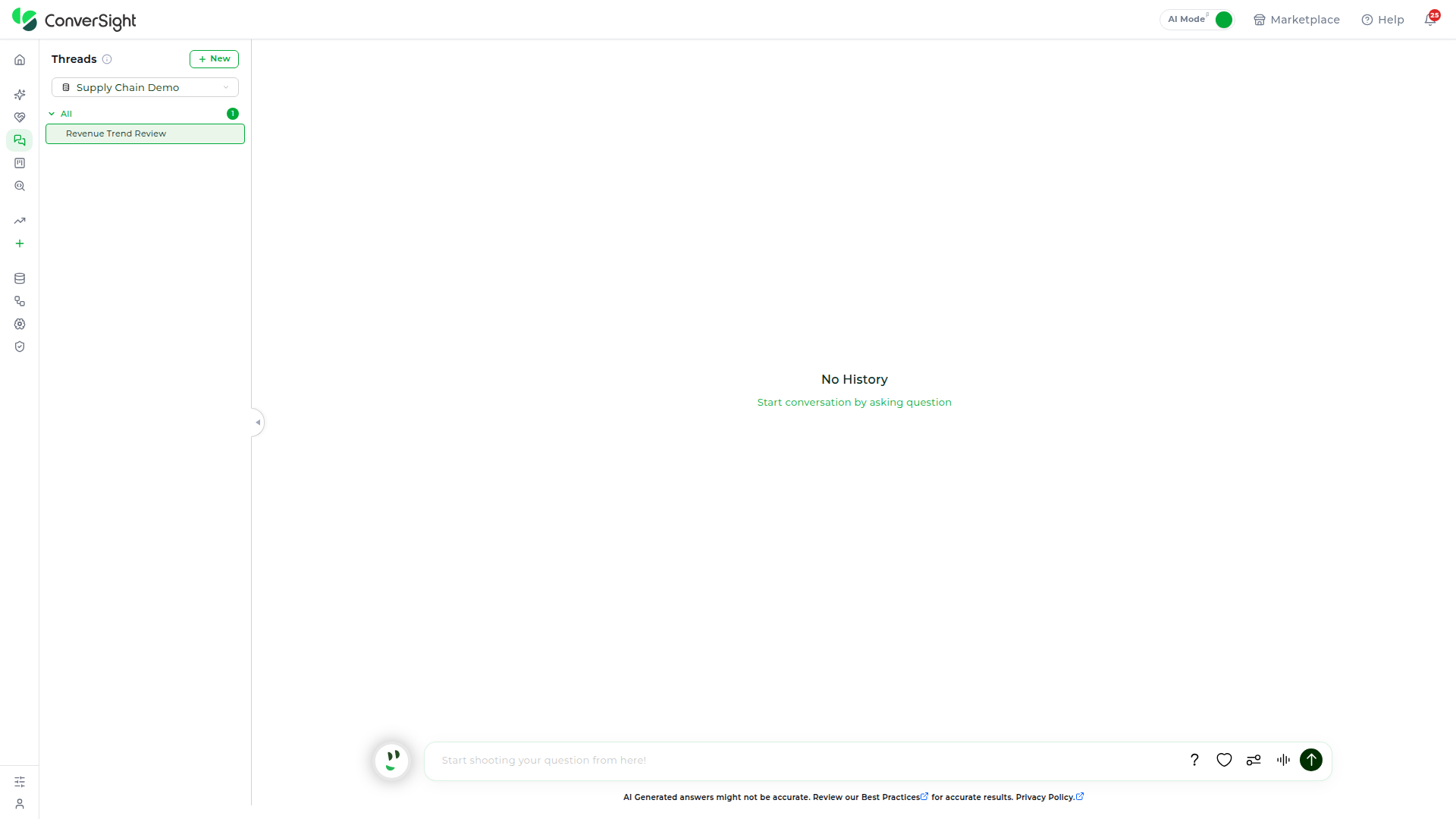
Hover over a thread in the list to reveal its Rename (pencil) and Delete (trash) icons. Click on the Rename icon to turn the thread's title into an editable text field, then type the new name and press Enter to save it.
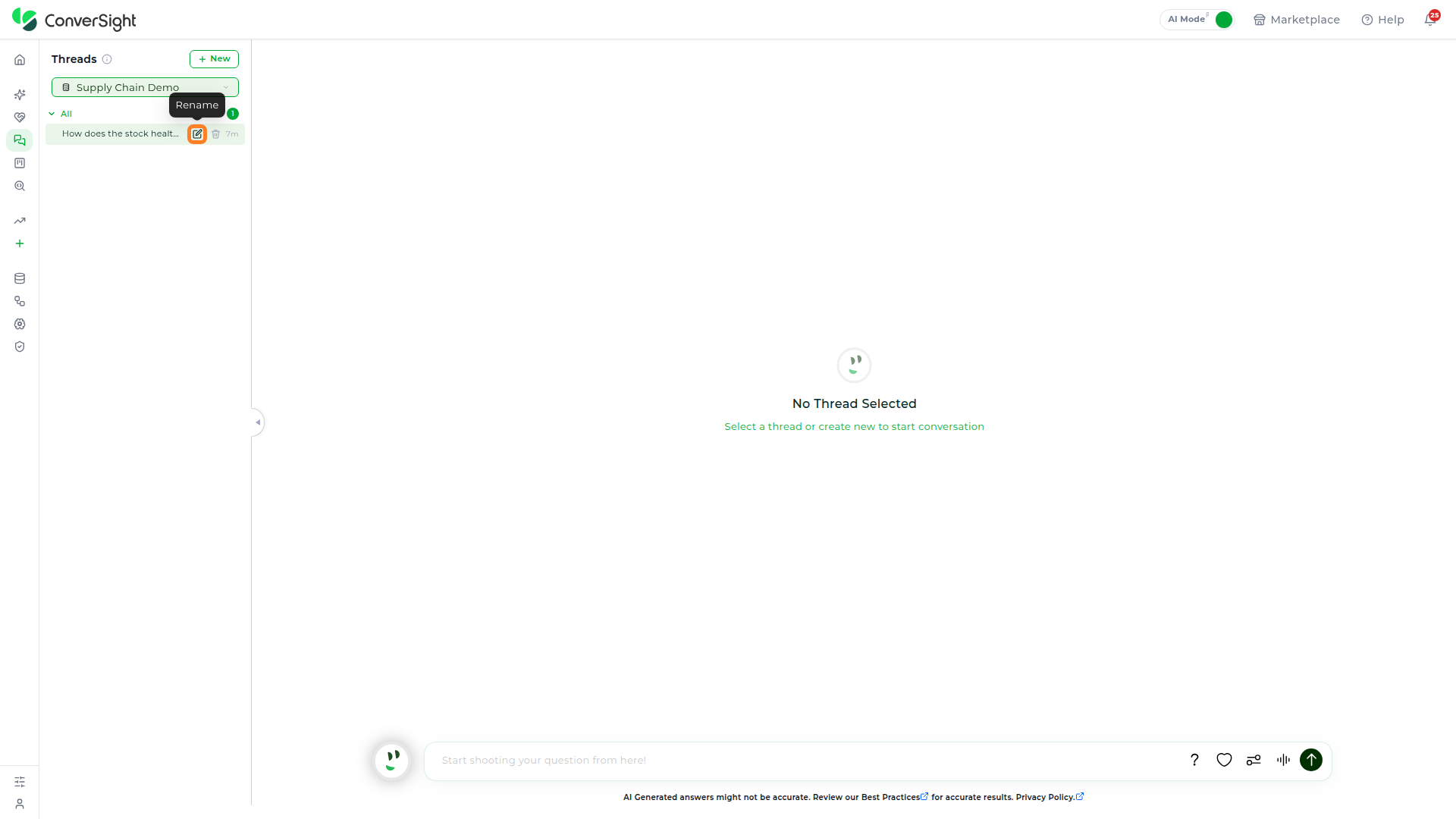
A thread name can be up to 80 characters long.
Deleting a Thread
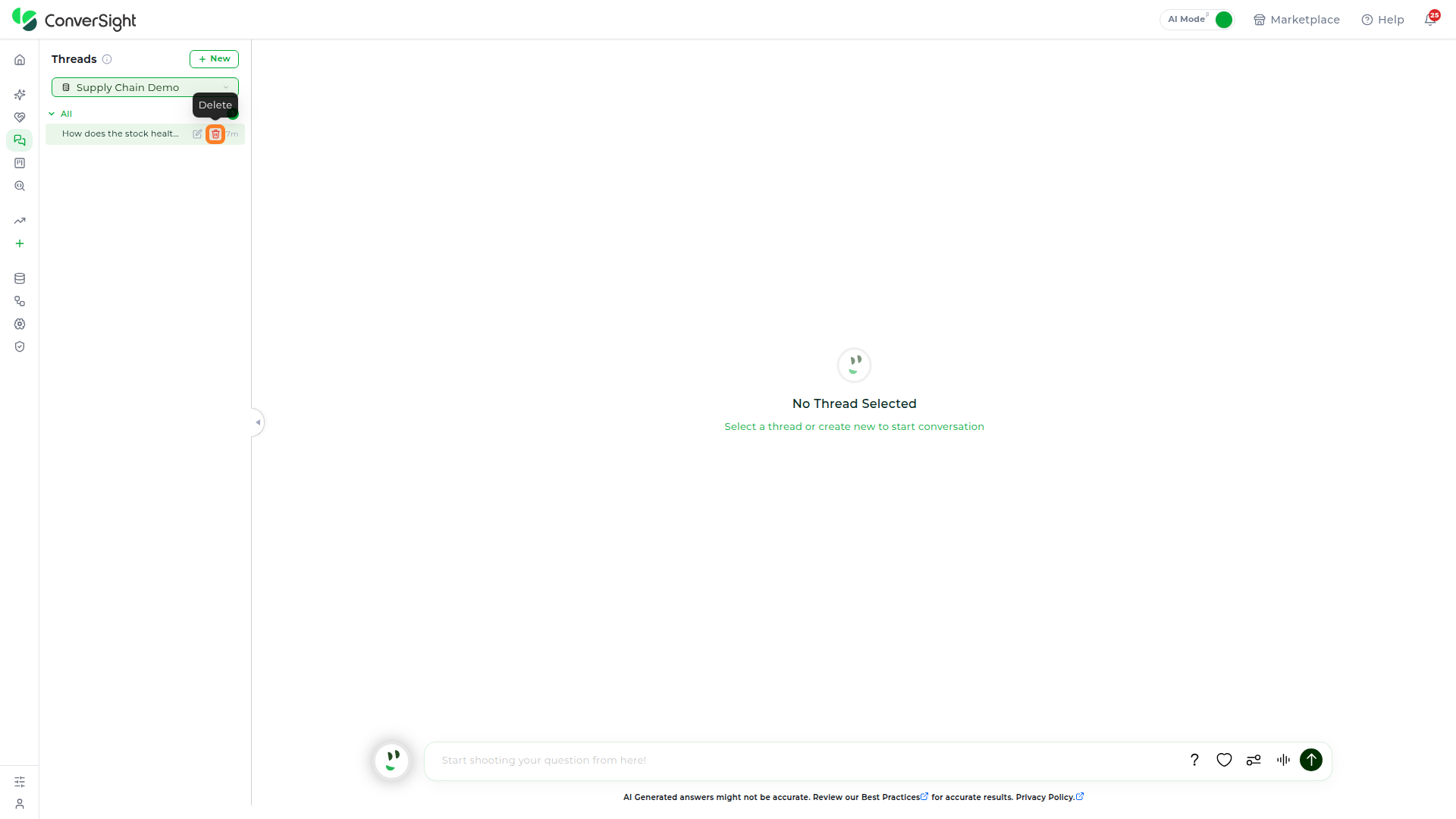
Hover over a thread and click on its Delete (trash) icon to remove it.
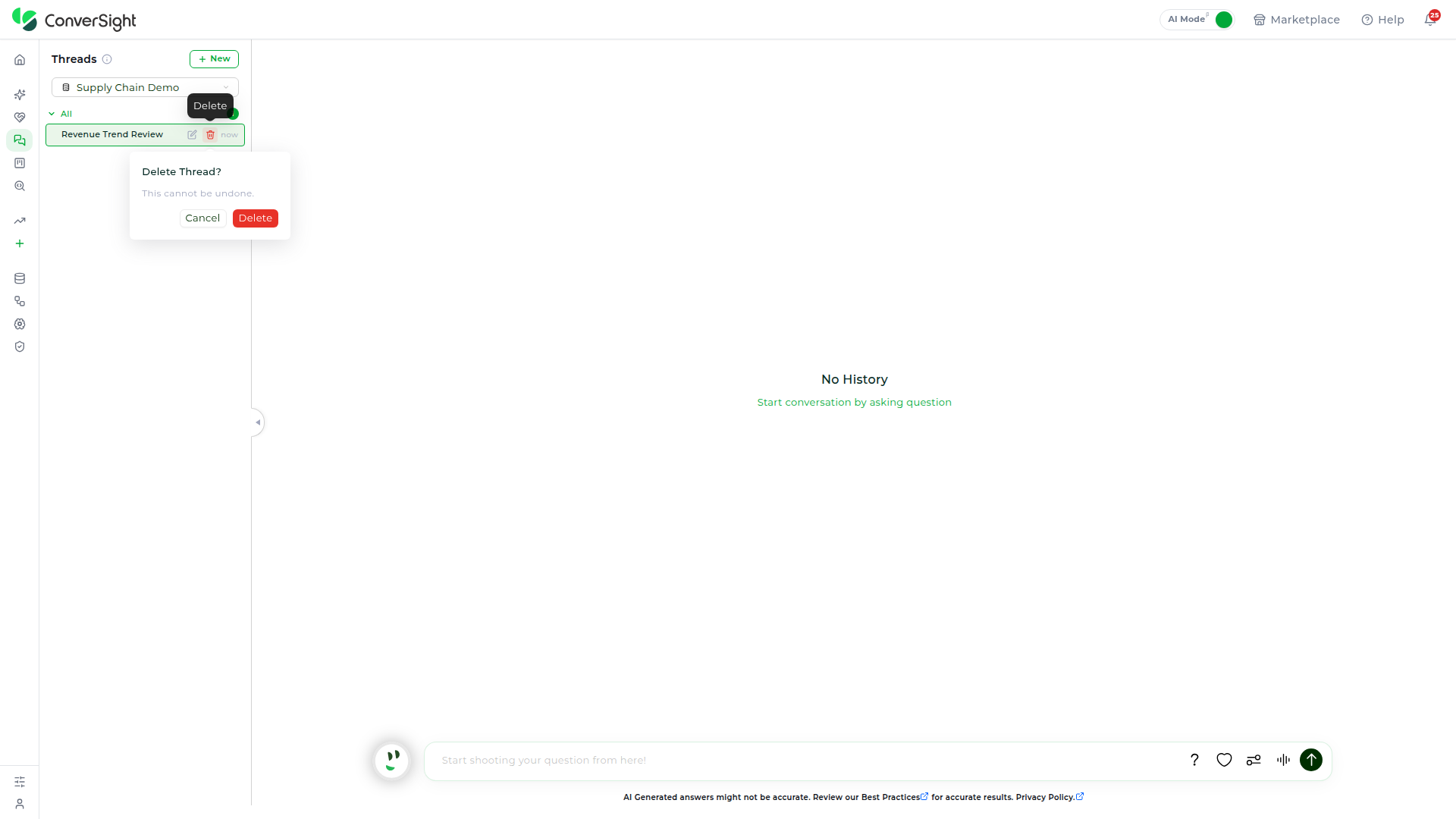
A confirmation popup appears, warning that the action cannot be undone. Click on Delete to permanently remove the thread, or Cancel to keep it.
Threads that stay inactive for 90 days are automatically deleted.
Help Questions
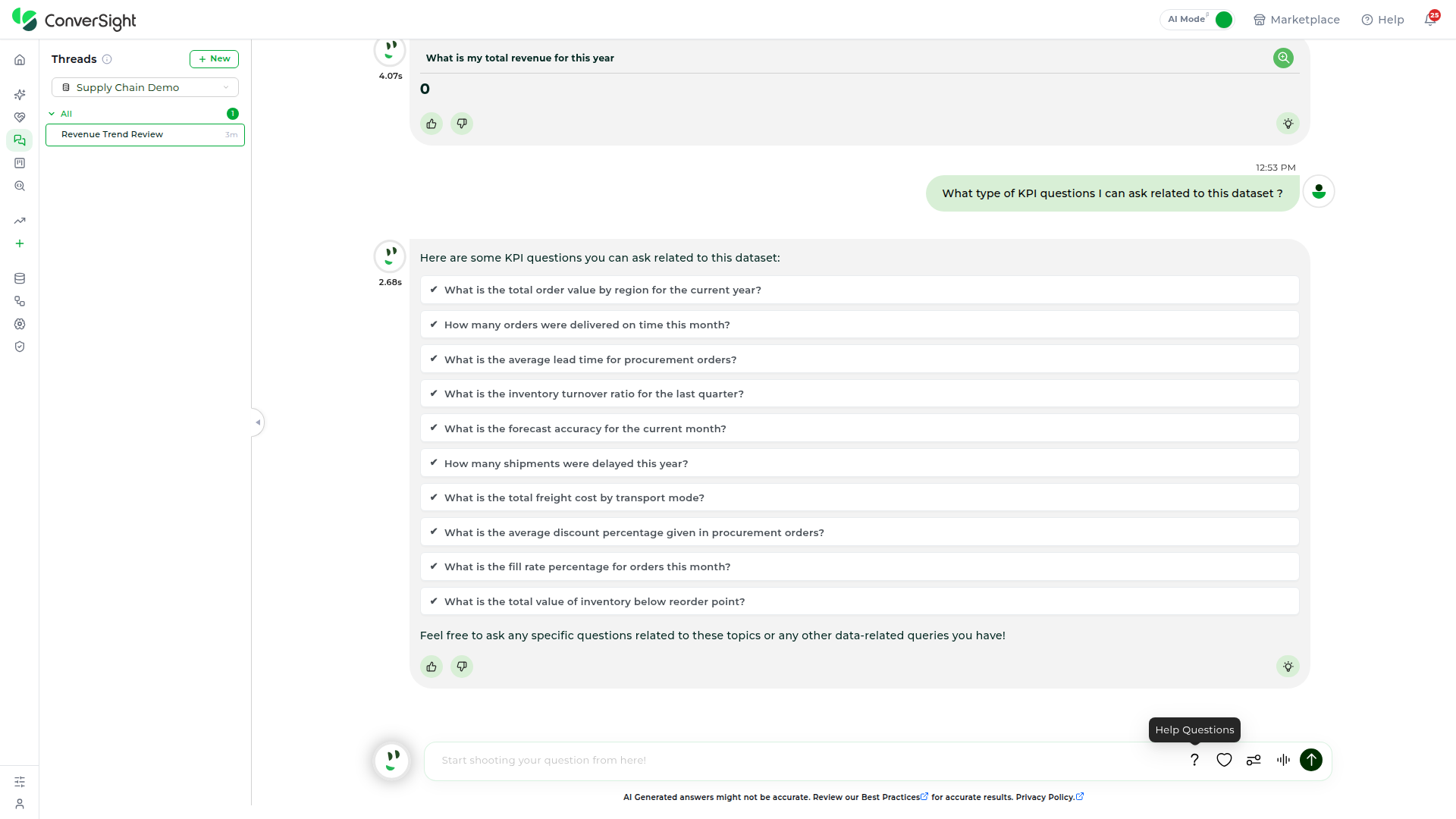
Click on the Help Questions icon in the question box to ask Athena what kinds of questions it can answer for the active dataset.
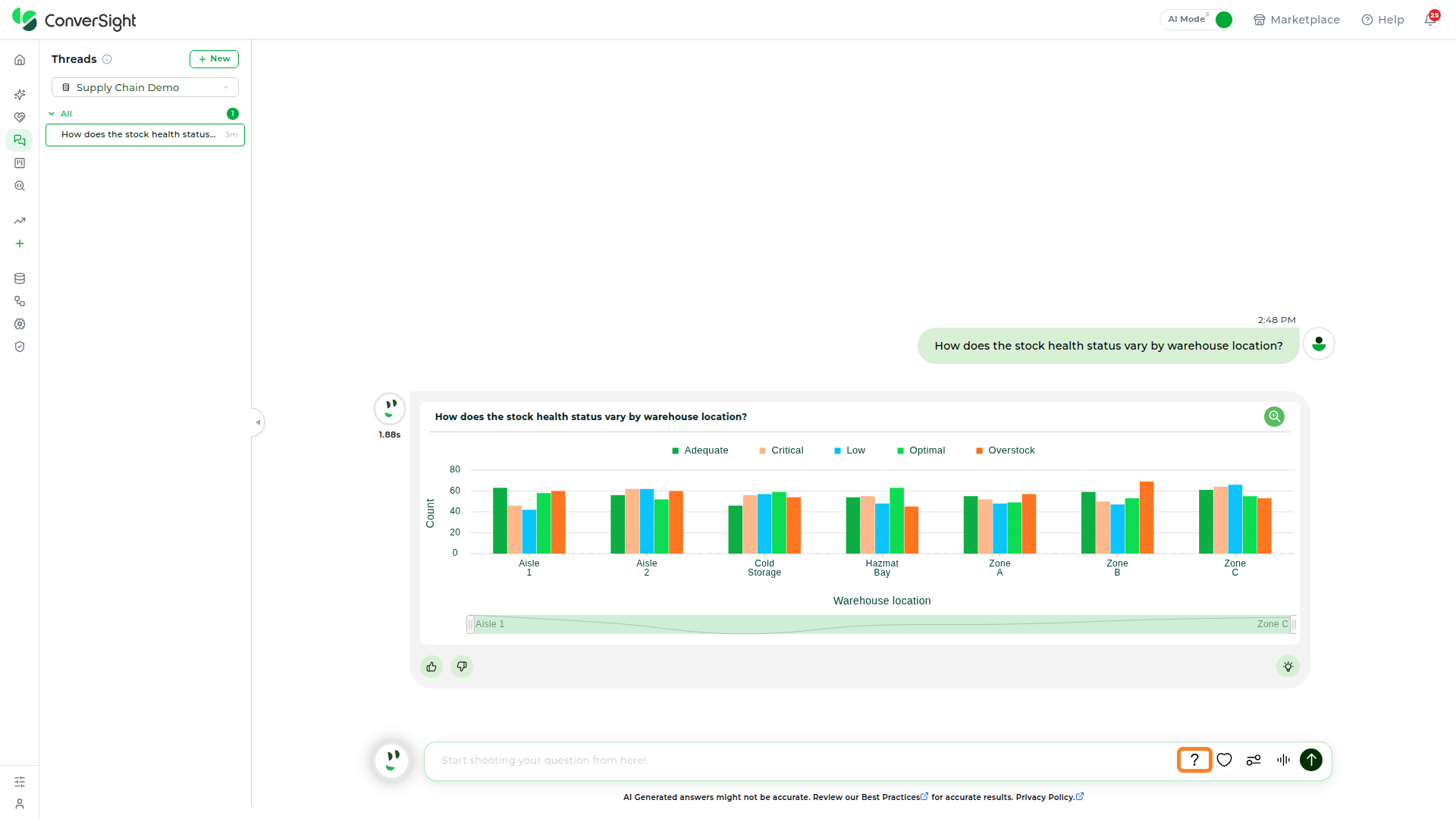
Athena responds inside the thread with a tailored list of sample KPI questions built from that dataset's own data — ready to click into the question box or use as a starting point for a related question.
Favorites
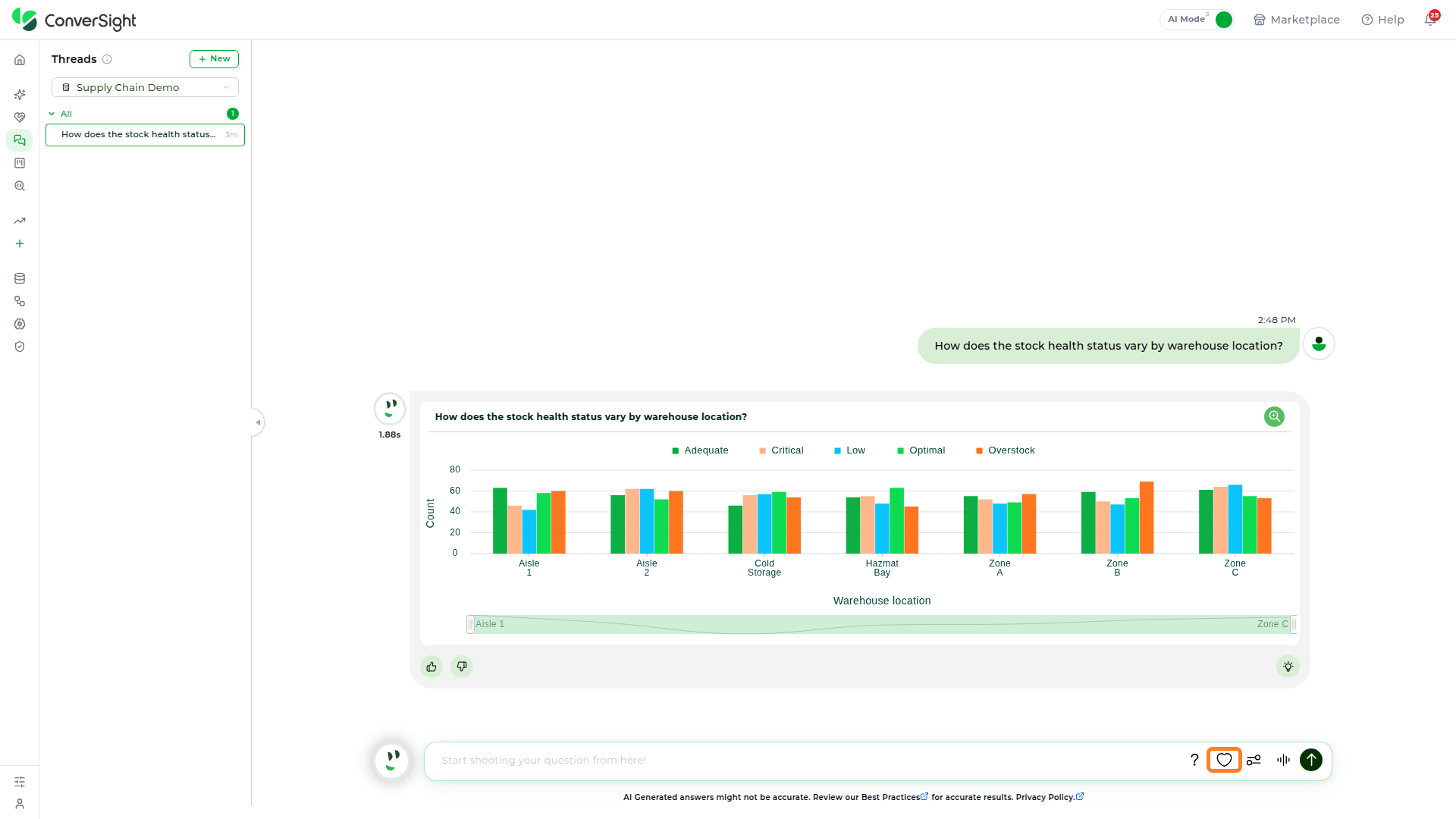
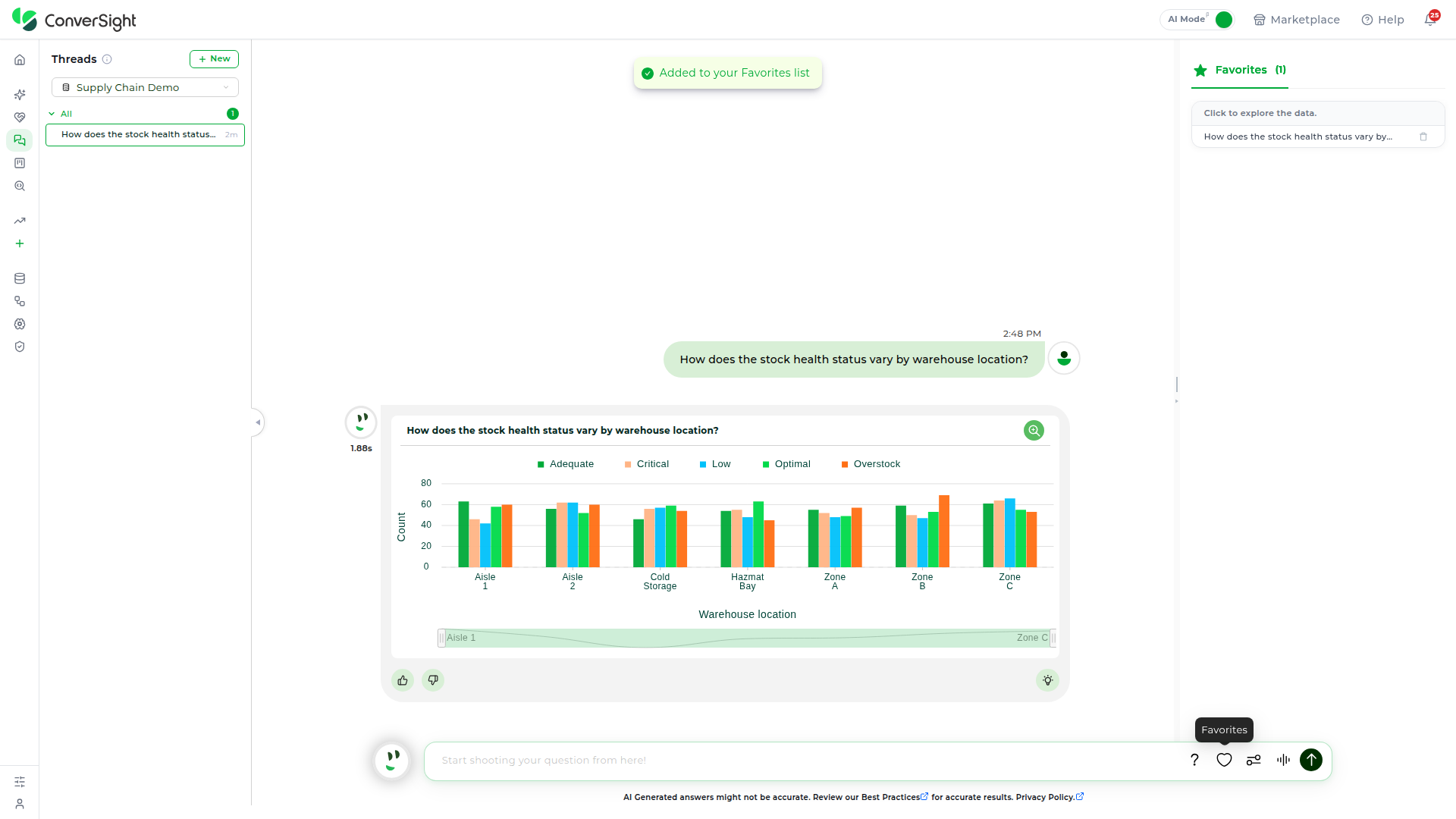
Favorites save a specific chart or table response for quick access later, so a business-critical answer can be found again without retyping the question or scrolling back through the thread. Click on the Add to Favorites (heart) icon on a response to save it — a confirmation reading Added to your Favorites list appears once it's saved.
Click on the Favorites icon in the question box to open the panel and see everything saved this way.
Each entry in the panel shows a Click to explore the data prompt above the original question, and a delete icon to remove it from the list.
Favorites are scoped per dataset, so a response favorited under one dataset does not appear when a different dataset is selected.
Preferences
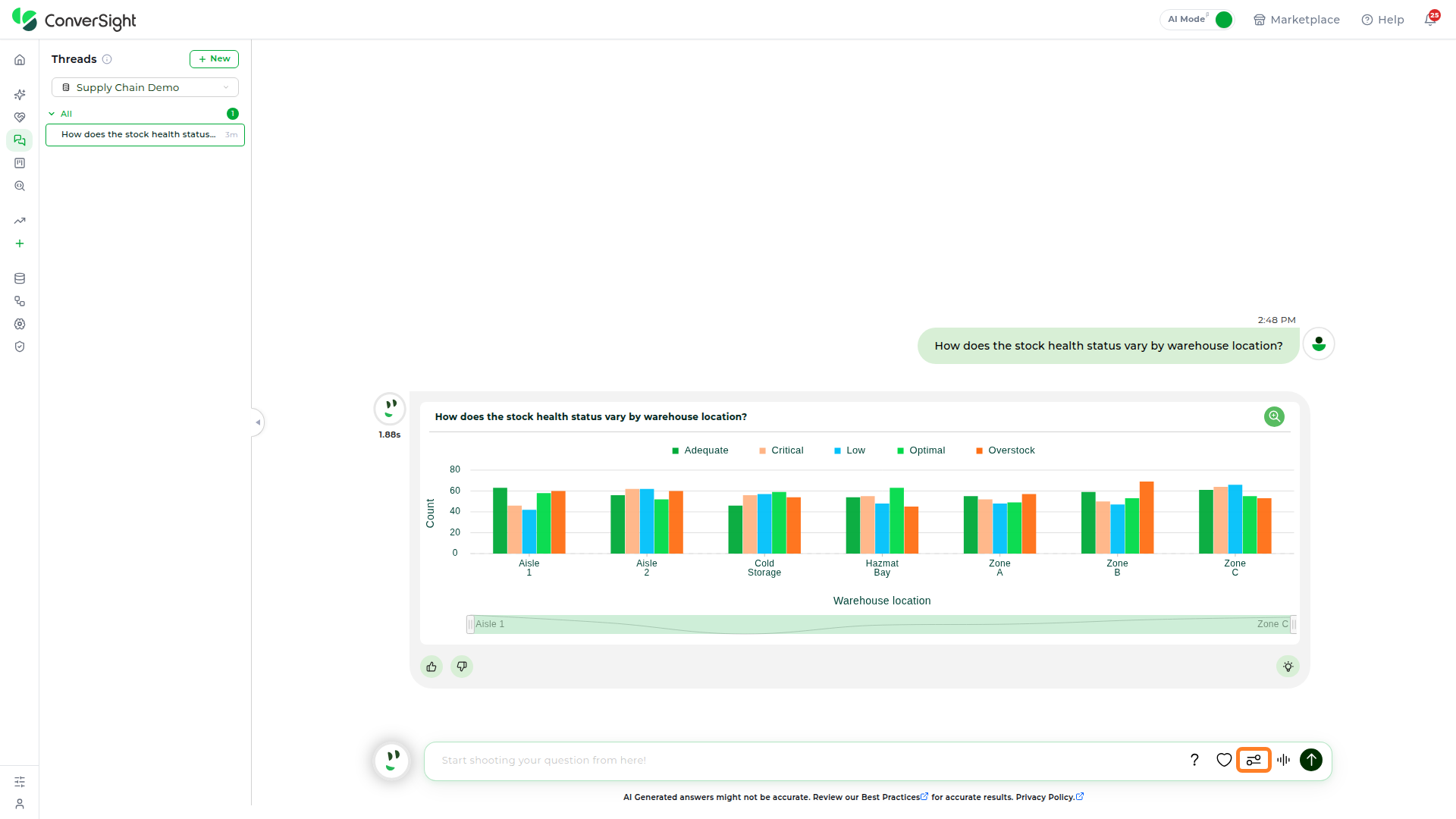
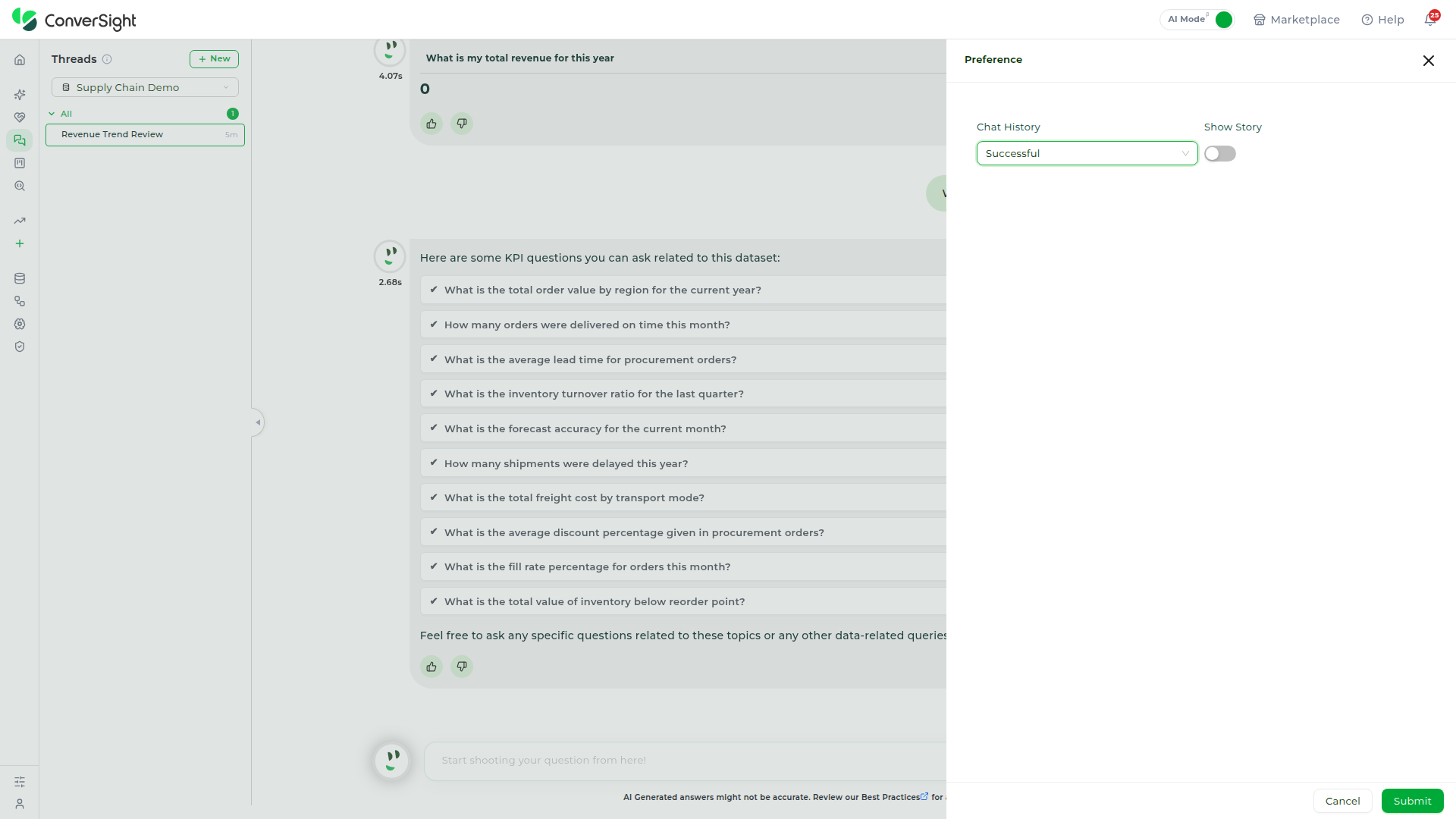
Click on the Preferences icon in the question box to open the Preference panel:
- Chat History: Set the dropdown to Successful, Failed, or All to control which past responses show in the thread.
- Show Story: Turn on this toggle to have Athena generate a plain-language narrative alongside every chart or table it returns.
Click on Submit to apply the changes, or Cancel to close the panel without changing anything.
Story generation is restricted when the column count or value count in a response exceeds 5,000.
Ask by Voice
Click on the Ask by Voice icon in the question box to ask a question out loud instead of typing it. Athena listens while the icon is active and returns the answer as a table or chart the same way a typed question would.

Send
Type a question into the question box and click on the Send button to submit it to Athena. The button sends whatever is currently typed, whether it starts a brand-new thread or continues the thread currently selected in the panel.
Best Practices and Privacy Policy
Every response in a thread carries a reminder — AI Generated answers might not be accurate. Review our Best Practices for accurate results. Privacy Policy. — linking to the same best-practices guidance and privacy policy that cover AI Assistant. The habits that make a single question more accurate carry over directly to a thread, since each new question in the thread still resolves against the dataset and Subject Area currently selected:
- Focus with Subject Areas: Select the correct Subject Area before asking, so Athena searches only the relevant tables instead of guessing across the whole dataset.
- Speak naturally: Ask in plain English rather than query syntax — Athena resolves the question against the governed semantic layer either way.
- Build on the conversation: Because a thread carries context forward, a follow-up question like "what about last quarter?" is understood in relation to the question before it, without repeating the full context each time.
- Add detail when a filter is ambiguous: If a broad term like "active" could mean several things, name the field it applies to — "customers with an active status" — to remove the ambiguity.
See the AI Assistant Best Practices Guide for the complete set of recommendations, including worked examples of fine-tuning a query.