Data Explorer
Data Explorer is Athena in Level 3 mode — Co-Pilot for active analysis. It's the surface where you and Athena interrogate data together: you pick a subject area, choose the dimensions and metrics that matter, apply the filters that frame the question — and Athena handles the query construction, the joins, the aggregations. No SQL. No waiting on a data team. No standing up a custom report.
The intent is self-service that actually works for non-technical users. The platform exposes data organized by subject area (sales, inventory, suppliers, fulfillment, finance — whatever the data team has modeled), so a user starts from a concept they understand ("show me last quarter's orders by customer segment") rather than a table schema they don't.
Data Explorer supports three query patterns that cover the common analytical needs:
- General queries — direct cuts of the data across any combination of dimensions and metrics. The base case for "what does this slice look like?"
- Trending Top/Bottom — identify outliers without manually sorting. Top 10 customers by revenue, bottom 5 SKUs by margin, fastest-growing regions — Athena ranks and returns the answer.
- Period analysis — comparisons across time windows. Year-over-year, month-over-month, quarter-over-quarter — patterns that need normalized time bases are handled natively, not by manual date math.
This is where most ad-hoc analytical questions live: not big-enough to need a Storyboard, not narrow-enough for a single AI Assistant query, not periodic-enough for an AI Briefing. Data Explorer is the in-between surface for working through a question with Athena.
Accessing Explorer
Click on the Explorer in the navigation tab at the top of the platform to access the Explorer feature page.
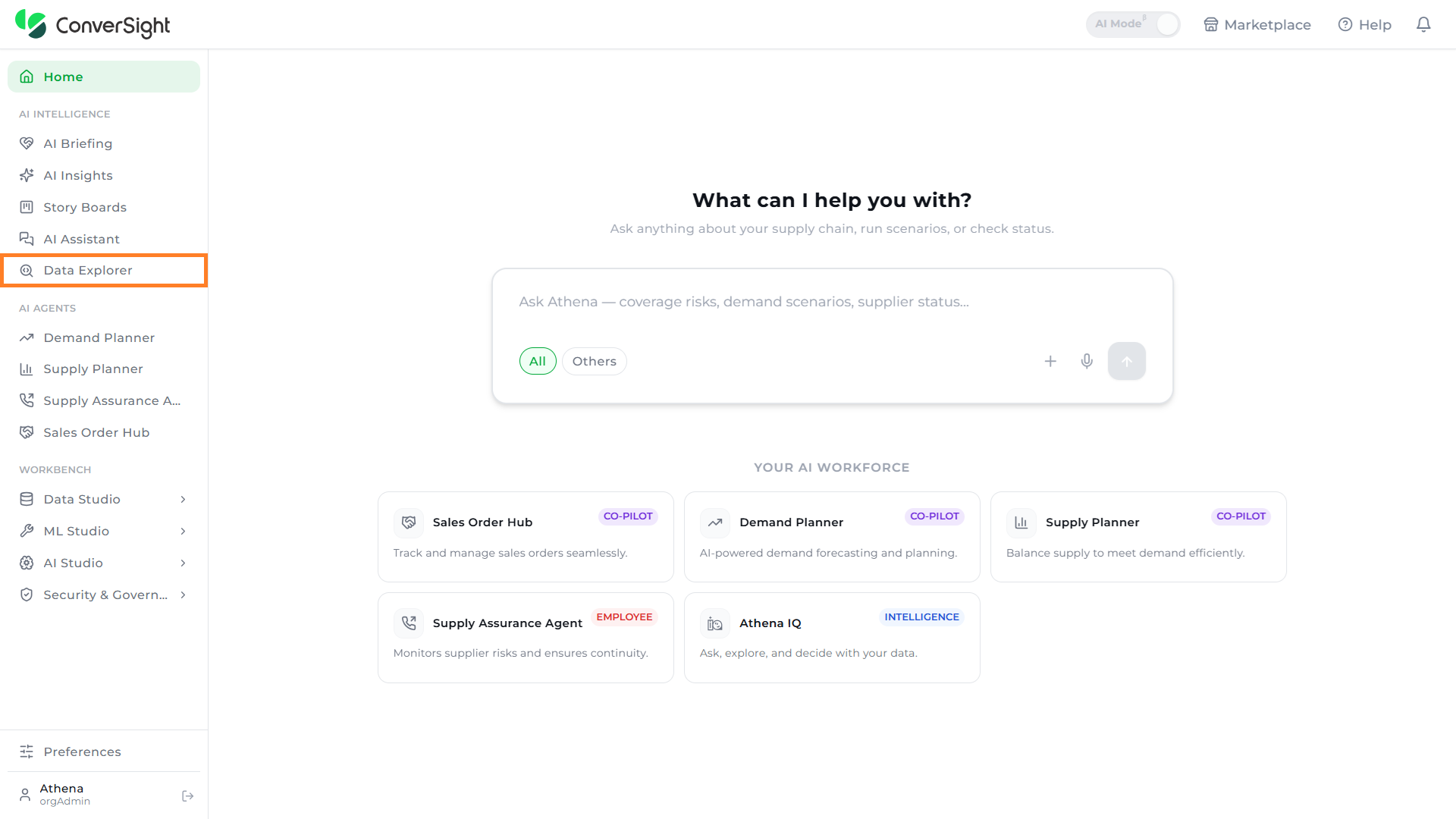
In the Explorer tab, the Business User toggle is designed for users who need simplified access to data relevant to their role, such as sales or procurement and focuses on subject areas that make it easier for them to navigate without needing extensive knowledge of the data structure. On the other hand, Power Users, like data scientists or analysts, need to work with larger datasets across all tables and perform more complex analysis. The toggle allows Power Users to access all data in one view for full exploratory analysis, but they must be familiar with the underlying data architecture to perform cross-table reporting.

In Power User mode, only columns from tables with an established relationship to the selected object are available for selection. Columns from unrelated tables are disabled.
Creating Reports
Sequential steps to create reports in ConverSight are as follows.
Step 1: Choose the dataset from the drop-down. After selecting the dataset, choose the subject area for which you intend to create the report.

Step 2: After selecting the subject area, the tables relevant to that area will appear on the left. You will also be able to view the data types present in the dataset.

You can also change to a different subject area using the Subject areas dropdown menu on the left side.
Step 3: You can simply click on the Columns you want to include in the report. The selected columns will be added in the query area and organized into specific categories such as metric, dimension, date, flag, smart query, smart columns and calculated Fields where columns within the same category will be grouped. Calculated metrics will be grouped under metrics, while smart query, smart columns, flag, and smart analytics will be grouped under dimension.
You can view the available field types on the left side, which lists all the field categories. Additionally, the Help tooltip explains each field type.

Calculated metrics will be grouped under metrics, while smart query, smart columns, flag and smart analytics will be grouped under dimension.
The query field can be expanded by clicking on the dropdown menu, or you can simply drag it down to increase its size. Additionally, when columns are added to the query field, they will appear at the top, allowing users to quickly review their actions.

Step 4: To add aggregations to columns, click on the Summations icon. You can perform operations such as sum and average on metric columns. For date columns, you can aggregate data by day of the week (DOW), day, week, month, quarter and year. For dimensions and smart columns, you can use count aggregation.
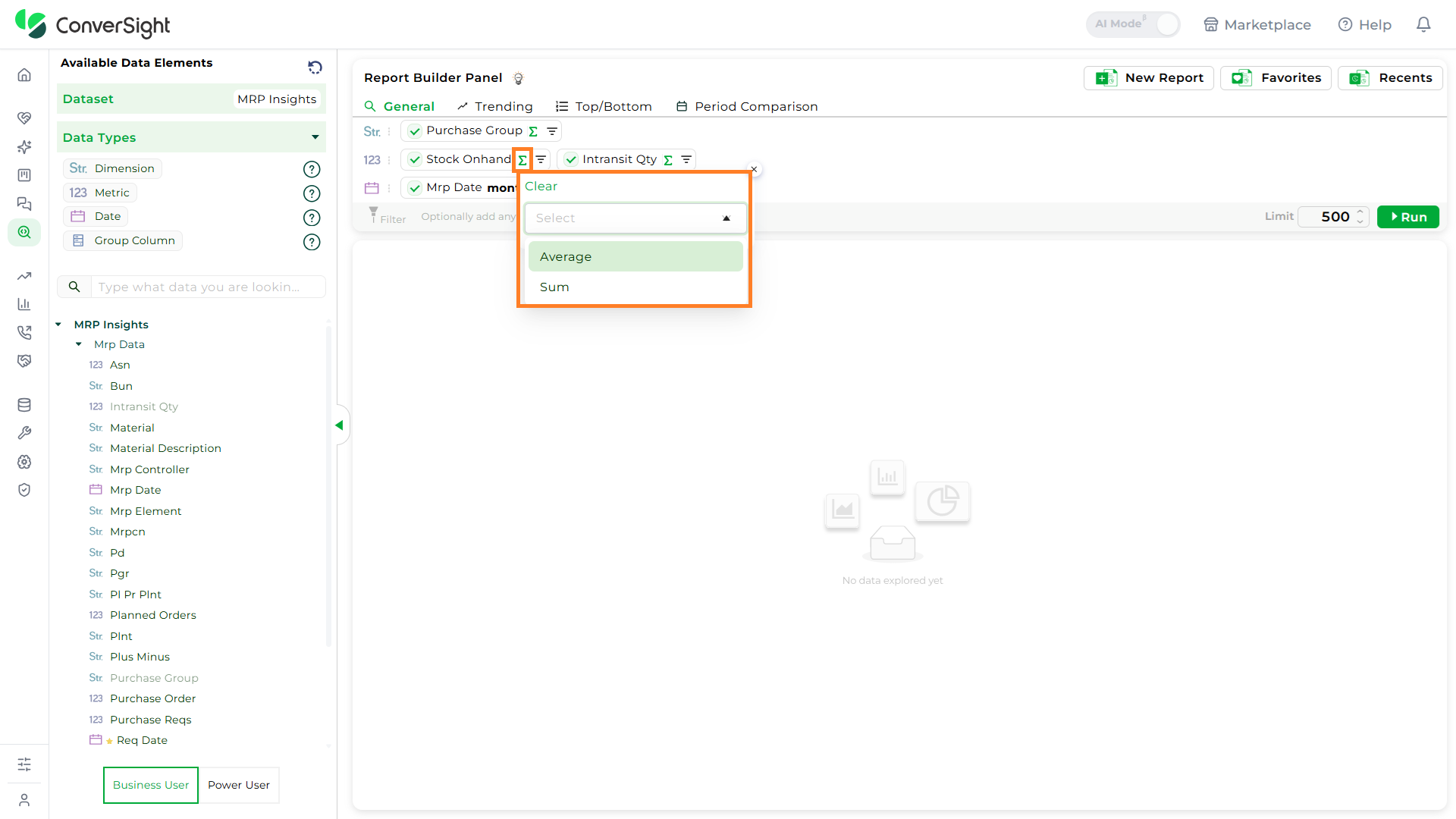
You can view details about each column, such as the table it belongs to, its category and any synonyms, by simply hovering over the column name in the list on the left.

Step 5: You can add filters to the reports by clicking on the Filter icon next to the columns. The selected filters will be added to the filter section under their respective categories, similar to how columns are organized.

By default, filter values for the columns are set to All. You can then click on the Summations icon to select one of the available options or create a custom condition, depending on the category type. Below are the filter values for each column category.
| Category | Conditions | Value |
|---|---|---|
| Date Column | Custom, Yesterday, Today, this week, last week, next week, this week-to-date, this month, last month, next month, this month-to-date, last quarter, this quarter, next quarter, this quarter to date, this calendar year, this financial year, last calendar year, last financial year, this year to date, this year, last year, next year, last 30 days, last 60 days, last 90 days, last 180 days, last 360 days, next 30 days, next 60 days, next 90 days, next 180 days, next 360 days, last 3 months, last 6 months, and last 9 months | A value is required for the condition. |
| Dimension Column | Is, like, != and not like | A value is required for the condition. |
| Metric Column and Calculated Fields | Equal to, greater than, greater than or equal to, lesser than, lesser than or equal to, not equal to, and between. | A value is required for the condition, and the 'between' condition requires two values to be inputted. |
| Flag | equal to and not equal to | 1 or 0 |
Filters and columns can be removed by hovering over them, which will display an “x”. Clicking on the “x” will remove them.
Step 6: Once the columns are selected and filters are applied, click on the Run button to generate the report

Users can cancel an ongoing query using the Stop button. This lets you halt response generation instantly instead of waiting for it to complete.

Copy to Clipboard
The Copy to Clipboard allows users to easily copy and transfer data with a simple click. When you click on the icon, a confirmation message will appear, asking if you want to proceed with copying the data. By clicking Ok, the data is copied, allowing you to paste it into other documents, emails or applications.

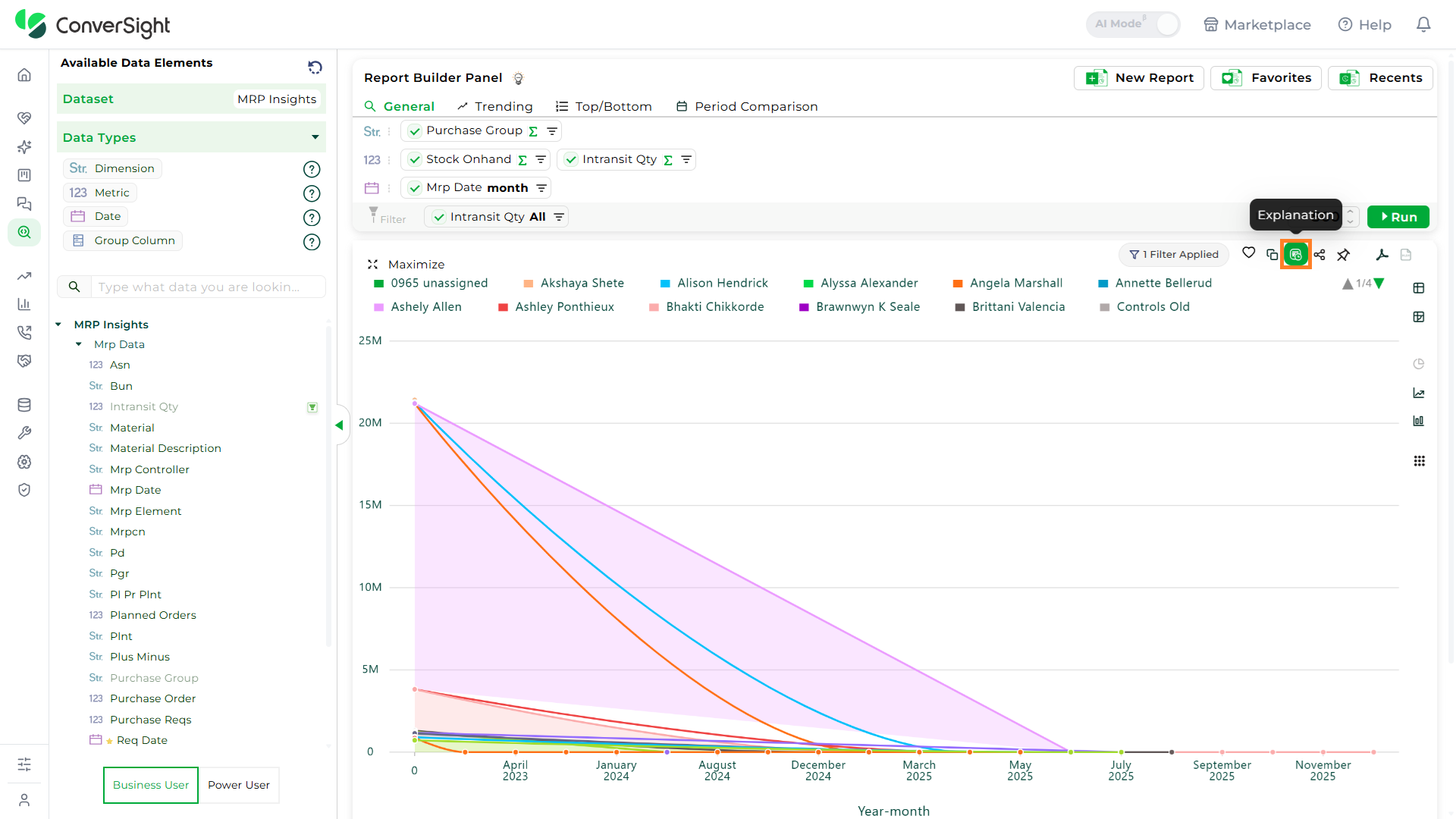
Explanation
The Explanation tab offers a detailed breakdown of your visualization, providing insight into its underlying structure and meaning. It is divided into three main areas:
| Section | Description |
|---|---|
| Semantics | Focuses on the meaning and context of the data, helping users interpret the relationships and significance of various data points. |
| SQL Query | Displays the SQL logic and criteria used to generate the visualization, providing transparency of operations performed on the data. |
| SQL Form | Presents the structured format of the SQL query, offering a clear view of the query's organization for easier understanding, modification, or reuse. |

Report Sharing
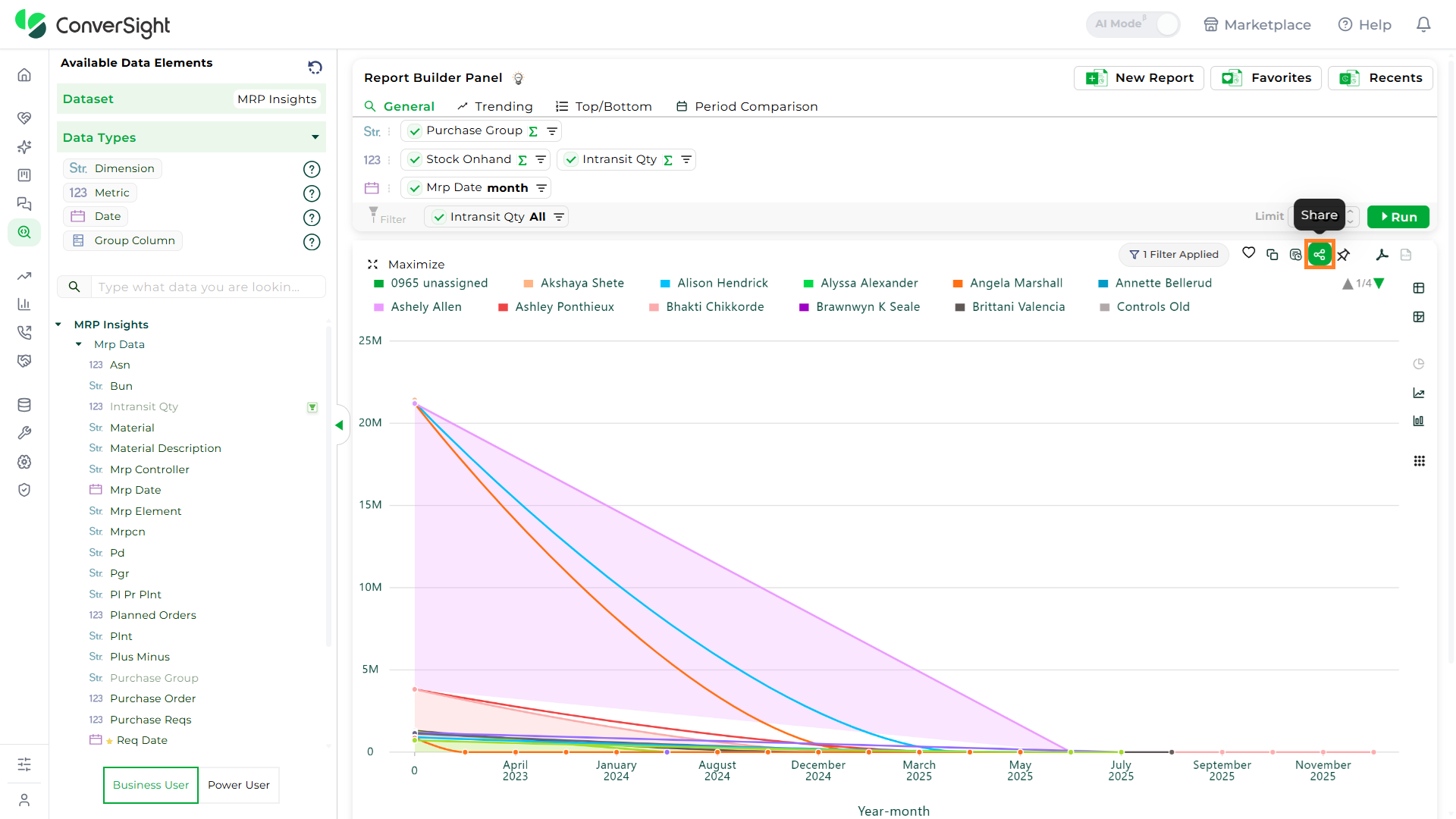
Use the Share icon to send reports via email to multiple recipients by separating their email addresses with commas. You can also add a custom message in the dialog box before clicking the Share button to complete the process.

Add to Storyboard
The Add to Storyboard feature lets users attach reports to a storyboard. You can create a new storyboard by clicking Create and Add button or add to an existing one by clicking Add, making it easy to organize and access relevant reports in one place for streamlined data viewing.


Export to PDF and Excel
The Export feature allows you to convert reports into either PDF or Excel formats with a simple click. Exporting to PDF preserves the report’s formatting, while exporting to Excel enables advanced data analysis and manipulation.

More Visuals
The More Visuals feature in ConverSight offers a range of options to enhance data analysis through various visual formats, including CS Tables and Pivot Tables. It allows for customization of tables, conditional formatting, and field manipulation, providing flexible ways to display and analyze data. General settings enable users to tailor row and column displays, apply conditional styles, and adjust formatting for both CS and Pivot Tables, making data exploration more dynamic and efficient.

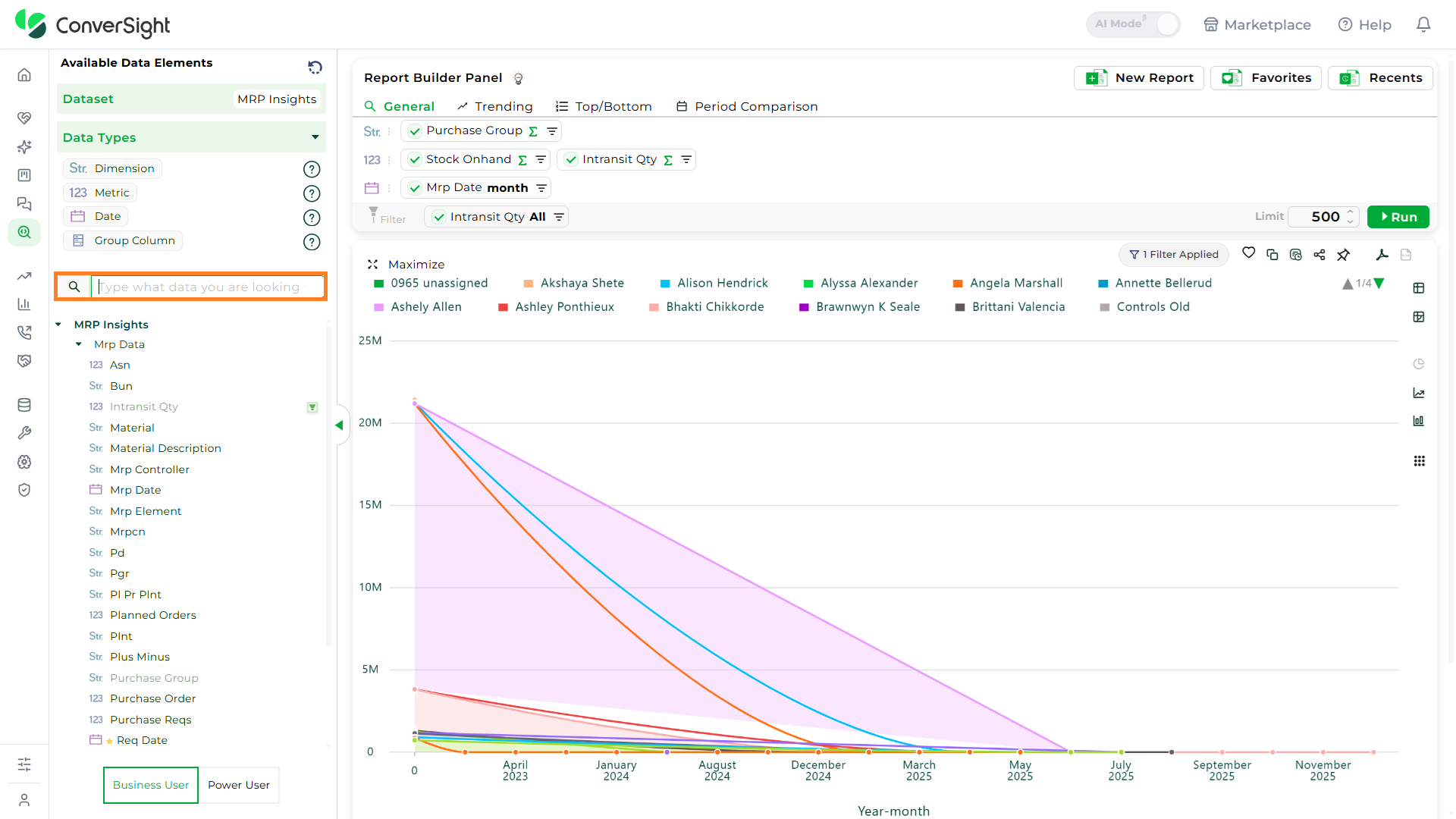
Quick Search
The search bar allows you to quickly find the data you need, especially when dealing with more number of columns. By entering keywords or terms of descriptions, you can swiftly retrieve specific columns, making it a more efficient and convenient method for locating data within extensive datasets.
New Report
To create a new report, the quickest method is to click on the New icon on the top. This action will initiate the process, beginning with the selection of the subject area. From there, you can build your report from scratch, customizing it to fit your specific needs and preferences.

Help
The Help tooltip provides a visual example of how the data will appear once the columns and filters are added to the query area. This example helps you understand the layout and organization of the data, giving you a clearer idea of how your selections will affect the query results.

Recently Queried
To view your recently queried data, click on the Recents button located in the top right corner of the page. This section will display a list of queries you have run recently, organized and categorized by field type. This feature helps you easily access and manage your previous queries, allowing you to quickly revisit and review your data.

The Recently Queried dropdown currently shows only the last 20 queries.
Favorites
Favorites are reports you've created for quick and easy access, where you can select a specific dataset to view your saved reports. They function like personalized report folders, allowing you to organize and retrieve your reports efficiently. You can have multiple favorites for better organization.

Creating a Favorite
To create a favorite, click the Add to favorites (Heart) icon on the generated report. A pop-up will appear where you can enter a name and description for the report. You can choose to save it in an existing folder or create a new one by clicking Create and providing a name for the new folder. Once you’ve made your selections, click Submit to finalize.

Accessing Saved Favorites
To access your saved favorites, click the Favorites button at the top of the page. This will display all your saved favorites for quick retrieval. User can select a specific Dataset to view the favorites associated with that dataset. This allows them to filter and access their most frequently used or preferred data items within the selected dataset quickly and efficiently.

Editing Favorites
The Edit Favorites option in Explorer allows modifications to existing favorites, ensuring they remain up to date and aligned with reporting or analysis needs. Changes can be applied to columns, filters, or configurations and then saved back into the favorites list. The following are the steps:
Step 1: Select the Favorite that needs to be edited.
Step 2: Add or Modify the required columns or settings, then click the Run button to apply the changes.


Step 3: To save the modifications, click the Update Favorite button.

Trending Queries
Trending Queries enable users to visualize trends over time, helping track upward or downward movements in data across selected metrics, dimensions, and dates.
Follow the steps below to run a Trending Query:
Step 1: Navigate to the Explorer page and click on the Trending option available in the query panel.

Step 2: Select the direction of the trend,
- Trending Up – To view top-performing values.
- Trending Down – To view bottom-performing values.
By default, the query retrieves the Top 10 results. Users can customize the number as needed.

Step 3: To configure a Trending Query, you must select, One Metric column (e.g., Sales), One Dimension column (e.g., Product) and One Date column (e.g., Order Date).

The Run option will remain disabled until a Metric, Dimension, and Date column are selected. Only one column can be selected per type—choosing another will replace the existing selection.
Step 4: Aggregation is supported for Metric and Date columns. For Dimension columns, only count aggregation is currently available; additional aggregation options will be added in a future release.

Step 5: After configuring all fields, click the Run button to execute the query and view the results.

Top/Bottom Queries
Top/Bottom Queries help users identify the highest or lowest performing values based on a selected metric and dimension. These insights are useful for questions like Top 10 Products by Sales or Bottom 5 Regions by Revenue.
Follow the steps below to run a Top/Bottom Query:
Step 1: On the Explorer page, click on the Top/Bottom option in the query panel to get started.

Step 2: Select whether you want to view the Top or Bottom values. By default, the option is set to Top and the result count is set to 10, which can be adjusted if required.

Step 3: To configure the query, select At Least One Dimension and Metric column to enable the Run button. The first metric column selected becomes the primary column for the query. The Date dropdown is set to None by default.

The Run option will remain disabled until at least one Dimension and Metric column is added.
Step 4: Aggregation is supported for the selected Metric and Dimension column. For metrics, aggregations include Sum and Average while, Dimension supports Count; additional aggregation options will be added in a future release. Filtering is supported for Date columns, allowing you to narrow down data based on specific time ranges.

Step 5: After all selections are made, click the Run button to generate the Top/Bottom report.

Period Analysis
Period Analysis helps you compare metrics across different time intervals to identify trends and changes in performance over time. You can configure comparisons by using period-over-period and by choosing a frequency that fits your analysis needs.
Follow the steps below to run a Period Analysis Query:
Step 1: Navigate to the Explorer page and click on the Period Analysis option available in the query panel.

Step 2: Choose the analysis period by selecting either Period over Period or choose from Frequent Template.
Period-Over-Period comparison options such as Month-over-Month (MoM), Year-over-Year (YoY), Week-over-Week (WoW), or Quarter-over-Quarter (QoQ).

After selecting Period over Period, choose the columns you want to include in the query. In the Metrics column, you can also select Advanced Metrics to view the “Growth Percentage".

Growth Percentage is available only for metrics in Period-over-Period analysis.
Once done click on Run to view the generated insight.


Use a Frequent Template, which includes commonly used time comparisons. Select the required columns, and in the Metrics column, you can also choose Advanced Metrics to view the “Variance”.

Variance is available only for metrics when using Frequent Templates or Custom Templates.

A Customized Template enables users to define reporting periods by either selecting a specific start and end date or choosing from predefined options.

Additionally, it supports comparative analysis through a Period 1 vs Period 2 format. There is no limit to the number of periods that can be configured—users can compare multiple timeframes for in-depth trend evaluation. This mode also supports comparing multiple dimensions across multiple periods, making it ideal for advanced, customized reporting needs.


In both Frequent Templates and Custom Templates, you can sort reports with metric columns. Select the desired Metric field and choose the sorting order as Ascending or Descending to organize the report data accordingly.

To configure a Period Analysis, select exactly One Date field and At Least One Metric. There is no restriction on Dimensions - you may select as many as needed.
The Run button remains disabled until both a Date and at least one Metric are selected. Only one date can be selected — choosing a new one will replace the existing selection.
Aggregation is supported for the selected Metric and Dimension column. For metrics, aggregations include Sum and Average while, Dimension supports Count; additional aggregation options will be added in a future release. Filtering is supported for Date columns, allowing you to narrow down data based on specific time ranges.
Step 3: Once the fields are selected, click Run to execute the query and view the analysis results.

Row Limit
The custom row limit controls the maximum number of rows displayed in the report results, up to 50,000 rows.

Restrictions in Explorer
There are certain limitations to be aware of:
-
External Sharing is Restricted: To preserve data security and context, chat-based queries stay within the platform.
-
Smart Columns Limitation: Smart Columns are not currently applied within Athena Threads. However, upcoming improvements will begin enabling them — with single-table queries only — allowing for more contextual insights while keeping performance optimized.
The Explorer feature in ConverSight enables users to create dynamic reports, suitable for various levels of expertise. Structured data exploration, customizable filters and diverse visual representations provide direct access to valuable insights, fostering better understanding and informed decision-making. The Pivot Table offers an interactive way to explore data, with users able to customize them using different settings to improve functionality and appearance. The Settings offer a range of choices for customization, allowing users to control how their data analysis is presented and functions.