AI Insights
AI Insights is the surface where Athena tells you what changed before you ask. It runs continuously across your operational data — sales, inventory, fulfillment, finance, marketing — and surfaces the patterns that matter as a single feed of scannable cards. Anomalies, demand deviations, inventory risks, performance gaps, growth signals: each one categorized, severity-scored, and ranked so the most important items rise to the top automatically.
This is Athena bridging Level 2 (Automation) and Level 3 (Co-Pilot) modes. The discovery runs autonomously — no one schedules an "anomaly hunt," it happens continuously. But the act of investigating an insight, drilling into it, building a response — that's still you and Athena working together, with the agent surfacing the next question and the next piece of context as you go.
The category and severity classification matter because they're how Athena prioritizes for you. Critical-severity risks land at the top; opportunity-class findings sit alongside them but stay distinct. Operational-health metrics show up consistently so you see drift, not just spikes. The feed is built to be scannable in 30 seconds — every morning, before any planning session, before any standup, before any escalation.
Accessing AI Insights
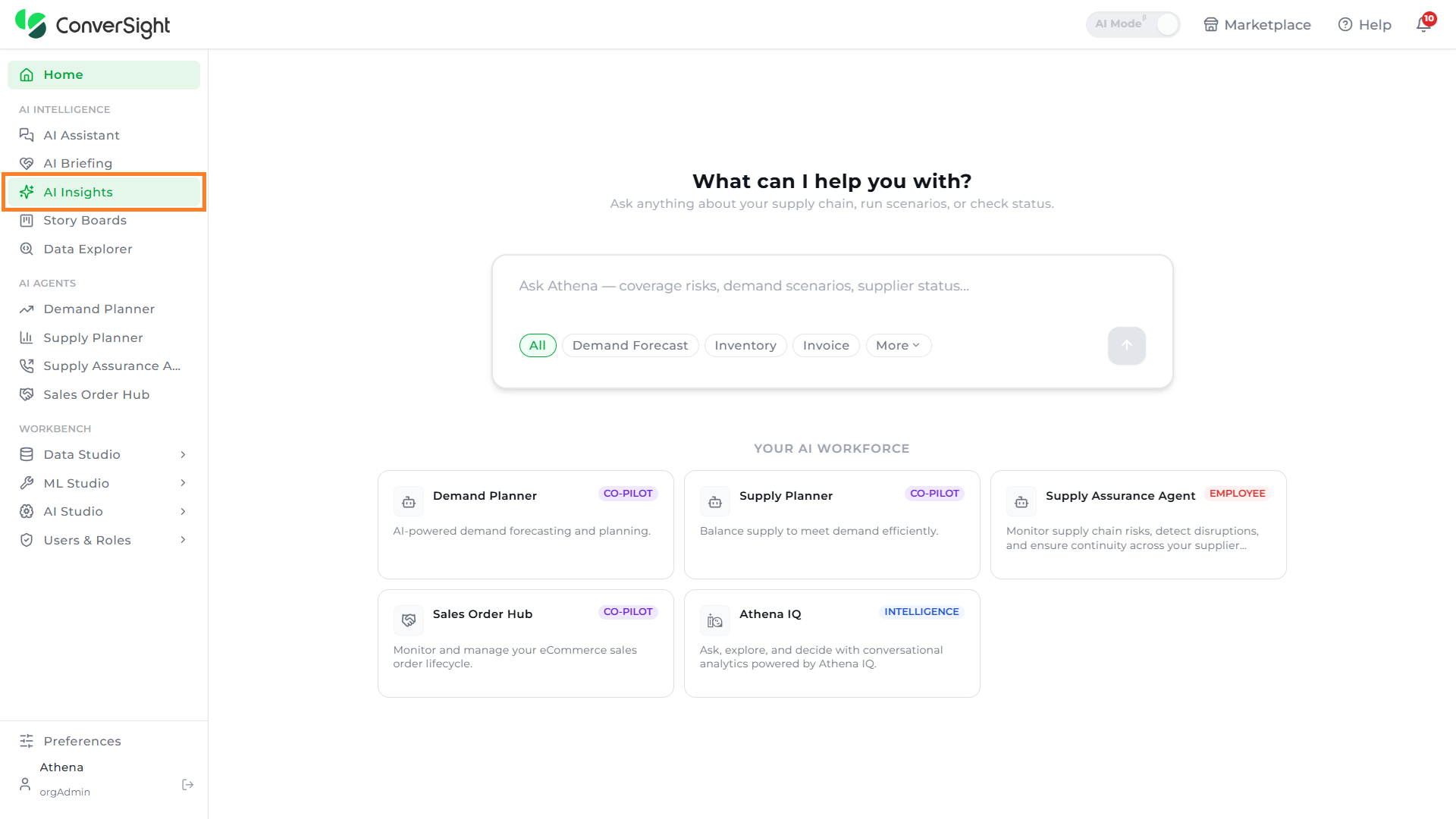
Users can access the AI Insights feature by selecting AI Insights under the AI Intelligence section in the left navigation panel.
Working with AI Insights
The AI Insights page presents a full-width Supply Chain Insights Feed — a grid of insight cards, each scoped to a specific operational finding. Unlike traditional dashboards, the feed surfaces only the signals that warrant attention, automatically classified and prioritized at the time the page is loaded.
A row of category pills at the top of the feed allows users to filter the insights by classification. Each pill displays the count of insights in that category, so users can quickly see where attention is most needed:
- All: Displays the complete feed across every category.
- Critical: Highlights insights that require immediate action to prevent operational impact.
- Opportunities: Surfaces positive findings that suggest a potential gain — such as top-margin customers, growth segments, or under-penetrated accounts.
- Risks: Flags findings that signal exposure or deviation from expected operational performance.
- Urgent: Surfaces time-bound items that require near-term action.
- Warnings: Indicates early signs of conditions that may escalate if left unaddressed.
- Info: Presents contextual operational summaries without an associated action.
- Success: Highlights positive operational outcomes worth surfacing.
Each insight card follows a consistent structure. The category tag appears at the top of the card, followed by the insight title — written as a concise headline. A short narrative paragraph explains what the data shows, supported by a compact set of key metrics displayed inline. At the bottom of each card, Athena surfaces one or more suggested next actions — for example, Notify top customer, Expedite POs, Generate lead list, or Email sales team — derived directly from the insight context so users can act without leaving the page.
In addition to the narrative insight cards, the feed includes period-comparison cards scoped to standard supply chain reporting windows — YTD, QTD, and MTD — surfacing revenue and margin performance with period-over-period comparisons against the equivalent prior period.

View Details
The View Details option allows users to drill into the underlying data behind an insight. Selecting the View details link at the bottom of an insight card opens a detail panel that lists the individual records — customers, products, orders, or other dimensions — that contributed to the finding, along with the underlying revenue, margin, and percentage values.
This makes it easy to move from a synthesized insight to the exact rows responsible for it, supporting both validation of the finding and immediate operational follow-up.


Share
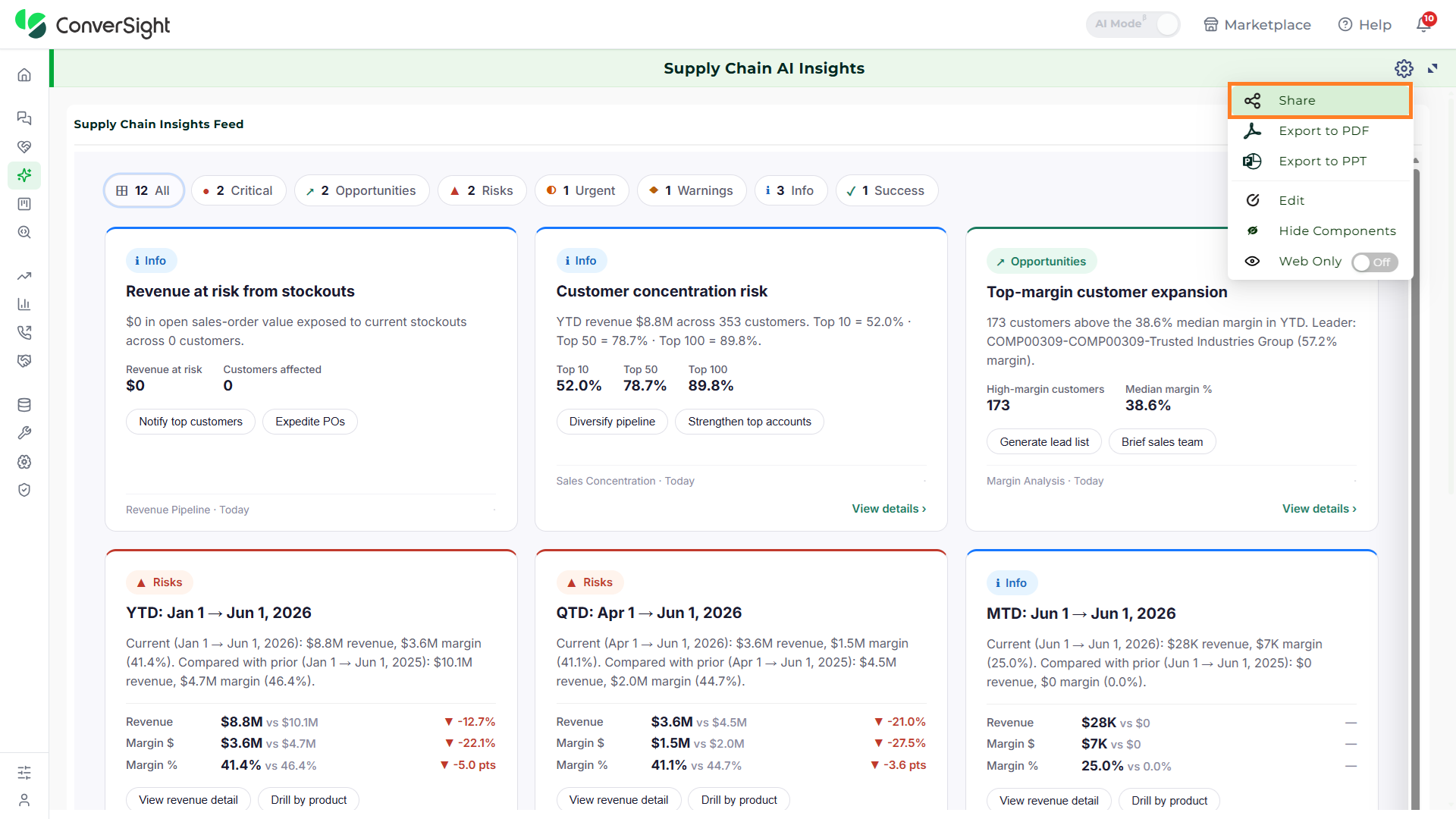
The Share option allows users to distribute an AI Insights view with other members of the organization. Once shared, the recipients can access the same insights feed from their own AI Insights page and stay aligned on the latest operational signals.
Click on the Settings at the top right of the AI Insights page and select the Share option. Select the recipient's email address from the list and click Share to grant access to the selected insights.
Export to PDF
Click on the Settings at the top right of the AI Insights page and select the Export to PDF option. In ConverSight, you can download the entire AI Insights feed in PDF format, so you can share it with people inside and outside your organization — including stakeholders who do not have a ConverSight account.

Export to PPT
To generate a PowerPoint (PPT) version of your insights feed, click on the Export to PPT option from the Settings menu. In ConverSight, you can download the entire AI Insights feed in PPT format, making it easy to drop the findings into executive reviews, business reviews, and stakeholder presentations.

Edit
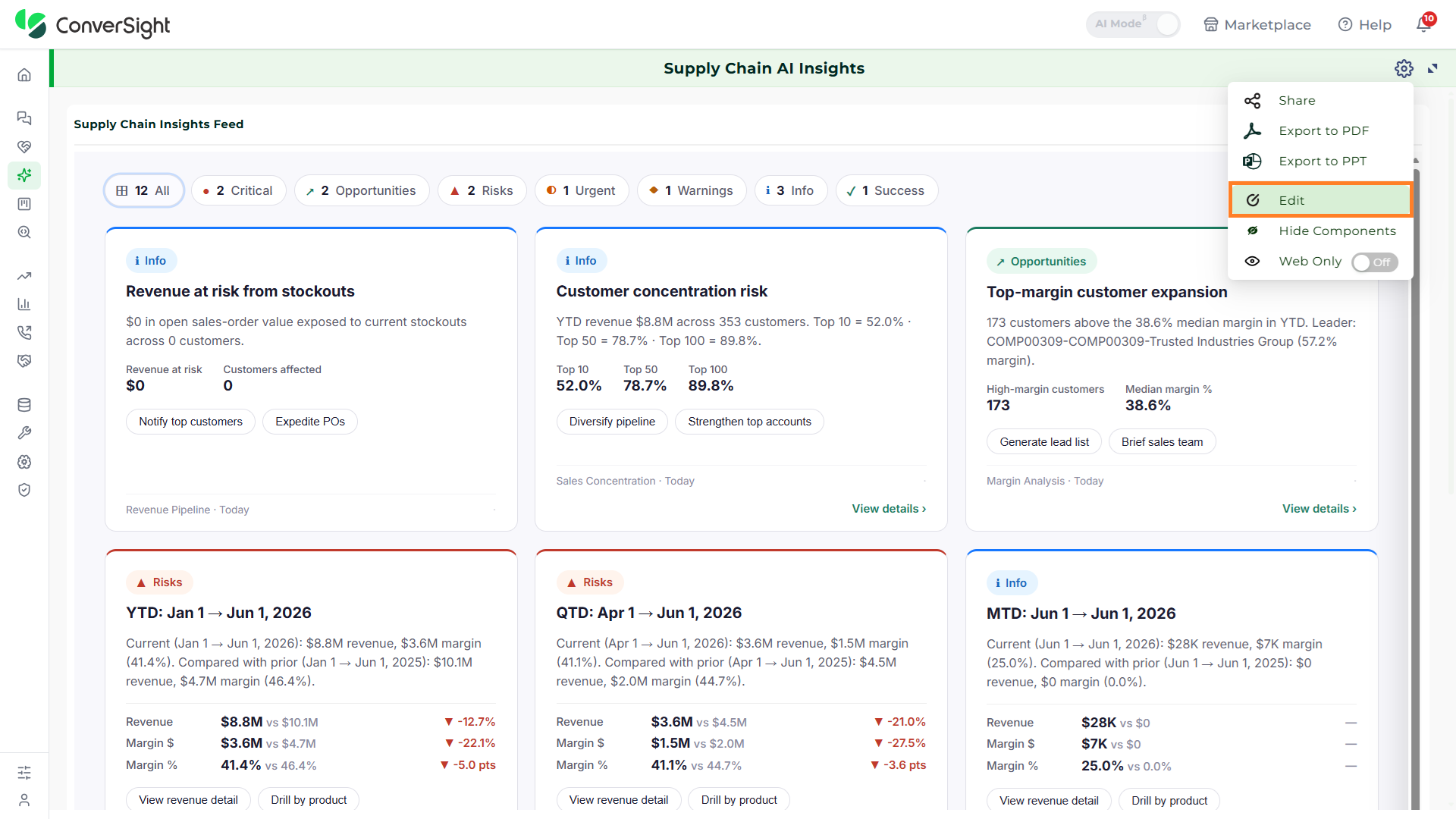
If you want to update the name, business area, business context or type of the AI Insights feed, click on the Settings at the top right of the page and select the Edit option. You can update the feed's underlying configuration so it continues to surface the insights most relevant to your operation.
Hide Components
The Hide Components option allows users to hide the desired AI Insights components when multiple insight components are placed on the same canvas. This helps declutter the view and lets users focus only on the insights that are most relevant to the decision at hand.
Click on the Settings at the top right of the AI Insights page and select the Hide Components option. You can then choose the insight components you want to suppress from the current canvas view without removing or deleting them.

Web Only
The Web Only toggle controls whether the AI Insights feed is available outside of the ConverSight web application. When the toggle is enabled, the feed is restricted to in-platform viewing — it will not be included in PDF exports, PPT exports, or scheduled email deliveries.
This option is useful for insights that contain sensitive operational data or are intended only for governed access inside the platform, where role-based permissions and audit logs are enforced.
