Athena IQ
Athena IQ is Athena in Co-Pilot mode for briefings and apps. It turns a question about your organization's data into a finished briefing or a working app, built by Athena in conversation and kept as a project you can return to, refine, share and publish. A briefing brings together numbers, charts and a written summary drawn from your organization's data, while an app is a working tool made to order.
Like every Athena agent, Athena IQ operates across the full autonomy spectrum. A business user can ask Athena a question and get an instant answer grounded in the organization's data (Assistant mode), work with Athena to build and refine a briefing or an app in the same conversation (Co-Pilot mode), schedule a briefing to run and send itself on a set cadence (Automation mode), or hand off a recurring reporting cycle to Athena, which keeps the briefing current and delivers it within the guardrails administrators configure (Employee mode). The same data, the same conversation and the same project history, at whatever level of delegation your organization is ready for.
Athena IQ works alongside AI Debrief, where members of your organization read the briefings that have been published from Athena IQ.
What Athena IQ Owns
| Stage | What Athena does |
|---|---|
| Request | Takes a question or a request in plain language, together with any file or image you attach to it. |
| Decision | Works out whether the request needs a plain answer, a briefing or an app, and asks a clarifying question when a choice would change the result. |
| Build | Queries your organization's data, builds the briefing or app as a draft inside a project, and keeps the files it produces with that project. |
| Refine | Keeps the whole conversation with the project, so you can ask for changes and refresh the briefing's numbers from its saved queries. |
| Share | Hands another member of your organization their own copy of the project, publishes the briefing for members of your organization to read in AI Debrief, and turns a briefing into a template for the next one. |
A Typical Autonomous Workflow
Every Monday morning, Athena re-runs the weekly sales briefing a regional sales manager built with it, refreshes every number from the latest data and sends the briefing to the sales leadership team. When one region falls short of its target, the manager opens the project and asks Athena why, and Athena drills into the change in the same conversation and updates the briefing. When another team needs the same view, the manager duplicates the project and adjusts it instead of starting over.
Guardrail: a project stays with the person who created it until they share or publish it. Sharing hands another member of your organization an independent copy, publishing moves the briefing into AI Debrief only when the author chooses to, and every number in a briefing comes from the organization's own data.
What This Documentation Covers
The Athena IQ documentation is the reference for using Athena IQ: how to access it, how to find and organize your projects, how to work with Athena to make briefings and apps, how to manage the files they produce, how to start new work from the Library, and how to schedule and archive your work. If you are new to Athena IQ, start at Accessing Athena IQ. If you have used it before and want a specific function, the table of contents on the right covers every section.
Accessing Athena IQ
To get started, select the Athena IQ option under the AI Intelligence section in the left navigation panel.
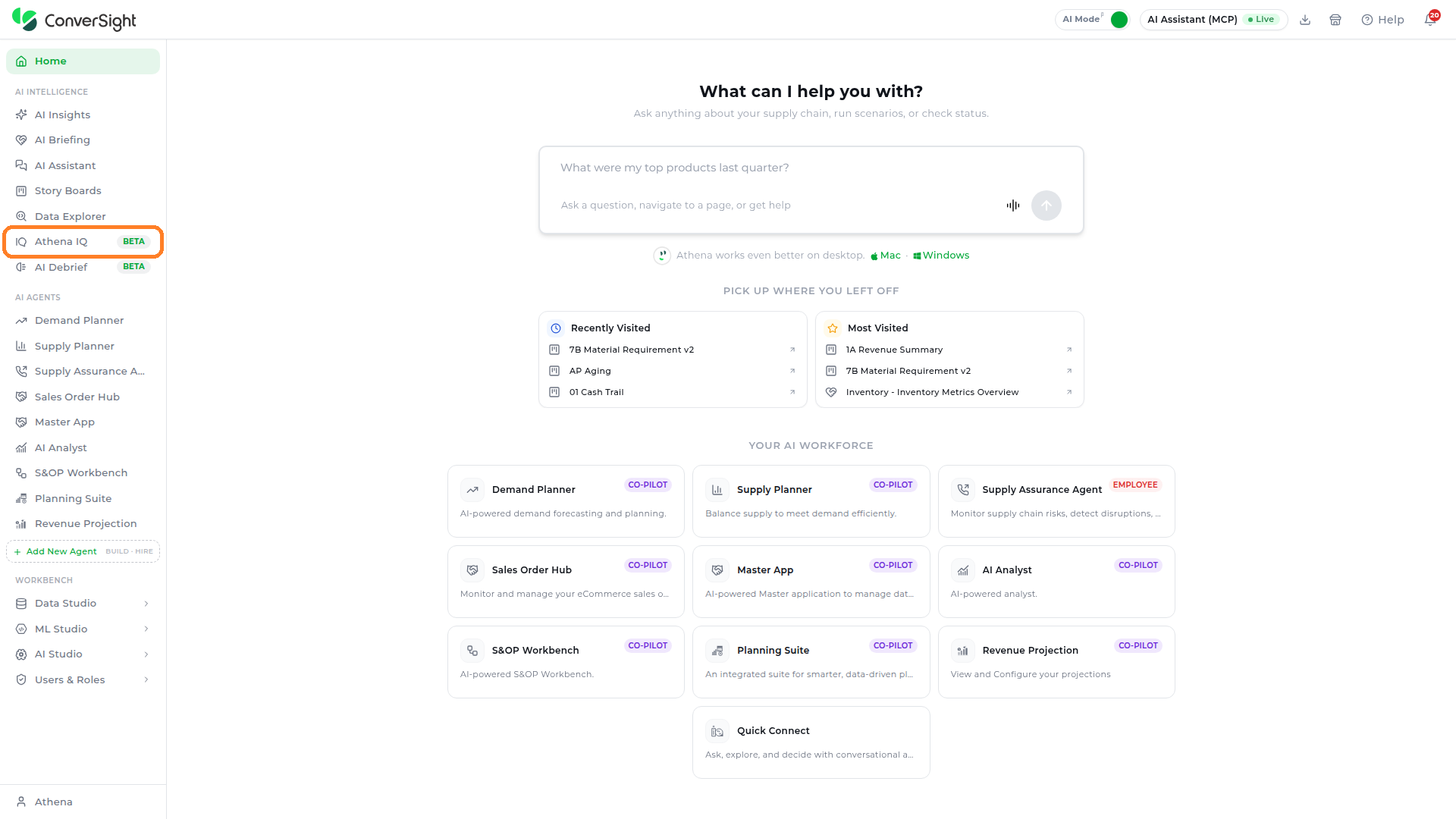
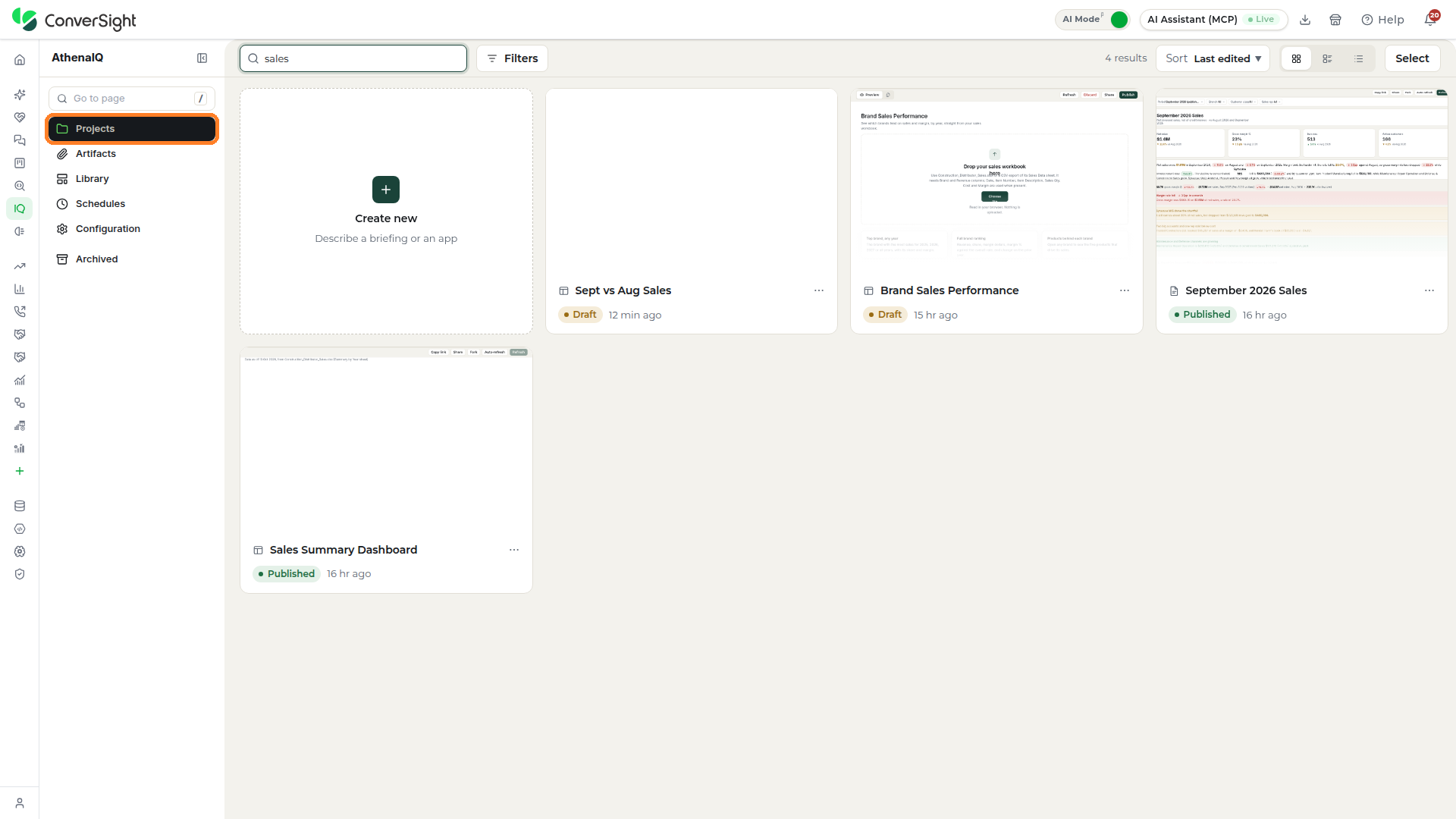
A small sign-in window opens briefly and closes on its own once your access is confirmed, and the Projects section opens. A side menu on the left lists every section:
| Menu Item | Description |
|---|---|
| Projects | Lists every briefing, app and conversation you have worked on, and starts new work with Athena. |
| Artifacts | Collects the files attached to or produced in your projects. |
| Library | Holds briefing and app templates to start new work from. |
| Schedules | Shows the briefings set up to run and send themselves. |
| Configuration | Explains where Athena's setup for your organization is managed. |
| Archived | Keeps the projects you have put away, with their conversations and files, ready to restore. |
| Fold menu | Collapses the side menu to give the work area more room. |
Projects
The Projects section gives you one place to find and manage everything you have worked on with Athena. Each project appears as a card showing its name, its status and when it was last edited. A Draft status marks a briefing or app that has not been published yet, and Conversation marks a chat that has not become a briefing or app.
Search
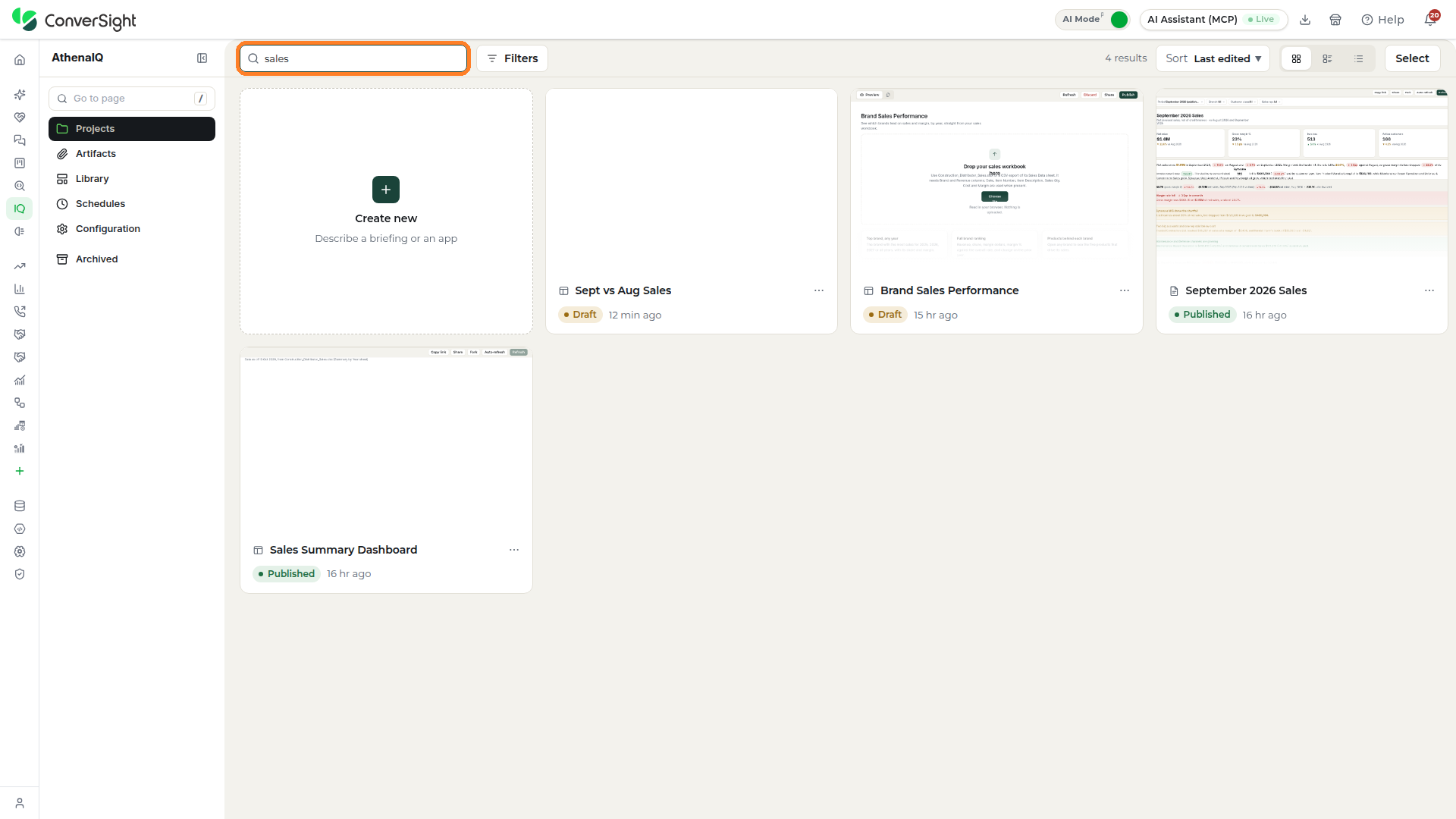
Type part of a project's name in the Search projects box at the top of the Projects section, and the cards narrow to the projects that match as you type.
Filter
Filters narrow the cards to the kind of work you are looking for. Click on the Filters control at the top of the Projects section and choose from the following options:
- Type: Shows one kind of project at a time: All, Briefings, Apps or Conversations.
- Status: Narrows the cards to projects at one stage: Any, Working, Published or Draft.
- Archived: Decides whether archived projects appear: Hidden leaves them out, and Included shows them with the rest.

Sort
Sorting changes the order of the cards so the project you need appears first. Click on the Sort control at the top of the Projects section and choose one of the following:
- Last edited: Puts the most recently changed projects first.
- Recently viewed: Brings the projects you opened most recently to the top.
- Name: Orders the projects alphabetically by name.

Changing Layout
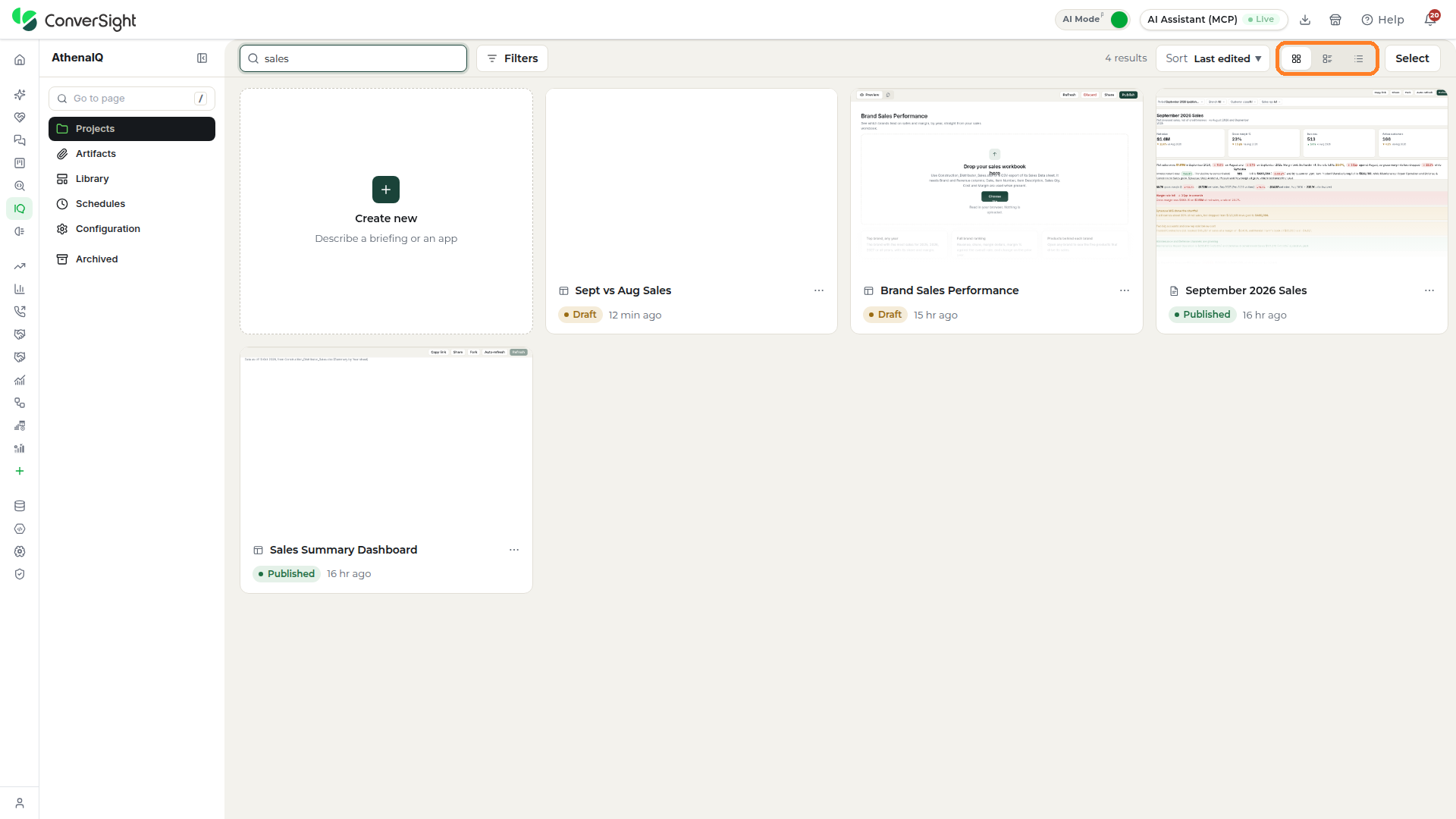
Three layout buttons beside Sort change how the projects are laid out, so you can see more of them at once or more about each one.
- Grid: Shows each project as a large card with a preview of its briefing.
- Compact: Fits more projects on the screen with smaller cards and no preview.
- List: Lists the projects as rows.
Select
Selecting lets you act on several projects at once. Click on the Select control at the top right of the Projects section.
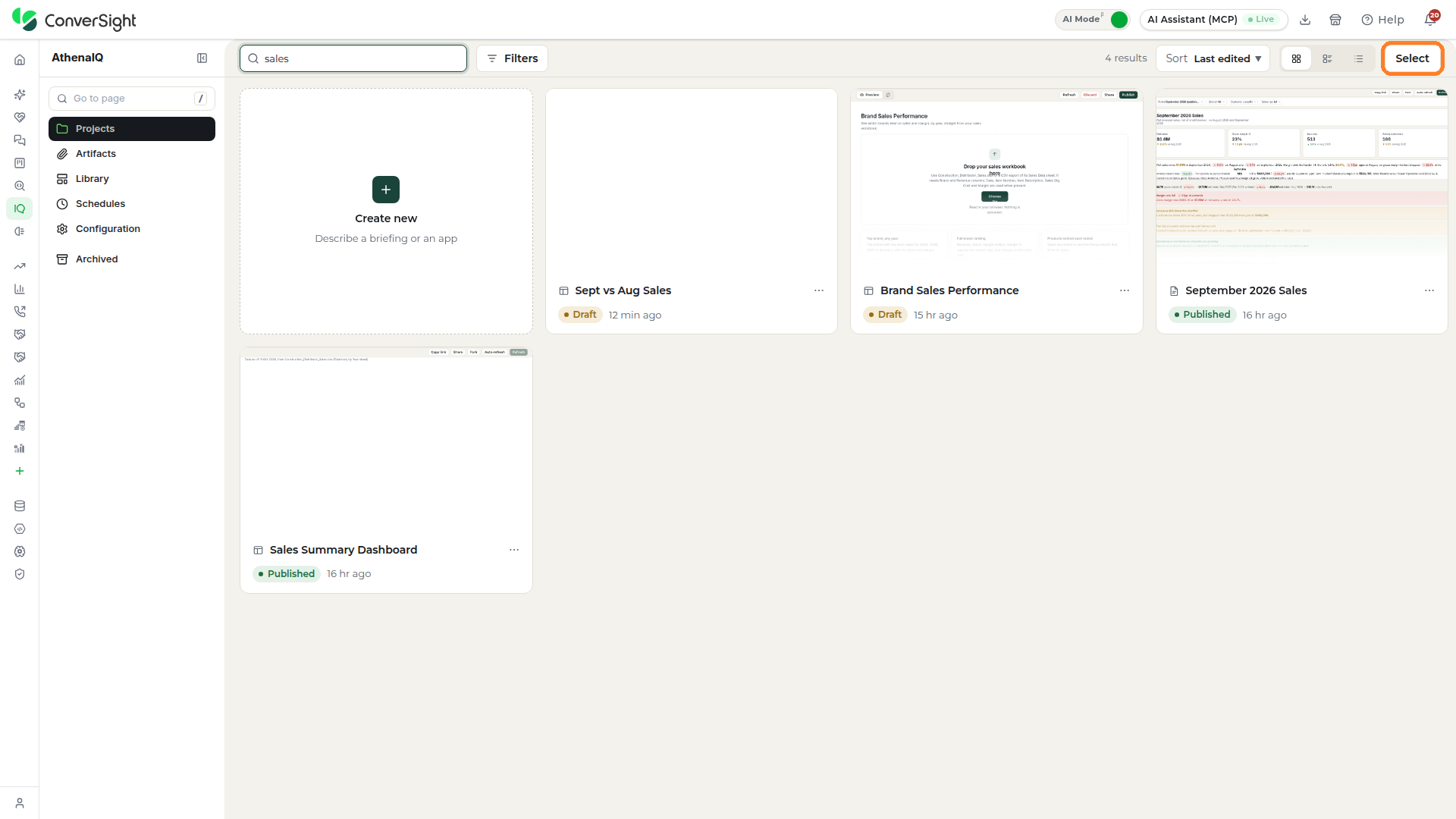
A checkbox appears on each card and the control changes to Done. Click on the checkbox of each project you want, and a bar at the bottom of the Projects section shows how many projects are selected.
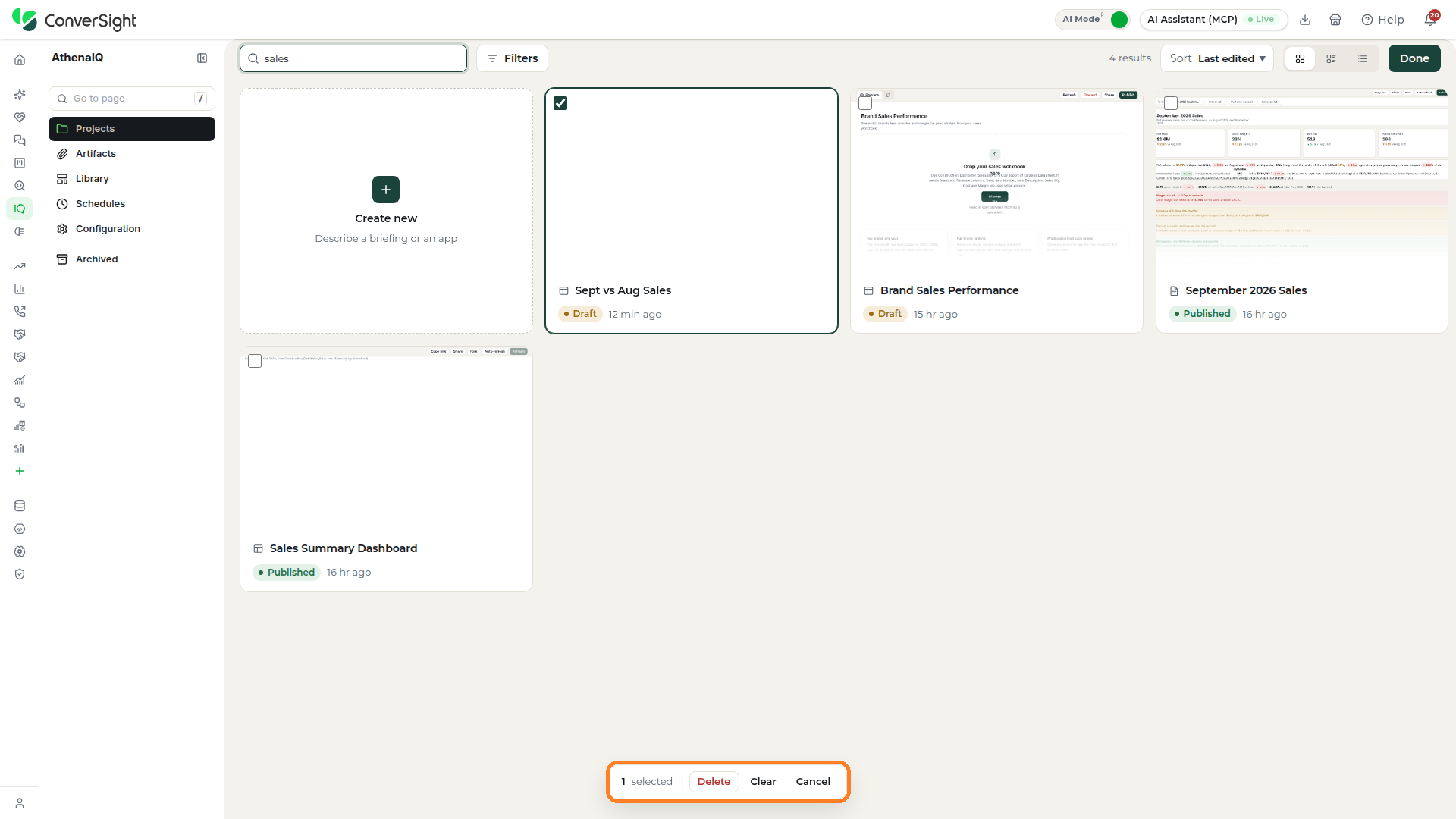
Delete, Clear and Cancel
Once you have selected the projects you want, use the selection bar at the bottom of the Projects section to act on them:
- Delete: Removes the selected projects.
- Clear: Unselects the selected projects so you can start the selection again.
- Cancel: Ends the selection without acting on the selected projects.
Click on Done to leave selection mode when you are finished.
Creating New Projects
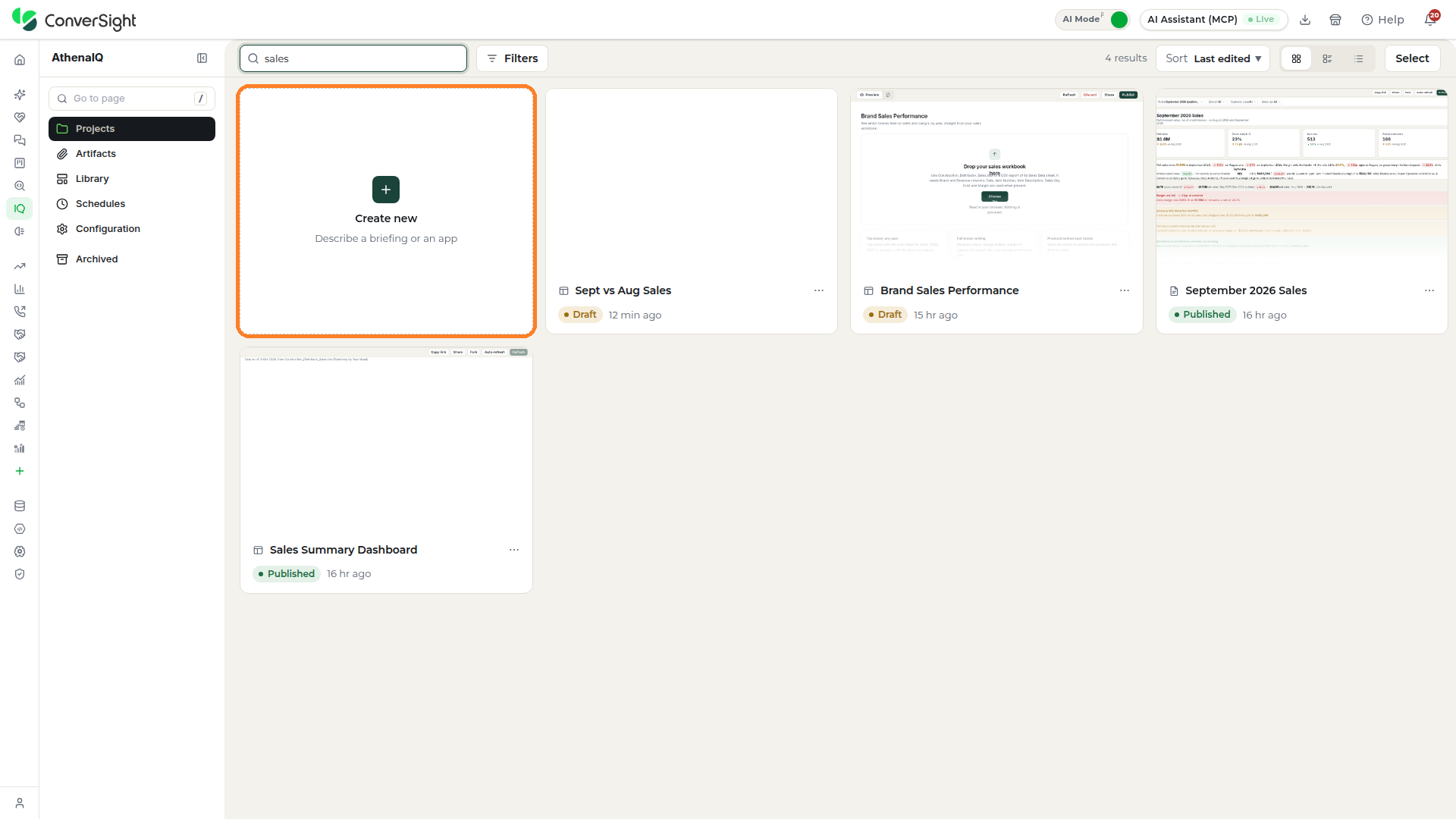
Starting a new project lets you describe what you need in your own words and have Athena work it out from your data. Click on the Create new card on the Projects section to open a New conversation. Athena can make a briefing or build an app from your data. The Athena chat opens beside the page, ready for your request.
Athena
Athena is ConverSight's AI agent and the one you work with throughout Athena IQ. Athena reads your request, looks up the data sources your organization has connected, runs the queries the answer needs and replies in the panel, so every number in a reply comes from your own data. A plain question gets an answer in the conversation, and when you want something to keep, Athena turns the conversation into a briefing or an app you can return to, share and publish.
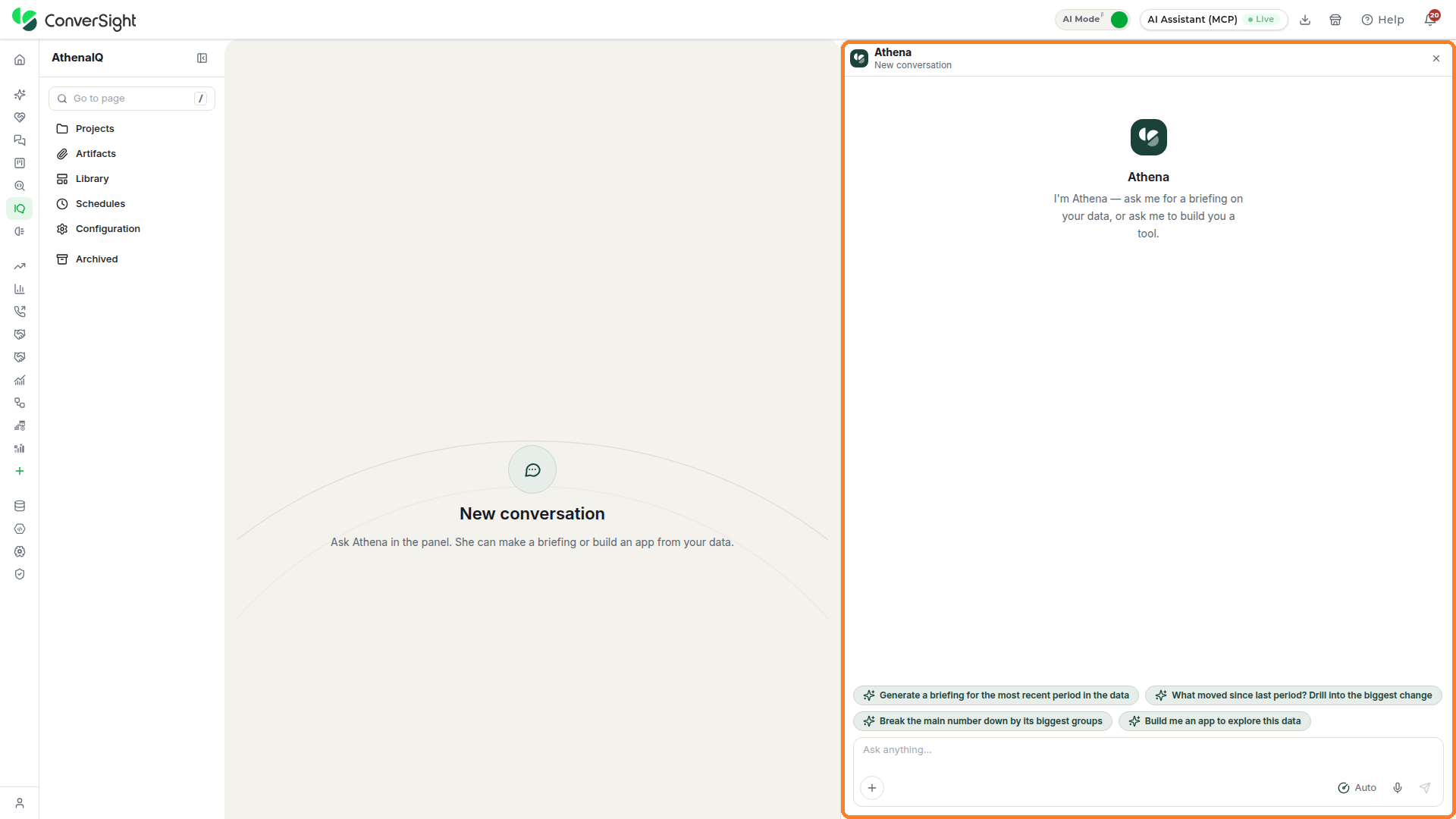
The Athena chat opens beside the New conversation page and is organized as follows:
| Element | Description |
|---|---|
| Header | Shows Athena's name and the name of the current conversation. |
| Greeting | Invites you to ask for a briefing on your data or for a tool built from it. |
| Suggested prompts | Offers ready-made requests to start from. |
| Chat input area | Holds your request, with the Attach, Dictate a message and Send message controls. |
| Close panel | Closes the panel from the × at its top right. |
Asking Athena
Athena is the AI agent behind every project. To start a conversation with Athena, type your question in the chat input area and click the Send button. Athena automatically names the conversation based on your question, and a new project with the Conversation status appears on the Projects section.
Suggested Prompts
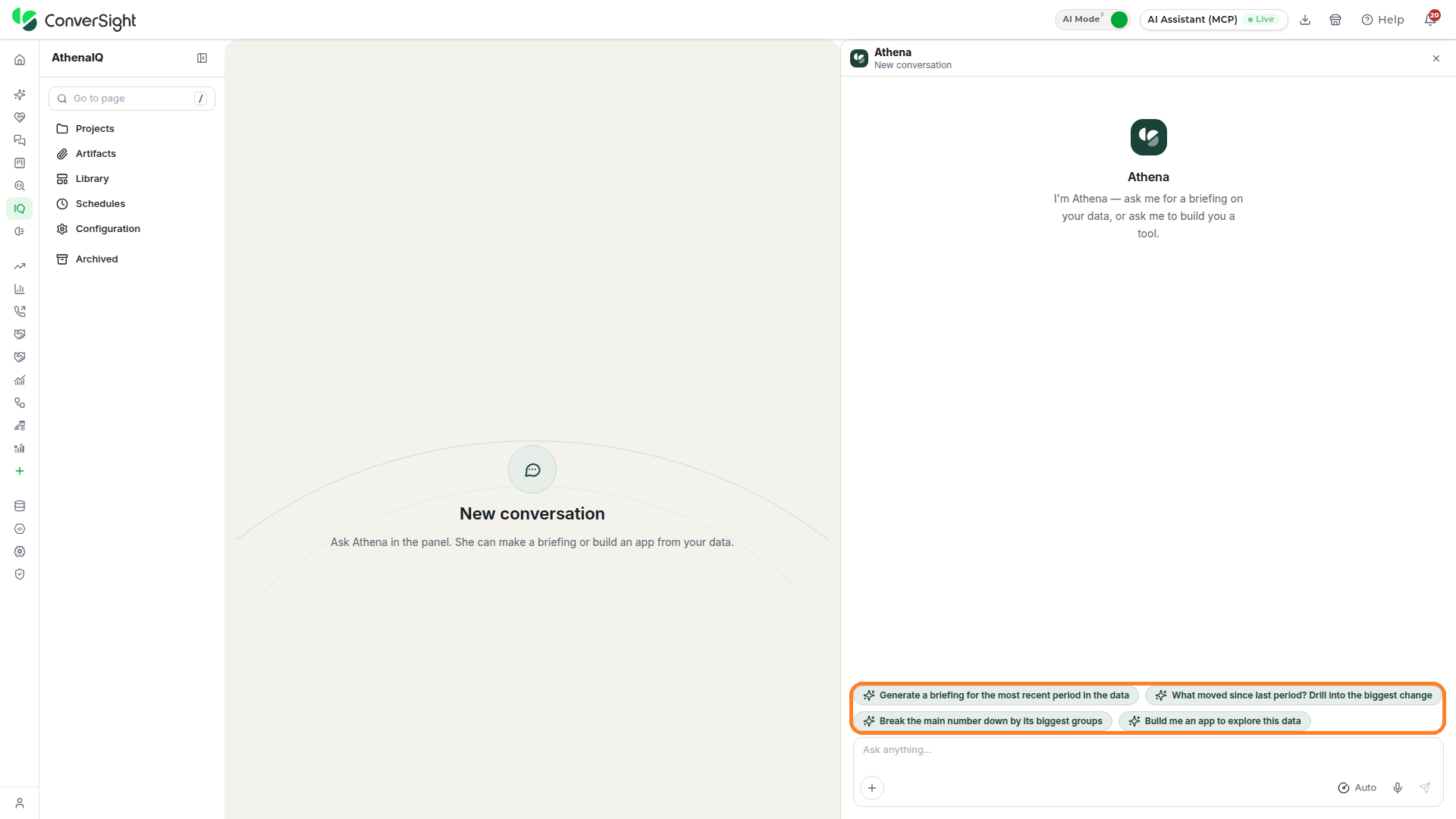
Suggested prompts help you get started when you are unsure what to ask Athena. Each new conversation displays four suggested prompts to help you explore common tasks:
- Generate a briefing for the most recent period in the data
- What moved since last period? Drill into the biggest change
- Break the main number down by its biggest groups
- Build me an app to explore this data
Click on a suggested prompt to send it to Athena as your request.
Attach File
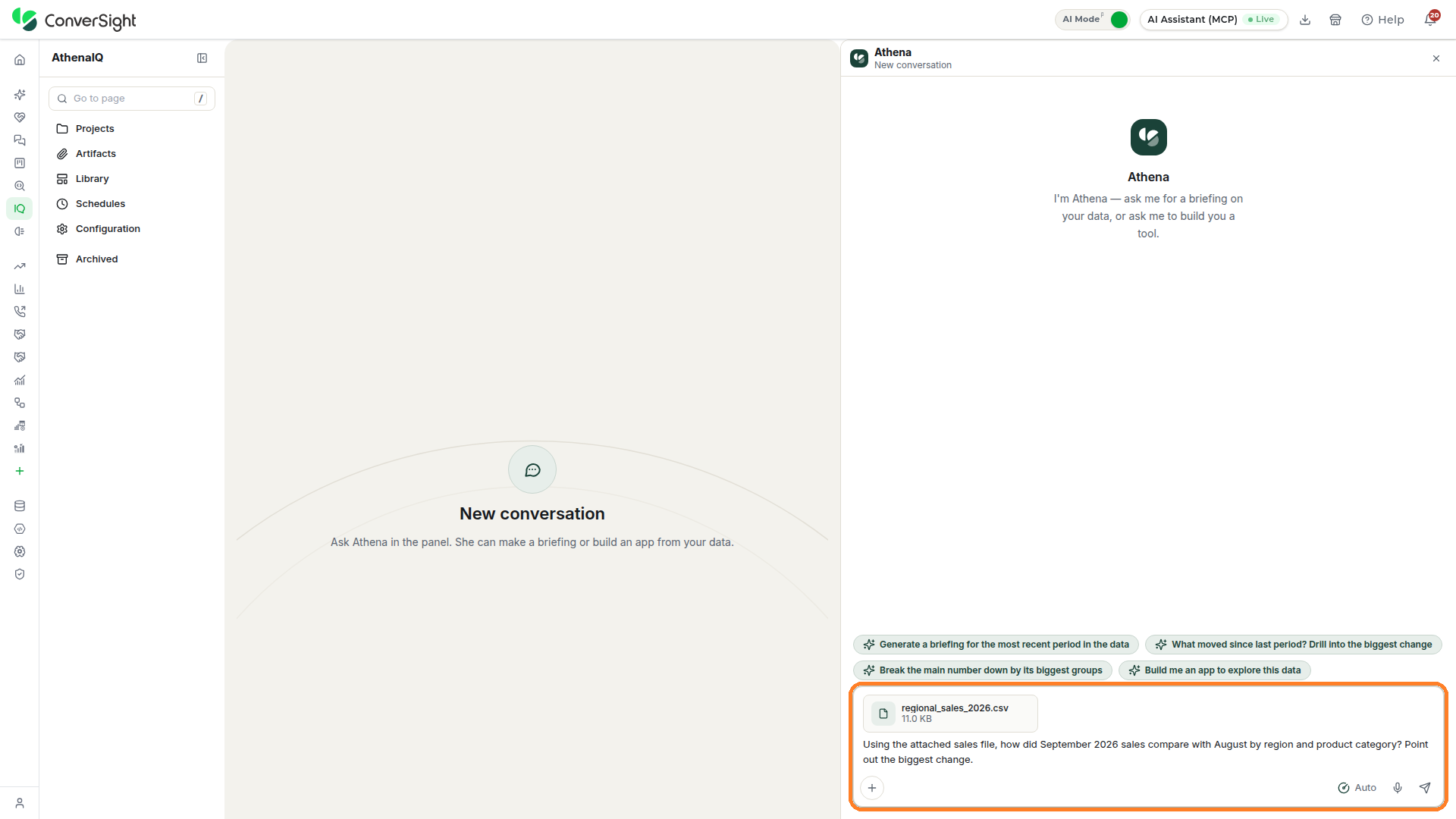
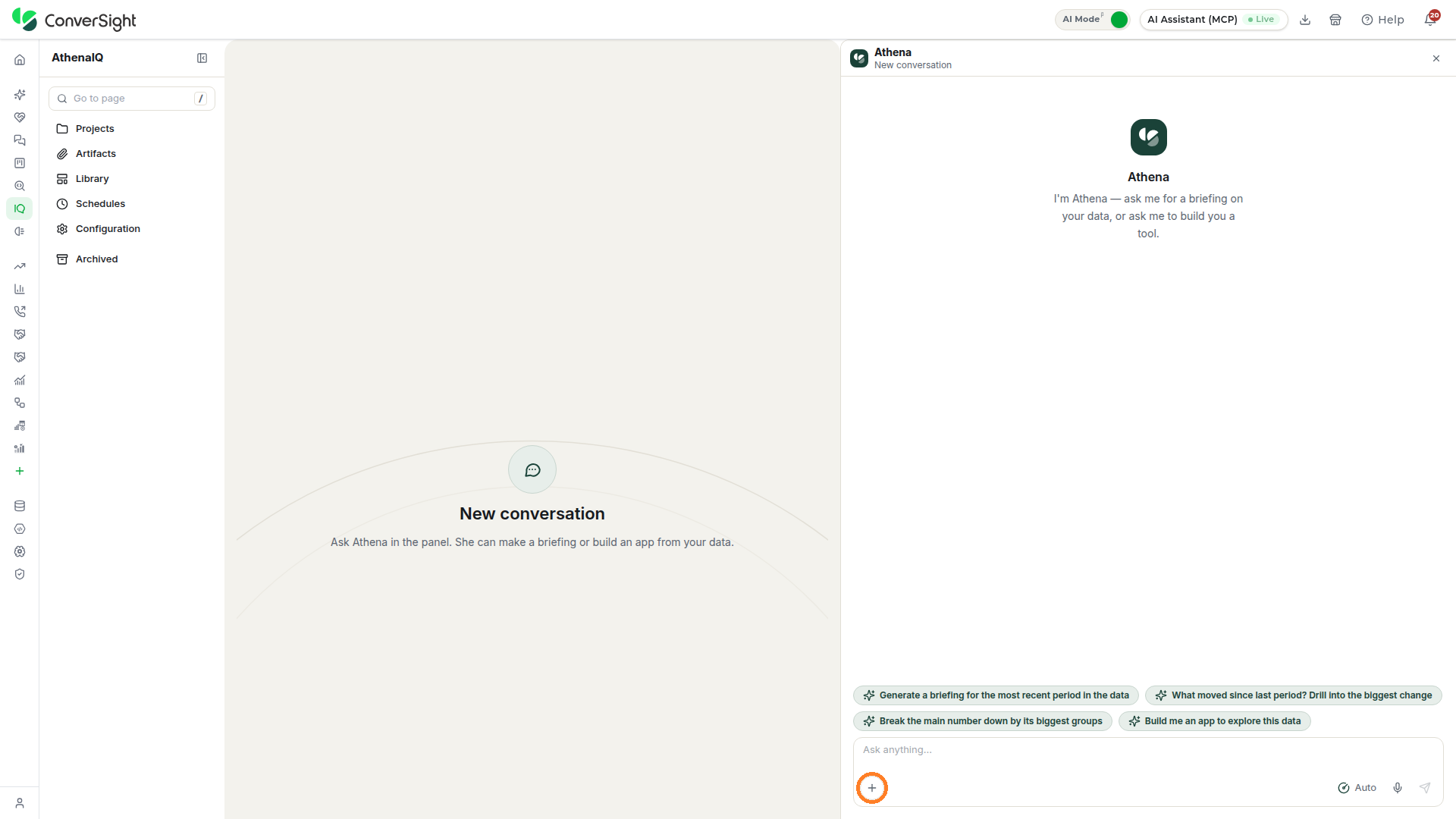
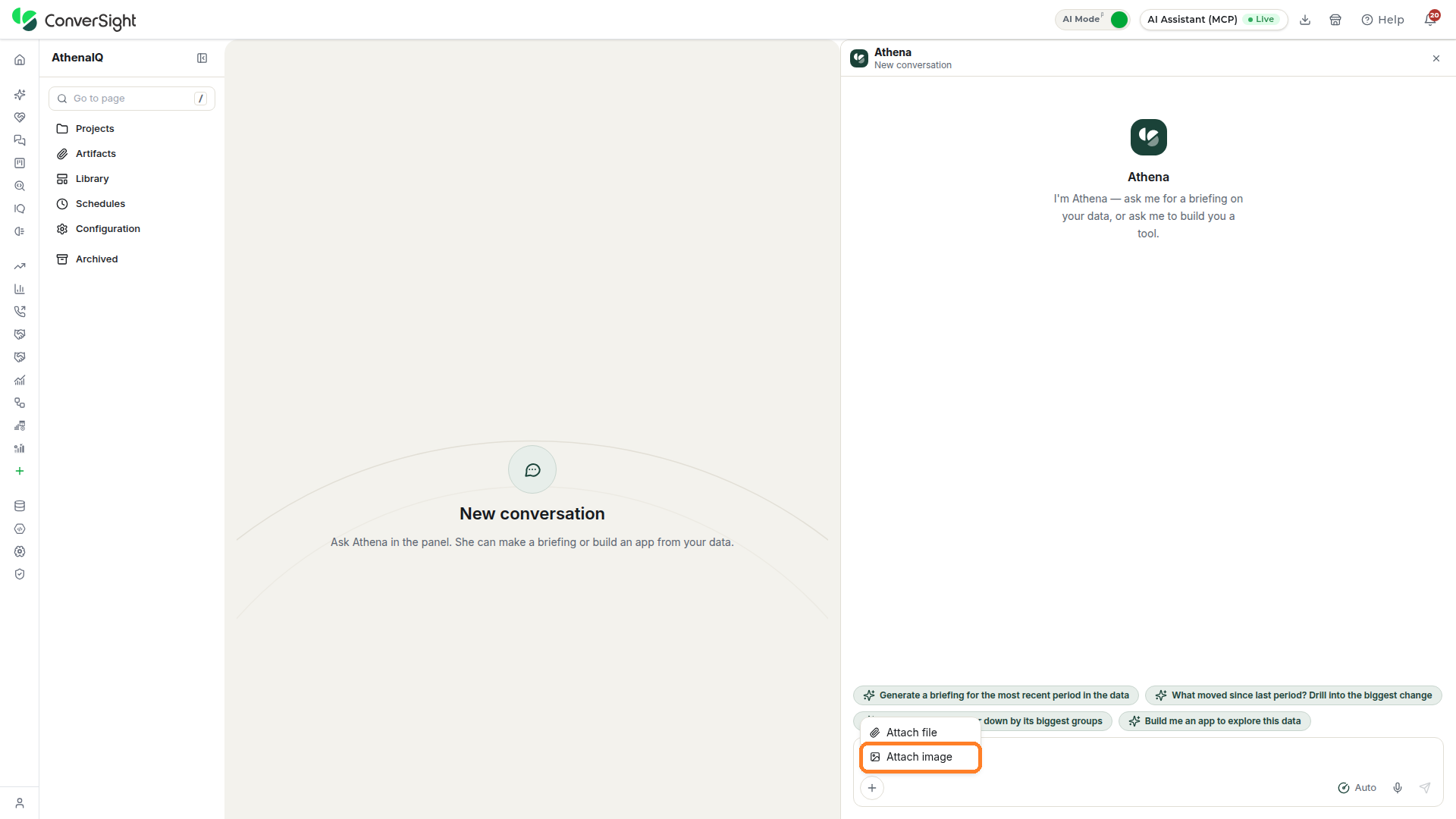
Attaching a file lets Athena work with data you have on hand alongside your organization's data. Click on the + button at the bottom left of the Athena Chat.
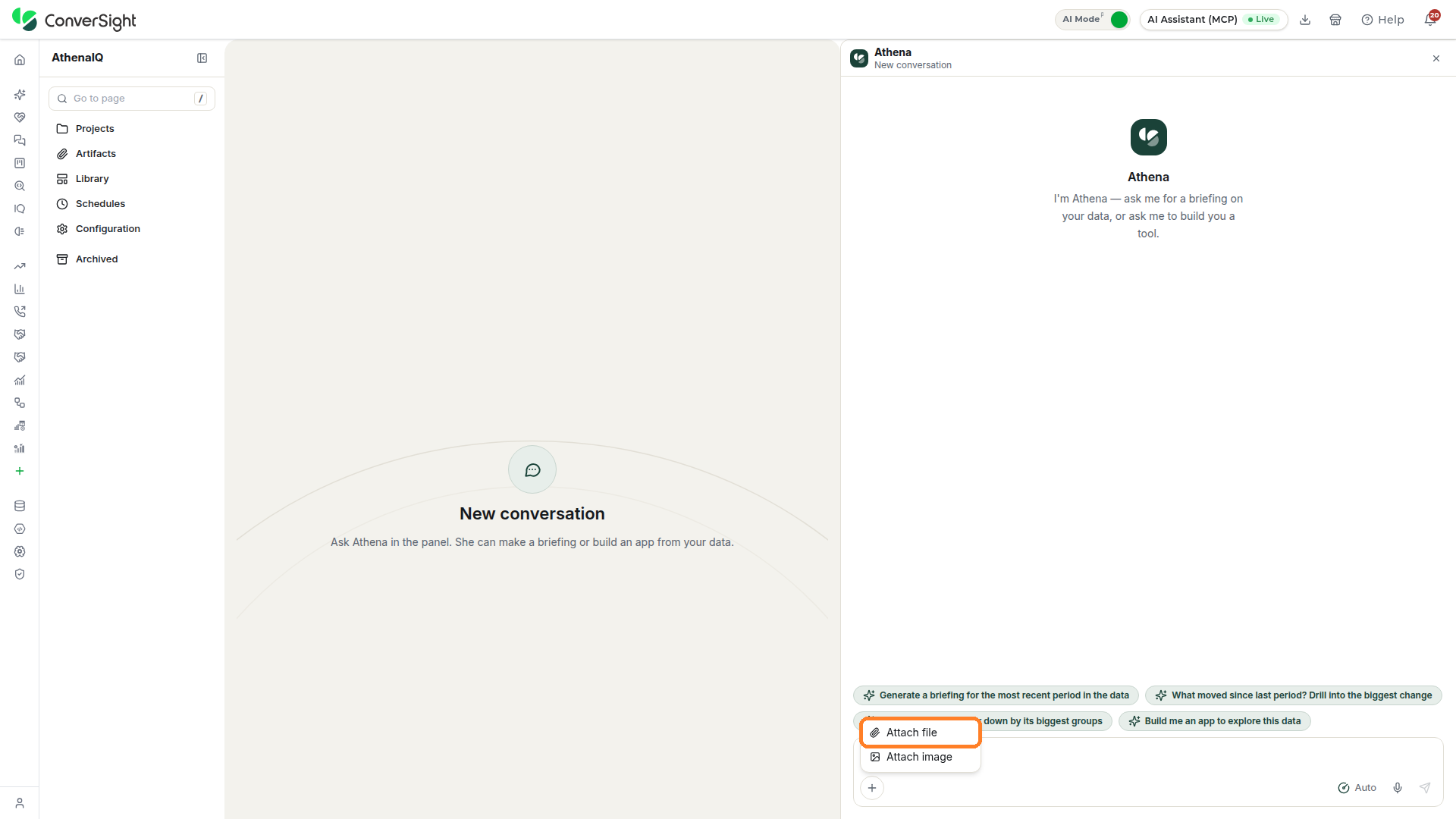
Select the Attach file option from the menu that opens and choose the file from your computer, and it goes to Athena with your next message.
Attach Image
Attaching an image lets you show Athena a chart, a screenshot or a photo as part of your request. Click on the same + button at the bottom left of the Athena Chat, select the Attach image option and choose the image from your computer, and it goes to Athena with your next message.
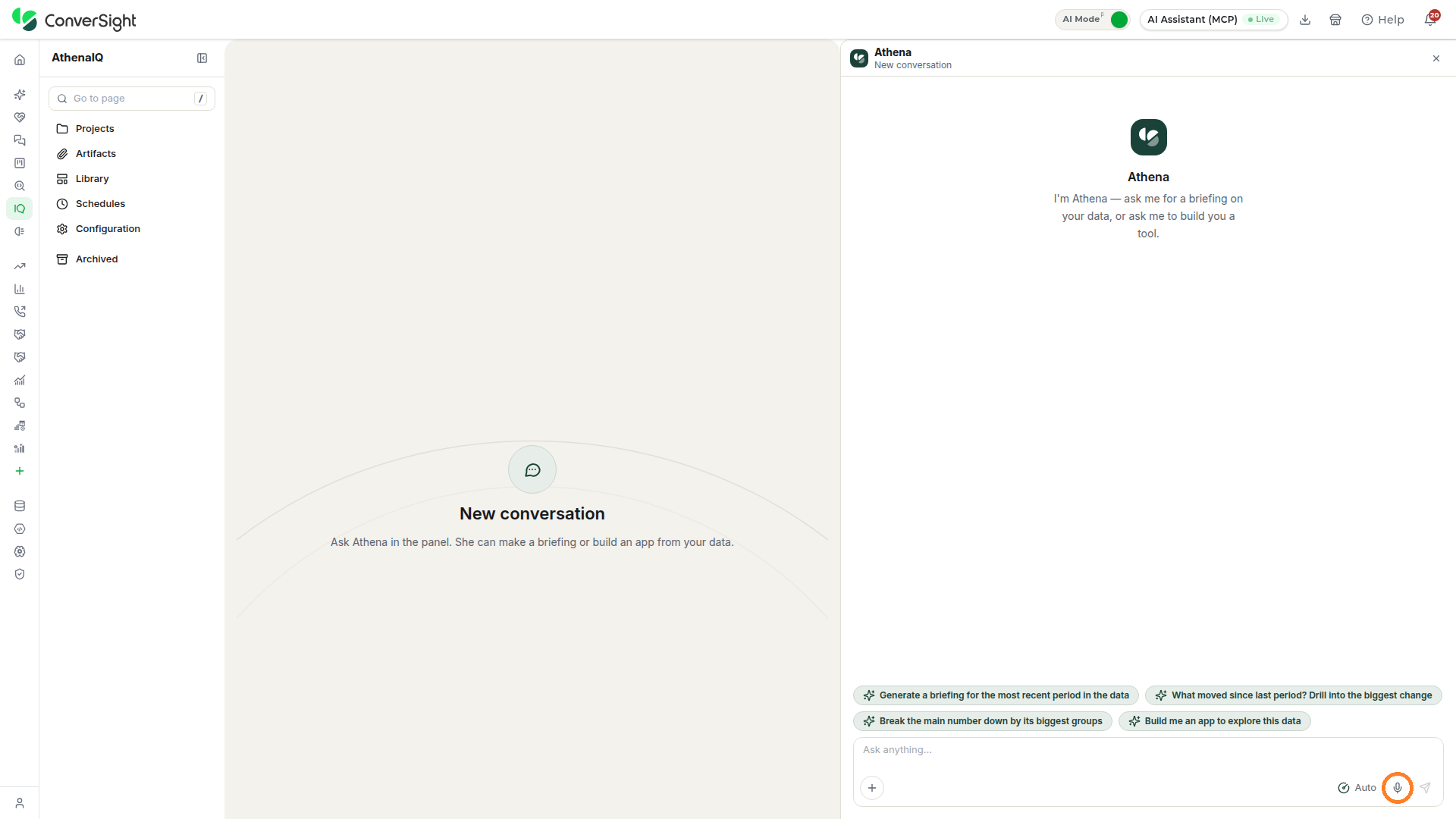
Ask by Voice
Asking by voice lets you speak your request instead of typing it. Click on the Dictate a message (microphone) button at the bottom right of the panel and speak, and your words appear in the Athena chat input area ready to send.
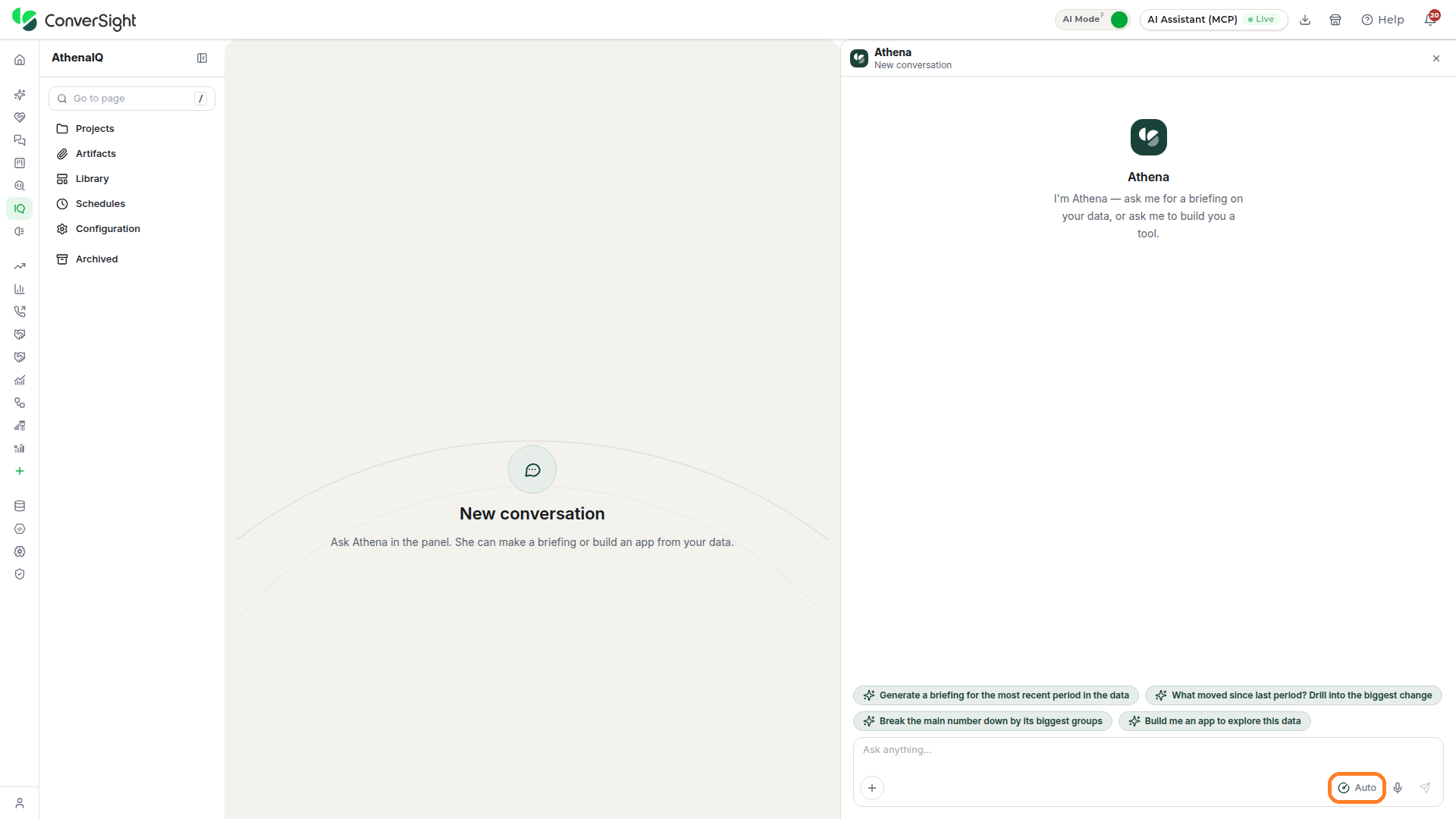
Effort
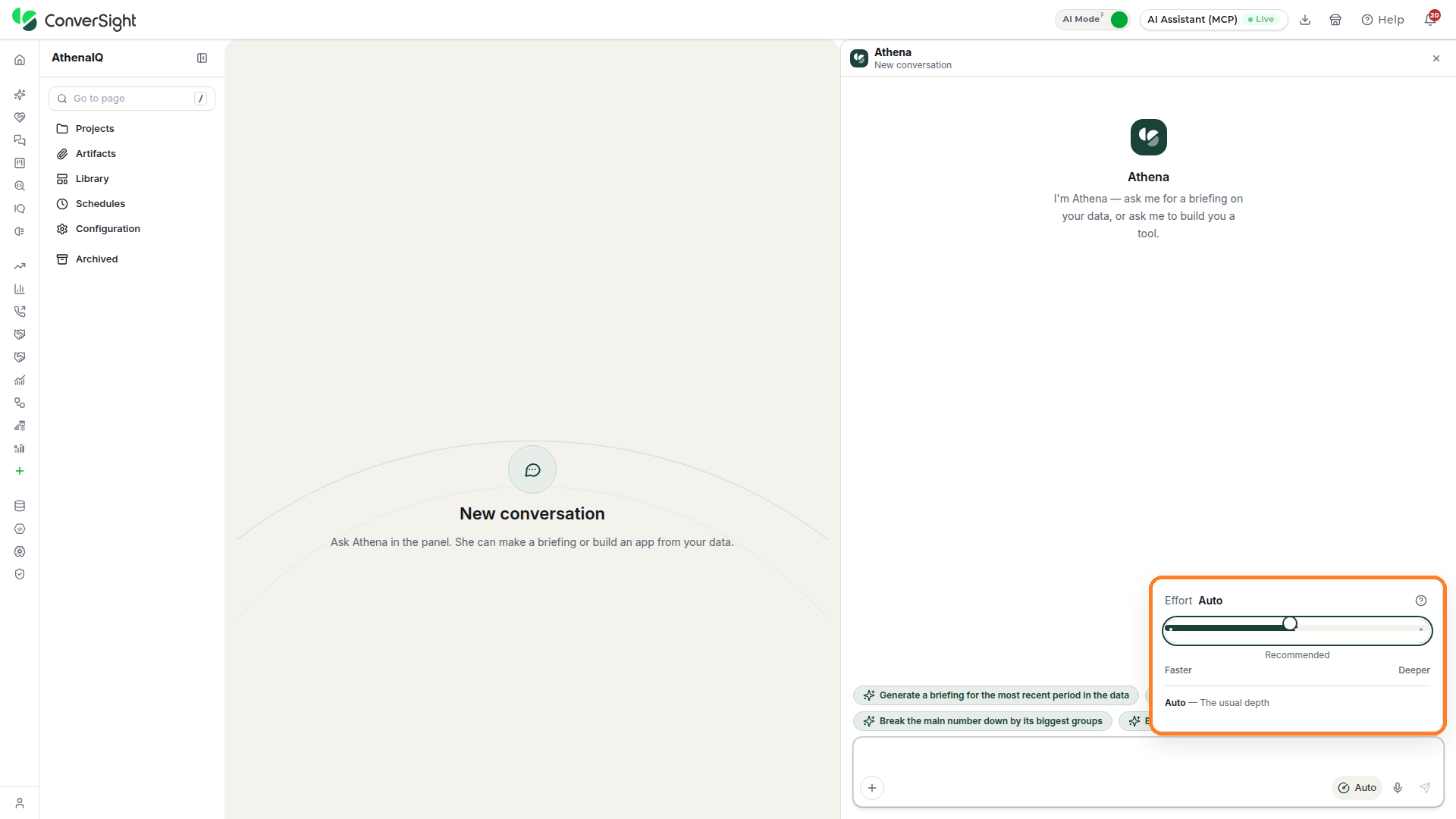
The Effort control lets you choose how much depth Athena puts into its next reply, trading speed for thoroughness. Click on Effort, shown as Auto by default, at the bottom right of the Athena chat input area.
A slider opens that runs from Faster to Deeper, with the Recommended setting in the middle. Auto keeps the usual depth and suits most requests.
Working with Athena
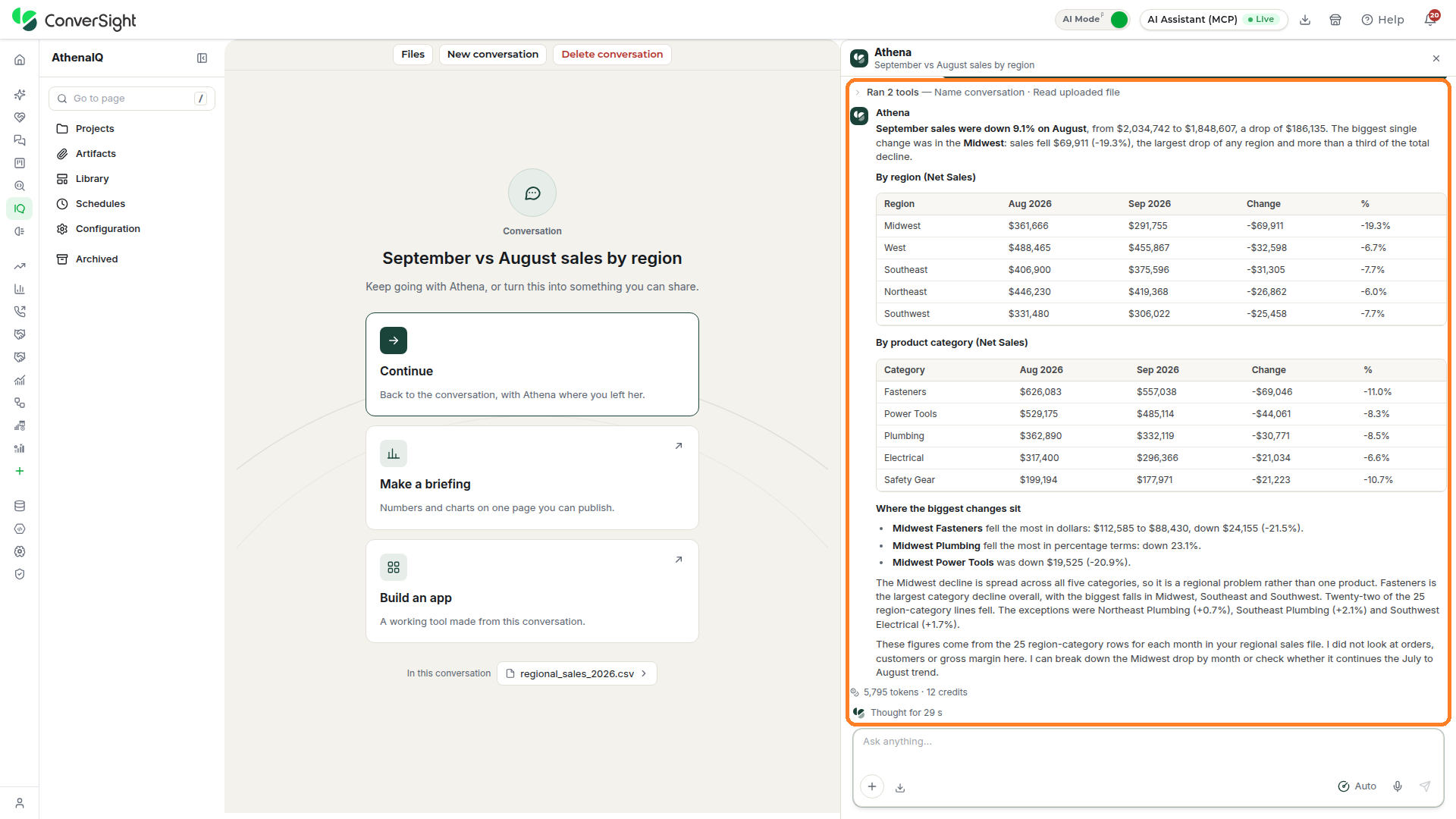
Working with Athena is a conversation: you ask, Athena answers, and you keep going until you have what you need. Each reply shows how Athena reached it, so you can see where the numbers came from.
- Tools line: Summarizes the steps Athena took for the reply, such as naming the conversation and reading an uploaded file. Click on the line to see every step.
- Reply: Answers in plain language, with tables of the figures behind the answer.
- Usage line: Records the tokens and credits the reply used, and how long Athena thought about it.
- Plan: Lists each step of a longer build with a count of the completed steps. Click on Expand plan to see all of them.
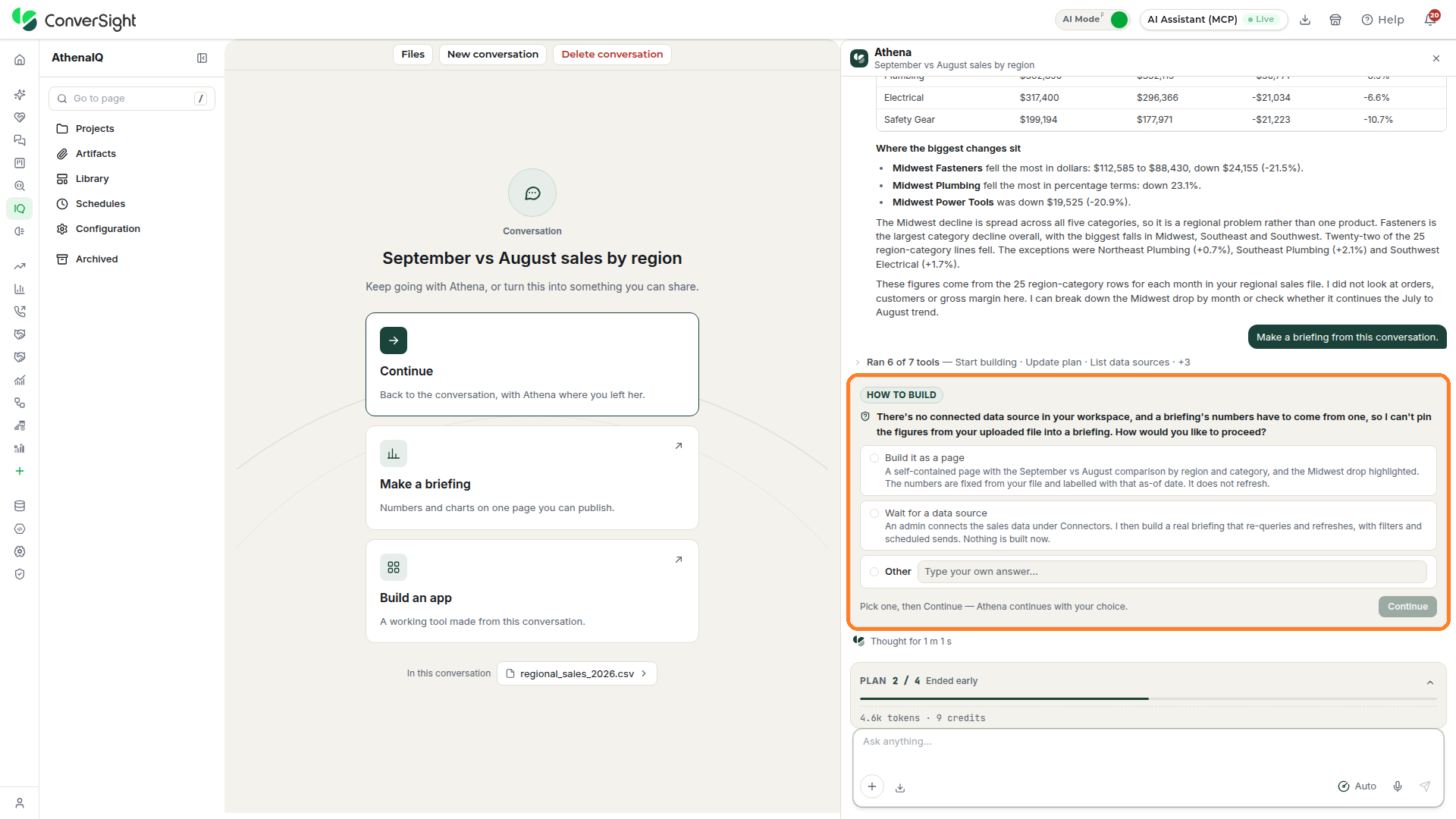
When a request leaves out something that would change the result, Athena asks a clarifying question before going on. The question appears as a card in the Athena chat. Pick one of the suggested options, or type your own answer in the Other field, then click on Continue. If the card has more than one question, use the arrows at the top of the card to move between them and answer each one before you click on Continue.
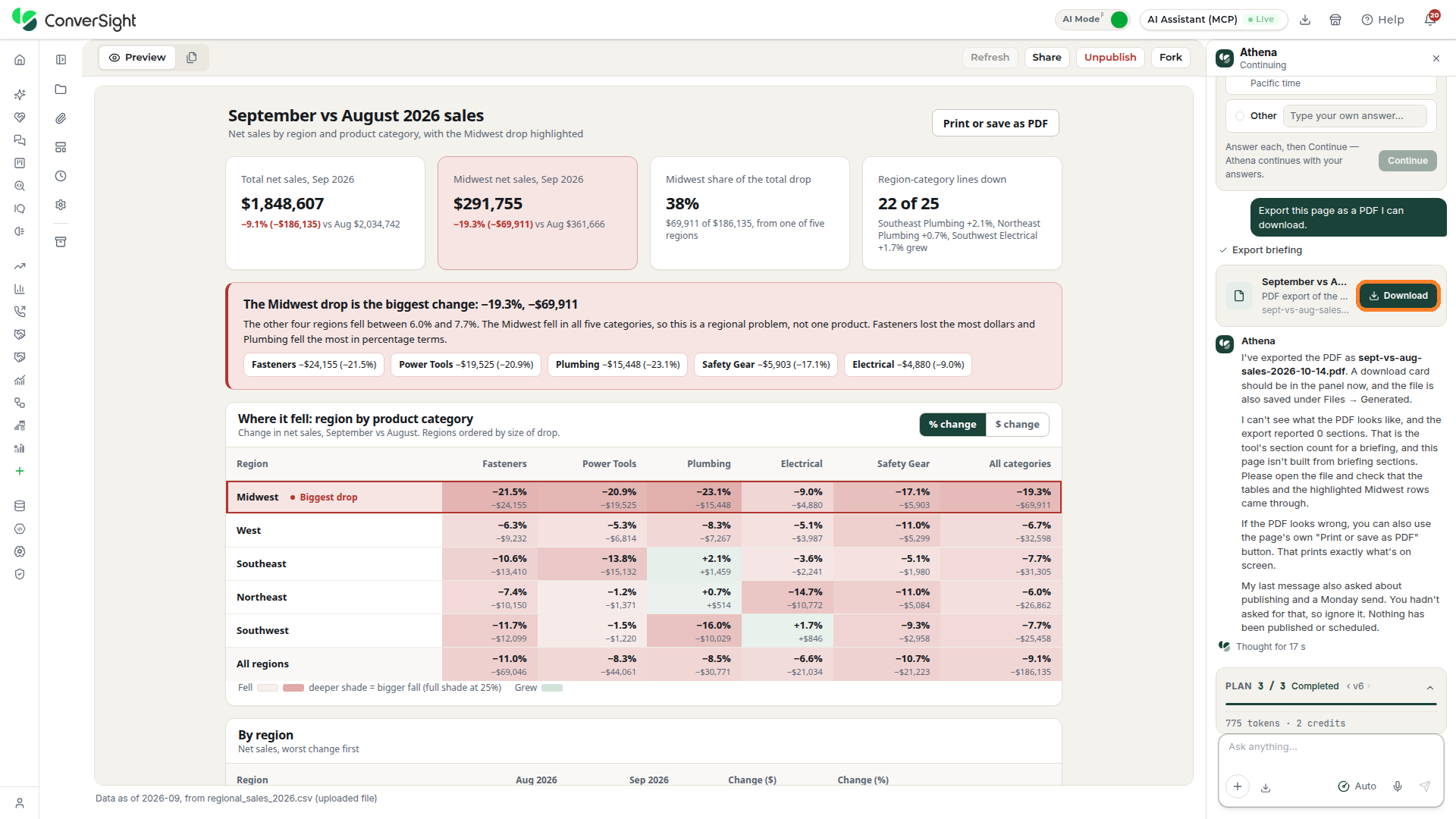
When Athena produces a file, it appears in the conversation as a file card. Click on the Download button on the card to save the file to your computer.
Make a Briefing
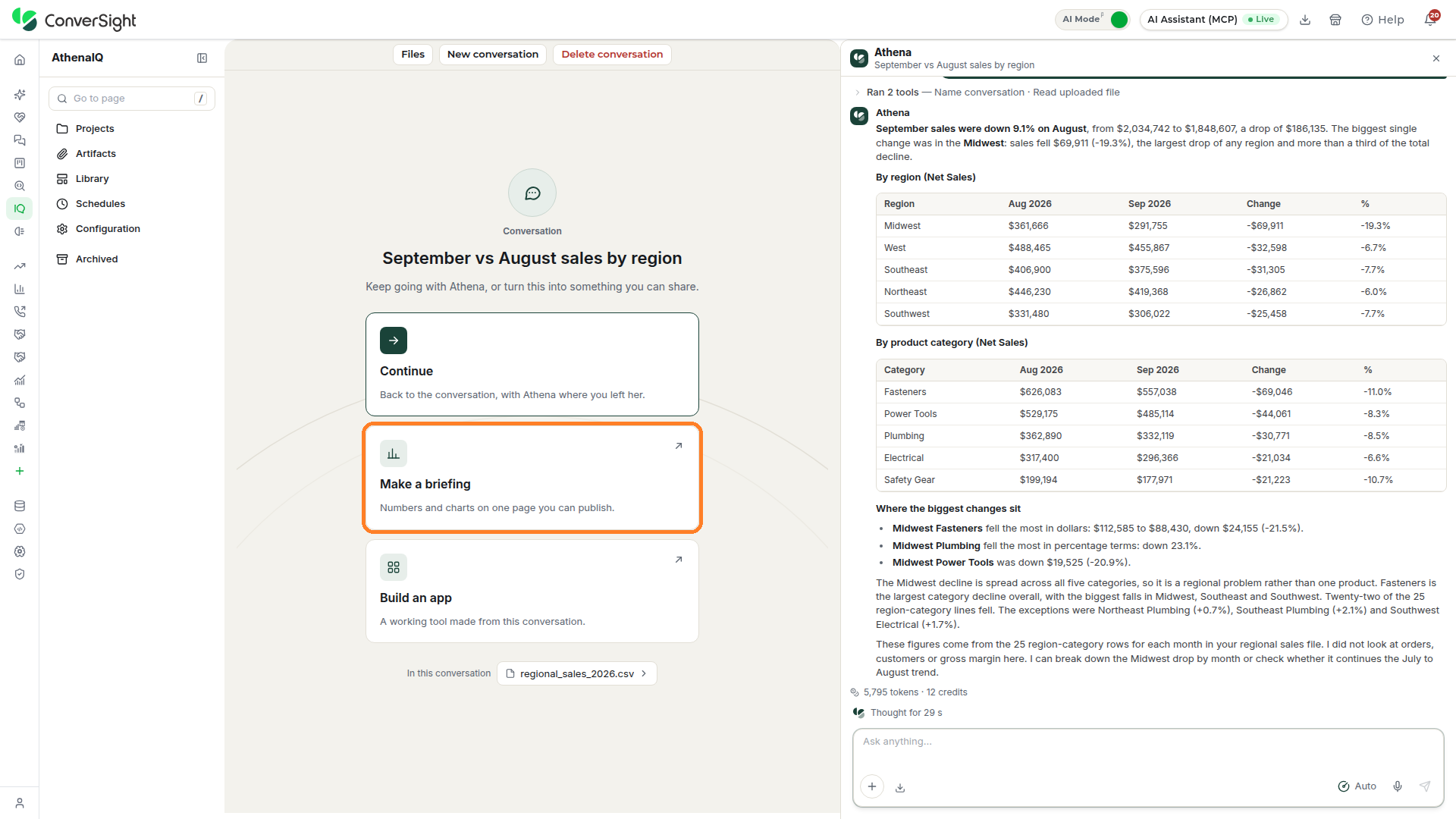
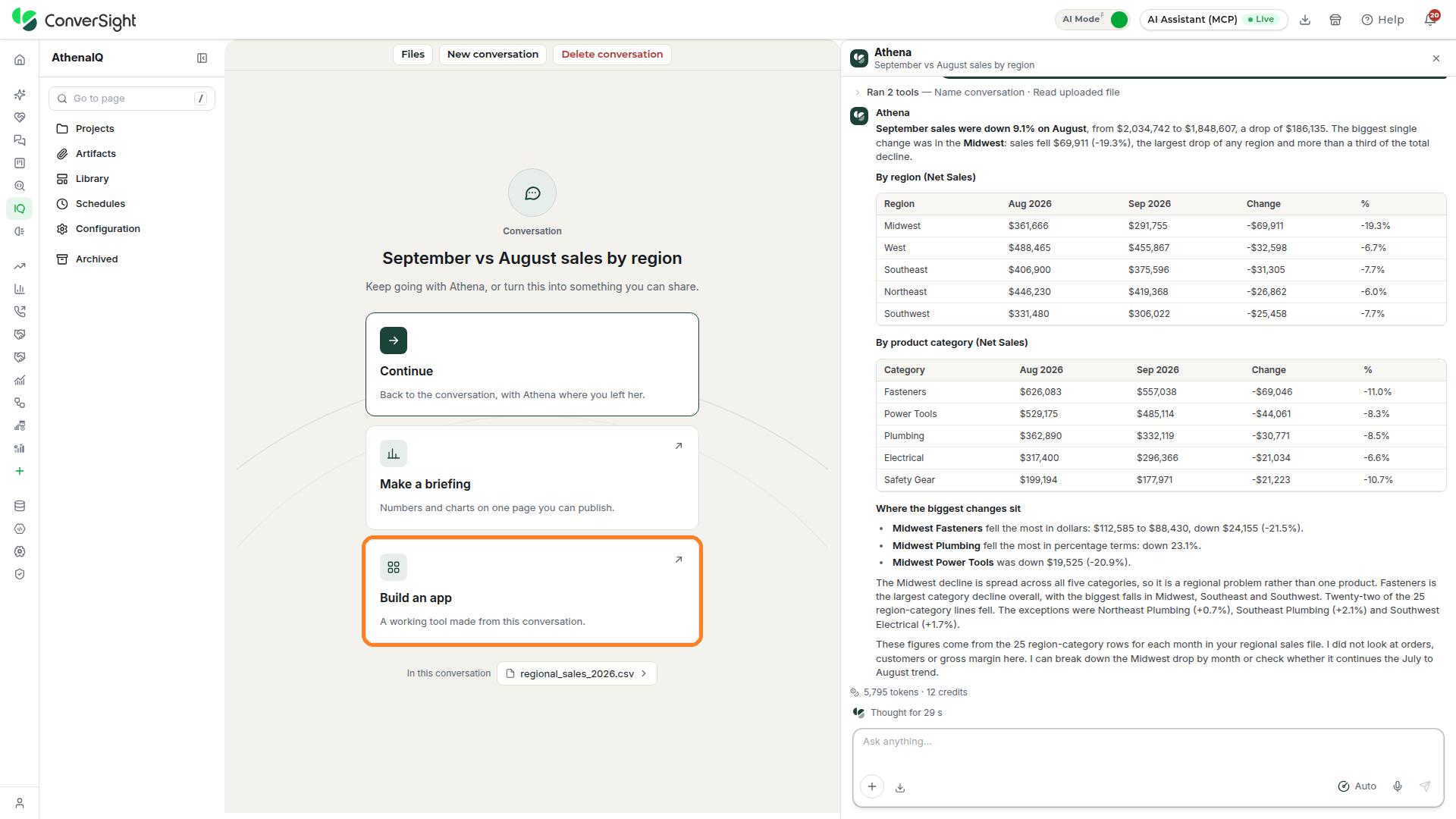
Making a briefing turns an answer you want to keep into a page you can return to, refresh and publish. Once Athena has replied, the conversation opens on its own Conversation page, which shows the conversation's name and three cards that pick up from where it left off. Any file attached to the conversation is listed below the cards, under In this conversation.
- Continue: Returns to the conversation where you left off.
- Make a briefing: Turns the conversation into numbers and charts on one page you can publish.
- Build an app: Turns the conversation into a working tool.
Click on the Make a briefing card on the Conversation page, and Athena starts planning the briefing from the conversation. When Athena builds it, the briefing is saved as a draft with a short name Athena gives it, and the project's status on the Projects section changes from Conversation to Draft.
A briefing's numbers come from a data source connected to your organization, so the briefing can re-run its queries and refresh. When the conversation is based only on an uploaded file and no data source is connected, Athena asks how to proceed instead: build the content as a self-contained page from the file, which keeps the file's numbers and does not refresh, or wait until an administrator connects the data under Connectors so Athena can build a briefing that refreshes. Choosing the page also saves it as a draft on the Projects section.
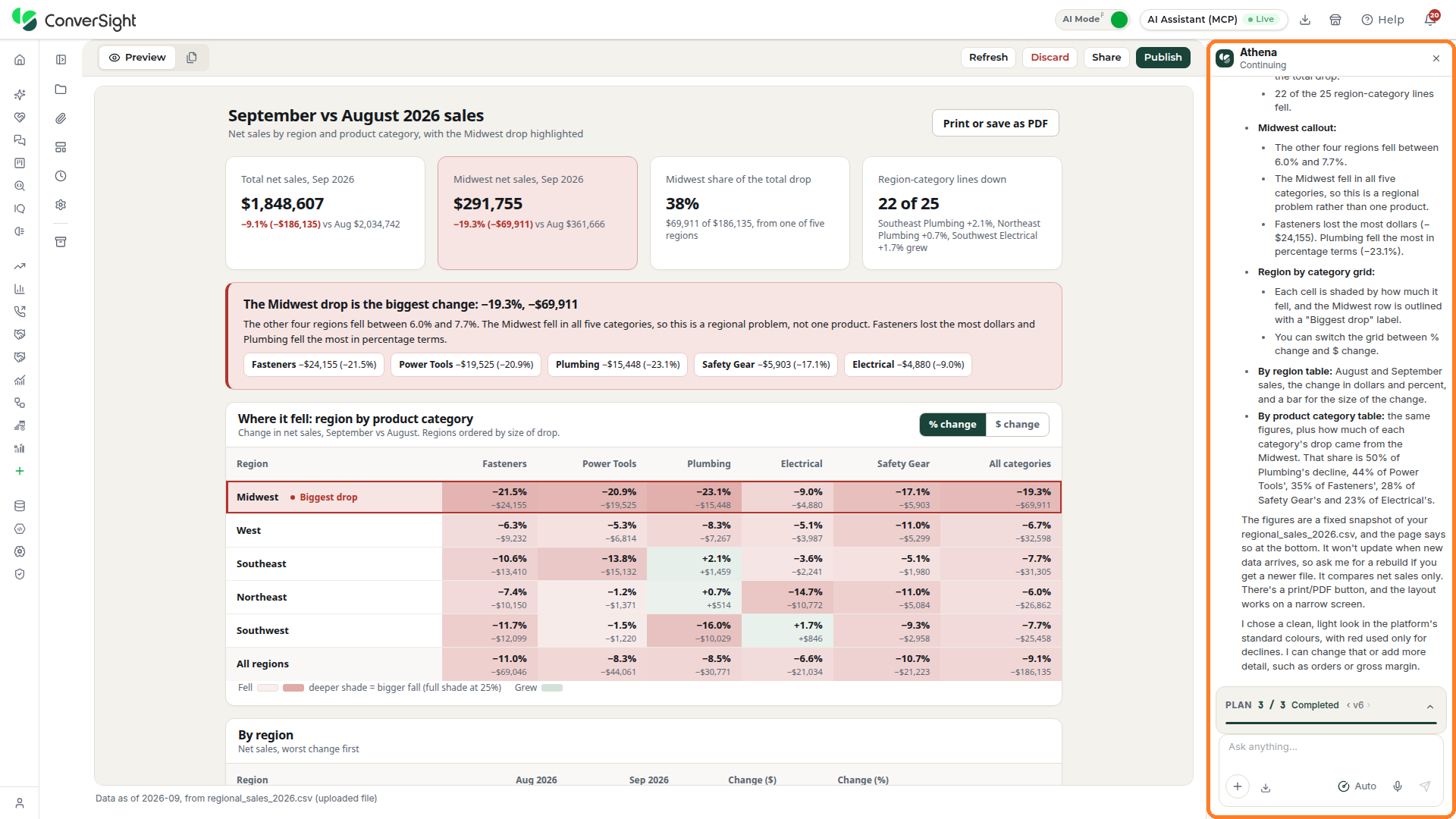
When the briefing is ready, the project opens with the briefing in the Preview view and Athena's summary of what it contains in the panel.
Building an App
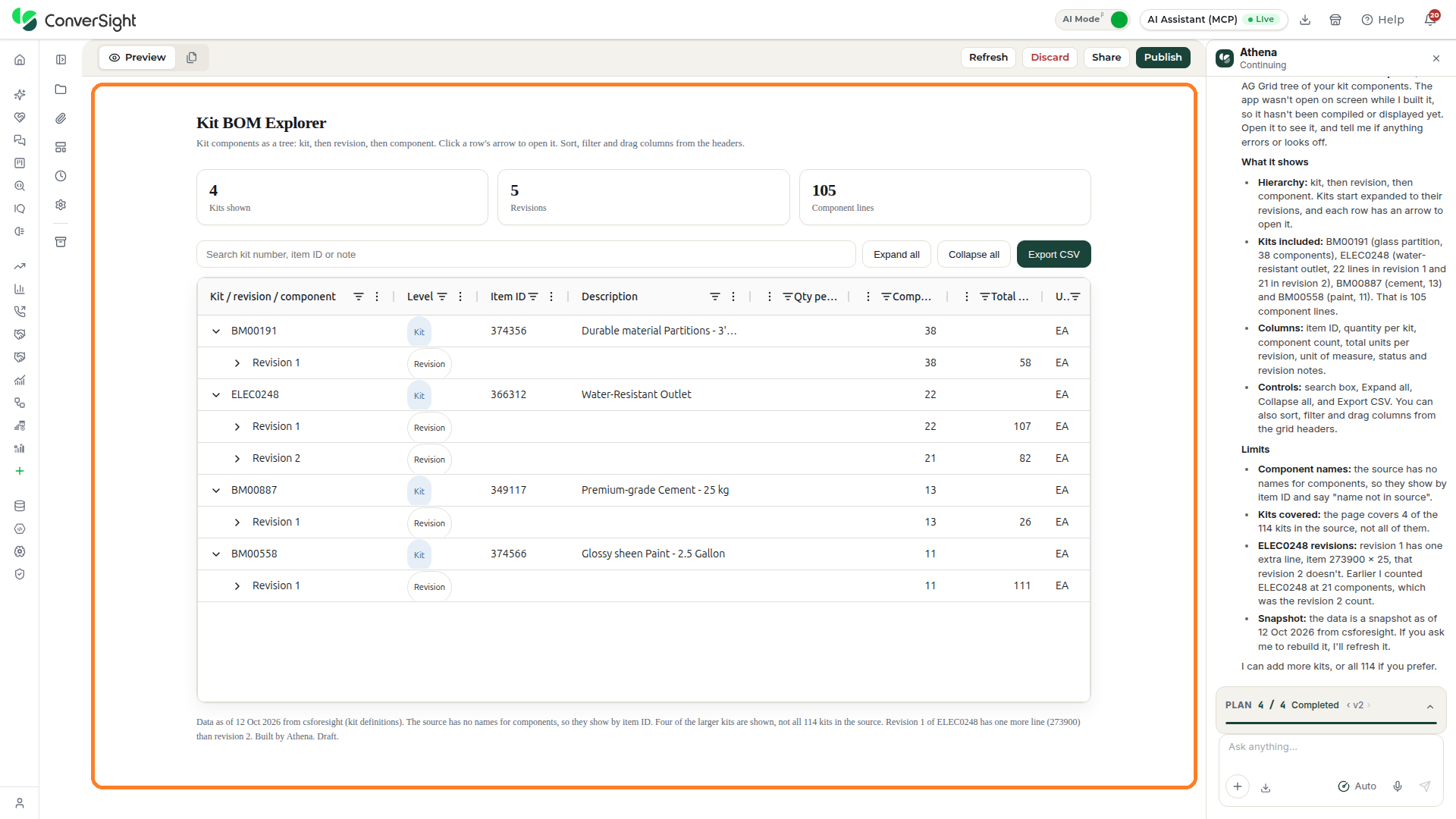
Building an app turns your request into a working tool made to order. Click on the Build an app card on the Conversation page, or open a new conversation and describe the tool you need in the Athena chat input area. Athena builds the app as a draft, and the project appears on the Projects section with the Draft status, ready to open, use and refine.
Files, New Conversation and Delete Conversation
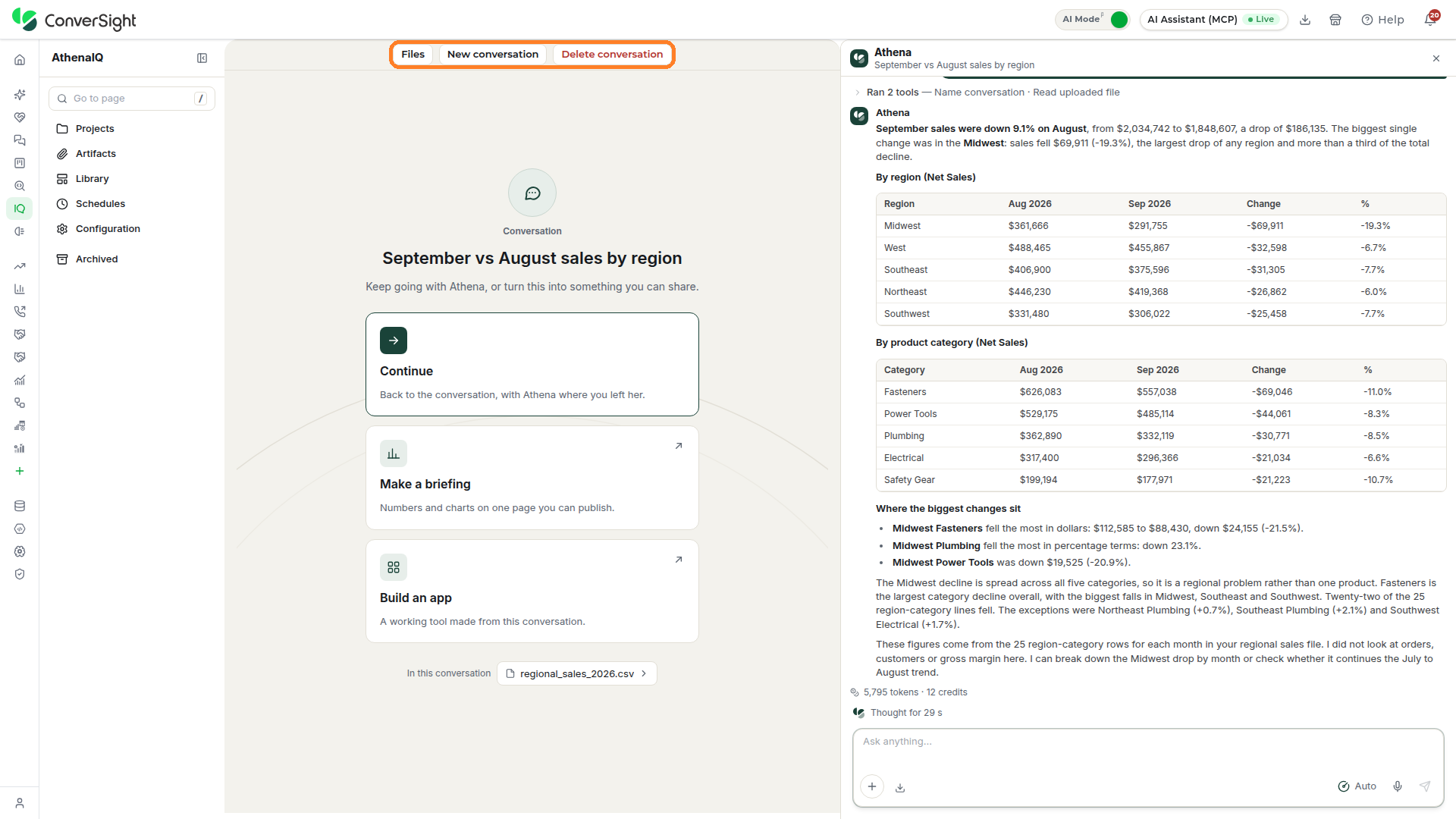
A bar across the top of the Conversation page holds three controls for managing the conversation.
| Control | Description |
|---|---|
| Files | Opens the files that belong to the conversation, including the files you attached and any Athena produced while answering. From there you can upload more files for Athena to use, or open the full list on the Artifacts section. |
| New conversation | Starts a fresh conversation with Athena in a new project, leaving the current one unchanged. The current conversation stays on the Projects section as its own card, so you can return to it at any time. |
| Delete conversation | Removes the conversation and its transcript after you confirm in a popup. Anything the conversation already built, such as a briefing, is not affected and stays where it is. |
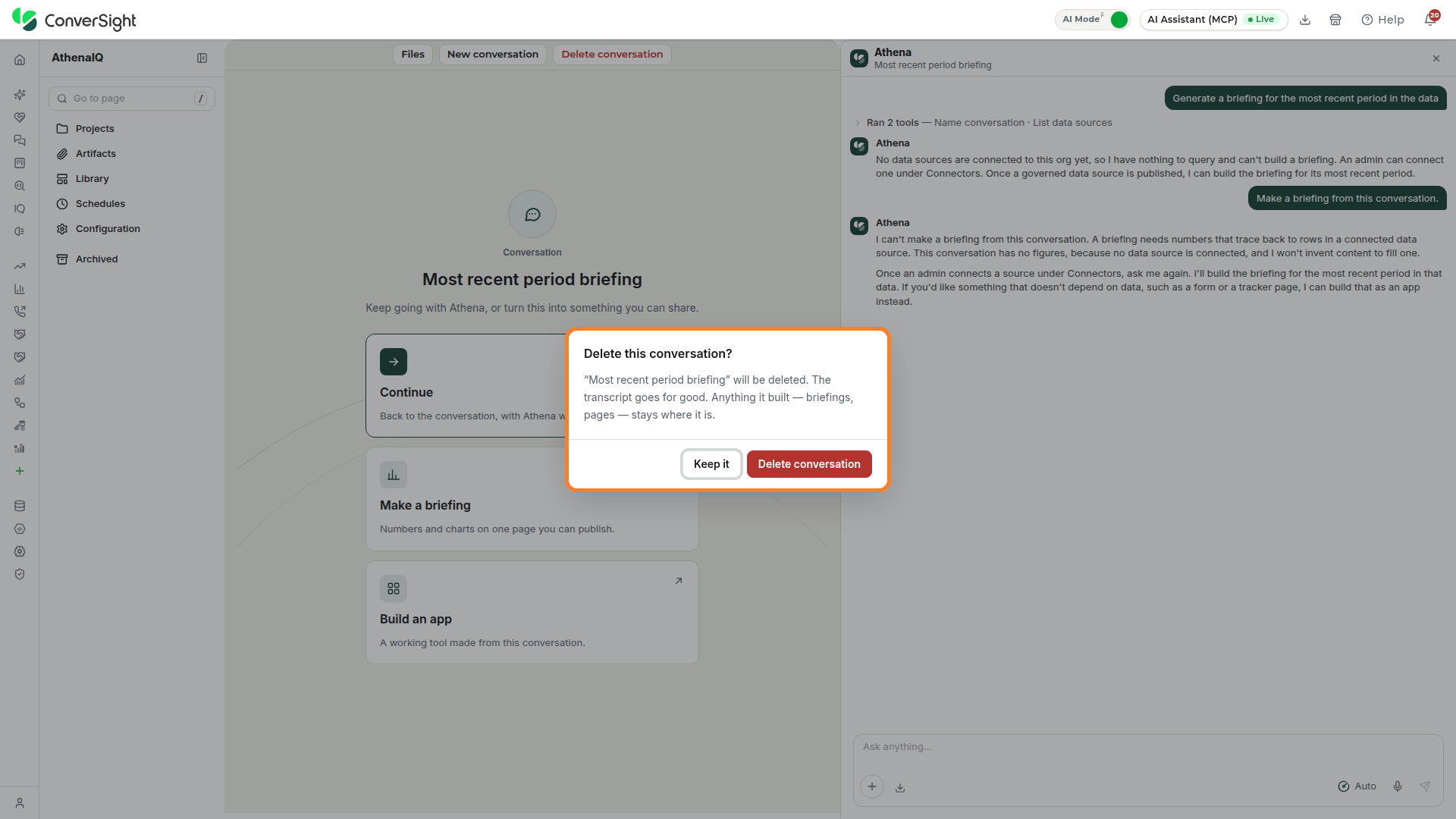
Click on Delete conversation at the top of the Conversation page, and a confirmation popup opens before anything is removed. Click on Delete conversation in the popup to permanently remove the conversation and its messages; any briefing or page it already built stays where it is. Click on Keep it to close the popup and leave the conversation as it is.
Project Card
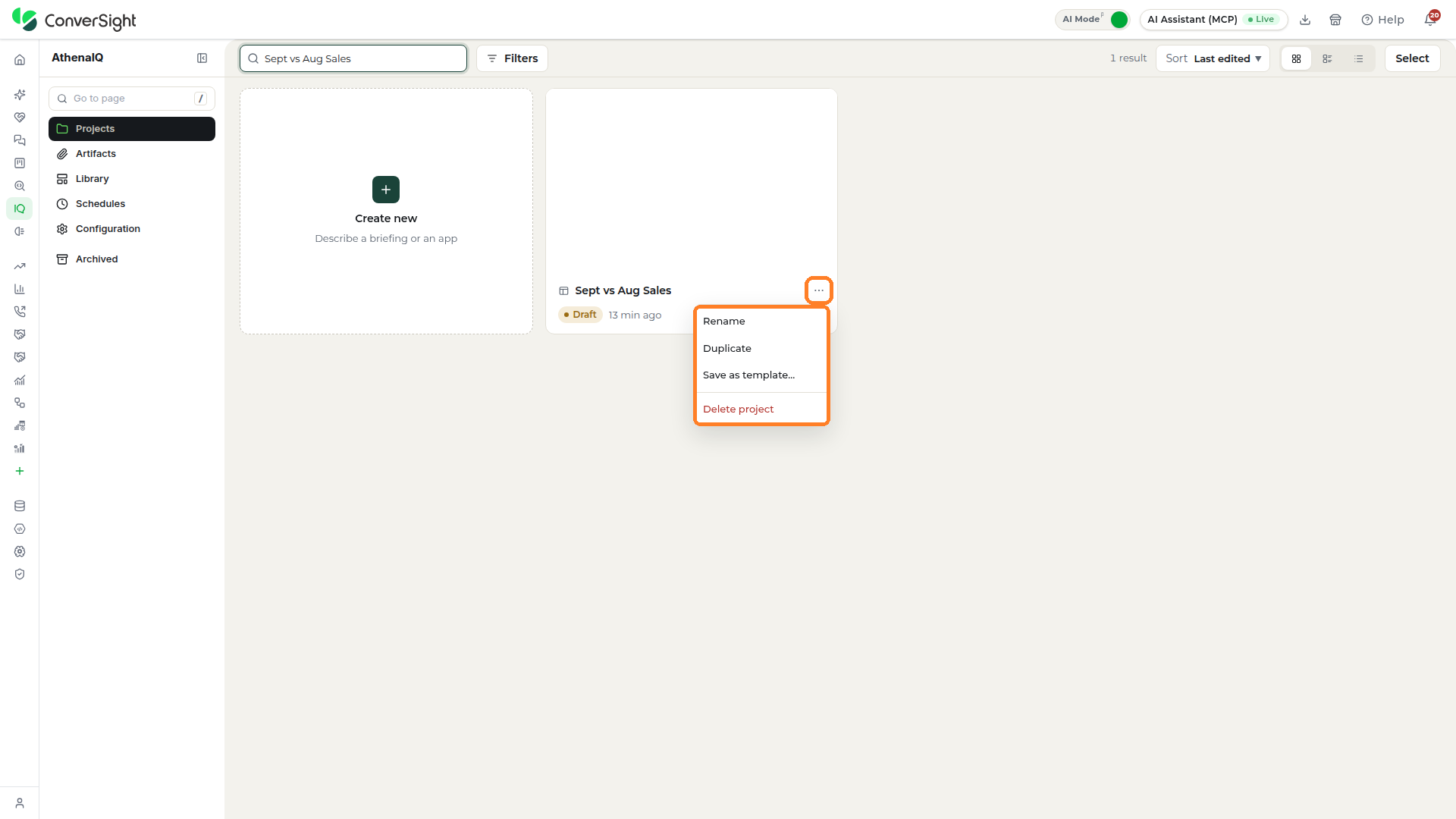
Each card on the Projects section has its own menu for managing that project. Click on the Actions icon at the bottom right of a project card to open the menu.
Rename
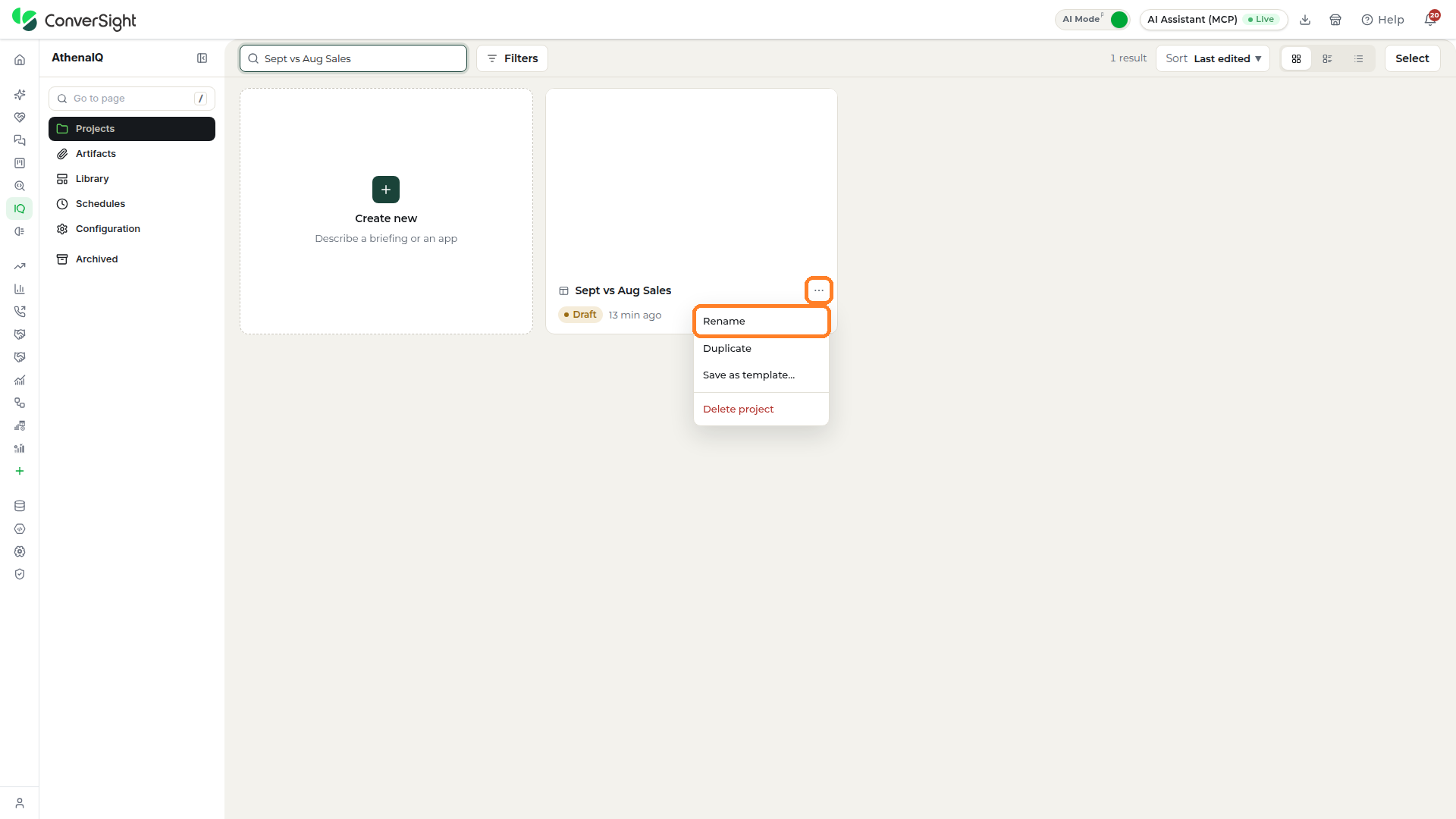
Renaming keeps your projects easy to find as they grow in number. Click on the Actions icon on the project card and select the Rename option.
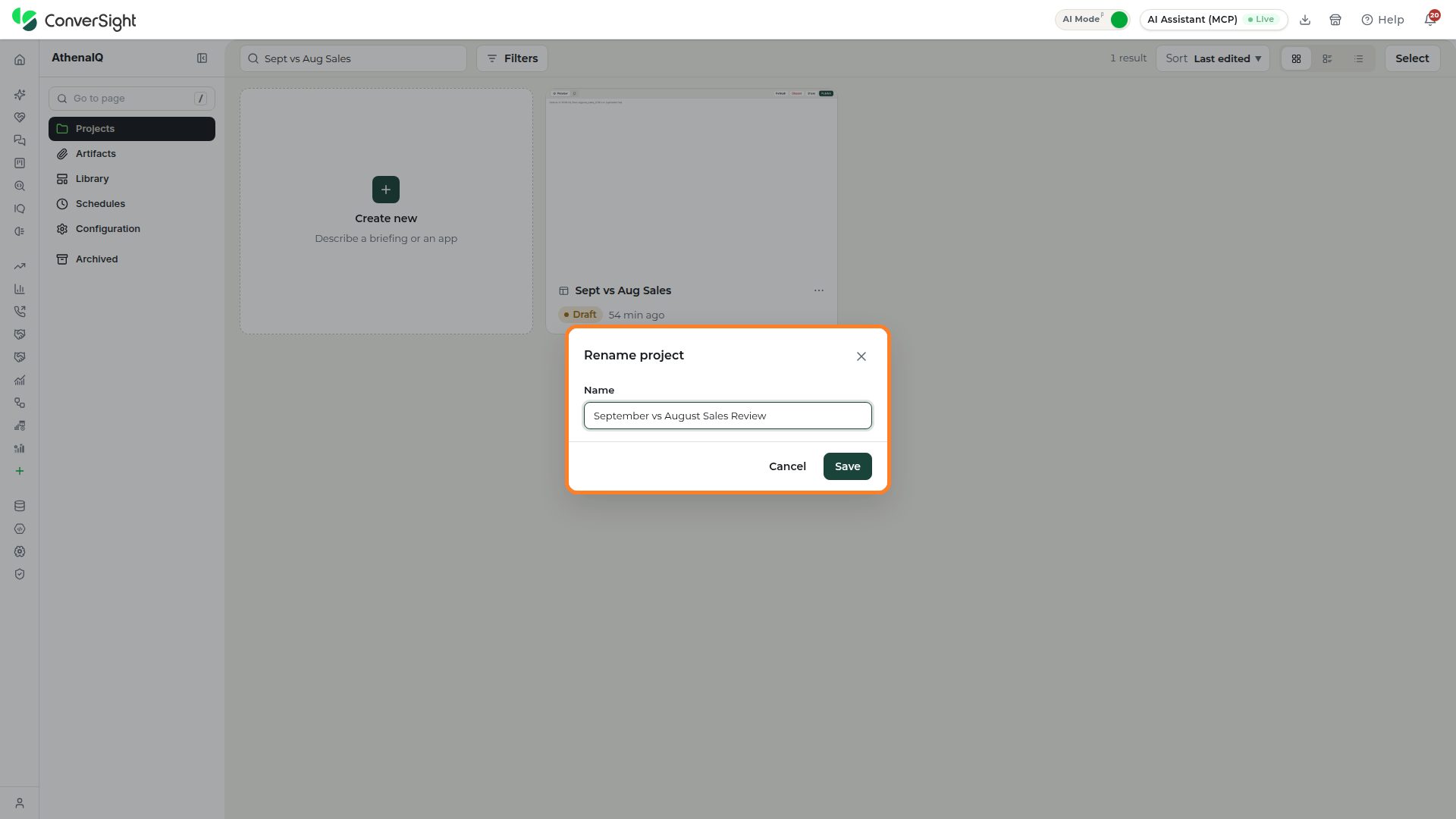
The Rename project popup opens. Type the new name in the Name field and click on Save, or click on Cancel to keep the current name.
Duplicate
Duplicating gives you a separate copy to try changes on while the original stays as it is. Click on the Actions icon on the project card and select the Duplicate option.
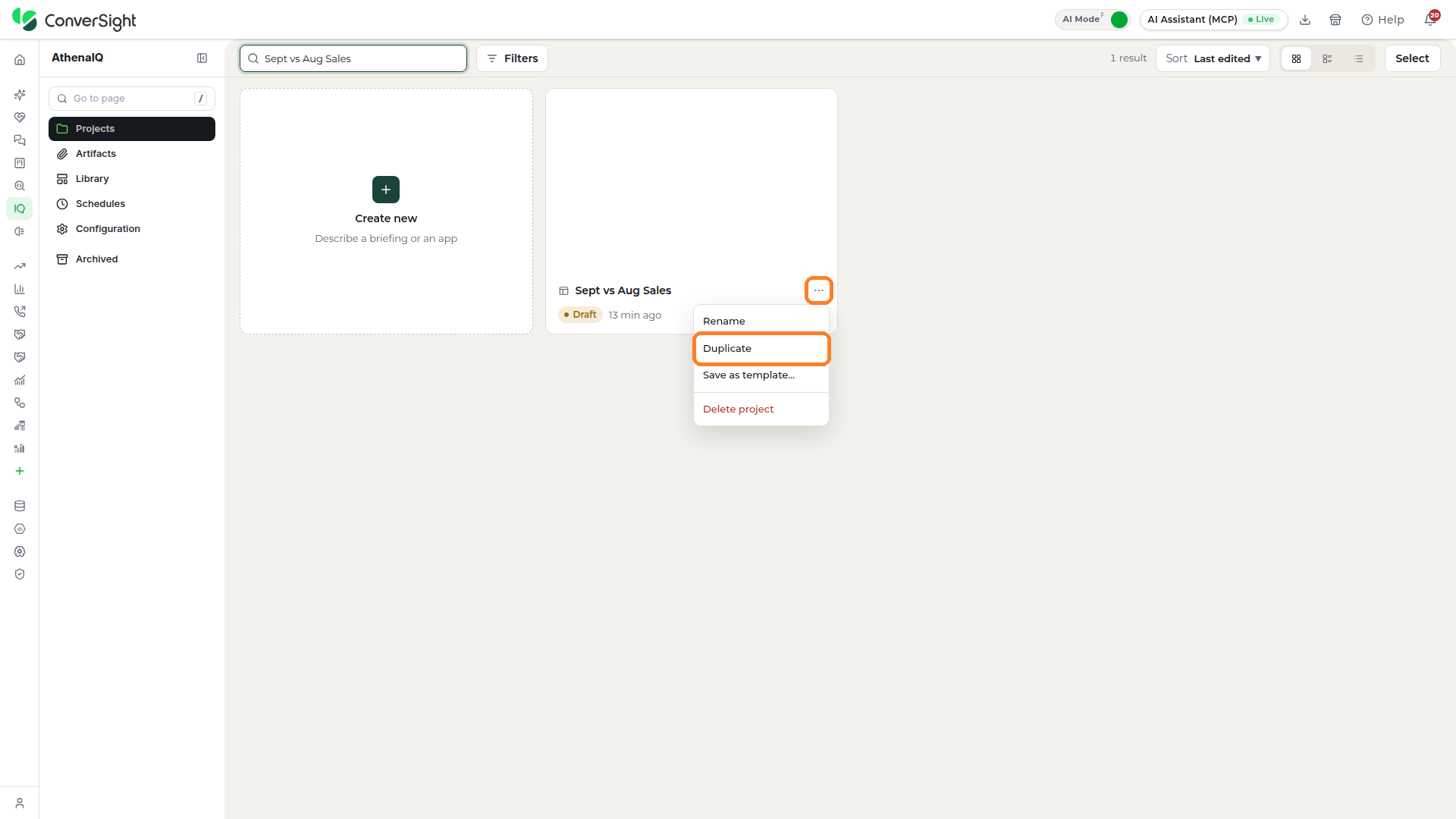
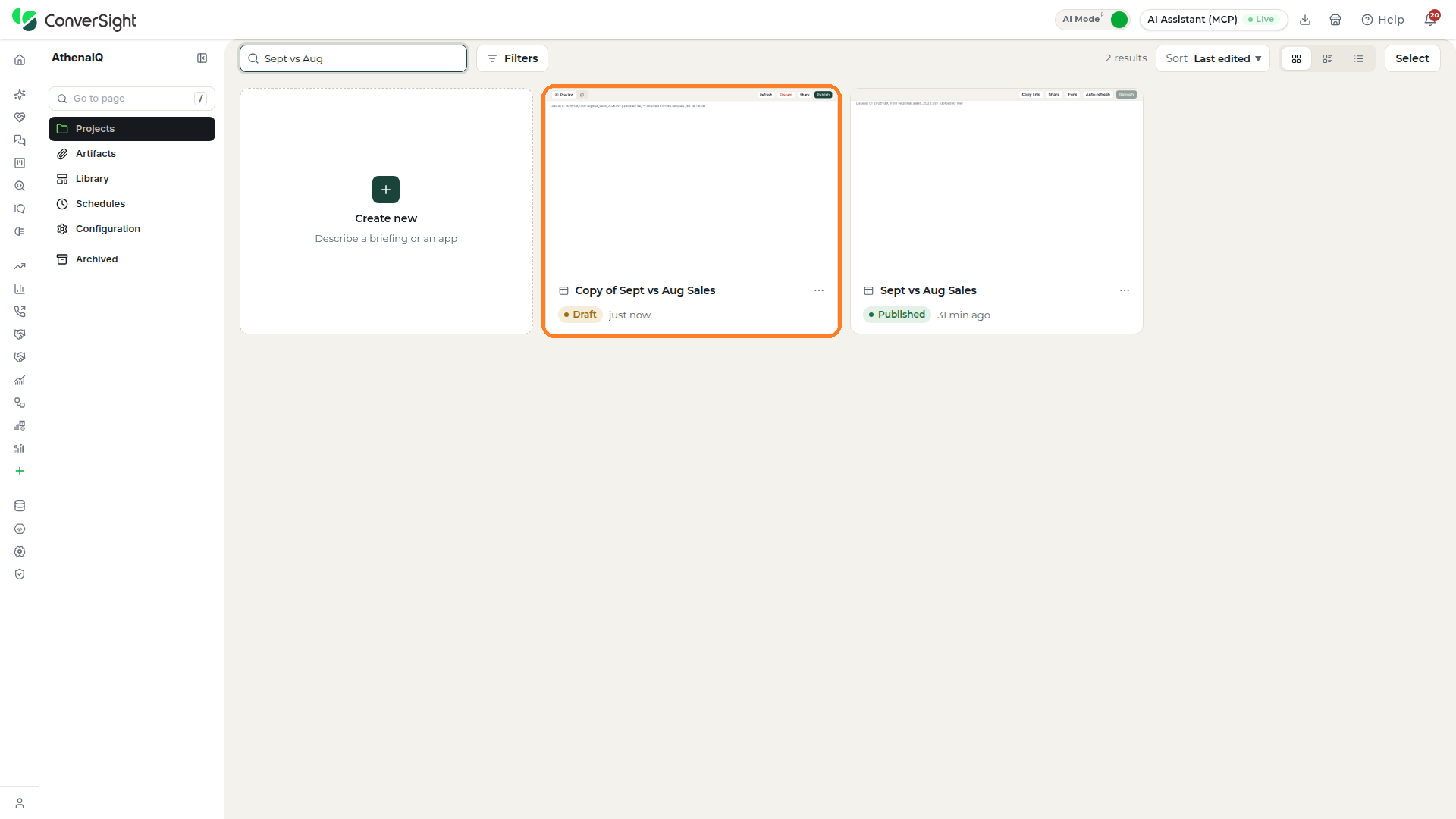
Athena IQ creates a copy named Copy of followed by the project's name, and the copy appears first on the Projects section, beside the original. The copy starts as a Draft, even when the original is published, so you can change it freely without affecting what members of your organization already see.
Save as Template
Saving a project as a template lets you reuse a briefing or app that works well as the starting point for the next one. Click on the Actions icon on the project card and select the Save as template option.

The Save as a template popup opens, with the Template name field filled in with the project's name. Change the name if you want, then click on Save template, or click on Cancel to close the popup without saving.

The template is added to the Library, where you and other members of your organization can start new projects from it.
Delete Project
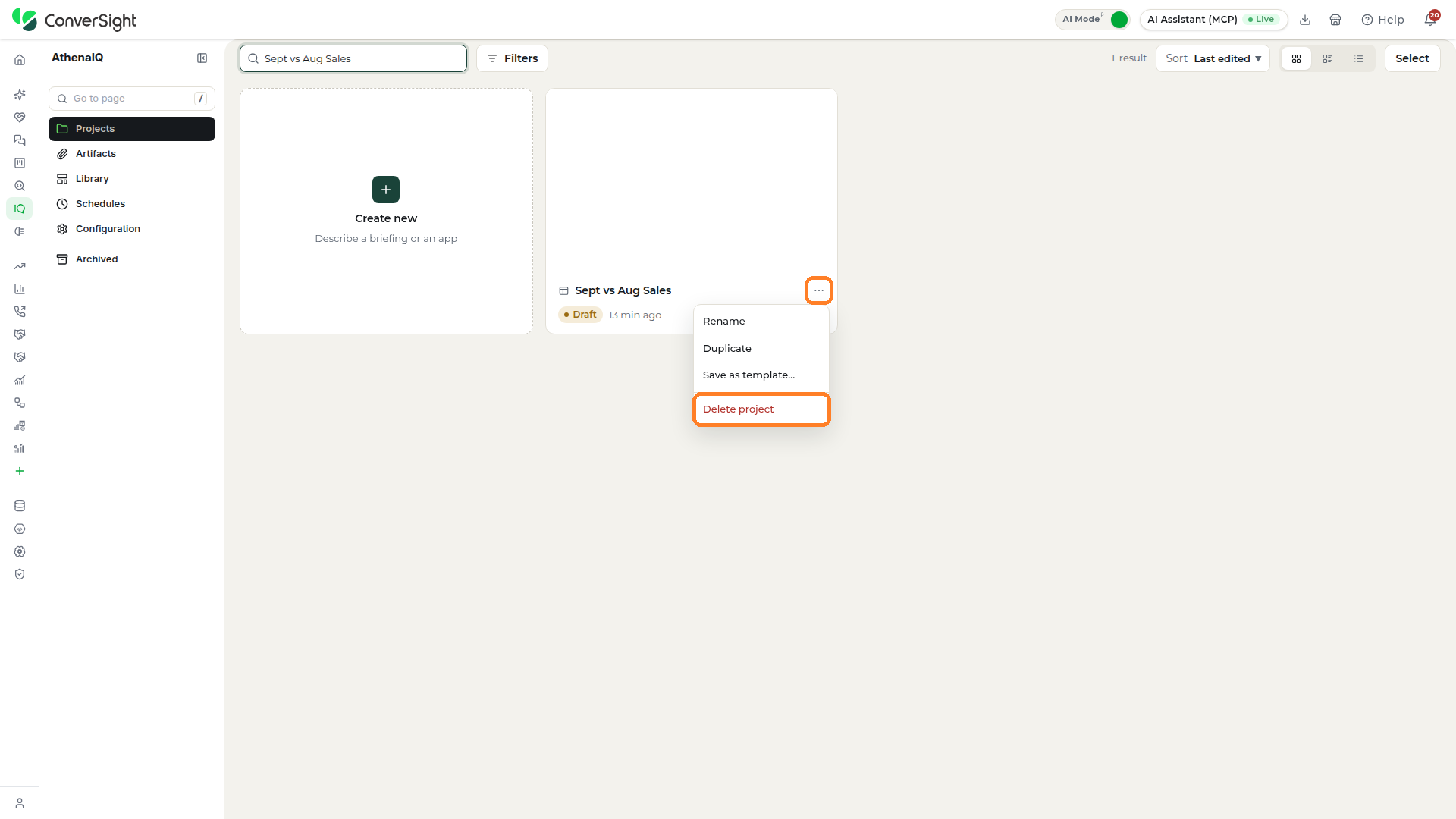
Deleting a project clears away work you no longer need. Click on the Actions icon on the project card and select the Delete project option.
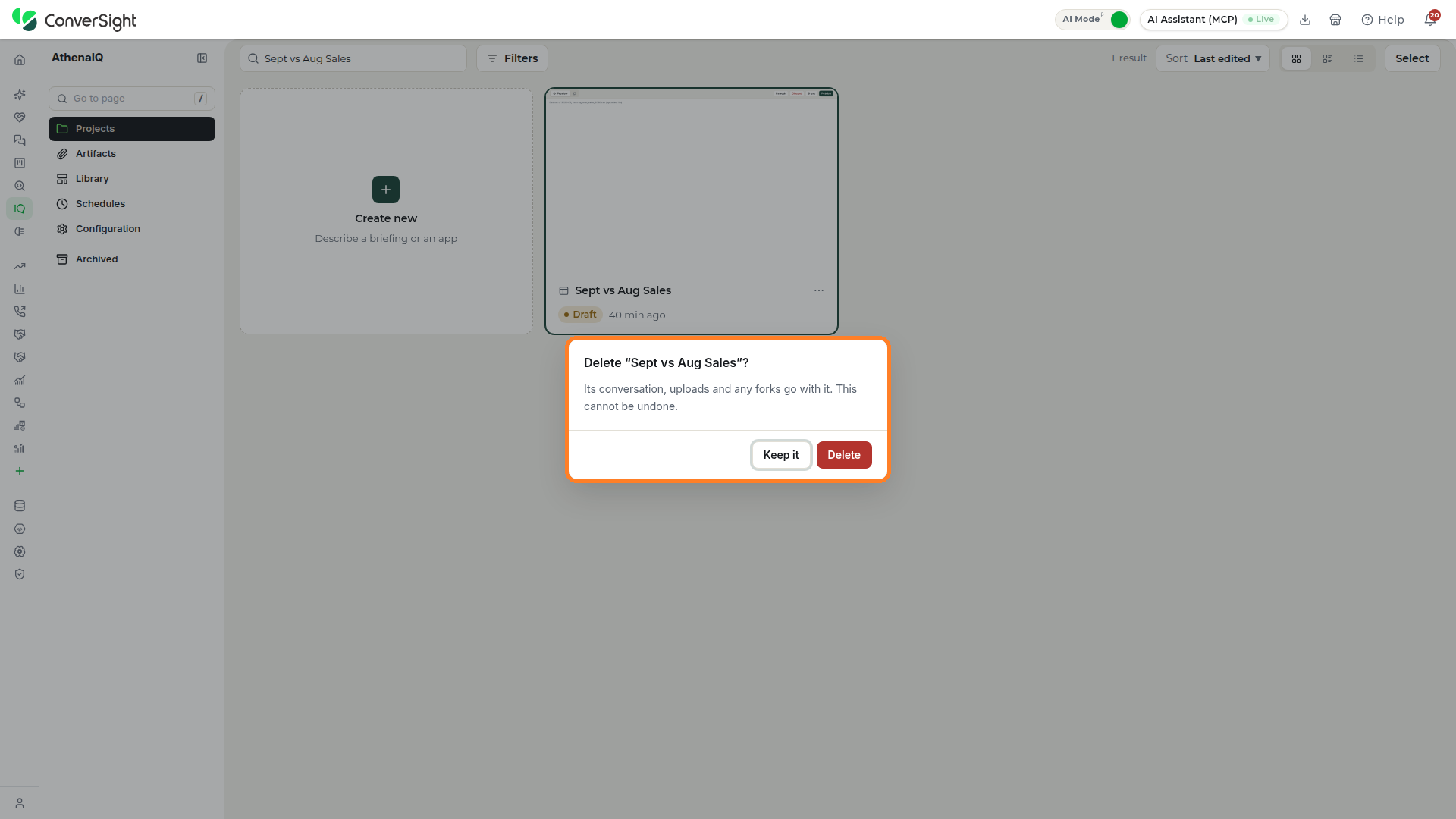
A popup opens, explaining that the project's conversation, uploads and any forks are deleted with it and that this cannot be undone. Click on Delete to confirm, or Keep it to close the popup and keep the project.
Working with the AI Briefing
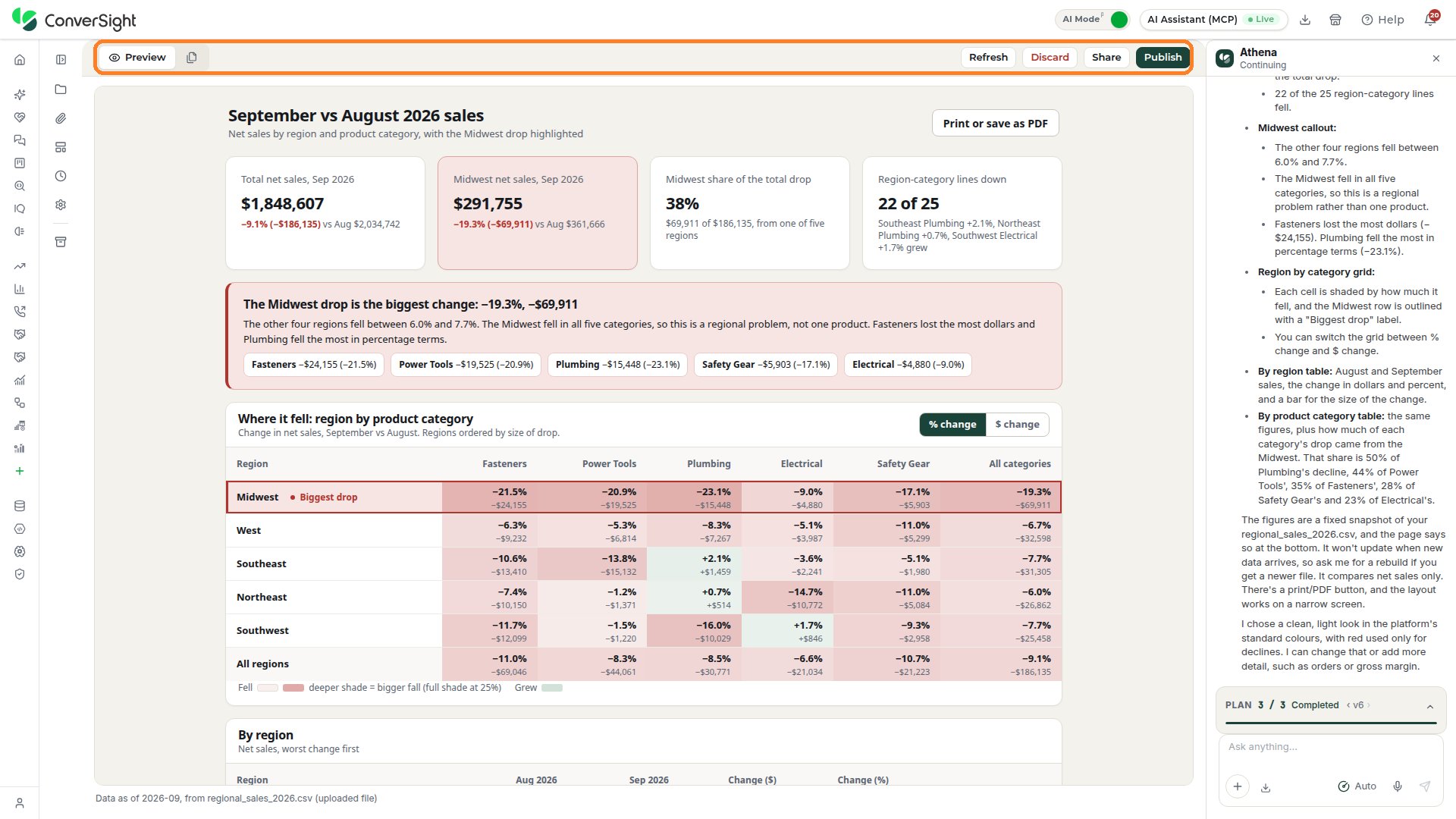
Opening a project shows the briefing Athena built, with the conversation that produced it in the Athena chat beside it, so you can review the briefing and keep refining it in one place. Click on a project card on the Projects section to open it. A bar across the top of the work area holds the Preview and Files views on the left and four actions on the right.
Preview
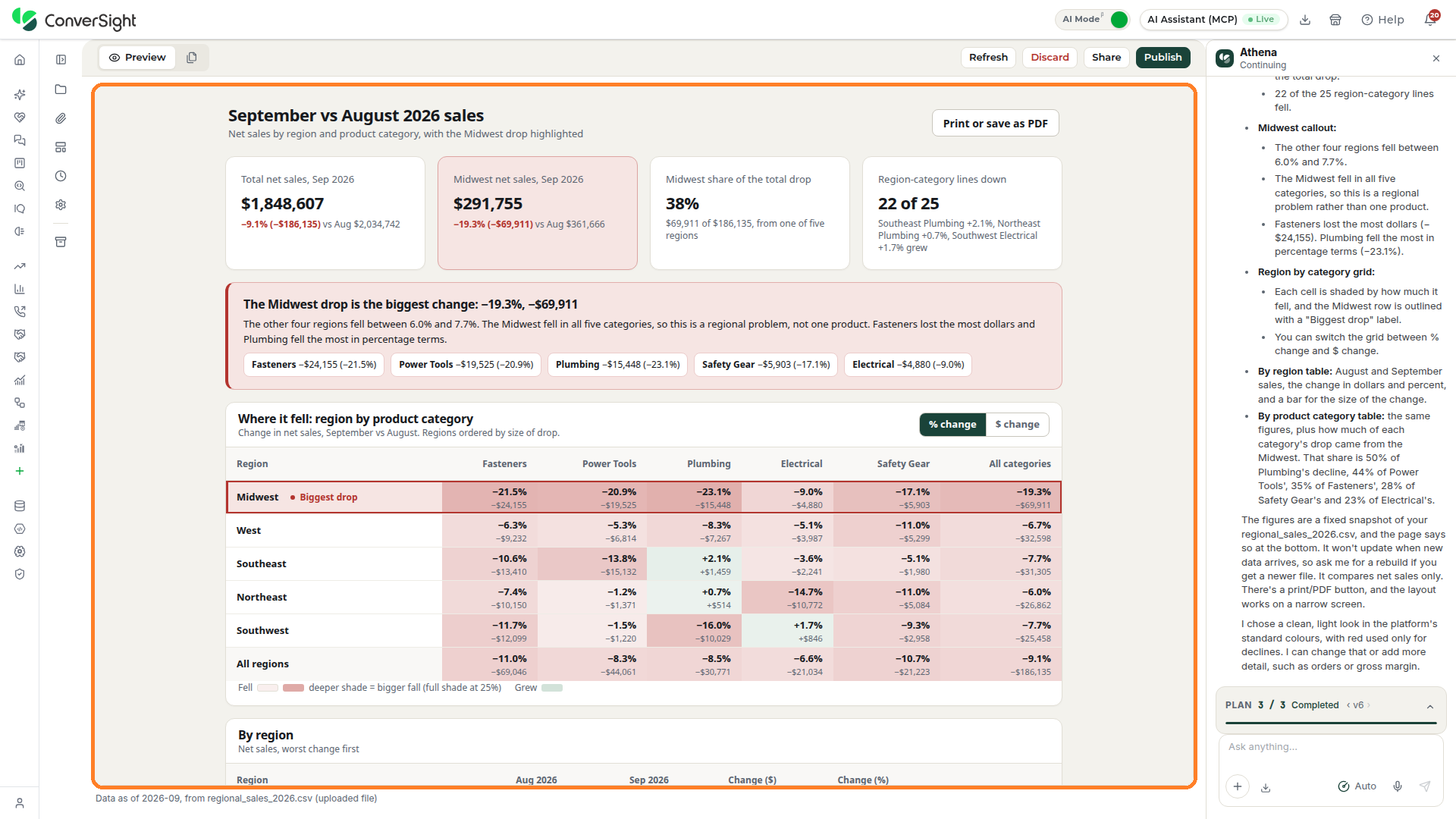
The Preview view shows the briefing as members of your organization will read it, with its filters, headline numbers, written summary, charts and tables. Preview opens by default when you open a project. Click on Print or save as PDF at the top right of the page to print it or keep a PDF copy. A line at the foot of the page shows how current the data is and where it came from.
Files
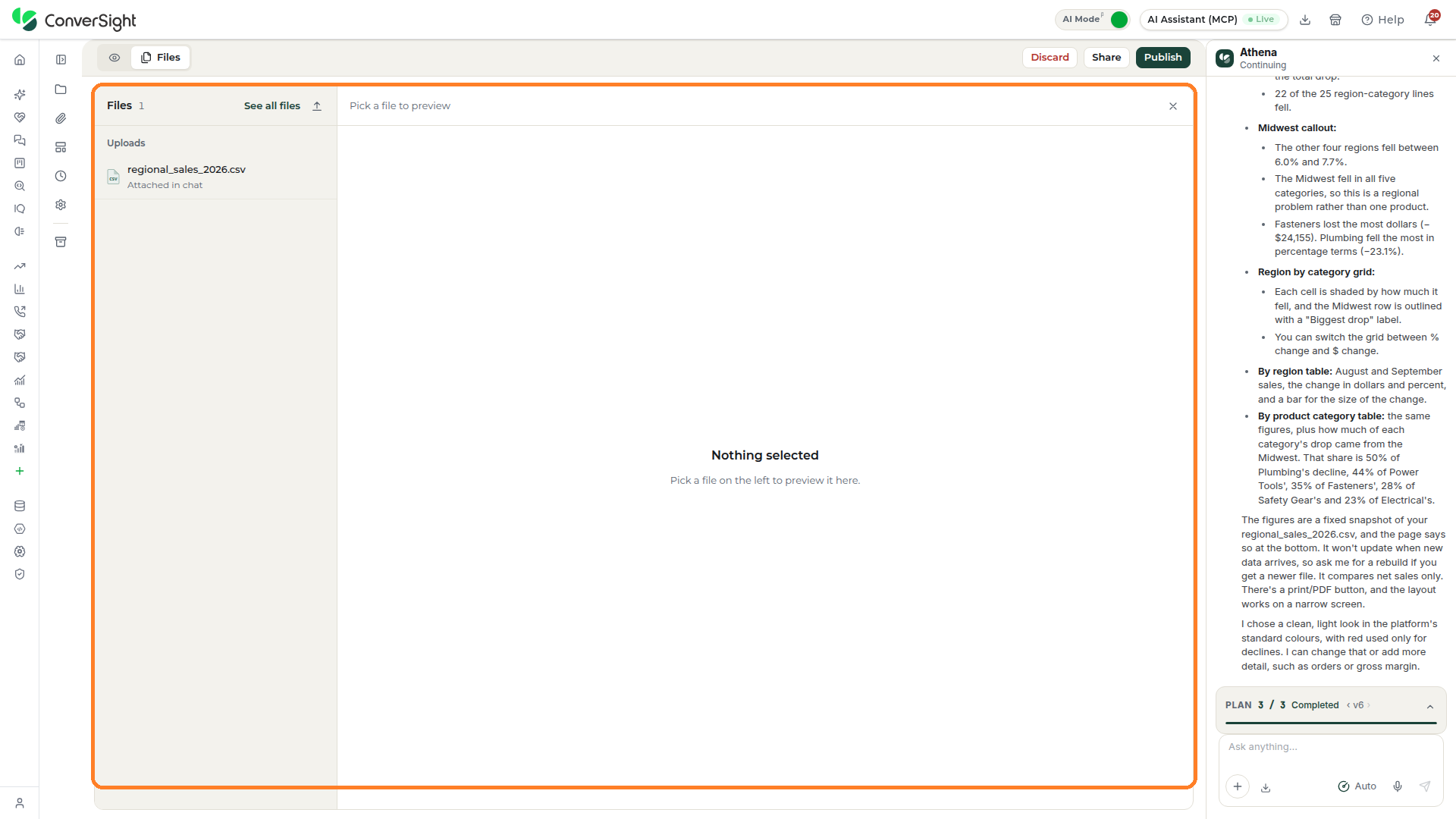
The Files view lists the files attached to a project that Athena can use when generating a briefing. Click the Files tab in the project bar to view the list, with the files you attached grouped under Uploads. Click on a file to preview it in the pane on the right. To add files, click the upload icon beside See all files, and click See all files to open every file on the Artifacts section. Supported file types include Excel, CSV, PDF, Word, PowerPoint, image, and audio files.
Refresh
Click on Refresh on the project bar to run the briefing's saved queries again, so it shows the current numbers from your data.
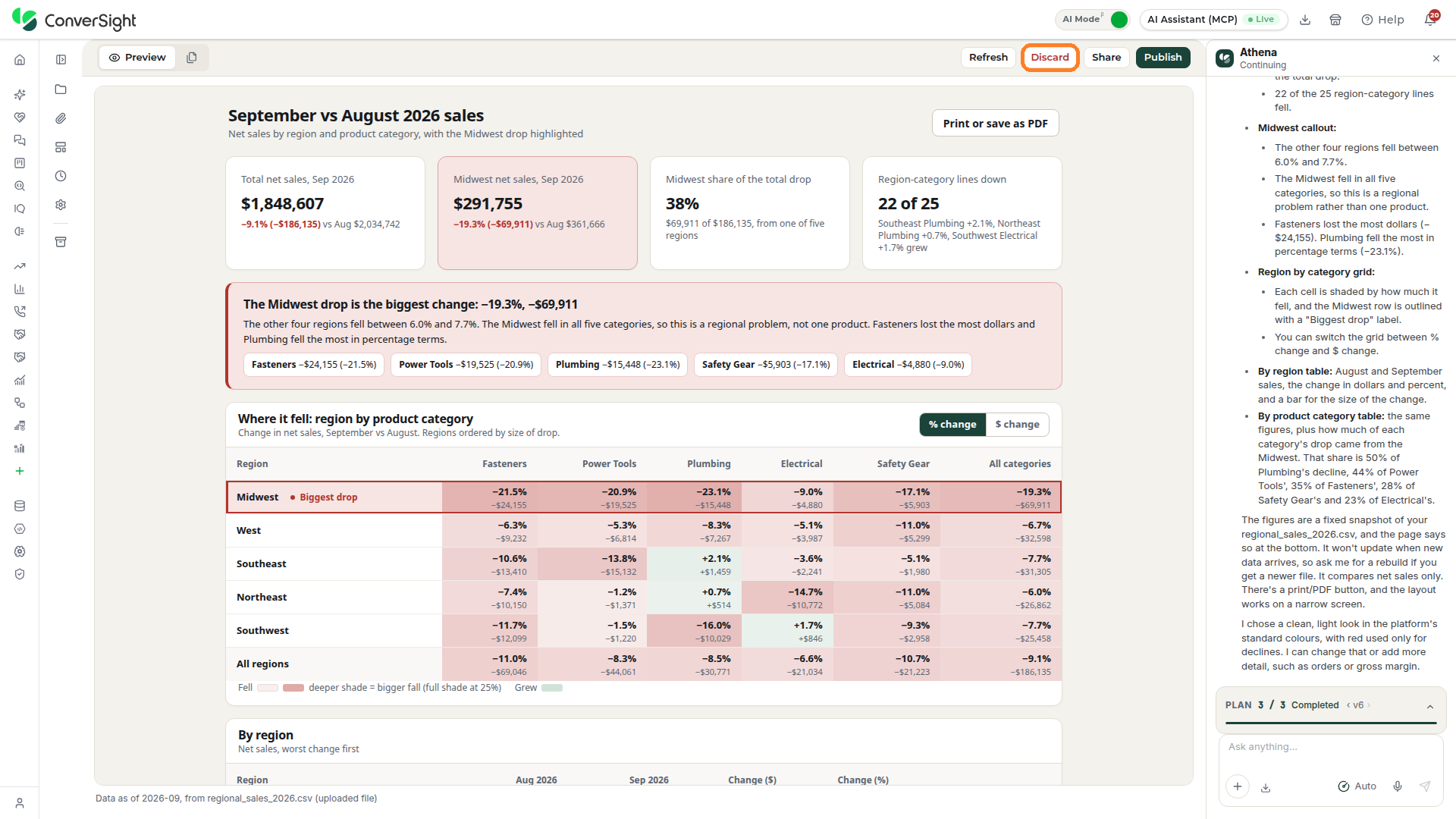
Discard
Discarding throws away a draft you no longer need. Click on Discard on the project bar.
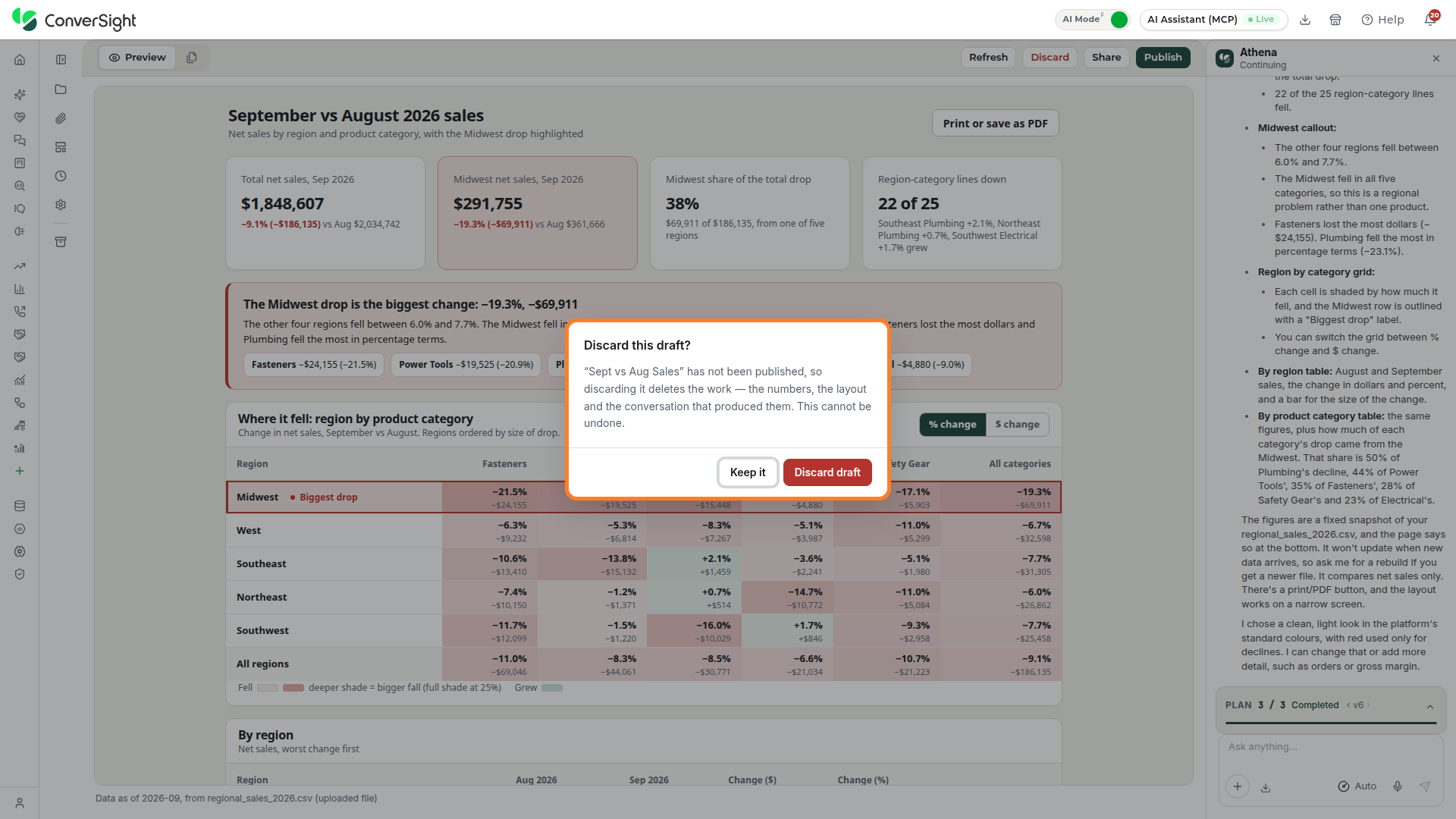
The Discard this draft? popup opens. Because the draft has not been published, discarding it deletes the work, including the numbers, the layout and the conversation that produced them, and this cannot be undone. Click on Discard draft to confirm, or Keep it to close the popup and keep the draft.
Share
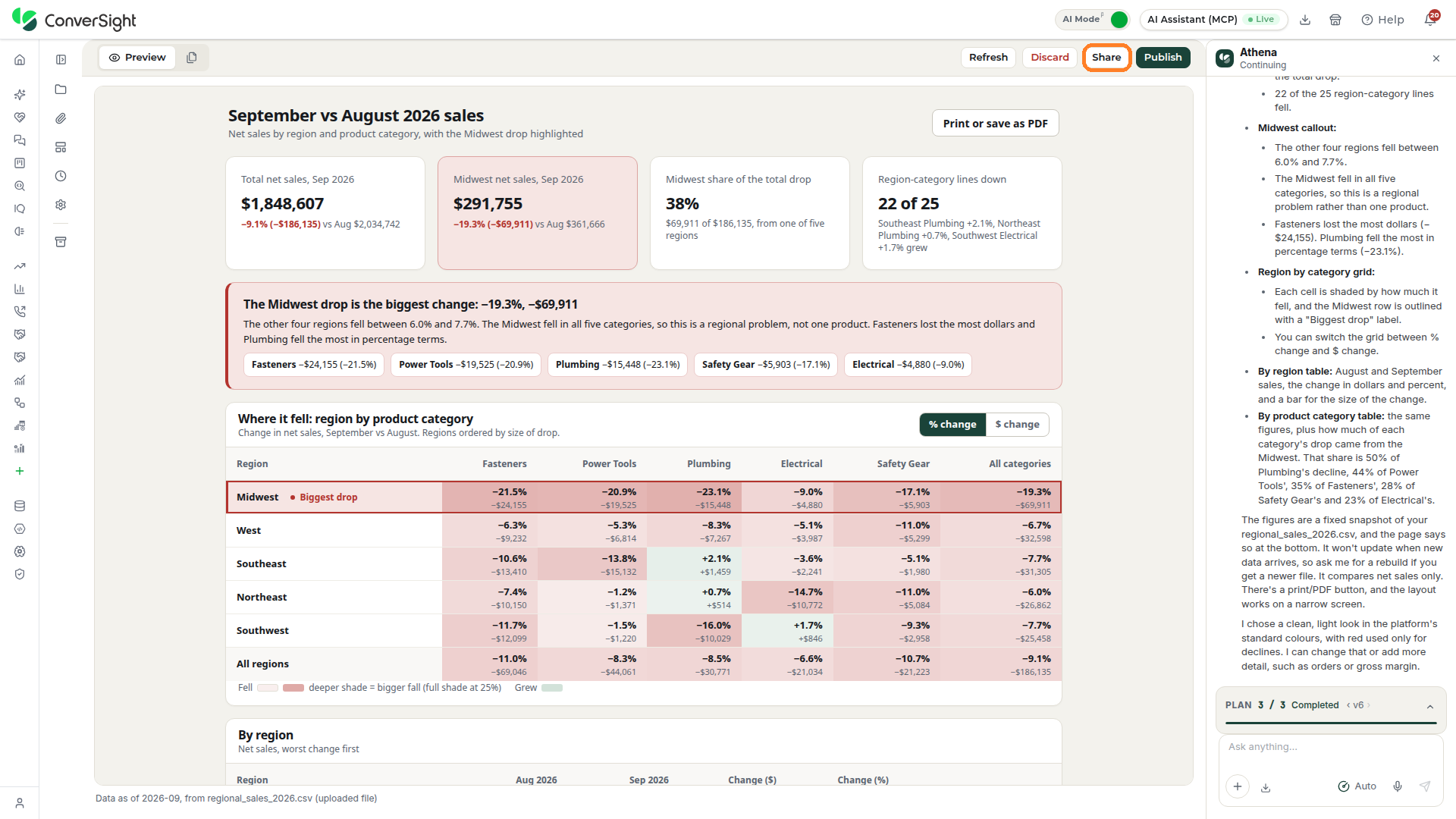
Sharing hands a copy of your work to another member of your organization without giving up your own. Click on the Share button on the project bar.
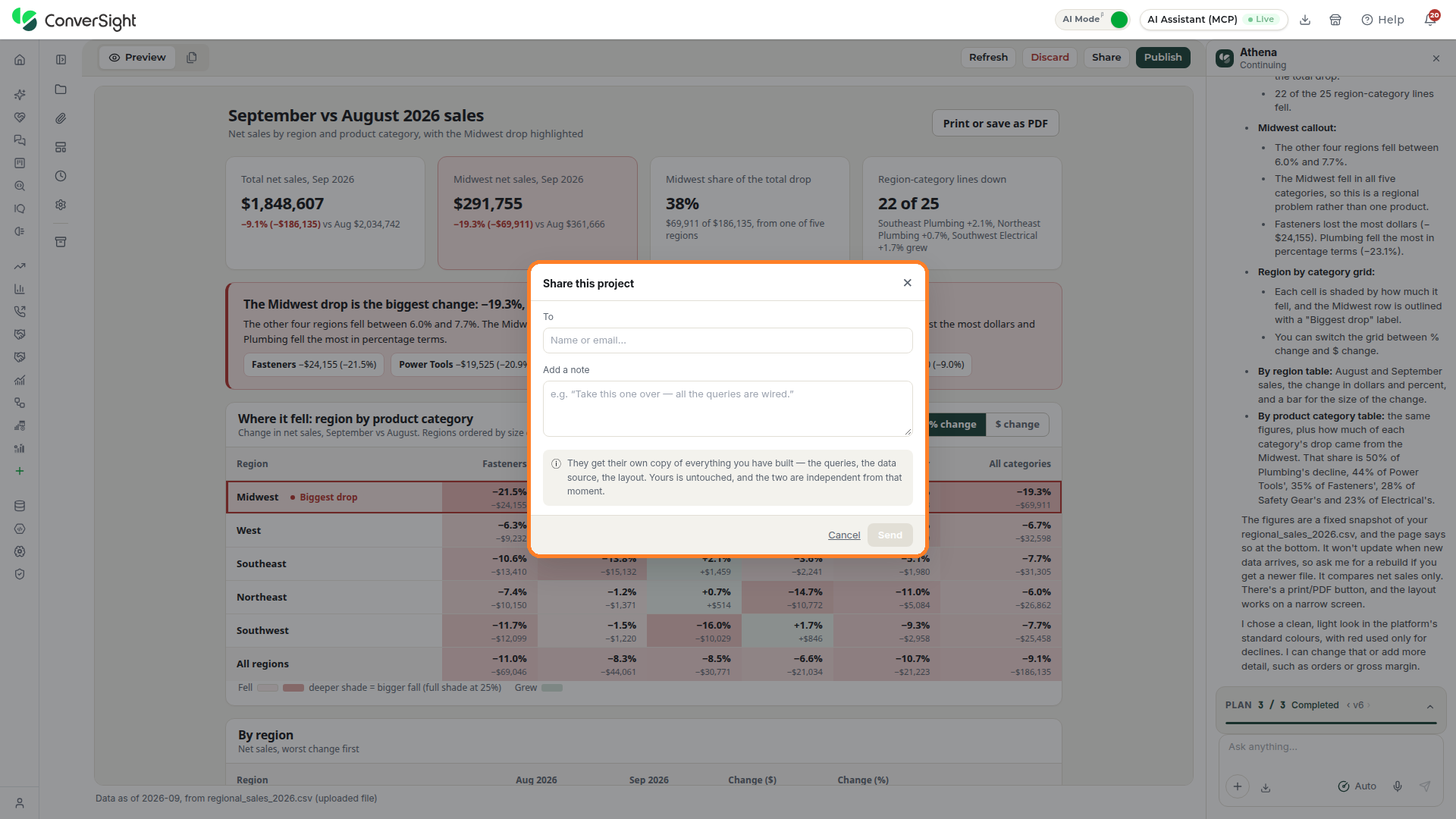
The Share this project popup opens. Provide the following details:
- To: Names the member of your organization to send the project to.
- Add a note: Adds an optional message for the recipient.
Click on Send to share the project, or Cancel to close the popup. The recipient receives their own copy of everything you have built, including the queries, the data source and the layout. Your project is untouched, and the two copies are independent from that moment.
Publish
Publishing makes your work available for members of your organization to open. Click on Publish on the project bar.
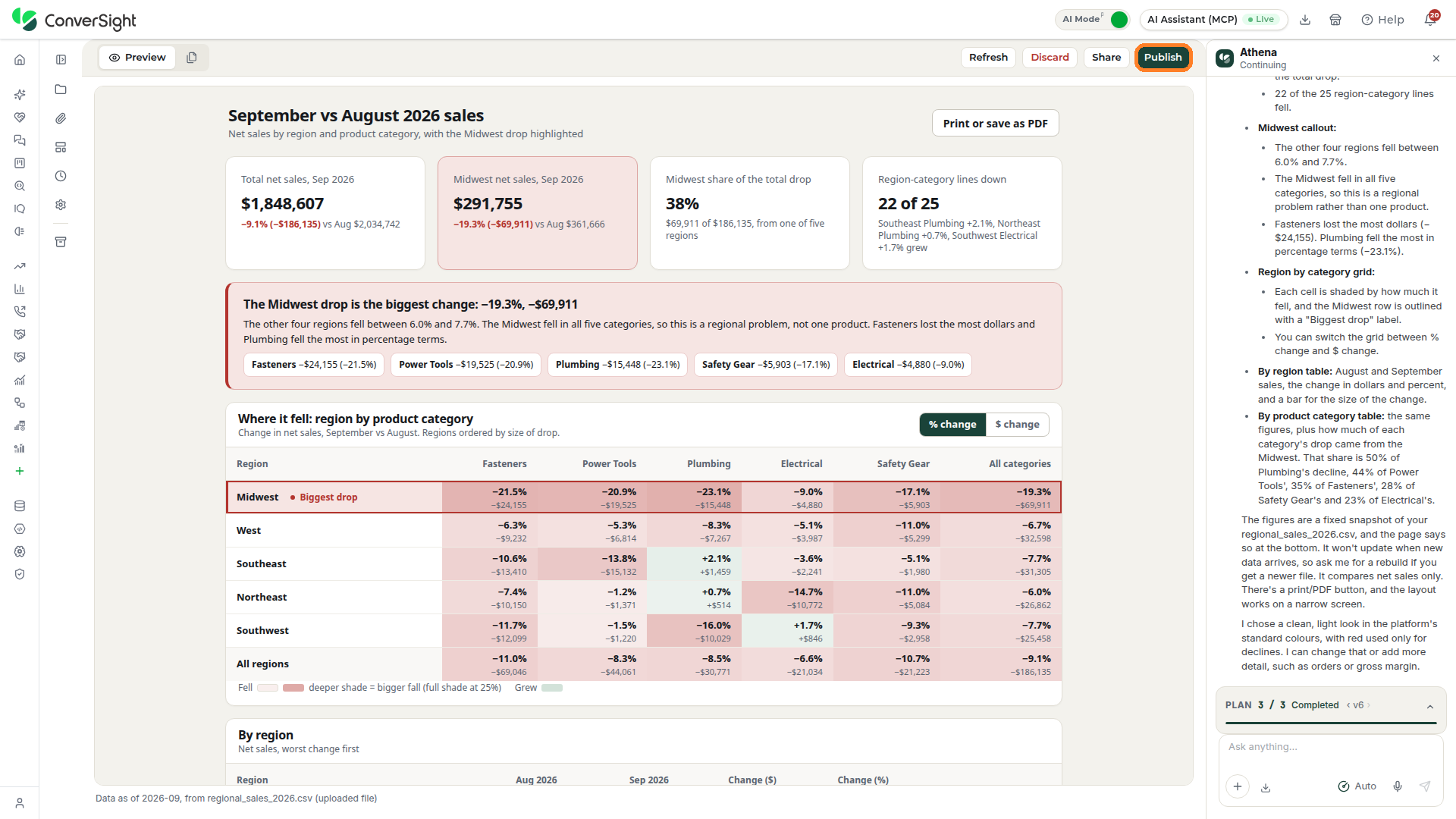
The Publish popup opens, which moves the briefing or app out of your drafts and into AI Debrief, where members of your organization with access can open it. Before anything is published, the popup checks that every number in the summary traces to your organization's data, and shows a check mark when it does. Provide the following details:
- Audience: Chooses who can open it, either everyone in your organization who can open AI Debrief or Only these roles.
- Group under Apps: Places the published work in a group under Apps, or in None. Click on New group to start a new one. This field is optional.
If the check finds a number that does not trace to your data, the popup lists the problem and publishing waits until it is fixed. Click on Fix with the agent to have Athena correct it. Click on Publish to Apps to publish, or Cancel to close the popup.
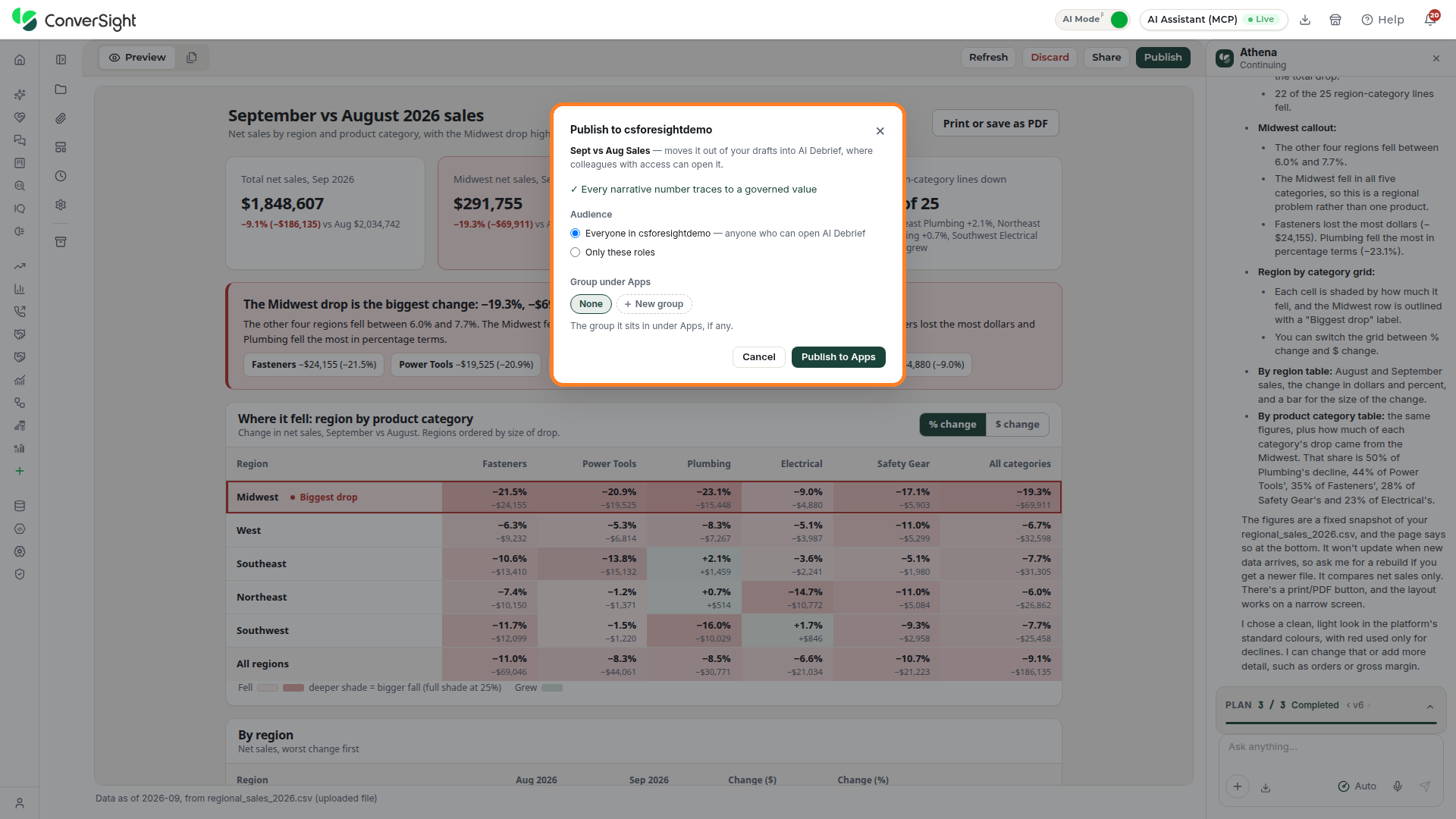
Once published, the project bar changes to match. Copy link copies the address of the published page, Share sends it to members of your organization, Fork makes a copy of your own to keep working on, and Unpublish takes it back out of AI Debrief. Auto-refresh and Refresh keep the numbers current, and Refresh stays unavailable for a page built from an uploaded file.
Artifacts
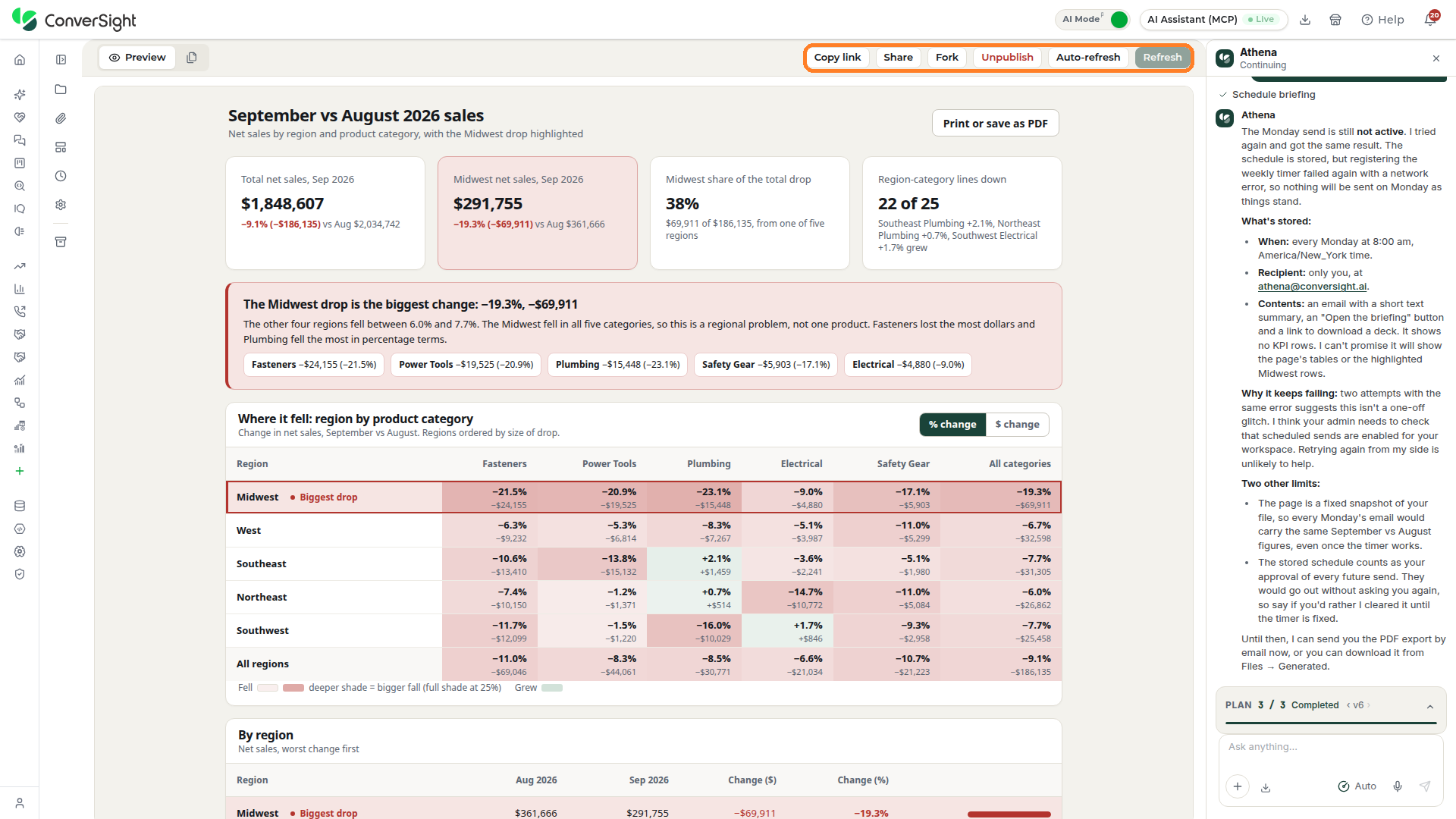
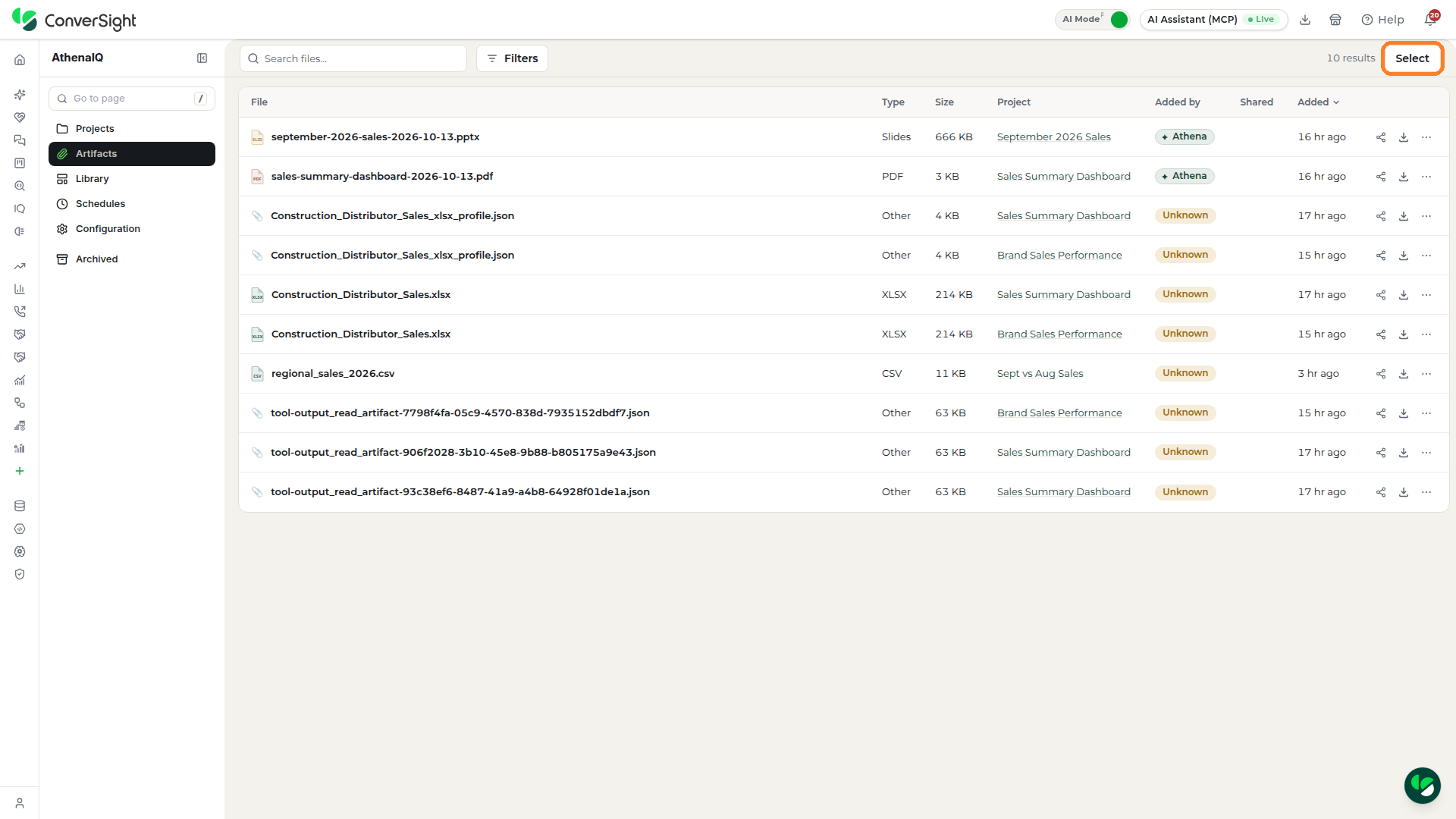
The Artifacts section collects every file attached to your projects in one place, whether you attached it in the Athena chat or Athena produced it in a conversation. Click on the Artifacts option in the Athena IQ side menu to open the section, which lists each file under the project it belongs to.

Search
Type part of a file's name in the Search files box at the top of the Artifacts section, and the list narrows to the files that match.

Filter
Click on the Filters control at the top of the Artifacts section to narrow the list with the following options:
- Type: Shows one kind of file at a time: Any, PDF, CSV, XLSX, Slides, Image or Doc.
- Project: Narrows the list to the files of a single project, or to Any project.
- Added by: Separates files by who added them: Anyone, Athena, People or Unknown.

Select
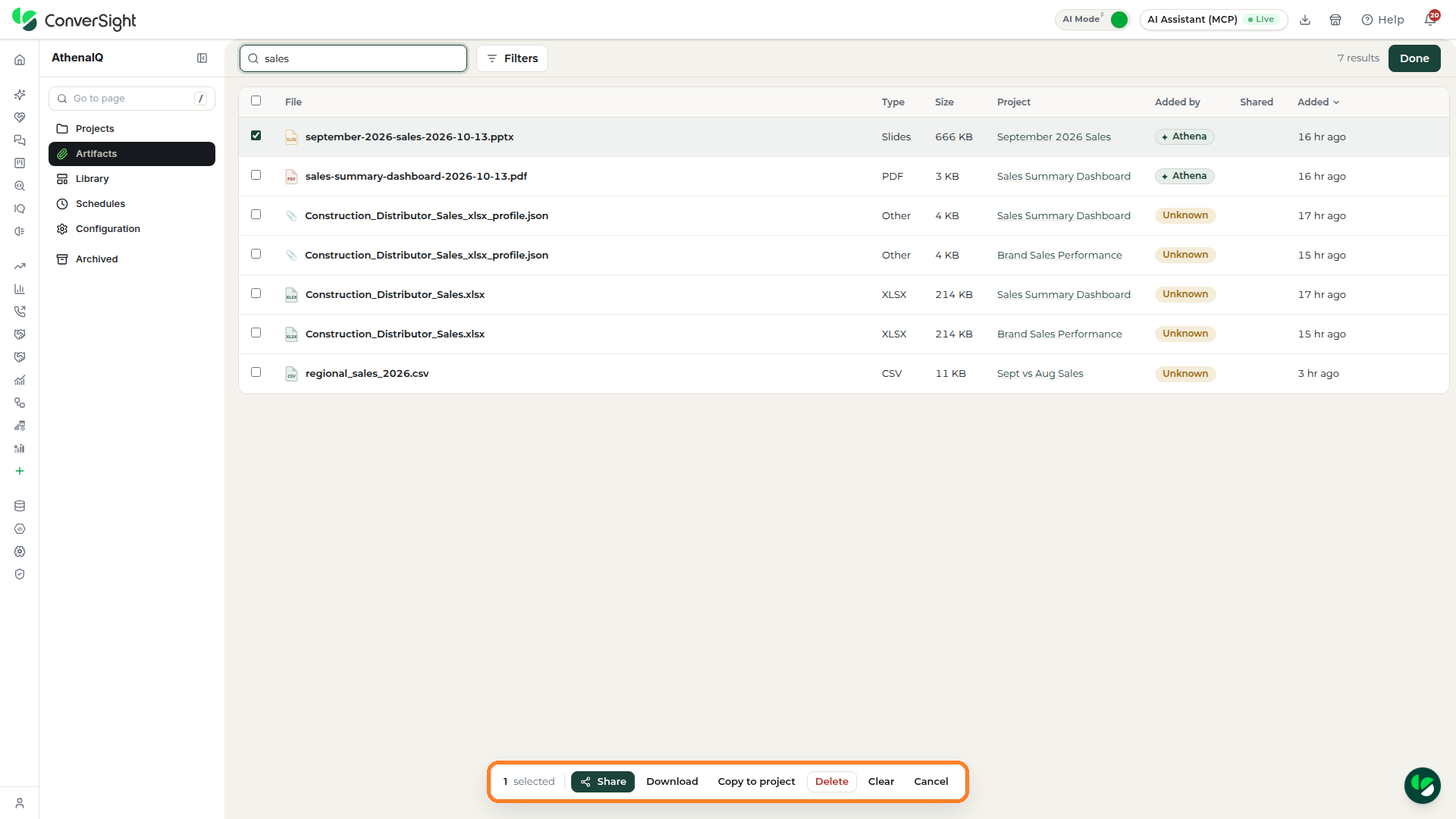
Selecting lets you act on several files at once. Click on the Select control at the top right of the Artifacts section.
A checkbox appears on each row. Click on the checkbox of each file you want, and a bar at the bottom of the Artifacts section shows how many files are selected and offers the following actions:
| Action | Description |
|---|---|
| Share | Opens the share popup for all the selected files at once, so you can send them to a member of your organization by email or another connected channel instead of sharing each file from its own row. |
| Download | Saves every selected file to your computer in one step, which is useful when you need copies of several files for a meeting or for work outside Athena IQ. |
| Copy to project | Adds copies of the selected files to another project of your choice, so Athena can use them there while the originals stay in their current project. |
| Delete | Removes the selected files from their projects and from the Artifacts section. Check the selection count on the bar before you delete, so only the files you intend to remove are included. |
| Clear | Unticks every selected file while keeping selection mode open, so you can start a new selection without leaving it. |
| Cancel | Closes selection mode and leaves every file as it was, without applying any action. |
Artifacts Table
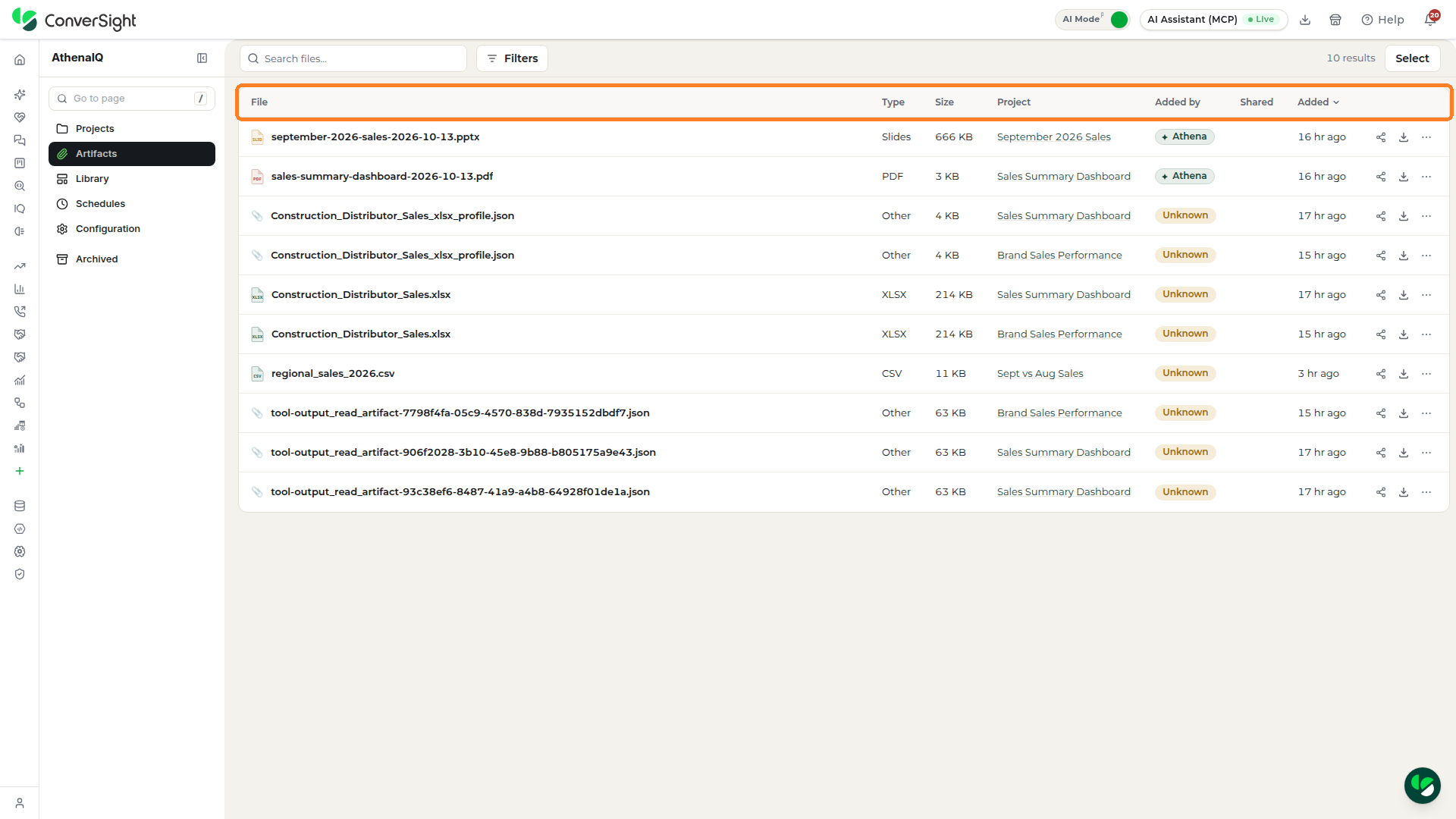
The table on the Artifacts section lists one file per row, with the following columns:
| Column | Description |
|---|---|
| File | Shows the name of the file, as it was uploaded or as Athena named it when producing it. Click on the name to open a preview of the file. |
| Type | Identifies the kind of file, such as PDF, CSV, XLSX, slides, image or document, so you can spot the format you need at a glance. |
| Size | Gives the size of the file, which helps when you plan to download it or send it as an attachment. |
| Project | Names the project the file belongs to, so you can trace each file back to the conversation, briefing or app it came from. |
| Added by | Records whether Athena produced the file or a person uploaded it, which separates generated exports from your own source files. |
| Shared | Indicates whether the file has been shared and with whom, so you know who already has a copy before sending it again. |
| Added | Tells how long ago the file was added, with the most recent files easiest to find when the list is sorted by date. |
Share
Sharing a file sends it to a member of your organization without leaving Athena IQ. Click on the Share icon at the end of a file's row to open the Share popup for that file, and provide the following details:
| Field | Description |
|---|---|
| Send by | Chooses how the file goes out: Email, Slack, Teams, SMS, WhatsApp or Copy link. A channel without a connector in your organization appears unavailable, and an administrator can add it. |
| To | Names the recipient, by name or email address. |
| Message | Adds an optional note to go with the file. |
| What they get | Sets what the recipient receives:
|
The Before it goes section confirms what will be attached. Click on Send to share the file, or Cancel to close the popup.

Download
Downloading keeps a copy of a file on your computer, for use outside Athena IQ or for sharing through your own channels. Click on the Download icon at the end of the file's row, and the file is saved to your computer's default download location in its original format.

Delete File
Click on the Actions icon at the end of a file's row and select Delete file to remove that file.

Library
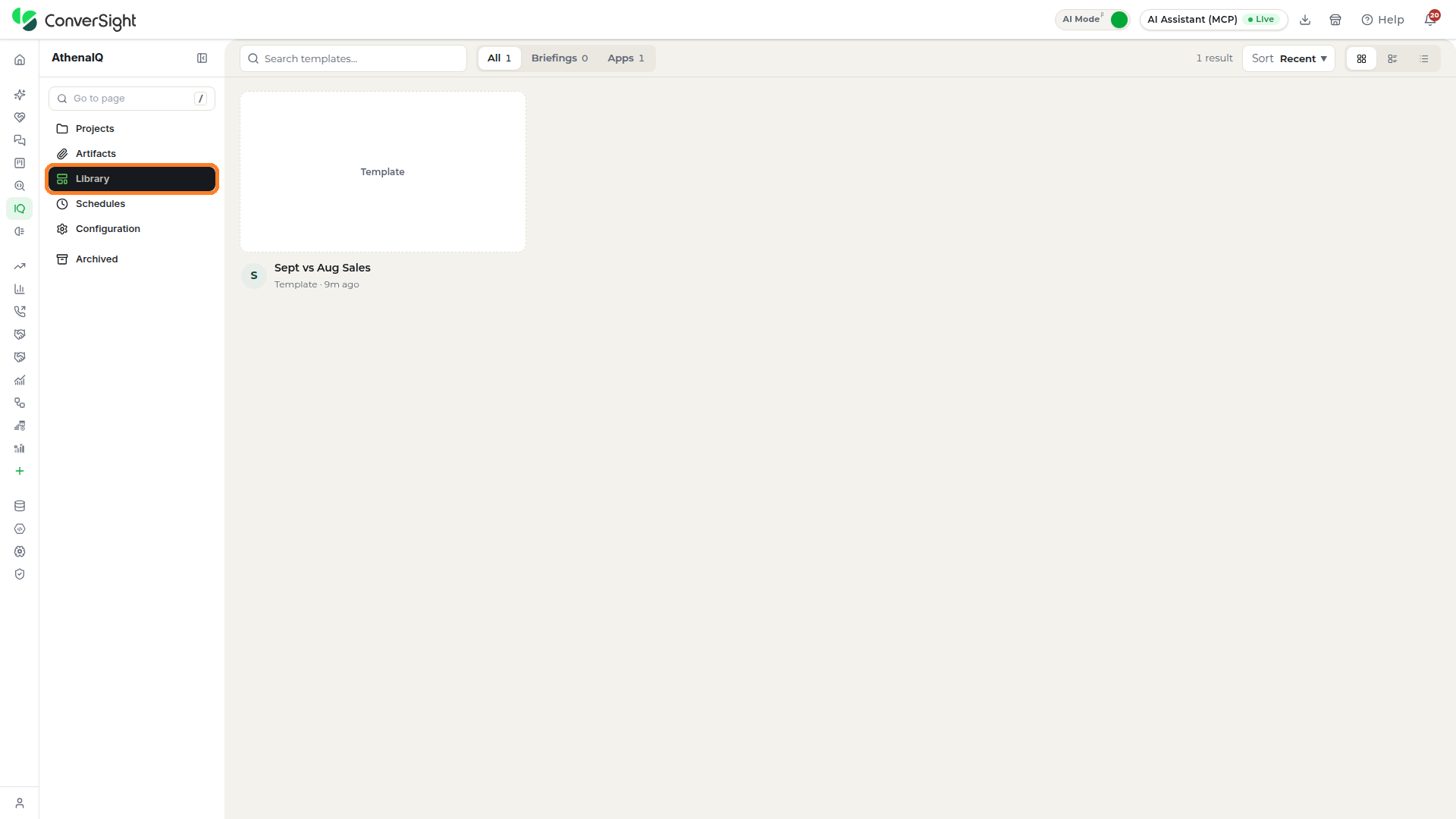
The Library section holds templates of briefings and apps to start new work from, so a briefing that works for one team can become the start of the next one. Click on the Library option in the Athena IQ side menu to open the section.
Search
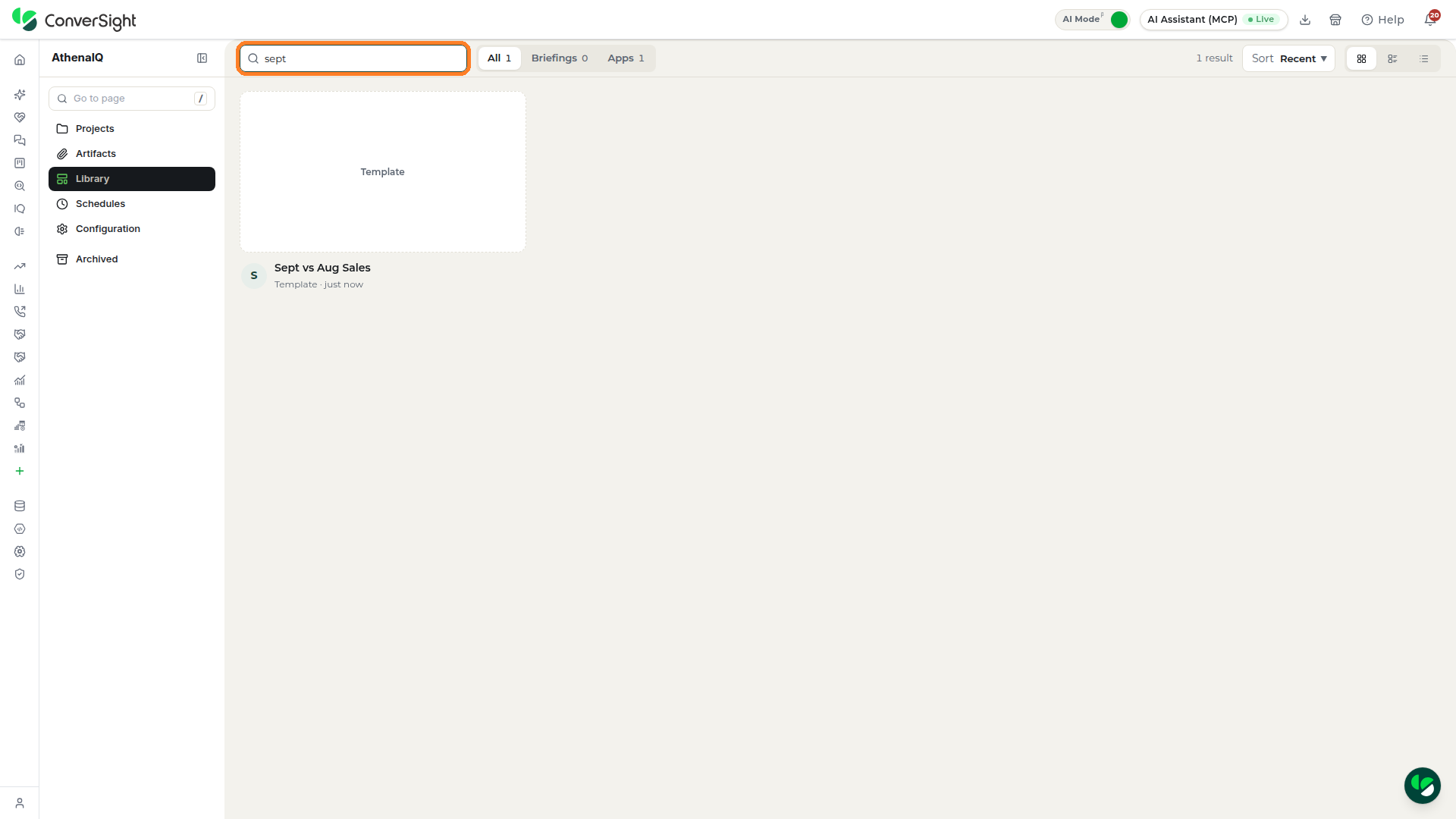
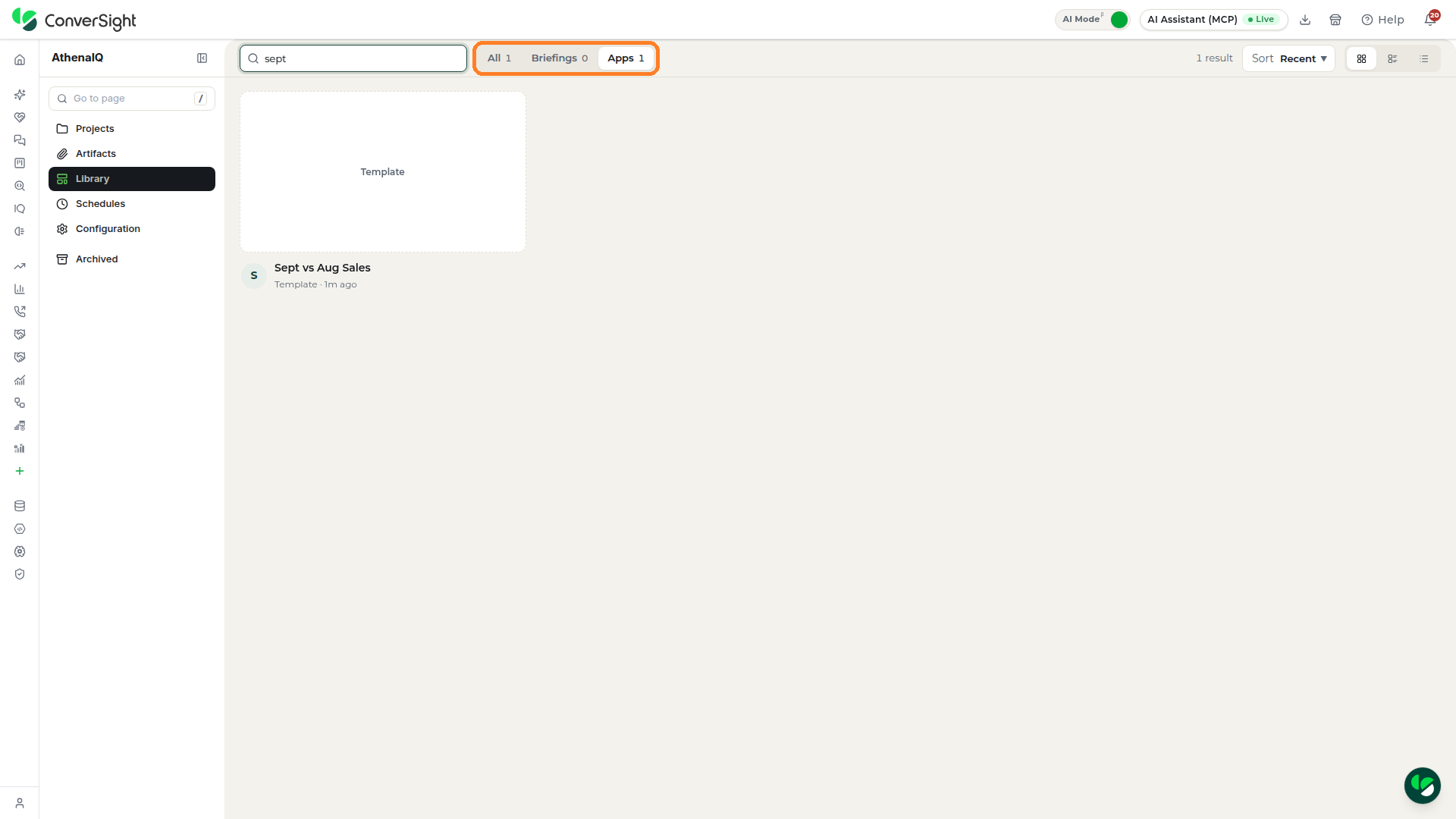
Type part of a template's name in the search box at the top of the Library section, and the templates narrow to the ones that match.
All, Briefings and Apps
Three tabs at the top of the Library section split the templates by kind, and each tab shows how many templates it holds. Click on All to see every template, Briefings to see only briefing templates or Apps to see only app templates.
Sort
Click on Sort at the top of the Library section and choose Recent or Name to set the order of the templates.

View
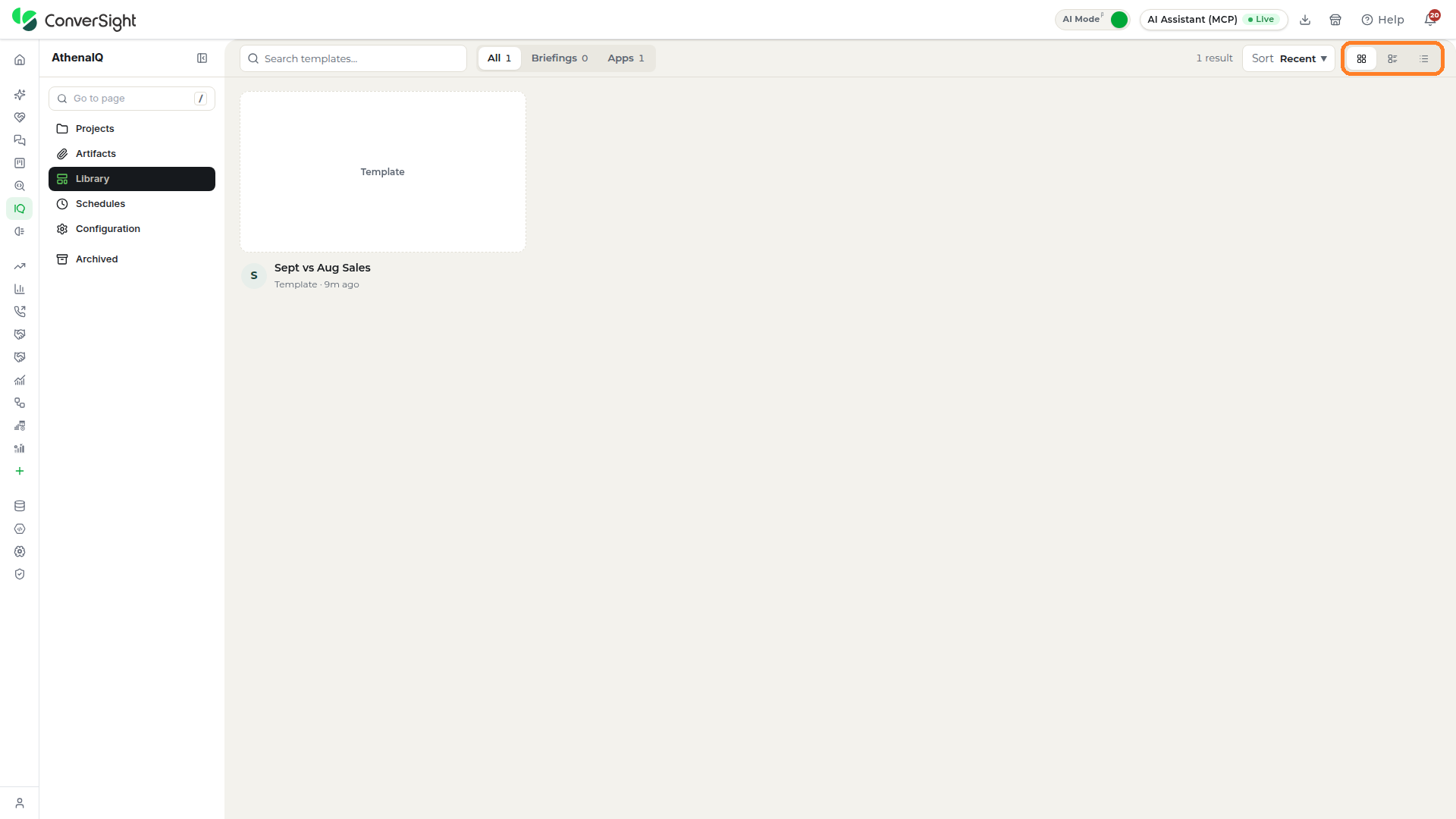
Three layout buttons beside Sort switch the templates between a grid of cards, a compact grid and a list.
Schedules
The Schedules section keeps every briefing you have set to run on its own in one place, so a recurring report reaches the right people without you rebuilding or resending it. Click on the Schedules option in the Athena IQ side menu to open the section.
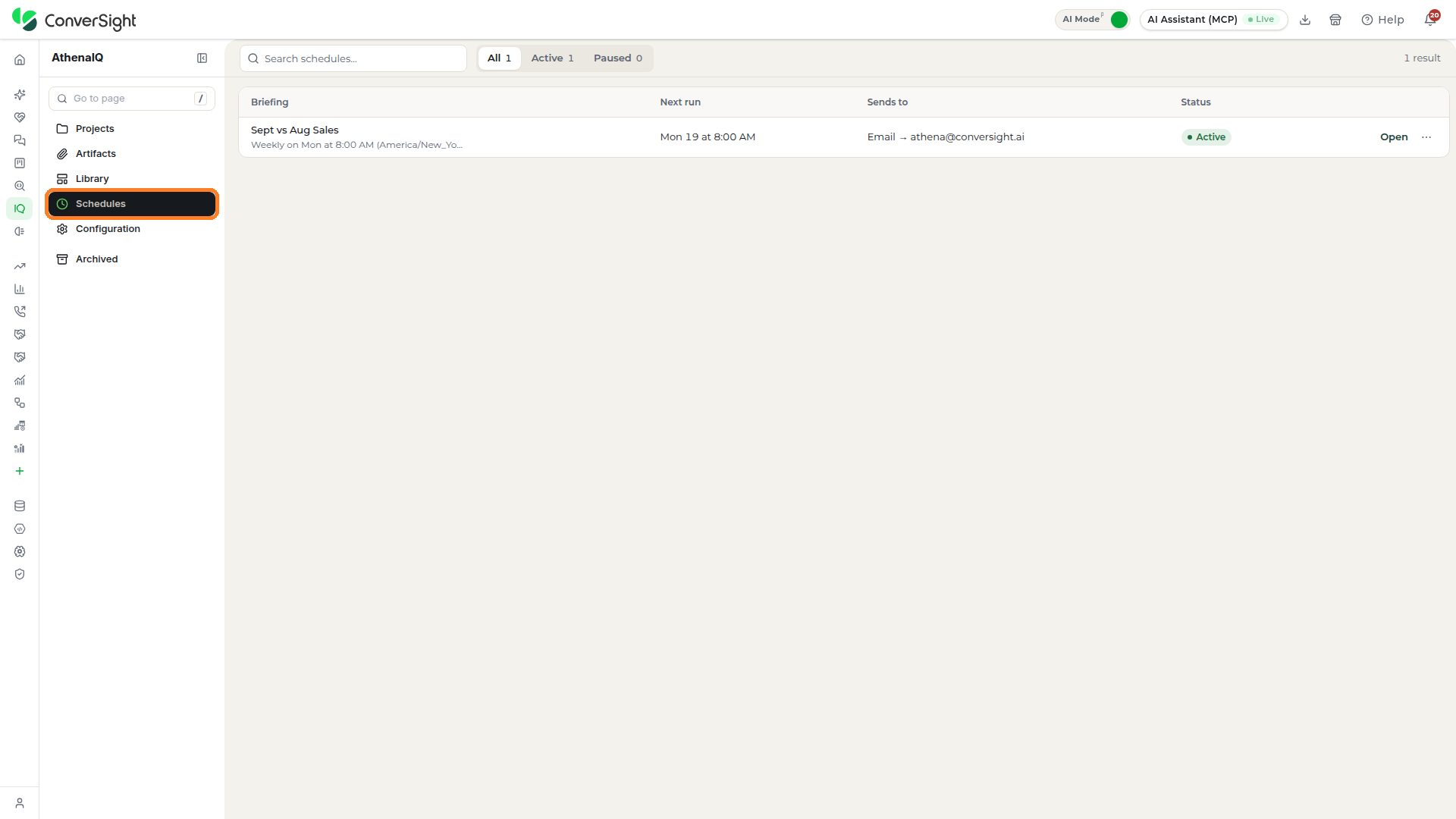
Each schedule appears as a row with the following columns:
| Column | Description |
|---|---|
| Briefing | Names the briefing that runs, with its cadence and timezone underneath. |
| Next run | Gives the date and time of the next run. |
| Sends to | Shows how the briefing goes out and to whom, such as an email address. |
| Status | Marks whether the schedule is Active or paused. |
Click on Open at the end of a row to open the briefing behind the schedule.
Setting Up a Schedule
A schedule is a briefing that runs on its own and sends itself. You set one up by asking Athena for it in your own words, from a published briefing or from the Athena chat, and Athena reads the timing from the sentence. Requests like the following set up a schedule:
- "Send me this briefing every Monday at 8am."
- "Email the team this deck every Friday afternoon."
- "Refresh Brand Sales Performance on the 1st of each month."
Before saving, Athena explains anything that affects the schedule and asks what it still needs to know in a question card, such as which timezone to use. When there is more than one question, labels at the top of the card name each one and the arrows beside the count step between them. Answer each question and click on Continue.
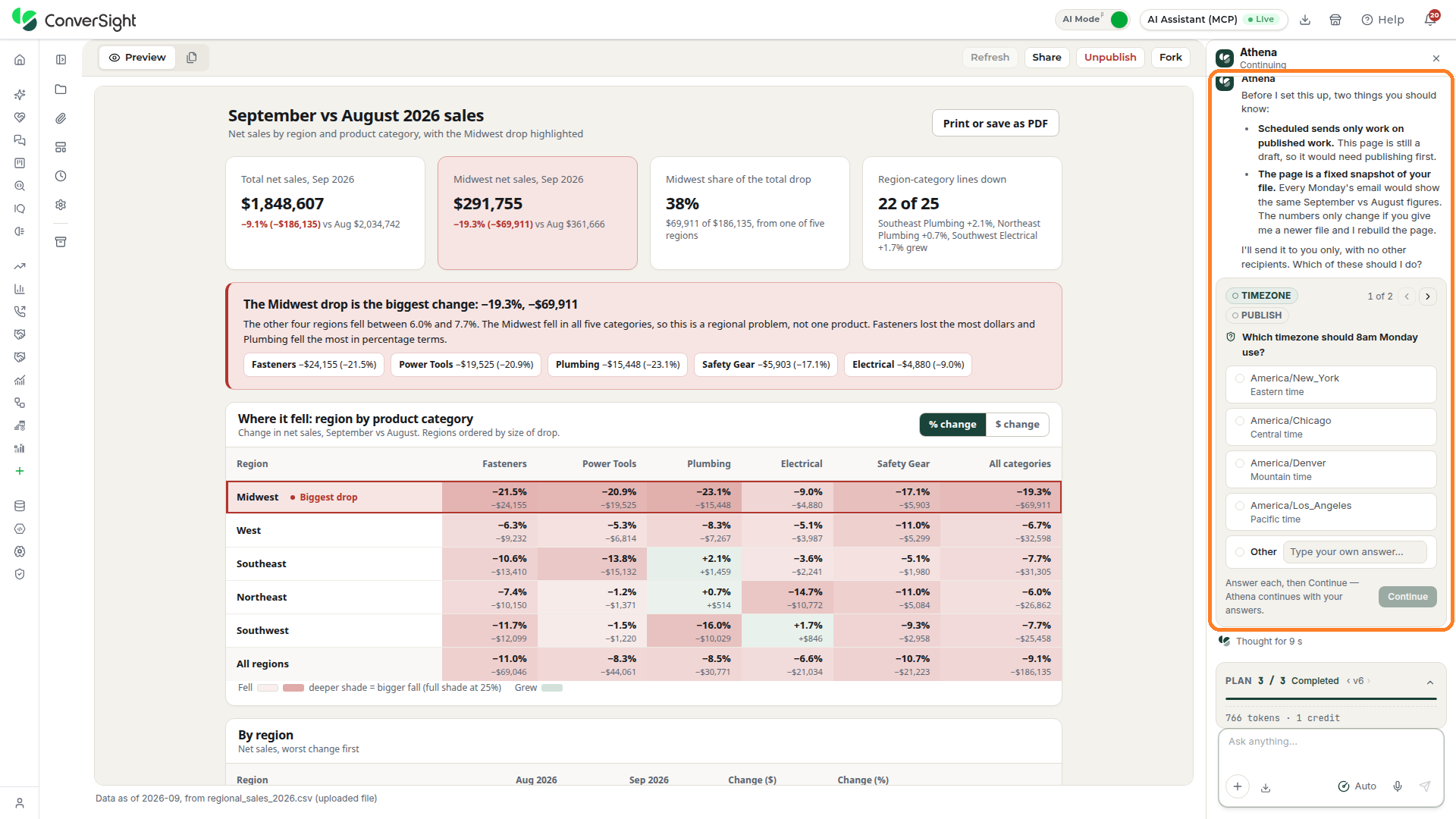
Athena then confirms what it has stored: when the schedule runs, who receives it and what it sends. Saving the schedule approves every future send, so you are not asked again each time it runs. The schedule then appears on the Schedules section. A schedule can run daily, weekly on a day you name, or monthly on a day from the 1st to the 28th, at a set time in your timezone.
Only published work can be scheduled. Publish a draft before you ask Athena to schedule it.
Schedule Types
Each schedule does one of the following on every run:
| Type | What each run does |
|---|---|
| Send | Runs the briefing's saved queries for that day's numbers and emails each recipient a link to the live briefing, with a fresh PowerPoint to download. |
| Refresh | Runs the saved queries again and keeps that day's numbers as a dated snapshot beside the published briefing. |
| Alert | Works like a send with a condition, such as sending only when sales fall below a set value. Each run checks the condition against that day's numbers and sends nothing when it does not hold. |
A schedule never rewrites the briefing: its layout, numbers and wording stay as you published them. Only the briefing's author can set, change or remove its schedule.
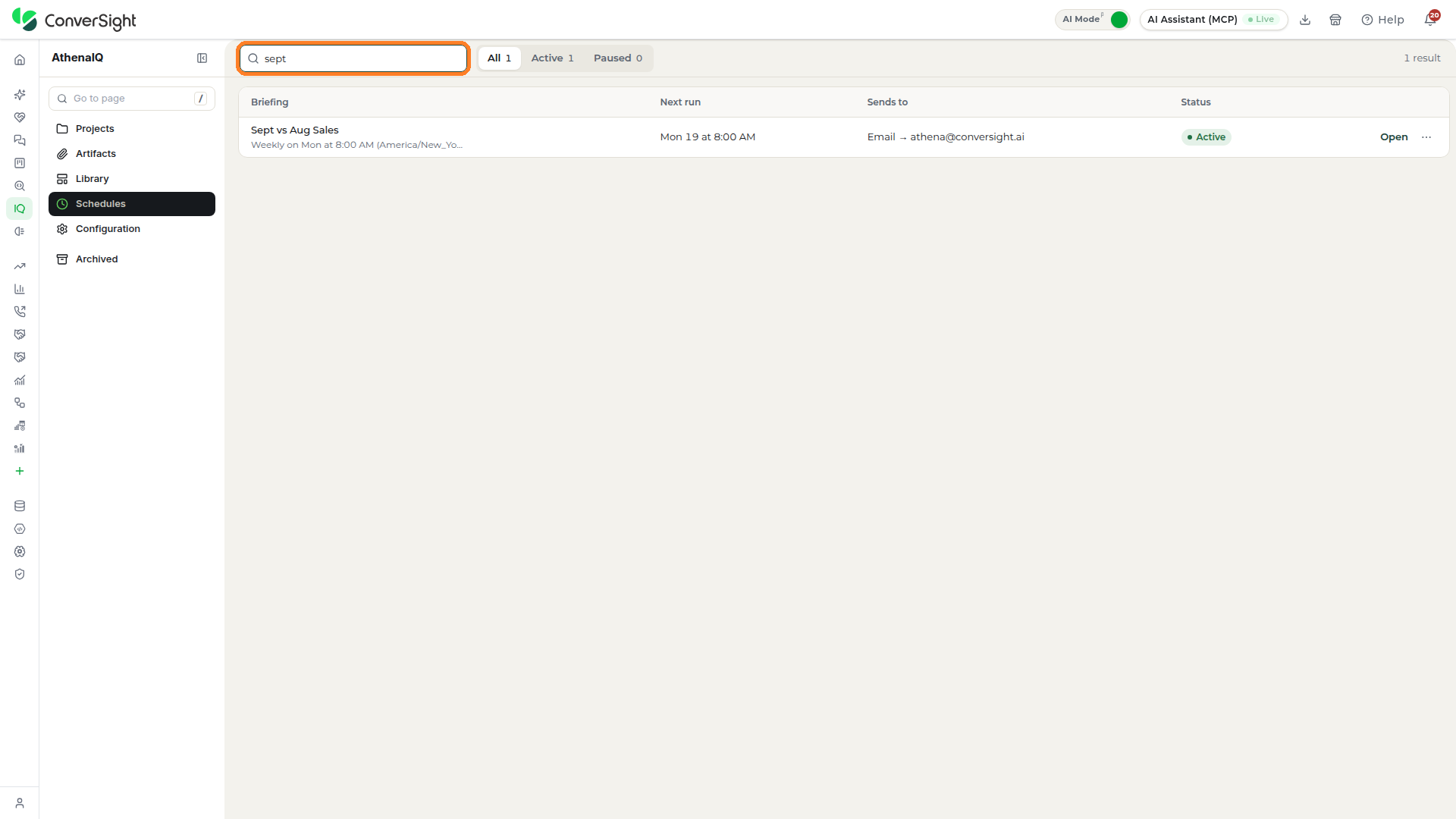
Search
Type part of a schedule's name in the Search schedules box at the top of the Schedules section, and the list narrows to the schedules that match.
All, Active and Paused
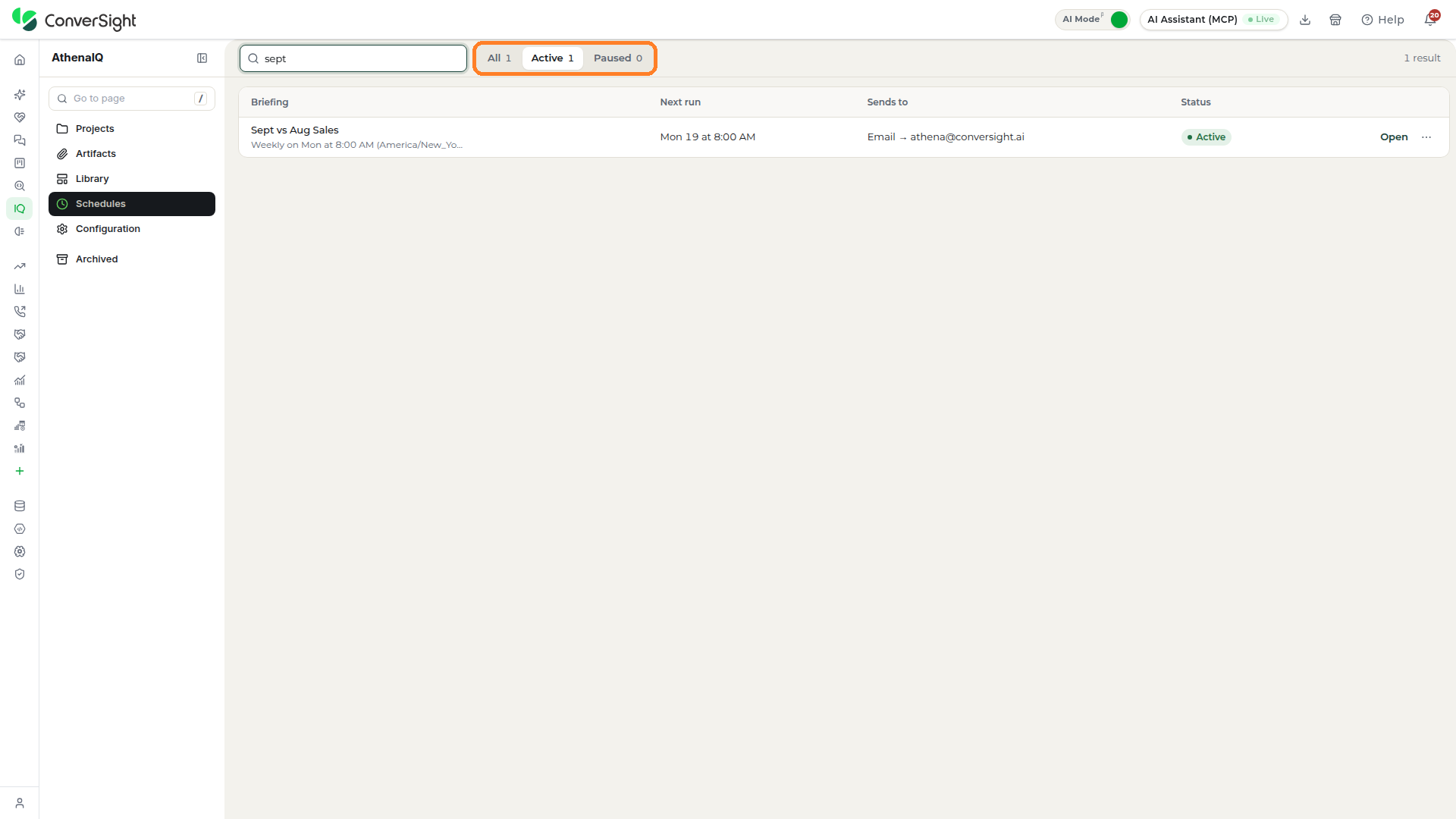
Three tabs at the top of the Schedules section split the schedules by state, and each tab shows how many schedules it holds:
- All: Lists every schedule you have set up.
- Active: Narrows the list to the schedules that are running on their cadence.
- Paused: Collects the schedules you have stopped for now, which stay listed until you resume or remove them.
Managing a Schedule
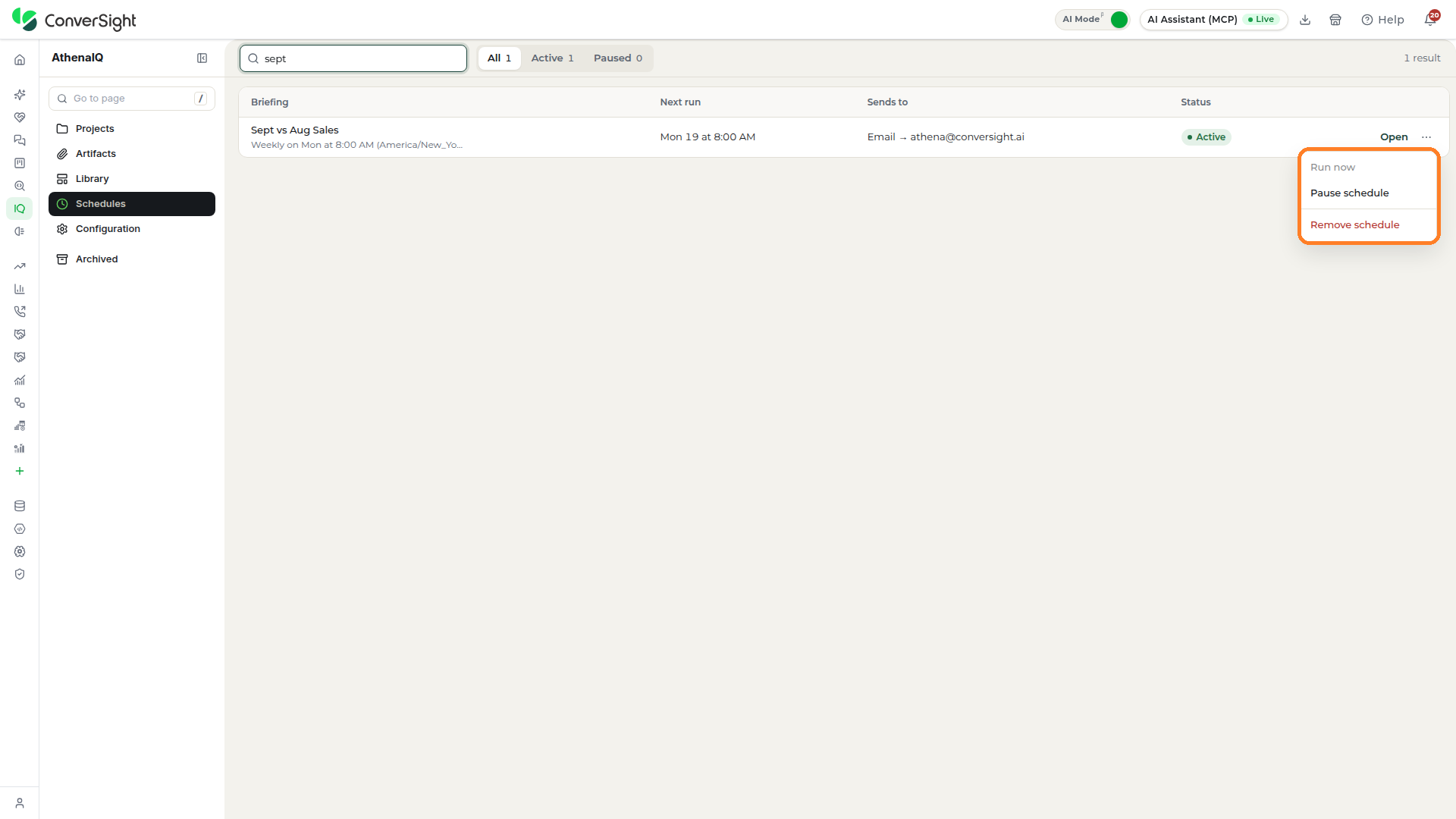
Each schedule in the list has its own menu. Click on the Actions icon at the end of a schedule's row and choose one of the following:
| Option | Description |
|---|---|
| Run now | Starts the schedule's next run immediately instead of waiting for its set time. A paused schedule does not run until you resume it. |
| Pause schedule | Stops the schedule from running while keeping it on the list under Paused. A paused schedule offers Resume schedule in the same menu to restart it on its original cadence. |
| Remove schedule | Takes the schedule off after you confirm. |
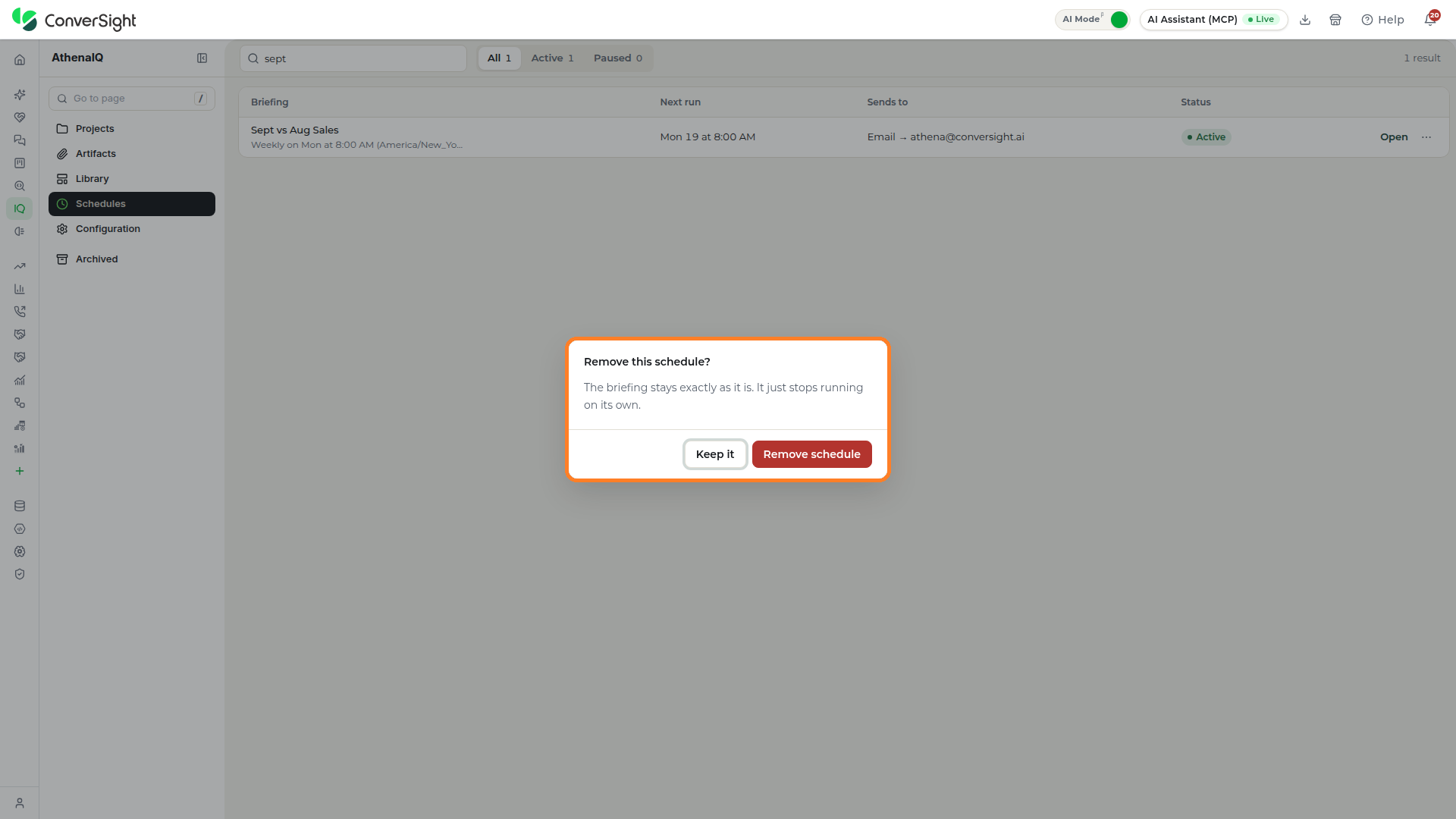
Click on the Remove schedule option to open the Remove this schedule? popup, which explains that the briefing stays exactly as it is and simply stops running on its own. Click on Remove schedule to confirm, or Keep it to close the popup and keep the schedule. A message confirms when the schedule is removed.
Configuration
The Configuration section shows how Athena is set up for your organization and opens the studios where that setup is managed. Click on the Configuration option in the Athena IQ side menu to open the section.
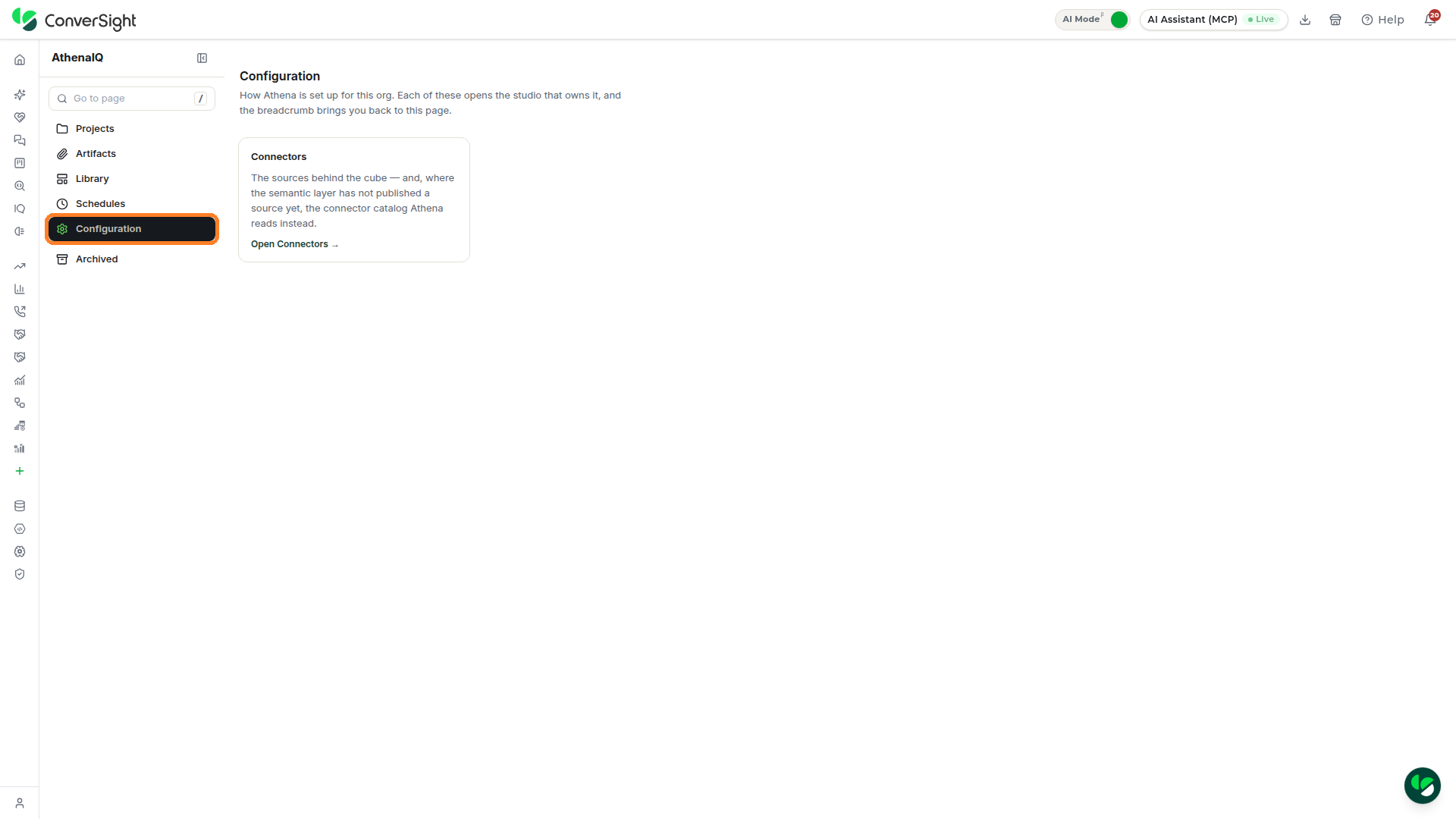
Only the studios available to you appear on the Configuration section, so the tiles you see depend on your role and on how your organization is set up.
Connectors
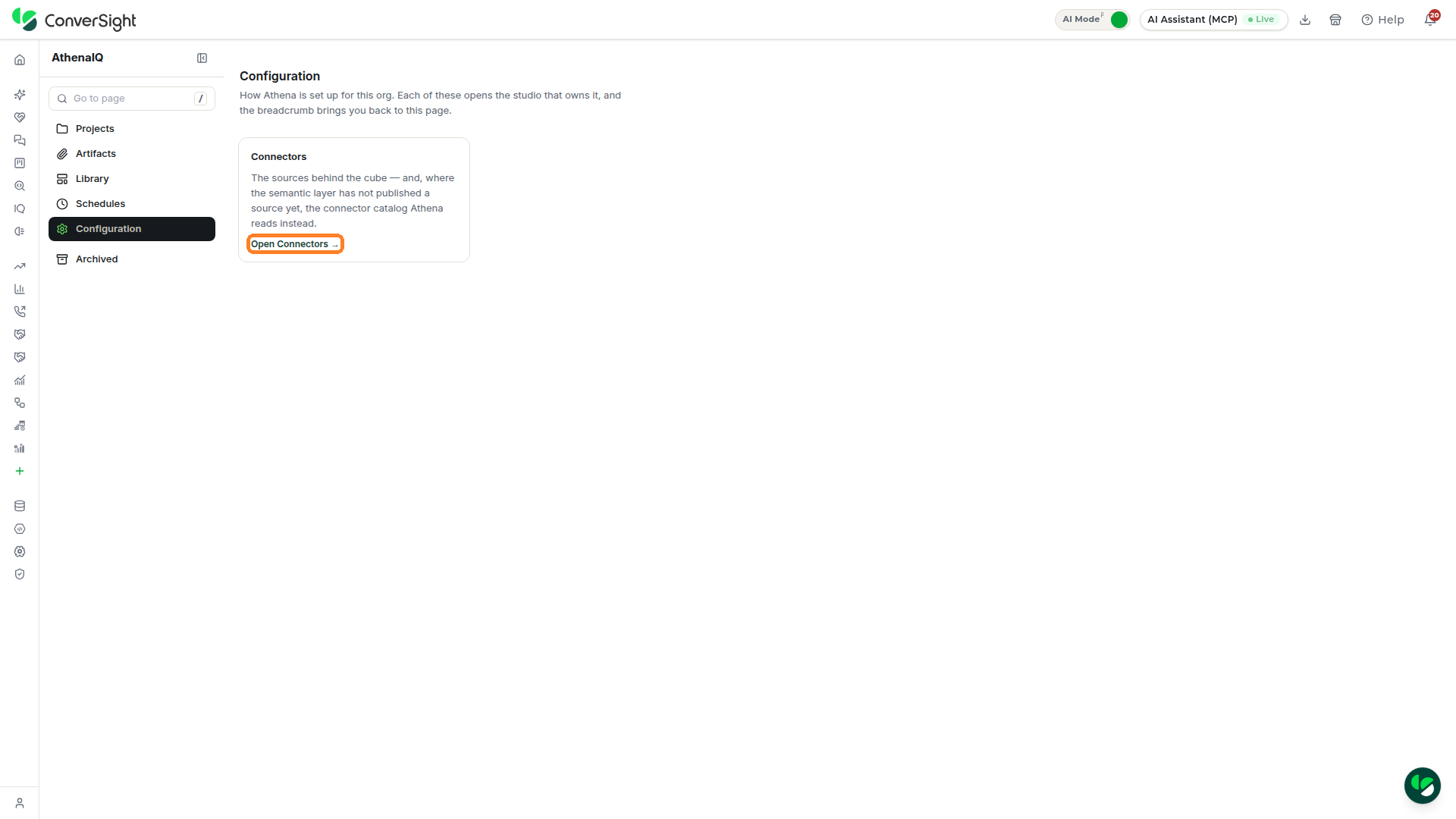
The Connectors tile covers the sources behind your organization's data: the connections Athena reads from, and, where the semantic layer has not published a source yet, the connector catalog Athena reads instead. Click on Open Connectors on the tile to open the studio that manages them.
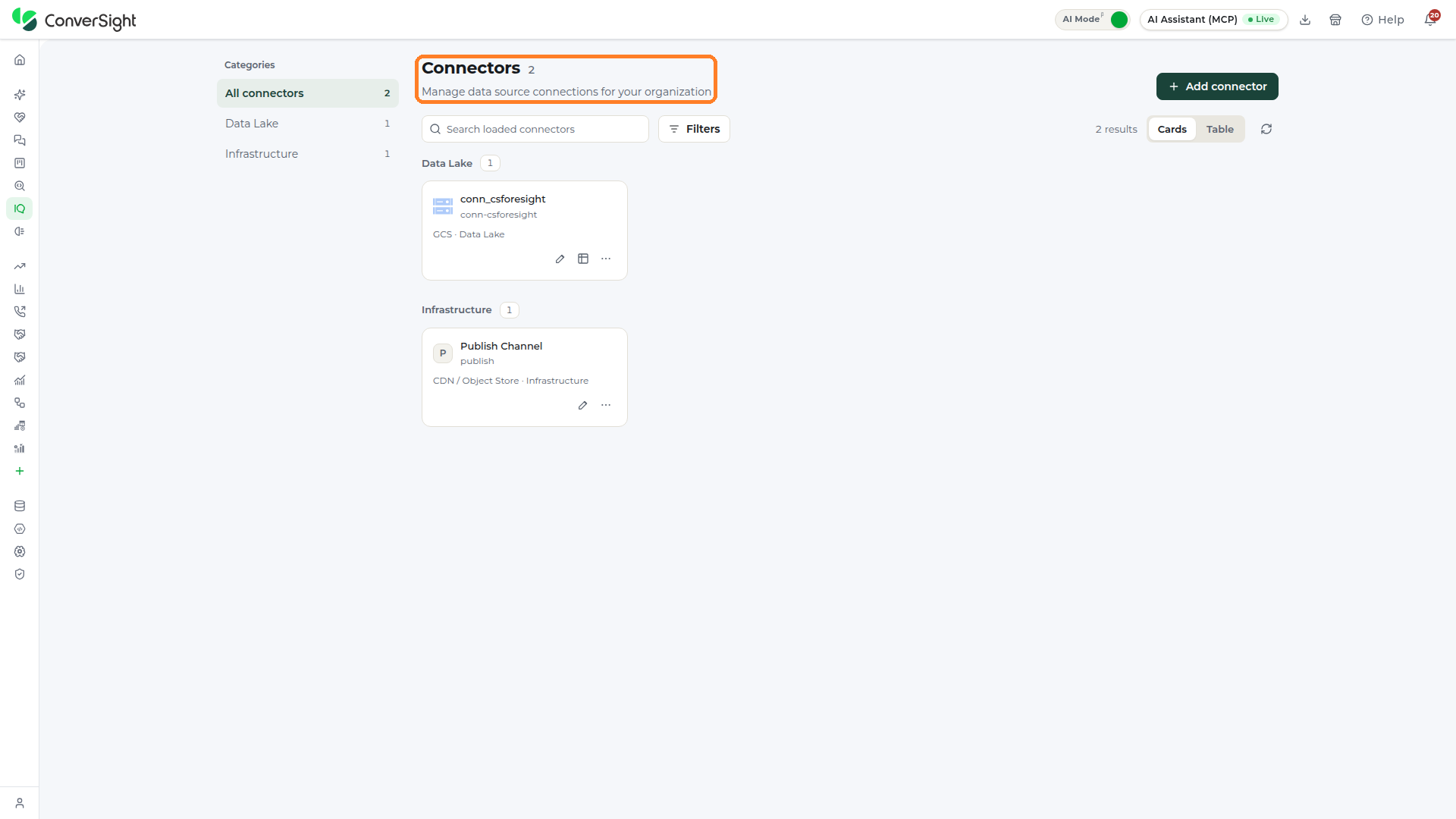
The Connectors page opens in place of Athena IQ, with the title Connectors and the number of connections beside it. It lists the data source connections set up for your organization, grouped by category, with the categories in a list on the left. From here you can search the connections, filter them, switch between the Cards and Table views, and click on Add connector to add a new one.
Returning to Athena IQ
The Connectors page has no breadcrumb or link back to Athena IQ. When you finish there, click on the Athena IQ option under the AI Intelligence section in the left navigation panel, or use your browser's back button, to return.
Archived
The Archived section keeps projects you have set aside out of the Projects section, so your current work stays easy to scan while nothing is lost. An archived project keeps its chat and files, and anything it published stays published. Click on the Archived option in the Athena IQ side menu to open the section.
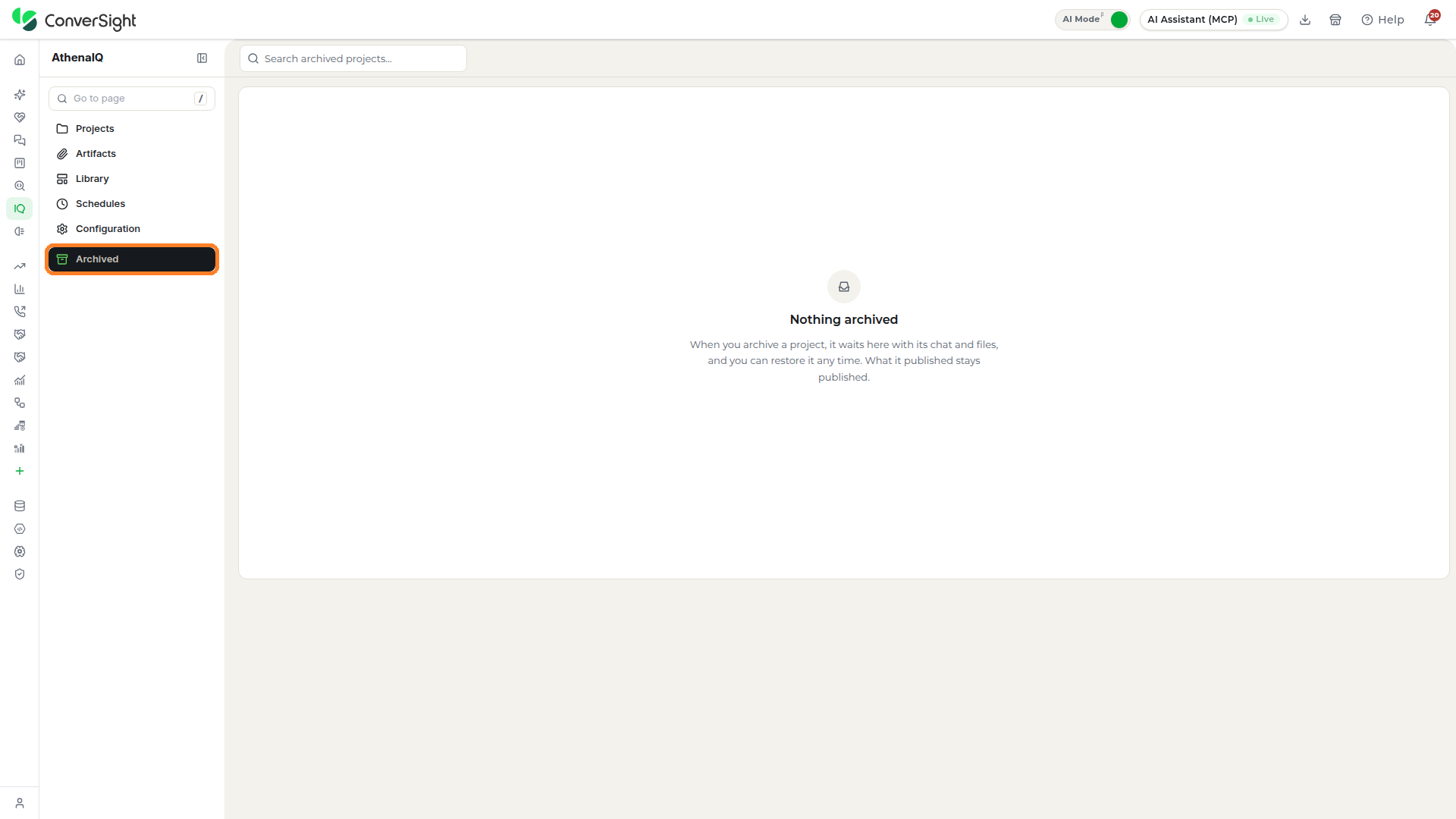
The Archived section is organized as follows:
- Search archived projects: Narrows the archived projects to the ones whose names match what you type.
- Archived projects: Lists each archived project, ready to restore at any time with everything it held. When no project has been archived yet, the section shows Nothing archived.
To see archived projects together with your current ones, click on Filters at the top of the Projects section and set Archived to Included. Set it back to Hidden to return to current projects only.
AI Debrief
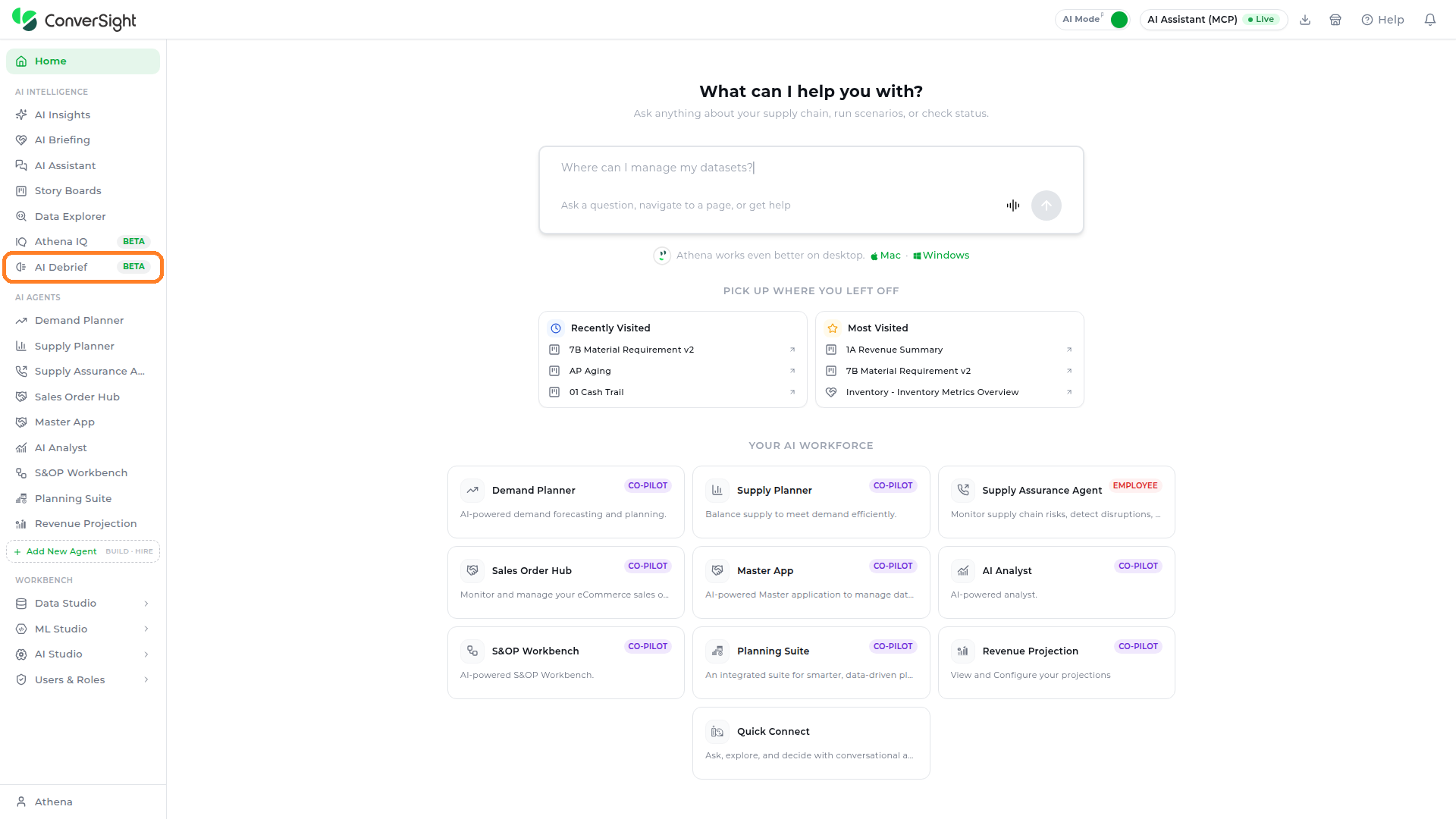
The AI Debrief page lets members of your organization read published briefings, refresh their numbers and ask Athena about them, without changing the original. Users can access AI Debrief by selecting the AI Debrief option under the AI Intelligence section in the left navigation panel, directly below Athena IQ.
While AI Debrief is open, the left navigation panel shows icons only. Published briefings are listed down the left side of the page under the General section. AI Debrief opens on the most recently published briefing; click on any briefing in the list to open it.

The bar at the top of a briefing holds the following controls:
| Control | Description |
|---|---|
| Copy link | Copies the briefing's address so you can paste it into a message or a document. |
| Share | Sends the published briefing to members of your organization. |
| Fork | Makes your own copy of the briefing as a new project in Athena IQ. The original never changes. |
| Auto-refresh | Refreshes the briefing every 15 minutes while the page is open. Click on it once to turn it on, and its label changes to Auto-refresh on; click on it again to turn it off. |
| Refresh | Re-runs the briefing's saved queries so it shows the latest numbers. |

A briefing built on your organization's data can also include its own filters at the top, such as a period or a customer group, which narrow the numbers shown. A briefing built from an uploaded file has no filters.
Print or Save as PDF
Click on Print or save as PDF at the top right of the briefing to print it or keep a PDF copy.

Asking Athena About a Briefing
To ask Athena about the numbers, click on the round Athena button at the bottom right of the page. The Athena chat opens beside the briefing with a new conversation, and its answers use only the briefing's numbers. Click on one of the suggested questions, such as What stands out in this briefing? or What changed vs last period?, or type your own question in the Athena chat input area.

Athena IQ brings the whole life of a briefing or an app into one place. You describe what you need to Athena in your own words, refine the result in the same conversation, and keep it as a project you can rename, duplicate, share or save as a template for the next one. When it is ready, publishing moves it into AI Debrief, where members of your organization read it, refresh its numbers and ask Athena about it without changing the original, and a schedule can send it to the people who need it on a set cadence.
Because every number comes from your organization's data or from files you provide, the briefings and apps your teams build stay consistent with the data they already trust. Start with a question in the Create new card on the Projects section, and use the sections of this documentation as a reference whenever you need a specific function.