Notebook
Notebook is where Data Engineers and ML practitioners build the custom models that extend Athena. Inside ML Studio, the Notebook surface gives you a managed Jupyter environment, the ConverSight Library of pre-built supply chain primitives, and the CsSDK Library for direct access to the governed data layer — all backed by ConverSight Cloud compute so you don't stand up your own server.
This is primarily a Data Engineer surface. Models authored here feed Athena's Demand Planner and Supply Planner agents, power the forecasts in Storyboards, and back the scheduled outputs of AI Briefing. The notebooks themselves stay in your workspace; what gets promoted into the agent runtime is the trained model.
Why Notebook Sits at the Cornerstone of the Workbench
Jupyter Notebook, the open-source environment underneath, is the de-facto standard for data science work: live code, visualizations, and narrative text in one shareable document, supporting Python, R, Julia, and others. ConverSight integrates Jupyter directly into ML Studio so the model-authoring workflow happens against the same governed data the rest of the platform reads — no separate pipeline, no exporting data to a personal environment.
Two libraries make the difference between "Jupyter in a hosted browser" and "Jupyter wired into the platform":
-
ConverSight Library — pre-built tasks and flows for the common supply chain analytical patterns. Data processing, forecasting primitives, anomaly detection, model evaluation. Use these instead of writing the boilerplate from scratch. Runs on ConverSight Cloud compute when invoked, so you're not paying for the server.
-
CsSDK Library — the platform SDK. Connects to existing datasets through the same governed semantic layer the rest of the platform uses (so RLS, audit, and access policy all apply automatically). Reuses dataset templates. Automates refresh through scheduled republishing. This is what you import in any notebook that needs production-grade data access.
Together they make the Notebook environment a complete and robust solution for data analysis and machine learning work — without losing the governance posture that makes the rest of the platform safe to run autonomously on top of.
Accessing a Notebook
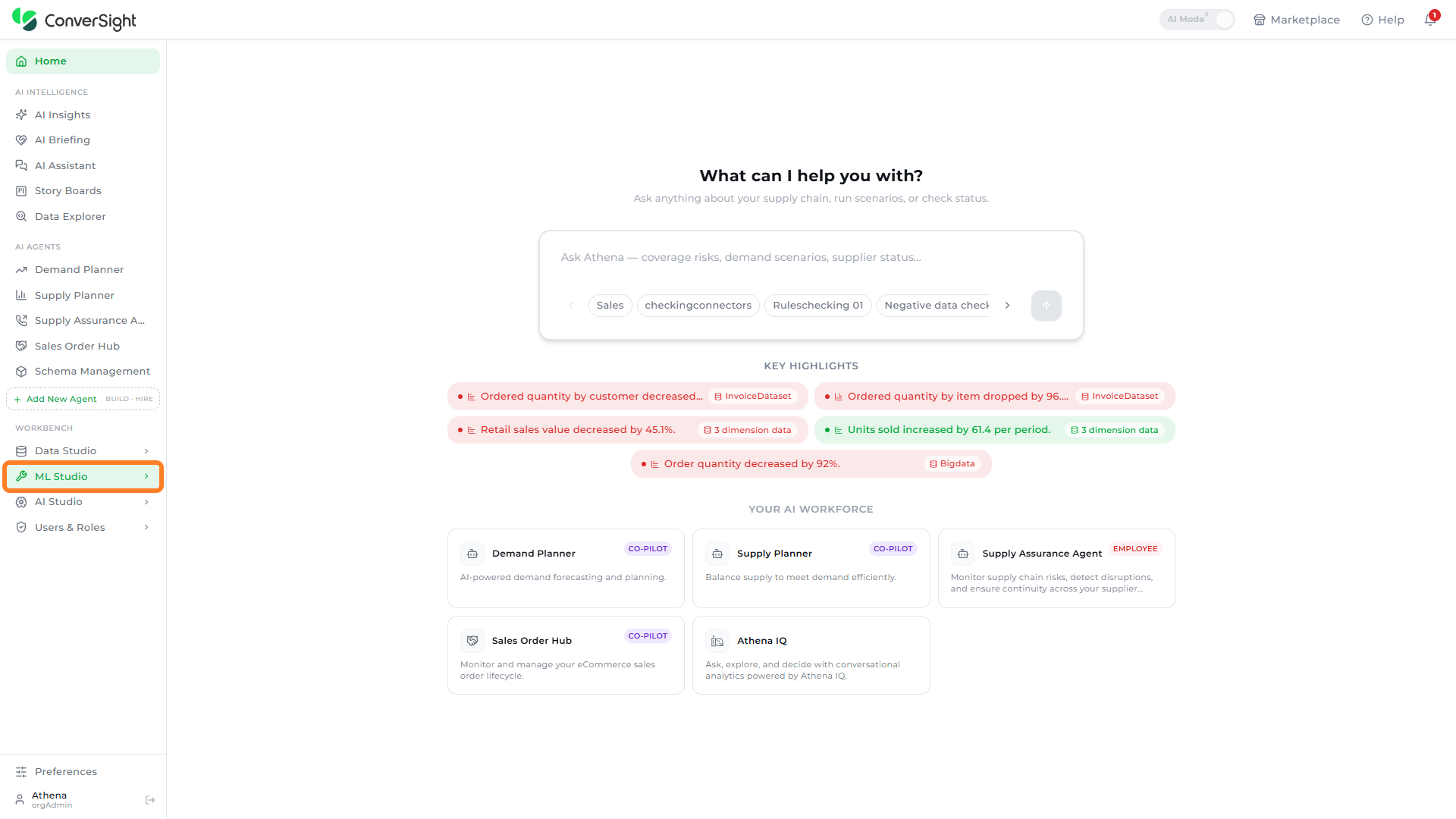
Users can access the Notebook feature by selecting ML Studio under the Workbench section in the left navigation panel.
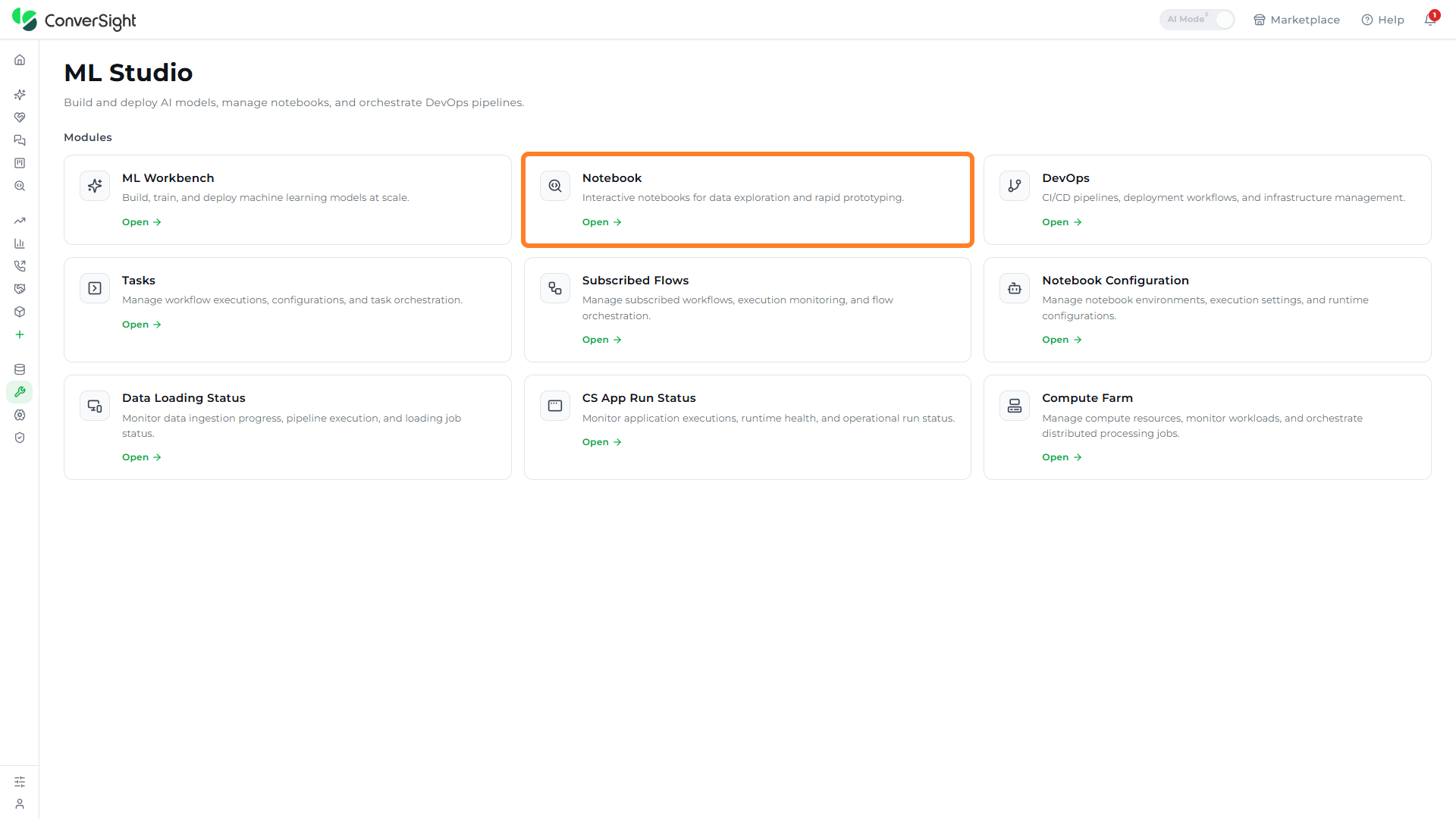
The ML Studio page presents a grid of modules. Click on Open in the Notebook module to open the Notebook page.
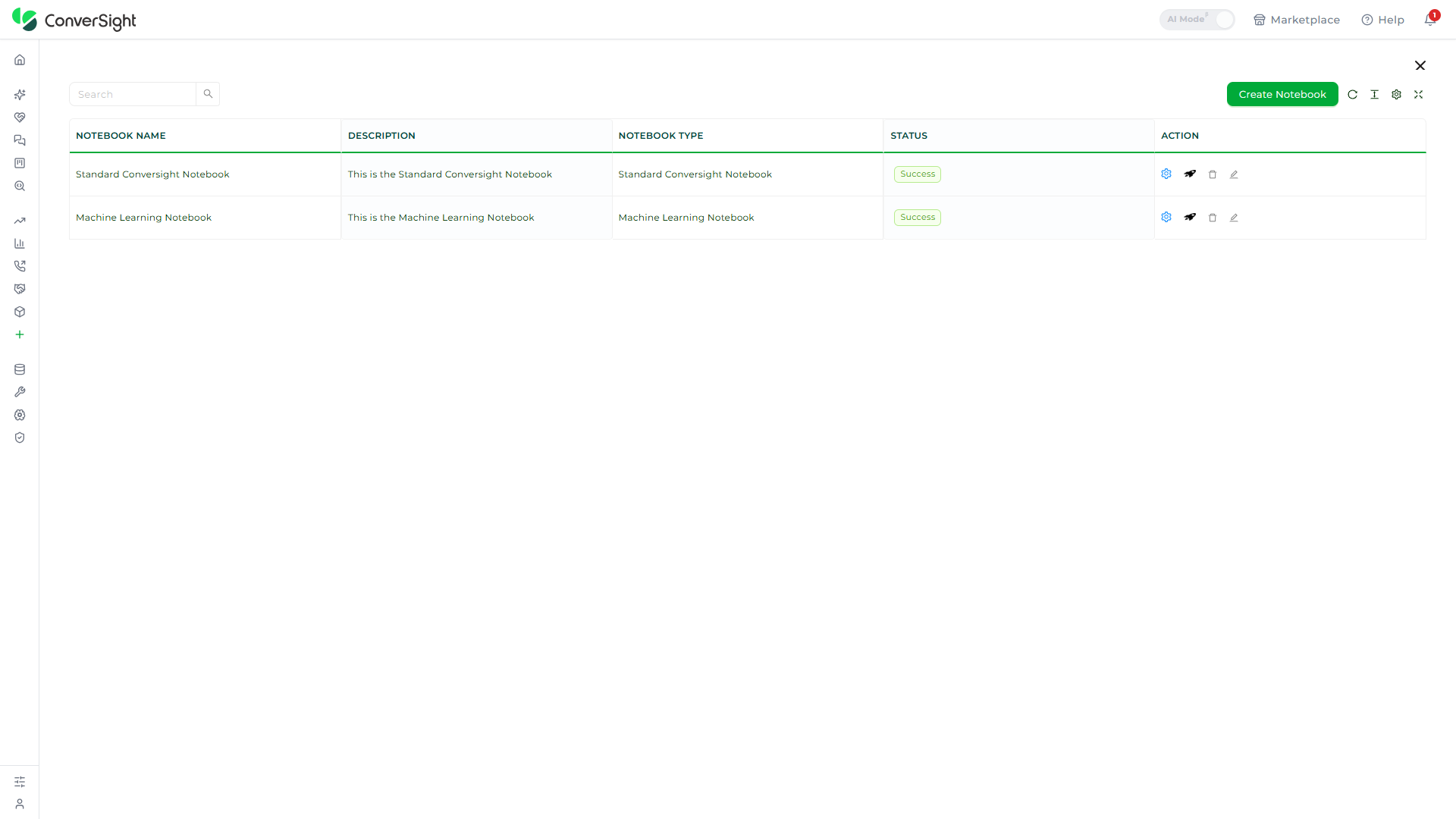
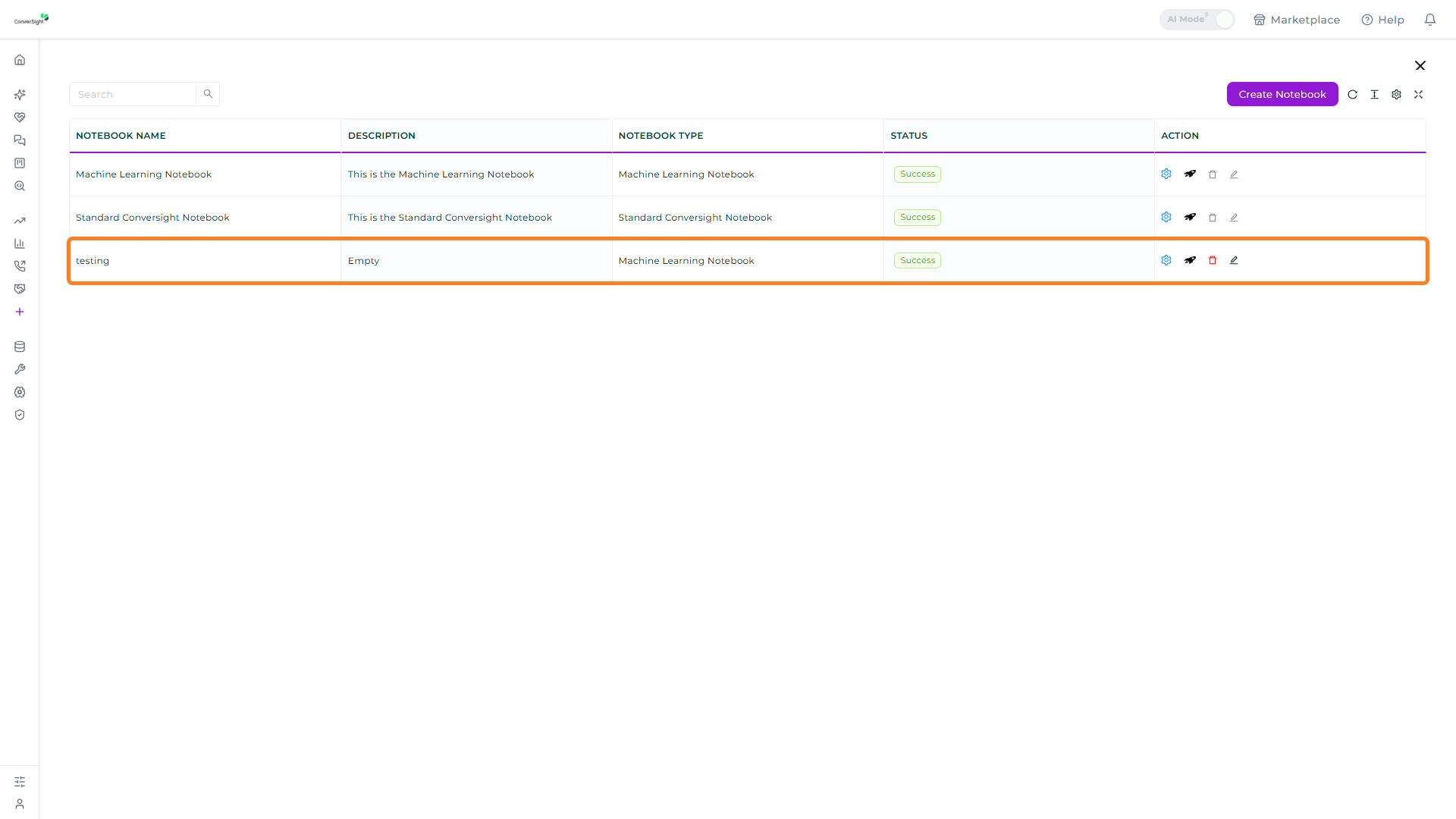
The Notebook page lists the notebooks available in the organization, showing each notebook's name, description, type, and current status. A green Success status indicates that the notebook is provisioned and ready to use.
Creating a Notebook
A notebook is created from a Base Notebook — a ready-made template that comes pre-configured with a curated set of Python packages. ConverSight provides two default base notebooks.
- Standard ConverSight Notebook: Serves as a foundational tool, encompassing the essential packages for executing tasks, flows, CS App and conducting fundamental analytical operations.
- Machine Learning Notebook: Crafted to empower users with an extensive set of packages catering to the intricate requirements of machine learning and advanced analytics.
Users can create a custom notebook by integrating a custom package or a ConverSight-verified package into the base Standard ConverSight Notebook, resulting in a custom Standard ConverSight Notebook. Likewise, incorporating custom packages into the Machine Learning Notebook produces a customized Machine Learning Notebook that caters to specific requirements.
Editing or deleting the default Standard ConverSight Notebook and Machine Learning Notebook is restricted.
Step 1: Open the Base Notebooks panel
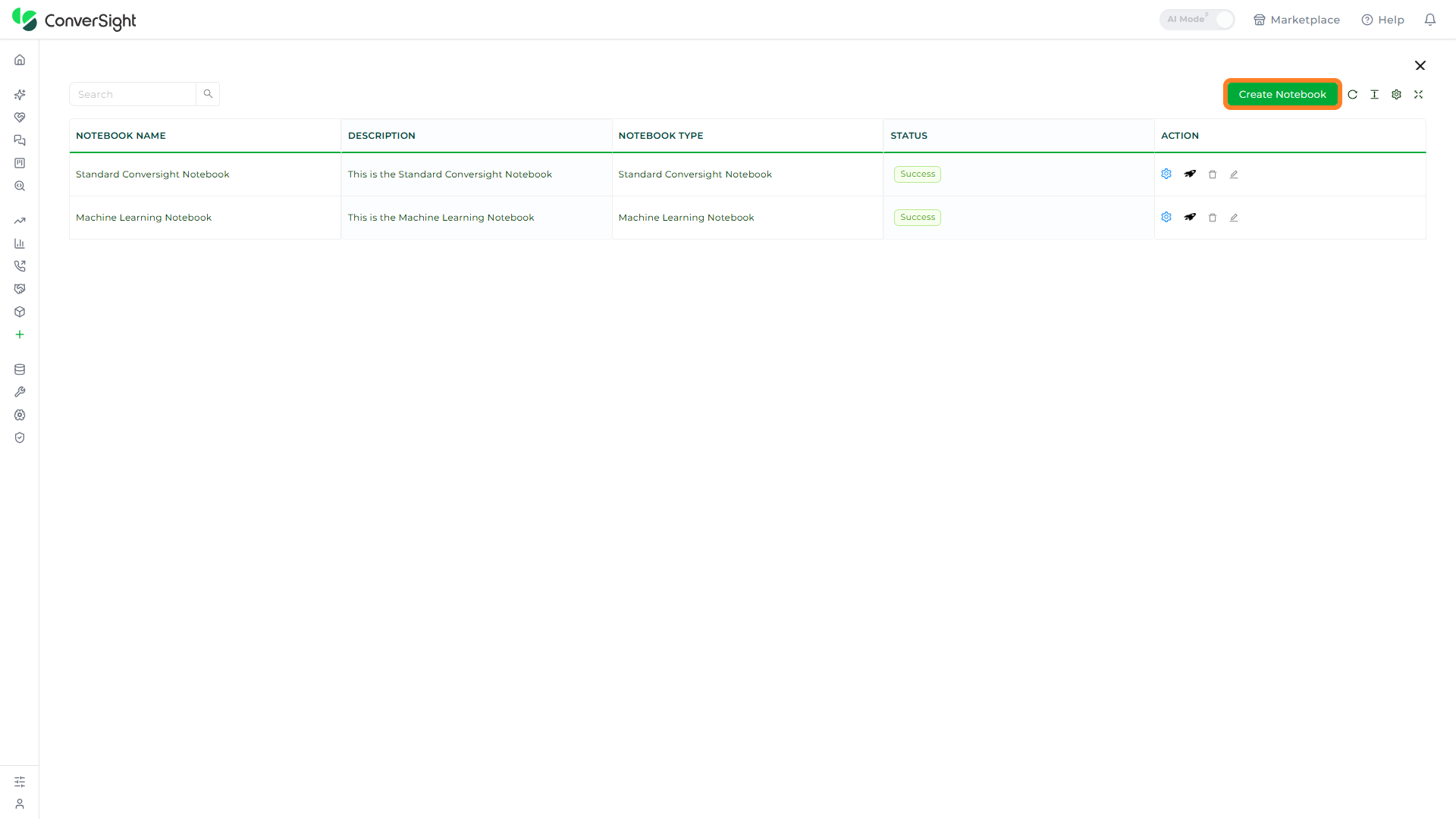
Click on the Create Notebook button at the top right of the Notebook page. The Base Notebooks panel opens, listing each available base notebook along with its notebook type, language, and version.
Step 2: Review the bundled packages
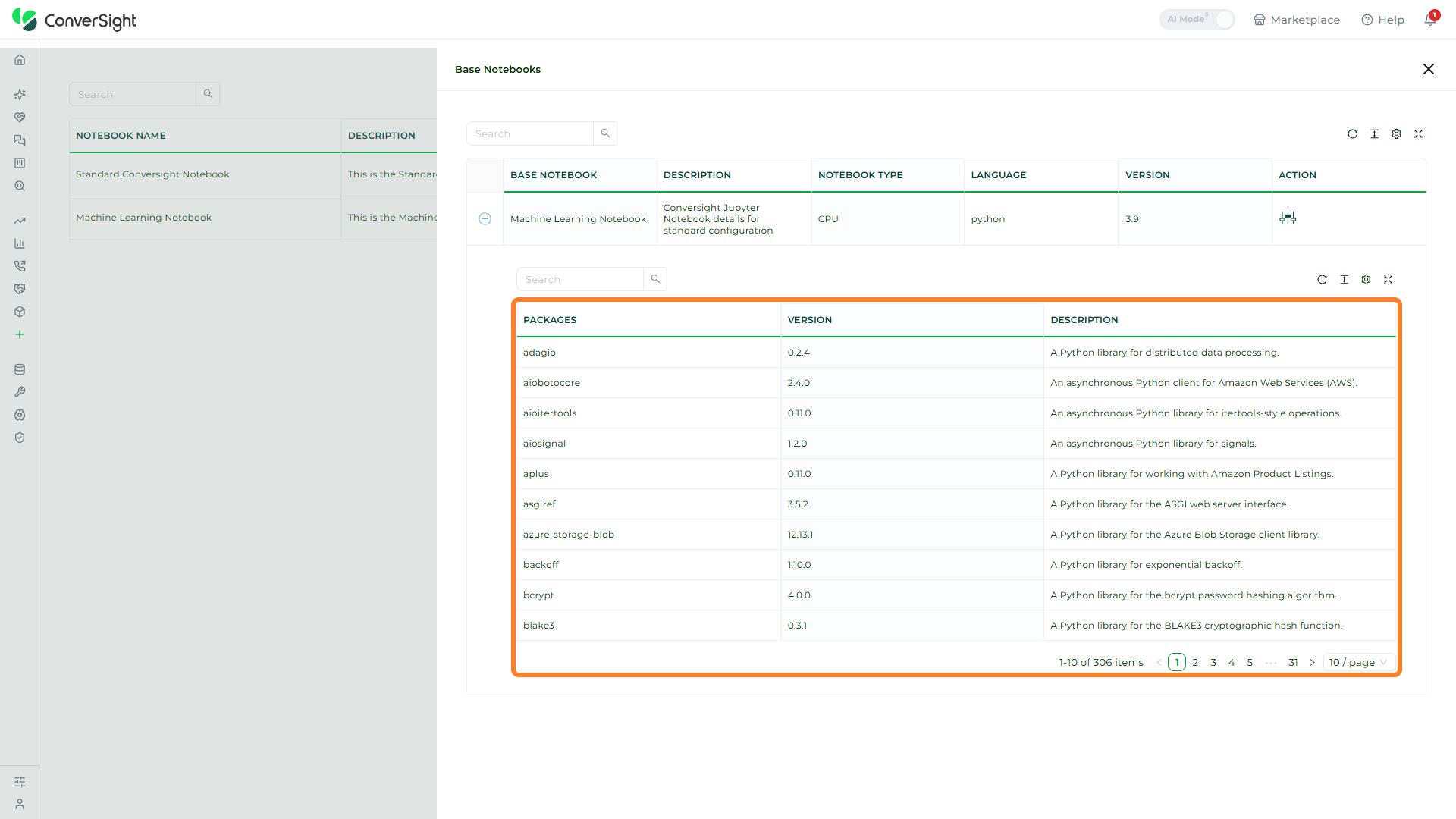
Click on the expand (+) icon at the start of a base notebook row to review the Python packages bundled with that environment. The Packages table lists each package with its version and a short description, so users can confirm that the libraries they need are already available before creating the notebook.
Step 3: Configure the notebook
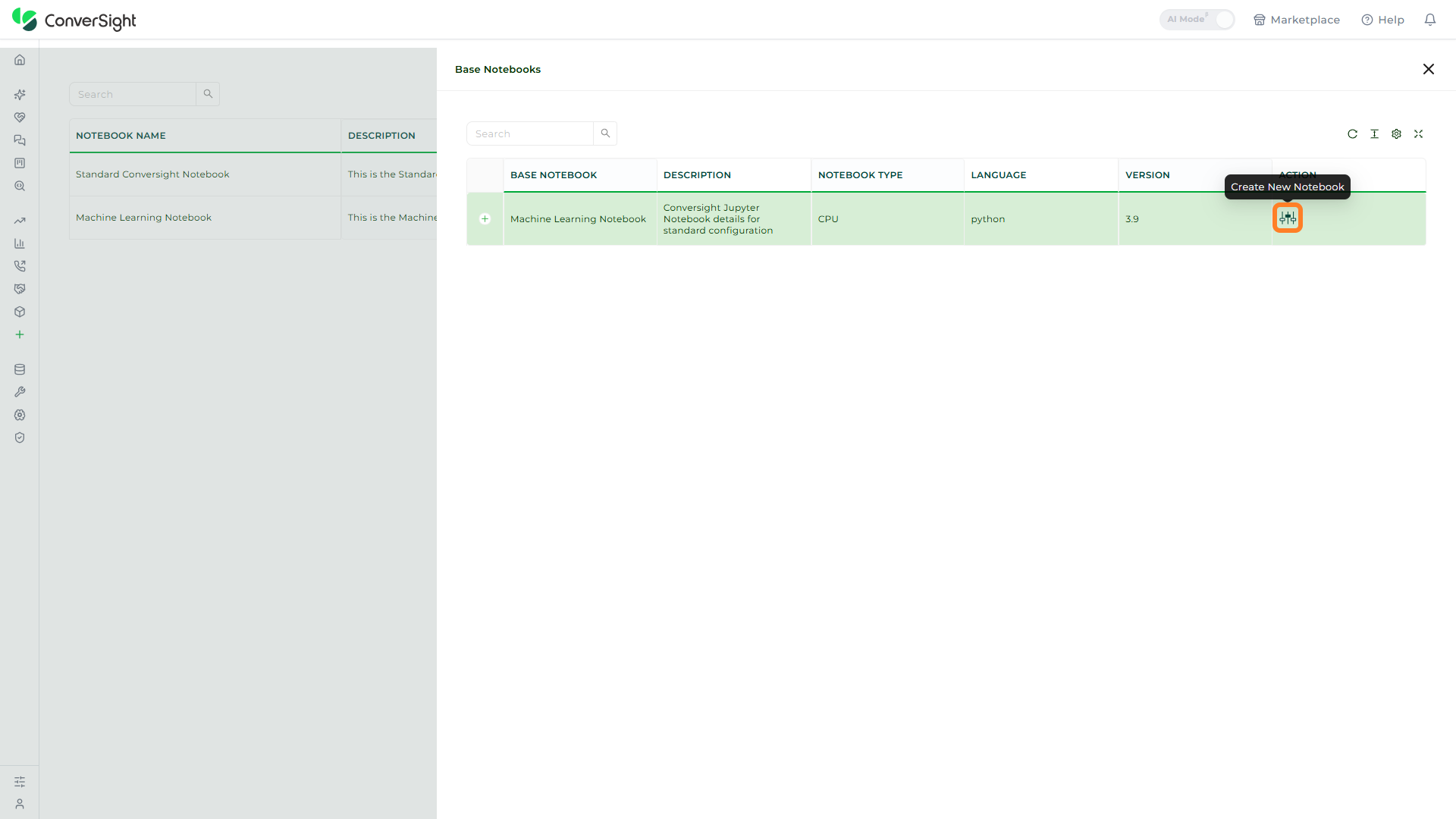
In the Action column of the base notebook you want to build from, click the Create New Notebook icon. Hovering over the icon displays a Create New Notebook tooltip.
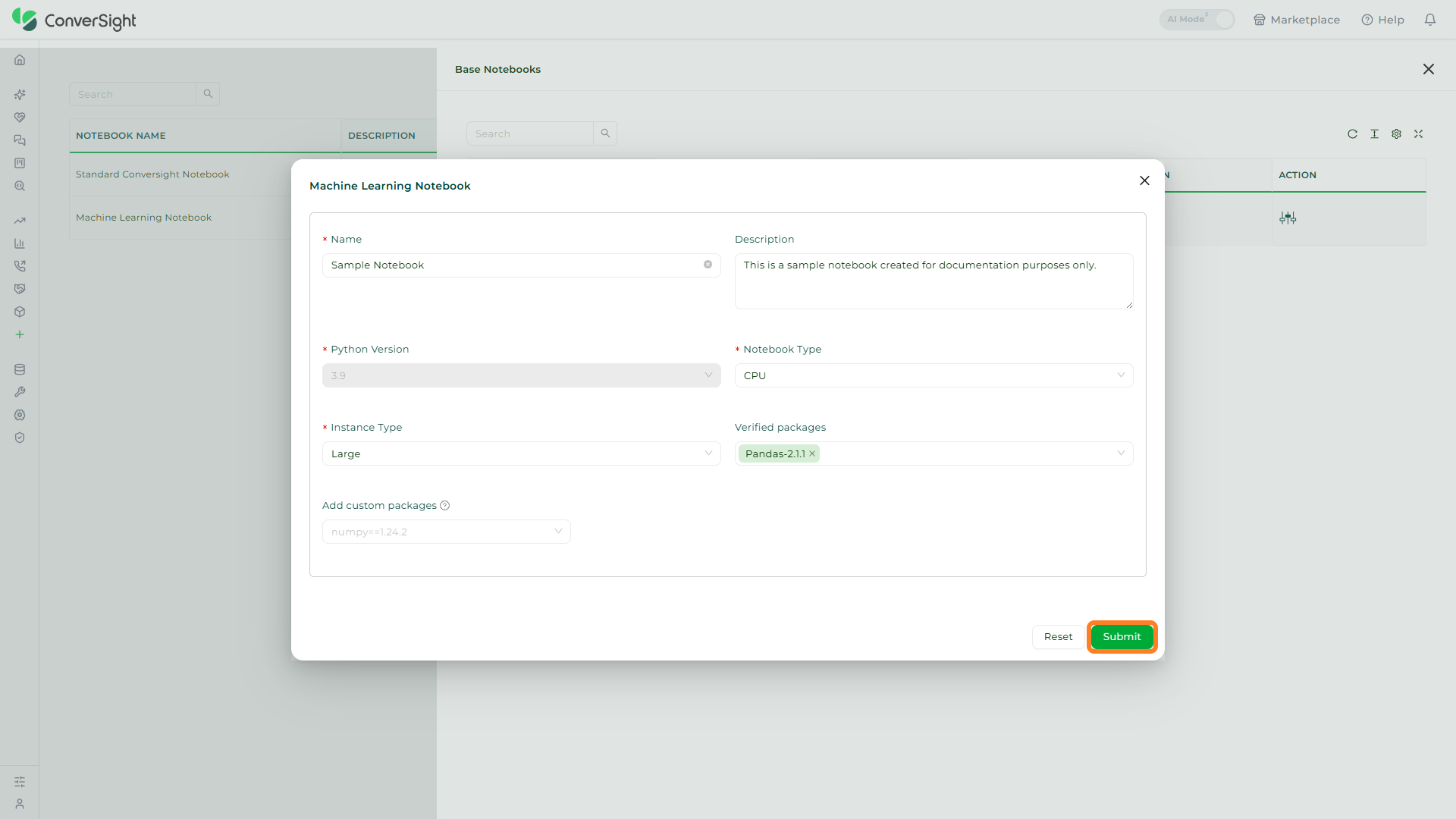
The notebook creation page opens, titled with the selected base notebook's name. Complete the fields on the page.
| Field | Description |
|---|---|
| Name | Enter a name for the notebook. This field is required. |
| Description | Enter an optional description of the notebook. |
| Python Version | Displays the Python version inherited from the base notebook (for example, 3.9). This field is read-only. |
| Notebook Type | Displays the compute type the notebook runs on (for example, CPU). |
| Instance Type | Select the compute instance size from the dropdown. |
| Verified packages | Select one or more ConverSight-verified packages to include in the environment. |
| Add custom packages | Optionally add custom Python packages to the environment (for example, numpy==1.24.2). Leave it empty if no custom packages are needed. |
The Instance Type dropdown offers three compute sizes — Small, Medium, and Large — so users can choose the capacity that suits their workload.

Step 4: Create the notebook
Click on the Submit button to create the notebook. The Reset button clears the page, and the Close (×) icon dismisses it without creating a notebook.
Once created, the notebook appears in the list on the Notebook page — first with an initial provisioning status, and then with a green Success status once it is ready to use.
Notebook Actions
Each notebook in the list includes a set of action icons in the Action column for working with that specific notebook.
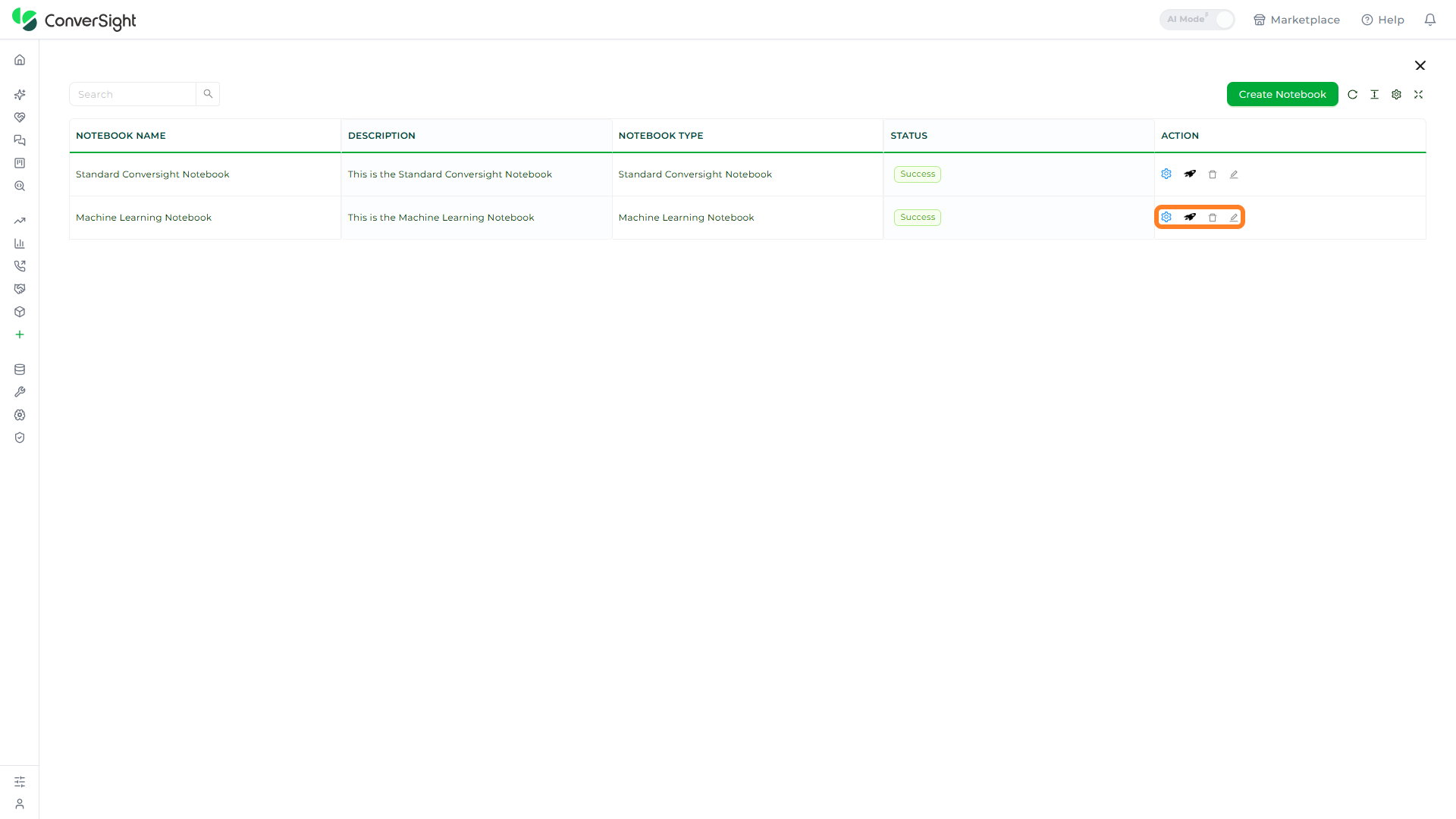
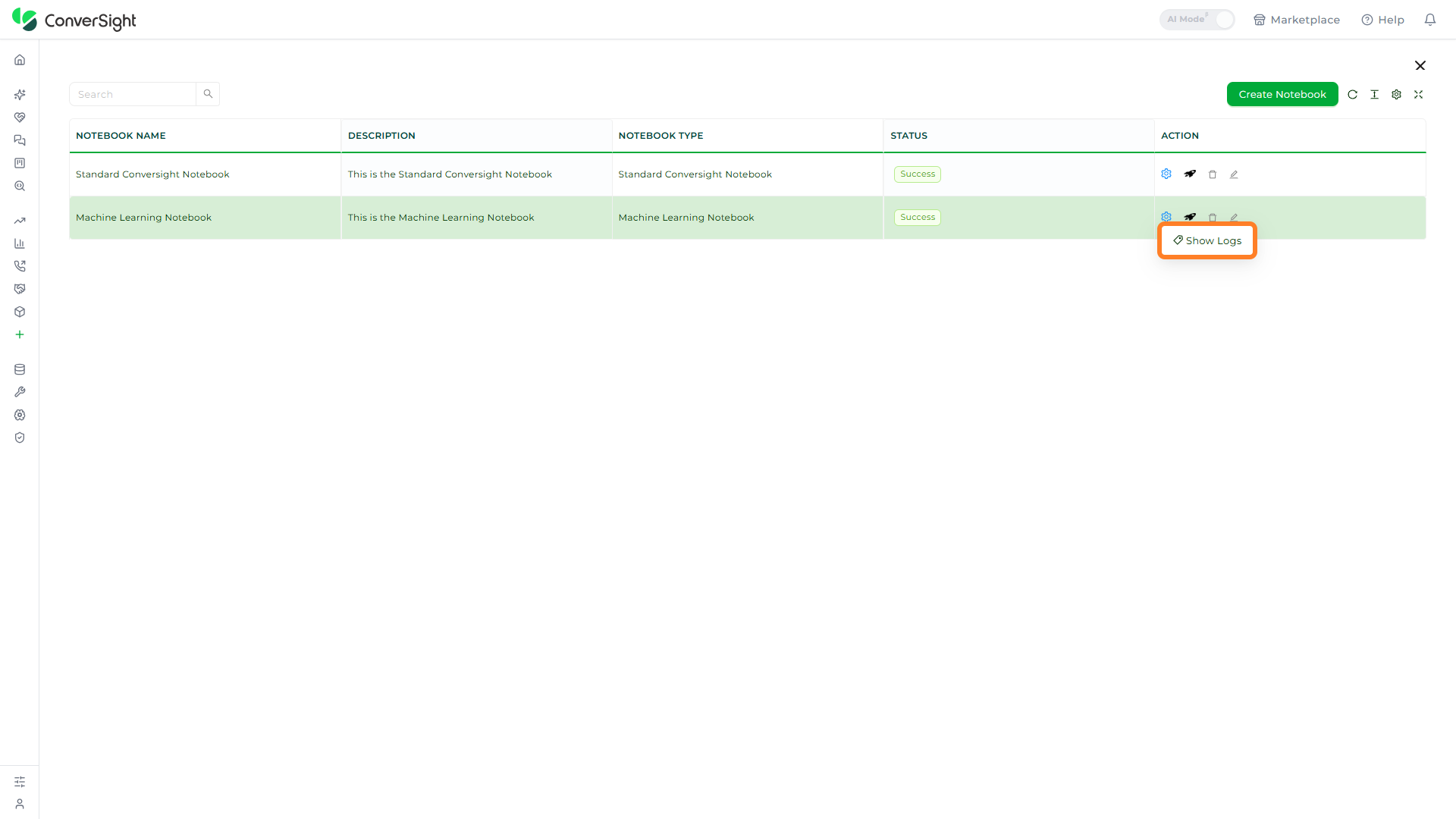
The Settings option provides access to the notebook's logs. Click on the Settings (gear) icon in the Action column and select Show Logs to open the notebook's logs.
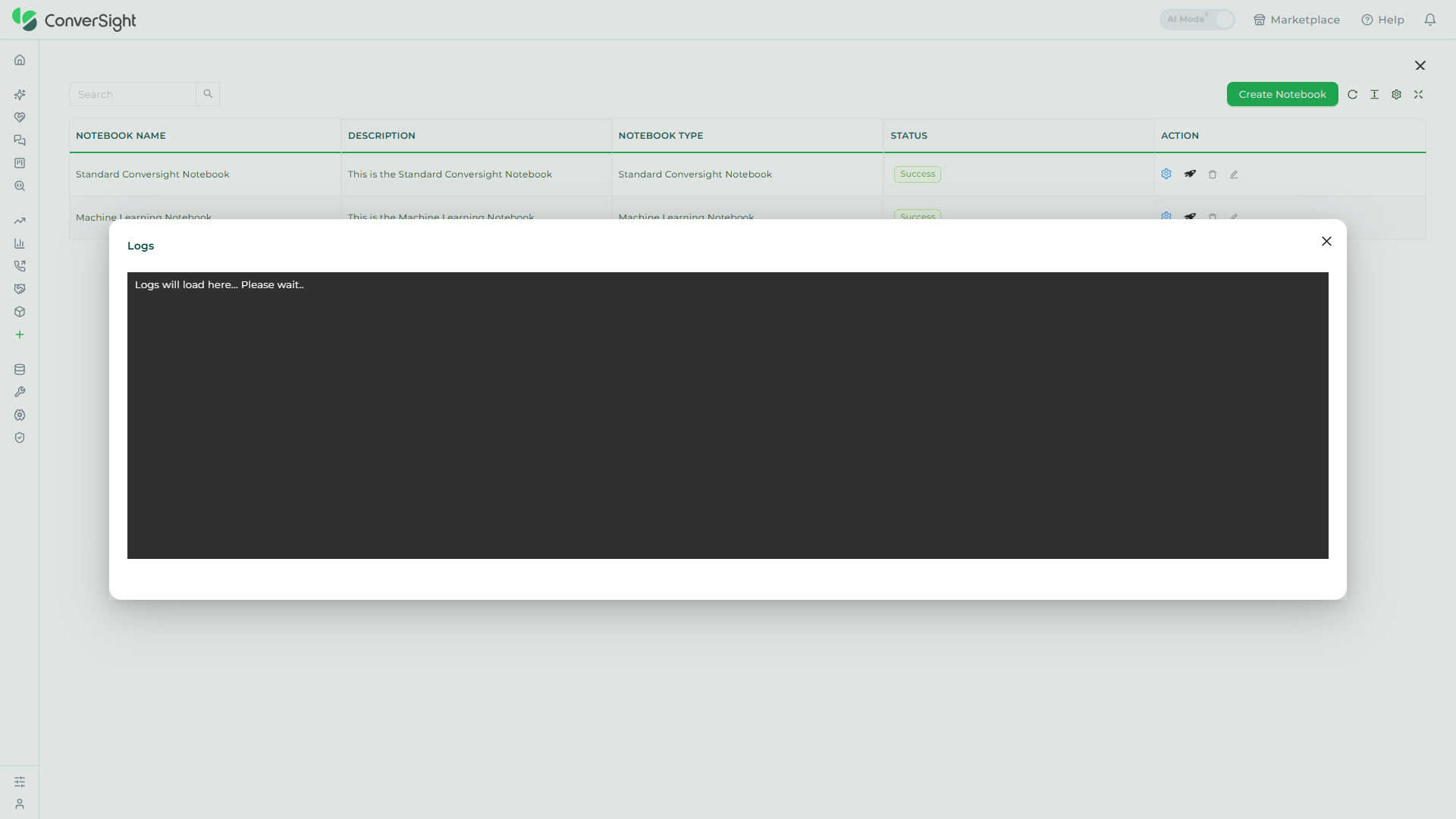
Selecting Show Logs opens the Logs window, which displays the selected notebook's logs in a console view. Users can review the notebook's activity and troubleshoot issues from this window.
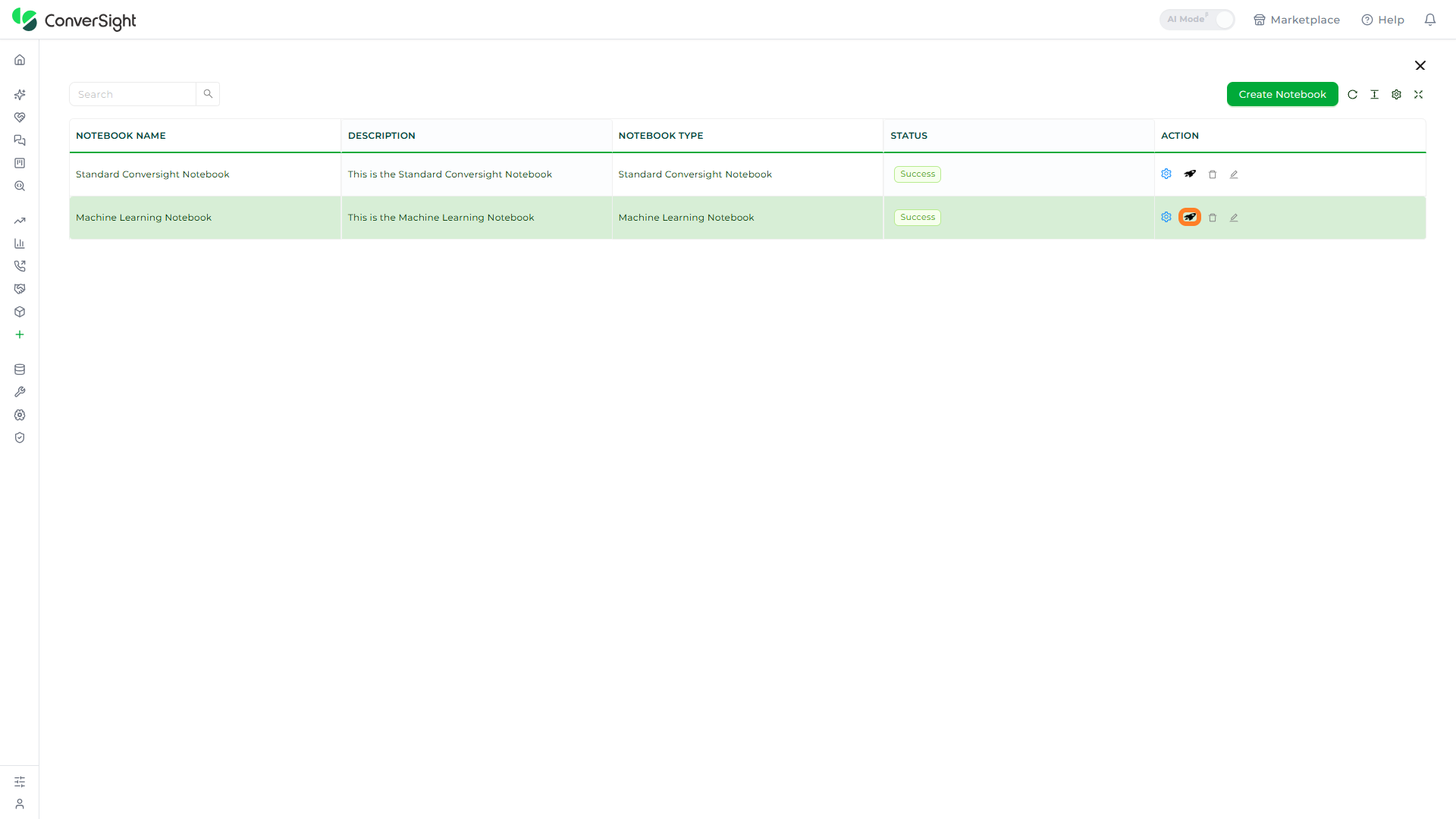
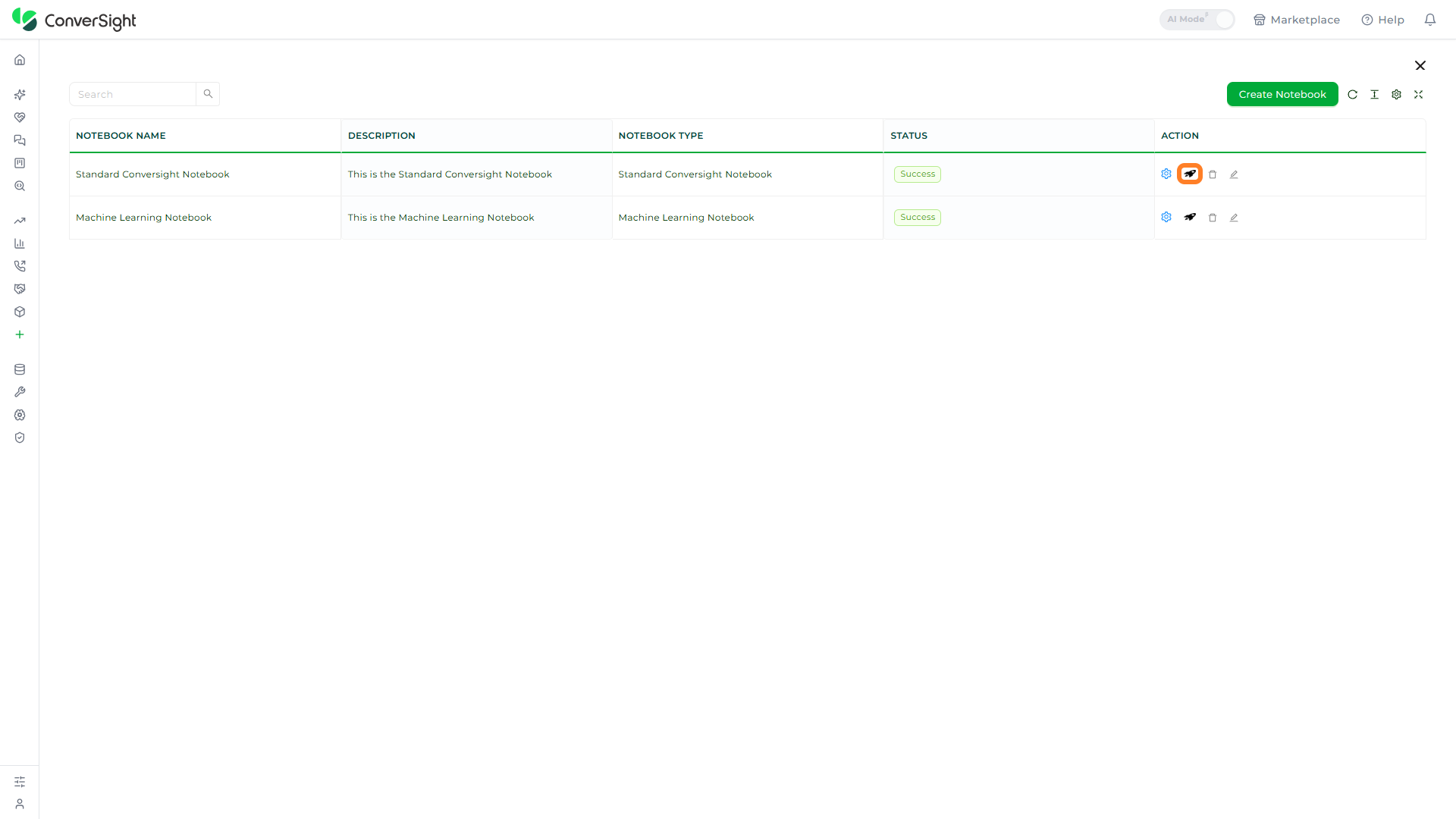
The Start a Notebook option starts the notebook and opens the Jupyter notebook session. Click on the Start a Notebook (start cluster) icon in the Action column to launch the session (see Working with Notebook).
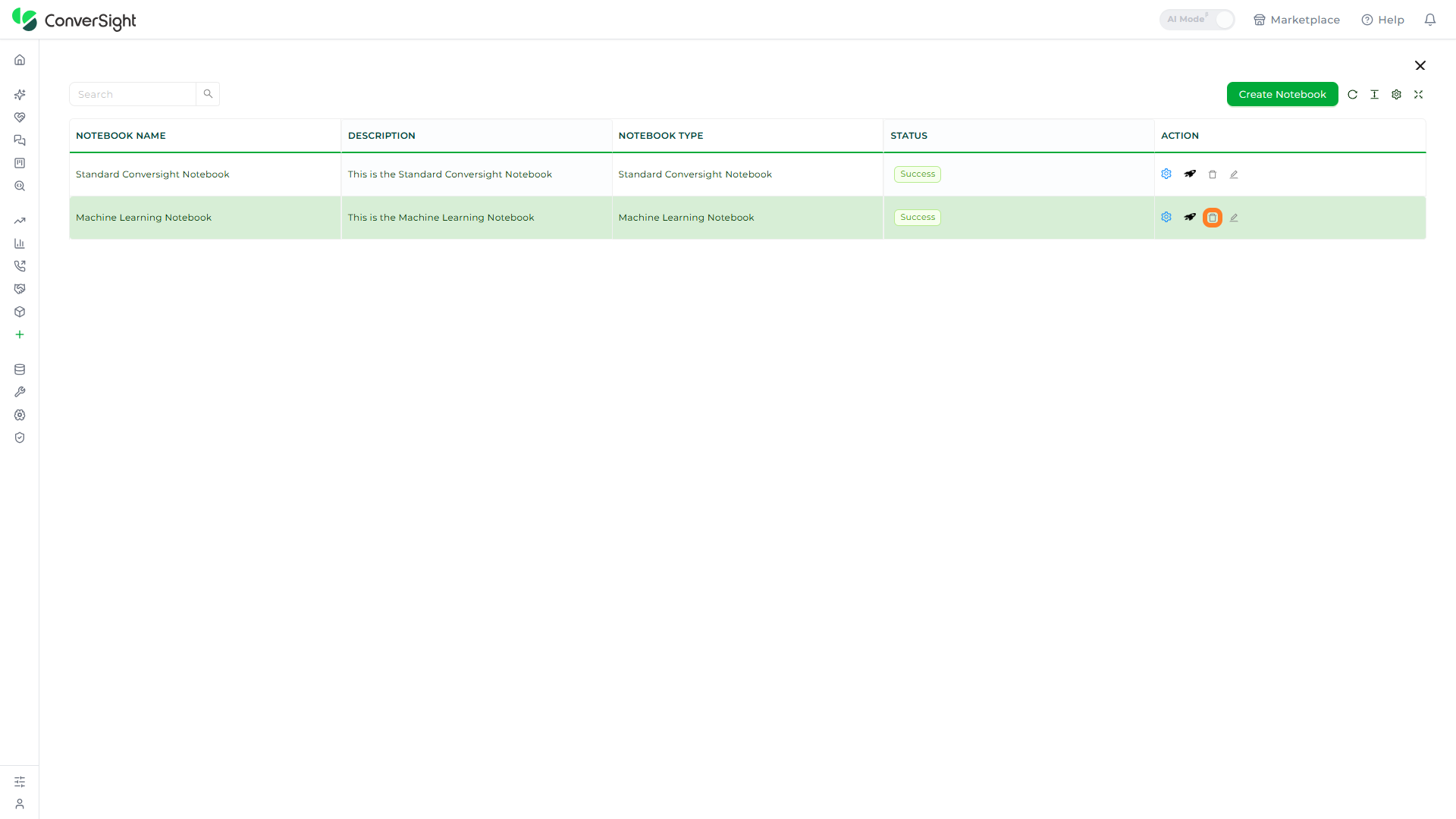
The Delete option removes the notebook from the organization. Click on the Delete (trash) icon in the Action column to delete the notebook.
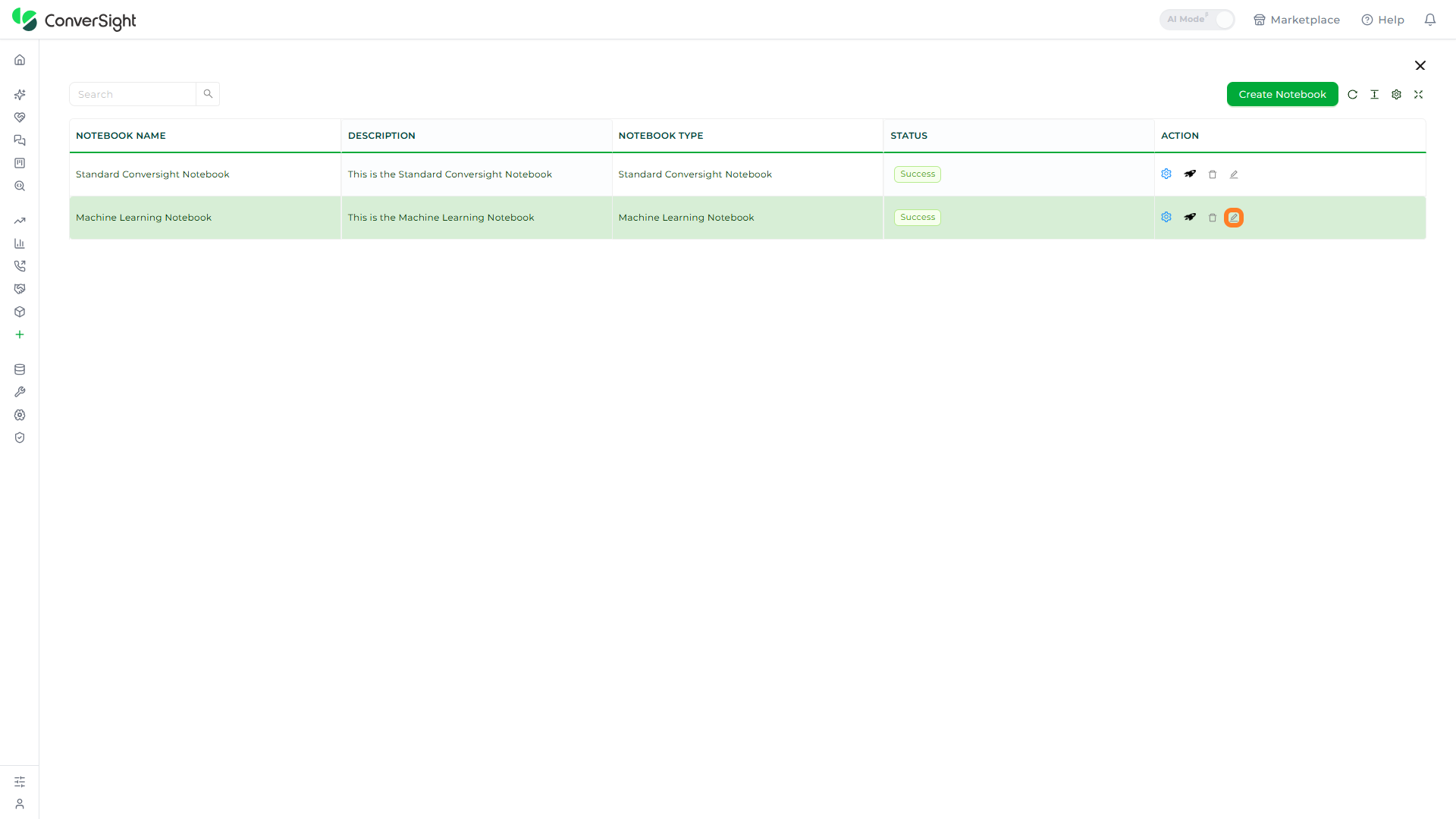
The Edit option lets users update the notebook's details. Click on the Edit (pencil) icon in the Action column to open the notebook for changes.
Working with Notebook
To open and work in a notebook, click on the Start a Notebook (start cluster) icon in the Action column of the notebook row. This sends a request to Jupyter Hub, which verifies your access and provisions the notebook session under your personalized username.
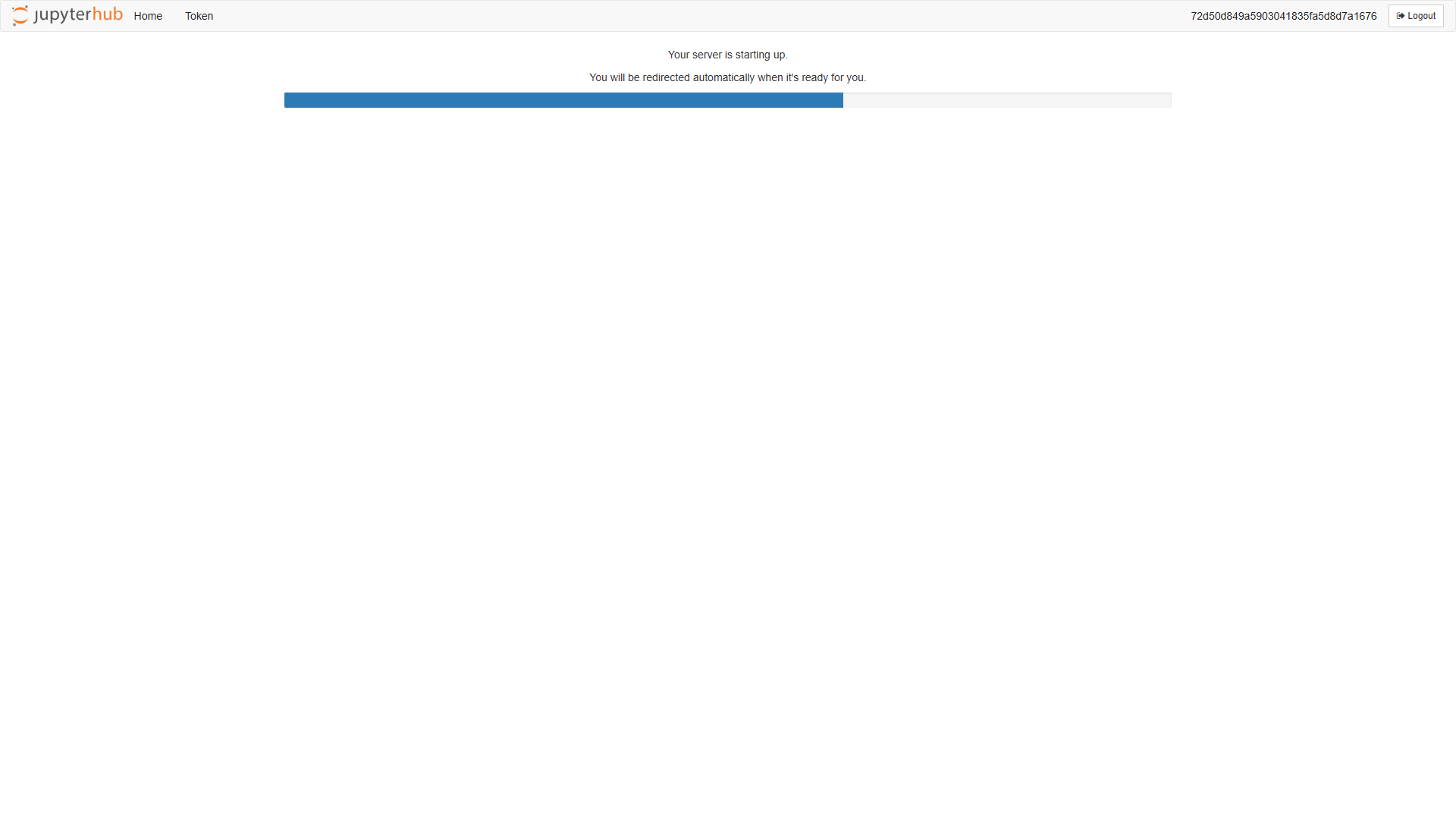
While the session is provisioned, Jupyter Hub displays a loading page that shows the start-up progress and automatically redirects to the Jupyter Notebook interface once the server is ready.
Once the interface opens, you work in cells that contain code, markdown, or raw text. Add a cell with the + button on the toolbar or by pressing Shift + Enter, and run the active cell by clicking Run or by pressing Ctrl + Enter.
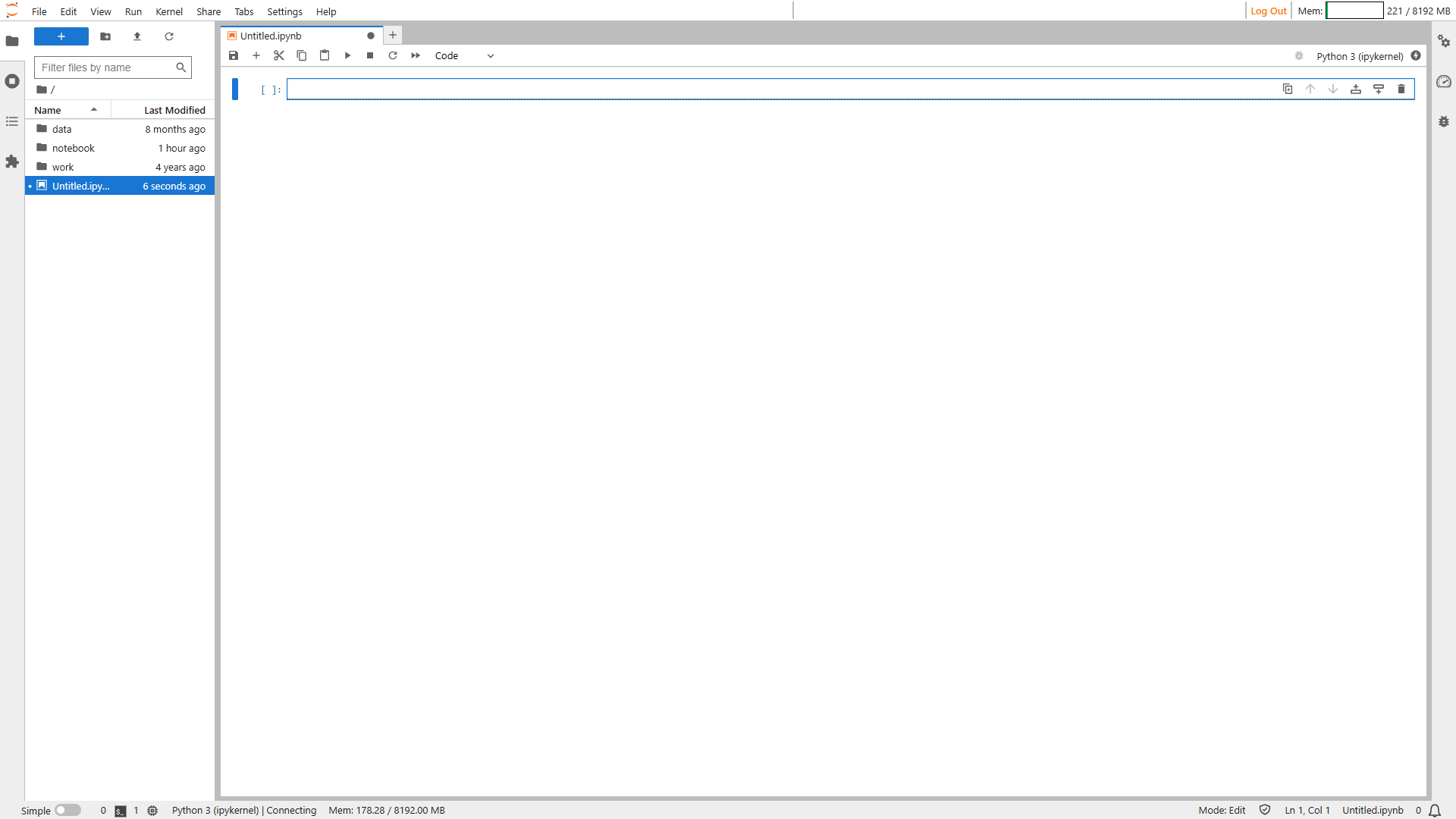
The session runs under your personalized username, so the notebooks you open, the actions you take, and the files you save in the session stay exclusive to your account.
A notebook session expires after 4 hours.
Saving, Uploading and Downloading a Notebook
Inside the Jupyter interface, you can save your work, bring in an existing notebook, or take a copy of a notebook to your local computer.
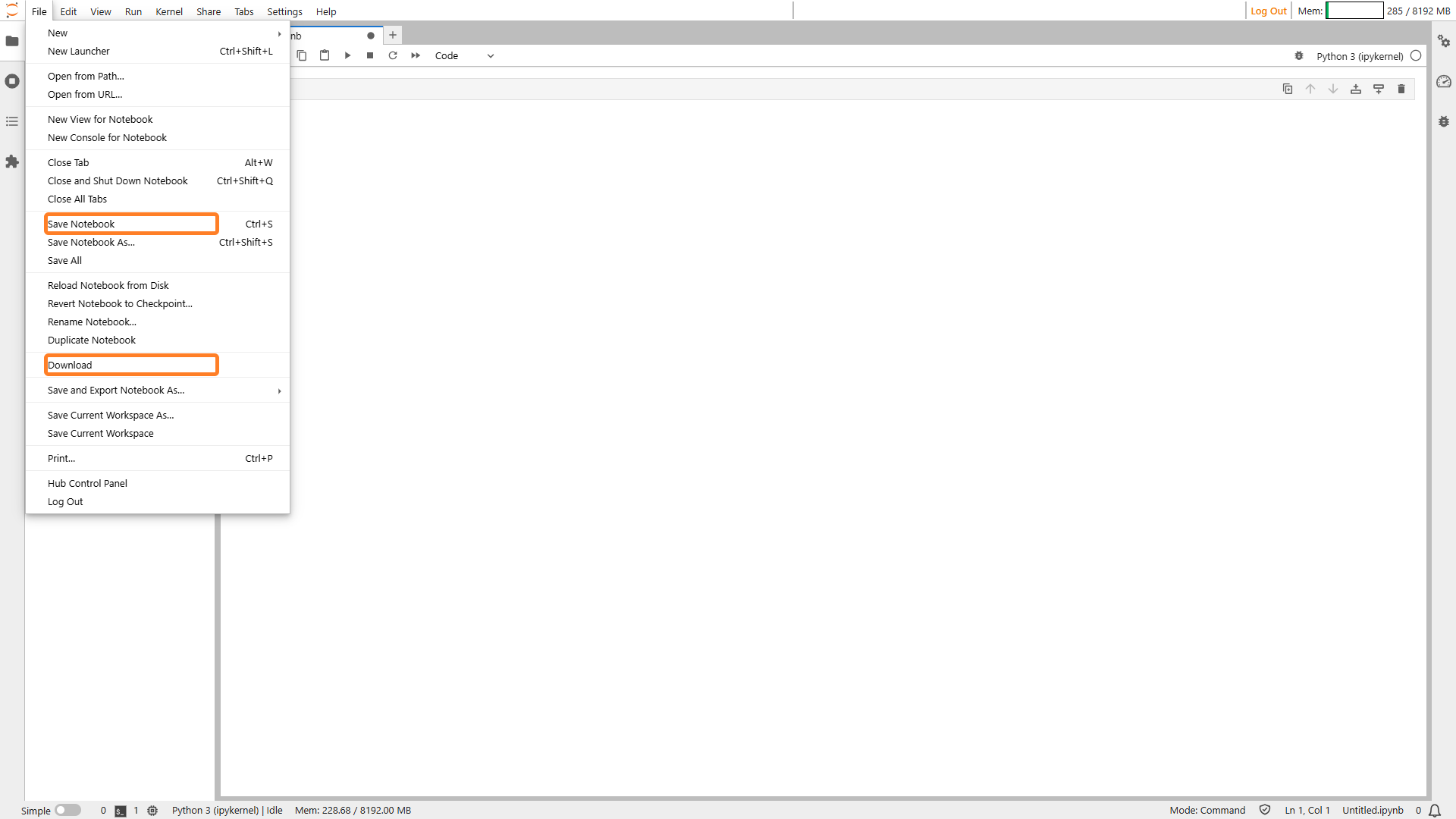
To save the notebook, click on the File menu in the Jupyter toolbar and select Save Notebook to preserve your work in the session. The same File menu also provides a Download option to save a copy of the notebook to your local computer.
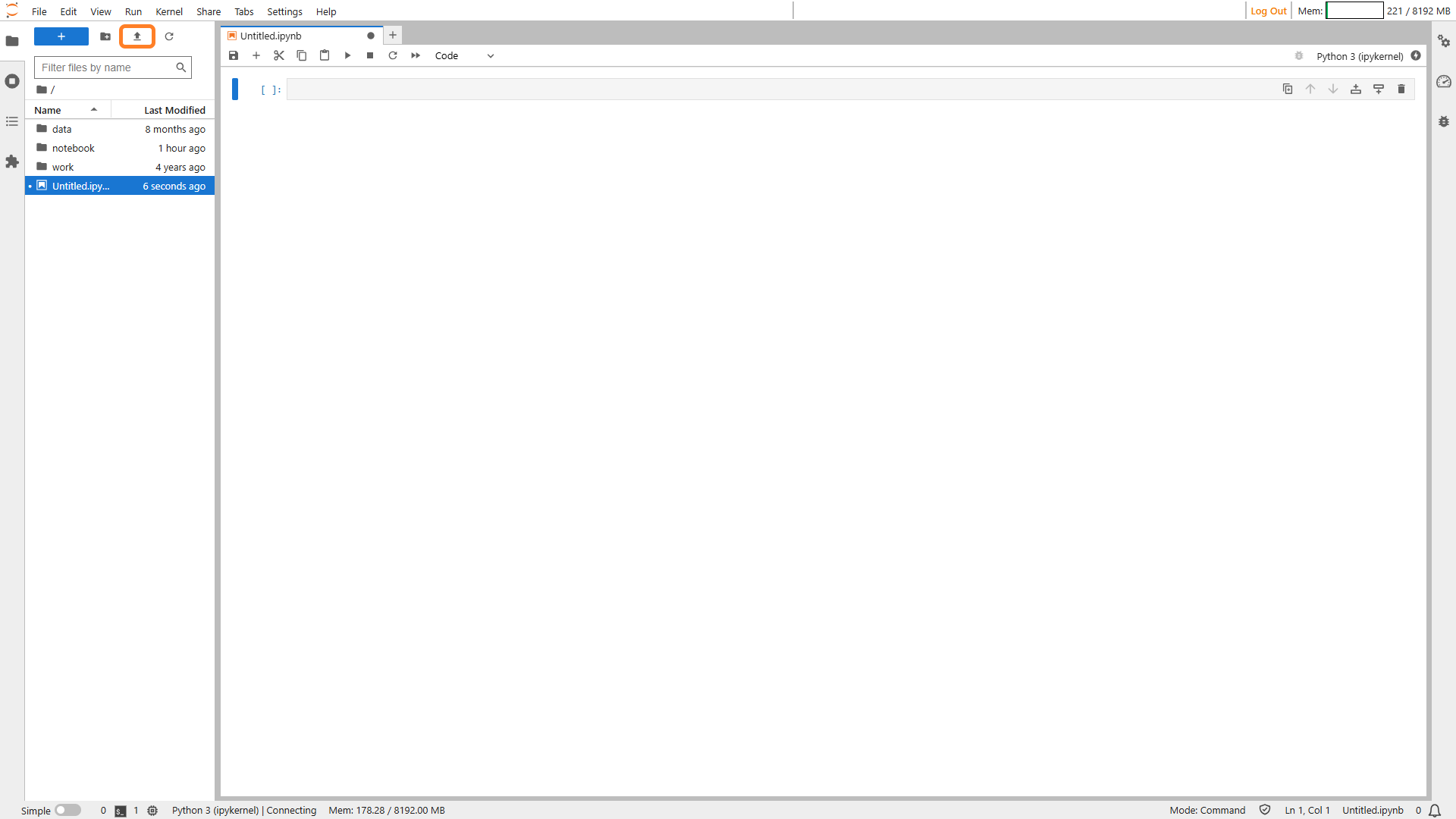
To bring in an existing notebook, click on the Upload icon in the file browser and select the notebook file to add it to the environment.
Any packages you install during a session are kept for a maximum of 4 hours. Once the server is stopped, they are deleted. For a library to be installed permanently, raise a request with the DevOps team.
ConverSight Library
The ConverSight Library gives data scientists and machine learning engineers a ready-made toolkit to work with platform data directly from a notebook session. Once imported, it lets you create and manage tasks and flows, connect to datasets, inspect dataset details and metadata, run operations on datasets, access group and role information, and execute queries — without writing the underlying integration code yourself.
To view the arguments a function expects, place the cursor inside the function call and press Shift + Tab together.
A Dataset is an organized collection of data tailored for the ConverSight platform. You reference a dataset by its dataset ID to work with it in the library.
Connecting to a Dataset
Import the library and create a dataset object by passing the dataset ID. The dataset object is the entry point for every operation that follows.
from conversight import Dataset
ds = Dataset("DatasetID")
Listing Objects
The tables inside a dataset are called objects. Use the objects.list() method on the dataset object to list the objects available in that dataset.
ds.objects.list()
Viewing the Schema
Use the schema methods to review a dataset's structure. The current() method displays the current schema, and the active() method displays the active schema.
ds.connectors.connectorInfo.connectionData.schema.current()
ds.connectors.connectorInfo.connectionData.schema.active()
Querying in DataFrame Format
Use the sqlDf() method with a SQL query to return the results as a DataFrame. The limit clause controls how many rows are returned; omit it to return the entire DataFrame.
df = ds.sqlDf("""select * from RetailSales limit 5""")
Roles
The Roles methods let you assign specific data-access permissions to users from within a notebook. Use them on the dataset object to view, create, update, and delete roles.
Use the roles.get() method to retrieve role information, including the role ID, name, description, dataset, and role filter.
ds.roles.get()
Use the roles.create() method to create a role.
ds.roles.create('Users','creatingroles','dimensions','RetailSales.revenue','is','1','100')
Use the roles.update() method to update an existing role.
ds.roles.update('650bde77','users','trial','dimensions','RetailSales.revenue','is','1','50')
Use the roles.delete() method to delete a role.
ds.roles.delete('650bde77')
Only Data Admins can delete roles.
Groups
The Groups methods let you organize users and apply shared data filters from within a notebook. Use them on the dataset object to view and create groups.
Use the groups.get() method to retrieve group information, including the group ID, name, description, dataset, column list, settings, and form list.
ds.groups.get()
Use the groups.create() method to create a group.
ds.groups.create('Usergroup','Sample creation',['RetailSales.revenue'],None,None)