User Management
User Management is where Controlled Autonomy gets its boundaries. Every autonomous action Athena takes — every ERP write, every supplier outreach, every approval-workflow step — runs within the role-based authorization defined here. When the platform delegates a workflow to Athena in Employee mode, this is the module that decides which user's authority it inherits and which rows of data it can touch.
This is primarily a Data Analyst surface, with Data Engineer collaboration on the role scoping that governs autonomous-agent permissions. The module organizes its actions around a single users list, with global controls along the top of the page and per-user actions on each row — provision a new user, assign roles and groups, configure dataset-level access, review who can do what across the org.
Accessing User Management
The User Management module can be accessed from the Users & Roles workspace by selecting User Management, which opens the interface used to manage user provisioning and access control.

The User Management page presents the directory of all users provisioned in the organization, along with the global controls used to manage them.

Only Org Admins can create, edit, or deactivate users.
Searching and Filtering Users
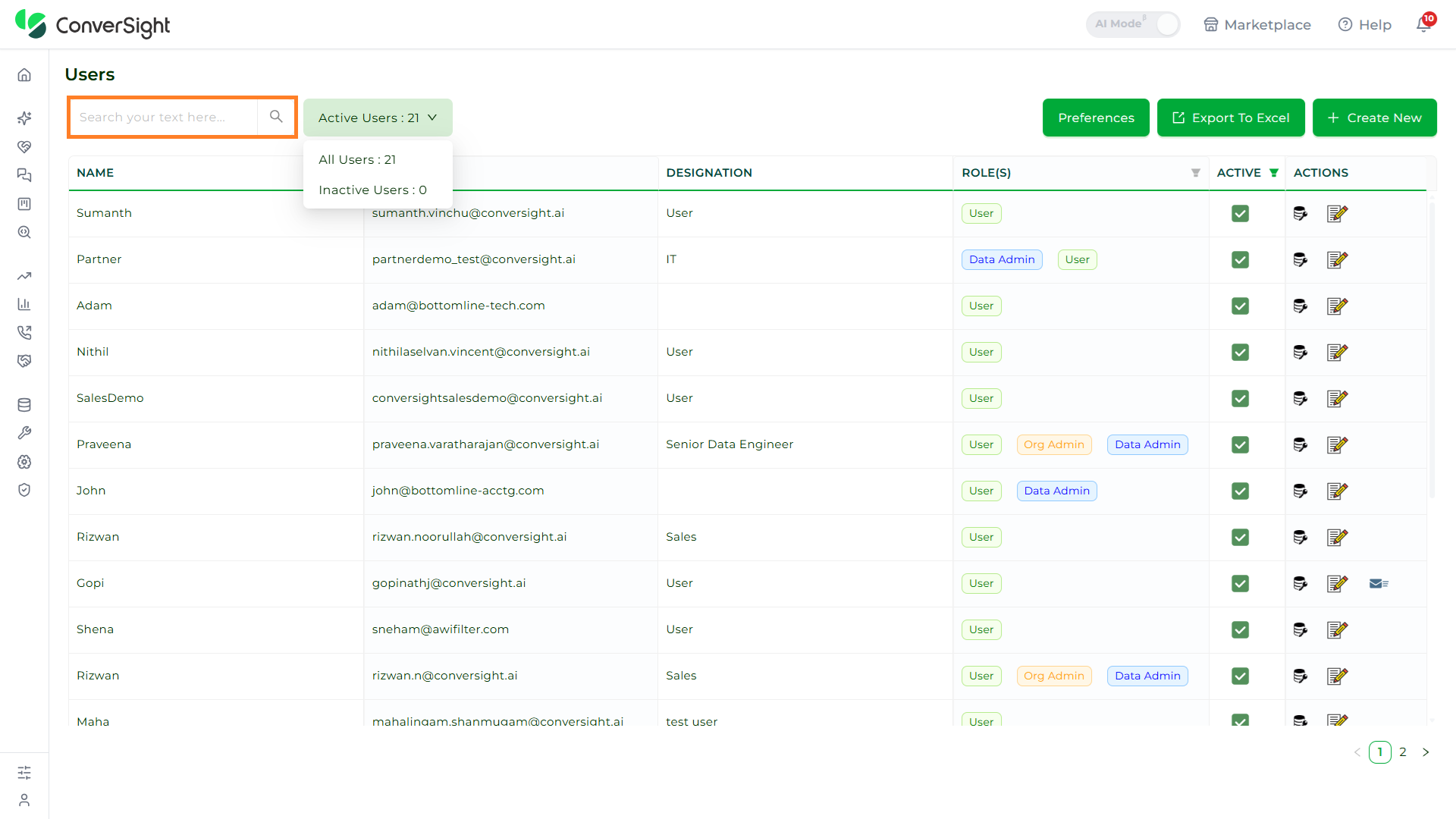
The user list supports search and a status dropdown so that administrators can quickly locate a specific person or scope the table to active or inactive accounts only.
Search
The Search option at the top of the user list filters the table in place as the administrator types, matching against the visible user attributes.
User Status Filter
The status dropdown at the top of the user list scopes the table by access state. It offers three options — All Users, Active Users, and Inactive Users — making it easy to review everyone in the organization, only those who currently hold access, or only those whose access has been suspended.

Selecting a status reloads the table to show only users in that state. Active Users is the default view.
Preferences
The Preferences button at the top of the User Management page opens the workspace personalization controls, where the visual theme of the ConverSight workspace is configured.
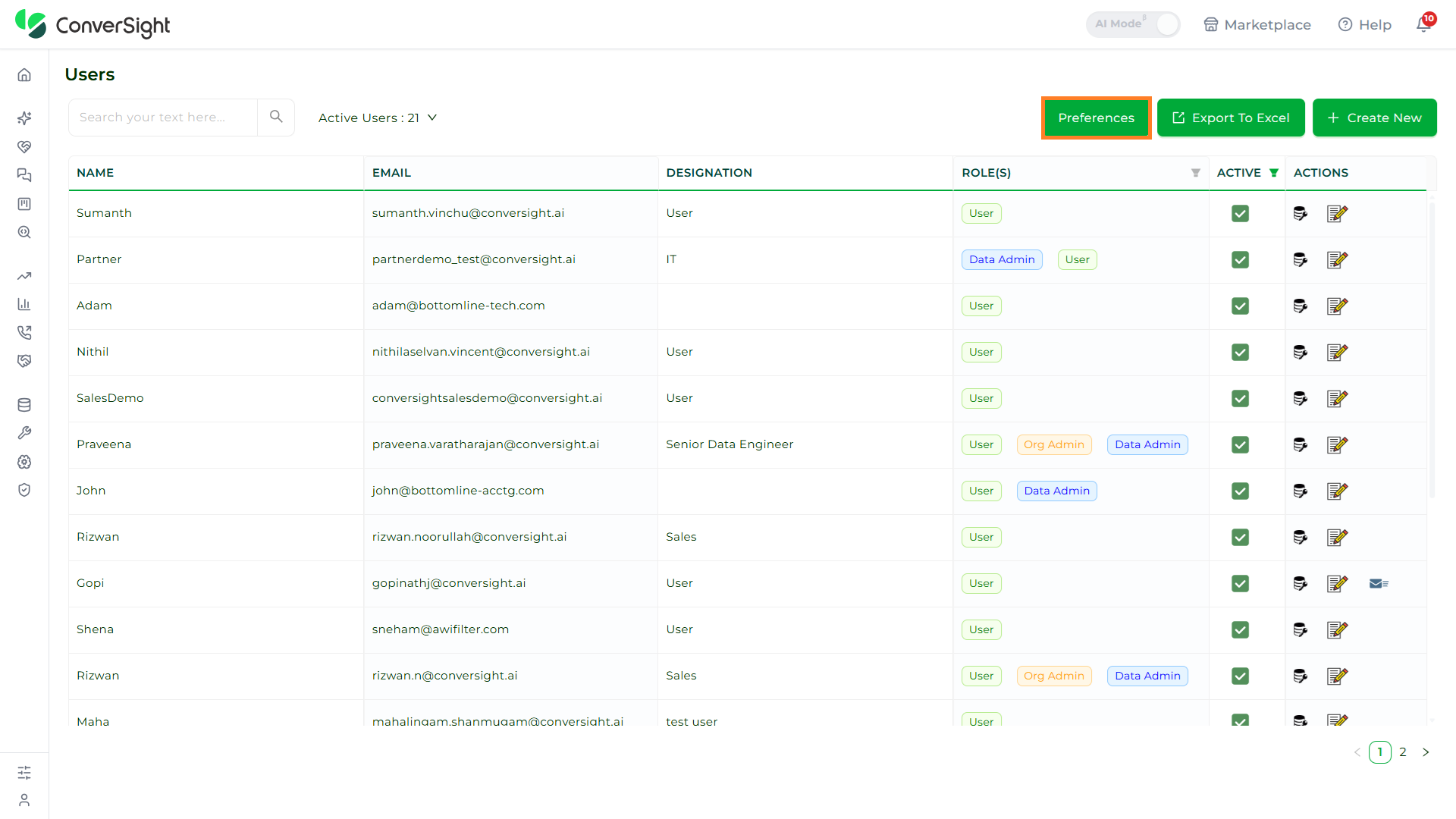
The Preferences option is exclusively available to the Organization Admin.
Selecting a Theme
The Select Theme dropdown lists the themes available to the organization — the Default Theme and the Custom Theme. Picking a theme from the dropdown applies it immediately to the workspace. The Default Theme is the ConverSight theme and is applied by default unless an alternative theme is chosen.

Custom Theme
Selecting the Custom Theme option from the Select Theme dropdown expands the Preferences controls in place, revealing the customization area where the organization's branding can be applied to the workspace.

The expanded Custom Theme controls expose two customization areas — the Choose Primary Color section, where the primary color used across the entire platform is selected, and the Chart Colors series, where the colors used in charts are configured. The first color in the Chart Colors series matches the chosen primary color by default.

The Apply button commits the customization and applies the custom theme to the workspace.

Theme and chart customization do not have a preview option. Any changes are reflected immediately across all users in the organization. The colors used for success (green) and error (red) messages remain unchanged regardless of the chosen theme.
Export to Excel
The Export to Excel option downloads the current user list to an Excel file so that the directory can be shared, archived, or analyzed outside the platform.

Create New
Creating a user is a multi-stage workflow that captures basic identity, role assignments, optional SSO mapping, additional feature permissions, and dataset access before finalizing the new account.
Step 1: Open the Create User page
The Create New button at the top of the User Management page opens the user creation workflow.

The create user page presents the form where all new-user attributes are captured across a guided multi-step flow.

Step 2: Capture basic details
The Basic Details section collects identifying information about the user, such as name and email, that uniquely identifies the account within the organization.

Step 3: Assign roles
The Role dropdown lists the roles available in the organization. Selecting a role determines the baseline permissions and data filters the user inherits.

Multiple roles can be assigned to a single user, allowing combined permission sets when the user's responsibilities span more than one functional area.

Step 4: Provide the FederationID (optional)
The FederationID (SAML users) field captures the single sign-on identifier that links the ConverSight user to the corresponding identity in the organization's SSO provider.

The FederationID is only relevant when the organization has configured SAML-based single sign-on. Leave it blank for users who will authenticate through the standard login.
Step 5: Enable feature permissions
The per-user feature toggles allow administrators to grant feature-level permissions beyond what the assigned roles provide. These toggles expose optional capabilities — such as Embed Athena, Notebook, AI Workbench, and Train Athena — on a per-user basis.

Once done click the Next button advances the form from the user details stage to the dataset access stage of the workflow.

Dataset Access
Dataset Access controls which datasets a user is permitted to query and explore across the platform. It is captured as part of the Create User workflow after the user details stage, and the same dataset access settings can be reviewed or updated later by editing the user.

Selecting datasets builds the precise data scope the user will work within. This ensures that role-level filters and dataset-level permissions reinforce each other.

Roles
A Role decides which rows of data a user is allowed to see. It works by checking each row of a dataset against a simple condition — for example, "show only rows where the Region column equals India". The same role can be given to one user, many users, or to an entire group, so the same data rule applies to everyone who needs it.
Roles are managed from the per-user ACTIONS → Access menu on a user row, which opens the Access for <user> panel where roles can be created and assigned.
Step 1: Open the Create Role page
Click on the Create Role option to start creating a new role.

The Create Role page opens, where the role's name and its data access rule are filled in.

Step 2: Set up the data access rule
The Role Filter section is where the data access rule is set up. Click + Add Filter to reveal the rule fields. The rule has three parts — a Column, an Operator (such as equals or contains), and a Value — and the platform only shows rows that match this rule to users in the role.

- Column: Click on the Column dropdown and choose the column the rule applies to.

- Operator: Click on the Operator dropdown and pick how the column should be compared — equals, contains, greater than, and so on.

- Value: Enter the value the column should match. This completes the rule.

The rule is applied silently — users in the role never see the rule itself, only the data that matches it.
Step 3: Save the role
Click on the Create button at the bottom of the page to save the new role.

The new role now appears in the role list and is ready to be assigned to users.
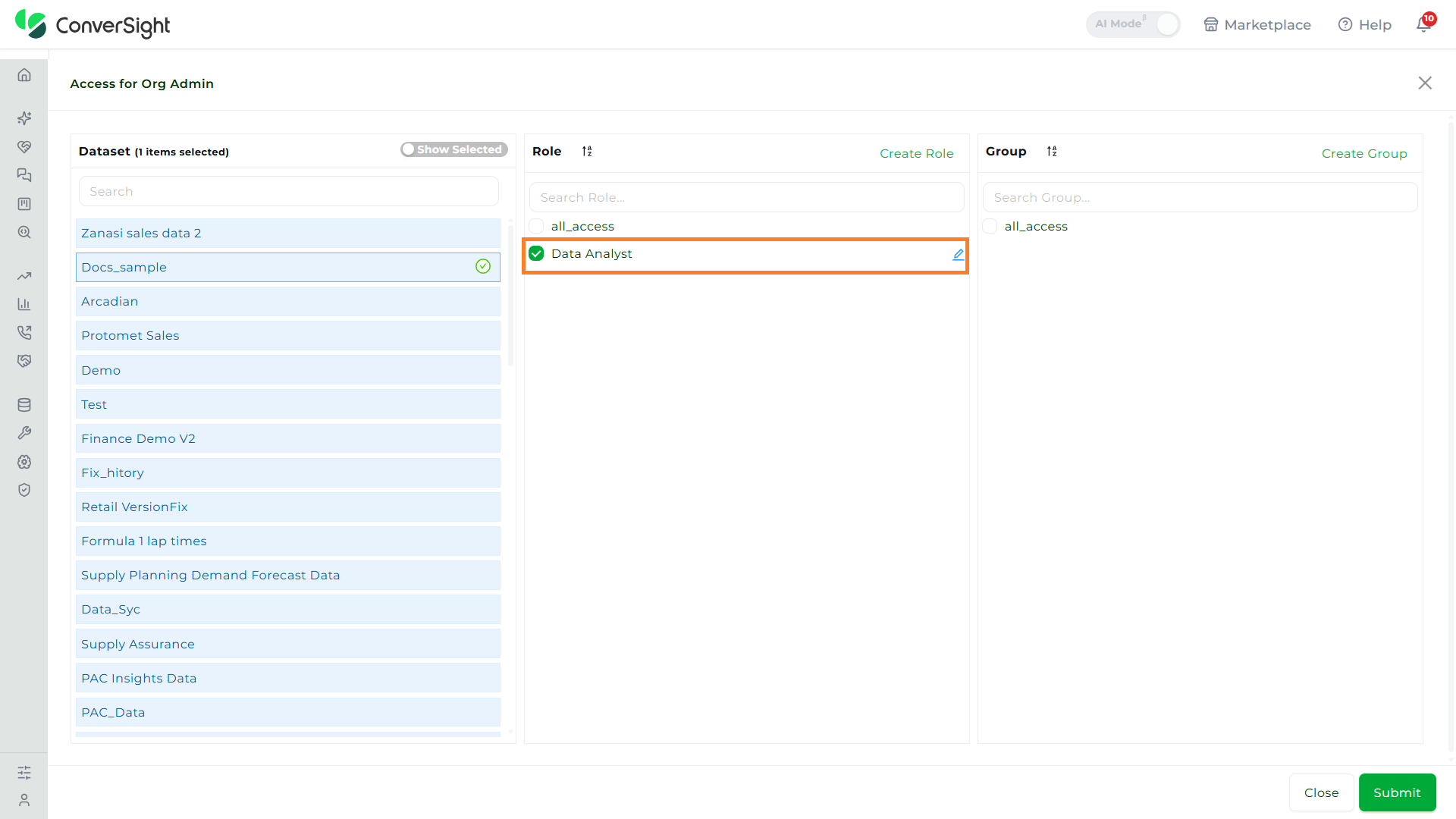
To update a role later, click on the Edit option next to it in the role list.

Groups
A Group is a saved bundle of roles and dataset access. Instead of giving each user the same set of roles and datasets one by one, an administrator can put those users into a group and apply the bundle once. Everyone in the group then inherits the same access automatically.
Groups are managed from the per-user ACTIONS → Access menu on a user row, in the same Access for <user> panel used for roles.
Step 1: Open the Create Group page
Click on the Create Group option to start creating a new group.

Step 2: Fill in the basic details
In the Basic Details section, enter the group's name and a short description so the group can be identified easily later.

Step 3: Configure the access settings
In the Settings section, choose the roles and dataset access that everyone in this group should have. These settings are applied to every user added to the group, so they only need to be configured here once.

Step 4: Save the group
Click on the Create button at the bottom of the page to save the new group.

The new group now appears in the group list and is ready to receive members.
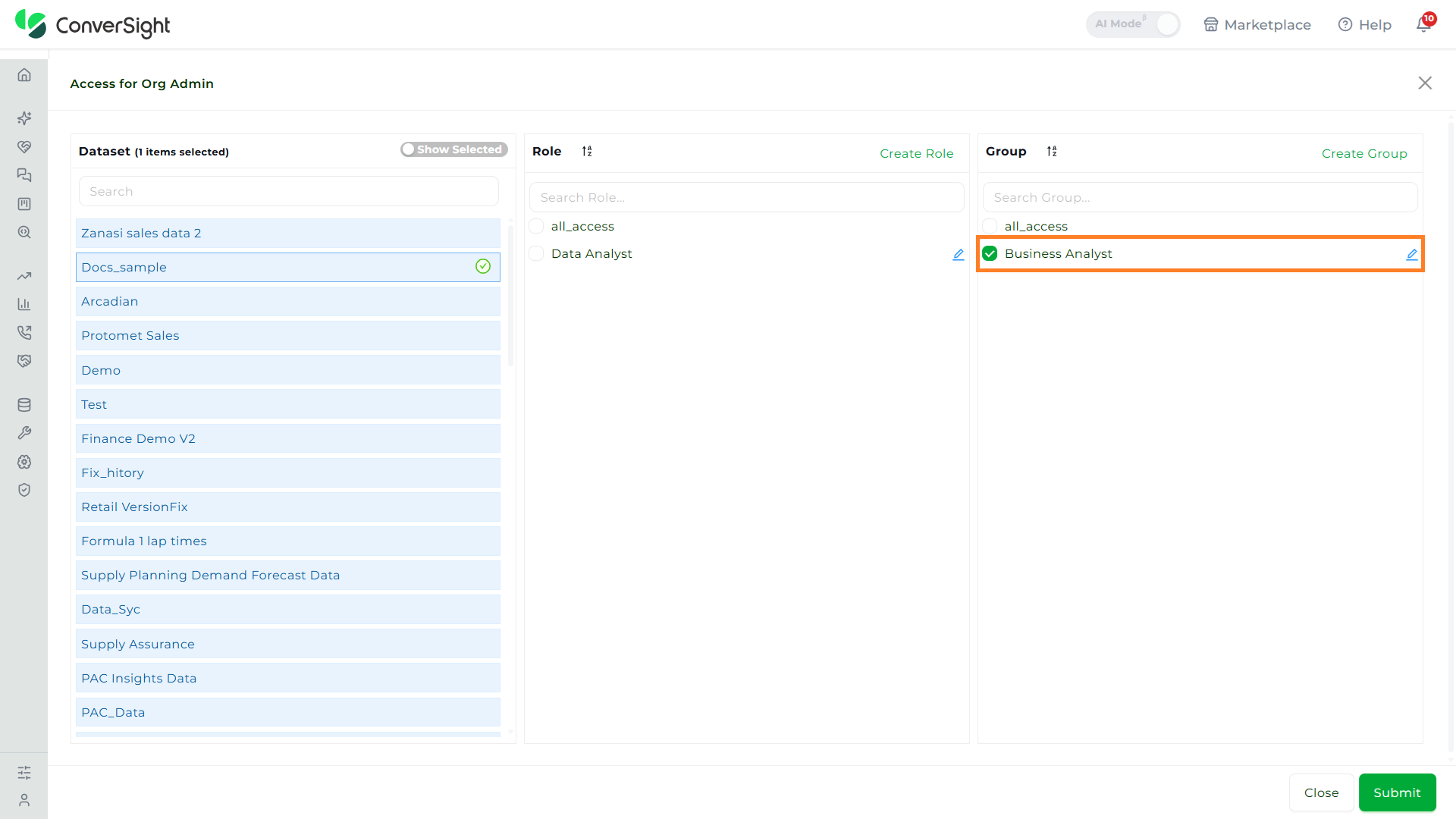
To update a group later, click on the Edit option next to it in the group list.

Editing and Re-Inviting Users
Existing users can be updated in place, and users who have not activated their accounts yet can be sent a fresh invitation without being recreated.
To update a user, click on the Edit option next to the user in the user list. The user's form reopens, where the basic details, roles, additional features, and dataset access can all be changed.
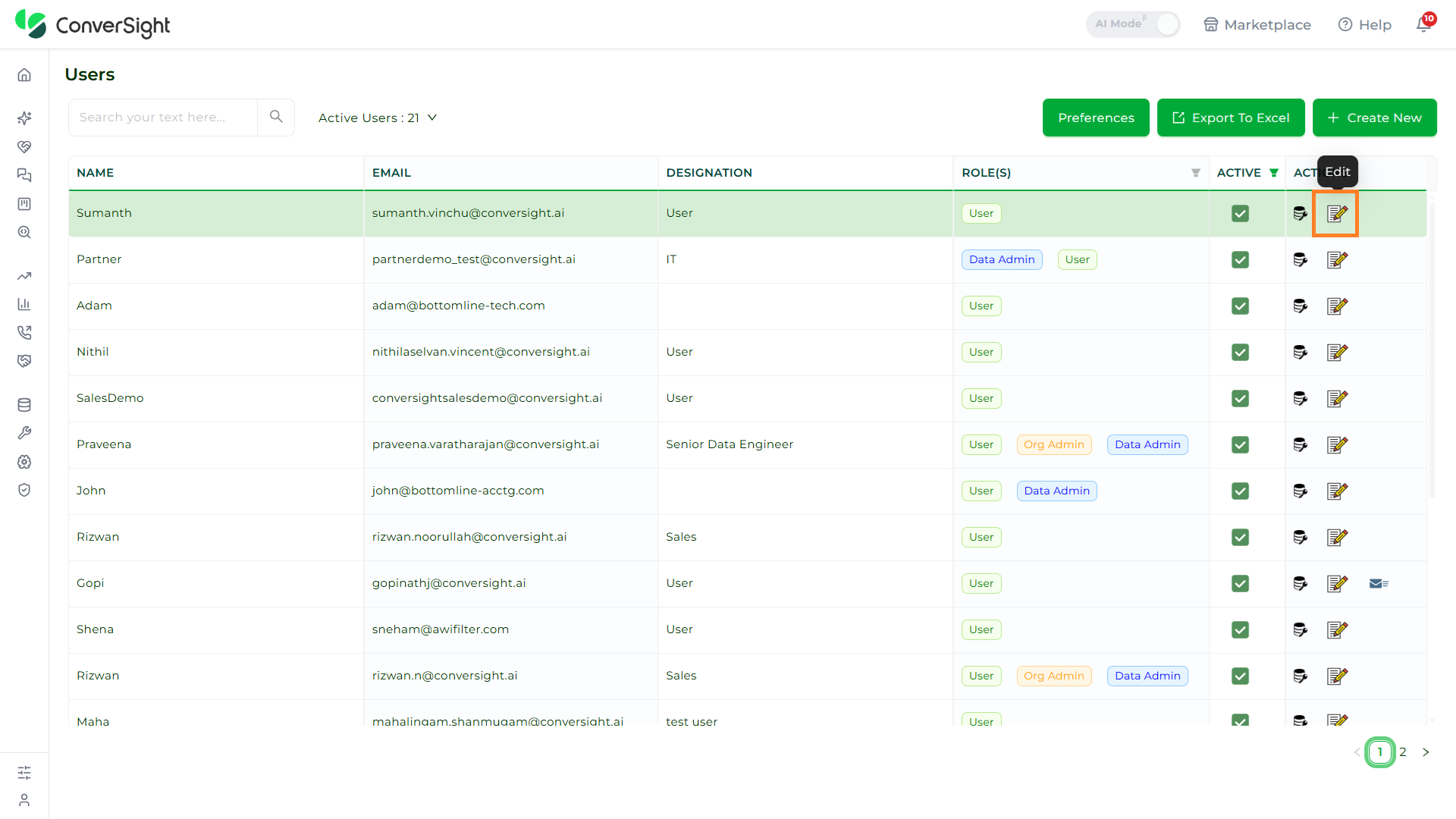
To send a new invitation email, click on the Resend Invitation option next to the user. This is useful when the original invitation has expired or was not received.

Together, Users & Roles gives administrators a complete control surface — from provisioning a single user through SAML to setting the visual theme for the entire organization — making it the central control plane for access and appearance across the ConverSight platform.