Organization Management
Organization Management is the administration console for the entire ConverSight tenancy. Where Users & Roles governs the people inside a single org, Organization Management governs the orgs themselves — multi-tenant administrators use it to monitor activity across all organizations on the platform, provision new orgs, configure the authentication and federation that govern how users sign in, and manage the entitlements that decide what each org can use.
This is primarily a Data Analyst surface at the tenancy level — the same persona who owns the data foundation also owns the access foundation. The module sits inside the Org Admin view of the Users & Roles workspace; it is reached by org-admin-tier users only.
Like the rest of the Controlled Autonomy framework, every action taken here is logged with full audit history — who created which org, who changed authentication settings, who modified entitlements. Tenancy-level governance is the foundation everything above sits on.
Signing in with ConverSight
The Sign In page is where administrators and users authenticate into their ConverSight workspace. It accepts an email address and password, and it also offers a password reset option and single sign-on through Azure AD and Google. Completing the sign-in opens the platform homepage for the organization.

Enter your registered email address in the Email field. This is the address associated with your ConverSight account, and it identifies which user is signing in. The platform uses it together with your password to authenticate the session.
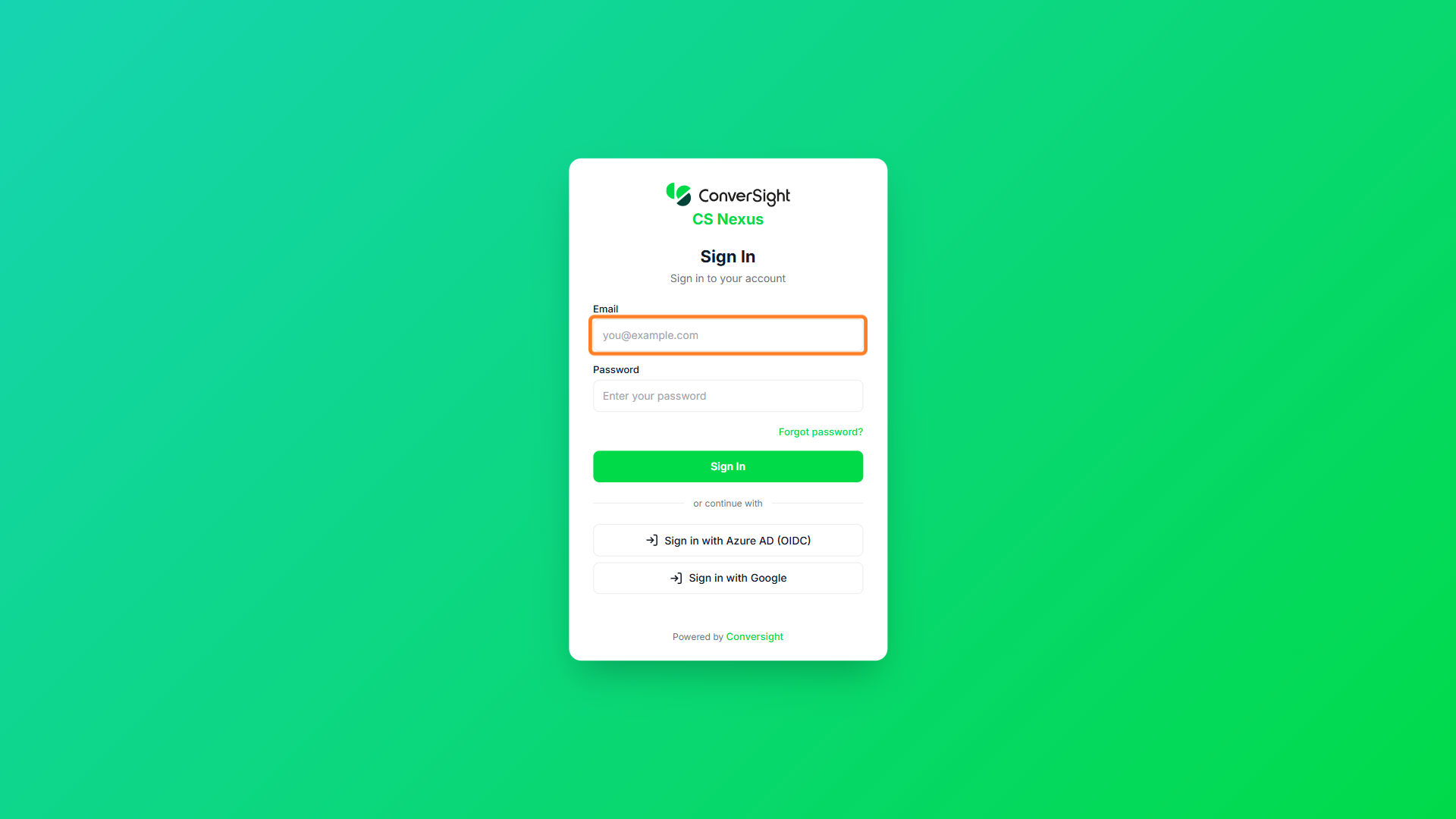
Enter your account password in the Password field. The password is masked as you type to keep it private. It is validated against the email address entered in the previous field.

Click on the Sign In button to authenticate with the entered credentials. The platform verifies the email and password and, on success, starts your session. If the credentials are incorrect, the page keeps you on the sign-in screen so the details can be re-entered.

Forgot Password
The Forgot password? link on the sign-in page starts the password reset flow for users who cannot remember their password. It is located directly below the password field. Selecting it lets the user request a reset link by email instead of signing in with a password.

Clicking the link opens the Reset Password page, which asks for the account's email address. Enter the email address in the Email field and click on the Send Reset Link button. The platform then generates a password reset link for that account if one exists.

Once the request is submitted, the page shows a confirmation message stating that a password reset link will be sent if an account exists for the entered email address. This message confirms the request was received without revealing whether the address is registered. The user can then return to the sign-in page using the Back to Sign In option.

Sign In with Azure AD
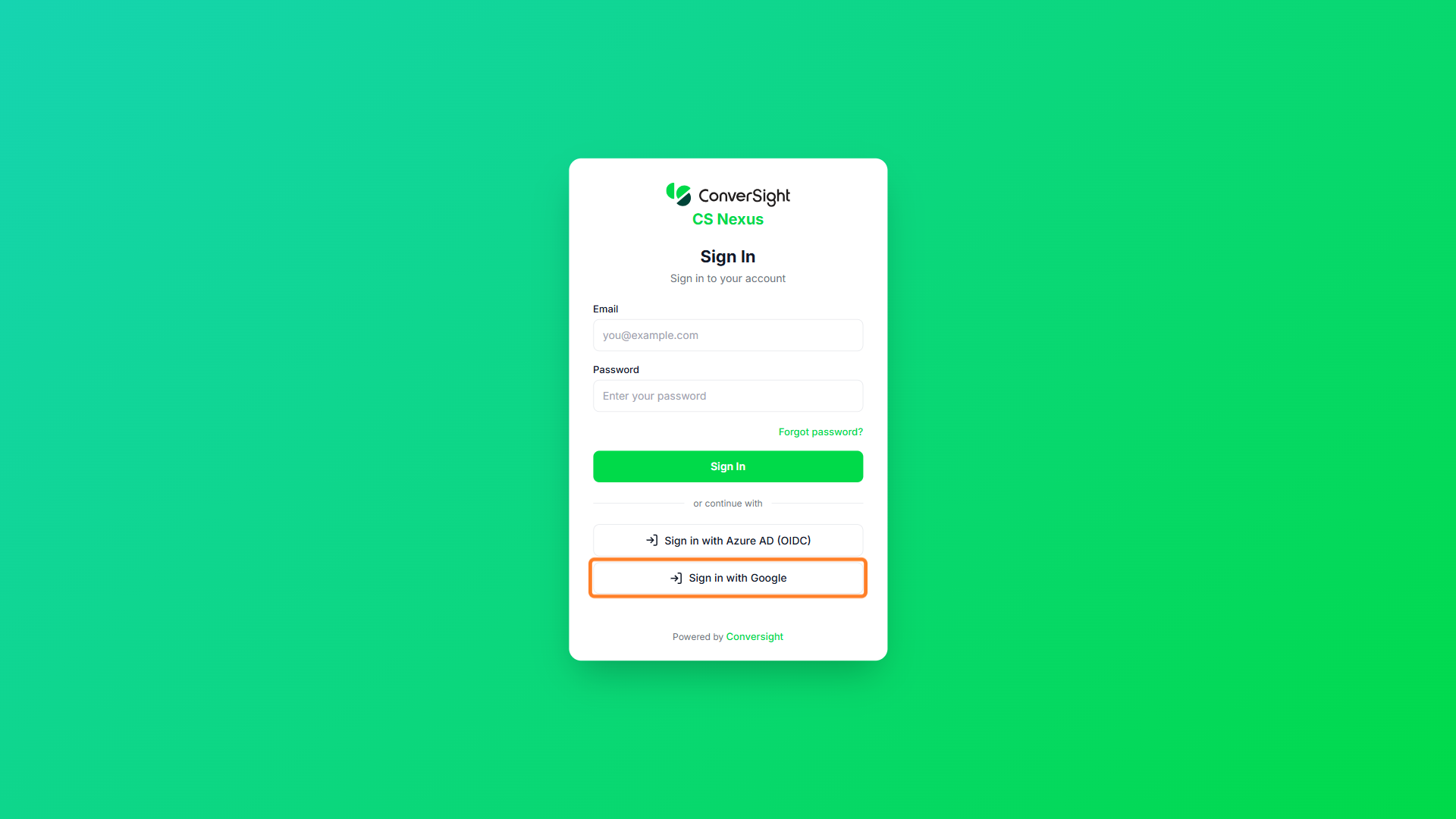
The Sign in with Azure AD (OIDC) option lets users authenticate through their organization's Azure Active Directory instead of an email and password. It is intended for organizations that have configured Azure AD single sign-on. Selecting it redirects the user to the Microsoft sign-in page, where authentication is completed before returning to ConverSight.

Sign In with Google
The Sign in with Google option lets users authenticate with a Google account. It provides a single-click alternative to entering credentials for organizations that allow Google sign-in. Selecting it redirects the user to the Google sign-in page to complete authentication before returning to ConverSight.
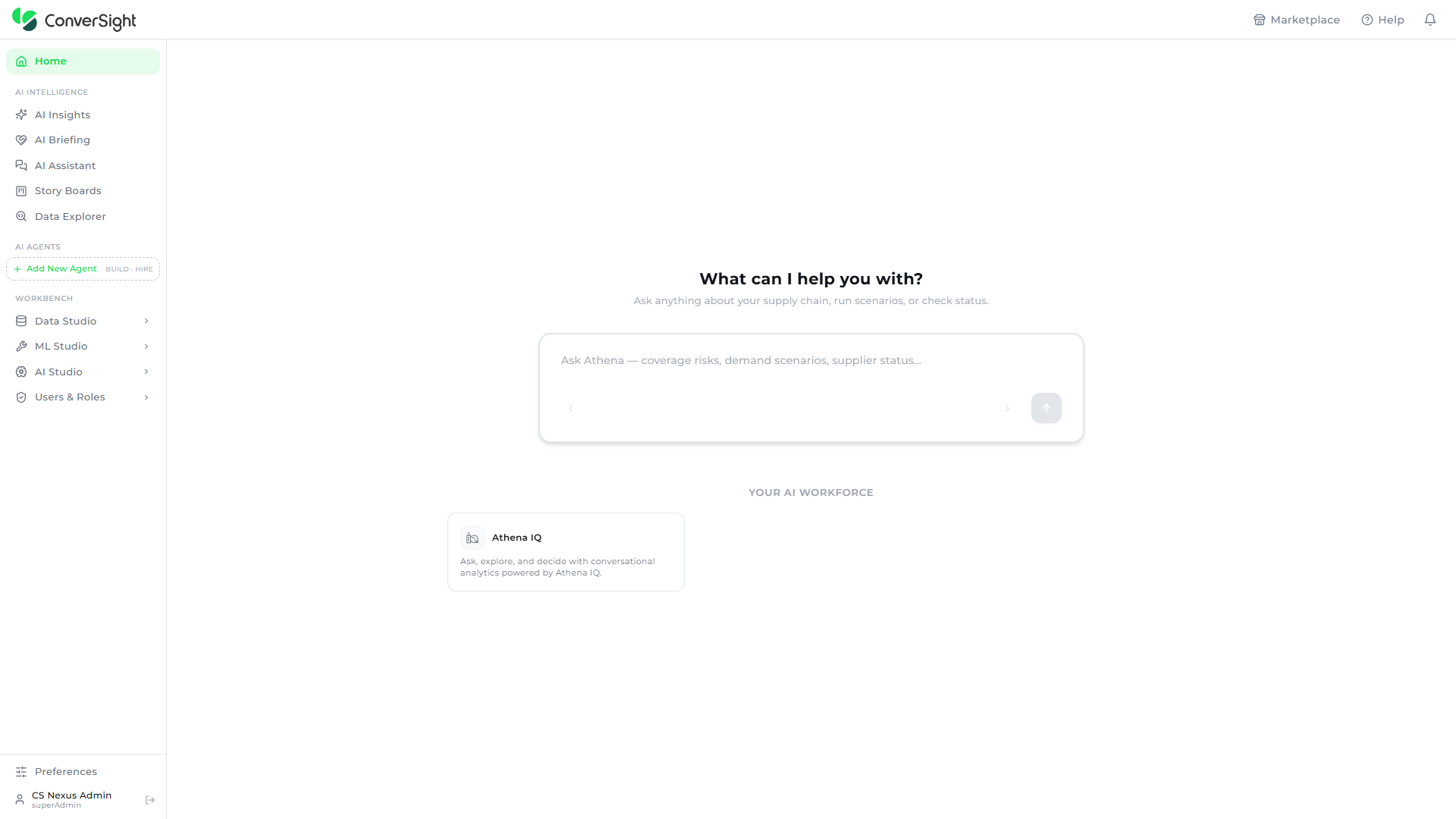
After a successful sign-in, the platform opens to the homepage for your organization.
Accessing Organization Management
To access Organization Management, click on the Users & Roles option in the left navigation panel of the ConverSight platform. This opens the Users & Roles workspace, which is the access management area of the platform.

The Users & Roles workspace presents the available modules. It provides two modules — User Management, where users, roles, and groups are managed, and Org Admin, the administration console for managing organizations, users, and authentication settings. Organization Management is delivered through the Org Admin module.
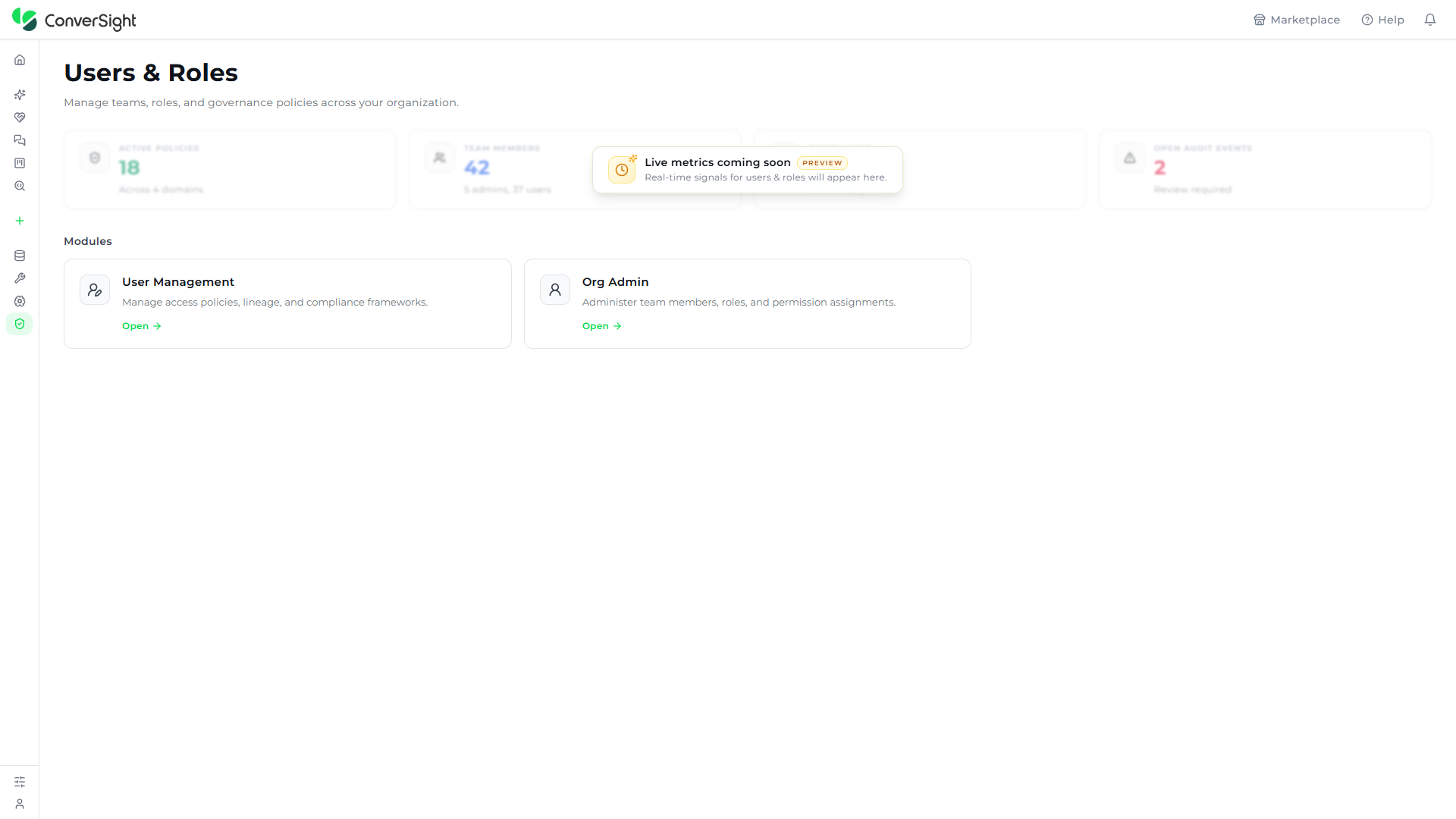
From the modules displayed, click on the Org Admin card to enter the Organization Management console. The console opens to the Dashboard, from which every other area is reached.

Dashboard
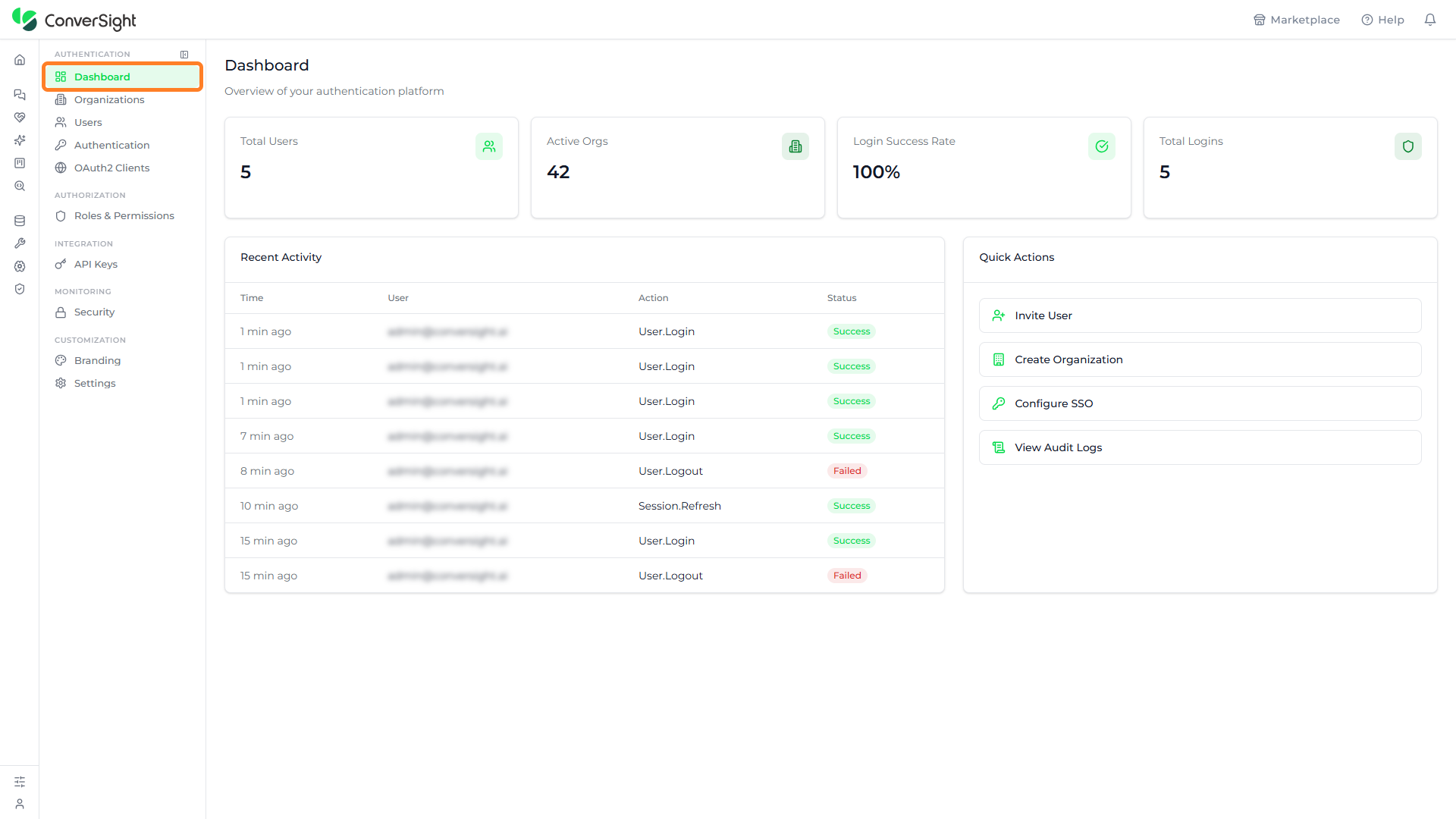
The Dashboard is the default view of the Org Admin console and summarizes the authentication health of the organization. It presents headline metrics at the top, a record of recent events, and a panel of common administrative tasks. Administrators use it as the starting point for monitoring access and moving into the other areas of the console.
The Dashboard presents four summary cards:
| Card | Description |
|---|---|
| Total Users | Shows the number of users provisioned in the organization, giving administrators an immediate sense of how large their user base is. |
| Active Orgs | Reports how many organizations are currently active, helping administrators understand the scope of the tenants they manage. |
| Login Success Rate | Expresses the share of sign-in attempts that completed successfully, surfacing authentication health and highlighting potential access problems. |
| Total Logins | Counts the sign-ins recorded for the organization, indicating how actively the platform is being used over time. |
Recent Activity
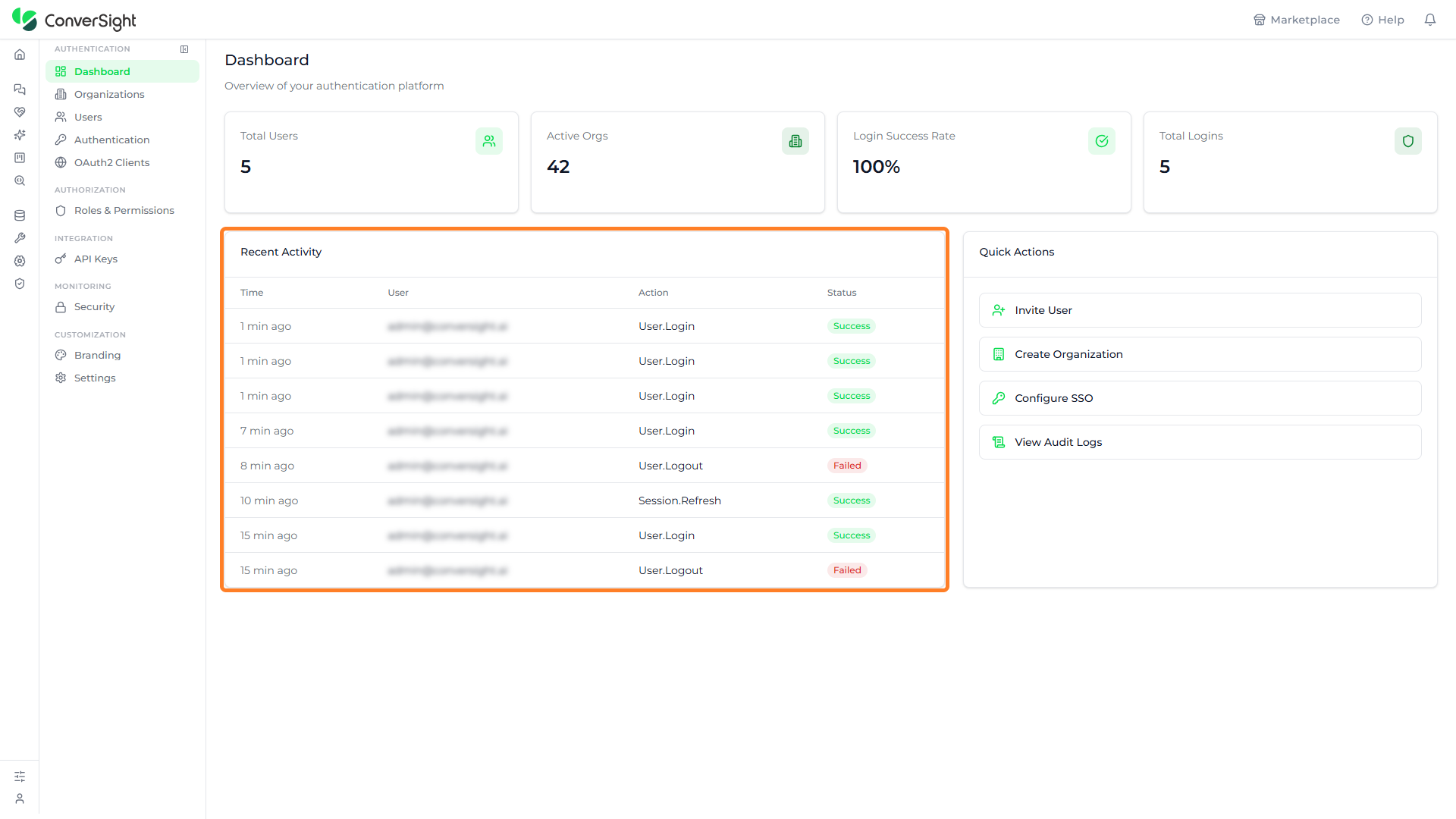
The Recent Activity panel lists the most recent authentication events in the organization. Each row records the time of the event, the user who triggered it, the action performed — such as a sign-in or an organization update — and the resulting status. Administrators use this panel to confirm expected activity and to spot unexpected access at a glance.
Quick Actions
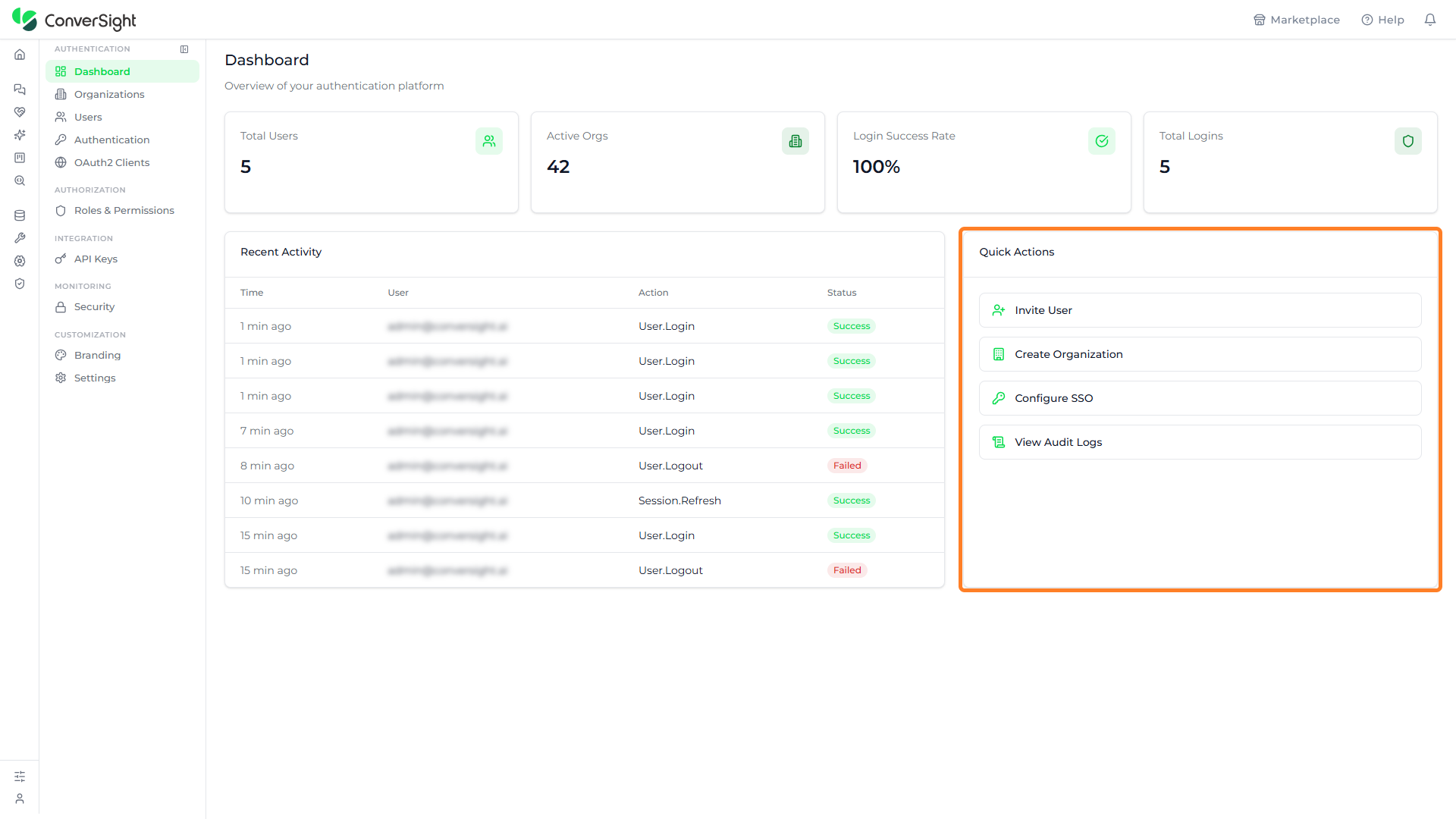
The Quick Actions panel on the Dashboard launches common administrative tasks directly from the Dashboard. Each item opens a different area of the console so administrators can start a task without navigating the side menu first. The panel lists four actions, described below in the order they appear.
Invite User
The Invite User option is a shortcut to the Users page. Click on it in the Quick Actions panel to open the Users page, where you add a new user. See Users below for the full page.

Create Organization
The Create Organization option opens the form for adding a new organization. Click on it in the Quick Actions panel to start creating one. See Creating Organizations below for every field.

Configure SSO
The Configure SSO option is a shortcut to the Authentication page. Click on it in the Quick Actions panel to open the page where sign-in methods are configured. See Authentication below for the full page.

View Audit Logs
The View Audit Logs option opens the Audit Logs page. Click on it in the Quick Actions panel to review the record of platform events.

Organizations
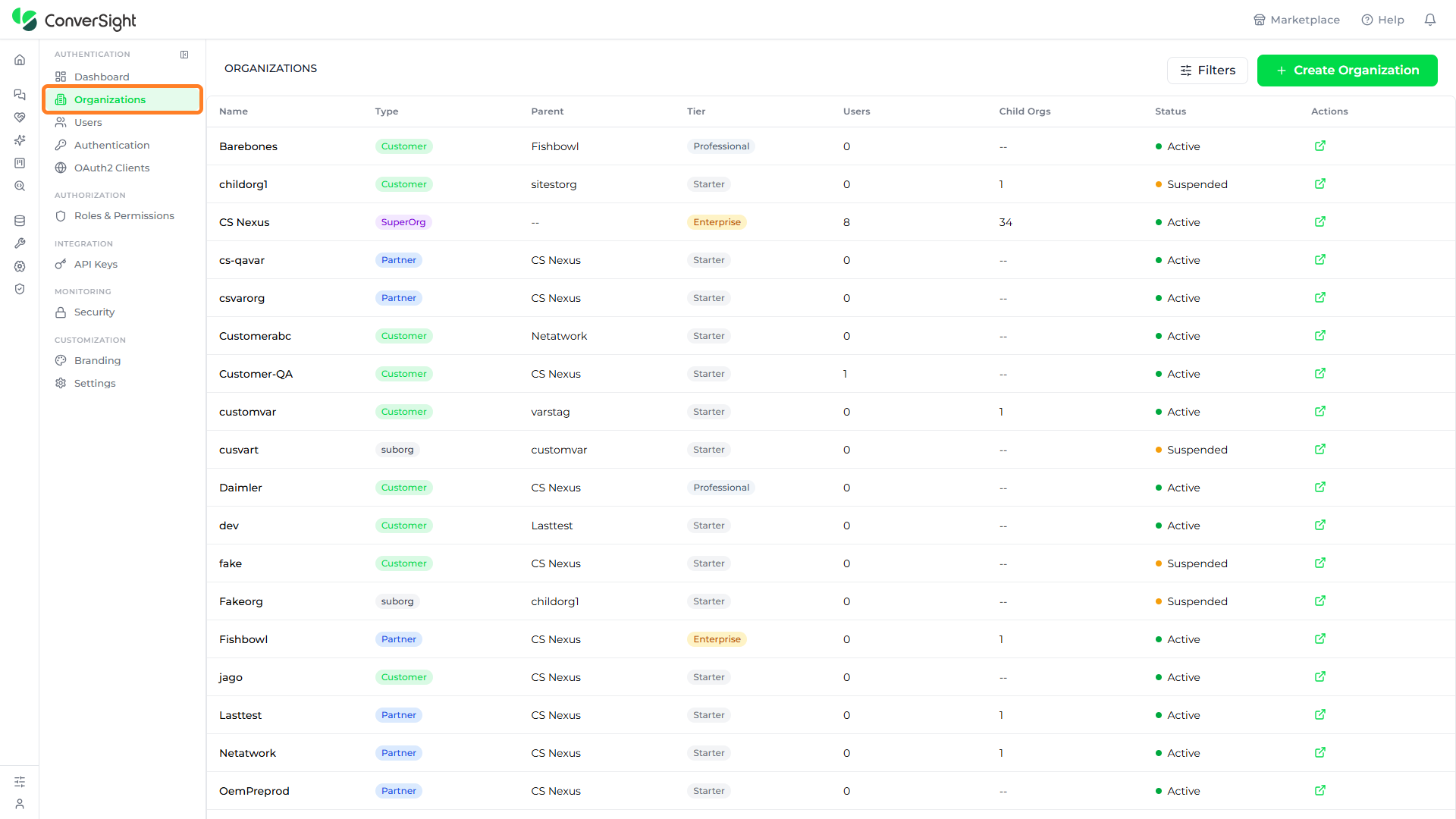
The Organizations page lists every organization managed from the Org Admin console. It is opened by clicking on the Organizations option in the console navigation panel. The page shows each organization in a table and provides controls to create, filter, and manage them.
The Organizations list displays the following columns:
| Column | Description |
|---|---|
| Name | Identifies the organization by its name. |
| Type | Indicates the organization type, such as Customer, Partner, SuperOrg, or suborg. |
| Parent | Shows the parent organization the entry belongs to, where one applies. |
| Tier | Reflects the subscription tier, such as Starter, Professional, Business, or Enterprise. |
| Users | Counts the users provisioned in the organization. |
| Child Orgs | Counts the child organizations nested under the entry. |
| Status | Reports whether the organization is Active or Suspended. |
| Actions | Opens the organization's details panel for management. |
Creating Organizations
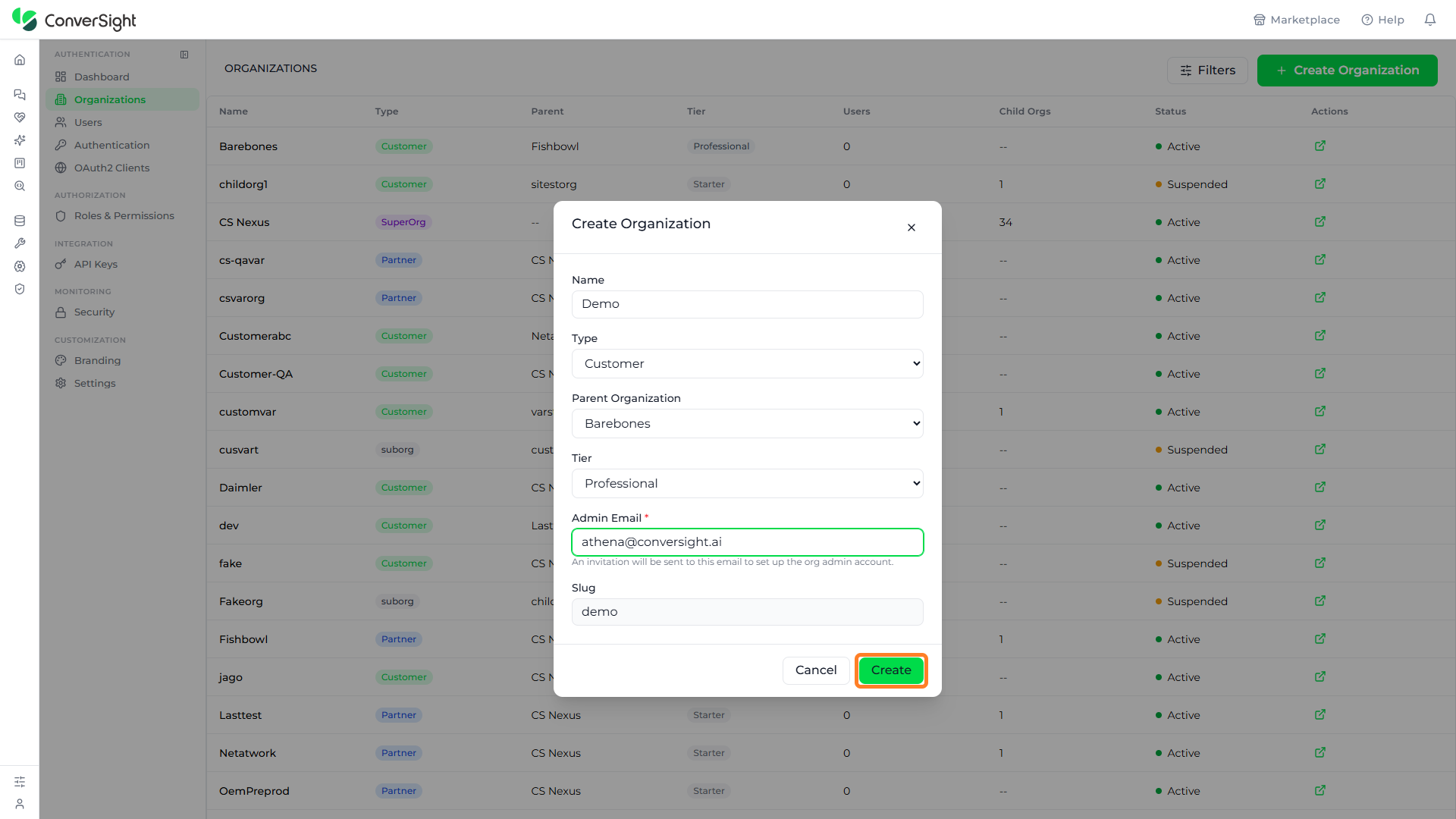
The Create Organization button on the Organizations page opens a form for adding a new organization to the console. The form captures the following fields:
| Field | Description |
|---|---|
| Name | The name of the new organization as it appears in the list. |
| Type | The organization type — Customer, SuperOrg, Partner, or suborg. |
| Parent Organization | The parent organization the new organization is created under. |
| Tier | The subscription tier — Professional, Starter, Enterprise, or Business. |
| Admin Email | The email address that receives an invitation to set up the organization's admin account. |
| Slug | The URL-friendly identifier, generated automatically from the name. |
Click on the Create Organization button at the top right of the Organizations page to open the form.

The Create Organization form opens as a popup. Enter the Name, choose the Type and Tier from their dropdowns, enter the Admin Email, and review the auto-generated Slug.

Once the details are complete, click on the Create button to create the organization. Click on the Cancel button to discard the entries without creating it.
Filtering Organizations
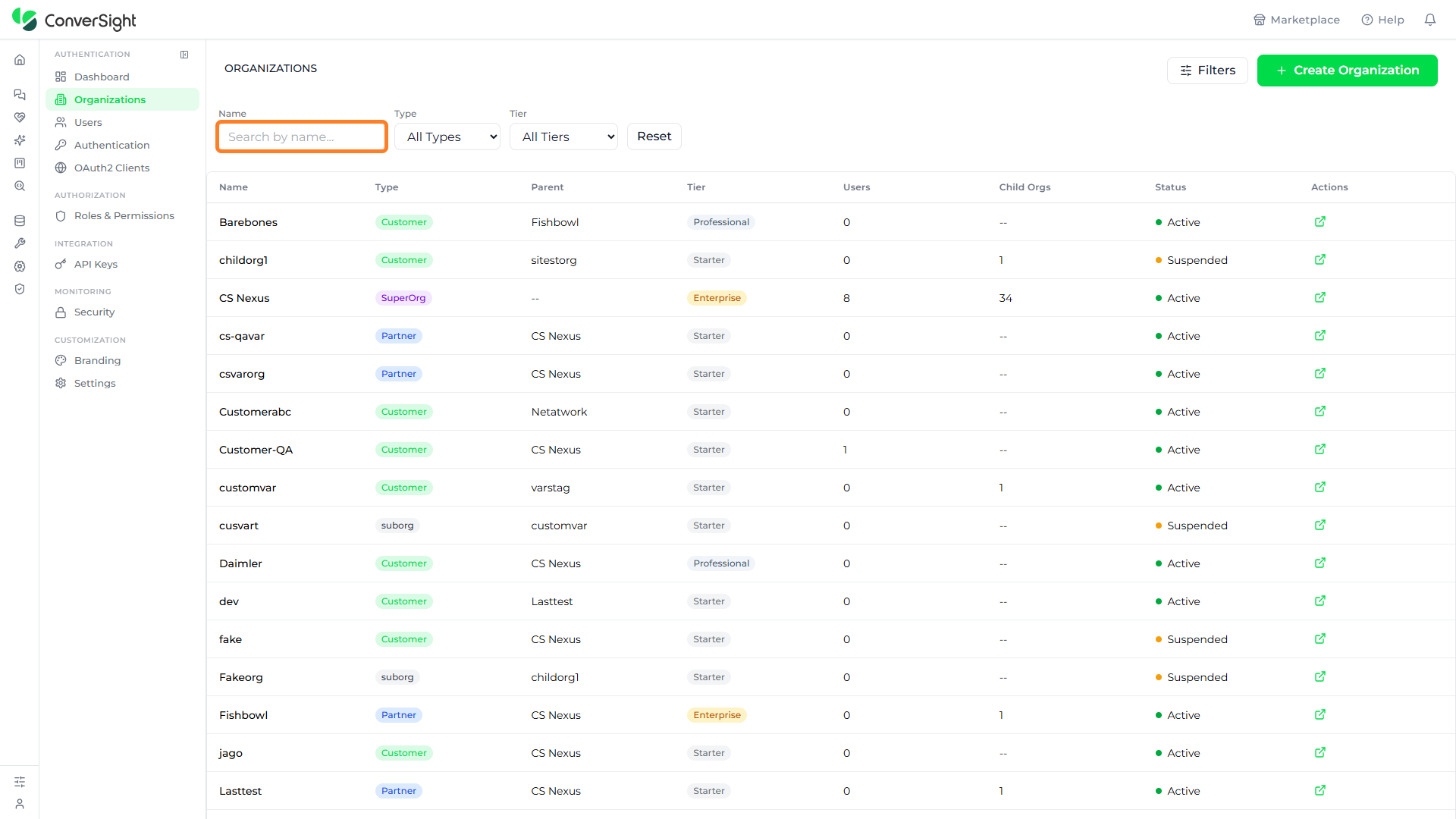
The Filters option narrows the Organizations list so administrators can find specific organizations in a long directory. Click on the Filters button to open the filter controls above the table. The controls combine a name search with type and tier selectors.

Filter by Name
The Name field filters the list by organization name. Enter text into the field to match organizations whose name contains the entered characters. The table updates to show only the matching organizations.
Filter by Type
The Type dropdown filters the list by organization type. Select a value to limit the table to that type, choosing from All Types, Customer, SuperOrg, Partner, or suborg. Selecting All Types removes the type restriction.

Filter by Tier
The Tier dropdown filters the list by subscription tier. Select a value to limit the table to that tier, choosing from All Tiers, Professional, Starter, Enterprise, or Business.

Reset
Click on the Reset button to clear the name, type, and tier filters at once and restore the full list of organizations.

Organization Actions
The Actions column provides a control that opens an organization's details panel for management. Click on the control in the Actions column of an organization's row to open its panel.
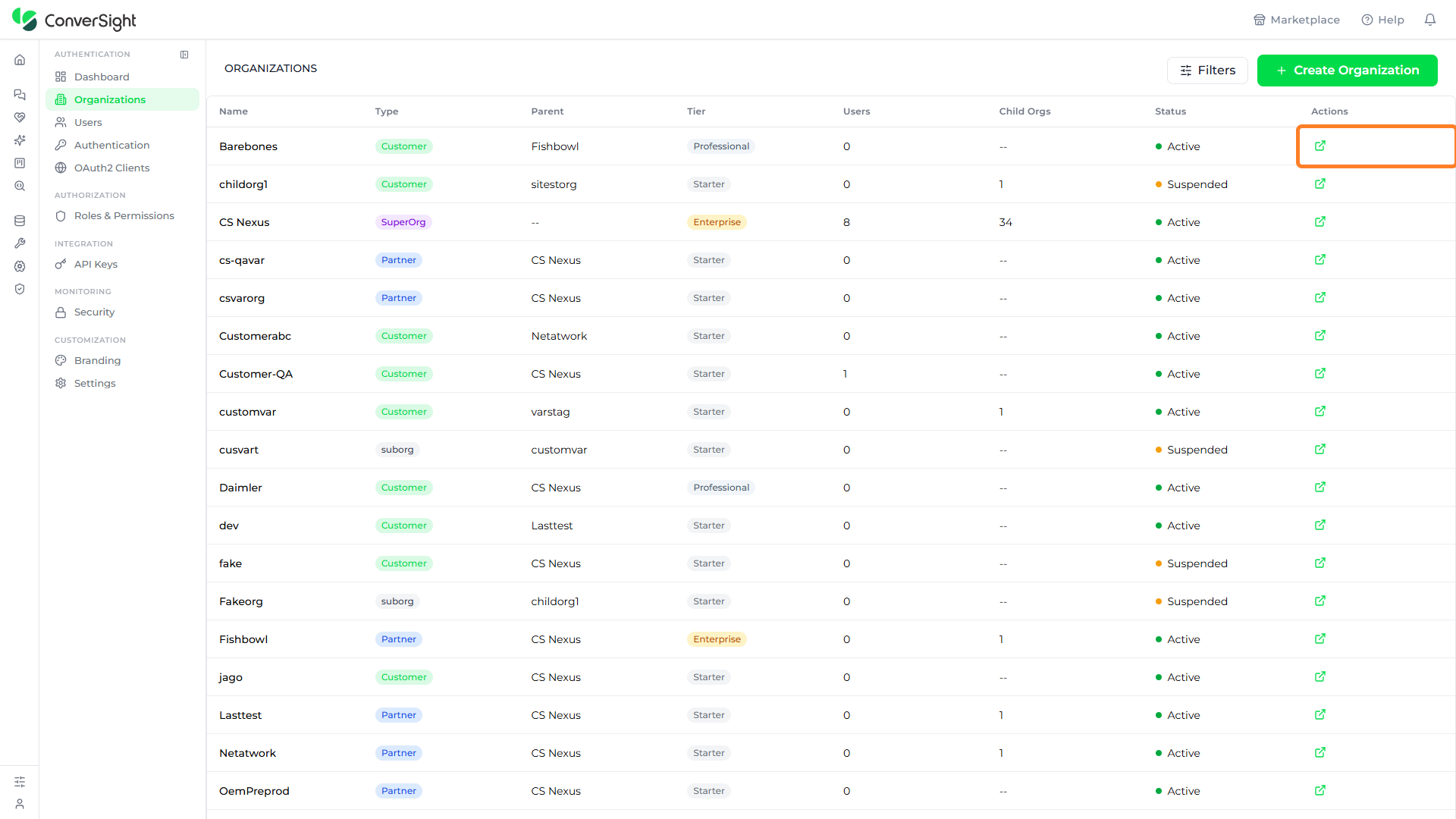
The details panel opens on the right. At the top, it shows the organization's Type, Tier, and Status as labels — for example, Customer, Professional, and Active.

Below the labels, the panel shows the organization's Parent Org, its number of Users, and the date it was Created.

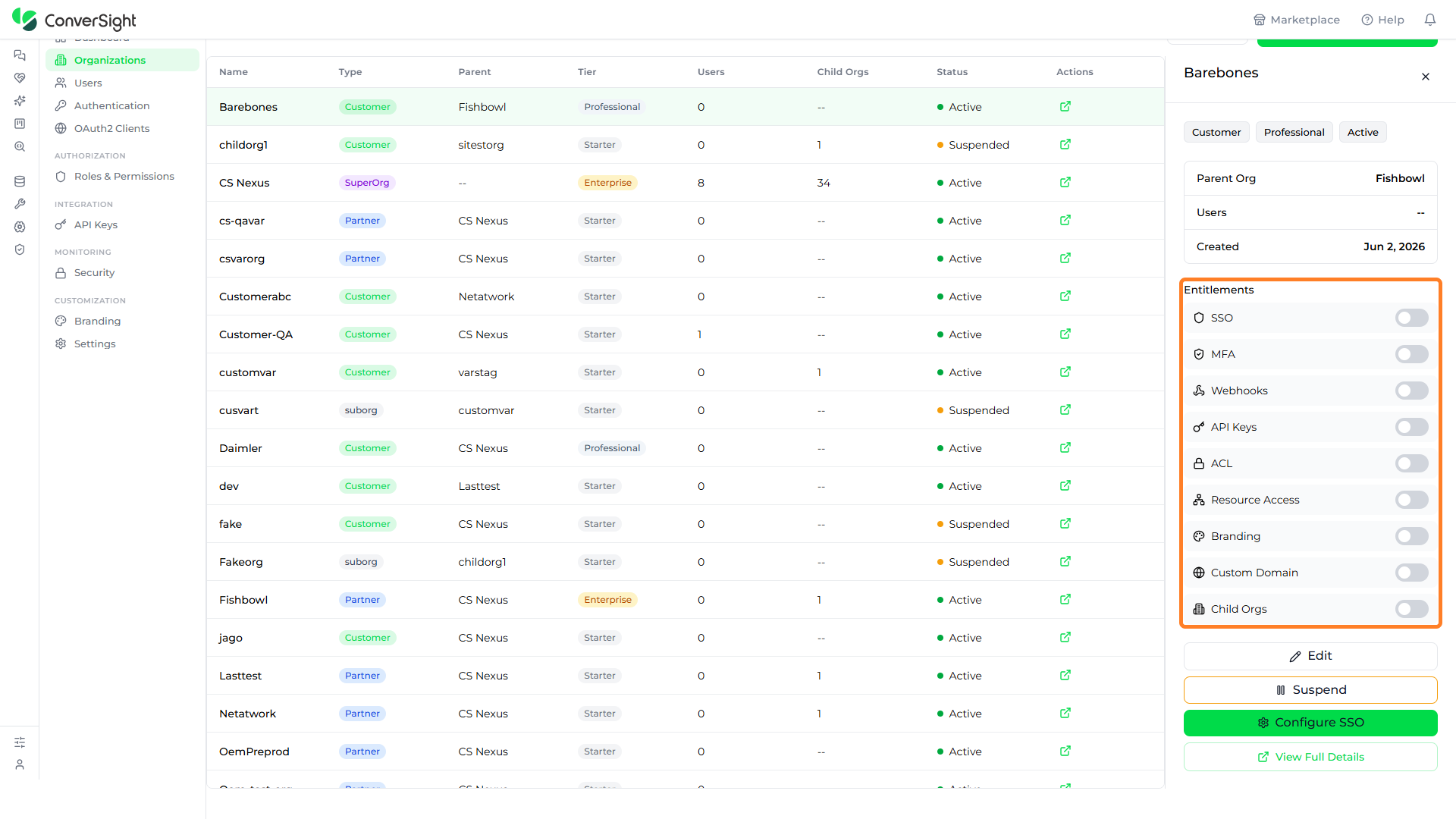
Entitlements
The Entitlements section controls which platform capabilities the selected organization is allowed to use. Each capability has its own toggle switch — turning a switch on grants the organization access to that capability, and turning it off removes it. Because entitlements are set per organization, administrators can tailor the feature set to each organization's subscription and needs, enabling advanced capabilities for some organizations while keeping others on a more limited set. Any change applies to every user in that organization.
| Entitlement | Description |
|---|---|
| SSO | Enables single sign-on connections for the organization. |
| MFA | Allows users in the organization to use multi-factor authentication. |
| Webhooks | Permits event-driven notifications to external endpoints. |
| API Keys | Allows the creation of programmatic access keys for integrations. |
| ACL | Enables resource-level access control for fine-grained permissions. |
| Resource Access | Controls access to platform resources for the organization. |
| Branding | Allows logo, color, and email template customization. |
| Custom Domain | Allows sign-in pages to be served on the organization's own domain. |
| Child Orgs | Permits the organization to create and manage child organizations. |
Edit
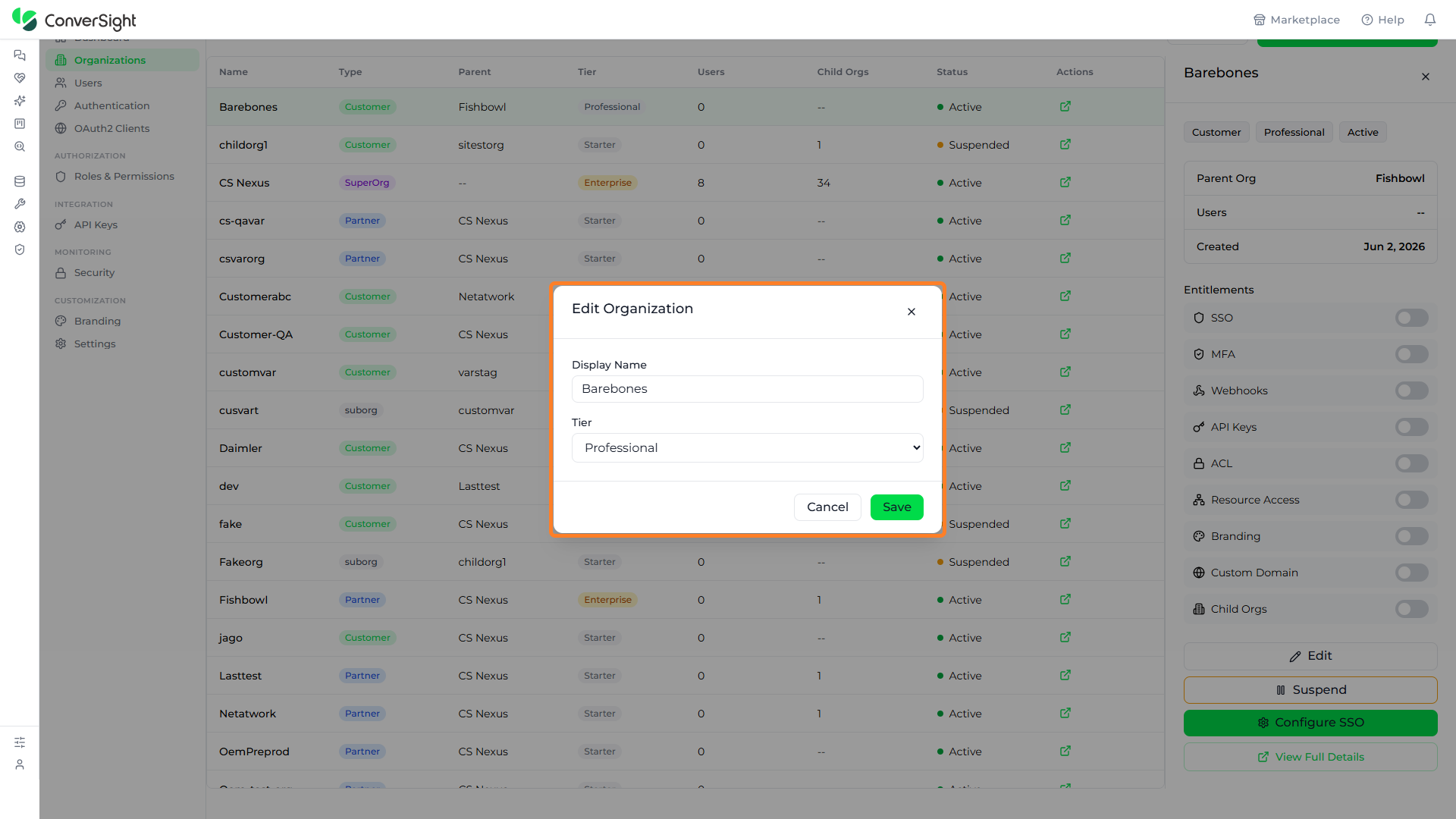
The Edit action opens the Edit Organization page, where the organization's Display Name and Tier can be updated. If you need to make modifications, update these fields and then click on the Save button to apply the changes. Click on the Cancel button to discard them without saving.
Suspend
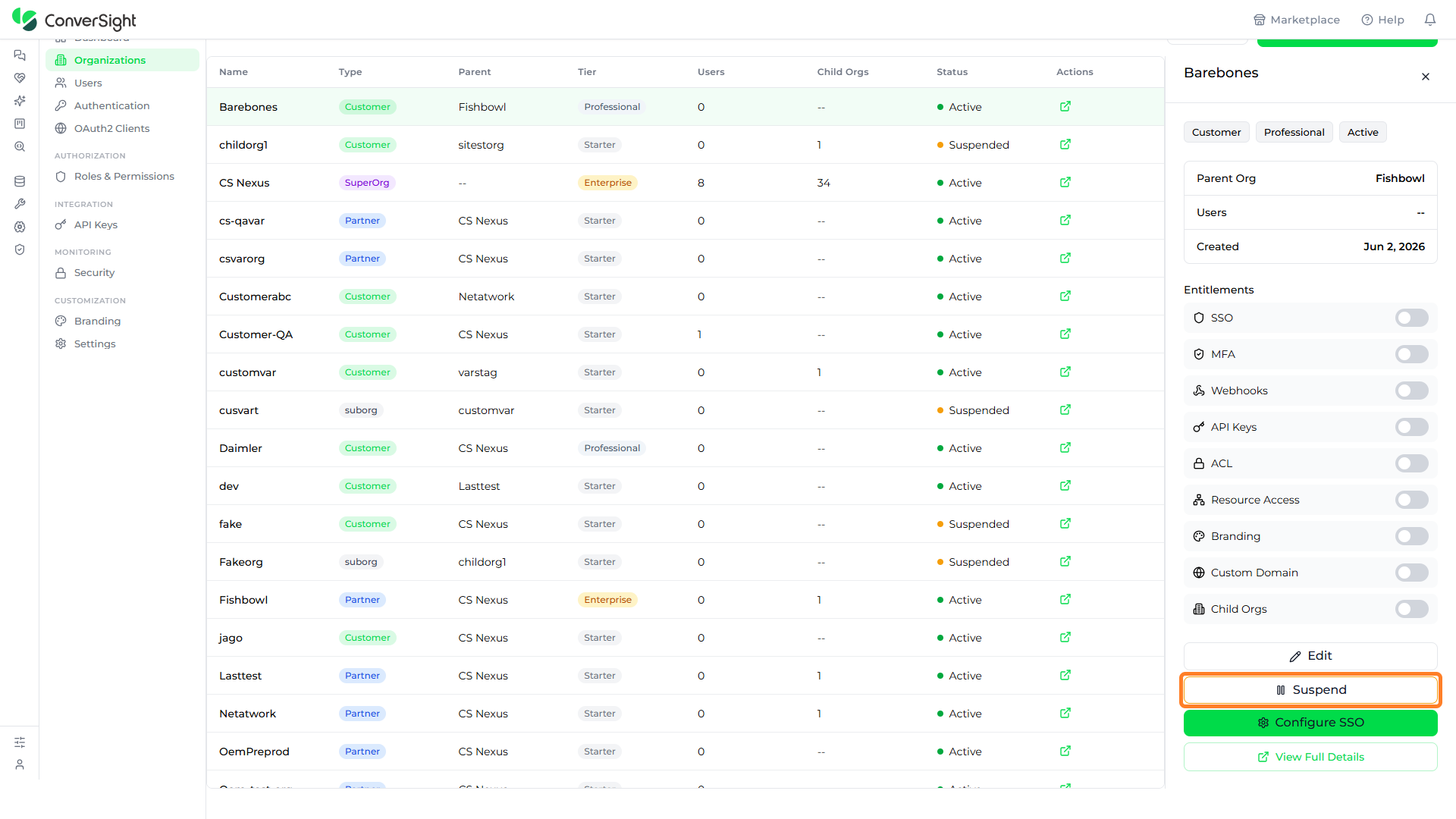
The Suspend action suspends the selected organization. A suspended organization shows the Suspended status in the Organizations list and its users lose access until it is reactivated. Use this action to temporarily disable an organization without deleting it.
Configure SSO
The Configure SSO action opens the single sign-on configuration for the selected organization. It is used to set up how members of that organization authenticate through an identity provider, scoping the SSO settings to that organization rather than the platform as a whole.
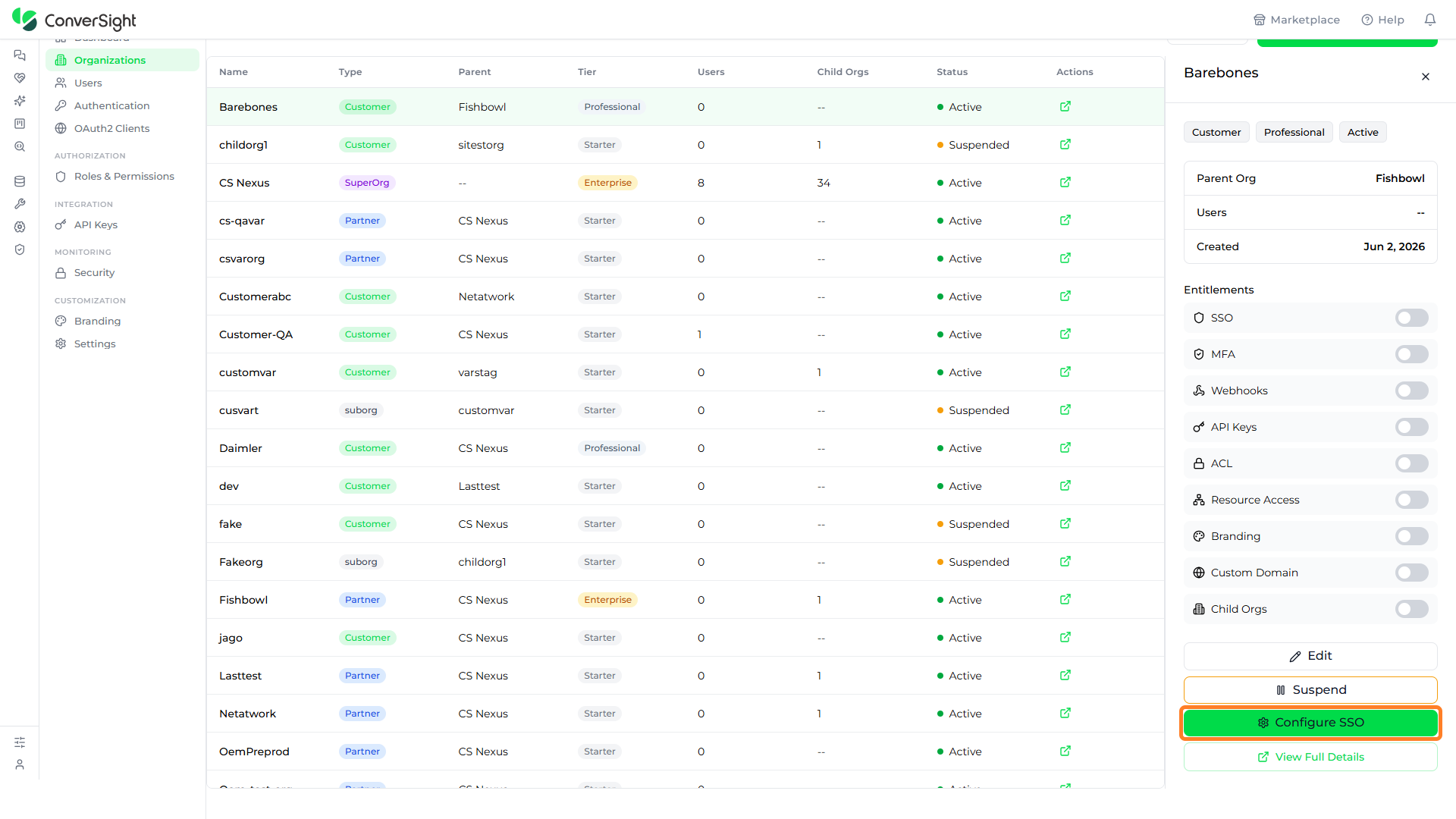
The Configure SSO panel lists the organization's SSO connections. When none have been added yet, it shows a prompt to configure a SAML, OIDC, or LDAP connection along with an Add Connection button for creating one. Below the connections, the SSO Settings control how sign-on behaves for the organization:
| Setting | Description |
|---|---|
| Enforce SSO Only Login | Requires members to sign in through SSO, turning off email-and-password sign-in for the organization. |
| Auto-provision users (JIT) | Creates a user account automatically the first time someone signs in through SSO (just-in-time provisioning). |
| Allow password fallback | Lets members sign in with a password when SSO is unavailable. |
Click on the Add Connection button to add an identity provider, adjust the settings as needed, and use Back to org details to return to the details panel.

View Full Details
The View Full Details action opens the organization's full details page. It expands beyond the summary panel to show the complete configuration for the organization on a dedicated page.

The full details page opens on the Overview tab, which lists the organization's core information — its name, type, status, hierarchy path, creation date, slug, tier, and parent organization — alongside summary cards for its users, entitlements, and active sessions, and a set of quick actions. The page is organized into the following tabs:
| Tab | Description |
|---|---|
| Overview | Shows the organization's core information, summary metrics, and quick actions. |
| Users | Lists the users that belong to the organization. |
| Authentication | Shows the organization's sign-in methods and security settings. |
| Settings | Manages the organization's configuration options. |
| Audit | Shows the record of events for the organization. |
The Edit and Suspend controls are available at the top of the page, and the Quick Actions let you invite a user, configure SSO, or view the audit log for the organization.

Users
The Users page provides lifecycle management for every user account in the organization, and is where new users are invited. Click on the Users option in the console navigation panel to open it.
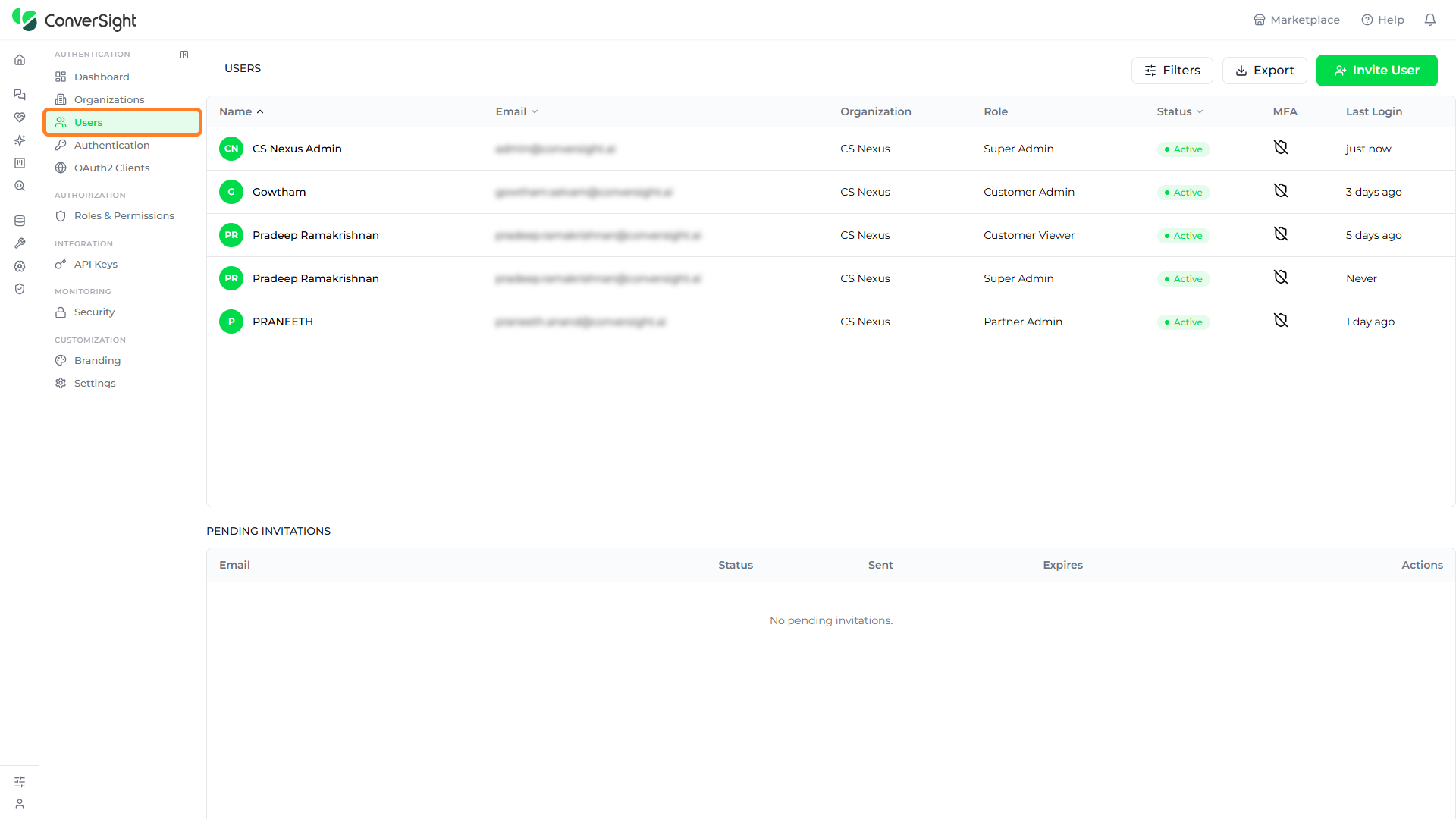
The Users list displays the following columns:
| Column | Description |
|---|---|
| Name | Displays the user's display name. |
| Displays the user's registered email address. | |
| Organization | Displays the organization the user belongs to. |
| Role | Displays the assigned role, such as Super Admin, Customer Admin, Customer Viewer, or Partner Admin. |
| Status | Displays whether the user account is Active or Suspended. |
| MFA | Indicates whether the user has enrolled a multi-factor authentication device. |
| Last Login | Displays the relative time of the user's most recent sign-in. |

Below the table, the Pending Invitations section tracks invitations that have been sent but not yet accepted, showing each invited email address along with its status, when it was sent, and when it expires.
The page header provides three controls — Filters, Export, and Invite User — described below.
Filtering Users
The Filters button opens a row of controls above the user list so administrators can find specific accounts in a long directory. Click on the Filters button to show the controls, which combine a search box with four dropdowns:
| Control | Description |
|---|---|
| Search | Filters the list by matching the entered text against a user's name or email address. |
| Status | Limits the list to a sign-in status, such as Active or Suspended. |
| Role | Limits the list to a single assigned role. |
| Organization | Limits the list to users belonging to a chosen organization. |
| MFA | Limits the list by whether users have enrolled multi-factor authentication. |
Click on Clear filters to remove every filter at once and restore the full list.

Exporting Users
The Export button downloads the current user list as a CSV file, so it can be reviewed offline or kept for compliance records. Click on the Export button to download the file; any filters that are applied are reflected in what is exported.

Inviting Users
The Invite User button opens the invitation form for adding a new user to an organization. Click on the Invite User button to open it.

The invitation form captures the following details:
| Field | Description |
|---|---|
| Email address | The email address the invitation is sent to. |
| Role | The role assigned to the user when they accept the invitation. |
| Organization | The organization the user is added to. |
Once the details are complete, click on the Send Invitation button to send the invitation, or click on the Cancel button to close the form without sending. The invited user then appears in the Pending Invitations section until they accept.

Authentication
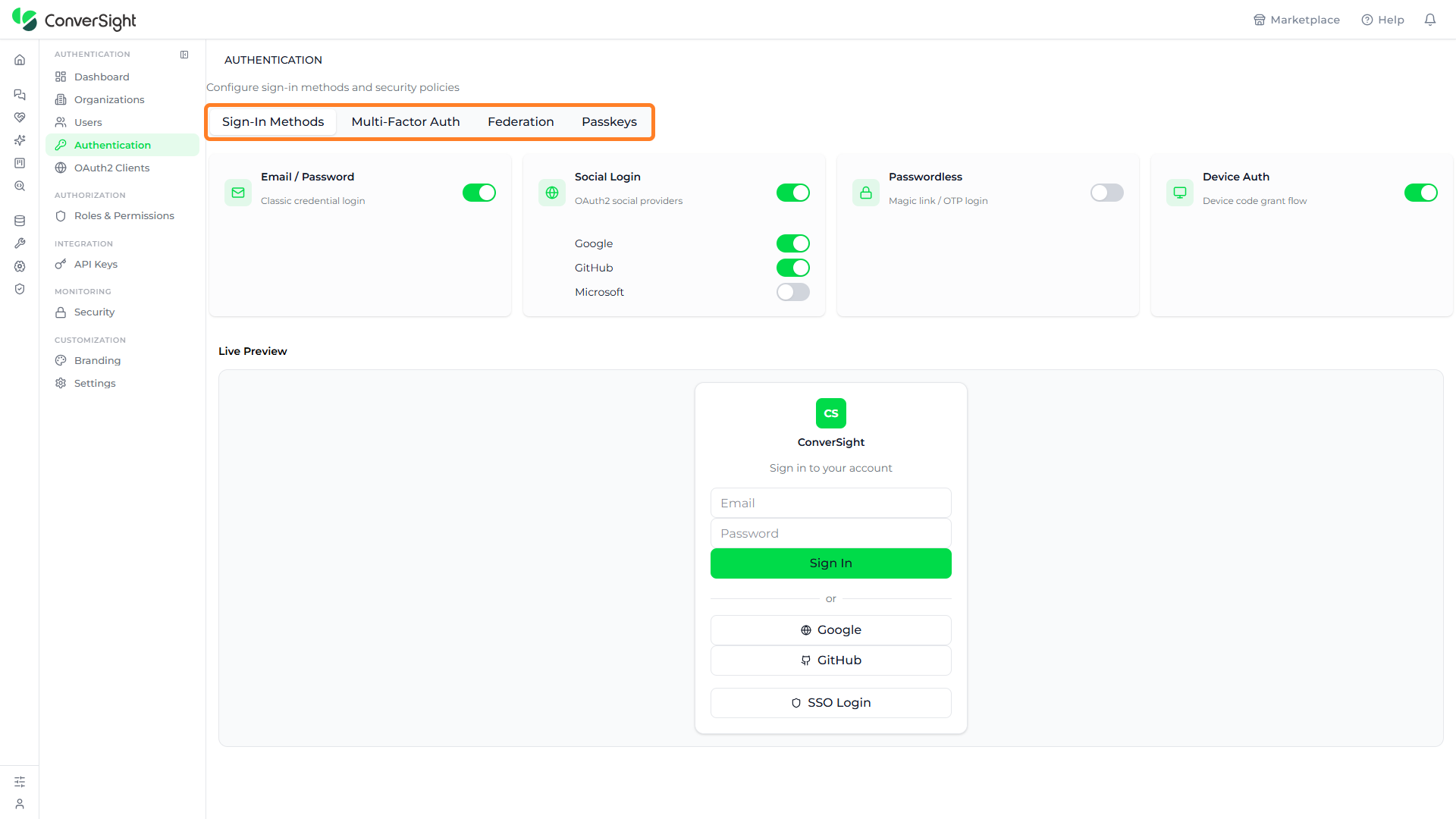
The Authentication page is where the organization's sign-in methods and security policies are configured. Click on the Authentication option in the console navigation panel to open it. The page is organized into four tabs — Sign-In Methods, Multi-Factor Auth, Federation, and Passkeys — described below.
Sign-In Methods
The Sign-In Methods tab controls which methods users can sign in with. Each method has a toggle that turns it on or off, and a Live Preview on the same tab shows how the sign-in page appears to users as the methods change. The available methods are:
| Method | Description |
|---|---|
| Email / Password | Classic credential login with an email address and password. |
| Social Login | Sign-in through OAuth2 social providers. The individual providers — Google, GitHub, and Microsoft — are toggled on or off separately. |
| Passwordless | Magic link and one-time passcode (OTP) login without a password. |
| Device Auth | The device code grant flow for signing in on input-constrained devices. |

Multi-Factor Auth
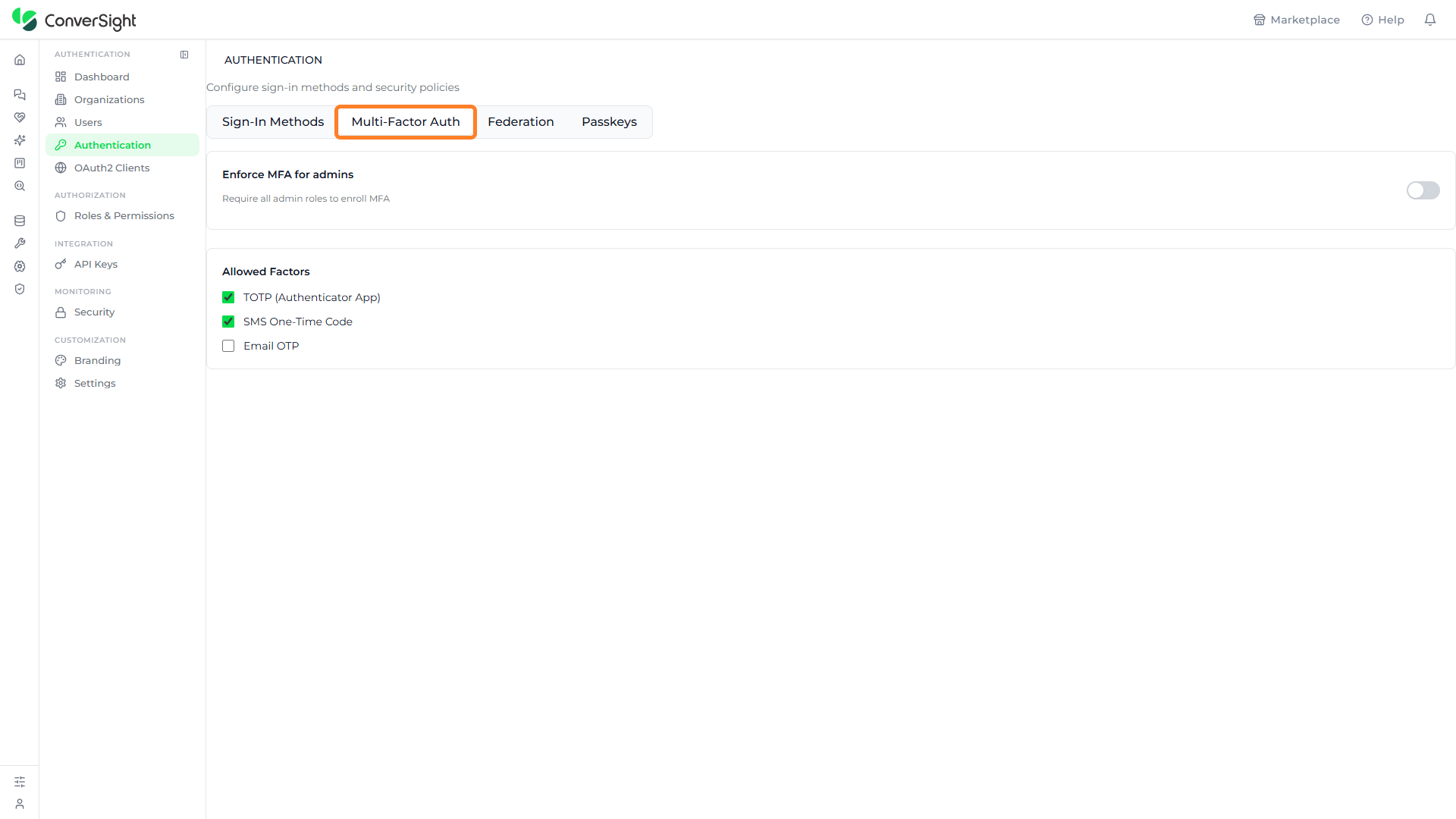
The Multi-Factor Auth tab configures multi-factor authentication (MFA) for the organization. The Enforce MFA for admins toggle requires every admin role to enroll in MFA, and the Allowed Factors list controls which second factors users may enroll:
| Factor | Description |
|---|---|
| TOTP (Authenticator App) | A time-based one-time code generated by an authenticator app. |
| SMS One-Time Code | A one-time code sent by text message. |
| Email OTP | A one-time code sent by email. |
Federation
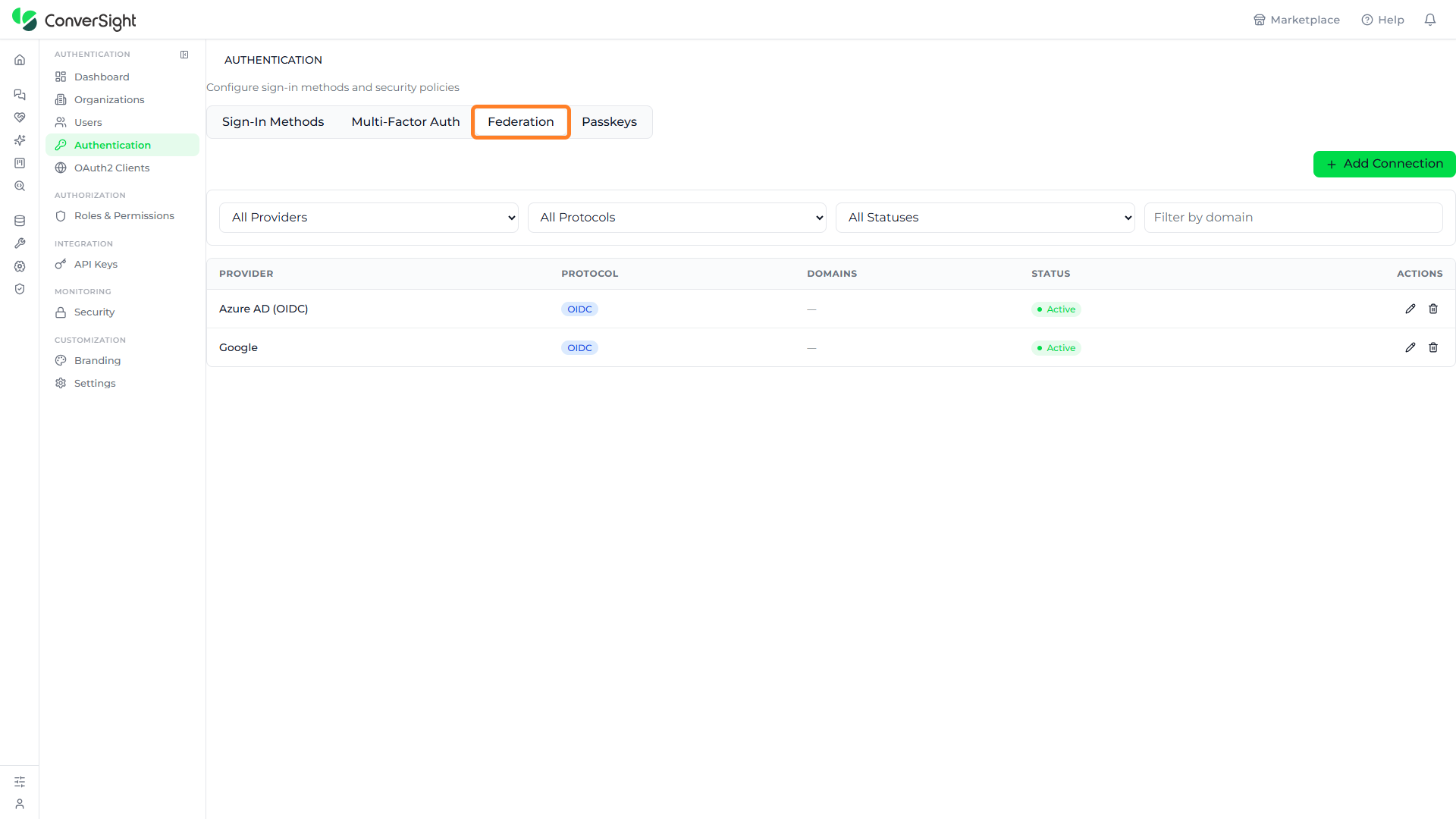
The Federation tab manages enterprise single sign-on connections to external identity providers. Each connection is listed with the following columns:
| Column | Description |
|---|---|
| Provider | The identity provider, such as Azure AD or Google. |
| Protocol | The federation protocol, such as OIDC. |
| Domains | The email domains routed to the connection, where configured. |
| Status | Whether the connection is Active or inactive. |
| Actions | Controls to edit or delete the connection. |
Filtering connections
Use the controls above the list to narrow it. The All Providers, All Protocols, and All Statuses dropdowns filter the connections by identity provider, federation protocol (OIDC, SAML, or LDAP), and connection status, and the Filter by domain field matches connections by their email domain.

Adding a connection
Click on the Add Connection button to open the Add Federation Connection wizard, which walks through six steps. The example below uses the Custom OIDC provider.
Step 1: Provider Selection
Choose one of the available identity providers to start from a pre-filled configuration. For this example, select Custom OIDC, then click on the Next button.

Step 2: Connection Config
Enter all the required details, as described in the table below:
| Field | Description |
|---|---|
| Connection Name | A label that identifies the connection. |
| Protocol | The federation protocol — OIDC, SAML, or LDAP. |
| Issuer URL / Discovery URL | The provider's issuer or .well-known discovery URL. Click on the Discover button to auto-fill the endpoints. |
| Authorization Endpoint | The provider's authorization URL. |
| Token Endpoint | The provider's token URL. |
| Client ID | The client identifier issued by the provider. |
| Client Secret | The client secret issued by the provider. |
| Scopes | A space-separated list of OAuth scopes, such as openid email profile. |

You can also expand Advanced Settings on this step to configure additional, optional connection options. Once the details are complete, click on the Next button to continue.

Step 3: Attribute Mapping
Map each attribute from the identity provider to the matching user field on the platform. Sensible defaults are provided, as shown below:
| Provider attribute | User field |
|---|---|
sub | External ID |
email | |
name | Display Name |
given_name | First Name |
family_name | Last Name |
groups | Groups |
The Avatar URL and Phone fields are optional. Click on Reset to defaults at any time to restore the default mapping. Click on Save with Defaults to continue with these mappings, or Next (or customize) to adjust them first.

Step 4: Role Mapping
Define rules that assign roles based on identity provider attributes. Click on Add Rule to create a rule from an attribute, operator, value, role, and priority. Set the Default Role that applies when no rule matches, choose the behaviour for When no rules match (assign the default role, deny access, or create the user as pending), and the Multi-match strategy (highest priority, most privileged, or first match). Use Test Mapping to check how a sample set of attributes would resolve.

Step 5: Provisioning Policy
Control how users are provisioned when they authenticate through this connection:
| Option | Description |
|---|---|
| Auto-provision users | Automatically creates a user account on first login through this provider. |
| Update profile on login | Syncs the user's attributes from the provider on every login. |
| Restrict email domains | Allows only users whose email belongs to specific domains. |
| Notify admin | Sends a notification to organization admins when a new user is provisioned. |
The New user status setting controls the status assigned to newly provisioned users.

Step 6: Review & Save
Review the provider, connection, attribute mapping, role mapping, and provisioning summary. Click on the Create Connection button to save the connection, or click on Back to make changes.

Editing and deleting connections
Back on the Federation tab, each connection row provides controls in the Actions column. Click on the edit (pencil) icon to change a connection's settings, or click on the delete (trash) icon to remove the connection.

Passkeys
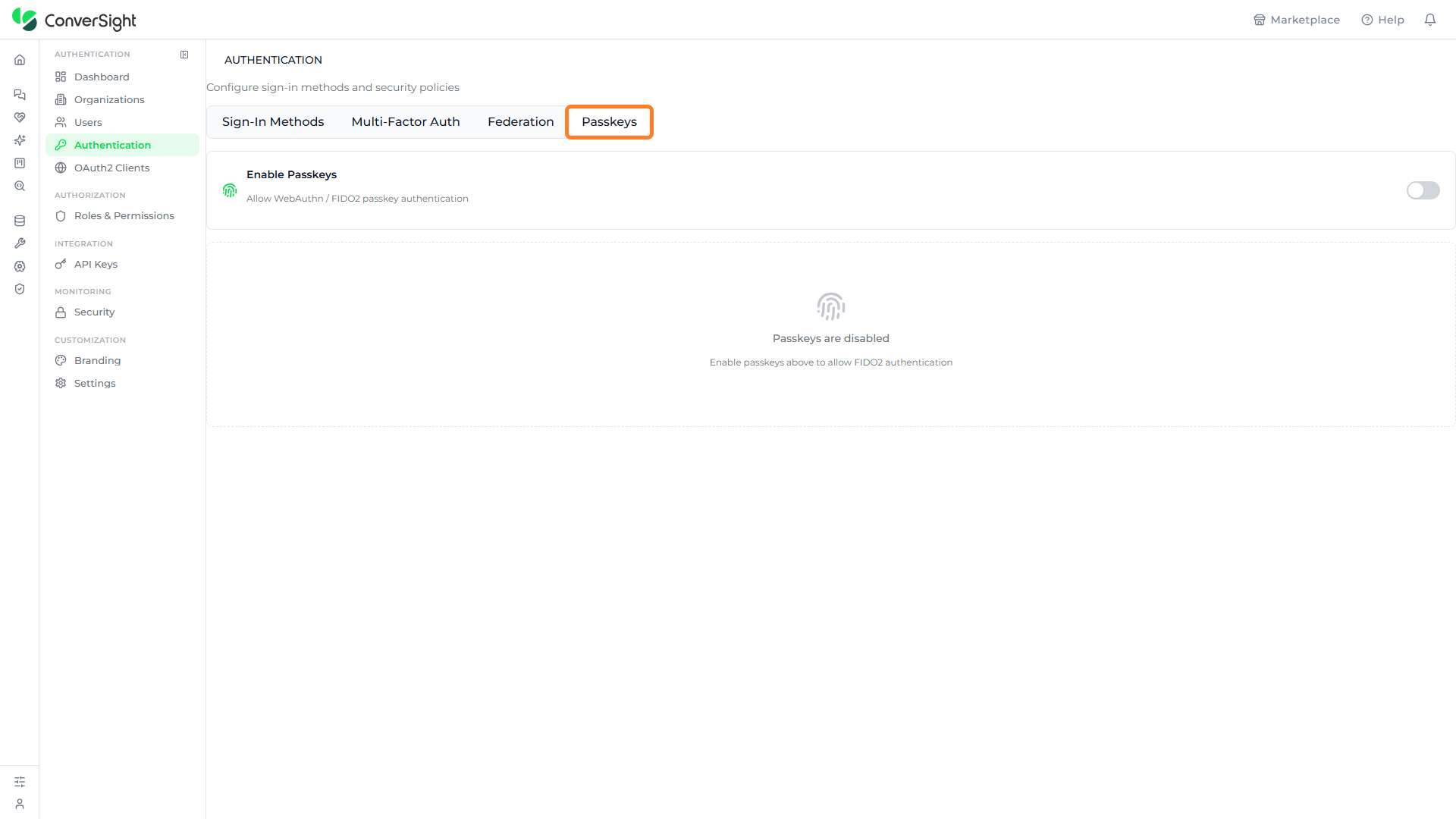
The Passkeys tab manages passwordless passkey sign-in. The Enable Passkeys toggle allows WebAuthn / FIDO2 passkey authentication for the organization. While passkeys are disabled, the tab indicates that they are turned off; enabling the toggle activates FIDO2 authentication.
OAuth2 Clients
The OAuth2 Clients page manages the OIDC and OAuth2 client applications that integrate with the platform for single sign-on. Click on the OAuth2 Clients option in the console navigation panel to open it.

Each registered client is listed in a table with the following columns:
| Column | Description |
|---|---|
| Name | The display name of the client application. |
| Client ID | The identifier the application uses to authenticate. |
| Redirect URIs | The URLs the platform is allowed to return to after authentication. |
| Scopes | The permissions granted to the client, such as openid, profile, or email. |
| Grant Types | The OAuth2 grant types the client supports, such as authorization_code or refresh_token. |
| Trusted | Whether the client is marked as trusted. |
| Status | Whether the client is Active or inactive. |
| Actions | Controls to edit or delete the client. |
From this page an administrator can filter the list to find a specific client, register a new client, and manage an existing client from the controls on its row. Each of these is described in the sections below.

Filtering Clients
The Filters option narrows the OAuth2 Clients list so administrators can find a specific client in a long directory. Click on the Filters button at the top right of the page to open the filter controls above the table.

The filter controls combine a search box with five dropdowns. Each control is described below:
| Control | Description |
|---|---|
| Search clients | Matches the entered text against a client's name or details to narrow the list as you type. |
| Name | Limits the list to a single client by name, or to All names to remove the restriction. |
| Scope | Limits the list to clients granted a chosen scope, such as openid, profile, email, or groups, or to All scopes. |
| Grant type | Limits the list to clients that support a chosen grant type, such as authorization_code or refresh_token, or to All grant types. |
| Trust level | Limits the list by whether a client is Trusted or Not trusted, or to All trust levels. |
| Status | Limits the list to Active or Inactive clients, or to All status. |
Click on the Clear filters button to remove every filter at once and restore the full list.

Registering Clients
Registering a client lets an external application sign its users in through the platform, so that an OIDC or OAuth2 integration can authenticate against ConverSight. Click on the Register Client button at the top right of the OAuth2 Clients page to open the Register OAuth2 Client dialog.

Provide the following details:
| Field | Description |
|---|---|
| Application Name | The display name of the client application as it appears in the list. |
| Description | A brief description of what the application is for. |
| Client Type | Whether the client is Confidential (a server-side app that can keep a secret) or Public (a browser or mobile app that uses PKCE and no secret). |
| Redirect URIs | The URLs the platform is allowed to return to after authentication, entered one per line. |
| Scopes | The permissions the client is granted — openid, profile, email, groups, and offline_access — selected with checkboxes. |
| Grant Types | The OAuth2 grant types the client supports — authorization_code, refresh_token, client_credentials, and device_code — selected with checkboxes. |
| Require PKCE | Requires Proof Key for Code Exchange for the client. It is recommended for all clients and is always enforced for public clients. |
| Token Endpoint Auth Method | How the client authenticates to the token endpoint — Client Secret Basic, Client Secret Post, Private Key JWT, or None for public clients. |
| Access Token TTL (seconds) | How long an access token stays valid, in seconds. The default is 900 (15 minutes). |
| Refresh Token TTL (days) | How long a refresh token stays valid, in days. The default is 7 days. |
| Allowed Origins | The origins allowed to make cross-origin (CORS) requests, entered one per line. |
| Trusted Client | Marks the client as trusted so it skips the user consent screen. Enable it for first-party platform apps. |
Once the details are complete, click on the Register button to create the client, or click on the Cancel button to close the dialog without creating it.

Client Actions
The Actions column on each client row is where you edit or remove an existing client. The two controls it provides — editing a client and deleting a client — are described in the sections below.
Editing Clients
Click on the Edit icon in the Actions column of a client row to open that client's settings for editing.

The edit icon opens the Edit OAuth2 Client dialog, which shows the same details captured when the client was registered. The Client ID and Created date are read-only; every other detail can be changed.

Click on the Save Changes button to apply your changes, or click on the Cancel button to discard them.

Deleting Clients
Click on the Delete icon in the Actions column of a client row to remove that client.

The delete icon opens the Delete OAuth2 Client confirmation, which warns that the client will be deactivated and that applications using it will no longer be able to authenticate. Click on the Delete button to confirm and remove the client, or click on the Cancel button to keep it.

Roles & Permissions
The Roles & Permissions page gives administrators a single place to manage the roles, permissions, and authorization policies that decide what each user can do on the platform. Click on the Roles & Permissions option in the console navigation panel to open it.

The page is organized into four tabs — Roles, Permissions Matrix, Custom Permissions, and Cedar Policies — described below.

Roles
The Roles tab lists every role defined on the platform and is where new roles are created and managed. Each role is listed with the following columns:
| Column | Description |
|---|---|
| Role Name | Identifies the role by its name, such as Customer Admin or Super Admin. |
| Type | Indicates whether the role is a built-in System role or a custom one. |
| Priority | Shows the role's priority value, which determines precedence when more than one role applies. |
| Description | Summarizes what the role is for and the access it grants. |
| Actions | Provides the edit and assign controls for the role, described below. |
The Filters option narrows the list of roles so administrators can find a specific role quickly. Click on the Filters button at the top right of the Roles tab to open the filter controls.

Creating a Role
Creating a role lets administrators define a new custom role and grant it its own set of permissions, so access can be tailored beyond the built-in System roles. Click on the Create Role button at the top right of the Roles tab to open the Create Role dialog.

Provide the following details:
| Field | Description |
|---|---|
| Name (slug) | The URL-friendly identifier for the role, such as custom_analyst. |
| Display Name | The name of the role as it appears in the list, such as Custom Analyst. |
| Description | A short description of what the role is for. |
| Priority | The priority value that determines the role's precedence. The default is 100. |
Once the details are complete, click on the Create button to create the role, or click on the Cancel button to close the dialog without creating it.

Role Actions
The Actions column on each role row provides two controls — an edit (pencil) icon and an assign-to-user icon. Each action is described below.
Editing a Role's Permissions
Click on the Edit icon in the Actions column of a role row to open that role's permissions for editing.

The edit icon opens the role's permission editor, which lists every permission grouped by category — such as ACL, Admin, API Keys, Audit, and Authentication — with a checkbox for each one. Select or clear the checkboxes to change what the role can do, then click on the Save Permissions button to apply the changes, or click on the Back button to return to the roles list without saving.

Assigning a Role to a User
Click on the assign-to-user icon in the Actions column of a role row to assign that role to a user.

The assign icon opens the Assign Role dialog, which names the role being assigned and lists the users it can be assigned to. Use the Search users box to find a specific user, then click on the Assign button next to a user to give them the role. Click on the close (X) icon to dismiss the dialog without assigning the role.

Permissions Matrix
The Permissions Matrix tab shows, at a glance, which permission categories each role holds. It lays out every role in rows against the permission categories in columns, marking each cell with a check when the role has that permission and a cross when it does not. The categories are ACL, Admin, API Keys, Audit, Authentication, Branding, Entitlements, Fine-Grained Access, OAuth Clients, Organizations, Roles, Settings, Users, and Webhooks.
Two dropdowns above the matrix narrow what is shown — one filters to a single permission category, and the other filters by state (Any state, Has permission, or No permission).

Custom Permissions
The Custom Permissions tab is where administrators define permissions specific to their organization. When none have been added, the tab shows a prompt to create permissions specific to your platform.
Click on the Add Permission button to open the Create Custom Permission dialog, where the new permission is defined before it is added to the organization. Provide the following details:

| Field | Description |
|---|---|
| Display Name | The readable name of the permission, such as Manage Reports. |
| Code (slug) | The permission's identifier. It is auto-generated from the display name and uses lowercase letters, numbers, and underscores only. |
| Description | An optional note describing what the permission allows. |
| Resource Type (category) | The category the permission belongs to, such as analytics. |
| Action | The action the permission covers, such as manage, view, or export. |
| Implies (comma-separated codes) | The other permission codes this permission automatically includes when it is granted, such as view_reports or view_users. |
| Metadata (JSON) | An optional JSON value that can define a value schema, enabling JSON value input when the permission is assigned to roles. |
Click on the Create button to add the permission, or click on the Cancel button to close the dialog without adding it.

Below the custom permissions, the System Permissions (read-only) list shows the built-in permissions that ship with the platform. A search box and a category dropdown narrow the list, which records the following for each permission:
| Column | Description |
|---|---|
| Code | The permission's identifier, such as manage_users or view_audit. |
| Display Name | The readable name of the permission, such as Manage Users. |
| Category | The permission category the entry belongs to, such as Users or Audit. |
| Implies | The other permissions this permission automatically grants, where any apply. |

Cedar Policies
The Cedar Policies tab shows example authorization policies generated from the role-permission assignments. Each policy is displayed as a card with its name and its policy text, so administrators can review how access is permitted or denied across roles. The policies are read-only examples rather than something edited directly on this tab.

API Keys
The API Keys page is where administrators create and manage the API keys that let external services and integrations authenticate to the platform programmatically. It is reached through the API Keys option in the console navigation panel, listed under the Integration group. Each key is issued with a defined set of scopes, an authorization role, an optional resource restriction, and an optional expiry.
Accessing API Keys
Click on the API Keys option, under the Integration group in the console navigation panel, to open the API Keys page.

The API Keys page lists every key issued for the organization and provides the controls to create new keys and filter the list. When no keys have been created, the page shows a No API keys found message with a prompt to create the first key. The Create API Key button at the top right opens the creation dialog, and the Filters button beside it reveals the search and filter controls.
Filtering API Keys
Click on the Filters button at the top right of the API Keys page to reveal the controls that narrow the list of keys. The controls are described below.
| Control | Description |
|---|---|
| Search by name or prefix | Filters the list to keys whose name or key prefix matches the entered text. |
| Status | Filters by key status — All statuses, Active, Expired, or Revoked. |
| Scope | Filters by resource scope — All scopes, Org-scoped, or Resource-scoped. |

Creating API Keys
Click on the Create API Key button at the top right of the API Keys page to open the Create API Key dialog. In the empty state, the Create API Key button shown in the center of the page opens the same dialog. Provide the following details:

| Field | Description |
|---|---|
| Name | The display name that identifies the key in the list. |
| Scopes | The set of permissions the key grants, selected from the scope checkboxes described below. |
| Role (for Cedar authorization) | The role that determines the key's Cedar authorization. The default is Inherit from creator, which applies the creator's role in the organization; the dropdown also lists the platform's Customer, Partner, and Super roles. |
| Scope to Resource | Restricts the key to a single resource. The default is Org-scoped (all resources); selecting a specific resource limits the key to that resource, and authorization checks against any other resource are denied. |
| Expiry | Sets when the key expires — Never, or Custom with a chosen date. |
Clicking Create API Key opens the Create API Key dialog, where all of these details are entered before the key is issued.

The Scopes section lists the permissions that can be granted to the key. Each scope follows a resource:action form, where the action is read or write on the named resource. Select the checkbox for each scope the key should hold. The available scopes are:
| Scope | Grants |
|---|---|
| connectors:read | Read access to connectors. |
| connectors:write | Write access to connectors. |
| data:read | Read access to data. |
| data:write | Write access to data. |
| analytics:read | Read access to analytics. |
| reports:read | Read access to reports. |
| users:read | Read access to users. |
| orgs:read | Read access to organizations. |
| audit:read | Read access to audit records. |
| webhooks:write | Write access to webhooks. |
| deploy:write | Write access to deployments. |
| config:read | Read access to configuration. |
| health:read | Read access to health information. |

The Role (for Cedar authorization) dropdown sets the role that the key's access is evaluated against by Cedar authorization. The default is Inherit from creator, which applies the role the creator holds in the organization. The dropdown also lists the platform's predefined Customer, Partner, and Super roles, so the key can be tied to a specific role instead.

The Scope to Resource dropdown restricts where the key can be used. The default is Org-scoped (all resources), which lets the key act across all of the organization's resources. Selecting a specific resource from the dropdown limits the key to that resource; authorization checks against any other resource are then denied.

To set an expiry date, select the Custom option under Expiry. A date field appears next to the option, where the key's expiration date is entered in dd-mm-yyyy format. Leaving Never selected issues a key that does not expire.

Once the details are complete, click on the Create button to issue the key, or click on the Cancel button to close the dialog without creating it.

When the key is created, the API Key Created dialog displays the full key value. Use the copy icon to copy the key, then click on the Done button to close the dialog.
The full API key value is shown only once, at creation. Copy and store it securely before closing the dialog — it cannot be retrieved again afterward.

After a key is created, it appears in the API Keys table. Each key is listed with the following columns:
| Column | Description |
|---|---|
| Name | Identifies the key by the name given when it was created. |
| Key Prefix | Shows the visible prefix of the key, such as csa_live_…. |
| Scopes | Lists the scopes granted to the key. |
| Resource Scope | Indicates whether the key is Org-scoped or restricted to a specific resource. |
| Created | Shows when the key was created. |
| Expires | Shows the key's expiry date, or Never for a key with no expiry. |
| Status | Indicates the key's current state — Active, Expired, or Revoked. |
| Actions | Provides the revoke and delete controls for the key, described below. |

Key Actions
The Actions column on each key row provides two controls — a Revoke icon and a Delete icon. Each action is described below.
Revoking a Key
Click on the Revoke icon in the Actions column of a key row to revoke the key. Revoking changes the key's status to Revoked and deactivates it, while keeping the key listed in the table for reference.

Deleting a Key
Click on the Delete icon in the Actions column of a key row to permanently remove the key. The Delete API Key? dialog opens and asks for confirmation, noting that the action cannot be undone. Enter the requested text in the Type to confirm field, then click on the Delete button to remove the key, or click on the Cancel button to close the dialog without deleting it.

Deleting an API key is permanent and cannot be undone. To disable a key without removing it from the list, use Revoke instead.

Security
The Security page brings together the settings that protect the organization's accounts and sign-in activity. From here, administrators decide how the platform responds to attacks on sign-in, how long a session stays valid before the user signs in again, when emergency access can be granted, and which networks are allowed to reach the platform. These settings are grouped into four tabs — Attack Protection, Sessions, Break-Glass, and IP Allowlists — each described below.
Accessing Security
Click on the Security option in the left navigation panel, under the Monitoring group, to open the Security page.
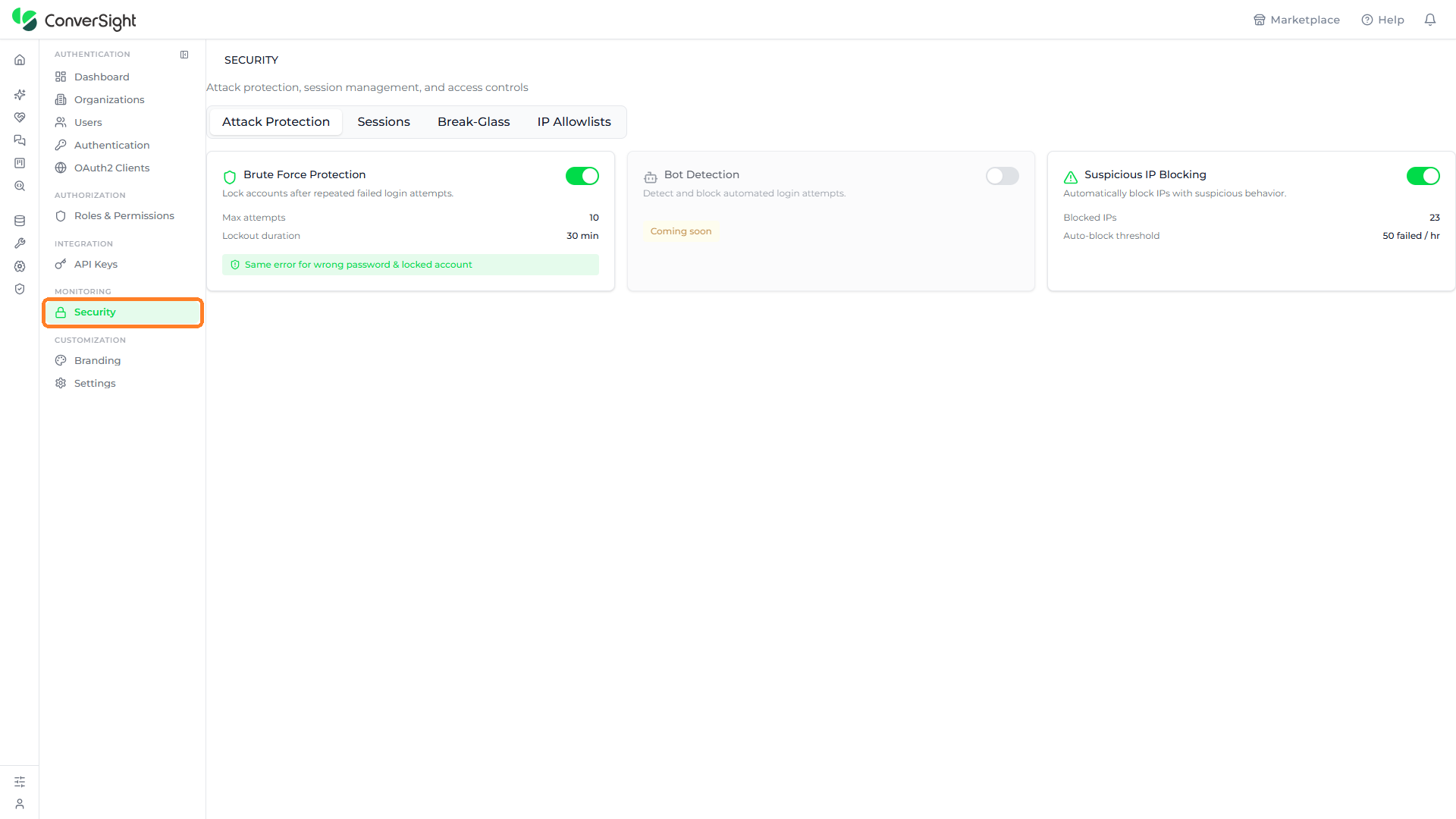
The Security page opens on the Attack Protection tab. Each of the four tabs along the top of the page opens a different group of settings — Attack Protection for sign-in defenses, Sessions for session lifetime and sign-outs, Break-Glass for emergency access, and IP Allowlists for trusted networks. Click on a tab to open the settings it holds.
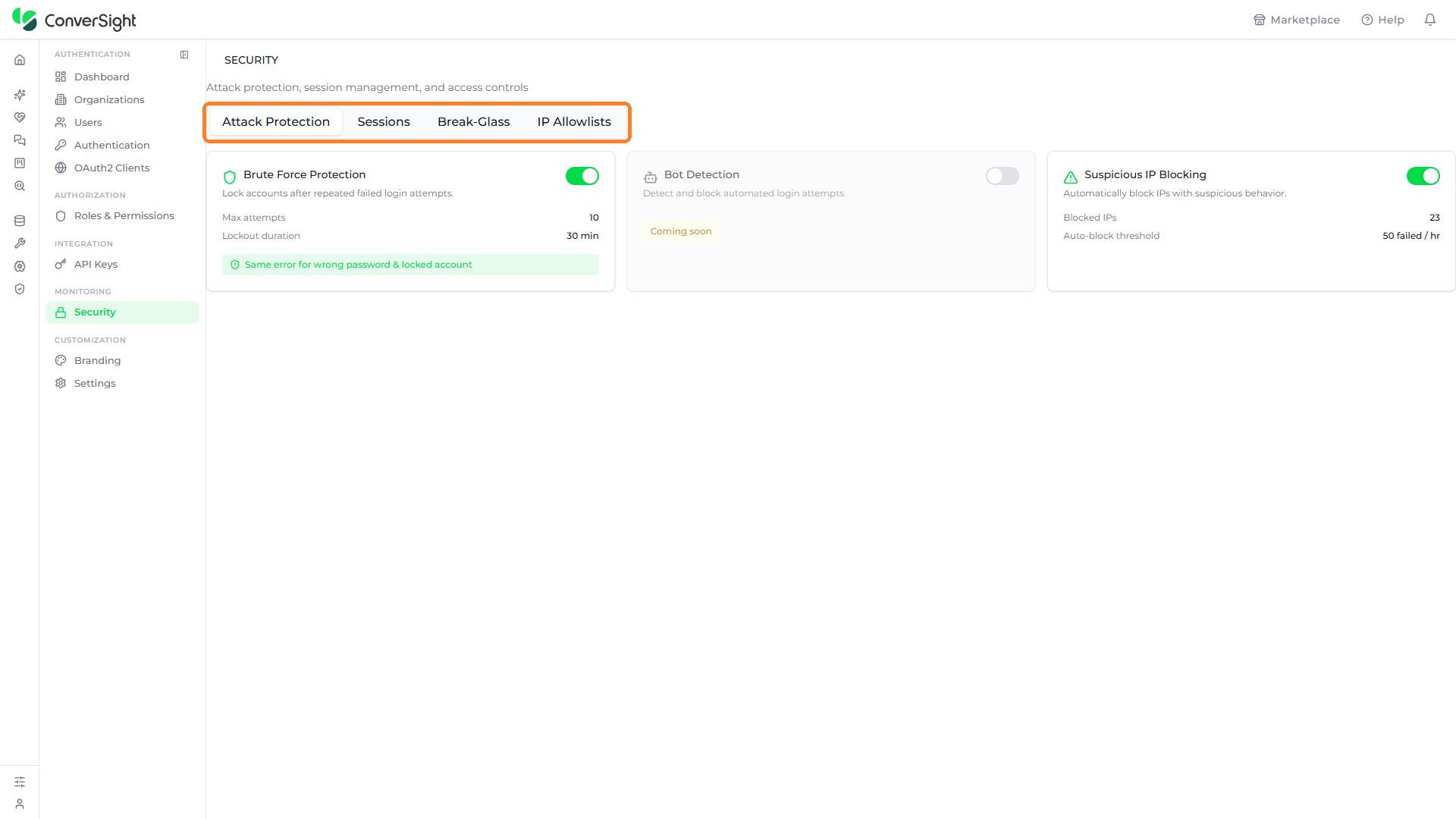
Attack Protection
The Attack Protection tab brings together the protections that defend the organization against automated and brute-force login attacks. It presents three protections, each with a toggle in the top-right corner that turns it on or off. When a toggle is on it appears green and the protection is active; when it is off it appears grey and the protection is inactive.

Brute Force Protection
Brute Force Protection locks accounts after repeated failed login attempts, limiting how many times an attacker can guess a password. The feature reports its current settings — the maximum number of attempts allowed before lockout, and the lockout duration that applies once that limit is reached. It also shows the same error message for a wrong password and for a locked account, so a locked account is not revealed to the person attempting to sign in. Use the toggle in the top-right corner of the feature to enable or disable this protection.

Bot Detection
Bot Detection detects and blocks automated login attempts, stopping scripted sign-in attempts made by bots rather than by real users.
Bot Detection is marked Coming soon and is not yet available to configure. Its toggle stays disabled until the feature is released.

Suspicious IP Blocking
Suspicious IP Blocking automatically blocks IP addresses that show suspicious behavior. The feature reports the number of IP addresses currently blocked and the auto-block threshold — the rate of failed attempts per hour at which an IP address is blocked automatically. Use the toggle in the top-right corner of the feature to enable or disable this protection.

Sessions
The Sessions tab controls how long a signed-in session stays valid and lets administrators sign out every active session at once.
Session Max Duration
The Session Max Duration setting determines the maximum lifetime of a session before the user must sign in again. Click on the dropdown on the right of the setting to choose a duration. The dropdown offers 1 hour, 4 hours, 8 hours, 12 hours, 24 hours, 48 hours, and 72 hours.

Active Sessions
The Active Sessions area lists the sessions that are currently signed in, with a count shown beside the heading. When no sessions are active, the area shows a No active sessions message noting that active sessions appear here when users are logged in.
Click on the Force Sign-Out All button to end every active session at once.

A confirmation dialog titled Force Sign-Out All Sessions? opens and warns that this will immediately terminate all active sessions and that users will need to sign in again. Click on the Confirm Sign-Out button to end the sessions, or click on the Cancel button to close the dialog without ending them.

Forcing a sign-out ends every active session at once and requires all users to sign in again.
Break-Glass
The Break-Glass tab gives administrators a controlled way to grant temporary emergency access when normal access is unavailable. A status banner shows whether emergency access is currently active; when it is not, it reads Available along with a note that emergency access is available but not active. Below the banner, a history area records past activations and shows No break-glass events when none have occurred.

Click on the Activate Break-Glass button to open the Activate Break-Glass dialog. The dialog requires:
- Reason: Describes the emergency that justifies the activation.
- Duration: Sets how long the emergency access stays active, chosen from 30 minutes, 1 hour, 2 hours, 4 hours, or 8 hours.

Click on the Activate button to grant emergency access for the chosen duration, or click on the Cancel button to close the dialog without activating it.
Break-Glass grants emergency access and should be activated only for a genuine emergency. Each activation is recorded in the break-glass history.
IP Allowlists
The IP Allowlists tab restricts platform access to trusted networks by permitting only the IP ranges that have been added. When no ranges have been added, the tab shows a No IP ranges configured message noting that adding IP ranges restricts access to trusted networks.

Click on the Add IP Range button at the top right of the tab to open the Add IP Range dialog. The dialog requires:
- CIDR Range: The IP range to allow, entered in CIDR notation; the field shows a placeholder of 10.0.0.0/8.
- Description: A label that identifies the range, such as the network it represents.
- Organization: The organization the range applies to, selected from the dropdown. It defaults to All Organizations, or a specific organization can be chosen.
Click on the Add Range button to save the range, or click on the Cancel button to close the dialog without adding it.

Branding
The Branding feature empowers administrators to tailor the look of ConverSight to align with their organization's brand identity. It controls the logo, name, colors, font, and layout of the sign-in screen, along with the templates behind the emails the platform sends, so everyone in the organization sees a consistent, branded experience. These settings are organized into two tabs — Login Page and Email Templates.
Accessing Branding
Click on the Branding option in the left navigation panel, under the Customization group, to open the Branding page.

The Branding page opens on the Login Page tab. The two tabs along the top of the page each open a different group of settings — Login Page for customizing the sign-in screen, and Email Templates for managing the emails the platform sends. Click on a tab to open the settings it holds.

Login Page
The Login Page tab customizes the sign-in screen that users see when they sign in to ConverSight. Its settings sit in a column on the left, grouped into Appearance, Layout, and Carousel, while a Live Preview on the right shows the sign-in screen as it will appear. Each group has its own Save button, so the three groups are saved independently.
Appearance
The Appearance settings control the logo, name, colors, font, and background of the sign-in screen.

The Appearance section holds the following settings:
| Setting | Description |
|---|---|
| Logo | The image shown at the top of the sign-in screen. The current logo appears with an Uploaded status and is changed with the Replace button. |
| Brand Name | The organization name shown on the sign-in screen, entered in the text field. The field shows a placeholder of Your organization name until a name is set. |
| Primary | The primary brand color, used for the main accents on the sign-in screen. It is set with a color picker or by entering a hex value. |
| Accent | The secondary brand color, used for complementary accents. It is set with a color picker or a hex value. |
| Font family | The typeface used on the sign-in screen, chosen from a dropdown. The options are Montserrat, Inter, Roboto, Open Sans, Lato, Poppins, and System. |
| Background | The style of the sign-in screen background, chosen from a dropdown. The options are Gradient, Solid, and Image. |
| Powered by badge | A toggle that shows or hides the Powered by ConverSight badge on the sign-in screen. |
To change the logo, click on the Replace button beside the current logo and choose an image file from your computer.

The logo upload accepts PNG, JPEG, SVG, WebP, and GIF image files.
Set the brand colors using the Primary and Accent controls. Click on the color swatch to pick a color, or type a hex value into the field beside it.

Choose the typeface for the sign-in screen from the Font family dropdown.

Select how the sign-in screen background is rendered from the Background dropdown.

The Powered by badge toggle controls whether the Powered by ConverSight badge appears on the sign-in screen. When it is on, the badge appears on the sign-in screen; when it is off, the badge is hidden.

Appearance changes are applied only after you click on the Save Appearance button. Until then, they appear in the Live Preview but are not saved.
Layout
The Layout settings control how the elements of the sign-in screen are arranged.

The Layout section holds the following settings:
| Setting | Description |
|---|---|
| Layout | The overall arrangement of the sign-in screen, selected as either centered or split. |
| Login panel position | The side the login panel sits on, selected as either left or right. |
| Login panel width | The width of the login panel, set with a slider and shown as a percentage. |
| Content URL | The address of a page to embed beside the login card, entered in the field. The field shows a placeholder of https://… and a note that it embeds a marketing page next to the login card. |
Layout changes are applied only after you click on the Save Layout button.
Carousel
The Carousel section adds a rotating set of slides beside the login card on the sign-in screen. A toggle at the top of the section turns the carousel on or off. It is off by default, and while it is off the section shows only the toggle and the Save Carousel button.

Turning the toggle on expands the section to reveal the carousel settings and a first slide.

The expanded section presents two settings that apply to the whole carousel:
- Randomize order: Shuffles the order in which the slides are shown when it is turned on.
- Image fit: Sets how each slide's image fills its area, selected as either cover or contain.
Each slide is configured with the following:
| Field | Description |
|---|---|
| Image URL | The address of an image to show on the slide. |
| Upload | An upload button that adds a slide image from your computer. |
| Embed URL | A website address to embed on the slide instead of an image. |
| Delay | How long the slide stays on screen before the next one, set in milliseconds. |
Click on the Add Slide button to add another slide, and use the remove icon on a slide to delete it. Click on the Save Carousel button to apply the carousel.
The recommended image size for carousel slides is 1200 × 800 px (3:2). Carousel changes are applied only after you click on the Save Carousel button.
Live Preview
The Live Preview panel on the right of the Login Page tab shows the sign-in screen as it will appear to users. It updates in real time as the Appearance, Layout, and Carousel settings are changed, so the result can be checked before it is saved.

Email Templates
The Email Templates tab manages the email templates the platform uses for its notification emails. The tab lists the available templates under a TEMPLATES heading and provides a New Custom Template button for creating additional templates for platform integrations. Selecting a template opens it for editing; when none is selected, the tab shows a Select a template to edit message.

Click on the New Custom Template button to open the New Custom Template panel, where a template for platform features is created. The panel notes that custom templates are made available to platform features by their template key.

Provide the following details:
| Field | Description |
|---|---|
| Template key | The identifier the platform uses to reference the template. It accepts lowercase letters, digits, and underscores, and must be unique within the organization. |
| Display name | A readable name for the template, shown in the templates list. |
| Subject | The subject line used when the template is sent. |
| HTML body | The formatted content of the email, written in HTML. It supports placeholders such as {{ user.display_name }} that are filled in when the email is sent. |
| Plain text body | The plain-text version of the email, used where the HTML version is not shown. This field is optional. |
Once the details are filled in, the Create template button becomes active. Click on it to save the new template, or click on the Cancel button (or the close icon in the top-right corner) to discard it. The Create template button stays disabled until the required fields are filled.

Settings
The Settings page brings together the configuration that governs how the organization runs on the platform — its identity and contact details, session and password rules, regional and visualization defaults, token-signing keys, the domains its authentication trusts, how it sends email, its data-protection tools, and the features available to it. These settings are grouped into seven tabs — General, Preferences, Signing Keys, Domain & Security, Email Delivery, GDPR & Compliance, and Entitlements — each described below.
Accessing Settings
Click on the Settings option in the left navigation panel, under the Customization group, to open the Settings page.
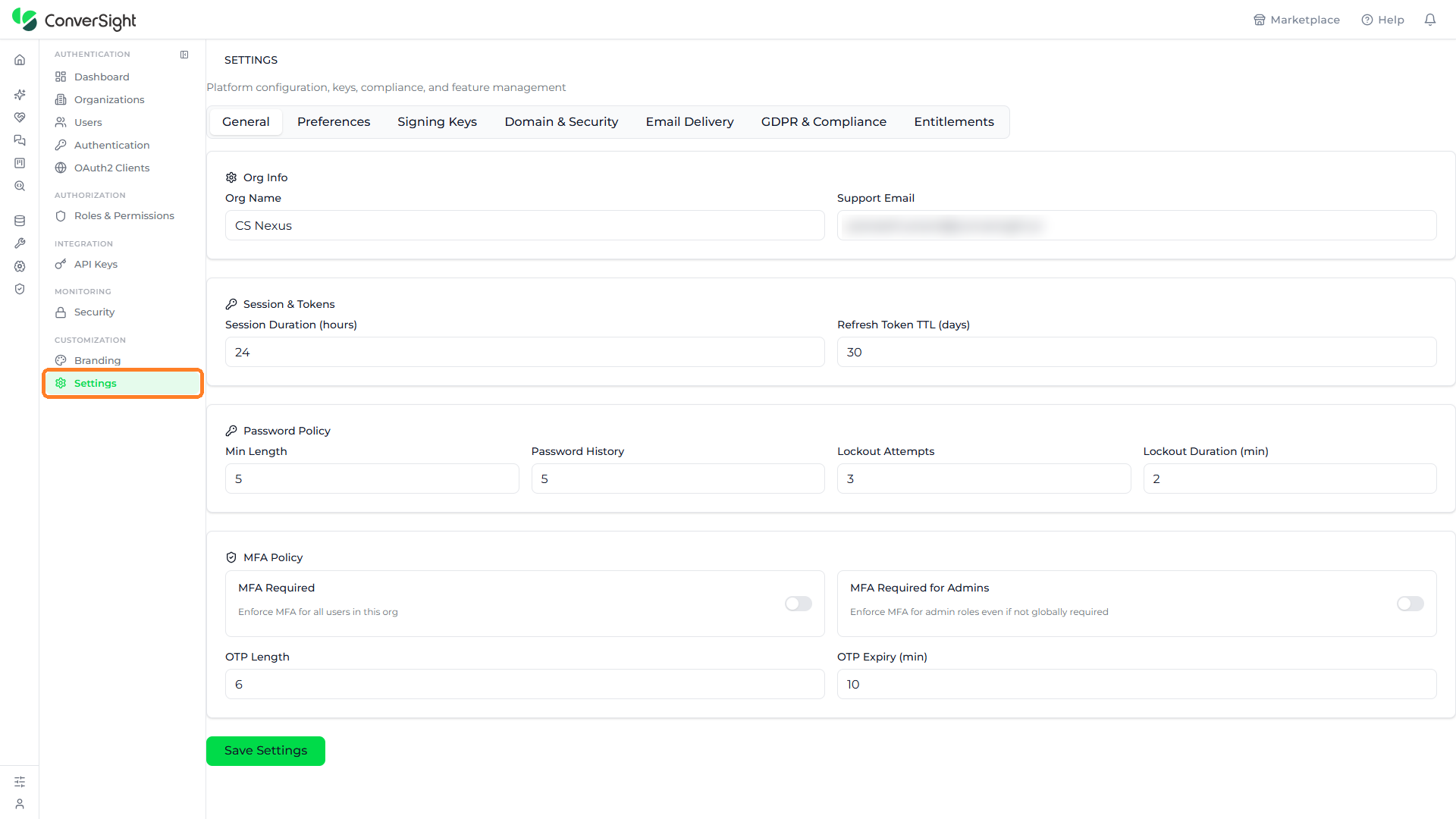
The Settings page opens on the General tab. Each of the seven tabs along the top of the page opens a different group of configuration — General for the organization's core identity and policies, Preferences for regional and display defaults, Signing Keys for token-signing keys, Domain & Security for trusted origins and domains, Email Delivery for outbound email, GDPR & Compliance for data-protection tools, and Entitlements for feature availability. Click on a tab to open the settings it holds.
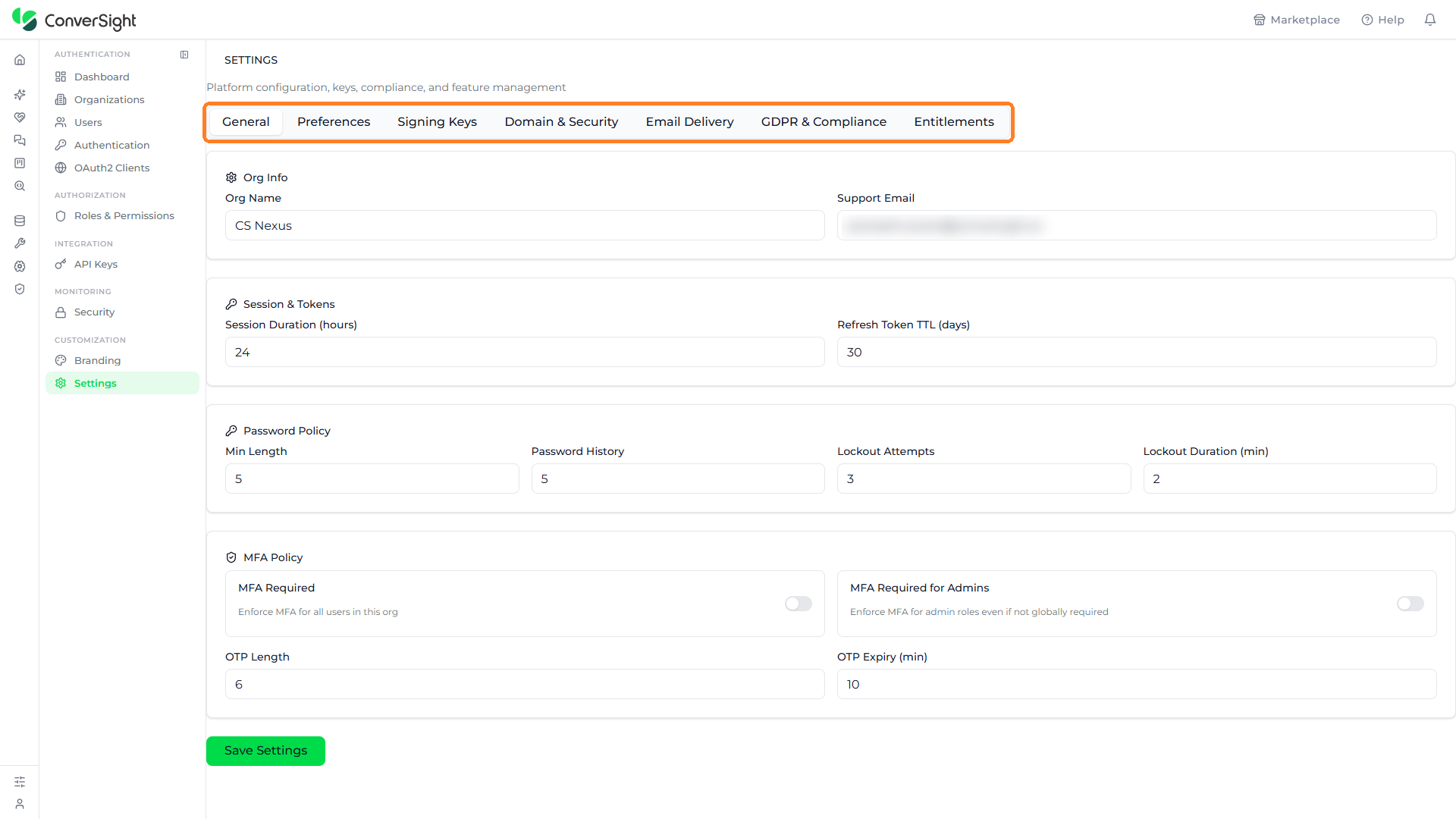
General
The General tab holds the organization's core settings, grouped into Org Info, Session & Tokens, Password Policy, and MFA Policy. The Save Settings button at the bottom applies any changes made on the tab.
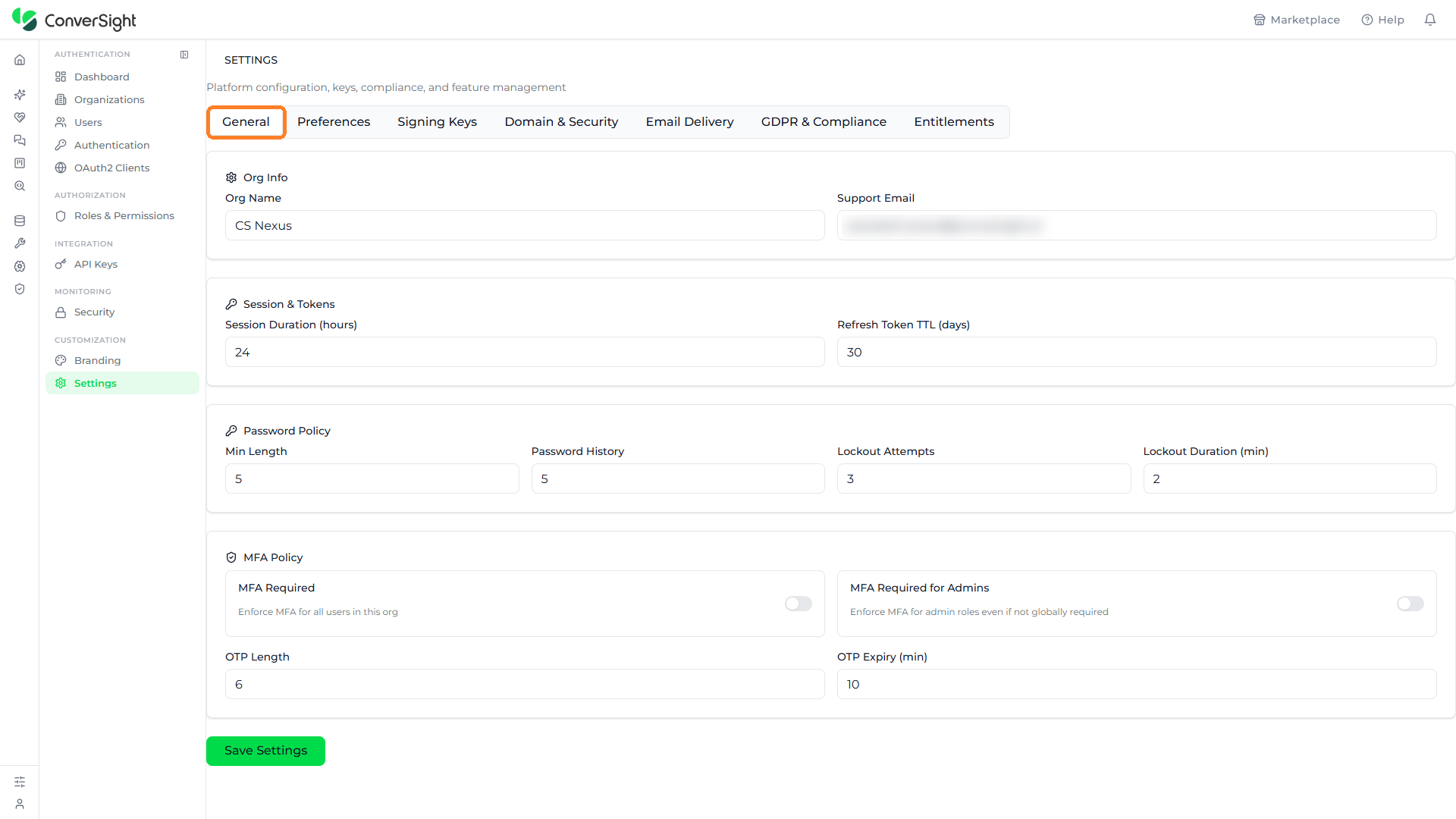
Org Info records the organization's identity:
- Org Name: Sets the organization's display name.
- Support Email: Sets the support contact address for the organization.
Session & Tokens controls how long sessions and tokens stay valid:
- Session Duration (hours): Sets how long a signed-in session remains valid before the user signs in again.
- Refresh Token TTL (days): Sets how long a refresh token stays valid before it expires.
Password Policy sets the rules that passwords and sign-in lockouts follow:
| Setting | Description |
|---|---|
| Min Length | The minimum number of characters a password must have. |
| Password History | The number of previous passwords that cannot be reused. |
| Lockout Attempts | The number of failed sign-in attempts allowed before the account is locked. |
| Lockout Duration (min) | How long an account stays locked, in minutes. |
MFA Policy controls multi-factor authentication for the organization:
| Setting | Description |
|---|---|
| MFA Required | A toggle that enforces MFA for all users in the organization. |
| MFA Required for Admins | A toggle that enforces MFA for admin roles even when it is not required for everyone. |
| OTP Length | The number of digits in a one-time passcode. |
| OTP Expiry (min) | How long a one-time passcode stays valid, in minutes. |
Click on the Save Settings button at the bottom of the tab to apply the changes made on the General tab.

General settings are applied only after you click on the Save Settings button.
Preferences
The Preferences tab sets the regional, platform, visualization, and branding defaults for the organization. A note at the top explains that locked fields are controlled by a parent organization. The settings are grouped into Locale, Platform Controls, Visualization, and Branding.
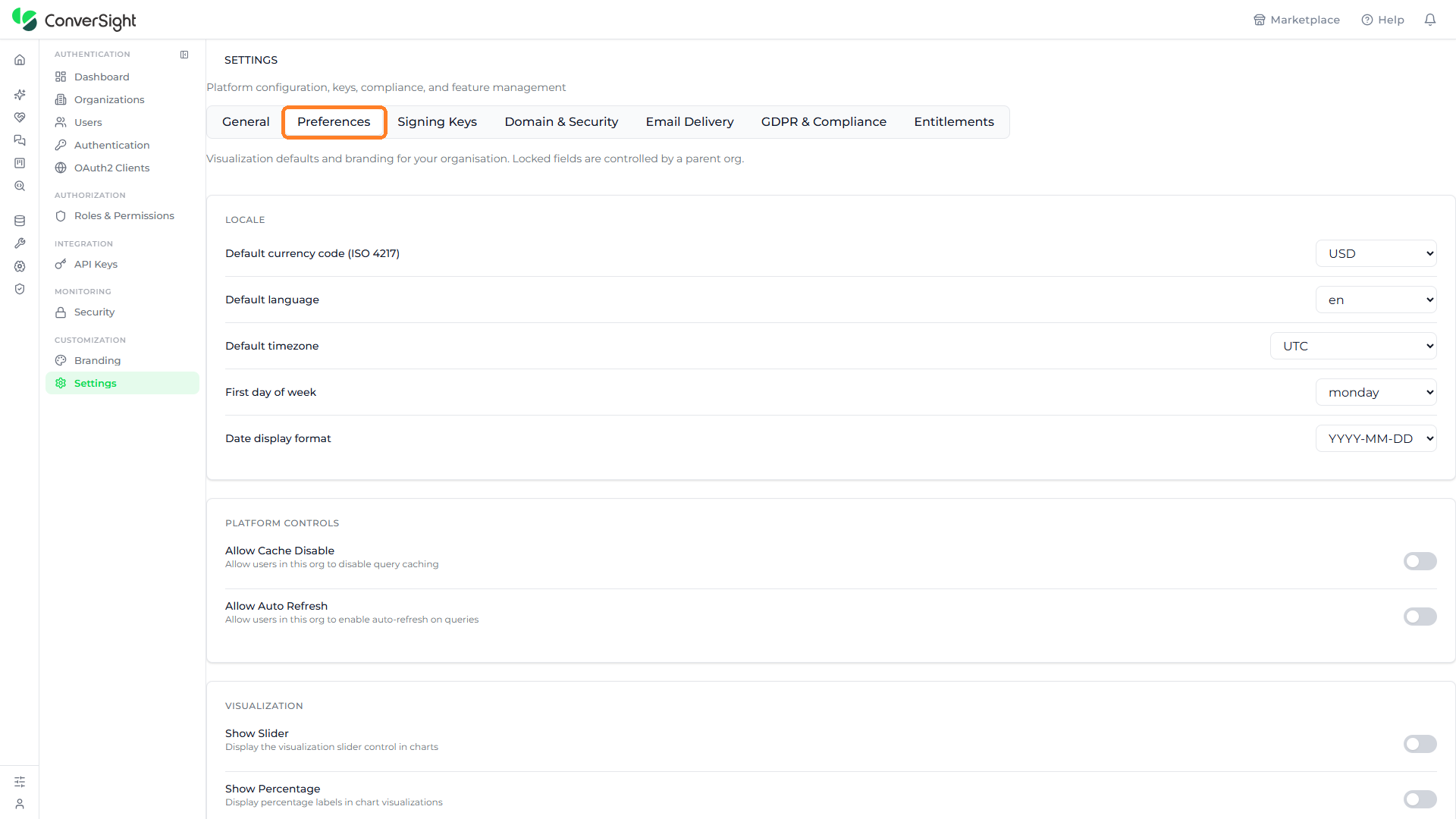
Locale sets the organization's regional defaults:
| Setting | Description |
|---|---|
| Default currency code (ISO 4217) | The default currency, chosen from a dropdown of ISO 4217 codes such as USD, EUR, GBP, or INR. |
| Default language | The default interface language, such as en, es, fr, or de. |
| Default timezone | The default timezone, such as UTC or a named region. |
| First day of week | Whether the week starts on Sunday or Monday. |
| Date display format | The format dates are shown in — MM/DD/YYYY, DD/MM/YYYY, or YYYY-MM-DD. |

Platform Controls allow or restrict query behavior for the organization's users:
- Allow Cache Disable: A toggle that lets users in the organization disable query caching.
- Allow Auto Refresh: A toggle that lets users in the organization enable auto-refresh on queries.

Visualization sets chart display defaults:
- Show Slider: A toggle that displays the visualization slider control in charts.
- Show Percentage: A toggle that displays percentage labels in chart visualizations.

Branding sets the organization's theme and chart colors. The Theme dropdown chooses the default color mode for the organization's users — Light, Dark, or Auto (system) — and Chart Series Colors sets the colors assigned to data series in charts, across positions 1 to 20.

Signing Keys
The Signing Keys tab shows the organization's token-signing keys. It displays the JWKS Endpoint — the public URL where the organization's JSON Web Key Set is published — with a Copy button beside it, and a Rotate Keys button for issuing a new signing key. When no keys have been generated, the tab shows a No signing keys found message noting that signing keys appear here once generated.

Domain & Security
The Domain & Security tab controls which origins, redirect destinations, and domains the organization's authentication accepts. The Save Domain Settings button applies any changes. The tab presents the following settings:
| Setting | Description |
|---|---|
| Allowed Origins (CORS) | The origins permitted to make cross-origin requests to the organization's authentication. Click on the Add Origin button to add one, and use the Allow credentials checkbox to permit cookies and authorization headers. |
| Cookie Domain | The parent domain used to share authentication across subdomains, such as .conversight.ai. It is left empty for single-domain setups and must start with a dot for cross-subdomain sharing. |
| Allowed Redirect URIs (OAuth2) | The URIs that OAuth2 clients are allowed to return to after authentication, added with the Add URI button. These apply organization-wide in addition to each client's own redirect URIs. |
| Custom Auth Domain | Lets the organization use its own domain for authentication endpoints instead of the default authentication domain. |
| Custom Domains | The white-label domains that serve the authentication pages on the organization's own domain, such as auth.yourdomain.com. Click on the Add Custom Domain button to add one. When none are configured, the section shows a No custom domains configured yet message. |

Email Delivery
The Email Delivery tab sets how the organization sends its emails. A note explains that child organizations inherit this configuration unless they set their own. The Email Provider is chosen from three options:
- Platform Default: Uses the global server configuration.
- Custom SMTP: Sends through an SMTP provider such as SendGrid, Mailgun, or Postmark.
- AWS SES: Sends through Amazon Simple Email Service.

Selecting Custom SMTP reveals its configuration fields:
| Field | Description |
|---|---|
| From Address | The email address messages are sent from. |
| From Name | The sender name shown on messages. |
| SMTP Host | The address of the SMTP server, such as smtp.sendgrid.net. |
| Port | The SMTP server port, such as 587. |
| Username | The username used to authenticate to the SMTP server. |
| Password | The password used to authenticate to the SMTP server. |
| Use STARTTLS | A toggle that enables STARTTLS encryption for the connection. |

Selecting AWS SES reveals the fields for the Amazon SES SMTP interface:
| Field | Description |
|---|---|
| From Address | The email address messages are sent from. |
| From Name | The sender name shown on messages. |
| SES Region | The AWS region of the SES endpoint, chosen from a dropdown such as us-east-1 or eu-west-1. |
| SMTP Username (Access Key) | The SES SMTP username, created in the AWS console. |
| SMTP Password (Secret Key) | The SES SMTP password, created in the AWS console. |

The Send Test Email area sends a welcome-template email to a chosen address using the current configuration, to verify delivery — enter an address and click on the Send Test button. After choosing a custom provider, the Save Email Config button saves the configuration, and the Reset to Platform Default button returns the organization to the global server configuration.
GDPR & Compliance
The GDPR & Compliance tab provides the data-protection tools for the organization. It offers three controls — Export User Data for GDPR data portability, Process Deletion for the right to be forgotten, and an Anonymization toggle that auto-anonymizes deleted users. Below them, a consent area lists the organization's consent records, showing a No consent records message when none have been captured.
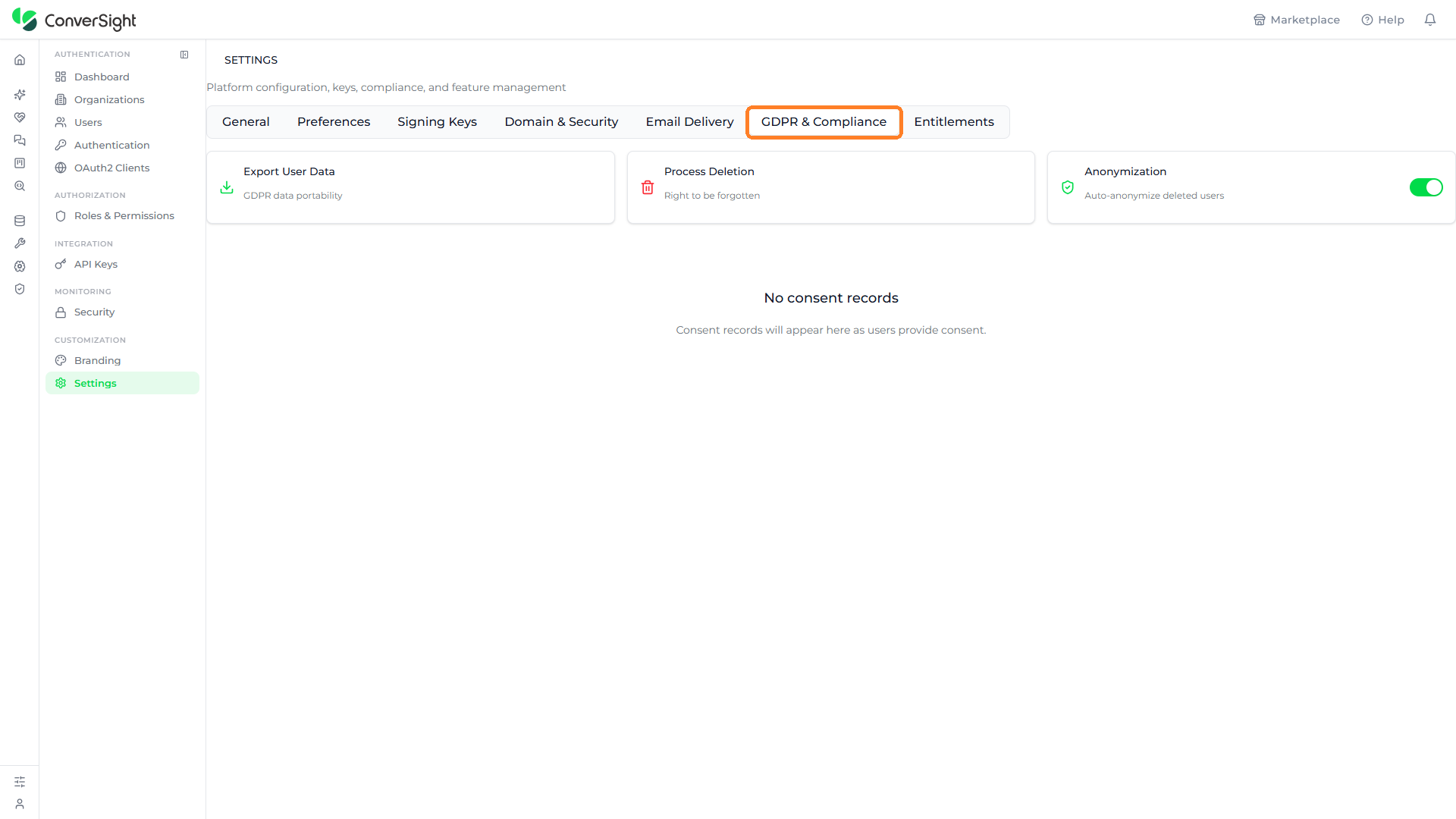
Process Deletion carries out the right-to-be-forgotten request and removes a user's data. Use it with care, as the removal cannot be undone.
Entitlements
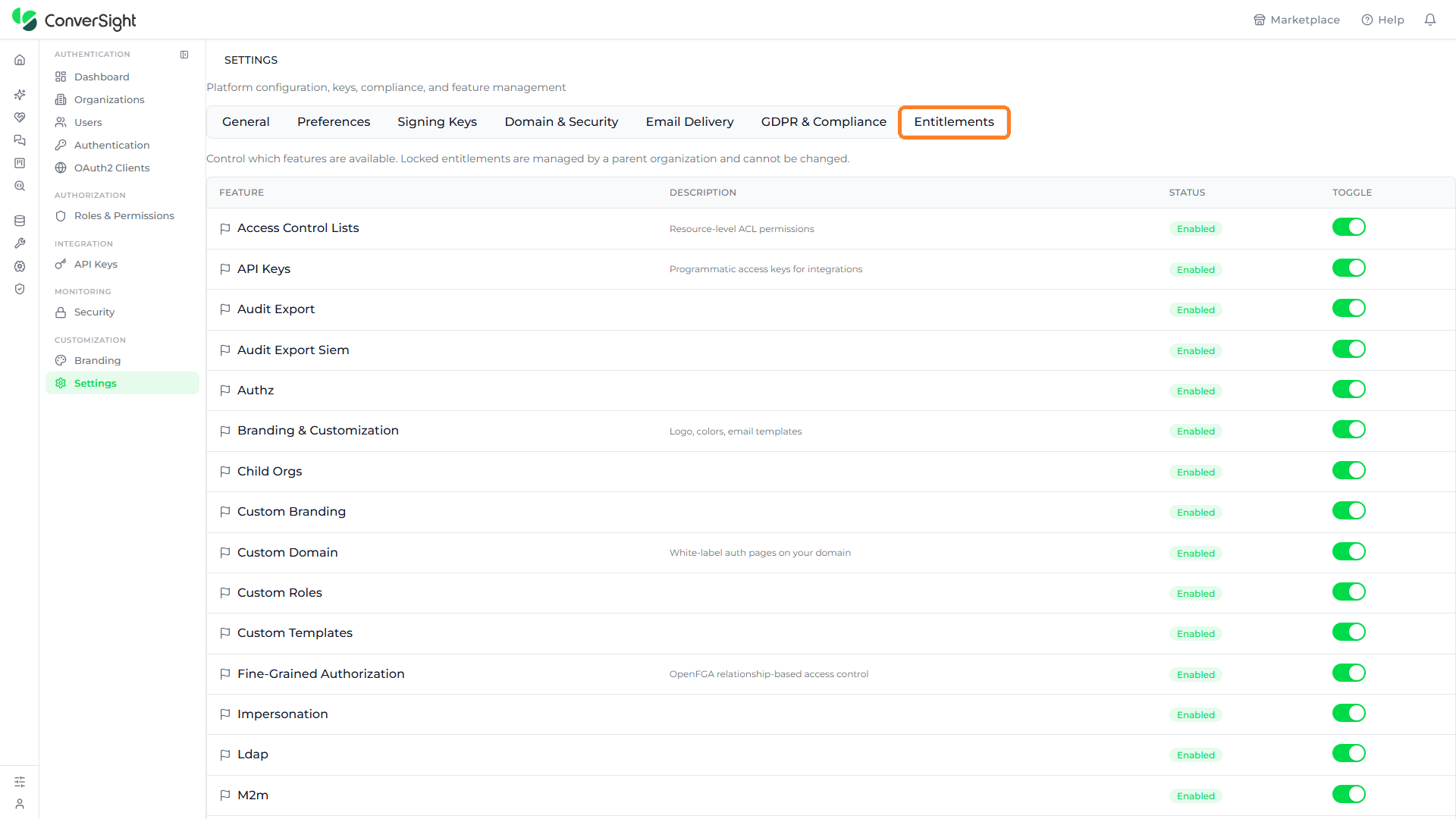
The Entitlements tab controls which platform features are available to the organization. A note explains that locked entitlements are managed by a parent organization and cannot be changed. Each feature is listed in a table with the following columns:
| Column | Description |
|---|---|
| Feature | The platform capability, such as Access Control Lists, API Keys, Single Sign-On (SSO), Multi-Factor Authentication, Branding & Customization, Custom Domain, Fine-Grained Authorization, or Webhooks. |
| Description | A short description of what the feature provides, where one applies. |
| Status | Whether the feature is Enabled or disabled for the organization. |
| Toggle | The switch that turns the feature on or off for the organization. |
Organization Management brings every administrative task for an organization into a single console. From signing in and reviewing activity on the Dashboard, through provisioning organizations, users, roles, and API keys, to configuring authentication, OAuth2 clients, security policies, branding, and platform settings, each section covers one part of running the organization on ConverSight. Together they give administrators a single place to control who can access the platform, how they authenticate, and how the platform looks and behaves for everyone in the organization.