Organization Preferences
Organization Preferences is where workspace identity gets shaped. Where individual user settings live in per-user Preferences, Organization Preferences is one layer up — the workspace-wide configuration every signed-in user inherits: org name, visual theme, logo, feature availability, chat behavior, visualization defaults.
This is primarily a Data Analyst surface (org-admin tier). From a single page inside Users & Roles, administrators tailor the ConverSight workspace to align with their organization's identity and operational needs — delivering a consistent experience for every user across the org.
Accessing Organization Preferences
The Organization Preferences page is reached by selecting the Organization Preferences option in the Users & Roles workspace. Opening it brings up the personalization page where every workspace-wide setting can be reviewed and updated in one place.
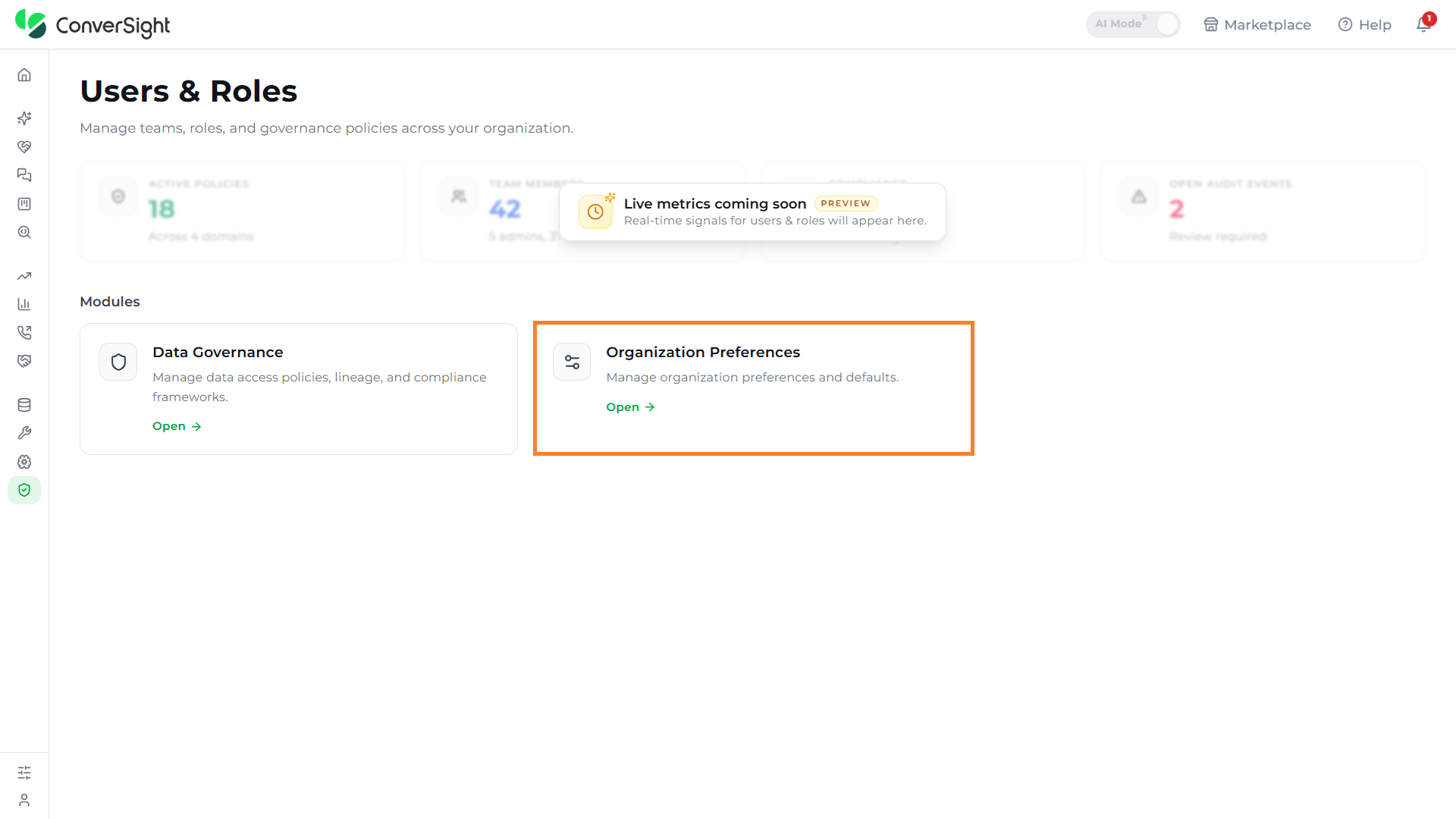
The Organization Preferences page presents all organization-wide settings on a single form, arranged from organization identity at the top down to feature toggles, chat preferences, visualization preferences, and the Save button at the bottom-right.
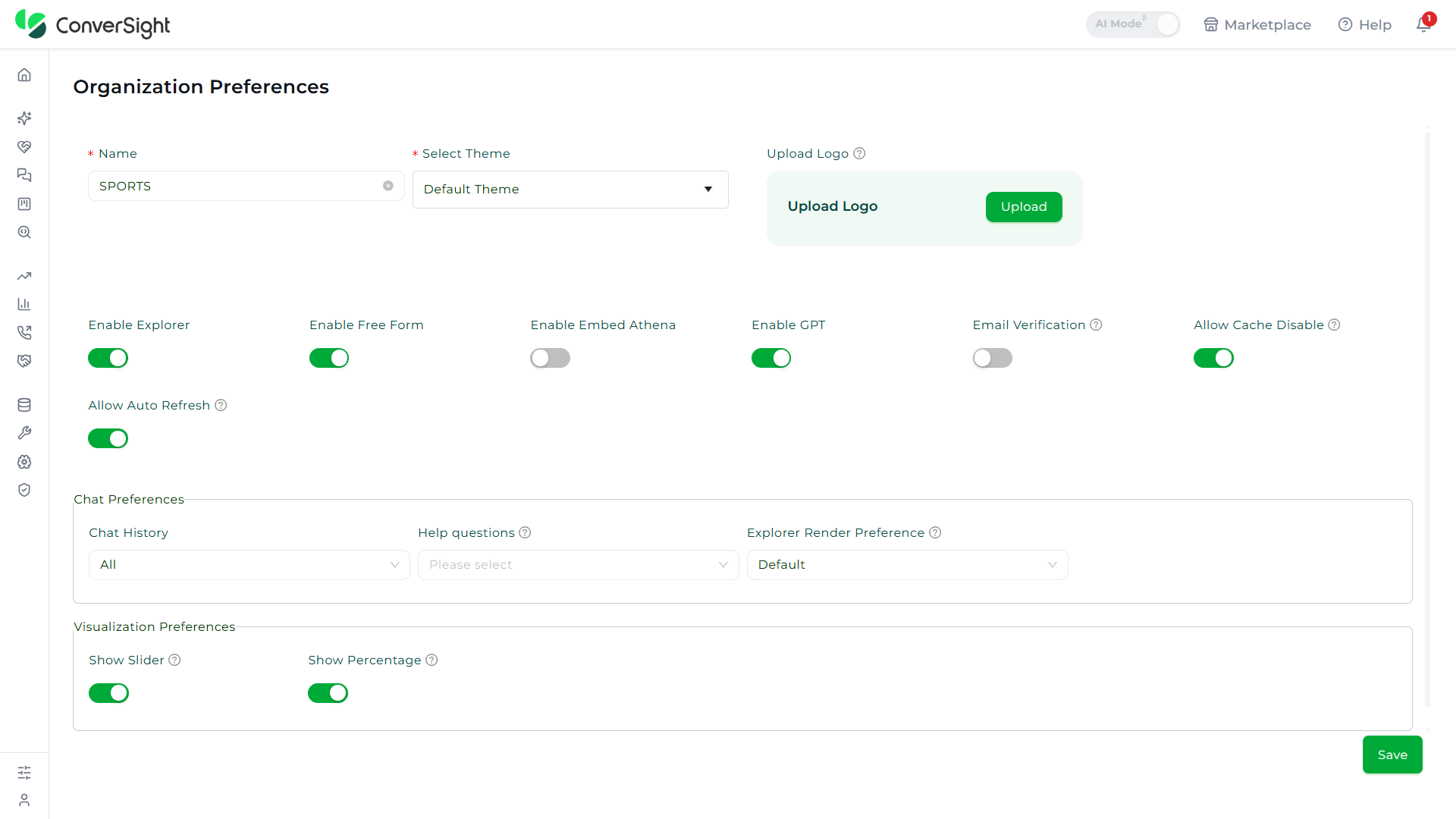
Organization Preferences is exclusively available to the Organization Admin.
Organization Name
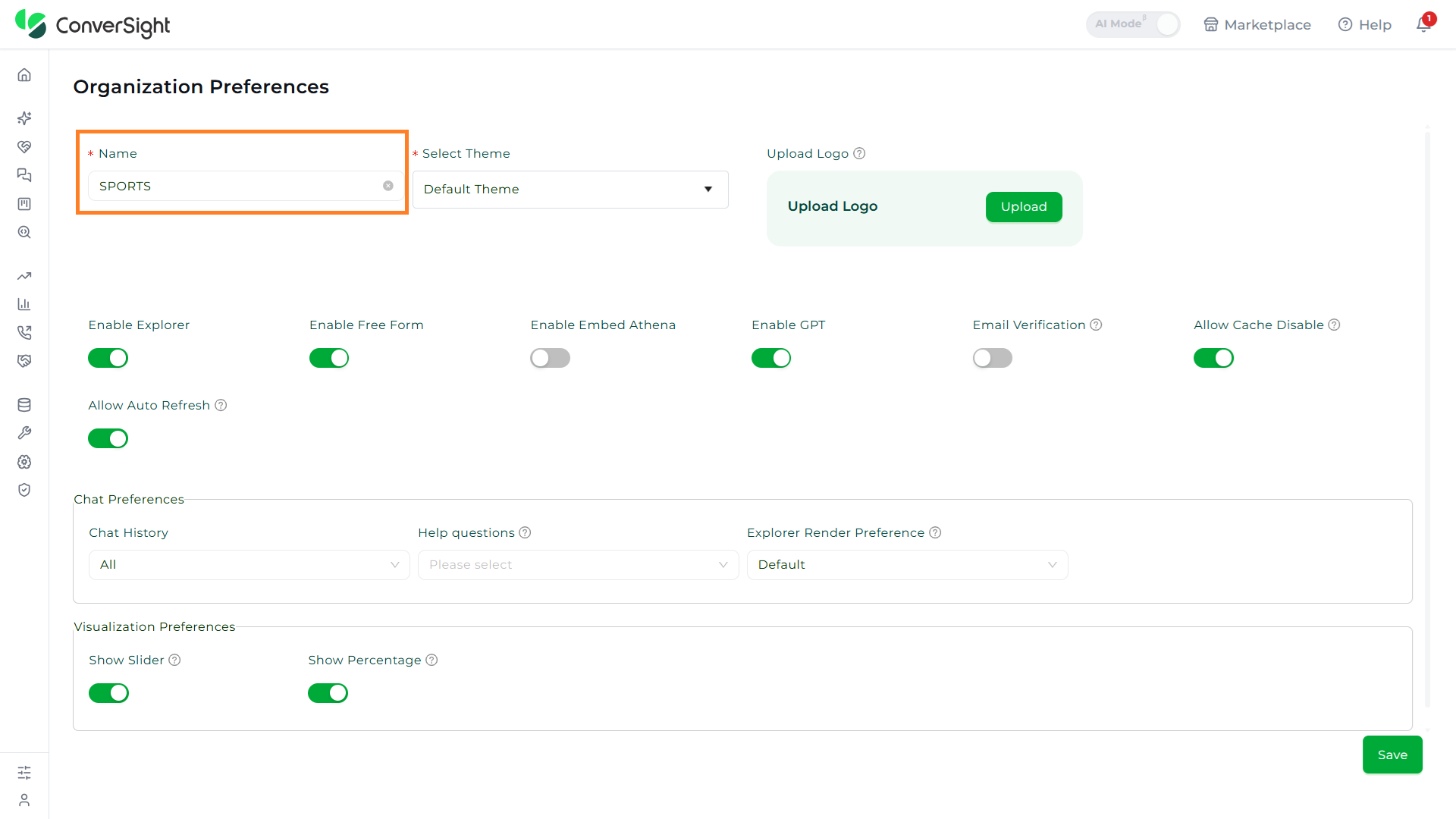
The Name field carries the organization's name as it appears across the ConverSight workspace. The field is mandatory and updating it refreshes the organization name shown to every user once the changes are saved.
Select Theme
The Select Theme dropdown lets administrators choose the visual theme applied to the workspace. The Default Theme is the active value out of the box; picking a different theme from the dropdown swaps the workspace appearance once the changes are saved.

Upload Logo
The Upload Logo option lets organizations replace the default ConverSight logo with their own logo, reinforcing brand identity throughout the workspace.
Step 1: Open the upload dialog
Click on the Upload button inside the Upload Logo card on the Organization Preferences page to open the logo upload dialog.

Step 2: Select the logo file
In the upload dialog, choose the logo file from the local system and confirm the upload to attach the new logo to the workspace.

Additional Features
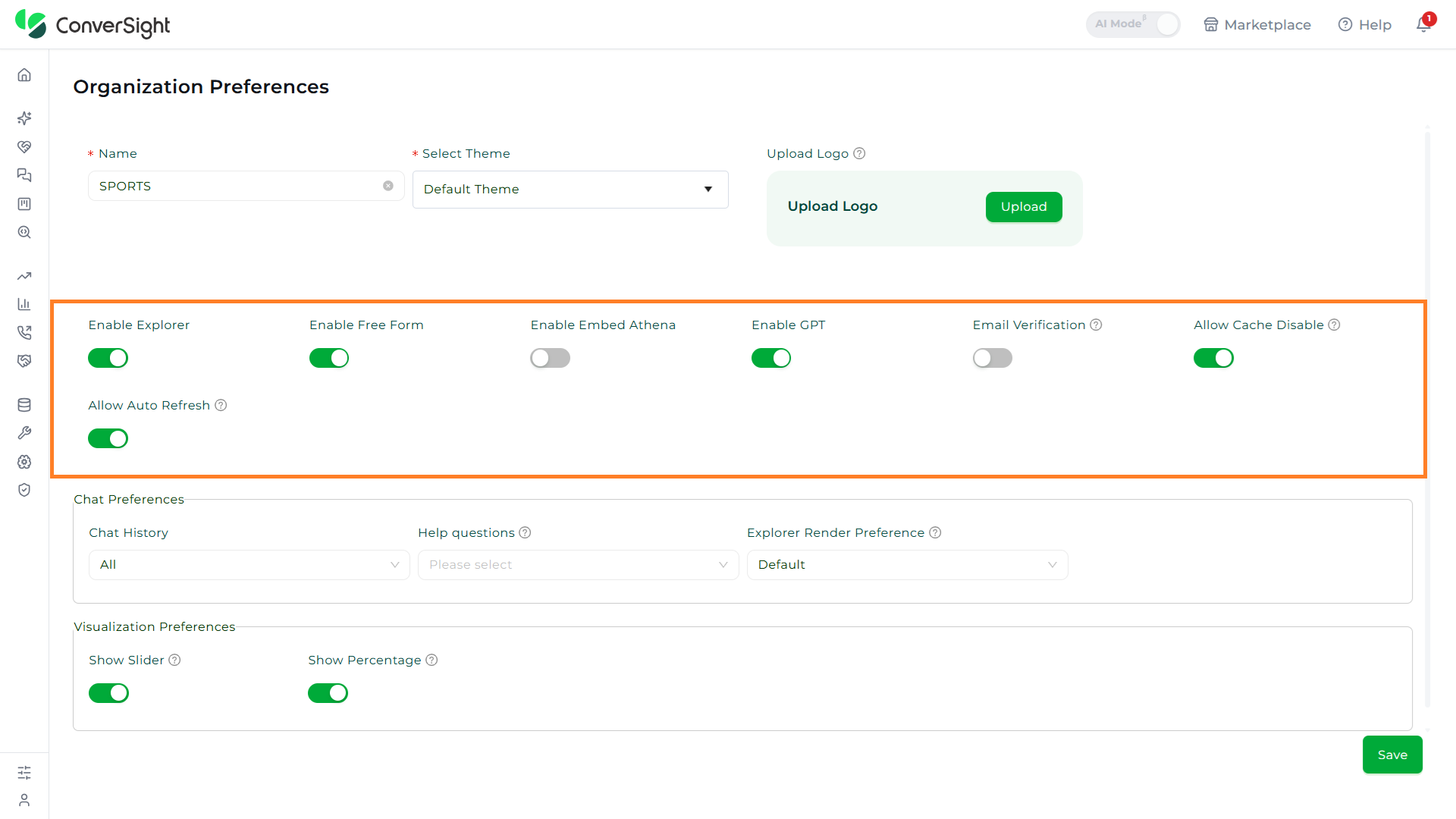
The Additional Features row gives administrators a single place to switch organization-wide capabilities on and off, tailoring the workspace to match the organization's needs.
| Feature | Description |
|---|---|
| Enable Explorer | Enables or disables the Explorer feature from the top menu bar. |
| Enable Free Form | Activates the Free Form capability, contributing to the insights generated during analysis. |
| Enable Embed Athena | Turns the Embed Athena capability on or off across the workspace. |
| Enable GPT | Enables ConverSight GPT, an advanced conversational AI, to facilitate human-like interactions and make the querying process effortless. |
| Email Verification | Controls email verification during login. When disabled, the email is not verified and the login flow moves directly to the password screen. |
| Allow Cache Disable | Turns the option to disable caching on or off for the workspace. |
| Allow Auto Refresh | Turns automatic data refresh on or off for the workspace. |
Chat Preferences
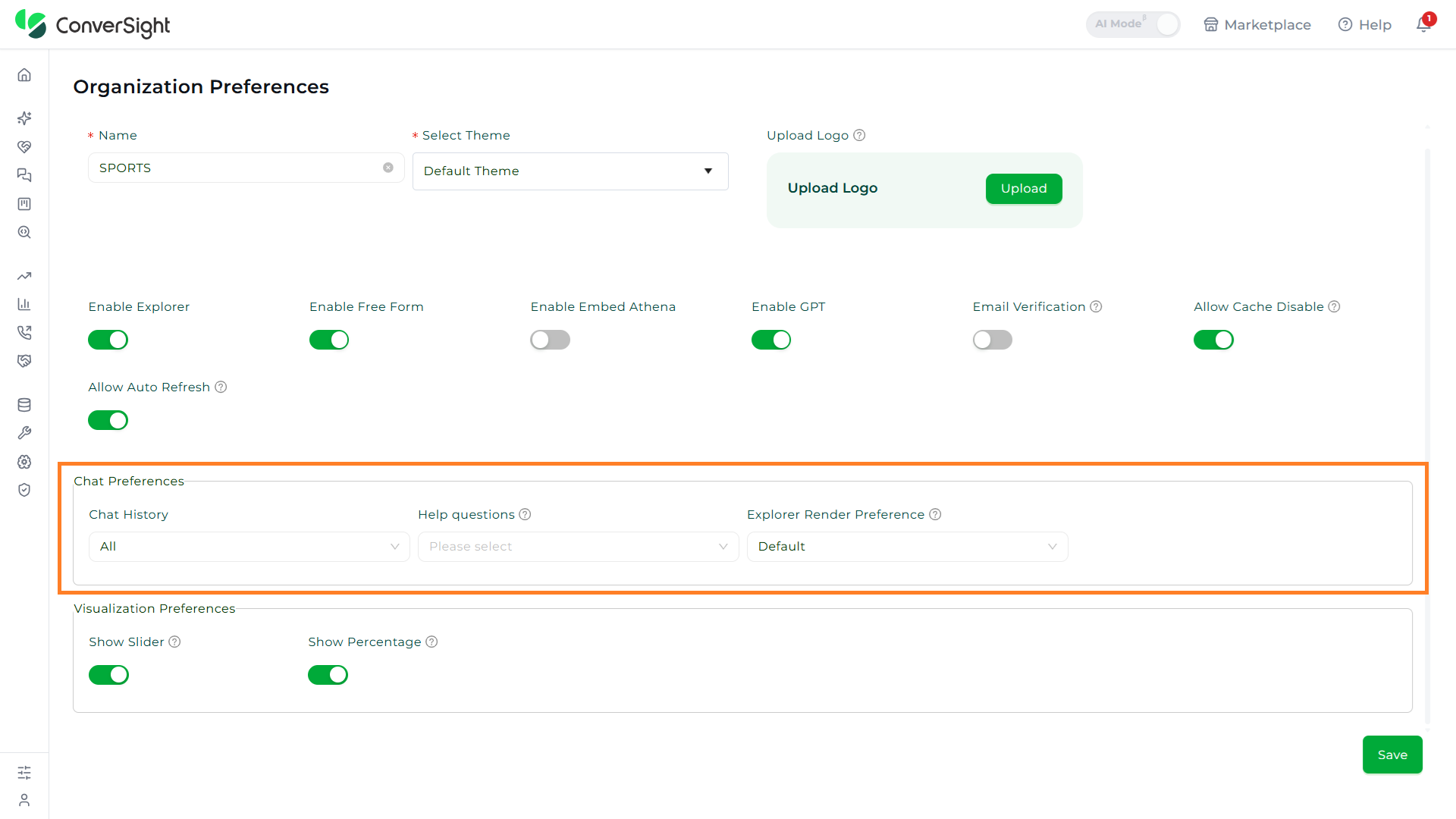
The Chat Preferences card lets administrators shape the chat experience for users across the organization through three dropdown controls — Chat History, Help questions, and Explorer Render Preference.
Chat History
The Chat History dropdown lets users customize their view of the Athena web chat conversation exclusively for themselves. Three options are available:
- Successful: Displays all successfully generated insights.
- Failed: Lists all failed insights in Athena chat.
- All: Presents both successfully generated and failed insights in the Athena chat conversation.

Help Questions
The Help questions dropdown controls whether suggested Help Questions are displayed in the chat window each time a user logs in. Three options are available:
- Disabled: Hides the Help Questions from the chat window.
- Enable with click execution: Displays the Help Questions, and clicking on a question executes the corresponding query in Athena chat.
- Enable without click execution: Displays the Help Questions in the chat window without executing queries on click.

Explorer Render Preference
The Explorer Render Preference dropdown sets how Data Explorer insights are rendered when they appear in chat responses.

Visualization Preferences
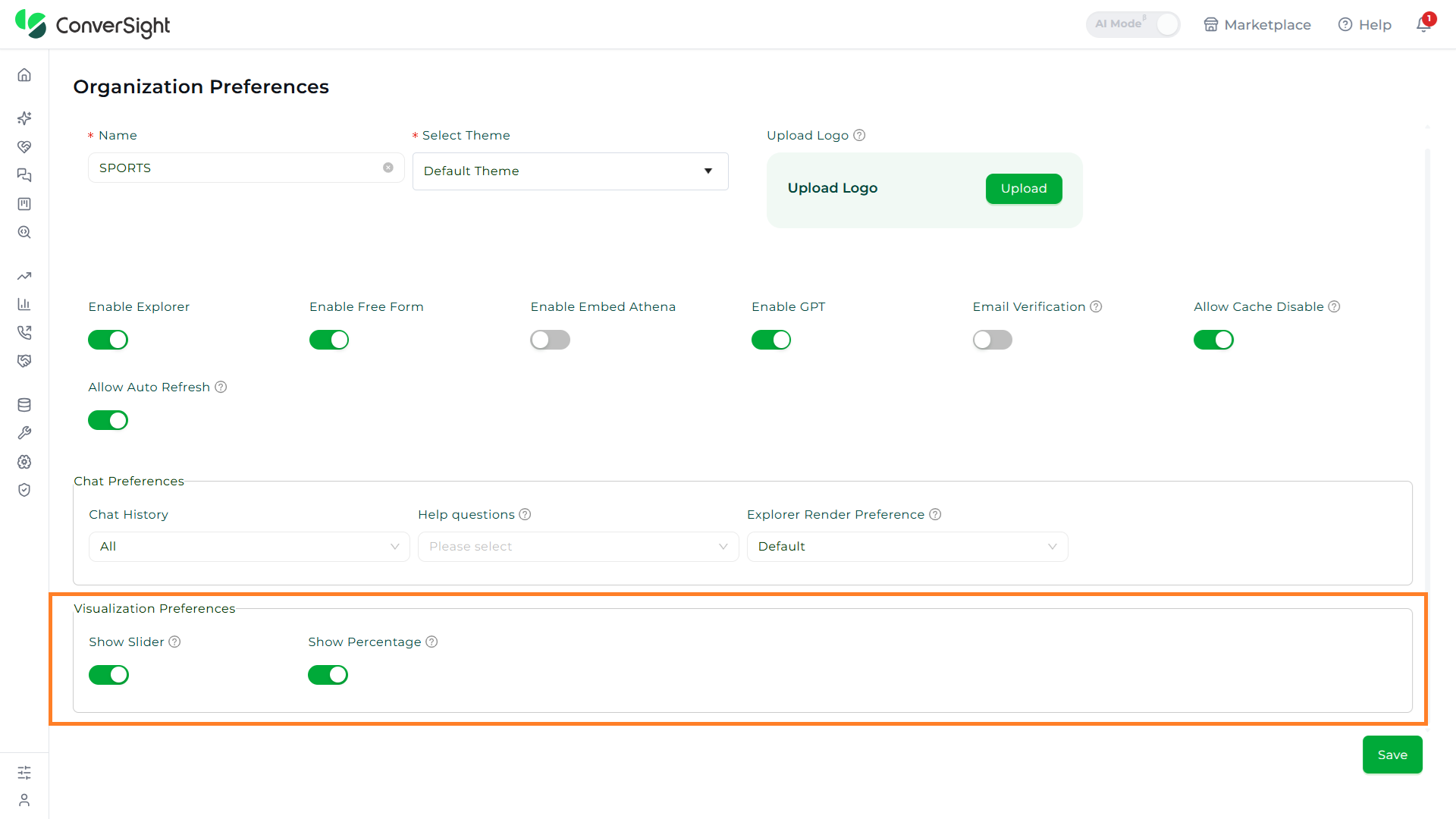
The Visualization Preferences card gives administrators control over how charts and visuals are presented across the workspace through two toggles:
- Show Slider: Turns slider controls on visualizations on or off.
- Show Percentage: Turns percentage values on visualizations on or off.
Saving Changes
Click on the Save button at the bottom-right of the Organization Preferences page to commit all changes and apply them across the workspace.
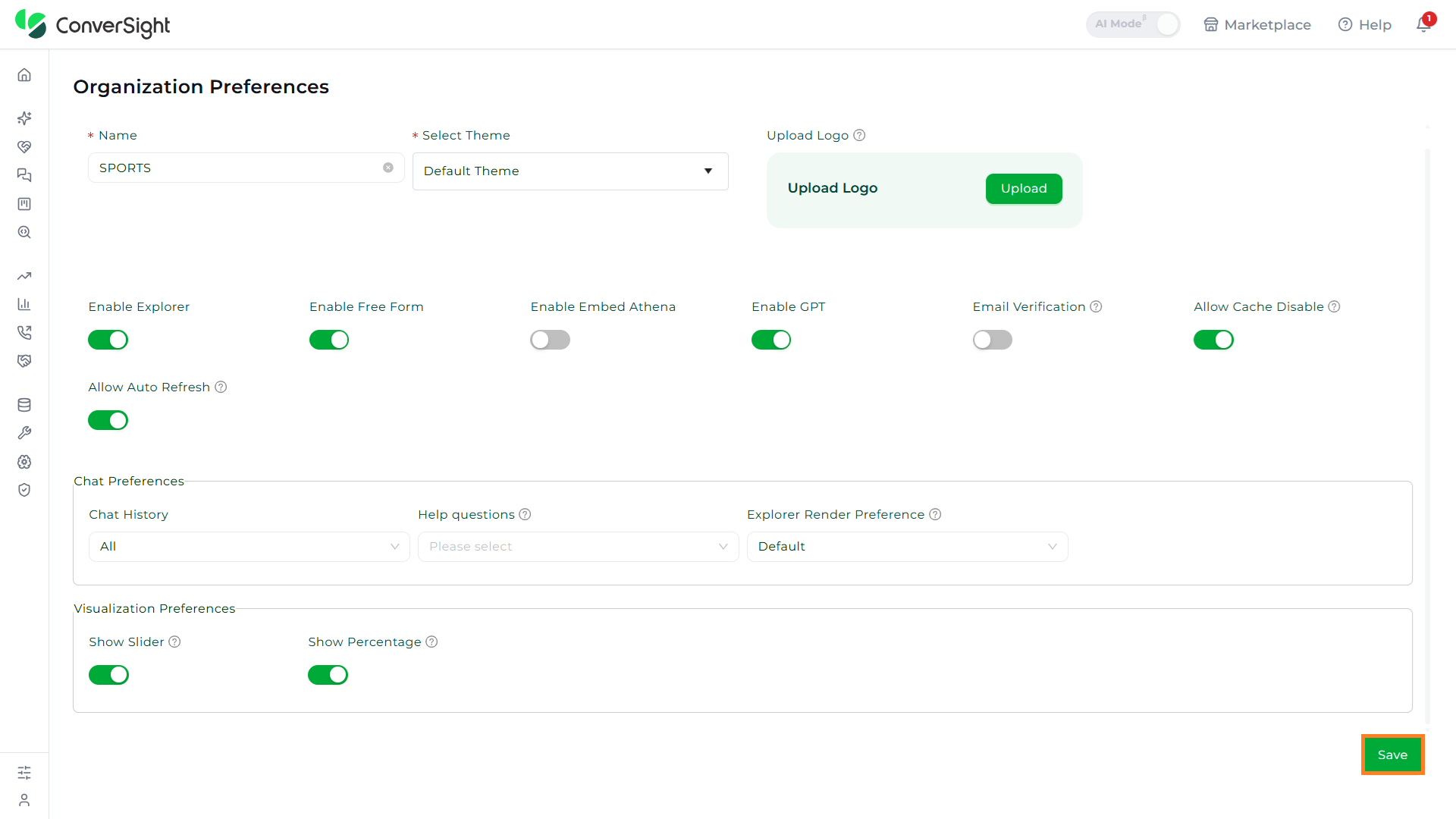
Changes saved on the Organization Preferences page take effect immediately for every user in the organization.