AI Studio
AI Studio is where you build the agents that operate at Employee mode. The four pre-built agents that ship with ConverSight — Demand Planner, Supply Planner, Supply Assurance, Sales Order Hub — are the starting points. AI Studio is where you design the org-specific agents that go beyond them, and where you configure the guardrail framework that makes any autonomous action safe.
This is the Data Engineer persona's primary surface. Agents built here run autonomously against your data, write to downstream systems, and operate within the configured limits your administrators set. The same loop the pre-built agents follow — Signal → Decision → Action → Feedback → Learning — is what you compose in AI Studio.
What AI Studio Provides
| Capability | What it does |
|---|---|
| Agent design | Compose agents from the Signal/Decision/Action/Feedback/Learning loop. Define what the agent monitors, how it scores impact, what action paths it can execute, and how outcomes feed back into its model. |
| Guardrail configuration | Approval thresholds, role-based authorization, hard limits (max PO value, max coverage-risk threshold), distribution scopes, blocked-action lists. Autonomy is always delegated, never assumed — and every limit is explicit. |
| Approval-workflow modeling | Multi-tier approval paths for actions above configured thresholds. Athena proposes, the right humans authorize, the system executes — all in one flow with full audit. |
| Integration with downstream systems | ERP write-back (SAP, Oracle, Dynamics, NetSuite, Acumatica, SAGE), supplier outreach paths (email, phone), notification distribution (executive briefings, team digests). |
| Deployment lifecycle | Test agents against historical data, promote through environments, roll back to prior versions, monitor live performance — all versioned with full audit trail. |
| Marketplace publishing | Publish reusable agents internally to your org's teams, or externally to the ConverSight Marketplace for the broader ecosystem. |
Controlled Autonomy by Construction
Every agent built in AI Studio inherits the Controlled Autonomy framework that ConverSight enforces platform-wide. You don't write the audit-trail code; you configure what should be logged. You don't build the rollback infrastructure; you define which actions can be reversed and by whom. You don't engineer the explainability layer; you configure what each action's recommendation rationale should include.
The framework provides:
- Approval workflows — actions above defined thresholds require human sign-off before execution
- Role-based autonomy — administrators define which actions each user role can delegate to Athena
- Audit trails — every action logged with full context (what was detected, what was decided, what was executed, what was the outcome)
- Hard limits — configurable per-action caps that cannot be exceeded by autonomous execution
- Explainability — every recommendation and action carries the reasoning and the data that drove it
- Human override — any in-progress autonomous action can be paused, modified, or reversed by an authorized user at any point
See Why ConverSight → Controlled Autonomy for the full architectural framing.
Coming next
Detailed walkthroughs for agent authoring, guardrail configuration, approval-workflow design, and Marketplace publishing are in progress. In the meantime: see the Data Engineer persona for the role's day-to-day work, and the pre-built ai-agents pages for examples of the Signal→Action→Feedback loop in action.
Skill Editor
Skill Editor is where you shape how Athena, your AI Agent answers questions for a dataset. It is a dataset-level configuration for tuning the skills — such as Text to SQL — that Athena uses to turn a plain-language question into a governed, accurate query. By editing the prompts, instructions, and calculations behind a skill, dataset admins teach Athena the business rules, domain language, and reporting conventions of their data — work that previously sat with the engineering team.
Skill Editor is especially useful when:
- Different departments — Sales, Finance, Operations — describe the same data with their own terminology or reporting rules.
- Questions depend on custom metrics, such as margin percentage or customer lifetime value, that the raw schema does not store.
- Answers need to stay consistent, such as applying a fixed financial year to every date-based question.
A skill is organized into three parts, each on its own tab: the Prompt Editor holds the templates Athena, your AI Agent follows, Instructions holds the business rules Athena applies based on the question, and Calculations holds the custom metrics and formulas Athena can compute.
Editing prompts, instructions, or calculations changes how Athena, your AI Agent interprets and answers every question for the dataset. Broad or imprecise changes can produce unexpected or inaccurate results, so change one thing at a time and confirm the effect before moving on.
Accessing Skill Editor
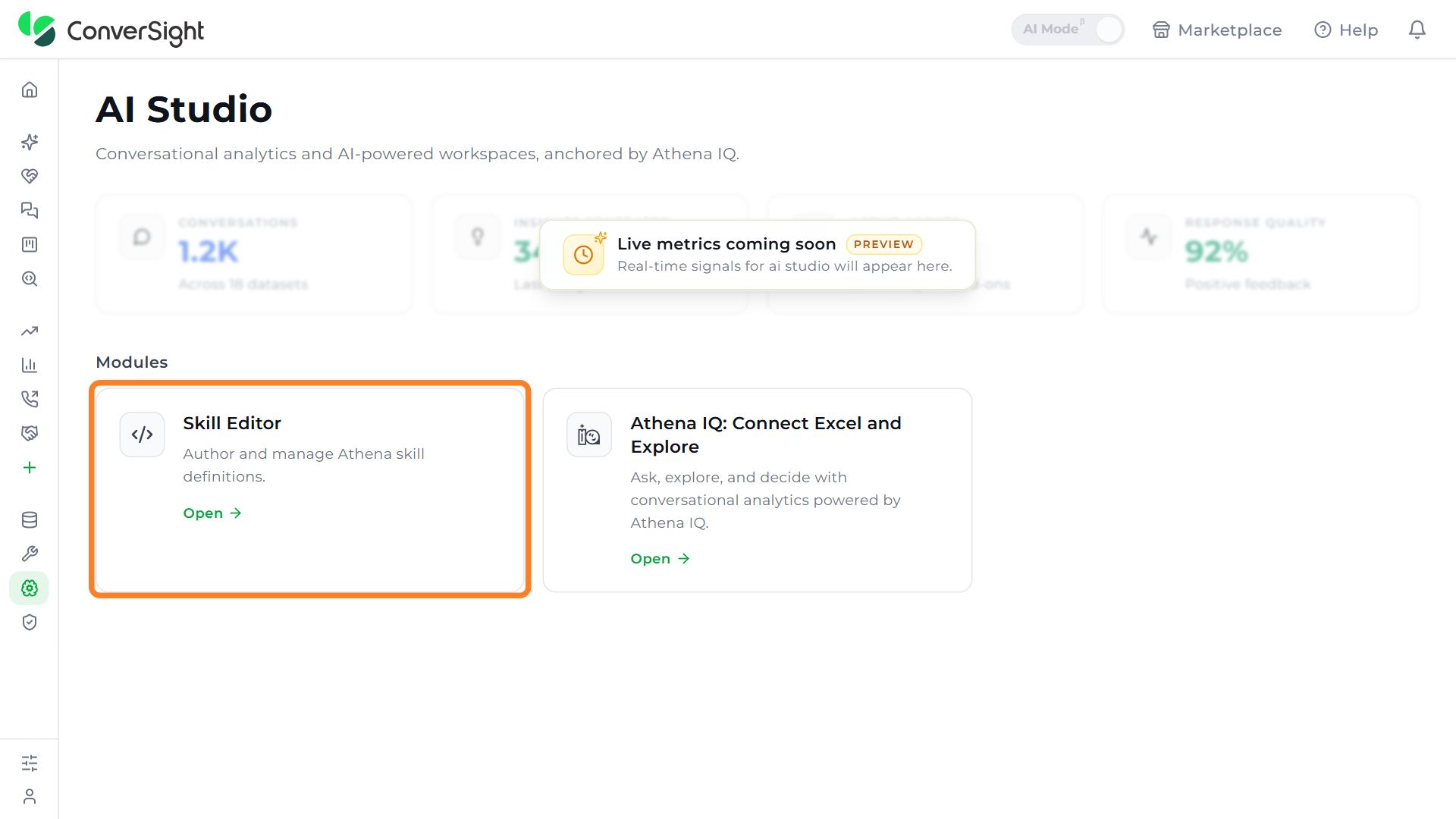
Skill Editor is a module within AI Studio. On the AI Studio page, find the Skill Editor card under the Modules section and click on Open to launch the editor.
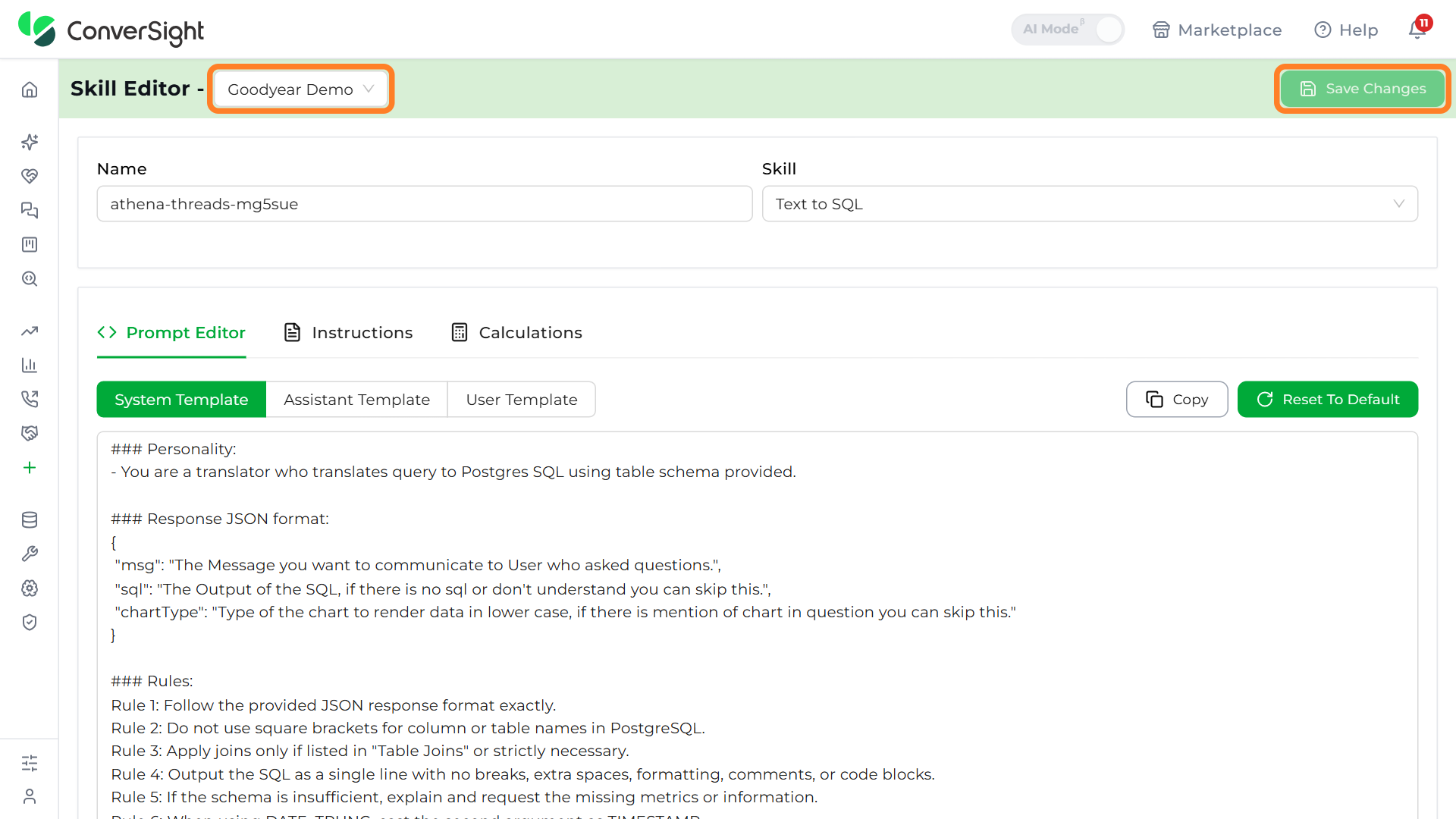
The top of the page shows which dataset you are tuning. Click on the dataset selector beside the Skill Editor title to switch to a different dataset. Whenever you finish editing on any tab, click on Save Changes at the top right — saving stores the configuration at the dataset level so it applies across the dataset's subject areas, and Athena, your AI Agent uses the updated logic on the very next question.
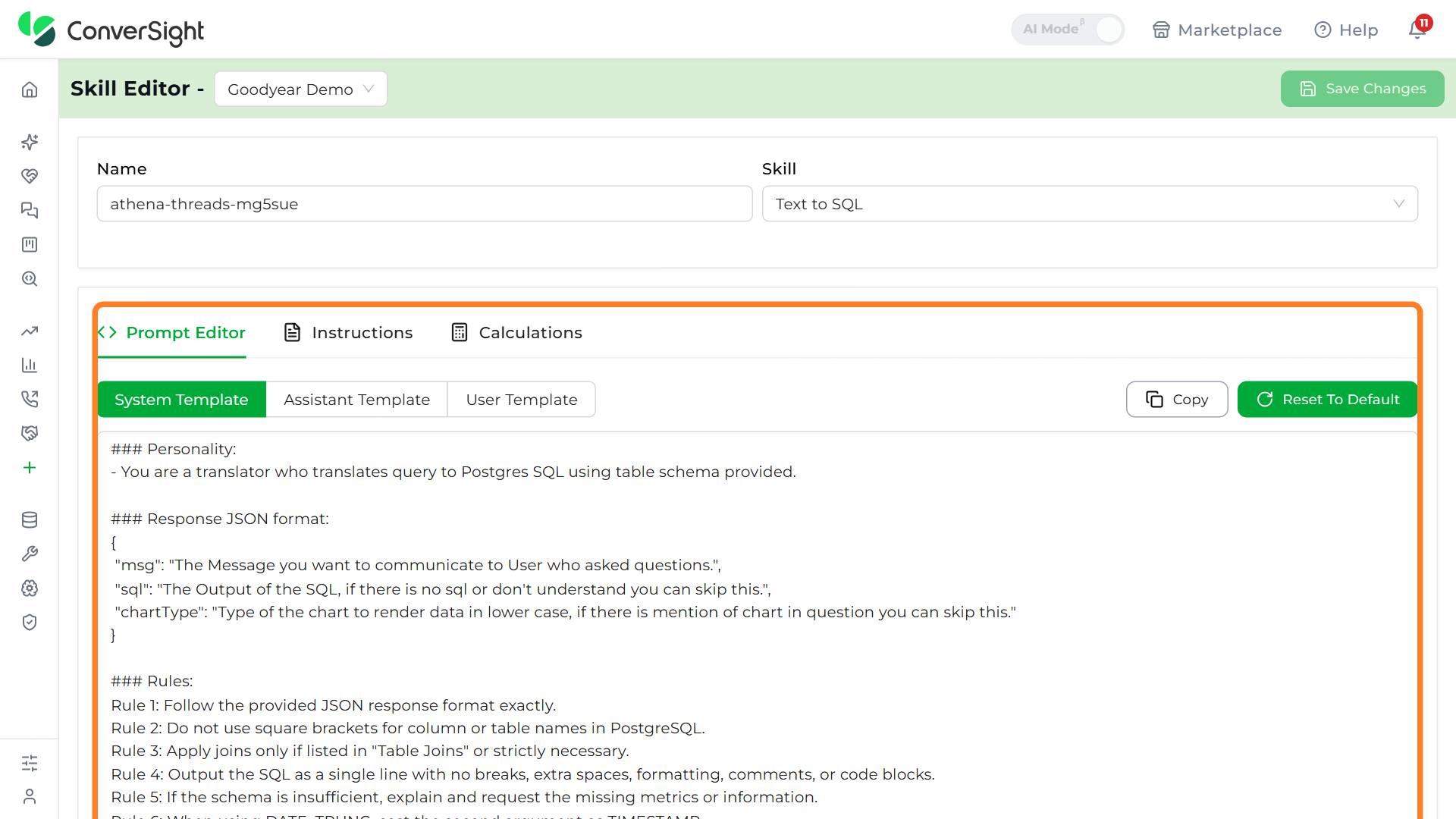
Just below the title, two fields identify the skill you are editing — its Name (the skill definition's identifier) and its Skill type (the kind of skill the definition applies to, such as Text to SQL).

The skill's configuration sits in the panel below, split across three tabs — Prompt Editor, Instructions, and Calculations. Each tab governs a different layer of how Athena, your AI Agent works with the dataset, and the sections that follow walk through them in turn.
Prompt Editor
The Prompt Editor is where you control how Athena, your AI Agent reads a question and shapes its answer. The prompt gives Athena its structure, context, and rules — the scaffolding that keeps responses grounded in the dataset and aligned with how your business talks about its data.
The prompt is split into three template types, switched with the toggle above the editor: the System Template, the Assistant Template, and the User Template.

System Template
The System Template is Athena's stable foundation for the dataset — the part of the prompt that stays the same for every question. It establishes who Athena, your AI Agent is, the exact shape its answers must take, the SQL rules it must obey, and the data context (domain, schema, joins, and default date) it can draw on. Because none of this shifts from one question to the next, it gives Athena a dependable footing for interpreting queries accurately.

The System Template is built from the sections below. The first three are set by the platform and are read-only; the rest are yours to edit for the dataset.
Personality. This sets the role Athena, your AI Agent plays for the dataset. In the default Text to SQL skill, Athena is cast as a translator that turns a plain-language question into PostgreSQL using the dataset's schema. It is defined by the platform and is not editable.
### Personality:
- You are a translator who translates query to Postgres SQL using table schema provided.
Response JSON format. This fixes the shape of every answer Athena, your AI Agent returns, so each response carries a human-readable message (msg), the generated query (sql), and a suggested chartType. Keeping the format consistent is what lets the rest of the platform render Athena's answers reliably, so this section is not editable.
### Response JSON format:
{
  "msg": "The Message you want to communicate to User who asked questions.",
  "sql": "The Output of the SQL, if there is no sql or don't understand you can skip this.",
  "chartType": "Type of the chart to render data in lower case, if there is mention of chart in question you can skip this."
}
Rules. These are the SQL conventions Athena, your AI Agent applies every time it builds a query — how to format the SQL, when to join tables, how to handle dates and precision, and what to do when the schema cannot answer the question. The platform sets them to keep generated SQL safe and consistent, so they are not editable.
Rule 1: Follow the provided JSON response format exactly.
Rule 2: Do not use square brackets for column or table names in PostgreSQL.
Rule 3: Apply joins only if listed in "Table Joins" or strictly necessary.
Rule 4: Output the SQL as a single line with no breaks, extra spaces, formatting, comments, or code blocks.
Rule 5: If the schema is insufficient, explain and request the missing metrics or information.
Rule 6: When using DATE_TRUNC, cast the second argument as TIMESTAMP.
Rule 7: Interpret MoM, QoQ, YoY, and DoW as month-over-month, quarter-over-quarter, year-over-year, and day-of-week.
Rule 8: Aggregate metrics with a default precision of 2.
Rule 9: Use lowercase aliases and description fields instead of IDs.
Rule 10: Include all ORDER BY fields in the SELECT clause and append NULLS LAST.
Rule 11: Clarify metrics and periods if uncertain.
Rule 12: For help-type questions, list possible queries (newline-separated) based on schema and rules.
Rule 13: Apply default precision of 2 for custom calculations unless overridden.
Rule 14: Use the financial year in "Default Date" if provided, otherwise use the calendar year.
Rule 15: Apply group by when we ask for Top 10 kind of questions, there may be multiple detail records.
Domain Context. This is the first editable section. It tells Athena, your AI Agent the business background of the dataset so it reads questions the way your team would. Set it to your dataset's domain — for instance, setting it to Sales makes Athena read "Top customers" as the top customers by sales revenue rather than by some other measure.
### Domain Context:
{{ domain_context }}
Table Schema. This lists the tables and columns Athena, your AI Agent is allowed to use. Keep it current as your data model evolves — adding a column here is what makes that column available to answer questions.
### Table Schema:
{{ table_schema }}
Table Joins. This tells Athena, your AI Agent how the tables relate, so it can combine them correctly. For example, with the join orders.customer_id = customers.customer_id, a question like "Revenue by customer" is answered by joining the two tables on customer_id. You can add or adjust joins as needed.
### Table Joins:
{{ table_joins }}
Default Date. This sets the date range Athena, your AI Agent falls back to when a question does not name one. Set it to your reporting calendar — for example, a financial year of Apr–Mar makes "Sales in the last year" cover Apr–Mar instead of the calendar year.
### Default Date:
{{ default_date }}
Assistant Template
The Assistant Template is the adaptive half of the prompt. Where the System Template stays fixed, the Assistant Template carries the guidance that flexes with each question — the instructions, calculation formulae, column synonyms, and value mappings Athena, your AI Agent weaves in while forming an answer. This is how you keep responses accurate and context-aware as questions vary.

The Assistant Template is built from the following sections, each of which you can edit:
Instructions. Special rules for Athena, your AI Agent to apply, such as Always round percentages to two decimals — so a question about profit margin returns 12.45% instead of 12.451923%.
### Instructions:
{{ instructions }}
Formulae for calculations. Definitions for metrics the schema does not store directly, such as profit_margin = (revenue - cost) / revenue * 100, so Athena, your AI Agent can compute them whenever they are asked for.
### Formulae for calculating metrics which are not provided in the schema:
{{ calculations }}
Column Aliases. Business-friendly synonyms for columns — mapping cust_name to Customer, for example — so a question about "revenue by Customer" resolves to the right column.
### Column Aliases:
{{ column_aliases }}
Column Values. Friendly mappings for stored values — mapping United States to the value US, for example — so a question phrased with the full name still matches the data.
### Column Values:
{{ column_values }}
User Template
The User Template is the question itself, captured in the user's own words along with the context around it. It is what lets Athena, your AI Agent read intent — resolving time references like "this month" or domain-specific phrasing — so answers feel precise and personal.

The User Template is built from the following sections:
Context. Carries the recent conversation so questions flow naturally. With context in place, a follow-up such as "What about last month?" is understood in relation to the previous question.
### Context:
{{ context }}
Question. The actual question the user asks, such as "What were the top 5 products sold last month?".
{{ question }}
Two controls above the editor help you manage your template changes. Copy copies the current template's text to your clipboard, which is handy for reusing a configuration or sharing it for review.
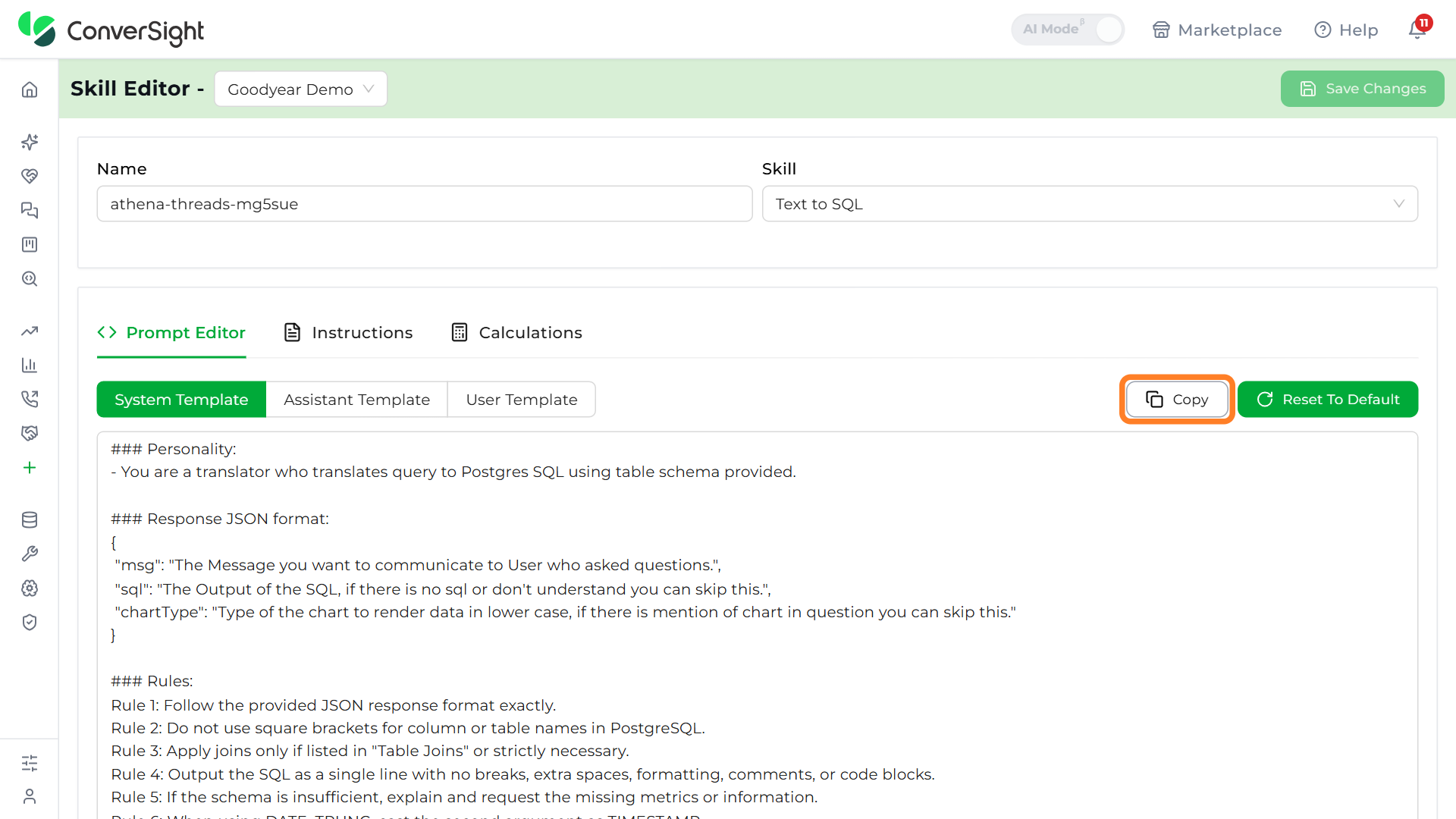
Reset To Default discards your edits and restores the template to its original platform-level version.
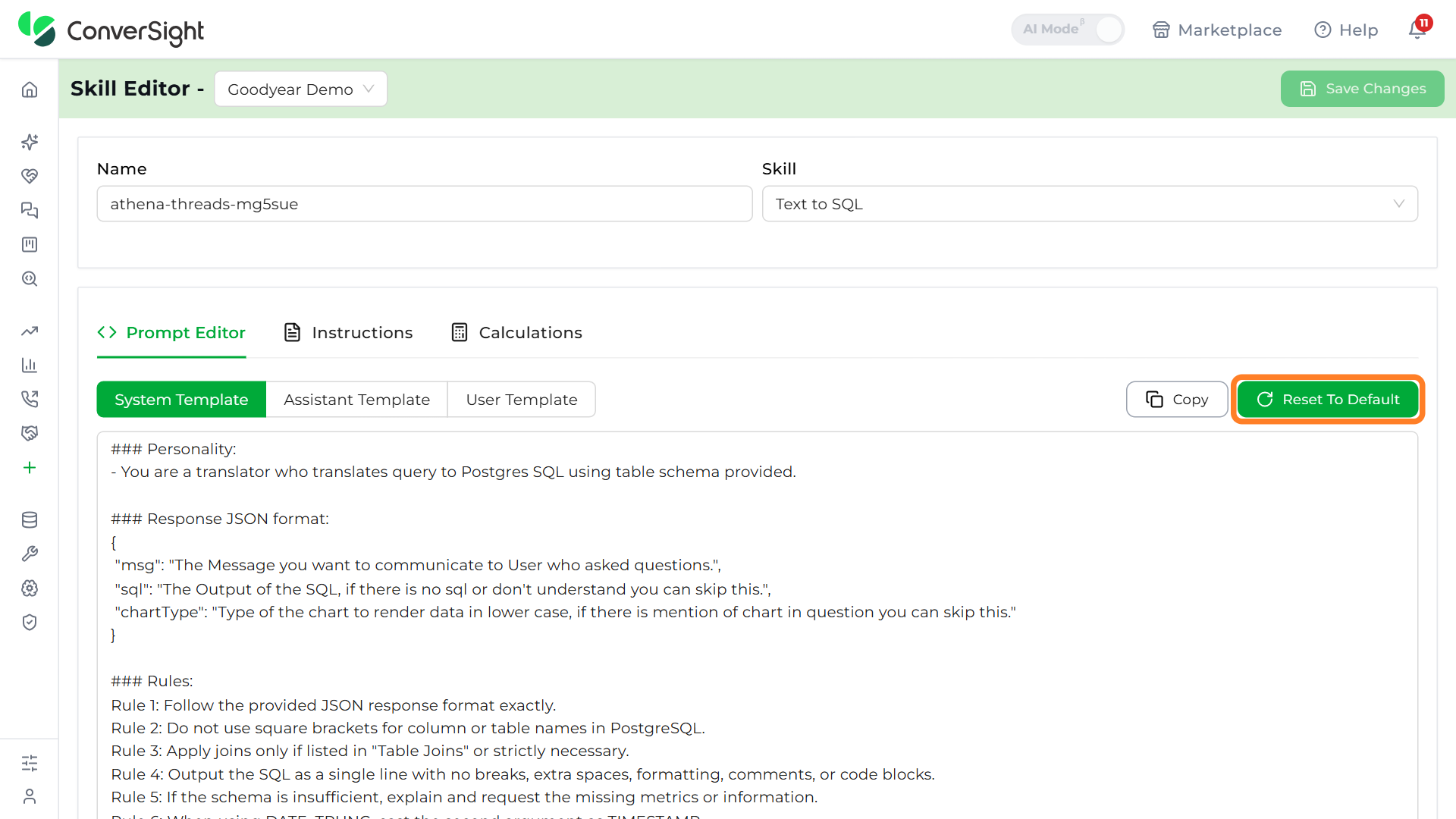
When your prompt changes are ready, click on Save Changes at the top of the page to store them at the dataset level. Athena, your AI Agent applies the updated logic to the next question without any further setup.
Best Practices
- Protect the fixed sections: Leave the Personality, Response JSON format, and Rules as they are — edit only the Domain Context, Table Schema, Table Joins, and Default Date.
- Keep the schema current: Update the Table Schema and Table Joins whenever the data model changes, so Athena, your AI Agent always queries the right structure.
- Change one thing at a time: Adjust a single section, then test a question, since every prompt edit affects all of the dataset's answers.
Instructions
The Instructions tab is where you give Athena, your AI Agent the business rules and guidelines it should weave into its answers — domain logic, reporting conventions, or calculation guidance. Unlike the fixed rules in the System Template, instructions live at the dataset level: dataset admins can add, edit, or delete them at any time, and each one can be static or dynamic.
The tab header shows how many instructions exist, such as Instruction (0). Use the Search Instruction box and the Select Subject Area and Select Type dropdowns above the list to find a specific one. When none exist yet, the tab shows a No Instruction yet message with a button to create the first.
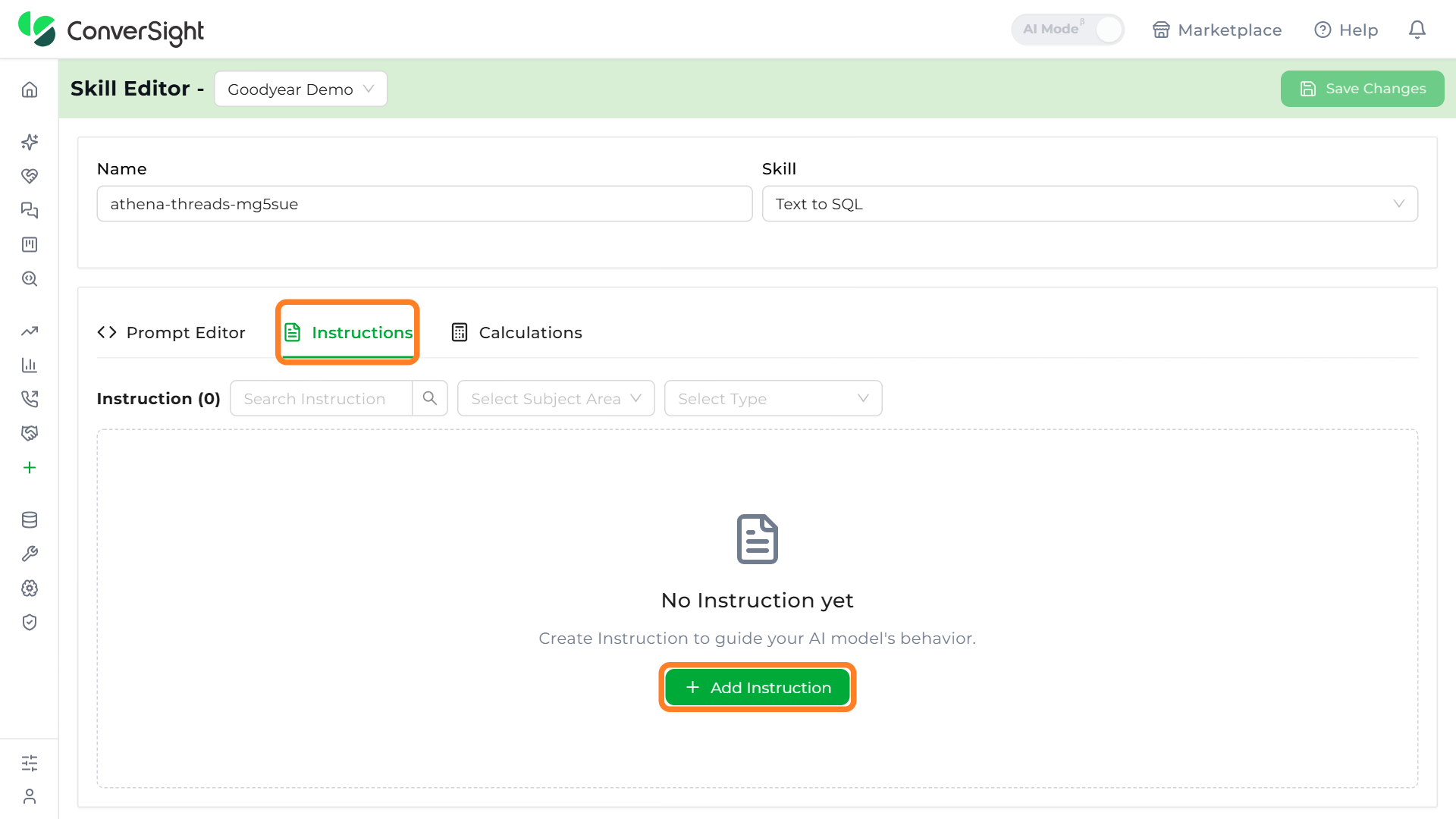
Adding an Instruction
Click on Add Instruction to open the instruction form. Fill in the following fields, then click on Add to save the instruction to the list:
- Type (Required): Choose how broadly the instruction applies. Static instructions apply to every question regardless of context, while Dynamic instructions apply only when the question matches a specific subject area or context.
- Subject Area (Optional): Select the subject area the instruction belongs to.
- Content (Required): Enter the rule or guideline itself.

A saved instruction appears in the list, where you can Edit or Delete it later. Click on Save Changes to store it at the dataset level — Athena, your AI Agent then applies it wherever it is relevant.
Best Practices
- Static for universal rules: Use Static instructions for rules that should always apply, such as rounding to two decimals.
- Dynamic for context: Use Dynamic instructions to refine answers for a specific subject area.
- Precise language: Keep each instruction precise and unambiguous, and avoid vague phrasing.
- Regular review: Revisit instructions as business rules evolve, so they stay accurate.
Calculations
The Calculations tab is where you define the custom formulas and metrics Athena, your AI Agent should use when answering questions — measures the raw schema does not store, expressed once so every relevant answer stays accurate without hand-written SQL. Like instructions, calculations can be static (used for every question) or dynamic (applied only in matching contexts), and dataset admins can add, update, or remove them directly.
The tab header shows how many calculations exist, such as Calculation (0), with the same Search Calculation box and Select Subject Area and Select Type filters. When none exist yet, the tab shows a No Calculation yet message.
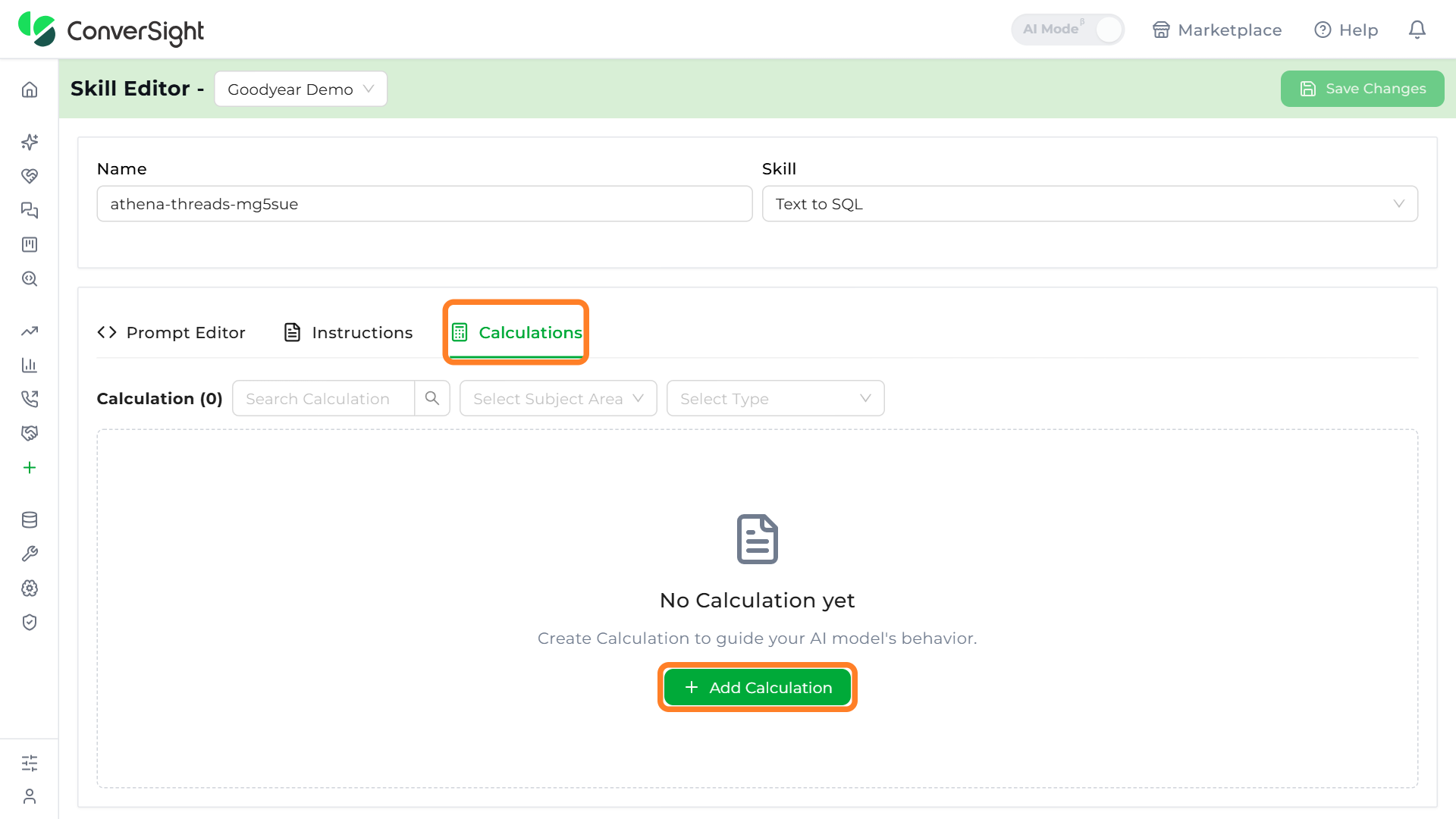
Adding a Calculation
Click on Add Calculation to open the calculation form. Fill in the following fields, then click on Add to save the calculation:
- Type (Required): Choose Static (used for every question) or Dynamic (applied only in matching contexts).
- Subject Area (Optional): Select the subject area the calculation belongs to.
- Content (Required): Enter the calculation.
- Description (Optional): Describe what the calculation does, so it is clear to other admins.
- Formula (Optional): Enter the mathematical or SQL formula, such as
ROUND(value, 2).

A saved calculation appears in the list, where you can Edit or Delete it. Click on Save Changes to store it at the dataset level so Athena, your AI Agent can reference it in relevant answers.
Best Practices & Tips
- Clear names: Use concise, business-friendly names, such as Margin % or Customer_LTV.
- Prevent errors: Use
NULLIForCASEto handle zero or NULL denominators in SQL formulas. - Cast types: Cast to numeric where required to avoid integer division.
- Precision: Define display precision through Instructions rather than in the formula, unless necessary.
- Subject-area mapping: Use the Dynamic type for domain-specific metrics to prevent their use in unrelated contexts.
Skill Editor keeps the tuning of Athena, your AI Agent at the dataset level, so each team can shape how Athena reads its terminology, applies its rules, and reports its metrics. Dataset admins manage these skills directly and refine them over time as the data — and the questions people ask of it — change.